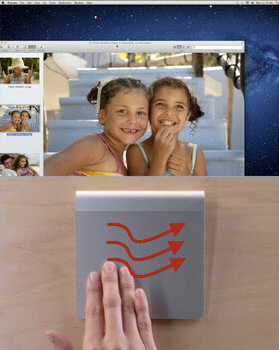
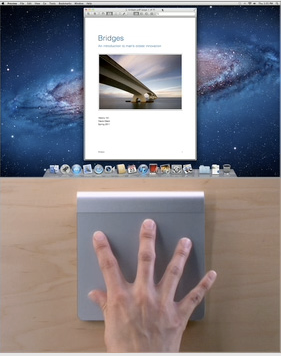
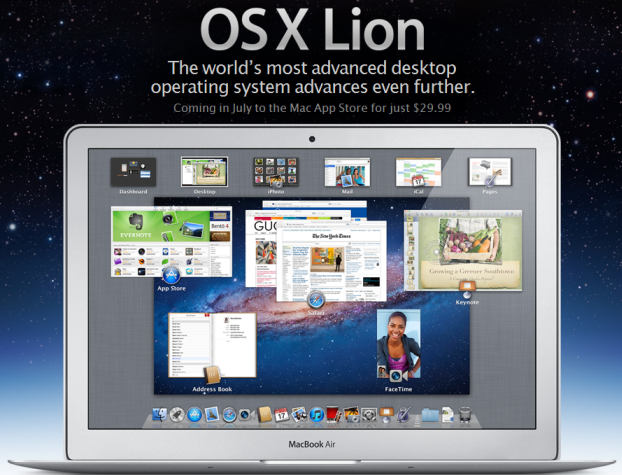
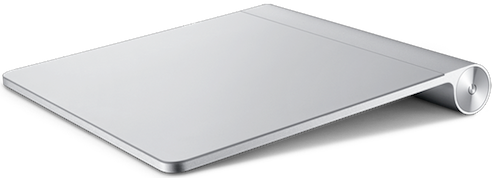
 One of the biggest changes in Lion is the introduction of iOS like features and greater use of Trackpad gestures instead of mouse movements. If you’re completely new to Trackpads, or just use yours like a finger controlled mouse, gestures are basically the same kind of hand movements and finger strokes that you use to navigate a touchscreen phone.
Gestures allow you to open, close, rotate, move, select, start, change, query simply with a few finger movements. Lion features a new System Preferences pane for Trackpad movements and each gesture has a video tutorial to help you get going. Here’s our guide to getting the most our of gesture of Lion:
Tap to click
A classic single click.
Secondary Click
This is the equivalent of a right-click. You can get it by choosing between three options: a touch on the trackpad with two fingers, a single finger touch in the lower right corner of the trackpad, or a single finger touch in the lower left corner of the trackpad.
Search
This probably is the most hidden of all gestures. While surfing the web, with a three finger double click on any word, a pop up appears, showing the definition of the Oxford Dictionary installed by default in the OS. You also get a wide range of synonyms provided by the built-in Thesaurus.
Drag with three fingers
This option is unchecked by default. If selected, by touching the trackpad with three fingers and moving them you’ll move the active window around the screen.