Dropbox lays off 20% of its workforce

Dropbox, the well-known file hosting platform, has laid off 20% of its workforce, affecting 528 workers. The purpose of this measure is to adjust expenses in areas where the company had “overinvested” and to streamline its structure to be “flatter and more efficient,” as explained by Dropbox CEO, Drew Houston, in a letter addressed to his team. In the letter, Houston takes full responsibility for this decision, expressing his regret for the affected employees. The CEO noted that “this market is moving quickly and investors are investing hundreds of millions of dollars” in the sector, […]

Dropbox, the well-known file hosting platform, has laid off 20% of its workforce, affecting 528 employees. The purpose of this measure is to adjust expenses in areas where the company had “overinvested” and reduce its structure to make it “flatter and more efficient,” as explained by Dropbox CEO, Drew Houston, in a letter addressed to his team. In the letter, Houston takes full responsibility for this decision, expressing his regret for the affected employees.

The CEO has pointed out that “this market is moving quickly and investors are investing hundreds of millions of dollars” into the sector, validating Dropbox’s direction and underscoring the need to act with “greater urgency, even more aggressive investment, and decisive action.” The company estimates that these layoffs will result in a cost of between $63 and $68 million, mainly in the form of severance payments, which will be completed in the fourth quarter of 2024, with the rest planned for the first half of 2025.

In recent years, Dropbox has lost a significant market share to rivals like Google Drive and Microsoft’s OneDrive. In its last quarter, the company added only 63,000 new users to a base of 18 million, and revenue growth slowed to a historic low of 1.9%. Houston acknowledged the “weakening demand” and the difficulty in performing “at the level our customers deserve” and in line with its competitors.

The staff cut comes just a year after the company laid off another 500 workers. During this time, Dropbox has redirected its focus to artificial intelligence, expanding its advanced search tool, Dropbox Dash, with features specifically designed for businesses. Houston hinted that, in the coming days, Dropbox will share “more details about the high-level changes and our strategy for 2025.”

Dropbox DOWNLOAD

Dropbox suffered a serious hack that exposed sensitive data from its users

Dropbox, the well-known cloud storage service, has revealed that a hacker breached its computer systems on April 24, resulting in the leakage of confidential information, including passwords and authentication data. The unauthorized access occurred in Dropbox Sign, formerly known as HelloSign, a company acquired by Dropbox in 2019 that allows for digital document signing.

Dropbox DOWNLOAD

The hack compromised the information of all Dropbox Sign users, including account settings, names, email addresses, and in some cases, phone numbers, hashed passwords, API keys, and OAuth tokens. However, there is currently no evidence that the content of user accounts or payment data has been accessed.

The company ensures that the incident was limited to the Dropbox Sign infrastructure and did not affect other Dropbox products. It also states that it has hired forensic investigators and has notified regulatory authorities. Although Dropbox does not anticipate a “material” impact on its operations or financial situation, the company expects potential litigation and changes in customer behavior due to the incident.

API clients of Dropbox Sign will need to generate new access keys, and will have certain functions temporarily restricted. “Only signature requests and signing capabilities will remain operational for the continuity of your business. Once you rotate your API keys, the restrictions will be lifted and the product will continue to function normally,” says Dropbox.

The company is in the process of notifying affected users and will provide assistance in this regard. This incident adds to previous security issues with Dropbox, such as a phishing campaign in 2022 that allowed a group of hackers to access the company’s GitHub accounts, obtaining confidential information.

Dropbox DOWNLOAD

New Dropbox file sharing feature is absolutely massive

Dropbox Transfer could allow you to easily transfer files up to 100GB in size

First and foremost, Dropbox is a cloud storage company. You sign up to a plan, upload your files, and then you can access them anywhere and on any device with an internet connection. This in itself is extremely useful and puts Dropbox as a competitor with the likes of Google Drive and Microsoft One Drive.

The Cloud is more than a one trick pony though, and Dropbox is now looking to offer its users another extremely useful feature for both personal and enterprise use. You’ll get no prizes, however, for guessing what Dropbox’s newly announced Dropbox Transfer feature is all about.

Dropbox Transfer could allow you to easily transfer files up to 100GB in size

Dropbox Transfer complete

It wasn’t long ago that we told you about Mozilla’s new Firefox Send feature. Firefox Send offers a quick, easy, and free way to send files up to 1GB in size or 2.5GB in size, if you sign up. Dropbox is now moving into this space too but is offering something a little different to the offering from Mozilla. According to the Dropbox blog post announcing Dropbox Transfer, users will be able to send up to 100GB of files at once using the new feature.

Dropbox Download now
7

Dropbox is looking at the limits placed on users by their email clients. Usually, you can only send files up to 25MB in size via email, which isn’t much in today’s digital-first world. Most smartphone cameras these days capture images that are bigger than 25MB and you can forget about emailing somebody a copy of that video you recorded on your last holiday.

As Dropbox is trying to solve an email related problem, the company is looking to make the process as simple as possible and in this way the new Transfer service is a little similar to Firefox Send.

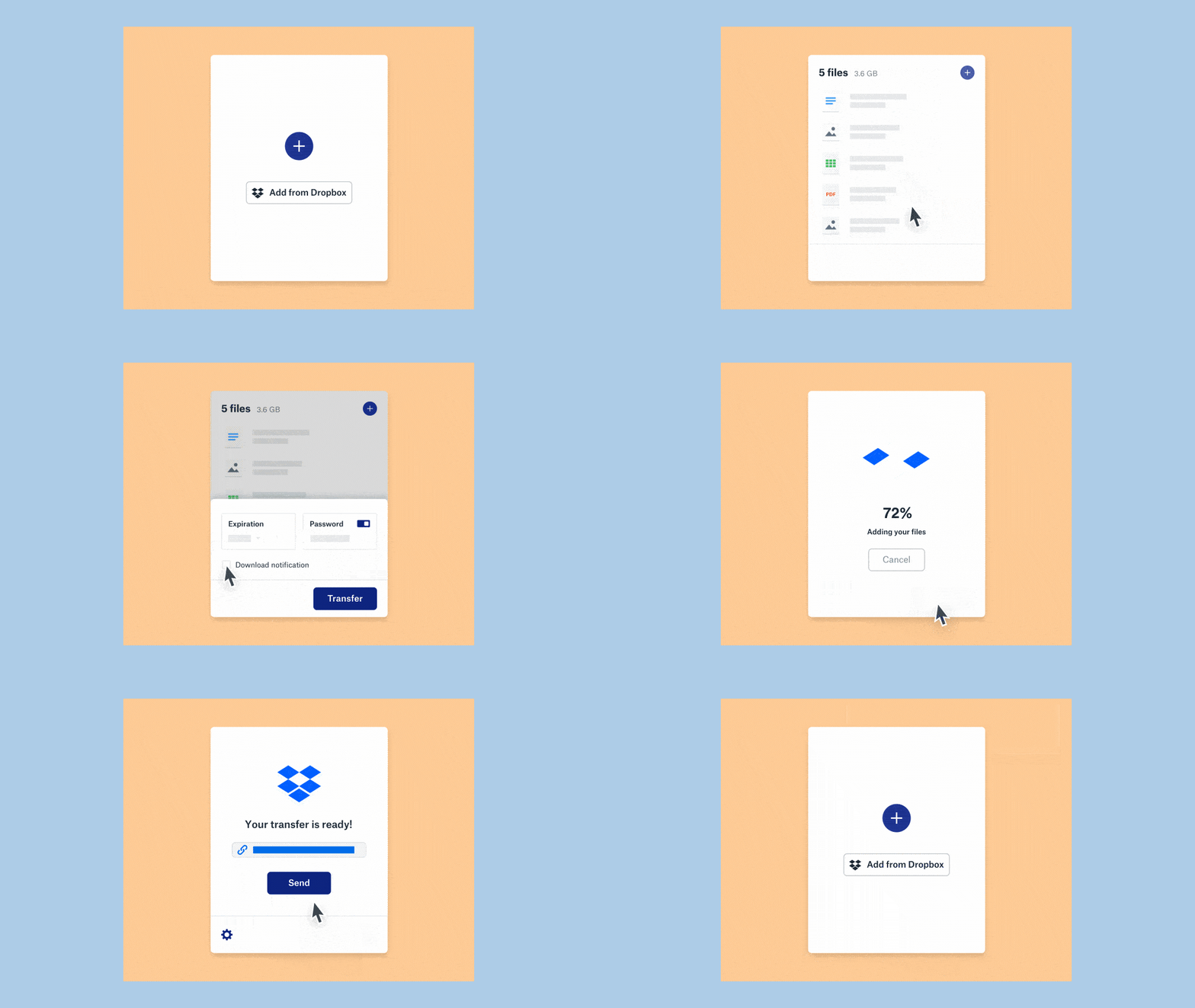
As well as being able to transfer files already uploaded to Dropbox, users will be able to simply drag and drop their files onto the Dropbox Transfer uploader. Once they’ve done this their files will upload and they’ll receive a link, which they’re then free to share. Transfer will also offer the ability to send the file in an automatically generated email.

Dropbox Transfer download notifications

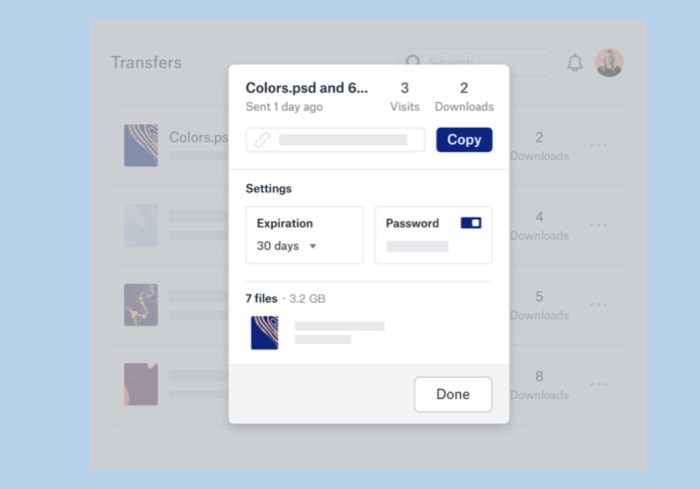
Like with Firefox Send, Dropbox Transfer also gives users the ability to add a password to their link, in case it falls into the wrong hands, and set an expiration date when the link will stop working.

There doesn’t seem to be download limit feature like users of Firefox Send will have access to but a cool Dropbox Transfer feature is the ability to change the expiration date and download password even after the link has been shared. Users will also get download notifications and will be able to see how many times their files have been downloaded.

Dropbox Transfer is currently in the beta testing stage of development, so it isn’t rolling out to all Dropbox users just yet. Once it does though, it’ll offer unique transferring capabilities to them. If you or your business are looking for a way to transfer large files, this could be something worth keeping an eye on.

This Dropbox alternative will make you love the cloud again

pCloud is a cloud storage platform for all your files and folders, available through mobile, desktop and web client. Get 2TB of memories in the cloud with pCloud.

The cloud helps millions of us work, study, and play. How often do you use it? I bet almost every day. From sharing photos to collaborating with friends and colleagues, without the cloud, life would be that little bit harder for all of us.

Familiar cloud storage names like Dropbox, OneDrive, and Google Drive are pretty good at what they do, but here at Softonic, we’re always looking for the best. We love new and innovative ways of tackling old problems, and that’s where pCloud shines.

Founded in 2013, pCloud is making huge strides despite a saturated market. They have over 9 million users, including employees of Coca Cola, Uber, and Nike – an impressive roster that reflects the platform’s enormous benefits.

So let’s find out what makes pCloud so special. You might even want to make the switch yourself…

Your files whenever you need them

pCloud is a cloud storage platform for all your files and folders, available through three different applications:

  1. The web client
  2. The mobile app
  3. The desktop app

While you can use pCloud with all of your devices through the web client alone, I recommend you also download the mobile and desktop apps for their additional features.
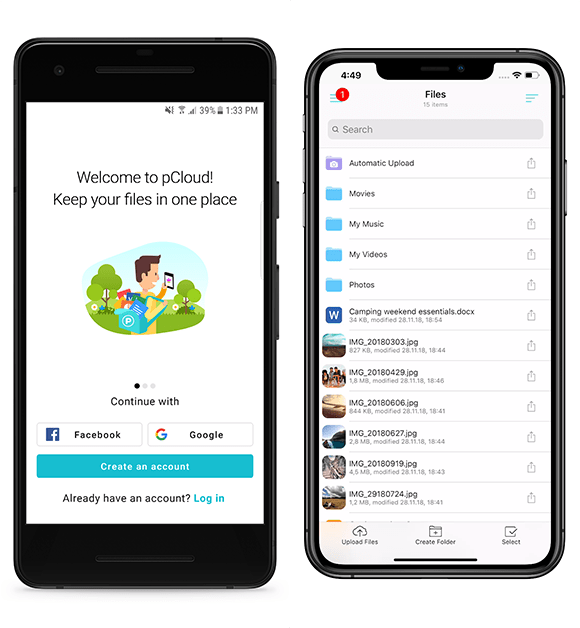
The mobile app, for example, includes offline file access, letting you select files you want to store locally on your device so you can access them without an internet connection or mobile data signal. Great for watching movies or listening to music on-the-move.

The desktop app seamlessly integrates into your workflow by creating a virtual hard drive on your machine. You can then use pCloud just like an additional hard drive with full synchronization between your computer and the cloud.

Upload from absolutely anywhere

One of pCloud’s greatest strengths is its upload system, which is faster than Dropbox (watch the video here), easy, and convenient.

As well as being able to upload from any device, you can also backup files from other cloud storage platforms. So if you’re making the switch from Dropbox or another storage platform, you can do it all quickly within pCloud.

pCloud can also create an upload link for others to send you files. Don’t download from their cloud account and then upload to pCloud, instead, send them a link to your pCloud account and they can upload the file directly. This makes sharing content much faster and easier to organize, since you cut out a redundant process.

Best of all, you can even upload files direct from other internet servers with Remote Upload. If you want to upload a photo hosted on Flickr, for example, simply enter the file URL and it will upload directly from the server to your pCloud account. There is even a browser extension for uploading webpage content.

Share and collaborate with anyone

Gone are the days when email attachment limits prevented you from sharing large files. Today, we share download links so others can enjoy our content, and pCloud does this really well.

First, you can password-protect download links so only the right people can access your files. You can even set an expiration date so that after a certain amount of time, specified by you, the link won’t work anymore. Privacy is a sacred thing, nowadays, and pCloud has got your back.
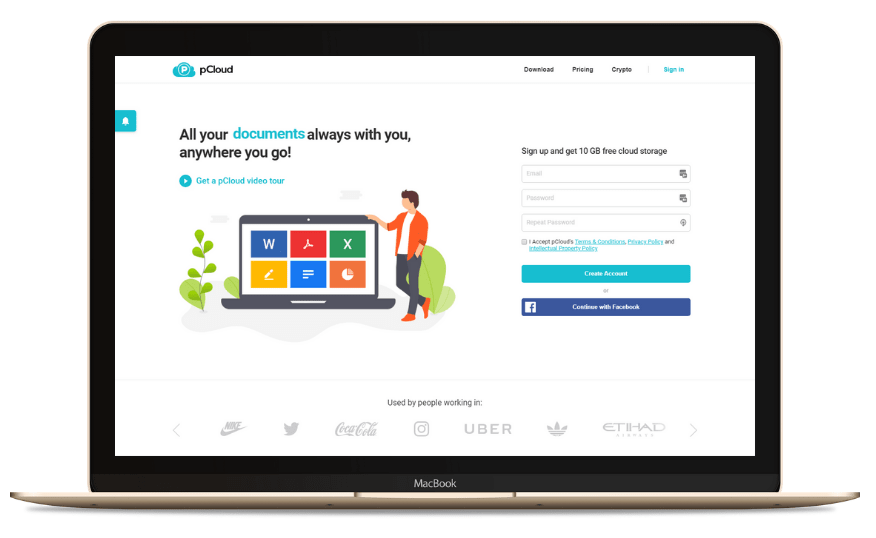
Once someone receives your download link, they don’t need a pCloud account to view or download the content. They can stream videos, listen to music, or edit files with the pCloud link alone. Since pCloud doesn’t force you or anyone else to download the application to access content, it’s ideal for sharing with large groups of people.

Finally, If you’re a social media influencer or have a business audience you’d like to share content with, branded links through pCloud are easy and free to make. Add your personal brand to download links by including a heading, title, and image. Adding a professional edge to your links could result in more clicks (which you can also track in pCloud).

Protection from theft, damage, or accidental deletion

If you want best-in-class security protection for your files, add pCloud Crypto to any pCloud plan. This feature encrypts files on your device and then uploads the encrypted versions to pCloud servers. You alone can decrypt your data using your Crypto Pass, which protects your files from prying eyes. Not even pCloud can see your content.

For those of you worried about losing data or making unintentional changes, pCloud Rewind allows you to revert your files to a previous state within 15 days on the free plan and up to 30 days on the paid plans. You can also extend this further with the Extend File History paid-for add-on. Think of it like a massive “undo” button for your files that could save you from making costly mistakes.

How much does pCloud cost?

If, by now, you’re realizing how useful pCloud can be, then you’re probably wondering about pricing. Well, you’ve got three main options:

  1. Get pCloud FREE and enjoy 10GB of FREE storage. This is a nice introduction to pCloud, but that storage space will be eaten up in no time.
  2. Get pCloud Premium and enjoy 500GB of storage FOR LIFE for a one-off payment of $175. A flexible storage buffer for life, but is 500GB really enough for you?
  3. Get pCloud Premium Plus and enjoy 2TB of storage FOR LIFE for a one-off payment of $350. A huge virtual drive with enough space for thousands of pictures, movies, and hours of music – you might never run out of space again.

pCloud Premium Plus is our easiest recommendation yet. 2TB for just $350 is incredibly good value for 99 years of storage – you’d spend more than that in two years on Dropbox’s monthly plan (99 years on the Dropbox 2TB monthly plan works out at almost $20,000!).

So if you’re looking for the best value cloud storage platform, with all the flexibility and features required of our digital age, get the pCloud Premium Plus 2TB lifetime plan today.

How to get the most out of your Dropbox account

Get more storage, recover deleted files, and more!

dropbox

Dropbox is a useful tool for storing documents securely and in one place so that they’re easily accessible whenever they’re needed. Whether you’re dealing with personal files, business-related paperwork, or even those vacation pictures from that epic trip to Costa Rica, Dropbox is a great way to keep important pieces of information safe. But you may not be getting the most out of your Dropbox account. We’re here to change that.

Dropbox Download Free
7

How to get the most out of your Dropbox account

Increase storage space

While every Dropbox account comes with a complimentary 2GB of storage space, many believe that they have to pay to receive more available space. However, that’s not necessarily true. Add up to 16GB of free space (that’s a lot!) by inviting friends who don’t yet have a Dropbox account. For each friend that signs up, you get 500MB of free space.

Another way to increase storage space is to complete the Dropbox getting started guide. Finally, receive additional space for contributing to the Dropbox Community forum.

Sync folders efficiently

Through Dropbox’s feature Smart Sync, you can easily and efficiently access files on your desktop without having to download them. This becomes useful if you need to save space on your hard drive. The feature is only available for paid plans, though, so you’ll have to decide if it’s worth it for you.

Recover deleted files

Even if you deleted something only to discover that it’s still needed, Dropbox makes it easy to recover these files. The program keeps a 30-day history of all changes, making it simple to restore documents within that month-long window. (Dropbox Professional and Business accounts get up to 120 days.) This is also useful so you can see previous versions of files. Do so by selecting the file and clicking Version History in the menu on the right sidebar.

Stop sharing folders

While it’s both easy and common to begin sharing folders or join the folder of another person on Dropbox, it may be trickier to leave a folder or stop sharing it. However, it is possible.

To remove someone’s access, sign in to Dropbox.com and click Files. Find the folder you’d like to remove access to and click the ellipsis (…) by the name. Click the dropdown menu beside the member you want to remove, and then click Remove. You can leave the person a copy of the folder if desired.

To unshare a folder, sign in to Dropbox.com and click Files. Find the folder you’re looking for, click the ellipsis (…) by the name, and click Folder settings. Then, click Unshare folder. Decide whether to leave the person a copy and then click Unshare.

These tips and tricks make it simple to squeeze the most productivity possible out of a Dropbox account. Taking these steps makes an already useful tool that much better!

BitTorrent Sync will take on Dropbox, Drive and OneDrive with Pro edition

Popular file syncing and sharing app, BitTorrent Sync, will be offering a Pro edition for $40 per year in early 2015. The company teased the redesigned Sync 2.0 update, which will still offer a free plan for its users.

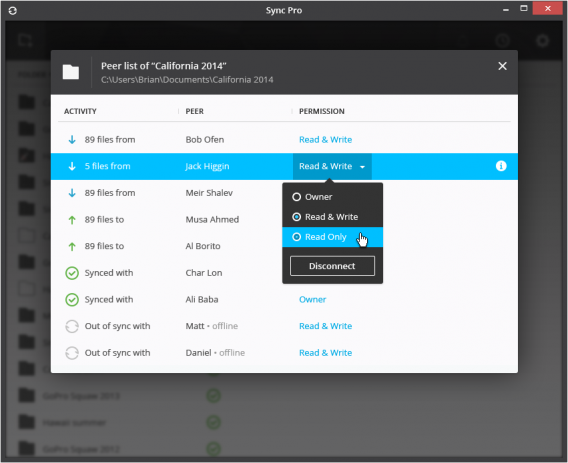
Sync Pro will offer collaborative tools that enterprises will find useful. “Capabilities like having access to very large folders, controlling ownership and permissions for shared folders, and keeping information automatically consistent across your desktop and mobile devices will now be possible,” writes BitTorrent VP of Product Management Erik Pounds.

BitTorrenty Sync 2.0 permissions and ownership

Compared to traditional cloud-based storage services like Dropbox, Box, Drive, and OneDrive, BitTorrent Sync Pro offers a lot of advantages. The biggest seller is security; no data is stored on a company’s server so your files won’t be managed by a middle-man.

BitTorrent Sync also offers “unlimited” storage because the amount of storage provided depends on the size of your servers and computers. This also makes sending huge files possible since they won’t need to be compressed before sharing.

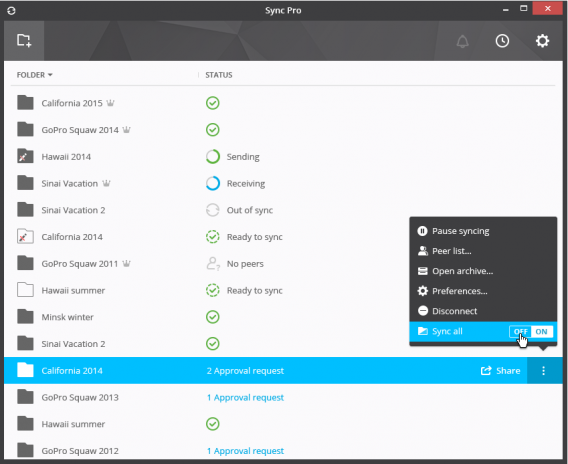
BitTorrent Sync 2.0 on-demand

Pricing for Sync Pro is also attractive. At $40 per year, it costs less than half of what most cloud storage services charge.

Sync 2.0 and the Pro edition will launch early 2015 but you can sign up to test a beta before its release.

Download BitTorrent Sync: Android | iOS | Mac | Windows | Windows Phone

Source: BitTorrent

Related Stories

Chrome for Mac 64-bit finally goes stable

Malware being spread through Steam chat

End to end user encryption coming to WhatsApp

Facebook releases new Groups app for collaboration

Follow me on Twitter: @lewisleong

Dropbox not hacked but change your passwords anyway

Last night, an anonymous hacker claimed he had a database of over seven million Dropbox usernames and passwords. He or she leaked the first four hundred credentials online to prove the info was legitimate and began asking for donations to leak more.

Dropbox quickly responded, stating the leaked password database was not obtained from the company’s servers. Dropbox had not been hacked. Instead, the usernames and passwords were obtained from various other password dumps from separate attacks.

Here’s the company’s official statement:

“Recent news articles claiming that Dropbox was hacked aren’t true. Your stuff is safe. The usernames and passwords referenced in these articles were stolen from unrelated services, not Dropbox. Attackers then used these stolen credentials to try to log in to sites across the internet, including Dropbox. We have measures in place to detect suspicious login activity and we automatically reset passwords when it happens.”

Dropbox also verified that many of the passwords in the dump were already expired, but reset user accounts just in case.

It’s unclear where this database of passwords and usernames originated from, but it’s likely the hacker is sensationalizing his attack to soliciting money from the internet black market.

If there’s anything to take away from this story, it’s that hackers are becoming increasingly aggressive. They’re collecting as much user data as possible to sell on the black market, whether or not the information is actually useful.

Snapchat also faced a security scare this week. While Snapchat wasn’t hacked, users who signed up for unauthorized Snapchat apps that saved their friends’ photos and videos allowed hackers to leak over 200,000 photos and videos.

It bears repeating that you should never use the same password on multiple sites. Always use a password manager to generate passwords for each site you use.

Dropbox also supports two-factor authentication, which requires you to have a randomized code either sent to you via SMS or using an authenticator app. If you don’t have this feature enabled, do it now. Check out my guide on how to enable it.

While Dropbox may not have been compromised, you should still change your password just in case.

For more about protecting yourself online, read my guide on how to protect your online identity and why you should care.

Source and image credit: Dropbox

Related Stories

Snapchat not responsible for leaked photos but it could have done more

Hundreds of thousands Snapchat images leaked but you’re probably safe

iCloud gets serious about security, now requires app-specific passwords

iOS lock screen exploit tricks Siri into revealing your email, SMS and Twitter

Follow me on Twitter: @lewisleong

Dropbox drops prices to compete with Google Drive and Microsoft OneDrive

Dropbox is finally getting competitive with its subscription pricing. Users can now get 1TB of storage for $9.99 per month or $99 if you pay for a year. Before today’s price drop, Dropbox users could only get 500GB for the same price. To make things easy, Dropbox is only offering Pro users one plan.

Google also offers 1TB of storage for $9.99 per month but doesn’t offer the option to pay for a full year of service. Google also offers many more options with the cheapest plan costing $1.99 per month for 100GB. You can get up to 30TB of storage for $299.99 per month.

Microsoft offers 15GB of OneDrive storage for free but also provides a subscription for 100GB for $1.99 per month. OneDrive doesn’t offer 1TB of storage for consumers, but does offer it for businesses for $2.50 per month per user.

In addition to pricing changes, Dropbox Pro offers new sharing controls. You can now create passwords for shared links to make sure only authorized people have access to your files. You can also set a timer for shared links to expire.

Dropbox remote wipe feature

Last but not least, Dropbox offers a remote wipe feature in case you lose your laptop or phone. Dropbox will delete all your files on that device when triggered. This is a nice additional layer of security, even though Find my iPhone and Android Device Manager also feature remote wipe.

Download Dropbox: Android | iOS | Mac | Windows | Windows 8

Source: Dropbox

Related Stories

16 must-have apps for every teacher

Dropbox gets search for Word and Powerpoint docs on iOS

Chrome update brings 64-bit for Windows, offers security and speed

Google’s iOS productivity apps get native Office support, debuts Slides for iOS

Follow Lewis on Twitter: @lewisleong

Dropbox gets search for Word and Powerpoint docs on iOS

Dropbox for iOS has been updated to version 3.3, and includes a couple of significant improvements.

The major change in version 3.3 is the new ability to search within PowerPoint and Word documents, due to ‘higher fidelity previews’. There is also support for larger animated GIFs, and it claims to use less disk space due to ‘smarter caching’. The new Dropbox should also be better at opening back to where you were if you exited the app, although it’s not clear what ‘better’ means in practice.

For the uninitiated, Dropbox is an app available for almost all devices and platforms. Sign up for an account, and you can store your files ‘in the cloud’, which are then available for you wherever you are signed into Dropbox.

It’s a simple to use system, but the mobile apps, unsurprisingly, feel limited compared to the desktop apps. Viewing complex files like PowerPoint presentations and even Excel documents on mobile devices is not easy, but little by little, Dropbox is making it better.

Download Dropbox 3.3 for iOS.

Related Stories

Mailbox for Mac brings gesture controls to help tame your inbox

Tom Hanks releases typewriter iPad app for hipsters with writer’s block

How to export photos from iPhoto to Google Drive, Dropbox, or OneDrive

Is your iPhone memory full? Find and delete the guilty apps

Follow Jonathan on Twitter: @jonathanriggall

How to export photos from iPhoto to Google Drive, Dropbox, or OneDrive

Having been a Mac user for almost 10 years, I’ve always trusted iPhoto to keep my pictures organized. But, after having a computer and two Android phones stolen, I decided to find a solution that was more flexible.

That’s when I decided to try storing my pictures in Google+ Photos via Google Drive, a solution for saving, organizing, editing, and sharing photos.

Because all my photos were previously stored in my iPhoto library, I had to find an easy way to export my collection without losing my metadata (GPS position, date picture taken, etc.) or photo organization by albums and events. Unfortunately, the export photo function in iPhoto is not designed to export entire libraries, and it destroys metadata files in the process.

On the verge of giving up, I came across Phoshare, an app designed specifically for this situation.

Note: This tutorial can be used to export an iPhoto library to any cloud storage service like Box, Dropbox or OneDrive.

1. Download Phoshare

First you need to download Phoshare. The app works with iPhoto ’06, iPhoto ’08, iPhoto ’09, and iPhoto ’11 on Mac OS X Mountain Lion, Lion, Snow Leopard, Leopard, and Tiger.

Download Phoshare for Mac

2. Unzip and run

Once you download the file, unzip it into a folder of your choice. Then, run the application. To learn more about decompressing files and launching applications, see the Apple help articles.

Warning: If you use Mountain Lion, you may have to disable GateKeeper to launch the application. Find out how in this tutorial.

3. Go to Library

Click on the Files tab. Phoshare will automatically select the default location of your iPhoto library, but if you want to export more than one library, or if you’ve changed the location manually, you can select the correct file by clicking the Browse button. Otherwise, go to the next step.

Phoshare Export iPhoto to Google+, Google Photos, Google Drive, Dropbox, OneDrive

4. Go to Files

Click on the Files tab, then click the Browse button to choose the location your photos will be exported to.

Tip: You can check the box marked Export originals so that Phoshare exports your original files without any modifications made in iPhoto.

Phoshare Export iPhoto to Google+, Google Photos, Google Drive, Dropbox, OneDrive

5. Go to Metadata

Click on the Metadata tab.choose what metadata to export. Check the box marked Export metadata to export date picture taken, descriptions, keywords, and notes.

If you want to export GPS data, check the Export GPS data box. To save the information about recognized faces in your photos, you can tick the boxes marked Copy faces into metadata and Copy face names into keywords.

Warning: the duration of the extraction depends on the number of files and the size of your iPhoto library. Allow about 2 hours for every 10,000 pictures.

Phoshare Export iPhoto to Google+, Google Photos, Google Drive, Dropbox, OneDrive

6. Export

You can now click on the Export button to start the extraction from your iPhoto library.

Warning: the duration of the extraction depends on the number of files and the size of your iPhoto library. Allow about 2 hours for every 10,000 pictures.

Phoshare Export iPhoto to Google+, Google Photos, Google Drive, Dropbox, OneDrive

7. Copy the Folder

Once your iPhoto library is exported, you can copy the folder of exported to your favorite storage space. The time it takes to upload your photos onto your storage space depends on the size of your library and the speed of your internet connection

Tip: You can check in advance that you have enough online storage space by displaying the information of the folder your library has been exported to: Select the folder containing your photos by clicking on it. Then click on File and click Get Info.

Whether or not you’re a fan of iPhoto, it might still be a good idea to get your photos out of the app: Apple might be about to abandon it.

If you want to stop using the app but you prefer to keep your photos on your hard drive instead of in the cloud, you can also try one of these five alternatives to iPhoto.

Follow me on Twitter: @SamSoftonic