
iPadian makes your Windows desktop look like an iPad

Fans of Apple’s iPad tablet have a lot to admire. The colors and images are crisp, and there are a myriad of fun apps to download for the platform. If you can’t get enough of the iPad’s interface, now you can achieve a similar effect on your Windows desktop, all thanks to iPadian.

iPadian is a neat tool that can transform your desktop to make it look like Apple’s iPad. Users will see a dashboard that consists of several features, including a Facebook widget, search bar and a dock that displays icons for popular apps. YouTube and Instagram are among them. In addition, popular icons for games like Angry Birds can be added.

One thing that’ll either make or break iPadian is that the apps aren’t native to your PC. Every time you click on an app through iPadian, a browser window will open, showing you the relevant webpage. This can be viewed as a unique way to visit sites that offer web apps, or something that’s simply not worth it just to make your desktop look a little more like an iPad.

If you’re absolutely enthralled with Apple’s iPad interface though, iPadian offers a simple way to transform a Windows desktop into something decidedly more OS X-based.

How to install Skyrim mods

Do you want to improve or change Elder Scrolls V: Skyrim on PC? Here’s how to install a mod in Bethesda’s huge role-playing epic:

1: Choose your mod and download it. There are tons of mods on offer; for this guide example I’m going to install an enhanced night sky, called Enhanced Night Skyrim. This adds an attractive colored galaxy effect at night. You can find a range of Mods at Skyrimnexus, and a good selection here at Softonic too.

2: Unzip, or expand your file. Almost all mods are offered in compressed form, either ZIP or RAR files. We use free app IZArc to decompress files. To open a compressed file, simply right click, and choose ‘Open with IZArc’. Open the target folder and leave it.

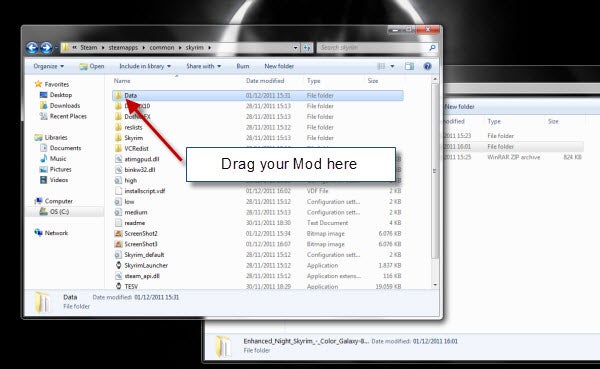
3: Open your Skyrim folder. You have to move your mods in here, so lets find it now. Open Windows Explorer, double click your hard drive (C:), then open the folder Program Files (x86), then Steam, then steamapps, then common, then skyrim.

4: Move your mod file. Finally, we’re here! Now, simply drag the mod folderĀ  – in this case it’s called textures – into the folder called ‘Data‘ in skyrim. That’s it! When you next run Skyrim, you’ll see your mod has taken effect!

Infinity Blade II released for iOS

Chair Entertainment’s sequel to Infinity Blade released today on iOS. Compatible for iOS 3.2 and the iPhone 3GS to the iPhone 4S, 3rd and 4th generation iPods, and both generations of iPad, the game was also optimized for the iPhone 4S and iPad 2.

The original Infinity Blade showed off the abilities of Apple hardware with Epic Games’ Unreal 3 Engine, and the sequel improves on every aspect.

Read our review of Infinity Blade II.