Instagram lets you view your photo feed on the web

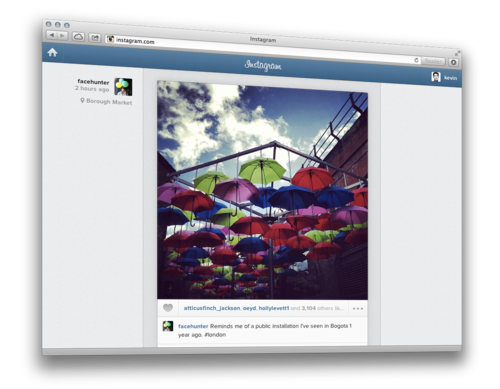
Instagram has long been a mobile-only product, meaning users could only view and post to Instagram from its mobile apps on Android and iOS. Well today, Instagram released Instagram Feeds, which lets you view, comment, and like Instagram photos from any browser. Log on and your Instagram feed will show up just like it would on your mobile device. This makes interacting with Instagram photos much easier.

There’s no way to upload or put filters on photos from the web site as Instagram hopes to keep its service a mobile one. “Instagram is about producing photos on the go, in the real world, in realtime,” writes Kevin Systrom, co-founder of Instagram. There are plenty of photo sharing sites and services like 500px and Flickr for sharing more professional photography. Instagram is purely to show bits of peoples’ lives on the go.

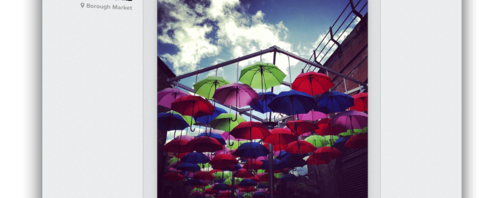
instagram feeds stock image

Source: Instagram

BlackBerry 10: success or failure?

Will BB10 make or break BlackBerry?

BlackBerry 10 was launched last week and as the world waits for the new devices to hit the shelves, we’ve had a chance to tinker a bit with the new OS.

A revamped gesture-based interface, a supersonic browser, an intelligent keyboard and a sleek new design are just some of the highlights of BlackBerry 10. There’s no question that the new OS is a step forward, but the debate flying around the office here is: will BlackBerry 10 be a success?

Two of the most vocal Softonic editors on the subject are Alberto (Softonic Spain) and Marina (Softonic Italy) who agreed to share their thoughts on the potential for BlackBerry 10:

Continue reading “BlackBerry 10: success or failure?”

First Android app appears for Kim Dotcom’s Mega

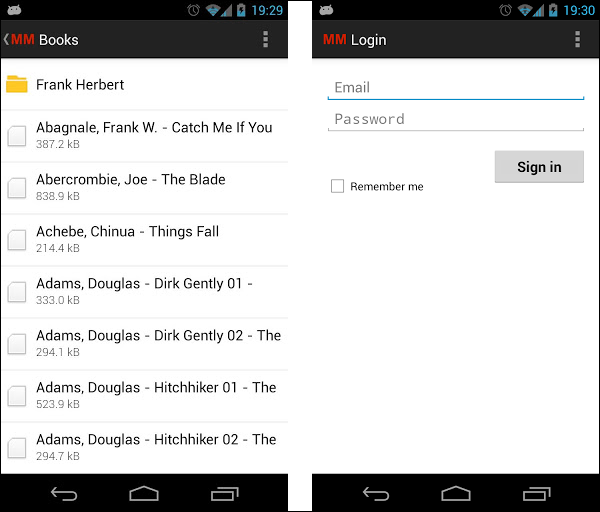
Less than a month after the launch of Mega, the online cloud storage service with 50GB of free space, an unofficial Android app has appeared on Google Play store.
You can manage your account, and access all the files and documents stored on Kim Dotcom’s infamous new service.

We have to point out this app is in an alpha development stage, so may contain bugs and stability problems

Download the Mega Manager for Android here.

Kapersky finds new Android and PC threat

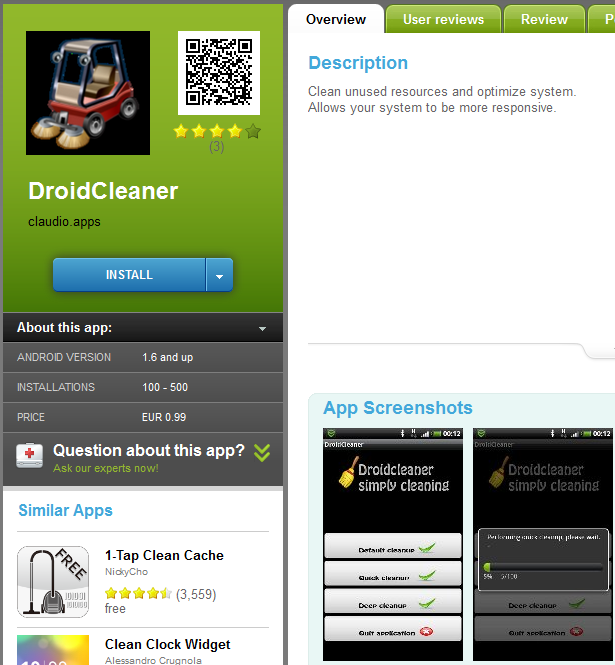
Kapersky has discovered malware Android apps that were designed to infect PCs. The apps, DroidCleaner and Superclean, have now been removed from the Google Play store, but not before being downloaded many times by Android users.
These malware apps were designed to steal data such as contacts, photos, SMS and the contents of memory cards on your smartphone. But they also execute a file on your PC when connected via USB. The Windows malware is able to record input from your microphone, encrypt and then then send it back to the attackers.

Here’s the extensive list of features that Kapersky found in these apps:

Continue reading “Kapersky finds new Android and PC threat”

How to save WhatsApp profile pictures to your phone

Want to use a person’s WhatsApp profile picture as their contact image on your phone? Unfortunately, there’s no option built into WhatsApp for doing this. In fact, you can’t even save a WhatsApp profile picture from the app to your phone.

However, with a bit of trickery it is possible to save a friend’s WhatsApp profile picture to your phone then use this as your contact picture for that person. Here’s how you do it on an Android phone. It’s a similar process for iPhone but remember that to make a screen capture on an iPhone you need to hold the center button and power button simultaneously.

Set a WhatsApp profile picture as a contact picture on your phone

1. You can load up a full size version of a contact’s WhatsApp profile image simply by clicking on their name in the chat window.
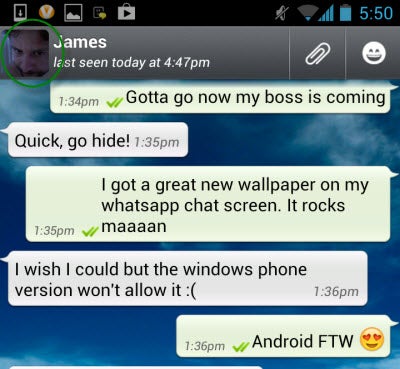
2. Now take a screenshot of the image by pressing the Power and Volume down buttons simultaneously on your device. This will only work if you have version 4.0 or higher of the Android operating system.

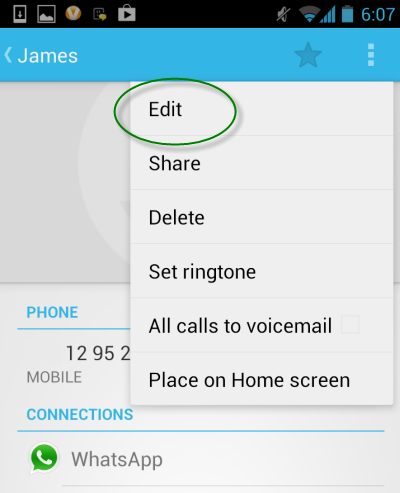
3. Quit out of WhatsApp and open the Android contacts app. Tap the name of the contact you wish to add the picture to and choose ‘Edit’ from the options menu.
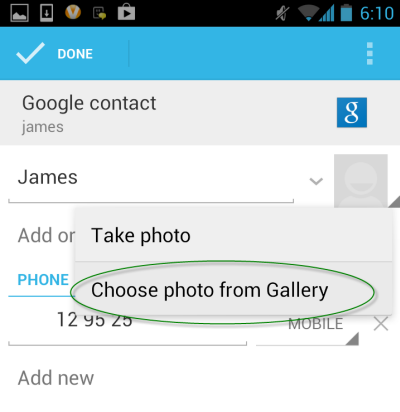
4. Now tap on the person’s profile image (or the silhouette) and tap ‘Choose photo from Gallery‘. Select the image you just captured from your Screenshots folder.
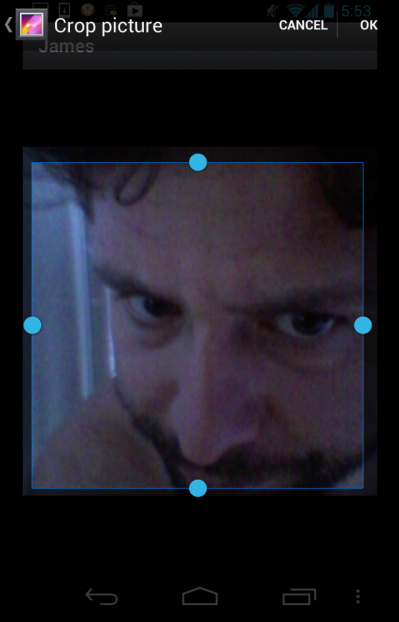
5. You can now crop the WhatsApp profile picture that you took so that it fits the profile picture aspect. Do this by holding and dragging the lines of the square. When you’re done, click OK.
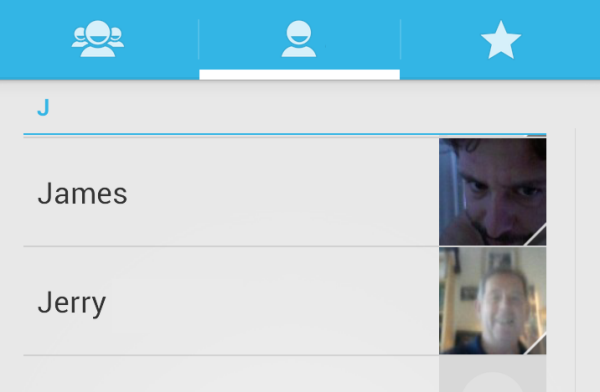
6. Your friend’s WhatsApp profile picture will now be set as their contact photo on your phone.
Wrap-up

That’s all there is to saving your WhatsApp profile pictures to your phone. Hopefully this guide has helped you clean up your contacts list a bit with contact profile pictures.

Slender sequel: pre-orders and beta access soon

The sequel to Slender: The Eight Pages will be released this March. Blue Isle studios have announced that Slender: The Arrival will be available for pre-order very soon. Players who pre-order will also get access to the beta-test of the game, which is currently Windows only.

You can watch the trailer below. Slender: The Arrival will get better graphics and a storyline, and you can see there are more monsters too. We’ll have to wait to see if all of this will improve or dilute the scariness of Slenderman!