Microsoft improves the integration between iPhone and Windows with Phone Link

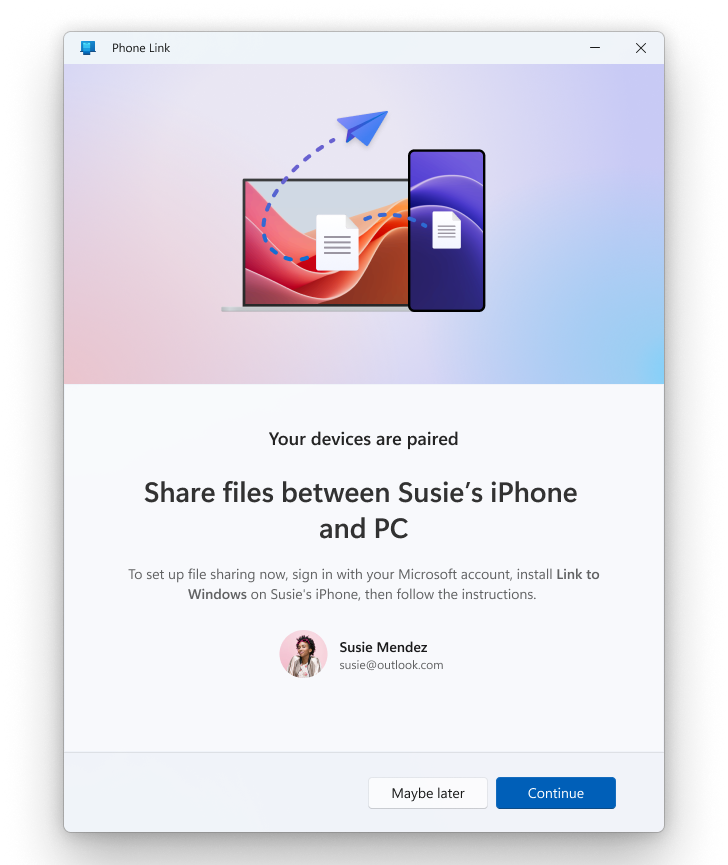
Microsoft is testing a series of improvements in its Phone Link app for iPhone users that make file sharing between devices easier. Participants in the Windows Insider program can already experience this new feature by installing version 1.24112.89.0 or higher of the application. The new system allows sharing files through the iOS share tab, selecting the “Link to Windows” option to transfer them to a Windows computer. Conversely, users can send files from their PC to the iPhone by right-clicking on the file, choosing share, and selecting the “My […]” option.

Microsoft is testing a series of improvements in its Phone Link app for iPhone users that facilitate file sharing between devices. Participants in the Windows Insider program can now experience this new feature by installing version 1.24112.89.0 or higher of the application.

Phone Link DOWNLOAD

The new system allows sharing files through the iOS share tab, selecting the “Link to Windows” option to transfer them to a Windows computer. Conversely, users can send files from their PC to the iPhone by right-clicking on the file, choosing share, and selecting the “My Phone” option.

Although Microsoft has made significant advances with Phone Link for iOS and Android, the version for iPhone still has quite a few limitations due to Apple’s restrictions. In 2023, the app incorporated the ability to send and receive messages through iMessage, but this function only works with individual contacts, not with groups. Additionally, to send messages, it is necessary to keep the application open, as Microsoft uses a solution based on Bluetooth and system notifications.

The latest update of Phone Link is available for Windows Insiders and is expected to reach all users in the coming months, improving the integration between iPhone and Windows.

Phone Link DOWNLOAD

Facebook: Shake your phone to report bugs

Facebook is rolling out a “shake to report” bugs feature for mobile.

Facebook mobile

Facebook is unveiling a unique way to report bugs on the mobile app. Is it an inquiry? Is it a help bot? Is it a voice command? Nope, Facebook wants you to shake your phone.

When should I shake, shake, shake… shake, shake, shake… shake my phone?

The idea here is that Facebook wants to make it as easy as possible for users to report when the app isn’t working properly.

For example, you can shake your phone to report whenever a video won’t load or your news feed gets stuck. Facebook also hopes you will use it to ask for help if you can’t figure out how to do something.

7

How does it work?

The new action is simple enough. Whenever something doesn’t work or you want to ask for help, all you have to do is give your phone a little shake.

Remember, it’s a phone, not a Shake Weight.

There’s no need to risk throwing or dropping your phone. A gentle, little shake will suffice. When Facebook recognizes your shake, it will open up a pop-up menu where you can file your report.

This new way to report bugs on Facebook is brand-new for Android users, but it has been available on Facebook for iOS for a short while already. Until now, however, iPhone users have had to opt-in and activate the feature themselves. This will soon change.

How do I turn it on and off?

Your phone does not automatically have it enabled. To turn it on, follow these simple steps.

  1. Open your Facebook app
  2. Click the menu in the lower right-hand corner (it’s the three horizontal lines)
  3. Scroll down to “Help & Support”
  4. From there, click on “Report a Problem”
  5. A new window will pop up. Click on the gear in the upper right-hand corner of the window
  6. Turn the option to “Shake to Report” on or off
  7. You’re all set!

Wrapping up

With the general roll-out of the shake to report feature, Facebook will make it the default setting on all smartphones, Android and iOS. The feature is rolling out now to a small number of users globally, but Facebook expects the feature to arrive for everybody within two weeks.

Shaking Facebook on a mobile phone
Just shake your phone to report a bug or ask for help

Once it lands, you’ll be able to shake your phone whenever something isn’t right. Although shake to report is becoming the default action and will be activated on all phones within the next couple of weeks, you’ll still be able to report a bug the old-fashioned way. To do so, all you have to do is go to the Facebook Help & Support menu and report your bug there.

For the rest of us, we will be taking the advice of Metro Station. 

This new feature may sound intriguing to some, but we wouldn’t be surprised to hear about users accidentally flinging their phones at others. If you have a friend who doesn’t know their own strength, you might want to invest in safety goggles.

The Google Maps messaging update will be on your phone soon

The Google Maps Messages tab will help you contact businesses

google maps

We’ve been talking a lot recently, about big updates coming to Google Maps. We’ve seen lots of cool new features like a special mode for using Google Assistant while you’re navigating and a new feature for reporting traffic accidents and incidents. The other big news for Google’s flagship mapping app has been its pivot towards becoming a business directory to help users find businesses in their local area. There has been the addition of Instagram-style hashtags to reviews, making it easier to find exactly what you’re looking for, and Google has also promised us that Maps will soon have a messages tab. The new messages feature is now rolling out.

Google Maps Download Google Maps
7

The Google Maps Messages tab will help you contact businesses

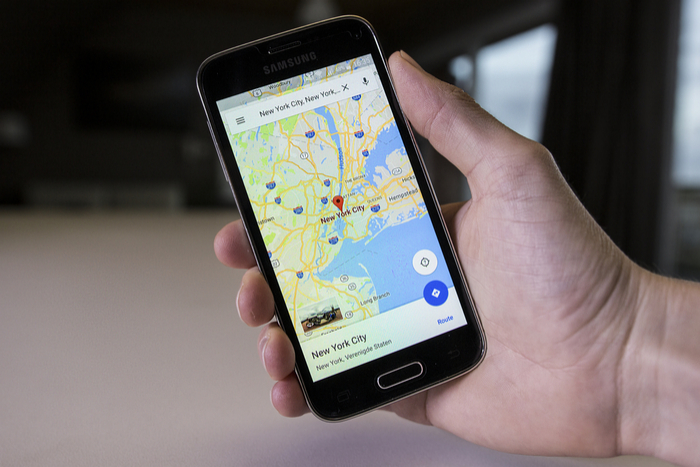
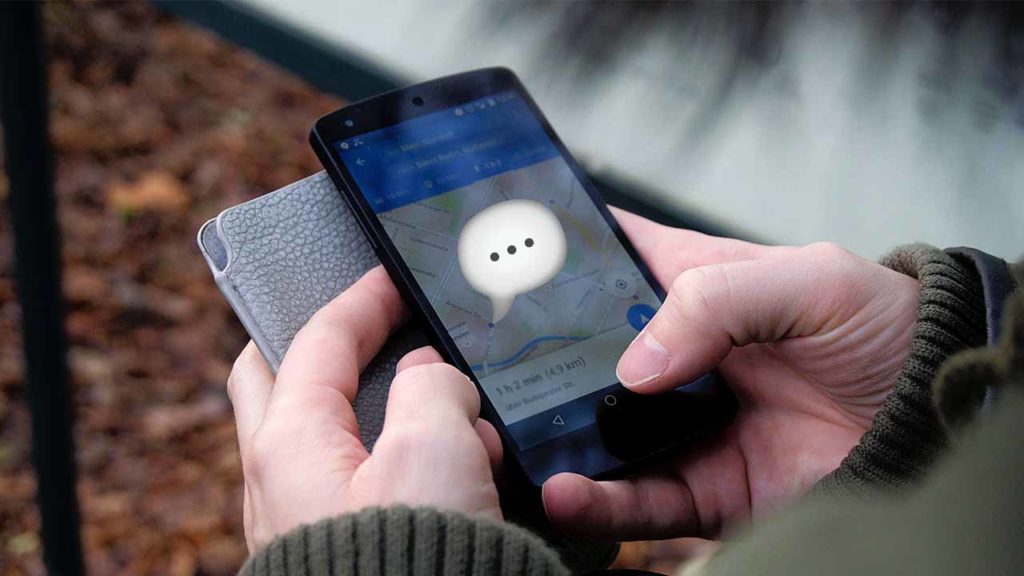
We covered a lot about the functionality of the new Messages tab when we first reported on it back in November. The new Message button will show on the business overview tab of any business that has registered for the service with Google Maps. You’ll also be able to find all of your chats in the new Messages button found in the main settings sidebar of the app. The key, however, is that this new Messages button won’t enable you to spark up conversations with your friends, it is only for talking to businesses.

If this all sounds like something you’d be interested in using, then you’ll be happy to hear that users on social media have started to see the new feature land on their app. Over on Reddit, the response to the new feature seems positive, too. Now, if you need to ask a question about opening times, specific food allergies, or whatever you can just open up a chat bubble and ask away. At the very least, the new Messages feature looks set to remove the need to ask questions in reviews.

This move is not an attempt by Google to muscle in on social messaging platforms like WhatsApp, Instagram, Messenger, or Snapchat. Not yet, anyway. There is nothing to say Google won’t extend the feature to all of a user’s Google contacts in the future, but at the moment there is no evidence to suggest that is the plan.

What this is though, is an attempt to move into a growing marketplace. Facebook’s Messenger app has long been trying to become the app for everything, with business messages forming a huge part of those efforts. Instagram also offers a great way for businesses and customers to contact each other and WhatsApp has recently launched WhatsApp Business, which will charge business users for contacting their customers using WhatsApp. It could be a crowded marketplace that Google is moving into, but with so many people using the app to find places already, Maps could be about to become the internet’s number one business directory.

How to stream music and video from your phone to your gaming console

You can play music and video from your phone through your TV. Here’s how to send the content through a gaming console.

Playstation

While many gaming consoles have their own apps that allow you to control them directly from your phone, most of them don’t have an innate way to allow your phone to stream content onto them. Despite this, practically all current gen gaming devices (such as PS3, PS4, and Xbox One) are able to connect to your phone through a variety of apps. This allows you to use your gaming console as a substitute for an Apple TV or similar televisions that let you stream directly to them. Here is the easiest way to go about this:  

How to stream from your phone to your gaming device

Step 1: Download iMediaShare

iMediaShare Free Download ►
7

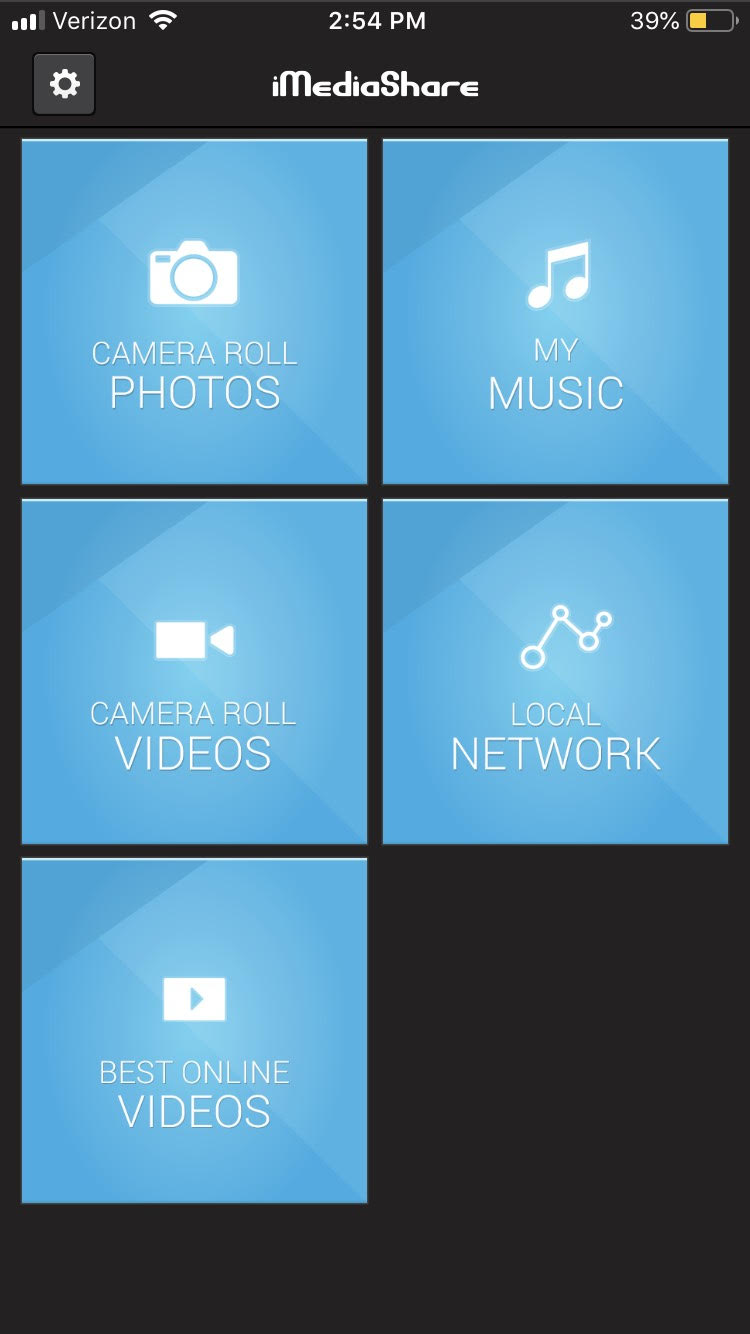
This app is currently the best one for both Android and iPhone to use as a streaming tool for gaming consoles. It’s completely free and lets you stream basically any saved content from your phone onto your gaming device. This means you can play home videos or your saved music from your phone directly to your TV. You can also use it to stream Facebook and a few other online services (though most of these can be streamed directly through your gaming console already).

iMediaShare

Step 2: Choose the content you want to stream

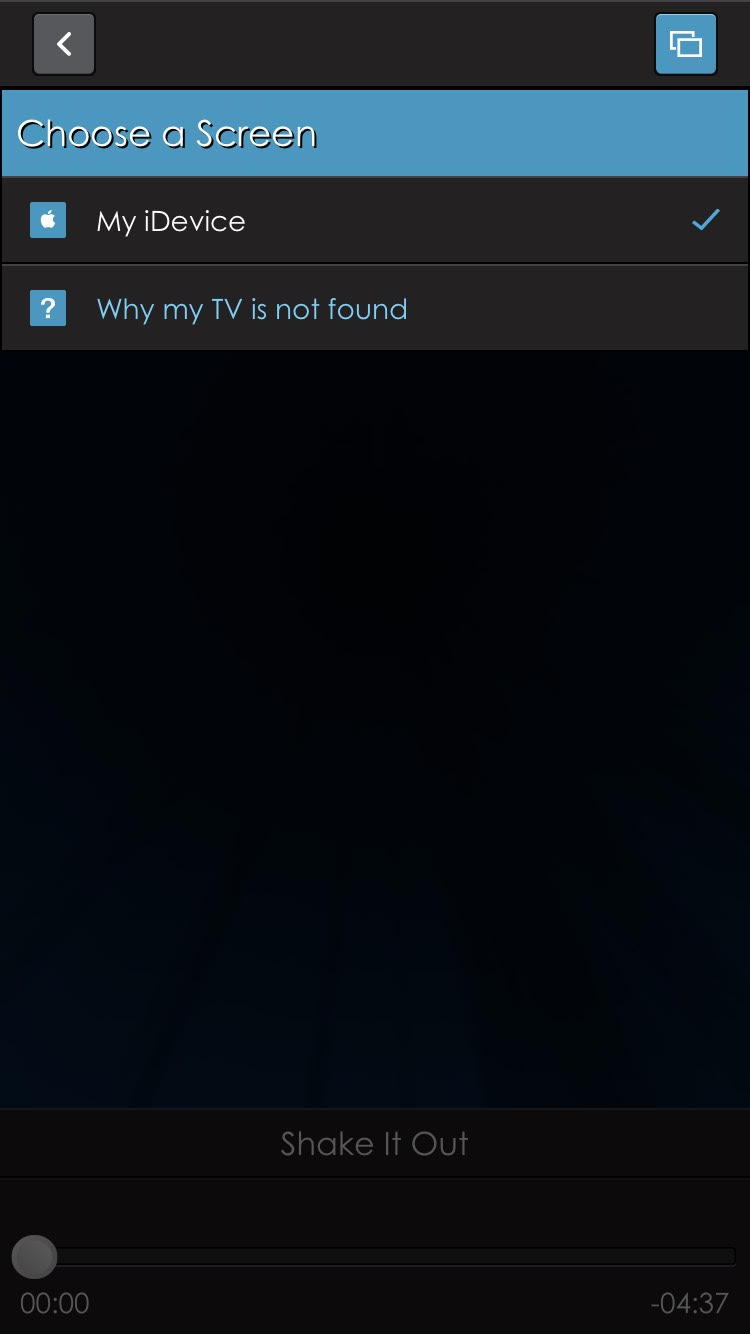
Once the app is installed, you can choose whatever content you want to appear on your gaming console. First, go into the category it would be under (such as camera roll photos), and then download the content you want to share onto the app. After selecting it, you will be promoted to “Choose a screen.” Assuming your phone and gaming device are connected to the same local network, then you will be able to choose the gaming device as an option.

iMediaShare

Step 3: Open content on your gaming device

Once everything is set up on your phone, you can open the content on your gaming device by finding the segment that says “iMediaShare.” It should be under the video streaming tab that your gaming console has.

If you don’t like the layout of iMediaShare, Plex is a similar application that you may find helpful. It effectively works the same way, though you’ll have to pay for some of its more advanced features.

The best 3D platform games for your phone

Platform runners are some of the best to play on the go. They typically don’t have an intense storyline, but instead have an entertaining and fast-paced gameplay that’s perfect for when you need some time to relax. It can be a bit of a challenge to sort through all of these games though, to find which one is the best for you. Thankfully, our Softonic Solutions community has compiled a fantastic list of 3D platformers you can play on the go. Here are some of the best choices:

5. Sonic 4 Episode II

Sonic games are some of the best side-scrolling platformers that transition perfectly to mobile. This game is no exception, and if you’re a fan of the series, than this game is a great one to check out. It’s a little different than most of the runners on this list, as its stages are a little more varied, which can be exciting if you like some variety in your games.

Sonic 4 Episode II Download now ►
10

4. Temple Run 2

Temple Run is probably one of the most iconic mobile games of all time. And it’s no surprise that this game’s sequel is just as impressive. It’s one of the most addicting games of all time that never gets old!

Temple Run 2 Free Download ►
8

3. Minion Rush

If you’re a fan of minions than you probably already have this game. Not all movies make great game adaptations, but “Despicable Me” is not one of those. Minion Rush is similar to Temple Run, but a bit more goofy. Definitely worth checking out if you want a good laugh while you play!

Despicable Me: Minion Rush Free Download ►
8

2. Sonic Dash

Unsurprisingly, Sonic the Hedgehog has another great mobile game. Like the other games on this list, Sonic Dash is an endless runner that is reminiscent of Temple Run. This means you can play it with only a few moments to spare, or all day! Either way, this game sets itself apart from the other endless runners by featuring many Sonic classics, such as Tails and Shadow, along with boss battles against the iconic Eggman and Zazz.

Sonic Dash Free Download►
8

1. Subway Surfers

If you’ve ever played a Jet Set Radio game, then you will find this game to be very familiar. You surf on subway rails as you graffiti the subway walls and stops, while trying to avoid an inspector who’s investigating you.

Subway Surfers Free Download ►
8

All of these games are available for both iOS and Android. If you’re still looking for more games, be sure to check out our Softonic Solutions page! They have reviews and lists for so many games, you’ll be sure to find what you’re looking for!

Could Google’s Project Fi save money on your phone bill?

What is Project Fi?

Google’s Project Fi is a mobile phone plan with a difference. It caps your bills, chooses the fastest network for your location, and reduces the cost of using data abroad.

The catch? It’s not available on every phone, it’s only available for U.S. residents, and you’ll need to use a lot of data to make it worthwhile.

Project Fi is Google’s attempt to disrupt the cellular network space. The big selling point is an upper limit on your phone bill, so no matter how much data you use, you won’t get a nasty surprise at the end of the month.

Many of us have been whacked with a big bill after using more than our plan allows – usually because of data. Just browsing your news feed can rack up the gigabytes in videos and pictures, so Project Fi could save you a lot of money… if you use a lot of data.

How much does Project Fi cost?

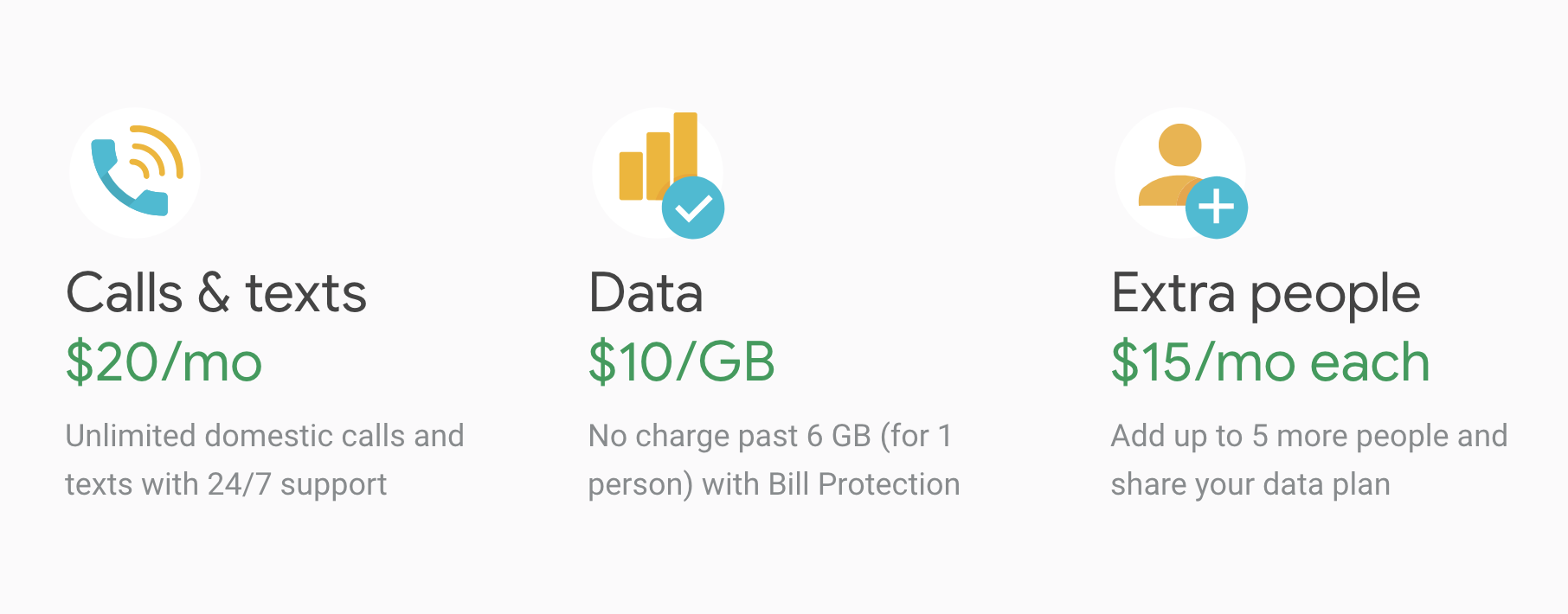
The plan costs $20 per month for unlimited domestic texts and calls, and unlimited international texts. Data costs an additional $10 per gigabyte, no matter where you are in the world, up to a maximum of $60. Once you’ve used 6GB, the rest is free, with no reduction in speed until you reach 15GB.

Surprisingly, there’s no minimum spend on data. If you use 1GB, you pay $10, so if your monthly bills jump up and down like a kid on a trampoline, expect to pay less with Project Fi. It’s both rare and impressive that Google has chosen to protect consumers from overspending without imposing a minimum, too.

You can also save a bit more if you add more people to the plan. For example, if you add two people, you’re only charged for the first 10GB ($100, or $50 each). That’s a saving of $20 ($10 each) over two individual sign-ups.
What makes Project Fi better than other mobile plans?

Aside from savings, Project Fi’s other advantages are also pretty rare in the cellular world. First, you get access to three 4G networks (Sprint, T-Mobile, and US Cellular) and one million Wi-Fi hotspots. Project Fi will determine the fastest connection for your location and switch you to it automatically, so you can always browse at top speed without fiddling with settings.

Another huge win for Project Fi’s customers is international data roaming. In over 170 countries, you get the same data benefits and prices as under your usual plan. There are no hidden fees. Calls cost 20 cents per minute, however, and do check your destination is included in the plan before you travel.


How do you sign up for Project Fi?

Before signing up, check you use enough data to make the plan worthwhile. You can do this by looking at an old bill, or checking data usage on your smartphone if your device supports it (most do). If you rarely use more than two or three gigabytes, there are cheaper plans out there – especially when you factor in calls and texts.

But if Project Fi could reduce your bills, then the first thing to do is make sure you have a supported phone. Only certain phones have the tech to “intelligently shift networks” and at the moment they’re limited to the Google Pixel, Nexus 5/6, and Moto X4.

You can, of course, order a new phone with Project Fi and they’ll throw in 0% financing and insurance for $5 per month. Your choice is still restricted, though, so don’t expect to find Project Fi on any iPhones anytime soon. You also need to be a U.S. resident.

But provided you’ve got or are willing to buy a supported phone, and you live in the U.S., just head to the Project Fi website to sign up.

For data-junkies, Project Fi makes financial sense. But if you prefer a book to watching Netflix, conversation to Spotify, or daydreaming to updating Instagram, you’ll have to look a bit harder to get excited about it.

How to transfer photos from your phone to your PC wirelessly

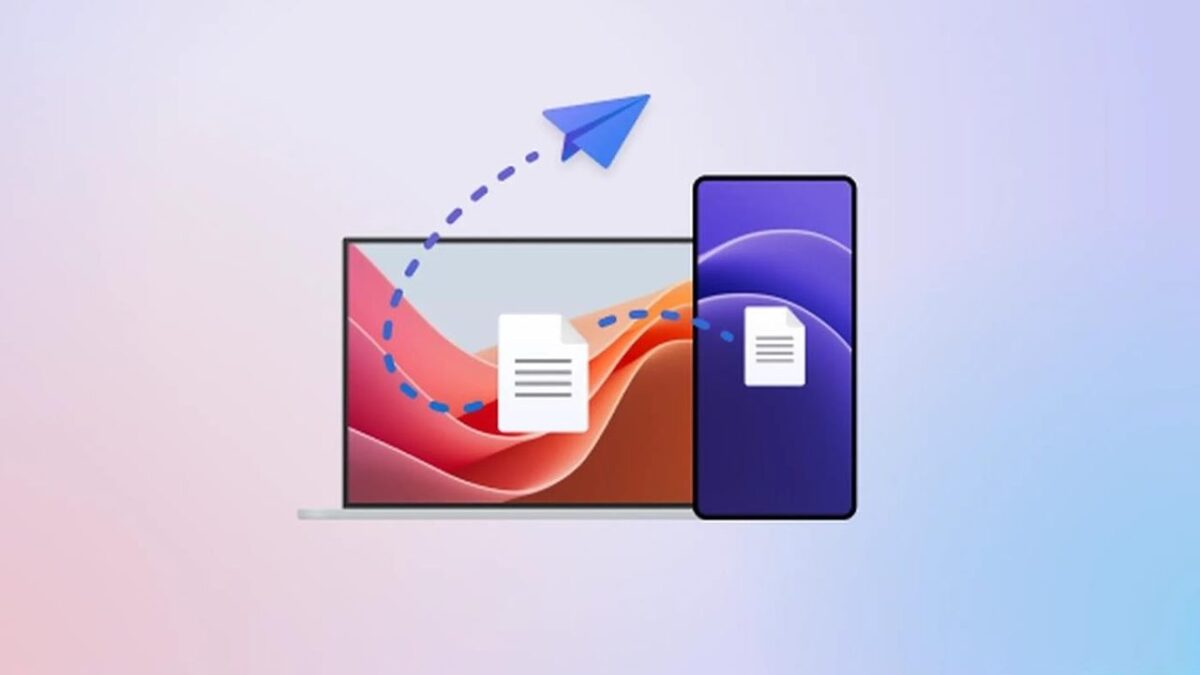
Back in the day, transferring photos from your cell phone to your PC required cables, drivers and a ton of tedious processes. Over the years, it’s become simplified to the point that now you only have to connect a cable between your PC and your smartphone. End of story, right? Today at Softonic, we’ll take your skills to the next level and teach you how to transfer photos from your phone to your PC wirelessly. 

Windows Photos

Many people got angry when the Image Viewer on Windows was removed in favor of Windows Photos. In reality, this app works better than the previous one. Windows has actually enhanced how we see images within its operating system.

Windows 10 Download Windows 10
8
The latest and greatest version of Microsoft's operating system.

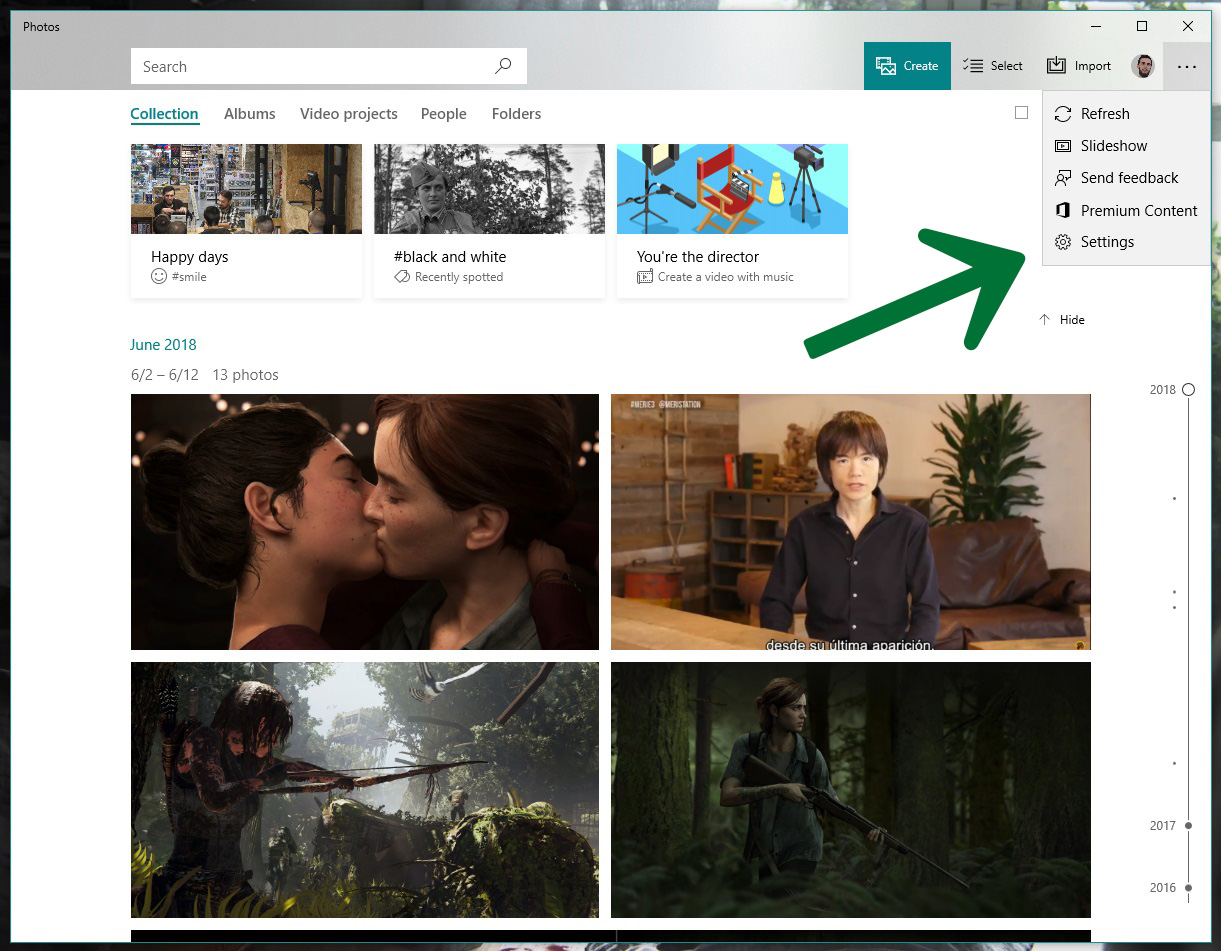
You need Windows 10 to transfer photos wirelessly. If you have it, the next step is to open it, click on the icon with the three dots on the top right and click on “Settings.”

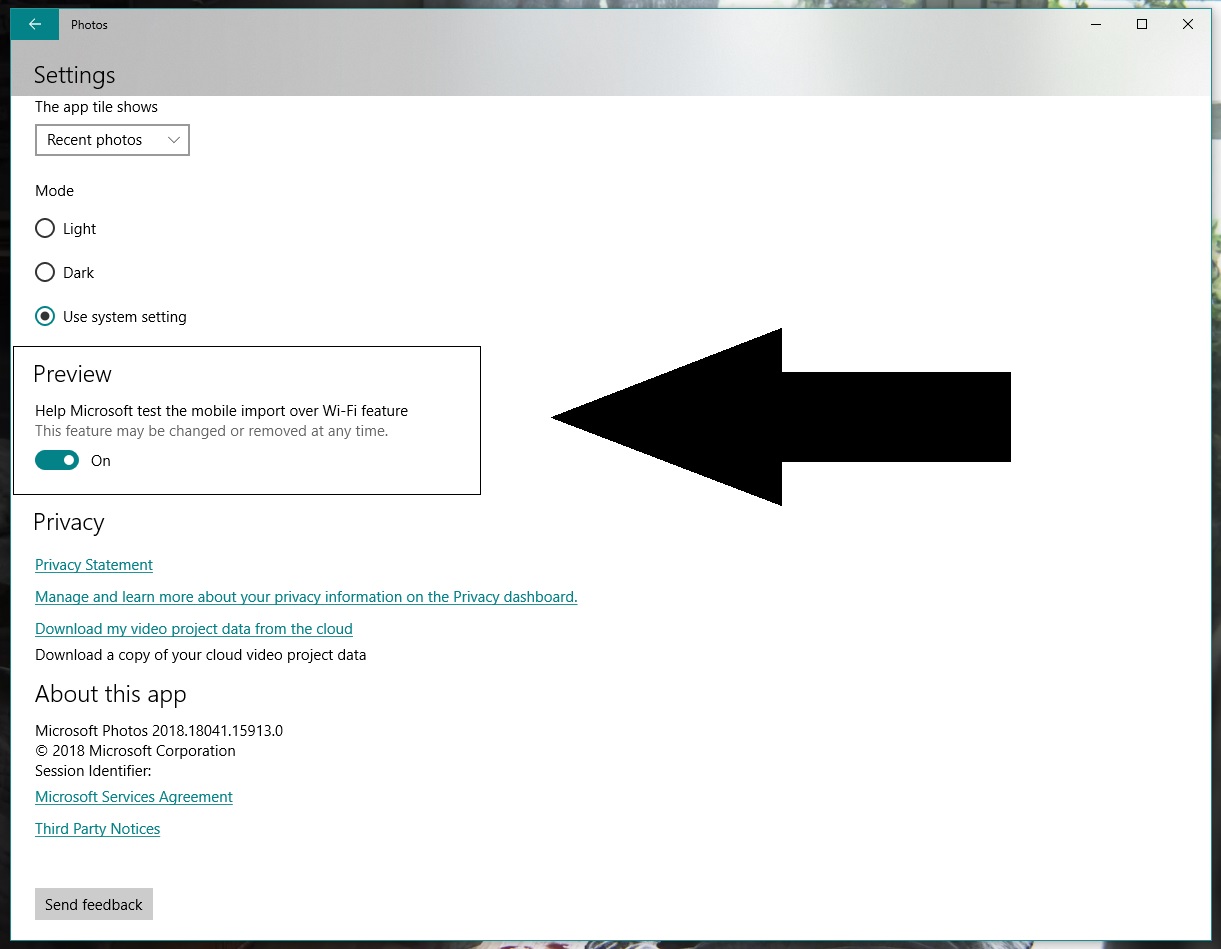
Go to the bottom and look for an option called “Preview: Help Microsoft test the mobile import over Wi-Fi feature.” Generally speaking, this button is disabled, so you should switch it on.

Let’s go to your cell phone now and download the Photos Companion app from the store. It’s available for iOS and Android.

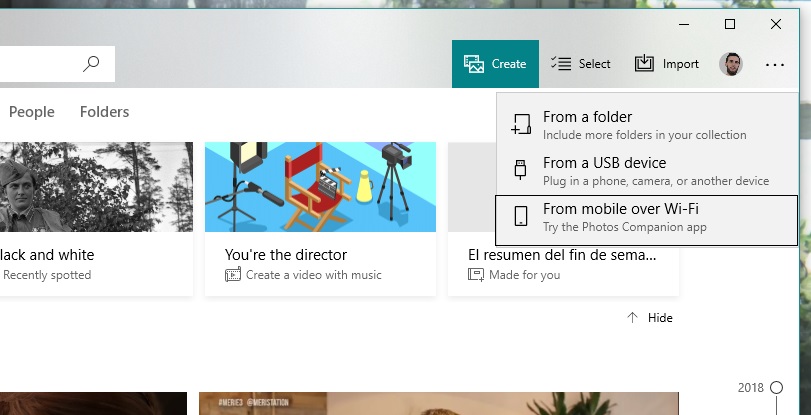
Once installed, the first thing you’ll see is “Send photos.” Do this and the camera will open to scan a QR code. Return to your PC. Once you’re inside Windows Photos, click on “Import” and now you’ll see a field called “Import from mobile over Wi-Fi.” Click on it and you’ll have the QR code it requested.

Finishing up is as easy as selecting the images you want to transfer to your PC, clicking on “Done” and the Wi-Fi connection will do the rest. As usual, the more photos you have, the longer the process will take. Things will also slow down if there are a lot of people connected to the network you’re using.

Remember that this system of transferring photos is already streamlined for the next time you use it, since you only need to directly scan the QR code and click send. Happy transferring!

Use your phone too much? There is an app for that.

Have you ever noticed at the airport whenever you have a digital boarding pass the attendant will make you scan it yourself? They never want to touch your phone unless they have gloves on. That is because smartphones are disgusting these days. People are addicted to their smartphones and take them with them everywhere, including the bathroom. We need to do something to tackle smartphone addiction.

Source: Digital Trends

Of course, there is an app for that. There is a smartphone app to help you fight your smartphone addiction. You couldn’t make it up.

Siempo tries to calm everything down. Your smartphone is like a shop window for all those developers who’ve convinced you to download their app. Everything on your screen is designed to catch your eye and draw you in. It is no wonder you are addicted to smartphones when even app icons have been designed to stop you switching off. Siempo counters this by showing you a plain screen with plain app icons.

Another Siempo feature is that you can group notifications. Rather than constantly being buzzed you can ask Siempo only to let you know about app notifications at certain times of the day. This’ll mean your smartphone won’t constantly be trying to grab your attention even when it is in your pocket.

Siempo started out as a smartphone, but lack of interest meant it never made it to market. An app is much cheaper to develop for a wider release, though, so here we are. If you think you use your phone too much, it could be worth checking out.

These are the 104 new emojis coming to your phone in 2019

A flamingo, falafel, new clothing items, icons that represent inclusion… and even a sloth! These icons, plus nearly a hundred other images, have been proposed by the Unicode Consortium to become emojis in 2019.

The Unicode Consortium is the organization in charge of designing and proposing new emojis that operating systems and apps have to include over time. Though we’re still waiting for the 2018 emojis to come to most devices, Unicode has already presented its suggestions for the upcoming year.

Like previous editions, Unicode is committed to inclusion, adding several icons that represent functional diversity: an ear with a hearing aid, two types of wheelchairs, a prosthetic arm or leg, a guide dog…

It also considers the unique characteristics of some countries, adding typical foods and drinks, such as mate in South America, or different icons of Hindu culture like the sari and a temple.

And, of course, emojis have to keep up with trends: what would a chat be today without adorable animal emojis such as flamingos, otters, and orangutans?

New colored hearts and other symbols will also be available.

Remember, Unicode’s suggestions are the first step of the process. This means that not all 104 icons may end up on every operating system, not to mention how each system uniquely adapts them (remember the controversy over gun emojis).

You can see the full list of 2019 Unicode candidates here.

WhatsApp Messenger Download WhatsApp
8

What emoji would you still like to see on WhatsApp and other programs? Tell us your suggestions in the comments! Maybe we’ll give the Unicode Consortium ideas for their 2020 list!

5 tips to prevent security issues with your phone

Every day we browse more and more using our cell phones. Data analytics on how we use the Internet in our day-to-day lives speak for themselves: smartphones and tablets are the preferred tools most of the time, far more than computers. Properly protecting ourselves on these devices is key for browsing worry-free, so here are five tips to prevent potential security issues.

Don’t connect to just any network

We know that data plans are used up at frightening speeds, which can make WiFi networks seem like our big saviors. However, you must be careful with them. More so than you think.

Everybody connected to an open WiFi network is exposed to having their data visible. With that in mind, we recommend you don’t abuse these networks; ideally, you would never connect to them. Better wait a while, than get hacked.

Don’t put your phone number online

Security experts don’t get tired of saying it: we’re putting more and more personal data on forums, social media, websites and a long list of services. Most of the time, this data is protected, but sometimes it isn’t. Their advice is simple and straightforward: don’t post your cell phone number on public and easy-access websites.

Remember that with your personal phone you don’t just call, you can also  recover passwords for a number of services (Google, Twitter, Facebook and even several banking apps). Posting your phone number is exposing yourself to third-party attacks. And that’s no fun, we can assure you…

Don’t browse on questionable websites

This recommendation is the easiest to follow: don’t go on websites that may seem suspicious. Numerous sites are flooded with questionable advertising that may introduce malware onto your smartphone.

In the case of Android, this is extremely important, so pay close attention to all the websites you visit. And remember: it’s better to close a page now than pay the price later (and experience a slower cell phone, though that’s another story.)

Use an antivirus

This fourth tip goes hand-in-hand with the previous one: if you think you’re going to browse websites that may harm your cell phone, our advice is to install an antivirus program as soon as possible.

There are antiviruses of all kinds: free; paid; simple options; complicated options with extensive customization options; etc. Choose the one that best suits your needs, though, in general, the best-known brands for your PC are also the best deals for your cell phone.

Protect your phone with access control

Statistics show that a ton of users don’t even have lock patterns on their devices. This means that with just one motion, your cell phone can be unlocked. In other words, if your smartphone falls into the wrong hands, everything on it can be accessed in an instant. Total catastrophe.

Adding a lock pattern, a numeric password, a fingerprint sensor or even an eye scanner is a security tip that must be followed from the moment you buy a device. Go to settings, privacy/security and set the one you like best. But without fail, do it.