Google Play Basics part 4: How to fix server error RPC:S-5:AEC-0

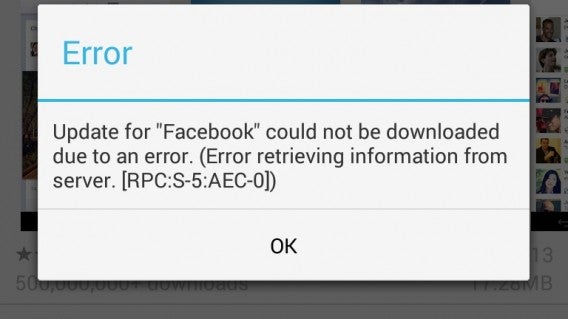
Google Play is a fantastic store for getting apps and games for your Android device, but it’s less than fantastic when something suddenly goes wrong and you get an error message saying ‘Error retrieving information from server [RCP:S-5:AEC-0]’.

What can you do to fix this error? It’s a system error that can be fixed with one simple and effective method: you have to remove your Google account on your phone or tablet and then re-add it. Here’s the our-step by-step guide on how to do that in part 4 of our Google Play Basics series.

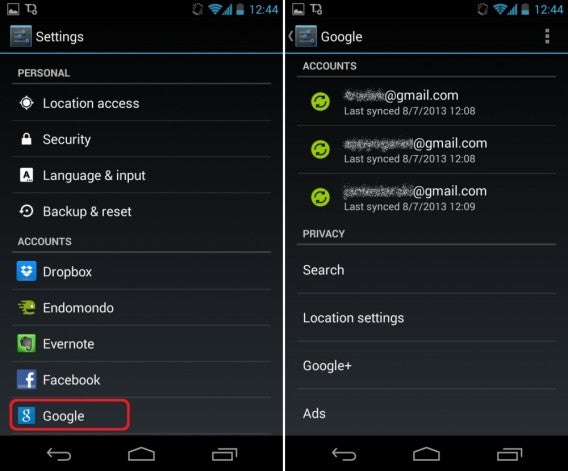
1. Go into your Google Account settings

Go to Settings, scroll down until you find the blue G icon (for Google), and click on it. Now select the Google account you want to delete. On our test phone, we added 3 accounts, but usually there’s only one, so click on whichever account is yours. Click on it.

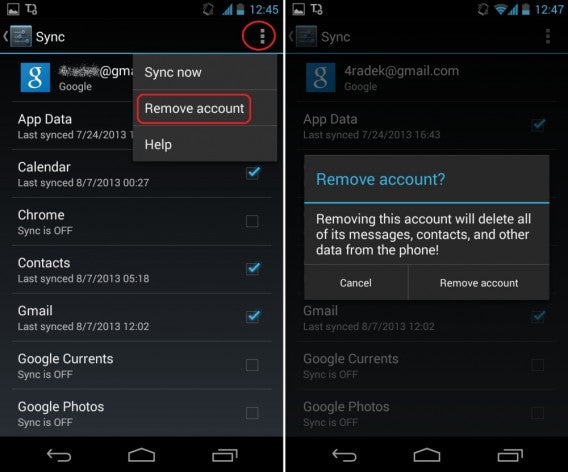
2. Remove your Google Account

Click on the icon with three dots in the upper right hand corner of the screen. You’ll get a menu where one of the options will be to ‘Remove Account.’ Confirm that you really want to remove the account.

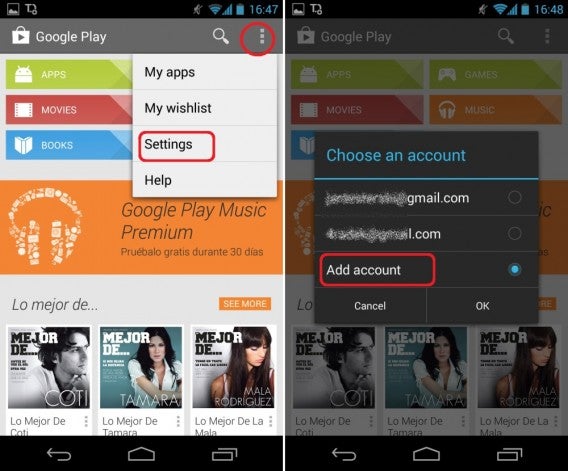
3. Re-add the Google Account

Enter Google Play and click on Add a Google Account to re-add the account onto your phone or tablet. Remember, the account hasn’t been deleted completely, just removed off of your device. In this case, click ‘Existing’ instead of ‘New’ account.

Follow the instructions on the screen. If you get lost somewhere, read our step by step tutorial on How to register a new account in the Google Play Store.

If you forget the password for your account, check out the How to recover your password on Google Play tutorial.

The RPC: S-5: AEC-0 error should now no longer pop up. Enter Google Play and download a new apps or game just to double check.

Do you have another way for fixing this server error? Let us know in the comments below.

Read the other articles in our Google Play guide:

Original article written by Radek Grabarek, published on Softonic PL.

WeChat: What is it and how does it work?

WeChat is a new and completely free messaging app currently trumping well known competitors WhatsApp, Viber and LINE with some of its awesome and unique features. We give you a breakdown of what the messaging app can do so that you can decide for yourself if you want to make the switch.

What is WeChat?

WeChat is an instant messaging app for Android, iPhone, Windows Phone, BlackBerry, Symbian and Java. Perhaps the reason behind it’s recent success is the company’s huge advertising campaign featuring superstar Leo Messi, but this app has its own merits without needing the help of the famous footballer. Aside from all the functions we’re used to, like creating group chats, sending photos, music files, and voice notes, WeChat introduces some functions never before seen in similar messaging apps.

1. Enrich your chats with colored stickers

WeChat integrates two of the best parts of WhatsApp and LINE: when you’re chatting, you can insert both emoticons and stickers, all for free!

2. Create a live chat

All it takes is a few taps to start a group conversation and live voice chat. It’s a type of multi-user walkie-talkie which makes conversations more immediate and fun, although only one person can speak at a time when the indicator light is green.

3. Make a video call

With video call mode, you can talk face-to-face with your friends. During the call, you can choose to toggle between video and audio. This feature makes WeChat a potential competitor for Skype, which has been the undisputed king of VoIP calls up until now.

4. Meet new people online

With the ‘Shake’ feature, you literally shake your device and find other people around you doing the same thing. In the results list, you can then select a contact that intrigues you and send a chat message to get to know them, a feature that reminds us a lot of Chatroulette.

5. Chat using your computer

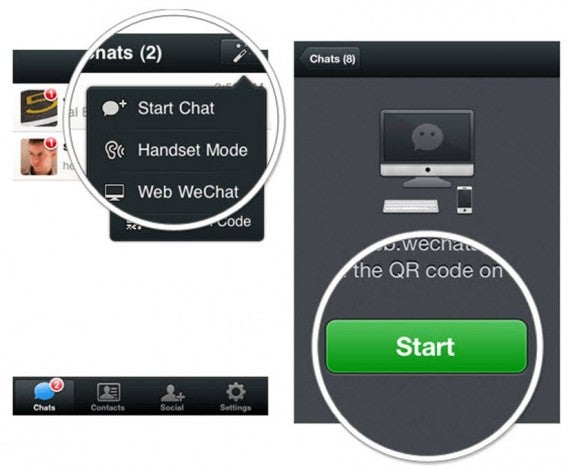
Although there are several tricks to using WhatsApp on your PC, an official PC version was never actually released. Too bad for WhatsApp, because WeChat hasn’t let this opportunity slip through their fingers, having implemented a version for chatting directly in your browser.

6. Share ‘Moments’ with Facebook

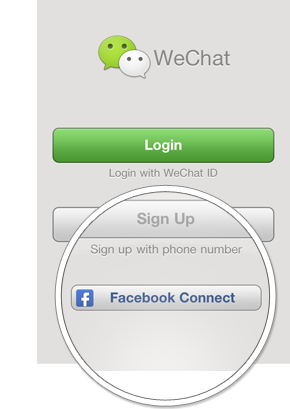
The ‘Moments’ function in WeChat is similar to Facebook posts but more focused on photos. In fact, sharing ‘Moments’ on Facebook is easy thanks to Facebook integration. All you have to do is snap a photo, add a comment (if you want), and hit send. Just make sure you connect WeChat with your Facebook account.

7. Built-in photo editing

Do you want to edit your photos to be published on social networks? Or maybe you want to add a filter to your profile picture on WeChat? This is all possible in WeChat without using external applications! The app has integrated photo editing, allowing you to edit photos with a whole host of different filters.

What else does WeChat have to offer? There’s a blacklist to prevent you being contact by unwanted users, as well as the option to send messages to multiple contacts at once.

There are clearly a ton of WeChat features available that the competitors haven’t been able to tap into yet, so try it out for yourself and see if it’s worth all the fuss!

Will you switch to WeChat? Let us know in the comments below.

Apple pushes iOS 7.0.2 to fix lock screen vulnerability

Less than a week after a lock screen vulnerability was discovered in iOS 7, a patch has appeared. Apple is now pushing out iOS 7.0.2 to fix “bugs that could allow someone to bypass the lock screen passcode.” The lock screen bug allowed unauthorized users to make phone calls as well as gain access to a user’s photos. A temporary fix was to disable access to the Control Center panel from the lock screen.

ios 7 install

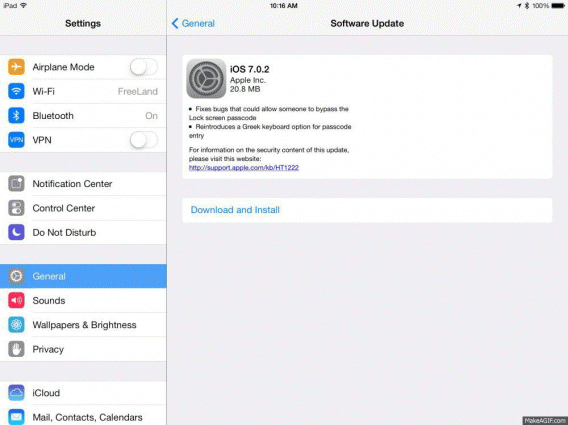
The iOS 7.0.2 update is being released over-the-air for the iPhone, iPad, and iPod Touch. Simply head to your Settings app, hit “Software Update” and follow the on-screen prompts. Make sure you’re connect to Wi-Fi and that your device has enough charge. The update is only about 20MB so it shouldn’t take long to update.


RELATED STORIES


[Source: 9to5Mac]

Does the new California law protecting minors online encourage irresponsibility?

A new law in California makes it much easier for minors to erase their digital past, but what implications does this have for holding kids responsible for things they’ve posted online? The law, which will come into effect in 2015, lets children and teens under the age of 18 make a request to any website to remove their personal information, including things on their social media profiles.

Kids are now going online at a younger age (even LinkedIn has lowered its minimum age for membership to 14 in the US, and as low as 13 in other parts of the world), and the state of California is recognizing the need to protect minors who may regret something they’ve posted online.

True, everyone makes mistakes in their youth, and although it’s important to protect the online privacy of minors, a lot of the material that needs to be removed are things that these kids have posted themselves. Notably, the law won’t protect images that have been saved and re-posted to another website by someone else.

Less personal responsibility?

This clearly brings into question the degree to which we hold minors responsible not only for their actions, but also how these actions represent them online. Youth has almost always been associated with rebellion, and although it’s a lot easier to pull skeletons out of the closet in the digital age, where virtually everything is immortalized online, it’s still important for minors to be conscious of how they use social media in the first place.

Adults also have the option of deleting their online past using programs like JustDelete.me, but it’s easier to remove information from some sites than from others, and there certainly isn’t a law that requires websites to help you in the process.

justdelete.me shows you how difficult it is to remove yourself from various websites.

Coincidentally, the biggest problem could be for people just on the brink of adulthood, those who grew up in the early digital age and have plenty of online skeletons in their closet, but who are aged over 18 and consequently are not protected by the law, which doesn’t work retroactively.

Teaching online etiquette

It would be more useful to teach kids online etiquette and social skills: having an online presence is becoming more and more important, especially in the working world. Even YouTube is taking an active role in managing online etiquette with its new comments features, allowing for better comment moderation and control to encourage a more positive community on the video streaming site.

Learning how to be smart and respectful of yourself and others online could be more beneficial than an emergency, fail-safe ‘delete’ button. After all, as kids will certainly find out, not all bad decisions in life are that easy to eliminate.

What do you think about this new law in California?

Is BlackBerry Messenger coming to Windows?

While BlackBerry is seriously struggling, shedding workers and canceling financial reports, BlackBerry Messenger is still a hugely popular service, as the clamor for the iOS and Android versions has shown.

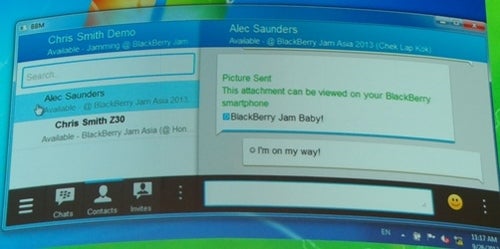
At BlackBerry Jam in Hong Kong, attendees saw a projection of BBM for Windows, and the image quickly spread through Twitter. Mistakenly many people now think there is a Windows desktop BlackBerry Messenger app, but that is not what the image shows.


This BBM on Windows desktop only happened when a BlackBerry smartphone was connected to a Windows PC. It allows you to control BBM from your Windows desktop, but doesn’t function as a standalone app. Furthermore, this was all a proof of concept demo, according to NotAnalog, and currently BlackBerry has no plans to develop the idea.

The popularity of BBM for desktop on Twitter proves it’s something users would like. This is no surprise considering the success of LINE and VIBER on desktop, and the clamor of user requests for a WhatsApp desktop version. However, like WhatsApp, BBM’s connection to a phone number is a tricky barrier to developing a standalone desktop app.

Read more about BlackBerry:

[Source: NotAnalog]

The top 10 Chrome extensions for Opera

When you’re choosing a new browser, there are lots of things to take into consideration. Is it fast? Is it safe? Does it have plenty of extensions that can expand your browsing experience? Until recently, when talking about the last factor, Opera didn’t score very well, with noticeably fewer extensions than other browsers. Recent changes, however, have put Opera in the running for one of the best browsers out there. So, without further ado, take a look at our top 10 Chrome extensions for Opera.

But wait! You’re probably thinking: why do I want a Chrome extension on Opera?

Opera has its own extensions, but developers have chosen to focus primarily on creating extensions for Firefox and Chrome. This means that as far as extensions go, Opera used to have the smallest selection of the bunch.

Luckily, Opera has recently made a change, and version 15 of the browser now lets you install Google Chrome extensions. All you have to do is visit this page and install the ‘Download Chrome Extension’ app, which allows you to install CRX files on Opera with a single click (only extensions, not web applications).

So, what are the best Chrome extensions for Opera? Keeping in mind that Chrome extensions that make it to the web store are generally pretty good anyways (or they wouldn’t be there in the first place), here are ten that we recommend installing.

How do you install Chrome extensions on Opera​?

Before going any further, you must install the ‘Download Chrome Extension’ app, as mentioned above. Visit this page and click on the green ‘Add to Opera’ button. From now on, when you visit a Chrome extension page, you can install it directly on Opera.

Note: Remember, not all Chrome extensions are compatible with Opera and there is a limit to the number of add-ons that can appear next to the address bar.

The best Chrome extensions for Opera

Here’s our choice for the best Chrome extensions available for Opera. Remember, we’ve based our choice on three criteria:

  • These extensions don’t yet exist in the Opera catalog
  • They don’t include any features already present in the browser
  • They’re compatible with version 15 (or higher) of Opera

In no particular order, here they are:

  • Gmail Checker: indispensable for knowing the number of unread emails in your Gmail inbox.
  • LastPass Vault: password manager.
  • HTTPS Everywhere: adds https to many webpages, helping you stay more secure while browsing.
  • PicMonkey: the awesome image editor, now available on Opera.
  • MightyText : this allows you to send and receive texts from your desktop.
  • Virtual Keyboard: this extension isn’t needed in Chrome any more, but in Opera, a virtual keyboard could still prove very practical.
  • OneTab: if you have a tendency to accumulate tabs, this extension can help you impose some order or even group them all under one single tab.
  • MuteTab: There are few things more annoying than not being able to find the tab that’s making all the noise. MuteTab can make the search nothing but a distant memory.
  • Image Downloader: this is an excellent tool that lets you download all the images on a webpage in a single click!
  • Evernote Clearly: improve the readability (and usability) of online text by downloading this extension, which lets you send items directly to Evernote.

What are your favorite Chrome extensions for Opera?

Original article published on Softonic FR.

Train Simulator 2014 out today

Today sees the release of Train Simulator 2014 for PC, via Steam. This latest version of the locomotive simulator has a new career system, interface, improved graphics and performance, plus new creation tools.

It has integration with Google Earth to make it easier to create new routes, and there is a marketplace where you can share your creations, and try other user’s. Unusually, owners of Train Simulator 2013 will get a free update to the new game. The trailer for the game features a rousing speech from Game of Thrones star Sean Bean. Trains are coming, indeed.

Default player


brightcove.createExperiences();

There is more planned for Train Simulator 2014, including a Californian DLC pack, Pacific Surfliner, which will bring a 128 mile route from Los Angeles Union Station to San Diego to the game. We’ll have a full review of Train Simulator 2014 soon.

Read more about simulators:
Euro Truck Simulator 2 ‘Going East’ DLC almost ready
Free strategy and simulator games for Android and iOS
New Euro Truck Simulator 2 DLC screenshots released
Video review: Surgeon Simulator 2013

Google Play Basics part 3: Recover your forgotten password

So you’ve created your account in Google Play to download games and applications for Android. Maybe you’ve even used our guide to help you register with Google Play. But what do you do when you forget your password and can’t log in and download any games or apps? In this article in our Google Play Basics series, we’ll help you recover your forgotten Google Play password.

1. I can’t sign into the Google Play Store

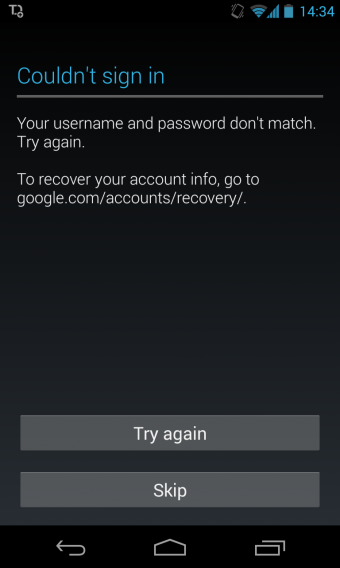
Is the picture below familiar? What to do next? Attempting to copy and paste or, even worse, manually rewrite the specified page URL into the browser, may seem too daunting a task. Luckily, there is a simpler way.

2. Go back to the login screen

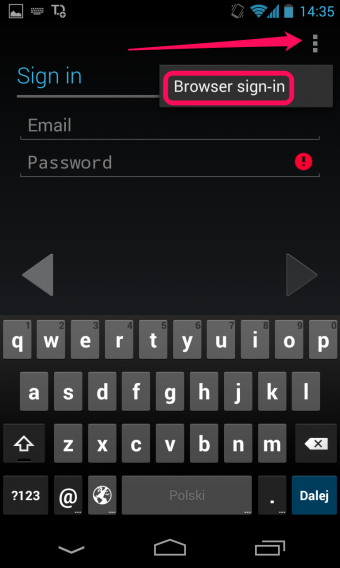
Click the Back button in the lower left corner of the screen to take you back to the login page . Once here, click on the icon with the three dots in the upper right hand corner. You will be given the option to log in using your browser. Click this option.

3. Recover the password in the traditional way

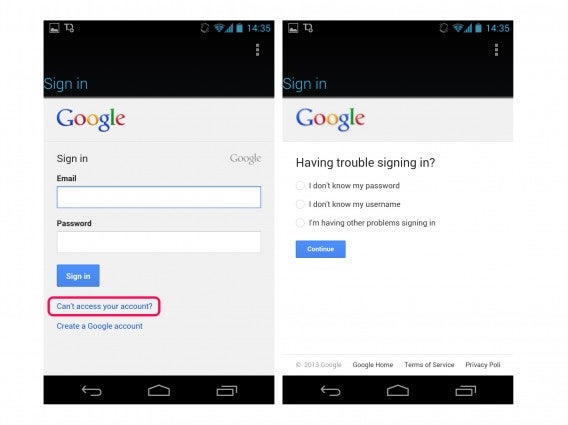
Below, you’ll see the window showing the traditional login to your Gmail or other Google services. Click on ‘Can’t log into your account?’ and choose why, then follow the instructions displayed on the screen to recover your password.

Have you managed to recover your Google Play password?

Read the other articles in our Google Play guide:

Original article written by Radek Grabarek, published on Softonic PL.

VLC media player 2.1.0 ‘Rincewind’ out now

One of the most essential free apps for PC and Mac, VLC media player, has been updated to version 2.1.0. The update is codenamed Rincewind, after a character from the popular Discworld books by Terry Pratchett.

VLC media player 2.1.0 has a ‘new audio core, hardware decoding and encoding, port to mobile platforms, preparation for Ultra-HD video,’ it also adds support for more formats, and features designed for ‘anime’ fans. According to developer VideoLAN Organization, there are over 1000 bug fixes in this new version.


Rincewind is a slightly odd choice of codename, as the character in Discworld is ‘reputed for being able to solve minor problems by turning them into major disasters.’ Let’s hope the same isn’t true of VLC 2.1.0, as while 2.0 brought a long overdue interface update, many people found it less reliable than 1.9.0.

The full list of changed for 2.1.0 is huge, with extensive changes for Audio, video, codecs, formats, inputs and devices, mobile and the changes aimed at developers and anime fans. Check out the full list at VideoLAN Organization.

The VideoLAN Organization is still developing the Windows 8 Modern UI version of VLC media player using Kickstarter funding. You can follow the progress or donate here.

Download VLC 2.1.0:

[Source: VLC, Wikipedia]

Accessible applications – Episode 1: Windows

What are accessible applications?

Accessible applications are programs that allow people with disabilities to use the computer, or to perform, via a PC or a smartphone, tasks that are usually impossible, or at least very difficult.

In recent years, a large number of programs have been created to help those who are blind, visually impaired, deaf or color blind, as well as people with physical and cognitive problems, and speech and language difficulties, making their lives a bit easier.

All platforms offer accessible programs, some by default with the operating system (such as VoiceOver for OS X) and others through third party software. In this article, we explore the options available on Windows.

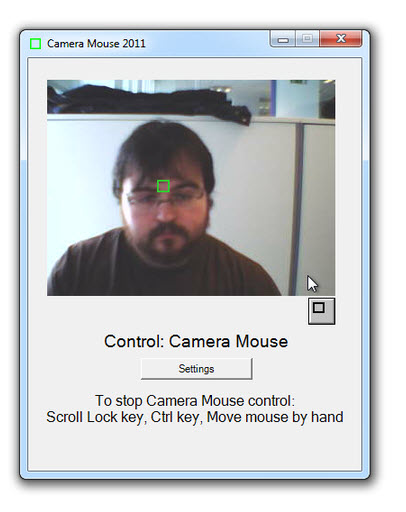
CameraMouse Lets you use your head as the mouse. This app leverages your computer’s webcam and allows you to move the cursor without using your hands. When you’re configuring Camera Mouse, you choose part of your face as the reference point for the app – in other words, the point that the CameraMouse will use to follow your movements around.

The configuration options allow you to customize many parameters. This means that the program can be adapted to most needs. For example, you can determine the motion sensitivity level, so the application can be used even in the case of very low head mobility. It can even click when the cursor hasn’t moved for a few seconds. CameraMouse isn’t always precise, but our test results were positive overall.
CameraMouse

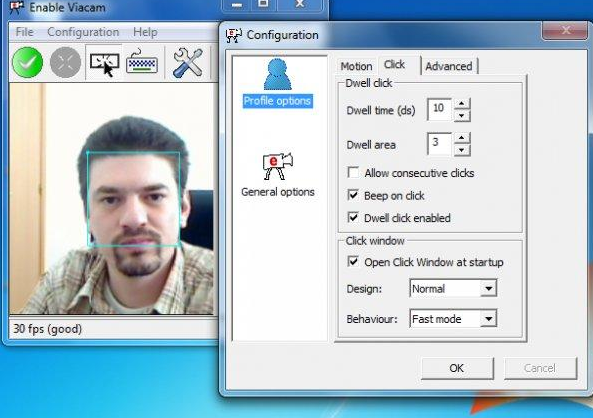
eViacamLets you use head movements to move the mouse. In some ways, it’s Similar to CameraMouse, but it’s got a few more options, such as the ability to use the virtual keyboard in Windows to write.

Thanks to a bar at the top of the screen, you can determine what action to take when you stop on a point on the screen: single click, double click or drag.
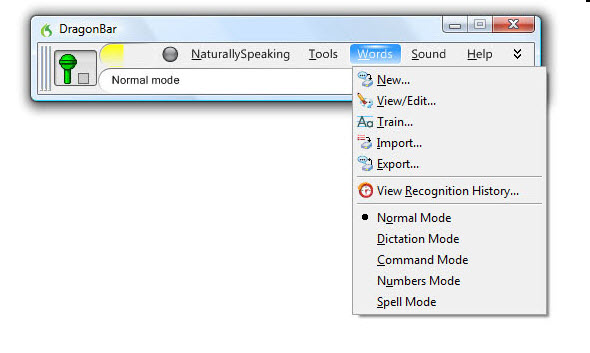
Dragon NaturallySpeakingLets you control the PC and write using your voice. The initial setup requires a little patience, because you’ll need to read a variety of texts to teach the program to properly recognize your voice and speech patterns.

You can choose either quick or in-depth training. The second takes more time, but we think it’s the better option. The effectiveness of the speech recognition improves over time, because Dragon NaturallySpeaking learns from its mistakes. To use the program you need a microphone, and preferably a good quality one.
Dragon

We were amazed by the performance of this application, which rarely gets it wrong. It also supports multiple user profiles.

NVDAReads the text under the mouse – or highlighted using the keyboard – out loud. It is also compatible with touch-screen devices. The acronym stands for Non Visual Desktop Access, and it’s an open-source application created for the blind and visually impaired.

It works with most browsers and with many popular Office programs, including Word and Outlook. The program also automatically reads the system alerts that appear on the screen. NVDA works in lots of languages​​ and also offers a translator and Braille reader. Once you learn to use it, it works well, although it doesn’t guarantee you full access to all functions of your PC.

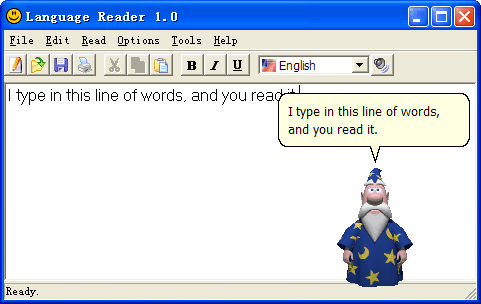
Language Reader – This program also reads texts, but it is for the visually impaired. Unlike NVDA, however, it doesn’t read what you point the mouse at, but only what you paste or write in the application editor, so a blind person cannot use this tool independently.

You have four “voice assistants”: Merlin the Magician, Aladdin, Peedy the Parrot and little Robby the Robot. They all have computerized voices, but they’re very easy to understand.
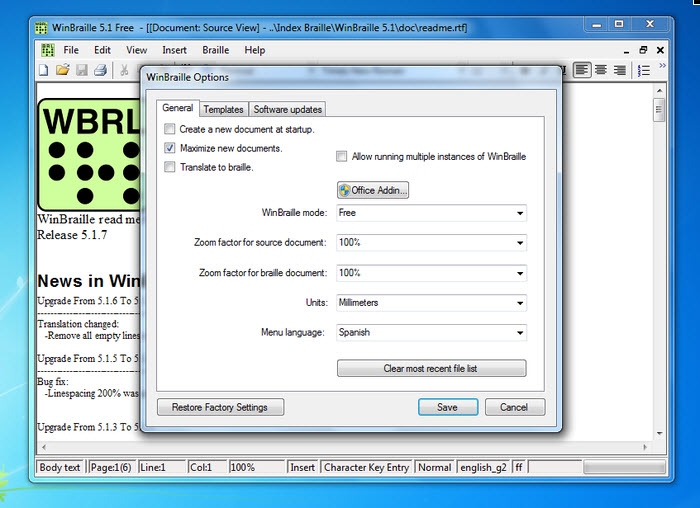
WinBraille FreeTranslates and prints Braille texts from DOC, DOCX, and PDF files. It supports more than 40 languages​​, and can be used when a Braille printer is already configured.

The application also automatically adds WinBraille to the Windows default printer and a button on the Word and Excel toolbars to “translate” the text into the code used for printing in relief.
WinBraille

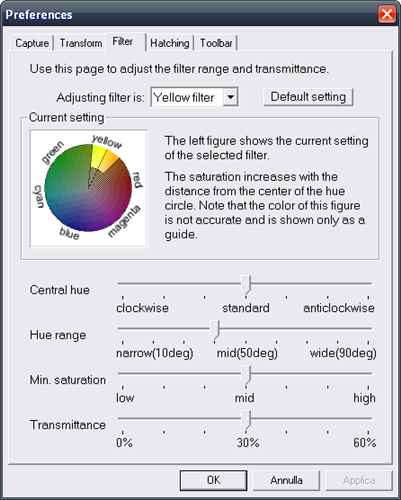
Visolve DeflectorIntensifies or changes image colors to help people who are colorblind. By applying a filter, it facilitates visualization and navigation for those who can’t properly distinguish between certain colors.

This app works with all images and texts. The control panel has lots of features, and allows customizations of every conceivable detail. This allows you to balance any type of color blindness with targeted interventions. Unfortunately, the interface isn’t very responsive.
visolve-deflector

Responding HeadsGive voice commands to your PC. Your assistant’s name is Sam, and he waits for your commands in the corner of the screen.

You can tell him to open programs or folders, write standard texts that you configure, run scripts, read texts and more. For those with disabilities, it can be a decent help, but won’t work with languages other than English.

responding-heads

Read the other episodes from the accessible program guide:

Original article, written by Pier Francesco Piccolomini first published by Softonic IT.