Now you can see how an app looks on your device before downloading it from Google Play

Step into the Play Store’s newest chapter! Google Play has unveiled a groundbreaking feature—now you can see how apps will look on your device before hitting that download button. It’s like having a tailor for your apps, ensuring they fit and look fabulous on your screen.

Get ready for a more personalized, more exciting Play Store experience!

AppleTV+ DOWNLOAD

Enhancing user experience on Google Play: The dawn of device-specific app screenshots

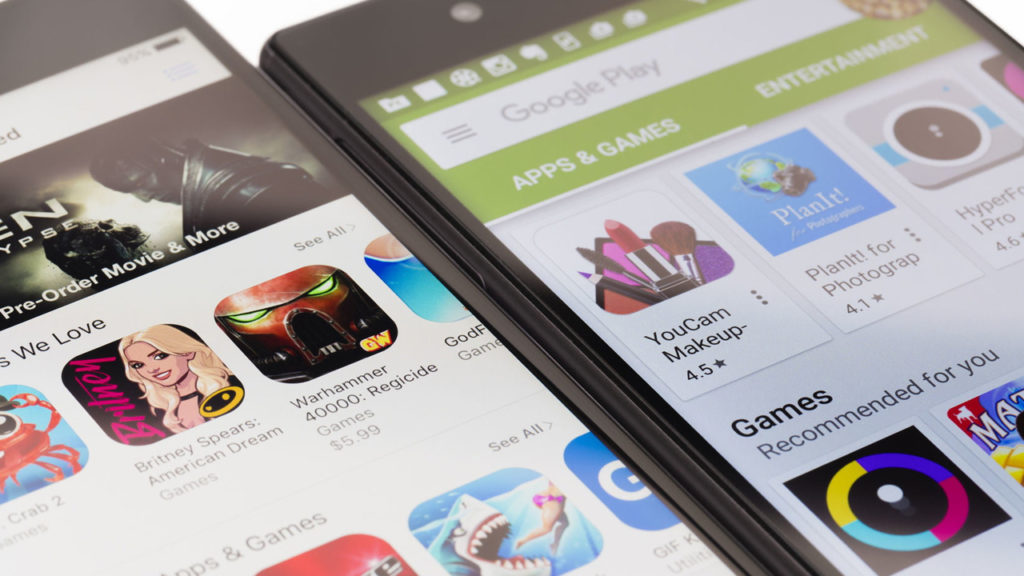
Google Play has just unboxed a game-changer: the all-new screenshot filter feature. Imagine having the power to see how your favorite apps look on your very own device before you hit that download button. No more squinting at generic, one-size-fits-all screenshots. Now, with a magical tap, you can filter through app snapshots tailored to your device—be it a trusty phone, a sleek tablet, a trendy smartwatch, or even that Chromebook or car tab that’s your go-to.
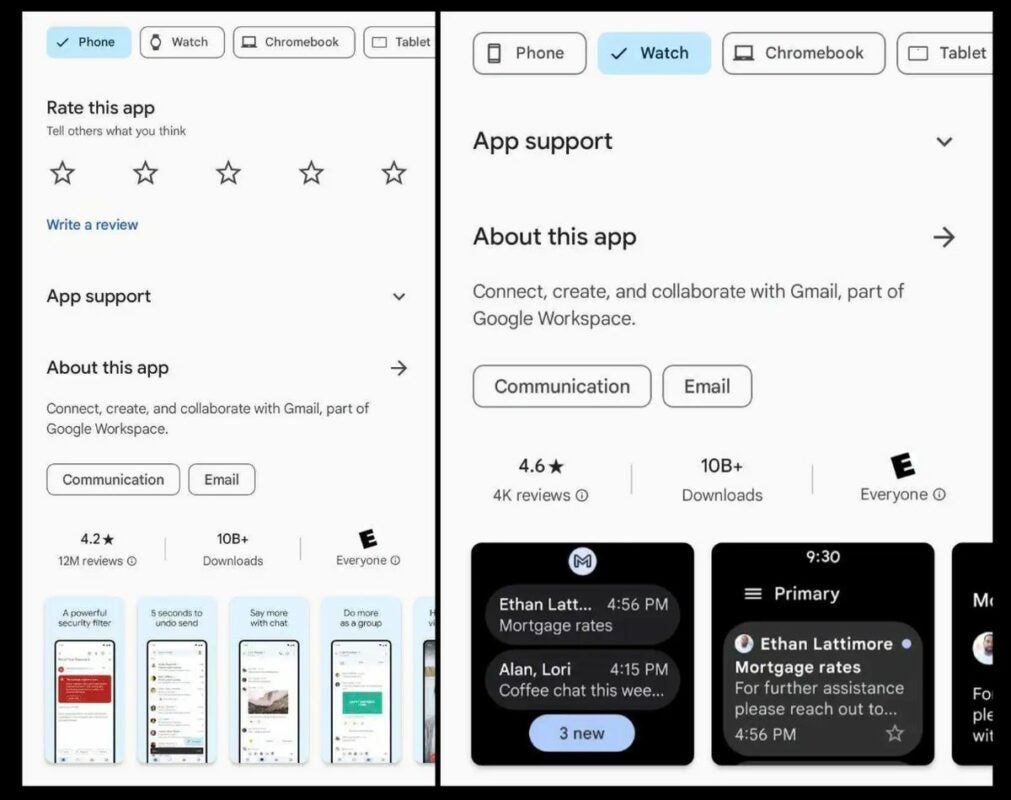
(Credit)

Think of it as a personalized fashion show for apps, where each one struts its stuff in the spotlight of your specific device. Want to know if that productivity app suits your tablet vibe or if that game brings its A-game to your smartwatch? No problem! You’re just a tap away from getting the backstage pass to see exactly how these apps will pop on your screen.

This isn’t just a game for users; it’s a challenge thrown at app developers. The spotlight’s now on them to dazzle us with designs that shine across different devices. It’s not just about looks; it’s about performance. This means apps that used to be a bit wonky on your smartwatch might just step up their game.

And if that’s not thrilling enough, there’s more! Google Play’s added an exclusive ‘New’ category for tablet users, a treasure trove of the freshest apps, deals, and curated lists. It’s like stepping into a trendy boutique, but instead of fashion, you’re exploring the latest in the app world.
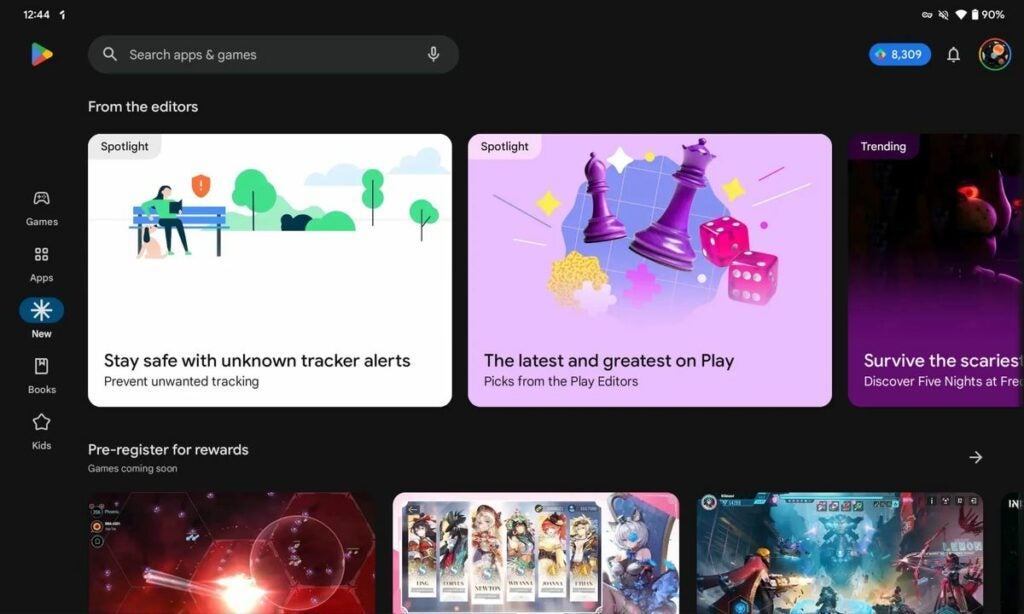
(Credit)

So, next time you’re browsing the Play Store, get ready for a more personalized, more exciting experience. With these new filters, it’s not just about what the apps can do; it’s about how they’ll make your device shine. It’s like trying on clothes before buying—except this time, it’s apps tailored for your favorite device.
Google’s Self-Leak: Did the Pixel 8 Pro Information Slip Out Unintentionally?

Google’s new top-of-the-range phone has been leaked… by the American company itself. It is possible that the idea was to torpedo Apple’s premiere…

Today we woke up to the news that Apple is going to unveil the new iPhones of 2023 this September. We are, of course, talking about the iPhone 15 family. And at Google, they have decided to go against the grain… or have they?

Google Chrome DOWNLOAD

Google has released a photo of the Pixel 8 Pro even before revealing the device… on the same day Apple announced it would launch the iPhone 15 on September 12th.

A Twitter account named Android Setting has shared a picture of a person holding a beige-colored phone against their ear on a Google store page.

And although we can no longer see the photograph, which promotes Google’s subscriptions and services, its supposed alt text read: “A person takes a call with a Pixel 8 Pro phone in Porcelain.”

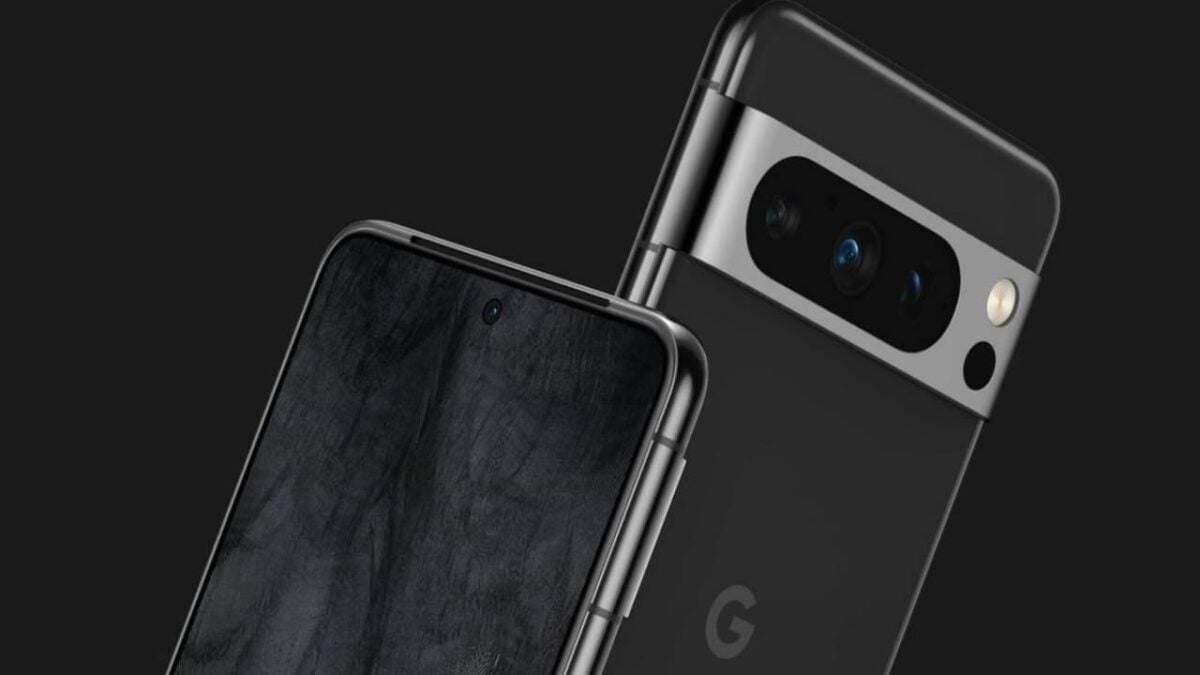
The device in the image resembles the phone from previously leaked photos of the prototype model. Its rear cameras are housed within a glass panel inside a raised metal bar that spans the width of the phone.

And, of course, the Google “G” logo is at the center of the device. According to other previous leaks – yes, there were many – the camera setup of the Pixel 8 Pro includes a 50-megapixel main camera that allows 50 percent more light and a 64-megapixel Sony ultrawide camera.
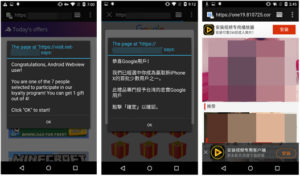
There are also rumors that it will have a flat screen instead of a curved one, similar to the Pixel 6 Pro and Pixel 7 Pro. Additionally, it’s expected to come with a 5,000 mAh battery and a maximum charging speed of 27W.

Google’s Pixel 8 Pro doesn’t have a release date yet, but the tech giant unveiled the two previous generations during events held in October 2021 and 2022. We can assume that this year will be the same.

Google Chrome DOWNLOAD

Some of the links added in the article are part of affiliate campaigns and may represent benefits for Softonic.

Windows Users Rejoice: Google Play Games Finally Accessible on PC

Today is a great day for all Android and Windows users who want to download their mobile apps natively on their computer.

The possibility of having the largest app store in the mobile world installed on our PC is real. It has only taken about 15 years, 13 versions of Android and about three versions of Windows. But happiness is good.

Google play DOWNLOAD

Google Play Games has arrived on PC in a lot of countries. Specifically to all of Europe. You no longer have to live in one of the few countries to try out the official Android games option on Windows.

The Google Play Games beta has been expanded to more than 40 European countries (including the United Kingdom) and New Zealand. With these additions, the platform is now available in a total of 56 countries, up from 13 in November 2022.

Advantages and features of Google Play Games on PC

Google Play Games currently offers over 100 titles for Android. You may not recognize them all, but more well-known releases such as Asphalt 9, Homescapes and Last Fortress are included. Google often adds new games to the service, and promises access in more countries “soon.”

The best thing about having this service on your computer is the possibility of playing all those smartphone titles with mouse and keyboard, on a big screen and from your office.

Not all players like to play from the small screen of their mobile, especially if you already have gray hair like me. For those who are attracted by mobile games, but not by the mobile itself, this is your chance.

Requirements for Google Play Games on PC

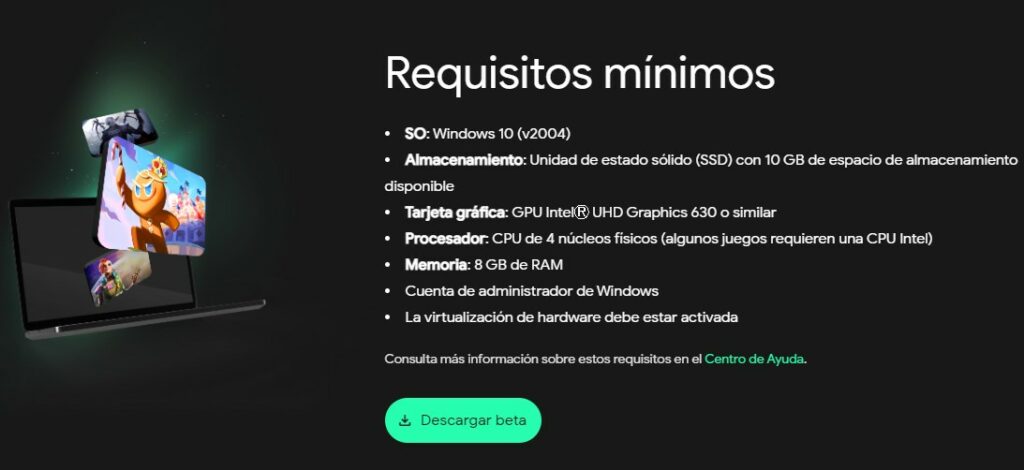
To test the app, Google says you’ll need at least a computer running Windows 10 or later, a solid-state drive with 10 GB of free space, at least an Intel UHD Graphics 630 or comparable GPU, a CPU with four physical cores, and 8 GB of RAM.

But Google recommends a dedicated “gaming” GPU such as NVIDIA’s GeForce MX450 and a CPU with eight logical cores (e.g., via hyperthreading). If your computer is less than 4 years old, you can probably give it a try.

Your progress will be synchronized between Android and PC, so you can continue playing on another device. The service is now available for download across Europe, but is still in beta.

Google play DOWNLOAD

Some of the links added in the article are part of affiliate campaigns and may represent benefits for Softonic.

How To Update Google Play Store in 3 Steps

To stay up to date with all that’s new in the wonderful world of apps, you need to keep your Play Store ahead of the pack. By keeping Google Play Store updated, you’re assured of having the latest versions of the app going through all the bug fixes and improvements. Just like your Android apps, Google Play Store Android also needs essential fixes and features updated. It adds stability and visual changes to your digital store.

Update your Google Play Store

If you’re ready to learn how to update your Google Play Store, let’s jump right in.

Step 1: Open your app

  • Navigate to the Google Play app on your device
  • Click on Google Play to open it.
  • Click the slide-menu button in the app’s search bar.
  • Select ‘Settings.’

Step 2: Find your current version.

  • Scroll down and click on the ‘About’ tab. 
  • Your version is displayed here. Tap anywhere on it, and if it’s up to date, you’ll get a message saying ‘Google Play Store is up to date.’

Step 3: Update to the latest version

  • If you need an update, it will redirect to the download automatically.
  • Allow the update to complete without interruption.

You’ll mostly not even know that your Google Play Store app is updated, as it continually updates automatically in the background. If you’re like us and like to stay on top of our app’s performance, these steps will ensure you do.

What other apps can I use?

By far, Google Play is the most used digital store globally due to its app cost, distribution, and compatibility. That said, you can expand your reach and take a look at what other great app stores are offering too. The Amazon App Store is a close second for Android users and used to be the sole home of Amazon Prime and distribute games for Kindle Fire phones, tablets, and streaming boxes.

Manufacturers pre-load such devices with the Amazon App Store. If you enjoy thinking and operating outside the box, you might like what the Aurora Store offers. It’s a free alternative to Play Store for Android. 

How to Fix Error Checking for Updates on Google Play Store

Google Play Store has become fundamental in letting you manage and install apps on your devices. However, you’ll be left by the wayside if you don’t regularly update when there’s a new version of your favorite game available. Imagine trying to play Call of Duty: Mobile if you don’t have the latest tiers in the current season?

Sometimes, your device might have a problem finding the latest versions. Here’s a quick look at how to fix the error checking for updates on Google Play Store for Windows and Android.

What causes the “Error Checking for Update” problem?

Google has analyzed several reports regarding this Store error to discover where the problem lies. Based on that assessment, the following are highlighted as the top causes:

  • Corrupt cache;
  • Corrupt data;
  • Poor internet connection, specifically where a VPN is involved;
  • Device storage space;
  • Corrupt SD card;
  • Google Play Store needs an update.

Our brief guide will show you how to fix three of these issues, and the rest is up to you. 

Solution 1: Clear the cache

If you need to clear Google Play’s cache, you’ll need to open your device’s Settings. Find the Applications section and head to your built-in apps, searching for Google Play among the app list. Once located, you’ll need to click on Storage and then Clear Cache.

Solution 2: Clear app data

Clearing your Google Play data from your device follows the same process as before. However, you’ll need to Clear Data after you enter the Storage section. Your smartphone, PC, or tablet will clear all information linked to your Store account. You’ll need to sign back in when you launch the app again.

Solution 3: Uninstall Google Play Updates

If your device says that Google Play Store is up to date, there may be an issue with some of the data from the latest update. To fix this, you’ll need to uninstall all the latest patches back to the original version. Once completed, you’ll need to let the app download and install the latest update again.

Restoring Google Play effortlessly

While the app is exceptional for managing apps on your device, there are times when it also has a hiccup. At least now, you know how to fix the error checking for updates on Google Play Store.

Google Play Store had apps that allowed digital stalking

Security specialists at Avast have identified 7 apps on the Google Play Store that allowed people to stalk others.

Malware is bad, but now we have a new threat to contend with. Ladies and gentlemen, let’s talk about stalkerware.

Security specialists at Avast have identified 7 apps on the Google Play Store that allowed people to stalk others

Stalkerware cybersecurity google play store avast

In a recent blog post, Avast announced that it had discovered seven apps available on the Google Play Store that enabled users to stalk other people. The apps work by sharing the victims live location, collecting their contact list, and monitoring their SMS and call history. This made it possible to stalk work employees or colleagues, romantic partners or, perhaps worst of all, children. According to Avast, all seven apps were likely designed by a Russian developer.

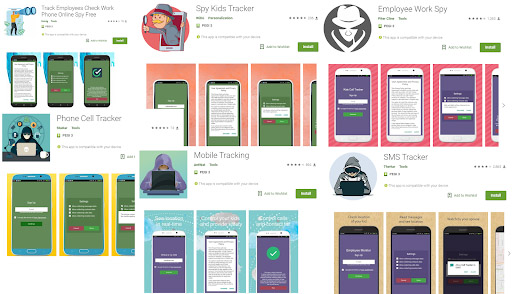
Before publishing the blog post, Avast first notified Google of the seven malicious apps and the internet giant has since removed them all from the Play Store. Unfortunately, however, they’d been downloaded over 130,000 times before Google was able to remove them. You can see the names of the seven apps below:

  • Track Employees Check Work Phone Online Spy Free
  • Spy Kids Tracker
  • Phone Cell Tracker
  • Mobile Tracking
  • Spy Tracker
  • SMS Tracker
  • Employee Work Spy

Image via: Avast

Each of the apps first required the stalker to gain access to the victim’s phone. They’d then install the apps on the phone before following instructions that would show them how to hide the apps so that the victim wouldn’t know they were there.

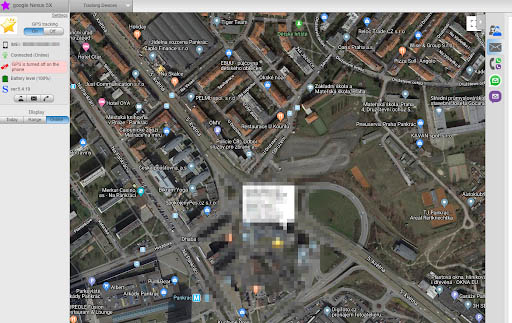
The stalker would then email themselves a link and use it to install the spying app onto his or her own phone. From then on, the stalker would be able to keep tabs on the victim, and even be able to view their location on a map.

Stalkerware removed from the Google Play Store
Image via: Avast

Avast’s head of mobile threat intelligence, Nikolaos Chrysaidos, had this to say of the new type of malware threat, “These apps are highly unethical and problematic for people’s privacy and shouldn’t be on the Google Play Store… They promote criminal behavior, and can be abused by employers, stalkers or abusive partners to spy on their victims. We classify such apps as stalkerware, and using apklab.io we can identify such apps quickly, and collaborate with Google to get them removed.”

These apps offer an insight into a worrying new digital threat that we need to be aware of. Protect your phone with a rigorous password as well as any biometric security measures your phone may offer. Don’t give it to anybody you can’t trust. We’ve also reached out to Chrysaidos to see about how to make sure nobody has installed these apps on your phone.

Google Play Store adware threat could basically lock up your phone

238 apps with over 440 million downloads between them have shipped with an aggressive form of adware.

play store app on dark background

Malware found in Google Play Store app stories are becoming so regular you could set your watch by them. There have been a lot in recent memory, but the biggest by far has been the bulk action Google was forced to take against Chinese app developer DO Global. With apps totaling over half a billion downloads, DO Global’s ban, for a number of reasons including sharing user data with the Chinese government, sent shockwaves through the app world.

It now looks, however, like Google’s problems with apps from China are far from over as a new security report has shed light on some worrying findings. According to the report, Google has a serious problem with the Chinese-based firm Cootek, due to unauthorized adware that can render victims’ mobile phones almost completely unusable.

238 apps with over 440 million downloads between them have shipped with an aggressive form of adware

Security research firm Lookout has released details of a new study its team has performed looking into apps on the Google Play Store. The study’s findings show that a particularly nasty piece of adware called BeiTAd has been found in 238 apps on Google’s app store. 237 of the apps were published by the aforementioned Cootek.

infected apps
One of the more popular infected apps

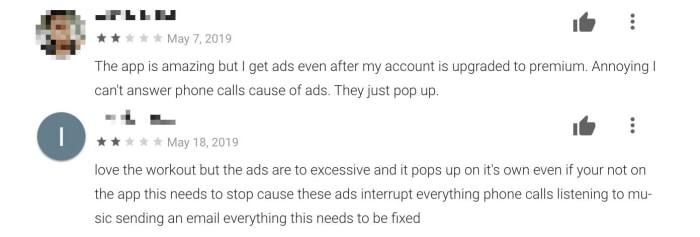
BeiTAd is a rather invasive piece of adware as it propagates “out of app” ads. After the infected apps are downloaded, the plug-in lies dormant for up to a couple of weeks but then wakes to cause havoc on the victim’s device. Basically, out-of-app ads start popping up all over the device, not just in the infected app, including places like the lock screen. Even worse, the plugin could trigger video ads to play while the phone is in sleep mode.
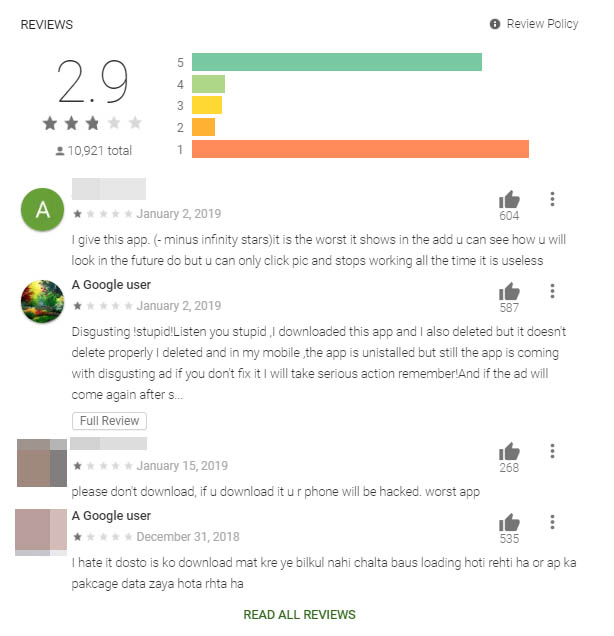
a bad review

In the report, Lookout researcher Kristina Balaam points out just how bad this adware is, “While out-of-app ads are not particularly novel, those served by this plugin render the phones nearly unusable. Users have reported being unable to answer calls or interact with other apps, due to the persistent and pervasive nature of the ads displayed.” In many cases, the onset of ads has been so bad that they’ve interrupted regular use of the device.

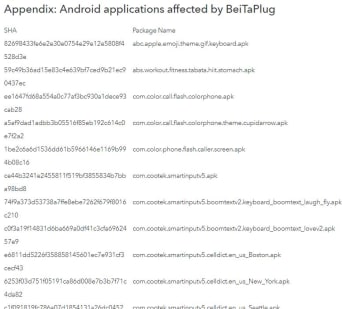
The list of infected apps
The list goes on. Click here for full list of infected apps.

The good news is that Lookout has shared its findings with Google and the internet giant has already taken action. All of the affected apps have either been removed, or updated to new versions that don’t include the BeiTAd plugin. This means if you suspect you might have downloaded a Cootek plugin or you’ve been experiencing problems like those described above, you should update your apps immediately.

Unfortunately, due to the large number of affected apps we can’t list them all here. If, however, you want to check your apps against the list, you’ll find it here.

Google bans developer with over half a billion app downloads from the Play Store

Almost 50 popular apps like ES File Explorer have been removed from the Play Store.

a banned stamp over Google Play Store logo

Google has moved to ban a massive app developer from the Google Play Store and is working to remove all apps connected to the developer from the Google Play Store. DO Global had more than 100 apps on Google’s store but most have already been removed and the internet giant is also looking to remove apps from any subsidiaries connected to the developer.

The reason behind the ban and the purge is ad fraud on a grand scale and abuse of user permissions. Apps connected to the developer had been clicking on ads without user consent in an attempt to drive up revenue. The news of individual apps being taken from the Play Store first broke earlier this month, but it is only in the last few days that Google has moved against all DO Global apps that have violated Google’s terms in this way.

Almost 50 popular apps like ES File Explorer have been removed from the Play Store

The Google Play Store is the biggest app store on the planet. Accordingly, security risks, malware-infested apps, and fake app scams are regular on the Play Store with Google constantly having to take action against malicious actors like hackers or cyber-criminals. The move to ban DO Global, however, and remove all of its apps from the Play Store is one of the biggest such moves yet.

DO Global header image

DO Global had over 100 apps on the Play Store and could lay claim to over 600 million downloads. This has now all changed with Google having removed 46 DO Global apps from its app store and actively looking at subsidiary developers that are linked to DO Global. ES File Explorer, for example, which has now gone from the Play Store was developed by ES Global, but listed on the website of Du Global, which is a subsidiary of DO Global. Another issue Google had with the apps that have been removed is that they made it difficult to see that DO Global was behind them, which also violates the Play Store policy.

Speaking to Buzzfeed News on the breach of trust by the developer behind generic sounding apps like “Selfie Camera” and “Photo Artist Studio” a Google spokesperson said, “We actively investigate malicious behavior, and when we find violations, we take action, including the removal of a developer’s ability to monetize their app with AdMob or publish on Play.” If Google is stopping you from placing ads on apps in the Play Store, then you know you’ve done something seriously wrong.

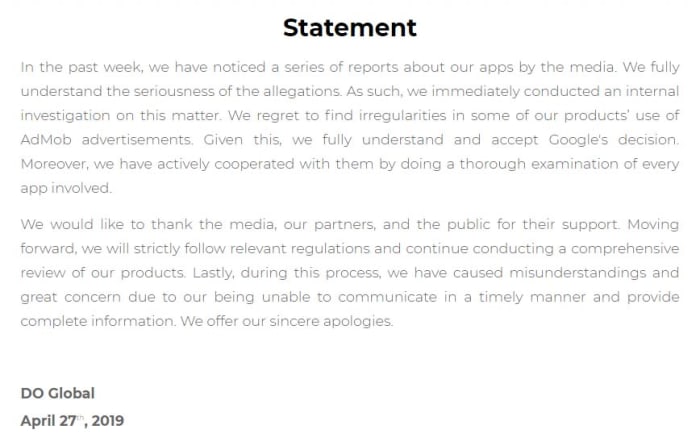
DO Global's statement on the matter

According to a report by XDA Developers though, there is a chance the apps could come back to the Play Store, if a few adjustments are made. It could be in this regard that DO Global has posted a statement on its website apologizing for the breach and saying that it supported Google’s decision. This means it might not be long before the apps in question find their way back onto the Play Store.

New scam spotted on the Google Play Store

Look out for scam apps with fake star ratings in the icon that automatically sign you up for paid subscriptions

As well as offering you a place to download apps for your Android devices, the Google Play Store is also home to an eternal battle between the forces of good and evil. The good want to see you enjoying useful and entertaining apps while the bad are constantly looking for ways to steal your data and profit from its use.

Over recent weeks and months, we’ve seen all sorts of efforts from fake GPS navigation apps to non-existent driving simulator games. When downloaded, these fake apps would pump your device full of malware and then hide themselves to make it as difficult as possible to uninstall them. A number of the tips we’ve received about bogus Android apps in the Play Store have come from security expert Lukas Stefanko, who has just released details of a new type of scam app to hit the Google Play Store.

Look out for scam apps with fake star ratings in the icon that automatically sign you up for paid subscriptions

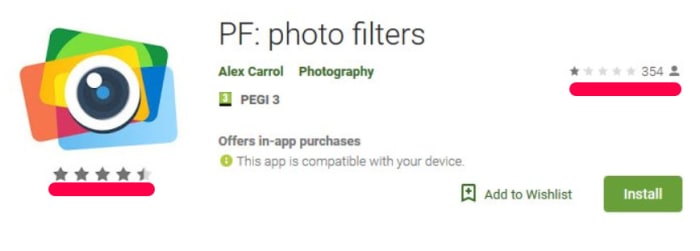
Fake with fake star rating in the logo
The icon makes it look like this app has a rating higher than four stars when it actually has a review rating of one star.

Stefanko has discovered apps that include a fake star rating in their logo. The logos have been designed to make it look like they’ve been receiving positive reviews from users when really the fake stars have just been added to the app logo. This means that the logo could instill a false sense of security in unsuspecting users when they’re searching through the app store. When the app is selected the app’s home page then shows the true review score that represents genuine reviews made by real users.

Whereas other types of scam apps that Stefanko has discovered have concentrated on inserting ads into the user experience or installing malware onto the machine that steals user data, these new scam apps take more direct action. These apps invite users to enjoy a free trial of the apps “full features” but then set the subscription to automatic payment.

Scam apps target huge auto subscriptions

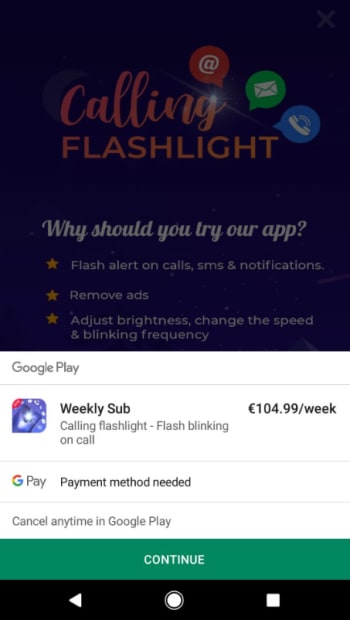
Unless canceled, the apps will charge the payment method linked to the user’s Google account. In one case the price of subscription was a massive €49.99 ($56.40) a week. Another flashlight app asked for a €104.99 ($118.95) subscription. Any victim who falls prey to these scams will see these massive amounts automatically taken from their linked bank accounts until they cancel the subscription. Google will take a massive 30% of all payments for the first year, too, with Google’s cut lowering to 15% if the victim keeps paying for more than 12 months.

The fact that these apps are targeting such huge amounts of money illustrates just how important it is to double check every app you download from the Google Play Store. Always check the developer’s name and make sure you double check the actual reviews of other users rather than merely relying on the visual cues the app’s icon and other promo graphics might give.

Google Play Store: Fake camera apps that steal your photos discovered with millions of downloads

Millions of people have downloaded malicious camera apps that send their photos to third-party servers

scam apps

Cameras are one of the major features on all smartphones. We’ve seen a battle recently between all the major smartphone manufacturers, all hoping to have their handsets crowned the best phone for photographers. New hardware features like multi-lens setups and software solutions like AI-assisted camera apps now allow us to capture magic moments better than we could ever have imagined.

As well as giving us the tools we need to document our lives, however, cameras can offer a new vulnerability for hackers to exploit. If we don’t take the right precautions the very photos we take could end up in the wrong hands. Unfortunately, it looks like this could already be the case for millions of Android users.

Millions of people have downloaded malicious camera apps that send their photos to third-party servers

In total, security researchers Trend Micro discovered 29 fake camera apps in the Google Play Store. These apps offered a range of photography linked features from taking photos to applying edits and filters.

The apps in question had no functionality at all. Rather than capturing images or applying edits, they’d simply send the photo in question off to a third-party server before showing an error message on the victim’s device. Some cases included the user being shown ads and even pornographic images. Furthermore, some of the apps, once installed, would try to hide themselves in order to make it as hard as possible for users to remove them from their devices.

malicious camera apps steal photos google play store
Some incidents showed pornographic images

The full list of the fake camera apps discovered by Trend Micro is:

  • Art Editor
  • Art Effect
  • Art Effect
  • Art Effects for Photo
  • Art Filter
  • Art Filter Photo
  • Art Filter Photo Editor
  • Art Filter Photo Effcts
  • ArtFlipPhotoEditing
  • Artistic effect Filter
  • Awesome Cartoon Art
  • Beauty Camera
  • Cartoon Art Photo
  • Cartoon Art Photo
  • Cartoon Art Photo Filter
  • Cartoon Effect
  • Cartoon Photo Filter
  • Emoji Camera
  • Fill Art Photo Editor
  • Horizon Beauty Camera
  • Magic Art Filter Photo Editor
  • Photo Art Effect
  • Photo Editor
  • Pixture
  • Prizma Photo Effect
  • Pro Camera Beauty
  • Selfie Camera Pro
  • Super Camera
  • Wallpapers HD

If you have any of these apps on your Android device, you should delete them immediately.

The good news is that since Trend Micro reported the apps to Google the internet giant has removed them from the Play Store. The bad news is that as they made it passed Google Play Protect and were able to rack up millions of downloads before being detected there is nothing to say that there aren’t more fake and malicious apps on the Google Play Store right now.

fake apps fake reviews google play store

This means that you need to be extra vigilant when you’re downloading apps from the Google Play Store. You should always check the app developer before hitting download and it is also very important to check user reviews too. Trend Micro suggests looking out for a “U” pattern, which will show if an app has a high number of fake 5-star reviews. The large number of five-star reviews together with a large number of negative reviews, following genuine downloads, will look like the letter U written on its side.

For more information on staying safe while downloading apps from the Google Play Store, check out our tutorial below.