Who knew that the plugs we’ve been using since Edison discovered electricity were all wrong? That’s my main issue with this Internet of Things revolution – the implication that all the stuff that drove change throughout the 21st century is now dumb. (Damn you, marketing speak!) These plugs are pretty cool, though. They let you control your appliances using your phone or even your voice, using Alexa. In the long run, they’ll help you save money by cutting down on your energy bills, and could even keep your house secure while you’re away on vacation by allowing you to turn your appliances on and off again as if you were home.
In my efforts to attain the perfect physique that I’m told is essential to my happiness, I’m at the gym whenever I can be bothered. Admittedly, that isn’t that often,but when I do get down there I sweat a LOT. That is why these waterproof headphones are an absolute godsend. At the moment they’re a massive 82% off, too.
“Have you got a charger?” is generally the second question people ask when they come to your house, right after they’ve asked you for your Wi-Fi password. Install this wall outlet with USB outputs in some deep, dark, and cold corner of your house so that you don’t have to deal with them checking Facebook, or whatever else they’re doing on their phone that isn’t having a conversation with you.
In the grand scheme of things, Anker seems to be one of the good guys. They make good quality stuff and they don’t charge an arm and a leg for it. In addition, they offer great customer service, and if any Anker products break down it isn’t difficult to get them to replace it for you. These waterproof wireless headphones are an excellent example of a quality Anker product, and they’re one of the most popular sets of wireless headphones on Amazon.
Another reliable Anker gadget is this 4-Port 40W USB Wall Charger. It allows you to charge four devices at once all from the same outlet. This is useful in an office but is also great for anybody who is traveling and wants to get their devices charged as much as possible while they’ve stopped for a coffee in a place that only has one outlet.
These days, we spend a lot of time out and about. But with fast mobile internet and wifi hotspots, you can stay online no matter where you are. Whether it’s work or play, you can stay in touch through calls, texts, messaging apps, and of course, emails.
If you haven’t downloaded the Yahoo! Mail app for iOS, do it now. With a colorful, clean interface and a ton of interesting features, it could very well be the only email client you need.
Here are three tips to help you get the most out of the iOS Yahoo! Mail app.
1. Customize your swipes
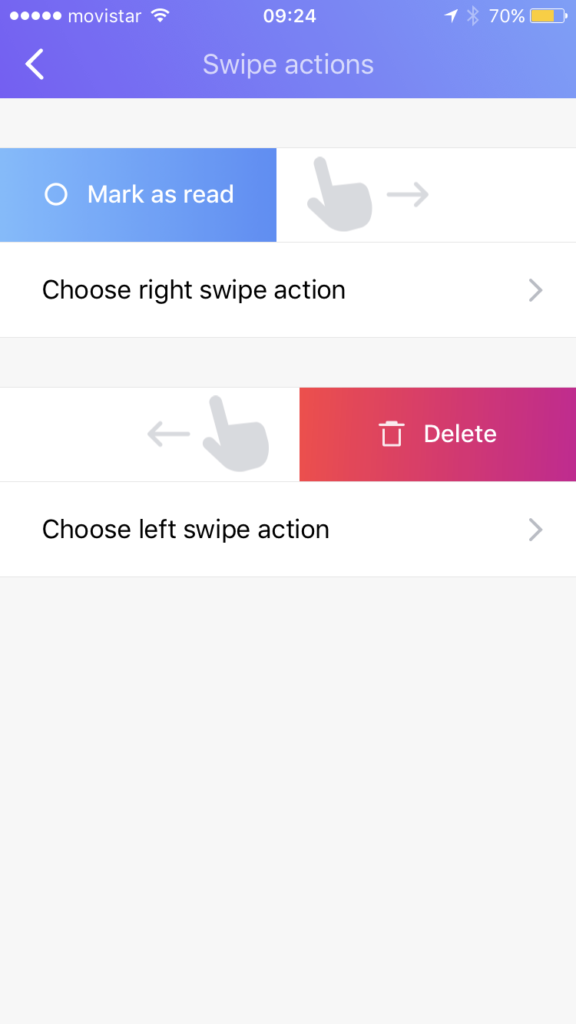
When you’re reading emails, you’ll want to organize them quickly – be it deleting, marking read, or flagging important. With the Yahoo! Mail app for iOS, you can swipe left to delete an email, or swipe right to mark it read. But you don’t have to stick with these actions. With Yahoo! Mail, you choose what you want your swipes to do.
To customize your swipes:
Click the three horizontal lines in the top right.
Select Settings.
Select Swipe actions.
Select Choose right swipe action.
Decide what you want it to do.
Repeat steps 5 and 6 for Choose left swipe action.
2. Manage all your email accounts from Yahoo! Mail
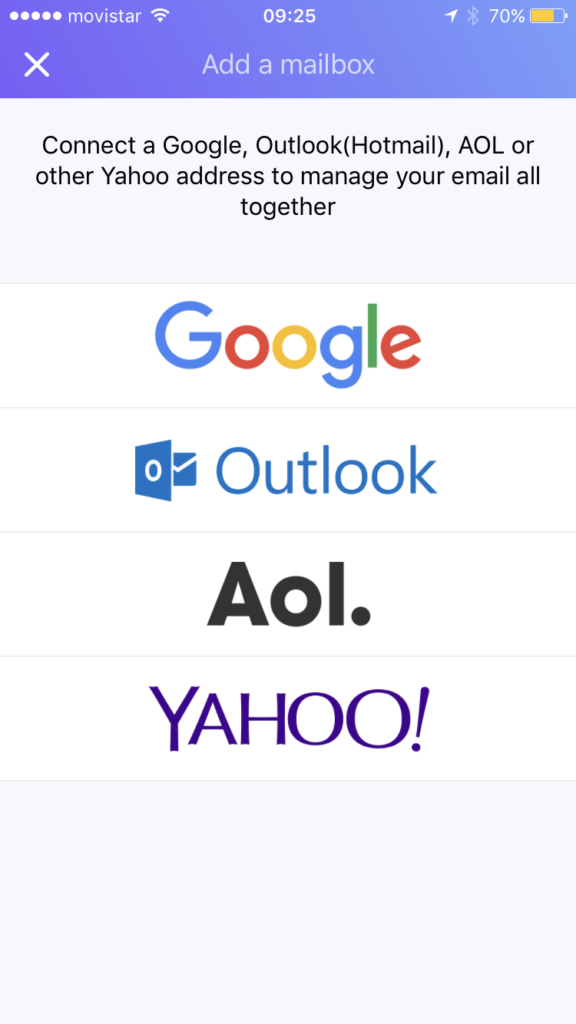
Yahoo! Mail can add and synchronize all your mail clients, including Outlook, AOL, and Gmail (as well as other Yahoo! Mail accounts). This saves you time switching between different apps.
You can read, reply, and send from the address you’ve added. Importantly, it synchronizes with your email clients, too, so you don’t have to manage them separately.
To manage all your email accounts through Yahoo! Mail’s app:
Click the 3 horizontal lines in the top right.
Select Add another mailbox.
Choose your mailbox.
Enter your email address. You’ll then be taken to your other account.
Give Yahoo! Mail access by authorizing when asked.
This will take you back to your Yahoo! Mail inbox. To select a different mailbox, such as Gmail or Outlook, swipe left on your inbox or click the menu icon at the top (the three horizontal lines). Then select which mailbox you want to view.
Special tip: You can change the color scheme (the “theme”) of each mailbox by going to Settings, then Themes, and choosing different colors for each. That’ll make it easier for you to recognize which mailbox you’re viewing.
3. Add cloud storage (and social media)
You’d be surprised how easy it is to use up your attachment limit – even on your mobile. As our smartphones take better photos and videos, the file sizes increase. So, you want to make sure you’ve got some cloud storage built in – especially if you want to make your friends jealous with your latest holiday snaps.
Here’s how to add Dropbox or Google Drive cloud storage:
Select the menu icon from your Inbox (the three horizontal lines at the top left)
Select Settings.
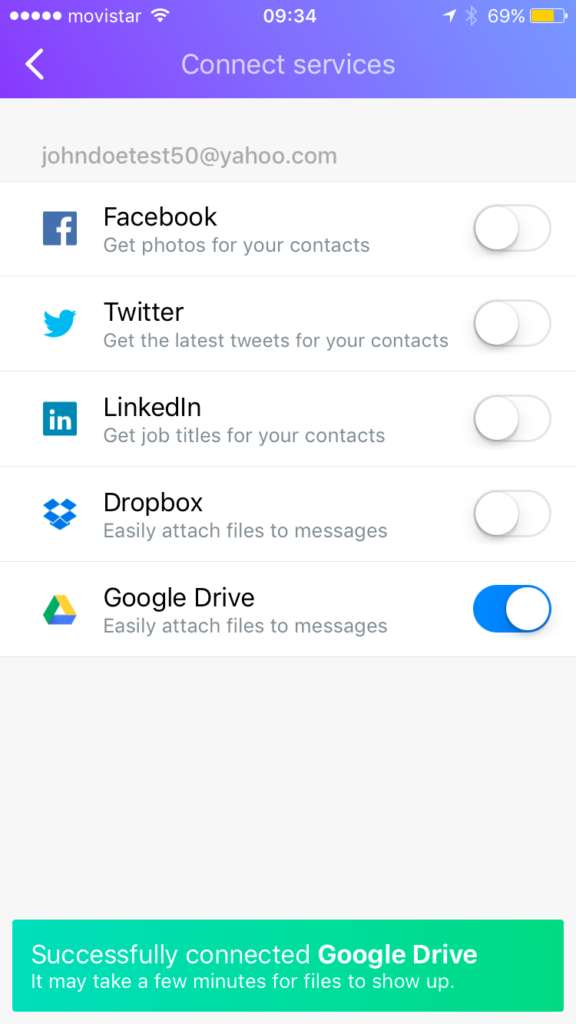
Select Connect services.
Toggle Dropbox or Google Drive on. You’ll be asked to authorize Yahoo! Mail to access Dropbox or Google Drive
Once authorized, you’ll be taken back to the Connect services page and you’ll get a notification saying it was successful (as in the screenshot below).
From the same menu, you can turn on other social media services, like Facebook and Twitter – integration is fairly limited, though. Facebook simply supplies pics for your contacts. Still, it’s handy to see who you’re emailing.
That concludes our three tips for getting the most of Yahoo! Mail’s iOS app. So get out there and enjoy keeping in touch with friends and family on the go.
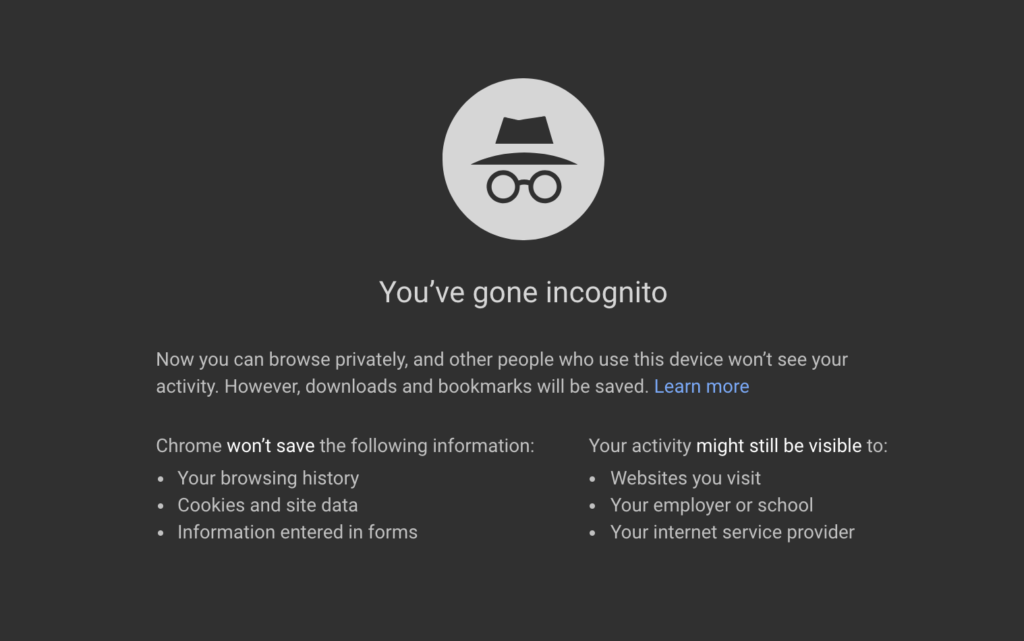
A Google developer has revealed that even if you’re using Incognito mode on Google Chrome, it is still possible to track your activity. David Fisher dropped this bombshell recently:
“When you open a tab in Incognito mode, a warning appears in which we try to help you understand that your activity will be visible to the company in which you work, to your educational center and to the service offered by the Internet.”
This might be important intel for those who use Incognito mode to visit adult entertainment pages. The problem is that it only works at home or when you use a private internet connection. When you use an open connection (such as your company’s), you are exposed… so to speak.
That does not mean that if you look at certain pages from your company’s computer, your boss will get an alarm warning you of your misdeeds. What is possible is that if your boss decides to analyze, for example, the ads you have seen while browsing the internet or the resources used, they could easily deduce the pages you’ve been visiting.
Google is right in regard to its warnings. It’s the first thing you see:
However, many people do not read it carefully and as a result, they receive some rather unpleasant surprises.
Fisher recommends using Incognito mode to avoid cookies (so that web pages can’t “spy” on you), to hide activities from other people who use your PC (for example, if you’re trying to buy somebody a gift) or to protect yourself from web pages of a suspicious nature.
This isn’t the first time we’ve reminded you about the fact that Incognito mode doesn’t guarantee 100% anonymity, but there is no harm in repeating useful information.
If you spend a lot of time writing chats with your friends and family on WhatsApp, it would be a big problem if someone hacked into your accounts or read your chats, since they could potentially know everything about you.
To avoid getting such an unpleasant surprise, here are eight simple tricks to exponentially increase the security of your WhatsApp account.
How to boost your WhatsApp security
1. Activate two-step verification
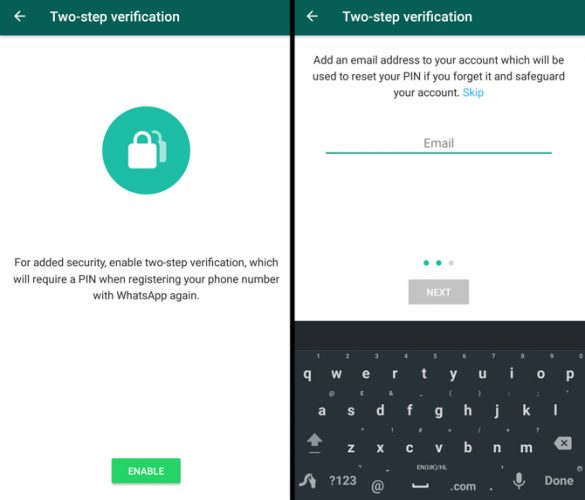
Two-step verification adds an extra layer of security.
To activate two-step verification, go to Settings > Account > Two-step Verification > Activate.
Follow the steps to create a six-digit PIN code that is easy for you to remember. You can also add an email address that will receive the code in case you forget it.
From now on, and at random intervals, you’ll see locks that will only be deactivated when you enter the PIN. This way, if someone steals your mobile, thanks to this system, they won’t be able to snoop on your WhatsApp.
2. Get yourself a good lock code
If your mobile is stolen but the thief cannot unlock it, he will not be able to access your WhatsApp (or any other app, of course). Use everything that your mobile can offer you in this regard to prevent someone who is not you from using it.
It may sound like dumb advice, but you’d be surprised by how many people use, for example, the sequence 1-2-3-4 for their lock code.
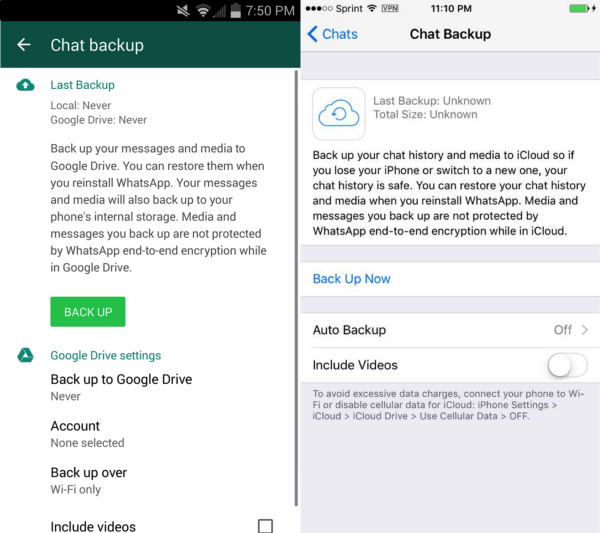
WhatsApp creates backup copies of your conversations in Google Drive or in iCloud. This way, if you reinstall it, you can recover old messages.
The problem is that this backup is not encrypted. That means there are chances that a hacker could gain access to this copy and read the data.
If you are worried about this possibility, all you have to do is go to Settings > Chats > Backup. There you can select how regularly your conversations will be saved. Choose Never to deactivate it. Remember, however, that this means there will be no way to recover your conversations!
4. Watch out for scams
Every now and then, you’ll receive misleading messages that promise you, for example, access to new colors for WhatsApp or six free months of Netflix. All these messages have been created by cybercriminals who’re trying to steal your private data and access your account or to sell the information to third parties.
The golden rule here is this: DO NOT trust any of these promotional messages. Especially if they are related to WhatsApp. If you have doubts about it, look for information about the message to make sure. A quick Google can go a long way.
This WhatsApp Colors scam is a great example of the type of thing you should be keeping an eye out for.
5. Use the official WhatsApp Web app
There are many unofficial tools with more features than the official WhatsApp Web app. The problem is that these external versions cannot guarantee the same protection and security as WhatsApp Web.
Which do you prefer: some extra features or chatting with confidence?
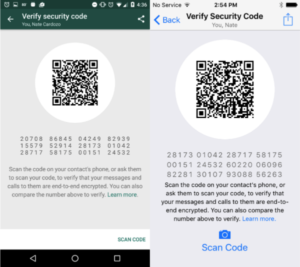
When a contact and you initiate a new chat, a security code is created. As long as you both have the same code, your conversations will be secure. If they are different, it means that a third party has secretly accessed your chat.
How can you find out if you have the same code? Comparing. Each of you can see the other’s code.
Select the profile picture of your contact in the chat. Then select Encryption. The code that you get should be the same. If it is different, it means that someone has managed to hack your chat.
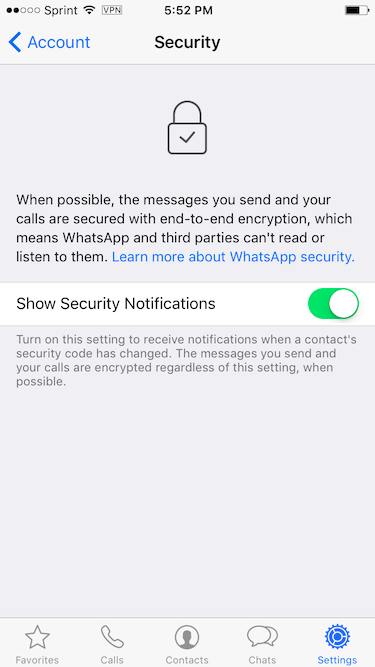
8. Activate security notifications
There is a way to keep on top of when a chat’s security code has changed (that is, to know when your conversation may be in danger).
You can activate notifications that will alert you each time a code has changed. To do this, go to Settings > Account > Security. Ask your contact to do the same to be 100% covered.
Do you have another WhatsApp security trick that we have overlooked? Leave us a comment!
Would you like to make your desktop do more than just look good? If so, you might be interested in World View Wallpaper, which will take you on a world tour from right there on your desktop.
WVW collects thousands of photos from around the world and then shows them to you over time. It’ll help with your motivation as you’ll be able to see what is happening all over the world. They say that visualization is the best to mold your mind. If you have a dream to travel around the world, constantly seeing all the best cities and regions the world has to offer will help you achieve your goal. A continuous change of landscape will also help stimulate your creativity.
The app is available for free for Windows, Chrome, and Android but the macOS version costs 5 dollars. The file size is about 500mb, which is logical considering it stores one image per minute. It’ll replace the photos regularly so you’re not always looking at the same images over and over.
Another interesting feature of World View Wallpaper is that it shows you what each location looks like at the exact moment when the image appears on your desktop. For example, if you see an image of New York at 1pm, it will be an image taken at that time.
For example, this is how the Caribbean looks at 6:43 in the morning.
;
You can download World View Wallpaper using this link.
Do you know other worthwhile wallpaper apps? Leave us a comment with your findings!
We’re bringing you the best tech related deals from Amazon’s Black Friday. If you’re looking to get your hands on some great gifts for love ones or if you just feel like grabbing a bargain and spoiling yourself, stick with us.
Two things annoy me when I’m in the gym. Well three if you count the working out. The other two are always catching my the wire on my headphones whilst running or lifting or squatting and not being able to hear my music properly because I’ve got some beefcake next to me grunting like an orc. These excellent Wireless Headphones solve both those problems, which means it is on the working out that annoys me when I’m in the gym now. Not much I can do about that though. Join me in my relative bliss for $19.99!
Until the “geniuses” who design smartphones can finally figure out a way of getting more than days worth of juice into their phones we’re always going to need to carry round external battery packs with us. This on packs in a huge 5-6 FULL charges, for most smartphones into a sleek and compact housing. Get it now for less than $23!
It is mad to think that the simple black and white Kindle is more expensive than the full colour Kindle Fire but once you’ve used one you can see why. There is no glare, the battery last for weeks and the Paperwhite has a built-in backlight and a whopping 300 ppi screen resolution. Add to that how intelligent you’ll look and feel walking around with a dedicated reading device and you’re onto a winner.
Some Bluetooth speakers are such a letdown that I actually judge the people who own them. I’m thinking you’ve clearly spent a fortune on that ridiculous haircut or those awful shoes so why couldn’t you invest in a speaker that gives out a decent bit of bass and treble and plays music loud enough to actually dance too. Thanks to this little beauty there is just no excuse anymore. Blasting out a whopping 8W of power and even able to float this thing really is a wonder to behold.
This is like the complete security system. It comes with 4 1080p video surveillance cameras a 12” monitor and 2TB of hard drive space for storing your tapes on. It even gives you the option to monitor the system from your phone and at the moment is a ridiculously low price. You’ll feel safe with this system installed.
It’s getting increasingly difficult — and dangerous — to navigate the online world.
With threats ranging from malicious programs that steal your identity to hidden codes that, when executed, hold your data for ransom, the average computer user faces more hazards than ever before.
Making matters worse is the idea that these threats can originate from nearly any site and, in some cases, secretly embed themselves into legitimate software.
There are many steps you can take to safeguard your system, your identity, and your digital assets. There are also many reputable utilities you can rely on to identify potential threats and remove them from your PC as quickly and as efficiently as possible.
Although your PC will never be completely impervious to the effects of viruses and malicious software, a little bit of diligence, planning, and preparation can go a long way in keeping your system as safe as possible.
The best antivirus programs
Perhaps your first line of defense against today’s cyberthreats, modern antivirus programs are quite effective at mitigating much of the risk. Some of the most popular options include:
Many of these solutions include built-in advertisements, which can be annoying, but it’s the trade-off you make when relying on free software.
How to choose anti-malware software
While maintaining an updated antivirus utility is critical when trying to avoid harmful apps and software downloads, viruses aren’t the only threat posed by apps.
Malicious software, often referred to as malware, has the potential to be just as harmful as — if not worse than —modern computer viruses.
Although malware is often lumped into the same category as a traditional virus, key differences in the software’s coding and architecture can make these files undetectable by antivirus software. Because of this, malware requires a different approach altogether.
Most anti-malware programs are, in many ways, the same as their antivirus counterparts. Some even have integrated antivirus functionality.
Real-time scanning prevents you from downloading malware or infected software in the first place, while periodic and user-initiated scans keep your drive clear of any dormant or unidentified hazards.
Some of the most useful programs include MalwareBytes Anti-Malware and Spybot Search & Destroy. While both of these are available for free, additional features are unlockable by purchasing the appropriate upgrades.
Safety features of modern web browsers
You can even fight online threats with your web browser. The most popular browsers all offer some form of add-on integration, and many antivirus and malware developers make add-ons to complement their products.
Although they’re often limited in functionality, these add-ons can make your online life far less stressful.
Given the increasing sophistication of online threats, viruses, and malware, next-gen solutions like this ensure you’re not wasting the bandwidth on such files.
Take a multifaceted approach to online security
Remember, it’s not enough to use an antivirus program on its own. The uniqueness and variety seen in today’s viruses and malicious programs require different approaches, strategies and software solutions, and there’s no end in sight.
As hackers and identity thieves continue to expand their reach with new and more creative bugs, consumers will be forced to tighten their digital borders even further and enhance security to all-new levels.
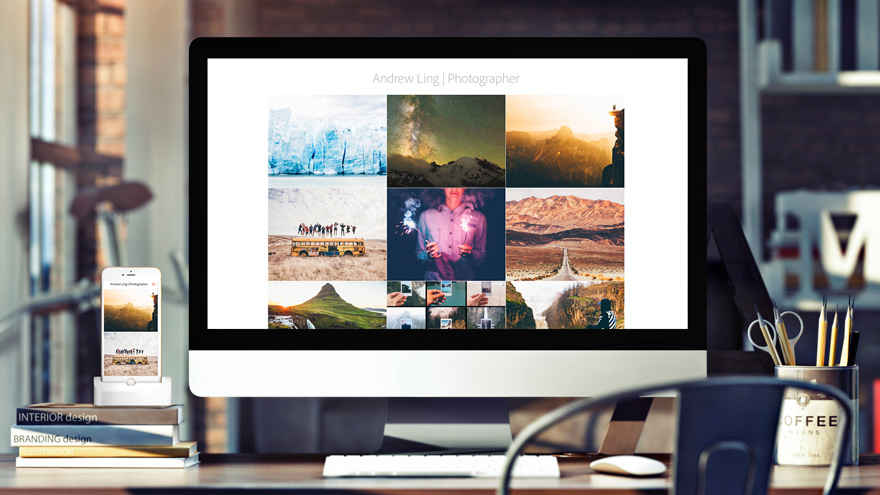
For years now, the Adobe design suite has been the industry standard when it comes to digital design software. When Adobe consolidated all of their design programs, in 2013, into the subscription-based Creative Cloud they promised users that they’d always receive updates to the programs that’d keep them at the forefront of their respective design industry. Graphic design, video, photo editing, and more were brought under the Creative Cloud umbrella and subsequently received systemic updates over time.
Some updates, however, should be seen as more than a mere evolution and that is exactly what Adobe wants us to think about the latest version of the Creative Cloud. At the recent Adobe conference, Adobe Max, which was held in Las Vegas on October 18th rather than just unveiling the next version, Adobe told us they were unveiling the next generation of Creative Cloud.
“Adobe continues to lead the creative revolution, driving modernization and innovation that will accelerate the creative process across all platforms and devices,”
– Bryan Lamkin, executive vice president and general manager,
Digital Media at Adobe.
So what is it then that makes Adobe believe that the Creative Cloud has made such a huge leap forward? Why all the bells and whistles? In short, what is so special about the latest Adobe Creative Cloud update? Well, quite a few things actually, the new generation of the Creative Cloud covers a wide spectrum of capabilities and provides tools that will enable creative professionals and enthusiasts to express themselves and reach their full creative potential anytime, anywhere, and on any device.
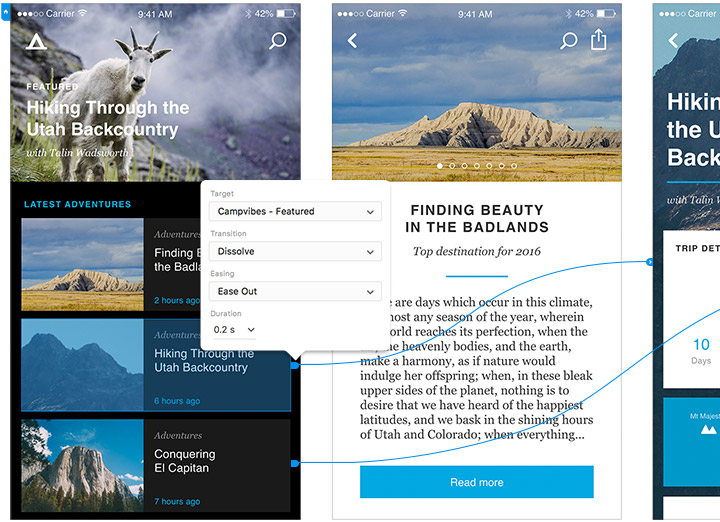
Some updates to established programs, like Lightroom, are so distinctive that they almost create brand new programs. On top of this, Adobe XD CC gets its first full 1.0 version to provide the quickest ever user-experience design software and the new Adobe Dimension allows users to create photo-realistic 3D models that can easily incorporate older 2D designs and logos.
As well as new features, tools, and programs, Adobe is also continuing to embed artificial intelligence capabilities across all of their applications through Adobe Sensei. By bringing the power of advanced technology and deep learning to the creative cloud, Sensei enables creators to go from concept to completion much faster.
There really is a lot going on then, with the Adobe Creative Cloud, so we should probably take a look at some of the biggest updates and additions in greater detail.
Adobe XD CC
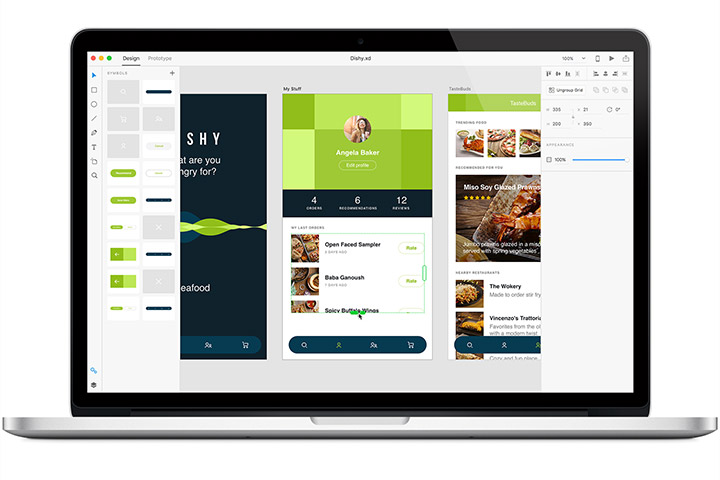
After an extensive beta testing period and constant communication with the testing community, Adobe has finally released version 1.0 of Adobe XD CC that works on both macOS and Windows 10 machines. With XD CC, Adobe is bringing to market the quickest user-experience design software available. The speed allows designers to include users themselves into the design process and then quickly integrate the insights they provide into the working design.
A whole raft of XD CC features, including navigation flows, transitions, color management, styles and repeating elements have been redesigned to create a much more modern and intuitive workflow. This is all so that Adobe XD CC can claim both speed and stability to be key features that it offers designers. XD CC launches almost instantaneously and offers lightning fast zooming and panning no matter how many artboards are being worked on per project.
Adobe Dimension CC
Adobe Dimension gives designers the power to design in 3D. Dimension can create photo-realistic models for anything including product shots, branding concepts and even packaging. Dimension offers designers realistic lighting and shadows and also textures that respect contours, angles, and perspectives.
The added design dimension comes without any extra, complicated tools or the need to learn new skills, and it is a simple process to add previously designed 2D logos to new 3D models. What Dimension does come with, however, is a marketplace of models, lights, and materials from Adobe Stock that can be used to create 3D scenes.
Lightroom CC
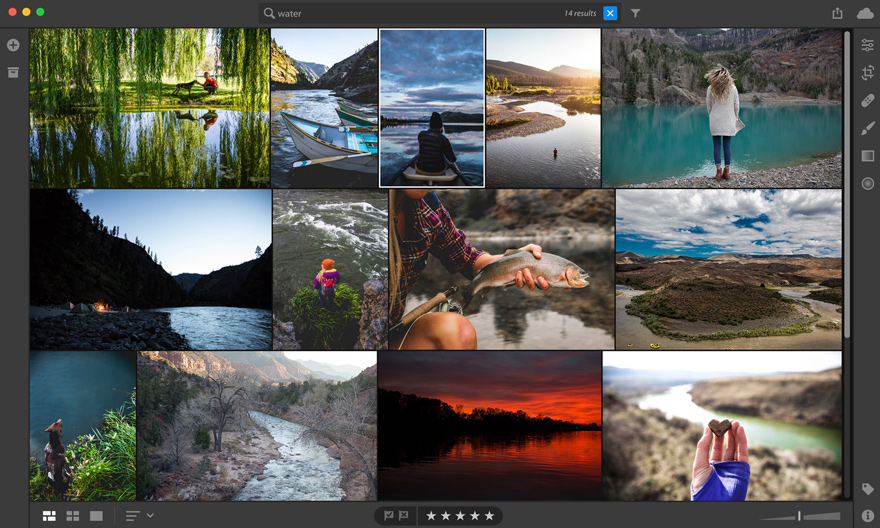
Lightroom CC is a completely new Adobe product that is a cloud-based ecosystem of apps that are deeply integrated and work together seamlessly across desktop, mobile, and web. Even if photographers don’t have their laptop, mobile or tablet with them they can still edit their photographs by logging on to the Adobe cloud website and then later continue with their work when they get back to their devices.
Designers used to the original Adobe Lightroom and worried about the editing capabilities possible on a mobile device need not fear. The original Lightroom is now known as Lightroom Classic CC and is designed for desktop-based digital photography workflows. In line with the wishes of the community of Lightroom users, Adobe has added a number of improvements to Lightroom Classic. These include:
Optimized import and editing workflows.
Improved application launch time.
Standard, 1:1 and Minimal preview generation.
Responsive Brushing
–
With so much going on beneath the Creative Cloud Umbrella and with modern new features like artificial intelligence and 3D modeling it is fair to describe the latest update as the next generation of design software. There really has been a leap in the capability that the Creative Cloud offers its users and so much more is now possible for Creative Cloud subscribers.
Before signing off, however, it is definitely worth pointing out that although this latest update is enough to set the newest generation of the Creative Cloud apart from the versions that came before it, it does not mean the Cloud won’t continue to evolve and be the subject of constant updates from Adobe. Particularly with the likes of XD CC, Dimension, and Lightroom CC, Adobe is committed to adding new features to these new programs as and when they’re developed.
The latest generation of the Creative Cloud has a lot to offer all-digital design professionals and enthusiasts alike. For anybody yet to use the Creative Cloud there is definitely a lot of new stuff here to take note of and for long time subscribers, there is a lot to celebrate.
Remember the days when your parents told you what to wear? Put a jacket on. Don’t wear those nice shoes out. Here, your grandma knitted this for you.
One of the great things about growing up is you get to choose your own clothes. To express yourself the way you want. And this applies to your Yahoo! Mail client, too. Why let Yahoo! decide what your email client looks like?
So here are five ways you can put some of your personality into Yahoo! Mail.
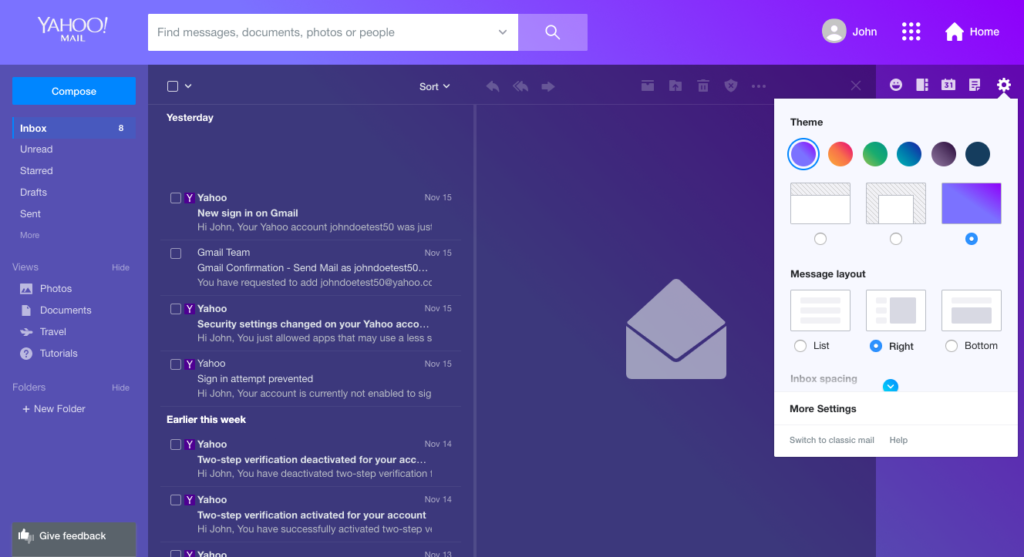
The latest version of Yahoo! Mail gives you a ton of personalization options. Simply click the gear on the top right and you can choose your own:
Color scheme
Message layout
Inbox spacing
And you can also choose whether to include tabs for multitasking.
Source: Yahoo
2. Change the font (and font size)
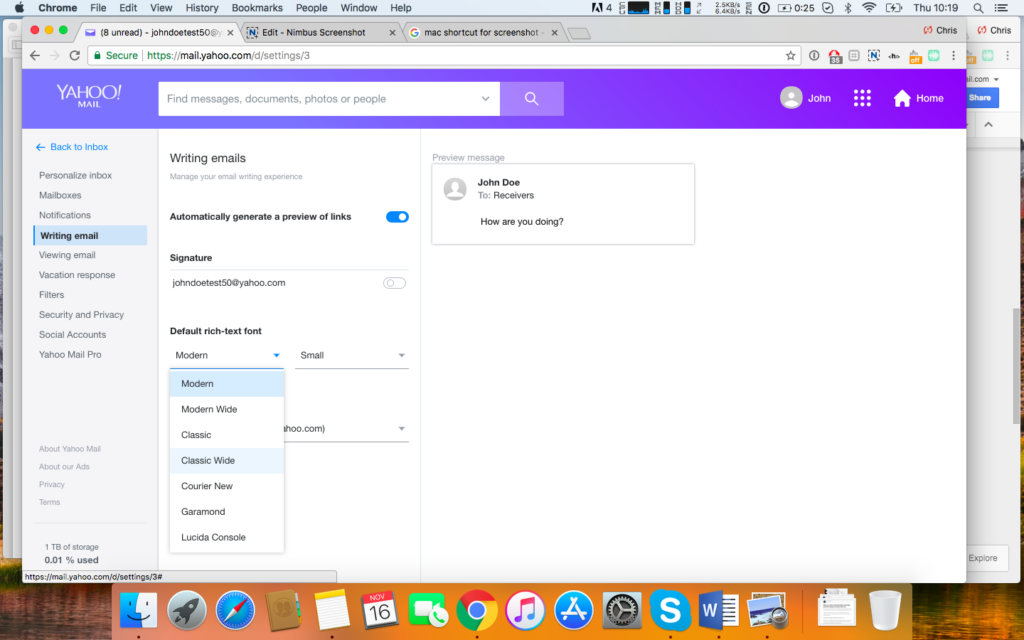
You can also select the default font and font size for your emails, which is useful if you have trouble reading smaller print.
To change the font and size:
Click the gear icon on the top right.
Select More settings.
Select Writing email from the column on the right.
Under Default rich text font, choose the font and text size you want (you can see how it will look in the preview box on the right).
Source: Yahoo
3. Add an email signature
It can be tiring having to write the same sign-off multiple times, so why not create your own email signature? This is especially useful if you use Yahoo! Mail for business. It’s super easy to do; just follow the instructions below.
To create your own email signature:
Go to the Writing emails section of Settings (as outlined in step 2).
Toggle Signature to on.
Write your signature, including any rich text features such as bold, size, etc.
That’s it – your new signature is automatically saved. To turn it off, simply toggle the Signature switch off.
Source: Yahoo
4. Add stationery
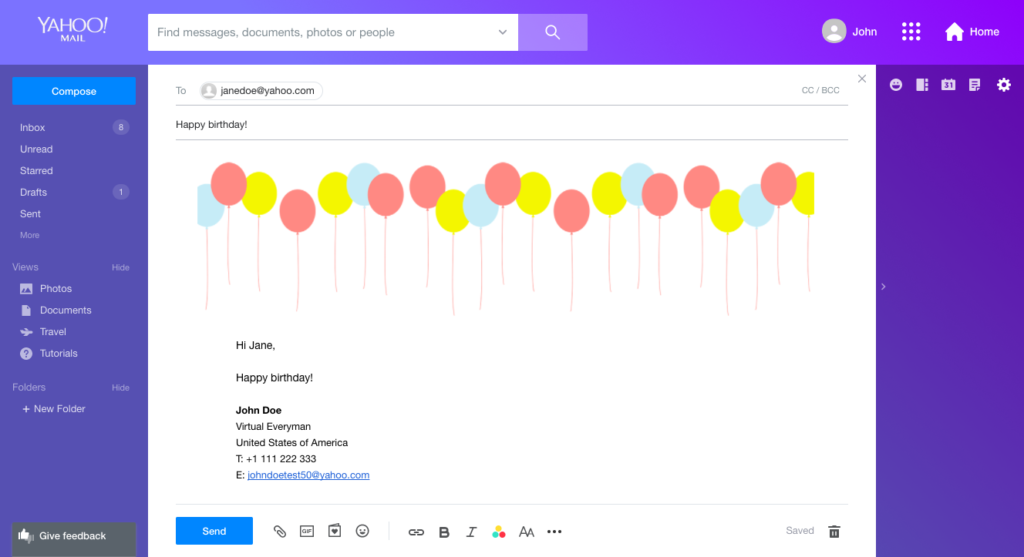
Stationery lets you add a bit of extra color and imagery to your emails for special occasions. Perhaps you want to congratulate someone or send them birthday wishes – even a Christmas card. Yahoo! Mail partnered with Paperless Post to give you over 50 designs, completely free, to wow your friends and family with.
To add some flair to your next email, follow these instructions:
After clicking Compose, click the little card and heart icon next to the Send button.
The stationery box will appear. Select what stationery you want to add.
Close the stationery box.
And that’s it! It’s much nicer than going through a separate e-card website.
Source: Yahoo
5. Switch to Yahoo! Mail classic (or basic)
Not everyone thrives on choice, so if you prefer Yahoo! Mail’s old, functional layout to its shiny new one, you can always switch back.
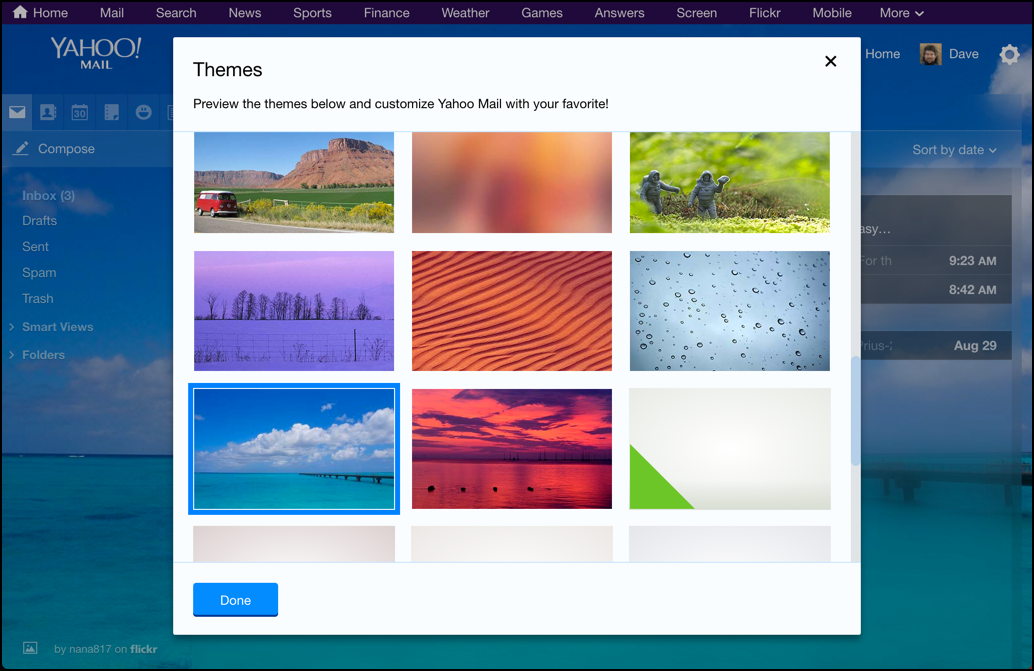
Classic gives you some customization, such as photo themes (which you might actually prefer to block colors), and it’s a good halfway point between the two looks.
To switch to Yahoo! Mail Classic:
Click the gear icon on the top right.
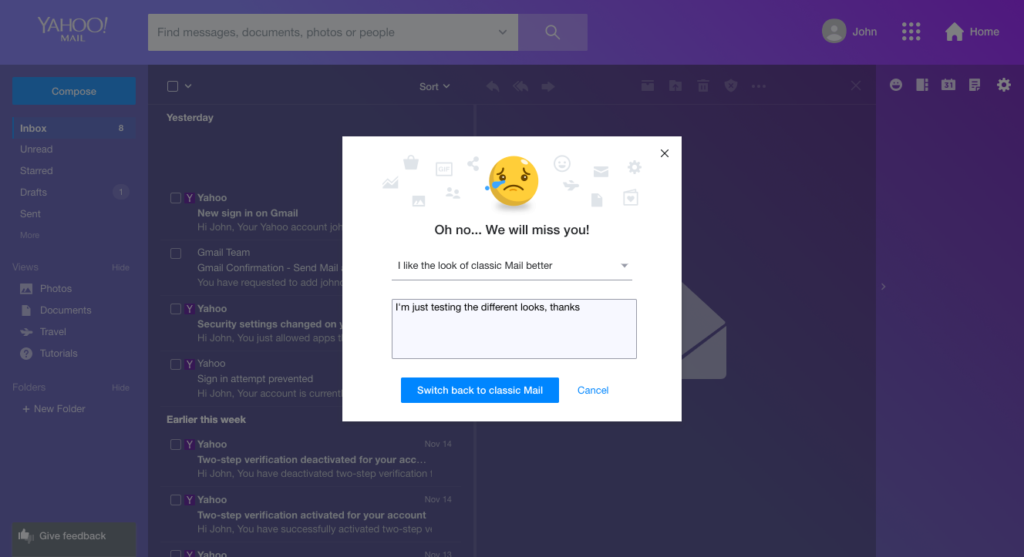
Select Switch to classic mail (at the bottom in grey).
You’ll then get a pop-up asking why you’re switching to the older look. You must fill this in to switch back.
Enter the details and click Switch back to classic mail.
Source: Yahoo
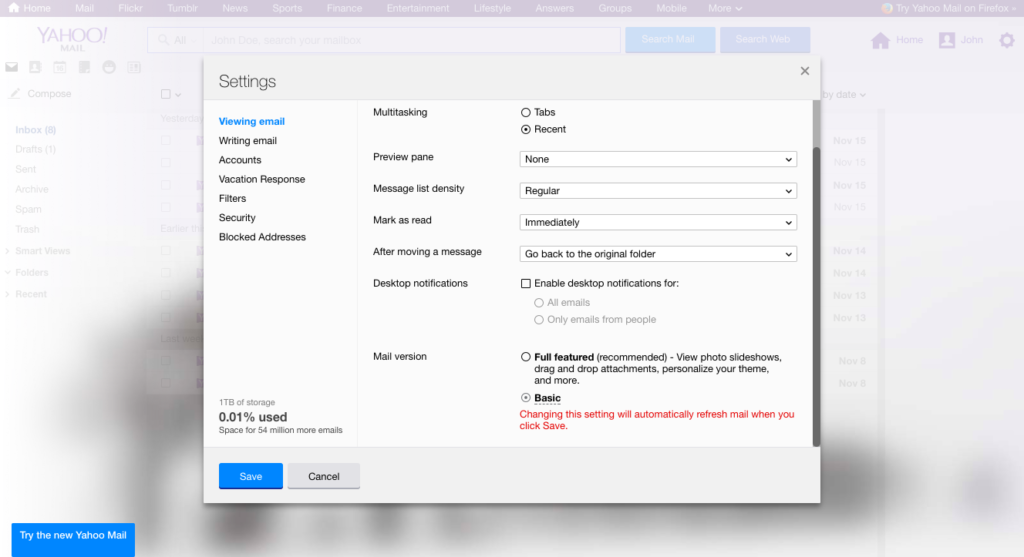
For the purists among you who want email without the frills, you can return to Yahoo! Mail Basic. You will lose themes, drag and drop attachments, and other features – so do consider carefully whether this is for you.
To switch to Yahoo! Mail basic:
Click the gear icon, then Settings.
At the bottom, you’ll see Mail version.
Select Basic.
Click Save.
Source: Yahoo
So there you have it: five different ways to get Yahoo! Mail the way you want it. Play around and see what works for you. And remember – there’s no shame in wearing grandma’s knitted sweaters!
Bargain season is upon us! As Black Friday rapidly approaches, many shops and stores have already started releasing deals in the run-up to the big weekend. If you’re hoping to bag some bargains this Black Friday, or if you’ve got your eye on a certain bit of tech you can count on us. We’ll be bringing you all the best deals so that you don’t have to spend hours trawling through online stores.
7.1 Virtual surround Stereo Sound Over-Ear Gaming Headphones Wired USB LED Light With Mic Volume Control For PC/ Laptop
Hear the action all around you with this surround sound gaming headset. Whether you’re barking orders at your teammates online or if you just want crystal clear sound and music when playing alone, this Sades Headset will have you covered. At this price, you’ll have won before you even start the game.
Wired Ergonomic Mice With Adjustment DPI, 6 Buttons, Extra Weight for PC Laptop Desktop Notebook
This is the perfect mouse for anybody into their gaming. Ergonomically designed to fit your hand perfectly, the Raptor enables comfortable and efficient gameplay. It’s a great mouse for general web browsing, too, and at the moment it is cheap cheap cheap.
SONY PlayStation 4 Pro & FIFA 18 + SONY PlayStation Plus 3 Month Subscription + PLAYSTATION 4 Fallout 4 – for PS4 + SONY Call of Duty WWII
The new PlayStation 4 Pro is the most powerful game console Sony has ever built. With a whopping 8GB of RAM and offering crystal-clear graphics, the PlayStation 4 Pro will simply blow away all who play it. This bundle comes with some of the best games available, too.
MICROSOFT Xbox One S with Minecraft + Fallout 4 – for Xbox One + MICROSOFT Xbox One Doom + MICROSOFT Star Wars Battlefront 2 + MICROSOFT Forza Motorsport 7
If you’ve always had an Xbox rather than a PlayStation, you might want to know that there are some excellent deals going around for the Xbox One S. This is the best one we found, and it comes with games that’ll keep you playing long into 2019, never mind 2018.
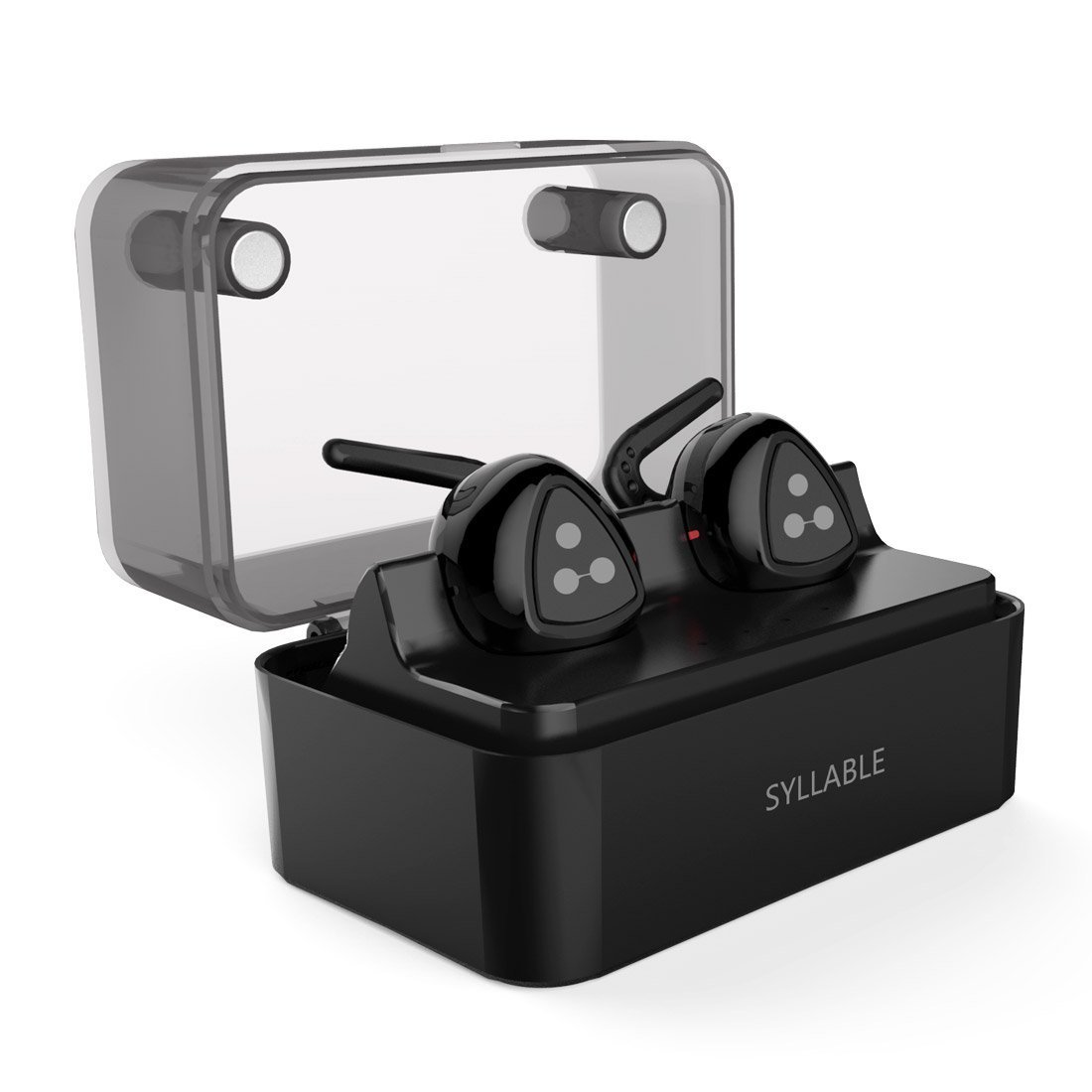
True Wireless Headphones, Syllable D900 Mini Wireless Bluetooth Earbuds In-ear Sport Earphone Noise Cancelling Headphone Sweatproof Headsets with Mic for iPhone Samsung Sony Tablets Smart Phones Come with Intelligent Charging Box
Everybody has heard about Apple’s wireless air pods, but everybody also knows that they’re really expensive. These Bluetooth earbuds from Syllable offer the same truly wireless experience and at the moment you can get your hands on them for only £26.99.


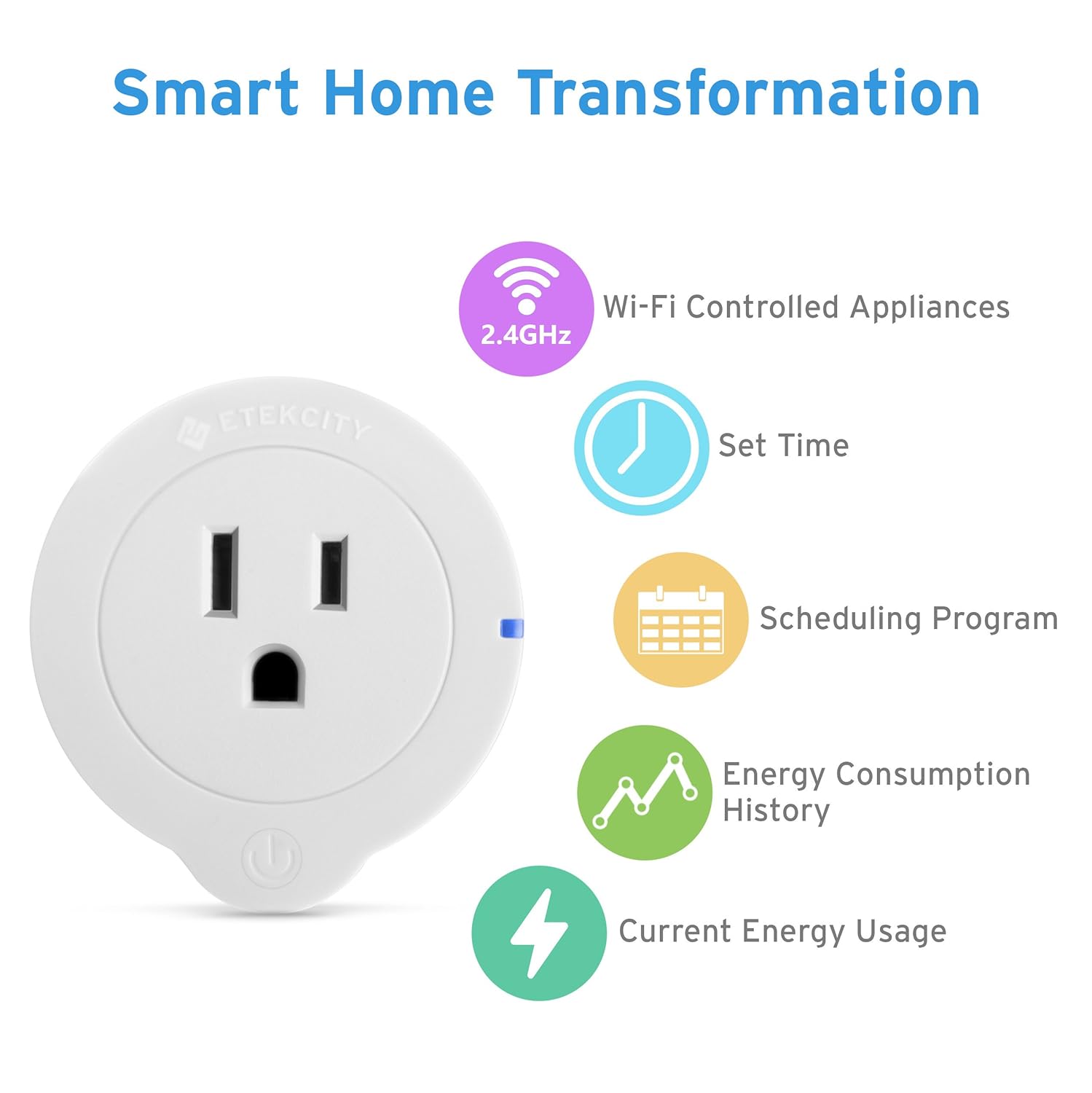 Who knew that the plugs we’ve been using since Edison discovered electricity were all wrong? That’s my main issue with this Internet of Things revolution – the implication that all the stuff that drove change throughout the 21st century is now dumb. (Damn you, marketing speak!) These plugs are pretty cool, though. They let you control your appliances using your phone or even your voice, using Alexa. In the long run, they’ll help you save money by cutting down on your energy bills, and could even keep your house secure while you’re away on vacation by allowing you to turn your appliances on and off again as if you were home.
 In my efforts to attain the perfect physique that I’m told is essential to my happiness, I’m at the gym whenever I can be bothered. Admittedly, that isn’t that often,but when I do get down there I sweat a LOT. That is why these waterproof headphones are an absolute godsend. At the moment they’re a massive 82% off, too.
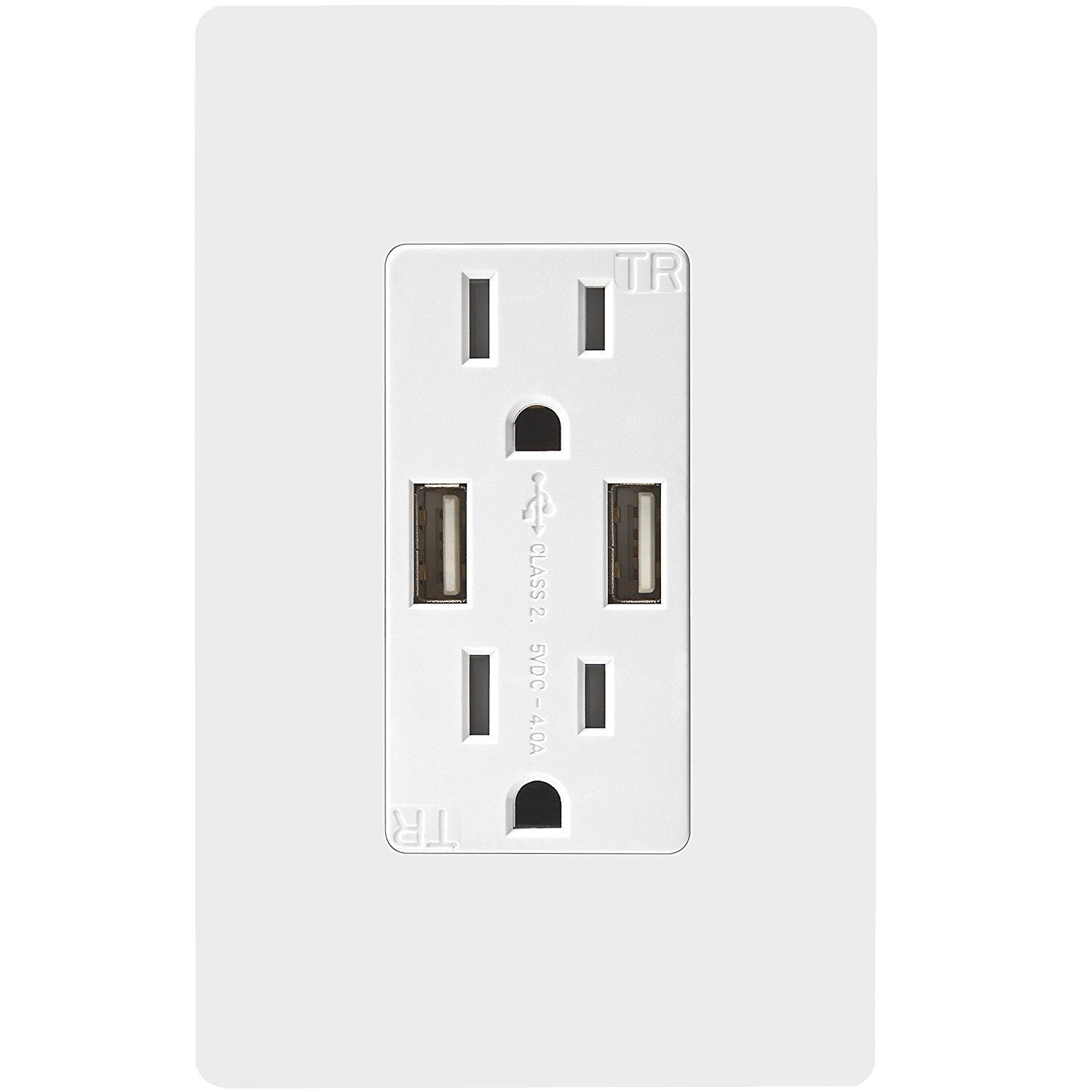 “Have you got a charger?” is generally the second question people ask when they come to your house, right after they’ve asked you for your Wi-Fi password. Install this wall outlet with USB outputs in some deep, dark, and cold corner of your house so that you don’t have to deal with them checking Facebook, or whatever else they’re doing on their phone that isn’t having a conversation with you.
 In the grand scheme of things, Anker seems to be one of the good guys. They make good quality stuff and they don’t charge an arm and a leg for it. In addition, they offer great customer service, and if any Anker products break down it isn’t difficult to get them to replace it for you. These waterproof wireless headphones are an excellent example of a quality Anker product, and they’re one of the most popular sets of wireless headphones on Amazon.
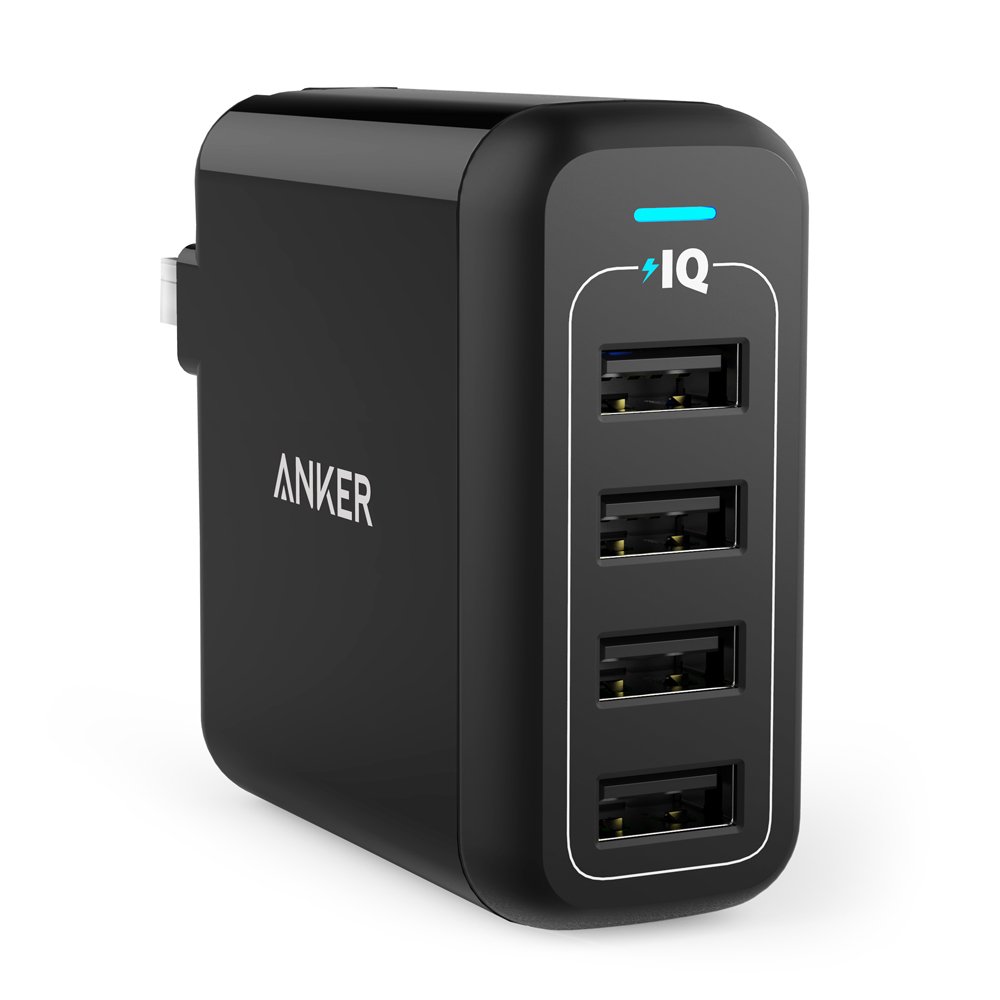 Another reliable Anker gadget is this 4-Port 40W USB Wall Charger. It allows you to charge four devices at once all from the same outlet. This is useful in an office but is also great for anybody who is traveling and wants to get their devices charged as much as possible while they’ve stopped for a coffee in a place that only has one outlet.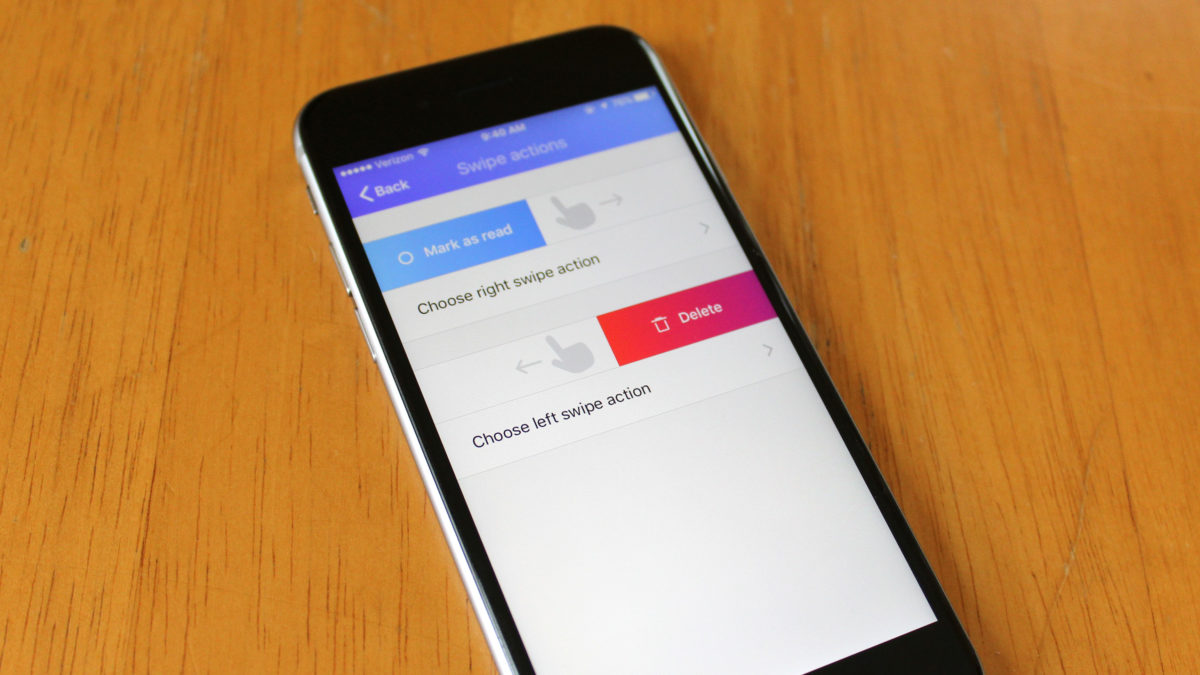







 ;
;
 Two things annoy me when I’m in the gym. Well three if you count the working out. The other two are always catching my the wire on my headphones whilst running or lifting or squatting and not being able to hear my music properly because I’ve got some beefcake next to me grunting like an orc. These excellent Wireless Headphones solve both those problems, which means it is on the working out that annoys me when I’m in the gym now. Not much I can do about that though. Join me in my relative bliss for $19.99!
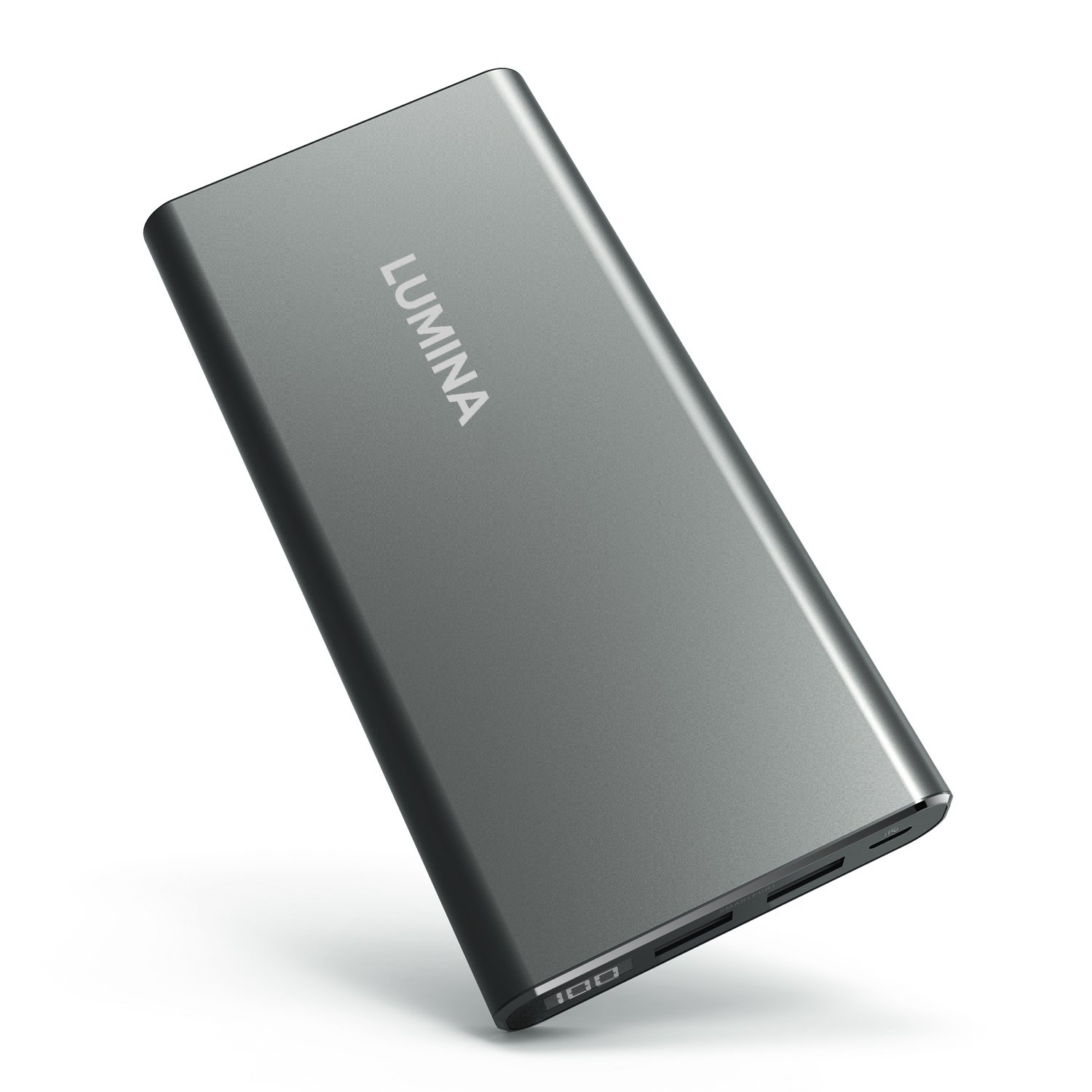 Until the “geniuses” who design smartphones can finally figure out a way of getting more than days worth of juice into their phones we’re always going to need to carry round external battery packs with us. This on packs in a huge 5-6 FULL charges, for most smartphones into a sleek and compact housing. Get it now for less than $23!
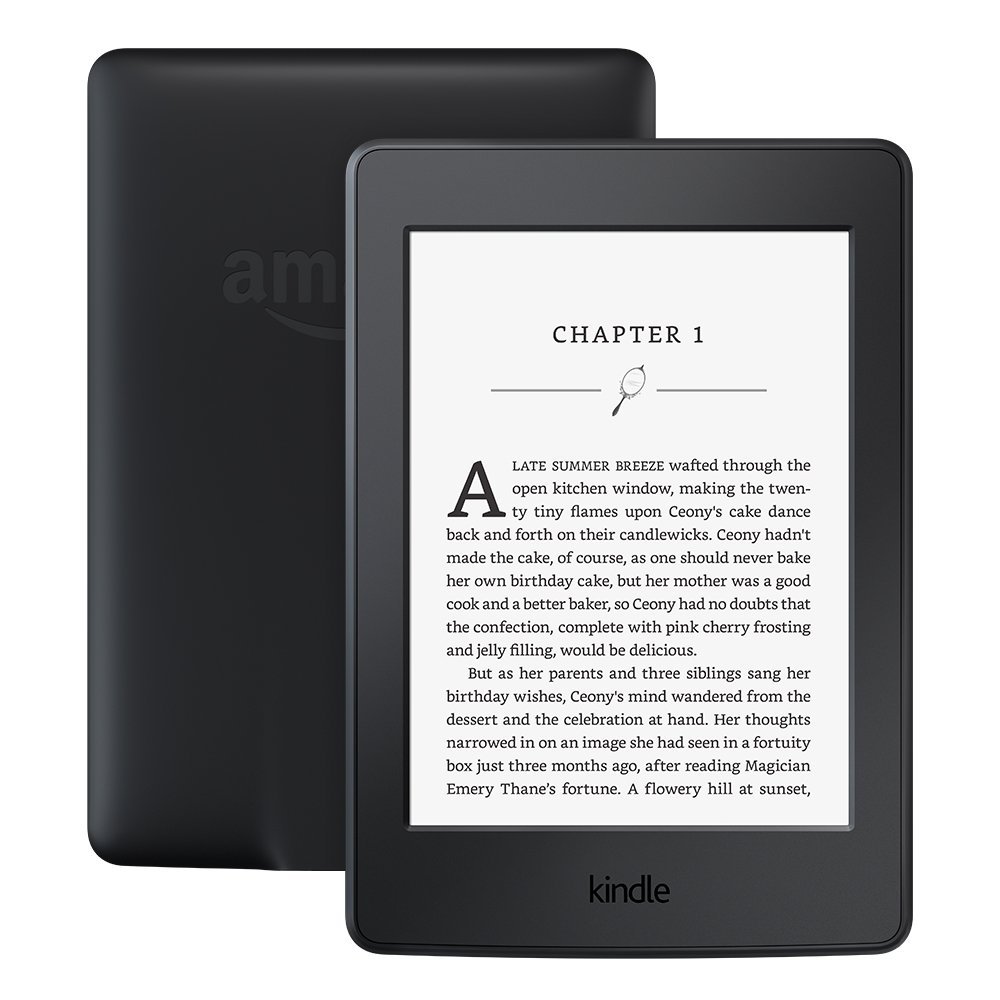 It is mad to think that the simple black and white Kindle is more expensive than the full colour Kindle Fire but once you’ve used one you can see why. There is no glare, the battery last for weeks and the Paperwhite has a built-in backlight and a whopping 300 ppi screen resolution. Add to that how intelligent you’ll look and feel walking around with a dedicated reading device and you’re onto a winner.
 Some Bluetooth speakers are such a letdown that I actually judge the people who own them. I’m thinking you’ve clearly spent a fortune on that ridiculous haircut or those awful shoes so why couldn’t you invest in a speaker that gives out a decent bit of bass and treble and plays music loud enough to actually dance too. Thanks to this little beauty there is just no excuse anymore. Blasting out a whopping 8W of power and even able to float this thing really is a wonder to behold.
 This is like the complete security system. It comes with 4 1080p video surveillance cameras a 12” monitor and 2TB of hard drive space for storing your tapes on. It even gives you the option to monitor the system from your phone and at the moment is a ridiculously low price. You’ll feel safe with this system installed.




 Source: Yahoo
 Source: Yahoo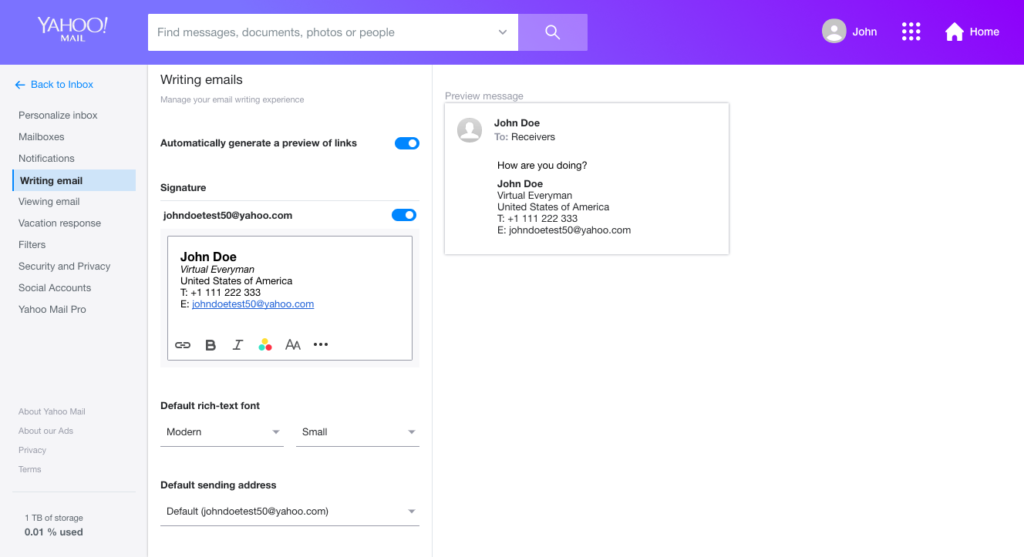
 Source: Yahoo
 Source: Yahoo
 Source: Yahoo
 Hear the action all around you with this surround sound gaming headset. Whether you’re barking orders at your teammates online or if you just want crystal clear sound and music when playing alone, this Sades Headset will have you covered. At this price, you’ll have won before you even start the game.
 This is the perfect mouse for anybody into their gaming. Ergonomically designed to fit your hand perfectly, the Raptor enables comfortable and efficient gameplay. It’s a great mouse for general web browsing, too, and at the moment it is cheap cheap cheap.
 The new PlayStation 4 Pro is the most powerful game console Sony has ever built. With a whopping 8GB of RAM and offering crystal-clear graphics, the PlayStation 4 Pro will simply blow away all who play it. This bundle comes with some of the best games available, too.
 If you’ve always had an Xbox rather than a PlayStation, you might want to know that there are some excellent deals going around for the Xbox One S. This is the best one we found, and it comes with games that’ll keep you playing long into 2019, never mind 2018.
 Everybody has heard about Apple’s wireless air pods, but everybody also knows that they’re really expensive. These Bluetooth earbuds from Syllable offer the same truly wireless experience and at the moment you can get your hands on them for only £26.99.