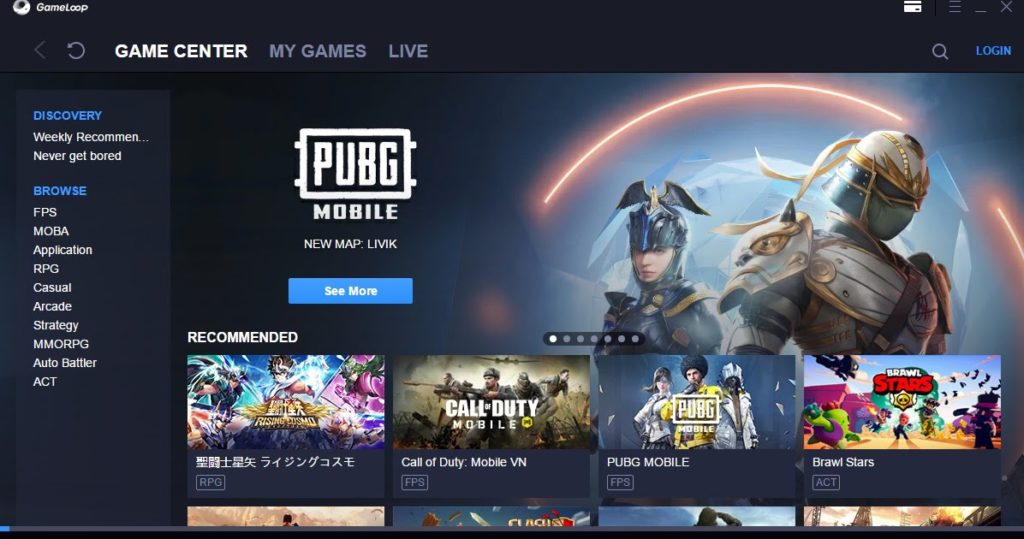
Gameloop initially came out with Android OS 4.4.2. This version is too old to play most of the newer Android games that are being released. Therefore you might want to install a more recent version, such as Android 7, to play these newer games.
Here are the steps to install Android 7 in Gameloop:
How to Install Android 7 in Gameloop
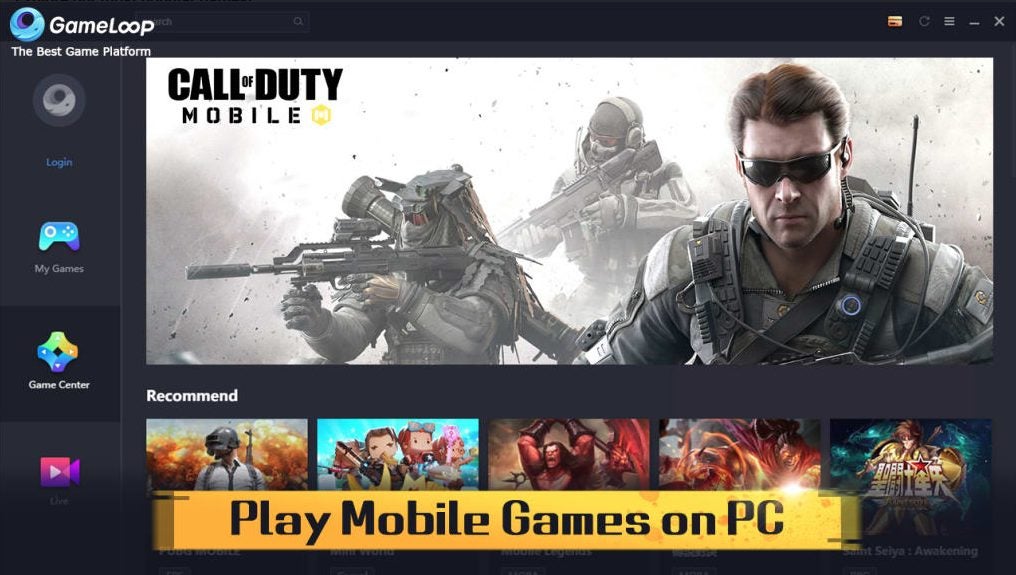
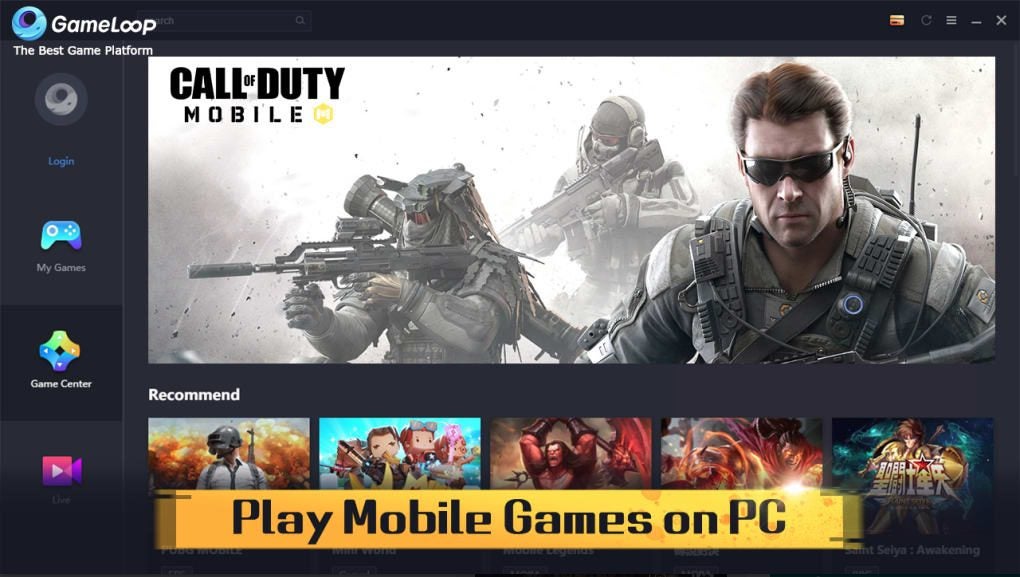
Step 1: Open Gameloop
Launch the emulator on your computer.
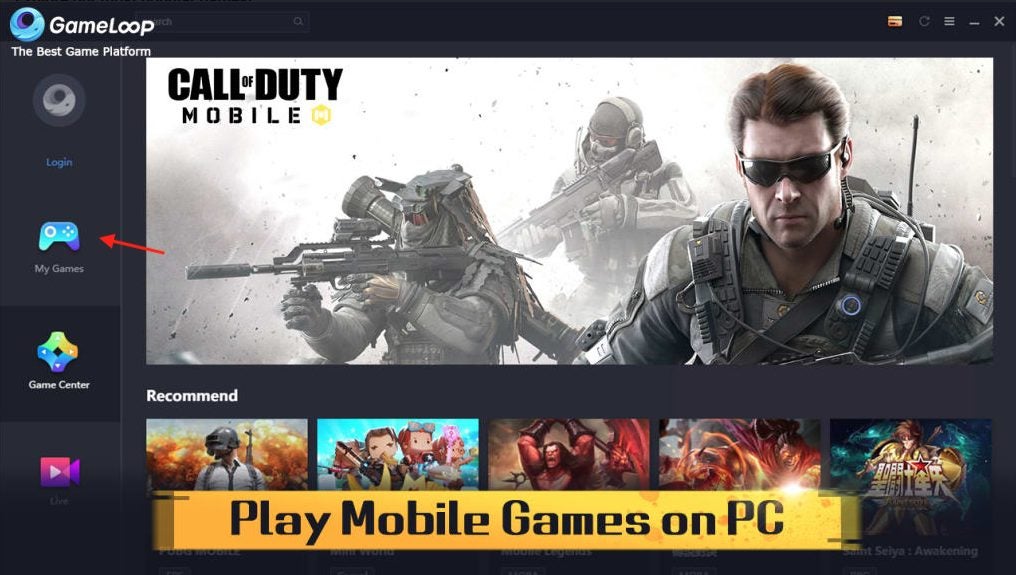
Step 2: Go to ‘My Games’ Menu
Head to the ‘My Games’ menu by clicking on the tab on the left side of the screen.
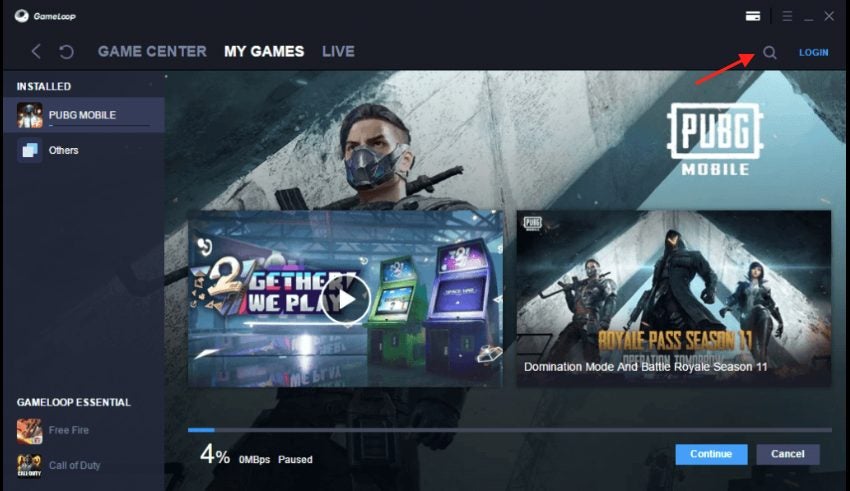
Step 3: Search for BnB M
In the search bar, type in the game BnB M and search for it. We are using this game as it requires Android version 7 to play. You can alternatively use any other game that you know requires Android 7 to play.
Step 4: Update Engine to Android 7
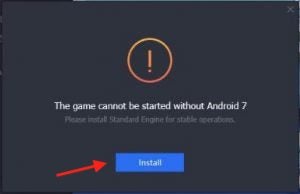
A message will pop up stating that the game you are trying to install needs Android 7 to play. There will be an option to install Android 7; click on ‘Install.’
Enjoy All the Latest Android Games
Now that you have Android 7 installed on your emulator, you can enjoy all the latest Android games on your computer. Remember it’s the best to have the latest version of Android on Gameloop to continue enjoying the newest games. There is no reason to be left behind.
Gameloop is an official Android emulator created by Tencent Gaming, which brought you the Clearing your cache is a necessary step to keep Gameloop running smoothly. When your games start lagging suddenly when they’ve been running well for a while, clearing your cache can fix the problem.
Clearing a cache might sound like a very technical thing to do, but it is pretty simple. The developers of this emulator thought about the users when designing the features.
Let’s take a look at how simple it is to clear your cache in Gameloop.
How to Clear Cache in Gameloop
Step 1: Open Gameloop
Launch the Gameloop emulator on your computer.
Step 2: Click on the ‘Settings’ Tab
Click on the ‘Settings’ tab found in the top right of the Gameloop main screen.
Step 3: Click on ‘Clear Cache’
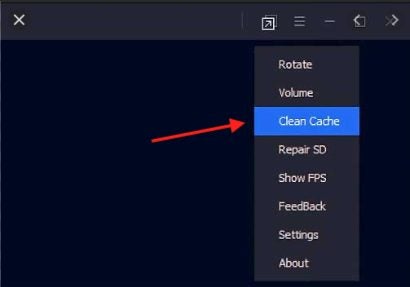
In the drop-down list that appears, click on the ‘Clear Cache’ option.
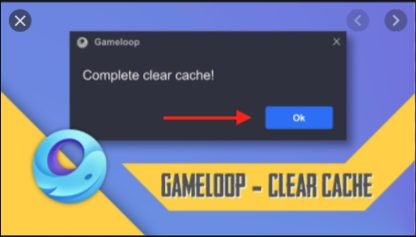
A window will pop up asking you to confirm that you want to clear the cache. Click on ‘OK’ to complete the clearing of the cache.
Step 4: Restart Gameloop
Now that you have cleared the cache, exit Gameloop and restart the emulator. From here, you can continue enjoying your games.
Remember that clearing the cache removes only temporary files that have been stored in the emulator’s memory. Clearing the cache should not affect any of your downloaded games or saved files.
Return to Your Usual Gaming
Clearing the cache can help sort out some issues you might suddenly be experiencing when playing games on Gameloop. If you experience sudden lags that can’t be explained, try clearing the cache.
It is always helpful to know how to change a program or apps language settings. Recently, a few people have reported that when downloading the Gameloop gaming buddy, the language on the emulator is displayed in Chinese, even if they downloaded the English version.
This can be quite a headache for some, especially if you don’t know the language, but luckily there is an easy fix. Let’s look at how to change the language on your emulator.
How to Change Gameloop Language
Step 1: Open Gameloop/ Tencent Gaming Buddy
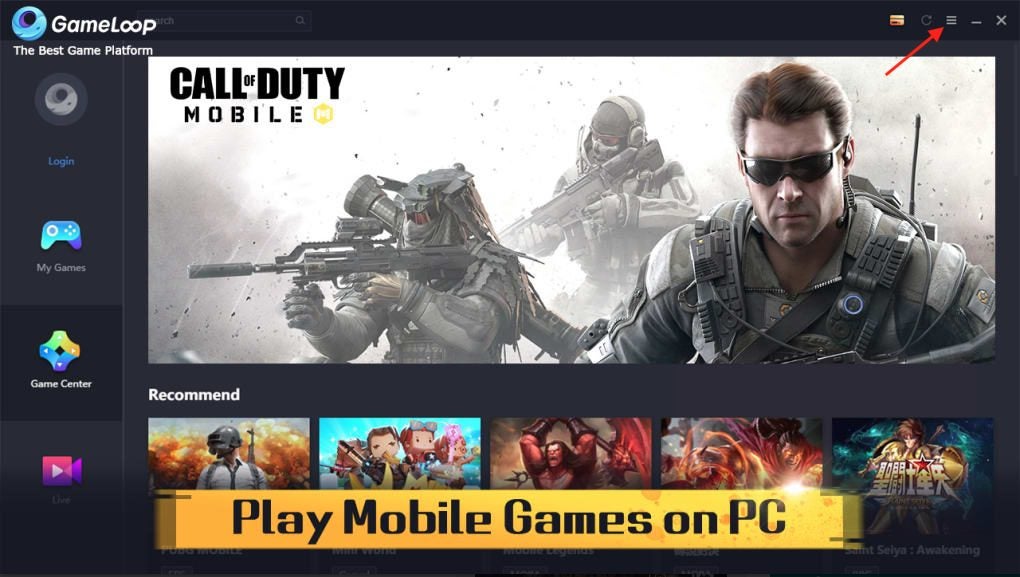
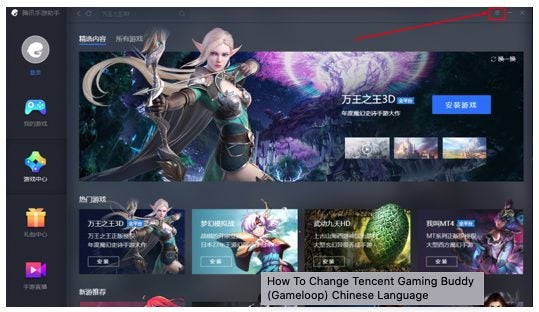
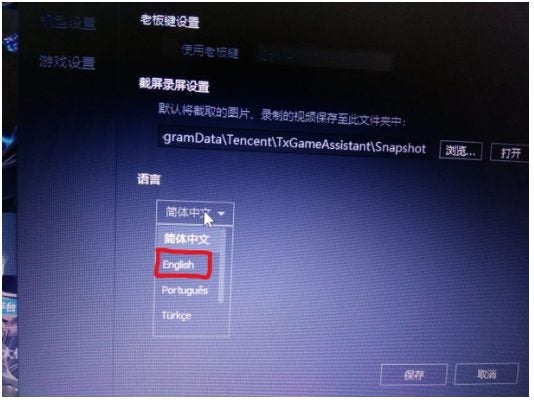
Open your Gameloop emulator on your computer. If the language displayed is not your preferred language, do not fret. For this example, we will use an emulator in Chinese and show you how to change it to English. Click on the three straight lines on the right side of the screen. These lines represent your settings.
Step 2: Click on the Third Option
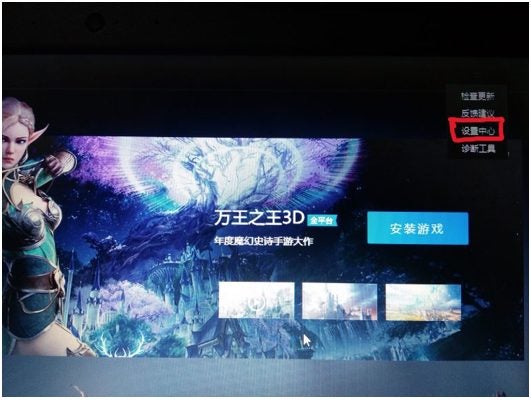
On the right side of the screen, you will see four options available. Even if you cannot understand them, click on the third option. This will open a new window that will display your language settings and other options.
Step 3: Click on the Drop-Down Menu
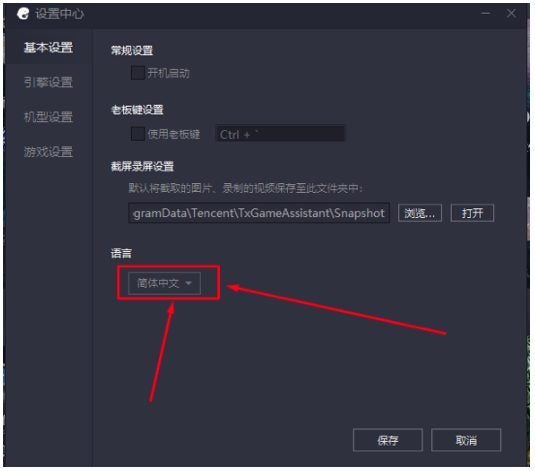
At the bottom of the window will be a drop-down list. Click on it to see all the available languages.
Step 4: Select Your Preferred Language
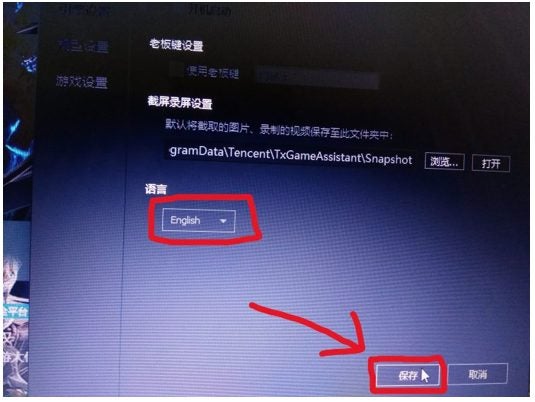
In the drop-down list, you can now choose your preferred language. For the sake of this example, we will change it to English.
Step 5: Confirm Your Choice
At the bottom of the window, click on the button on your left, which is the ‘OK’ option. Clicking ‘OK’ will change the language of your emulator.
Enjoy Android Gaming on Your Pc in Your Language
As you can see with this guide, it is simple enough to change the language on your emulator. Now you can enjoy Android gaming on your computer in your preferred language.
If you enjoy playing PUBG on your emulator, you should know how important it is to update it regularly. One of the reasons is that updating the game gives you access to new content and bug fixes, but also, you will not be able to play with users who have the latest version while on an older version. This might limit your matchmaking and give you access to fewer games.
Updating PUBG in Gameloop is not tricky. Let’s look at the steps you need to take to achieve this.
How to Update PUBG on Gameloop
Step 1: Open Gameloop
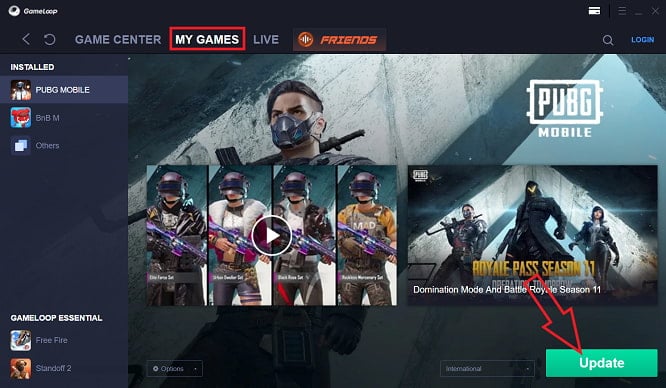
Open Gameloop or Gaming Buddy on your computer. Click on the ‘My Games’ tab located in the top menu of the emulator.
Step 2: Click on ‘PUBG’
Scroll through the list of games until you find PUBG. Alternatively, you could also use the search function to find the game faster if you have many games.
Step 3: Update the Game
Click on the ‘Update’ button to manually update the game. If there is no update button available, you already have the latest version. The update will start and can take a few minutes, depending on your internet connection.
A Simple Way to Update and Continue Enjoying PUBG
As you can see, updating PUBG through the Gameloop emulator is simple to do. There is no reason why you shouldn’t be able to enjoy the latest version, with all the recent additions, easily.
Pokémon Go and Niantic Announce A Special Event For Marill
For those of you Pokémon Go trainers that have been waiting for the Fairy and Water Pokémon Marill, your patience has paid off! Niantic has announced a Limited Research Day where you’ll need to complete some intense tasks to unlock this adorable character. It’s a chance of a lifetime that’ll occur on May 9, 2021, from 08:00 to 22:00.
As you journey through your surroundings, you’ll need to complete Field Research assignments for a chance to encounter Marill. If you’re lucky enough, you may even spot the unique Shiny Marill. We’re bound to see a surge of trainers walking through the streets hunting for the new character.
This is Niantic’s 8th Limited Research Day to encourage trainers to become more involved in the mobile game. The last one was held in November 2020 and featured Nidoran♀ and Nidoran♀. There were exciting rewards, and you could hunt for various shiny forms.
If you think this event will be a walk in the park (well, it might literally be), think again. There are sixteen steps to completing all research assignments, so it may just take you all day to finish. Based on past Pokémon Limited Research Days, you could see tasks like Nice Throws, Great Throws, Transfers, Curveball Throws, and using Pinap Berries.
Ensure that you don’t miss out on this special event so that you can receive your unique Marill rewards. Feel free to share some pics with us if you’re successful.
Notion Released News Of Clubhouse Android Beta Testing
Clubhouse has become a popular audio social networking app that’s made waves with its iOS members. The lack of an Android application has caused frustration among those who are eagerly awaiting it, which is why Notion has been hard at work to produce one. And now, it appears that they’re finally ready with beta testing.
The news combines with a list of features that testers can expect on their journey. For instance, new visitors to your room will receive automatic prompts to follow it. Notion has also been making sure that no one can abuse the functions.
Since the Clubhouse Android app is a rough beta version, you can expect some glitches when you begin testing it. Notion has been developing the VoiceOver support, as there have been some noted issues. There’s even a ‘double-tap’ gesture you can try now to announce the current speaker.
There will be plenty of engaging features that match the iOS version, but it’ll be interesting to see if it brings anything new to the table. One setup we’re excited about is that members of your room will be able to see any upcoming events. For those running private gaming competitions, such as Call of Duty: Warzone, this function can be quite handy.
There’s no indication of a roll-out or official launch timeline, but Notion is keen to keep everyone informed. We’re sure to see more Clubhouse updates as the beta progresses.
Did you create an account and placed the wrong age to fool your friends into thinking you’re younger? We understand the feeling and know what it’s like to try and correct the mistake. Some of us also want to feel like we’re still in our twenties. So, we’ll quickly show you how to change your age in TikTik on Android and iPhone to correct it.
How to Change Your Age on TikTok
TikTok doesn’t let you change your age on the app at all. If you signed up using social media, it probably stole your details from there. If you want to change your birthdate, you’re going to have to create a new account.
Step 1: Log out of your account
Firstly, you’ll need to log out of your current account completely. Ensure that you disable any automatic log-in features. It’s the only way to reach the account creation screen on your mobile phone.
Step 2: Create a new account
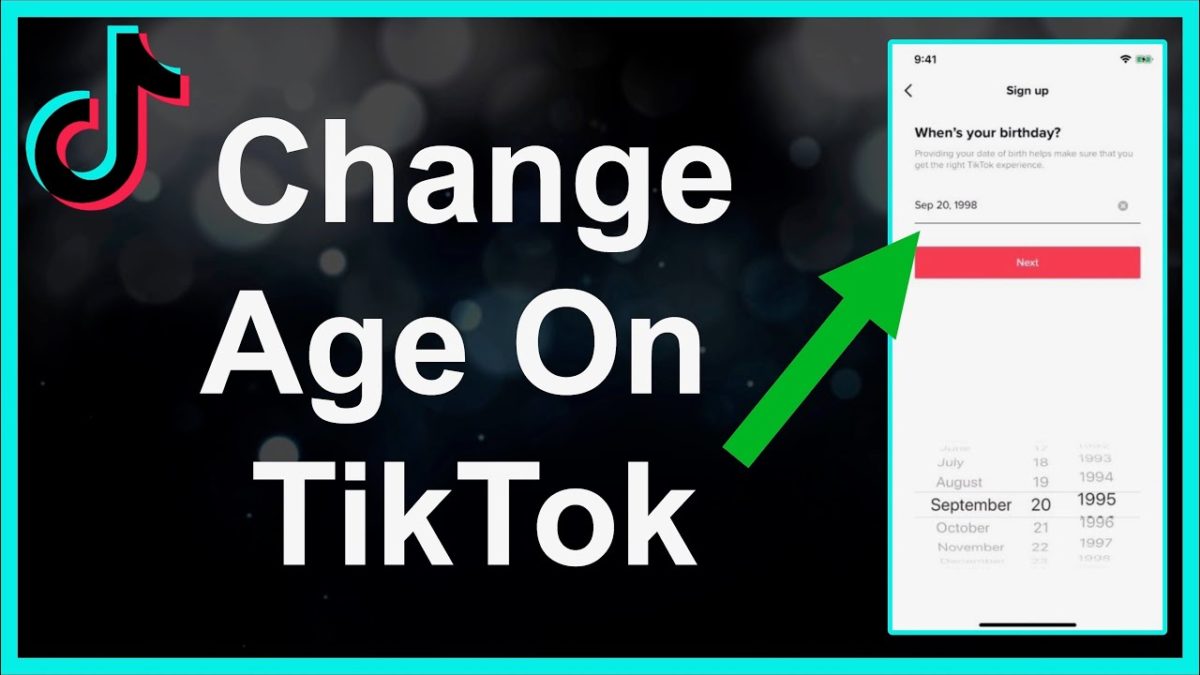
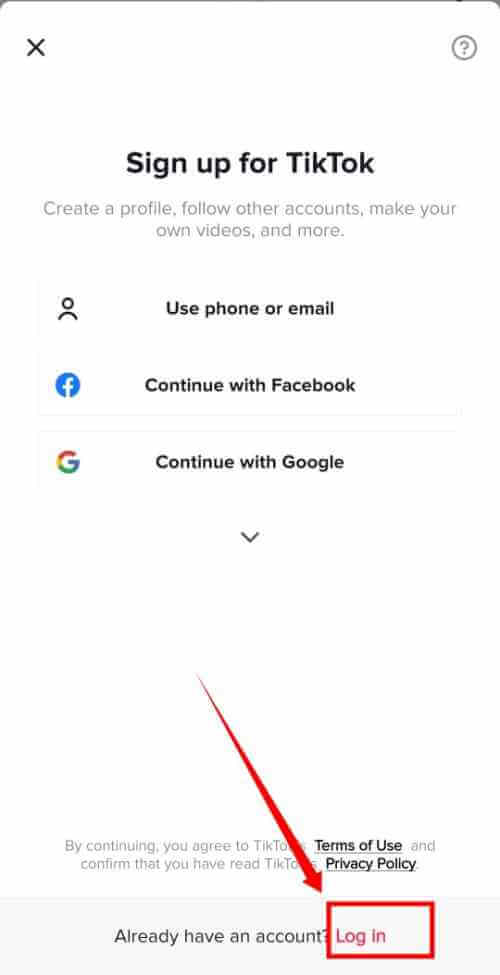
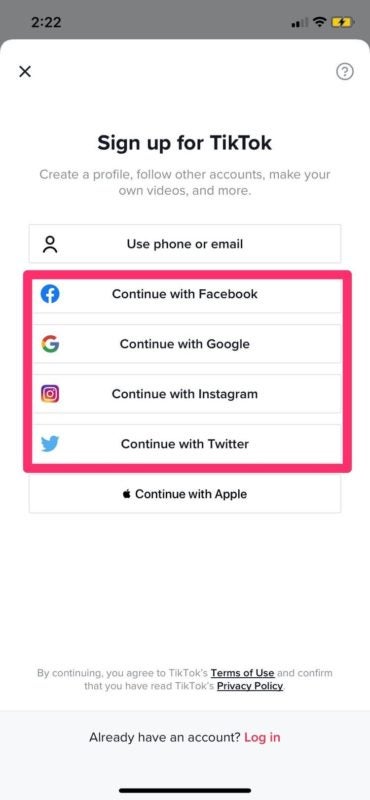
When you open TikTok again, it’ll ask you to sign in or create a new account. You’ll need to select the latter. It will then ask how you want to sign up. For you to specify your birth date, you can only opt for the phone and email selections. You’ll need to use new details this time.
Step 3: Set your age
You have reached the screen where need to place your birthday. Remember to use the correct one this time. After you’re done with this step, TikTok will ask to confirm your email address or phone number. You won’t be able to use the application’s features properly until you finalize this task.
Young at heart
You don’t need to worry about your age when using TikTok. Adults are having way too much fun with it to care if they carry on like teenagers. Everyone is either singing duets or making mockumentaries for some casual entertainment. It’s the one place you can enact the youngster living in all of us.
TikTok has become a household name for making fun, hilarious, and exciting content on your Android or iPhone device. You may have seen a few videos appear on your Facebook or Instagram timeline of your friends rocking to some music or lip-syncing to a weird conversation. If you’d like to join the entertainment bus, we’ll show you how to make TikTok videos in just a few easy steps.
How to Make TikTok Videos
Before you can begin your video journey in TikTok’s creator portal, you need to have an account. Your profile shows the community who you are, and you can also add friends and family to follow you. When you’re ready, you can create your first video.
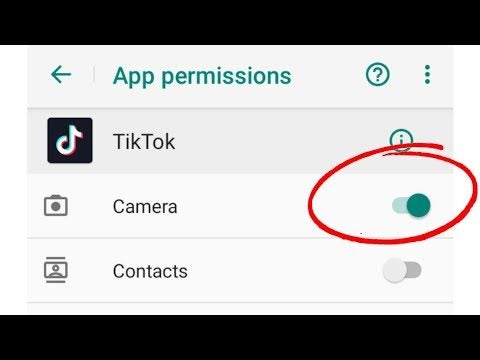
Step 1: Give access to your camera
TikTok needs access to your camera before you can start recording. It’ll probably only ask you this the first time you try to create a video. After that, you’ll have to head to your phone’s settings to manage permissions for your apps.
Step 2: Configure the settings
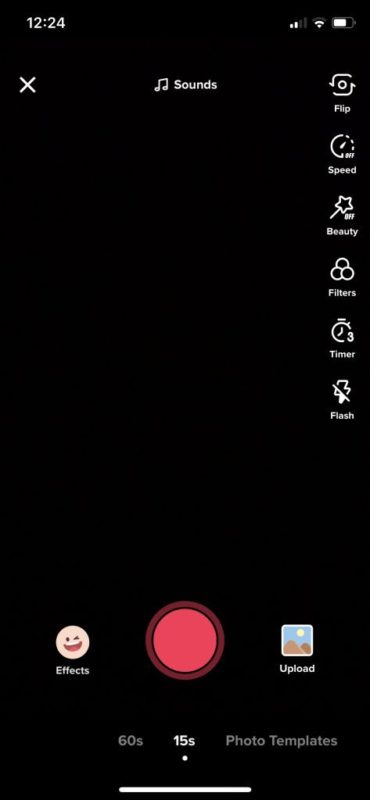
By pressing the “+” button, you’re telling TikTok that you’re ready to make a video. You’ll need to fiddle with some settings first, such as timer, beauty effects, speed, filters, and effects. Ensure you pay special attention to these, and don’t be afraid to mess up on the first few tries.
Step 3: Record your video
Now, you need to long-press the red button to begin recording. Remember to make it fun so your fans can have a jolly good time. You’ll be able to edit it when it’s done, such as adding more filters and giving it a cool soundtrack. Feel free to add some bunny ears or cat whiskers, if that’s your thing.
Became a TikTok star!
It’s time to join the mobile phone revolution and become a TikTok legend! Creating a view is as easy as pie, if pie-making was easy. It works even better if you see what the trending videos are for the day, and you create your own version.
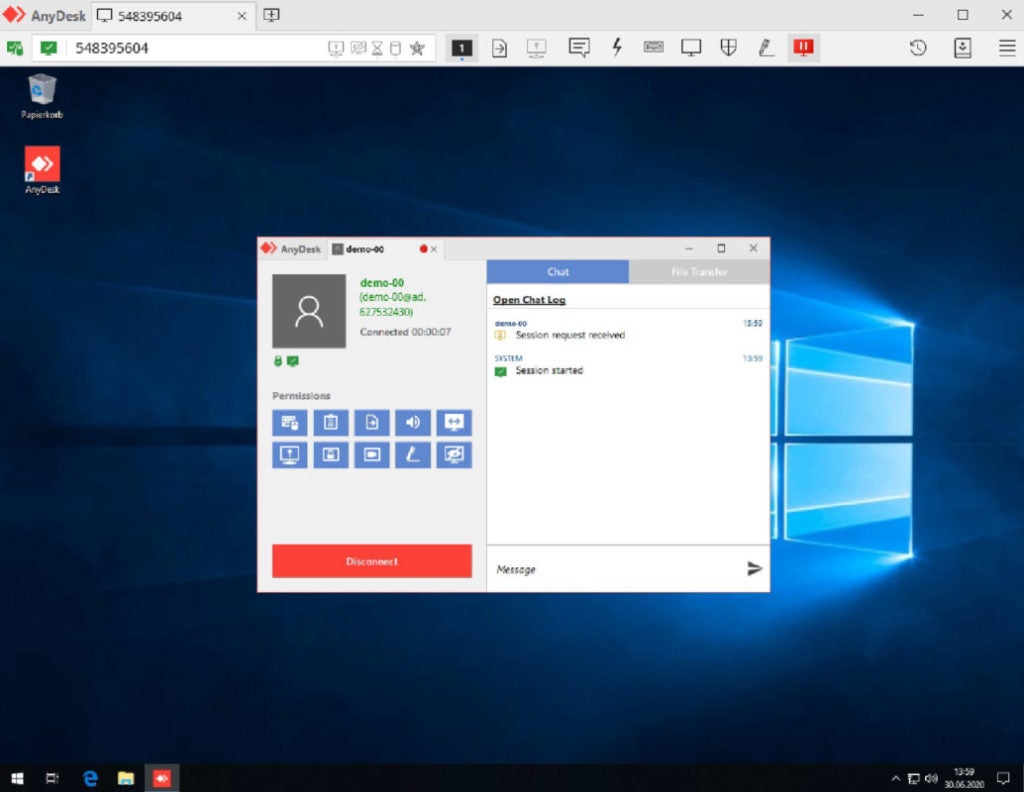
Remote desktop software has found its way into most businesses, whether large or small. Some companies use platforms like AnyDesk to allow employees to access their desktops from anywhere. Others use the software to enhance the quality of their customer support services.
With so many questionable remote access solutions available, it’s vital to use a platform that’s trustworthy, secure, and easy to use. In this article, we’re going to take a closer look at AnyDesk, one of the top-rated remote desktop applications.
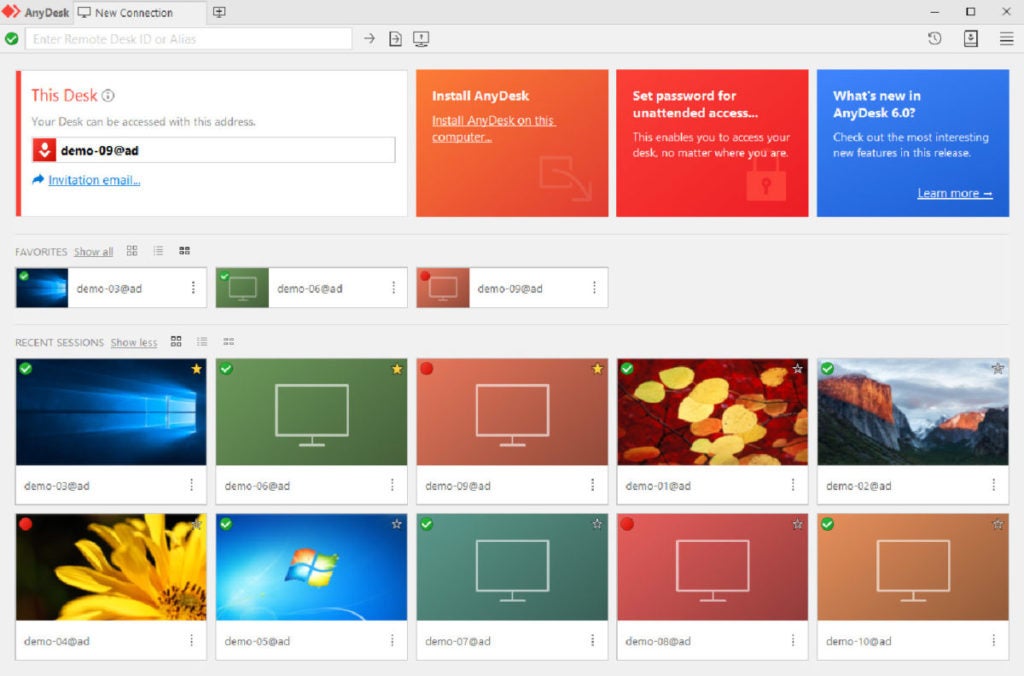
No one enjoys working with a bulky application that’s neither easy to install nor user-friendly. AnyDesk was built with users in mind – not only technical and support gurus, but everyday users who may need to work from home or quickly hop onto their office desktop via mobile.
The application itself is incredibly lightweight, coming in at a mere 3MB. You don’t even need to register or provide administrative privileges to start using it. Just download, launch, and start working.
Speed Is Key
High latency and the resultant lag can be frustrating and negatively impact your support or remote teams. Remote desktop solutions need to provide fast, reliable services that can handle data-intensive applications.
AnyDesk’s proprietary DeskRT video codec was designed with these challenges in mind. It compresses the data in a way that allows AnyDesk to provide fast data transmissions at bandwidths as low as 100 kB/s.
According to benchmark tests conducted by two independent IT companies, AnyDesk placed first overall based on four tested categories: frame rate, latency, bandwidth, and frame size.
Company and Client Data Security
Not all remote access applications have the same level of security. Consequently, we frequently hear about hacking attempts and scammers using these platforms. One recent occurrence almost led to the poisoning of a Florida city’s water supply.
Is it always the fault of the software’s security? Of course not. Users may be allowing untrusted individuals to connect to their devices without even realizing it. To help educate their users and prevent this kind of error, AnyDesk provides additional educational resources through their blog and newsletter.
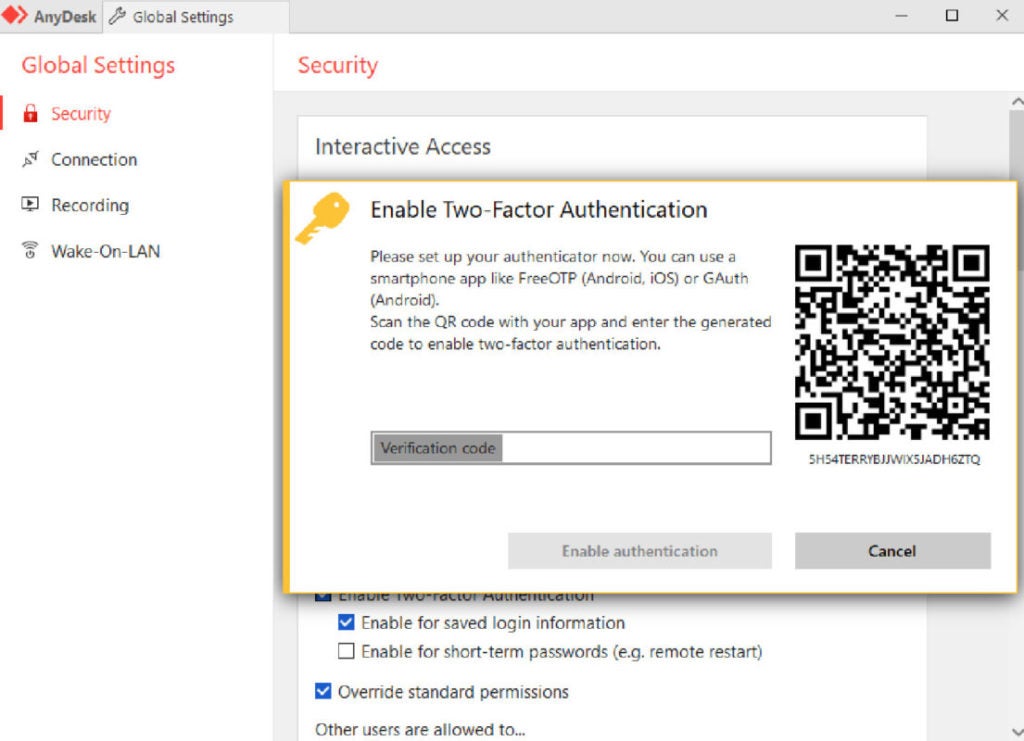
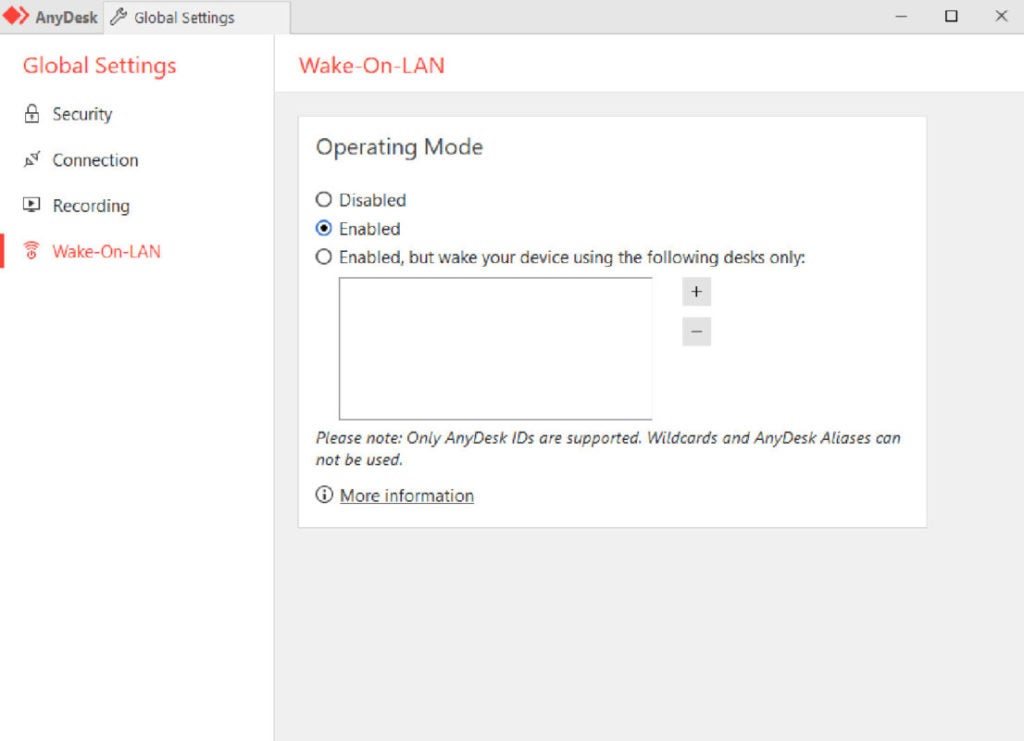
Security and encryption are some of the most critical elements of a robust remote desktop solution. To keep its users safe, AnyDesk uses banking-standard TLS 1.2 encryption technology and verified connections using asymmetric RSA 2048 keys. It also allows for the whitelisting of specific desks and a private enterprise network setup to avoid accessing remote servers entirely.
AnyDesk uses the Diffie-Hellman Ephemeral handshake (DHE), allowing all connections to offer perfect forward secrecy and making sessions undecryptable. Additionally, salted password hashing protects user passwords and prevents third parties from stealing the information.
Multi-Platform and Device Support
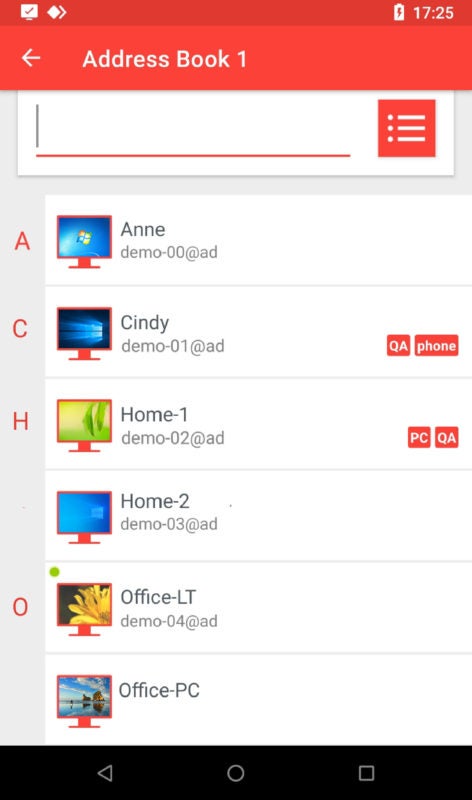
The modern employee doesn’t just work from a desktop PC, but also their laptops, smartphones, tablets, and other devices. That’s why AnyDesk works flawlessly on all the most common operating systems, including Linux, Windows, macOS, iOS, Android, and FreeBSD.
AnyDesk remote desktop software is exceptionally flexible, backward compatible, and lightweight. You can also download and use the Android or iOS mobile applications at no additional cost.
Excellent Customer Service
Remote desktop applications are designed to help you streamline your business, assist your clients, and enable your employees. However, nothing is infallible, and there’s always a risk of something going a little haywire. When that happens, you need to know that you’ll have a crack support team ready to help you get things working again, fast.
Not only does AnyDesk have an extensive and thorough online help center, but it also has a helpful support team. You can also use your my.AnyDesk.com account to get help on high-priority tickets.
Conclusion
More people are working from home than ever before, and the latest statistics and reports indicate that the situation isn’t likely to change soon. Consequently, the need for reliable, trustworthy remote desktop software has skyrocketed. With AnyDesk, remote employees and support teams can work from almost any device easily, quickly, and safely.