AnyDesk Simplifies Remote Access Tech With Go.AnyDesk.com

AnyDesk Software GmbH is a fast-growing tech company known for developing the top-rated AnyDesk remote access desktop software. After several months of beta testing, the company has launched its new web client, go.anydesk.com. The web client is already seeing widespread use amongst the AnyDesk community. Shortly after its launch, the app boasted 200,000 hits.

Does that mean you need to ditch your desktop software and switch to the go.anydesk.com web client? Before you decide, it’s essential to understand what the app can and can’t do.

Go.AnyDesk.com Is Faster, Simpler, and Easier

At 3.6MB, the AnyDesk desktop application is already the most compact remote access software. However, with the new web client, users don’t need to download any software at all.

“With go.anydesk.com, we are continuing on our path of consistent simplification. We aim to be the fastest and easiest remote solution — without compromises for our users,” says Philipp Weiser, founder and CEO of AnyDesk Software GmbH. “We are radically rethinking software programming. Our goal is to define a new paradigm — for smooth and location-independent networking of computers and machines of all kinds.”

In short, the go.anydesk.com web client is a lightweight application that makes remote access simpler than ever before. For example, users can now use AnyDesk even if a device prohibits software downloads or installations due to security requirements.

Aside from being fast and easy to use, what is it that really makes the go.anydesk.com platform stand out?

Compatible With Most Browsers and Operating Systems

AnyDesk created a platform that doesn’t just make it easier to use than ever before, but that’s also compatible with all popular browsers, including:

  • Google Chrome
  • Safari
  • Opera
  • Microsoft Edge
  • Mozilla Firefox

It’s also supported by all common operating systems, including Windows, Linux, and macOS. The only requirement is that the remote desktop or Android device needs to have the AnyDesk software installed. 

Unfortunately, the web client isn’t available on mobile, but we’re willing to wager that it’s a matter of “when” and not “if.” With over 300 million users worldwide, it’s likely only a matter of time before the new go.anydesk.com platform becomes available on mobile devices.

Is the Web Client Secure?

Absolutely. Like the desktop application, go.anydesk.com also includes security features such as Perfect Forward Secrecy and TLS encryption. The platform was designed to make remote access and work as easy, simple, and secure as possible, maintaining the software company’s high security standards.

Designed for Continual Improvement

The tech industry is constantly developing and evolving, and it’s critical for new software to prepare for future changes. The go.anydesk.com web client is based on native C++ and the AnyDesk desktop application. That makes it relatively easy to implement for future functions and features in the future.

Conclusion

The new go.anydesk.com web client makes it easier to connect to remote devices than ever before. It’s ideal for employees who work from home or for customer support staff who need to access client desktops remotely. Users can use AnyDesk’s new browser-based platform to access any desktop quickly and securely with only a single click.

How to Change my Name on Among Us in 3 Easy Steps

Among Us players recently received an exciting new Airship update that features new tasks, gameplay elements, and experiences. It’s bound to bring back many of the old players that abandoned the new game, but what if you want to change your account name?

Fortunately, the change name function has been added with the update. You only need to follow a few steps in Among Us to put it into place.

Among Us (Android) Download for free
9
  1. Open account settings

    How to Change my Name on Among Us

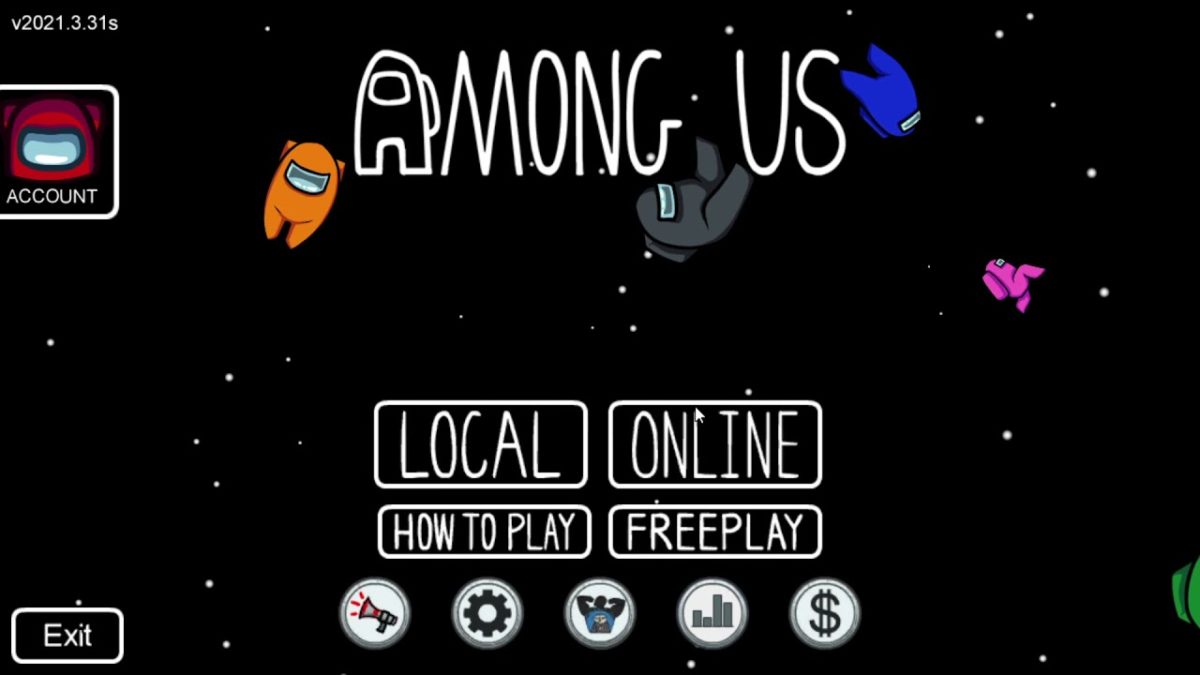
    One of the new features you’ll see in Among Us is access to your account settings. To find it, just look at the top left side of the screen for the word “Account.”

  2. Create or log into account

    How to Change my Name on Among Us

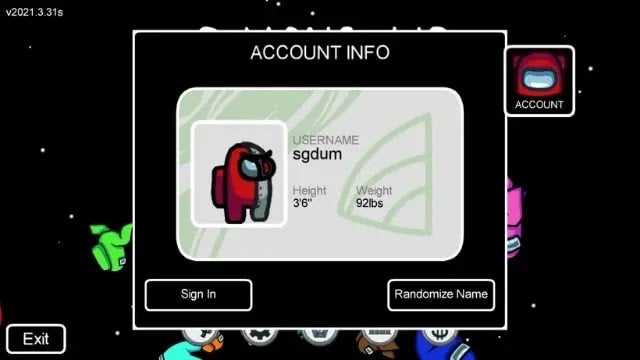
    When you click on it for the first time after the update, it’ll ask you to create or log into your account. If you still remember your details, you can simply sign in with your username or password. If you’ve forgotten the info or you’ve never played Among Us before (have you lived under a rock?), you’ll have to create a new account.

  3. Change your name

    How to Change my Name on Among Us

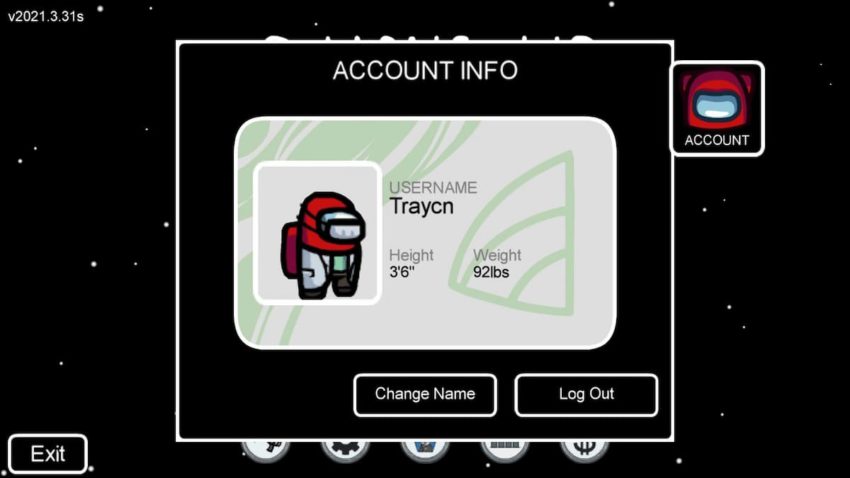
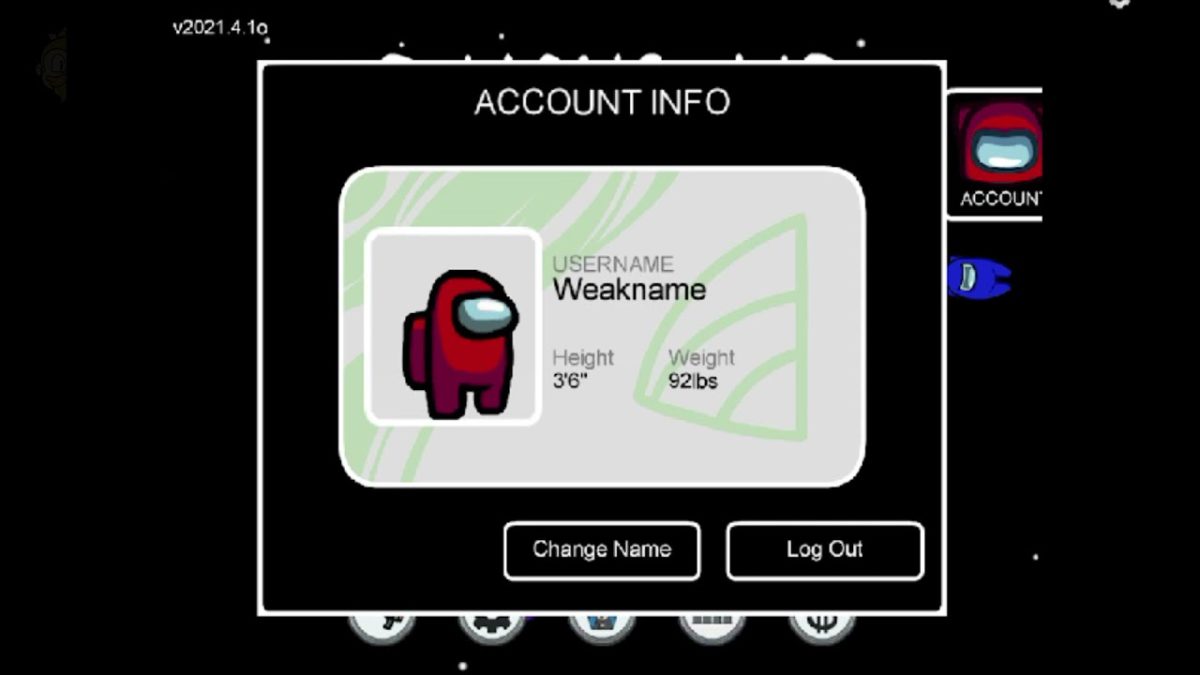
    Once you are in your account, you’ll see a ‘Change Name’ button. It’s as easy as tapping on it and inserting your new username. You can also click on the refresh button if you want the game to generate a random one for you.

New name, same impostor

As you can see, Among Us has made it so much easier for your to change your username at any time. With so many players asking for the feature, it’s about time someone listened. 

Just remember to keep it clean, as there are children playing it too. Hopefully, we’ll stop seeing weird names like ‘ignoramous69’ in the game and spot some creative titles for a change. Although, we’re expecting obvious ones like ‘Imtheimpostor’ and ‘youcantseeme’.

Google To Transform Your Android Into a TV Remote

Change your Android TV Channels With Your Phone

Over the last few days, we’ve heard a lot of news from the Google I/O Keynote presentation. If you’re a fan of using the Android TV Remote Control app for changing channels, you may not need it for much longer. It appears as though the update for Android 12 will have a feature that performs the same function, just better.

Of course, you’ll only see the option if your phone is compatible with the update. The new tool will appear as a standard icon on your home screen, letting you configure it as you please. It’s clear that Google wants to ensure you have the ultimate experience when dealing with all of their products.

Google To Transform Your Android Into a TV Remote

The new Android update will host many other new features. There will be a dashboard for insights while you can also change your privacy settings. It also integrates better with Google’s very own Chrome OS system. These pale in comparison to the functions offered by the new built-in remote control.

Some of the tools you can expect include directional swipes, power on and off, Google Assistant, volume, back, mute, and home. When compared to its predecessor, one of the improvements include typing text into input bars that makes it easier to search for topics. We don’t have an official launch date for the Android 12 update, but we’ll let you know as soon as we do.

Microsoft To Discontinue Support For Internet Explorer

Say Farewell to Internet Explorer on Windows 10 in 2022

Ever since Microsoft Edge has appeared on Windows devices, we’ve seen a significant movement towards it becoming the brand’s preferred browser. It’s faster and more reliable than Internet Explorer, and the company has stopped adding new features for a while now. So, it’s with no surprise to see Microsoft announce that it’s retiring IE.

Its funeral on Windows 10 is set for June 15, 2022, but you may still see it on your device after that. The program will still exist; you just won’t receive any further support. Microsoft has also indicated that there will be exceptions, such as desktop applications for Server Internet Explorer 11 and Windows 10 LTSC.

Microsoft To Discontinue Support For Internet Explorer

You’ll also be able to switch to Internet Explorer mode in Microsoft Edge, so it’s not going away altogether. Some of the reasons mentioned for this action are its outdated performance, compatibility issues with legacy websites, and focusing on delivering an exceptional product with ME. All of the functions you enjoyed with IE will still be available in ME, so the cross-over will be easy.

Of course, you’ll need to fiddle with all your privacy settings in the new browser. There are also plenty of new tools you can take advantage of, so you’ll have a better experience. We’ll keep an eye on any more information from Microsoft regarding the end of Internet Explorer.

Uninstalling uTorrent on Windows and Mac | 2 Easy Methods

uTorrent is one of the most popular BitTorrents available that enables you to download movies, music, and software torrents on Windows and Mac computers. 

However, there may come a time when you decide that you no longer need the program and have to uninstall it from your PC. We’re going to show you how on both platforms.

  1. Uninstalling uTorrent from Windows

    How to Uninstall uTorrent

    – Press Ctrl+Shift+Esc and select open the Task Manager. 

    – Select all tasks related to uTorrent and click on ‘End Task’.

    – Click the ‘Start icon at the bottom left of your desktop. 

    – Then click ‘All Apps’.

    – Scroll through the list until you find uTorrent, click on it and then select ‘Uninstall’.

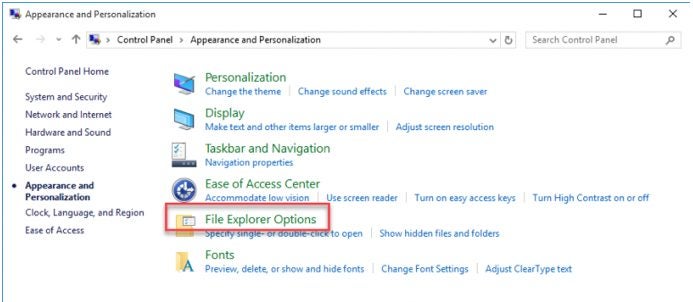
    – Click ‘Start’, and then ‘Control Panel’, then click on ‘Appearances and Personalization’, next click on ‘Folder Explorer Options’ and finally on the ‘View’ tab.

    – Beneath the ‘Advanced Settings’ window, check the ‘Show Hidden Files and Folders option and click ‘Ok’.

    – Open the file explorer, and in the search bar, type ‘uTorrent’.

    • Permanently delete any folders that come up related to uTorrent.
  2. Uninstalling uTorrent from Mac

    How to Uninstall uTorrent

    – Open the Utilities folder from the launchpad and click on ‘Activity Monitor’. 

    – Select ‘All Processes’ and scroll through the list. 

    – Select any processes associated with uTorrent and click on the ‘Quit Process’ icon in the left corner of the window.

    – Drag the uTorrent application into the trash to uninstall the program.

    – Open the Finder and then click on the ‘Go’ menu.

    – In the drop-down list, click on ‘Go to Folder’.

    – In the search window, type in ‘~/Library’.

    – Search for any folders related to uTorrent and drag them into the trash.

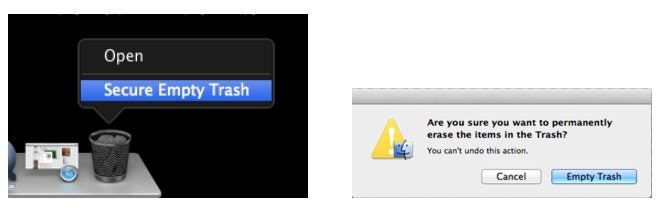
    • Right-click on the trash can and select ‘Empty Trash’.

Uninstall and Move On

As you can see, it is easy to uninstall uTorrent from your PC, but also remember to remove the remaining content and files to start fresh.

Google Play Store Error RH-01 | 4 Simple Solutions

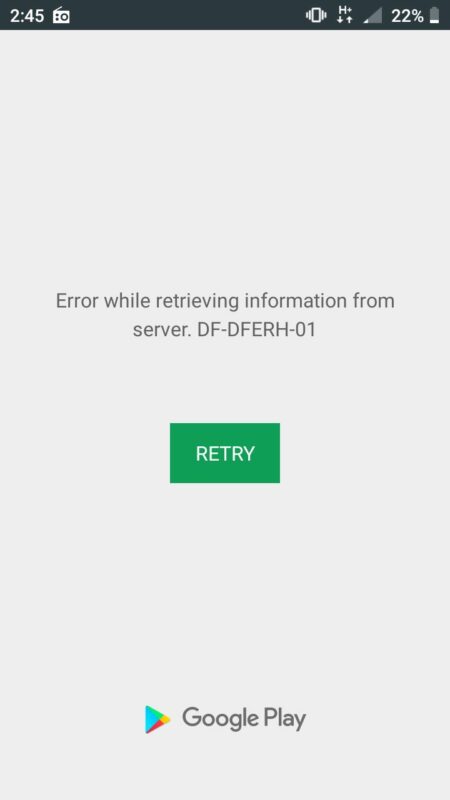
Google Play, or the Play Store, as it is also referred to, is the official app store for Android devices. Sometimes errors pop up, like the RH-01 error, which reads ‘Error retrieving information from the server RH-01’.

There are a few reasons that this error may occur, such as using an outdated version of the Play Store or having modified software on your phone. Let’s look at a few things you can do to resolve the error.

  1. Restart Your Device

    How to Fix Google Playstore Error RH-01

    Most bugs and errors are temporary and can be resolved by simply restarting your phone. This is usually the first place to start when trying to fix any error on your device.

  2. Resetting App Preferences

    How to Fix Google Playstore Error RH-01

    – Go to ‘Settings’.
    – Tap on ‘Apps and Notifications’ and choose ‘All Apps’.
    – Tap on the three dots at the top of the screen for more options.
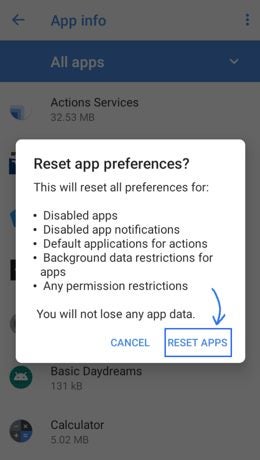
    – In the drop-down list, tap on ‘Reset App Preferences.
    – A message box will pop up to confirm your choice; tap on ‘Reset Apps’ once more.

  3. Clear Google Play Cache

    How to Fix Google Playstore Error RH-01

    – Go to ‘Settings’.
    – Tap on ‘Apps and Notifications’.
    – Look for Google Play Service and tap on it.
    – Tap on ‘Force Stop’ to stop the app from running.
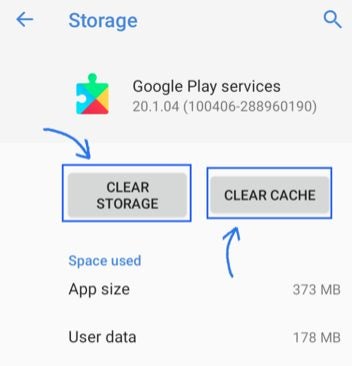
    – Next, click on ‘Storage’ and choose ‘Clear Cache’.

    Now restart your device.

  4. Reset Your Device to Factory Settings

    How to Fix Google Playstore Error RH-01

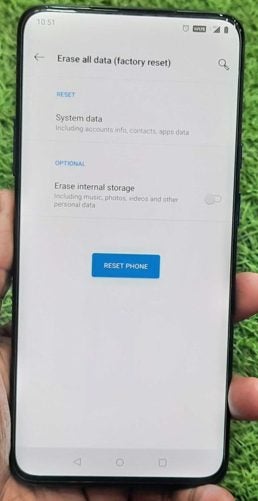
    If none of the above solutions works for you, you might have to consider resetting your Android to factory settings. This should be used as a last resort as it will completely reset your device. Ensure that you backup all of your files, photos, pictures, music and anything else that is important to an external device before resetting.

Solve This Error and Return to Using the Play Store

There are very few things as frustrating as an error on your phone. Luckily there are different solutions to the RH-01 error that can help you solve this issue and continue using the Play Store.

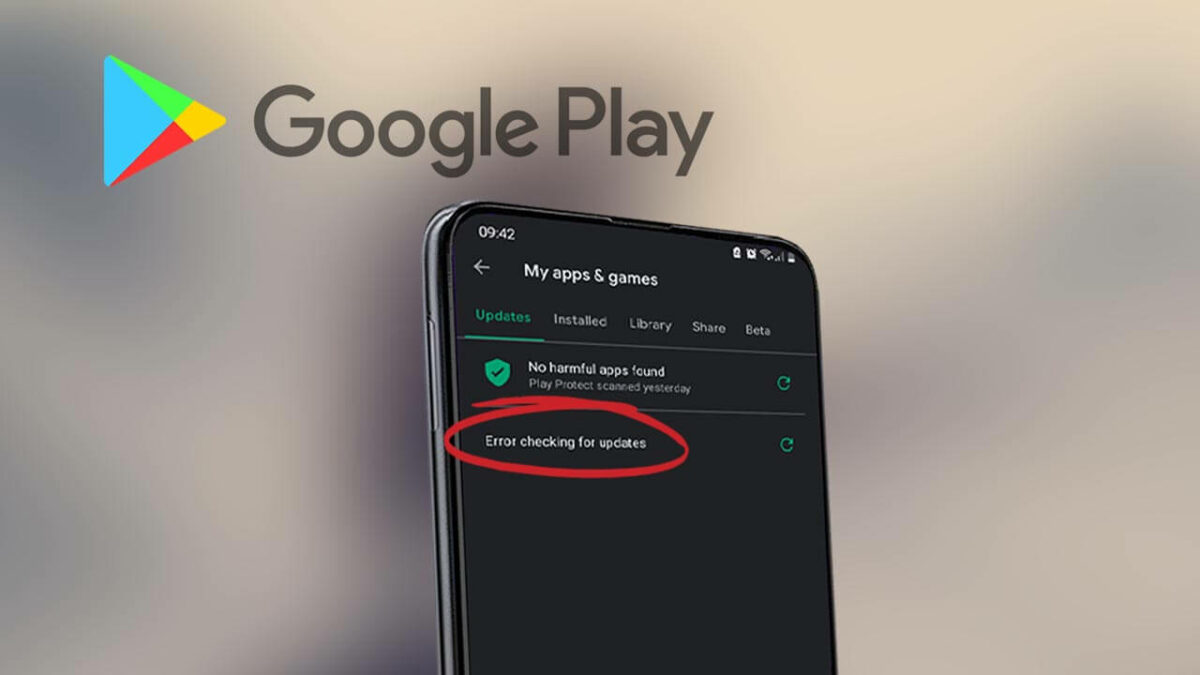
Fix the “Error checking for updates” Google Play Store | 3 Easy Ways

As Google Play Store is the go-to app for Android users to get all their apps, it’s pretty annoying when it gives out errors or fails otherwise. One major problem with the store is that it might not be able to pull app updates. 

This article focuses on the causes and solutions of this issue.

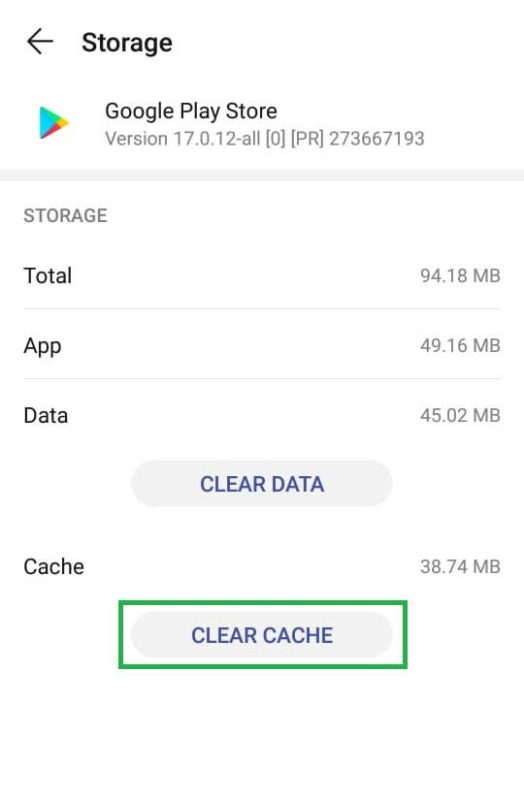
  1. Clear cache and data

    Fix the Error checking for updates Google Play Store

    This step includes a solution to two problems that go hand in hand most of the time. When the cache and cookies get corrupt, it may cause certain features not to operate correctly. Going through this method won’t cause you to lose data. Here’s what you need to do:

    – Access settings in one of the various ways (from the notifications panel, from apps, or the Home screen)
    – From the “Apps” page, select Google Play Store
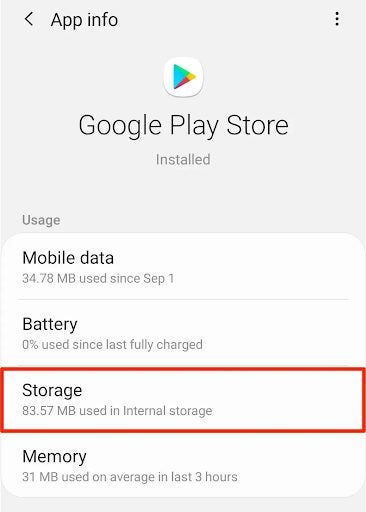
    – Under the “Storage” tab, you’ll see both options
    – Tap “Clear Cache” and agree
    – Do the same with “Clear Data”


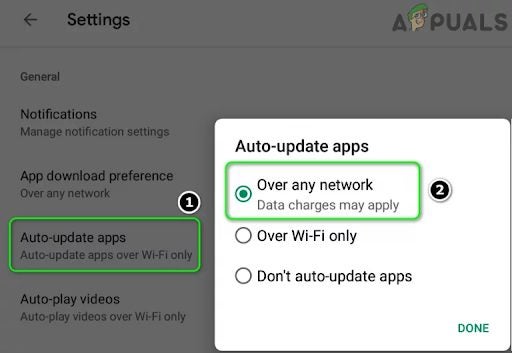
  2. Reboot the internet connection

    Fix the Error checking for updates Google Play Store

    If you think it’s because of the internet connection, try disconnecting from the network and reconnecting. Sometimes the Play Store settings also block the updates on cellular. To ensure that this isn’t the problem, allow updates “Over Any Network.”

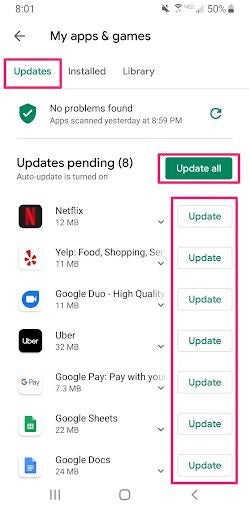
  3. Update manually

    Fix the Error checking for updates Google Play Store

    If the system isn’t able to fetch the updates, the storage space might be a problem. In addition to deleting unused and discontinued apps, you might want to try initializing updates manually. Once you get a few apps going, the glitch in the system might be patched, and the rest will go smoothly.

What else might cause the “Error checking for updates” message?

While the reasons and solutions above might be the main ones, there are some other sources for this message. One of them is the corrupt SD card, which you can solve by removing it temporarily.

Another frequent cause can be a recent update of a program that introduced malware or a simple bug. Fixing this is easy. You might need to reinstall the glitchy app.

There are a few error sources, but the ones we described are the most frequent.

Signing in to Google Play Store | 3 Fast Steps

On Android devices, Google Play Store operates via your Google Account. This means that you need to connect it first. 

In this article, we assume that you already have the login information mentioned above.

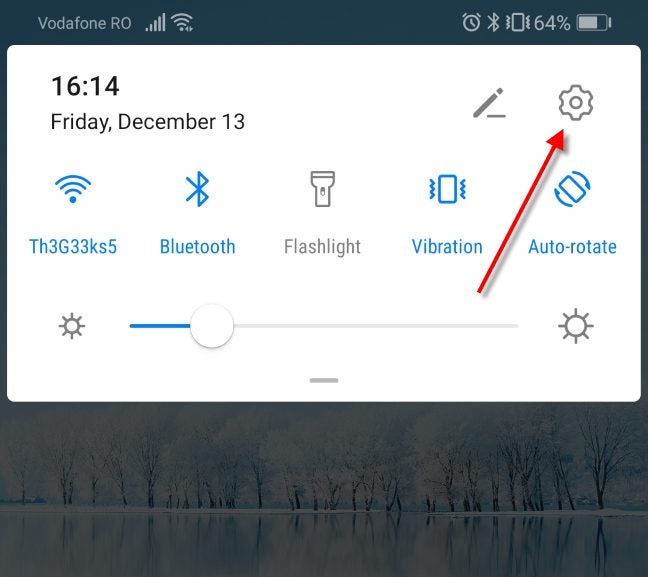
  1. Open “Settings”

    How to sign in to Google Play Store

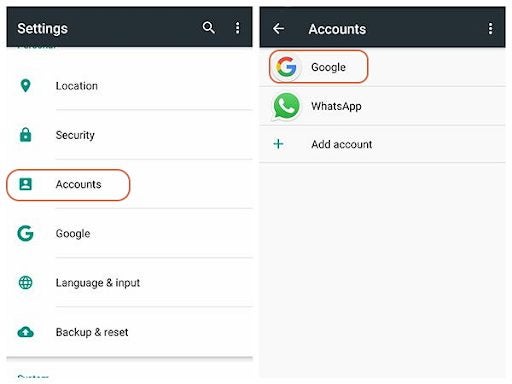
    Swipe up on your device to access the settings app on the screen. Once you open it, navigate to the “Accounts” page. Here you’ll see all the accounts you already have on the device.

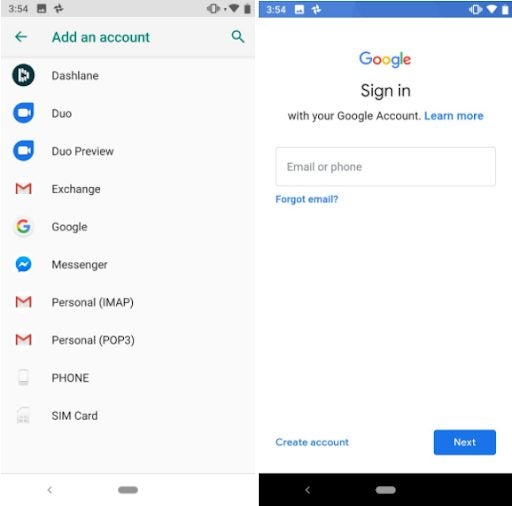
  2. Click “Add Account” and follow the prompts

    How to sign in to Google Play Store

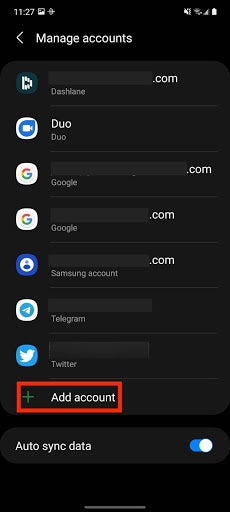
    Once you’re on this page, you can click the “Add Account” below the signed-in ones. You’ll be redirected to a login page. Use your existing Google email and password and follow the prompts.

  3. Add more accounts as you need

    How to sign in to Google Play Store

    Whether you’re using a tablet intended for the whole family, using an emulator like Bluestacks on PC, or have more than one Google login for some reason, you can add more than one email to one device. Switching them from the app is as easy as clicking on the account dropdown menu and selecting the other.

Use your device to its fullest

If you own an Android smartphone, having the Play Store installed and logged in is like air and water. Whether you’re downloading new productivity apps or play games, this app is the official source of all goodness for Android.

Solving Google Play Store Error 194 | 3 Easy Ways

Google Play Store error 194 on Android usually happens when there’s a problem with Cache, Account, or Data. As there can be a few reasons for this issue to transpire, this article offers a few methods you can use.

Fixing Google Play Store error 194 might be tricky. We list the methods in an ascending scale of complexity. You just need to be patient and dig into settings for a bit. Try the following ways until the problem is gone. 

  1. Turn it off and on again!

    How to Fix Google Play Store error 194

    This is our own Moss and Roy situation from “The IT Crowd.” The sitcom might’ve had this solution as a running gag, but it works in case of error 194 as well. Kudos to the likable nerds!

  2. Clear the app cache and data

    How to Fix Google Play Store error 194

    Resetting the apps to default always helps get rid of any errors and help create new data files, removing the corrupted code bits. Follow the steps below:

    – Swipe up
    – Navigate to Settings > Apps
    – Tap the three dots
    Click “Show System Apps”
    – Find the Play Store app and open it
    – Navigate to “Storage”
    – “Clear Data” and “Clear Cache” one by one
    – Restart the device

    Alternatively, you can perform a system-wide cache and data cleanup.

  3. Remove and add back your Google account

    How to Fix Google Play Store error 194

    As we mentioned above, you might encounter the error 194 because of an account issue. This method comes to solve just that.

    – Access your Google account from the “Settings” menu
    – Tap the account and “Remove”
    – Restart your Android device
    – Go back to Settings > Account
    – Tap “Add” and follow the prompts

Other reasons and solutions

We assume that your apps update automatically, but we also recommend that somewhere between Method one and two, you check if the Play Store is up to date. This issue might also be caused by an unstable internet connection, which you can solve using the first method.

If all else fails to solve error 194, you might want to consider a “Master Reset.” Remember, this is a drastic measure, which will wipe out all personalization and restore the default settings on your device.

The Sims 4 Showcases New “Summer of Sims” Content

New Content to Enhance Sims 4 With “Summer of Sims”

Maxis has teased a new roadmap for “Summer of Sims” that will be coming to The Sims 4 shortly. The first release is called “The Sims 4: Courtyard Oasis Kit”, which is launching today to fans worldwide on the EA Desktop App. Of course, the latest release from Electronic Arts is only a sunny taste of things to come.

So far, the roadmap indicates that there will be a new game pack, an expansion, and several core updates. The poster for the releases indicates that the events will spread over three months, while there’s also a Pride Virtual Block Party. It seems like summer in The Sims 4 will be exhilarating.

The Sims 4 Showcases New “Summer of Sims” Content

Inside Maxis will be presenting a live stream today to discuss everything you can expect from the Summer of Sims content. One of the kits appears to target players who love building with many courtyard items containing Morrocan themes. They have plenty of vibrant colors while making use of your outdoor space, including objects like archways, stairs, furniture, and tiles.

The promise of a game pack suggests we’ll see new careers, skills, and themes arriving in The Sims 4. After this content, we’ll probably see the next expansion if past experience is anything to go on. We’ll keep a watchful eye for any further news regarding Summer of Sims for sure!