Microsoft’s recent updates, designed to comply with European Union regulations, bring a wave of changes, including an easy way to uninstall Edge.
Spoiler alert: this perk is currently reserved for EU citizens, prompting others to delve into Windows Registry tweaks and location spoofing.
In this guide, we unveil a global workaround, offering users everywhere a simplified path to uninstall Microsoft Edge and take command of their Windows experience. Fear not, if you want to download it again you can easily reinstall it.
How to uninstall Edge in Windows 10 and 11 easily in 8 steps
Uninstalling Microsoft Edge in Windows 10 and 11 can be accomplished with a new method that involves manipulating system files. While straightforward, it’s imperative to exercise caution, as this process entails modifying critical components of the operating system. Here are the steps to uninstall Edge you need to follow:
Download ViVeTool
Command Prompt as Administrator
Enable hidden feature
File Explorer and permissions
Notepad configuration
Update Notepad
Save changes and restart
Note: Prioritize data backup and create a system restore point before proceeding to ensure a safety net for any unforeseen issuesand make sure your system is running Windows 10 build 19045.3757 or Windows 11 build 22621/31.2787 or a more recent version.
Now, let’s break down each step one by one and uninstall Edge in Windows 10 and 11 easily.
Download ViVeTool
Obtain ViVeTool from its GitHub repository, a tool designed to unlock hidden features in Windows.
Extract the downloaded file to a directory of your choosing.
Command Prompt as Administrator
Launch Command Prompt with administrative privileges by right-clicking the Start menu and selecting “Command Prompt (Admin)” or “PowerShell (Admin).”
Navigate to the ViVeTool directory using the cd command (e.g., cd C:\YourFolderPath\ViVeTool).
Enable hidden feature
In the elevated Command Prompt, input vivetool /enable /id:44353396 and execute the command.
Reboot your system to apply the changes effectively.
File Explorer and permissions
Open File Explorer and direct it to C:\Windows\system32.
Locate the file named IntegratedServicesRegionPolicySet, right-click it, and access its “Properties.”
Within the “Security” tab, navigate to “Advanced” and transfer ownership to the Administrators group.
Notepad configuration
Launch Notepad with administrative privileges by pressing Win + R, typing notepad, and executing it with Ctrl + Shift + Enter.
Identify and modify the setting in the JSON file pertaining to Edge uninstallation.
Adjust the value of defaultState as needed.
Registry editing
Open the Registry Editor by pressing Win + R and entering regedit.
Navigate to Computer\HKEY_USERS\.DEFAULT\Control Panel\International\Geo and document the value of the “Name” entry.
Update Notepad
Return to Notepad and include your country name in the list of supported regions based on the information gathered from the Registry Editor.
Save changes and restart
Save the alterations made in Notepad and initiate a system restart.
Following these steps should enable you to uninstall Microsoft Edge from your Windows 10 or 11 system. In the event of any complications or undesired outcomes, consider reversing the steps or utilizing the system restore point created earlier. Caution is paramount when dealing with system files to prevent unintended consequences.
Time for a new browser! Explore a range of options to find the perfect one for you:
Remember back in September when Microsoft made waves with their press event introducing Copilot? Well, they’re back in the spotlight today, dishing out some cool updates for the Edge web browser.
In a fresh-off-the-press blog post, Microsoft’s all abuzz about making some of those snazzy features they teased now available to Edge users.
“Copilot in Microsoft Shopping is designed to be your own personal shopper and help you find what you need in less time. You can give it prompts like “what are some gift ideas for teenage boys?” and Copilot will ask you a set of intelligent questions to help narrow down ideas for gifts for your nephew. Coming soon, you’ll also be able to simply share a picture of the product you’re looking for, and Copilot will guide you to the right match.”
Copilot in Microsoft Shopping
The big headline? Copilot in Microsoft Shopping is rolling out and it’s set to spread its wings even wider soon. Microsoft’s keeping the details under wraps for now, but let’s just say, shopping online is about to get a whole lot smarter.
And get this – Copilot in Microsoft Shopping isn’t just playing favorites with Edge. It’s actually open to any web browser. Just take a virtual stroll over to https://bing.com/shop/ai, and voilà, you’re in the AI shopping zone. But, Microsoft’s giving us a little nudge, hinting that Edge users will get the VIP treatment.
Review Summaries
But wait, there’s more! Microsoft isn’t just stopping with the AI shopping experience. They’re also rolling out a nifty feature called Review Summaries for Edge. Here’s the lowdown: Edge users can now click on the Copilot icon in the sidebar and ask it to whip up a summary of reviews for any product. Imagine getting the gist of what everyone’s saying without scrolling through pages of reviews. Talk about a time-saver!
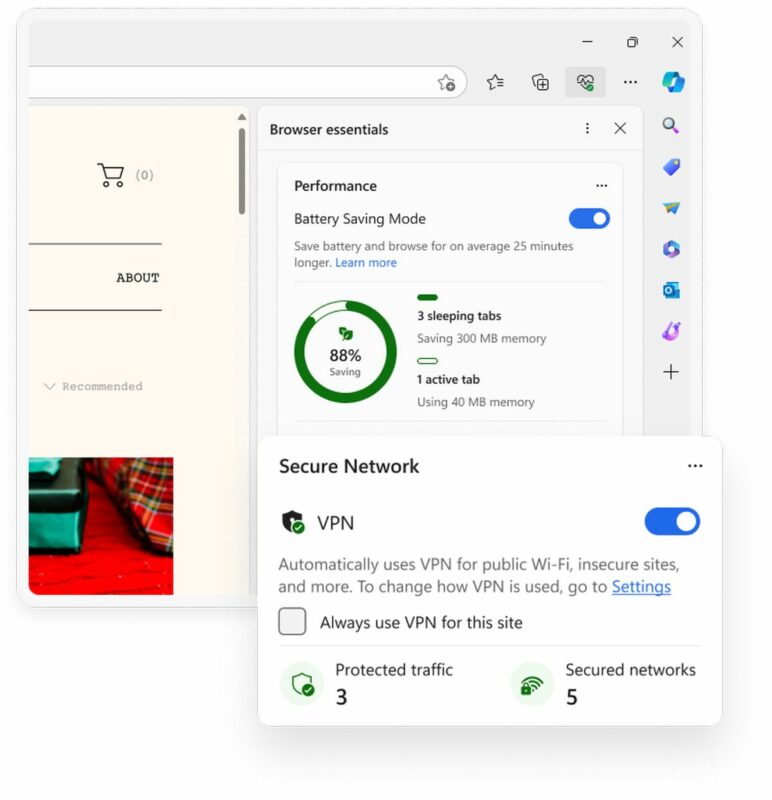
And for those of you who’ve been keeping tabs on Microsoft’s experiments, here’s some news. Remember the Edge Secure Network that was being tested with the Edge Insiders Program earlier this year? It’s ready for prime time! Microsoft’s making this feature generally available, stepping up the game in online security.
“Edge Secure Network uses VPN technology to stop third parties and bad actors from accessing your sensitive information, so you can make purchases online, fill out forms, and keep your browsing activity away from prying eyes.”
The latest blog post from Microsoft is like a treasure trove of security goodies. They’ve beefed up Microsoft Edge with features like Password Health and Password Monitor. And for anyone who’s ever typo’d their way into a sketchy website, Microsoft’s got your back with Website Typo Detection. This feature acts like your digital bodyguard, steering you clear of malicious sites that prey on misspelled URLs.
Microsoft has confirmed that DALL-E 3 is now available to all Bing Chat and Bing Image Creator users.
The recent announcement of DALL-E 3 has generated much excitement about its capabilities and native integration into ChatGPT. Now, it’s Bing Chat’s turn: Microsoft has confirmed that DALL-E 3 is already available for all Bing Chat and Bing Image Creator users.
During this past week, the update has been rolling out in stages. The first ones to try it out were Bing Enterprise users, followed by Bing Image Creator users. Finally, it has become public and is now available to everyone.
Microsoft is making a strong push for Bing, and it shows: to begin with, the search engine will have access to DALL-E 3 before ChatGPT itself. Furthermore, to use DALL-E 3 in ChatGPT, we will have to pay, unlike in Bing Chat.
OpenAI, the company behind DALL-E 3 and ChatGPT, has implemented new security tools in the image generator. One thing DALL-E 3 won’t be able to do is recreate public figures, as a measure against deepfakes and misinformation. Within Bing Image Creator, Microsoft is also embedding watermarks in each image to identify that they have been generated by artificial intelligence.
Moreover, making Bing Chat generate images is quite straightforward. You just need to start a conversation with the chatbot and ask. Describe how you want the scene to be and request Bing Chat to recreate it. The result is sure to surprise you.
However, be prepared for long waits and crashes on Bing. Currently, the search engine is facing many issues in generating images due to the high demand to try out DALL-E 3.
DALL-E everywhere
Microsoft wants to leverage the capabilities of DALL-E, and it is already planned to see the generator in other company applications, such as Paint. Redmond’s team is currently developing an image creation tool within Paint, powered by DALL-E. Therefore, Paint Cocreator (as it would be called) is set to become the first direct integration of this technology into Windows.
If you use the new copy frame option with Edge, the capture will have the native resolution of the video, something that until now was impossible and always…
Microsoft has sneaked in a feature with the latest version of its Edge browser that you’re going to like if you’re one of those who use YouTube on a daily basis. In my case, I have to follow live conferences and presentations, and it’s what I’ve always wanted: to be able to take native screenshots of the videos.
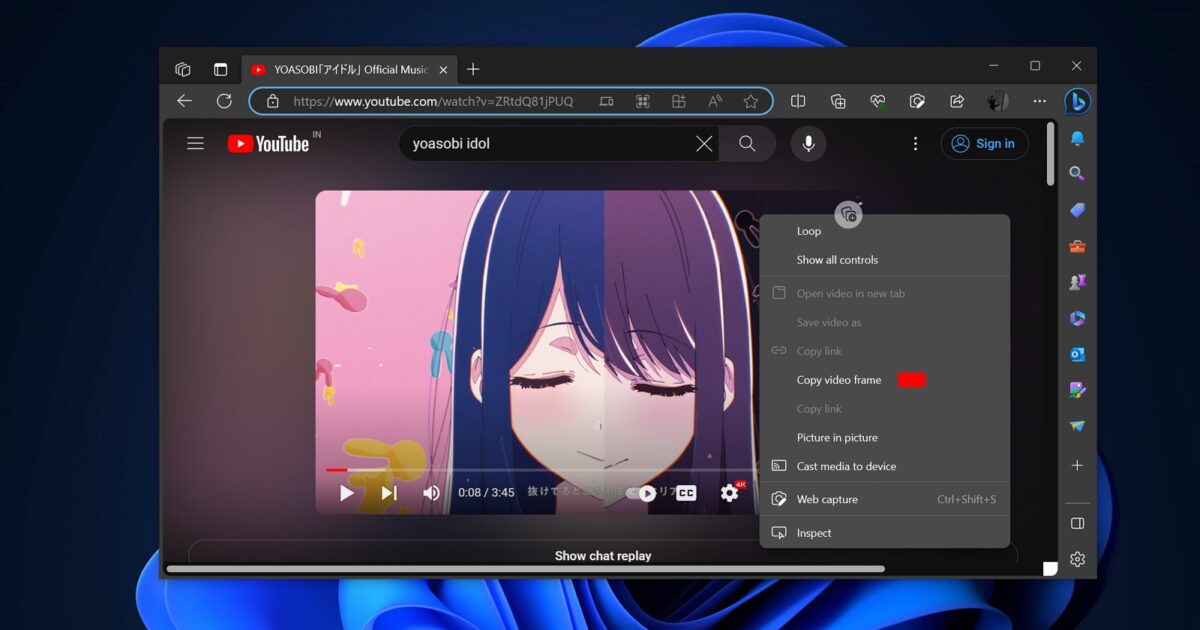
When playing a YouTube video (or with it paused), all you have to do is double right-click on the video and, in the context menu that appears, select “Copy video frame”.
This puts a copy of the frame being played (or paused) on the clipboard, and then you can paste it into your image editor (or wherever) to use it.
Microsoft added a small but cool new feature in the 116 Stable edition of its Edge web browser, allowing users to take a full-resolution screenshot of a video frame, even if it's not in full screen. #MicrosoftEdge#CopyVideoFramehttps://t.co/Mpp7D2RxHV
Why not click “Print Screen” to take a screenshot? As Windows Latest points out, if you take a screenshot this way, the resolution of the resulting image will be that of your desktop.
However, if you use the new copy frame option with Edge, the capture will have the native resolution of the video (if you are viewing a 4K clip, the resolution will be 4K, even if you are viewing the content at 1080p on your monitor).
Another advantage of using the new frame grabbing feature is that you don’t have to worry about the YouTube video being full screen, or that there are no menu chunks in the shot, and so on.
With minimal effort, just extract the entire video frame in its native resolution.
It’s not a great feature, no, but it’s useful for those who occasionally want to take a screenshot of YouTube. It seems rather odd that Microsoft’s release notes make no mention of this new capability, but then again, it’s pretty niche.
Find out which browser is better in our in-depth comparison of Brave vs Edge: speed, performance, CPU and RAM usage, and battery life on different devices.
With so many options available today, your choice of web browser can affect your online experience immensely. Two of the most popular web browsers are Brave and Microsoft Edge, both offering unique takes on the standard web browsing experience.
This article delves into the key features and differences between Brave vs Edge to help you make an informed decision about which you should use as your default web browser.
There are distinct differences in terms of user interface, customization features, and privacy settings that make Brave vs Edge an interesting comparison to explore.
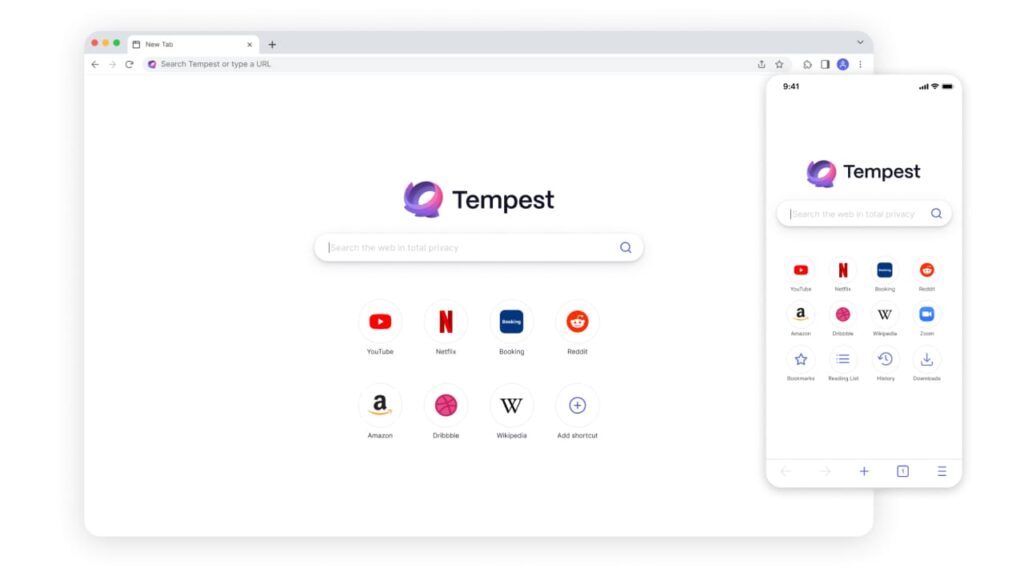
Are there better alternatives to both browsers? Read on to learn how Tempest can be even more helpful for you.
Brave vs Edge: Quick Summary
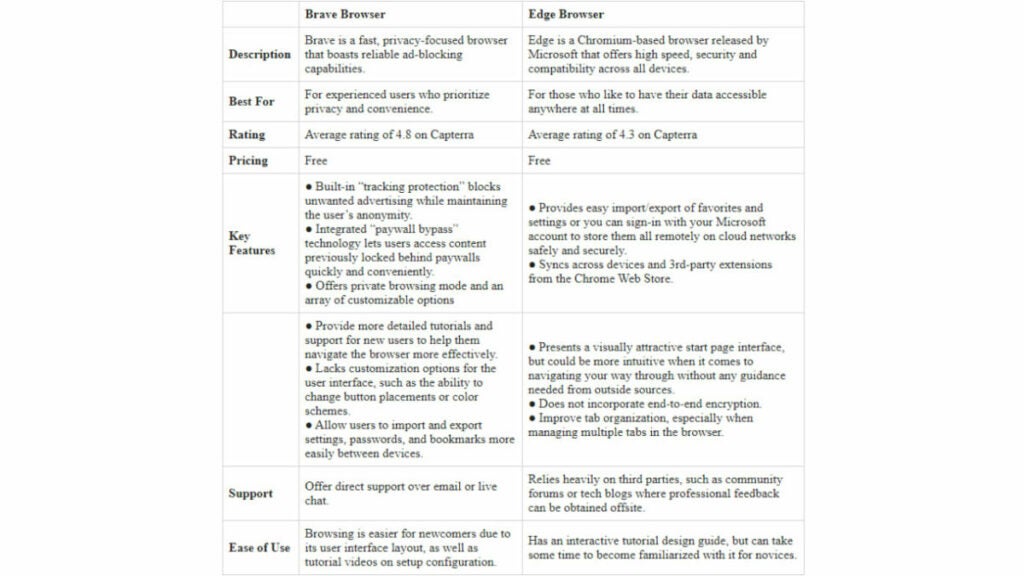
For web browsers, Brave and Edge stand out as two of the best performing. Below is a comparison table summarizing the essential features of each browser.
Before getting into the specifics of Brave and Microsoft Edge, here’s a brief look at their backgrounds.
Brave is a secure web browser built on the open-source Chromium platform available on the Chrome Web Store, developed by a team of privacy-focused entrepreneurs. Microsoft Edge is the default browser for Windows, offering a seamless browsing experience integrated with Windows security features, while also available on other operating systems.
With both Brave and Microsoft Edge gaining popularity, it’s worth exploring the key points of comparison to decide which one suits your browsing requirements.
One of the crucial features to consider when choosing between Microsoft Edge vs Brave is the security-focused features. Both popular browsers offer sophisticated security features that prioritize keeping your browsing history and data secure.
Edge’s integration with Windows security features and Brave browser’s integrated ad-blocking and tracker-blocking measures reflect the increasing needs and preferences of users towards increased web security.
Both browsers have their advantages and disadvantages, therefore it’s useful to compare them in more depth so you can decide which browser is best for you.
Speed and Performance
Speed and performance are two of the most important considerations when choosing between Brave vs Microsoft Edge browsers.
Brave Browser
When pitted against each other, Brave software achieved higher ratings with longer pages loading faster than Edge. Its chromium based browsers blitz through sites lightning fast, using an advanced scripting system to deliver web content rapidly.
According to Brave’s speed test results, it performs up to 33% faster than its competitors because its CPU uses less memory, making it a great choice for streaming websites or gaming sites that require near instantaneous loading times.
It uses fewer system resources than Edge, resulting in faster page loads and much shorter loading times for pages with heavy content like video. Additionally, Brave web browser leverages WebRender technology from Firefox, which provides additional improvements in animation speeds and responsiveness of key elements on pages.
Microsoft Edge
Edge also benefits from a select pool of engineering muscle to back up its performance claims. Powered by Microsoft’s proprietary engine, it helps decrease the loading time of web pages significantly compared to earlier versions.
The browser processes complex pages almost immediately and guarantees smooth scrolling with minimal latency issues. Edge offers users solid features, including an integrated search engine panel feature that allows you to quickly access your desired results as soon as you type them into the browser. This significantly cuts down effort and time spent on each task.
In terms of general browsing efficiency, many users attest that Edge is smoother and more productive at satisfying their daily needs during web activity sessions than other competitor browsers in the market today.
Overall, with its strong focus on improving web security, privacy and blocking intrusive ads without compromising on performance and speed, Brave offers an advantaged browsing experience that trumps Edge’s offering.
Security and Privacy
Brave and Edge are both designed with the user’s privacy and security in mind.
Brave Browser
Brave utilizes the latest web technology for secure browsing through HTTPS Everywhere, making sure that user browsing data is always protected over the network. It has implemented several additional features, such as tracking prevention, script disabling, and advanced security measures that blocks ads and trackers, which also helps to protect against viruses, malware, phishing attacks, and malicious content.
Brave’s innovative approach offers more granular control over privacy and security than Microsoft Edge. Using a specialized Tor browser that allows for anonymous browsing of a webpage, Brave can protect against IP address tracking, which keeps independent actors from gathering information on a user’s online activity.
In addition, Brave blocks ads from third-party sites from running malicious scripts that could access local files or monitor keystrokes. While Microsoft Edge provides effective protection against threats like phishing, its security focused features lack the level of control offered by Brave’s Tor integration.
Microsoft Edge
Edge offers advanced settings that give users control over their privacy, including built in ad blocker and password protection. It’s also designed to detect potential threats while keeping its users’ online activities private.
Edge allows users to choose between a global privacy setting or selecting specific websites they wish to block data tracking on. Its SmartScreen technology analyzes website downloads for malicious content, which provides an extra layer of protection against potential threats.
The newest version of Edge combined the original version’s sandboxing protection with a multi-process model that makes it virtually impossible for malicious code to run on your PC. Microsoft also offers constant scans of your downloads folder through Windows Defender SmartScreen, so you can be sure malicious sites cannot compromise your device or data.
In summary, both Brave and Edge offer users a secure and private browsing experience. Brave is the clear winner in terms of granular control over security settings, while Edge offers more comprehensive protection against potential threats with Windows Defender SmartScreen. Ultimately though, it depends on what features you’re looking for from your browser.
When it comes to performance on different devices, the question often arises, “Should I choose Brave or Edge?” The answer depends on a variety of factors, so here’s a breakdown of the best performance features of both browsers in various areas to find out which one best suits your needs.
Brave Browser vs Microsoft Edge
When using the Windows 10 platform, Brave has proven to be streamlined and faster than Edge. It consistently loads pages 5-15% quicker because of its efficient program handling and lightweight extensions. Brave doesn’t require extensive CPU power to function, which is why loading pages feels more effortless.
On Windows 10, Brave is snappier with quicker page loads and swift navigation compared to Microsoft Edge. According to benchmarks run by NeoWin, Brave took 25% less time to render webpages than Microsoft Edge within the same system configuration.
Edge has been reported to often struggle with lag times and glitchy effects no matter the device type and model being used.
Compared to Apple’s Safari browser, Brave proves superior as evidenced by benchmark tests displaying higher html5 score numbers (which measure compatibility of a website across multiple devices) along with faster loading speeds for text-heavy sites, like news outlets or sports columns.
In contrast, Edge runs much slower in comparison to Apple computers running macOS, even though both browsers use the same fundamental filters designed for Microsoft products, such as Windows Defender SmartScreen or Windows Filter Platforms integration.
On Desktops: Brave offers better speed than Edge with its optimized engine, making it a winner in this category. Its ability to block ads makes pages load faster and the browsing experience is smoother without those pesky ads interrupting your flow. Edge, on the other hand, does not allow blocking ads, which will affect the speed of your webpages adversely.
On Mobiles: The rivals both perform similarly when it comes to loading speeds on smartphones. Brave also has better rankings when it comes to overall performance according to industry experts, such as PCMag and Productivity Bytes, who measured page rendering times, memory consumption etc.
On Tablets: Brave again outperforms Edge with faster page loading times and superior power optimization capabilities, resulting in fewer crashes. It has been voted as one of the best browser by TabletTalks for tabletsbecause of its refined optimization techniques used for battery saving.
Overall, it’s clear that Brave outperforms Edge in terms of speed and performance on different devices, making it both user friendly and a good user experience. It’s an ideal choice for any user seeking a customized user experience without having to sacrifice valuable time or resources while working.
This is an important consideration because the longer your battery lasts, the more productive you can be while still enjoying your favorite web activities.
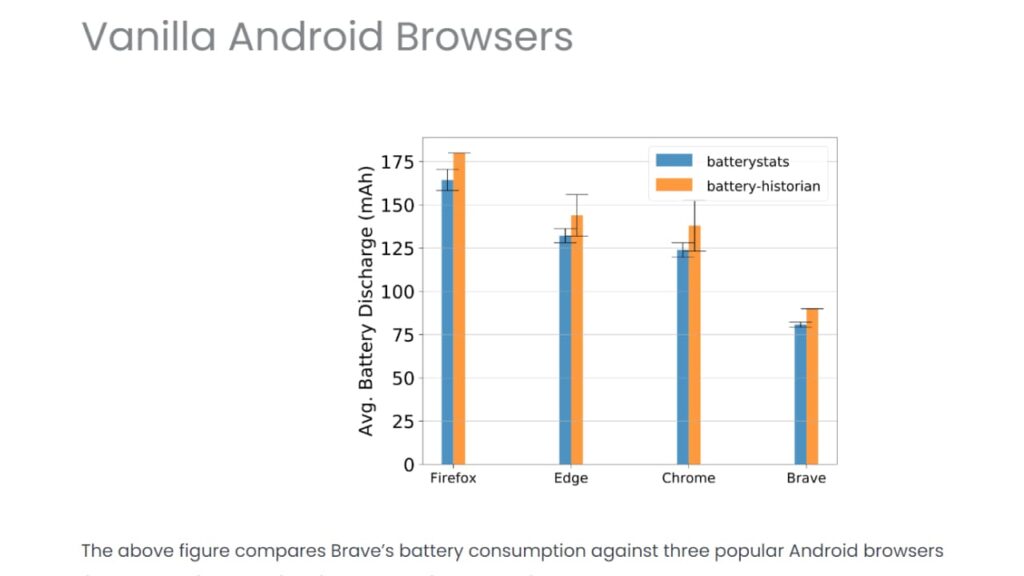
Brave Browser vs Microsoft Edge
When it comes to battery life, Brave is the clear winner. With its superior optimization techniques, Brave ensures that your device’s battery life is extended for longer periods of time.
The browser has built-in features such as “Sleep Tabs” and “Battery Saver” which help you manage your battery usage in a much more efficient manner. With a combination of advanced power-saving techniques, Brave can provide up to two times longer battery usage than Edge.
Furthermore, Brave’s “Ad Blocker” feature also helps to reduce battery consumption by blocking unwanted ads and scripts that slow down the loading times of webpages.
Microsoft Edge does not offer any built-in power optimization features. This can cause your device’s battery to drain faster than usual when using this browser.
Brave confidently outstrips its competition when it comes to sustainability for long-term browsing sessions.
One of Brave’s standout features is the ability to block ad tracking and extra scripts, which have been proven to significantly reduce energy consumption, even more so than browsing in private mode. This is because time wasted loading resources accounts for nearly 50% of total energy used while surfing the web.
Edge also offers other optimization features, such as “sleeping tabs” which allow users to save energy by disabling unnecessary tasks and ensuring that only necessary processes are running in the background. This helps conserve battery power even further.
On Windows 10, Edge is often criticized for its high RAM usage which eats up energy and shortens the battery life of a device. This can be especially problematic for those who use their laptop or tablet for long hours at work as it quickly drains power reserves due to the browser’s intensive memory usage.
In summary, Brave vs Edge is a battle that clearly favors Brave. It offers superior features and optimization techniques that help to extend battery life, while also providing a fast and secure browsing experience.
Design of Browsers: How It Impacts Performance and User Experience
When it comes to browsing the web, users expect speed, security and reliability. Brave and Edge offer distinct design solutions that cater to different users, depending on their preferences. To understand their differences better, here’s how their designs impact performance and a good user experience.
Brave Browser
Brave has put its focus on enhanced security given its lack of plugins. It uses its Chromium-based browser engine for rendering webpages quickly, which makes it a faster loading alternative compared to Edge. It offers a simple, uncluttered interface with tabs taking center stage.
Offering a wide range of built-in features, including anti-tracking protection, it ensures users are safe from data snoopers and phishers. Its embedded content blocker further boosts privacy as well as benefiting users in terms of loading times.
Brave has implemented several features, such as advertisement blocking tools and an extensive database of adblock policy rules to keep track of malicious behaviors from websites, which improves overall browsing safety.
These features have significantly reduced page load time, boosting the overall performance of Brave by allowing optimized handling of WebRTC (web real-time communication) protocol requests.
Microsoft Edge
Edge is designed for people with a Microsoft account who need access to specific services like Office 365 integration. The standout feature in Edge is support for Windows Hello biometrics authenticator, meaning users can easily log into websites using their fingerprints or facial recognition capabilities, providing convenience while also ensuring security.
With this native support built into the browser, personal data is kept safe without any worry that they’ll be lost due to malware or phishing attacks manipulating webpages links users open through external tabs redirecting them elsewhere unintentionally.
Edge’s cleaner modern look is designed for the Windows 10 user base. The browser takes up minimal screen space, highlighting its usability and ease of access across devices. Edge boasts outstanding page loading speeds with faster time, even on low bandwidth connections, making it optimal for those looking for instantaneous results.
It also offers an intuitive way to customize the settings, as per individual needs essential for optimum productivity if used in a corporate setting. Certain risk mitigation tools also help create a secure browsing environment, improving upon its overall security at an enterprise level.
Edge works with active content filters as well as an isolated sandbox for tabs which provides additional protection. Additionally, these browsers use different integrated features, including malware scanners, tracking blockers, built-in password managers and more for added security options.
In conclusion, both browsers offer unique options tailored to specific audiences: one providing comprehensive user privacy with fast access; another having great accessibility with enhanced security controls ideal for enterprise environments.
Is There a Better Alternative?
It’s easy to see why Brave and Microsoft Edge have become two of the leading web browsers. However, there are reasons to consider other browsers, not just for individuals, but also businesses.
Alternatives include:
Tempest
A browser that focuses on privacy and data security one search at a time, which provides a safer and more secure browsing experience.
It’s based on the open source Chromium engine, which has various features that safeguard your data, including ad blocking, script blocking, and tracking protection.
It offers a wide range of Chrome extensions and apps in its Chrome Web Store, and Google Chrome boasts a fast and sleek design.
Apple Safari
It’s the default browser for Mac computers and is well known for its integration with other Apple products.
It has a built-in reader view that allows you to read articles without ads or distractions, and a “Do Not Track” feature that blocks websites from tracking your activity.
Mozilla Firefox
It’s an open source web browser with an extensive library of extensions that can be tailored to meet the specific needs of users.
It also has a private browsing mode which prevents sites from collecting any information about you while you surf the web.
It has multiple levels of security features to protect your data from malicious attacks.
Summary
When choosing a default web browser for optimal security, it’s important to consider factors such as compatibility, support, performance and privacy. Brave and Edge are both good options for keeping up with the pace of innovation, but it all comes down to your preference.
Both browsers provide comprehensive features that users can customize depending on their individual needs, from intuitive features like dark mode to comprehensive tracking blockers and a secure private browsing experience.
When comparing Edge vs Brave, the key differences come down to performance and how each weighs user privacy against interactive ease of use.
Microsoft Edge offers compatibility with the Windows OS, while Brave focuses on reliability, speed, and privacy protection.
Ultimately, the decision between Edge vs Brave will depend on what matters most to you; speed or protection. While both boast impressive features, it ultimately comes down to user preferences when deciding which browser is best for your needs.
Microsoft has been building out the capabilities of the Edge browser for quite some time now and doesn’t look set to slow down any time soon. The latest move from the software giant seeks to build in bigger and better collaboration features so that teams can work together more easily on online projects. Let’s check it out.
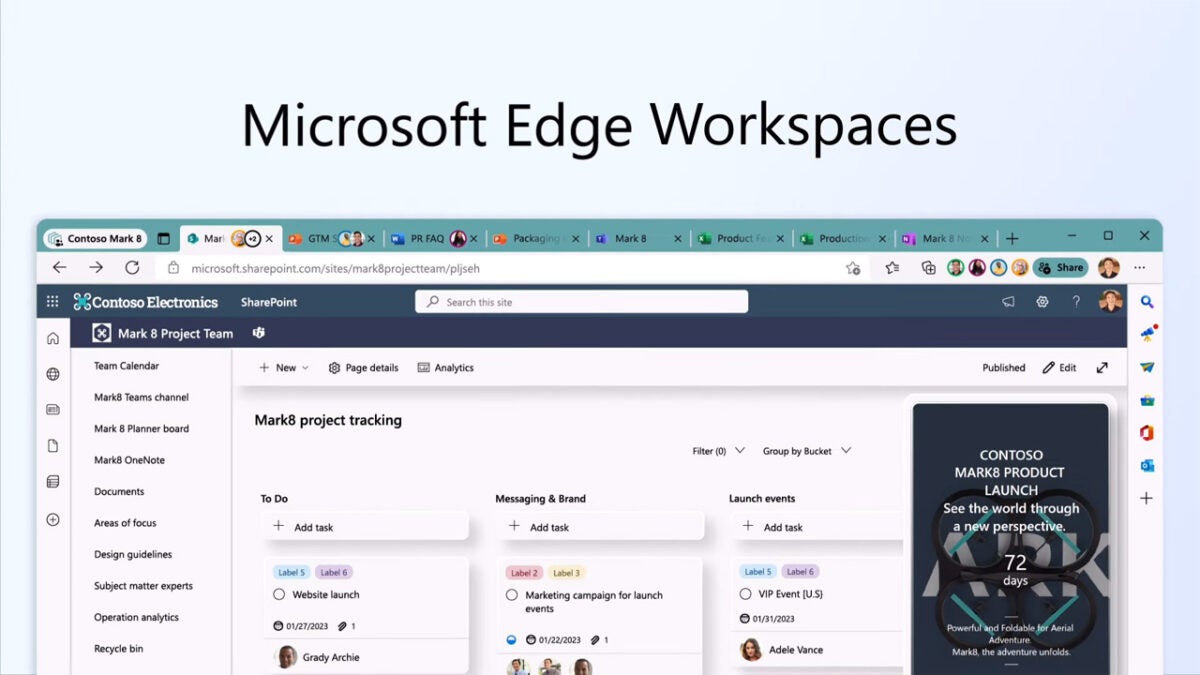
Microsoft has announced in a Microsoft Edge blog post that it is building a new feature called Workspaces into the browser that will improve collaboration between work colleagues by giving them a shared workspace for online teamwork.
The name of the new feature is interesting as it takes a shot at the Google Workspace suite of productivity apps that competes with Microsoft 365 and has the edge due to the improved collaboration features it can offer.
Workspaces, the new Microsoft Edge feature works as a set of shared browser tabs that everybody on the team can view at the same time. The idea is that it will save workers time from having to search for links or look through emails as everybody will be working together in the same place at the same time. Microsoft explains the feature like this:
“Using Edge Workspaces is simple—open important project links as browser tabs and share the Edge Workspace so everyone is working off the same set of websites and files. If you need to update anything, it’s as simple as closing and opening tabs. And it all happens in real-time in the workspace so everyone can easily see the whole picture.”
This is a very interesting move from Microsoft as it opens up a new frontline in the battle that is raging between Google Workspace and Microsoft 365. Remote and hybrid teams are used to working on the same document at the same time and discussing shared documents during meetings. Bringing shared online workspaces into the equation opens up a new form of integration that could more easily facilitate understanding and comprehension of online resources during meetings and projects.
Sometimes, changing your browser just seems like too much effort. Starting all over, losing bookmarks and favorites just doesn’t seem worth it. However, the new Microsoft Edge browser brings many exciting improvements, and since it’s the default browser for Windows 10, there may be many reasons why you’d want to start using it. But where do you start, and how can you import your bookmarks and favorites from another browser to Edge?
In this article, we look at how to make the transition from another browser to Microsoft Edge while still keeping your bookmarks and favorites.
Why would you want to import bookmarks to a new browser?
If you use the internet for a lot of research, or if you work from home or in the digital industry, chances are you have a lot of bookmarks. Bookmarks to the best sources, bookmarks for the various platforms you visit, and even bookmarks for communication apps. However, when you switch browsers, it can sometimes be a long, tedious process to set up these browsers again. So why would you want to change browsers and import bookmarks?
Sometimes a new browser comes out with more features and better privacy that you want to try. Or perhaps your current browser just had an update, and you no longer enjoy using it? Or maybe, you’re very concerned about being tracked online, so you prefer switching between browsers to confuse trackers. There are many reasons why someone would want to change browsers.
Turn on Microsoft Edge tracking preventionREAD MORE
Being able to quickly and easily import your bookmarks and favorites can make the decision to switch browsers much easier. By importing your bookmarks, you not only save time and effort but syncing them also means they’ll be consistent across many different browsers. Just remember to turn on Encrypted Client Hello for Microsoft Edge for better privacy protection.
How to import your bookmarks to Microsoft Edge
Now that we know why it’s useful to import these pages to a new browser, let’s take a look at how to import your bookmarks to Microsoft Edge. The newest version of Microsoft Edge was released as the default browser alongside Windows 10. However, if you enjoyed using Edge in the past, you can start using the new version on Windows, macOS, Linux, Android, and iOS.
Open Microsoft Edge
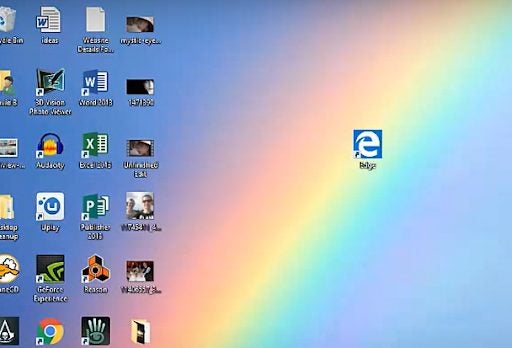
If you have Windows 10 installed, Microsoft Edge will already be your default browser, and you can open it by clicking on the browser icon. If you don’t have Microsoft Edge as a default on your device, you’ll have to download and install it first. Once installed, you can click on the browser icon to open Edge.
Click on ‘Settings’
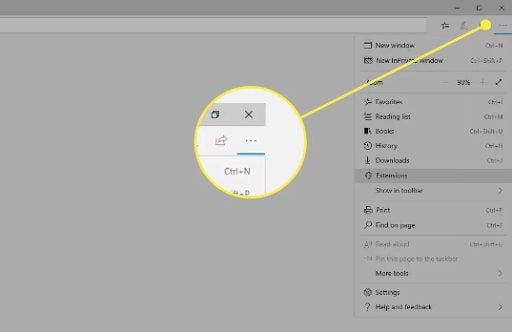
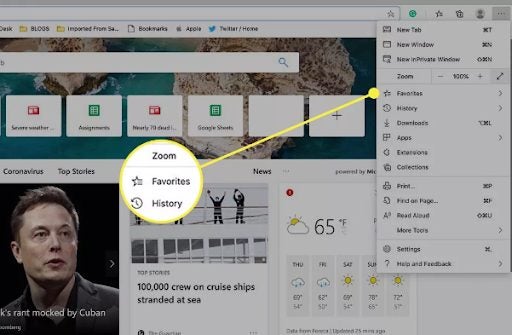
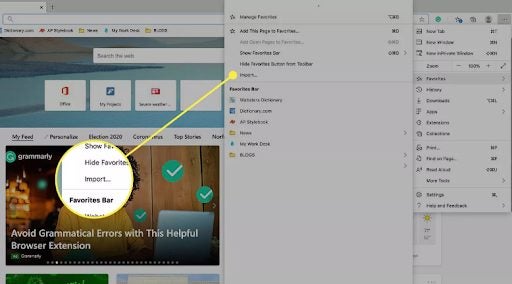
On the home screen of your browser, click on ‘Settings’. The icon is represented by three horizontal dots and can be found in the top right of your browser.
Choose ‘Favorites’
You will see a drop-down list appear. In this menu, scroll down to ‘Favorites’ and click on it. The favorites should be located just beneath the zoom settings for your browser.
Click on ‘Import’
Once you’ve clicked on favorites, a new menu will appear. In this menu, scroll down until you reach ‘Import’ and click on it.
Select the browser and info to be imported
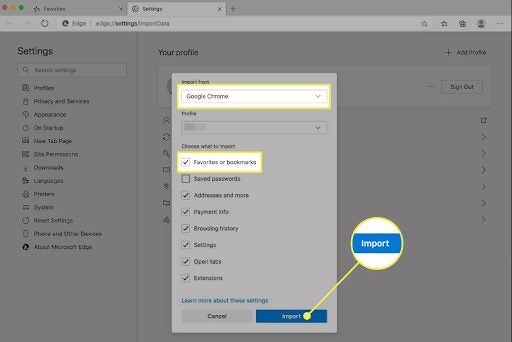
A new window will open up where you can refine your import selection. First, you need to select from which browser, such as Chrome, Firefox, or others, you want to import. Most major browsers are supported. After you’ve selected the browser, you can complete the checklist to import the data you need. This can include bookmarks and favorites, passwords, history and more. Simply select what you want to import and then click on the ‘Import’ button to move the necessary information to Microsoft Edge.
Start using a new browser without losing your favorites
New browsers can be exciting, just like any new app, especially if they have better features than your current browser. However, if you have a lot of bookmarks and favorites, it might be too much of a challenge to change browsers. Microsoft Edge has a handy import feature that allows users to import bookmarks and favorites from another browser. This way, you can quickly and easily switch over to Edge without any disruptions.
In our efforts to keep you up to date with the latest malware scams and help keep you safe when you are online, we have reported on some rather ingenious ways that scammers and malicious actors have been trying to infect your devices. This includes a scam hidden inside a fake job offer that ended up costing a company over $620 million. Today we bring you news of another scam that malicious actors have been trying to push through the Microsoft Edge News Feed. Here is what you need to know.
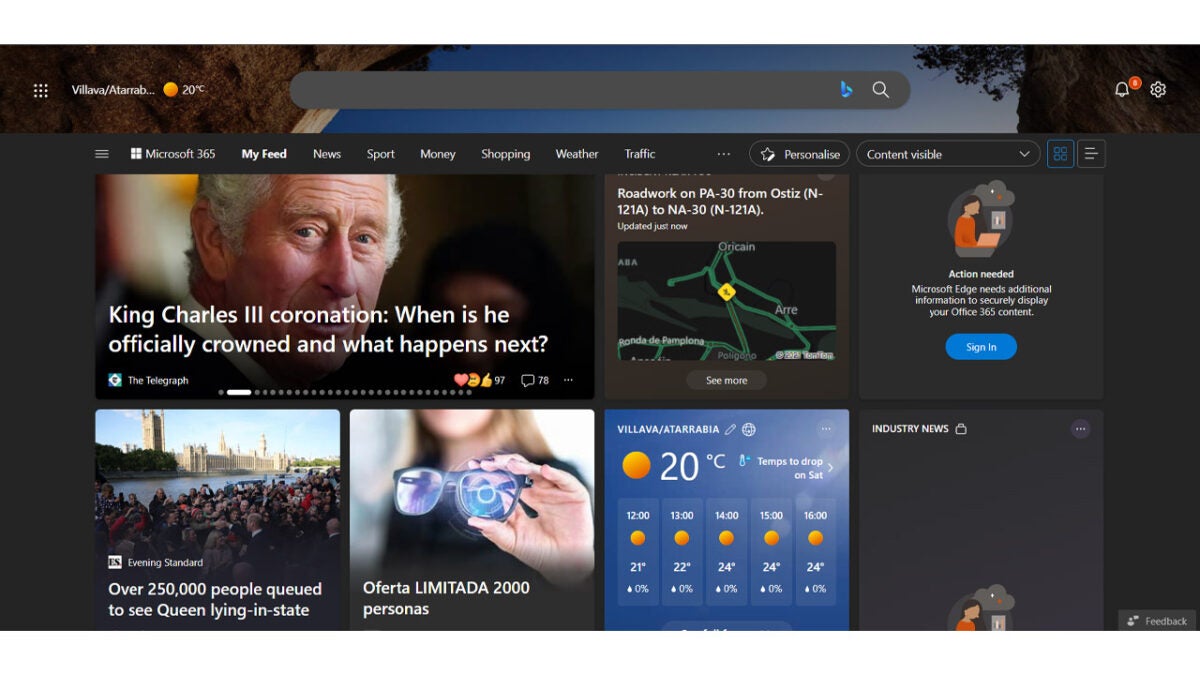
Cybersecurity researchers at Malwarebytes have published a report explaining how a new “malvetising” campaign has been targeting Edge users via the browsers News Feed. The Feed shows up on Edge as a series of thumbnails that link to news articles, various advertisements, traffic updates, etc. The report shows that scammers have been hiding the malware in various ads and attempting to redirect users to scam tech support offers.
What is scary about this scam is that the Microsoft Edge News Feed is automatically set as the browser’s homepage meaning that if you are an Edge user and you haven’t manually set your homepage it will be your Microsoft Edge homepage too. The scams use bizarre and clickbait-like titles to try and draw users in to clicking on them.
Once clicked, the rather sophisticated scam scans the user to make sure they are suitable for targeting and then either sends them to the fake tech support page or sends them to a decoy page. According to Malwarebytes this “fingerprinting” script is more advanced than normal scams, which is why they published the report explain how it works:
“The goal of this script is to only show the malicious redirection to potential victims, ignoring bots, VPNs and geolocations that are not of interest that are instead shown a harmless page related to the advert.”
This scam just goes to show that even though you may take things such as your browser’s homepage for granted and not really give it too much thought, scammers are constantly looking for novel ways to catch you off guard. Always try to remain vigilant and always try to take a second to consider anything that may look strange or if it shouldn’t be there.
Microsoft Edge is a very capable web browser that offers users added and innovative forms of utility over other web browsers. In fact, Microsoft is constantly trying to build new features in attempts to steal away users from Google Chrome. Today, a new feature, which we covered a few weeks ago has gone live, and you can now access the Microsoft Edge sidebar when using the browser. Here is what you need to know.
We first brought you news of the Microsoft Edge Sidebar, which gives users the chance to use other Windows tools from within the browser, back in June. Microsoft has now released a blog post including official details about the launch of the sidebar.
The sidebar plays well on integrating some key Windows features into the Microsoft browser. Microsoft describes the feature as such:
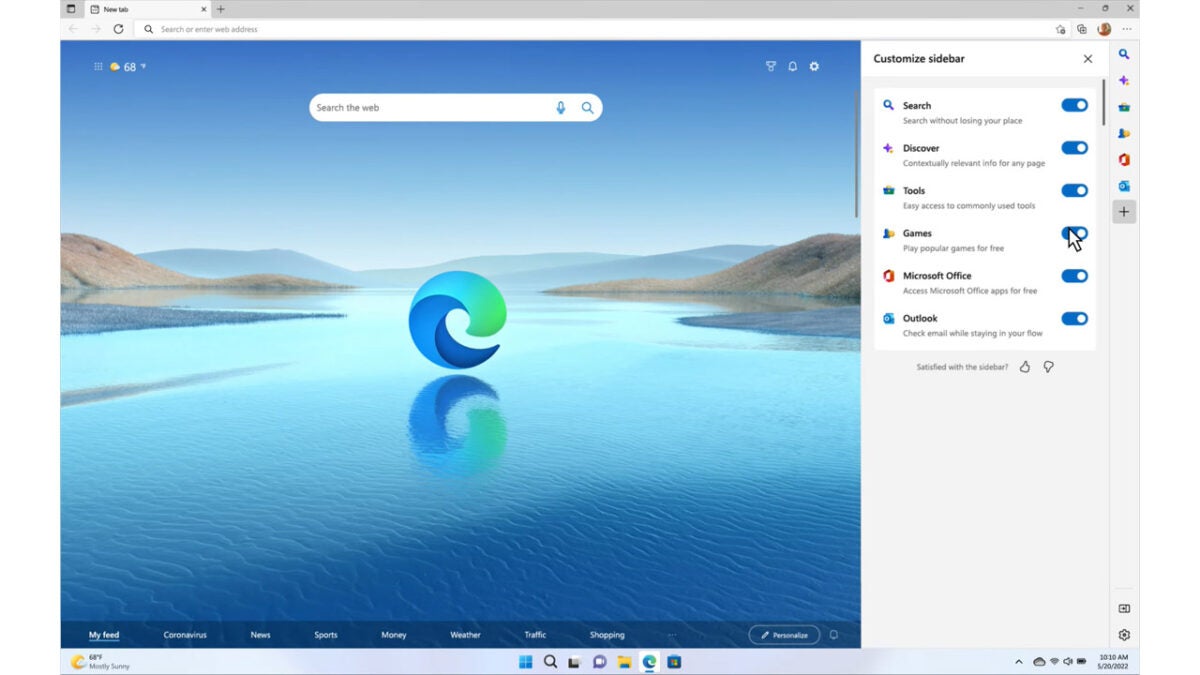
“The new sidebar in Microsoft Edge lets you access tools and features side-by-side within your browser, even as you navigate between tabs. From being able to search specifically within the page you’re viewing, to using tools to do quick math without opening another tab, we’ve found a way to help you be more productive without losing your place as you browse.”
The tools that will sit inside the sidebar include search, Discover, Outlook, Office, and even tools like the clock, dictionary, calculator, converter, and even an internet speed test. These will all sit in a super slim sidebar on the right-hand side of the browser, which will open up when one of them is selected.
As to whether this added utility will help Edge steal away some Google Chrome users remains to be seen. There is certainly enough here, however, to help carve out a bit of a unique offering for the browser that could see it gain some ground. We will have to wait and see.
Microsoft released a new stable version of the company’s Edge web browser. Edge 105 is a security and feature update that is already available.
Microsoft Edge, which uses the same core as the Google Chrome web browser, shares some of the vulnerabilities with Google’s Chrome browser. The core, called Chromium, is open source, and available to all developers and organizations.
For example, browsers such as Vivaldi, Brave or Opera use Chromium as the source.
Both Google and Microsoft modify the Chromium core to introduce custom features and services. It is common that vulnerabilities are exclusive to one of the browsers, but many vulnerabilities are shared.
In the case of Microsoft Edge 105, only one of the security issues is Edge-specific. The remaining 14 vulnerabilities are shared among all Chromium-based browsers, including Chrome.
To put this into perspective, Google patched 24 different security issues in Chrome 105 when it released it on August 30, 2022.
The 14 core security issues fixed in Edge include a critically rated vulnerability, filed under CVE-2022-3038, and several security issues rated as high.
The sole Edge-specific vulnerability is a remote code execution vulnerability, and rated low.
How to download Edge 105
Microsoft Edge installations update to a new version of the web browser automatically after release; this may take hours or even days, depending on the rollout.
Edge users who want to speed up the process may do the following to expedite the installation:
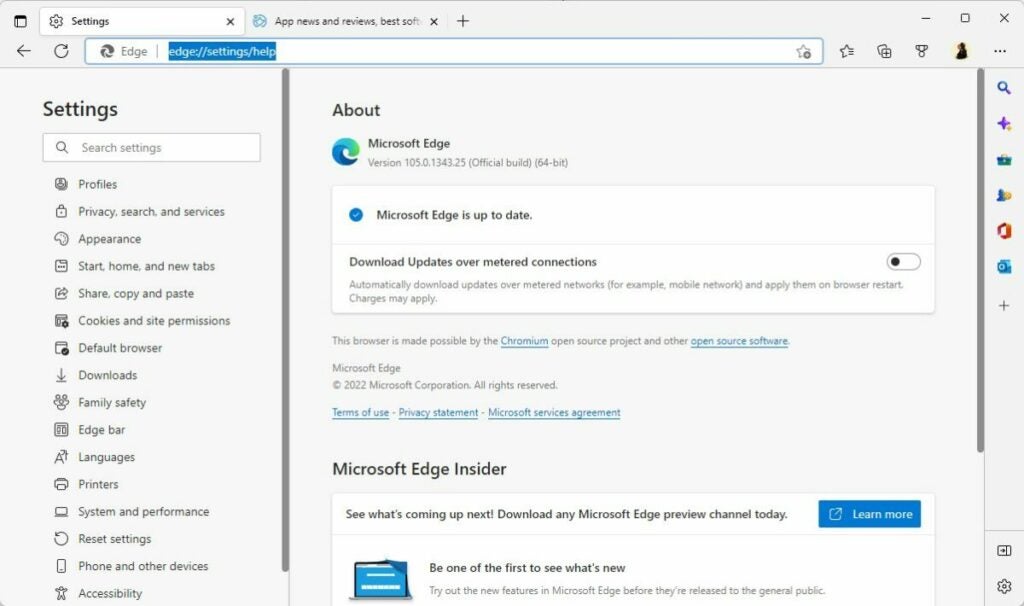
Load edge://settings/help in the browser’s address bar. You may also select Menu > Help > About Microsoft Edge.
The page that opens displays the current version. Edge runs a check for updates and will install any update that it finds.
A restart is required to complete the process.
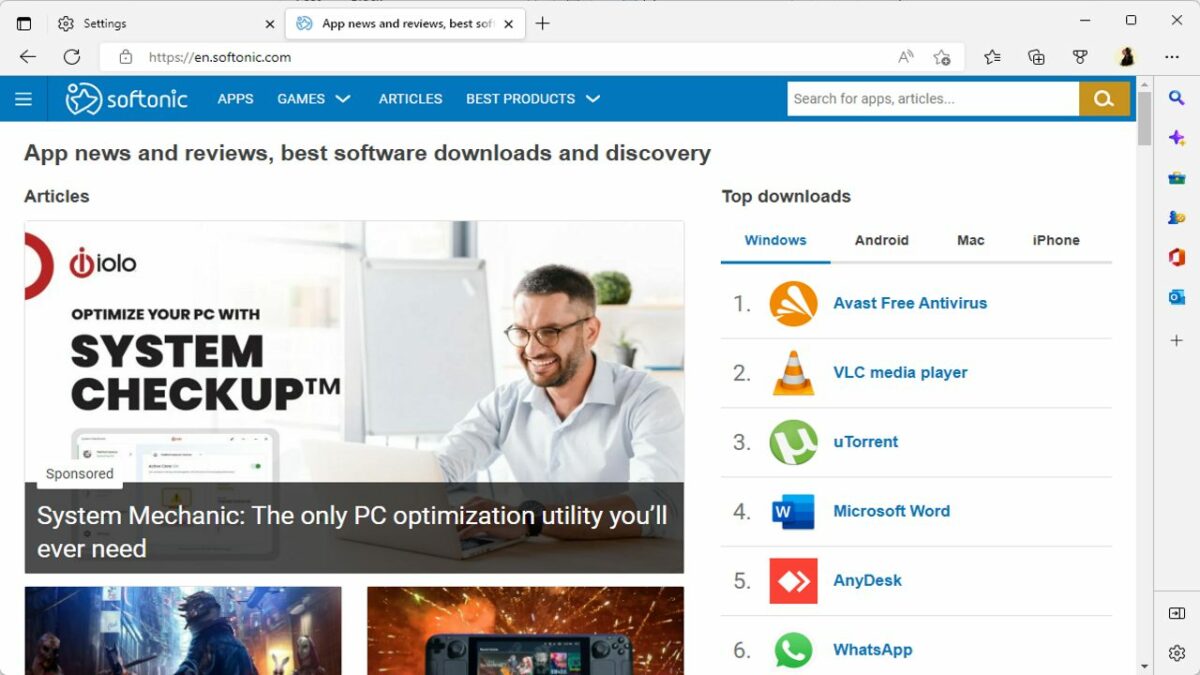
New and existing users may download the latest version of Microsoft from the official Edge website or a trusted source, such as Softonic, as well.
Edge may be installed over existing installations, or installed for the first time on a compatible system.
Microsoft Edge 105: the changes
Microsoft Edge is a security update first and foremost. Although that is the case, Edge 105 includes other changes that are important.
The browser’s enhanced security mode supports WebAssembly for 64-bit Windows operating systems now. Microsoft plans to roll out the feature to other systems Edge is available in the future. For now, it is a feature exclusive to Edge running on 64-bit Windows devices.
Enhanced Security Mode is not enabled by default, but it can be enabled with just a few clicks.
Edge applies additional security protections to websites visited in the browser, if the mode is active. The protections limit certain attack vectors to improve user security while using Edge.
Here is how you configure Enhanced Security mode in Edge:
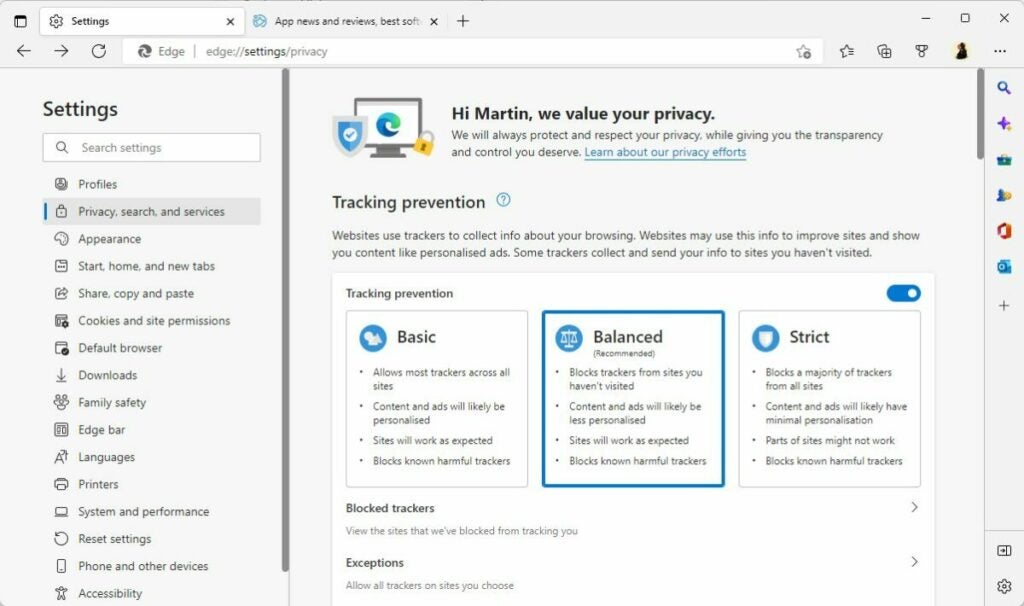
Select Menu > Settings > Privacy, search, and services, or load edge://settings/privacy directly in the browser’s address bar.
Scroll down to the Security section on the page that opens.
Locate the “Enhance your security on the web section”.
Toggle the feature to On, and select one of the three available options:
Basic — adds security mitigations to sites that are not visited often.
Balanced — adds security mitigations to sites that are not visited frequently.
Strict — adds security mitigations to all sites.
Some sites may not work correctly anymore after enabling the security mode. There are options to add sites to a blocklist to disable the mode for these specifically.
In short, it is a good idea to start with basic or balanced, to avoid site breakage.
The remaining changes, for the most part, are of interest to organizations only.
Microsoft improved the cloud site list management experience for Edge’s Internet Explorer Mode. Generally speaking, it is giving administrators more control over lists used in IE Mode.
Edge 105 Stable includes new policies, which are mostly useful to administrators as well. These policies add options to Edge to disable certain features in company networks and on company devices.
Closing Words
Microsoft Edge 105 Stable is an important security update, which users of the browser should install as soon as possible. In general, it is a good idea to install security updates right after release to protect devices and applications against potential attacks targeting these vulnerabilities.