Do you want to record a podcast but don’t know where to start? We already know that having a good microphone is essential, but the truth is that you will also need a good program to record yourself. Fortunately, Adobe has the perfect solution for you with Adobe Podcast.
This Adobe platform is designed to simplify and enhance audio production when recording a podcast. Thanks to its use of artificial intelligence, Adobe Podcast is capable of improving sound and completely eliminating noise from recordings. If you want to know how to benefit from all these features, stay with us: you will learn what you need to get started with Adobe Podcast.
Why should you use Adobe Podcast?
Thanks to the power of artificial intelligence, Adobe Podcast can help you improve your recordings and give them an extra touch of quality, even if you don’t have top-notch equipment. Some of the benefits it offers are:
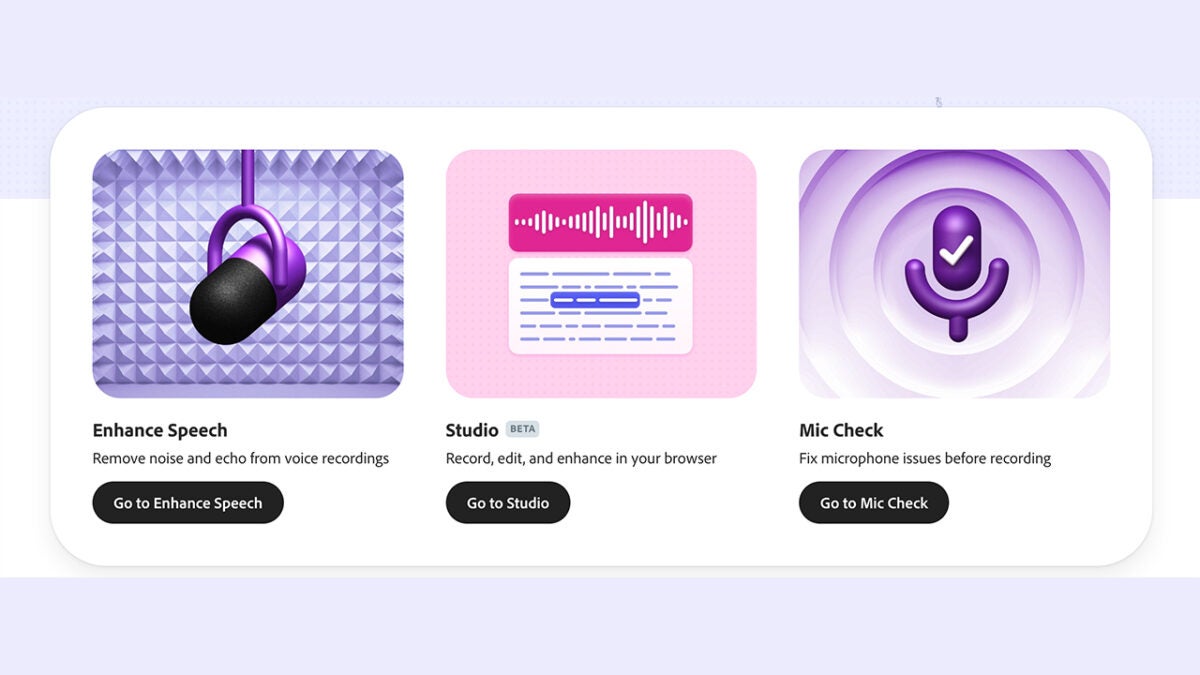
- Enhance Speech: The truth is that not all of us can initially have a quality microphone or a good recording environment. Thanks to Enhance Speech, we can mask these technical shortcomings and eliminate any type of noise from our recordings, as well as make our voice sound clearer.
- Mic Check: Adobe Podcast will take care of checking and ensuring that your microphone is ready to record.
- AI Transcription: The platform allows us to transcribe everything we record and convert it to text with great accuracy. In this case, it uses the same technology already incorporated in Premiere Pro.
- Record remotely in a professional manner: Your guests or collaborators will sound better than ever with Adobe Podcast Studio. The platform saves the audio generated by each one as 16-bit 48k WAV tracks, even if their Internet connection is not very good.
- Use of royalty-free music: Adobe offers you a library of royalty-free sounds that you can use at the beginning, during, or at the end of your podcasts.
Adobe Podcast Requirements
To start using Adobe Podcast, you won’t need to install any program or have a powerful computer; you just need to use your browser. However, its features are not available in all browsers equally. Studio, for example, is only compatible with Chrome. On the other hand, Enhance Speech is optimized for Chrome, Safari, Edge, and Firefox.
The platform features a very simple interface that will make even those less tech-savvy adapt to it. This will also help you record your content directly and without distractions.
Currently, it is available in six different languages: English, French, German, Italian, Portuguese, and Spanish. However, the transcription feature is only available in English at the moment. Adobe Podcast can be used for free (with limitations), but it also offers a Premium plan that gives us the option to upload up to 4 hours a day, video compatibility, and much more.
Learn to Use Adobe Podcast from Scratch
Recording and enhancing your audio with Adobe Podcast is much easier than you think, even if you have no experience with complex programs. Here’s how you can start recording from scratch on the platform:
- Go to the Adobe Podcast website. Remember that you will need to have an Adobe account to use the platform. If you don’t have one yet, create one and follow the steps provided.
- You probably already have your microphone connected and working, but with Adobe Podcast you can fully ensure that everything is fine with Mic Check. Select Go to Mic Check and then click on Start. Give the necessary permissions to your browser to access the microphone.
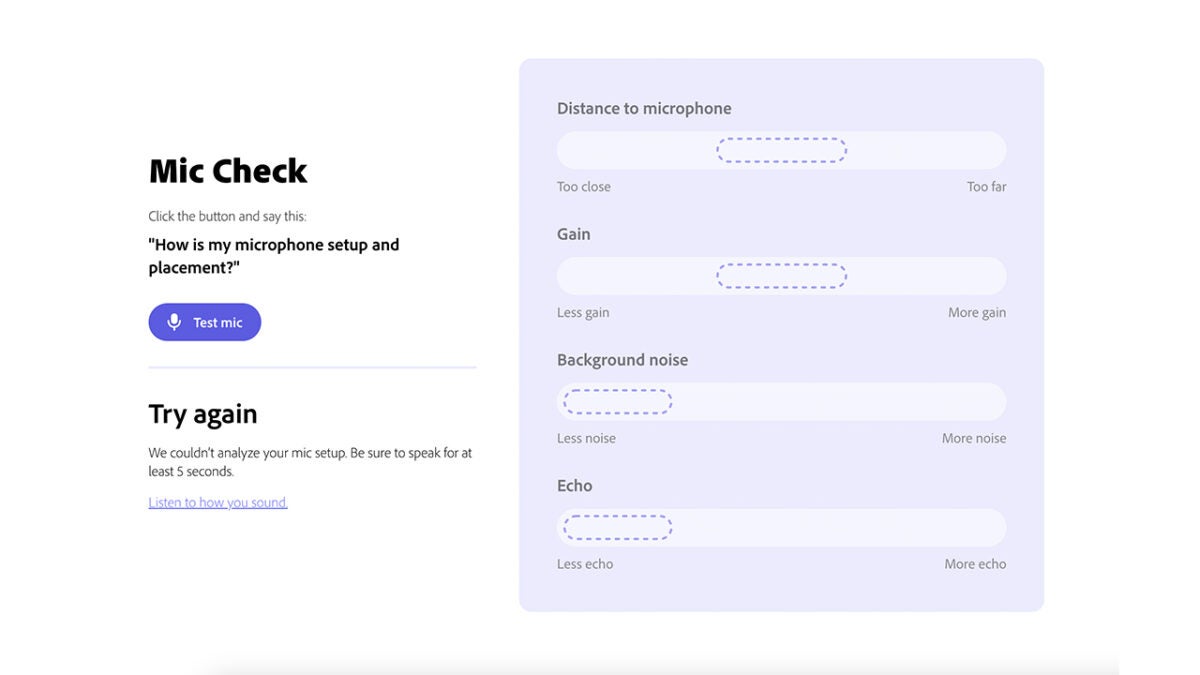
- If your microphone is ready, return to the main page and select Go to Studio.
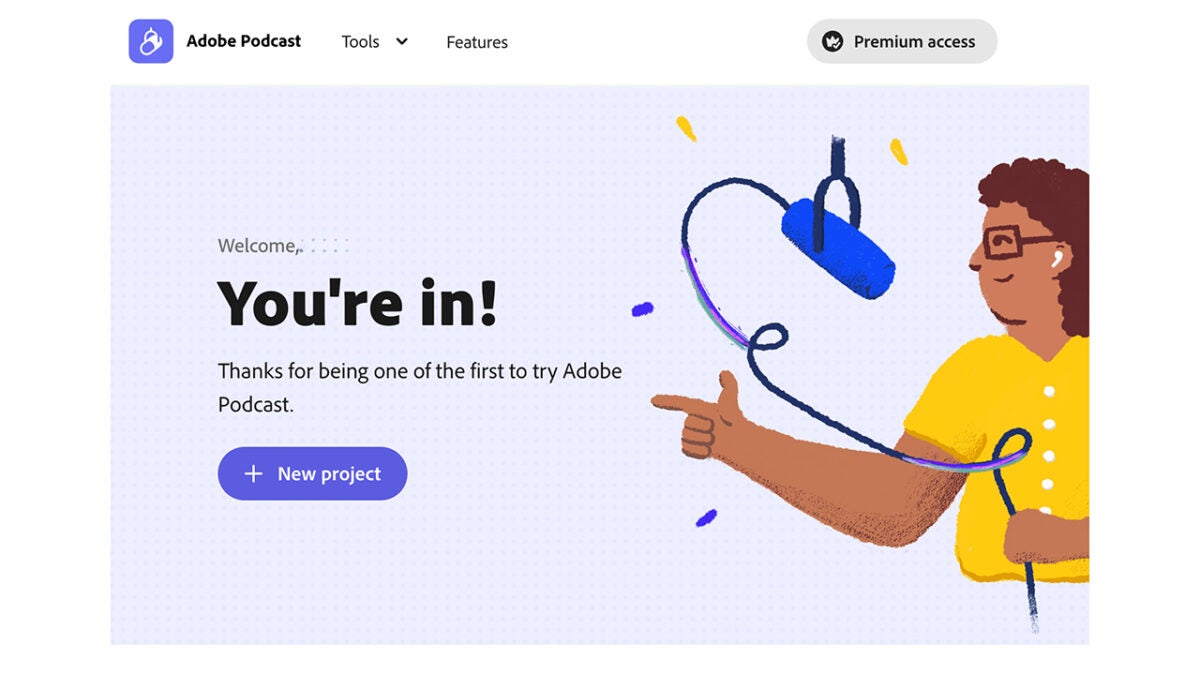
- Click on + New project.
- Once we are inside our new project, we can start recording. You can record yourself directly from Adobe Podcast by clicking on the record button or upload pre-prepared audios from Upload.
Once you finish recording, Adobe Podcast will automatically convert your audio into text. It will help you edit the podcast in a much easier way. However, you should keep in mind that, for now, this feature is only available in English.
From Filters, you can apply to Enhance Speech to “clean” your recording and reduce background noise. It will make your voice sound much more professional and as if you had recorded in a studio.
If you like the result, you have the option to download it to your device through the Download button. Adobe Podcast lets you choose between MP3 or WAV for the audio. As for the transcribed text, you can download it as TXT, DOCX, or PDF.
