Office Tip: Restore or minimize the Ribbon interface in Word and Excel

Microsoft Office remains one of the most popular productivity suites on the market. It contains almost every program you’d ever need to finish any paper, project, or assignment: WordPowerPoint, and Excel are all fair game. But one of the first things you might have trouble navigating is the Ribbon interface. The toolbar appears in all Microsoft Office apps, but can sometimes be hard to master. Here, I’ll show you how it works.

Ribbon interface

The Ribbon interface, a toolbar located above the document, sometimes acts a little funny: it’ll disappear, reappear, or maybe only display the names of each section.

Depending on your preferences, here’s how to minimize or restore the Ribbon interface.

1. Ribbon Display Options

To minimize the Ribbon, restore it, or change it to a different view, there is one button you need to know: Ribbon Display Options.

Ribbon interface options

2. Choose one of three options

There are three available options for the view of the Ribbon interface, depending on how you want to see it.

Ribbon display options

Auto-hide Ribbon is a full-screen view where the Ribbon is completely hidden. To see the options, you’re forced to click the top of the screen before you can do anything. This view is not for beginners, but better suited for keyboard shortcuts in Microsoft Office.

Auto hide

The second option, Show Tabs, actually hides the ribbon from view. Only the titles of the menus remain visible on the screen. To see more options, you need to click on the tab to show all of its commands.

Ribbon show tabsThe last option, Show Tabs and Commands, provides an extensive view of the Ribbon. I strongly advise using this view, unless your PC screen is really tiny. In that case, the second option would probably be better.

Show tabs and commands

3. Finding the Ribbon interface

If you’re having trouble getting out of Word or Excel’s full screen display, the view is probably set to Auto-hide Ribbon.

To make it reappear, go to the top of the screen. Click on the colored bar that appears transparent under the cursor, and the Ribbon interface will pop up again. By clicking on the Ribbon display options button, you can find the three view options mentioned above.

Blue ribbon interface cursor

Auto hide ribbon options

4. Restoring the Ribbon interface

More than once, I’ve accidentally clicked on the small arrow that minimizes the interface, located at the bottom right of the Ribbon. The Ribbon disappears, and it’s impossible to find a similar arrow to restore the Ribbon interface.

Ribbon display options

The solution? The Ribbon display options button once again. To recap, you need to go through the Ribbon display options button, and select Show Tabs and Commands.

Navigating the Ribbon interface? One less problem in Microsoft Office.

In the next article in this Office Tips series, I’ll show you how to open multiple documents in one window using Word and Excel.

Related Articles

How to restart Windows Explorer if it isn’t responding

How to automatically update drivers in Windows 7 and 8

How to add tabs to Windows Explorer

How to use screensavers as animated wallpaper

Follow me on Twitter: @bbrassart

How to sync music via Wi-Fi without using iTunes

If you don’t want to sync your iOS device with iTunes, VLC for iOS provides a genuine alternative to iCloud for transferring music and video over Wi-Fi.

For most people, iTunes (Windows | Mac) is unnecessarily complicated, but most iOS owners believe they have to use it in order to sync music, apps, photos, and videos from their Apple device.

Apple has tried to simplify the procedure in iOS 5 by allowing synchronization via Wi-Fi, a great solution when you can’t connect your iPhone or iPad with your computer when transferring content from one device to another.

Unfortunately, it’s now down to iCloud, the online storage service, and following the new updates for the various operating systems, wireless synchronization poses more problems than it solves.

Should you settle for connecting your device to a computer just to transfer a few songs? The answer is no. The solution is VLC for iOS.

Here’s how to transfer music without iTunes via Wi-Fi.

1. Install VLC for iOS.

2. Open the options menu by pressing the VLC logo in the top left corner of the main screen. Then activate the Wi-Fi upload module by simply tapping it.

VLC Wi-Fi Upload

3. Now go back to your PC or Mac. Type the URL – which begins with http://192 under the heading WiFi Upload – in the address bar of your favorite web browser and hit enter.

Wi-Fi Upload Mac

4. Now drag and drop the files you want to sync into the browser tab. Select the songs you want to transfer from Windows Explorer (or Finder for Mac) and drag and drop them all into the browser tab.

Here’s a little update on format compatibility: VLC for iOS supports the most popular audio codecs, including OGG and FLAC. In terms of video, it is best to convert your files into a supported format before transferring.

Transfer VLC Mac

5. Once all transfers are done you can close the browser window. Back on your mobile device, you can now listen to all the songs you’ve just sent via Wi-Fi from VLC for iOS.

VLC Media Player for iOS

VLC makes transferring files via Wi-Fi easy. Since Android users can connect their smartphone via USB to transfer media directly, this is a great wireless solution for iOS users.

The only downside is that the files don’t appear in the device’s media library. Nothing too serious, however it does mean that other apps can’t use the music stored on your iDevice.

Related Articles

Hands on with VLC for iOS

Use VLC media player as a video converter

How to sync audio with video in VLC for Mac

Follow me on Twitter: @bbrassart

4 apps to make your smartphone even smarter

IFTT, Pushbullet, Agent, Trigger: in the last few years, a new class of mobile apps has emerged. I call them Meta applications. Their aim? To make your smartphone even smarter. To clarify, these apps attempt to link the different functions of your mobile’s operating system to your every day apps. They let you automate certain functions and interconnect various services, and can also be used to help fill any gaps in the OS.

Widely used by professionals in the new technology sector, this family of apps can provide multiple services to anyone who uses a smartphone. Here, I’ll go through four revolutionary apps that can help all users automate their smartphone functions.

IFTTT

Logo IFTT

Before making its grand entrance in various mobile app stores, IFTTT existed as a web app. The acronym IFTTT literally means If This Then That.

What ‘s the app for? The idea is that, with the help of API-development tools made ​​available by heavy hitters like Facebook or Google, IFTTT allows you to set up chain reactions– recipes in IFTTT language– and letting the internet do the work for you. To concoct a recipe, all you need is a trigger and an action.

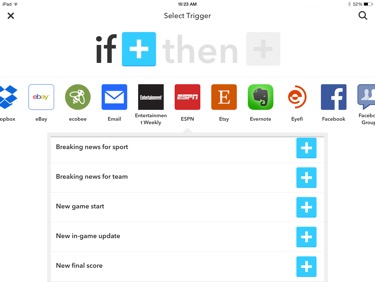
If This Then That

If all this is still unclear, here are some useful example recipes that are popular among IFTTT users:

1. Change your Twitter status or profile picture when you update your Facebook page.

2. Email all new photos taken with your smartphone.

3. Save all your phone contacts into a spreadsheet in Google Docs.

4. Put your Android phone on silent mode when you arrive at the office.

Download If This Then That for: Android | iOS

Trigger

Logo Trigger Android

Trigger is an app that’s only available in the Google Play Store. Similar to IFTTT, it uses the idea of action and reaction, while focusing more on your smartphone’s operating system. The only downside is that if you want to access all the features of Trigger, you need to root your Android device.

Trigger allows you to, for example, put your phone on silent mode when you arrive at the office. The trigger used in this case is none other than your location, which is calculated using your phone’s GPS; once the trigger is activated, the phone reacts by activating silent mode.

Actions Trigger

Contrary to what you might think, the configuration of Trigger is actually quite simple. You can, of course, use the models offered by the editor to help you. Here are some other possibilities with Trigger:

1. Launch the GPS application when you sync your phone to your car radio via Bluetooth.

2. Automatically change your ringtone and adjust the volume depending on where you are.

3. Perform automated check-ins on Foursquare.

Also, note that the paid app Triggers for iPhone and iPad can also be used to automate smartphone functions, although this app has nothing to do with Trigger for Android.

Download Trigger for: Android

Agent

Logo Agent

Developed by the same team as Trigger – Egomotion Corp– Agent is a mobile app that again, is only available on Android.

Once installed, Agent offers 5 predefined actions, which can then be changed one by one using the app’s advanced settings. Advanced users will benefit from all the possible functions of this app.

Agent app

Agent allows you to control five different smartphone functions:

1. Battery:  to better regulate your battery consumption.

2. Sleep:  to activate silent mode when you go to sleep.

3. Parking:  to automatically record the geographical location of your vehicle when you park.

4. Meeting:  to switch to silent mode when you are in a meeting.

5. Drive:  to automate sending messages while you’re driving.

Download Agent for: Android

Pushbullet

Logo Pushbullet

Unlike If This Then That, which focuses on third-party services, Pushbullet (for iOS and Android) aims to facilitate the exchange of data between computers and smartphones.

The main principle: rather than sending an email to one of your contacts or to yourself in order to access a link or an image on another device, why not push the content directly? To communicate between your phone and your PC, you must first install Pushbullet on your phone, and then install the Pushbullet extension in your web browser.

Using this function is even quicker than uploading links or media to traditional online storage services.

Pushbullet

Pushbullet’s extra advantages? The Android app also lets you synchronize your smartphone’s Notification Center with your computer. Using this easily configurable system, it becomes possible to, for example, display a pop-up notification on your PC or Mac whenever someone calls you.

Here are some of Pushbullet’s most common uses:

1. Send photos from your computer to your phone.

2. When you send a link from your smartphone, it opens the URL directly in a new tab in your browser for PC or Mac.

3. If you’re at your PC, there’s no need to get your Android phone out of your pocket; your notifications will also be displayed on the computer.

Download Pushbullet for: Android | iPhone

Download the Pushbullet extension forChrome | Firefox

Make your own recipes

While these apps gained popularity among bloggers and professionals in the new technology sector, anybody can take advantage of these apps and invent their own recipes based on the services they use.

If you want even more tips to help optimize your device, check out how to sync Android with Mac.

Follow me on Twitter @bbrassart

How to add tabs to Windows Explorer

We all know Windows isn’t perfect, and one of the biggest downsides of the OS is the fact that you can’t open more than one tab in Windows Explorer.

Mac and Linux users often poke fun of this Windows limitation, and modern web browsers have shown how useful multiple tabs can be, especially for things like copying and pasting data from one folder to another. Imagine not having to always click the Back button in Explorer, or keeping your most used folders at your fingertips at all times?

While there’s no native solution for Windows, there is a third-party one called Clover, and it’s as easy as 4 steps to set it up on your Windows PC.

1. Download

Download Clover for Windows and unzip the file.

Extraction Clover

2. Install

Double-click on the folder .exe Clover_Setup to proceed with the installation.

3. Set-up

Clover is integrated with Windows Explorer. When you open Windows Explorer, the Clover software will start up automatically, allowing you to add a tab to the browser at any time.

Ouverture Clover

4. Add tabs

Once installed, Clover doesn’t require any configuration. To add tabs to Windows Explorer, simply click the button to the right of the window that is already open. Just like Chrome and Firefox, the shortcut Ctrl + T also lets you add tabs with the help of the keyboard.

And that’s all you need. To copy and paste data from one folder to another, there’s no need to open two separate windows or copy and then go back to find the destination folder; two tabs with Clover will do the trick. Ajouter onglet Clover

Although its not an official Microsoft product, Clover makes using your PC a lot more intuitive and suitable for multitasking, making it possible to make Windows Explorer on your PC almost as good as Finder for Mac OS X.

Find all of our Windows Tip of the Week features for more ways to optimize Windows.

Follow me on Twitter @bbrassart

PowerPoint: 6 essential tips for creating the perfect presentation

PowerPoint is an integral part of the Microsoft Office suite, and although it’s widely used in businesses and schools, it’s not without some flaws.

There are, of course, some tips and tricks that’ll help you work around these flaws. Here are 6 handy PowerPoint tips that will help you start your presentation off confidently using PowerPoint 2010 and 2013.

Make sure that your fonts are displayed correctly, regardless of what computer you are using

If like me, you fear last minute changes in the layout of your presentation, this little trick will definitely come in handy.

Why doesn’t PowerPoint display the correct fonts even though the computer you’re using runs on Windows? Probably because the fonts used in your PowerPoint presentation aren’t installed on the computer that your using for the presentation.

The solution: make sure to embed the fonts that you use. The resulting file may be slightly larger, but in my opinion, this is a necessary evil.

Embed fonts

To do this, go to File> Options> Save, and then in the section marked Preserve fidelity when sharing this presentation, select the checkbox labeled Embed fonts in the file.

Add notes with Presenter View before the meeting

Once the presentation is ready, there is the small matter of organizing your notes. If your document is being projected onto an external screen, I strongly recommend putting your computer’s main screen to good use and taking advantage of Presenter View.

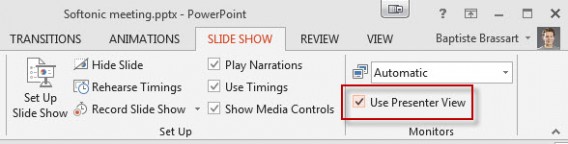
Before starting the presentation, make sure Presenter View is properly enabled in the Slideshow tab.

Presenter View

These annotations won’t be visible on the projector; they will only be displayed on the secondary screen. Remember to add all the notes you may need to help you while in front of the audience. To do this, go to the View tab, and then click Notes.

Add a note PowerPoint

A box will appear at the bottom of the slide; this is where you can put all your notes and prompts for your PowerPoint presentation.

Presenter view with note

Finally, take note that Presenter View offers other convenient options that can make your presentation more dynamic. The laser– the first icon on the left of the screen– allows you to highlight specific parts of the presentation; the magnifying glass lets you to zoom in on any part of your presentation; and the brush can be used to annotate the document directly.

Control your presentation using your iPhone or Android

What if the room doesn’t have a projector? Staying on your feet is often cited as a key ingredient for a successful presentation. In any case, standing up makes the presentation more enjoyable for both you and your audience.

If you’re using your own computer for a presentation, there’s a simple solution to all your problems. There are several apps for iPhoneMy Point PowerPoint Remote – and AndroidFinger Point PowerPoint – that let you control your presentation a distance with the help of your smartphone.

The only prerequisite for this group of apps is that you must also install a small plug-in on your computer. Follow the step-by-step instructions provided by the publisher to install it.

iPhone PowerPoint

Once you’ve converted your iPhone or Android into a PowerPoint remote control, there will be no need to sit in front of your keyboard when moving between slides.

Create a strong visual identity with your own blend of colors

Let’s face it: the majority of PowerPoint presentations are usually quite boring. What distinguishes an average presentation from a good one? The graphics and colors can play an important role.

To avoid ruining your presentation with dull and ugly colors, you can use Color Blender, a website that may seem a little meticulous, but that can work wonders for your presentation.

Color Blender

To create a solid color scheme with Color Blender, you need to follow 3 steps . ​​First, choose a primary reference color. Then, choose a secondary color and set the number of shades you want to apply. The tool will then provide you with the hexadecimal code, RGB, and RGB%, which you can then reuse for your presentation.

Create a video with your PowerPoint presentation

Do you have doubts about using PowerPoint? Why not export your presentation as a video in order to avoid problems with the layout and missing fonts?

Nothing could be easier: go to File> Export> Create Video.

PowerPoint video

Select the quality of the file and the destination folder of the video. You also have the option of adjusting the slide display time.

This technique can also be used to help others keep track of your meeting by adding it as an attachment to an email file. The advantage of using video is that your viewers won’t have to click on each slide to advance to the next one.

Power Point is not the only presentation tool out there

One last tip: try new services or new solutions! PowerPoint isn’t the only presentation tool out there.

Unfortunately, many people are forced to use PowerPoint in the workplace, but if if circumstances allow it, why not try out a new presentation tool and surprise your audience?

There is no shortage of competitors out there. Nevertheless, I will stick with my 3 personal favorites:

Prezi: a multiplatform service to create presentations using movement and zoom functions.

Bunkr: a modern and simple web app that allows you to export the finished product to PowerPoint or PDF format.

SlideRocket: a web site that can easily enhance video as well as other multimedia elements used in your presentation.

In summary

Remember: PowerPoint presentations are only there to support your argument. To stand out among the masses of boring PowerPoint presentations, go for something new.

A well put together and easy to read presentation is a standard requirement– surprising your audience will make all the difference.

If you’ve mastered PowerPoint and want to tackle Excel, check out our tutorial for 10 magic excel formulas you need to know.

Follow me on Twitter: @bbrassart

How to stream music from YouTube on your iPhone

Anyone still not using Spotify (Android, iPhone and Windows Phone) or Deezer (Android, iPhone and Windows Phone) has another option for streaming music from their iPhone or iPad: YouTube.  The video portal has an extensive web music catalog that can be just as good as any other music streaming service. There’s just one problem: although the mobile app for iPhone and iPad is quite well designed, when you minimize it, the song you’re listening to stops playing.

There is, however, still a way to stream music from YouTube on your iOS device if you use YouTube through a browser like Safari or Chrome. The trick is to run the app in the background and replay the media from the control panel– I’ll show you how to do it below.

1. Open YouTube in your browser

Open your mobile web browser (in this case Chrome for iOS), then go to http://youtube.com.

2. Search

Run a search in YouTube for the artist of your choice (in this example, Michael Jackson).

Note that many YouTube users upload entire albums. To find them quickly, type the name of the artist or the album followed by ‘full album’. If you want more variety, you can do the same by searching for accounts which have playlists.

YouTube Michael Jackson

3. Select video

Select the video and hit play.
YouTube iOS

4. View running apps

Tap on your iPhone or iPad’s center button twice to view all apps running in the background. The sound will stop.

5. Access from Control Panel

Swipe through to the home screen, and open the control panel by sliding your finger from the bottom to the top. Where the Play icon is, you’ll see the video that’s playing. Tap on the Play icon to resume music.

Press play Chrome YouTube iOS

The music will start again, and when you swipe down to exit the Control Panel, you’ll still be able to hear the music. You can continue using your device and other apps, or you can put your device to sleep, and the music will keep on playing.

Just like that, you’ll be able legally and freely listen to thousands of songs on your iPhone or iPad. Once you get the hang of it, it’ll only take a few seconds to move to the next song and enjoy hours of music from YouTube.

Related News:

Follow me on Twitter: @bbrassart
Make slo-mo videos with SloPro for iPhone and iPad

The iPhone 5 is the only iPhone model that lets you shoot slow motion videos with its native camera app. Lucky for non iPhone 5 owners, there’s a free app called SloPro, a viable solution for making slo-mo videos that’s compatible with all iPhones and iPads running iOS 6 and later.

Among all the video apps in the App Store that offer the slow motion feature, SloPro is the only one that lets you export the final video for free, and even with a watermark, its still one of the best options.

With the free version, you can also export the video to Facebook, Instagram or YouTube, but if you want to save the video in your iPhone’s camera roll and remove the ‘Made with SloPro’ watermark, you’ll have to pay $3.99. So, how does the free version work?

1. Download SloPro

Download and open the app on your iPhone or iPad.

2. Create your video

The app’s home screen gives you the option to record a video, but you can also import an existing video stored on your iPhone. Tap the thumbnail in the bottom left, choose the import icon, and then select the video clip that you want to turn into a slow motion video.

Shoot or import a video clip

3. Customize the slo-mo effect

After shooting or importing the video, you can edit and customize the slow motion effect by tapping Edit.

Edit SloPro

What exactly can you do with the clip? On the bottom of the screen, there is a timeline with the video and the following options:

  • Clip in: Corresponds to the beginning of the sequence to export
  • Speed in: Shows the starting point for the slow motion effect
  • Speed out: Shows where the slow motion effect ends
  • Clip out: Shows the end of the clip for export

Tap on each and move the cursor with your finger to specify the exact section you want to use.

Clip in clip out SloPro

At the top of the screen, you’ll find two important options. The first is Slow, which has a percentage level that  lets you change the speed of the slo-motion effect (SloPro also let’s you make short timelapses with a few clicks).

Slow SloPro

The second feature, Render, offers 3 automatic editing options: Optical Flow, Frame Blend and Ghost. Their quality depends on the quality of the original video, but these could, in some cases, stabilize the image correctly or improve the transitions between the different images.

Render SloPro

4. Export video

Now that you’ve edited your video, you can export it for free to Facebook, Instagram or even YouTube by tapping on the Export icon in the bottom left of the screen.

Options export SloPro

And here’s the final video with the slow motion feature!

Default player


brightcove.createExperiences();

If you like the result, then download SloPro for iPhone.

If you want to know more about your iPhone, read all about iOS 7.

Follow me on Twitter: bbrassart

Use IM+ as an alternative to Facebook’s Messenger app

Facebook forced its users to download the Facebook Messenger app in order to be able to chat with friends on mobile devices. Annoying for many, there are actually third party options that let you chat more comfortably than Facebook’s native Messenger app. One of these is IM+.

No more Facebook chat

It’s no longer possible to chat with friends via Facebook’s mobile app after its decision to remove messaging in favor of a standalone Messenger. The result? When you try to send a message in the native app, Facebook prompts you to download Messenger.

Facebook Messenger installation

Without asking its users, Facebook has forced them to install Facebook Messenger

While IM+ doesn’t add the chat feature back to the official Facebook app, it at least aims to give you a similar experience. With IM +, you can control multiple services like Google Hangouts and Twitter, all through the app. More than a simple alternative to Messenger, IM+ can help revolutionize your entire mobile chatting experience.

Services IM+Add several chat services and manage them all from the IM+ app

Let’s see how it works.

1. Download IM+

Download the IM+ app. Just like Facebook, it’s a multiplatform service, and you’ll find it for all operating systems: Android, BlackBerry, iOS, Windows Phone, and Windows 8. You can even access the web app from your browser.

2. Sync accounts

On the main screen, add the accounts you want to sync. Facebook is, of course, on this list.

Add Facebook IM+

3. Enter credentials

Enter the email and password associated with your Facebook account, and tap OK.

Connection Facebook IM+

4. Wait for contacts to sync

All your contacts are automatically added to the corresponding list. The interface is very simple to use and shouldn’t give you any problems.

Message IM+ Facebook

If you’re a chat addict, IM+ will be really useful for you, and its especially perfect for all those who refuse to install Facebook Messenger.

Are you for or against Facebook Messenger? Jon and Suzie have already taken sides.

Follow me on Twitter: @bbrassart
4 things you should never share on social media

Some info should never be shared on places like Facebook, Twitter or even Foursquare, and despite privacy settings that you can generally alter, there are still things you should avoid sharing altogether.

On Facebook, although many users leave their profiles open, you can control everything you publish throughout its privacy settings. On Foursquare, it’s up to you whether you prefer to share your check-ins only with friends or with the whole community, and on Twitter, everything is public unless you choose private settings (typically uncommon for the platform), or unless you send a private message to someone you mutually follow.

So, what are 4 things you should never share on any of these social networks?

1. ‘A two-month holiday in Indonesia, awesome!’

When you go on vacation for weeks, choose what you want to share and how. A public tweet is perhaps not the best way to share this information with your friends. By checking the geotags of your tweets or by simply going on your Foursquare account, burglars could decide to make an impromptu visit to your home during your absence.

Indonésie Twitter

In the past, some sites like PleaseRobMe.com have tried to alert the public about this issue.

In the same way that someone can check if you really are sick when you take time off work, it’s also smart to avoid the beach selfie; it may not be quite as dangerous, but it could get you in trouble, or even worse, make your colleagues super jealous.

2. Beware of misleading content

If you see a video like ‘OMG Miley Cyrus out of control’ or ‘Britney Spears as you’ve never seen her before’ on someone’s wall that would otherwise never post something like this, you know there’s trouble.

Rihanna video

These scams were discovered a long time ago but still cause problems for people. When clicked, these ‘video clips’ actually make you ‘Like’ the content (which is sometimes questionable) and then adds the ‘Like’ to your own wall or news feed. Avoid clicking weird or suspicious things you don’t think your friends would actually ‘Like’.

Also, don’t forget that recruiters don’t hesitate to examine your Facebook and Twitter profiles before even considering you for an interview. It’s not about having a completely clean Facebook –this social network is, at the end of the day, a space for expression– but it might be a good idea to filter what you ‘Like’.

Dressing up as an apple and chasing fat people

3. Never talk about confidential information

To mention a contract or agreement on the internet might seem innocent enough, but if said agreement contains confidentiality clauses, it’s probably not a good idea to talk about them on social networks.

One father learned this lesson the hard way after losing $80,000 in a settlement case in which a confidentiality clause stipulated that no one other than his wife and attorneys could discuss the settlement. Unfortunately, his daughter didn’t get the memo and posted the info all over Facebook, losing the family the settlement.

4. Don’t complain about colleagues

If your line manager or your clients drive you crazy, don’t release your frustration on social networks. There are countless cases of people who were politely excused from their duties after making outrageous remarks on Facebook. It’s estimated that a significant proportion of layoffs are caused by social network misuse.

Known your privacy settings

To avoid unpleasant surprises, the simplest –and most effective– thing to do is to understand the privacy settings of these services. The goal is not to use your Facebook page or an impersonal Twitter account less, but rather to present yourself in a more favorable light.

Follow me on Twitter: @bbrassart

For more on privacy, check out our privacy comparison of popular messaging apps.

Instagram 6.0: one update too many?

Instagram just completed a major update of its apps for iPhone and Android. The goal? To make Instagram 6.0 your one and only photo editing app. Incidentally, the development team has pulled the rug out from under its most threatening rivals, VSCO Cam (AndroidiPhone), Snapseed (AndroidiPhone) or Pixlr Express (AndroidiPhone). But was the latest Instagram update really necessary?

According to a recent study by the investment bank Piper Jaffrey, Instagram is the preferred social network of American teenagers. This result can be partially attributed to its ease of use, but with this update, things have gotten a bit more complicated, and I feel that version 6.0 loses some of Instagram’s intuitiveness. Will this latest update affect Instagram’s popularity?

New editing options

The Instagram update only effects one section of the application: the choice of filters. As you can see from the two shots below, the development team didn’t hesitate to modify the interface to integrate these new options.

Check out this video of the Instagram 6.0 features in action, installed on an iPhone 4S.

Default player


brightcove.createExperiences();

Instagram before and after

Instagram before and after the update on an iPhone 4S

The size of the filter icons have increased, while the option to blur, add a frame, and the ability to resize the image have disappeared from the screen. The Lux button, which allows you to increase the brightness and contrast of on image, remains in the same place. Beyond these changes, there are two important developments:

  • It’s now possible to double tap on the filter of your choice to control its intensity on a scale of 0 to 100. Here, you’ll also be able to choose whether or not you want a frame on your photo.

Instagram filtersIt’s now possible to change the intensity of Instagram filters

  • The wrench symbol covers a string of options for editing. From saturation to blur through to cropping, there are no less than 10 customizable sliders.

A series of options you’ll probably never use

With so many possibilities for modifying photos that eventually get compressed before being published, I need to ask, are they really necessary? Personally, I struggled to find my bearings with this new Instagram. It was much easier to crop an image or add a frame before this update, for example.

Frames Instagram

It’s now much more difficult to add a frame to a photo

Currently, I use very few of these 10 new editing options. Blur, photo frames, and filters were already more than enough, and I don’t intend to go through any extra steps to post media.

Even further, it seems like some features have virtually no effect. Has the Instagram team only added these options for the application to appear more professional? My guess is, yes.

Competing with VSCO Cam

I spend a lot of time testing all the photo apps for smartphone, and I’m certainly not the only one– experienced Instagram users have long been using third party apps to retouch their images before posting.

Professionals, on the other hand, opt for a more radical technique: they prepare their content on PC or Mac, import it to their smartphone, and then publish it on Instagram (see our tutorial on how to import media from your PC).

Will this Instagram update help people who use a third party app to edit images with native Instagram options? I highly doubt it. VSCO Cam, one of the most popular editing options for mobile, has long been recognized as the best utility to make the most striking pictures. This service has much better quality filters, and the photo capture options are more complete (I’m mainly thinking about the possibility of separating exposure and focus when taking a picture).

Cam catches VSCO

VSCO Cam, probably the best photo editing app on the market

What about users who aren’t familiar with all the other photo editing apps? They probably aren’t interested in venturing into the advanced settings of Instagram. The different filters already available correct the most common imperfections including brightness and contrast, just to name a few.

For these reasons, I’m not convinced that this Instagram update was really necessary. Why go directly to other photo editing apps when most of your users end up posting their photos or videos on your network afterwards?

If you love Instagram, make sure you take a look at our complete guide to Instagram.

Follow me on Twitter @bbrassart