The best 10 Photoshop plugins for graphic design in 2022

Adobe Photoshop stands alone as the most powerful and widely utilized editing tool suite for graphic illustrators and designers across every skill level. This heavyweight standalone application lets you work wonders with just about any image file, and several new AI features from Adobe have only made the job easier.
Adobe Photoshop CC DOWNLOAD

While Photoshop’s core capabilities lead the industry, there is always room for improvement. Professional designers start experimenting with plugins because they present clear opportunities to boost efficiency through a more simplified workflow. With just a few clicks, a plugin could sharpen pictures instantly or create gradients. Others let you source high-quality stock images without ever leaving the app. Now, let’s take a look at the best 10 Photoshop plugins for 2022.

Pexels Photoshop plugin

Easy access to a diverse pool of free stock images is crucial for designers. Stock photos enhance backgrounds and textures and make good starting points for conceptual and experimental design projects. Pexels provides designers with a free Photoshop plugin on its website. Apart from its exceptional image library, the best feature of this plugin is you don’t have to open a new window or navigate to Chrome for the stock image you have in mind.
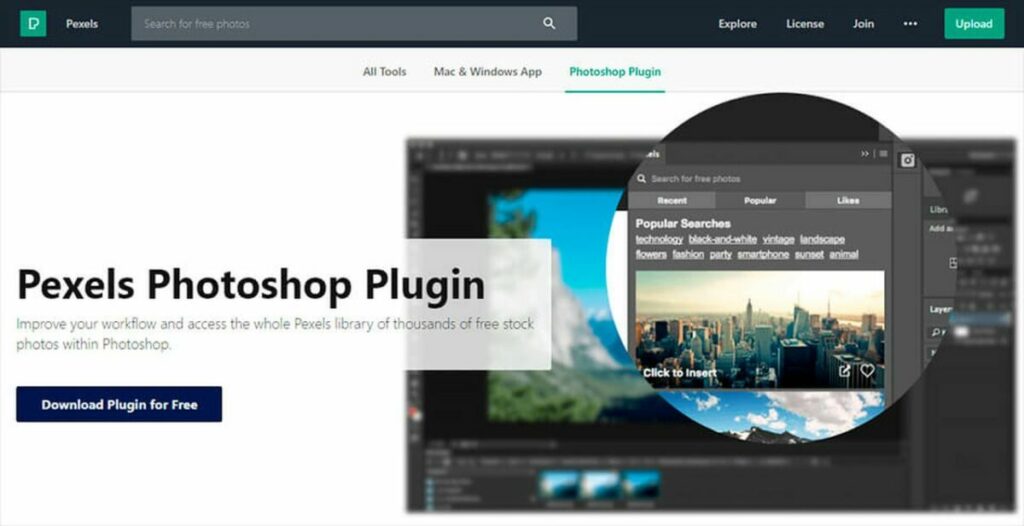
Pexels Photoshop plugin lets you access countless free images for your graphic design projects

Luminar 4

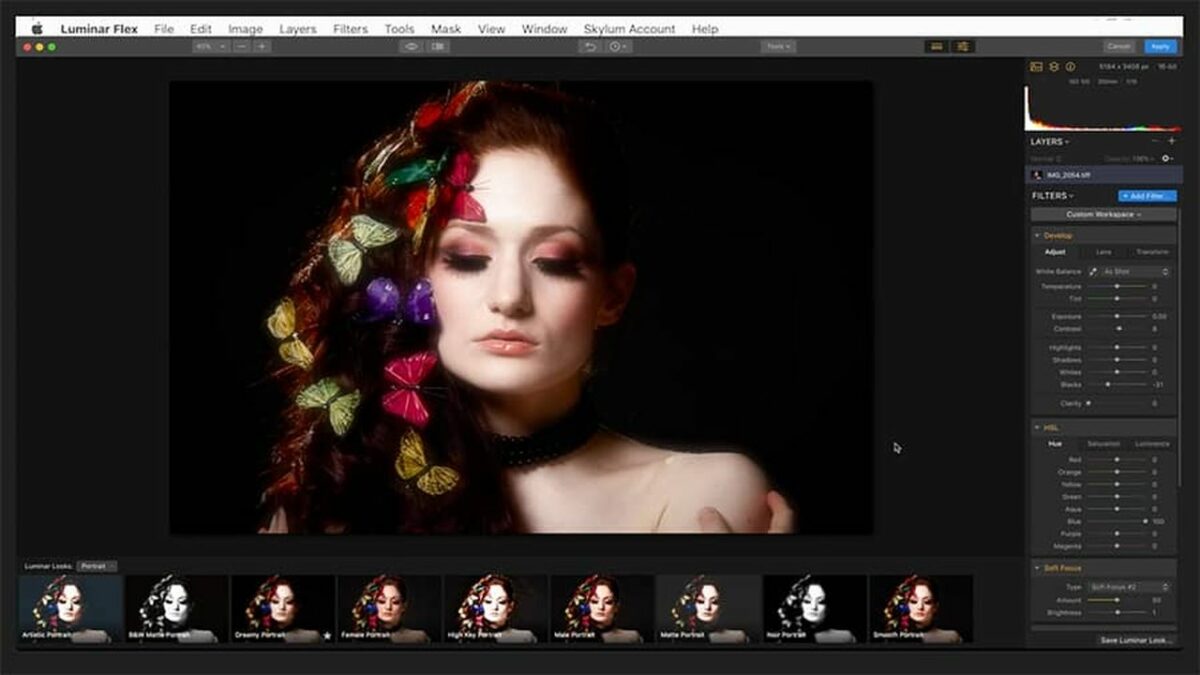
For workflows that entail a lot of photo editing, the Luminar 4 plugin for Photoshop is an invaluable tool. The plugin, which is essentially a spinoff of Lightroom, includes more than 300 photography-specific editing tools, such as single-click presets, a long list of filters, and the Accent AI filter. It plugs directly into Lightroom, as well, and is available to Mac and PC users at an affordable one-time fee.
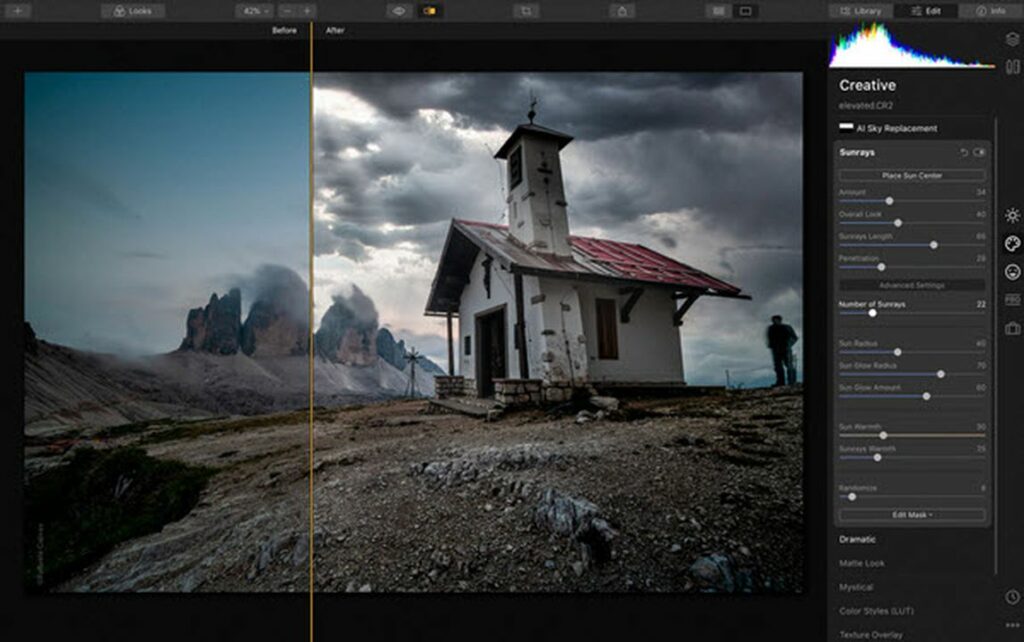
Luminar 4 is a simple photo editor that uses AI for dynamic image production

ON1 Effects

The ON1 Effects plugin supplies Photoshop users with an easy-to-use one-click panel. Interestingly, you can use the plugin as a standalone app and perform many of the same editing functions as Photoshop and other graphic design applications from Adobe. ON1 Effects lets you choose from a wide selection of filters displayed in a well-organized panel and apply them on top of your Photoshop layers in a single click.
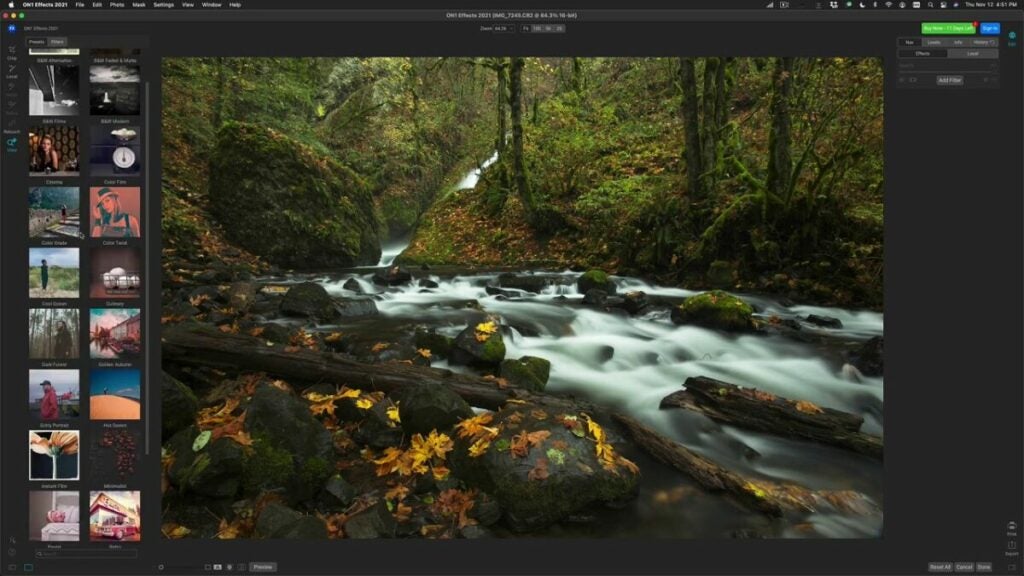
ON1 Effects also functions as a standalone app and brings dozens of unique effects to your workflow

RH Hover Color Picker

Those familiar with Photoshop know that the software includes a perfectly suitable color picker. However, the RH Hover plugin makes color picking easier than Photoshop’s inbuilt feature, which many users regard as too touchy and unnecessarily complicated. The RH Hover Color Picker streamlines the color selection process by simplifying access to the same wide range of colors found in the Photoshop version of this tool. This plugin also gives you a full, unobstructed view of your project.
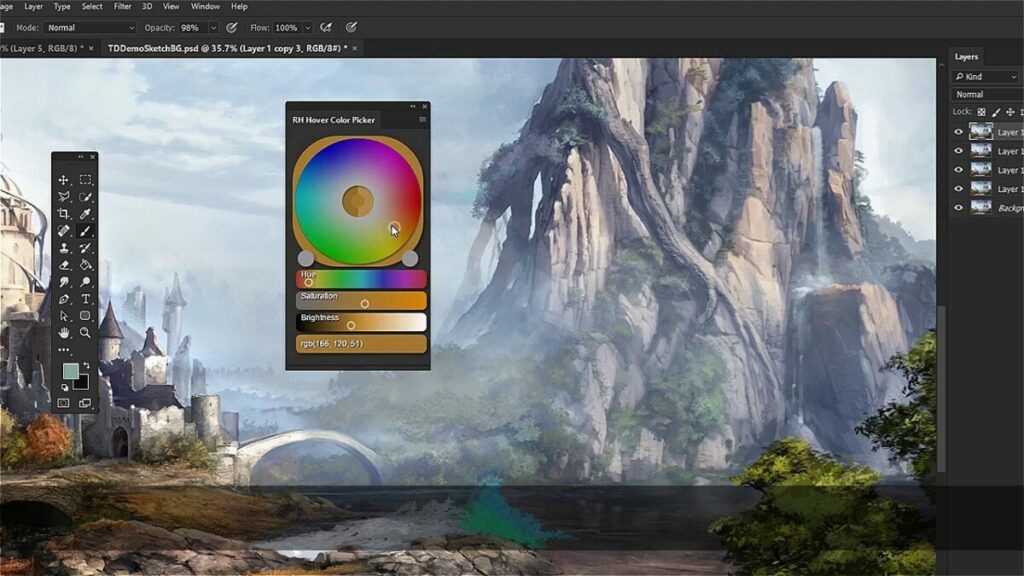
RH Hover Color Picker plugin brings a clean and modern color interface to Photoshop

The Fontself Maker plugin

Despite the many free resources for creative fonts online, Fontself is worth the investment to ensure a consistently unique project outcome. The plugin works with Illustrator and Photoshop, letting you effortlessly turn your lettering into OpenType fonts.
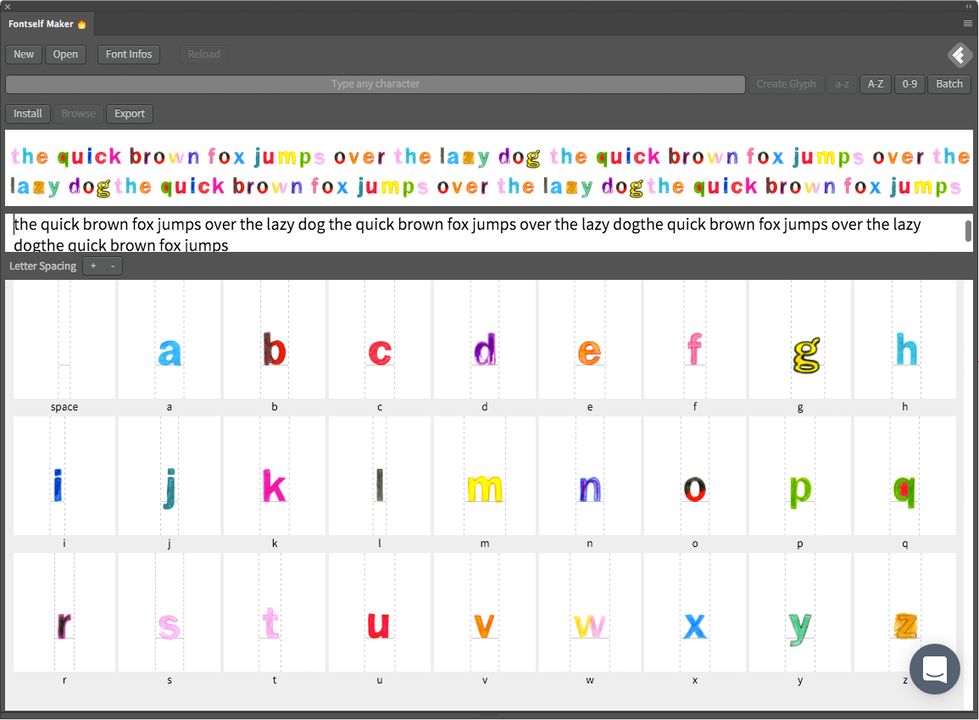
Fontself Maker lets you easily create unique OpenFace fonts in Photoshop

Layers Control 2

Experienced Photoshop users know how important layers are to the design process. Some projects require so many layers that keeping track of them all is almost impossible. Layers Controls 2 improves layers management through several accessible actions displayed in an easy-to-interpret panel. You can use this plugin for everything from naming new layers and resizing smart projects to removing unused effects and deleting empty layers.
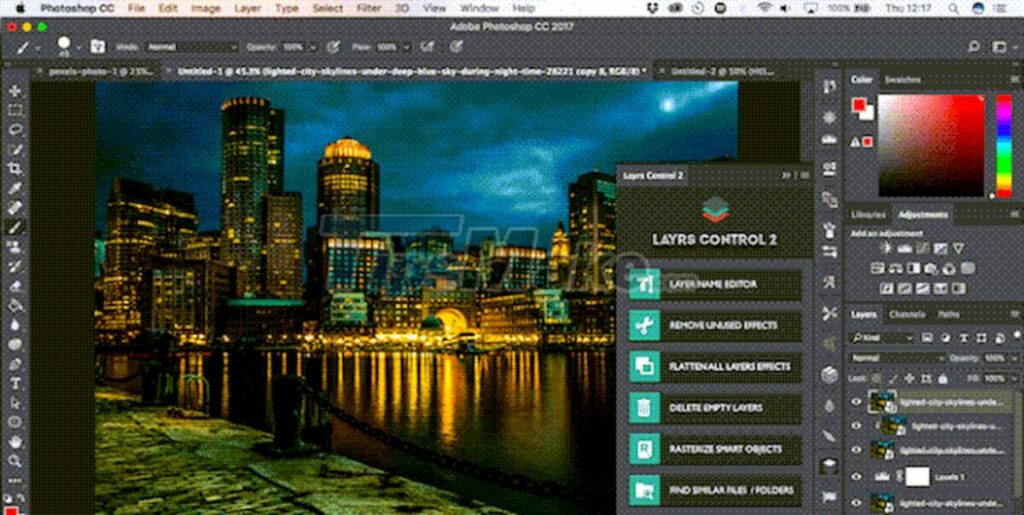
Players Control 2 is an entirely free plugin for Photoshop that helps you manage project layers

Camera Raw

Serious designers and photo editors capture their images in raw format. If that’s you, then the Camera Raw plugin for Photoshop is a must-have. It’s one of the best tools for editing raw images, and you can even use it for the JPEG and TIFF file formats. The most convenient aspect of Camera Raw is that you don’t have to jump from Photoshop to Lightroom anymore. You can complete all your typical Lightroom edits in Camera Raw.
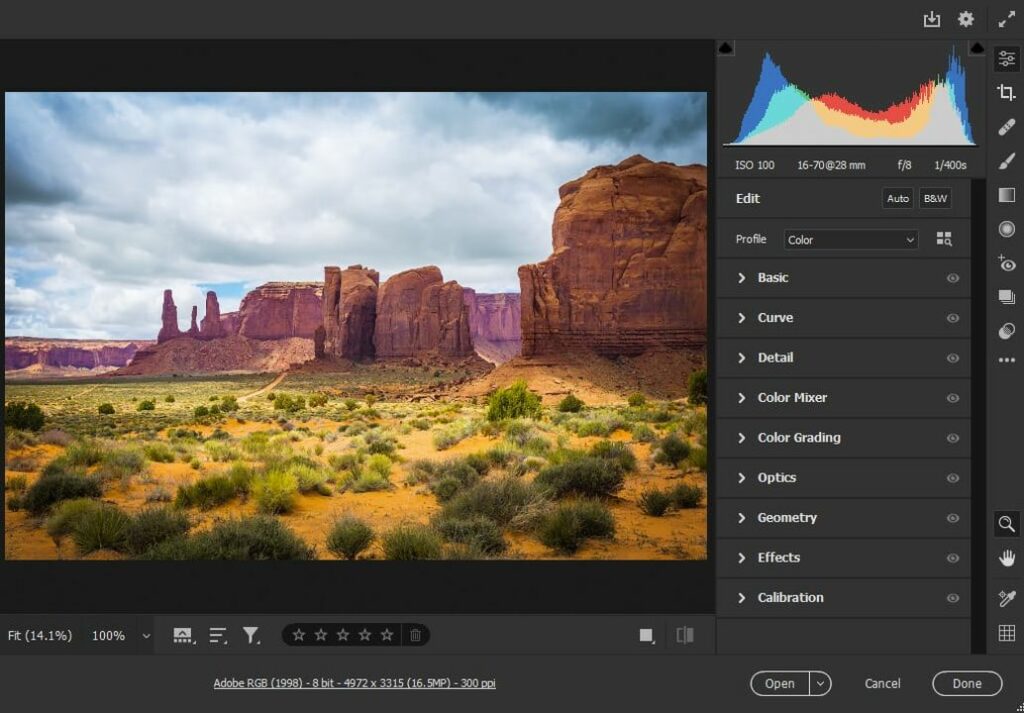
Camera Raw is a must0have for designers and photographers who edit and capture raw images

Aurora HDR

If you’re into creating rich HDR images and want to get the most out of this type of file, the Aurora plugin is your best option. Aurora HDR’s straightforward interface and advanced editing features make HDR image control easy.
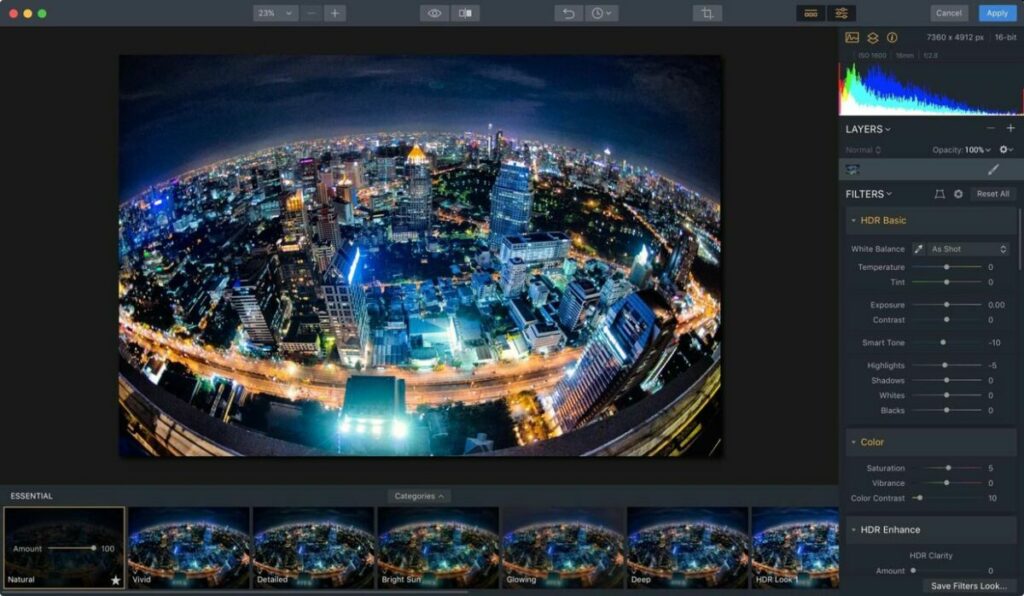
Generate life-like high dynamic range images with Aurora HDR

Boris FX Optics

The Optics plugin is new to Photoshop, offering an impressive suite of lens flares, film looks, lighting effects, and gobo patterns. Boris FX Optics is one of the best plugins for applying the cinematic look to your photos. This add-on has over two decades of awarding-winning experience in producing video effects software.
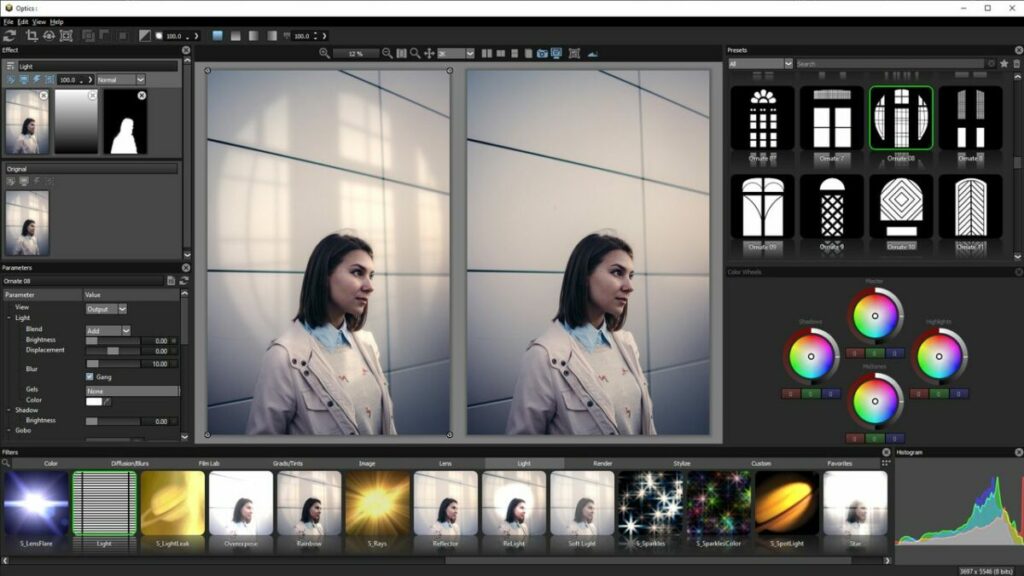
Boris FX Optics is a robust FX-based editing tool box created by Academy Award-winning postproduction professionals

Infinite Color

This Photoshop plugin provides an accessible smart color grading tool that helps you create a truly unique image through a randomized set of adjustment layers. Infinite Color is aptly named. This extension renders so many different color permutations that the results are always one of a kind. This is the go-to Photoshop plugin for designers looking to cut hours off the Photoshop color selection process while achieving the same professional-looking results.
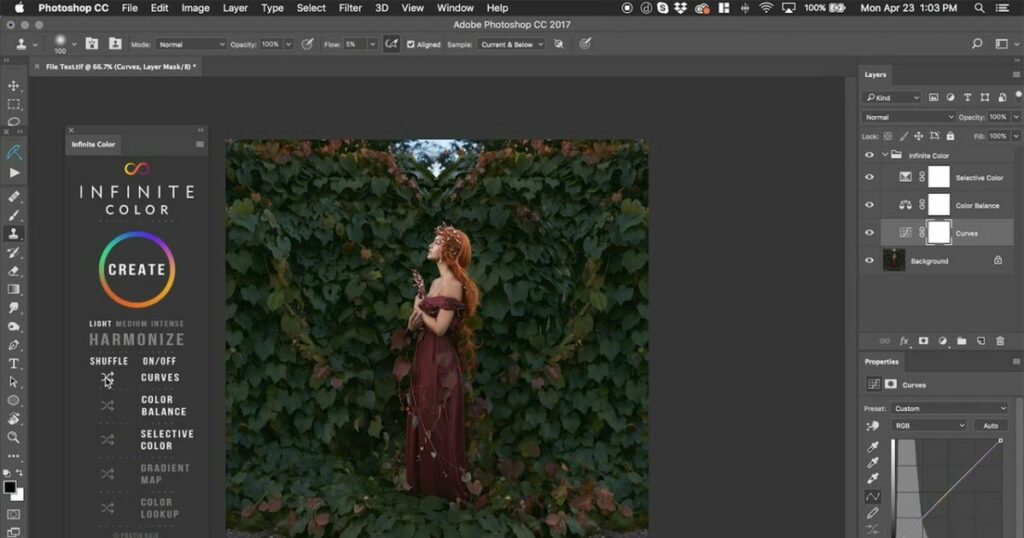
Infinite Color randomizes a set of adjustment layers to create one of a kind images

Get the most out of Photoshop with the latest plugins

Photoshop is a marvelous and largely unrivaled tool, but each plugin listed above has a specific purpose that helps you get the most out of the image editing software. Experimenting with Photoshop plugins is a great way to unlock and simplify many powerful Photoshop features that might otherwise take months to learn. For more Photoshop tips, check out our quick tutorial about creating duotone images.
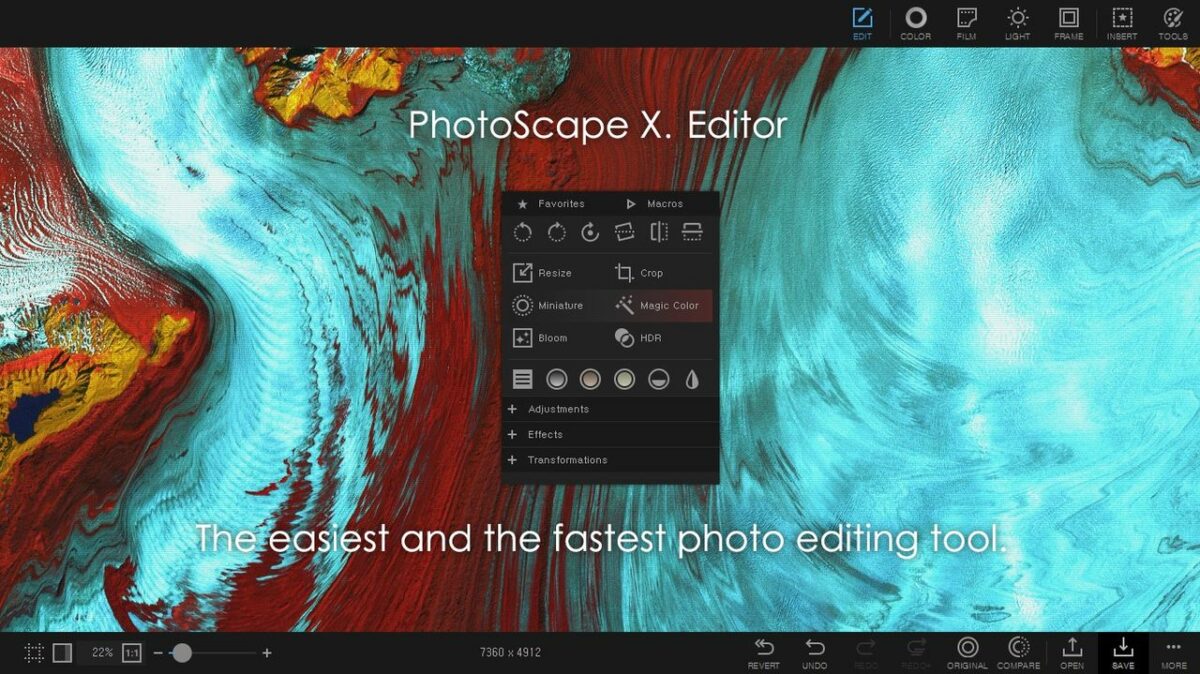

Adobe Photoshop CC Try it for free
Try it for free

10 unique features and functions for optimizing PhotoScape

While PhotoScape may not serve as an outright replacement for robust dedicated graphic design programs like Photoshop, it nonetheless provides a highly capable solution that accomplishes more than just basic image retouching. PhotoScape is also one of the best free all-in-one photo editing products available.

PhotoScape DOWNLOAD

PhotoScape is an effective and comprehensive photo editor that performs the most common digital image enhancements like contrast control, color adjustments, cropping, exposure, resizing, GIF animation, and photo printing. The application provides you with more than enough tools to create memorable images that reflect your distinct approach to visual design. Here, we explore 10 unique functions and features that help you get the most out of this free graphic design tool from PhotoScape.

The quick menu

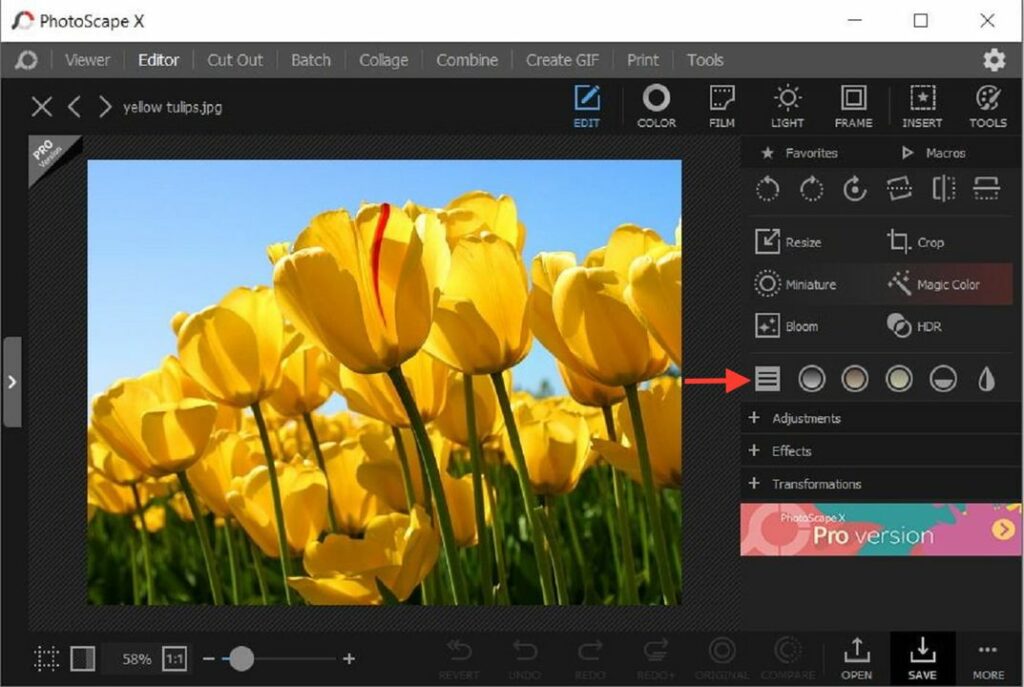
Beginning with the menu options, PhotoScape offers a Quick Menu feature. Just beneath the Edit tab, you’ll discover the Quick Menu where you’ll find most of your editing functions contained within separate sections under an easy-to-access interface. PhotoScape includes dozens of editing features, many of which aren’t readily accessible from the home window. The Quick Menu from PhotoScape is the quickest way to encounter these options. To open this menu, navigate to the Edit tab, and then, select the Quick Menu.

The Quick Menu in PhotoScape reveals the range of editing tools and features included with the program

Undock editing tools

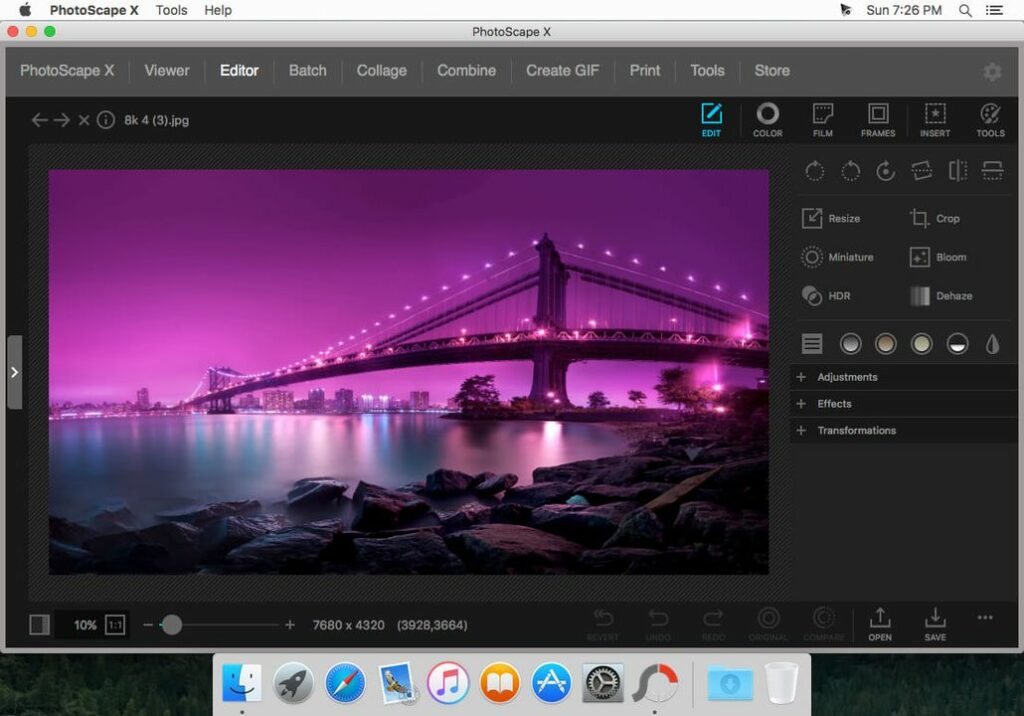
PhotoScape offers several advanced image editing tools, but you may not need every one of them. On the main Editor screen, you’ll notice all the tools and effects opened along the right side. Not unlike the docking system on your PC or mobile device, you can reposition program functions to your preferred location. If you want to undock a specific tool, click on the Undock icon at the top right of the main screen. To re-dock a specific editing option, click the same icon when the feature is in an undocked position.

PhotoScape offers several editing tools and functions, but you can use the undocking feature to highlight your favorite

Crop utilities

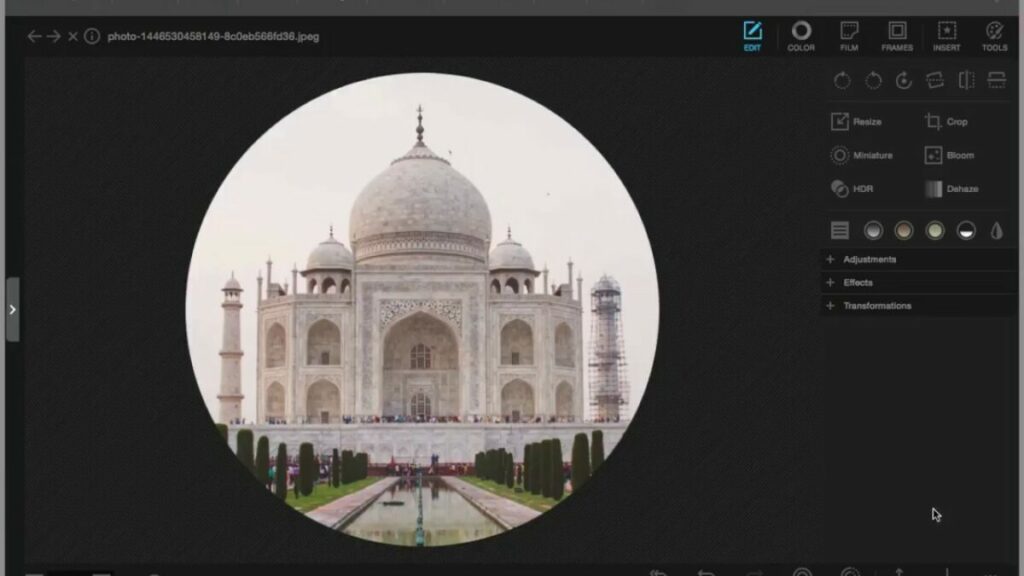
PhotoScape includes a crop utility tool that allows you to complete the most essential crop functions. You can reframe your images to different sizes or access various circular or perspectival crop presets that you can save directly to your device. You can also copy any cropped images you save to the PhotoScape clipboard.

Access various popular crop settings with this advanced crop tool from PhotoScape

Transparent backgrounds

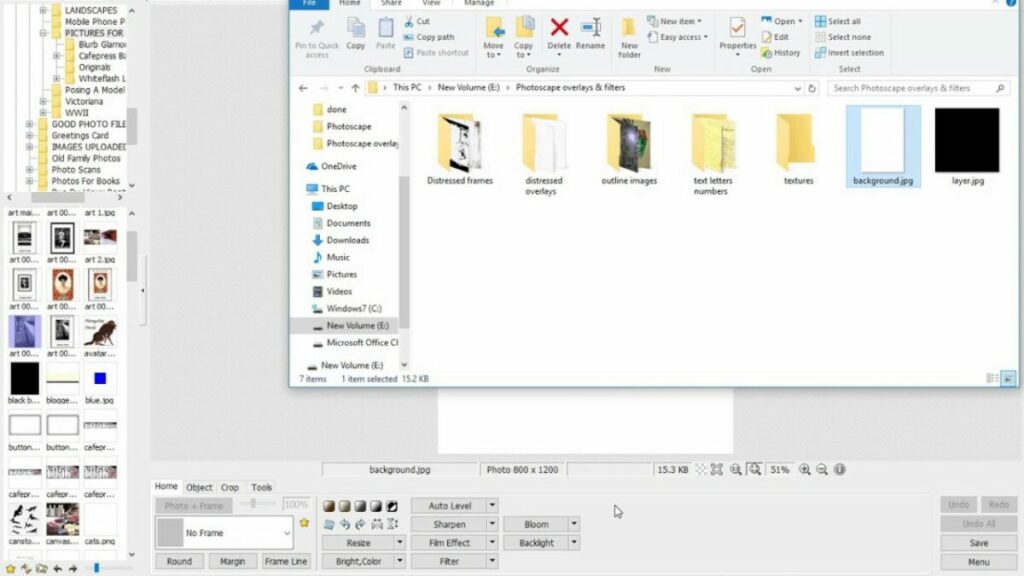
PhotoScape ventures beyond the basic color and theme offerings by letting you set the background as transparent. To add a transparent background, find the Background label function and choose Transparency. Transparent backgrounds come in handy if you want to contrast a busy-looking Text layer mask against a plain, colorless background.

PhotoScape offers a convenient tool for creating transparent backgrounds against your colorful images

Add duplicate objects

If you’re fond of inserting objects like stickers, images, and animated graphics into your pictures, you’ll know that not all applications let you add the same one more than once. PhotoScape, however, allows you to apply the same object as many times as you wish. Instead of repeatedly clicking on the menu option to add the object again, find the Duplicate icon in the same window to use the figure multiple times.

PhotoScape lets you add more than one object by selecting the Duplicate function

Circular crop backgrounds

We’ve already touched a bit on circular cropping, but PhotoScape gives you the unique ability to change the background of your images when you’re in Circular Crop. You can choose background colors for the four surrounding corners by checking the Circular Crop box under the Crop function. The feature will then let you select from various solid colors, gradients, and themes.

Insert vignette or a unique gradient around the edge of your circle crop with PhotoScape

PhotoScape layers

Most reputable graphic design applications provide users with a Layers option, and PhotoScape is certainly not excluded among them. Layering is the most effective approach to adding objects and applying edits to your photos. While Layers isn’t necessarily a default feature, you can find this function at the left of the Editor screen. When you check the Layer function, it combines all your individually edited layers to display the composite image.

Remove backgrounds, adjust colors, and change opacity by selecting Photoscape's Layers option

Batch editing

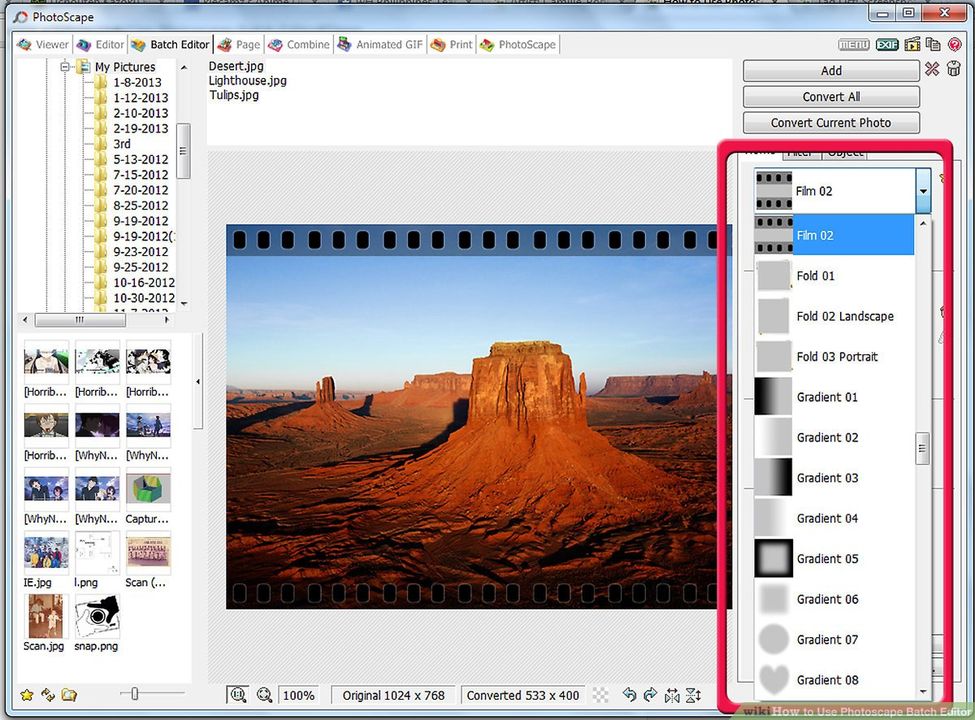
The Batch editor gives you an efficient path to editing multiple photos simultaneously. If you want several images resized to a specific dimension, or wish to apply the same filter to several image files, the Batch editor allows you to achieve this after just a few clicks.

Edit multiple images at once with Batch Editing

Remove backgrounds

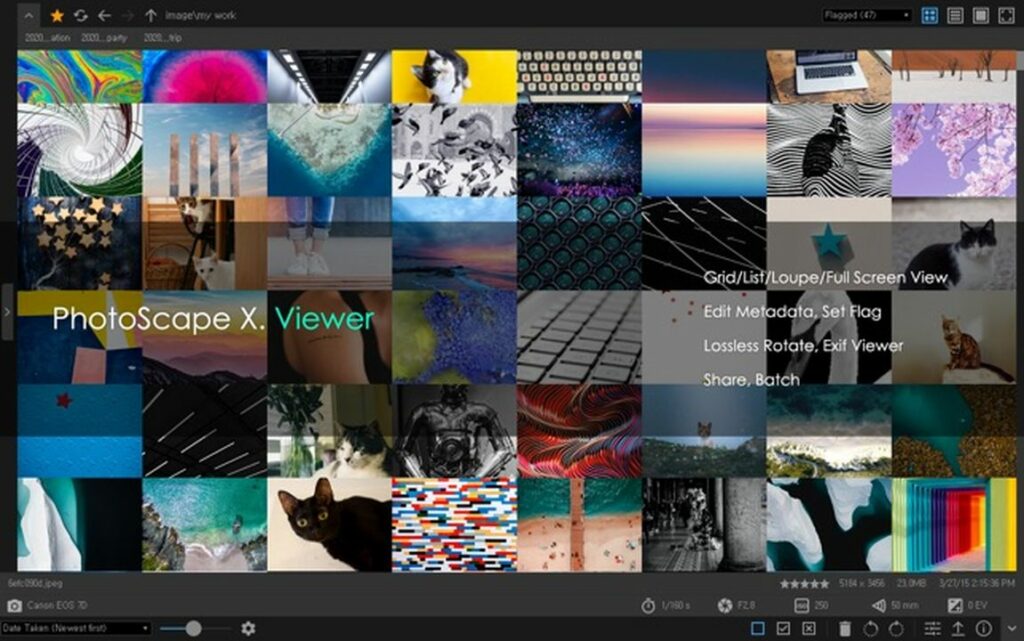
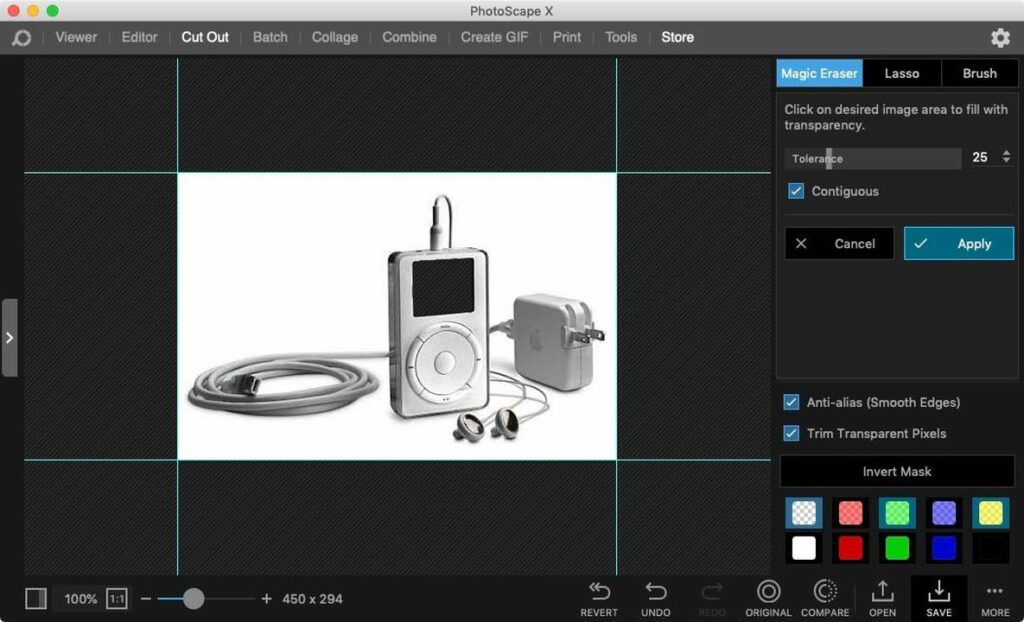
When in Viewer mode you can remove unwanted backgrounds with PhotoScape. Start by selecting the image with the background you want to eliminate. Drag this file to the Cut Out mode and use the Magic Eraser tool to select the areas you wish to remove. Save to file in the PNG or TIFF format to maximize image transparency.

Access Photoshop-like features with PhotoScape's background removal tool

Collage editing

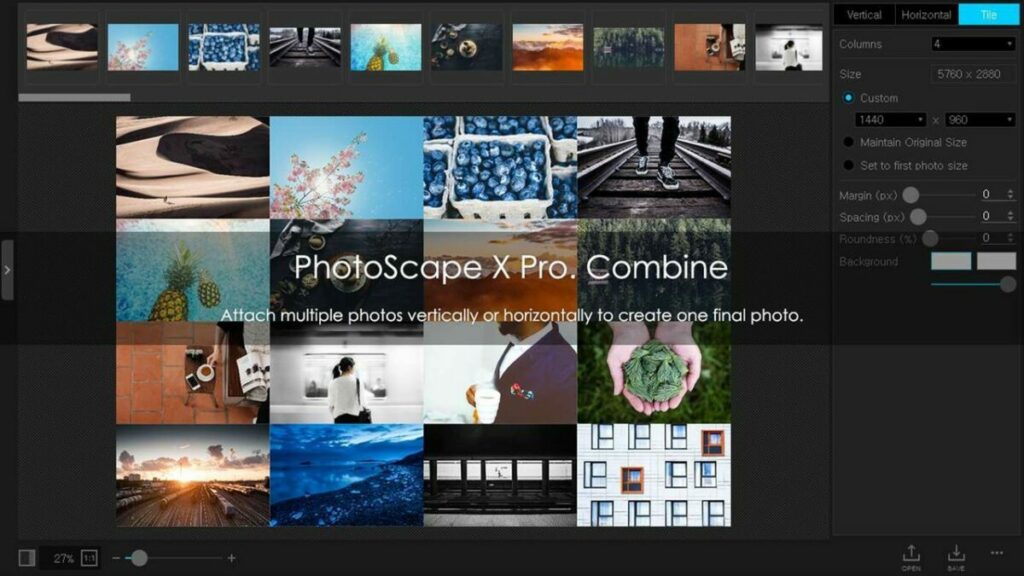
PhotoScape is an excellent choice for those who enjoy creating collage images from their digital photos. The Page Mosaic Creator furnishes you with a tool to merge multiple pictures onto a single collage frame. Once you’ve created the perfect mosaic, you can continue perfecting your image with the several high-quality filters and effects supplied by PhotoScape.

Easily create and edit collage images with PhotoScape

Getting started with PhotoScape

PhotoScape offers a very accessible graphic design tool with several impressive features, and the best part about them is that most are available at no cost. You can unlock the benefits of these 10 unique photo editing features by downloading PhotoScape for free. To learn more about image editing software, check out this list of the top 7 photo editing tools for macOS.