Trained as a civilian airline pilot, Gabriel Gomez has a passion for anything tech-related. He also loves writing about technology. When he's not crafting his next article, Gabriel is enjoying his hobbies as a photographer and videographer.
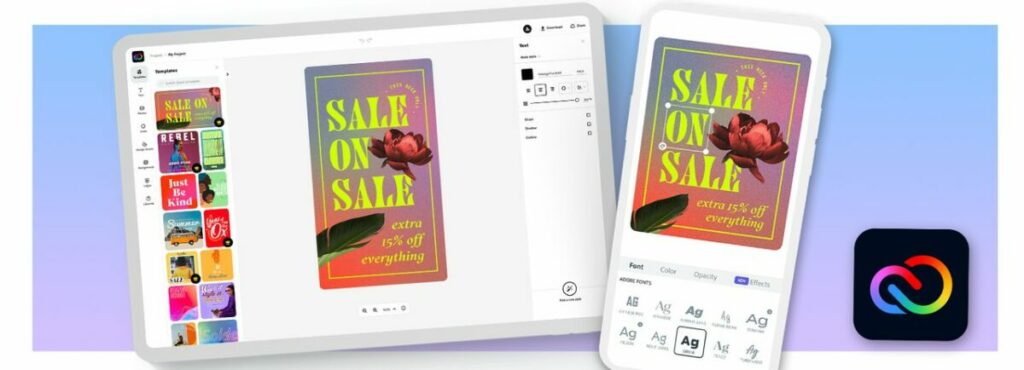
Adobe introduced Creative Cloud Express, its graphic design application for Windows, Android, and iOS, in December 2021. The app offers seasoned creative professionals and beginners a way to generate social sharing content quickly via a drag-and-drop interface. As users became acclimated with the software, they noticed it lacked an integrated social media scheduling tool — a feature Adobe launched on May 11, 2022.
To better align the software with direct competition like Canva, Adobe is introducing content planning scheduling to Creative Cloud Express subscribers. Adobe Express caters to social media content creators and advertising professionals, and this tool enables them to release their materials on a scheduled basis directly from the app. Without this integrated function, Creative Cloud Express users would have to pay for a standalone social media scheduling tool or move on to a competitor like Canva Pro.
Express’ content scheduler will simplify social media posting
The introduction of a content scheduler to Adobe Express follows the company’s recent initiative to draw upon and converge their powerful dedicated apps like Photoshop and Illustrator to form a comprehensive visual communications platform. The content scheduler will let Creative Cloud Express customers design, schedule in advance, and post their original media content to the most popular sharing platforms, including Facebook, Instagram, Twitter, and YouTube.
At the time of this writing, it’s unclear if the new content scheduler will be restricted to Instagram Business accounts only, which is how the feature is offered in Canva Pro. This new convenient feature does, however, bring the software’s media design and distribution tools under one subscription. The addition of content scheduling, a much-anticipated bonus for Creative Cloud Express subscribers, takes Adobe’s promise to deliver an accessible and well-streamlined workflow one step further.
By launching its new content scheduling and planning feature, Adobe Express lets subscribers time the release of their images without continually monitoring their devices or signing up for another software product. Creative Cloud Express has already proven to be an impressive source of inspiration for social content design. The newly integrated multi-platform sharing capabilities under a centralized hub should thrill current subscribers.
E-commerce now reigns as the new normal, and small businesses and digital advertisers need simple, inexpensive creative solutions to help target niche audiences and market their products quickly. Adobe has stepped up to meet the burgeoning demand for a fast and easy-to-use design product in its largely template-based Creative Cloud Express, the graphic design software company’s revamped version of Adobe Spark.
Initially released in December of 2021, Adobe Creative Cloud Express (also known as Adobe Express and CC Express) utilizes simple drag-and-drop technology within a unified task-based app that works with mobile devices and PCs. The software enables non-designers to swiftly generate polished, original multimedia content for their social sharing accounts. Digital marketers like Creative Cloud Express as an affordable solution for creating marketing materials like brand logos and web banners.
One of the latest additions to Adobe’s renowned assemblage of digital design apps, Creative Cloud Express is an inexpensive, user-friendly alternative to competitors like Canva, PicsArt, and the software company’s own Illustrator. While many claim Adobe Express is just a rebranded update to Spark, developers at Adobe have implemented several noteworthy changes.
Here are the features Adobe added to CC Express in April 2022:
Color palette creator: This feature generates palettes with suggested color combinations.
Font recommendations: Under More Fonts, there’s a tool for suggested font pairings.
Mobile video quick actions: These include quick actions for cropping, video speed, and more.
Generate QR Code quick action: This tool simplifies the process of creating QR codes through Adobe.
Convert to SVG quick action: This tool now supports SVG along with other file formats.
With these additions, Creative Cloud Express finds a comparatively wider audience than Spark and other content creation tools like Photoshop Express and Premiere Rush. The app is not, however, aimed at seasoned creative professionals who can render original design results with traditional tools like Illustrator. Instead, Adobe Express adopts several core features from multiple dedicated applications from Adobe and their AI tools to make the software more accessible and easier to use.
Adobe Express is made for fast design solutions
Adobe Express is an optimal design solution for students, online advertisers, and small business owners who routinely create anything from social media posts to promotional videos and self-branded logos. The software retains its simple interface by utilizing a template-first approach that is far more intuitive and simple to access than the individual creative apps discoverable in Adobe’s full Creative Suite.
Adobe’s extensive library of drag-and-drop templates and Sensei machine-learning technology translate to a well-streamlined user experience for beginners with little to no design experience. The general idea behind the app is that it is the perfect tool for people trying their hand at graphic design for the first time and small business owners who want to avoid the extra overhead of a professional design service. Moreover, the continuous access to Adobe’s updated Creative Cloud libraries and the suite’s collaborative and sharing features are among the app’s several top advantages.
How does Adobe Creative Express work?
Adobe developed Creative Cloud Express to be quick and easy to start using, even if it is your first time trying graphic design software. It is a web-based application, and all you need to launch the program is a desktop PC or mobile device and a stable internet connection. Before you get going, you must create an Adobe account to access the freemium edition or sign in to your existing profile. The app delivers itself via the Cloud, and you can access mobile versions of Adobe Express that replicate the web edition of the software.
While Adobe express is a template-based app, you can tailor it for your specific design needs. Some templates are laid out for Instagram stories, while others lend themselves best toward materials like YouTube thumbnails and advertising fliers. By clicking Show All, you can reveal the available categories. Housed within the specified categories is an impressive library of template options associated with the type of media you wish to create.
If you’re working with the free but limited version of Adobe Express, you will notice the Adobe premium template offerings mixed in with the free samples. The welcome filter allows you to separate the two products easily, however. As you grow more comfortable with the software, it’s easy to create your own templates from scratch and save them. But most users find that the advanced features in Creative Express tend to negate the general purpose of the app, which is to help speed the creative process along. If you do feel like indulging your creative senses, the app allows you to customize existing templates for a more original design.
Customizing your creations
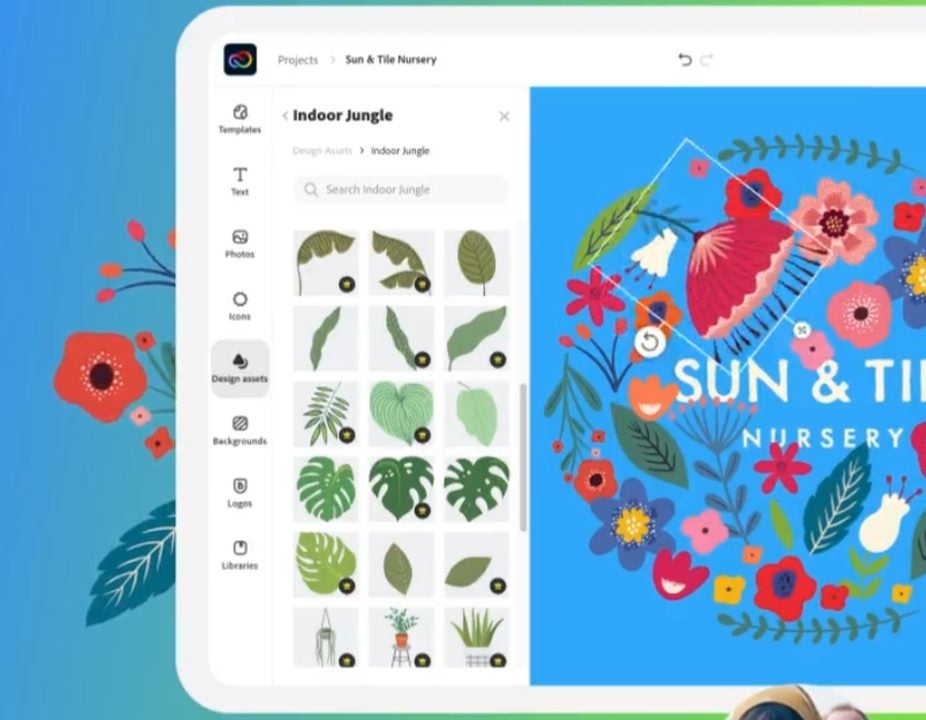
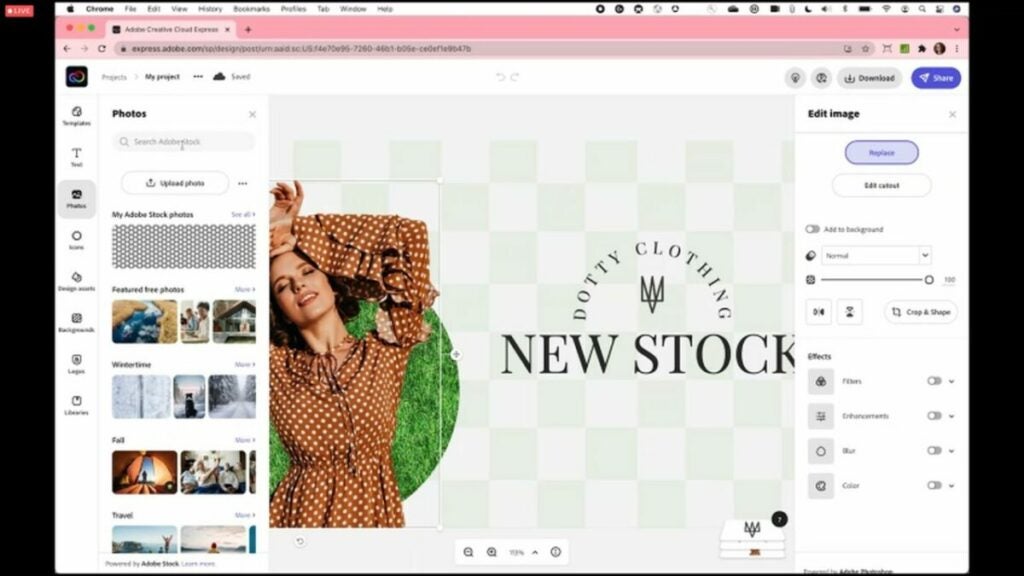
Once you’re in the app, you’ll find a well-organized editing space. Off to the left, there are a set of graphics that you can add to your design image. This section contains text tools, Adobe Stock images, a vast selection of black and white icons, backgrounds, and more features. Off to the right of your display are the pre-set color palettes, several layout options, and all the necessary tools to bring your design to life. The middle of the page gives an accurate preview of your work in progress.
After you select the object you are working on, the right side of your workspace displays an Edit Image sidebar. This advanced menu feature gives you the option to remove the background from your canvas automatically, an impressive function usually reserved for more heavyweight applications like Illustrator or Photoshop. Not unlike those two apps, you may have to work with it, and the success of the edit depends upon factors like high image contrast and the type of background you have.
Edit Image also lets you play with functions like image opacity, cropping and masking, and other rudimentary digital photo edits like background blur, color filters, and general image enhancements. When you click on a text field, a set of text editing tools automatically replaces your current sidebar display. While limited compared to the Adobe professional software design packages and apps, this toolset is sufficient for making sharp-looking edits quickly.
As with Photoshop, its more advanced counterpart, image editing in Adobe Express assembles your projects in layers. The process is ostensibly more simplified in the sense that you’re just arranging objects on top of each other. You can, however, track the sequences of edits in layers at the lower right of your canvas and rearrange them according to your desired results.
Is Creative Cloud Express just for beginners?
As you can see, Adobe’s Creative Cloud Express accomplishes a lot with a rather limited toolset. It’s not just forstudents and entry-level creatives interested in familiarizing themselves with basic design software. While the app is undeniably a great starting point for beginners, its powerful image and photo enhancement features allow you to pull off Illustrator and Photoshop-like projects in a fraction of the time.
The creative expediency of Adobe Express is a fantastic value-add for experienced design professionals who work with visual images in high volumes and need to deliver their messages quickly. Professional tools like Illustrator and Photoshop lend themselves well to virtually limitless invention, but most digital marketing agencies, for instance, simply don’t have the time or resources to build a unique vision with every post.
For those who don’t obsess over the deeper elements of their multimedia content, Creative Cloud Express offers a capable and effective set of editing tools and design templates. Some functions like undoing edits and object selection may not be as accessible and accurate as more robust creative applications from Adobe, but Adobe Express is undoubtedly the most affordable product for generating professional-looking multimedia content quickly and with minimal effort overall.
An excellent value for the money
Creative Cloud Express won’t replace professional design tools like Illustrator and Photoshop, but it’s a hugely accessible app for beginners and an outstanding tool for busy creative professionals who need to turn polished Web content around quickly. Enjoy Creative Cloud Express for Web Apps at no cost today. Looking for Adobe Express alternatives? Check out our guide to using Canva.
Pros
Practical and powerful image editing
Free version provides 2GB of storage
Affordable, professional-grade graphics
Template-based for faster workflows
Easy-to-use, comprehensive software
An affordable option for beginners
Powerful social media creation tool
Access to Adobe Stock Images and template library
Compatible with most major social sharing platforms
The basic free screenshot tools that come included with your operating system undoubtedly get the job done. But for business presenters, forum posters, bloggers, journalists, and meme creators, Snagit’s enhanced screen-capturer from TechSmith offers so much more. TechSmith is known for developing streamlined, reliable, and user-friendly software with countless easy-to-understand features. This latest release of Snagit is no exception.
Snagit’s revamped toolset exceeds any reasonable expectations you can have about a screen capture utility product. Most screen-capture tools do not let you do much more than just clip the entire screen (or segments of it) before saving the image as a PNG or JPG file on your desktop. The majority of users won’t need much more than these basic functions. However, if screenshots make up a regular part of your workflow, Snagit allows you to do significantly more than just screen-capture.
Snagit - Screen Capture and Recording SoftwareBuy Now
Snagit - Screen Capture and Recording Software
What makes Snagit so unique?
If you’re a working digital creative professional, Snagit is a must-have utility. Several premium screen recording features from TechSmith make screen capture more flexible and versatile. Despite costing more than some of its competitors like Droplr and Windows Snip & Sketch, it delivers a more streamlined and polished interface along with an advanced toolset. This makes Snagit one of the best values in the current market.
While screen capture is Snagit’s main feature, what distinguishes the software from other similar screen-recording utility products is that it allows you to capturewebcam video and audio. Loyal users of the application appreciate it for its simple, yet streamlined editing tools that can be used to develop a diverse array of content. Now, let’s take a detailed look at how the screen capture tool and comprehensive file editor work and what kind of media you can generate with them.
How Snagit’s screen capture tool works
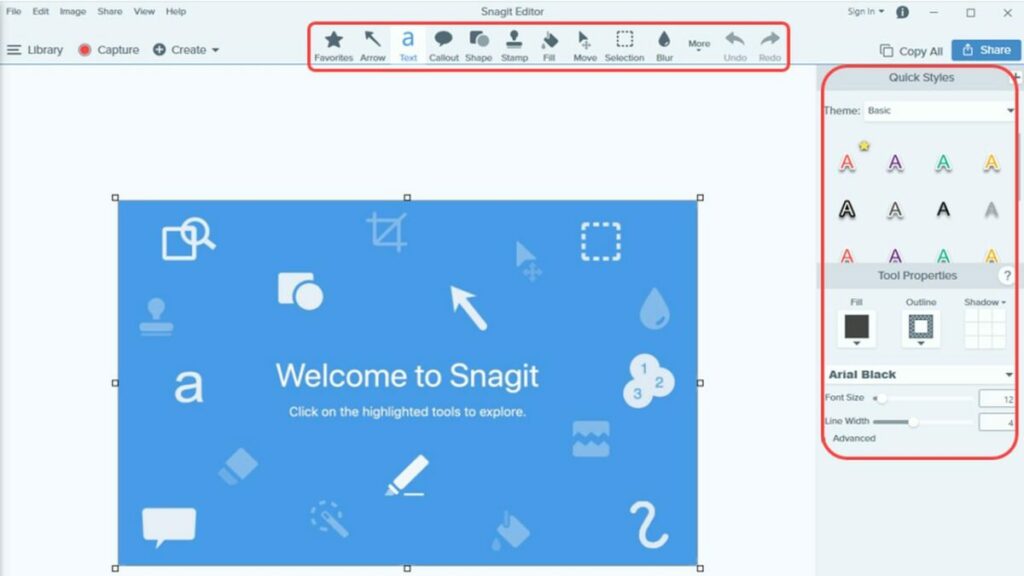
Snagit’s simplified interface consists of two main elements, the screen-recording tool and an advanced editor that lets you get creative with the media you capture. TechSmith continually updates its software to supply you with an endless string of improvements while revamping existing features. At first glance, it might seem like any other screen-capture utility, but the ease of editing, notating, and highlighting your screengrabs makes it distinct.
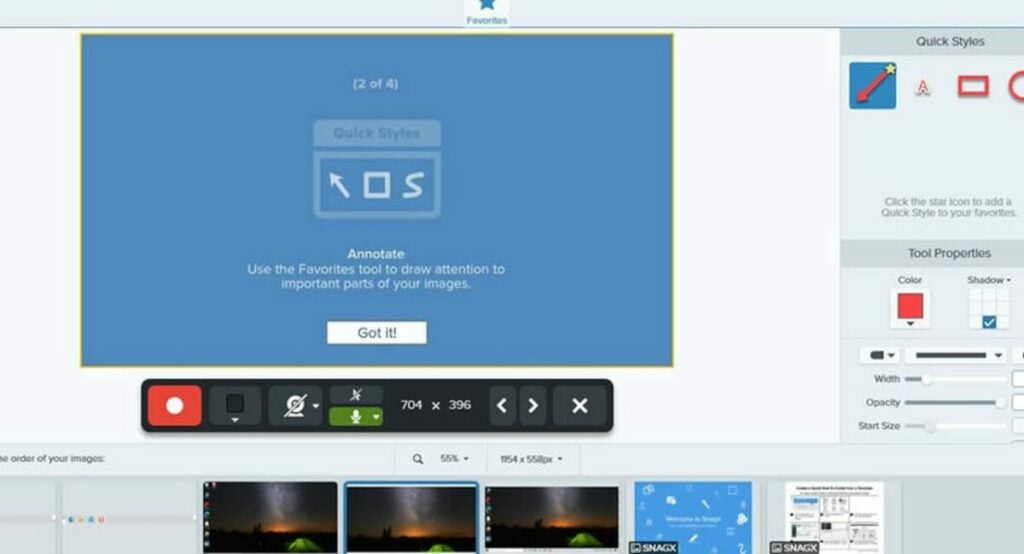
Unlike other screengrab utilities, Snagit allows you to create and edit videos and GIFs from your captured media. You can give life to your screenshots by animating your image recordings while adding audio and text at the same time. Snagit’s picture-in-picture recording feature lets you capture your computer screen and your own face simultaneously. More visual aids mean business presenters can explain their graphics more readily while spicing up their recordings with more creative originality.
Snagit recently enhanced its Cloud sharing capabilities for both Windows and macOS. The software still lets you select your preferred storage service, and any edits you create and save are more stable in the current release. When you open the content with a different operating system or PC, the image presentation is more consistent, making the app more flexible and adaptable than its competitors.
Using Snagit
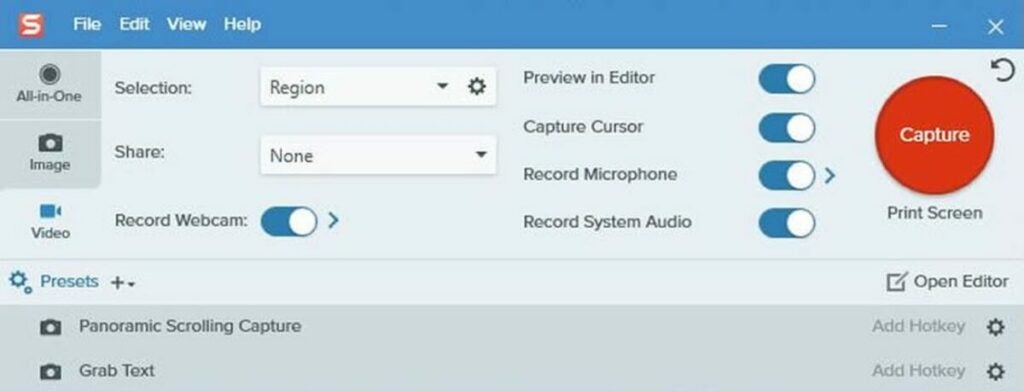
When you launch the application, you’ll see a small control box at the top corner of your display. The large red icon is for taking screenshots, and you use the smaller buttons to control your settings. The red screen-capture icon is only one of the multiple ways to generate a screenshot. To capture your screen, Snagit uses the default PrtSc key as a shortcut, but you can create your own shortcuts.
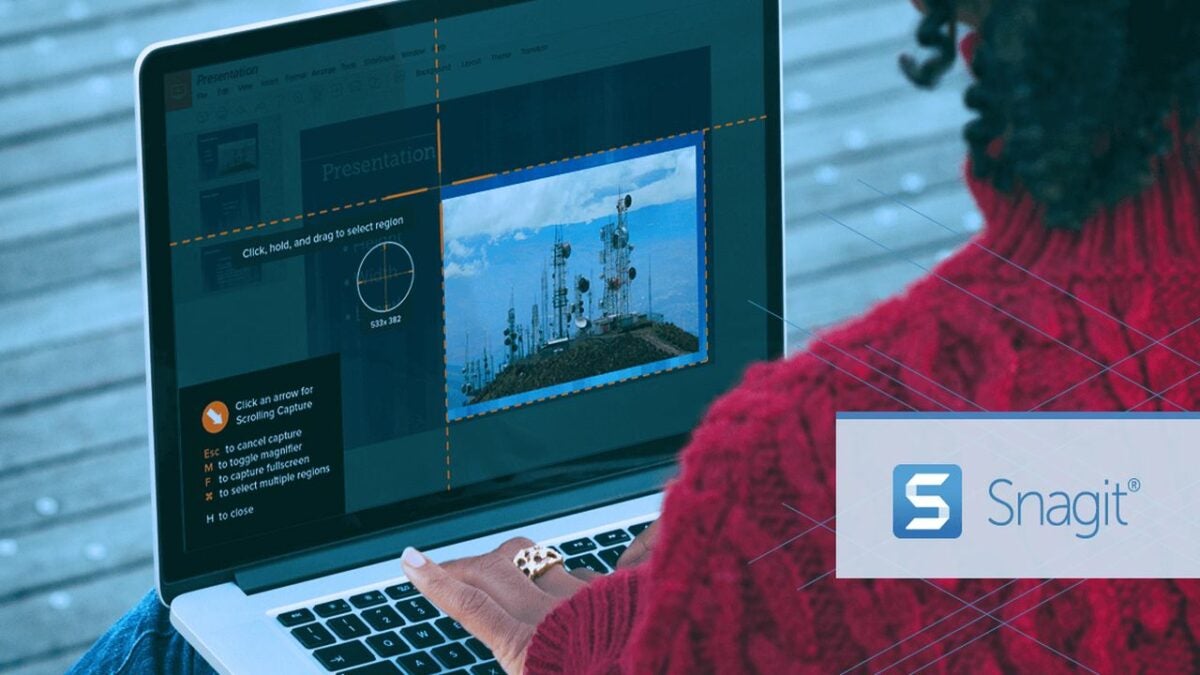
To record a section of your display, you simply drag the crosshairs across the screen to select a given area. After highlighting a segment of the screen, Snagit lets you either clip the image or engage the app’s unique panoramic scrolling mode. This feature simplifies the process of capturing images that are either too tall or too wide to fit on your screen by allowing you to scroll horizontally or vertically to clip the exact image you want. This tool makes it easier to clip items from infinite-scroll sites.
Snagit supports up to 4K resolution, and you can preset your crop aspect ratios to 4:3 or 16:9. Most other screen-capture utilities lack this feature, and you’re not likely to encounter one that can record cascading menus and content that isn’t directly visible on your display. The software offers another original function in its delay counter. Instead of the standard three or four seconds of delay, you can set the delay counter to your preferred interval, up to 60 seconds.
With Snagit, you can access a range of image filters and special effects like grayscale, text, arrows, and borders. For users who capture a lot of screengrabs, these features are particularly convenient because they do not have to import the image into another application like Adobe Illustrated or Photoshop to apply effects. Snagit lets you record video, but you can also insert previously recorded audio tracks from an external interface or your computer’s microphone.
Accessing, editing, and saving files
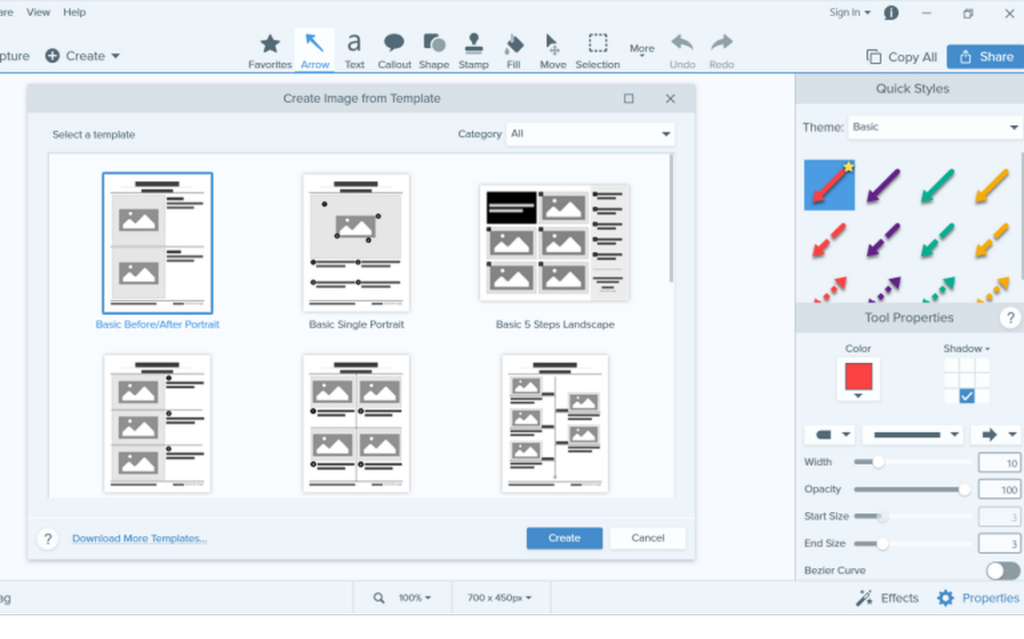
Snagit’s editing tool is simple to use and serves two primary functions. Foremost, you use the editor to open all your captured screengrabs. Secondarily, the editor houses all your screenshots. The nice thing about managing your files with Snagit’s application is that all your screenshots are retained in the program cache, just in case you forget to save one of them. Other applications have this same feature, but Snagit’s straightforward interface allows you to access the files much quicker.
The image editor gives you the option to save your screenshots in 19 different file formats. The application supports all the major formats, including JPG, GIF, PNG, and PSD. Snagit even has its own format, SNAG. You can add hotspots that serve as hyperlinks when you save your images in PDF, SWF, MHTML, or SNAG. Competitors like Ashampoo and Snip & Sketch support fewer image file types. Ashampoo interfaces with only nine file formats and Snip & Sketch from Windows only supports PNG, JPG, and GIF.
Video recording and file sharing with Snagit
Snagit used to record exclusively in AVI format, but versions 11 and beyond capture in MP4. Other competing applications let you save in WMV or AVI, while programs like Sketch & Snip do not offer video recording features at all. Snagit, however, has adopted advanced video capture functions that let you shift between different feeds. You can switch your recording between your main display and webcam or capture the two simultaneously.
Not unlike your screen grabs, all your videos are previewable in the video editor. Once there, you can create freeze frames and trim your video down to eliminate any unwanted segments. Each piece of video you capture is sharable to popular web applications like Dropbox, Google Drive, Camtasia, TechSmith Relay, and YouTube. Shared images give you more options with the ability to export them to PowerPoint, Word, Clipboard, Excel, and as email attachments.
Snagit: A top screen capture and communication tool
Snagit’s real value is determined by how much you intend to use it. If you are only creating occasional screenshots at home and do not have any special format requirements, then using default tools should work just fine. However, if you’re looking for a robust creative tool that lets you work wonders with your captured media, consider trying Sagit out for free.
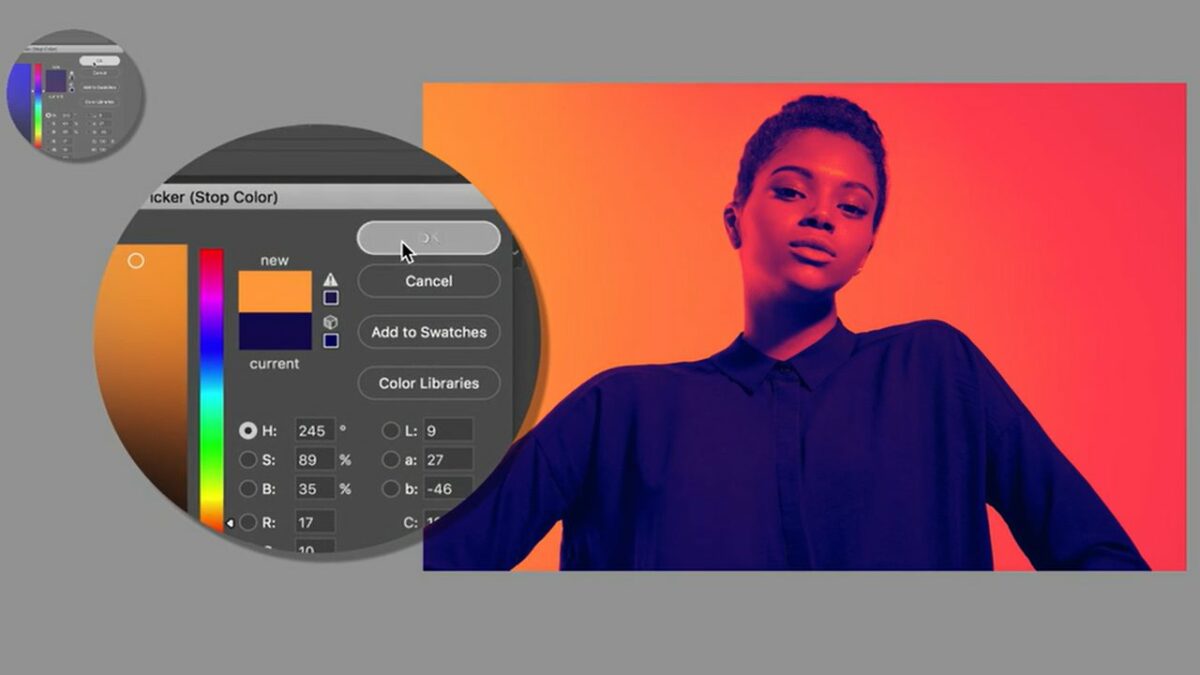
While duotone images have gained traction in recent years thanks to Spotify, the effect has a long history in design. Duotone graphics consist of at least two contrasting colors, hence the term duotone. In classical photography, the toning process entails a recoloring of grayscale images in a lab where you replace the darks and lights with two alternative colors.
Thankfully, Adobe now makes duotone image creation easy, and access to a high-end design studio is no longer necessary. All you need is Photoshop and a touch of creativity. If you’re interested in using the duotone effect to reinforce your brand with bold colors, follow the steps below.
Choosing the right image
Before creating a duotone image, you want to be strategic about which photos you choose for the effect. While Photoshop lets you apply duotone effects to any image, you’ll get the best results from high-contrast pictures.
Contrasty pictures supply you with a nice pallet of distinct dark and light tones that you can replace with alternative colors. Likewise, images with a solid background, preferably white, help establish your new base color.
If you have access to a photography studio, you can customize your background and lighting scheme to produce high-contrast images against a white background. For those shooting outdoors, photographing your subjects in the early morning or afternoon works best for boosting contrast. You can make use of light-colored buildings or utilize open horizons to establish a plain background.
How to use Photoshop’s default duotone feature
There are two primary methods of manually creating genuine duotone images in Photoshop. The first approach is to use Photoshop’s inbuilt duotone feature. Follow these steps for using the default duotone option in Photoshop:
Step 1: Create a Duplicate Layer in Photoshop
Once you’ve found the perfect high contrast image, load it into Photoshop and generate a Duplicate Layer. Right-click the photograph, select Duplicate Layer, and then press OK. Remember, duplicating your original bottom layer is always best practice because you retain an unedited version to fall back on if you make a mistake.
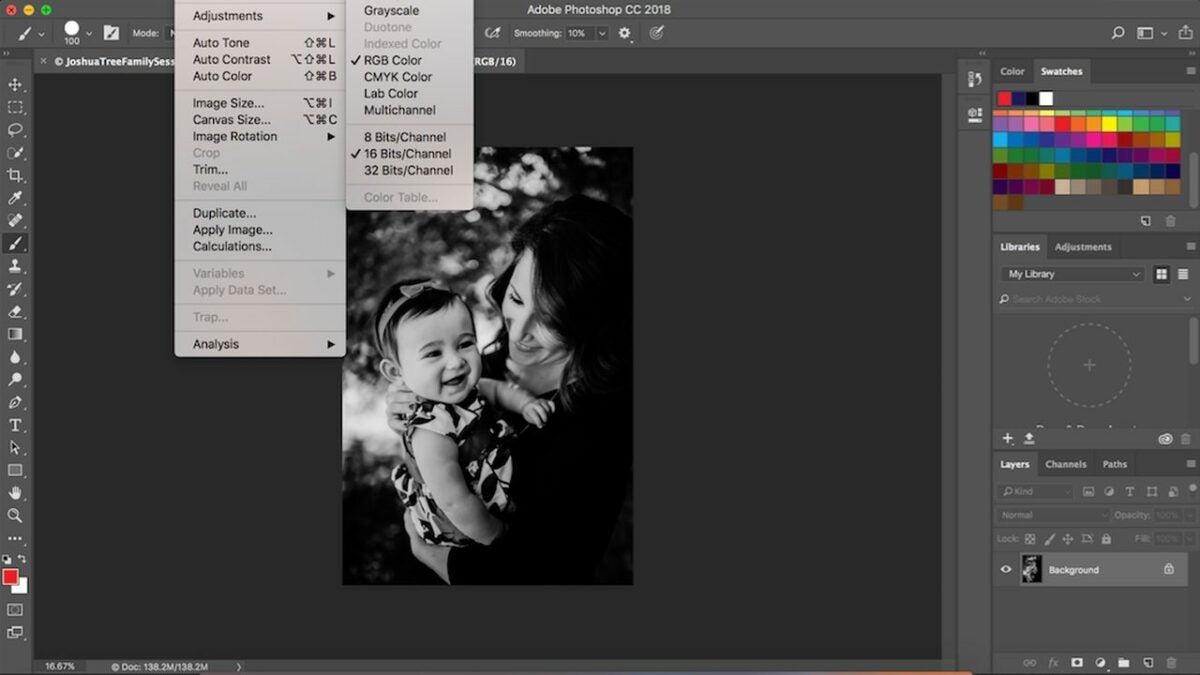
Step 2: Convert the image to 8-bit grayscale
Before you can use the default duotone feature, you must convert the photo to an 8-bit grayscale file. To do this, select the picture and navigate to Image > Mode > Grayscale. Confirm that the 8 bits/Channel option is enabled under this Mode menu. Once you’ve selected this option, you’ll encounter a few notifications asking if you want to flatten the image or merge the layers.
Feel free to merge the image if you’re already working with several layers. If not, don’t worry about it. Merging your layers gets rid of your original copy. You can skip this step, as well. The next prompt you’ll see asks you whether or not you want to discard your color information. You must delete the color information to use Photoshop’s default duotone feature, so click Discard.
Step 3: Convert the image to a duotone
Your picture is now ready to use the default duotone option in Photoshop. To enable the filter, first select your layer, then go to Image > Mode > Duotone.
Step 4: Select your colors
Since the photo is in duotone mode, you can start choosing your colors. If you check the Preview checkbox, you can see how the picture looks before you make the edit. From here, you manipulate your color settings for the desired effect.
How to use the Gradient Map
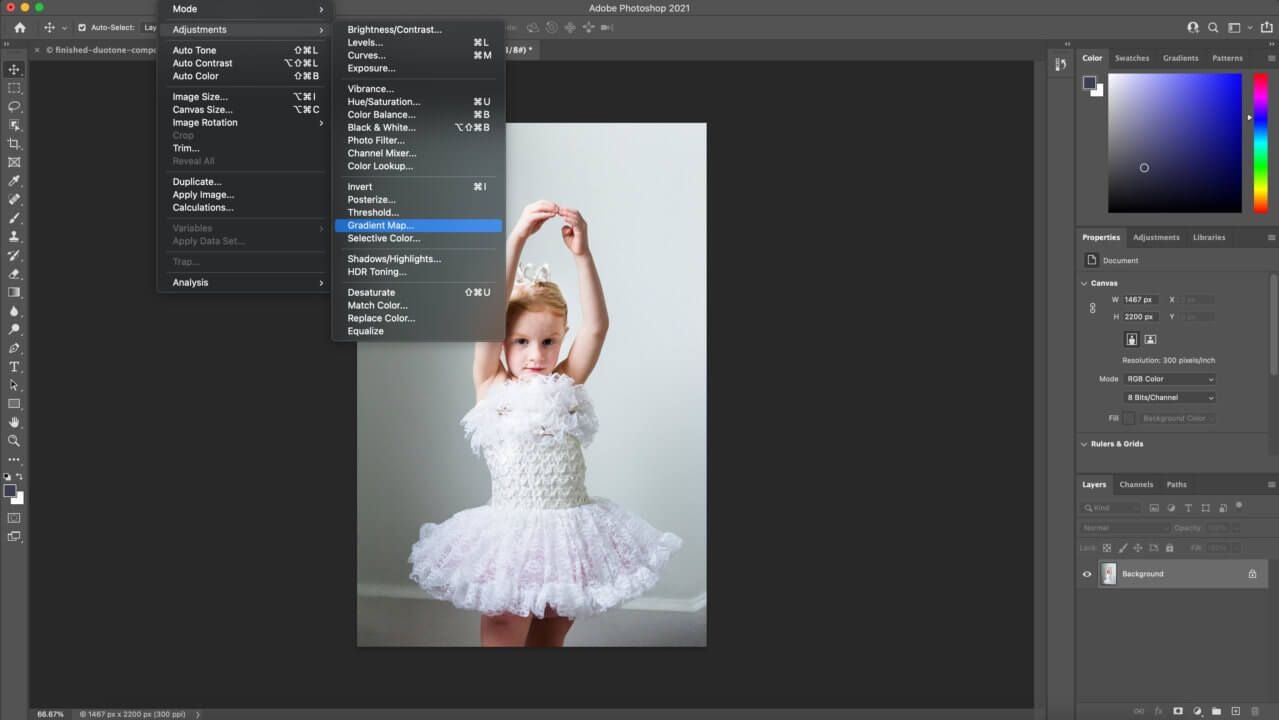
Your second option for getting duotone effects leverages the Gradient Map. This method gives you more control over your image results:
Step 1: Apply a Gradient Map
This method doesn’t require you to convert your image to an 8-bit grayscale file. Once uploaded, select the photo and scroll to Image > Adjustments > Gradient Map. This overlays the picture with a gradient for grayscale mapping. Make sure the default is set to black and white. You can invert the images by clicking the checkbox next to Reverse.
Step 2: Select your colors
When you select the gradient bar, it enables the Gradient Editor in a new window. This lets you choose from a diverse range of colors and preview how they look before completing the edit.
Compare your results
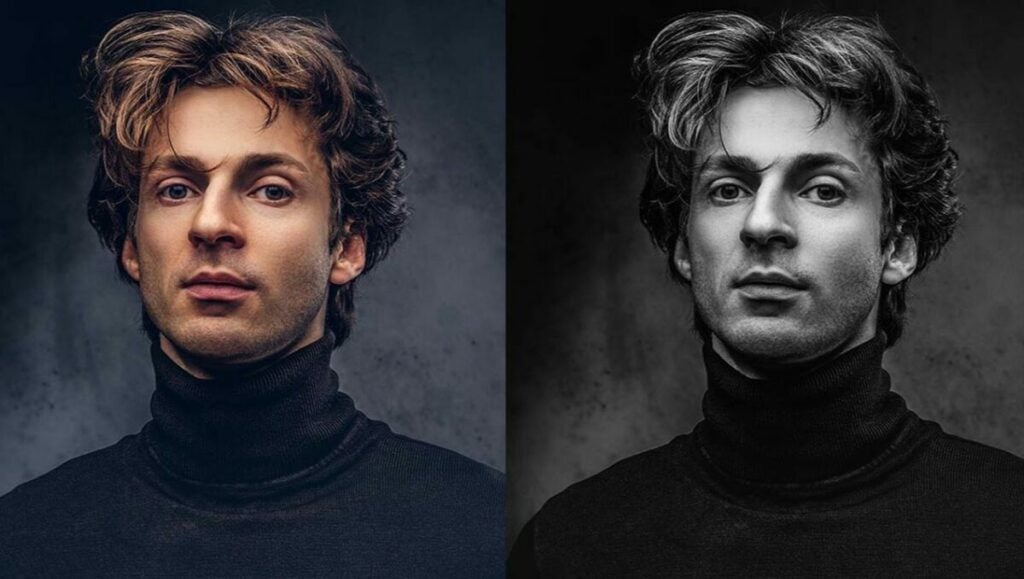
After testing the two methods, compare your results and determine which approach serves you best. You’ll find the photos look noticeably different. The Gradient Map approach is more straightforward. You don’t have to convert your file, and it’s easier to control. After downloading the Photoshop application, you can learn even more pro tips by taking Domestika courses.
So, you’ve taken a rare Corsican vacation. It’s magic hour. You just encountered the ideal marina setting for your last vacation photo. You ask a friendly passerby to snap the shot, just as the sun spills into the sea. An hour later, you upload the image to your laptop and notice a peculiar element in the distance. You sit deflated, realizing it’s a local photobombing your picture from his yacht.
Unwanted elements find their way into pictures all the time. Before desktop imaging, there were ways of recomposing photographs. But, generally speaking, consumer-level photographers lacked the tools to remove the undesired objects. When Photoshop launched in 1990, it revolutionized the way both amateurs and pros handled their images. Below, we show you how to remove unwanted objects with Photoshop to create beautiful pictures.
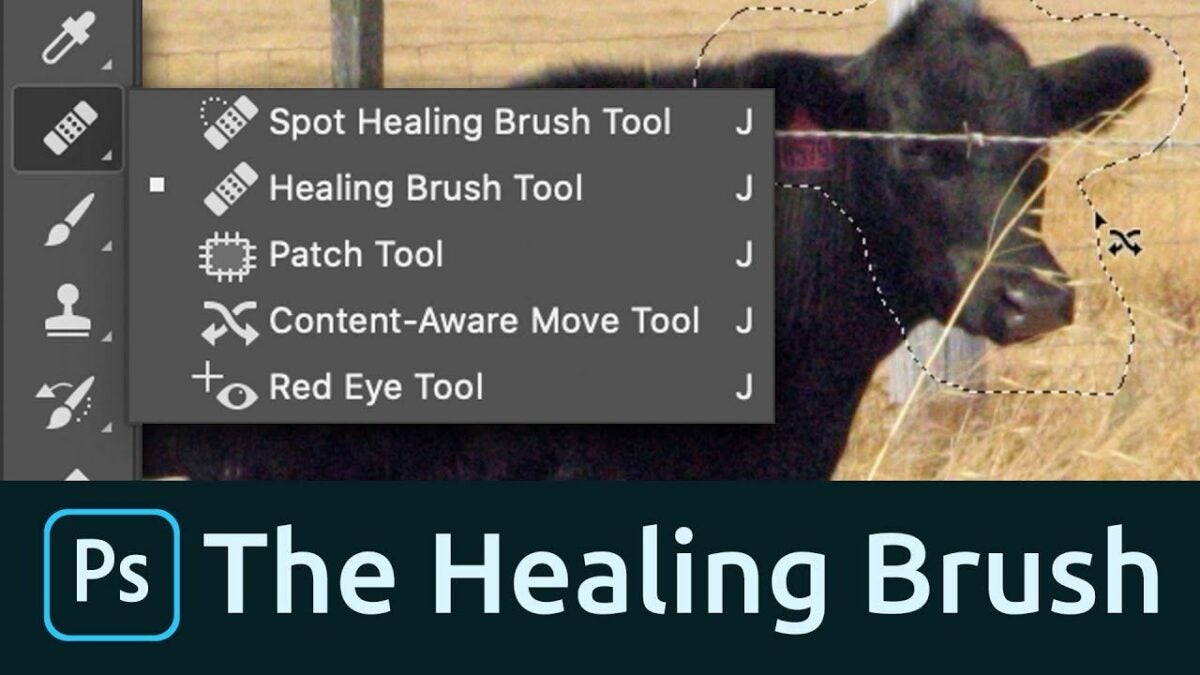
The Spot Healing Brush, located beneath the Eyedropper, is the fastest and easiest approach to removing undesired elements from your images. The Spot Healing Brush works best when the unwanted object is set against a simple background, like the sky, and the element is relatively small. If you notice a seagull has crept into an otherwise clean background, the Spot Healing Brush is your go-to Photoshop tool. Here’s how to use the Spot Healing Brush:
– Your first step is to create a Duplicate Layer. To do this, right-click on the original image layer and choose Duplicate Layer before pressing OK. The Duplicate Layer lets you alter your image without modifying the original file. While Photoshop makes it easy to undo and redo any edits you do make, the Duplicate Layers ensure the preservation of your unaltered photo.
– Next, you can select the Spot Healing Brush, using the [ ] keys to change the size of your brush. Pick a brush size proportionate to the element you want to remove.
– Like painting, this tool requires a delicate touch. Carefully brush over the object until it disappears and there are no digital artifacts in your results.
– If you want to remove a large object requiring a large brush size, the Spot Healing Brush probably isn’t your best solution. We’ll discuss a more suitable alternative later, but it’s important to remember the Spot Healing Brush tool is best for removing image spots, not entire scene elements.
Content-Aware Fill for deleting objects with Photoshop
The Content-Aware Fill tool differs from the Spot Healing Brush in that it is more effective at removing large objects from a photographic scene. Photoshop excels at replacing pixels with consistent colors and textures, and the Spot Healing Brush is always a great tool for accomplishing this. But in more complex images, the application occasionally struggles, rendering unnatural-looking effects.
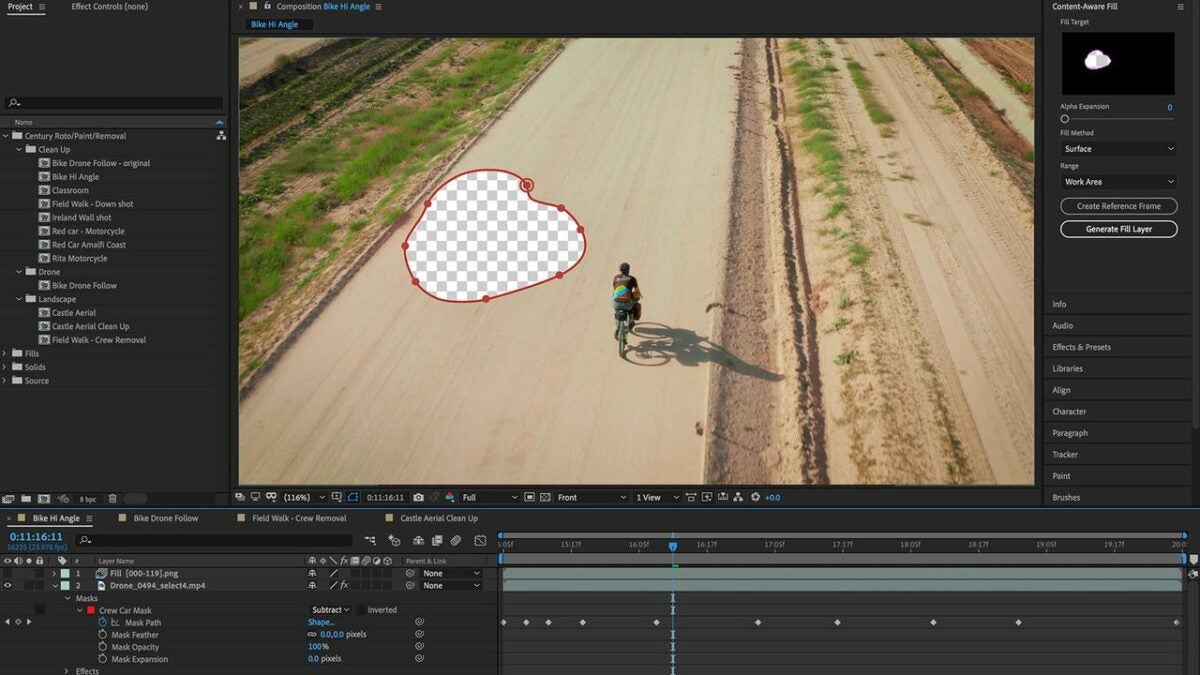
Photoshop’s new Content-Aware Fill workspace gives you more control over your images. The tool provides more flexibility in how you replace pixels. With the Content Aware-Fill workspace, you can select and remove elements entirely or shift and integrate them into another image space entirely. Photoshop then uses machine-learning to identify the hole you left behind, filling it in with a highly accurate patch.
– To start, create a new Duplicate Layer following the same steps outlined above. This preserves the integrity of the original file if you make a mistake.
– Next, select the element in the scene you want to remove using the Quick Selection Tool. Like the Spot Healing Brush, the [ ] keys let you control the brush size.
– To add scene elements to the selection, type Shift + Click simultaneously. Alt + Click allows you to remove unwanted selections.
– If you’re dealing with complex shapes that are difficult to differentiate from the background, use the Lasso Tool to help with selecting your object. You’ll freehand trace around the element.
– Holding down Alt lets you remove portions of the auto-selected object so you can trace around it. Pressing Shift allows you to add to the selection. The tool will still help guide you and doesn’t require ultra-precise strokes to the point where you need a professional drawing tablet.
– After you’ve made your selection, find Edit in the menu bar and choose Content-Aware Fill. You’ll see a preview inside the tool that displays how the image will look without altering the file.
– If the results look good, click OK. The new fill generates itself in another Duplicate Layer, and you can use the Spot Healing Brush to touch up any areas that didn’t blend perfectly.
Getting the most out of Photoshop
Photoshop offers several more alternatives for removing objects from your images. Using the Spot Healing Brush and the AI-based Content-Aware Fill tool account for the two most popular methods. Photoshop’s Content-Aware workspace has improved considerably in recent years. To learn more about editing and recomposing your personal photos, consider checking advanced Photoshop tutorials.
It wasn’t long ago when Adobe Photoshop users were leery when the creative software became a subscription-only service in 2013. It wasn’t immediately apparent how the new annual fee would be justified through continual enhancements to the application. Such concerns among the loyal Photoshop (PS) user community didn’t fall on deaf ears. In many respects, the new user expectations elevated the photo editing app to many new and unprecedented performance levels.
While Adobe Photoshop remains the overwhelmingly popular choice among photographers, designers, and graphic artists across all skill levels, several groundbreaking advancements from newcomers like Affinity Photo and Luminarplace the two in much closer competition. Lightroom, the counterpart to Photoshop that can be purchased from Adobe separately, continues to place itself as a strong competitor in this same segment, as well.
Is the latest installment of Photoshop up to task?
Adobe’s Photoshop underwent significant updates in October 2020, then later in February 2021, leading into the latest edition, updated Photoshop 23.2.2 released in March 2022. This current version of the software offers the most advanced features Adobe has ever produced. The company implemented Sensei machine-learning technology to automate specific advanced and time-consuming edits from the Cloud.
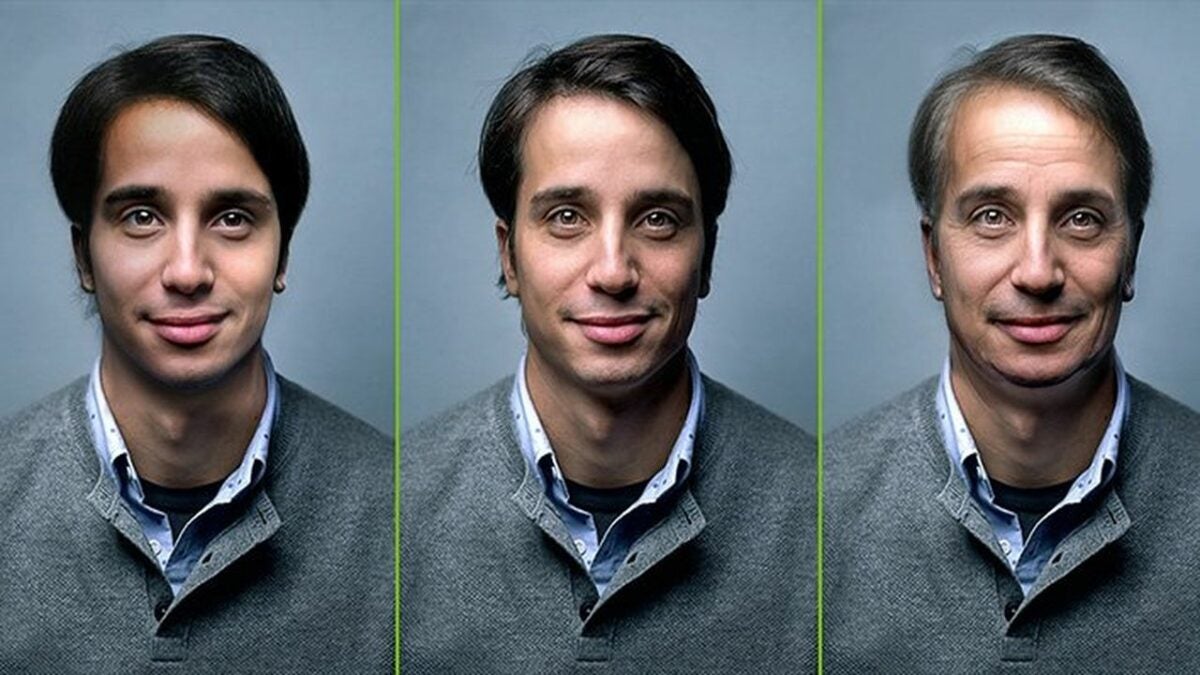
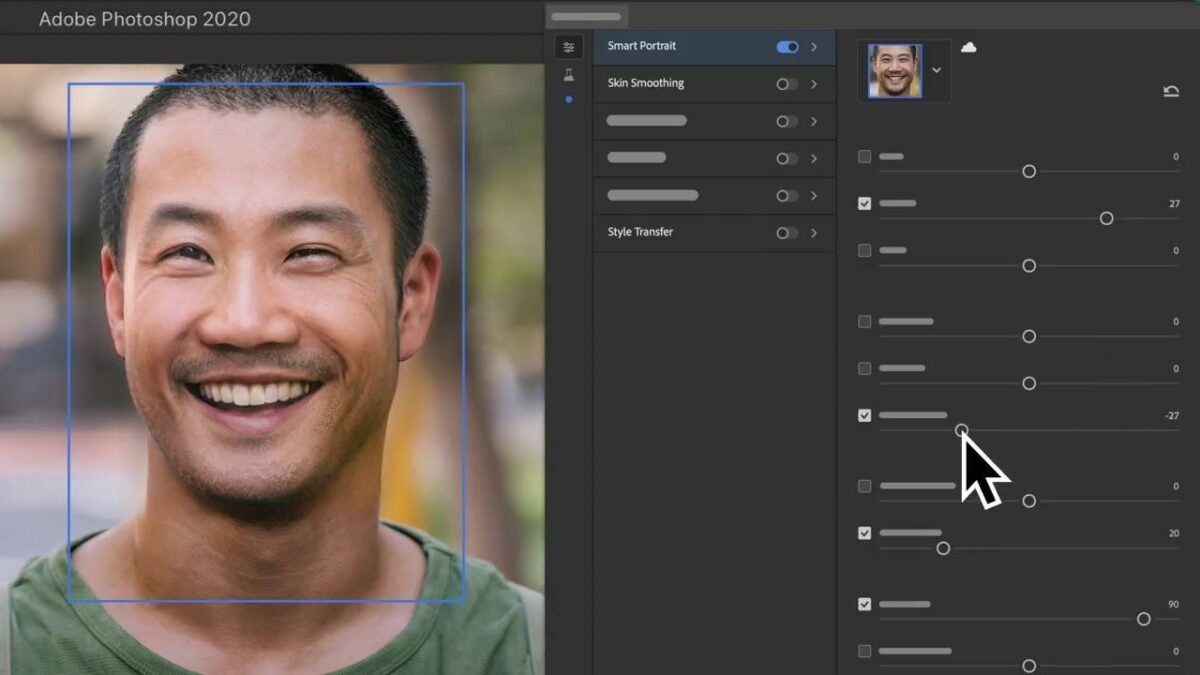
For the first time ever, the latest PS application lets you make single-click adjustments that will alter the mood appearance of your portrait. The mood itself depends on the slider you choose and can range from happier to sadder, angrier to older, and even an expression of surprise. Unlike the Lightroom application, which orientates itself on traditional photo editing concepts, Adobe PS is a powerful graphic design tool. With Photoshop’s Be Happyfilter, for instance, the adjustment slider lets you draw your subject’s mouth open to the desired expression as it fills in a set of teeth.
What sets Photoshop’s newest features apart?
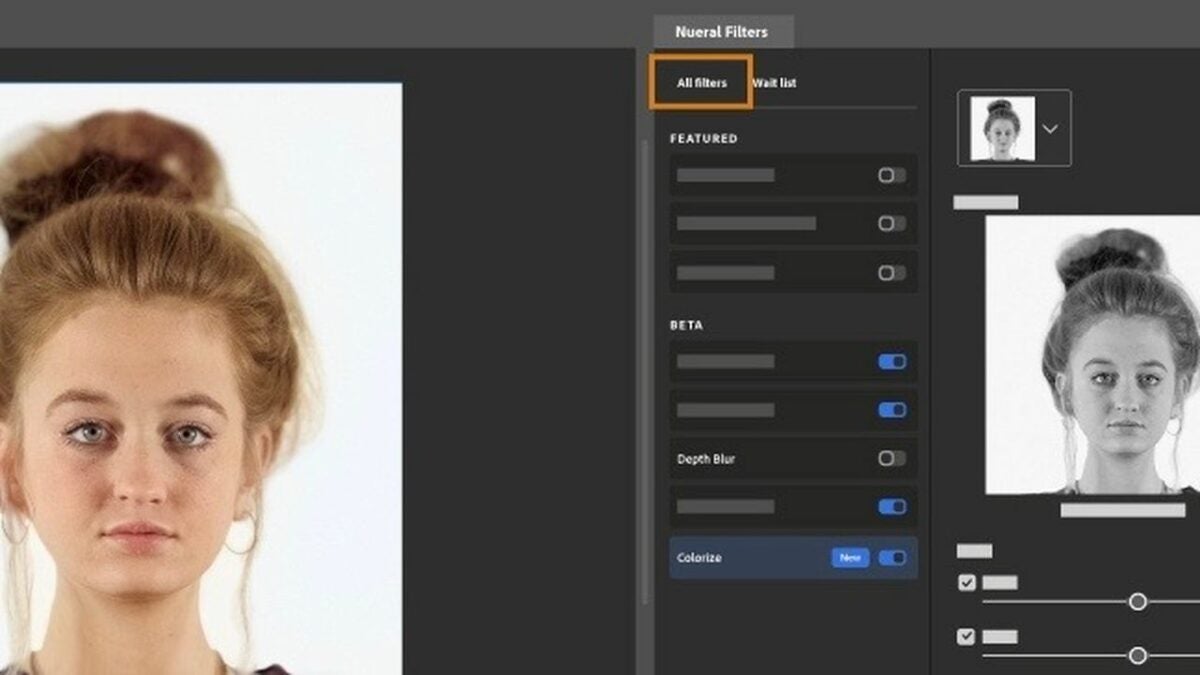
The latest filters from Adobe for portrait photography are consistent insofar as they’re irreproducible by other photo-editing applications. Unlike its competitors, the most recent filters from Photoshop allow you to achieve advanced technical results with little to no user intervention. But there’s one caveat to this. While these filters always deliver uncannily realistic results, at second unwitting spectators invariably notice something peculiar about your subject’s expression.
Industry experts and insiders describe such a reaction critique as “beta.” This means the filters are not complete, and the developers are still sorting out the finer details. As you subscribe to Adobe’s Cloud services, expect these inchoate machine-learning features the company recently introduced to improve drastically over a short time. Also, while a few excellent filters are already part of the current repertoire, filters like Skin Smoothing and Light Adjustor, for example, not all of the new neural filters are quite as advanced.
What are Photoshop’s best neural filters?
Skin Smoothing is a highly advanced filter that saves users time. Until now, fashion-orientated portrait photographers have relied on a technique called “frequency separation” for maximum control over the delicate textures and colors in their images. In past times, when the photographic medium was strictly celluloid, the equivalent photo editing process was known as “retouching.” Frequency separation entails the use of multiple tools, blurs, brushes, and several layers to render professional, high-end-looking images while Skin Smoothing can produce these results right off the Cloud in a single click.
The two other impressive filters, Light Adjustor and Refine Hair are powerful filters that professional photographers and editors resort to frequently. Light Adjustor creates an image that looks like you were moving a physical light source around your subject on location. Refine hair also helps speed up the workflow by allowing you to fine-tune how you select your subject’s hair. While they aren’t perfect tools and won’t likely win you a coveted photo editor position at a leading agency, the two still produce stunning results in as little as one click.
Photoshop Sky Replacement
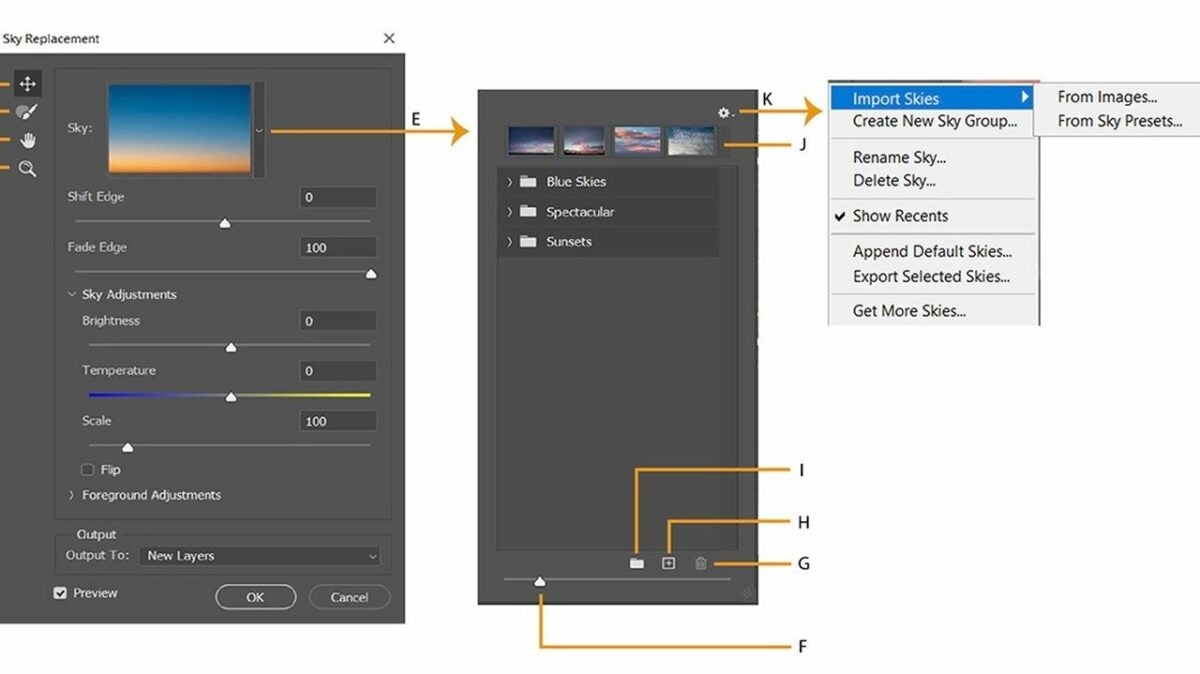
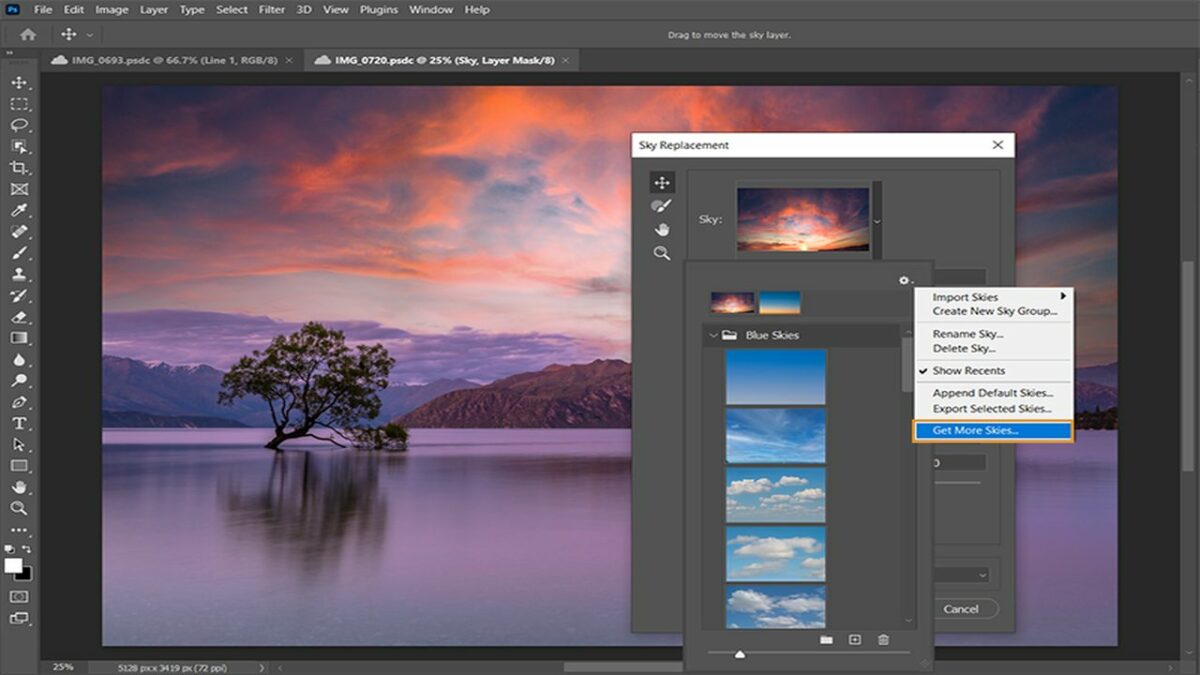
The neural filters may feel too beta for experienced Photoshop users, but another recent Photoshop feature surely won’t. Sky Replacement is decidedly one of the most advanced additions to Adobe Photoshop and any photo editor since the technology first came to pass. With Sky Replacement, you can choose your preferred sky from a series of preset options, or you can customize one of your own.
When you deploy this feature, Photoshop automatically detects the horizon of your image, masks it for you, and drops in your new dynamic sky. Sky Replacement also detects and adjusts white balance to ensure that your insert properly blends with your image. The one drawback to this feature is handling snow-capped mountains. If the peaks are set against a pale blue sky, Photoshop may fail at recognizing the minor difference in contrast and insert sky over the foreground. In this case, you’d resort to the traditional manual masking process.
Practical uses for Sky Replacement
As with many of the tools discussed here, the commercial photographer may start to feel ill at ease relying upon one-click features, especially if you’re after a unique high-end look. That said, each of these tools and features can shave quite a bit of time off your typical workflow and are extremely practical if you’re not under pressure to produce award-winning images every time.
For obvious reasons, up-and-coming real estate photographers quickly benefit from Sky Replacement, while the Discover Tab lets them remain in the Photoshop app and learn about the latest features without filtering through hours of relevant material on Google and YouTube. Likewise, the CMD+F allows you to quickly type in a keyword to search an array of high-quality instructional material on the subject.
Final verdict: Despite impressive newcomers, Photoshop reigns supreme
Photoshop has been leading the desktop photo editing industry since 1990, and its cloud-based service has only amplified its quest to continue innovating on behalf of its oldest and newest users alike.
Photoshop’s color management, layout handling, precision selection tools, neural tools, and new automated features leave the software handily unrivaled in 2022. If you are semi-professionally handling a lot of images for your small business, Photoshop will take your work to the level. If you’re an industry professional, it’s safe to assume you already know.
When starting from scratch, the best way to install Windows 11 is by using a bootable disk drive. This USB flash drive helps you troubleshoot common issues while ensuring a clean installation across multiple PCs when you’re offline. When your hard drive is empty, booting your computer with Windows 11 USB installation media is the only approach.
You can create a USBflash drive to install Windows 11 through multiple methods. The easiest way to render the installation media is by using Microsoft’s Media Creation Tool. However, Command Prompt presents another strong alternative. In this guide, you’ll learn how to install Windows 11 using Command Prompt.
Getting started: download the Windows 11 disk image (ISO)
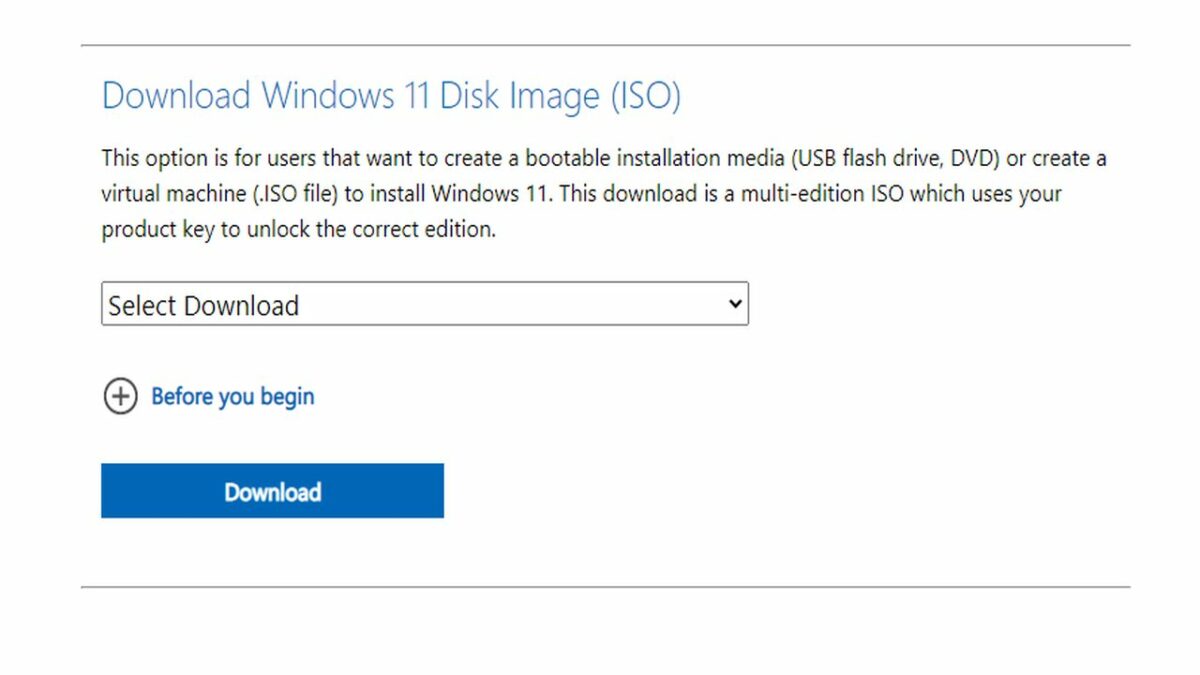
Downloading Windows 11 to a bootable USB drive requires a Windows 11 ISO disk image file. This file type is more commonly known as an ISO image. Before you create your bootable installation file onto a USB flash drive or DVD, you’ll need Microsoft’s multi-edition ISO downloaded to your device. To download the Windows 11 ISO to your PC, follow these steps:
– Scroll down and locate the section titled Download Windows 11.
– Access the dropdown menu and click on Windows 11.
– Now, click on the Download icon to proceed.
– The page will prompt you to select the product language. Choose your preferred language, and click Confirm to proceed.
– The above step loads the section where you choose the 64-bit download icon.
– Wait for the Windows 11 ISO download to finish.
Installing Windows 11 with Command Prompt
Using Command Prompt to install Windows 11 is the best choice for those who want to avoid the use of a third-party tool to use create a bootable drive. Command Prompt allows you to deploy the Diskpart Utility function to establish the required installation media. Here’s the process:
– Back up all files on your USB drive before connecting it to your device. Remember, you will be wiping your memory when you reinstall the OS.
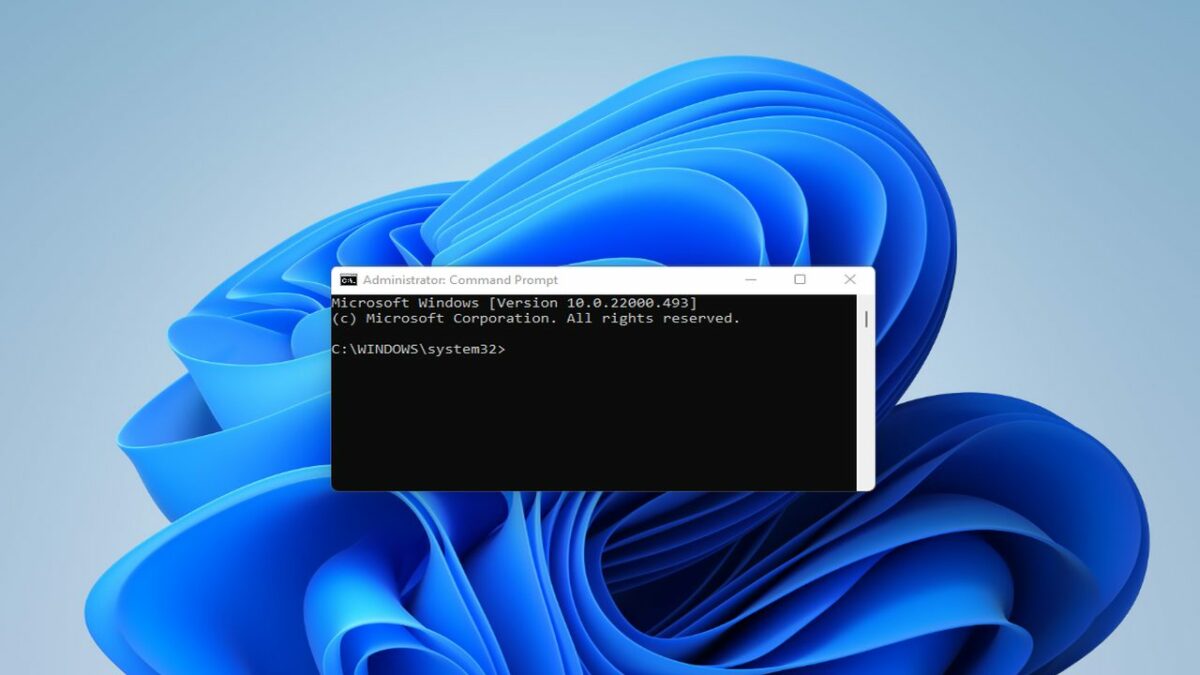
– You’ll need to run Command Prompt. The quickest way to do this is by typing CMDinto your Windows search or Start. You’ll then select Run as Administrator to run Command Prompt.
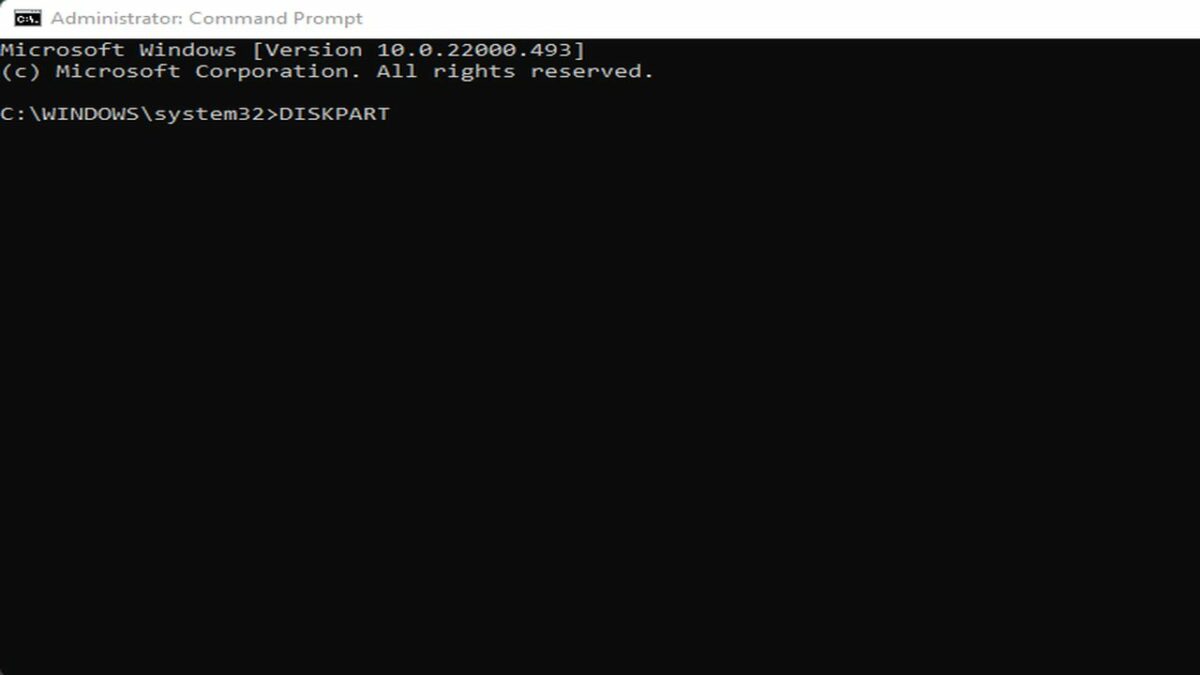
After the Command Prompt window appears, enter the following command: “DISKPART”.
– Now, type “ENTER”to launch Windows Diskpart Utility.
– Type “LIST DISK”in the Disk Utility window. This command displays the available storage devices.
– Find your USB drive among the storage devices listed. If the flash drive is not immediately visible, search under the size column to locate it by identifying the size of your disk.
Let’s assume for illustration purposes that the drive is labeled Disk 2. Type “SEL DISK 2“ into the Disk Utility window. This command selects your drive.
– Now, change the DISK 2 command above with the number corresponding to your USB drive. If you’re running an SSD or SATA set up, your primary drive will display as “DISK 0″. The USB drive appears as “DISK 1″. Choosing the correct drive in this step is vital because the following procedure wipes the selected drive clean.
– After renaming the drives, type “CLEAN” to eliminate all content from the drive.
– Next, enter “CREATE A PARTITION PRIMARY” into the Command Prompt window.
– Now, enter “LIST PAR” to choose your main partition.
– Command Prompt will now detail your USB drive information.
– After this data appears, type “DRIVE” and press enter to activate the partition.
– Now enter: FS=NTFS LABEL=“BootableUSB” QUICK OVERRIDE. This command formats your USB drive in NTFS format to avoid parameter errors.
After completing this command, type “EXIT” and press enter to take yourself out of Disk Part Utility.
Mounting the ISO image
The final step is to mount the ISO image by transferring its content to your USB drive. To do this, follow these next steps:
– In Diskpart, type: PowerShell Mount-DiskImage -ImagePath “C:\Users\UserName\Downloads\Win11_English_x64v”.
– Now, change the file path above to reflect the location of your Windows ISO.
– After the ISO mounts, enter the following command: “DISKPART”. This launches Diskpart Utility again.
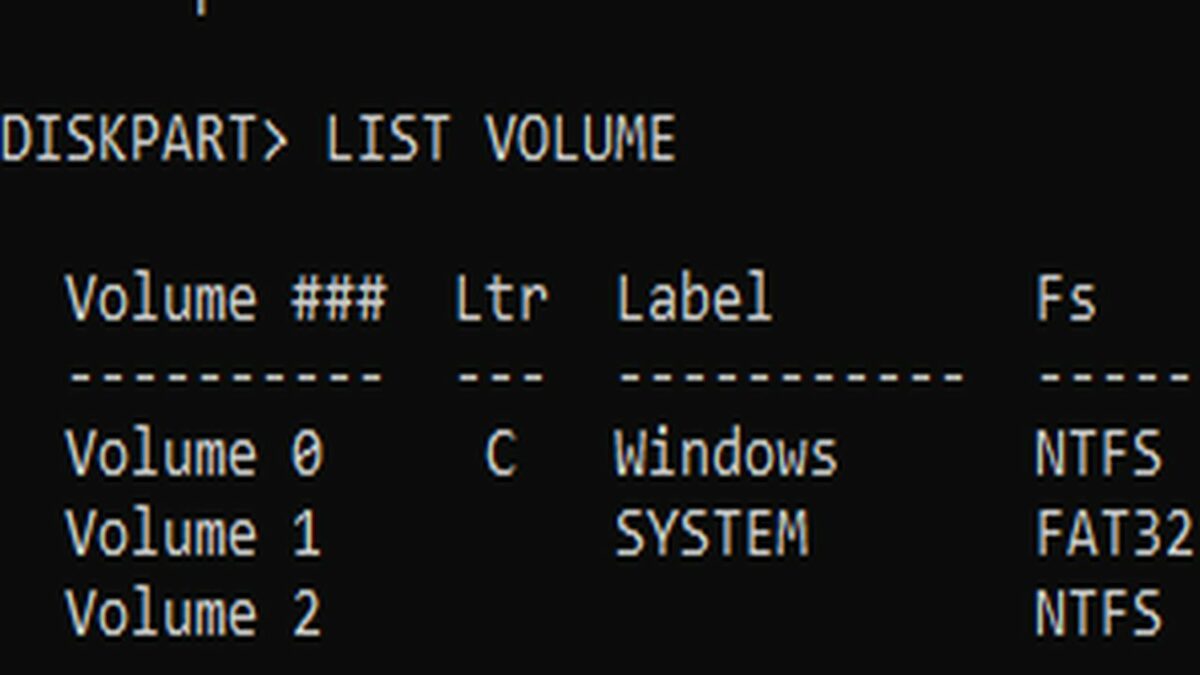
– Type “LIST VOLUME” to display the available volume.
– Listing the volume allows you to determine the Drive Letter for your mounted ISO. It displays as DVD-ROM. Ltr Column provides the letter that corresponds with the appropriate volume. Record the details of the ISO volume so you can move it forward accordingly.
– Next, type “EXIT” to leave Diskpart.
– Enter the Mounted ISO letter associated with the correct list volume. If your ISO volume letter is K, then type K.
– Type “CD BOOT”.
– Enter the following command: “Bootsect /nt60 I:”
– Replace the command above with K (or whichever letter corresponds with your USB flash drive).
– Type “xcopy K:\*.* I:\ /E /F/ H”
Next, you’ll need to replace K and I in the command you just entered above. Replace letter K with your Mounted ISO Volume and letter I with your USB Drive Letter.
Assuming you’ve entered all of the above commands accurately, you’ll see a message appear that reads “Files Copied“.
Wrapping up
Microsoft provides a seamless installation process for creating installation media through its Media Creation Tool. Command Prompt, however, is another reliable alternative for rendering a Windows 11 Bootable USB drive quickly.
Both the Media Creation Tool and Command Prompt will provide a clean install of Windows 11 on any new PC. They also help troubleshoot common Windows OS issues and several other problems associated with dual-booting Windows 10 with Windows 11.
High contrast, varying light sources, and video noise account for the biggest obstacles when it comes to capturing night footage. Fortunately, Adobe Premiere Pro offers some of the most advanced color correction effects available in the consumer and professional markets.
Adobe makes color correction easy by providing effects and tools that allow you to fix video captures directly on the timeline. They work just like standard effects, except Adobe’s color effects allow for fine color and luminance corrections to ensure vibrant, matching footage while optimizing your camera’s dynamic range. Below, we explain how to grade your night stock for optimal results.
Start by enhancing your night footage in Adobe Premiere Pro
Capture your best night footage
Proceed to upload the nighttime stock to your hard drive before launching Adobe Premiere Pro.
Create your first Adjustment Layer
Once you have the project set up in Premiere Pro and the clip is in your timeline:
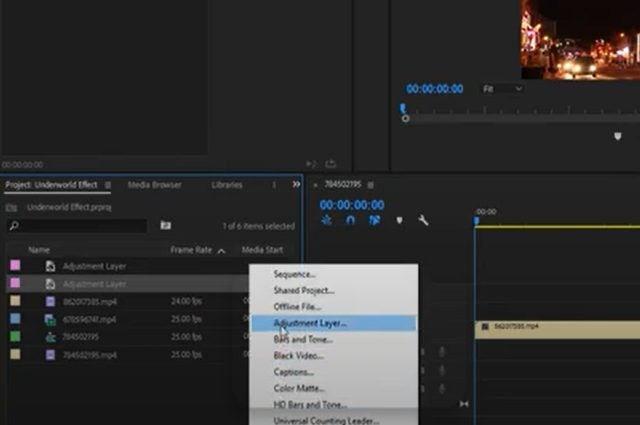
– Navigate to File at the top left and drop down
– Scroll the mouse to New
Find Adjustment Layer and Open
Locate the Effects Control tab
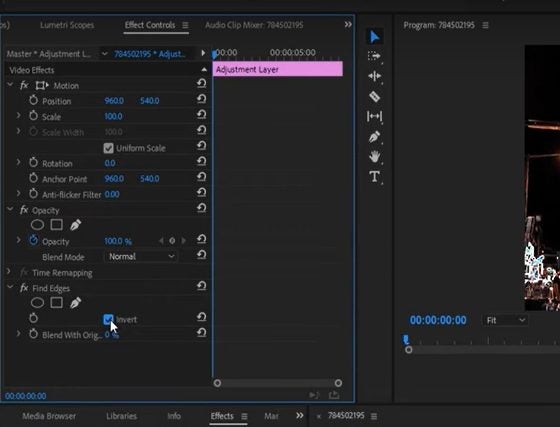
Find the Effects Control tab on the clip you’re working within the timeline and right-click on the effect.
Select and enable the Find Edges effect
At this point, you’ll see multiple effects options. The Edges Effect falls just beneath the standard Video Effects and Stylized Effects. Drag and drop this effect onto the new Adjustment Layer you’ve already created. Now, select the box adjacent to Invert.
Locate Opacity in Effects Controls
Underneath Opacity, locate the Screen Mode. Switch from Normal to Screen Mode.
Enable Tint
Return to Effects. Find Tint and apply it to the new Adjustment Layer by dragging and dropping.
Navigate to Map White in Premiere Pro
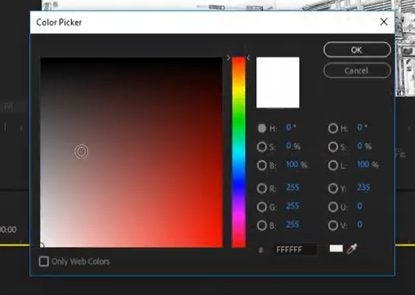
Under effects controls, locate Map White. Now, pull up the Color Picker tool to select a particular color.
Blend the image
Under the Find Edges effect, look for an option called Blend. Next, Blend the edges with the original image with a setting no greater than 20%, so you don’t lose any fine details.
Use the Camera Blur effect
Drag and drop the Camera Blur effect into the night footage clip on your timeline. After applying this effect, bring the Opacity down somewhere closer to 80%.
Create a copy of your Adjustment Layer
Once you’ve duplicated you layer, delete the Camera Blur. Find Tint again, and set it to a color on the red spectrum to enhance the image. In the duplicate layer, lower Opacity to below 20%.
Now you can grade your nighttime video
Remember, if you’re grading an image for the big screen, the above grading procedure in Adobe is far more advanced. But if you’re simply creating online content or you need a quick insert for your video, follow these easy steps:
1. Find Lumetri Color
In the basic correction effects, open Lumetri Color and apply LogC2Rec709.
2. Adjust color and contrast
At this step, you can quickly adjust highlights, shadows, whites, and blacks along with your white balance until the image improves.
3. Choose the Fuji Eterna 250D effect
Continue to manipulate with your correction settings to Fuji Eterna 250D effect until the video looks vibrant.
In closing
Color grading for professional video is an advanced procedure and specialized career in itself. There are many, many more color correction features to unlock in Adobe Premiere Pro. However, the above techniques offer a relatively easy and fast way to produce fantastic-looking night shots.
Apple devices are less exposed to threats, which is one reason why their apps tend to behave well most of the time. Nevertheless, iOS apps occasionally become unresponsive, leaving users unable to access functions or regular quit options. In times like these, the best option is to use Force Quit.
Years ago, the only way to deal with a non-responsive app was to initiate a hard shutdown, potentially compromising the system. This was especially true of older computers. Force quitting, however, provides a convenient workaround on all Apple devices. The function is effectively a shortcut that helps you combat buggy apps without putting your valuable hardware at risk.
How to Force Quit on your Mac laptop
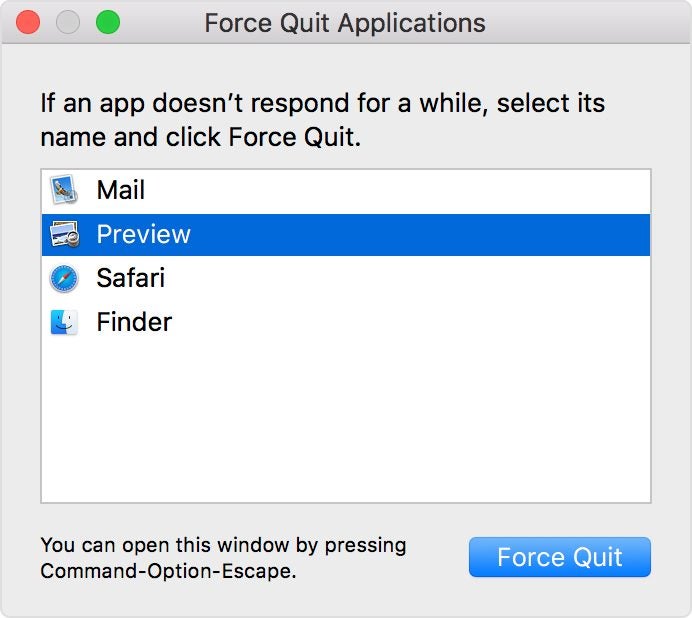
If your mouse cursor has turned into an everlasting spinning wheel of death, you’re likely dealing with a crashed application on your laptop. The best solution is to initiate a Mac Force Quit through one of these methods:
Press the Option, Command, and Esc (Escape) keys at the same time.
In the upper-left corner of your screen, click the Apple icon and then select Force Quit.
Hold down Option and right-click the icon of the unresponsive app in your Dock. You’ll then see a Force Quit action in the pop-up menu.
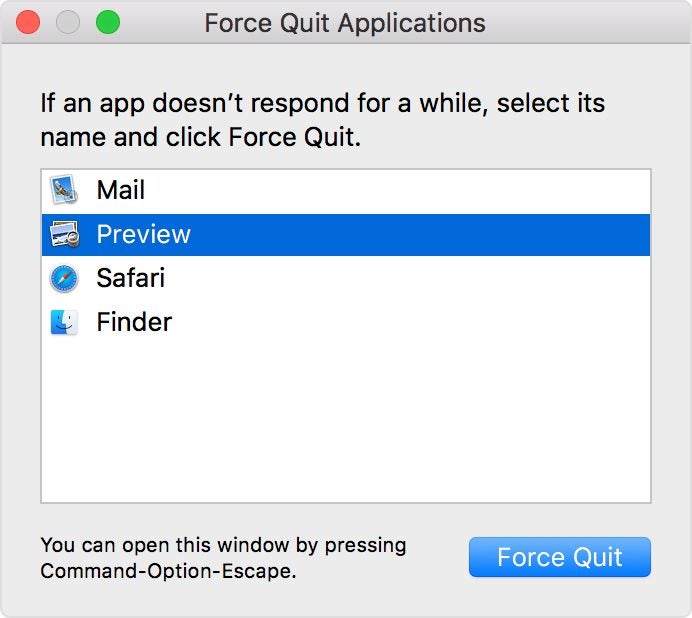
Methods one and two will reveal the Force Quit applications window. You’ll then select the unresponsive app and select Force Quit.
How to Force Quit frozen apps on iPhones
You’ll start the process of force-quitting a stuck app via the App Switcheron your iPhone. Accessing this feature varies depending on which iPhone you have and the version of iOS it uses.
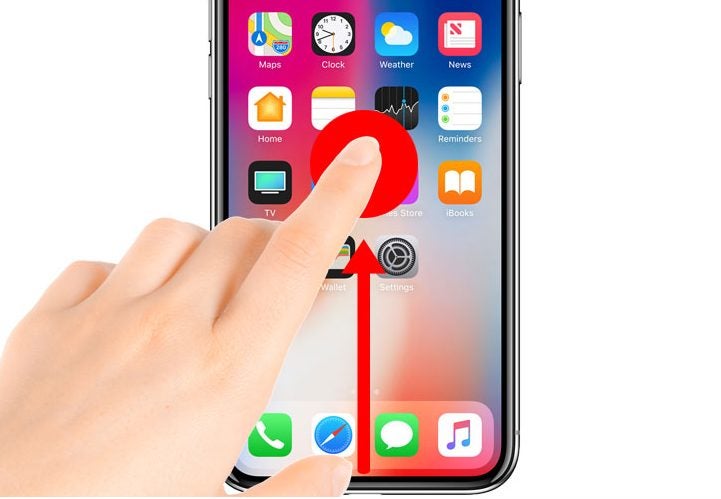
For iPhone models X and above, you will observe a notch selector at the top of the screen. These mobile devices lack the traditional home buttons found in earlier models. Here are 3 steps to Force Quit on an iPhone X and above models:
As you are in the unresponsive app, swipe up from the home bar at the bottom of the iPhone screen.
Hold your finger over the display until you see the preview of the app, moving it to the middle of the screen. Then lift your finger to open the App Switcher.
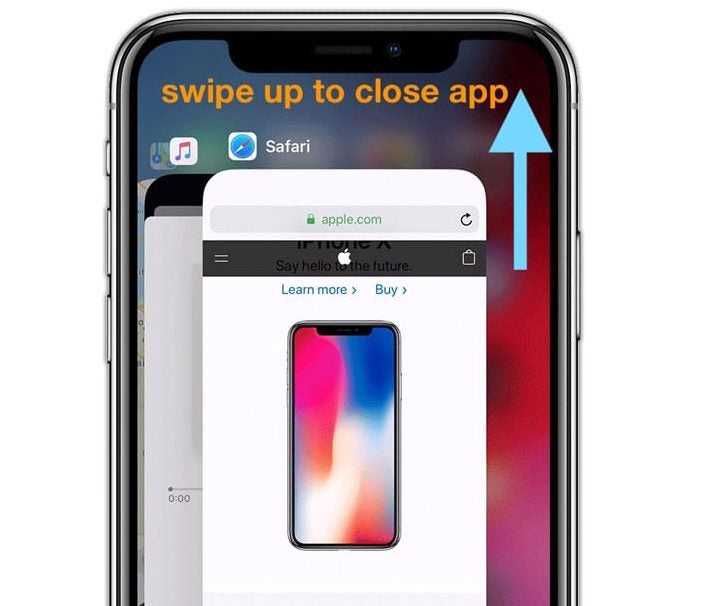
Scrolling horizontally in the App Switcher, you can find all the apps you’ve previously accessed. Swipe on the stuck app’s preview to quit the application. The app will disappear, effectively halting the program.
How to Force Quit frozen apps on iPads
The approach to force quitting an iPad is similar to the process on iPhone. However, the interfaces differ slightly.
Here is the process for iPad Pros running iOS 12, iPadOS13 or higher:
Swipe up from the bottom section of the screen toward the middle and hold for a brief second.
Upon letting go of the screen, you will encounter the App Switcher.
Select the app you want to Force Quit from the App Switcher grid to dismiss it, and complete the process.
How does Force Quit work?
When an app closes on an iPhone or iPad, it continues to run in the background. Many users are unaware that they are essentially pausing the app so that it demands less CPU. This ensures the optimal function of the device.
Poor performing applications freeze and become stuck before rendering themselves unusable. In this case, the Force Quit command is the only option aside from initiating a hard shutdown procedure.
Is force quitting safe for my device?
Force quitting a stuck application is the safest way to resolve an unresponsive application and prevent the issue from happening again. Frozen applications in Apple devices are predominantly attributable to insufficient RAM.
Devices short on memory (RAM) can support a limited number of applications, including those that remain open in various tabs or windows. The system will become unresponsive anytime its available memory resources are close to maximum capacity.
RAM is like your workbench in the sense that it outlines how much space that is available for work. If you have too many projects crowding up your bench, you won’t be able to work on anything at all.
Once you’ve Force Quit the app, you can access it again from the home screen or your applications folder. If it’s a trusted app, it should reload and work like new.
One of the most important features of Adobe Acrobat Pro is the ability to create a digital signature. Also called a digital ID, it offers the highest level of security and compliance through signer identity authentication and signature encryption.
Digital signatures are often required in highly regulated industries with legal documents that must guarantee the signer’s identity. This differs from an electronic signature, which requires less authentication but is still acceptable for most types of documents. You can create and use both types of signatures in Adobe Acrobat Pro.
How do I create a digital signature in Adobe Acrobat?
While a digital signature needs extra authentication via password protection, Adobe Acrobat Pro makes the process easy. We’ve boiled it down to these five quick steps:
Navigate to preferences
After you’ve opened Adobe Acrobat Pro, select Preferences from the Edit menu at the top of the screen. You’ll then click Signatures from the list of categories to the left.
Add your ID
In the box titled Identities and Trusted Certificates, click More. A small window will appear; click Add ID. In the next window, select A new digital ID I want to create now, then click Next.
Choose where to store your ID
You’ll have two options for storing your digital ID: New PKCS#12 Digital ID File or Windows Certificate Store. A digital ID file can be used on both Windows and Mac OS. By choosing Windows Certificate Store, you will store your digital ID to a common location where it will also be available to other Windows applications.
Create your signature
In the window that appears, enter the information asked, including your name and email address, while leaving the default options for Country/Region, Key Algorithm, and Digital ID. After you click Next, another window will appear. Leave the file name untouched, enter a safe password for your digital signature, and click Finish.
Use your saved signature
You’ll find your digital signature saved in the Digital ID and Trusted Certificate Settings. To use your signature within a document, simply select File > Open > Sign > Place Signature. You’ll then be able to drop the signature in the document wherever you want.
Adobe Acrobat Pro makes digital signatures easy
Adobe Acrobat Pro is used to convert images, PDFs, and other scanned files into more manageable documents that can be edited and signed without a pen or paper. While Acrobat is generally user-friendly, the process for creating digital signatures may be confusing if you’re new to the program. By taking just a few simple steps within the program, you can create a new digital signature for all your most important documents.