Microsoft Defender for Windows, macOS, Android and iOs

Microsoft Defender for Individuals is a new cross-device security solution by Microsoft. The solution requires an active Microsoft 365 Personal and Family subscription.

Microsoft Defender DOWNLOAD

The security solution brings security protections to different device types and operating systems, such as Android and Windows.

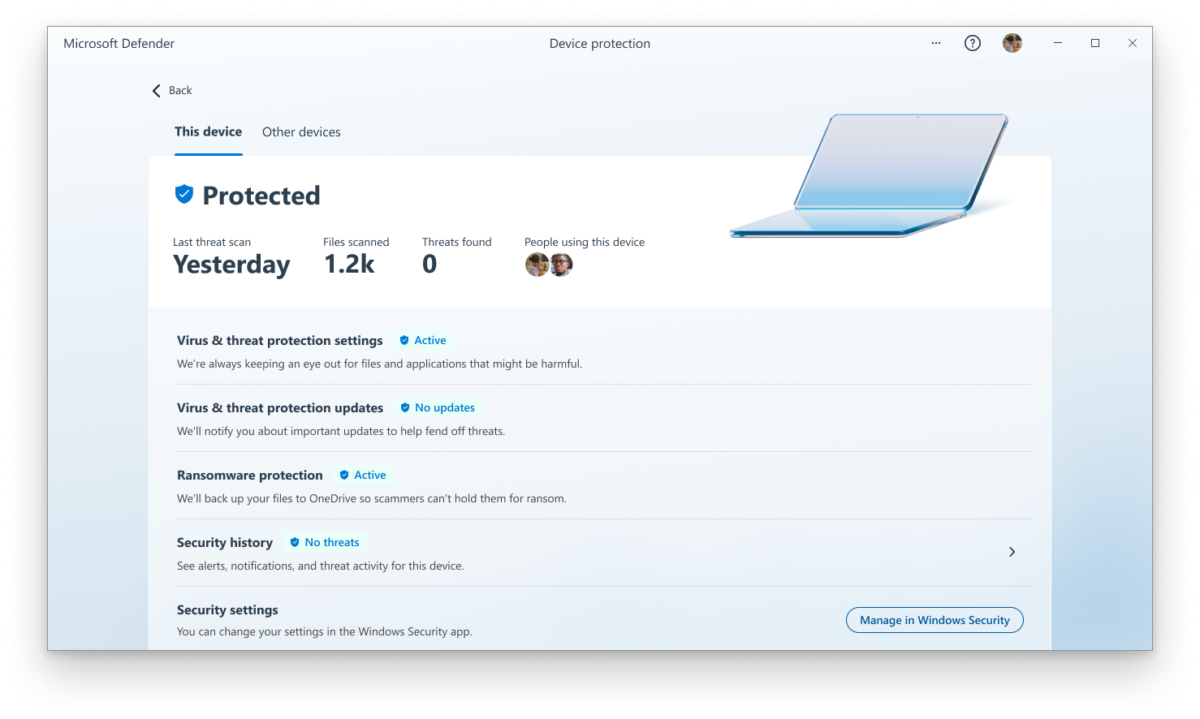
A centralized dashboard provides a view of the security of all connected devices. Security notifications inform users about threats and other issues.

Individuals and families may use different devices, for example, a Windows family computer at home, Apple iOS tablets at school, and Android smartphones. Different security solutions, which are not connected, may run on these devices.

Centralized Security Dashboard

Microsoft Defender for Individuals fills the gap according to Microsoft. Users get the security status of all connected devices when they access the central dashboard. It is important to realize that only connected devices

Parents control security on their own devices, family devices and devices of their children from that dashboard. The security solution displays the protection status of all connected devices. Notifications inform users about devices that need attention.

Customers may install Microsoft Defender on all devices to manage the security of all family devices. The standalone version of Microsoft Defender includes security protections. It protects against malware on devices that it is installed on by default, but there is one notable exception.

Microsoft highlights the following three core areas — protect, control, defend — on the Microsoft Defender for Individuals website:

Use one app for online security — Get one centralized view to manage and monitor your security status across your computers and phones

Safeguard your data and devices — Protect your family and yourself from malicious online threats with help from antivirus and anti-phishing protection you can count on.

Stay ahead of hackers and scammers — Get real-time alerts with recommended actions plus information about how to stay safer online.

Third-party antivirus support

Existing security solutions on Windows and iOS devices aren’t be replaced by Microsoft’s security solution. Third-party security solutions remain installed and enabled.

Windows users may install third-party security software to replace the default solution Microsoft Defender. Programs like Avast One Essential, Norton 360 Premium, or Trend Micro Titanium Internet Security, remain the active protection on the device.

Microsoft integrates information that these solutions provide in the dashboard.

Reporting is a key feature of Microsoft Defender for Individuals, but it is not the only feature that is available in the first official release. The security solution supports security notifications, which inform users about issues that need attention.

A notification warns users about new threats found on a managed device. It is important to realize that access to devices may be necessary to deal with reported threats.

Security tips and expert advice is another feature of Microsoft 365 for Individuals. The feature is available on Windows and Mac OS devices only at the time.

Microsoft Corporate Vice President, Security, Compliance, Identity, and Management Vasu Jakkal revealed that Microsoft plans to add more protections to Microsoft Defender for Individuals in the future.

This is just the start. As we look forward, we will continue to bring more protections together under a single dashboard, including features like identity theft protection and secure online connection

Microsoft Defender for Individuals downloads

Microsoft’s new security app supports the operating systems Windows, macOS, Apple iOS, and Android.

Here is the list of official download links:

All versions require an active Microsoft 365 Personal or Family subscription. While it is possible to install the programs and apps without one, it is required to use a Microsoft Account.

Installation of the application on a device and the linking to a Microsoft 365 account integrates the device automatically.

Microsoft Defender runs scans malware scans on devices to protect them against threats.

Closing Words

Microsoft Defender for Individuals provides malware protection on devices that it is installed on, but its greatest strength is the centralization of security reports in the management dashboard.

The solution is not available for Linux at the time of writing, but support for Windows, macOS, Android and iOS should protect the devices of most families..

All things considered, it may improve the manageability of security on devices for individuals and families.
Set up Microsoft Defender for maximum protection

Microsoft Defender is the default Windows security solution that protects Windows PCs and devices against different threat types. Windows users may install third-party security solutions such as Avast One Essential or Bitdefender Total Security on their devices to replace Microsoft Defender. Microsoft Defender is the active security solution for most users.

The security software blocks some threats in its default configuration. It blocks, for instance, malicious software, file downloads with malware, and some exploits. Windows users may configure Microsoft Defender to protect their devices against additional threats, such as ransomware, malicious code injections, and potentially unwanted applications. These protections improve the security of the Windows device.

Ransomware Protection in Microsoft Defender

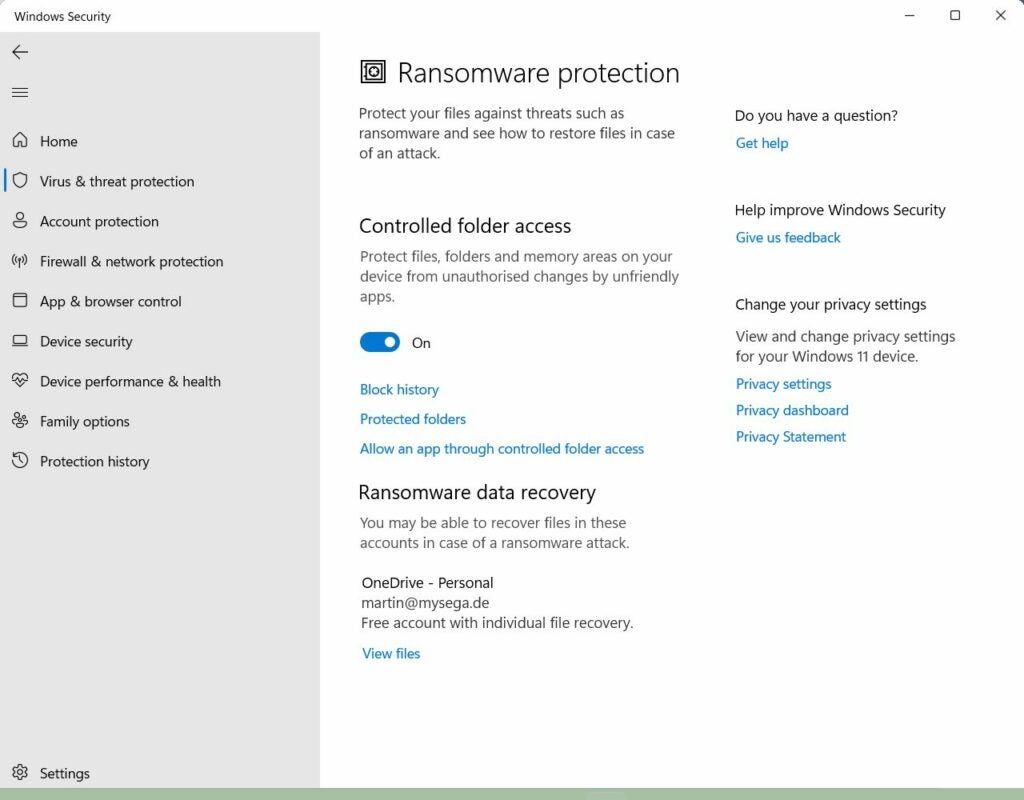
Ransomware attacks encrypt data on a user’s device for ransom. Microsoft implemented Controlled Folder Access in Microsoft Defender to counter this threat. The feature protects files, folders and memory areas on Windows devices against unauthorized changes.

Here is how you enable Ransomware Protection on Windows 10 and 11:

  1. Select Start and then Settings, when the Start Menu opens.
    • On Windows 10, navigate to Update & Security, then Windows Security, and activate the Open Windows Security button on the page.
    • On Windows 11, navigate to Privacy & Security and activate Windows Security. Select Open Windows Security on the page that opens.
  2. Open Virus & Threat Protection in the Windows Security program window.
  3. Scroll down to Ransomware Protection and activate the Manage Ransomware Protection button.
  4. Toggle the Controlled folder access preference on the page that opens.
  5. Confirm the UAC security prompt.
microsoft defender ransomware protection turned on

Ransomware Protection is enabled at this point. Microsoft Defender protects a set of default folders automatically, for example, the folders documents, Pictures, Favorites and Videos. You may add custom folders. Click on the protected folders link on the Ransomware Protection page in Windows Security.

Confirm the UAC prompt that is displayed and activate the “add a protected folder” button; this adds the selected folder to the protected folder’s list. You may select multiple folders.

Some applications may no longer be able to access protected folders as a result. The “allow an app through controlled folder access” option gives you options to add apps to the allow list. These programs gain access rights immediately in that case.

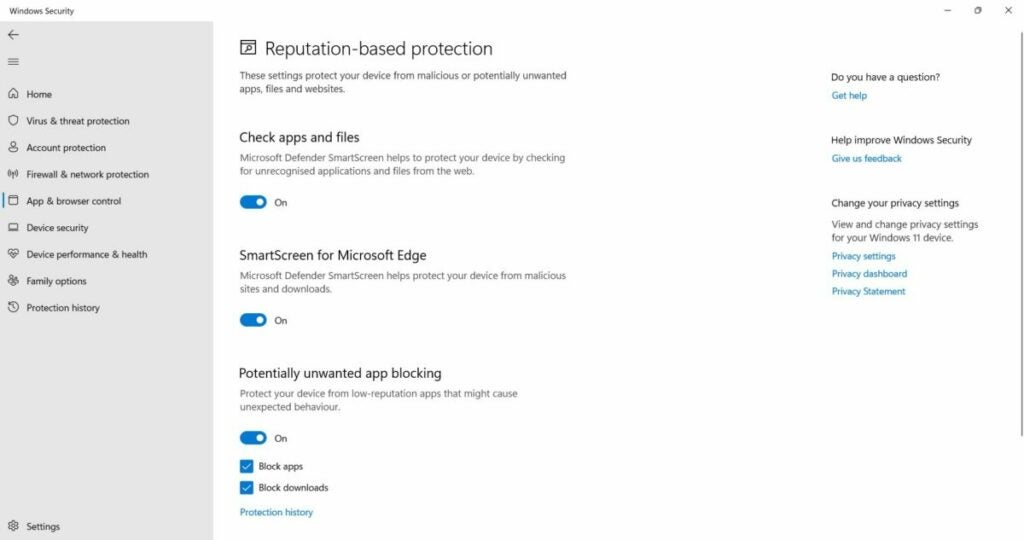
Reputation-based Protection — Potentially Unwanted Applications

Windows Security uses some reputation-based protections by default, while others are disabled.

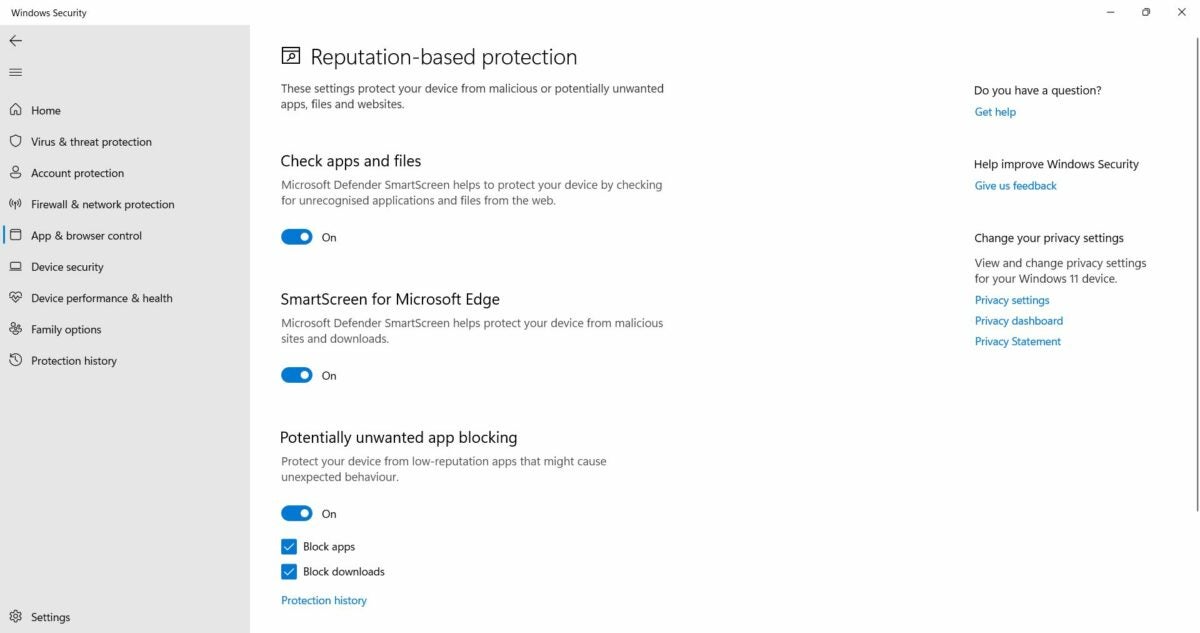
Microsoft Defender SmartScreen protects against unknown files and applications on the device. SmartScreen protects against malicious sites and downloads in Microsoft Edge, and furthermore against malicious web content that Microsoft Store applications use.

SmartScreen does not block potentially unwanted applications or files by default, as the feature is turned off by default.

Potentially unwanted apps, or PUPs, are programs that may cause unexpected behavior, for example, through undesirable reque

Do the following to enable the protection:

  1. Follow step 1 under the Ransomware Protection instructions to open Windows Security on the device.
  2. Open App & browser control.
  3. Activate the Reputation-based protection settings link on the page that opens.
  4. Toggle the switch under “Potentially unwanted app blocking” so that its status is on.

Windows Security blocks potentially unwanted apps and file downloads from that moment on. The feature supports options to allow certain file downloads and program executions.

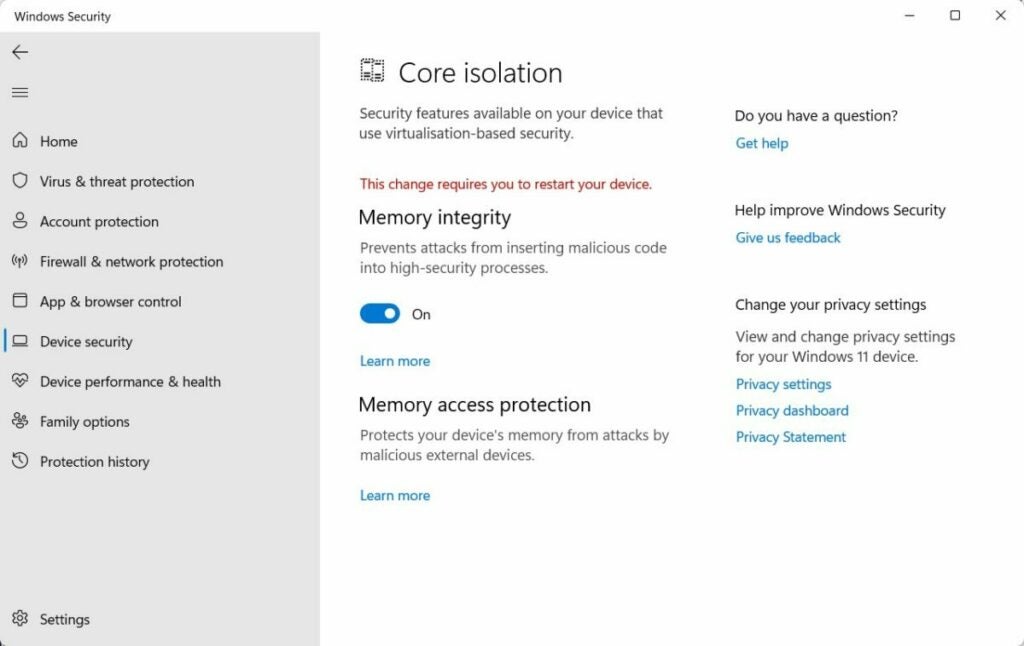
Memory Integrity protection

Memory integration is a core isoltation feature that protects high-security processes against the insertion of malicious code. The virtualisation-based security feature may not be available on all devices, and it may be enabled on some Windows 11 devices already.

The feature isolates important processes in a virtualized environment to protect them against manipulation.

Here is how you check if Memory Integrity is enabled:

  1. Follow step 1 under the Ransomware Protection instructions to open Windows Security on the device.
  2. Go to Device Security and activate the Core Isolation details link on the page that opens.
  3. Switch the Memory Integrity preference to On to enable the feature.
  4. Confirm the UAC prompt that is displayed when you do that.
  5. Restart the PC.

In summary, all three security features improve the security of the Windows system in different areas. The activation of the features may improve the security of the Windows system on the positive side. On the negative side, activation may lead to unwanted side effects.

Microsoft Defender may block certain files or apps, even though they may be harmless.

How to check what you share on Facebook

Every now and then we lose control of our privacy settings on Facebook when we allow third party apps to access our most personal data. This is something we rarely think about reviewing. Sometimes we don’t even know which apps we are using on Facebook even though these can cause spam messaging, unwanted advertising, or phishing attacks.

Let’s have a look and make sure you don’t share more than you’d like to.

How to check what you share on Facebook

1. Look at your Facebook’s Privacy Settings

First, let’s look at your Privacy Settings to see if everything is as it should be, in terms of privacy. Go to the Apps page from the General Account Settings page to find out what apps you are currently using with Facebook. You will find the Edit button to the right of each app that displays the detail of permission allowed (by you) for these apps.

As a Facebook user, you will be surprised to discover that over the years, you have acquired a lot of apps and allowed a lot of personal information to be shared by the apps.

facebookprivacyappssettings

2. Decide what apps you allow to use your Facebook Privacy Data

Now, if you decide not to use any particular app anymore just click on the ‘X’ sign on the right of the app. Please note that this will only stop the app from collecting additional data but it still has the info you already shared earlier.

3. Decide what you is shared to your friends

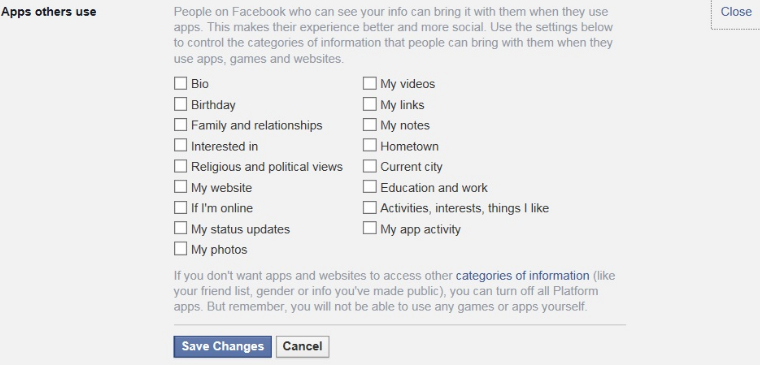
The Apps page also tells you how much information is accessible through your friends’ activities. Go to the Apps others use window and you will find a category page with 17 different types of information. This includes everything from your videos, photos, religious views to relationships and political views. It is always recommended that you only share the basic information to these 3rd party apps.
So, even if you think that you are in full control of your Facebook privacy settings things may go wrong at times. In order to avoid any unwanted incident, you just need to more be careful while using third party apps.

Cybersecurity: If You’re a Windows User, Update NOW

The recent cyber attacks show that security is an issue we should not take lightly. In just a few hours we have heard lots of lingo, talk of different security patches and versions and you may be wondering if you’re safe or not. This article will help you sort out your own personal security situation.
You might be interested in:

7 super simple actions you can do every day to improve your computer security
Avast antivirus
Windows Defender
Choose your antivirus

How to Quickly Level Up in Pokémon GO

Want to know how to level up quickly in Pokémon GO? Curious about how to unlock the newest features on each of the levels? Do you want to be sure that you’ll be able to beat other Pokémon trainers? No worries! With these tips you’ll be sure to level up faster as you race towards catching them all.

 Pokémon Go - Beginner's Guide Pokémon Go – A Beginner’s Guide
Don’t Forget to read our beginner’s guide for Pokémon Go to catch’em all
Read Here

Pokémon Go is different than classic Pokémon games and one of the most important differences is that Pokémon GO isn’t centered around making Pokémons level up, but rather you leveling up as a trainer.

Check out Pokemon Insurgence

When you carry out different actions on Pokémon GO you gain experience, level up and get rewards, in addition to unlocking new game features. For example, on Level 5 you can unlock gyms, potions and the ability to revive Pokémons. And the game gets really fun when you level up to unlock battles.

On Level 8 you can unlock Razz Berries, which you can use to trap Pokémons with greater ease. On Level 10, super potions appear and on Level 12 you have the option of getting Great Balls, which help you in making sure far less Pokémons get away from you. In the next few levels you can unlock the egg incubator, the Hyperpotions and many other surprises.

To reach these levels faster, here are a few quick tips for levelling up your Pokémon Go trainer.

Catching Pokémon

Well, it seems obvious that you must catch Pokémon to level up. But catching Pokémons, as far as getting experience points goes, isn’t about just getting your hands on one. There are a few ways to earn experience; you get 100 experience points for catching a Pokémon and 500 points more if you register your Pokémon in the Pokedex for the first time. But you can and should keep catching Pokémon after you’ve gotten the first one, as this will help you level up. You know all of those Zubats that keep appearing again and again? Don’t ignore them, since catching them will get you precious experience points.

pokemongocatch

Experience points are earned not only by catching Pokémon but also by throwing Pokeballs. Becoming a master at throwing Pokeballs will get you lots of experience points. A good throw will get you 10 points, 50 points for a great throw and 100 points if it’s the throw of your life. You can also get 10 more experience points if you make your Pokeball spin until it vibrates before throwing it.

Incubating eggs

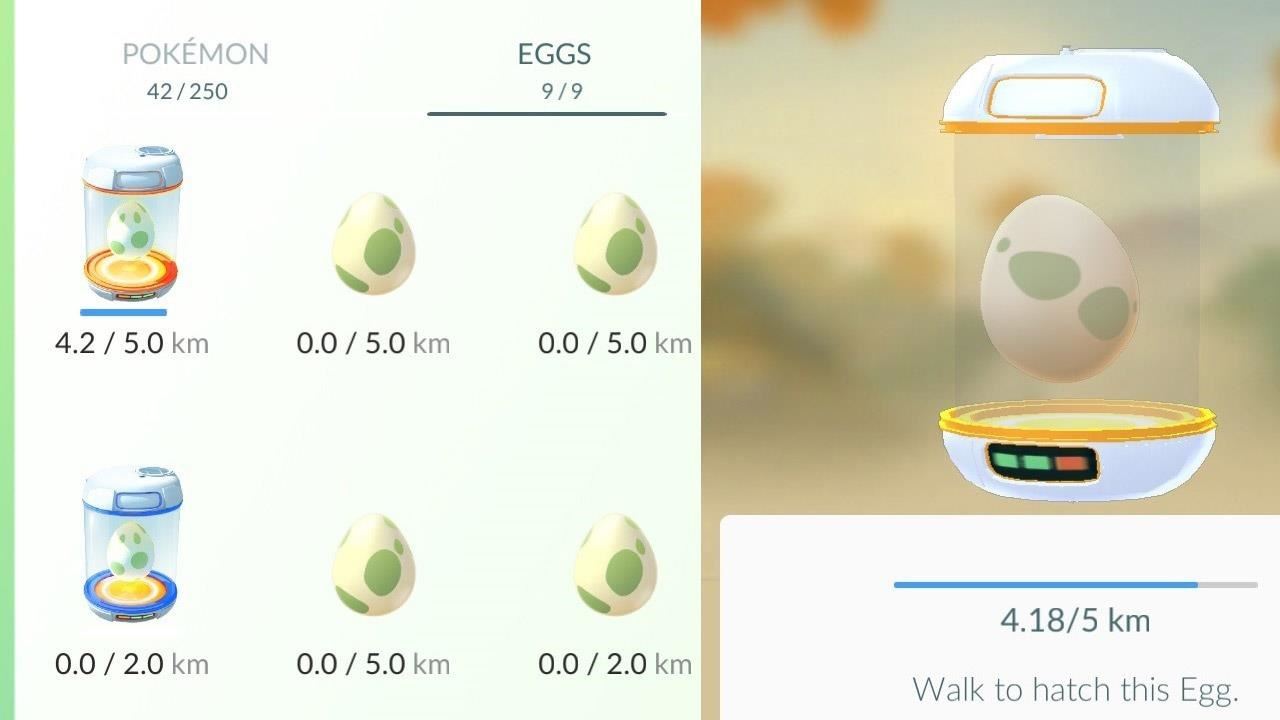
Incubating eggs is another of the activities that will get you tons of experience points, so you should take a look at the Pokémon Egg Guide we’ve put together for you.

pokemonguideincubatingeggs

How do eggs get you so many experience points? It’s basically because in order to incubate eggs you need to walk, and walking is one primary sources of experience points. For eggs that require you to walk 2 kilometers to be incubated, you’ll get 200 experience points. For the 5 kilometer eggs you get 500 points and for eggs that require more than 10 kilometers of walking (ugh!) you’ll get an amazing 1000 experience points. This 1000-point egg is where you’ll get the most experience points in the whole game.

Evolving a Pokémon

In contrast to the original game on Nintendo DS, making your Pokémon level up won’t get you more experience points. You have to focus on evolving your Pokémon, since every time you do this will get you 500 experience points for each Pokémon that you evolve.

pokemon-go-evolve

To evolve a Pokémon you must give it the right candy which, incidentally, you get by catching and handing the Pokémon over to the Professor. Unfortunately, the Professor doesn’t give you very much candy for doing this!

Visiting a Pokestop

Pokestops are, of course, really important on Pokémon GO and visiting them will afford you with many rewards, and not just in the form of objects. You’ll get 50 experience points just for visiting one, but if when you look for objects (balls or eggs) you’re lucky enough to find 6 or more you’ll get 100 experience points.

In a large city, where Pokestops abound, this is one of the fastest ways to make your Pokémon trainer level up.

pokestop

Gyms: another source of experience for your Pokémon

Another perfect place for getting experience is the Pokémon gym. At the gym you’ll get 10 experience points just for catching a Pokémon in training mode. But if you beat the Pokémon in regular mode you’ll get a whopping 100 experience points. And if you manage to beat all of the Pokémons at a gym you’ll score an extra 50 points.

The lucky egg method

You can, of course, always accelerate your experience on Pokémon Go by using the game’s micropayments. Doing so will double your experience points for an hour and a half as long as you buy them at the store for 80 coins, or you can also wait until you get to a level where you can get them as a reward. Remember that the coins can only be purchased at the Pokémon Go store.

How to use Eggs on Pokémon GO

How do I get the eggs?

Eggs are one of the rewards you get for visiting Pokestops and are one of the best objects for leveling up your Pokémon trainer.

Getting them is simple: get close to a Pokestop, tap on the symbol when you are close enough to it and then spin the symbol until you get all of the rewards. Doing this will normally get you Pokeballs and incense, but if you’re lucky you’ll also get eggs.

Pokémon Go Egg

How do I use the eggs?

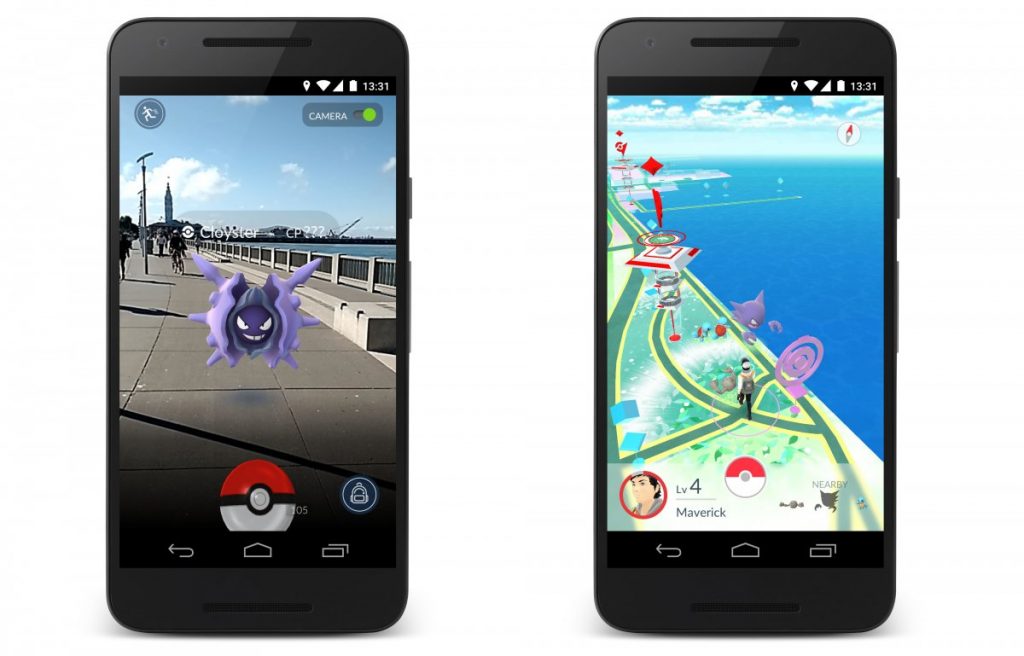
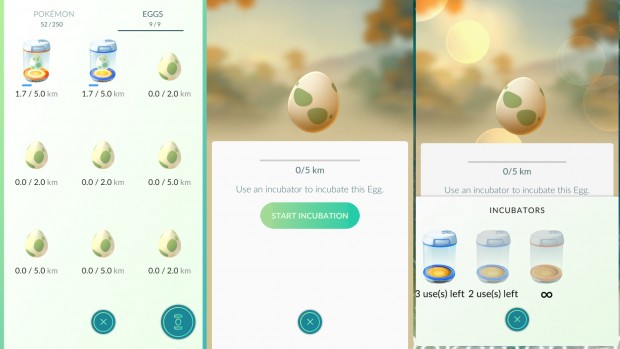
The first thing you have to do is tap on the Pokeball at the bottom of your screen, open the list of and then swipe right to find your eggs.

To start the incubation process, all you have to do is tap on the egg. After that you have to walk a certain distance (the distance needed is shown below the egg) to make the egg hatches

To do all of this, the app must be open (so be sure to charge your phone) and above all you cannot cheat. Don’t even think about driving or taking a bus to avoid walking. The good thing is that you don’t have to walk this distance all at once, so you can do it over several plays and even on different days.

How much do I need to walk for each egg?

Over a mile is the minimum distance per egg and it will take you around half an hour to do it at a moderate pace. The next Pokémon egg category will require about three miles of walking and takes between 45 minutes and an hour to do.

Incubators and Pokémon Go Eggs

The best Pokémon eggs require roughly 6 miles of walking for incubation and at least 2 hours to do. So keep your battery fully charged and consider even carrying around some portable batteries for your phone.

The big question: what kind of Pokémon will I get?

As you can imagine, depending on the distance you walk, the Pokémon you’ll encounter will be more and more rare. So if an egg requires you to walk 10 kilometers, you can expect to have a very rare Pokémon. Here’s a complete list of the Pokémon you can get according to the distance you walk.

Walking over a mile on Pokémon Go


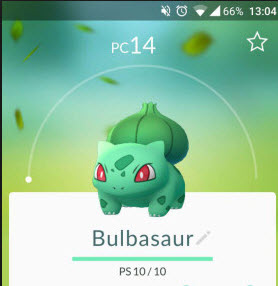
 bulbasaurpokemongo-2 001 – Bulbasaur

Type:  Grass / Poison

Evolves into: Ivysaur

 charmanderpokemongo #004 – Charmander

Type: Fire

Evolves into: Charmeleon

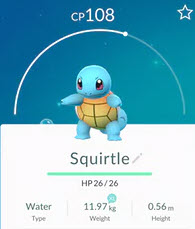
 squirtlepokemongo #007 – Squirtle

Type: Water

Evolves into: Wartortle

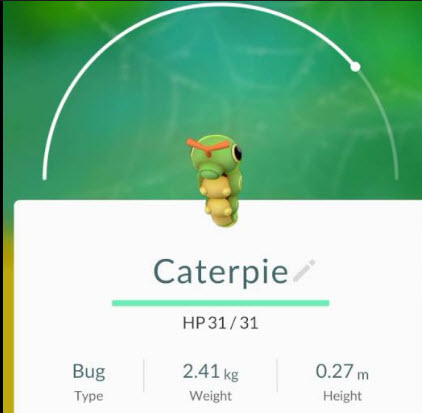
 caterpiepokemongo #010 – Caterpie

Type: Bug

Evolves into: Metapod

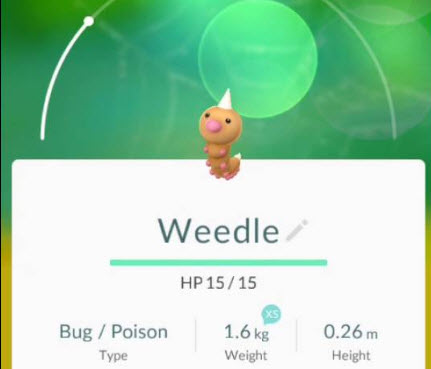
 weedlepokemongo #013 – Weedle

Type: Bug / Poison

Evolves into: Kakuna

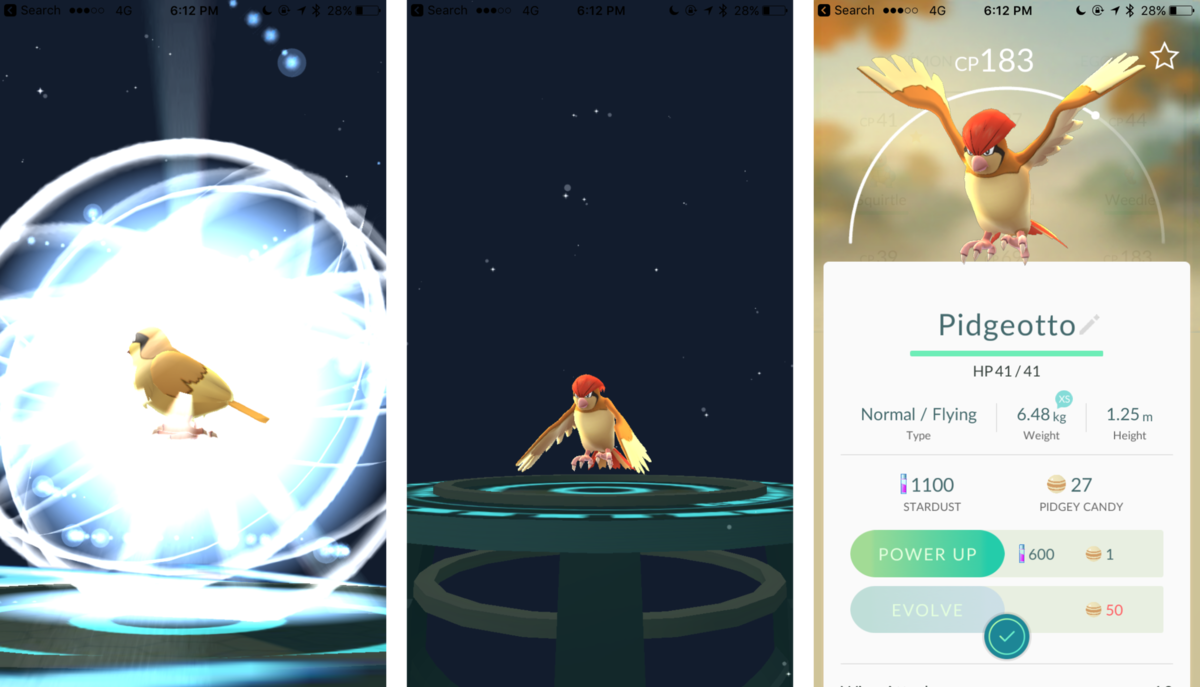
 pidgeypokemongo #016 – Pidgey

Type: Normal / Flying

Evolves into: Pidgeotto

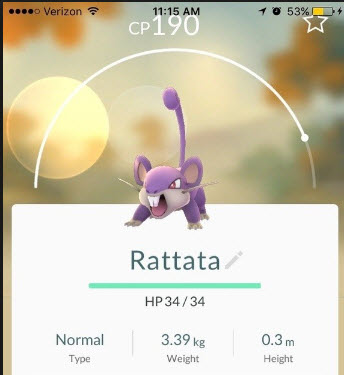
 ratattapokemongo #019 – Rattata

Type: Normal

Evolves into: Raticate

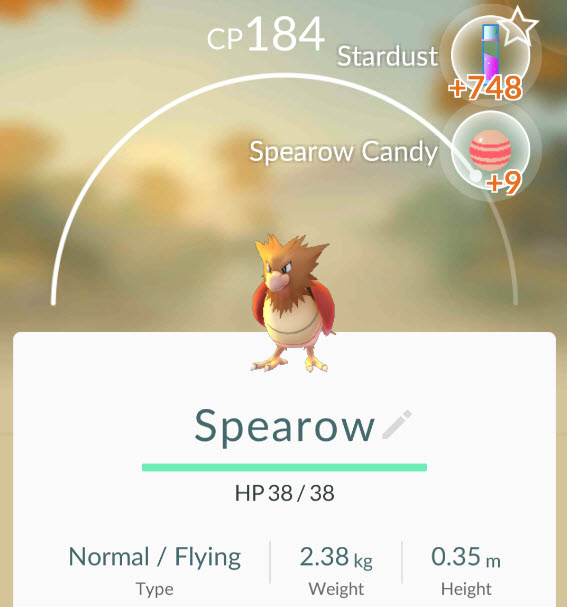
 spearowpokemongo #021 – Spearow

Type: Normal / Flying

Evolves into: Fearow

 pikachupokemongo #025 – Pikachu

Type: Electric

Evolves into: Raichu

 clefairypokemongo #035 – Clefairy

Type: Fairy

Evolves into: Clefable

 jigglypuffpokemongo #039 – Jigglypuff

Type: Normal / Fairy

Evolves into: Wigglytuff

 zubapokemongo #041 – Zubat

Type: Poison / Flying

Evolves into: Golbat

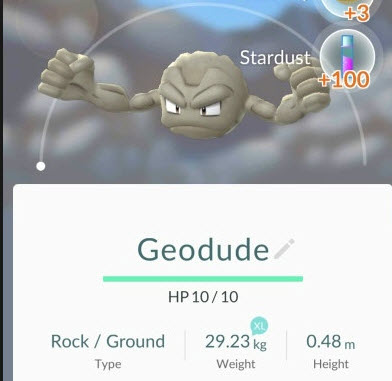
 geodudepokemongo #074 – Geodude

Type: Rock / Ground

Evolves into: Graveler

 magikarppokemongo #129 – Magikarp

Type: Water

Evolves into: Gyarados


Walking about 3 miles on Pokémon Go


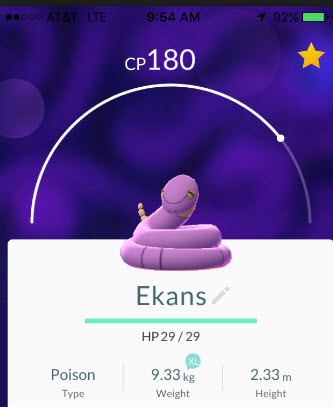
 ekanspokemongo #023 – Ekans

Type: Poison

Evolves into: Arbok

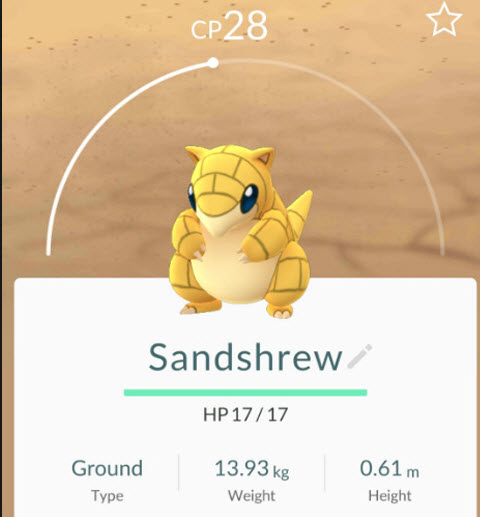
 Sandshrewpokemongo #027 – Sandshrew

Type: Ground

Evolves into: Sandslash

 nidoranfpokemongo #029 – Nidoran F

Type: Poison

Evolves into: Nidorina

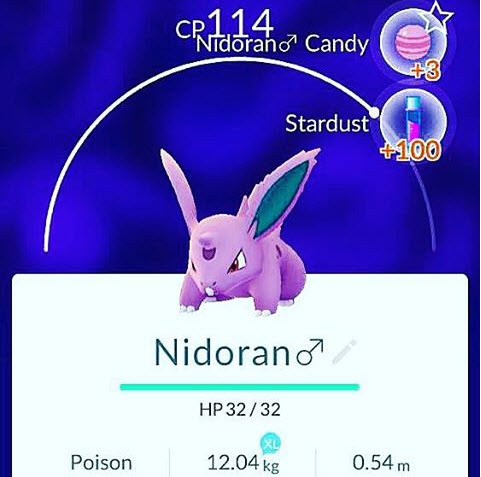
 nidoranmpokemongo #032 – Nidoran M

Type: Poison

Evolves into: Nidorino

  vulpixpokemongo #037 – Vulpix

Type: Fire

Evolves into: Ninetales

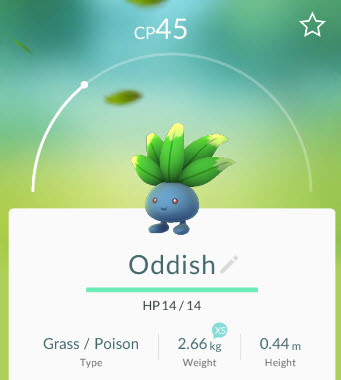
 oddishpokemongo #043 – Oddish

Type: Grass / Poison

Evolves into: Gloom

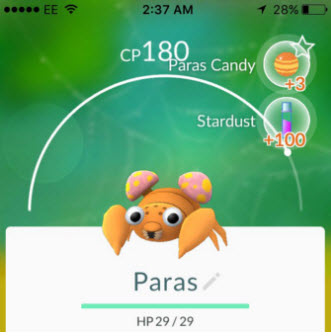
 paraspokemongo #046 – Paras

Type: Bug / Grass

Evolves into: Parasect

 venonatpokemongo #048 – Venonat

Type: Bug / Poison

Evolves into: Venomoth

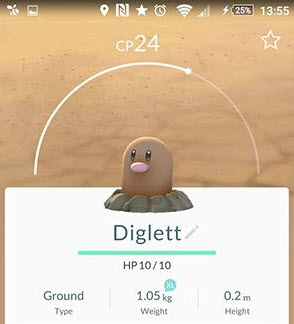
 diggletpokemongo #050 – Diglett

Type: Ground

Evolves into: Dugtrio

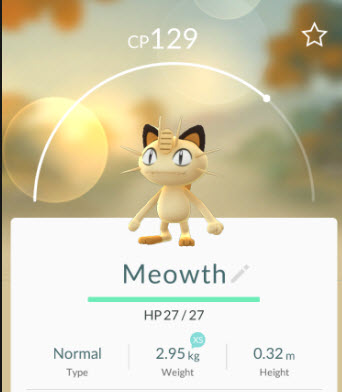
 meowuthpokemongo #052 – Meowth

Type: Normal

Evolves into: Persian

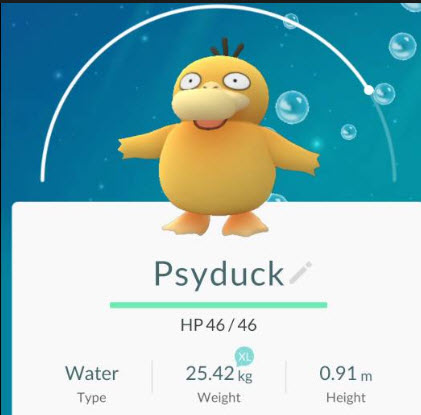
 psyduckpokemongo #054 – Psyduck

Type: Water

Evolves into: Golduck

 mankeypokemongo #056 – Mankey

Type: Fighter

Evolves into: Primeape

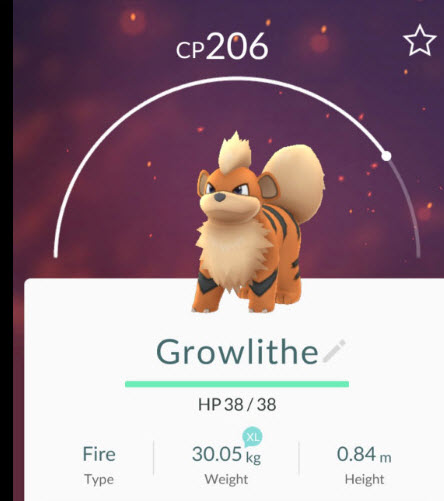
 growlithepokemongo #058 – Growlithe

Type: Fire

Evolves into: Arcanine

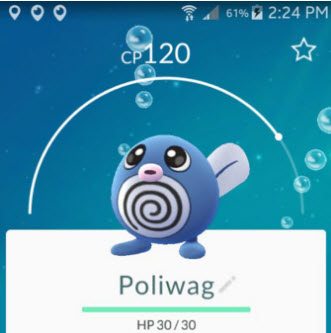
 poliwagpokemongo #060 – Poliwag

Type: Water

Evolves into: Poliwhirl

 abrapokemongo #063 – Abra

Type: Psychic

Evolves into: Kadabra

 machoppokemongo #066 – Machop

Type: Fighter

Evolves into: Machoke

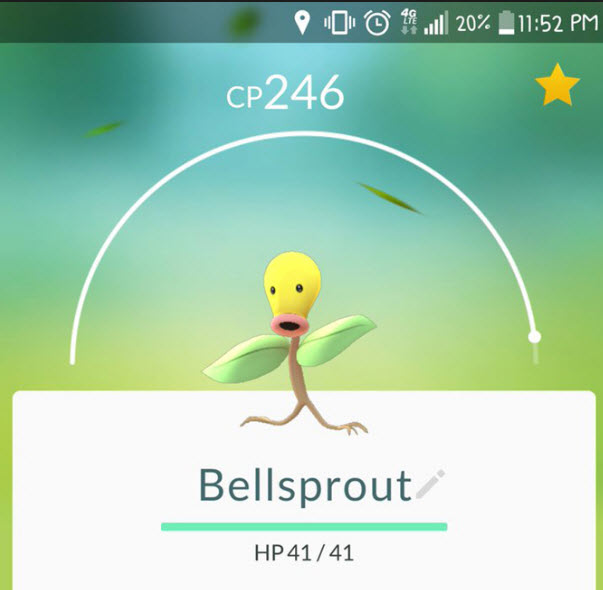
 bellsproutpokemongo #069 – Bellsprout

Type: Grass / Poison

Evolves into: Weepinbell

 tentacoolpokemongo #072 – Tentacool

Type: Water / Poison

Evolves into: Tentacruel

 ponytapokemongo #077 – Ponyta

Type: Fire

Evolves into: Rapidash

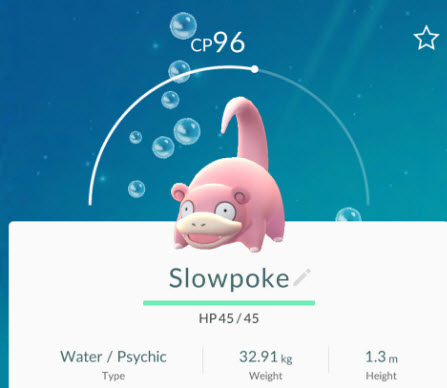
slowpokepokemongo #079 – Slowpoke

Type: Water / Psychic

Evolves into: Slowbro

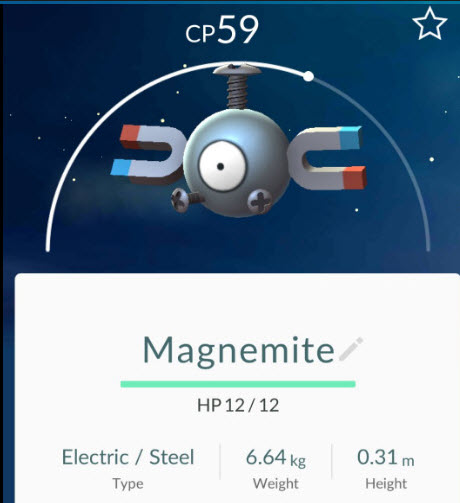
 magnemitepokemongo #081 – Magnemite

Type: Lightning / Steel

Evolves into: Magneton

 farfecht #083 – Farfetch’d

Type: Normal / Flying

 doduopokemongo #084 – Doduo

Type: Normal / Flying

Evolves into: Dodrio

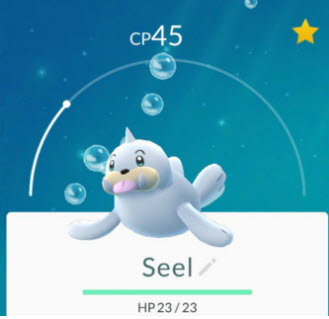
 seelpokemongo #086 – Seel

Type: Water

Evolves into: Dewgong

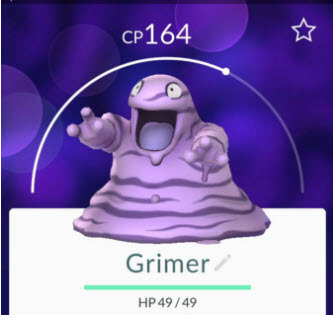
 grimerpokemongo #088 – Grimer

Type: Poison

Evolves into: Muk

 shellderpokemoongo #090 – Shellder

Type: Water

Evolves into: Cloyster

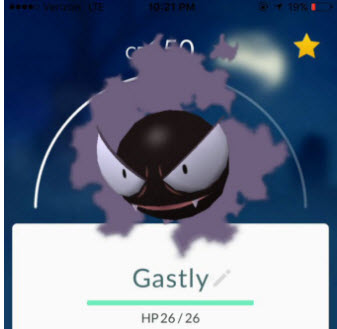
 gastlypokemongo #092 – Gastly

Type: Ghost / Poison

Evolves into: Haunter

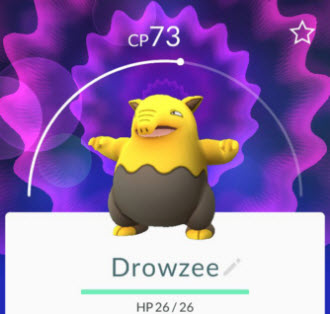
 dwozeepokemongo #096 – Drowzee

Type: Psychic

Evolves into: Hypno

 krabbypokemongo #098 – Krabby

Type: Water

Evolves to: Kingler

 voltorbpokemongo #100 – Voltorb

Type: Lightning

Evolves to: Electrode

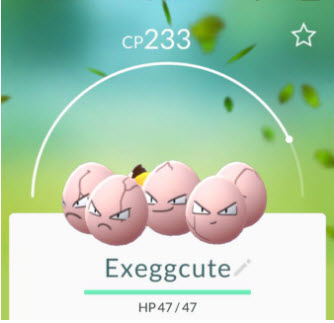
 exegcutepokemongo #102 – Exeggcute

Type: Grass / Psychic

Evolves to: Exeggutor

 cubonepokemongo #104 – Cubone

Type: Ground

Evolves to: Marowak

 lickitungpokemongo #108 – Lickitung

Type: Normal

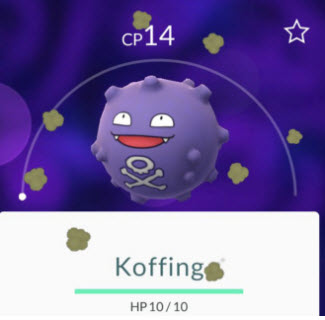
 koffingpokemongo #109 – Koffing

Type: Poison

Evolves to: Weezing

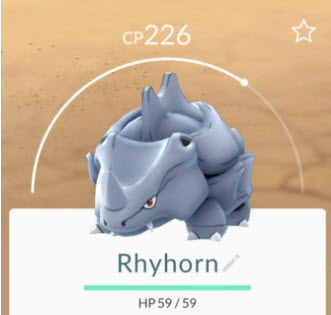
 rhyhornpokemongo #111 – Rhyhorn

Type: Ground / Rock

Evolves to: Rhydon

 tangelapokemongo #114 – Tangela

Type: Grass

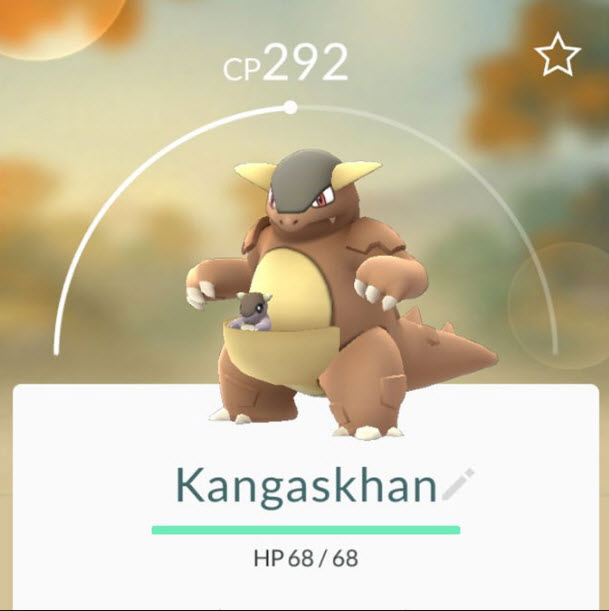
 kanaskhanpokemongo #115 – Kangaskhan

Type: Normal

 horseapokemongo #116 – Horsea

Type: Water

Evolves to: Seadra

 goldeenpokemongo #118 – Goldeen

Type: Water

Evolves to: Seaking

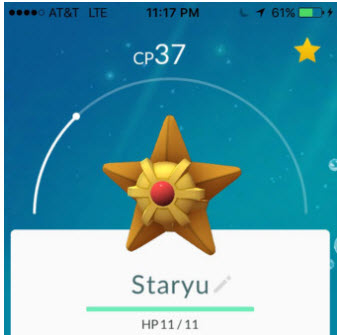
 staryupokemongo #120 – Staryu

Type: Water

Evolves to: Starmie

 taurospokemongo #128 – Tauros

Type: Normal

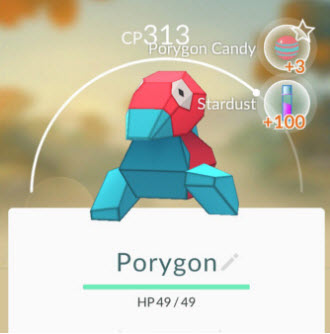
 porygonpokemongo #137 – Porygon

Type: Normal

Walking 6 miles or above on Pokémon Go

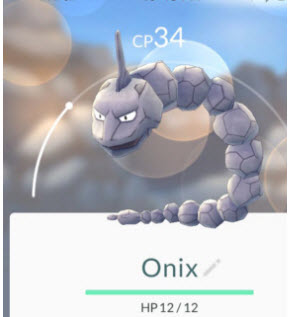
 onixpokemongo #095 – Onix

Type: Rock / Ground

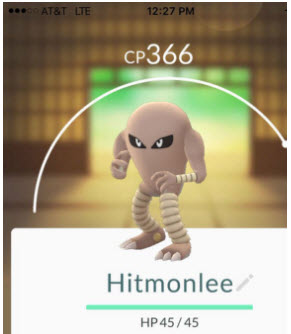
 hitmonleepokemongo #106 – Hitmonlee

Type: Fighter

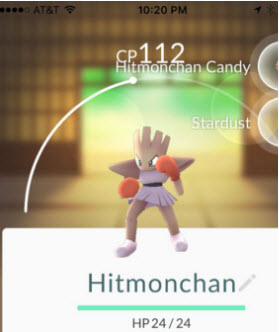
 hitmonchanpokemongo #107 – Hitmonchan

Type: Fighter

 chanseypokemongo #113 – Chansey

Type: Normal

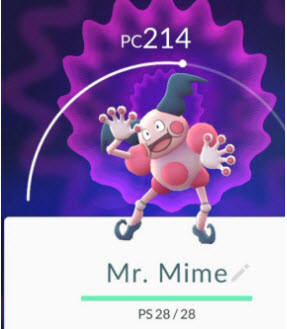
 mrmimepokemongo #122 – Mr. Mime

Type: Psychic / Fairy

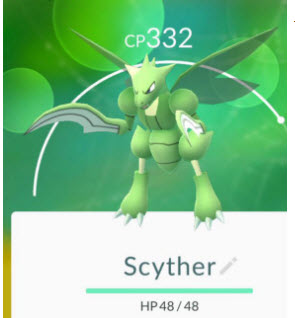
 scytherpokemongo #123 – Scyther

Type: Bug / Flying

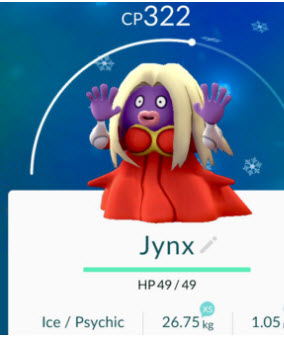
 jynxpokemongo-2 #124 – Jynx

Type: Ice / Psychic

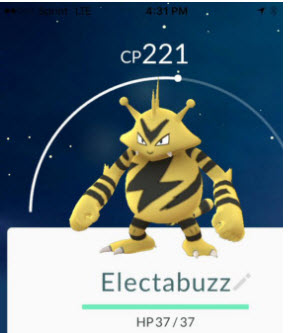
 electabuzzpokemongo #125 – Electabuzz

Type: Lightning

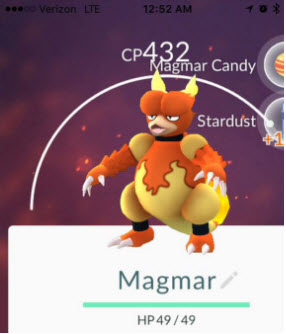
 magmarpokemongo #126 – Magmar

Type: Fire

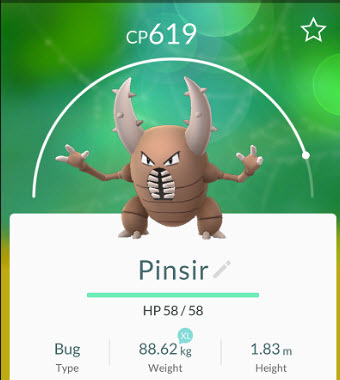
 pinsirpokemongo #127 – Pinsir

Type: Bug

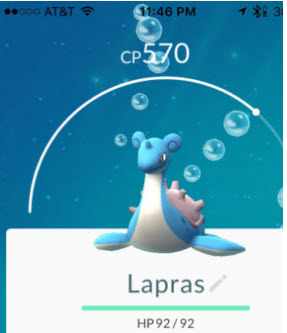
 lapraspokemongo #131 – Lapras

Type: Water / Ice

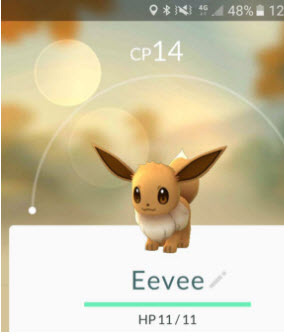
 eeveepokemongo #133 – Eevee

Type: Normal

Evolves to: Vaporeon, Jolteon, o Flareon

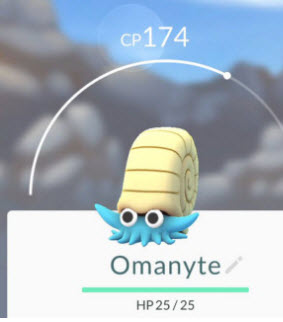
 omanytepokemongo #138 – Omanyte

Type: Rock / Water

Evolves to: Omastar

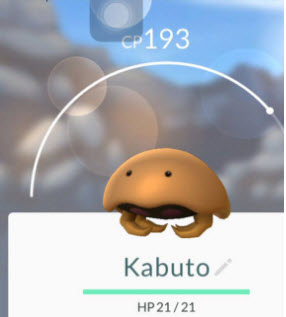
 kabutopokemongo #140 – Kabuto

Type: Rock / Water

Evolves to: Kabutops

 aerodactyl #142 – Aerodactyl

Type: Rock / Flying

 snorlaxpokemongo #143 – Snorlax

Type: Normal

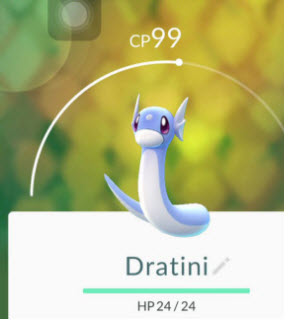
 dratinipokemongo #147 – Dratini

Type: Dragon

Evolves to: Dragonair


Remember that you should always be aware of your surroundings while playing Pokémon GO. Also keep in mind that this game depletes your battery pretty quickly, so you may want to carry some extra batteries with you when you’re out and about.

If you’re looking for a good deal on a battery pack look no further:
https://deals.softonic.com/sales/innori-22-400mah-portable-battery-pack-white

And on sunny days, this pack is a great choice:
https://deals.softonic.com/sales/30k-mah-solar-battery-pack-w-flashlight