Beware! Hackers are targeting Steam accounts in new phishing attack

Users of the popular Steam gaming platform need to pay close attention to chat messages and invites they receive on Steam and elsewhere, as hackers use a new phishing attack to steal accounts.

Steam DOWNLOAD

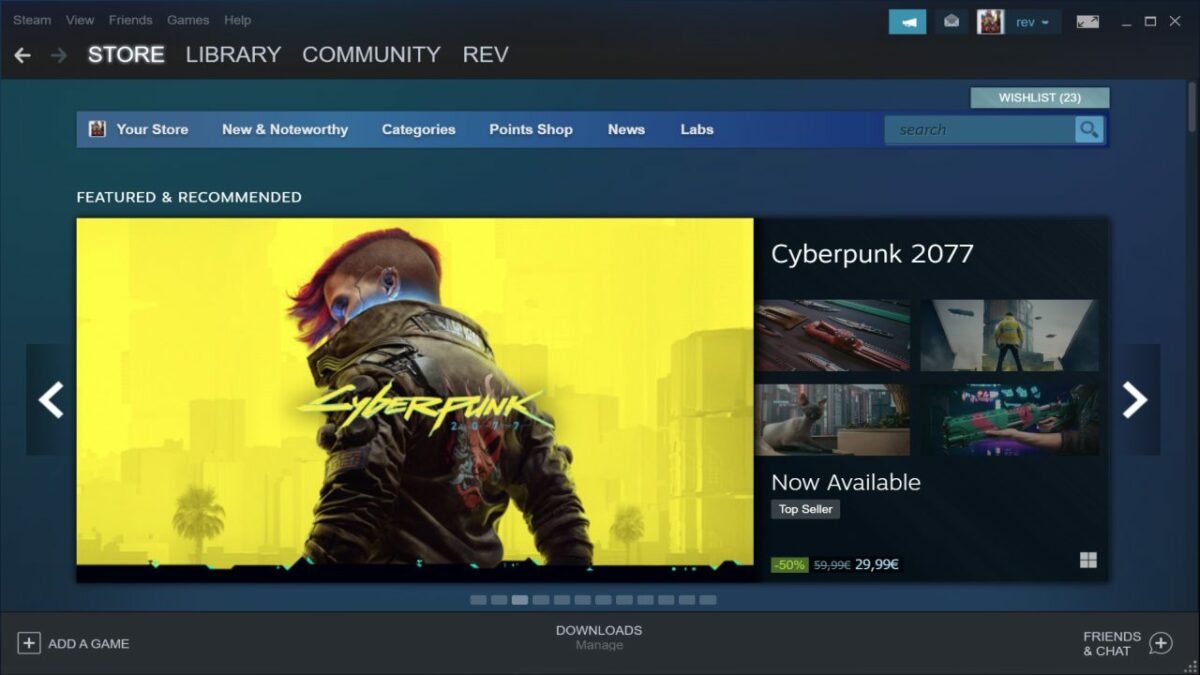
Steam is the most popular game distribution service on PC. Each year, Valve, the corporation behind Steam, is posting new user records.

Concurrent Steam users, for instance, rose from less than 20 million in the beginning of 2020 to close to 30 million in the beginning of 2022.

While there are other platforms out there, the Epic Games Store, Electronic Arts’ Origin or the Microsoft Store, it is Steam that is the go-to platform for most desktop gamers.

Evergreen games by Valve, such as Counter-Strike, Dota 2 or Team Fortress 2, dominate the charts and help cement Steam’s dominance. Games from third-party developers, for example PUBG, Grand Theft Auto V or Apex Legends, have strong player counts as well.

The popularity of Steam attracts hackers and malicious actors. Some Steam users have invested thousands of Dollars, and more, to buy games, items or digital assets. Stealing these accounts and then selling them entirely or the digital assets they contain, is lucrative.

Browser-in-the-Browser attack targeting Steam users

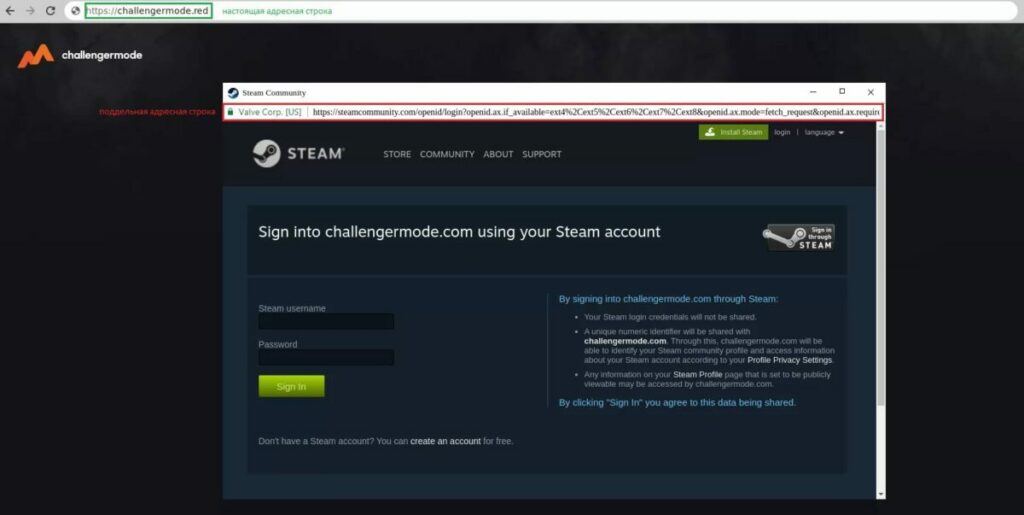
Discovered by security researcher mr.d0x, browser-in-the-browser attacks use fake browsing windows on phishing resources. These fake browser windows are indistinguishable from the real one on first glance. The browser window looks like a popup opened by the legitimate site.

Hackers used the technique since March 2022 to create phishing campaigns that target Microsoft or Google accounts.

Group-IB analyzed the Steam phishing attack, which is ongoing at the time of writing. The attack begins with a message send to the victim on Steam or elsewhere. The attacker uses different messages to get the victim to open the phishing website.

These include the following topics:

  • Offers to join a gaming team in a popular game.
  • Offers to join a tournament.
  • Voting for a favorite eSports team.
  • Offers to buy discounted tickets to eSports events.

The attacks are not limited to messages on Steam. Group-IB noticed the use of ads in streaming videos and in descriptions of videos as well to get users to open the phishing website. The text promised free game skins to users.

Notably, most of the messages focus on eSports activities or games that support digital assets such as skins or hats. To put it another way: gamers who prefer to play single-player games are not the main focus of the attack, but they may also be attacked.

How the attack plays out

A click on a link in a message or on a site, or an advertisement, opens the phishing site. It looks like a legitimate website. Most interactive elements on the phishing site, for instance, a button or link, open the fake Steam sign-in popup.

The phishing site checks the system language to display the fake Steam login popup in the same language. Data that users enter is submitted to the server of the attacker right away and verified on Steam.

Users see an error message if the verification data is not correct. The phishing site supports Steam’s two-factor authentication security feature.

Steam users, who use two-factor authentication, see the prompt to type the second authentication code. With it, attackers gain full access to the account of the user. This means, that two-factor authentication won’t help protect against the attack.

The attackers may change the user password, email address, and other account data, before they sell the account or its digital assets.

How to protect yourself against browser-in-the-browser attacks
source: Group-IB

The phishing attack uses different vectors of attack. Some Steam users may receive messages on Steam, while others may be exposed to it when they view gaming videos. In fact, nothing is keeping the attackers from displaying links on regular websites or as advertisements on search engines.

One of the best protective options is to avoid clicking on links posted by users that one does not know. It may be tempting to get that free skin or to join a tournament, but the danger is real and it is usually better to be safe than sorry.

The phishing site may provide clues or warning signals, but it is well crafted. The domain name of the site may warn users not to enter their login credentials on it, even if the fake Steam login page looks real.

The best option that users have is to avoid entering Steam credentials on third-party sites, even if the login prompt looks real or the offer is tempting.

Steam’s two-factor authentication security feature is of no help, as the phishing site supports it.

A deeper analysis of the phishing website is needed to determine with accuracy that it is not legitimate.

Most of your Android apps collect and share data

There is a good chance that the majority of Android apps that you have installed on your Android devices are collecting data and sharing it with third parties.

Android 13 Download Now

A recent study conducted by Incogni analyzed the top 1000 free and paid applications on Android. The company interacts with data brokers on the behalf of customers to get collected user data removed.

Of the 2000 Android applications, 55.2% share data that they collect with third parties. Free apps, those available without a price tag on Google Play, share seven times more data points with third parties than paid applications.

Google Play’s new Data Safety section

Google introduced a new Data Safety section on Google Play in July 2022. All Android developers, small one-person teams, and the largest international organizations needed to fill out data safety information for their applications before the deadline.

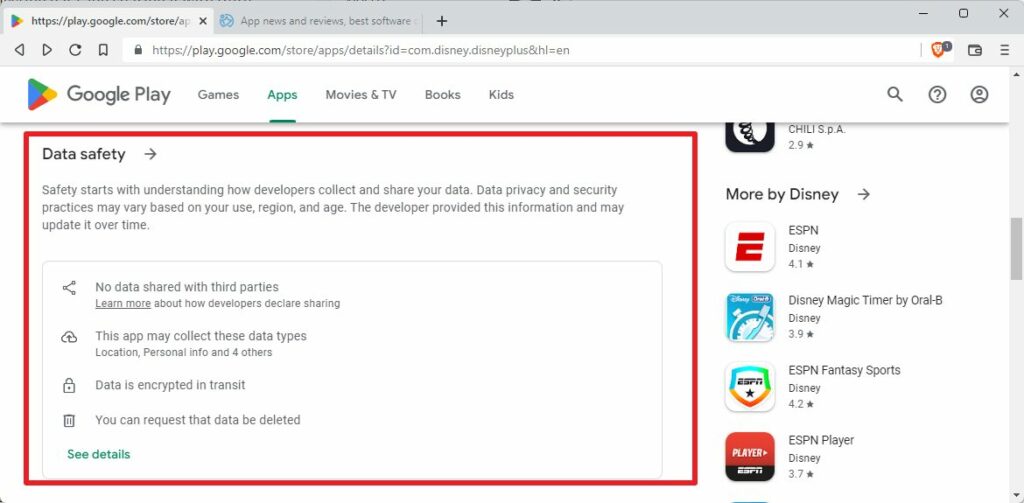
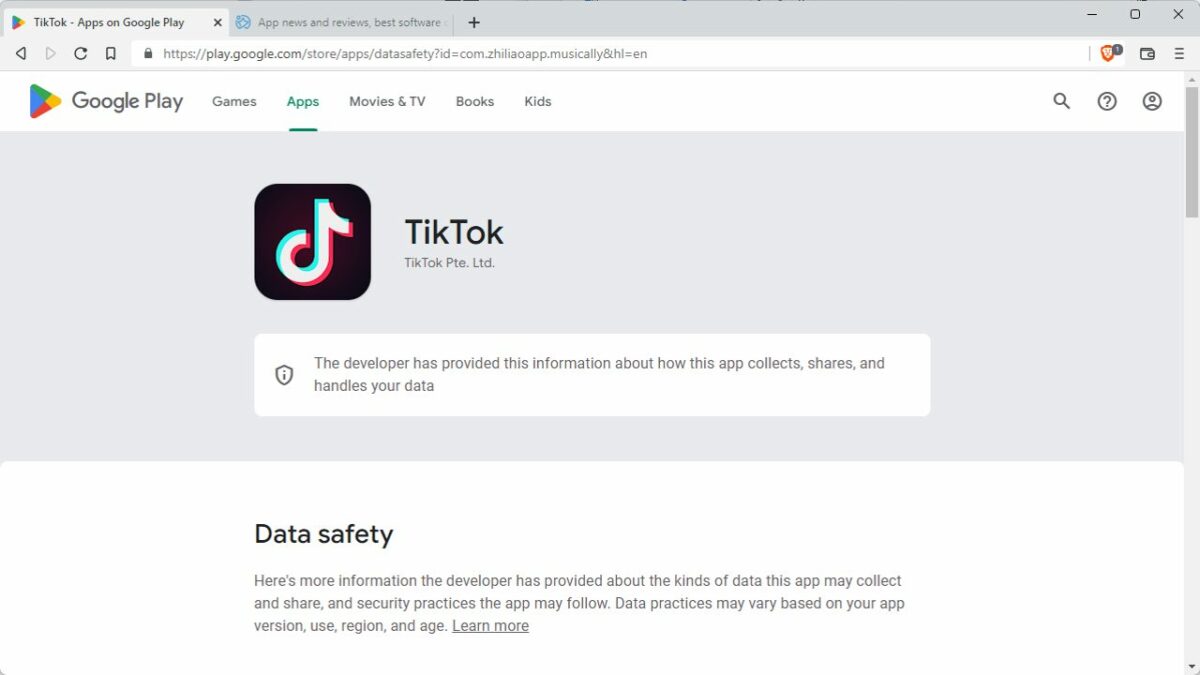
The section informs Android users about how applications collect, share and handle user data. The whole system is honor-based, which means that developers provide the data without it being verified by Google.

Here is how you check the data safety information on Google Play:

  1. Open Google Play on the Android device or in any web browser on mobile or desktop systems.
  2. Select the application or game that you want to verify.
  3. Scroll down to the Data Safety section.

There, you find a summary, which reveals major points. If you want to know more, you may activate the data safety link to open a page with additional details.

For example, opening the Disney+ app reveals that is does not share data with third-parties, that it collects six different data types, uses data encryption, and supports data deletion requests.

While that sounds good on paper, Incogni discovered that Google has a specific definition of data sharing. According to Google’s definition, data sharing refers to the “transfer of user data to any third party”.

Anonymous data, as well as transfers “made to a service provider or for legal purposes”, does not need to be revealed in the Data Safety section on Google Play.

In other words; if an app anonymizes collected data before it transfers it, it may not be revealed in the Data Safety section.

Apps collect lot of data on Android

Social applications like Facebook, Messenger or LinkedIn collect the most data points according to the study.

The top 10 apps that collect the most data points:

  1. Facebook
  2. Nextdoor
  3. Microsoft Teams
  4. Messenger
  5. Instagram
  6. Oculus
  7. LinkedIn
  8. Ebay
  9. Snapchat
  10. DoorDash – Dasher

The top 4 applications collected 36 out of 37 available data types. Only race and ethnicity is not collected.

While social applications collect the most data, most social apps share very little. Meta’s applications, Facebook, Facebook Lite, Messenger, Instagram, and Messenger Lite, share only 4 data types with third parties, according to the Data Safety section on Google Play.

It is important to realize, again, that certain forms of data sharing do not need to be revealed.

Social, business, and shopping applications collect the most data points on average on Android. Consequently, apps in those categories know more about their users than apps in other categories.

The Data Safety section does not reveal the purpose of the data collection, but the list of shared data points gives some clues.

Android apps share a lot of data as well

Incogni analyzed the main data points that Android applications shared.

The top 10 apps that share the most data points with third parties:

  1. Cast for Chromecast & TV Cast
  2. DoorDash – Dasher
  3. Booking.com Hotels and more
  4. The Home Depot
  5. Fetch Rewards: Earn Gift Cards.
  6. DoorDash – Food Delivery.
  7. Picsart Photo & Video Editor
  8. Dave – Banking & Cash Advance
  9. Drum Pad Machine – beat maker
  10. Reddit

App interactions, crash logs, diagnostics, the approximate location, and other actions top the third-party data sharing list. Diagnostic data, including crash logs and performance data, is used by developers to find and resolve errors and issues.

A significant number of apps shared user names (4.77%), email addresses (6.77%), and home addresses (3.85%). 13.4% of apps share the approximate location, 3.85% the exact location.

All in all, 55.2% of the 2000 analyzed applications share that with third parties. Almost 70% of apps that do not share data with third parties are paid applications.

As a result, free apps share an “average of 7 times more data points than paid ones” according to Incogni.

Closing Words

Incogni’s study demonstrates that Google Play’s Data Safety section lacks information that Android users may consider important.

Data Safety, on the positive side, reveals some information on an application’s data collecting, sharing and handling.

On the negative side, the filled-out information is not verified. If that was not bad enough, Google’s own definition of data sharing gives developers the go-ahead to omit some of the data sharing of their applications.

Free apps share more data points than paid Android applications; this should not come as a surprise. The saying that free is not really free seems to be confirmed by this, as users pay with their data.

To be clear, there are free Android apps out there that do not collect or share data, and paid apps that do. On average though, free apps share more data points than paid applications.

Microsoft Edge 105 fixes 15 security issues

Microsoft released a new stable version of the company’s Edge web browser. Edge 105 is a security and feature update that is already available.

Microsoft Edge, which uses the same core as the Google Chrome web browser, shares some of the vulnerabilities with Google’s Chrome browser. The core, called Chromium, is open source, and available to all developers and organizations.

Microsoft Edge Download

For example, browsers such as Vivaldi, Brave or Opera use Chromium as the source.

Both Google and Microsoft modify the Chromium core to introduce custom features and services. It is common that vulnerabilities are exclusive to one of the browsers, but many vulnerabilities are shared.

In the case of Microsoft Edge 105, only one of the security issues is Edge-specific. The remaining 14 vulnerabilities are shared among all Chromium-based browsers, including Chrome.

To put this into perspective, Google patched 24 different security issues in Chrome 105 when it released it on August 30, 2022.

The 14 core security issues fixed in Edge include a critically rated vulnerability, filed under CVE-2022-3038, and several security issues rated as high.

The sole Edge-specific vulnerability is a remote code execution vulnerability, and rated low.

How to download Edge 105

Microsoft Edge installations update to a new version of the web browser automatically after release; this may take hours or even days, depending on the rollout.

Edge users who want to speed up the process may do the following to expedite the installation:

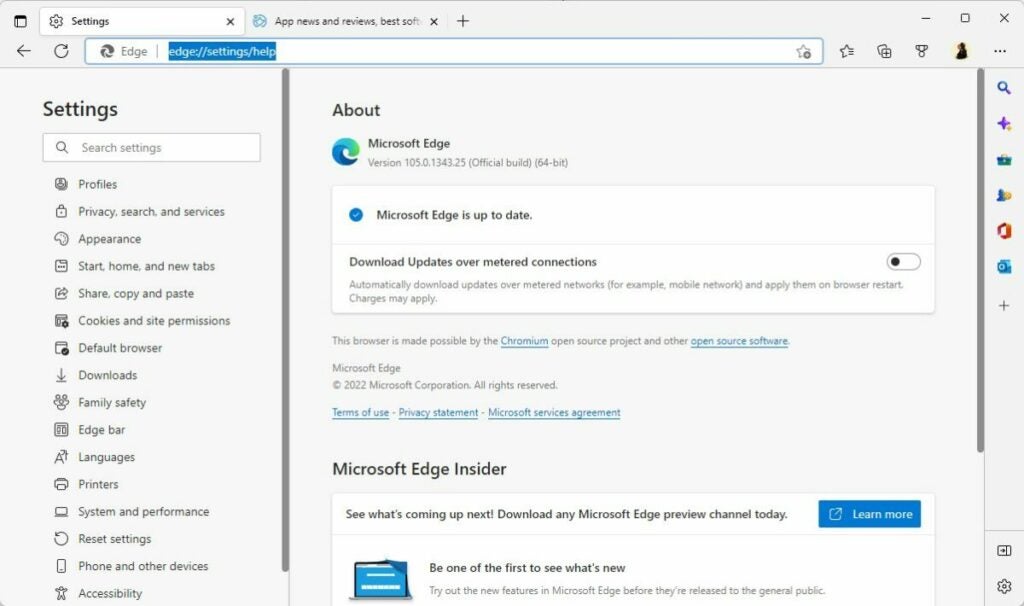
  1. Load edge://settings/help in the browser’s address bar. You may also select Menu > Help > About Microsoft Edge.
  2. The page that opens displays the current version. Edge runs a check for updates and will install any update that it finds.
  3. A restart is required to complete the process.

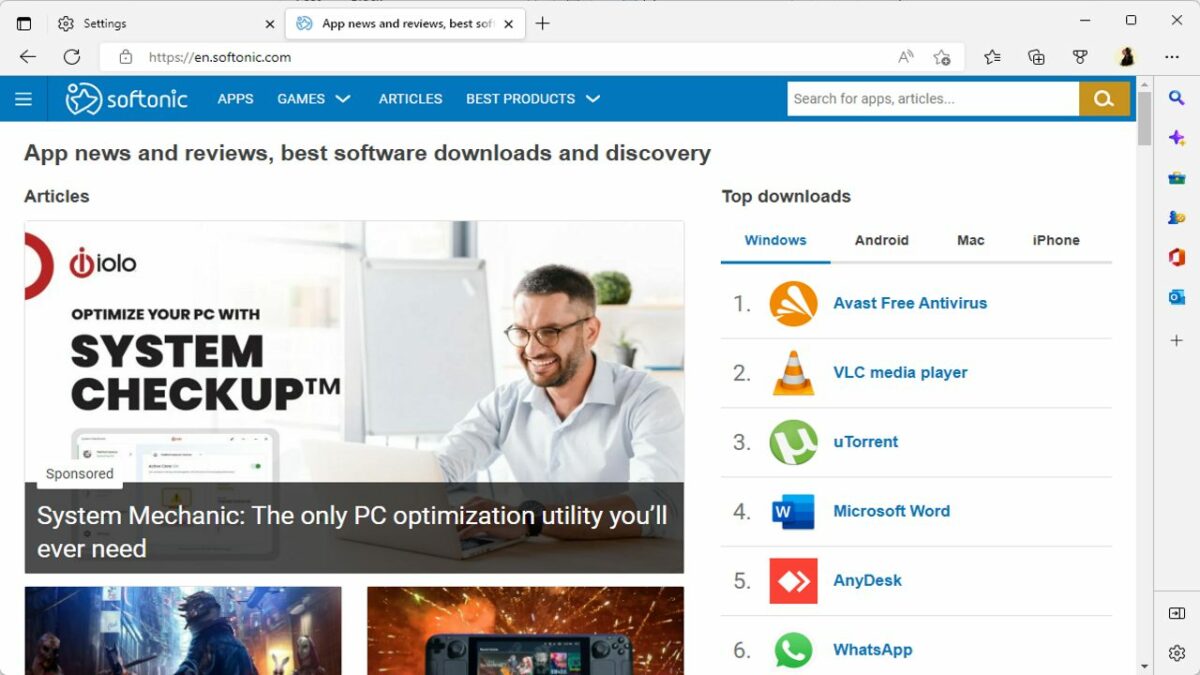
New and existing users may download the latest version of Microsoft from the official Edge website or a trusted source, such as Softonic, as well.

Edge may be installed over existing installations, or installed for the first time on a compatible system.

Microsoft Edge 105: the changes

Microsoft Edge is a security update first and foremost. Although that is the case, Edge 105 includes other changes that are important.

The browser’s enhanced security mode supports WebAssembly for 64-bit Windows operating systems now. Microsoft plans to roll out the feature to other systems Edge is available in the future. For now, it is a feature exclusive to Edge running on 64-bit Windows devices.

Enhanced Security Mode is not enabled by default, but it can be enabled with just a few clicks.

Edge applies additional security protections to websites visited in the browser, if the mode is active. The protections limit certain attack vectors to improve user security while using Edge.

Here is how you configure Enhanced Security mode in Edge:

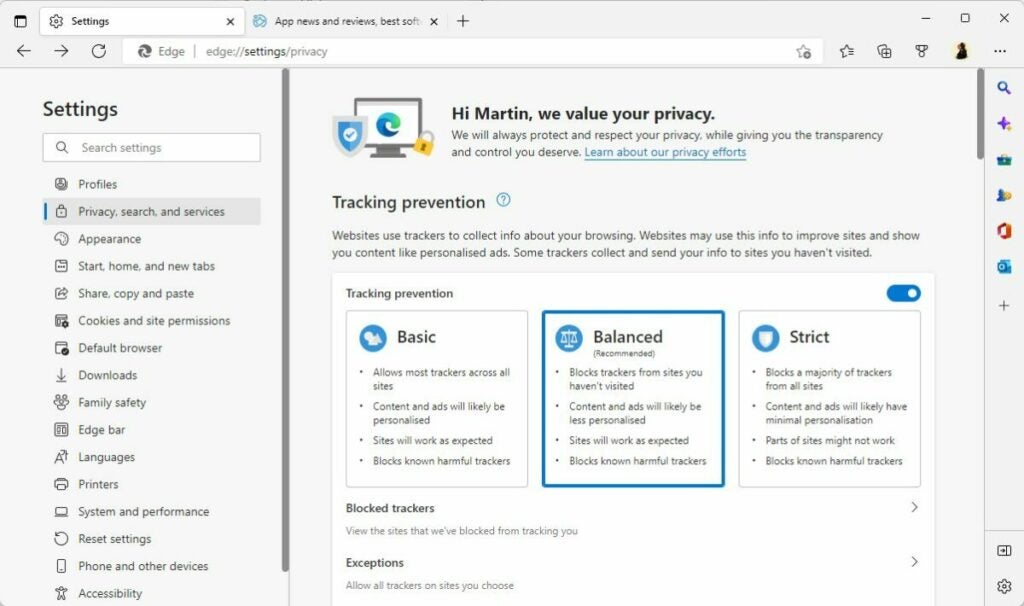
  • Select Menu > Settings > Privacy, search, and services, or load edge://settings/privacy directly in the browser’s address bar.
  • Scroll down to the Security section on the page that opens.
  • Locate the “Enhance your security on the web section”.
  • Toggle the feature to On, and select one of the three available options:
    • Basic — adds security mitigations to sites that are not visited often.
    • Balanced — adds security mitigations to sites that are not visited frequently.
    • Strict — adds security mitigations to all sites.

Some sites may not work correctly anymore after enabling the security mode. There are options to add sites to a blocklist to disable the mode for these specifically.

In short, it is a good idea to start with basic or balanced, to avoid site breakage.

The remaining changes, for the most part, are of interest to organizations only.

Microsoft improved the cloud site list management experience for Edge’s Internet Explorer Mode. Generally speaking, it is giving administrators more control over lists used in IE Mode.

Edge 105 Stable includes new policies, which are mostly useful to administrators as well. These policies add options to Edge to disable certain features in company networks and on company devices.

Closing Words

Microsoft Edge 105 Stable is an important security update, which users of the browser should install as soon as possible. In general, it is a good idea to install security updates right after release to protect devices and applications against potential attacks targeting these vulnerabilities.

VirtualBox 7 adds official Windows 11 support

The free cross-platform virtualization software VirtualBox improves support for Microsoft’s Windows 11 operating system in its latest version.

VirtualBox 7 removes the incompatible hardware messages that user received when installing Windows 11, even on compatible systems.

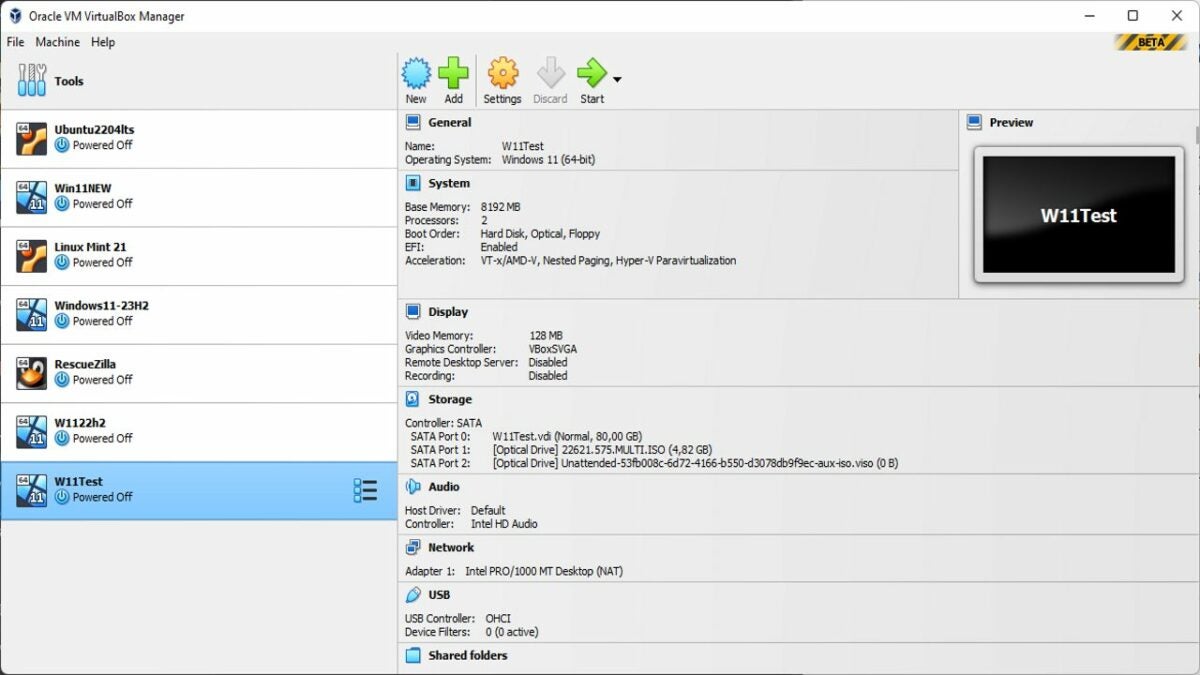
VirtualBox is a popular program for Windows, Mac and Linux devices to create virtual operating systems. A virtual operating system functions in most regards similarly to regular operating systems, but it is fully separate from the main operating system of a device.

Windows 11 DOWNLOAD

Computer users use virtual environments for different tasks: these include testing new versions of an operating system to make sure the computer is compatible, as development environments, for software testing, or to run a different operating system, e.g., Linux on a Windows host.

Take software testing as an example; if you stumble upon a new program, you may not want to install it on your main system right away. Maybe you have downloaded it from a source that you don’t trust fully, and not from a trusted software repository such as Softonic, or you don’t want the installer to pollute the system with files and Registry entries.

Installing the program in a virtual Windows environment keeps it from interacting with the underlying system. Even if its malicious, it can’t read personal data, modify files, install more malware, or do other harm. Best of all; you may remove the entire virtual environment at any point and no traces are left on the computer.

Another example: say you want to test Windows 11 on a device with Windows 7 or 10 installed. You may have questions about compatibility, if your favorite programs run, or if you like the look and feel of the new Windows version.

It takes a couple of minutes to install a virtual Windows 11 system on any device. You may then install software, browse the Internet, configure the system and test it for as long as you want to.

Again, deletion is just a keystroke or mouse click away at any time.

VirtualBox 7 and Windows 11 compatibility

Oracle released the first beta of VirtualBox 7, and with it full support for Microsoft’s Windows 11 operating system.

The virtualization software supported Windows 11 unofficially only up to this point. While you could install Windows 11 using it, you’d inevitably run into hardware compatibility issues.

Microsoft changed hardware requirements when it launched Windows 11. The operating system requires certain features, including Trusted Platform Module (TPM) 2.0 and Secure Boot.

Windows 11’s installer displayed a “not compatible” prompt during installation of the operating system in a virtual environment, even if the underlying system supported all the required hardware devices.

Now, that message is gone and the installation happens unhindered, provided that the system is compatible with Windows 11.

Installing Windows 11 using VirtualBox 7

VirtualBox 7 improves the installation of Windows 11 in other ways. The virtualization software supports an unattended installation. The special type of installation skips most of the prompts that Windows 11 displays during setup; this includes entering the product key automatically and creating the first user account.

Here are step by step instructions:

  1. Download the latest version of VirtualBox from the company’s download server (it is VirtualBox-7.0.0_BETA1-153351-Win.exe at the time of writing).
  2. Install the application on the Windows PC.
  3. Download a Windows 11 ISO image from Microsoft.
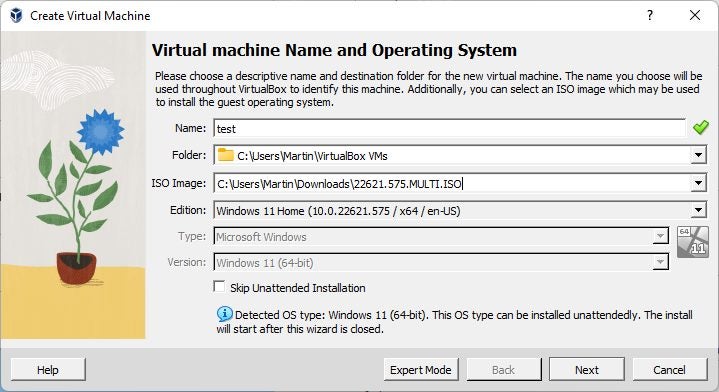
  4. Start VirtualBox and select New to create a new virtual environment.
  5. Select a name, folder and load the ISO image that you downloaded., and pick an edition, if available.
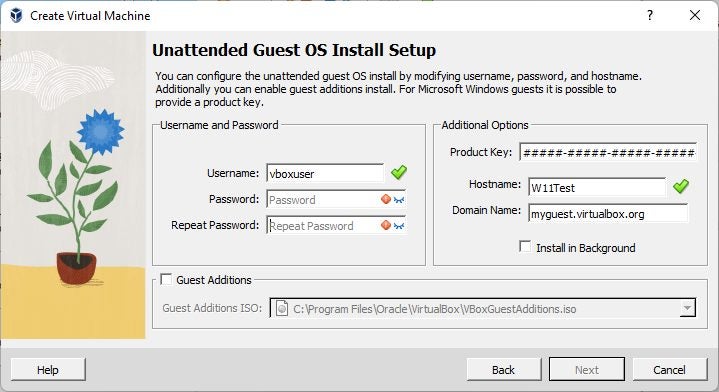
  6. Set username and password for the first user account.
  7. Add a product key (optional).
  8. Check “guest additions”, which help later on.
  9. Increase RAM, if the PC has enough, e.g., to 8192 MB. Make sure it is kept in the green range.
  10. Select next on the following steps and then finish to complete the setup.

Now, all that is required is to double-click on the new virtual machine to start it. Make sure you tap on a key when the “press any key” prompt is displayed in the program window.

Windows 11 installs automatically at this point and you can start using the operating system once the setup completes.

Closing Words

Virtualization may sound complicated, especially for new users, but the benefits outweigh the initial reservation that users may have.

Virtual operating systems are ideal for testing. Install a new version of Windows to find out if you like it, or a Linux distribution, or use the environment to test new programs and apps that you download.

Android 13 is out with these new features

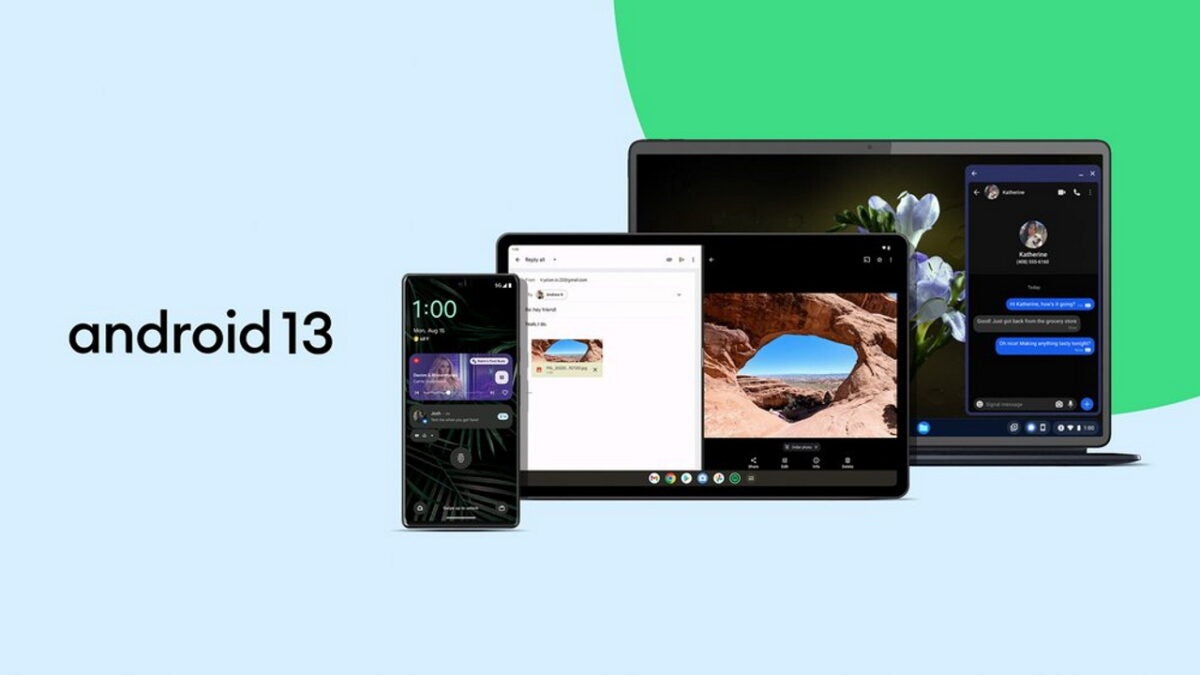
Each year, Google releases a new version of the Android operating system. Android 13 is now available on select devices as a direct upgrade and as images that Android users may download and install.

Android 13 DOWNLOAD NOW

Google is rolling out the new Android version to Pixel devices already. The rollout happens in waves, and it may take some time before the update is offered on a specific device.

Third-party manufacturers will publish updates for some of their Android devices in the coming weeks and months. New Android devices will also become available that run Android 13 out of the box.

If Android 13 is available on your device already, you may about new features and improvements that the update includes.

For this reason, we are taking a look at the top features of Android 13. Developers may want to point their browsers to the official summary on Google’s Android website, as it provides a deeper look at the changes.

Android 13: the major features

Android 13 includes a huge number of changes and improvements. Some of these may be discovered immediately, while others may be discovered later or not at all.

One of Google’s focus in Android 13 was on improving the privacy of users. While that is a commendable effort, some changes require application updates before they become available.

App notifications are now opt-in

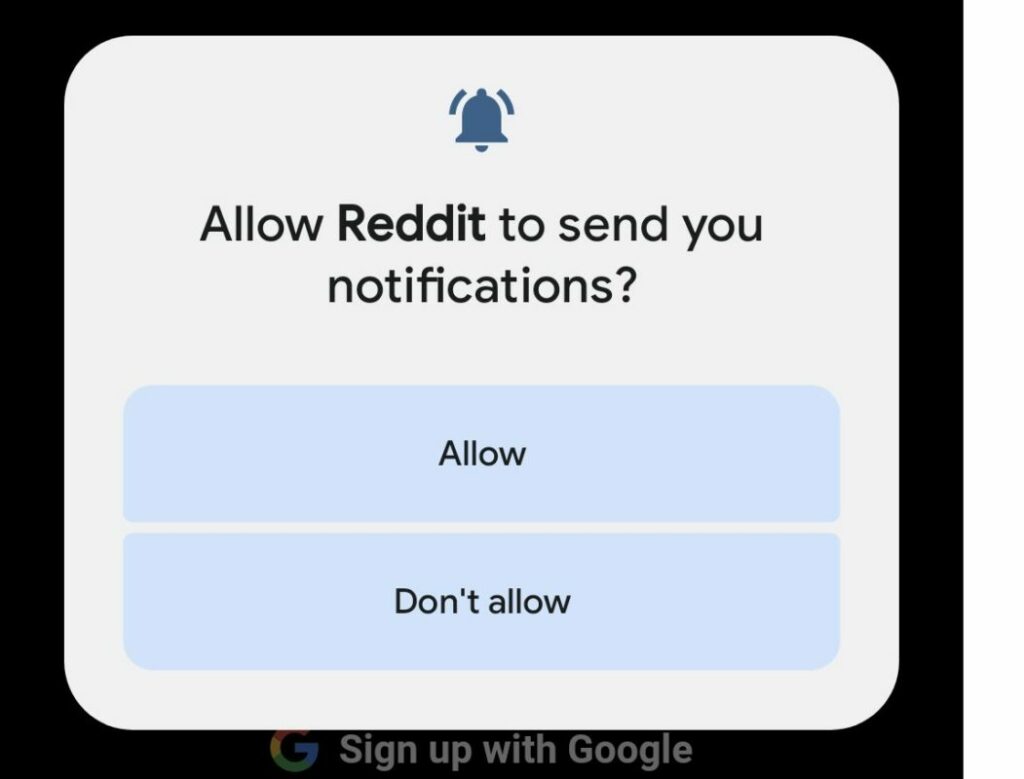
Android 13 gives users more control over application notifications. In previous Android versions, applications obtained notification permissions automatically. While you could remove the permission at any time, apps could send notifications immediately after installation.

Starting in Android 13, applications need to ask for permissions explicitly. Those who do not do that can’t send notifications on the Android device.

As a result, another permissions prompt may be displayed on first launch of applications on an Android 13 device; this gives users more control over notifications, and may prevent spammy apps from abusing the system.

The change applies to new application installations only. Consequently, already installed apps do not display the notifications permissions prompt after upgrading to Android 13.

Android 13 displays notifications about apps that use battery excessively to the user. The silent notification gives you an option to kill an app with a single action.

Per-app language settings

Many Android users speak more than one language. Android itself supports a single display language only, and this language is used by all applications, provided that it is supported.

There are good reasons for wanting to change the language of individual applications: the translation of some apps may lack clarity, or you may prefer a different language for some content.

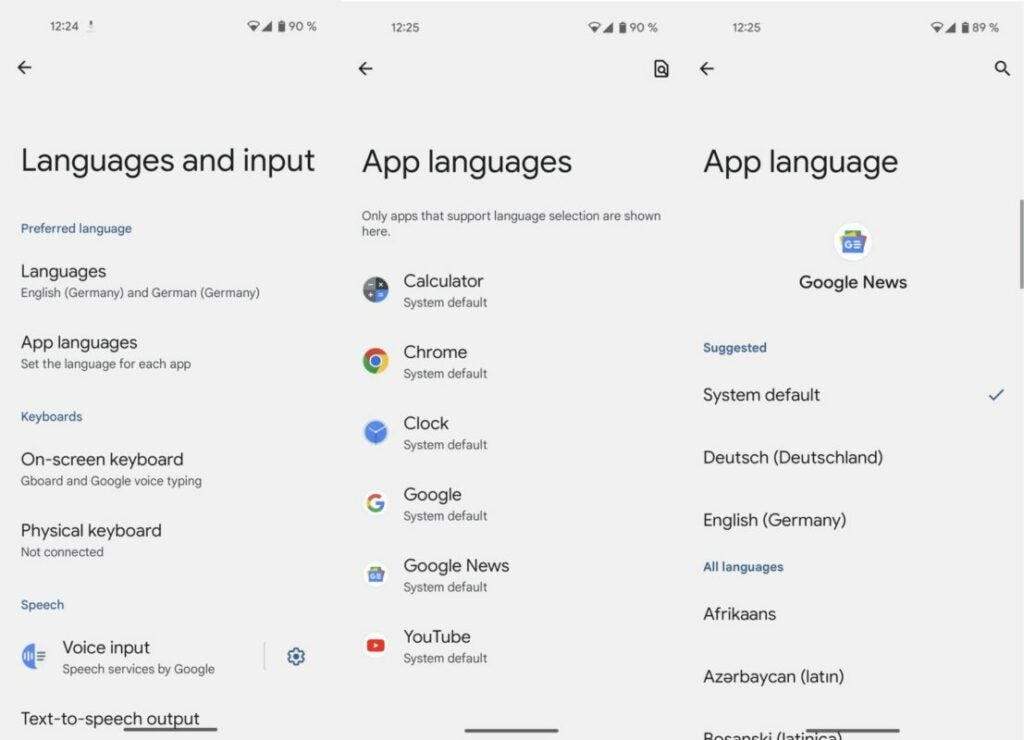
Android 13 introduces the ability to set languages for individual apps. Want Google News in English, YouTube in Spanish, and the Calendar in Japanese? This is doable in Android 13.

Just select Settings > System > Languages and input > App languages. Not all applications support the new feature at the time of writing, but many system apps do already.

Clipboard improvements

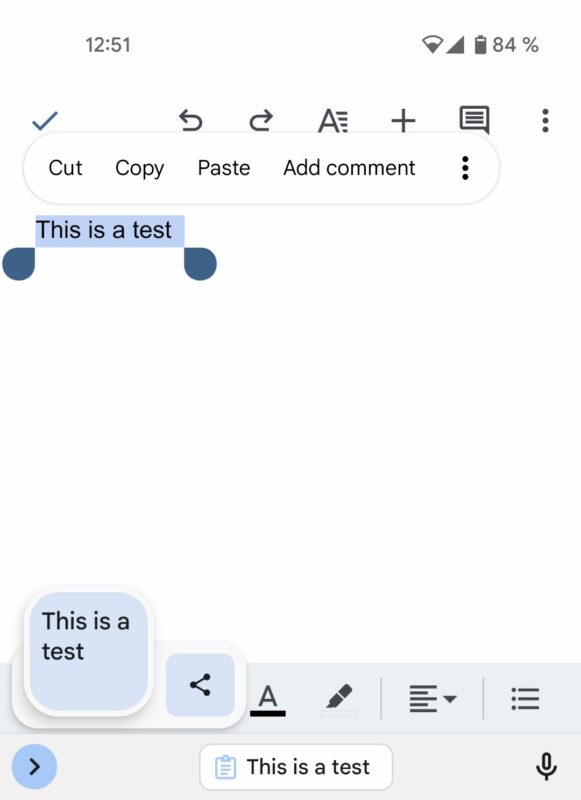
When you copy text on Android 13 devices, you will see a small overlay on the screen that contains it. It allows you to edit the text and share it immediately.

As a new privacy feature, the clipboard clears content automatically after some time. Consequently, clipboard text becomes less of a privacy risk. Email addresses, passwords, credit card numbers and other sensitive data is removed automatically by the Android device.

At the present time, there is no option to adjust the interval or disable the functionality altogether.

Smaller changes in Android 13

Android 13 features a number of smaller changes that users may benefit from. Here is a short list of other features and improvements in the new Android version:

  • You may give apps permissions to only access photos or videos that you select. In previous Android versions, permission to access the entire media library needed to be granted.
  • Sleep Mode supports the dimming of the wallpaper and the selection of a dark theme.
  • Support for Spatial Audio, which detects head movement to adjust sound automatically.
  • There is a new QR code scanner widget that you may add to the notifications area to scan codes quickly and without using a third-party app.
  • Additional Material You color schemes and wallpapers.
  • Support for the exFAT file system is finally available.
  • Improved switching between different Android device types, e.g., from tablet to smartphone, or Android TV to tablet.

Conclusion

Android 13 includes several important improvements and features for users. Some of these are limited to certain applications at the present time but will become available sooner or later in more apps.

Google Pixel owners are among the first to get the upgrade option to the new version of Android. Third-party manufacturers like Samsung or Motorola will offer the upgrade to some of their devices in the coming weeks and months as well.

Intel limits game updates to newer Processor Graphics products

Intel announced plans today to move several of its Intel Processor Graphics families to a legacy support software model. Affected products will receive limited updates as a consequence.

Intel Graphics Driver Download Now

Many Intel processors include graphics components. These are a low-cost alternative to dedicated graphics cards. While limited when it comes to playing modern computer games, running computations or other taxing processes, integrated graphics components work fine for regular use cases.

Intel launched its dedicated Arc graphics card series in 2022 in order to compete with Nvidia and AMD. First generation Arc graphics adapters do not compete with high-end Nvidia or AMD models yet, but Intel plans to change that in coming generations.

Intel Legacy Software Support Model

Up until now, Intel released regular software updates for all supported processors and processor graphics. These updates fixed security vulnerabilities and bugs in the drivers for the most part. Updates introduced new features in addition to the included fixes, including improvements for new computer games.

The new Intel legacy software support model limits graphics driver package releases for certain Intel Processor graphics families. Affected products move to a quarterly release cadence.

Major issues, for example, major security issues, may result in the releasing of unscheduled driver packages for affected processor families. For the most part, however, Intel customers should expect four driver package releases per year.

Processor graphics families that fall under the new legacy software support model receive critical fixes and security vulnerability fixes only. In other words, updates will no longer introduce support for new features or technologies, including optimizations for new computer games.

How to find out if your PC is affected

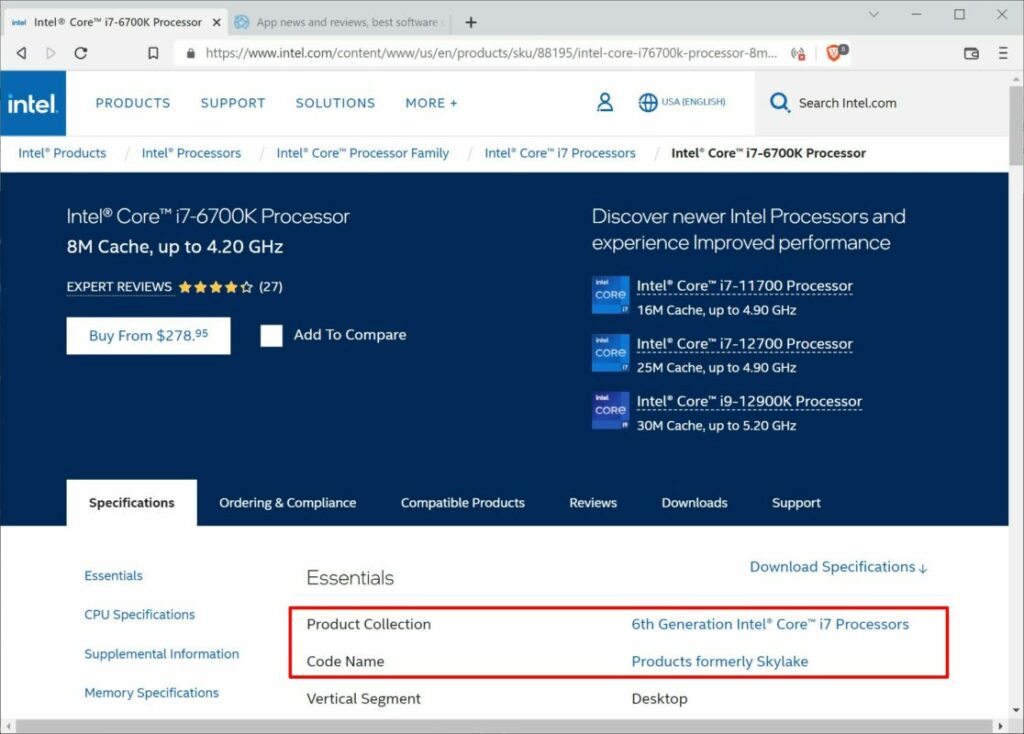
Intel Product lookup, processor product collection and code name

Intel published a list of impacted products on its Community website. In short: affected products include Intel 6th generation to 10th generation processor graphics products, as well as related Intel Atom Pentium and Celeron processors.

The list is helpful, but only for experienced users and administrators.

Here is a quick way to find out whether a PC is affected by the change:

  1. Open the Windows Start Menu, e.g., by clicking on the Start button.
  2. Type System Information and select the System Information application from the results.
  3. Locate the Processor entry in the System Information window. You find it near the top of the page.
    • Example: Intel(R) Core(TM) i7-6700K is listed in System Information.
  4. The first number after the dash references the processor generation. In the example above, it is processor generation 6 (Intel(R) Core(TM) i7-6700K)

Alternatively, you may look up the information on Intel’s website:

  1. Visit the Intel website in a web browser.
  2. Search for the first part of the Processor field in the System Information window.
    • Example: Intel(R) Core(TM) i7-6700K is listed in System Information.
    • Search for Intel Core i7-6700K on Intel’s website.
  3. Select the processor from the list of suggestions.
  4. Select the first search result from the search results listing.

The “Product Collection” and “Code Name” entries reveal the generation of the processor and its code name. The generation is all you need; if the processor is a 6th to 10th generation processor, it is affected.

Compare the data with the listing below:

Intel Processor listing

Codenames: Skylake, Apollo Lake, Kaby Lake, Amber Lake, Coffee Lake, Whiskey Lake, Comet Lake, Gemini Lake, Ice Lake, Lakefield, Jasper Lake, Elkhart Lake.

10th Generation Intel® Core® processors with Intel® Iris® Plus graphics (Codename Ice Lake)

10th Generation Intel® Core® processors with Intel® UHD Graphics (Codename Comet Lake)

9th Generation Intel® Core® processors, related Pentium®/Celeron® processors, and Intel® Xeon® processors, with Intel® UHD Graphics 630 (Codename Coffee Lake-R)

8th Generation Intel® Core® processors, related Pentium®/ Celeron® processors, and Intel® Xeon® processors, with Intel® Iris® Plus Graphics 655 and Intel® UHD Graphics 610, 620, 630, P630 (Codename Kaby Lake-R, Coffee Lake)
Intel Pentium® and Celeron® processor family (Codename Gemini Lake)

7th Generation Intel® Core® processors, related Pentium®/Celeron® processors, and Intel® Xeon® processors, with Intel® Iris® Plus Graphics 640, 650 and Intel® HD Graphics 610, 615, 620, 630, P630 (Codename Kaby Lake)

6th Generation Intel® Core®, Intel® Core® M, and related Pentium® processors with Intel Iris® Graphics 540, Intel® Iris® Graphics 550, Intel® Iris® Pro Graphics 580, and Intel® HD Graphics 510, 515, 520, 530 (Codename Skylake)

Intel® Pentium® Processor family and Intel® Celeron® Processor family (Codename Jasper Lake),

Intel® Core® Processor with Intel® Hybrid Technology (Codename Lakefield)

Intel® Atom®, Pentium® and Celeron® processor family (Codename Elkhart Lake)

How to download new Intel drivers

Intel maintains a website for driver and software downloads. There you find multiple download options:

  • Select “get started” to run an automated scan for products and available driver and software updates.
  • Intel Graphics Windows DCH Drivers — Use this download page to download the latest version of the graphics driver for all supported Windows operating systems.

Closing Words

On the positive side, Intel continues to support 6th to 10th generation processor graphics families. While limited to security and bug fixes, and a three-month release cadence, it is still better than nothing.

On the negative side, Intel won’t release feature updates, including new game optimizations, for the listed graphics families anymore. In reality, most modern computer games do not run too well or at all on older graphics products.

Windows 11 is getting proper brute force protection this year

Microsoft’s Windows 11 operating system is getting a new security feature later this year that improves resilience against brute force attacks.

Windows 11 DOWNLOAD

Announced by David Weston, Microsoft’s VP for Enterprise and operating system security, the security feature is already available in recent Windows 11 Insider builds.

Malicious actors use brute force attacks to gain access to computer systems that they don’t have passwords or other means of authentication for.

These attack can be compared to users trying to sign in to a device they lost access to. Often, these users try different passwords to gain access.

Brute force attacks may use password lists to try commonly used passwords and variations.

Local brute force attacks are not common, but attacks that use remote desktop protocol connections are. Microsoft notes that Remote Desktop Protocol brute force attacks are commonly used by human-operated ransomware.

[Human-operated ransomware attacks] are known to take advantage of network configuration weaknesses and vulnerable services to deploy ransomware payloads. And while ransomware is the very visible action taken in these attacks, human operators also deliver other malicious payloads, steal credentials, and access and exfiltrate data from compromised networks.

Microsoft Security Blog

Brute force attacks explained

Brute force attacks attempt to guess account passwords, often by using password lists and variation. Variations may add a number or special character to the end of common words.

The attacks work well thanks to the use of weak passwords. Weak passwords are short, often reused and easy to guess. Leaked password lists, which are readily available on the Internet, contain tens of thousand of weak passwords that criminals may use in brute force attempts.

Computer users may protect their accounts with unique strong passwords. While these are more difficult or even impossible to remember, they do provide a good level of protection against brute force attacks. The use of two-factor authentication protections, if supported by a service or operating system, adds another layer of protection to the account.

Password managers such as KeePass, Last Pass, or Bitwarden store all passwords locally or in the cloud, and help with the generation of secure passwords.

Complex passwords may still be brute forced, but the chance of success becomes slimmer and slimmer because of time constraints and the chance of detection.

Windows 11’s Brute Force protection

image credit: David Weston / Microsoft

One of the best protections against brute force attacks is to limit the number of invalid login attempts. Brute force attacks may check hundreds of passwords each minute if no limitation is in place.

Considering that password lists may contain tens of thousand of entries, or even more, limiting attempts will severely hinder attacks.

Low limits may lock accounts temporarily to prevent further attempts.

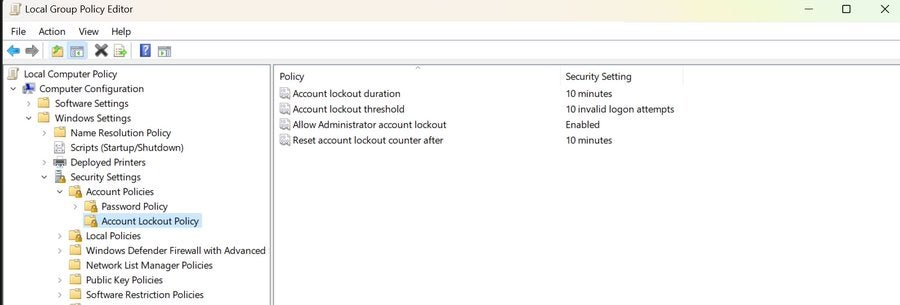
Microsoft added new default account lockout policies to mitigate “RDP and other brute force password vectors”. These are available in the latest Windows 11 development builds.

The following Account Lockout Policy settings are configured by default, according to Microsoft:

  • Account lockout duration — Defines the lockout duration of attacked accounts.
  • Account lockout threshold — The number of invalid login attempts before the account is locked temporarily.
  • Allow Administrators account lockout — Whether administrator accounts will be locked as well if too many invalid login attempts are noticed by the system.
  • Reset account lockout counter after — When to reset the invalid logon attempts counter.

Windows 11 administrators find the policies in the Group Policy Editor under Local Computer Policy > Computer Configuration > Windows Settings > Security Settings > Account Lockout Policy.

A check of the latest Insider build of Windows 11 confirmed the defaults for these policies.

Note that the policies are available only in development builds of Windows 11. Microsoft has not revealed a target release version yet. The most likely candidate is the upcoming Windows 11 version 22H2 feature update. The feature update is expected in the coming months.

Verdict

The new anti brute force policy improves protections against local and remote brute force attacks. Administrators may modify the defaults, to make them more or less restrictive.

Some Windows users, those who use passwordless authentication, may not require them.

All things considered, the new security policies will improve the security of Windows 11 user accounts.

Chrome OS Flex: turn old PCs and Macs into Chrome OS devices

Google released the first public version of the company’s Chrome OS Flex operating system. The special version of Google’s Chrome OS operating system is designed for PCs and Macs specifically.

Chrome Os Flex DOWNLOAD

Chrome OS Flex is a cloud-based operating system with deep Google ecosystem integrations. Google highlights the fast boot time, security of the system, background updates and web compatibility.

The operating system is free to download and use. All it requires is an USB device with enough free storage to put the operating system on. Interested users may run Chrome OS Flex from the USB device without installation, or use it as an installer to turn a PC or Mac into a Chrome OS Flex system.

Who is it for?

Chrome OS Flex is a special version of Chrome OS, the operating system that Google uses on Chromebooks. The operating system is compatible with most PCs and Macs.

Several versions of Windows and Mac OS will run out support in the coming years. Windows 7 and 8.1 reach end of support in January 2023. Devices that run these versions of Windows or Mac won’t receive security updates anymore, and software may stop working as developers drop support for the systems.

Apple and Microsoft hope that customers upgrade to new versions of Windows, or buy entirely new systems with the latest versions of the operating system.

A viable choice up until now was the installation of Linux on these devices. Linux is easy to install and some distributions, for example Ubuntu or Linux Mint, resemble Windows in many regards.

Chrome OS Flex is a new option. The operating system supports old and new devices, but one of its main appeals is the installation on out-of-support devices.

As has been noted, it is a good option to keep on using older devices that can’t be upgraded to new Windows or Mac versions.

Overall, it is a valid choice for users who do not mind using a cloud-first operating system.

Chrome OS Flex system requirements

Chrome OS Flex has the following system requirements:

  • A 64-bit processor from Intel or AMD.
  • At least 4 Gigabytes of RAM.
  • At least 16 Gigabytes of internal storage.

The device needs to support booting from USB. Most processors and graphics adapter are compatible, especially those released after 2010.

Google maintains a list of certified models and devices, which you may access here.

The system requirements exclude 32-bit only processors, which means that certain netbooks and older devices can’t run Chrome OS Flex. Most devices released in the past 15 years are compatible with the operating system though.

Note: Chrome OS Flex is an early access version that is not ready for production environments. Google plans to release a stable version in the coming months. Since Chrome OS Flex does not need to be installed on devices, it is still useful to take a look at the operating system.

Chrome OS Flex installation

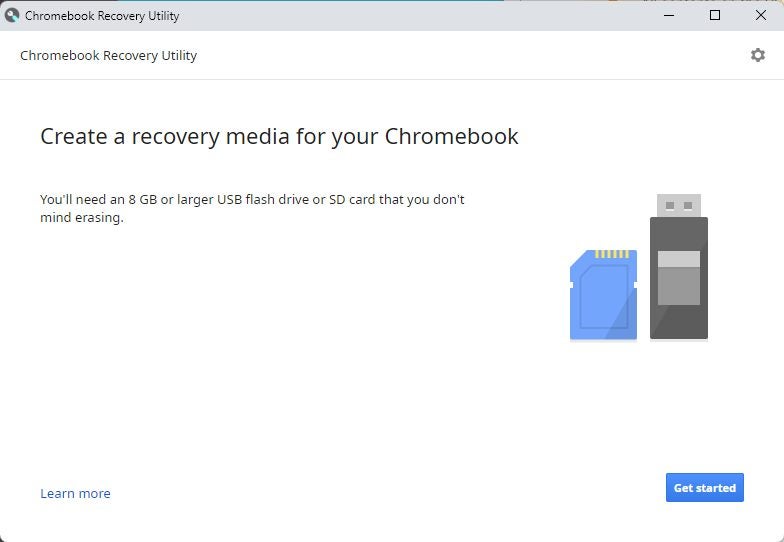
Installation of Chrome OS Flex requires an USB device with at least 8 Gigabytes of storage. A device with the Chrome web browser is required to start the installation.

Here is the process in details:

  1. Open the Chrome web browser on the computer.
  2. Open the Chrome Web Store page of the Chromebook Recovery Utility extension.
  3. Install the official extension in Chrome.
  4. Select Menu > Extensions > Manage Extensions.
  5. Make sure that the Chromebook Recovery Utility extension is turned on.
  6. Activate the icon of the extension in Chrome to start building the USB installer.
  7. Select “get started” when the main window opens (Create a recovery media for your Chromebook).
  8. When asked to select a Chromebook model, pick “select a model from a list”.
  9. Select “Google Chrome OS Flex” as the manufacturer.
  10. Select “Chrome OS Flex” as the product.
  11. On the next screen, select the USB device. Note that all data on the device will be erased in the process. Backup important data before continuing.
  12. The process takes between 10 and 20 minutes to complete.

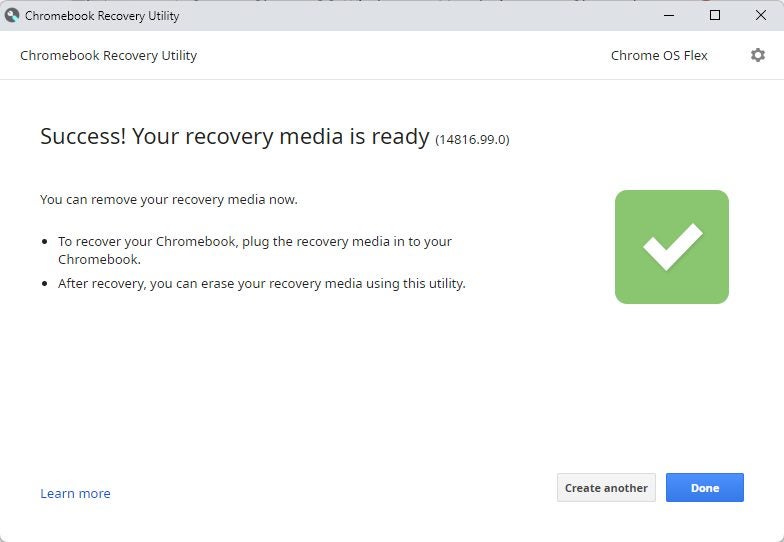
Google downloads the required operating system files to the local system in the next step. The data is copied to the USB device and a “success! your recovery media is ready” message is displayed in the end.

Select “done” to end the process. The USB device contains the full Chrome OS Flex operating system now.

Using Chrome OS Flex

To start using Chrome OS Flex, boot the PC or Mac from the USB device; this may require making a change in the BIOS to change the boot order of devices.

Check out Google’s support page for instructions on changing the boot order of devices or entering the BIOS.

All things considered, it is clear that the installation process is not as straightforward. Many Linux distributions provide USB installers that require fewer steps to complete.

Verdict

Google launches the first version of Chrome OS Flex at an ideal time to the market. Windows devices with Windows 7 and 8.1 run out of support in January 2023. Not all of the devices are compatible with Windows 11, which leaves customers with a tough choice.

Some will continue running unsupported versions of Windows, even though that is not advised. Others may install Linux or Chrome OS Flex on the devices to continue using them.

Microsoft nags Windows 8.1 users with fullscreen end of support warnings

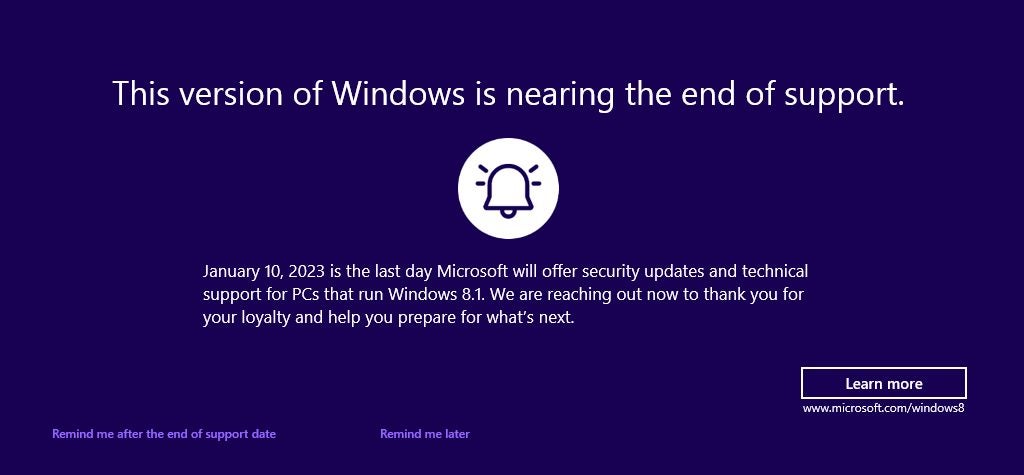
Windows 8.1 users who boot into the operating system may see a warning about the operating system’s upcoming end of support. The alert reminds users that the operating system will no longer be supported by Microsoft after January 10, 2023.

Users of Windows 8.1 began to notice the fullscreen warning this week after installation of the July 2023 cumulative update for the operating system; this update fixed several critical security issues in the operating system and addressed non-security issues. Important security updates are installed automatically on most Home systems running Windows.

This version of Windows is nearing the end of support

January 10, 2023 is the last day Microsoft will offer security updates and technical support for PCs that run Windows 8.1. We are reaching out now to thank you for your loyalty and help you prepare for what’s next.

Windows 8.1 End of Support notification

Microsoft included the notification as part of July’s Patch Day cumulative updates for the operating system.

Microsoft’s Windows 8.1 operating system reaches end of support in January 2023. A last round of security updates for the operating system will be released in January 2023 before support ends. Support end means that Microsoft won’t release security updates for the operating system anymore, nor offer any other form of support, including paid support.

Other products, including Microsoft 365 and products by third-party developers, may reach end of support as well.

Windows 8.1 users may select “remind me after the end of support date” to get another reminder in January 2023. Selecting “remind me later” will show the fullscreen warning again in 35 days. “Learn more”, finally, opens this support page on the Microsoft website. It includes a FAQ, but also advertises Microsoft’s Windows 11 operating system.

How to block the Windows 8.1 end of support warning

Windows 8.1 users who don’t want to see the fullscreen message repeatedly may select the “remind me after” option. Doing so displays the next warning after January 10, 2023 again on the system.

There is also an option to block it completely, but this requires editing the Registry.

Note: we recommend that you create a backup of the Windows Registry or the operating system before editing the Registry.

  1. Use the keyboard shortcut Windows-R to open the runbox.
  2. Type regedit.exe and select the ok-button to start the Registry Editor.
  3. Confirm the UAC prompt by selecting yes.
  4. Use the folder structure on the left to navigate to the following key: HKEY_CURRENT_USER\Software\Microsoft\Windows\CurrentVersion\EOSNotify
  5. Right-click on EOSNotify and select New > Dword (32-bit) Value.
  6. Name it DiscontinueEOS.
  7. Double-click on DiscontinueEOS and set the value to 1.
  8. Close the Registry Editor window and restart the PC.

The operating system won’t display end of support fullscreen warnings anymore afterwards.

Windows 8.1 Support End: your options

Windows 8.1 devices won’t receive security updates after January 10, 2023; this means, that security issues won’t be patched and that these issues may be exploited successfully.

Microsoft extended support of its Windows 7 operating system by three years when it reached end of support. The company announced already that it won’t offer extensions for Windows 8.1. Microsoft offered no explanation, but a look at the usage numbers highlights why. Windows 8.1 is not widely used, even when compared to Windows 7.

Microsoft recommends that users switch to the company’s Windows 10 or 11 operating systems. Windows 8.1 users who want to remain on Windows can only choose one of these systems, as these are the only two that Microsoft supports after January 2023.

Remaining on Windows 8.1 may look like an option, but running unsupported operating systems increases the risk of successful attacks.

Windows 10 is supported until October 14, 2025. While that is less than three years, it may be sufficient for many use cases. There is also a chance that Microsoft may extend the end of support date, considering that a percentage of devices can’t be upgraded to Windows 11.

The operating system has two advantages over Windows 11:

  • A direct upgrade path from Windows 8.1 to Windows 10 exists.
  • System requirements are identical.

Microsoft changed the system requirements of Windows 11 so that unsupported devices can’t be upgraded easily to the new operating system. A direct upgrade from Windows 8.1 to Windows 11 is not possible, even for devices that meet all requirements.

The only option is to upgrade from Windows 8.1 to 10, and then from Windows 10 to 11.

A new installation of Windows 11 is an option, but it would leave all files, settings and installed programs behind.

Other options

Switching to a Linux distribution may be another option. Certain distributions, such as Linux Mint or Ubuntu, provide similar user experiences. Many applications, including games, are available for Linux.

There is also the option of buying a new PC, one that runs Windows 11 or is compatible with the operating system. It is a valid option, especially if the Windows 8.1 PC is showing signs of age.

Windows 8.1 users have several options to deal with the upcoming support end, as shown above. Users who want to keep their files and programs may want to consider upgrading to Windows 10. All Windows 8.1 PCs should be compatible with Windows 10, and since there is a direct upgrade path, it is a straightforward process. Upgrades may still be free, even, in some cases.

The best screenshot tool for Windows just got a whole lot better

Windows users have plenty of options when it comes to taking screenshots of the desktop, applications, games, or anything else they see on the screen.

ShareX Download Now

The built-in screen capturer for Windows, for example Windows 11’s Snipping Tool — provides a good but basic experience. These tools support popular capturing options, such as capturing a program window or the desktop, but they lack advanced features.

Consequently, Windows users are looking for better tools. Third-party applications include image editors, more screen capturing options, better sharing options, or better post processing of images.

One of the best screenshot tools for Windows, the free open source application ShareX, is now available in a new version that improves it even further.

ShareX open source screen capturing for Windows

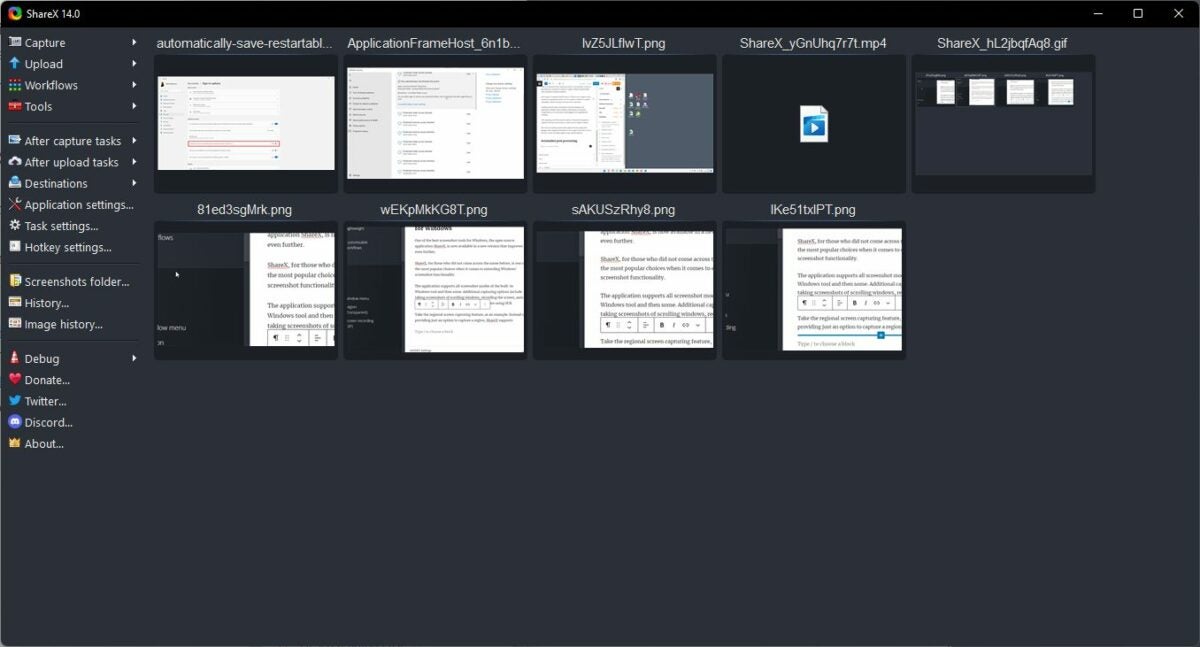
ShareX, for those who did not come across the name before, is one of the most popular choices when it comes to extending Windows’ screenshot functionality.

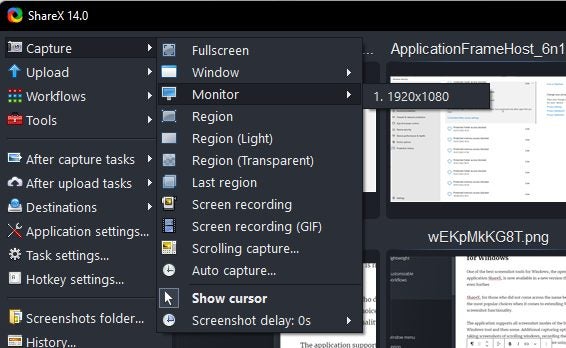
The application supports all screenshot modes of the built-in Windows tool and then some. Additional capturing options include taking screenshots of scrolling windows, recording the screen, auto-capture, multi-monitor support, and text capture using OCR.

Take the regional screen capturing feature, as an example. Instead of providing just an option to capture a region, ShareX supports light and transparent regional captures.

Auto capture is another handy feature. It allows you to repeat screen captures in specified intervals. Use it to capture a window or region repeatedly, without having to repeat the process actively each time.

Automation and shortcuts are one of the application’s strong features. Use the Windows menu to capture any open program window, without activating it first. The same is true for capturing content on different monitors; every option is just a click or two away in the program.

It goes without saying that ShareX supports keyboard shortcuts for all major operations.

Scrolling capture takes screenshots of entire webpages and application windows with scrollbars. The feature is a bit more complicated, as it is necessary to give ShareX cues regarding the scrolling.

OCR capturing, the OCR stands for Optical Character Recognition, captures any text on the screen, so that it can be copied or edited. ShareX 14.0 made the program’s OCR feature better, as it is now possible to use it without active Internet connection on Windows 10 and 11 devices.

The screen recording functionality requires the free application ffmpeg, which ShareX downloads on user request. Once that is out of the way, screen recording supports mp4 and gif captures.

ShareX post processing

ShareX saves screenshots and captures to the local system by default. Options to upload screenshots directly after capturing to image or file hosting sites are supported. The same is true for text captures, which may be uploaded to text hosting sites.

Images may be uploaded to services such as Google Photos, Twitter, Photobucket, Flickr, or Imgur directly. Text uploading supports Pastebin, GitHub Gist and others, and file uploaders support Dropbox, Google Drive, OneDrive, and dozens more.

Post processing options do not end here though. ShareX supports a whole bunch of after capture and after upload tasks that automate certain processes.

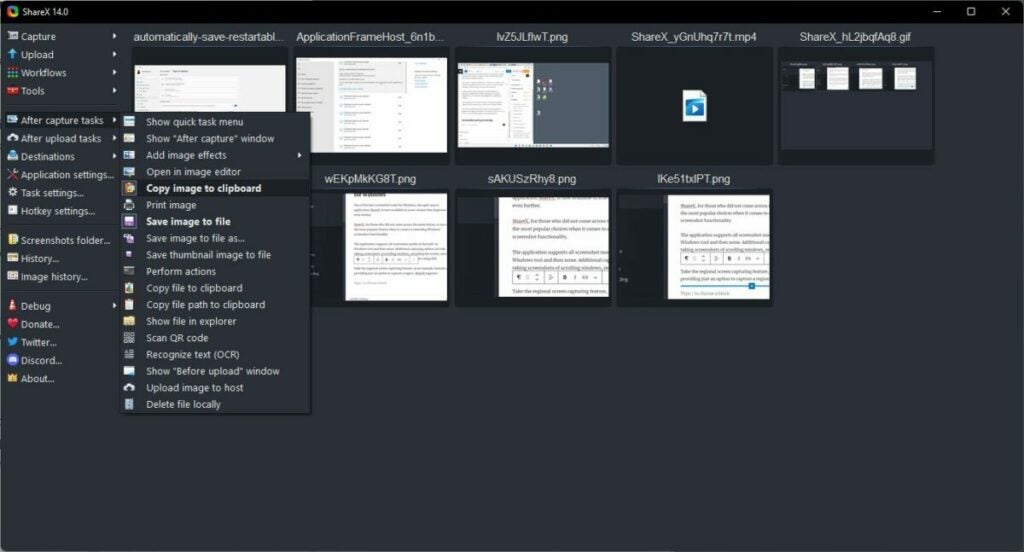
After capture defines automatic actions that the program executes whenever you take a new screenshot or record the screen. Options range from opening the image in an image editor, over copying it to the Clipboard or saving a thumbnail file of the image.

After upload, similarly, defines tasks that ShareX executes after file uploads. It may open the URL for you in the default browser, copy the address of the uploaded file or image to the Clipboard, or create a short version of the URL for easier sharing.

Other features

ShareX displays thumbnails of previously captured images and videos in the interface on start. It is a useful feature to open or interact with previous captures, without having to open the directories of the files.

Image history and history provide even better access to past captures. The application lists captures in chronological order and includes a search filter to find content quickly.

The Tools section includes more than a dozen tools, including a color picker, image splitter and combiner, image effects, or a video converter.

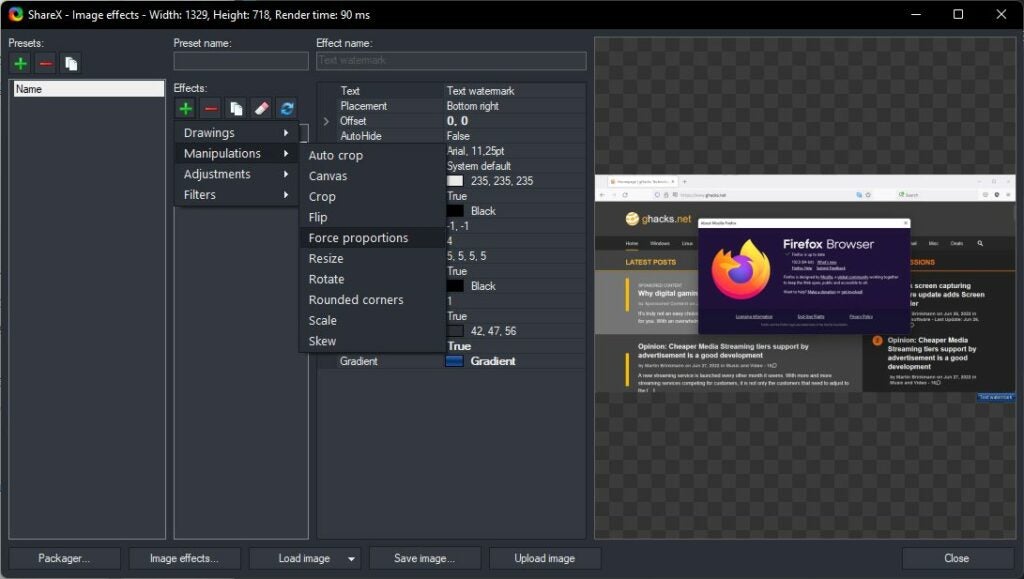
These tools are powerful. Take the image effects tool as an example. It supports dozens of options, such as adding watermarks to images, adding borders or backgrounds, applying a sharpening filter, or resizing the image.

Individual filters or groups of filters may be saved as presets, which may then be executed whenever they are needed with just a few clicks.

ShareX 14.0

ShareX 14.0 is the latest version at the time of writing. It introduces several useful new features and improvements to the screenshot tool, including:

  • Offline OCR capturing support on Windows 10 or newer.
  • Option to capture screens with bigger cursor sizes.
  • Zoom support in the built-in image editor.
  • Hotkey support for the image viewer.
  • Lots of history window improvements, including find as you type functionality.
  • Custom image uploader improvements

You may check out the full release notes on the official website.

Verdict

ShareX is a powerful screenshot and screen recording tool for Microsoft Windows devices. It supports more screen capturing options than the default Windows tools, but does not sacrifice speed or usability for the extended functionality.

Automation is another key feature of ShareX. It is easy to create workflows that save you a dozen or more clicks using the built-in automation options.

All in all, it is as good as it gets when it comes to screen capturing tools for Windows.