10 excellent add-ons for Google Sheets

If you use spreadsheets on a regular basis, you are probably familiar with Google Sheets. The Google alternative to Microsoft Excel, Sheets is a powerful web-based program that you can use for free within Google Drive. Considering the fact that it is a free program, Sheets is incredibly useful. For many people, the built-in capabilities of this program will be more than enough to satisfy their spreadsheet demands.

But what if you need more? If you find that Sheets can’t perform a certain function that you need, don’t despair – add-ons are here to save the day. An add-on in Google Sheets is exactly as it sounds; an additional function that can be tacked on to Sheets with just the push of a button. There are tons of add-ons available, so a little searching should turn up an option that will solve your problem.

To help you locate the right add-on for your needs as quickly as possible, we have collected some of the best add-ons and listed them below. As you will see, there is a tremendous amount of variety in this list, which speaks to the diversity of what can be accomplished with Google Sheets.

Without further delay, let’s take a look at some of the best add-ons Google Sheets has to offer!

Best add-ons for convenience

To get started, we are going to look at some add-ons that make your life a little easier. These don’t necessarily add an essential function, as you might have been able to get the job done on your own, but using the add-on will make the task easier. And who doesn’t love easier?

Wolfram | Alpha for Sheets

If you need to integrate information from somewhere around the web into your spreadsheet, this is a great add-on to keep you on task. As you know, a “quick” trip to the web to pull a bit of data usually doesn’t end up being quick at all. It usually ends up as a distracting journey, and plenty of time will be wasted before you return to your work.
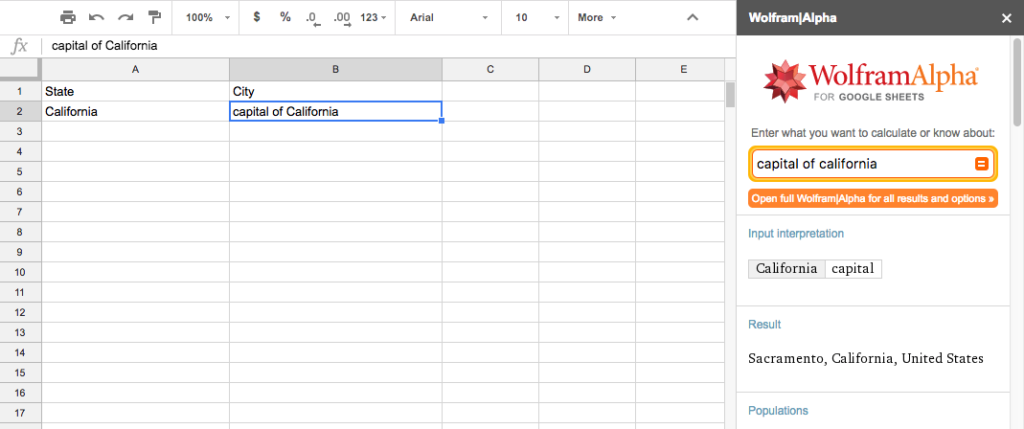
With Wolfram | Alpha, you can stay right in your spreadsheet while still turning to the web for help. For example, let’s say you’re making a spreadsheet that includes the capital cities of many states, and you can’t remember the capital of California. Instead of looking it up, you can just type capital of California directly into the spreadsheet. This brilliant add-on will just look up the info, and replace the contents of that cell with Sacramento. Brilliant!

Google Analytics

For Google Sheets users who also work on websites, the Google Analytics add-on is a no-brainer. With this function, you’ll be able to pull the data from your Google Analytics account right into a spreadsheet. This is quite a handy feature, as you will then be able to manipulate your site stats in any number of different ways. Rather than fighting with the standard Google Analytics dashboard to make it display your data properly, just export to Google Sheets and do with the data as you wish.

Translate My Sheet

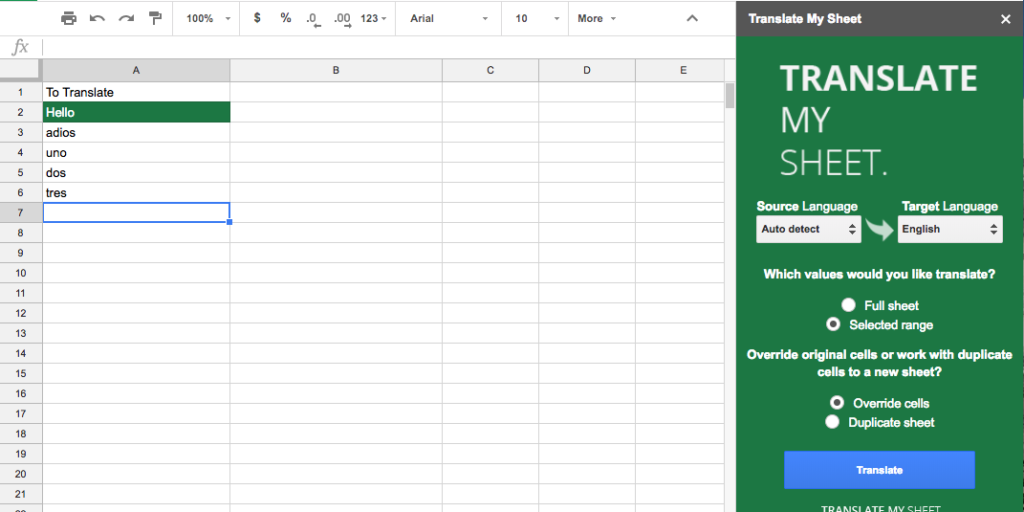
If you need to translate the contents of a spreadsheet from one language to another, there’s no need to copy/paste everything in and out of the sheet while running it through a translator on the web. Instead, use the Translate My Sheet add-on to do the job for you. Select the cells that you would like to translate, identify the original language and the target language, and let the add-on do the heavy lifting.
Best add-ons for improving your sheets

Does a messy spreadsheet make you a little twitchy? It’s understandable. After all, the whole point of using a spreadsheet is to organize data into an easy-to-use, attractive display. If some of your spreadsheets aren’t living up to those expectations, perhaps the following add-ons will help.

Add Rows & Columns

Okay – so this one is pretty simple, but we like it because of its simplicity. It takes what can be an annoying formatting task and makes it quick and easy. As your spreadsheet grows, you’ll likely need to add rows and columns from time to time. Sometimes, you will need to add a lot of rows or columns, and doing so one at time can be a pain. With this add-on, you can ask for any number of rows or columns to be added, and it will be done instantly. Simple, but a major time saver.
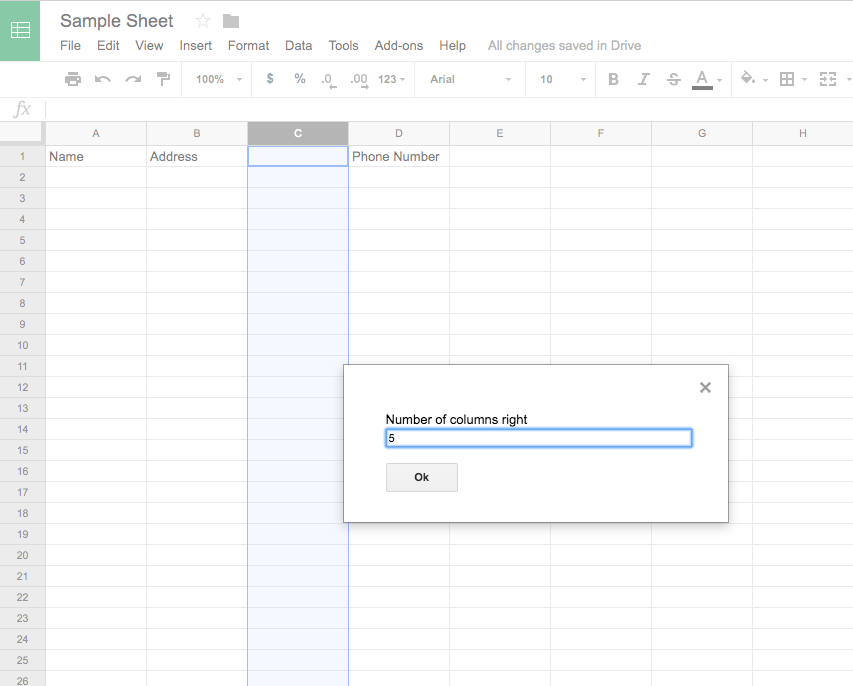
Table Styles

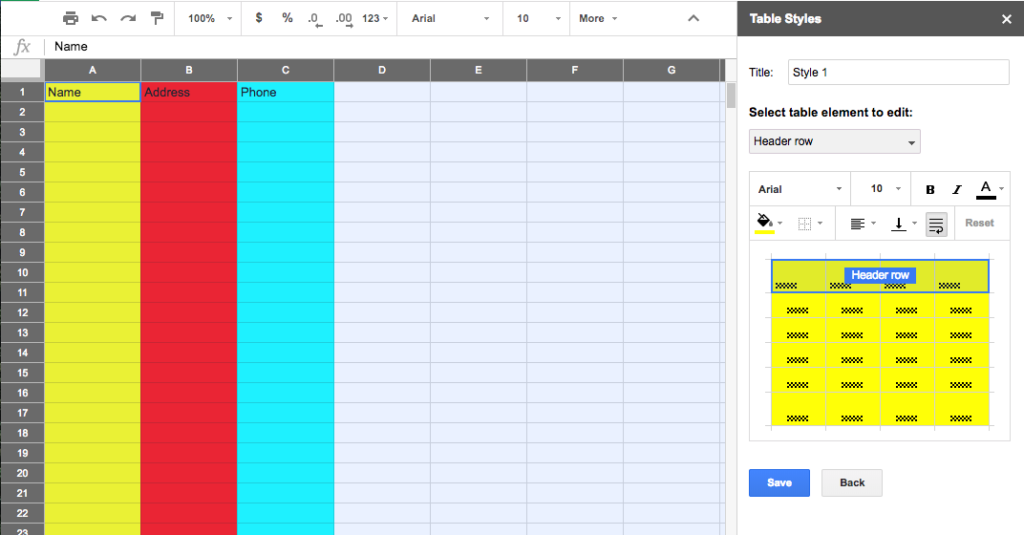
This is a great add-on for someone who makes a lot of spreadsheets. For example, if you create spreadsheets for clients and need them all to look the same, you can use Table Styles to create a template that can be added to future spreadsheets by simply pressing a button.

Again here, we see an add-on that can save you both time and frustration. Don’t keep building the same spreadsheet over and over again. Just build it once, save the formatting using this add-on, and use the styled sheet for years to come.
Crop Sheet

Above, the Add Rows & Columns add-on was identified as a great way to instantly make more space in your spreadsheet. But what if you need to do the opposite? What if you need to cut down your sheet in order to present a clean and compact collection of cells? Crop Sheet is here to help. This add-on will strip away the unused cells in your spreadsheet, leaving you with just the essentials. Or, you can have it crop the sheet down to only a selected range.

Best Add-Ons for Email

Yes, this is an article about Google Sheets. However, many Sheets users fill their spreadsheets with contact information, so it makes sense to connect this back to email. If you are one of the many who has contact lists organized in Sheets, you may find the add-ons below to be extremely helpful.

Email Scheduler for Gmail

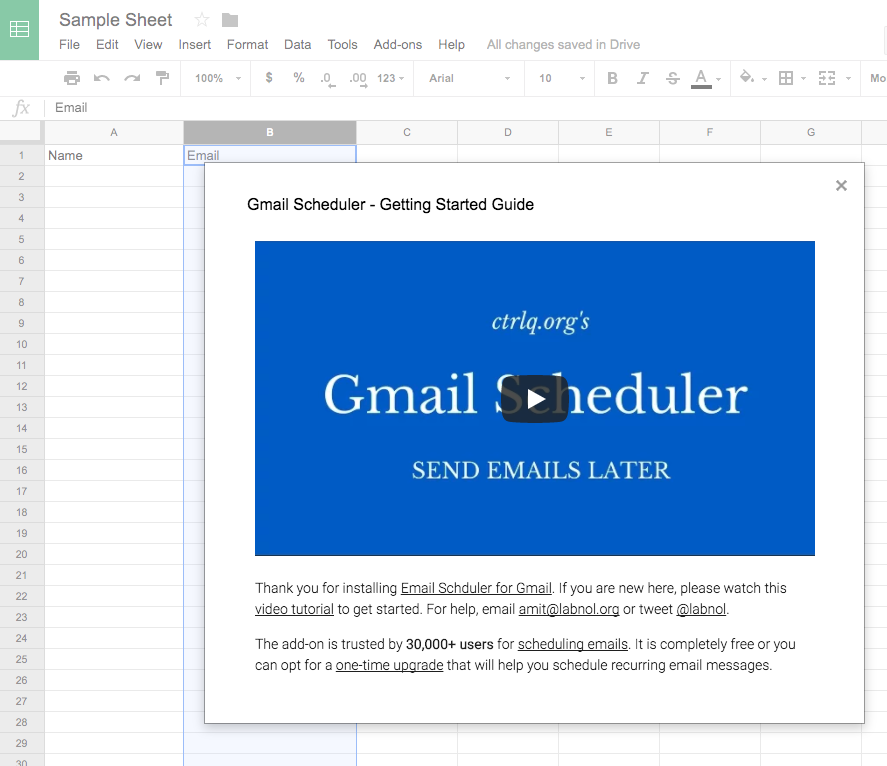
If you need to send out your emails at a specific time, you don’t need to set an alarm to log back into Gmail and do the job – the Email Scheduler for Gmail add-on will do it for you. Once your emails are written and saved as drafts, they will be available from within this add-on to be scheduled. Just select the date and time for each email to go out, and you’ll be all set.
formMule

This is a handy add-on for those who send many different types of emails. Use a number of different templates to suit your different types of messages, and then establish conditions which will determine which email template to use depending on the contents of your spreadsheet. Once fully set up and organized to meet your needs, this is a powerful tool that can make your marketing life a lot easier.

Mail Merge with Attachments

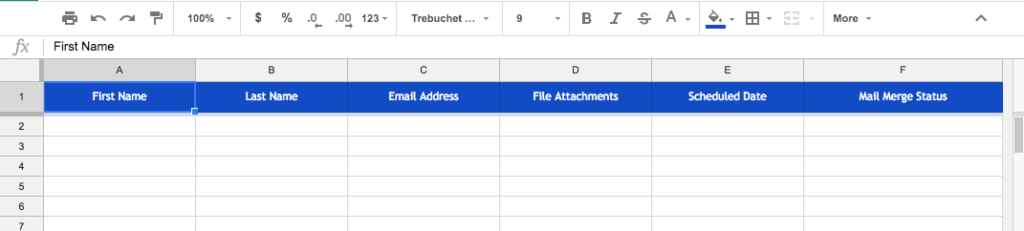
For those occasions when you need to send out a specific file to a number of different people, Mail Merge with Attachments can come to the rescue. With this add-on, you’ll be able to tack on any file from your Google Drive with just a click of your mouse. With a list of email addresses in a Google Sheet, you can send the file(s) to all of the right people with ease. This might not be an add-on that you use with great frequency, but it will certainly come in handy when the time is right.
Bonus – just for fun!

It’s been all business to this point on our list, but we wanted to toss in a fun add-on before wrapping things up.

Sudoku Sheets

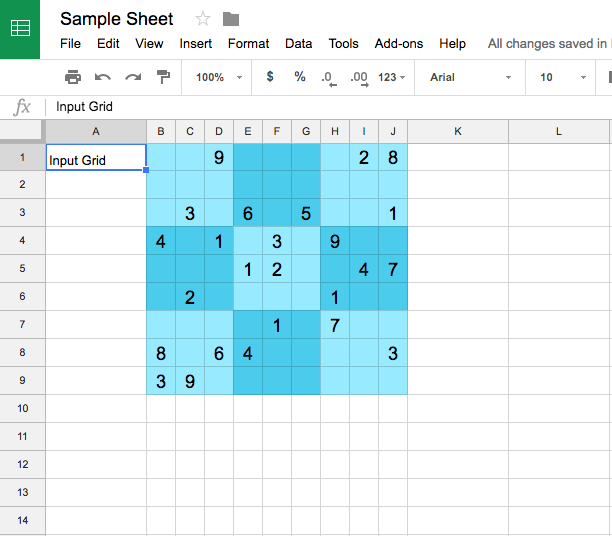
If you would like to play a quick puzzle game while setting your work aside for a moment, Sudoku Sheets lets you do just that. You can pick from three different levels of difficulty – easy, medium, or hard – and the add-on will put together a puzzle that you can attempt to solve. Can’t manage to work out the answer on your own? Not to worry – the add-on will solve it for you, once you have thrown up your hands in defeat.
Google Sheets is an excellent spreadsheet program right out of the (virtual) box, but it can become even more powerful when you pick the right add-ons for your needs. The key is to find and use add-ons that are specifically tailored to what it is that you need to accomplish. An add-on that’s a huge timesaver for someone else might be completely useless to you, and vice versa. Think about what it is you need from Google Sheets, and then look for the add-ons that can make that happen. Hopefully, some of those listed above will help you become more efficient while using this powerful tool.

12 top add-ons for Google Docs

If you’re like most people, Google Docs is all you will ever need from a word processor. Of course, Microsoft Word still has millions of devoted daily users, but there is plenty of room in the market for a web-based application like Google Docs. To make the program even more appealing, there is a long list of add-ons available, just waiting to make the software even more powerful.

The great thing about add-ons is that you can pick and choose the ones you need, effectively customizing the program to suit your demands; and then you can easily uninstall them if they don’t work for you. Try out some of our favorites below.

12 top add-ons for Google Docs

Best add-ons for creating clean documents

Clean documents are good documents. You can produce beautiful finished products in Google Docs with the help of these add-ons.

Doc Builder

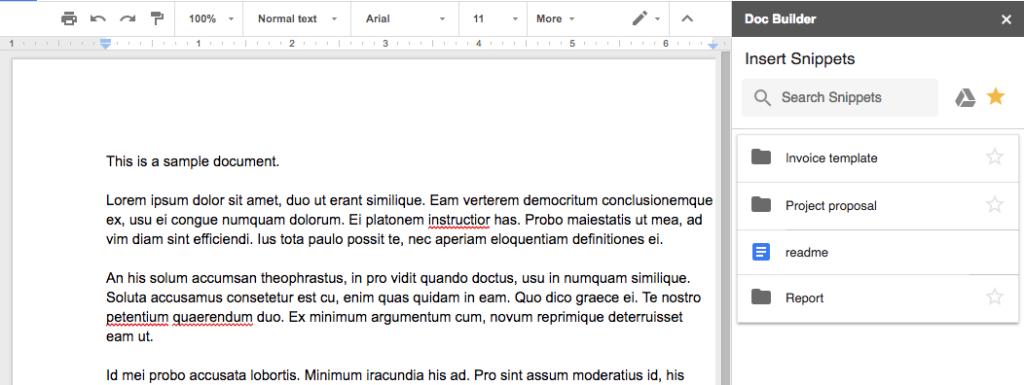
One of the best ways to use add-ons for Google Docs is to automate – or, at least, semi-automate – tasks that you complete on a regular basis. With that in mind, Doc Builder is a powerful add-on worth your consideration. This tool will let you insert snippets into your documents from a sidebar with the click of a mouse. For example, if you tend to use the same blocks of text within a number of different documents – some company marketing materials, perhaps – you can add those to Doc Builder and have them available at any time. Not only does this work for text, but also for images and formatting.

Page Layout Tool

Do you frequently print from Google Docs? Are you always printing on pieces of paper that are the exact same size? If your answers to those two questions are yes, and no, respectively, you will love what Page Layout Tool can do. Simply install this add-on in Google Docs and set your page sizes exactly as you would like. After a bit of experimentation, you should be able to use this add-on to quickly set page size and margins. Of course, you don’t have to be printing in order to make use of this tool, as it can work nicely when you are going to simply export documents as PDFs.

Text Cleaner

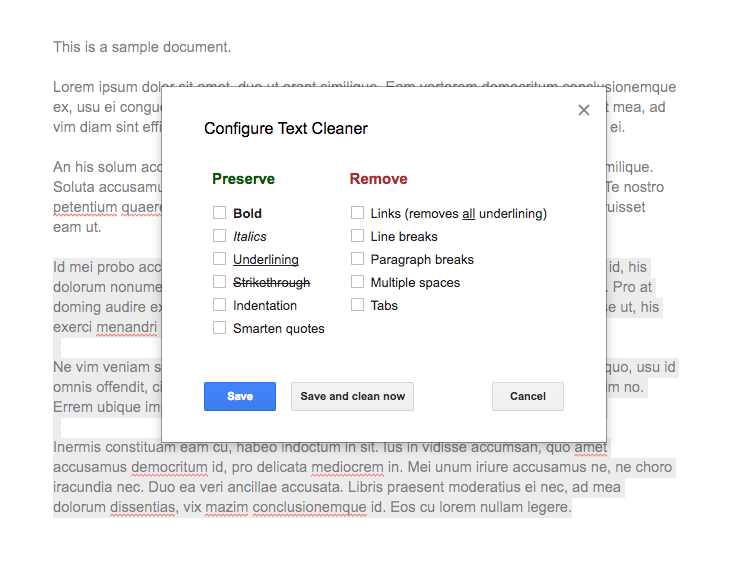
If you are compiling text from a variety of different sources and attempting to bring that text together into a cohesive document, the file could be a mess at first. Rather than sorting through it line by line in order to clean it up, let Text Cleaner do the heavy lifting. You can use this add-on to decide which elements in the text you would like to keep and which should go. When used in the right situation, this add-on can be a major time saver.

Docs add-ons for saving time

You don’t have time to waste on your projects, and neither does anyone else. Let these add-ons streamline your workflow.

EasyBib

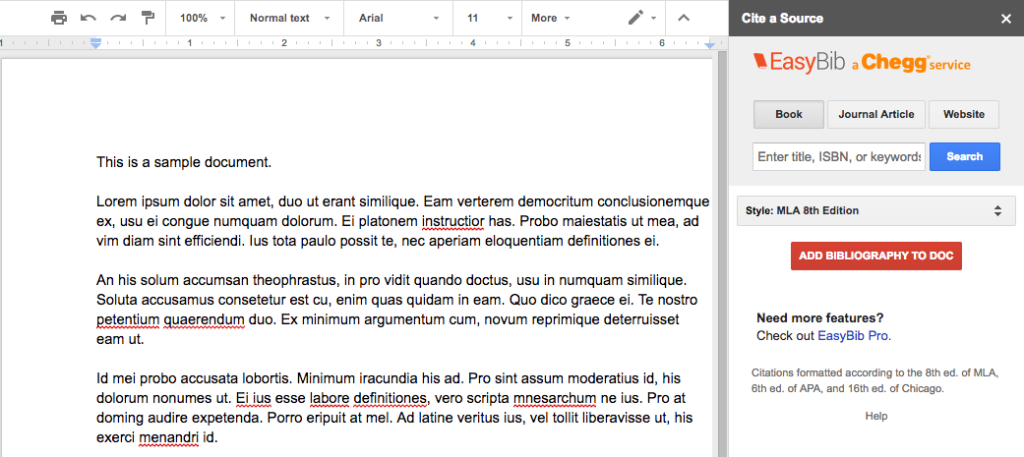
For certain kinds of projects, putting together a bibliography can be the most demanding – and frustrating – part of the job. With EasyBib, you can take some of the pain out of the bibliography process. With the add-on installed and the sidebar open, you can quickly look up the information you need to add a quote or other reference. Also, you can choose the relevant citation style, so everything remains clean and consistent. You may not frequently create documents that have to be cited, but having EasyBib available for those occasions is a smart choice.

Translate+

In a globally connected world, it is easy to wind up with documents that need to be translated from one language to another. Or you may have just a piece or two of text within a document that needs to be converted into a given language. To make that task a quick and easy one, turn to Translate+. This add-on covers just about every language you can imagine, so it likely has support for your needs. With the sidebar open for this add-on, you can quickly complete the necessary translations and move on with your tasks.

DocSecrets

This is one of our favorite add-ons for Google Docs, if just because it creates a handy solution to a potential problem.

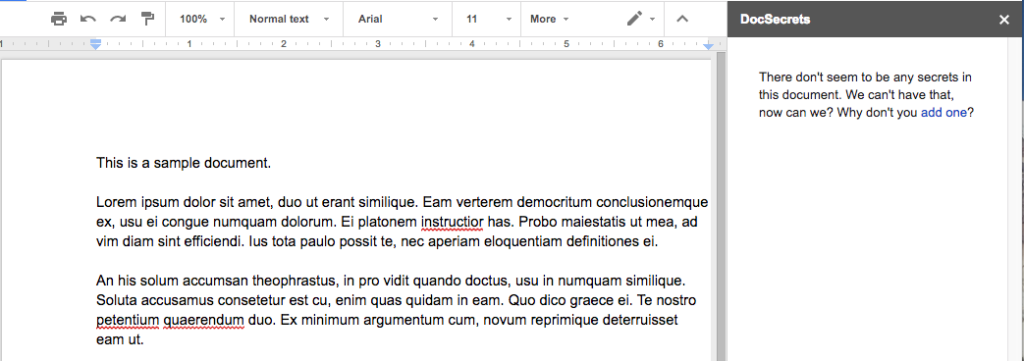
One of the reasons that so many people love Google Docs is the fact that you can share access to documents quickly and easily. If you want input from other people on your team, just share your document with them and they can view it (or make changes, if you wish to let them). This is great, but what if you don’t want them to see everything? That’s where DocSecrets comes in. By using this add-on, you can password protect specific portions of the document. For those who you would like to have access to the hidden portions, you will have to give them the password and instruct them to install this add-on.

Add-ons to go beyond word processing

These add-ons augment Google Docs with features that would not typically be seen in a standard word processor.

Yob Graph Editor

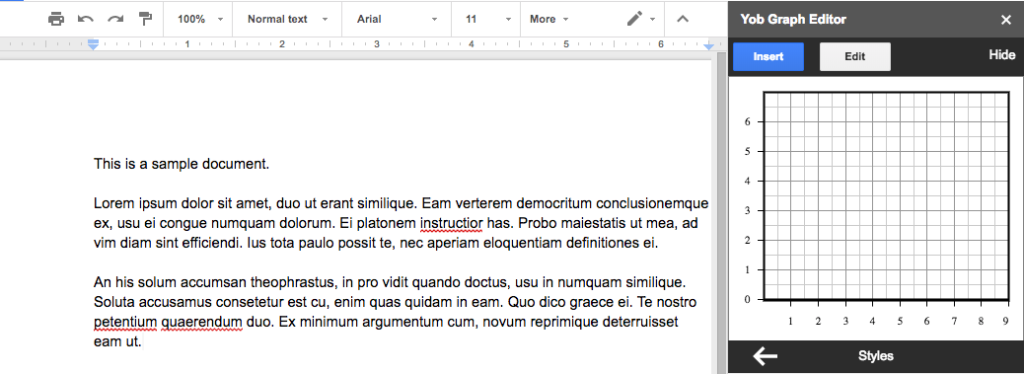
To display data is a visually attractive manner within your Google Docs, consider using the Yob Graph Editor add-on. This simple addition to Docs  does exactly what you would expect it to do. In the sidebar, you can use the functions and data you need to create a graph that will be inserted into your document. Graphing is not a function that is native to Google Docs, so this is an important add-on if you work with data.

Flat Music Notation

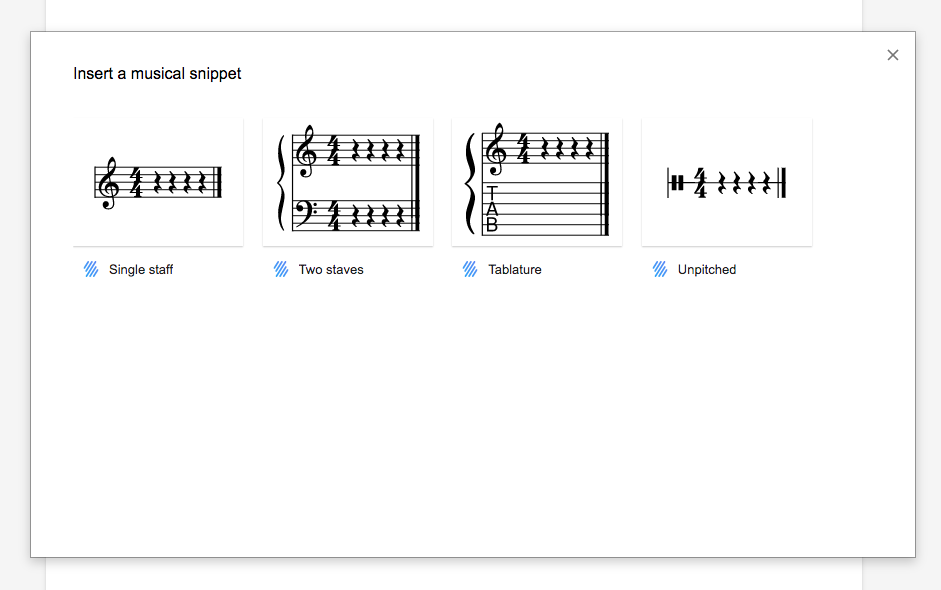
Okay – so this one is going to serve a niche market. For most people, there is no need to insert sheet music into a Google Doc, and we understand that. However, if you do happen to have this need, Flat Music Notation is a pretty handy add-on. For starters, you can add sheet music directly into your documents, an important capability for a music teacher or student. In addition, you can actually listen to the music, which we think is pretty cool. Again, this one won’t be relevant for 99% of the Google Docs users out there, but a select few are sure to love it.

Supermetrics

No matter what field you are in, there is a good chance that marketing metrics play a role in your business. If you would like to bring some of the data from your Google Analytics account over to a Google Doc, this add-on is up to the challenge. Use Supermetrics to pull information from your Analytics account and you can quickly create marketing reports right within Docs. This is a quick and easy way to tap into the info you need without having to make a separate trip to the Analytics dashboard.

Google Docs add-ons for collaborating

When you need to work together with others to complete a project, these add-ons are likely to be of assistance.

UberConference Sidebar

We mentioned earlier that collaboration is one of the biggest benefits to using Google Docs for your word processing needs. But what if you want to do more than just share a document with someone – what if you actually want to discuss it? Enter UberConference Sidebar. You can use this add-on to set up a conference call right within Google Docs. In just moments, all of the relevant parties can be involved in the call, offering their insights on the document in real-time.

Collovate

For a workflow solution that can be used within Google Docs, consider turning to Collovate. Again, this is all about getting other eyes on your documents, and having those individuals be able to make comments or changes as necessary. It is easy to work with others when you add this piece of software to your Google Docs, so it may be just what you need to streamline your day-to-day operations.

MindMeister

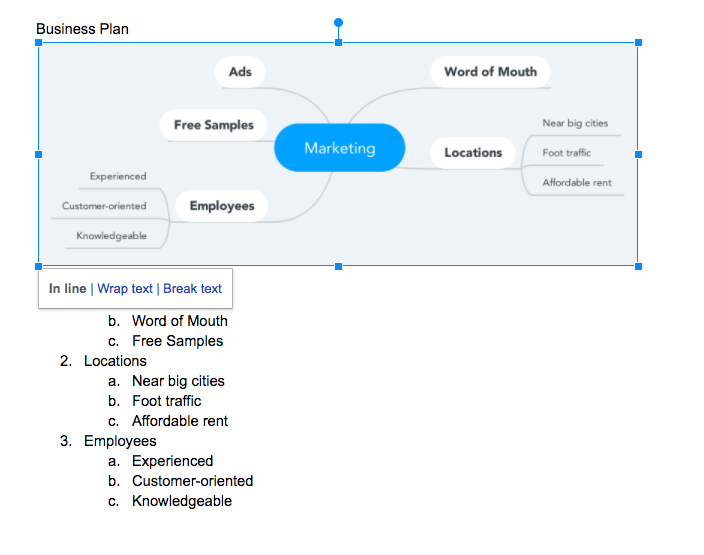
Do you use mind maps? If not, they can be a great way to organize your thoughts and present them to other people who may be working on a project with you. Or, if you are trying to get a project approved, a detailed mind map can help convey your ideas. To create an appealing mind map within Google Docs, you can use the MindMeister add-on. When you are ready to build a mind map, simply create an outline in a Google document. The add-on will then be able to capture the information within that outline and turn it into a handy mind map that can be inserted anywhere within the document.

If you only need to type up a quick letter and be on your way, it probably won’t be necessary to use any add-ons at all with Google Docs. As your needs change, however, using add-ons is a smart move. We hope some of the options included in this list will help you get maximum productivity from this free, easy-to-use program.


10 Chrome extensions that will make your life better

Quick — what browser are you using to read this? Chances are that you are using Google Chrome… at least according to the recent statistics.

Chrome is the most popular browser out there, and it’s no surprise: It’s arguably the safest and most user-friendly browser there is. With its library of extensions, impressive mobile integration, intuitive design, and robust security features, you can work seamlessly and efficiently across all your devices.

What makes Chrome a fabulous browsing experience is that you can customize Chrome to optimize its efficiency for your particular needs. There is no end to the number of Chrome extensions available from the Chrome store. While this list is by no means exhaustive, these ten Chrome extensions will change your life.

10 Chrome extensions that will make your life better

Productivity boosters

Source: https://chrome.google.com/webstore

Grammarly for Chrome

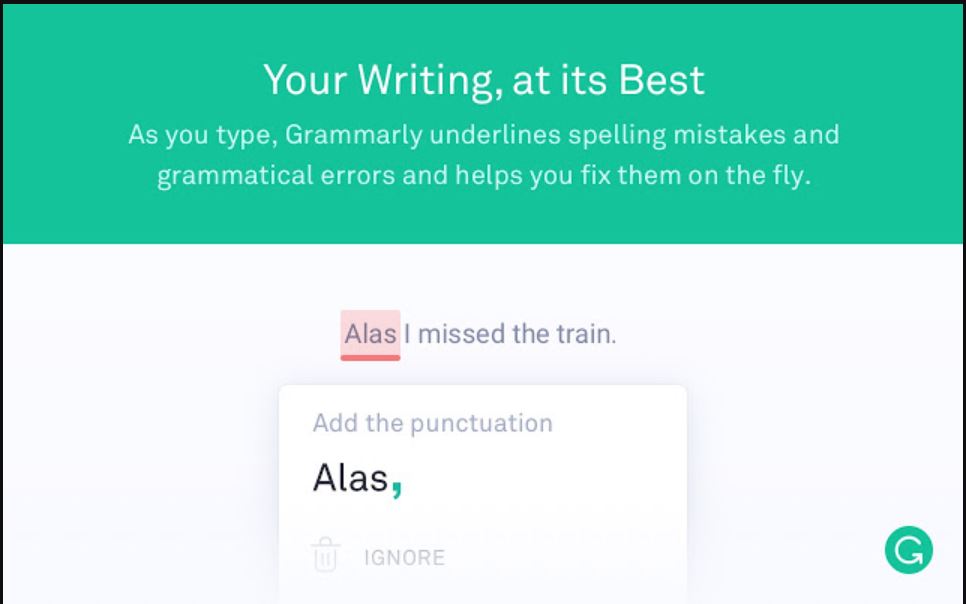
Look at any “best of” Chrome extension list and Grammarly will be on it. And for good reason. Grammarly is the app of choice when it comes to dotting your i’s and crossing your t’s. It is a robust grammar and spelling checker, ensuring that your work is free from language issues.

What makes this app pop is its ability to run a plagiarism check against 8 billion websites in mere seconds. Whether you are a self-proclaimed wordsmith or a grammar-phobe, the Grammarly extension protects you from making the wrong word choice every time. Think of it as having a proofreader in your back pocket.

Source: https://chrome.google.com/webstore

Boomerang for Gmail

One of the things that make Chrome so popular is that it’s part of the Google behemoth. If you are using Chrome, it’s likely that you are also using Gmail. Gmail is good. But with the Boomerang for Gmail Chrome extension, Gmail becomes great.

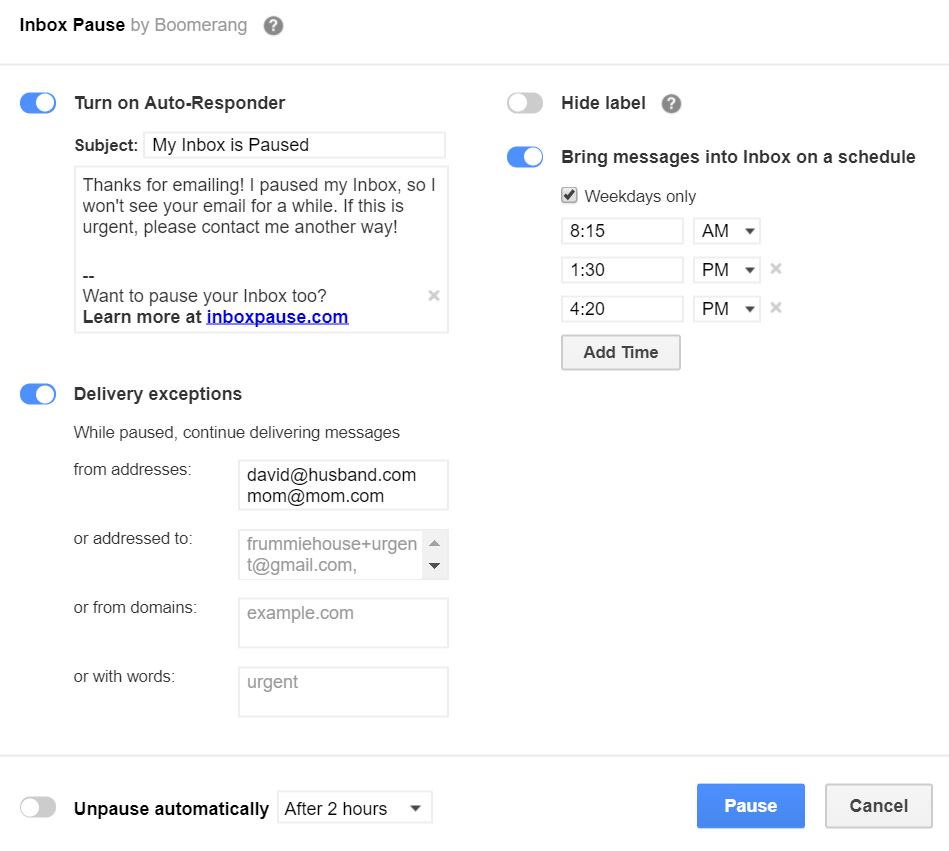
With Boomerang, you can schedule emails for a later time and date, “snooze” an email so that it returns to the top of your inbox at a specified time, and calendar follow-up reminders. With one click, you can set your Gmail on pause so that you aren’t interrupted by the constant flow of emails to your inbox. It even offers the option of requesting cross-platform read receipts. It integrates well with Gmail and makes it possible to reach zero-inbox heaven.

Source: https://chrome.google.com/webstore

Session Buddy

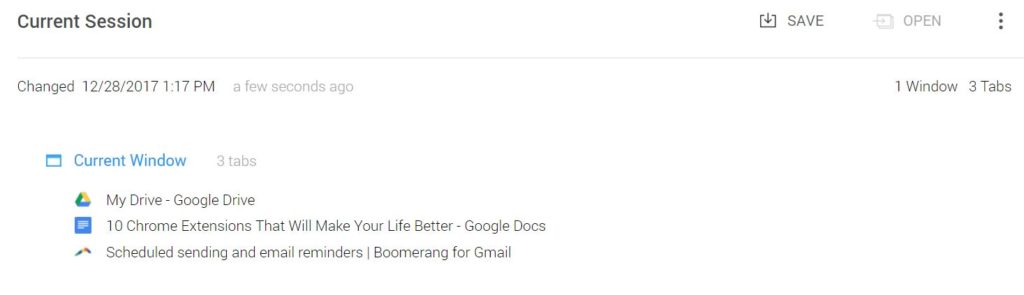
Internet research can result in having multiple tabs open at the same time. What happens, though, when your browser crashes? Yes, you can go to your browser history and open them one-by-one. Or you can install the Session Buddy extension and relax. Session Buddy will save them for you in one convenient spot. Not only does Session Buddy save your links as you are using them, but you can manually keep them in a named session. This makes returning to your project a breeze.

Source: https://chrome.google.com/webstore

Noisli

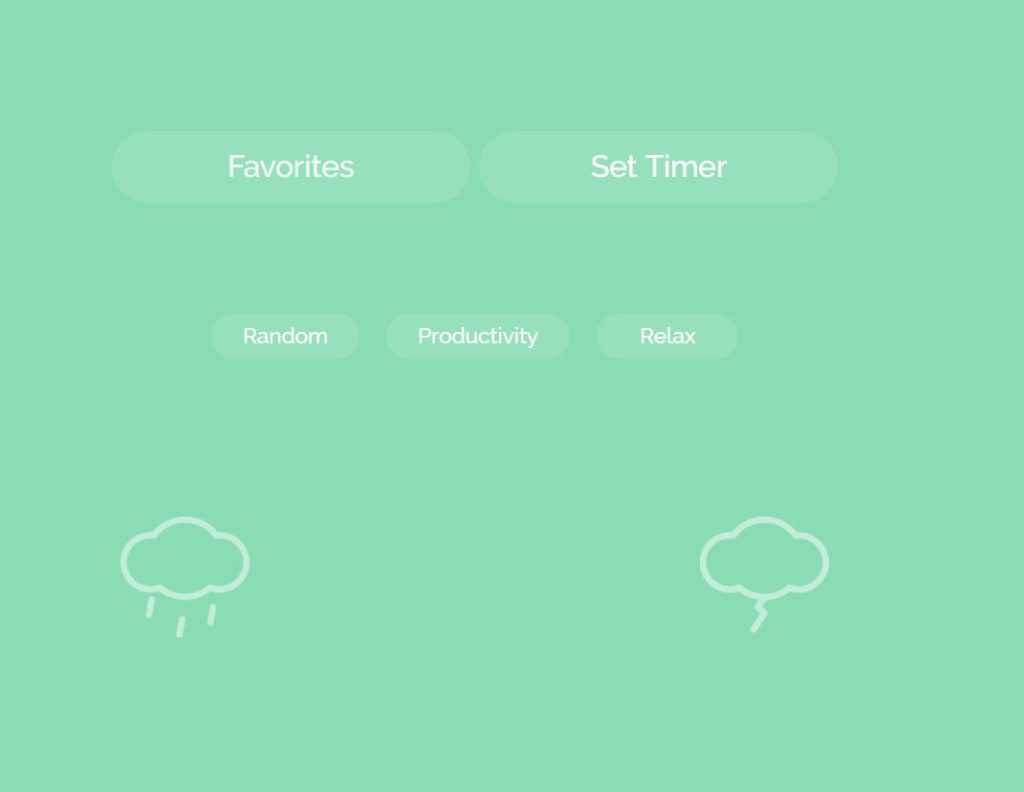
Are you distracted by silence? Noisli is the perfect solution. It provides the right ambient noise and at just the right volume. This extension is customizable and can be set to suit your particular mood. Whether you are seeking soothing sounds or ones to make you more productive, Noisli will surround you with an aural buffer so that you can do what you need to do without distraction. As an additional bonus, Its built-in timer is a handy way to keep track of your efforts.

Source: https://chrome.google.com/webstore


Panic Button

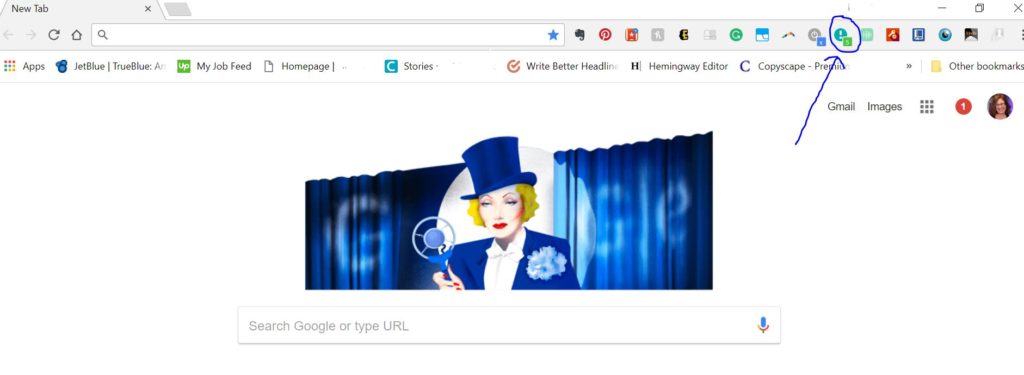
So let’s say that you’re at work. You are on your computer working when you decide to check your Feedly (to get the day’s top headlines, of course) or Facebook (just to check in on a few friends). No biggie. Except you suddenly hear your boss headed your way. Don’t panic; hit your Panic Button. The PanicButton extension is a stealthy way to mask your online activity until your boss returns to her office. Hit the Panic Button a second time, and all of your tabs return.

Source: https://chrome.google.com/webstore

Evernote Web Clipper

Have you ever felt that with so much information available there must be one easy way to corral it in one place? You’re in luck. The creators of Evernote have solved that problem with Web Clipper, a multiplatform archive.

With the Chrome extension, one click on the elephant will save the article, PDF, word doc, receipts, and more in one location. And because it works across your devices and syncs automatically, your saved info is always up-to-date. With its smooth interface and an intuitive tagging system, you’ll be able to organize every aspect of your life. It’s that good.

Lifestyle Necessities

Source: https://chrome.google.com/webstore


Legrooms for Google Flights

Does it seem as though the rules of travel seem to change regularly? From the size of the seats to the amount of legroom to the number of carry-on bags permitted, it’s hard to keep track of the specifics. This is where Legrooms for Google Flights comes in to save the day. It provides tons of essential information to help you choose the best flight for your travel plans. It also lets you know what amenities are available on a particular flight. Pressing the Legroom button launches Google Flights and from there, the sky’s the limit.

Source: https://chrome.google.com/webstore

Pinterest Save Button

The Pinterest Save Button extension is like the gateway drug of extensions. It is intuitive and makes it simple to pin webpages to your Pinterest boards. It cuts out several of the steps needed to add the site from inside Pinterest itself. It also makes it easy to save the link to those cute booties for later shopping.

Speaking of shopping, either of these next two extensions will save you money. Used together, you will become a shopping powerhouse.

Source: https://chrome.google.com/webstore


Ebates

This cash-back website makes internet shopping a breeze. With more than 2,000 participating stores all located on one site, Ebates offers rebates ranging from 1%-25% of the total purchase value. To use it, you’d have to go to the Ebates site and then continue through the portal to your site of choice.

Adding Ebates Extension for Chrome eliminates the possibility that you’ll forget to start your shopping journey on Ebates, which is the only way to qualify for cash back. As soon as you go to any participating website, the Ebates pop-up appears in the upper right corner. One click of the button and you are on your way to a cash-back rebate. It’s that simple.

Source: https://chrome.google.com/webstore

Honey

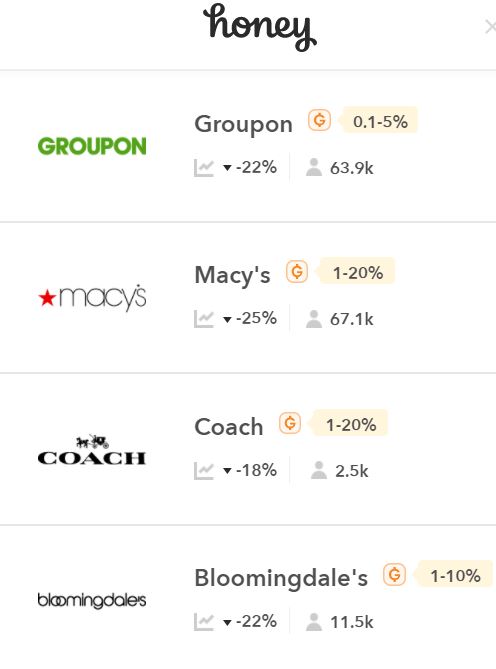
If there is a coupon or code available, Honey will find it and apply it for you with one simple click. No need to visit a bunch of code sites since this Chrome extension does all the heavy lifting for you. Plus, it eliminates the frustration of attempting to use an invalid code.

Where Honey shines is when using it on Amazon. Though Amazon does not offer site-wide codes, Honey has a best-price detection feature that enables it to searches out the best price in the entire Amazon Marketplace. So whether you are shopping at any one of thousands of sites or on Amazon, using the Honey extension is sure to save you money.

Bonus tip: Extensions can have a significant impact on your productivity at home and at work. However, they have a tendency to slow down your browser. It’s worthwhile to go through your extensions periodically and weed out the ones you are no longer using.