4 incredibly useful templates in Google Sheets

These are our favorite Google Sheets templates to be more productive.

google sheets templates

No matter how you use Google Sheets, at home or at work, it’s important for the spreadsheet program to be as efficient and user-friendly as possible. One of the many benefits of the program comes in the form of Google Sheets templates. Below, learn about the different templates available at your fingertips. These four handy tools can boost productivity and make life easier for all G-Suite users.

4 incredibly useful templates in Google Sheets

1. Invoice

If you own a small business or operate as a freelancer, the invoice template is a lifesaver. It’s a completely customizable template that looks way more professional than a run-of-the-mill spreadsheet. That way, you can impress clients without very much backend work.

7

2. Project timeline

Project management can be tough, which is why this template is so thoughtful and useful. The timeline helps you organize and implement different steps of any large-scale project. A lot of users appreciate its visual separation of larger tasks, which makes it easier to delegate (and is a lot less stressful to look at).

3. Employee shift schedule

This is another template that simplifies the lives of business owners. The shift schedule template makes it easy to track who is working what hours, at what rates, and even calculating paychecks.

4. Financial statements

Anyone who’s in charge of reconciling the finances for a business knows what a daunting task it can be. By helping to track business transactions, P&Ls, and assets and liabilities, this template makes the process much easier. It is even broken up into different tabs that automatically summarize certain information, along with a dashboard where you can calculate YTD growth with minimum data-inputting effort. This template significantly helps minimize the chance of human error when calculating important information for any business or organization.

All of these templates make it much more possible to be efficient and productive when using Google Sheets. And let’s face it, that’s the reason most users turn to the program in the first place.

5 formulas for Google Sheets you didn’t know you needed

Become a data wizard with these formulas!

google sheets

The Google Suite has changed the internet in many ways, with its handy features, convenient accessibility, and all-around usefulness. In particular, Google Sheets is a great way to collect and share data with others and to stay organized on the go without having to use Excel. What many may not know is you can find a wide range of formulas that make Google Sheets even more useful. Take a look at five of them below.

5 formulas for Google Sheets you didn’t know you needed

1. Array formula

The Array formula is a useful one because it can apply formulas in the best possible way to multiple cells. It has a single calculation that funnels results into multiple rows or columns. It’s efficient, and it also avoids the drawback of slowing down Google Sheets when users manually drag formulas across a wide range of cells. To use this formula, use the code ARRAYFORMULA(array_formula).

2. Importrange formula

While it may take a very long time to manually move data from one sheet or document to another in Google Sheets, there’s a formula that does all the work for you — and quickly! It will import data from a range of cells from a separate Google Sheet spreadsheet in the blink of an eye. All you have to do is use the following formula: IMPORTRANGE(spreadsheet_url, range_string).

3. Find formula

The Find formula is useful for searching for a string of text. To use this, use the formula FIND (search_for, text_to_search, [starting_at]). It’s as easy as that!

4. Substitute formula

Want to substitute a new text string in a Google Sheet doc without having to do it manually? It’s simple when you use this formula: SUBSTITUTE(text_to_search, search_for, replace_with, [occurrence_number]).

5. Countif formula

This formula is super handy if you have a set of data, and you want to know how many times a single number or block of text is repeated. For example, say you have a spreadsheet where people can RSVP “yes” or “no” to an event. If you want to know how many people said yes, instead of counting by manually, you can just use the formula, COUNTIF, with the range of cells and the value you want it to look for. (Note that if you’re looking for text, it needs to be in quotes in the formula.) It’s a great way to save time, and this way your count should update if one of the values changes.

This is just the beginning of the wide range of useful Google Sheets formulas you have at your fingertips. Start with these and enjoy the productivity boost!

10 excellent add-ons for Google Sheets

If you use spreadsheets on a regular basis, you are probably familiar with Google Sheets. The Google alternative to Microsoft Excel, Sheets is a powerful web-based program that you can use for free within Google Drive. Considering the fact that it is a free program, Sheets is incredibly useful. For many people, the built-in capabilities of this program will be more than enough to satisfy their spreadsheet demands.

But what if you need more? If you find that Sheets can’t perform a certain function that you need, don’t despair – add-ons are here to save the day. An add-on in Google Sheets is exactly as it sounds; an additional function that can be tacked on to Sheets with just the push of a button. There are tons of add-ons available, so a little searching should turn up an option that will solve your problem.

To help you locate the right add-on for your needs as quickly as possible, we have collected some of the best add-ons and listed them below. As you will see, there is a tremendous amount of variety in this list, which speaks to the diversity of what can be accomplished with Google Sheets.

Without further delay, let’s take a look at some of the best add-ons Google Sheets has to offer!

Best add-ons for convenience

To get started, we are going to look at some add-ons that make your life a little easier. These don’t necessarily add an essential function, as you might have been able to get the job done on your own, but using the add-on will make the task easier. And who doesn’t love easier?

Wolfram | Alpha for Sheets

If you need to integrate information from somewhere around the web into your spreadsheet, this is a great add-on to keep you on task. As you know, a “quick” trip to the web to pull a bit of data usually doesn’t end up being quick at all. It usually ends up as a distracting journey, and plenty of time will be wasted before you return to your work.
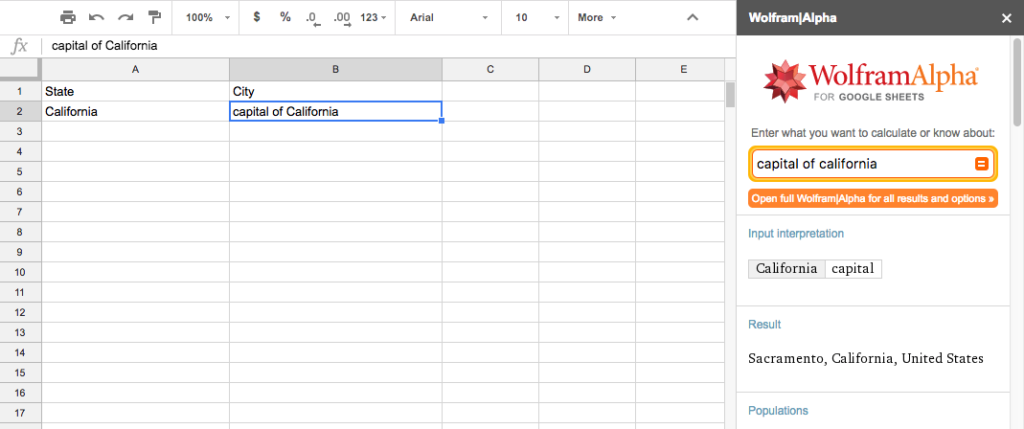
With Wolfram | Alpha, you can stay right in your spreadsheet while still turning to the web for help. For example, let’s say you’re making a spreadsheet that includes the capital cities of many states, and you can’t remember the capital of California. Instead of looking it up, you can just type capital of California directly into the spreadsheet. This brilliant add-on will just look up the info, and replace the contents of that cell with Sacramento. Brilliant!

Google Analytics

For Google Sheets users who also work on websites, the Google Analytics add-on is a no-brainer. With this function, you’ll be able to pull the data from your Google Analytics account right into a spreadsheet. This is quite a handy feature, as you will then be able to manipulate your site stats in any number of different ways. Rather than fighting with the standard Google Analytics dashboard to make it display your data properly, just export to Google Sheets and do with the data as you wish.

Translate My Sheet

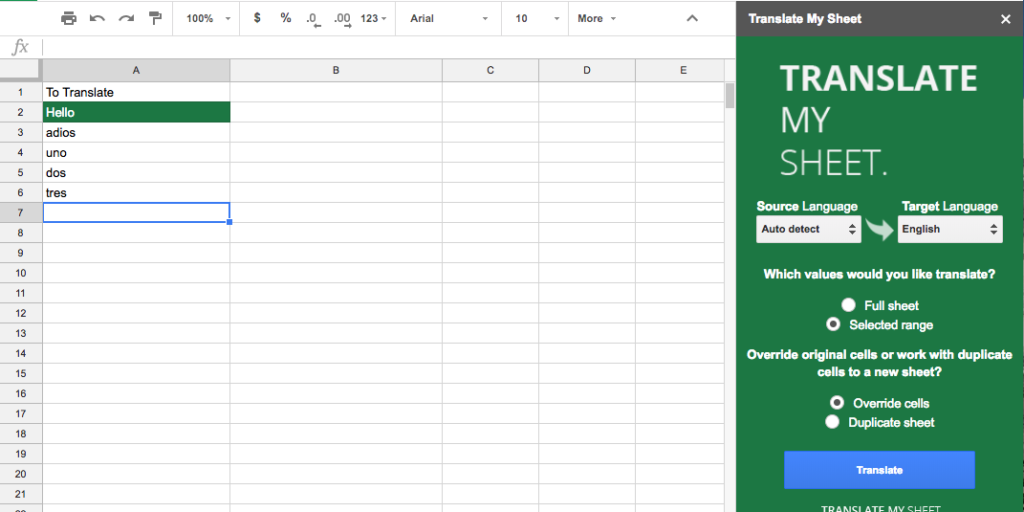
If you need to translate the contents of a spreadsheet from one language to another, there’s no need to copy/paste everything in and out of the sheet while running it through a translator on the web. Instead, use the Translate My Sheet add-on to do the job for you. Select the cells that you would like to translate, identify the original language and the target language, and let the add-on do the heavy lifting.
Best add-ons for improving your sheets

Does a messy spreadsheet make you a little twitchy? It’s understandable. After all, the whole point of using a spreadsheet is to organize data into an easy-to-use, attractive display. If some of your spreadsheets aren’t living up to those expectations, perhaps the following add-ons will help.

Add Rows & Columns

Okay – so this one is pretty simple, but we like it because of its simplicity. It takes what can be an annoying formatting task and makes it quick and easy. As your spreadsheet grows, you’ll likely need to add rows and columns from time to time. Sometimes, you will need to add a lot of rows or columns, and doing so one at time can be a pain. With this add-on, you can ask for any number of rows or columns to be added, and it will be done instantly. Simple, but a major time saver.
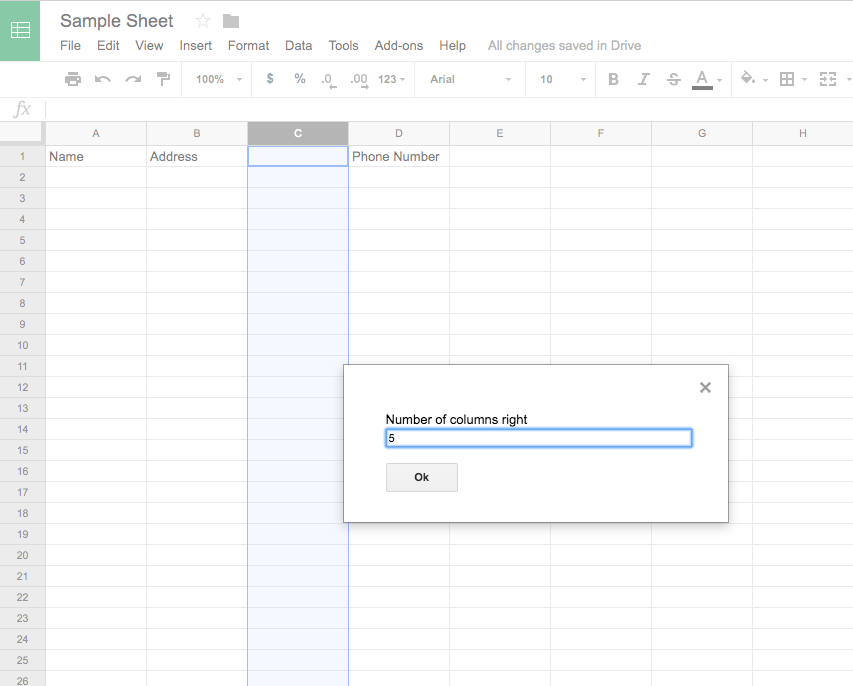
Table Styles

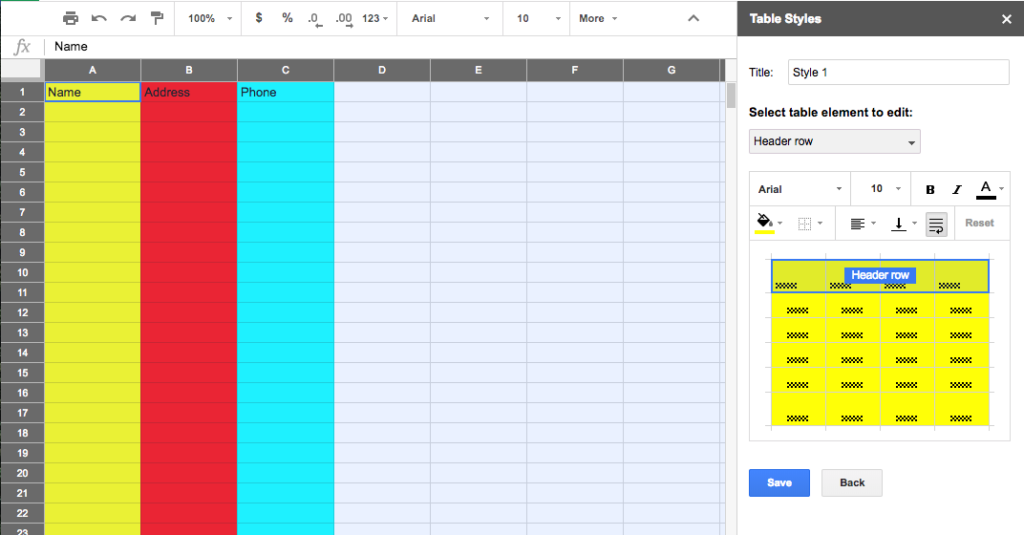
This is a great add-on for someone who makes a lot of spreadsheets. For example, if you create spreadsheets for clients and need them all to look the same, you can use Table Styles to create a template that can be added to future spreadsheets by simply pressing a button.

Again here, we see an add-on that can save you both time and frustration. Don’t keep building the same spreadsheet over and over again. Just build it once, save the formatting using this add-on, and use the styled sheet for years to come.
Crop Sheet

Above, the Add Rows & Columns add-on was identified as a great way to instantly make more space in your spreadsheet. But what if you need to do the opposite? What if you need to cut down your sheet in order to present a clean and compact collection of cells? Crop Sheet is here to help. This add-on will strip away the unused cells in your spreadsheet, leaving you with just the essentials. Or, you can have it crop the sheet down to only a selected range.

Best Add-Ons for Email

Yes, this is an article about Google Sheets. However, many Sheets users fill their spreadsheets with contact information, so it makes sense to connect this back to email. If you are one of the many who has contact lists organized in Sheets, you may find the add-ons below to be extremely helpful.

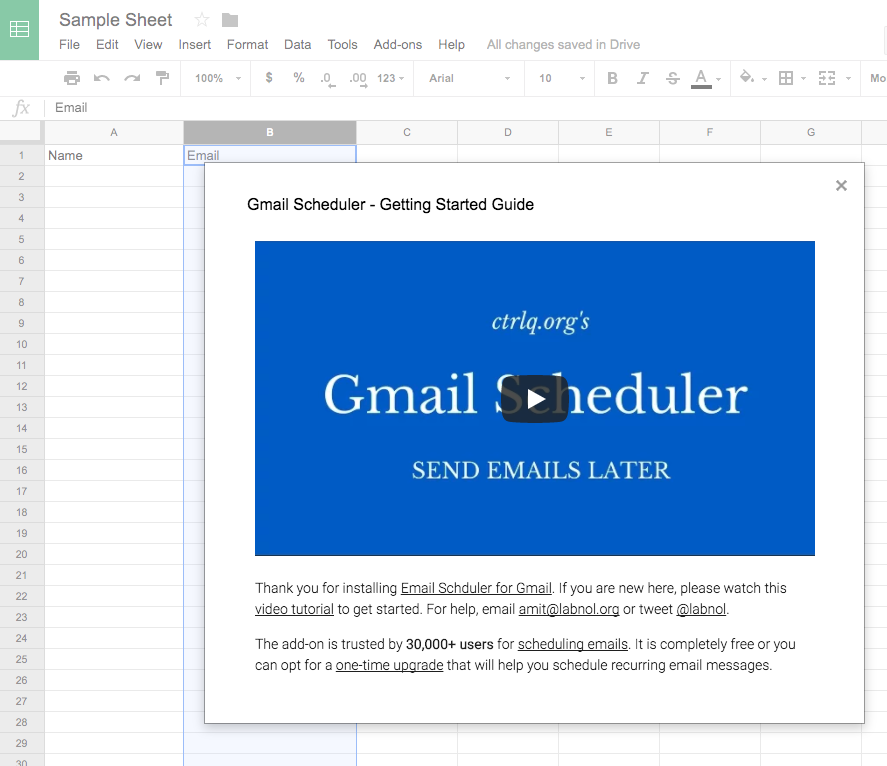
Email Scheduler for Gmail

If you need to send out your emails at a specific time, you don’t need to set an alarm to log back into Gmail and do the job – the Email Scheduler for Gmail add-on will do it for you. Once your emails are written and saved as drafts, they will be available from within this add-on to be scheduled. Just select the date and time for each email to go out, and you’ll be all set.
formMule

This is a handy add-on for those who send many different types of emails. Use a number of different templates to suit your different types of messages, and then establish conditions which will determine which email template to use depending on the contents of your spreadsheet. Once fully set up and organized to meet your needs, this is a powerful tool that can make your marketing life a lot easier.

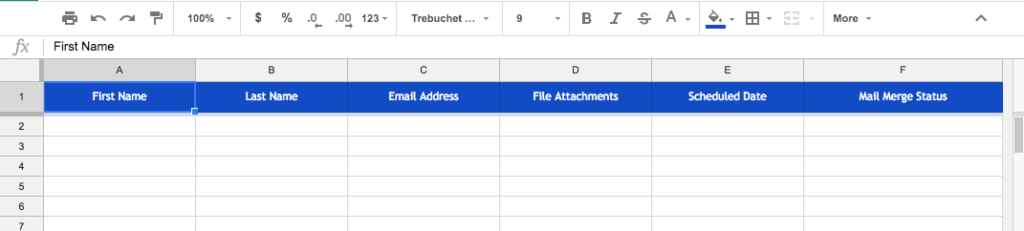
Mail Merge with Attachments

For those occasions when you need to send out a specific file to a number of different people, Mail Merge with Attachments can come to the rescue. With this add-on, you’ll be able to tack on any file from your Google Drive with just a click of your mouse. With a list of email addresses in a Google Sheet, you can send the file(s) to all of the right people with ease. This might not be an add-on that you use with great frequency, but it will certainly come in handy when the time is right.
Bonus – just for fun!

It’s been all business to this point on our list, but we wanted to toss in a fun add-on before wrapping things up.

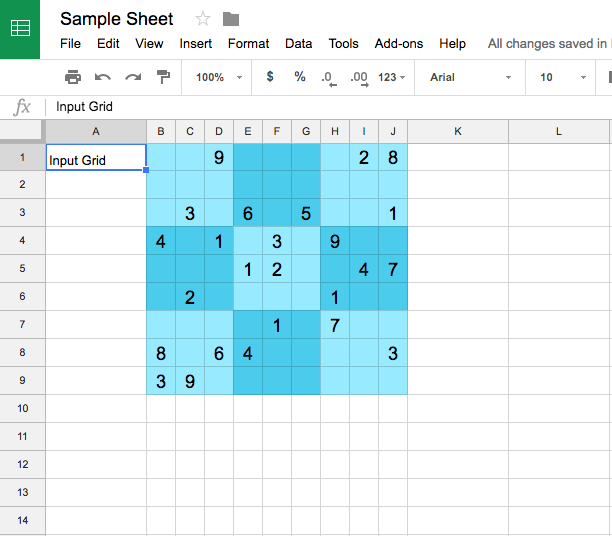
Sudoku Sheets

If you would like to play a quick puzzle game while setting your work aside for a moment, Sudoku Sheets lets you do just that. You can pick from three different levels of difficulty – easy, medium, or hard – and the add-on will put together a puzzle that you can attempt to solve. Can’t manage to work out the answer on your own? Not to worry – the add-on will solve it for you, once you have thrown up your hands in defeat.
Google Sheets is an excellent spreadsheet program right out of the (virtual) box, but it can become even more powerful when you pick the right add-ons for your needs. The key is to find and use add-ons that are specifically tailored to what it is that you need to accomplish. An add-on that’s a huge timesaver for someone else might be completely useless to you, and vice versa. Think about what it is you need from Google Sheets, and then look for the add-ons that can make that happen. Hopefully, some of those listed above will help you become more efficient while using this powerful tool.
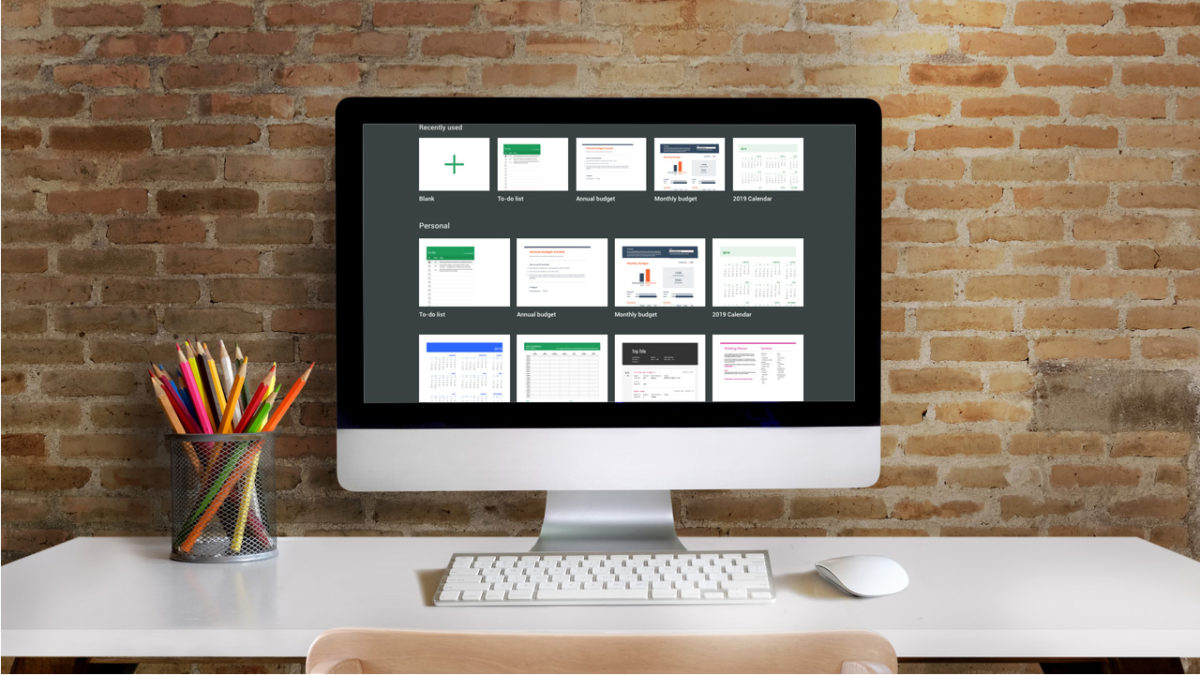

The best templates for Google Sheets

It’s very likely that you use the online office services that Google offers. Yup, we’re talking about the Word and Excel files that are available without even starting up Microsoft software, since they’re in the cloud thanks to Google.

If you’re an avid user of these tools, pay attention: here you’ve got the…

10 best templates for Google Sheets

From Google Drive, you can access your files on the cloud and create all kinds of new files: spreadsheets, documents, presentations and much more.

Google Drive Download Google Drive
7

Chores

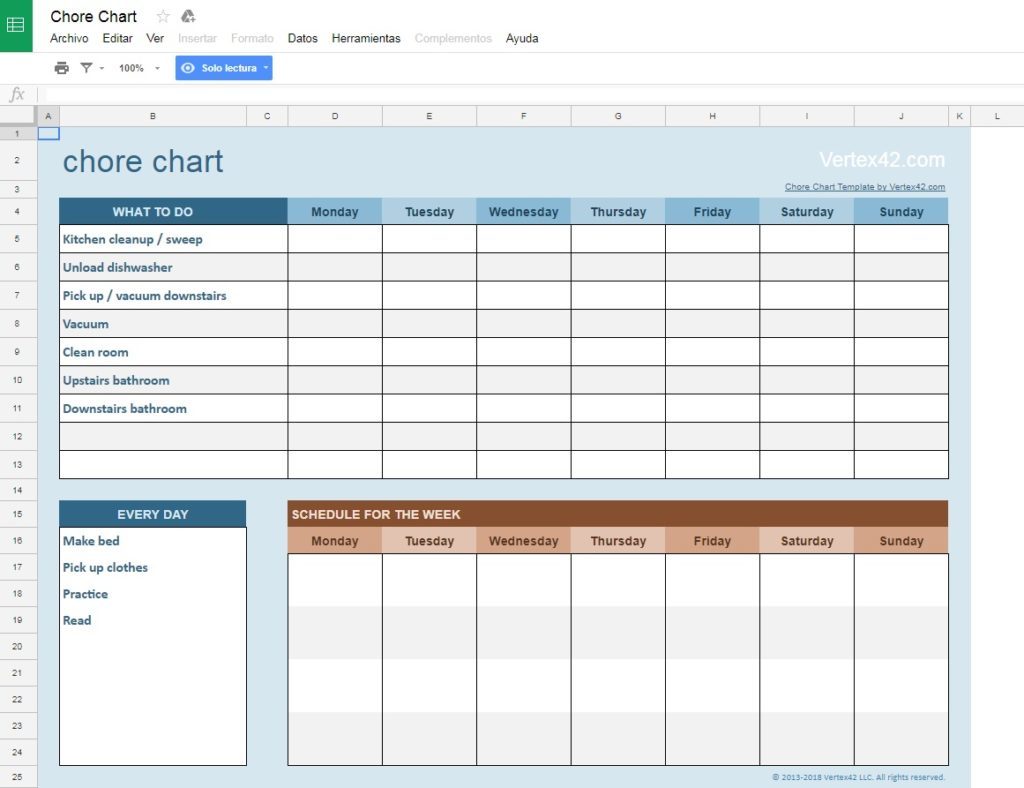
To make everything a little more organized, we’ve created five categories with two templates each. The first one has to do with “Chores,” something key to our daily lives.

Chore list: This is the most basic of all, but perhaps it’s increasingly necessary? With this template, we have a column for if the action has been completed, the second with the task to do and the third with additional info (for example, the date). Easy-peasy.

Weekly chores: If the previous template was simple, this one definitely isn’t. With this spreadsheet, we can write weekly tasks in a detailed fashion. It’s the template’s greatest virtue and greatest vice that you have to keep updating it every time you get to Sunday. Mind you; it’s great for the family.

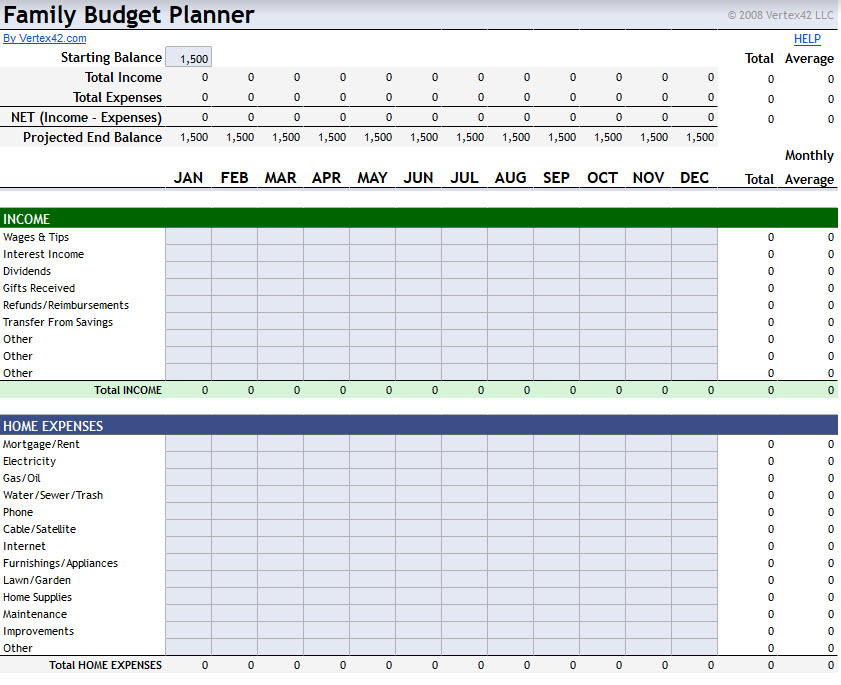
Budgets

For trips: This is a spreadsheet designed for trips, i.e., to record expenses. It may be a little rough at first, but it serves its function well. For us, it’s a keeper.

For day-to-day life: This spreadsheet is key to having a well-organized household. Likewise, it’s also designed for those who are independent right now. Great for tracking income and expenses.

Exercise and sports

For exercise routines: If you love exercising and would like to track your habits accurately, this spreadsheet is for you. It’s basic from start to finish, but it will keep you well organized. It’s worth it, we promise.

For teams: We’re crazy about this template. Google has enabled this sheet by default, which keeps your team organized, no matter what sport you play. Soccer, basketball, tennis, sports clubs… It all fits into this simple, but effective, sheet.

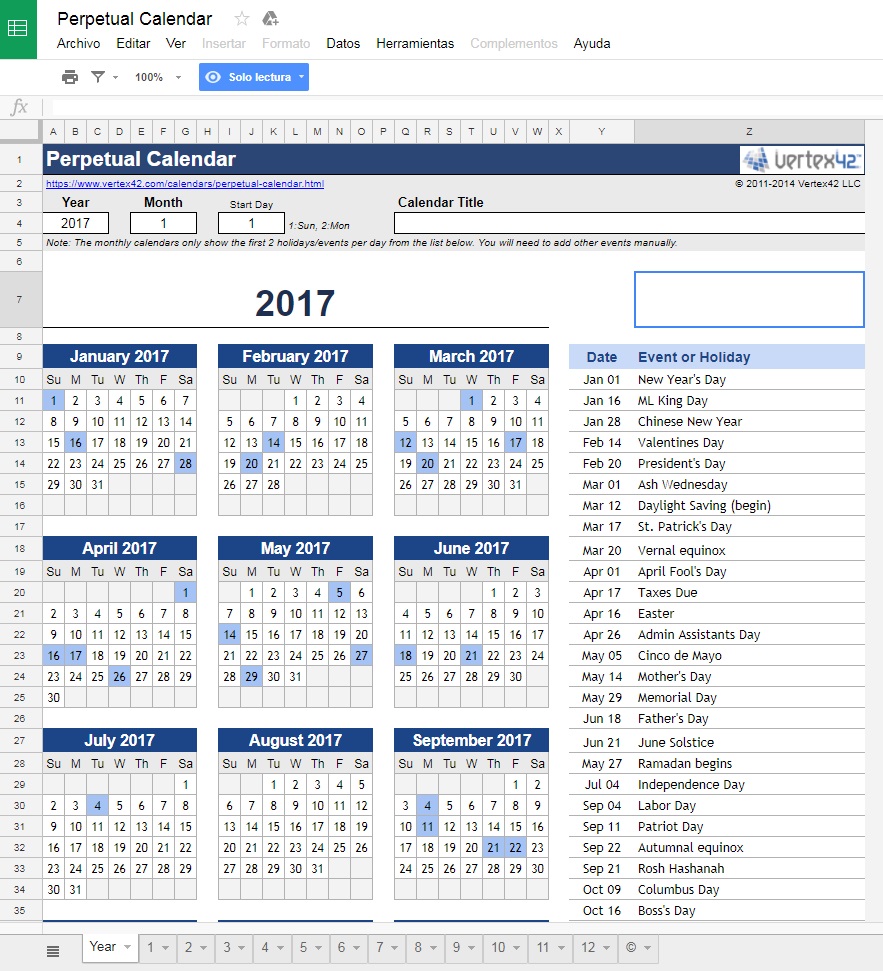
Calendar

Basic: This is Google’s default template… and it offers exactly what we need. With this sheet, we have access to a yearly calendar. However, in the lower section, you can see months as well, so you can fill in the blanks in the same traditional style as a paper planner.

Complex: We call this one “complex,” but it’s not really. With this calendar, you have all the previous features, but with some of the most important events of the year added. Obviously, you can change them to put in your region’s holidays.

Random

Resume: We’ll wrap up with two “random” templates, i.e., those that don’t fit into a category. The first has to do with resumes. You can quickly and directly add your employment and educational history to this lovely template. Designed for those who need to share their resume online.

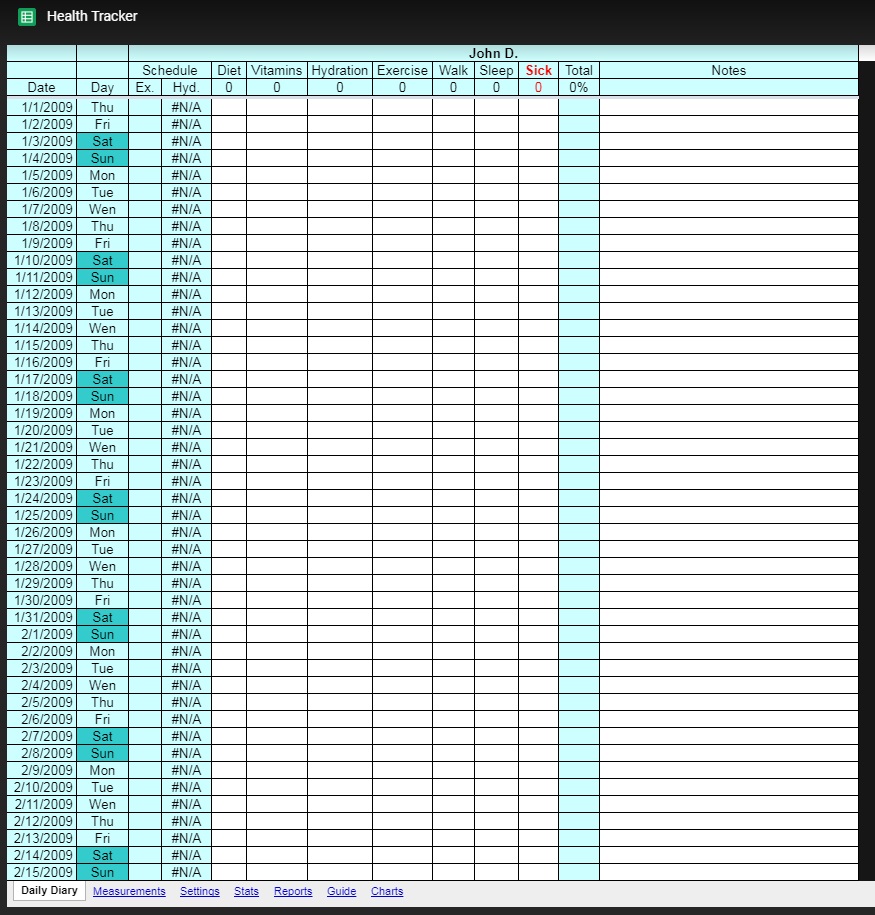
Health and weight: We’ll end the list with a template that works reasonably well if you want to track weight loss, sleeping hours, vitamins, etc. Give it a shot if you need to monitor your health.