32 Google Document Templates

Having a good word processor at hand at all times is essential both in the workplace and in education. While Microsoft Word is the undisputed king of the industry, the high price of the Office or Microsoft 365 office suite makes many opt for an equally good and free option: Google Docs. Google Docs includes all the necessary tools so that you can create professional documents in just a few seconds without spending a penny.

In today’s article we are going to offer you a selection of the best free templates for Google Docs. To help you find them easily, we have divided them according to the type of document you are looking for. You will be able to download free templates for resumes, reports, invoices, quotes… In addition, we will also show you how to install the templates so that you can start using them in a few seconds. Here we go!
Google Docs DOWNLOAD
9

What do I need to use Google Docs?

Accessing Google Docs is very simple. As we have already mentioned, Google’s word processor is completely free and to make use of this tool you only need to have a Gmail account. If you are already a Gmail user, you can start using Google Docs from Google Drive or directly from its website.

Don’t have a Gmail account yet? Don’t worry, creating one is totally free and very simple. All you have to do is access its official website and follow the steps that appear on the screen.
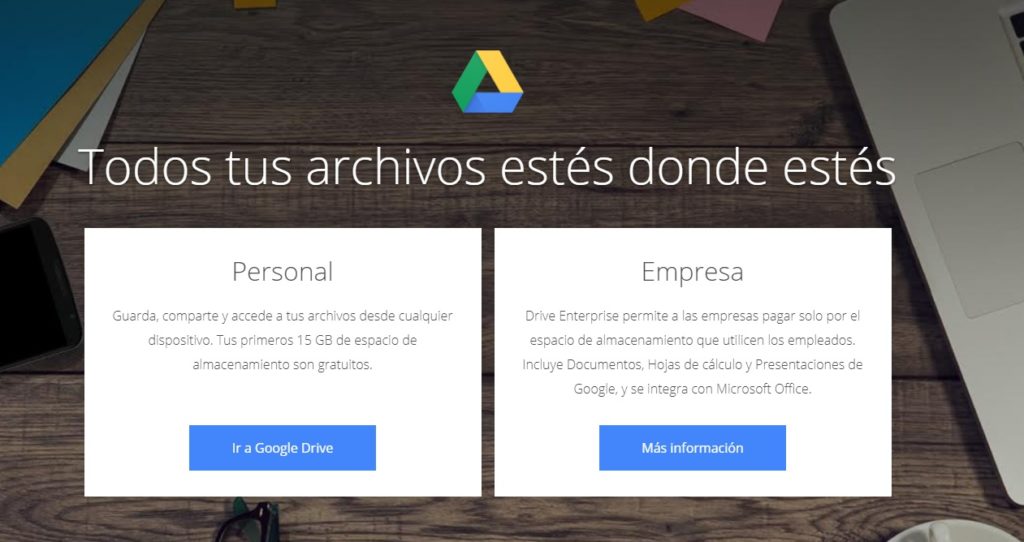
Página oficial de Google Drive

How to use the list templates

Using our collection of Google Docs templates is very simple. There are two types of template in our selection. The first one will show you the template in preview mode and, after clicking the blue “Use Template” button, a copy will be created in your Google documents.
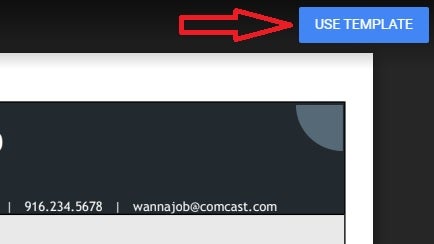
Utilizar plantilla en Google Docs

The second one will show the template in protected mode and in order to edit it we will need to copy it to our account. To do this click on “File” followed by “Make a copy”. After that a duplicate of the template will be generated in your Google account so you can edit it as you wish.
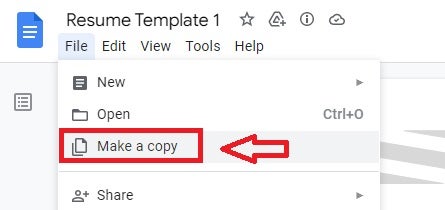
Utilizar plantilla de Google Docs

Free Resume (CV) Templates

No matter how well prepared we are, getting a job is always a challenge. There are usually hundreds of applicants for the same position. Our best weapon? Undoubtedly a good CV. These are our letter of introduction when it comes to getting a job and an effective method to stand out from our competitors.

Below these lines you will find a great selection of free templates to make resumes.

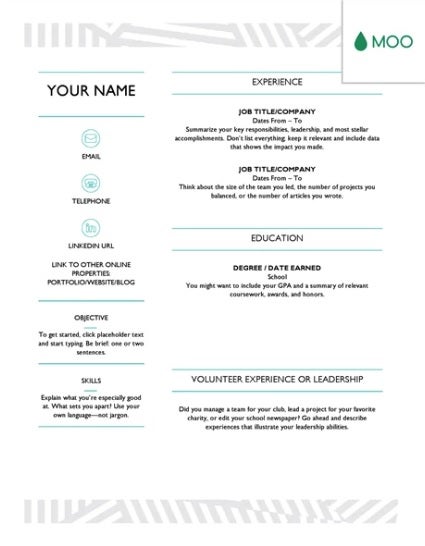
1. Moo Resume
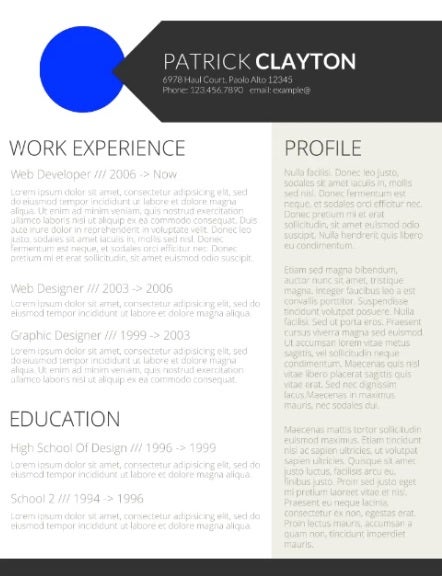
2. Smart and professional resume
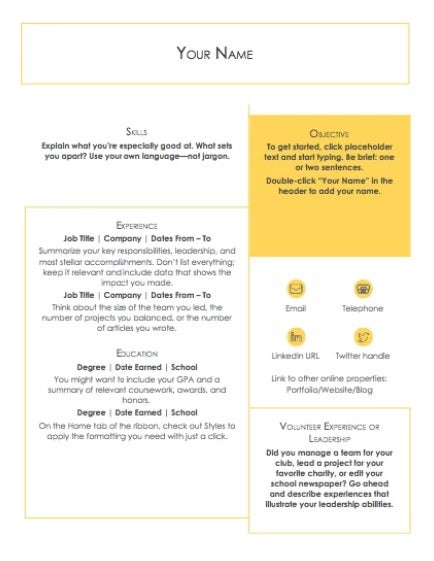
3. The Clean CV
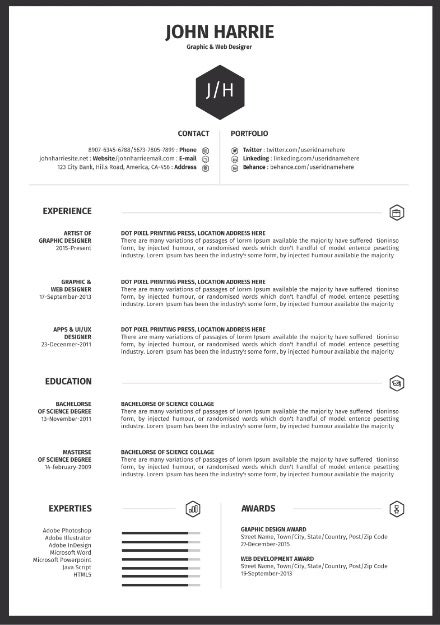
4. Creative Two Page Resume
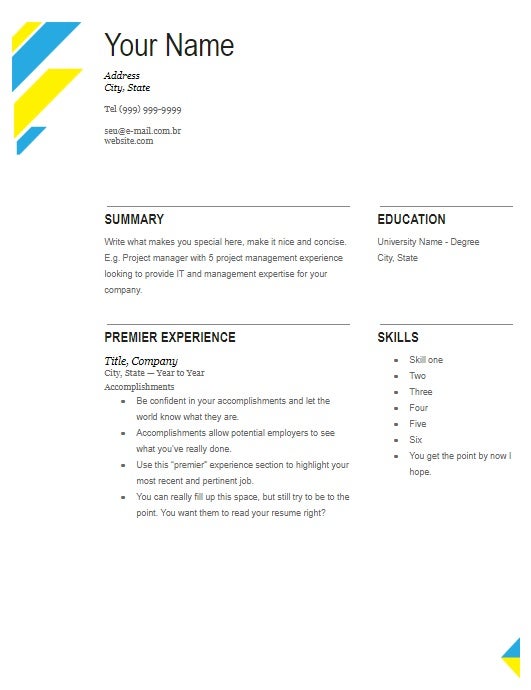
5. Resume with Boxes
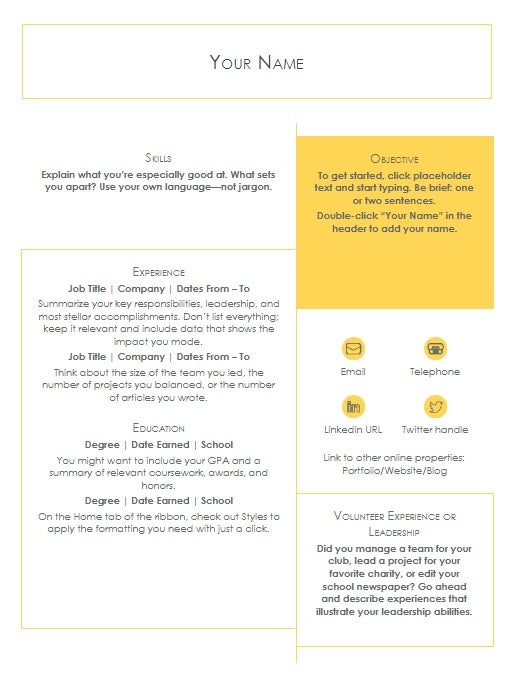
6. Infographic Resume
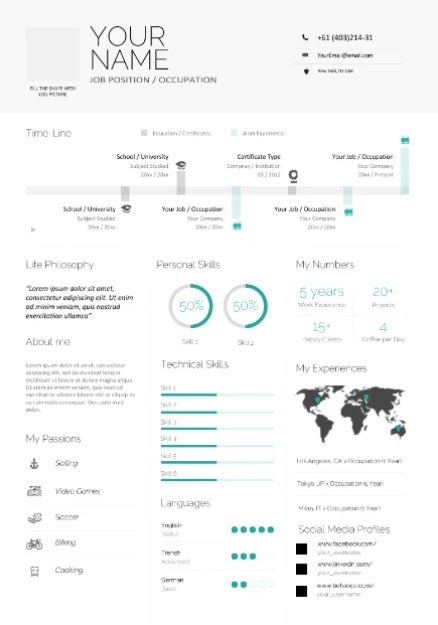
7. Circles Resume
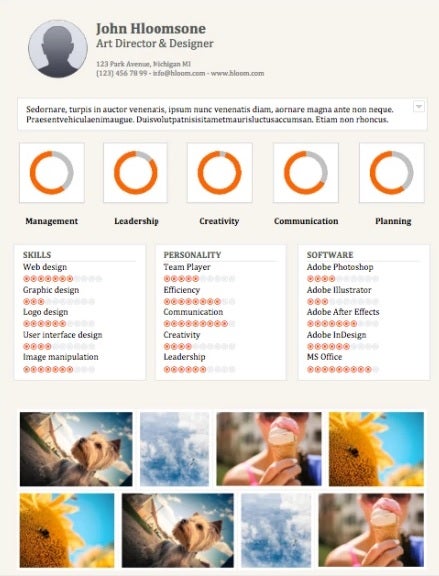
8. Minimalistic Infographic Resume
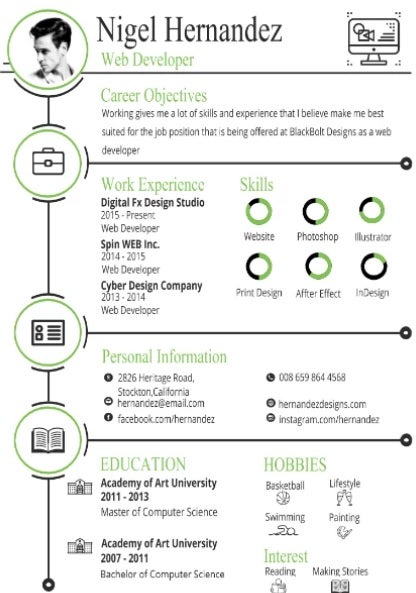
9. Professional visual resume
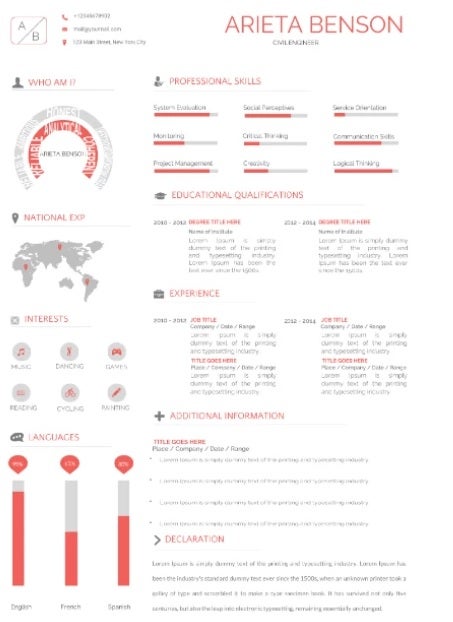
Free cover letter templates

Another decisive factor when it comes to getting a job is to accompany your resume with a cover letter. It demonstrates not only interest in the job but also conveys professionalism. A good cover letter will undoubtedly attract the attention of the HR team and tip the balance in your favor.

1. Contemporary cover letter
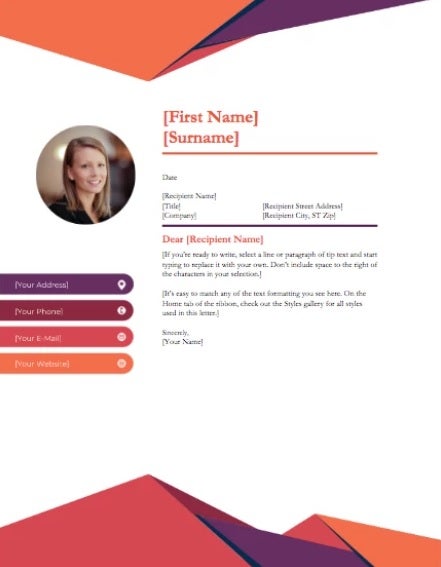
2. Crisp and clean cover letter
3. Minimalist cover letter
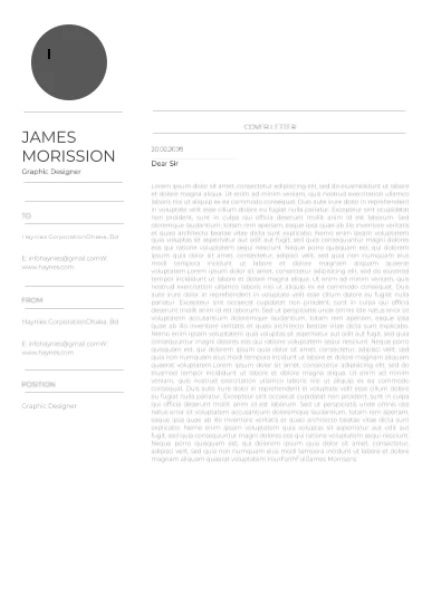
Plantilla Minimalist Cover Letter

Free templates to make advertising brochures

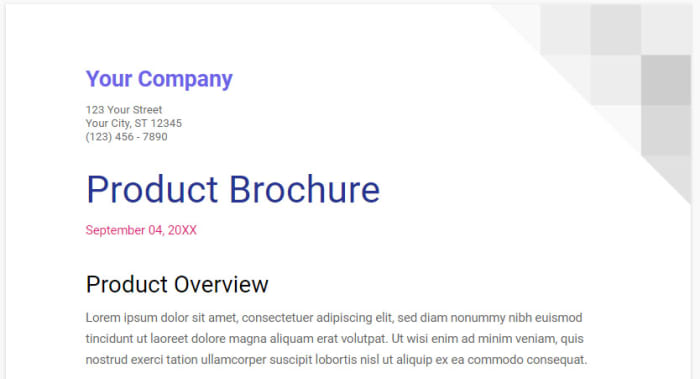
The best way to promote a product, idea or project is through brochures. Google Docs is a perfect tool to create all kinds of advertising in the blink of an eye. Don’t have the time or equipment to design your own brochure? Don’t worry, here are some free templates that will help you succeed.

1. Purple tri fold brochure
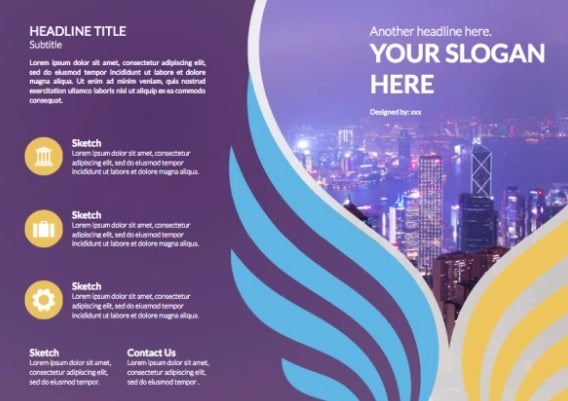
Plantilla Purple Tri Fold Brochure

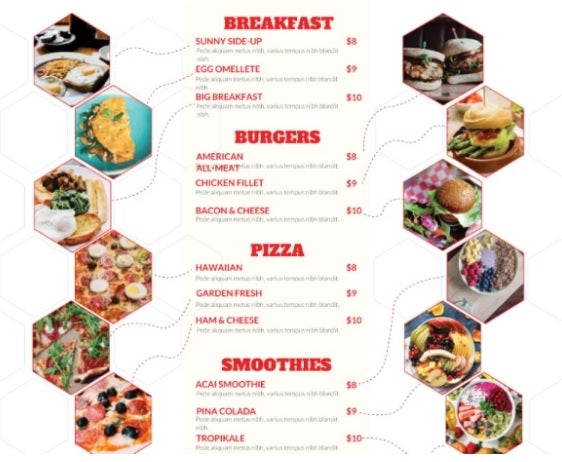
2. Food Menu Brochure

Plantilla Food Menu Brochure

3. Business Tri Fold Brochure
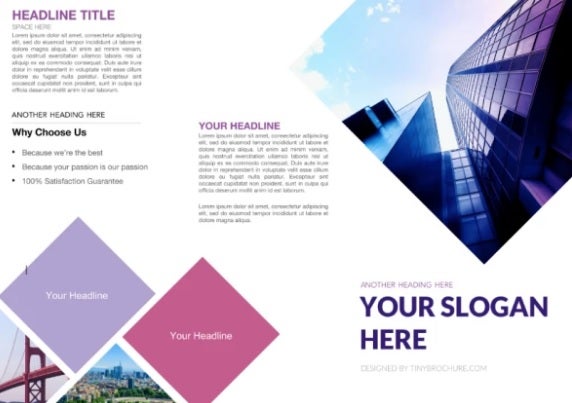
Business Tri Fold Brochure

4. Business Conference Brochure
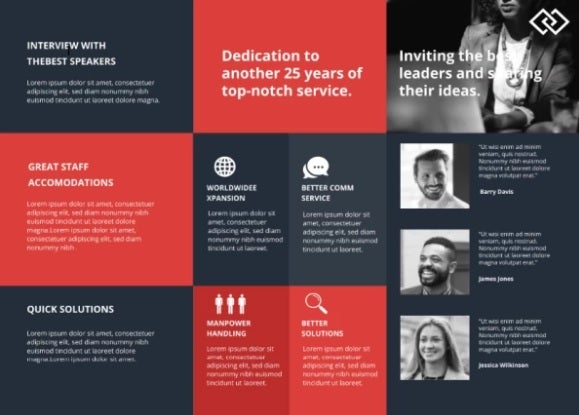
Business Conference Brochure

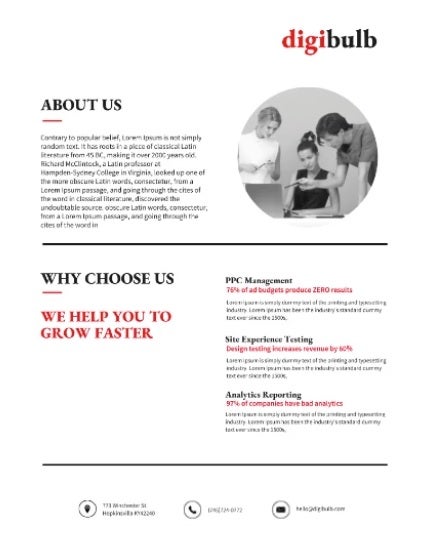
5. Digital marketing

Plantilla Digital Marketing

6. Book launch

Plantilla Book Launch

7. Simple marketing

Plantilla Simple Marketing

Free invoice templates

If you run a business or are self-employed, you will know the importance of generating invoices. Invoices need to be clear, minimalist and clearly show the customer both the price and the service provided. While at first glance this may seem like an easy task, it’s not. To make your life easier, here is a selection of invoice templates.

1. Basic Invoice
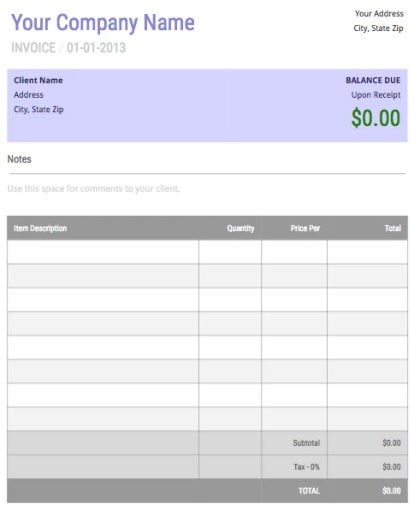
Plantilla Basic Invoice

2. Professional Invoice
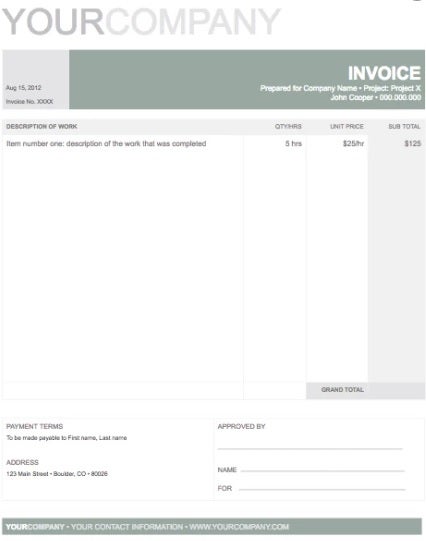
Plantilla Professional Invoice

3. Delivery Invoice
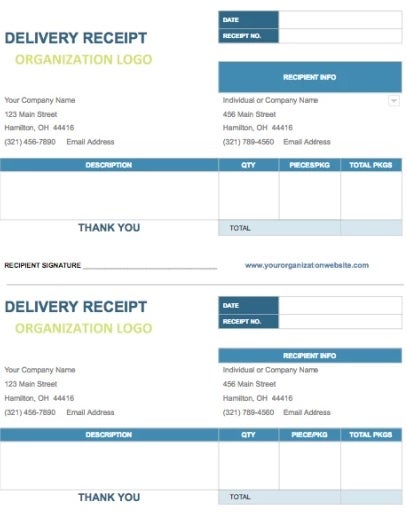
Plantilla Delivery Invoice

4. White Blue Invoice
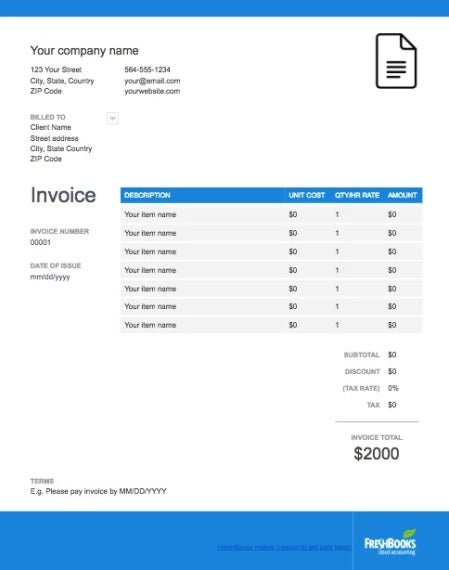
Plantilla White Blue Invoice

Free business card templates

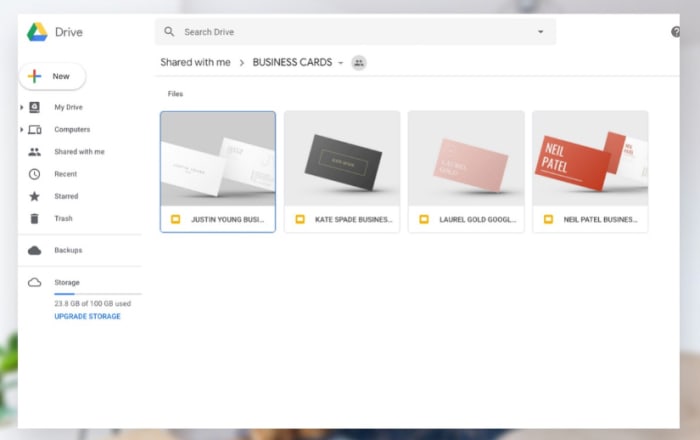
A business card is an essential tool to publicize your services and attract future clients. They must be eye-catching and clear, as well as elegant. Remember that a bad business card translates as a lost client, so it is not a factor that you should take lightly. If you want to make a good impression, don’t hesitate to use one of these templates.

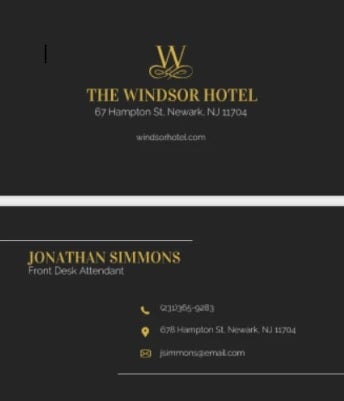
1. Corporate business card
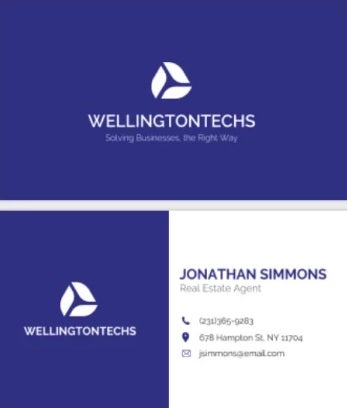
Plantilla Corporate Business Card

2. Transparent business card

Plantilla Transparent Business Card

3. Minimalistic business card

Plantilla Minimalistic Business Card

4. Basic business card

Plantilla Basic Business Card

Free templates for newsletters and bulletins

Newsletters and bulletins are a fun way to share information with your customers, employees, colleagues or members of the same group. A good newsletter is especially useful if you have an ever-changing business or work in publishing. This way you can easily share your latest products and publications with your users. If you don’t want to spend hours designing your own newsletter, we recommend downloading one of these free templates.

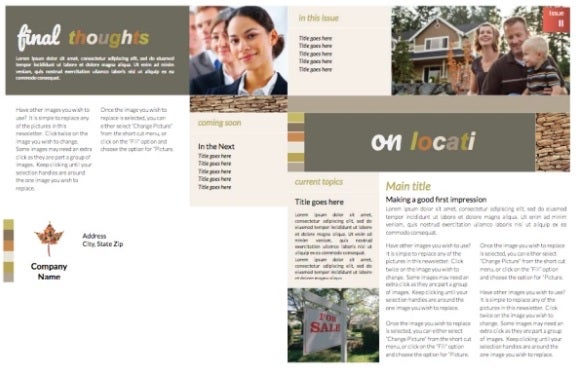
1. Newsletter executive
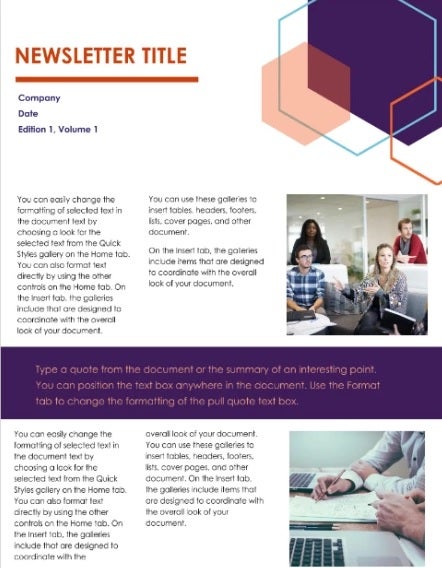
Plantilla Newsletter Executive

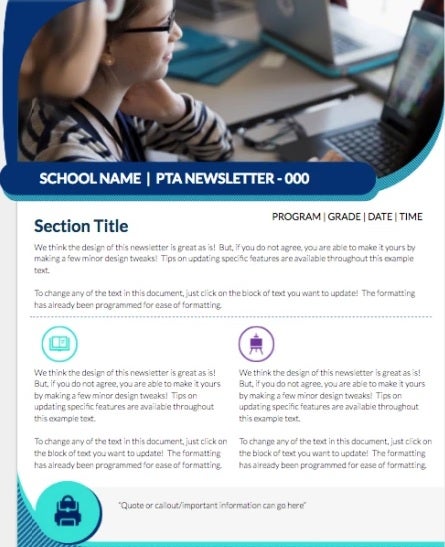
2. School newsletter

Plantilla School Newsletter

3. Retail newsletter

Plantilla Retail Newsletter

Free templates to make publications and magazines

If you’re the editor of a local newspaper or magazine, you’ll need your publication to be attractive enough at first glance to attract new readers. Not sure where to start? Don’t worry, here are some useful templates.

1. Creative magazine

Plantilla Creative Magazine

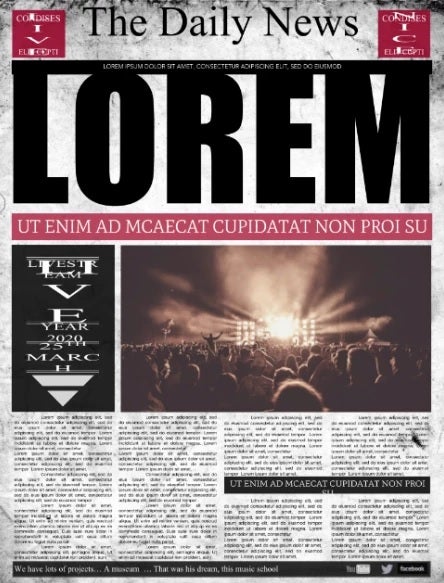
2. Daily News

Plantilla Daily News

Free templates for students and teachers

Whether you are a student or a teacher, you will need all the help you can get to complete all your tasks. Since word processing is the bread and butter of the education sector, there are a number of templates specially designed to make your life much easier. Here is a selection of templates specially designed for students and teachers.

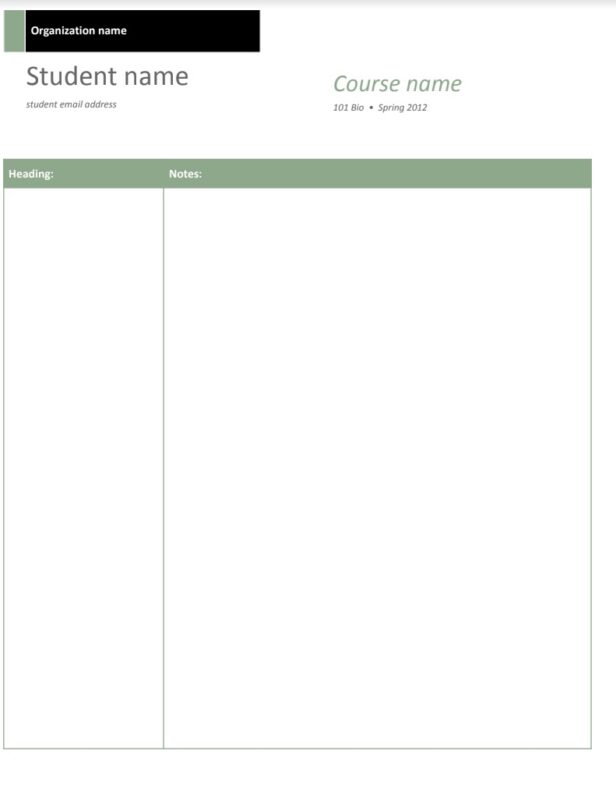
1. Class notes

As the name suggests, to establish the grades of each student. Two columns appear to indicate the grade and a short text. In addition, the name and course can be placed at the top.
2. Template with bibliography

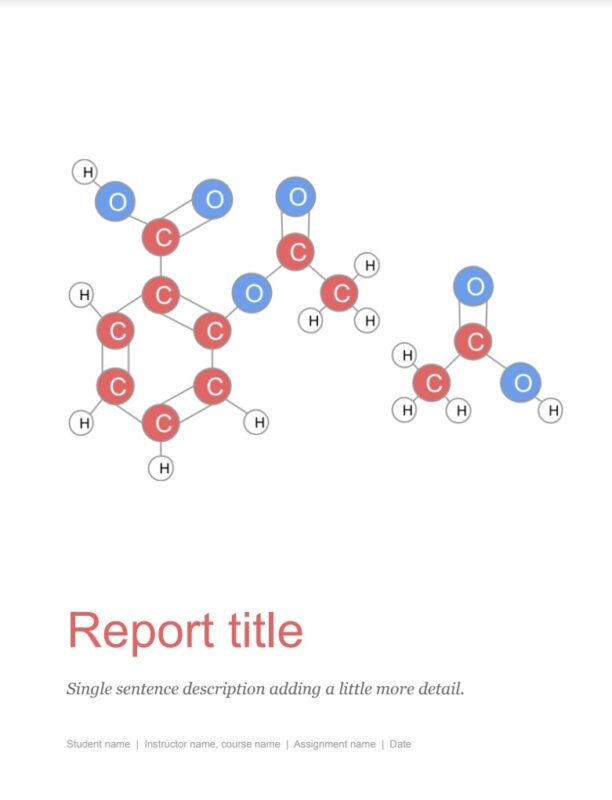
A perfect template for creating academic papers. Everything appears structured by chapters and even with the introduction of bibliography. Highly recommended.
Need more free templates?

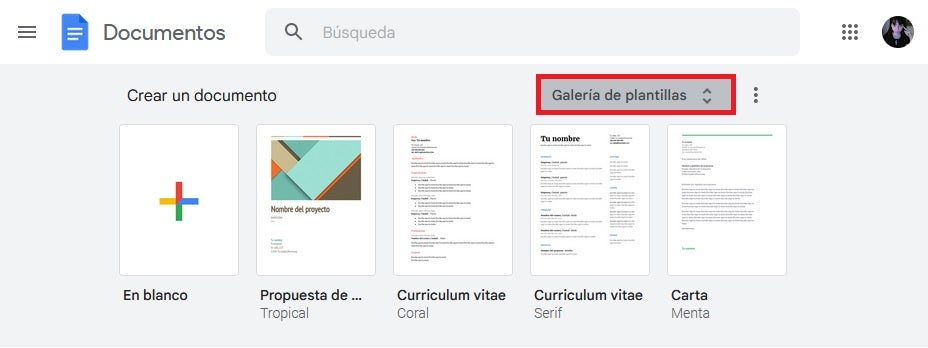
If you haven’t found the template you were looking for in our list, don’t worry. Google Docs has an enviable selection of free templates designed to make your life much easier. Don’t know how to find them? Just follow these steps:

  1. Go to Google Documents
  2. In the “Create a new document” section, select “Template Gallery”.
  3. Once the drop-down menu opens, select the template you want to use.

All the templates in the Google Docs gallery are fully customizable, making them perfect for creating any type of project. If you are not convinced you can also choose to visit sites like Template.net, where you will find a wide selection of free templates.
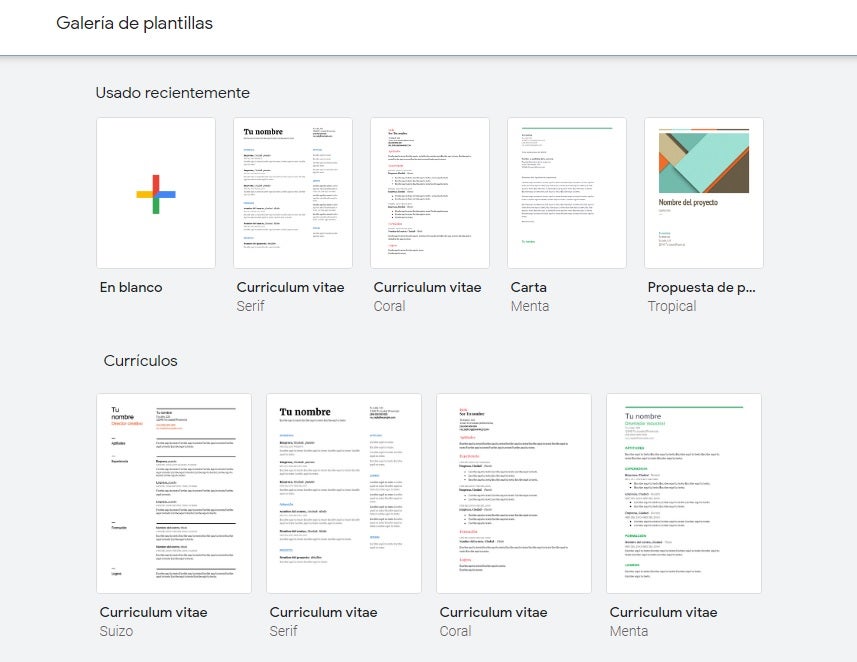
template gallery de Google Docs

Can I create my own template from Google Docs?

Yes, the free version of Google Docs allows you to create your own custom templates. To do this you will need to open one of the already created templates from the Docs gallery (see the previous point) and then edit it to your liking. Once done, rename the template and save it as a new one. It’s as simple as that!
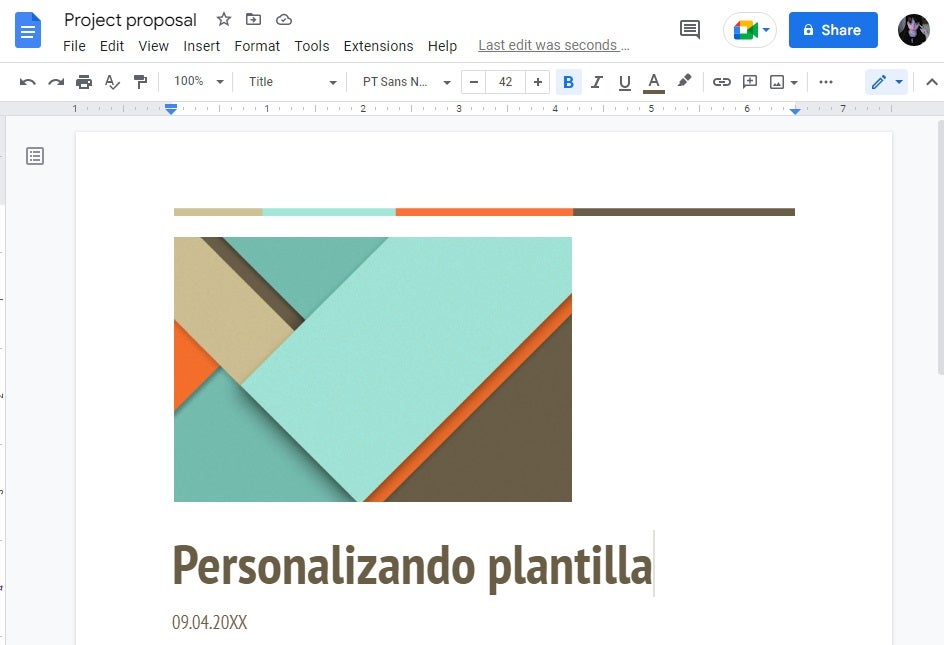
Creando una plantilla personalizada

Get the most out of Docs with these templates

We hope our selection of free templates for Google Docs has helped you. Now you just have to try them all and see which one best suits your business or projects.

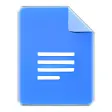
Google Docs: Tips for creating attractive cover pages

Whether you’re in college or still in high school, submitting papers is the bread and butter of any student. One of the star tools for writing them is undoubtedly Google Docs. Google’s word processor has managed to make many of us forget its main rival, Microsoft Word. The reasons for its success? It is intuitive, powerful, you can access it from any device with an Internet connection and it is completely free.

From Google Docs you can create professional-looking documents, work on them simultaneously with other participants and share them easily with just a few clicks. But that’s not all, did you know that you can also create cover pages to make your report stand out from the rest? In today’s article we are going to explain the best tips and tricks for creating attractive covers with Docs. We hope you find them helpful!

Google Docs DOWNLOAD
9

How to create a cover page from a template with Google Docs

The first Google Docs trick we are going to share with you is how to make a cover page from a template. This is the fastest and easiest way to create an attractive cover page. Google’s word processor includes dozens of fully editable designs that we can use in just a few clicks. Would you like to know how? Just follow these steps.

1. Open the template gallery

The first step to create a cover page from a template from Google Docs is to access its template gallery. To do this visit the Docs home page and select the “Template Gallery” option. You will find it just to the right of “Create a document”.

template gallerand de Google Docs

2. Select the template you like the most

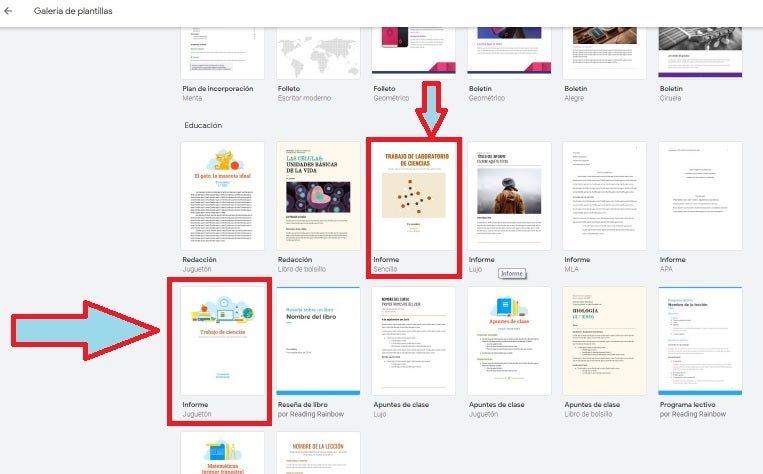
Already in the gallery you will see a selection of dozens of predefined templates in Docs. There are all kinds of templates: for creating resumes, letters, business cards and, of course, covers.

Plantillas educativas en Docs

3. Edit the template to your liking

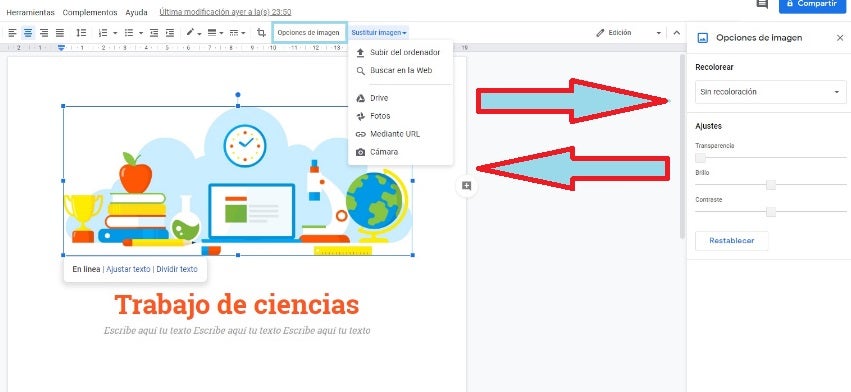
When you have opened the template you can edit it to your liking. You will see that in the top bar of the screen you will see options to change the image and replace it. You will also be able to alter the text that appears in the template by clicking on it and choosing its typography, color and message. After that, you will have the desired cover in just a few minutes.

Where to download free Google Docs templates

Now that you know how to create a cover page using a Docs template, you probably want to know where you can download more templates. Fortunately, there are a number of websites from which you can download templates completely free of charge. These are the ones we like the most:

If you don’t have time to search on any website, don’t worry. At Softonic we have compiled a complete list of the best free templates for Google Docs. All of them are classified according to their function and come with a small preview, as well as a step-by-step explanation on how to install them.

Plantilla gratis de Google Docs

How to create a cover page from scratch with Google Docs

If none of the templates you’ve seen have worked for you, don’t worry. Creating your own cover from scratch is really easy. Maybe the process is not as intuitive as using a ready-made template, but this way you will be sure to get the results you were looking for. Just follow these steps.

1. Create a blank document

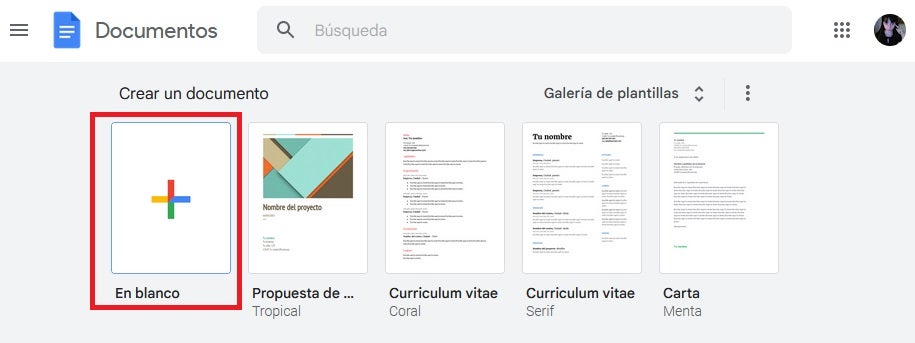
To create a cover page without a template you will need to create a blank document. To do this go to Google Docs and select the “Blank” option.

Documento en blanco en Google Docs

2. Customize the border

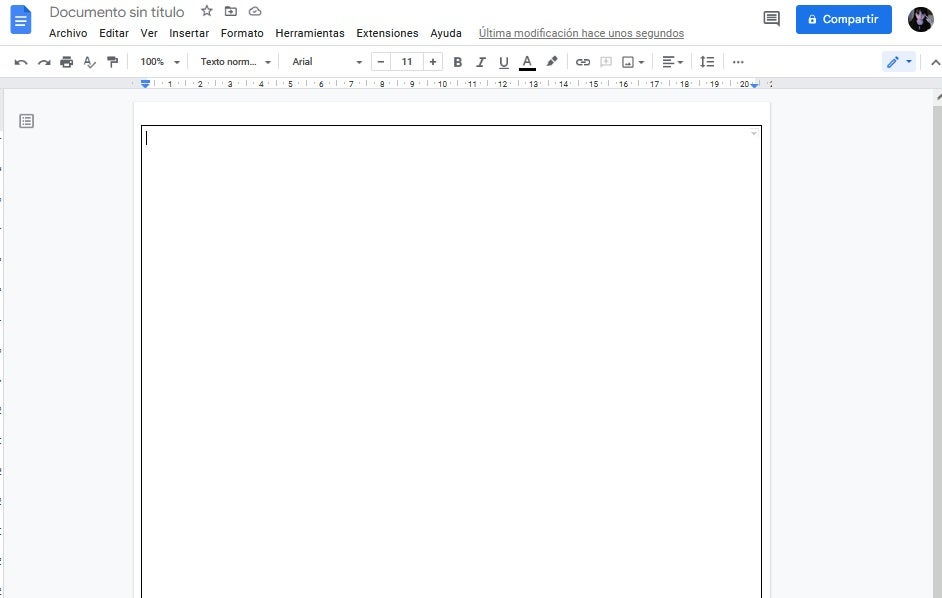
First we will add a border to our front page. To do this click on “File” followed by the “Page Setup” option. Decrease the borders until they fit the space between the frame and the edge of the paper and click “OK”.

Next select “Insert” followed by “Table” and select the 1×1 option. Drag the corner of the table until it fills the page and you have your border done.

Borde hecho en Google Docs

3. Add images and text

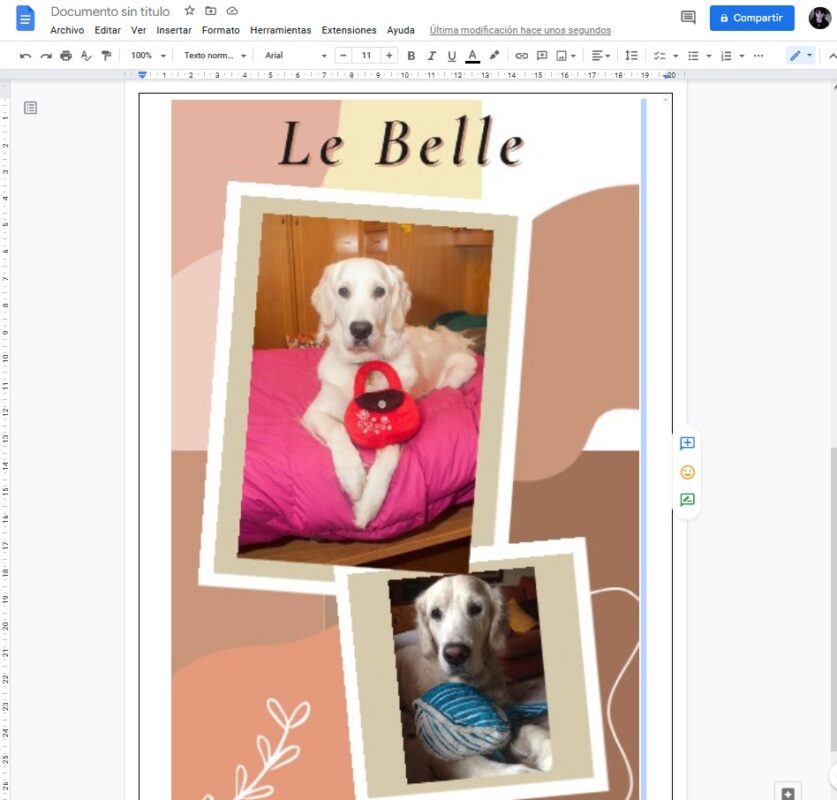
Now simply add the images and text you want for your cover. Choose an eye-catching layout and don’t forget that you have many different fonts and typefaces to customize your text. Let your creativity run wild and create a design that will make your work stand out from the rest.

Portada en Docs

4. Remove the page number

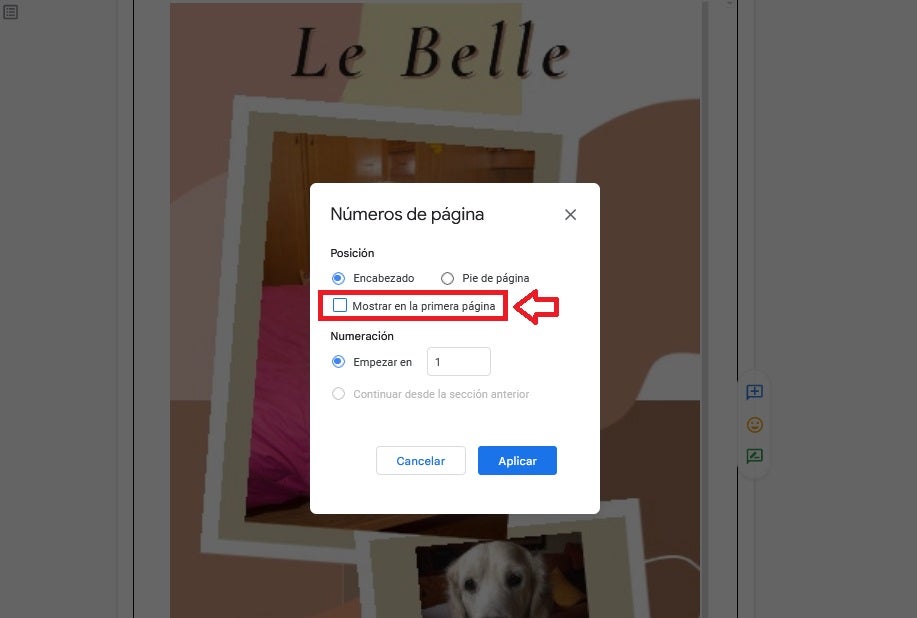
Finally, don’t forget that the title page is never numbered. Click on “Insert” followed by “Page numbers” and “More options”. Once in the new menu, select the options where the “1” does not appear on the title page. Now simply make sure that the “Show on first page” option is not checked.

Eliminar los números de la primera página

Tips and tricks to create a good cover

Want to make a jaw-dropping cover? Follow our tips and tricks to design the perfect cover for any type of project.

  • Work directly from Google Docs– If you want to make a cover page using Docs, it is always recommended that you stick to this word processor only. Otherwise, images or text formatting may not appear exactly as in the original file.
  • Use double spacing– Make the most of the white space on your cover page by using double spacing. This will make the page look much neater and the message you want to convey will reach the recipient more effectively.
  • Choose the right format– Before designing your cover, take a few minutes to think about what the message is and to whom it is addressed. Don’t get carried away by your personal preferences and tastes and stick to a format that makes sense for the purpose of your work.
  • Be careful when choosing fonts – Docs comes with a huge selection of fonts, each one perfect for a particular occasion or message. Don’t get carried away by your first impulse and select the font that matches the content of your work. Oh, and if you want to be taken seriously… Forget Comic Sans!
  • Make sure that the title stands out over the image– It is common that when making a cover we choose a striking image and that it takes up a considerable amount of space. However, keep in mind that the main message of a cover is the title and, as such, it should stand out above everything else. Do not forget this.
  • If you are not sure what to do, use a template – Google has incorporated a good selection of default templates thanks to which you will be able to create professional-looking cover pages in just a few clicks. If you don’t know what to do or don’t have a good design in mind, feel free to use them.
  • Review your cover before finishing the project– It is common that after finishing a project you get the feeling that everything is perfect. However, it’s good to take a second look. Review your work or ask someone else to take a look at your cover page before you sign off on it. It is always advisable to get a second opinion.
Hombre utilizando un PC

Create a memorable cover page from Google Docs

We hope that our article has helped you to create an attractive cover page using Google Docs. And remember, if you liked what you have read, don’t forget to share it with your friends through social networks.

Over 60 Google Docs templates

We’ve put together links to some of the best Google Docs templates as well as some of the best place to find more.

The best templates for Google Docs

The Google Drive suite of productivity apps has taken the world by storm. Google Docs is kind of like the hip younger brother of Microsoft Word. It is free for a start, if you’ve got a Google account, but then it also has lots of modern new features like the fact you can use it anywhere on your web browser, it makes it really easy to collaborate on different projects, and you can even get down to business using the Google Docs app on your phone.

Being the younger brother, however, means that it isn’t as refined as Word and that it doesn’t come with as many potential add-ons and templates as you can get with Word. We’re here to tell you today, however, that when it comes to Docs templates the Google upstart is catching up with Microsoft Word. There are plenty of great Google Docs templates already available online and today we’re going to walk you through the best of them.

Google Docs download free ►
8

Templates for Google Docs

The Google Doc Template gallery

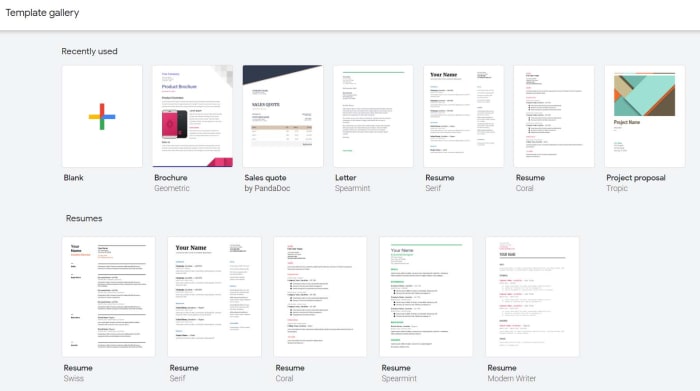
Google Docs actually has its own template gallery that you might not have noticed before. When you open the Google Docs homepage, you’ll see at the top next to the Start a new document icon a few example templates that you could use. These include templates for resumes, letters, and project proposals. Above these you’ll also see a small button labelled Template Gallery. Clicking this will open up the Google Docs template gallery that has 54 different templates for you to choose from. These include resume templates, letter templates, business letter templates, recipe templates, brochure templates, and newsletter templates among others.

This gallery isn’t an exhaustive list, however, so we’ll push on to recommend you some more great Google Docs templates. The other great thing about Google Docs, is that when you open one of our recommended templates it’ll go to your recent documents meaning it’ll be there next time you open Google Docs.

Google Docs templates resume

resume template

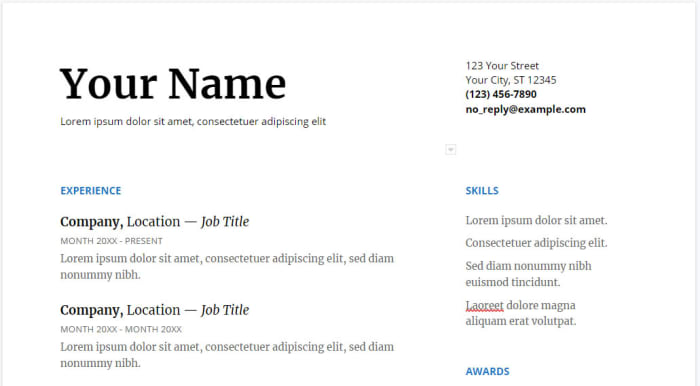
There are plenty of fantastic Google Docs resume templates out there that will help you lock down that job you’re after. With recruiters often having to go through hundreds of CVs and resumes it is more important than ever to have a resume that will stand out from the crowd. That is where these great free resume templates for Google Docs come in handy. You could try this Smart and professional resume template or go for something a little cleaner. Other options include this colorful resume template that contrast blue against white and this bold resume design that will catch anybody’s eye.

7

Google Docs templates cover letter

Cover Letter Google Docs template

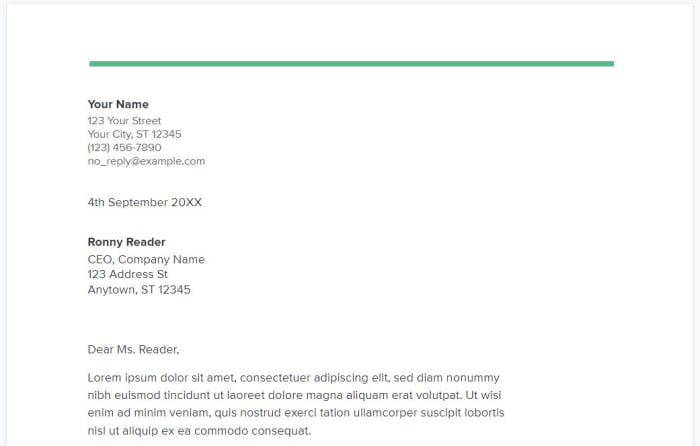
To go with that jazzy resume, you’re going to need an eye-catching cover letter. Fortunately, we’ve got some great cover letter templates for you. You could pair up the clean resume template from earlier with this minimalist cover letter design that looks very clean and clear. If you went for the blue and white resume earlier then this striking cover letter template could work well for you. Obviously, you’ll have to play around with fonts and job titles a little, but these are a great starting place.

Google Docs templates invoice

invoice templates for google docs

If you run your own business or if you work as a freelancer, chances are you’re going to have submit invoices regularly. This means having a reliable source of invoice templates is a must, unless you constantly want to have to draw them up from scratch every time you need one. Fortunately, you’ll be able to find a lot of invoice document templates for Google Docs at Superside. Another great place to find invoice templates is at Invoice Simple. As the name suggests, Invoice Simple specializes in helping you sort out all your invoicing issues. This means you’ll also be able to find invoice templates for Google Sheets as well as Google Docs.

Google Docs templates brochure

brochure template on Google Docs

Brochures are another key ingredient of the modern business. Whether you print them out and distribute them physically or share them digitally online doesn’t matter. A well designed and organized brochure is one of the key marketing and communications tools of the modern world. Again, there are lots of great templates here for you to take advantage of should you want to create a template using Google Docs. You’ll find some excellent Google Docs brochure templates at Envato Tuts+ and for more excellent options check out Template.net.

Google Sheets Download now
8

Google Docs templates business cards

business card templates

Another staple of the business world here. Business cards have been given out by professionals for centuries. Handy little pieces of cards that carry all your major contact details are practical in the extreme sense. OK, these days they have websites and email addresses on them, but the basics are the as they ever were. For some excellent premium business card templates check out the Stand Out Shop. You will have to pay the Stand Out Shop templates but you’ll find some great free options at Every Last Template.

Google Docs template calendar

Google Docs calendar template

If you’re looking to create a calendar using Google Docs, you probably won’t be surprised to hear that Calendar.com has an excellent guide that will walk you through the process. If, however, you’d like to get your hands on some Google Docs calendar templates that will do most of the hard work for you then you should check out Smart Sheet, which has all sorts of different types of calendar templates for both Google Docs and Google Sheets.

4 super useful templates in Google Docs

Want to whip up a professional looking document in a hurry? Here are 4 ways Google Docs can help.

google docs

There are so many things you can do using Google Docs. Sure, the program can’t make you breakfast or walk your dog (yet). However, Docs offers users so many helpful services. One of the best tools is the variety of handy templates, all free to use. You can see all the templates here, but we’ll take a look at four of the most popular and useful templates.

4 super useful templates in Google Docs

1. Resume

The job market is competitive. For many people, just getting a foot in the door can be overwhelming, with so many candidates vying for positions. A solid resume is the first step toward landing the job you want.

Today, most companies use automated resume-sorting software. This means if your resume is strangely formatted, doesn’t have the right keywords, or contains any mistakes, it will probably get tossed aside before it ever gets on a hiring manager’s desk. Having an impeccable resume is an absolute must. Thankfully, Google Docs gives you an array of fresh, modern templates to help you build one that stands out in the right ways.

2. Newsletter

If you’re tasked with creating a company newsletter or putting one together for a class project, Google Docs is here for you. Save yourself plenty of stress by using the handy newsletter templates. Choose from several snazzy styles, and add your content to the customizable fields. Your work will look sharp and professional, all with minimal effort on your part.

3. Legal documents

Ah, legal documents. Nobody likes them, but everybody needs them. If you own a business, run a website, or do almost anything else out in the world, you might find yourself in need of a legal document. Google makes this unappealing task a little more palatable by giving you pre-made templates for commonly used legal documents. Options include terms of use, software licensing agreements, and privacy policies.

4. Reports

If you’re a student, you’re likely going to have to write a report at some point. Depending on what you study, you may even have to write many, many reports. While you’ll have to do the writing and researching part on your own, Google Docs has the tools to make it all look good when you’re done. Choose the appropriate template, and it’s that much easier to impress your instructor with a polished report.

12 top add-ons for Google Docs

If you’re like most people, Google Docs is all you will ever need from a word processor. Of course, Microsoft Word still has millions of devoted daily users, but there is plenty of room in the market for a web-based application like Google Docs. To make the program even more appealing, there is a long list of add-ons available, just waiting to make the software even more powerful.

The great thing about add-ons is that you can pick and choose the ones you need, effectively customizing the program to suit your demands; and then you can easily uninstall them if they don’t work for you. Try out some of our favorites below.

12 top add-ons for Google Docs

Best add-ons for creating clean documents

Clean documents are good documents. You can produce beautiful finished products in Google Docs with the help of these add-ons.

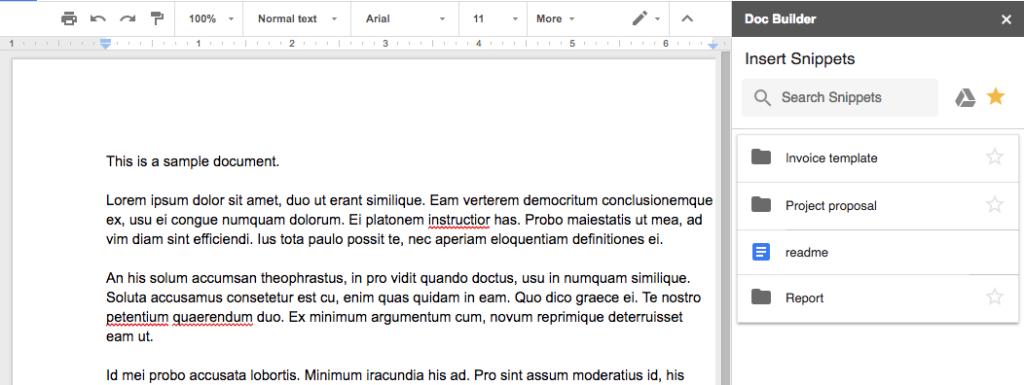
Doc Builder

One of the best ways to use add-ons for Google Docs is to automate – or, at least, semi-automate – tasks that you complete on a regular basis. With that in mind, Doc Builder is a powerful add-on worth your consideration. This tool will let you insert snippets into your documents from a sidebar with the click of a mouse. For example, if you tend to use the same blocks of text within a number of different documents – some company marketing materials, perhaps – you can add those to Doc Builder and have them available at any time. Not only does this work for text, but also for images and formatting.

Page Layout Tool

Do you frequently print from Google Docs? Are you always printing on pieces of paper that are the exact same size? If your answers to those two questions are yes, and no, respectively, you will love what Page Layout Tool can do. Simply install this add-on in Google Docs and set your page sizes exactly as you would like. After a bit of experimentation, you should be able to use this add-on to quickly set page size and margins. Of course, you don’t have to be printing in order to make use of this tool, as it can work nicely when you are going to simply export documents as PDFs.

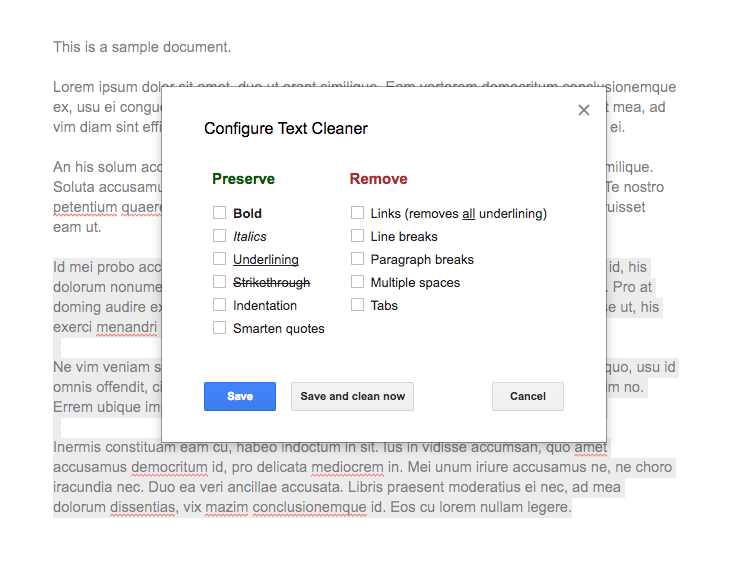
Text Cleaner

If you are compiling text from a variety of different sources and attempting to bring that text together into a cohesive document, the file could be a mess at first. Rather than sorting through it line by line in order to clean it up, let Text Cleaner do the heavy lifting. You can use this add-on to decide which elements in the text you would like to keep and which should go. When used in the right situation, this add-on can be a major time saver.

Docs add-ons for saving time

You don’t have time to waste on your projects, and neither does anyone else. Let these add-ons streamline your workflow.

EasyBib

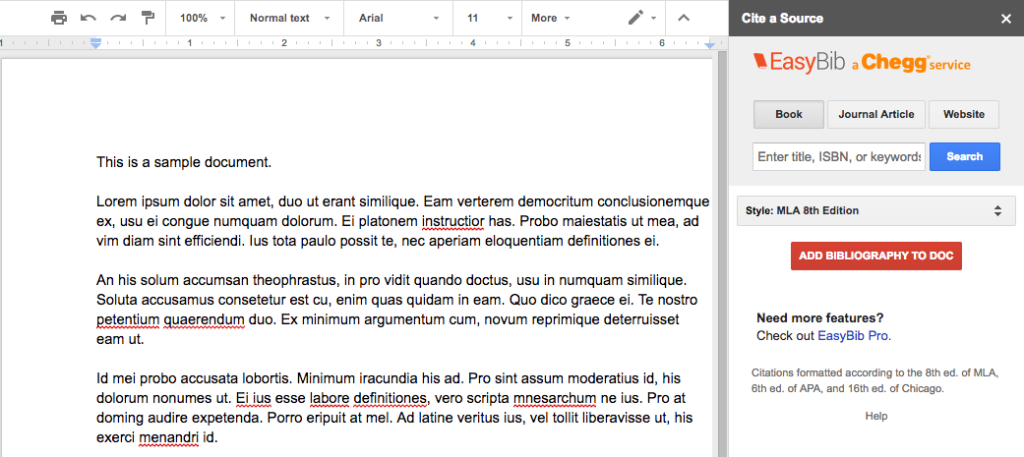
For certain kinds of projects, putting together a bibliography can be the most demanding – and frustrating – part of the job. With EasyBib, you can take some of the pain out of the bibliography process. With the add-on installed and the sidebar open, you can quickly look up the information you need to add a quote or other reference. Also, you can choose the relevant citation style, so everything remains clean and consistent. You may not frequently create documents that have to be cited, but having EasyBib available for those occasions is a smart choice.

Translate+

In a globally connected world, it is easy to wind up with documents that need to be translated from one language to another. Or you may have just a piece or two of text within a document that needs to be converted into a given language. To make that task a quick and easy one, turn to Translate+. This add-on covers just about every language you can imagine, so it likely has support for your needs. With the sidebar open for this add-on, you can quickly complete the necessary translations and move on with your tasks.

DocSecrets

This is one of our favorite add-ons for Google Docs, if just because it creates a handy solution to a potential problem.

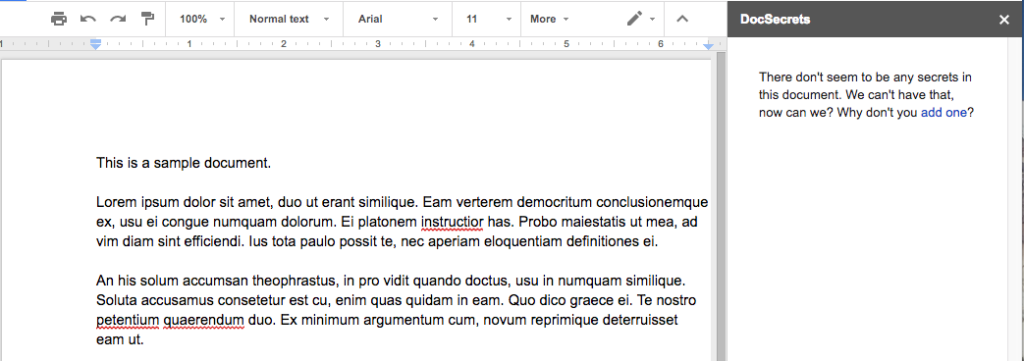
One of the reasons that so many people love Google Docs is the fact that you can share access to documents quickly and easily. If you want input from other people on your team, just share your document with them and they can view it (or make changes, if you wish to let them). This is great, but what if you don’t want them to see everything? That’s where DocSecrets comes in. By using this add-on, you can password protect specific portions of the document. For those who you would like to have access to the hidden portions, you will have to give them the password and instruct them to install this add-on.

Add-ons to go beyond word processing

These add-ons augment Google Docs with features that would not typically be seen in a standard word processor.

Yob Graph Editor

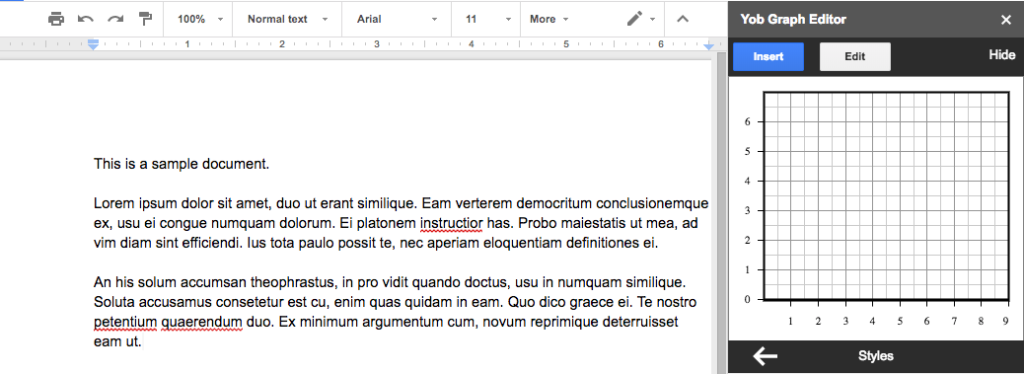
To display data is a visually attractive manner within your Google Docs, consider using the Yob Graph Editor add-on. This simple addition to Docs  does exactly what you would expect it to do. In the sidebar, you can use the functions and data you need to create a graph that will be inserted into your document. Graphing is not a function that is native to Google Docs, so this is an important add-on if you work with data.

Flat Music Notation

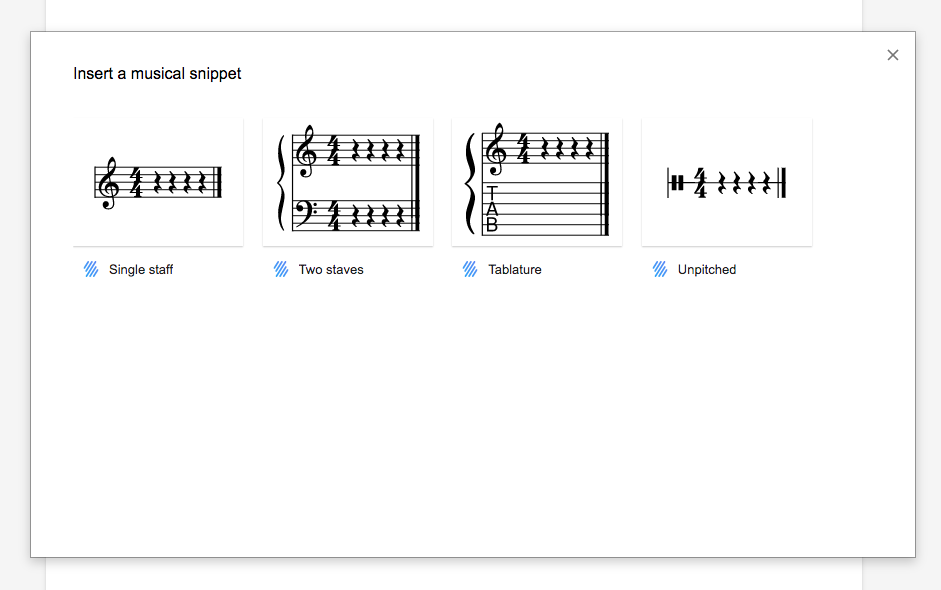
Okay – so this one is going to serve a niche market. For most people, there is no need to insert sheet music into a Google Doc, and we understand that. However, if you do happen to have this need, Flat Music Notation is a pretty handy add-on. For starters, you can add sheet music directly into your documents, an important capability for a music teacher or student. In addition, you can actually listen to the music, which we think is pretty cool. Again, this one won’t be relevant for 99% of the Google Docs users out there, but a select few are sure to love it.

Supermetrics

No matter what field you are in, there is a good chance that marketing metrics play a role in your business. If you would like to bring some of the data from your Google Analytics account over to a Google Doc, this add-on is up to the challenge. Use Supermetrics to pull information from your Analytics account and you can quickly create marketing reports right within Docs. This is a quick and easy way to tap into the info you need without having to make a separate trip to the Analytics dashboard.

Google Docs add-ons for collaborating

When you need to work together with others to complete a project, these add-ons are likely to be of assistance.

UberConference Sidebar

We mentioned earlier that collaboration is one of the biggest benefits to using Google Docs for your word processing needs. But what if you want to do more than just share a document with someone – what if you actually want to discuss it? Enter UberConference Sidebar. You can use this add-on to set up a conference call right within Google Docs. In just moments, all of the relevant parties can be involved in the call, offering their insights on the document in real-time.

Collovate

For a workflow solution that can be used within Google Docs, consider turning to Collovate. Again, this is all about getting other eyes on your documents, and having those individuals be able to make comments or changes as necessary. It is easy to work with others when you add this piece of software to your Google Docs, so it may be just what you need to streamline your day-to-day operations.

MindMeister

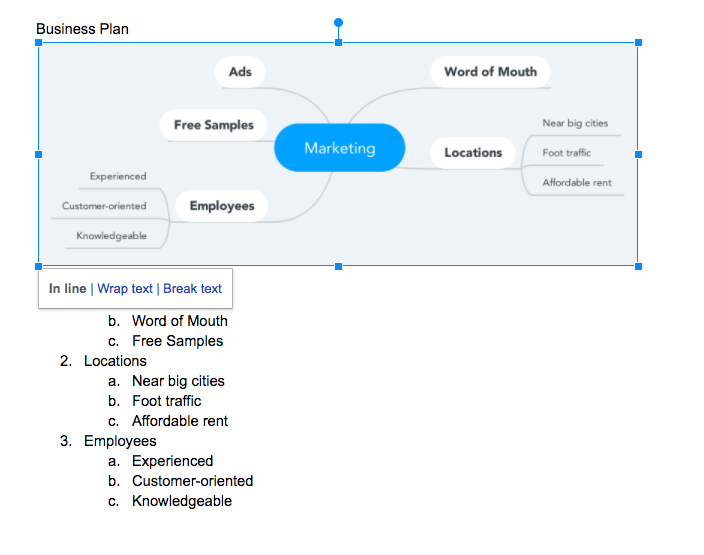
Do you use mind maps? If not, they can be a great way to organize your thoughts and present them to other people who may be working on a project with you. Or, if you are trying to get a project approved, a detailed mind map can help convey your ideas. To create an appealing mind map within Google Docs, you can use the MindMeister add-on. When you are ready to build a mind map, simply create an outline in a Google document. The add-on will then be able to capture the information within that outline and turn it into a handy mind map that can be inserted anywhere within the document.

If you only need to type up a quick letter and be on your way, it probably won’t be necessary to use any add-ons at all with Google Docs. As your needs change, however, using add-ons is a smart move. We hope some of the options included in this list will help you get maximum productivity from this free, easy-to-use program.