The best Android apps for writers

As a journalist, I have a weakness for programs that help writers, whether by profession or for pleasure, write better. Luckily, there are plenty of programs that journalists, novelists, playwrights, and poets can use to organize their ideas and turn them into text.

But it’s not just about text editing; it’s also about applications that help you take notes, organize your work, read, and record. Writing, in fact, is one of the last stages of the writing process.

Here is a series of apps for Android phones and tablets that’ll help writers throughout the entire process, from brainstorming to writing to editing.

Taking and organizing notes

Evernote

Evernote

This app is a must for anyone who writes for a living. It manages notes, PDF files, voice notes, photos, and even handwritten text.

One of Evernote’s most useful functions is creating notebooks. If you’re working on a novel, for example, you can create a notebook for characters (or one for each character), another for notes about the plot, and another for historical and geographical research. The possible uses are endless.

If you don’t have time to write, you have the option to record audio notes. The audio recording function is great for noting ideas freely, letting you go with the flow without having to stop to write things down.

And if you’re a journalist, Evernote is a godsend. You can create a notebook for each news piece and fill it with notes, photos, recordings, interviews and even write drafts pieces, which you can send to your editor if required.

You can also create shared notebooks so that if you’re working on an article in the field, your colleagues in the newsroom will have access to it as you add material.

Download Evernote for Android

Springpad

Springpad

This app is similar to Evernote and has enjoyed great success among professionals in the writing world. You can create notes of any kind, save notes in the app directly from the browser (just use the Save to Springpad option), and create checklists, among other things.

Just as the developers intended, it’s a really useful application for organizing both your work and private life, and the tools it offers are perfect for doing this.

Thanks to the collaboration options, you can share your notes with other people, something reporters and writers will appreciate. Add to this some colorful and attractive graphics, and you’ve got a great product.

Download Springpad for Android

Mindjet Maps

Mindjet Maps

Being able to create the bones of a novel is an invaluable tool. Mindjet Maps helps you do this by creating concept maps with as many “joints” as you’d like; your maps can become as big as you want without any extra effort to manage them.

This means that by adding ideas on a day-to-day basis, you’ll gradually build up every detail of your story without ever missing a piece of the puzzle.

Thanks to the colored arrows, you can connect notes that don’t belong under the same heading. This is critical if you write novels because it eliminates the risk of inconsistency between stories, laying the foundation for a solid narrative fabric.

The maps you create can be shared on Picasa.

Download Mindjet Maps for Android

Voice Recorder

Voice Recorder

This is a simple app for recording voice notes and interviews.

It doesn’t manage tags, so if you use it to take notes for writing stories or articles, it’s good practice to give the files carefully chosen names. When you get to the stage of having a ton of recordings, you’ll be thankful that you were diligent.

The app is easy to use and can be launched from the widget so that when inspiration strikes, you’re off and running in a matter of seconds.

Download Voice Recorder for Android

Writing stories and novels

My Writing Spot

This is an app for writers created by a fan of writing.

If you’re struggling with a novel, you can create a document for each chapter, add another file with character profiles, and keep everything in sync with the My Writing Spot webapp.

You can also protect documents with passwords. The word count is always active, and in the My Documents directory, you can see how many words each file contains. The app has direct access to an online dictionary and thesaurus too.

A simple but effective writing app for vagabond novelists.

Download My Writing Spot for Android

BookWriter

BookWriter (Notes/Book/Diary)

This app is sort of a Swiss army knife for writers. In addition to being able to write and organize a book, you can keep a journal, take notes by hand and create PDFs.

The pages of documents are automatically indexed, and you can also add written notes and photos. BookWriter is a great multi-tasker and although it’s not perfect at any single function, it’s still an option worth considering.

Download BookWriter (Notes/Book/Diary) for Android

Writing screenplays

Celtx Script

Celtx Script

This is the Android version of software that’s well known and popular among professional screenwriters. There are templates for writing scripts for film and theater, but also for video clips, radio scripts, and comics.

The many automated functions make the job a breeze and ensure standard screenplay format. Celtx Script has an excellent collaboration tool, thanks to which participants in the project can comment on scripts.

The program is multiplatform, and files will synchronize with each other so that you’ll always have the latest version on all your devices. Celtx Script is a true gem for those who are serious about writing for film and theater.

Download Celtx Script for Android

 MyScreeplays Free

MyScreeplays Free

This is an app for non-linear movie scripts that lets you access any part of your work easily.

There are lots of automatic options during writing, including a really interesting one that recognizes dialogue between two characters and automatically adds their names to the top of the script. This lets you quickly achieve a real flow to the script without wasting time on formatting and technical issues.

MyScreenplays Free lets you export to industry-standard formats, including LaTeX, Celtx and Final Draft. The options and tools it offers are numerous, so it might be a good idea to try the app for yourself. It’s also available in Pro version.

Download MyScreeplays Free for Android

Storyboard Studio

Storyboard Studio

This is an app that’s specifically for creating storyboards. It’s not directed at the writer, but it can be of great help to those who want to go beyond script to set design and cinematography.

It’s easy to use even for those who are more artistically challenged; it supports layers and has a large number of storyboard art tools for creating maximum impact. It’s good on smartphones but even better on tablets.

Download Storyboard Studio for Android

Technology clearly offers writers some helping hands for writing, giving far more freedom to focus on creativity, and if these tools also come pocket sized, all the better!

Which progams do you use to help you during the writing process?

Photoscape X for Mac: we try it out

Finally, the world’s favorite alternative to Photoshop is released for Mac. It’s called Photoscape X, but it’s not what we expected.

Ok, we agree, Adobe Photoshop is an one-off: it’s more powerful, elegant, and fully-featured than any other piece of photo editing software out there. But that doesn’t mean its counterparts don’t deserve some consideration.

Photoscape X, for example, has been all the rage on the Windows platform. And deservedly so, because beyond the ugly interface, it’s a quality program that’s packed full of features. And now for the first time, Mac users can try it out as well…which is exactly what we did!

When you first open Photoscape X, it looks a lot neater than it did when we used it on PC, but then you notice right away that there are fewer tools. For example, neither the Batch Editor, Page (with which you can create collages according to preset layouts), or the Combine tool are present.

Photoscape X Overview

The first thing you can do, by clicking on Themes, is change the theme of the program. There are five available.

Photoscape X for Mac Change the theme

From the home page, you have access to the Viewer, the Editor, and the area for creating GIFs.

The Viewer

The Viewer offers the classic browser on the left, where you can scan the contents of the Mac to search for images.

Photoscape X for Mac Viewer browser

In the main part of the interface, Photoscape X shows thumbnails of the photos in the selected folder, but there are also other possible views (list view and full screen).

Photoscape X for Mac Viewer

Selecting one an image lets you see some information about it (file size, dimensions, and file name). By double clicking on a thumbnail, you can enter full screen view.

Here, moving the mouse to the bottom of the interface allows you to see the available tools (various tools for rotation, some for magnifying, reducing the preview, and deleting the photo). To exit this mode, press the Esc key on your keyboard.

Editor

This Mac version of Photoscape has a much improved interface (albeit not Mac style!). The amount of filters, effects, and instruments present in the Windows version is something else entirely.

Photoscape X for Mac Editor

In the Mac version, however, there are very few tools available. Among them is a good color editor with a fair number of parameters, including color temperature.

Photoscape X for Mac Color

Others are Resize, Crop, Film Effect, Auto Level, Auto Contrast, Blacklight Correction, Bloom, Vignetting, Sharpen, Blur, White Balance, Sepia, Grayscale, Black/White, and Negative.

You can also compare the retouched image with the original if you hold the mouse button over the Original key and then rotate them. And that’s where Photoscape X’s editing abilities end.

Create GIF

This function is very basic and allows you to create animated GIFs by adding several photos and then choosing the speed of the slide transition and the transition effect.

Photoscape X for Mac Create GIF

You can also zoom in or out of the picture using the appropriate pull-down menu.

A little disappointing

Photoscape X is not a Windows-to-Mac port of the same program. Rather, it seems a very, very downsized version of the original. Or put simply, it’s something completely different. If in fact the original Photoscape can be considered an alternative to Photoshop, then you certainly can’t say the same of this Mac version.

It’s not that the product itself is bad, actually quite the contrary, but it is a collection of mostly automated tools to retouch photos, and even then, they’re no great shakes. That’s why we were a bit disappointed, especially since we were expecting to see a new and comprehensive photo editor that could replace Photoshop – instead we found ourselves with a simple package of photographic filters. If that’s what you’re looking for, though, you’ll love Photoscape X.

If you’re looking for a photo editor for the Mac, then here are some alternatives to Photoscape X!

Weather the storm with these weather apps

Predicting the weather has become a lot easier with the number of apps available that claim to give you the most accurate weather forecasts out there. But of course, some are bound to be more accurate than others. If you’d rather check the weather online before stepping out your door, we have some iOS and Android apps (aside from the built-ins), as well as some desktop widgets, that’ll help you weather the storm of weather prediction.

ANDROID

Accuweather on Android

Accuweather

It’s not uncommon for people to use Accuweather on the web, and the Android app mirrors the same functions, giving current weather and upcoming forecasts. It supports worldwide locations so that you’re not locked into one area. Accuweather provides a lot of information and even includes a satellite map so that you can see incoming weather conditions.

WeatherBug for Android

WeatherBug

While Accuweather tracks points of interest, WeatherBug detects your current location to give you updated information. It shows all the important relevant information about the weather in your area and even goes into specifics like dew point and humidity. With additional support for storing locations and video reports, it’s an app with a good feature set.

IPHONE

The Weather Channel on iOS

The Weather Channel

Arguably one of the most recognized sources for weather, the app provides in-depth weather reports with live radar and a collection of free videos from The Weather Channel. In the “Local” section of the app, you can see current conditions, 36 hour forecast, or a 10 day forecast. Like most people, the 10 day forecast should be taken as potential weather because it could change dramatically.

Yahoo! Weather on iOS

Yahoo! Weather

Yahoo! Weather is the meeting point between art and weather. The monitored locations are represented by photographs of cityscapes or notable landmarks. New York City, for example, is represented by the Manhattan skyline, while Paris displays Montmartre, a famous area of the city. You can get more information by scrolling down, and while graphics are minimalist, the interface is easy to use and understand. You’ll also find the weather for the week, real and perceived temperature, humidity, visibility, precipitation, pressure and wind, the sun and moon phases, and a map of the area.

WINDOWS PC

HTC Home for Windows

HTC Home for Windows

This is a widget for Windows 7 that emulates the homescreen of an HTC smartphone. The graphics are really nice, and it looks good on any desktop. A clock-style calendar takes center stage, which is partially covered by a graphical representation of the real time weather conditions. At a glance, you’ll see what the weather’s expected to do over the next four days, including expected minimum and maximum temperatures. From the Settings menu, you can decide whether to enable animations and the five-day forecast, lock the widget to the edge of your computer screen, and even change the size of the widget itself.

Meteo Fusion on Windows

Meteo Fusion

Meteo Fusion is another widget, but is graphically less elaborate than the last. Clicking on the icon gives you the real and perceived temperature, the direction and strength of the wind, and the weather for the next five days. The program menu may be sparse in appearance, but it’s pretty full when it comes to functions; from there, you can check the 10 day forecast with maximum and minimum temperatures. Clicking on one of the dates in the future will give you more detail: the direction and strength of the wind, chance of precipitation and maximum humidity. The weather data is taken, by defeault, from Weather.com.

Which weather app do you rely on for checking the weather?

Yahoo! Mail: get the old interface back

The restyling of Yahoo! Mail hasn’t been popular at all, especially with longstanding users. Here’s how to get the old interface back in less than a minute.

Yahoo! Mail, as you know, is one of the oldest email services still in existence. Millions of people used it for years and were perfectly satisfied. But things change and a few months ago, Yahoo! decided to have a bit of a graphical makeover.

The aesthetic results were okay, but many aficionados turned their noses up at being deprived of some important functions, like tabs.

For those who don’t want to resign themselves to the new Yahoo! Mail interface, however, there’s good news: you can get the old one back with a few simple steps.

How to get the old Yahoo! Mail interface back if you use Internet Explorer

For those who browse with Microsoft’s browser, the procedure is simple. Sign in to your Yahoo inbox and select select Compatibility View Settings from the Tools menu.

Yahoo! Mail for IE

In the Add this website field, type yahoo.com, click on Add and then on Close.

Compatibility View Settings in IE

Your email page will be reloaded with the old interface, complete with tabs!

How to get the old Yahoo! Mail interface back if you use Chrome

If you use Google’s browser, you can use an extension that changes the user agent. The procedure is simple and totally legal.

First, go into your Yahoo! Mail inbox. Then install User-Agent Switcher.

Now simply click on the black mask that you’ll see to the right of the Chrome address bar.

User Agent Switcher in Chrome

User Agent Switcher in Chrome

On the next page, select version 9. Your email page will automatically reload with the old interface.

To return to the default user agent, select Chrome Default in the User-Agent Switcher menu.

Firefox and Opera

During our tests with these two browsers, we weren’t able to achieve any great results.

In the case of Firefox, using Internet Explorer 8 and 9 and the User-Agent Switcher, we managed to get the old Yahoo! Mail interface, but almost none of the elements were clickable.

With Opera, (again, using the User-Agent Switcher) the interface remained unchanged regardless of the user agent we selected.

It hard to say how long this trick will last, but for the moment, it’s the only way to immediately regain the old Yahoo! Mail interface!

RELATED ARTICLES

How to: store screenshots and iPhotos in Dropbox

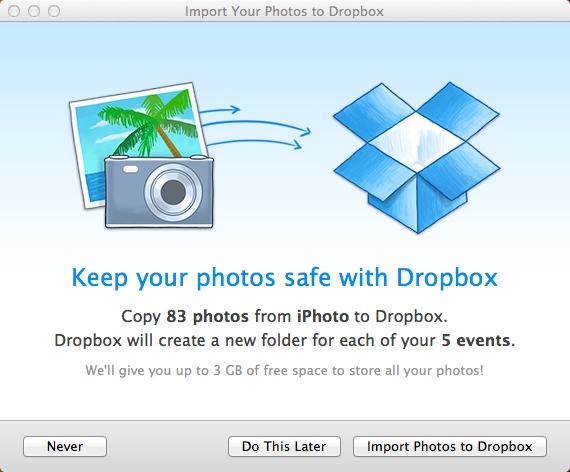
Dropbox has added two new features to its service. You can now save screenshots directly in the cloud, and transfer photos from iPhoto to your remote folder in one click.

Cloud storage services come and go. New services are being developed all the time, but most are eventually forgotten. Others seem to offer features that already exist.

This isn’t the case with Dropbox. Since 2008, when Dropbox was first released, developers have innovated and expanded the service, and, most importantly, have made it easy to use with any device and on any platform.

The two most recent innovations are the ability to save screenshots and sync iPhoto with Dropbox, two additional steps toward the relocation of all user data to the cloud.

Your screenshots in the cloud

Saving snapshots of your screen to an online space with Dropbox is very simple. Once you’ve downloaded the latest version of the Dropbox client (for PC or for Mac), the screen displayed when launching is as follows:

Click on Save Screenshots to Dropbox. Now every time you use the Print Screen/SysRq key (or Print Screen, depending on the keyboard you use), the screenshot will automatically be added to your Dropbox folder and synced.

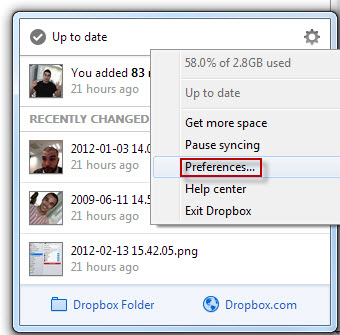
You can enable this function at any time in Preferences, located in the system tray.

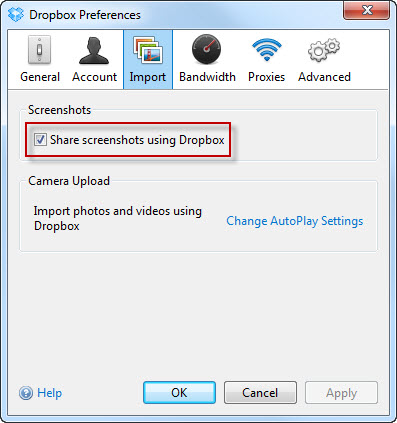
Check the “Share screenshots box using Dropbox” on the Import tab.

There’s another new feature that makes the new version of Dropbox particularly useful. If you press the CTRL key along with the Print Screen key, the screenshot will be saved in Dropbox and copied to the clipboard. Then you’ll get a download link that you can paste into an email, Facebook, or other applications.

Sync with iPhoto

If you have iPhoto 7.0 or higher installed on your Mac, you can now save pictures in your library to Dropbox.

In Preferences > Import, click the ‘Import Photos from iPhoto’ button.

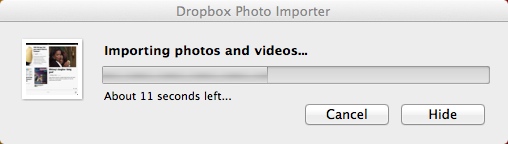
Follow the steps and wait for the upload to be completed.

The first import you do creates a folder in Dropbox called Photos from iPhoto, where your pictures will be stored as they are in iPhoto, as well as sorted by events.

The new features are easy to use and work well. The quality and continuous improvements offered by Dropbox make it a really popular program that’s quickly rounding up a loyal following.

It’s not easy to convince a user to give up the traditional way of storing files locally in favor of relying on the cloud. Users have to overcome a general distrust of such services that they aren’t familiar with and don’t fully understand.

Dropbox, however, has made sure that the management of remote file storage looks and feels like the classic local storage methods users are familiar with by using a similar folder interface and making access from many devices easy to use.

If you’re trying to navigate through the endless suppliers of online storage services and you want to choose one that’s right for you, check out our comparison of cloud storage services.

Original article written by Pier Francisco Piccolomini for Softonic IT.

Yahoo! Mail: what’s new?

Yahoo! Mail has turned 16 and is celebrating with a brand new interface and some new features.

The change will kick off in the US and UK, but will expand to the rest of the world shortly after. It includes the webmail apps for Android, iOS, and Windows 8. There is also a downloadable version of Yahoo Mail for Windows 10. Let’s see what’s new!

Interface

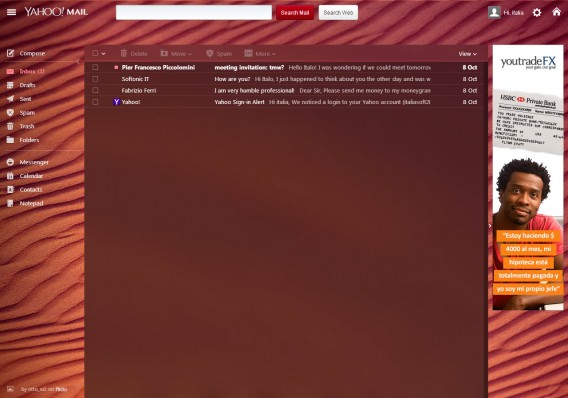
Compared to its predecessor, the new interface is much more beautiful and modern. Conceptually, it resembles Gmail, but the clean look and rational organization of the tools appear to be even better than Google’s webmail.

Overview

You can also access Yahoo! Messenger, and the calendar, address book and notepad, straight from the main interface.

Messenger etc

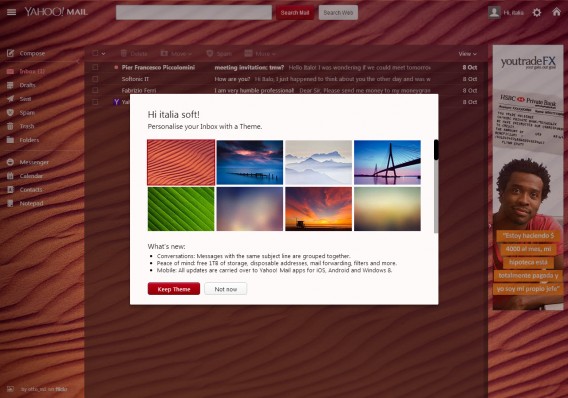
You can choose to customize the appearance of Yahoo! Mail with 24 high-quality themes. The photos are taken from Flickr.

Yahoo! has already tested this new philosophy with its weather app, with remarkable results. Once you’ve chosen the theme, an algorithm applies it to the whole interface. This means that color consistency is guaranteed across the screen.

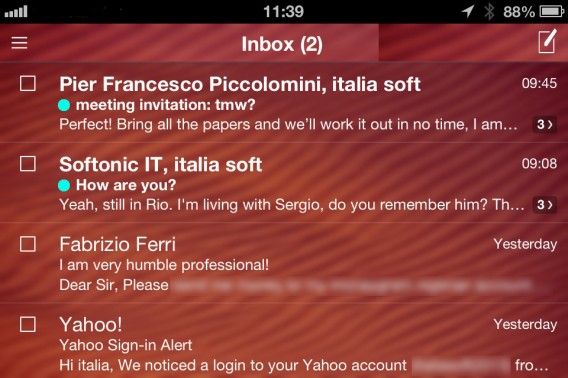
The theme you choose for the web app will be the same one that you’ll see in the application on your smartphone.

iOS tema sincronizzato con webmail

The new message composition window is white and very clean and looks a lot like Gmail, which has drawn mixed reactions from users.

The new features in Yahoo! Mail

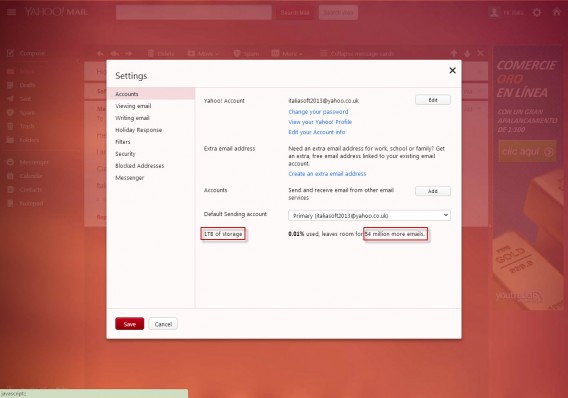
The storage space available to users has increased to 1 TB, which is a very generous offer.

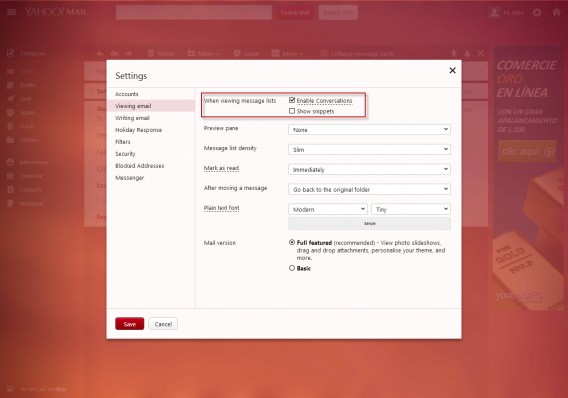
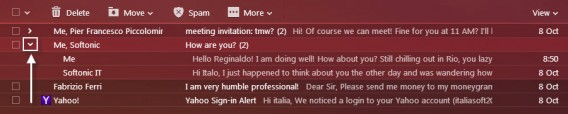
Among the new features, there’s also a new message compose window and the ability to sort emails by topic. This function is enabled by default, and you can disable or re-enable it from the Preferences menu.

You can expand and collapse the threads easily using the small arrow next to the message.

Another useful feature is the ability to view all messages from a single sender. To do so, simply click on the magnifying glass next to the sender’s name.

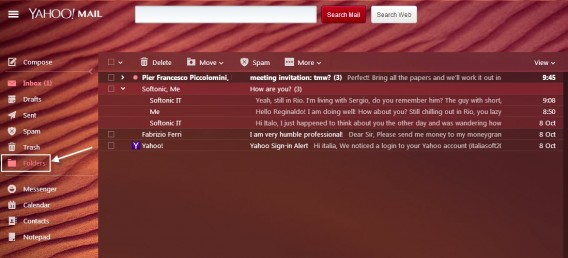
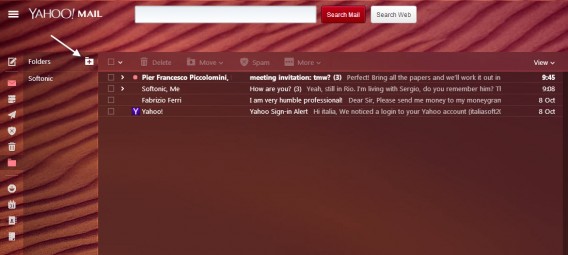
You can also create folders in webmail and sort your mail, a feature that makes the Yahoo! mailbox very tempting for those used to the logic of organizing folders for Windows and Mac, and who aren’t too keen on the alternative of Gmail’s labels.

Folders

With one click, you can access your folders. To add a new one, just click on the folder with the “+” sign in the top right.

A successful update

Yahoo! Mail looked dated and really needed a new interface. In the new version, all important features are easily accessible and it looks clean and crisp. After a close look, it’s definitely the best webmail on the market (although truth be told, the bar is set pretty low!). No one, even long-time users, will find it hard to get used to the new interface.

What do you think? Do you miss the old Yahoo! Mail?