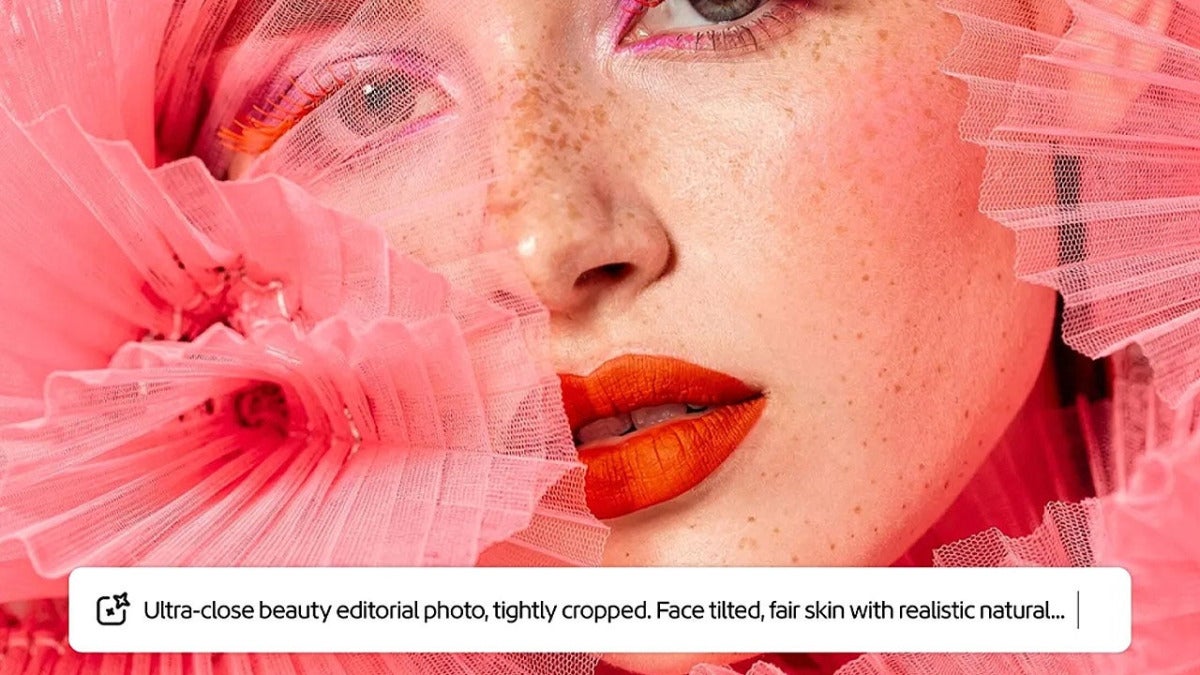
Generating images with artificial intelligence is extremely easy. However, keeping them consistent is much more complicated. In Adobe Firefly, you can reduce those unwanted changes by using image, video, and audio references to guide the result. Here’s how to do it.

The challenge of generating identical images
Whatever AI you use, every image you generate will be different from the one before, even if you describe it with the same words. If you only need a single image, that’s fine. The problem is when you want to create several that look alike.
In Adobe Firefly, references work like a kind of visual guide: you “show” what you want the result to look like instead of only describing it.
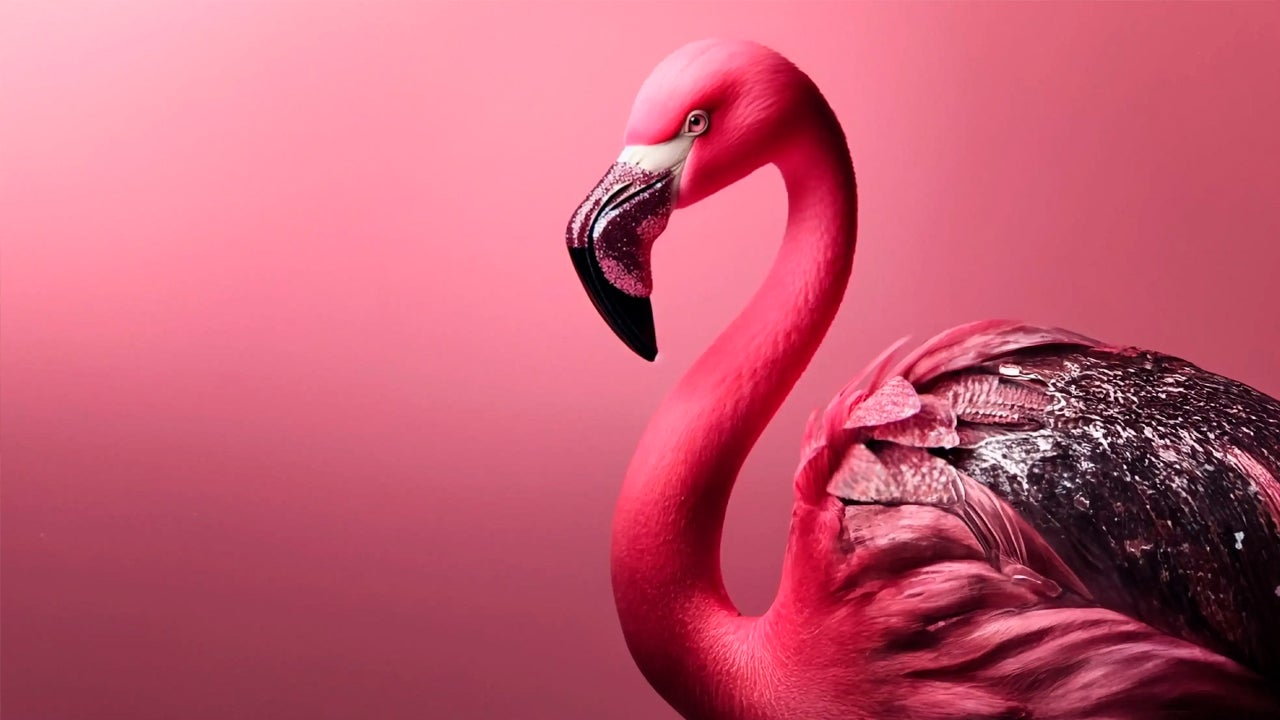
What each type of reference adds in Adobe Firefly AI
Images are the fastest way to pin down the overall look. Before you start generating, Adobe Firefly lets you attach up to 6 images to complement the description you write.
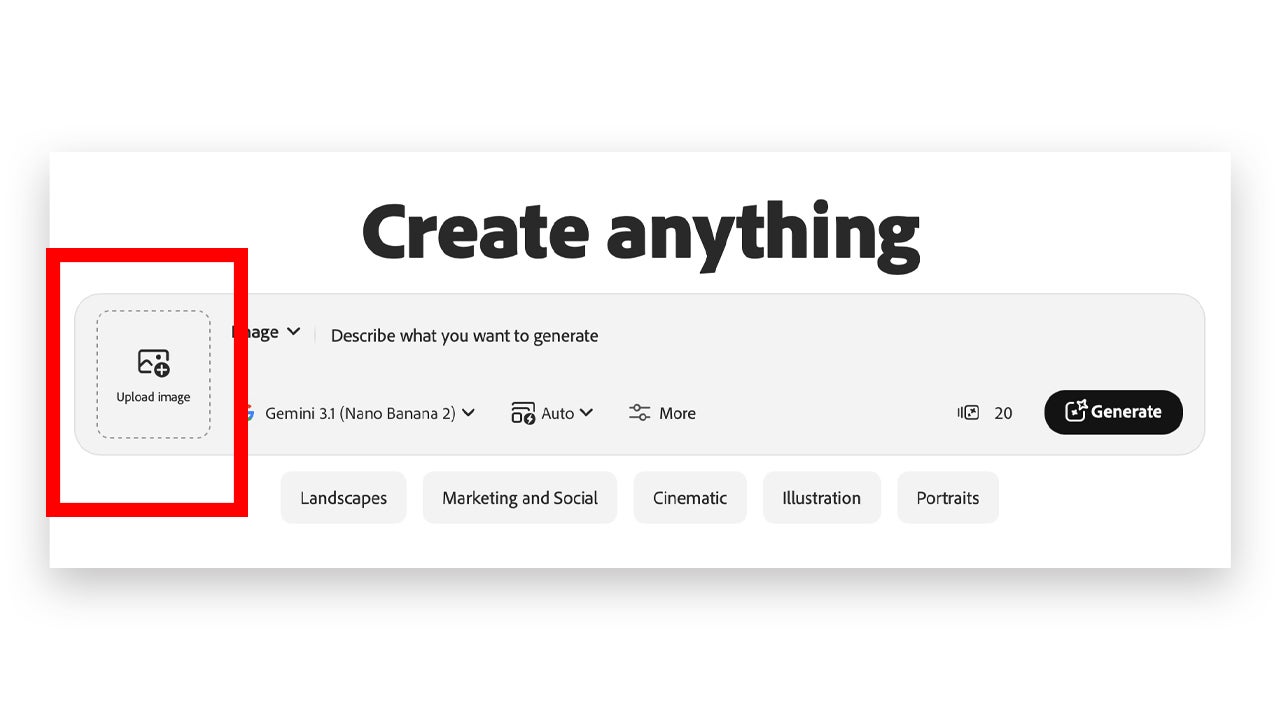
- On Adobe Firefly‘s main page, you’ll see a large text box. That’s where you’ll have to write the description of whatever you want to generate. Just to the left you’ll find the Upload image button, so you can upload your reference images from Adobe Stock, Adobe cloud storage, or your own device.
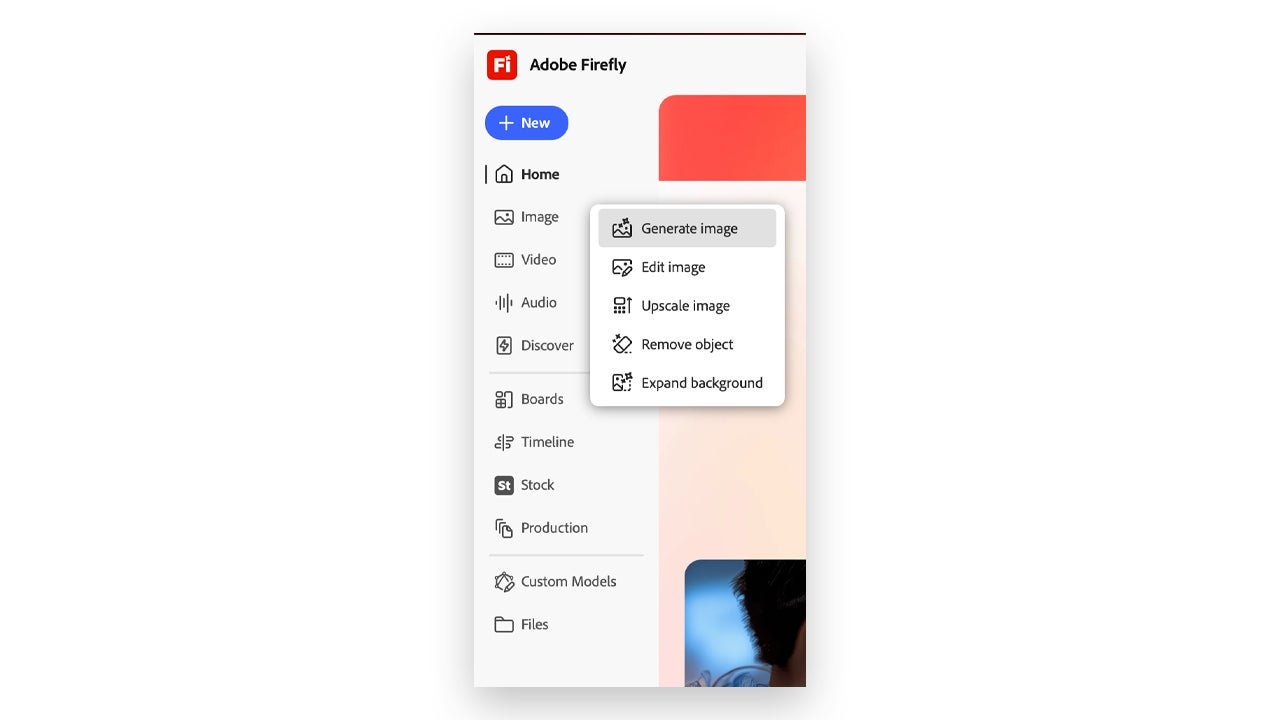
- You can also access the image generation panel by going to the tools column on the left and heading to Image > Generate Image. Then click the Reference button to upload your images.
Videos and sounds are references too
Besides images, Adobe Firefly also lets you use reference clips to generate video in these two ways:
- Composition: The Composition reference option lets you upload a reference video and Adobe Firefly will generate a new one that keeps its visual structure.
- Camera: The Camera reference option lets you copy the camera movement from your reference clip, which is very useful when you want several shots to move the same way.
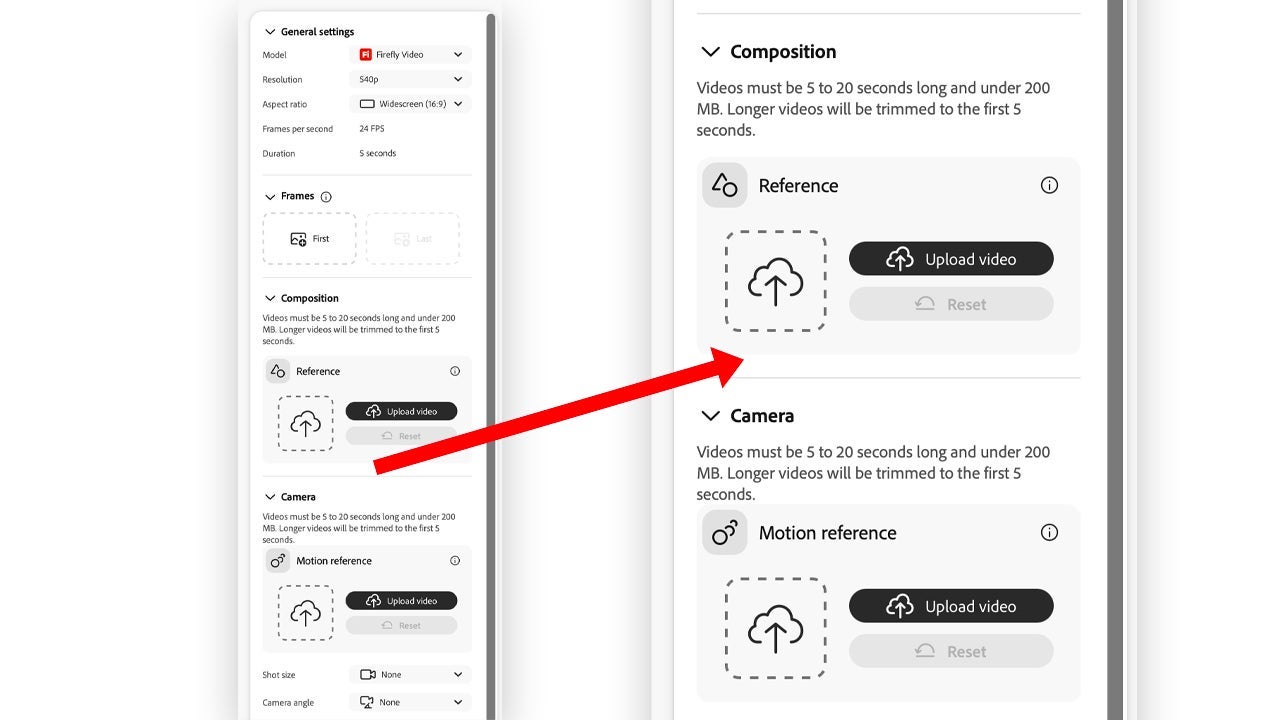
For both Composition and Camera references, the clips have to be between 5 and 20 seconds long and under 200 megabytes. Using reference clips is only available when you use Adobe Firefly Video as the generative model.
Adobe Firefly can also generate sounds such as effects, voiceovers, or music:
- You can use your voice as a reference for creating sound effects. Your recording will serve as a guide so Adobe Firefly knows what rhythm and energy the effects it generates should have.
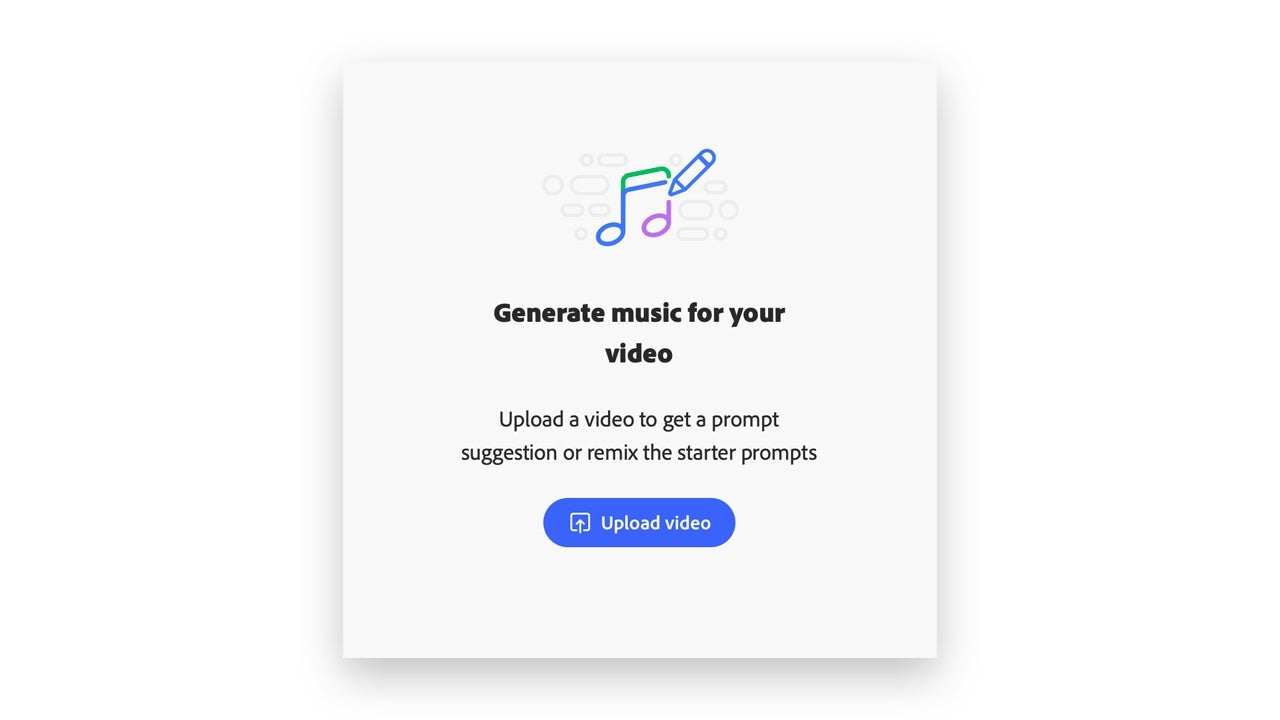
- In the Generate music panel, you’ll be able to upload videos so Adobe Firefly can suggest prompts that match the video.
How to write instructions that don’t drift away from your references
It’s important to have a clear plan before diving in headfirst and spending credits aimlessly. We recommend following these steps:
- Always repeat the most important details: Always use the same words and describe the same elements so they stay in the scenes.
- Change only one thing at a time: If you want to change something, make changes gradually. If you make changes that are too big, Adobe Firefly’s images will most likely change more than necessary.
- Save your prompts for later: Keep a document handy where you save all the prompts you’ve used and that have worked for you. That way you can always go back to them.
- And if you’re unsure, use Enhance Prompt: In video generation, Enhance Prompt expands your instructions so they’re clearer.
Use Photoshop to prepare cleaner references
A bad reference can make you waste credits in Adobe Firefly. If you already have clear references, you can always refine them even more in Adobe Photoshop.
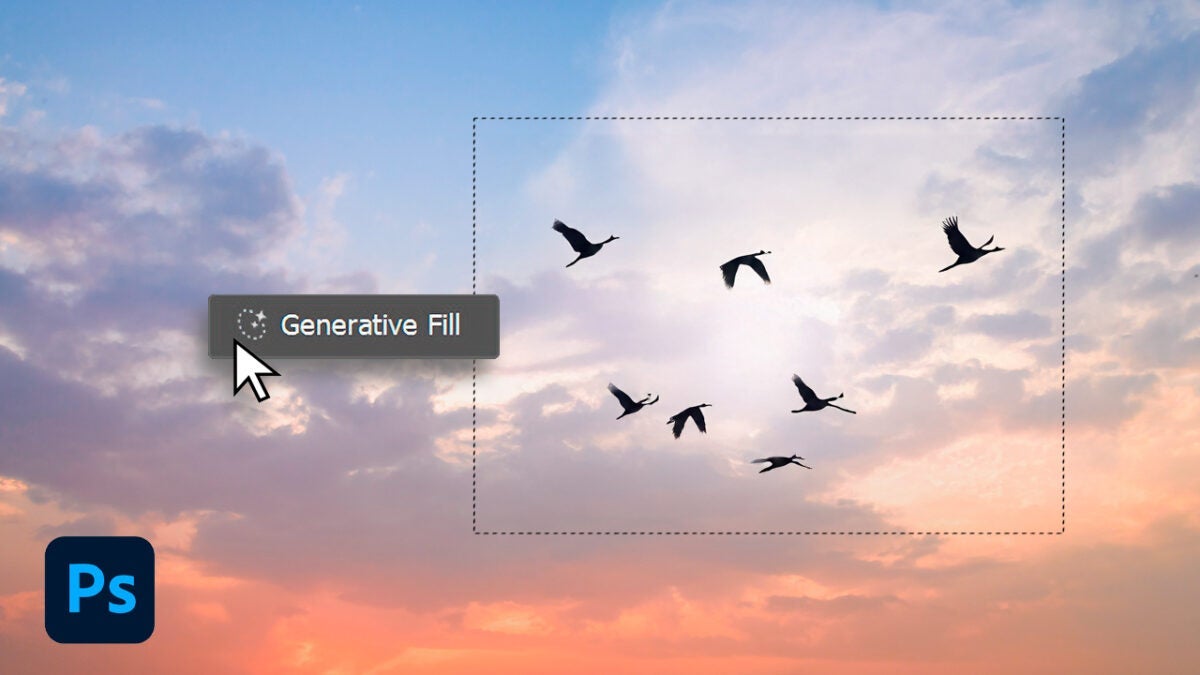
In Adobe Photoshop you can crop out what your images don’t need, expand other areas using the Generative Expand function, alter colors, or remove distracting elements, for example. The clearer the references are, the better results you’ll get.
Use Premiere to turn your ideas into clips
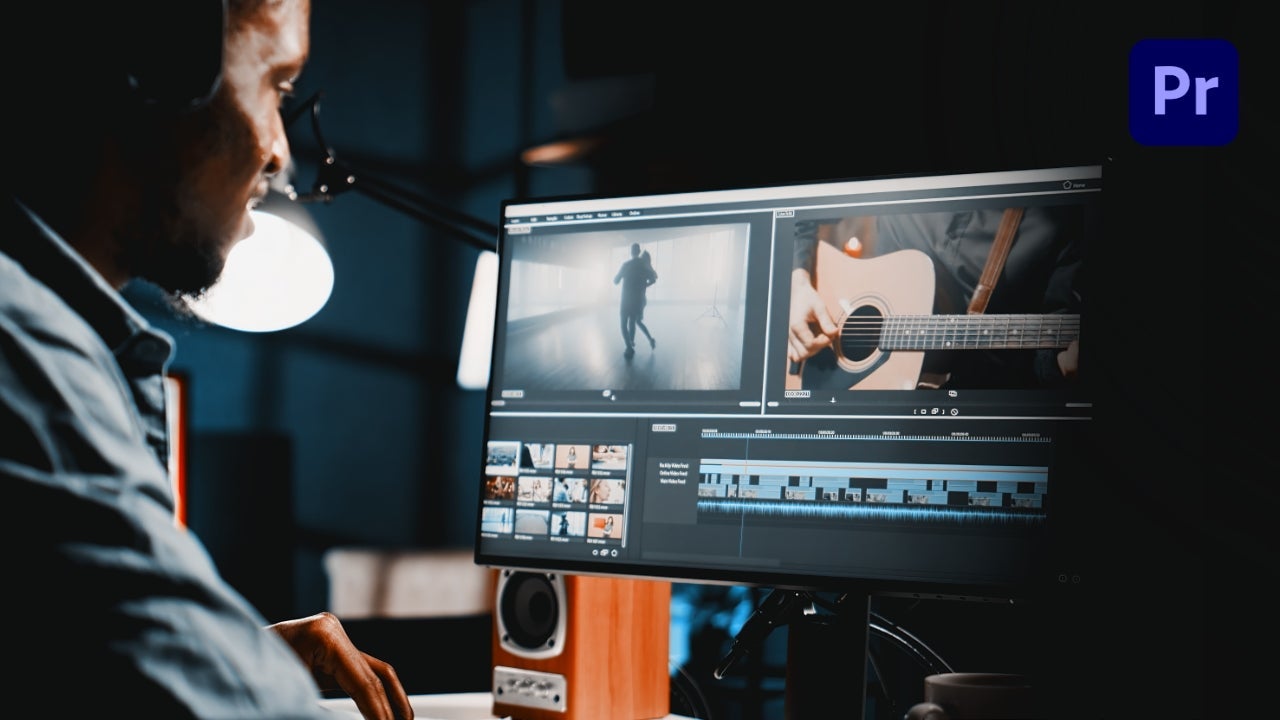
Once you have your scenes, take them into Adobe Premiere Pro to edit them in order. You don’t need a perfect edit, just place the images and clips on the timeline, add sound effects, and adjust the duration of each shot and you’ll have a very useful mock-up.
The most common mistakes
- Using references that contradict each other: For example, using one image with warm colors and another with cool tones can be confusing. Choose one direction and stick to it.
- Starting from scratch for every generation: Always use a previously approved image as your starting point.
- Asking too much in a single instruction: It’s better to do it in small steps than ask for too much the first time around.
- Not checking the details: AI can change a button, a tattoo, or a logo without warning, so always inspect closely.
- Treating a concept as if it were finished: Adobe Firefly is very useful for coming up with ideas and presenting, but the final result still needs human approval.
Keeping visual and sound consistency is one of the most complicated tasks when it comes to using AI. By using image, video, and sound references, Adobe Firefly helps you reduce unwanted changes and move faster across all your projects.
