The latest update to Google Sheets, Google’s web-based spreadsheet platform, integrates the capabilities of its Gemini AI to assist in the organization and structuring of data. This update, first showcased during the last Google I/O, allows users to transform large datasets into highly presentable tables without the need for manual formatting. According to Google, the tool is ideal for automatically sorting and organizing data into manageable tables. To do this, users simply need to click on the “sparkle” button of Gemini in the upper right corner of Google […]
The latest update of Google Sheets, the web-based spreadsheet platform from Google, integrates the capabilities of its AI Gemini to assist in the organization and structuring of data. This update, first showcased during the recent Google I/O, allows users to transform large data sets into highly presentable tables without the need for manual formatting.
According to Google, the tool is ideal for automatically sorting and organizing data into manageable tables. To do this, click the Gemini “sparkle” button in the upper right corner of Google Sheets, select the “Create a table” option, and follow the instructions. Gemini can even suggest which lines to modify to customize the tables, making each use more intuitive.
Although a “convert to table” feature was launched in August, it only created plain text tables, and its results were far from those now shown by the integration with Gemini. The new update is already available for rapid release domain users and will begin its rollout to other domains starting October 17, 2024.
Google Sheets is a free, cloud-based tool that’s invaluable for measuring and controlling essential business information like sales and performance metrics. And while the app is available at no cost, it shouldn’t be mistaken for a watered-down version of Microsoft Excel or some other pricey add-on attached to a licensed operating system like Windows 11.
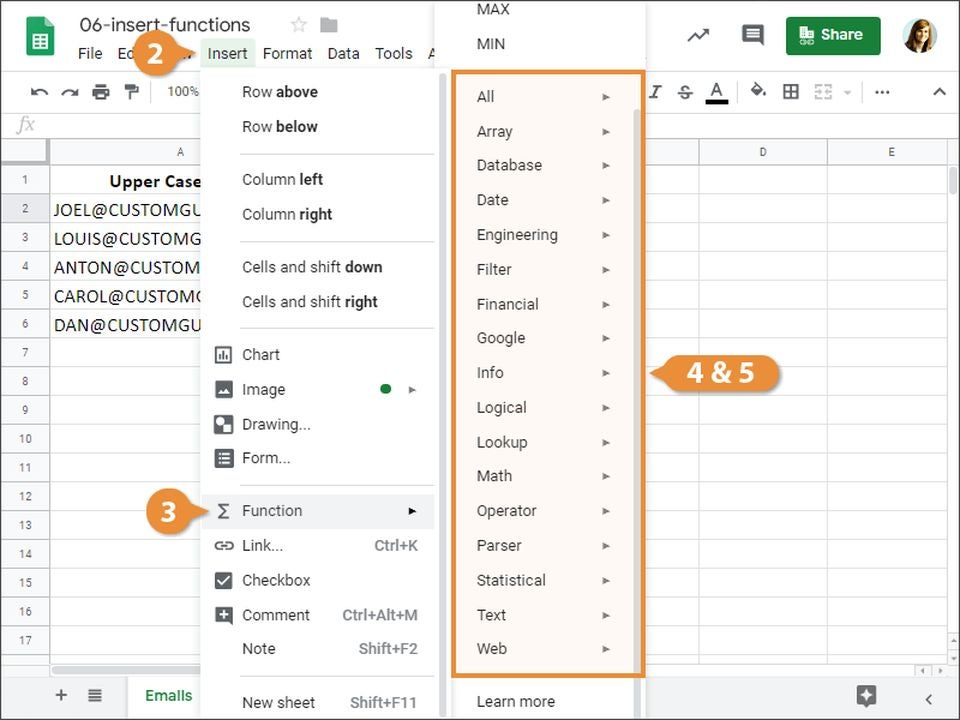
With that in mind, optimizing Google Sheets requires a strong command of several core functions. Google Sheets functions give you enough power and control over your spreadsheets to handle almost any complex assemblage of data. Here are eight widely used spreadsheet functions assured to help you get the most out of Google Sheets.
The TRIM function
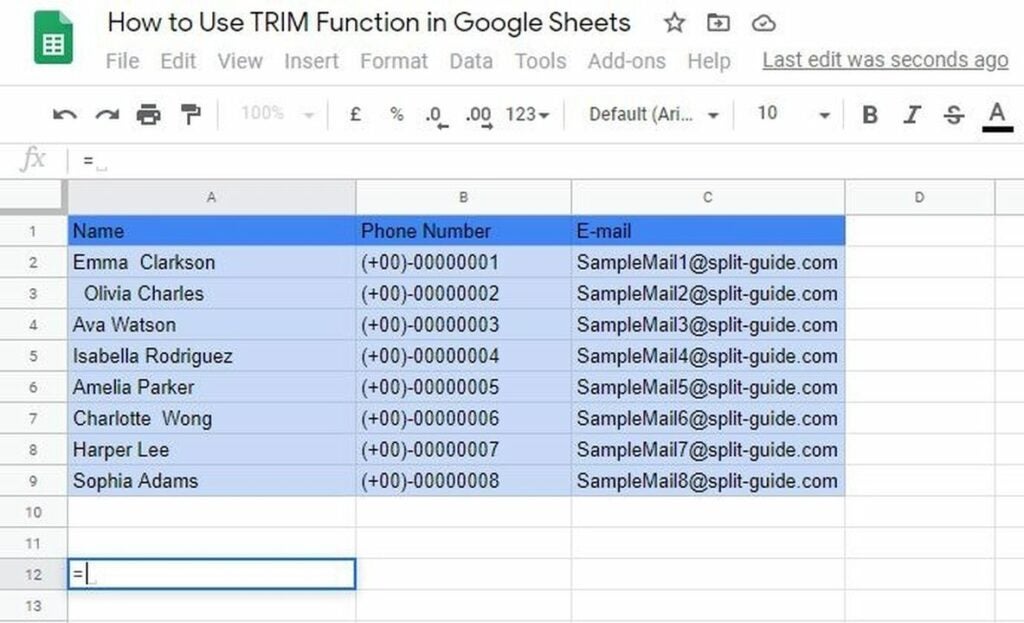
If you’ve worked with spreadsheets in the past, you know that cells with extra blank spaces at the beginning or end of a text string can render your formulas useless and produce ineffective results.
TRIMremoves blank spaces at the beginning and end of spreadsheet cells and even multiple spaces between words. Even if the unnecessary spaces do not impact your calculations, TRIM gives your text strings a clean and professional look when you print your spreadsheet.
The IF function
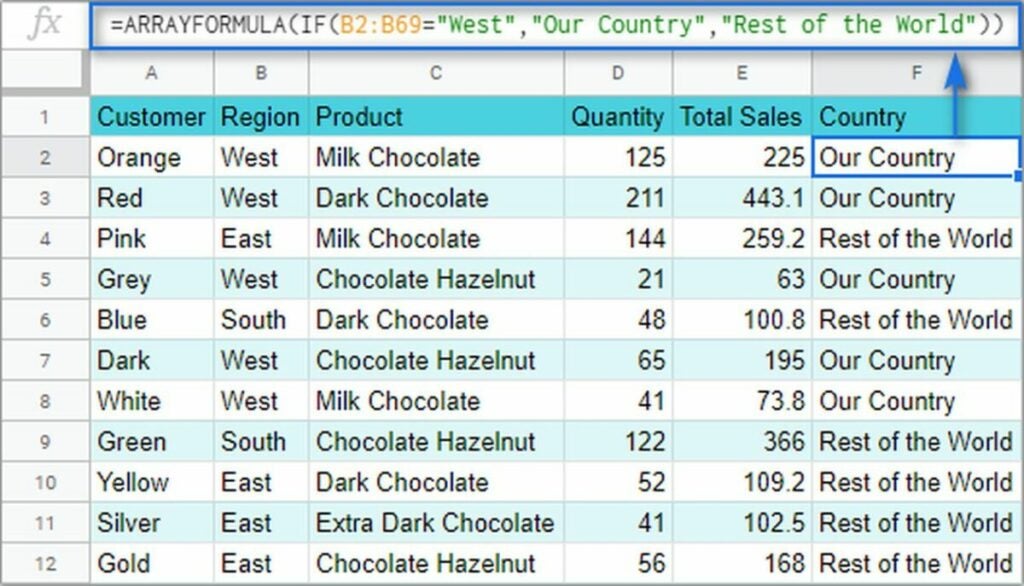
The IF function is one of the most useful tools in Google Sheets. It lets you use previously entered spreadsheet data to determine if a condition is true or false. You can use the IF function to test whether or not a new value is greater or less than all the current information on the spreadsheet.
This function helps you determine true or false answers about your latest data entries against previously entered information. You can use these results to run additional calculations later.
The IMAGE function
Because spreadsheets are powerful tools for organizing and comparing raw data, it’s nice that you can upload images to Google Sheets with the IMAGE function. Spreadsheets are often hard to work with because they lack visual elements. Gazing at a mundane wall of cells with numbers and strings is the breeding ground for needless data entry errors.
One way to break up the monotony and stimulate focus is by adding images to your Google Sheet to improve readability and emphasize the critical details of your spreadsheet. To insert the desired graphic, simply add the image URL inside the parentheses for the IMAGE function.
The SUM function
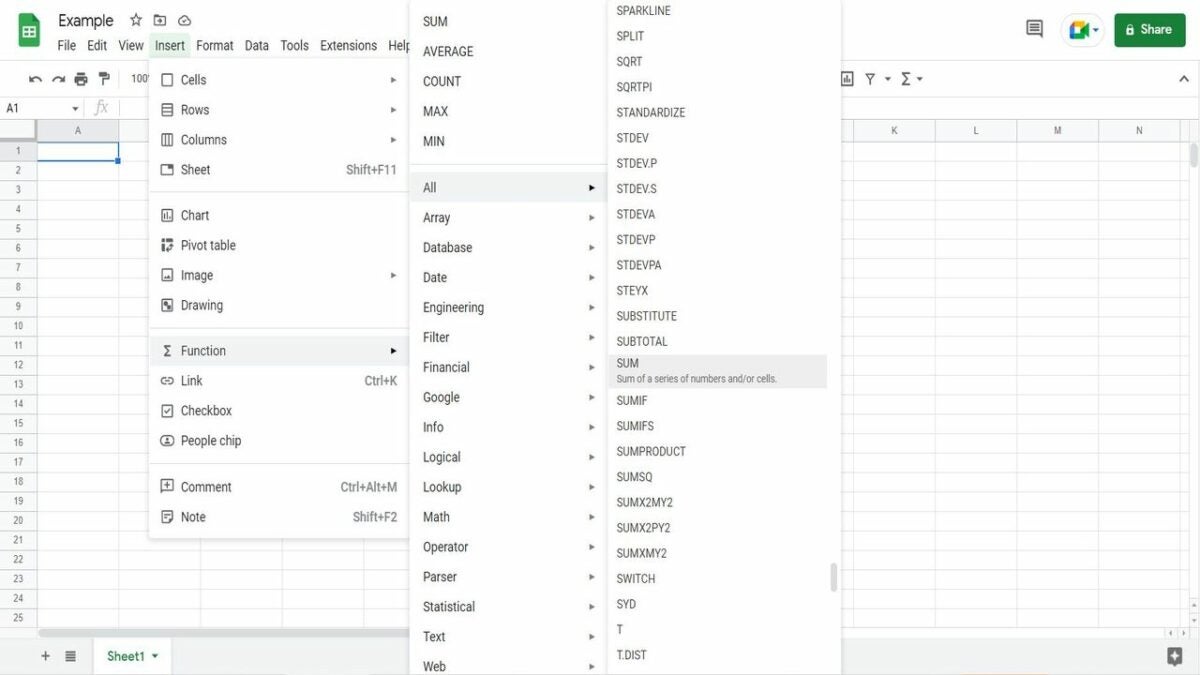
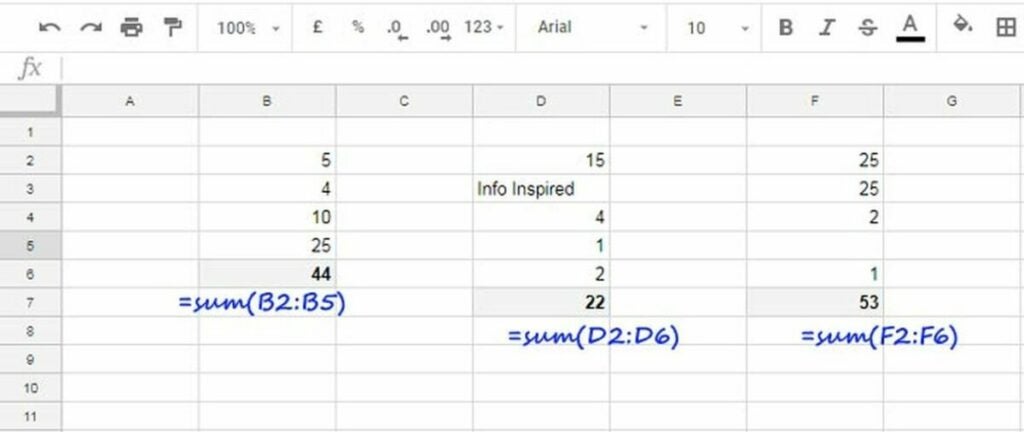
The SUM function is fundamental to any spreadsheet application, and Google Sheets wouldn’t be complete without it. As in Excel, use the SUM function after selecting a range of cells to find the sum of a value.
The SPLIT function
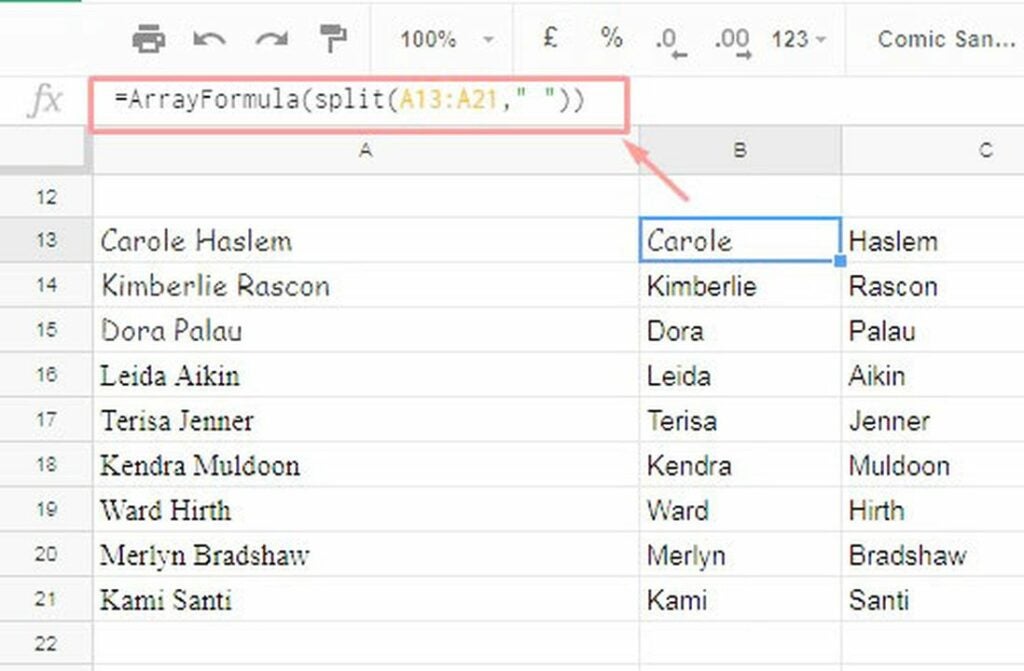
Use the SPLIT function in Google Sheets to break up a text string in a single cell. If you have a string containing more than one word, the SPLIT function separates the words into individual cells. This way, you don’t have to recreate the entire spreadsheet.
To use the SPLIT function, look for the parentheses followed by the cell address of the string you want to split. Type the SPLIT function in the cell and enter the first character that designates where you want the string to split. The information will separate, starting a new cell where you entered the SPLIT function.
The SUMIF function
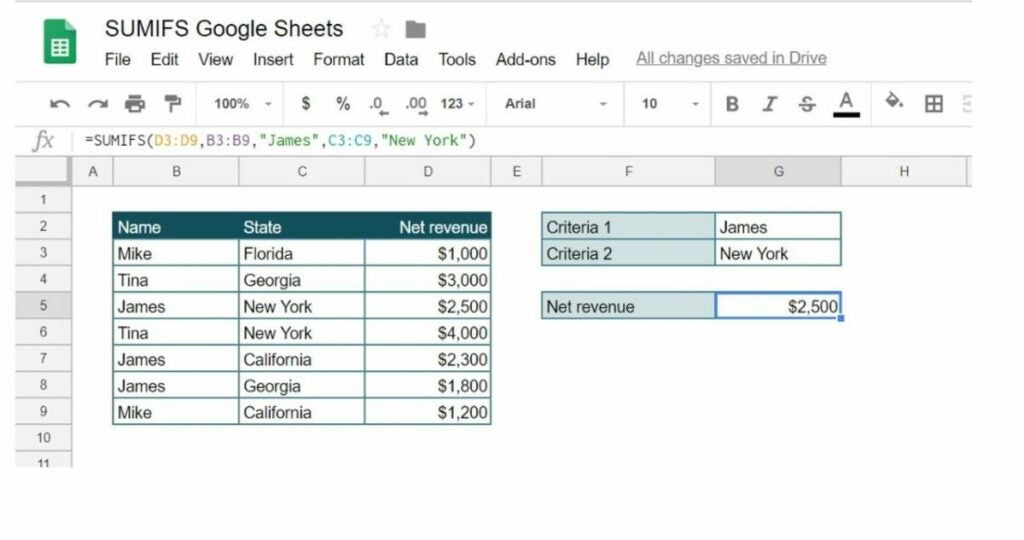
The SUMIF function extends the IF functions by incorporating the SUM function. For example, if you want to know the total amount of a specific value within a range, the SUMIF function lets you do this.
Within the parentheses of the SUMIF function, enter the value type (for instance, a person’s name) for which you need a sum in quotation marks. Then, select the range of cells reflecting the values you wish to calculate. SUMIF will only calculate the sum for the value you entered in quotes.
ISEMAIL/ISURL function
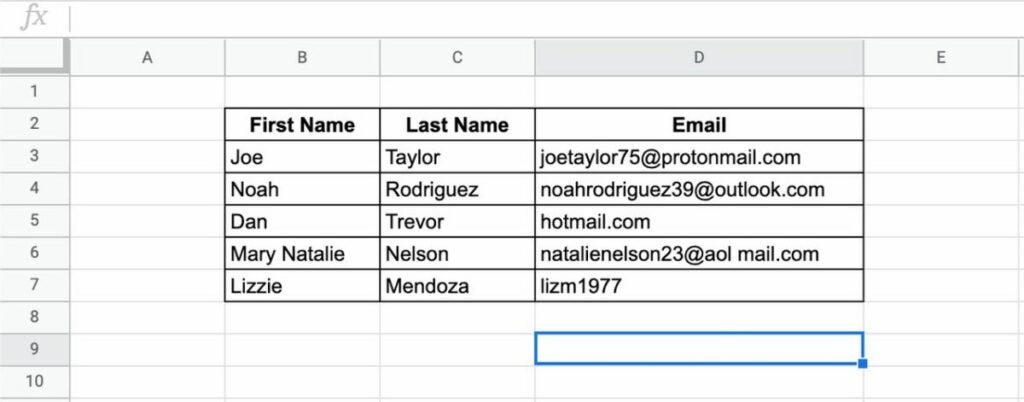
For spreadsheets that entail a lengthy series of emails or URLs, a quick way to validate them is always helpful. To ensure that all your email address and URL information is correct, use the ISEMAIL/ISURL function to verify. This function offers a fast and automated way of double-checking your data entry and confirming that all the email and URL formats are valid.
IMPORTRANGE function
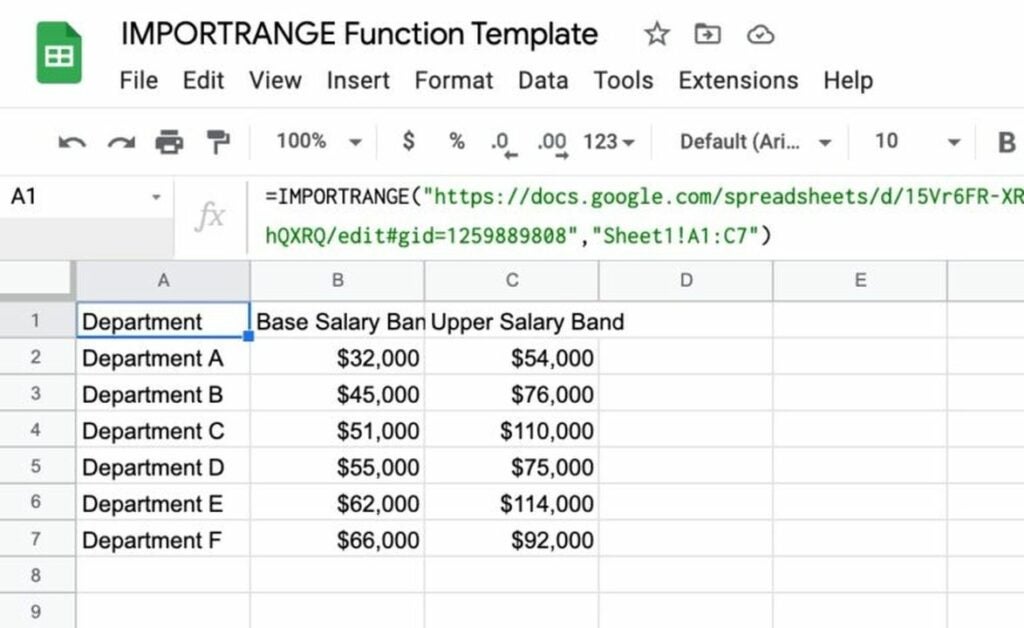
IMPORTRANGE allows you to pull data from another spreadsheet in Google Sheets. This feature comes in handy for replicating data across multiple spreadsheets. IMPORTRANGE lets you pull this information in by simply entering the URL address for the Google Sheet that contains the source data.
Download Google Sheets for free
While this quick guide covered only a few basic and unique functions of the Sheets interface, you’ll find several more practical tools and features after downloading the app. Google also offers the Sheets mobile app for both Android and iOS. If you’re interested in more free tools from Google, check out this list of 10 essential Chrome extensions for developers.
When you need to create a spreadsheet fit for a specific purpose and don’t have the time to set it up, you can rely on templates for Google Sheets. They contain formulas and themes for different categories, which means you’ll be able to create sheets in less time and with less fuss.
Today we’re presenting 10 of the best free Google Sheets templates for any type of business or industry. We’ve covered several categories that are suitable for companies of any size, while freelancers will also find them useful. Save time so you can focus on your core work.
Why you should use Google Sheets templates
Besides the fact that many of them are free, there are many uses for Google Sheets templates. You can also collaborate with your team members or clients on the same documents, providing a more efficient and productive way of working. Most of the templates have everything you need for your task, but there’s an intuitive way to add more functions if needed.
The best benefit is that you’ll save data on the Google server, but you can also download sheets to your PC or company’s network storage. It keeps your data safe, as long as you save a master copy that no one else has access to.
Where to obtain templates for Google Sheets
There are three ways you can get free templates for Google Sheets. The first and most practical way is to open the app on your browser and look at the built-in templates. Secondly, you can install Chrome or Google Sheet add-ons that have templates included. Finally, there are many online service providers or content creators that provide them for free for different categories.
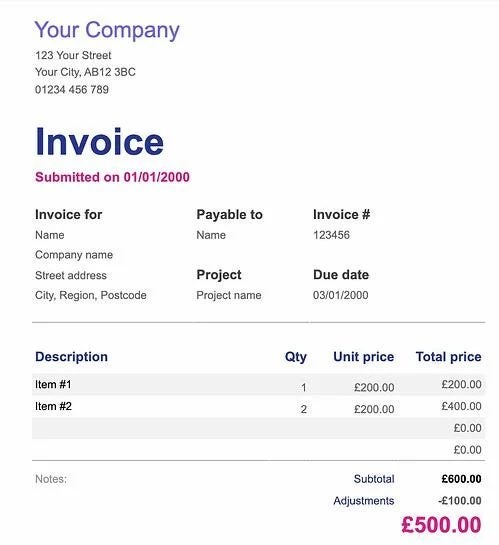
If you’re a small business or a freelance worker that needs to provide an invoice for payment, have a look at the free Invoices Google Sheets template. It presents the fields you’ll need for your customers, and you can change any of them to suit your needs. Feel free to alter the theme to match your brand to make it more authentic. It even includes formulas to make calculations easier.
Every company needs to create financial statements where income and expenses are part of the daily business. Instead of wasting hours, maybe days, creating one from scratch, you can use the Google Sheets template, Financial Statements. As you update the transactions, formulas will update the other tabs so you end up with detailed Profit & Loss and Balance statements. The template even offers guidance for improving the interactive process.
If you want to manage your finances more effectively, you’ll need to create a detailed Expense Report. This Google Sheets template is ideal for when the company regularly spends money on business transactions, but it’s challenging to keep track of them. You can make a tab for the company as a whole or per employee, depending on your requirements.
Moving on from financial Google Sheets templates, let’s look at a better way to analyze your website traffic. All that data can be confusing at times, especially when you need to organize them into charts and graphs. Website Traffic Dashboard has it all laid out already, and you can also synchronize it with the Supermetrics add-on for Google sheets. In this way, you can pull through all your PPC and other traffic data into a report you can customize.
Massive companies rely on expensive CRM platforms to help manage customers, sales, and leads more effectively. In some cases, they also use it to keep track of employee activities. Smaller companies don’t have the type of budget for these systems. That’s where this free CRM Google Sheets template comes in handy. It sets the foundation for entering basic detail, but you can customize it to suit your business.
As important as it is to measure expenses, so too will you need to check on your monthly sales and leads. The Sales Dashboard generates charts and graphs from your date, making sure you can effectively track and measure the company’s financial performance. If you’re a bit stuck on how to use it, there’s a detailed instructions tab with guidance on what to do.
The best project management tools are not free. You’ll need to pay substantial amounts, sometimes as subscriptions, just to use them for your business. Project Timeline for Google Sheets is a free template that lets you set tasks and adjust the Gantt Chart on the side. You’ll need to modify many of the details yourself, and it’s not linked to other resource tabs. It’s excellent if you’re starting out and only need a simple project timeline, though.
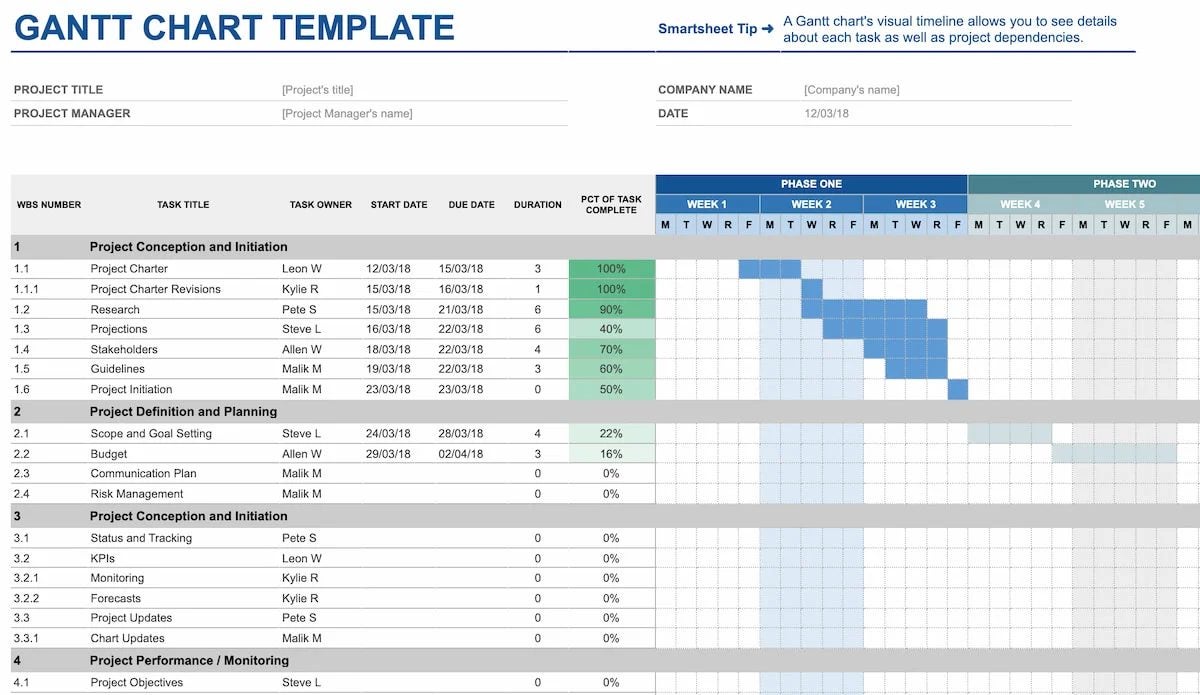
If the above Google Sheets template doesn’t have enough elements for your massive project, try the Gantt Chart template. You’ll have more control over start and end times with duration included. You can also set who the task or project owners are that you’ve assigned per line. It’s a more detailed sheet that helps you deliver the tasks before the deadlines.
Beginners may think it’s easy managing an event campaign and setting up timelines and tasks until they actually begin to do so. There are so many factors involved, and you may waste precious time trying to create your own sheet. The Event Marketing Timeline template for Google Sheets has several rows and columns prepared for you. All you need to do is insert the event and PR details, but pay attention to the Smartsheet Tips at the top for advice.
We’ll end with an HR Google Sheet template for employees and subcontractors. Weekly Timesheet is useful when you want to monitor how much time someone spends on a project to ensure they’re being efficient and productive. When you’re paying for these services per hour, it helps to cut down costs where you see time wasted on specific projects.
Google Sheets works pretty similar to Microsoft Excel, except it’s entirely cloud-based. This living document aspect adds convenience. However, you can make Google Sheets even better with formulas that automate otherwise time-consuming tasks.
The Google Sheets app formulas may be slightly different from that of Excel. Knowing these formulas and shortcuts can make your data entry much more efficient. Plus, some of these formulas can also help you analyze your data. So whether you’re making spreadsheets for business or a class project, the following 10 Google Sheet formulas will come in handy.
COUNTIF() to count cells
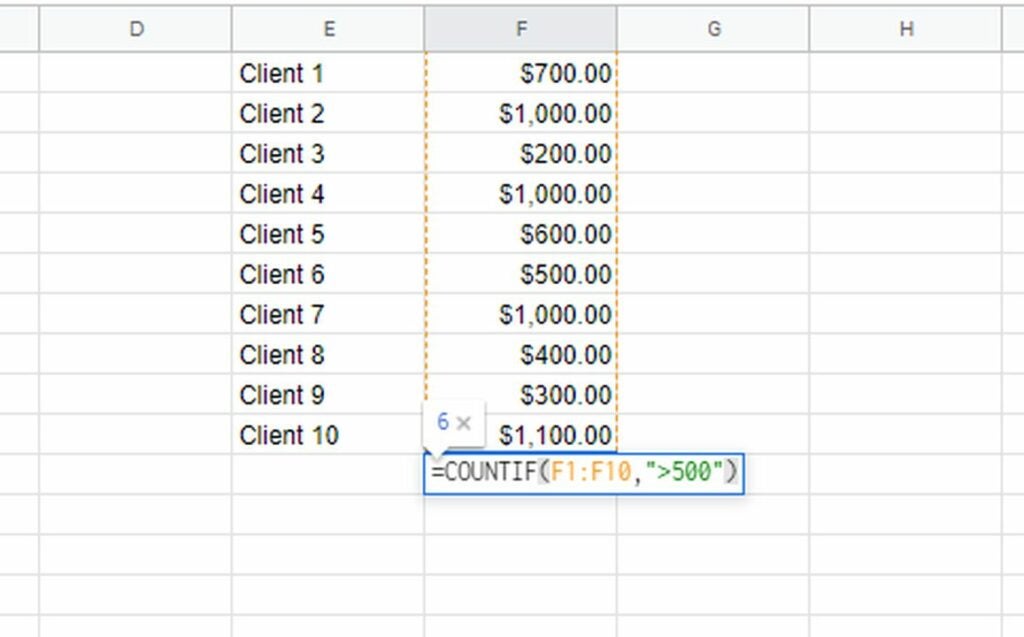
This formula counts the number of cells if they meet certain criteria. With this shortcut, there’s no more need to count the cells manually: =COUNTIF(range, criteria)
For example, you’re looking at the sales data for the sales team for a month, and you want to know which salespeople exceeded the minimum threshold of sales, which is $500. You can add the range of the cells in the first part of the formula where the sales data is. In the criteria section, you can define an amount greater than 500. Here’s what it will look like: =COUNTIF(F1:F10,”>500″)
Text() to change numbers
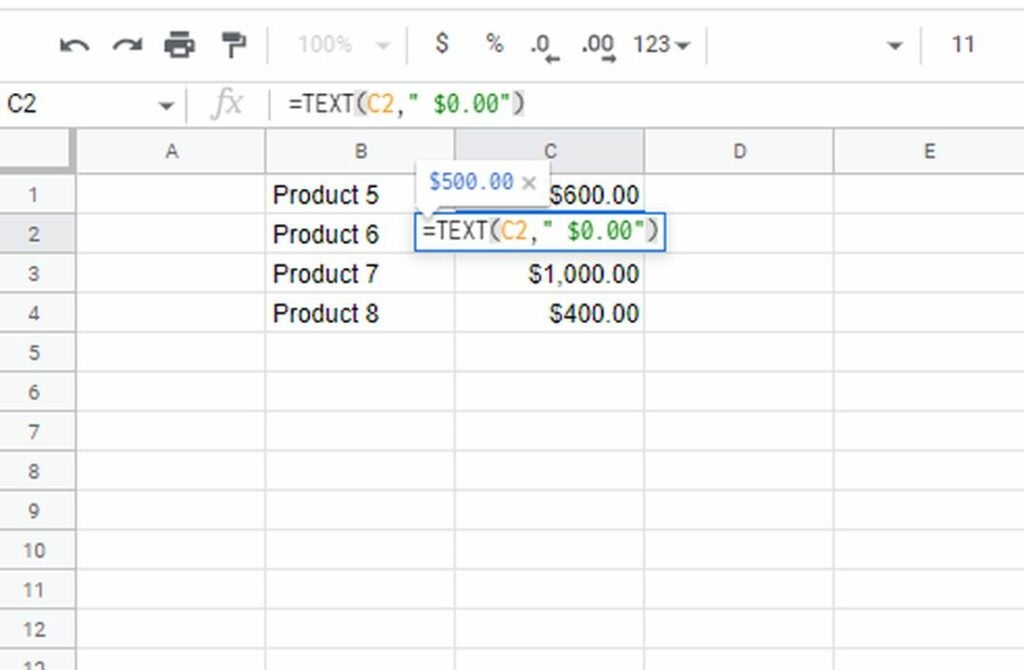
You can use this formula to reformat numbers into a currency or decimal format: =TEXT(cell,” Format”)
For example, let’s say you have a column with dollar prices of products. You can apply the formula to the first cell and then drag it down to apply to all the other cells in the row. If the first cell is C2, the formula will look like this: =TEXT(C2,” $0.00″)
SPLIT() to divide data from cells
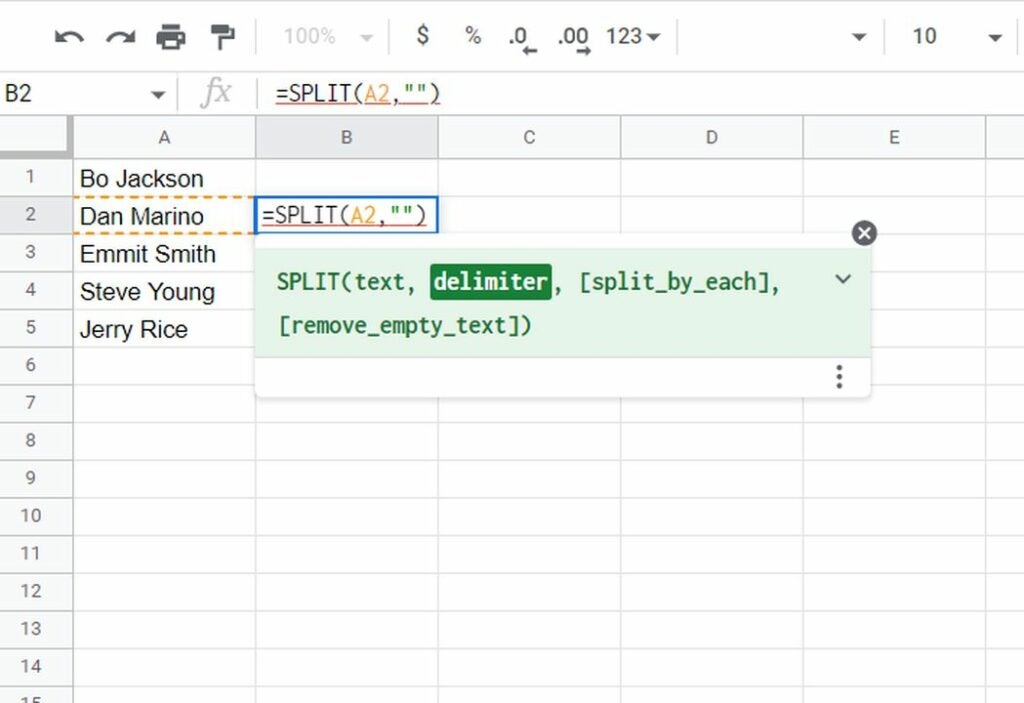
This formula can help divide data from a single cell in Google Sheets into multiple cells in subsequent rows. The formula is: =SPLIT(Text, Delimiter)
Let’s say you have customers’ full names in one column. And you want to divide that into first and last names. Suppose the first cell is A2. You’ll go to the next cell B2, and enter the formula =SPLIT(A2,””). This will enter the first and last names in cells B2 and C2. You can simply drag the B2 cell down to the last name.
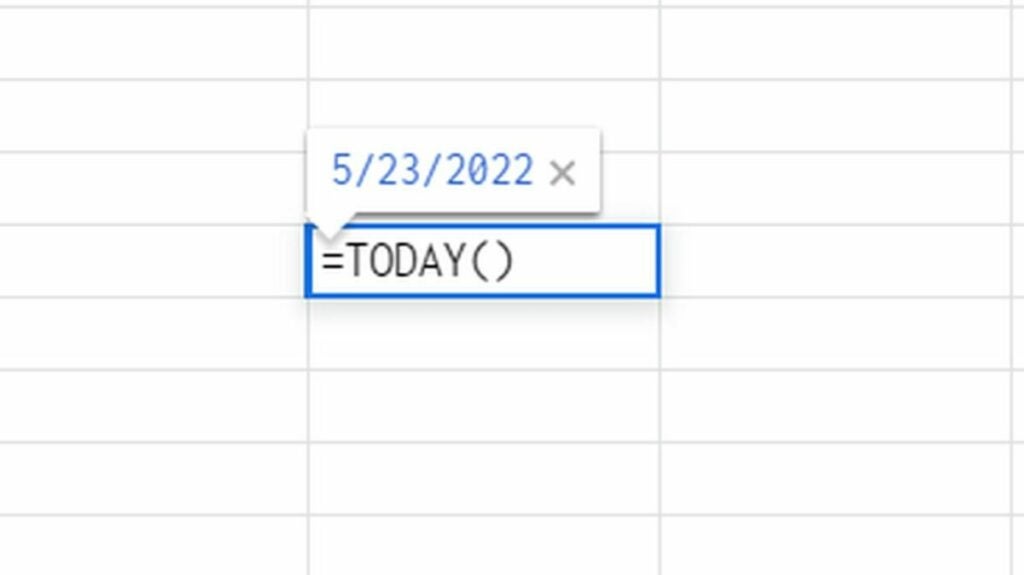
TODAY() for current date
With this formula, you’ll automatically get today’s date without having to type anything extra. Simply type in the cell: =TODAY()
You can also use it to create date ranges. For example, =TODAY() – 2 for two days before the current date.
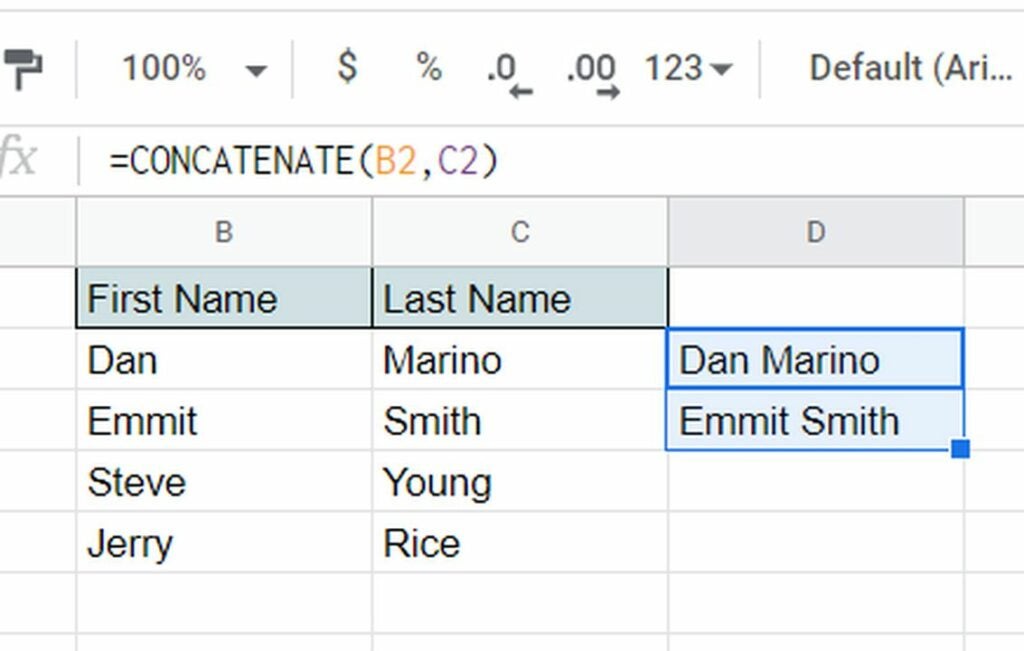
CONCATENATE() to append cells
If you want to append data from multiple cells, this formula makes the process super easy: =CONCATENATE(string1, string2, …)
For example, you have customers’ first and last names in separate rows. So the first data row is 2, the first name is in B2, and the last name is in C2. Here’s how you can append them and get the full name in adjacent cell D2: =CONCATENATE(B2,” “,C2)Then simply drag the cell D2 to apply the formula to all the other first and last names in the sheet.
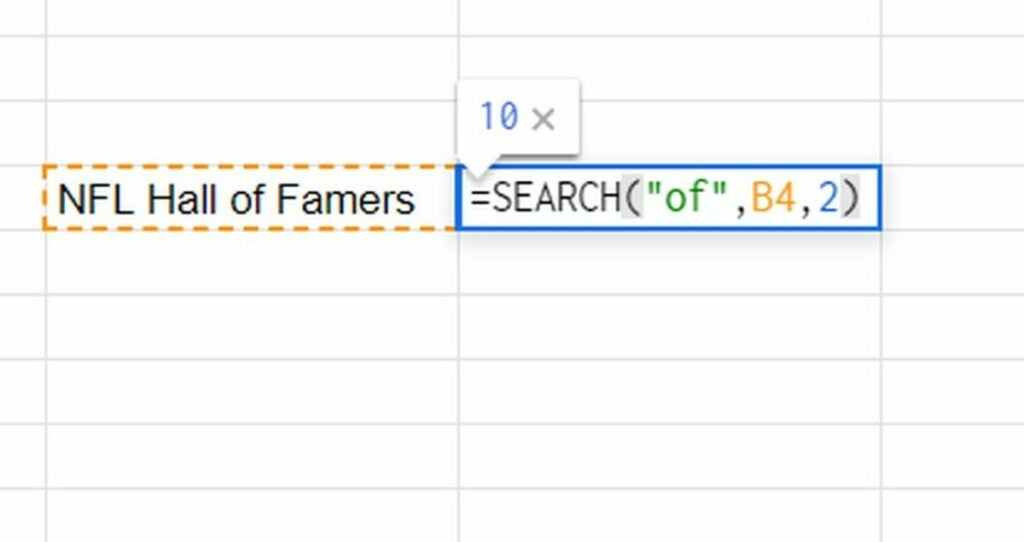
SEARCH() to check the value in a string
Use the search formula to help find a string in a text. This comes in handy when you’re working with spreadsheets that have a lot of text. The formula is:=SEARCH(substring, string, or text, starting at)
Here, the substring is the text you’re looking for, the string or text is the text you want to check for in the substring, and the starting at is the position where it will start, which is 1 by default.
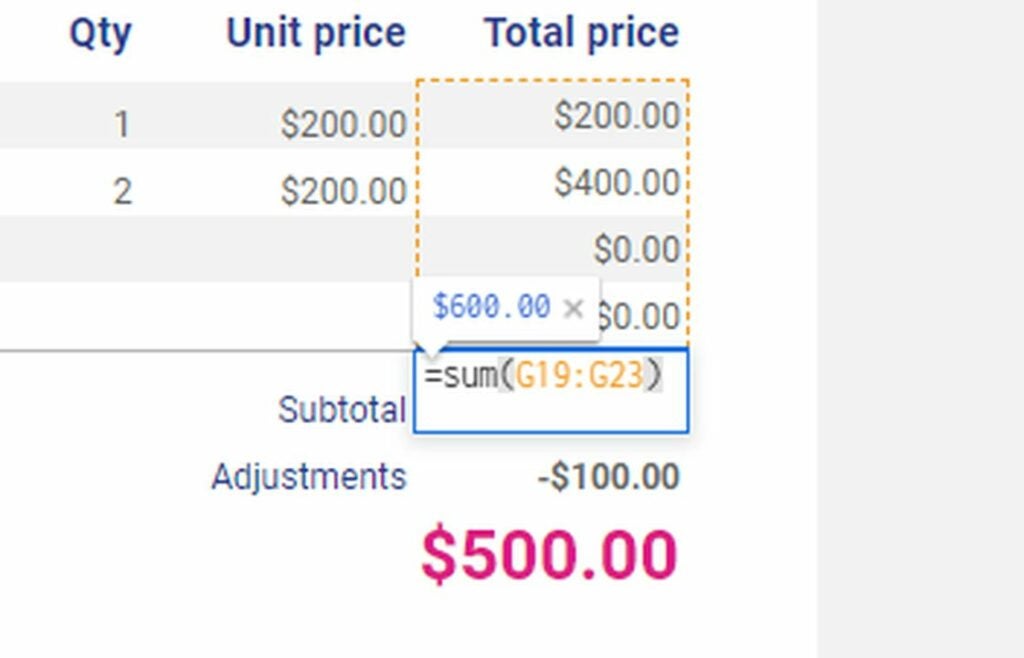
SUM() to get total
SUM is probably the most frequently used formula in Google Sheets. Here’s the formula: =SUM(range)
Simply type in the range of cells you want the sum for and apply the formula in the cell where you want the total. Of course, this formula applies to numeric values only.
For example, let’s say you have sales numbers for the month from B2 to B11. Here’s what the formula would look like: =SUM(B2:B11)
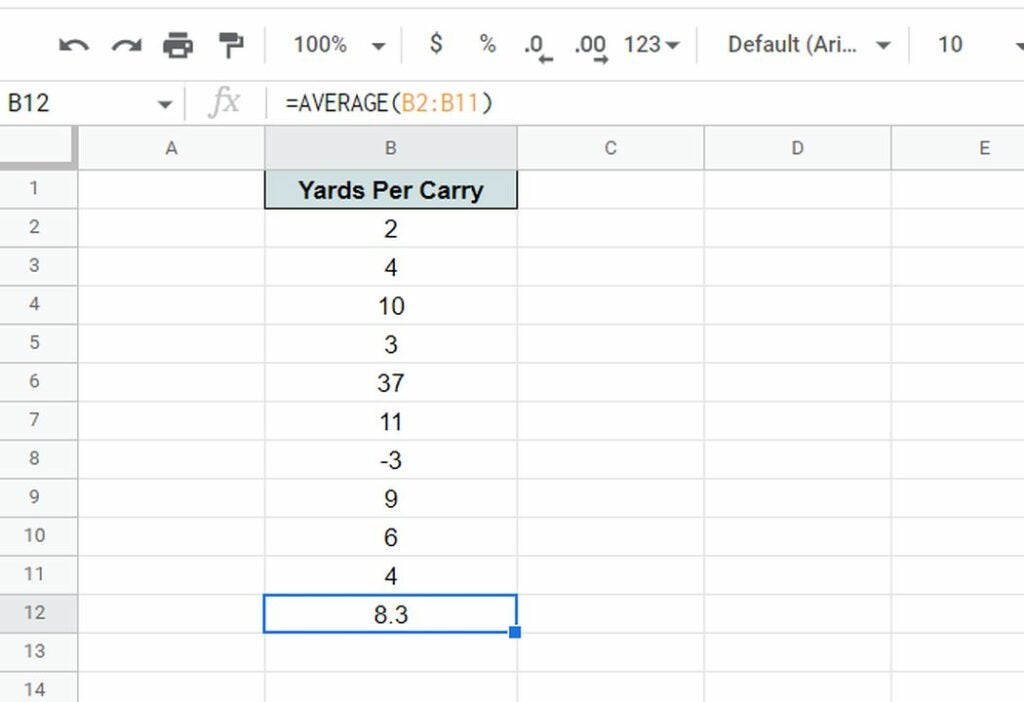
AVERAGE() to Get Average
This formula will give you the average value of a set of numeric data: =AVERAGE(range)
If you wanted the average sales number for the month, here’s what the formula would look like: =AVERAGE(B2:B11)
You can also add multiple ranges. For example: =AVERAGE(B2:B11, C2:C11)
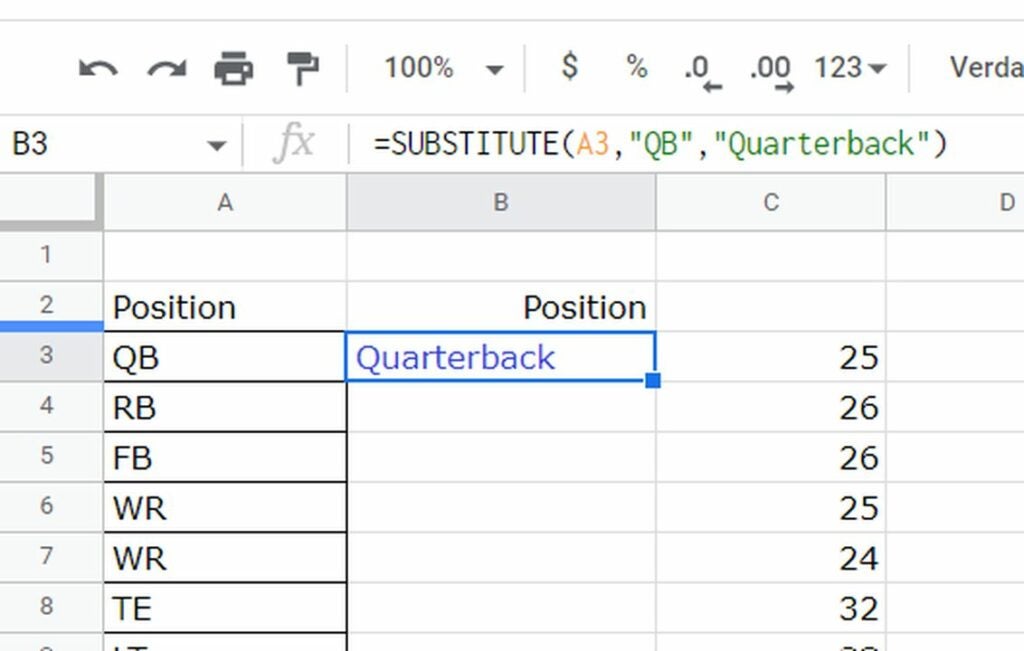
SUBSTITUTE() to replace text
You can use this formula to replace text with another text. Here’s the formula syntax: =SUBSTITUTE(text_to_search, search_for, replace_with, [occurrence number])
In the formula, the text_to_search is the text within which to search, search_for is the text to replace, replace_with is the replacement text, and [occurrence number] is optional if there’s a certain number of times the text should be replaced. Otherwise, all the occurrences will be replaced.
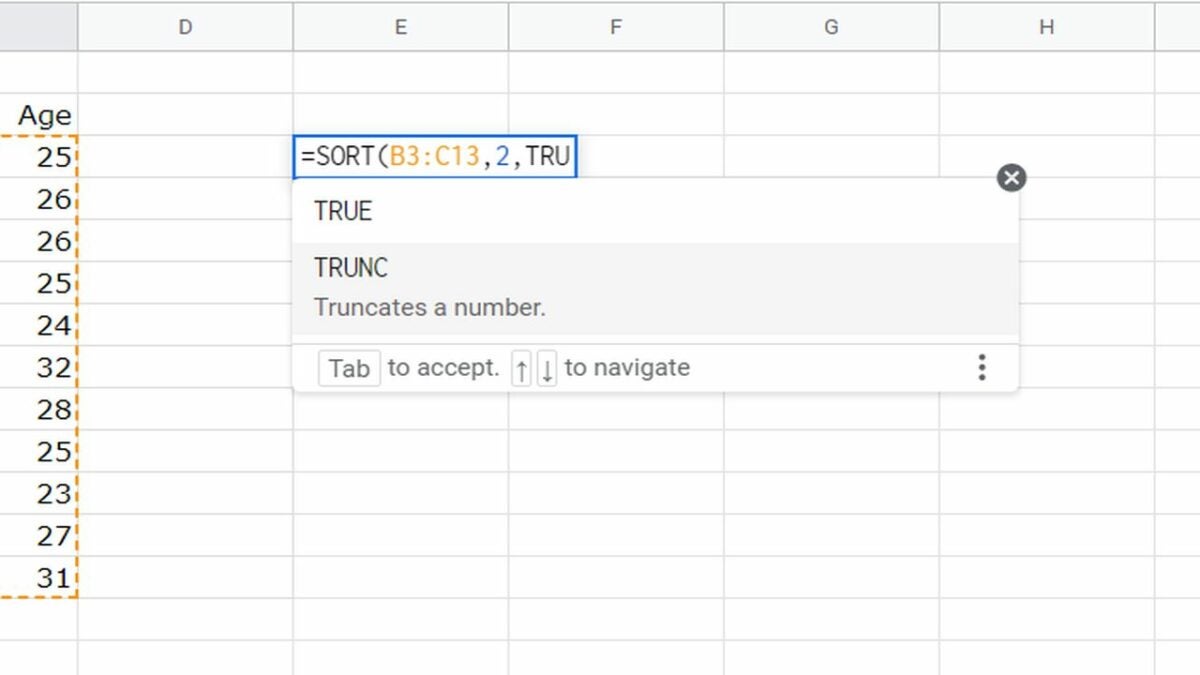
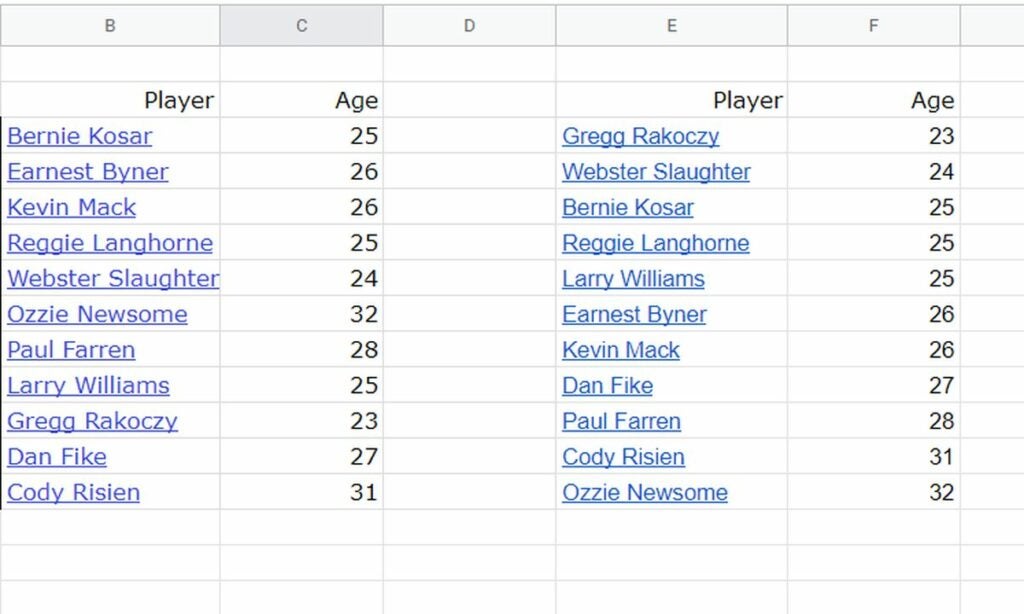
Sort() to sort the rows in one column
If you want to sort the rows of a column in ascending or descending order, use this formula: =SORT(range, sort_column, is_ascending)
Here the range represents the cell or row range, sort_column specifies the column, and is_ascending is either TRUE or FALSE, specifying whether the order is ascending or not.
Google Sheets makes entering, managing, and analyzing data incredibly easy. More importantly, you can access it from anywhere and backup all your spreadsheets in Google Drive. If you want to make the app even better, check out these 10 essential add-ons for Google Sheets.
Google Sheets is one of the greatest online spreadsheet apps. It has advanced beyond the creation of simple tables and functions. Users may use Google Sheets to organize, modify, and analyze data. However, you may reach a point where you need more tools added to it.
Google Sheets add-ons are extensions that give your Google Sheets greater functionality. This article will go through our top selections for the finest Google Sheets add-ons.
Coupler.io has a Google Sheets integration that allows you to auto-import data from your chosen program into a spreadsheet. It synchronizes your in-app data with Google Sheets, bringing fresh data into a working page on a schedule without coding knowledge.
Managing data from each app may get difficult and unproductive when you track many projects, review your workers’ work hours, and run an e-commerce site. With the Coupler.io add-on, you won’t have to move between these applications all the time to check the newest stats. You can program automation to scrape data at predetermined times.
When working on huge projects, splitting the process down into individual jobs is necessary. Lucidchart simplifies a product launch timetable or other comparable undertakings into simple diagrams. If you currently use Lucidchart, the company’s Google Sheets add-on will automatically import all of your existing charts into the spreadsheet.
You may see the product launch timetable, marketing campaign, or entire production flow. This add-on eliminates the inconvenience of switching between Google Sheets and Lucidecharts.
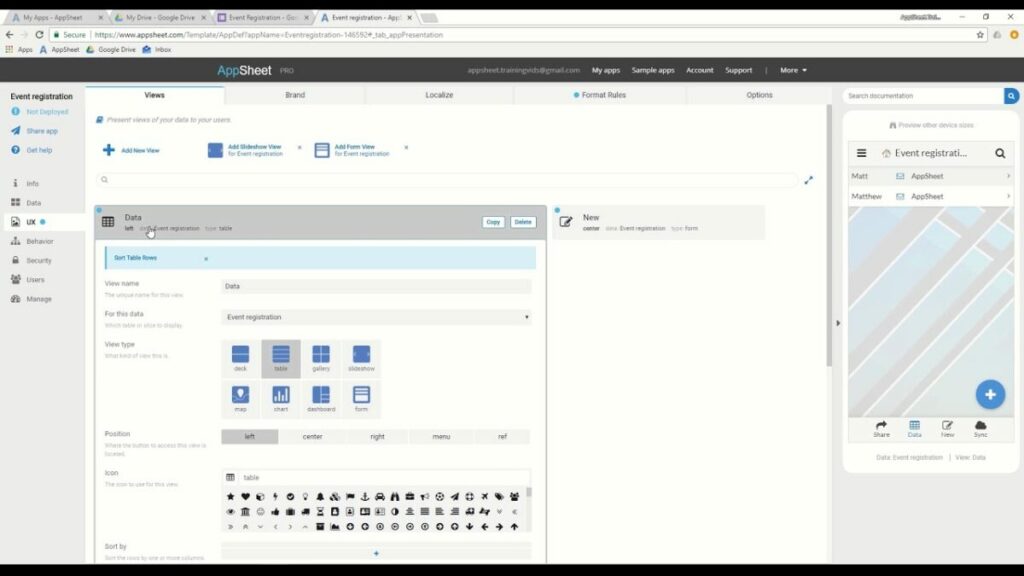
AppSheet allows you to make a mobile app from your Google Sheets data. Users can link their data via Google Sheets and create a fully functioning mobile app in minutes with this no-code app creation platform.
You may tailor your app to match your brand. It’s the best way to get an internal app out to team members or workers.
Autocrat is an excellent Google Sheets add-on for reports. Perhaps you’re working on a spreadsheet with employee names and ratings in each field for this year, and you’d like to produce a personalized document for each employee.
It takes a long time to create each document in Google Docs manually. The Autocrat add-on for Google Sheets will take the requested information from the spreadsheet and turn it into a customized PDF or Google Doc.
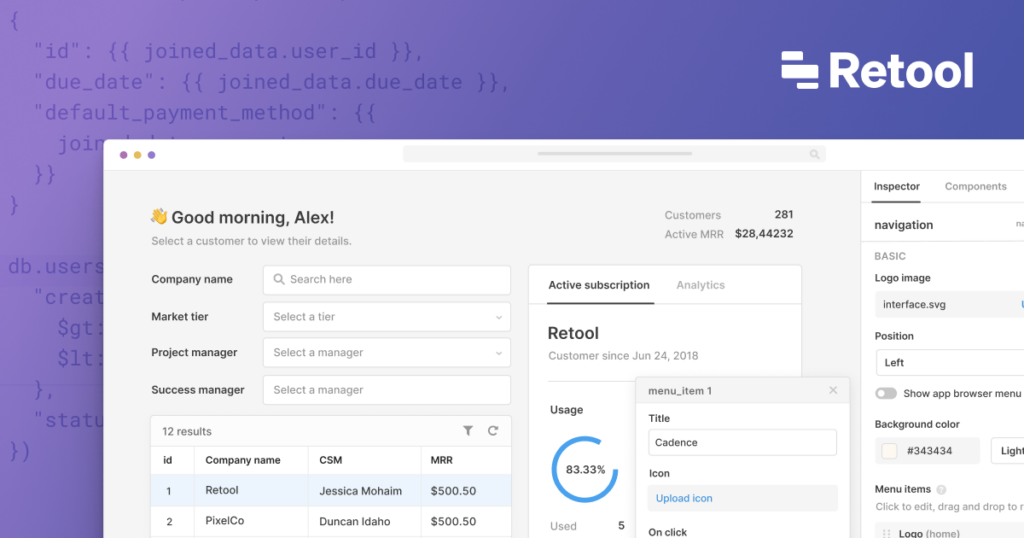
Retool allows creating dashboards, admin panels, and utilities simply by using Google Sheets data. It also allows you to build user interfaces on top of spreadsheet data easily. You may import data from a Google spreadsheet and perform API queries for each row.
You may also use Google Sheets to fill in a blank template model with data from your database. Retool can clone individual sheets and add data to existing sheets.
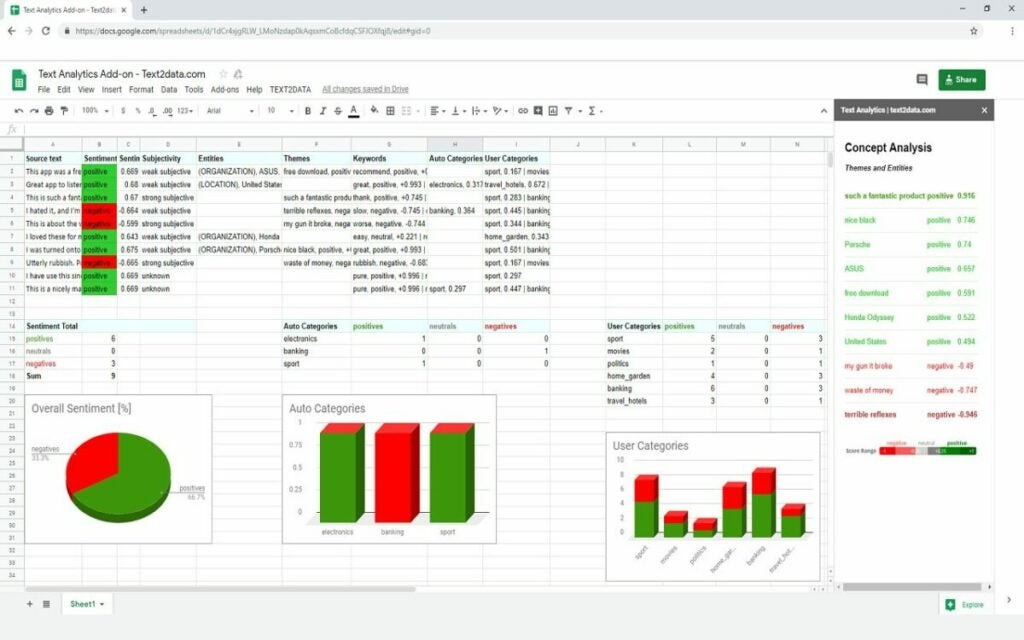
Text2data is a text analytics service that uses Artificial Intelligence (AI) to assist businesses in analyzing various social media platforms. Employees can use Natural Language Processing (NLP) and machine learning techniques to analyze sentiments and build bespoke reports for keywords or entities.
It does not require any programming experience and can be used to monitor social media accounts in real-time.
Stacker
Stacker turns your data into a functional app by using your data and organization to design applications that will help your company expand without any coding knowledge. You may also choose an appropriate layout before sorting and displaying your data the way you want. Creating forms for new entries, pages for altering current documents, and buttons to automate common actions using Stacker.
You may also share your data with different groups of people by inviting them to join your Stacker app. Furthermore, you may provide your customers and external partners with branded site access to their data with bespoke features.
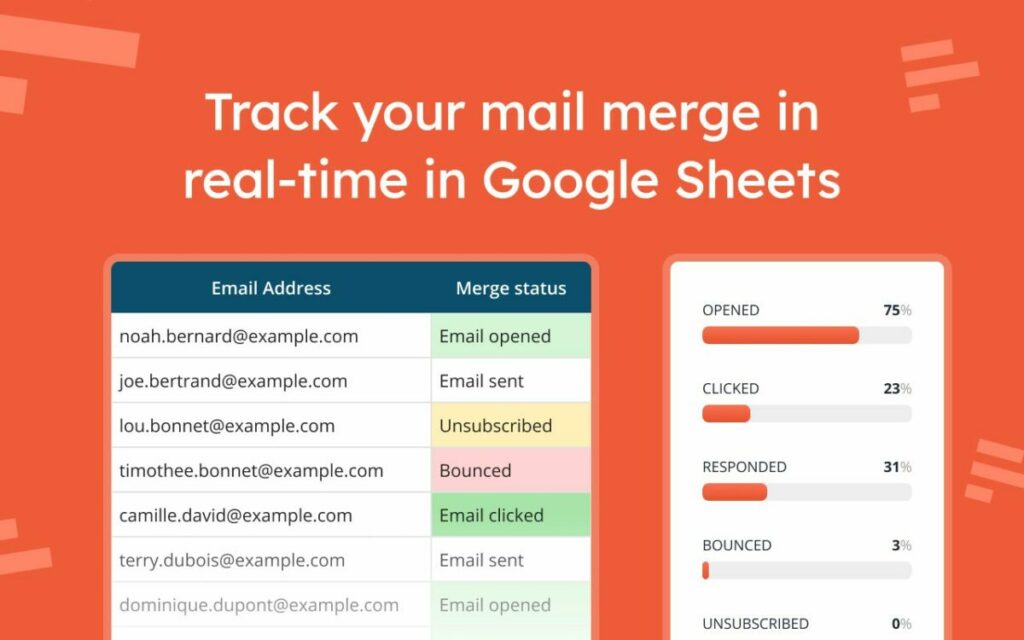
When your product, brand, or marketing relies on effective email campaigns, you’ll need a solution to deliver tailored emails to every contact on your list while also tracking whether recipients open, respond, or unsubscribe from your emails.
Siteoly is a powerful no-code website builder for Google Sheets that allows you to construct data-driven websites without writing code. It devotes more attention to design than other online form builders, providing you with numerous styles and templates to display your data. You can access over 100 alternative website versions with one Google Sheet.
It saves time for both your developer and your designer. Siteoly is suitable for a startup entrepreneur with minimal expertise in any area that needs to get started.
Awesome Table is a Google Sheets add-on that allows you to turn your spreadsheet data into bright, complex web formats and visualizations. It also allows you to present your data as maps, charts, directories, and classic tables on Google websites and other web platforms, even if you have no coding skills.
You can construct visualization by selecting the Google spreadsheet or data source you wish to present. To further personalize the design of your app, you may use JavaScript, HTML, or CSS. Once the graphic is complete, you may embed it on your website or intranet.
Enhance your Google Sheets experience
Depending on their roles, different add-ons give different features and tools. So choose the one that suits your demands and utilize Google Sheets add-ons to boost productivity. Thanks to easy sharing and developer support, Google Sheets may be the ideal tool for marketing, analytics, and collaboration.