Tips for using Google Translate on Chrome in 3 steps

Google Translate is one of the most essential tools in modern personal and corporate communication. You can harness the supreme power of the world’s most well-known translation software in your web ecosystem with the Google Translate extension for Chrome.

Google Translate DOWNLOAD

Learn how to translate any web page at the click of a button and transcend the language barriers of internet-based content.

  1. Install Google Translate

    Tips for using Google Translate on Chrome

    We’ve created a detailed guide on some of the best translation extensions for Chrome, one of which is Google Translate. You can use that link to quickly download and install the add-on. Just remember to select Add to Chrome to enable it, and then pin it to your extension tray.

  2. Open Google Translate

    Tips for using Google Translate on Chrome

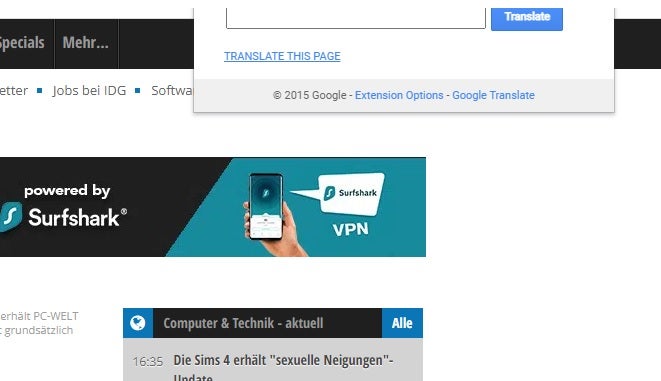
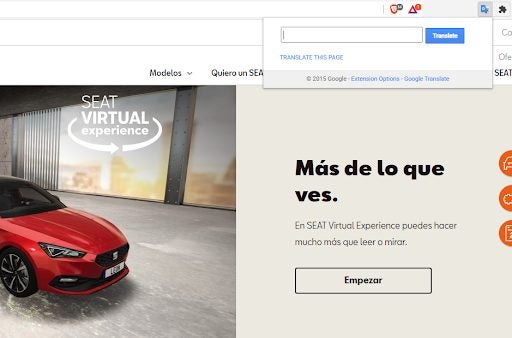
    Next, you’ll need to head to where all your other Chrome extensions are stored. Click on the puzzle icon in the upper banner of your Chromium-based browser, and you should see a list of all the extensions you’ve added thus far, as well as the permissions they each require. Click on Google Translate, and the utility will open a pop-up over the current web page.

  3. Translate the page or a section

    Tips for using Google Translate on Chrome

    In the pop-up, you should see a text box wherein you can place text that you’d like to translate. Just underneath the text box is Translate this Page. This refers to whichever webpage you are currently viewing. In my case, I’ve chosen to go to SEAT’s Spanish webpage, seeing as the vehicle brand is a Spanish company. As soon as I click on Translate this page, the language that the page is displayed in changes to the language of my Google account.

    Mine is set to English, but if it had been set to German, that’s the language the page would automatically translate to German. You can also change the language that the webpage displays in by heading to the Google Translate banner and hitting the downward arrow next to the current language.

Google Translate gains dominion over Gboard temporarily

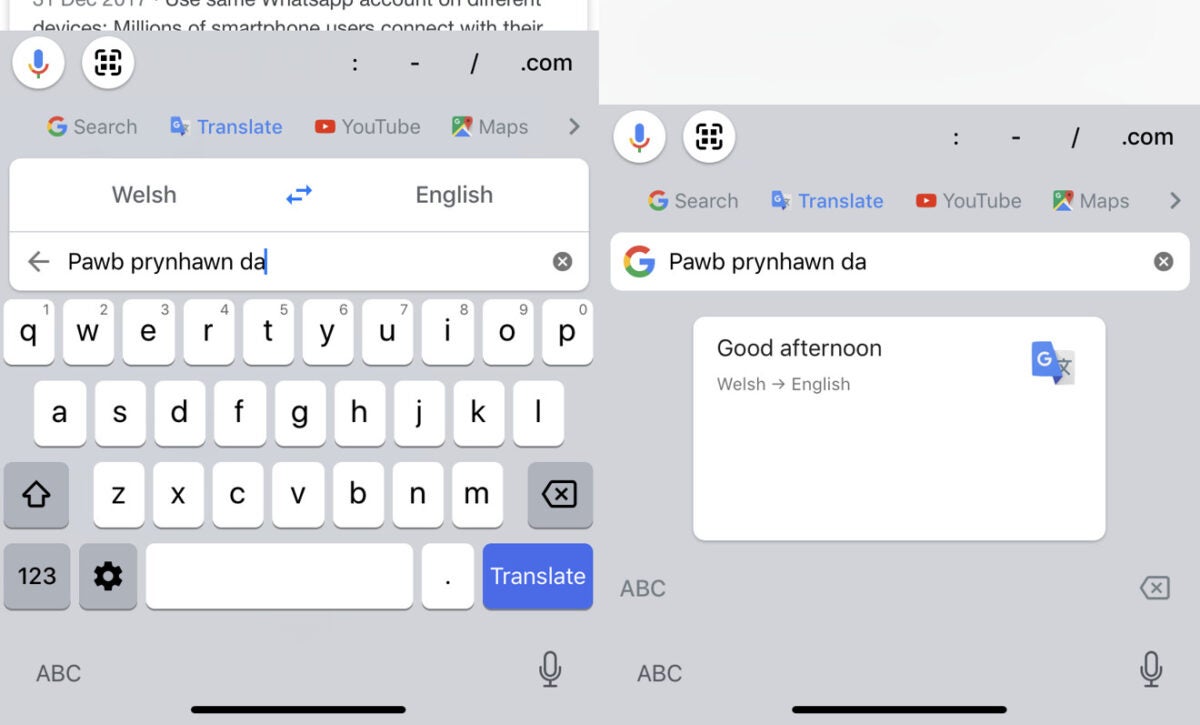
Google Translate has long been one of Google’s most user-friendly and comprehensive experiences. The latest update to the more-than-just-translation utility sees it becoming even more intuitive and integrated into the general landscape of your Android device. Google Translate will now change your built-in Google keyboard’s input language to match the language you’re translating from. 

This latest feature integration between Google’s built-in Gboard and its Translate utility makes the apps even more intuitive as the input into one, will change the layout and landscape of the other. As an easy example, if you wish to translate a Spanish phrase or word into English, you’ll notice that your built-in Gboard interface will change to represent Spanish characters as opposed to the usual English letters. This makes typing in the input language much easier.

Previously, any keyboard language alterations needed for Gboard could only be accessed through the utility’s settings and had to be toggled intentionally by the user. Now, that process has been automated as your Gboard language within the Translate environment will depend on the language you have set as the input language, in this case, Spanish. 

Your space bar was, and is still a quick access tool to your language settings, as long-pressing the spacebar within the Gboard interface triggers the selection of your favorite languages. You’ll also notice a globe icon appearing next to your space bar in the new update. This icon makes it easier to switch back to your device’s native language. Your device will also now switch back to its native language automatically when you exit the Google Translate environment. 

Currently, the updated versions of Gboard and Google Translate are in beta testing, and the new features don’t appear on phones running the previous versions of the apps, versions 11.5 and 6.30, respectively. This new feature is similar to when Google Translate received an A.I. boost a few years ago.

Complete Guide for How to Use Google Translate

Google Translate is one of the most efficient and effective translation apps and services available, and it has revolutionized how we see, understand, and interact with language. This incredible app makes it easier than ever before to communicate with people who don’t share your mother tongue. It also makes it easier than ever to pick up a new language or dialect.

Google Translate for Chrome DOWNLOAD

Below, we’ll give you the ultimate crash course on using this incredible utility. We’ll start with the basic features that everyone should know. We’ll also cover the more advanced features of the application so that you come away from this article with an all-encompassing depth of knowledge about how to use Google Translate.

What Is Google Translate?

Google Translate is a powerful free translation app that supports translations of at least 100 different languages. The app can translate content through either text or voice. You can copy and paste content, type it, write it, enter the website URL, speak into your phone or you can take a photo of the text (such as a foreign menu) and have the app translate it to your preferred language.

Another great feature of the Google Translate app is that you can save phrases and words you come across often in your phrasebook with the app. The languages supported by the app include English, French, Italian, German, Spanish, Greek, Chinese, Japanese, Korean, Latin, Arabic, Russian, Hebrew, and Yiddish.

complete guide Google Translate

How Accurate Is Google Translate?

Google Translate is one of the most accurate and reliable translation programs available. The program uses machine learning, a form of AI, to continually improve their translations and add more languages. For casual use, Google Translate can be extremely effective and dependable. 

However, as it is a program, the translations are not always 100%. The program cannot distinguish between some of the finer nuances of language such as symbolism, metaphors, dialects, etc. It is not recommended to use Google Translate for business documents, contracts, legal or medical information. In these cases, you would be more successful with a translation service that uses specialized native speakers.

How to Use Google Translate?

Now that there is a better understanding of the translation app, we can start looking at how to use Google Translate.

  1. Built-in web interface

    complete guide Google Translate

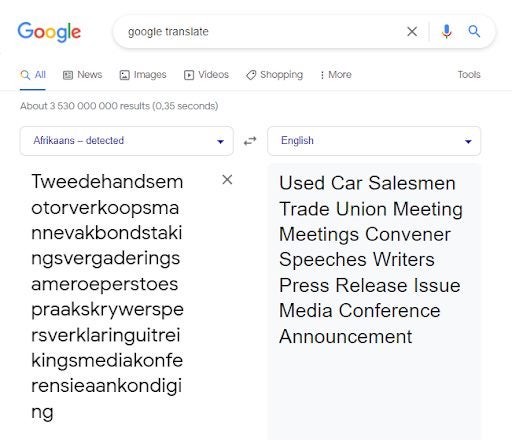
    If you Google the term ‘Google Translate’, you’ll notice that the utility has a built-in web interface on Chromium-based browsers. This makes it much more convenient than going to a dedicated page. In the built-in web interface, you’ll see four basic boxes.

    The two upper boxes are where you select both the input and output languages. Your input language is the tongue in which you type the word that you’re attempting to translate. The output language is the tongue to which Google Translate will translate your typed word or phrase. 

    If you know how to spell the word you want to translate but not which language it originates from, you can click on the source language drop-down menu and select ‘detect language.’ Google Translate will then use its vast resources to determine the language from which your word originates before it translates the word or phrase for you. 

    Another feature you’ll notice is the microphone icon at the bottom of the Google Translate interface. This integrates Google’s voice services, which we’ll elaborate on a little further down. There are two downsides to using the built-in interface; it only translates between 115 of the most widely-used languages, not the full Google Translate catalog.

    Additionally, if you translate a complex word as I did above, you get a much more garbled result than on the Google Translate website. This is the longest word in the Afrikaans language; it contains 137 characters. And now you see there’s a reason for me hauling a monster of a word like that out for this article.

  2. Google Translate’s web utility

    complete guide Google Translate

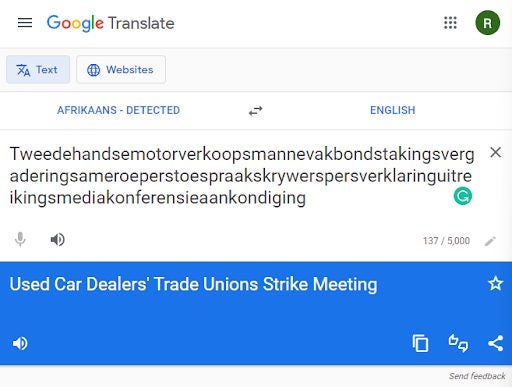
    If you click on the Google search result directly below the built-in utility, you’ll get to the Google Translate website. As you can see above, the interface looks relatively similar. You do have more interaction options on the website, though. You can give the translation a thumbs up or thumbs down and share the translation, in addition to options available on the browser utility, such as copying the translated text and listening to the translation if you’re not sure how it should be pronounced. This is incredibly handy if you’re learning a new language. 

    One glaringly obvious difference between the two utilities is that the website clearly uses a slightly different translation engine. You can see the difference between how the website translates a complex word, such as the longest word in the Afrikaans language.

    The translation from the website is much shorter, more concise, and more accurate, whereas the browser utility seems to have directly translated the words it identified within the one inexplicably long word and served those up as a translation, rather than taking the smaller words and creating a context-based translation of what they mean in English.

  3. The Google Translate app

    complete guide Google Translate

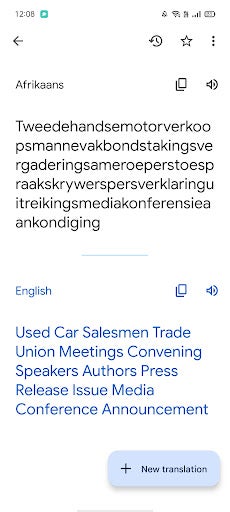
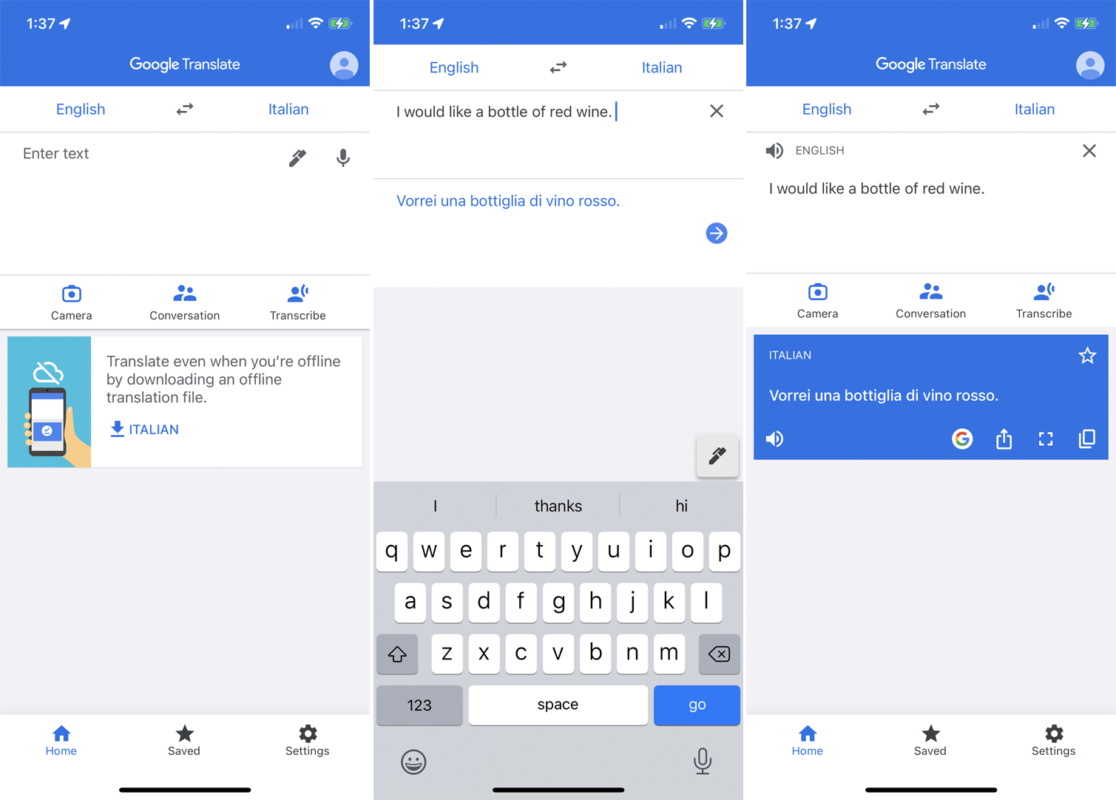
    Google Translate also has a handy application for Android and iOS mobile devices. This is by far the most convenient way to translate text and is the method that most users seem to prefer. The home interface of the app is a little different to the service’s web-based alternatives.

    Google has been smart and designed each interface around the platform on which it runs, instead of trying to get the exact same interface regardless of the differences in how each platform operates. The app is intuitive and almost feels like an extension of the Material You design layout featured on Google’s Pixel devices. 

    You’ll see that the input and output boxes don’t change much between platforms, which makes each utility as easy to use as the last. All you need to do is select your input and output languages, and then type your input phrase. The AI-driven language processor will then translate the text into your chosen output language. 

    Looking at the screenshot above, you can see that there is yet again a slight difference in how the word I chose has been translated. This proves that while useful for smaller, simpler phrases, the Google Translate app may not be the most accurate in all situations.

  4. How to Translate a Page on Google

    complete guide Google Translate

    Once in your Google search engine, you can type in Google Translate for the browser version of the app. Once you’re in the Google Translate window, you’ll have the option to type or copy text into the window to translate. Or you can click on the ‘Documents’ tab at the top of the window. This will allow you to upload a page in a variety of formats (pdf, Word, Excel, PowerPoint, etc.), and the platform will analyze and translate the content of your document.

  5. How to Google Translate a Website

    complete guide Google Translate

    To translate a website using Google Translate is just as simple as typing the text into the box. First, you’ll need to open Google Translate. Next, copy the URL of the website you wish to translate and copy it into the translation box. You will see a copy of the URL with a link on the translated side.

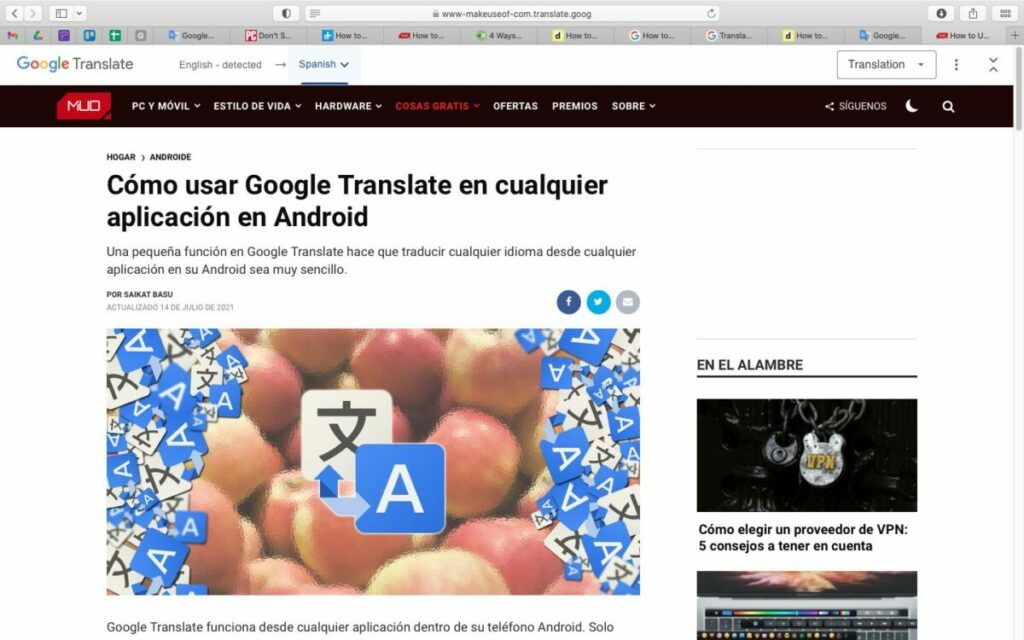
    Click on the link, and you’ll be taken to a new window showing the translated version of the website. At the top of the website, you’ll see the Google Translate header, which allows you to change the language if needed, as well as access to other settings.

    If you install the Google Translate extension on Firefox or Chrome, you can simply click on the icon to translate an entire page immediately. Alternately, WordPress site owners can install the GTranslate WP plugin to let viewers quickly view content in their native language.

  6. How to Translate a Page With Handwriting
    complete guide Google Translate

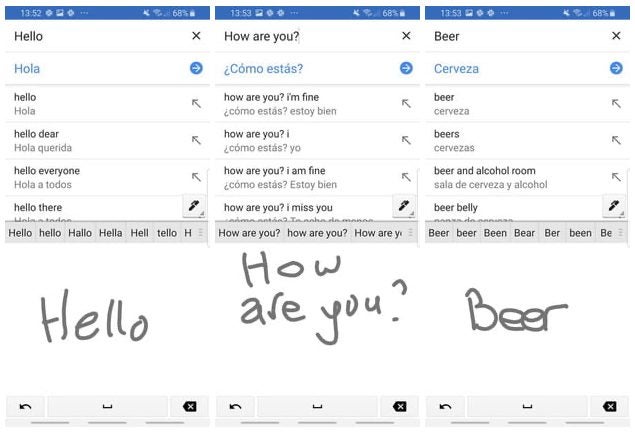
    You can also use your own handwriting to translate words or phrases. The results of analyzing handwriting can sometimes be less accurate, and a lot will depend on how neat and legible your handwriting is. To enable handwriting mode, click on the pencil icon in the first window. Now you can use your mouse, finger, or stylus to handwrite the words you need translating.

  7. How to Translate a Real-Time Conversation
    complete guide Google Translate

    Google Translate has a handy feature that lets you translate a bilingual conversation in real-time with the app. This feature is only available in the app and not the browser version. To get started, open the Google Translate app on your device. Then choose the languages you both speak.

    Now tap on the ‘Conversation’ icon, represented by the image of two people standing next to each other. Now you can start talking, and the translation will follow. You can even tap on the auto mic option so that it automatically records everything being said in either language.

  8. How to Build Your Phrasebook?

    complete guide Google Translate

    Google Translate has a handy phrasebook where you can save frequently used words and sentences. This makes it easy to find when you need it. To use this feature, you simply translate the phrase, and then to the right of the translation box, tap on the star icon to save it to your phrasebook. This can be very useful when preparing for a trip abroad as you can save some of the commonly used phrases to easily refer back to them when needed.

  9. How to share translations

    complete guide Google Translate

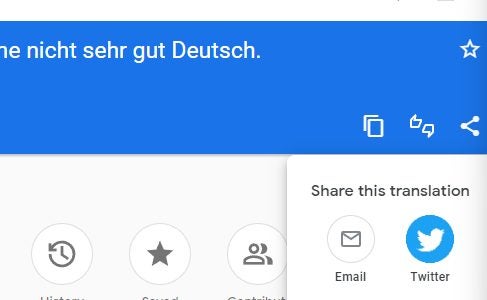
    As we touched on above, Google Translate lets you easily share translations to other apps and services. This is helpful if you need to translate something into another language during a conversation. For instance, instead of having to memorize the translation for ‘No, I do not speak German very well,’ you could simply share the resultant translation – Nein, ich spreche nicht sehr gut deutsch – directly with whichever communication app you happen to be using during your conversations. 

    There is but one step to sharing translations. All you need to do is hit the share icon once you’ve completed a translation. It’s that simple. 

    The platform you use doesn’t have much weight here, as all the associated supported platforms have a sharing feature. Although, it’s pertinent to mention that while the Android and iOS apps lists all of your installed communication apps when you select the option to share your translation, the web utility only has the option to share to email or Twitter.

  10. How to translate offline

    complete guide Google Translate

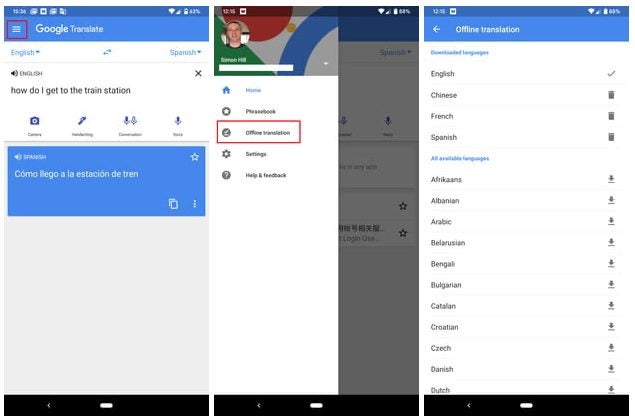
    Even though Google Translate is most efficient when connected to the internet, the mobile app can also translate offline. All you need to do to access this functionality is: 

    • Head into your Google Translate app and hit your account avatar on the right-hand side of the interface.
    • Next, you’ll want to scroll down and click on Downloaded Languages. This is where you’ll see all of the languages you’ve downloaded for offline translations. 
    • Now, you can simply scroll through the list of languages and pick which ones you’d like to download for offline translations. 

    You can also manage your languages from this interface. Languages receive regular updates; this is where you’ll install the latest versions.

  11. How to translate photos

    complete guide Google Translate

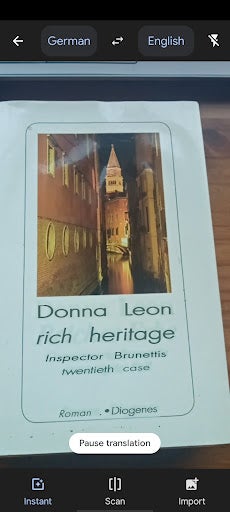
    This is a really handy feature if you’re travelling and need to identify the text on street signs or information boards. I don’t have a foreign street signs handy so I shall use my copy of a German book that my mom gave me a while back. 

    • At the bottom of the app interface, you’ll see three buttons; conversation, camera, and then the central voice recorder button. Hit the camera button. 
    • Now, you simply need to point the camera at whatever you’d like to translate and the AI-powered camera will handle the translation. 

    If you want to translate an image that you have on your phone, instead of a live capture, you simply need to hit ‘Import’ at the bottom of the camera translation interface. You also have an option here to scan a still image of whatever you point your camera at. This way, if you need to send a translation of a street sign to someone else, you now can. 

    The image translation software that Google Translate uses is incredibly intuitive, and I noticed firsthand how the AI modifies the background of your translation so that it blends in with the background of the subject and looks as natural as possible.

  12. How to use conversation mode

    complete guide Google Translate

    This is the last input method we’ll discuss in this article and is by far the most useful if you’re out and about in a foreign region. Conversation mode essentially lets you speak into your phone in your native tongue. The app will then translate your speech into a chosen language for you to play back to whoever you want to converse with. This means two people with no common language or dialect knowledge can communicate seamlessly in person. 

    All you need to do is tap the ‘Conversation’ icon and choose the relevant languages for speech input and output. Then, tap the speech icon under your language and say what you need to say. The person you are conversing with can then tap the speech icon under their language and respond. Your statement will be delivered in their native tongue, and their response will be delivered in yours.

Who Should Use Google Translate?

Google Translate is a very useful tool for anyone that needs to translate things quickly. It can be used for individuals who are traveling or connecting with someone who speaks another language. Businesses can also use it to translate messages or comments to respond appropriately.

As mentioned, if your business has important information or documents that need translating, a translation service is best. It’s added more than 60 languages lately, and Google Translate has also taken over Gboard.

Google Translate adds 60 languages READ MORE

Google Translate adds 60 languages

Google Translate’s AI mode can now automatically detect languages!

Languages

Google Translate’s latest update has new improvements for AI mode as well as support for 60 more languages. 

Also, Google Translate can now detect and translate a language in AI mode. Before, you had to punch in the language you were translating and in what language you wanted to translate it too. But now, AI mode will automatically detect the language you are viewing and translate it into the language of your choice.

The update will also make the text less jumpy when you use AI mode. Before, after translating text in AI mode, text would sometimes jump around the screen making it difficult to read. AI mode can work without internet access. 

Newly added langages include Vietnamese, Malay, Mongolian, Thai, Hindi, and Arabic. Click here to see the full list of languages in Google Translate. 

Google Translate Download now ►
8

Google Translate gets a new AI boost no matter where you are

If you use Google Translate a lot, you’ll have probably noticed that over the last couple of years the translations it offers have improved a lot. The reason Translate got better at its job is machine learning. AI algorithms, specifically named neural machine translation (NMT), have allowed Google Translate to offer much more accurate translations.

Google Translate Download now
8

For the last two years, however, there has been a catch in that the NMT has only worked when happening on Google’s hardware. In short, it only works if you’re connected to the internet when you’re using Google Translate

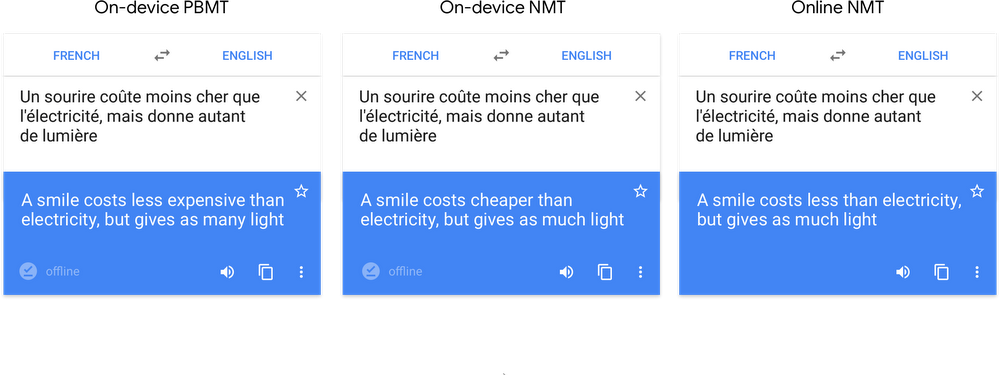
Google Translate offers language specific download packs. If you think you’ll be offline or if you don’t want to use international roaming you can download a language pack and use Google Translate when you’re offline. Although useful, this phrase-based machine translation (PBMT), as Google calls it, falls short of the NMT available if you can connect to Google’s servers.


On-device AI translations much better than the old PBMT but not as effective as AI translation done on Google’s servers


Google has now announced that it is bringing a version of NMT to mobile devices. You’ll be able to benefit from AI assisted translation even if you’re using a downloaded language pack and you’re not connected to Google’s servers.

Amazingly, Google Translate language packs only take up 35-45mb of space, so they’re well worth having. Google points out that the on-device version of NMT still isn’t as effective as the online version but that it is much more accurate than the previous PBMT method. Google says it will be rolling out the new On-device NMT in 59 languages in the next few days and offered these instructions to those wanting to take advantage of it:

“To try NMT offline translations, go to your Translate app on Android or iOS. If you’ve used offline translations before, you’ll see a banner on your home screen which will take you to the right place to update your offline files. If not, go to your offline translation settings and tap the arrow next to the language name to download the package for that language. Now you’ll be ready to translate text whether you’re online or not.”

Offline translation is a really useful feature. If you’re low on data, traveling abroad, or you’re simply prudent enough to want to take advantage of Wi-Fi whenever you have it these new On-device AI algorithms will make a big difference to your language translations.

Google Translate to get live translations with Word Lens purchase

Google has purchased the live translation app Word Lens and will be integrating its technology into Google Translate. Word Lens is an app that uses your phone’s camera to scan and translate words in real-time.

Google Translate has the ability to translate photographed text but the feature is slow. By integrating Word Lens’ technology, Translate will be able to translate written text quickly. This can make international travel less intimidating.

Below is the official statement from Word Lens about the acquisition:

“With Word Lens, we’ve seen the beginnings of what’s possible when we harness the power of mobile devices to ‘see the world in your language.’

By joining Google, we can incorporate Quest Visual’s technology into Google Translate’s broad language coverage and translation capabilities in the future.

As a thank you to everybody who supported us on our journey, we’ve made both the app and the language packs free to download for a limited time while we transition to Google.

We’re looking forward to continuing our work at Google – stay tuned!”

The statement implies that development for Word Lens will stop. This makes sense if Google is planning on integrating the app’s technology into its own Translate app.

If you haven’t tried Word Lens, you can download the app for free. Language packs are also free for a limited time while the company transitions to Google. The app currently supports Russian, Spanish, French, Italian, German, Portuguese, and English.

Download Word Lens: Android | iOS

Source: Word Lens

Via: Android Police

Follow Lewis on Twitter @lewisleong

RELATED STORIES

Google Translate for iOS updated with iOS 7 keyboard, improved handwriting support

Google Translate for iOS received a minor update today with support for the iOS 7 keyboard and more handwritten languages. Gone is the dated looking iOS 6 keyboard, replaced by the translucent keyboard from iOS 7. The status bar is also updated to support iOS 7’s translucent looks.

Handwriting recognition now supports a bunch of new languages including Arabic, Esperanto, Gujarati, Hebrew, Javanese, Maltese, Maori, Marathi, Persian, Punjabi, Telugu, and Zulu.

Version 2.1.0 of Google Translate for iOS is now available in the App Store or at the download link below

Download Google Translate for iOS

Source: Google Translate (iTunes)

RELATED STORIES

Google Translate for Android update improves conversation mode

Google Translate for Android has been updated with an improved conversation mode, allowing users to easily translate back and forth. The app has also been updated to support more languages, including Hebrew, Greek, Javanese, and Esperanto.

Google wants to make your travels to foreign countries a breeze with Google Translate for Android. The app supports downloading languages so it won’t require an internet connection abroad to translate. The app even supports handwriting recognition.

Translate - Android

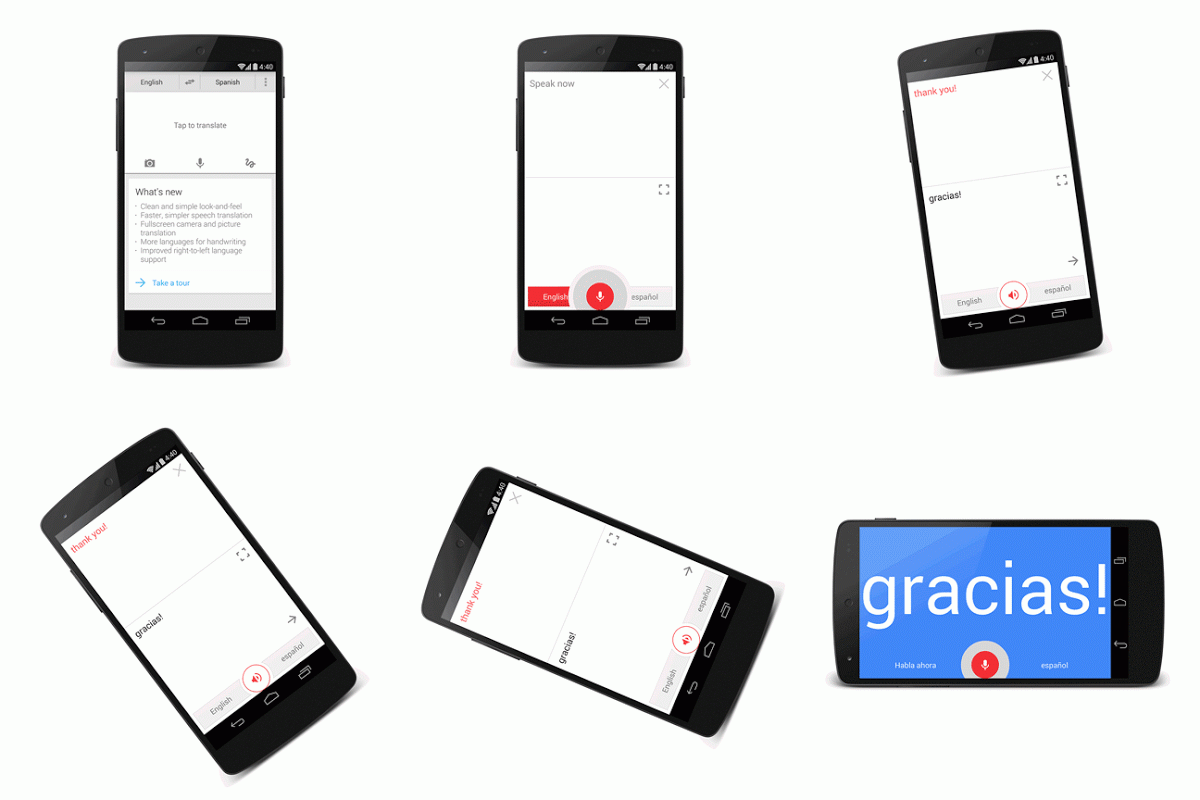
The updated conversation mode makes conversations much simpler: simply press the microphone icon and speak. Your sentence will be translated and read aloud. Your partner can then tap the microphone icon again to translate his or her language.

The update is available in the Google Play Store today.

Download Google Translate for Android

RELATED STORIES

Source: Google Translate Blog

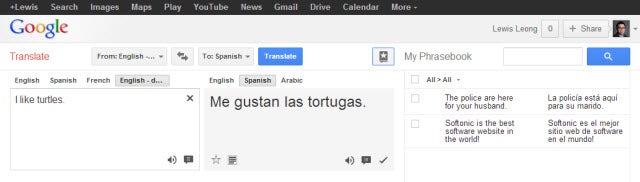
Google Translate gets Phrasebook feature but has one fatal flaw

google-translate-iconGoogle Translate is getting a useful feature with Phrasebook today but that doesn’t mean its without flaws. Samsung revealed its new flagship phone yesterday with a new translation app that betters Google Translate in some ways.

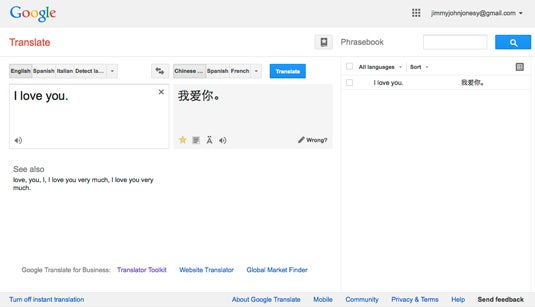
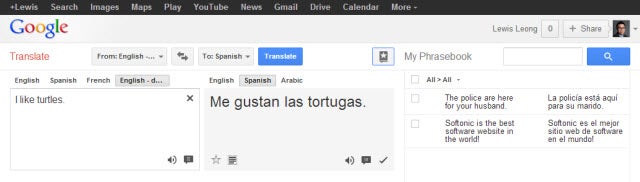
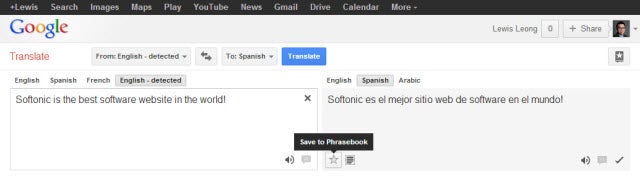
The old Google Translate only allowed you to access your history of translated phrases, but there was no way to save your favorite phrases. Today, Google released Phrasebook for Google Translate, which lets you do just that. The change to the website is a subtle one. Users will find a star under the translation box, which, when clicked, will save the phrase to your Phrasebook.

save to phrasebook

To access your Phrasebook later, there’s an icon of a book with a star in the top right corner. This will expand your Phrasebook to the right and will avoid taking up the entire page.

google translate phrasebook

This works well enough but there is one huge oversight. You cannot edit your phrases. This means that any translation that turns up incorrect can’t be corrected before you save it to your Phrasebook. This is a huge oversight and may lead to some embarrassing miscommunications.

Source: Google Translate

How to use Google Translate’s camera translation

Google Translate‘s Android update introduced using your phone’s camera to take snapshots of text and translate it into another language.

You need a data connection to use the app, because there’s no offline mode. Since this is a new feature, there are some quirks that appeared when I tried to use it. The first is the camera icon is not defaulted but rather locked to specific supported languages. Google Translate’s camera option also requires Android 2.3 Gingerbread and above.

Here’s how to use this new Google Translate feature.

After opening Google Translate, the language selection is listed as “Detect language.”

Continue reading “How to use Google Translate’s camera translation”