When you download Microsoft Office for Windows and Mac, many fonts are automatically installed at the same time. These are standard fonts that are used all over the world, and most of them are simple, straightforward, and easy to read.
More specialized applications, such as Microsoft Publisher, have more ‘fancy’ fonts automatically included, but if you want a unique font for that particular project, how do you go about including it in Microsoft Office apps?
Find the Font
There are literally thousands of fonts available on the Internet. Many are free for personal use, but for commercial use, they must be purchased. There are many sites where you can buy a specific font or even have one specially created for you.
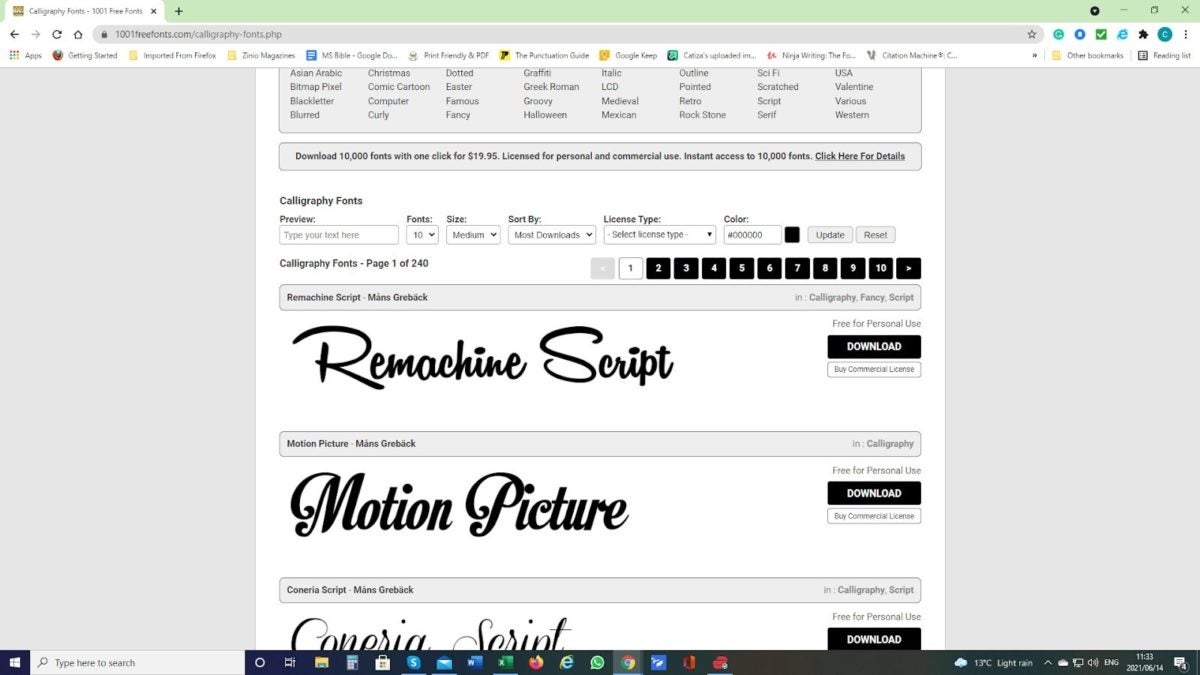
For this article, we have used the site 1001 Free Fonts to demonstrate how you would get new fonts for your Microsoft Applications. Follow Steps 2 to 5 if you have used a different location to collect your font.
From the site that you are on, select the font that you wish to download.
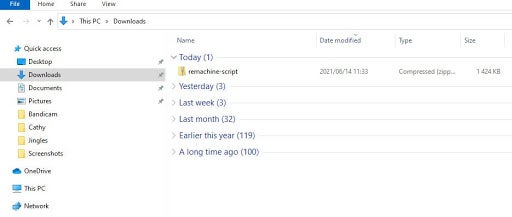
Locate the Downloaded file in your Downloads Folder
For most people, anything downloaded from the Internet can be found in the system’s Download Folder. If you use a different location for your downloaded files, then look in that folder.
Many fonts will come as compressed files, so you will need to click on the file to open it and find the actual font.
Open the Font File
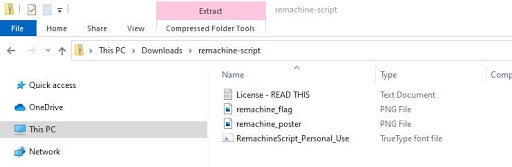
When you click to open the compressed (zip) file, look at the files included and find the TrueType font file. Click on the TrueType Font File.
Install the Font
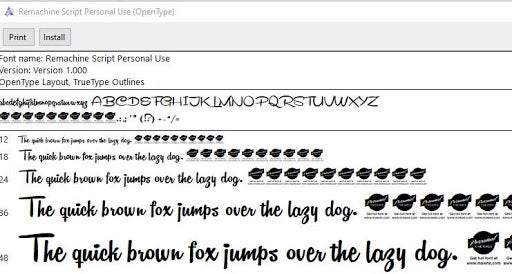
When you click on the TrueType Font File, a pop-up screen similar to this will open. This pop-up shows you what the font will look like in different sizes. If you are happy with the font, click on install, and the font will be installed for you.
Use the font in your Microsoft Products
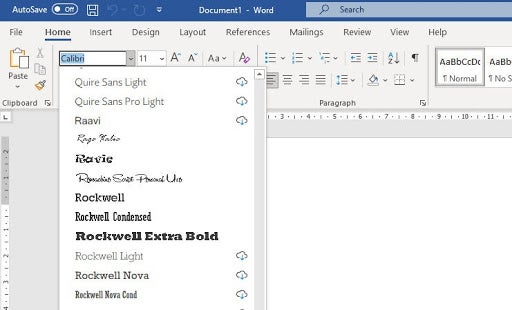
When you search through the font files in your Microsoft products (here we are using Word), you will find the new font ready for use.
Tip:
Keep the original zip file that you downloaded in a separate folder. If you have to reinstall your Microsoft Office for any reason, you may find that your downloaded fonts are not transferred automatically to your new installation. If you have retained them all in a separate folder, they are easy to find and reinstall as part of the process of setting up your new Office.
A font a day…
Adding fonts to your Microsoft library of fonts is an effortless procedure, but choose carefully. Many fonts may look gorgeous, but the text is almost unintelligible when you type an entire word using them. The situation is made worse for readers with visual impairments or for those reading on a mobile screen. If people have to spend time trying to decipher what you have written, they may well give up and leave the page.
Using fonts cleverly can make a massive difference to your web pages. Fonts tend to evoke emotions in your readers, and it is this emotion that changes the font from text on your page to an integrated component of your entire layout.
Ever wondered how to use Microsoft Office for free? Get instant access to several Microsoft Office versions without paying a cent. Learn how to do it here!
Office for free? You want it, right? Microsoft Office remains the top dog of office apps. As good as the apps are, however, we understand that not everybody can afford to pay for them. We’ve covered here the best free Office alternatives, like Google Docs and LibreOffice, but we also know that some of you might want the real version of Office. Don’t worry though, Softonic has your back: put that credit card away (except for number 5) because here are 7 ways to get free access to the Microsoft Office suite on Windows and Mac.
Little by little, Microsoft has been growing the number of Office apps that you can use for freeonline. You’ve got Microsoft Word, Excel, PowerPoint, OneNote, Sway, Email, Contacts, Calendar, OneDrive and Docs.com all without the need to install Office on your hard drive. If you have a Microsoft account and a reliable internet connection, you can use these free office programs on a Windows PC, Apple Mac, or Linux using web browsers like Google Chrome and Microsoft Edge. Microsoft Office Online programs even offer some cool and unique features like real-time Skype chats while collaborating on documents with friends or colleagues.
Try out Microsoft Office online here, choose the app you want to use, and log into your Microsoft account. You’ll also find Office Online in the Products menu over at office.com.
You won’t get all the Office 365 features with Microsoft Office Online, but you will at least be able to edit documents.
For iPhone and iPad, it’s more difficult to list the mobile Office applications as there are different versions for both Apple devices. You can find the list of all Office apps for Apple devices, including those for the new iPad Pro, on Microsoft’s iTunes listing.
Again though, don’t expect the full Office 365 experience, but this free version of Office will allow you to do basic editing.
If you want to get Office 365, you’ll have to try one of the following methods.
3. Get Office from your school
If you’re a student or teacher, you may be entitled to an Office 365 education subscription. Enter your school email address here. You’ll get Office software including Word, Excel, PowerPoint, Microsoft Teams, and OneDrive storage among other tools, totally free. If your school isn’t registered, let them know what they’re entitled to ASAP!
4. Persuade your boss
Huh? What kind of company doesn’t have Microsoft Office 365? If yours doesn’t, it could be time for you to step up. You’ll have to sell it though, and go through the numerous Office 365 options available and the benefits they’ll bring to the business. The important thing is that your company will foot the bill!
5. Sign up for a free month trial of Office 365
Try out the Office 365 Home version. You’ll have a 1 month trial to experiment with the Office 365 personal package that includes Word, Excel, PowerPoint, Outlook… Also, the trial gives you access to 1TB of cloud storage on OneDrive.
Keep in mind, however, that to download the trial, you’ll have to enter a current debit or credit card number. When your one-month trial ends, you’ll automatically be charged for an Office 365 subscription so make sure you don’t forget to deactivate your account before the trial ends.
6. Sign up for a free trial of Office 365 ProPlus
Have you already finished your one-month free Office 365 personal trial? What about 30 MORE days? Well, here you go.Sign up here for Office 365 ProPlus. You’ll have to sign up for the Evaluation Center, but in our final trick, we’ll go into this in a little more detail.
7. Try your luck with the TechNet Evaluation Center
Microsoft likes having users try out their products’ new features before officially launching them and this includes everything from DocX Word documents to Microsoft’s latest and greatest software innovations. This allows the software giant to resolve any software issues and problems, before they’re rolled out to all users.
This is where Microsoft’s TechNet Evaluation Centercomes into play. If you sign up, you can get free access to the products Microsoft needs testing. This usually means you’ll get to try them for 30-60 days. Sometimes, you might even cross paths with Office, like with the trial for the ProPlus version we just told you about.
Remember though, that the versions you’ll find in the Evaluation Center are still rough around the edges. You should expect all sorts of surprises!
What if you’ve used up all these options?
What happens if you’ve already used up all your free trials? Then you’ve got no choice but to buy Office (unless you’re satisfied with the online and mobile versions). Our personal recommendation is Office 365 Personal, which costs $69.99 a year or $6.99 a month.
If you don’t want to invest in the office package, don’t worry because there are other options out there! Try out these free alternatives to Microsoft Office and you won’t be disappointed.
If you’ve been around computers for a bit, I don’t doubt that you’ve heard about Microsoft Office Or Office 365? You might even be using these products at the company office without even realizing it. But what is Microsoft Office?
In this guide, we’ll be looking at the difference between Microsoft Office and Office 365. We’ll also be looking at what software is included in this package.
What Is Microsoft Office?
Microsoft Office is a suite of programs specifically for business productivity. Each application included serves a specific purpose to its users. For example, MS Word is a powerful word processor that can be used to draft letters, business proposals, contracts, and more. MS Excel, on the other hand, is a spreadsheet program that can be used to set up budgets, business financial plans, and more.
Microsoft Office has been around for a long time, and the first version was released in 1990. New versions of Microsoft Office are released regularly, with the latest version being Microsoft Office 2021, which is available for Windows and Mac computers. Microsoft Office can be bought as a one-time purchase, and there are different bundles available depending on what combination of programs you need. These bundles include Student, Individual, Business, and Family.
What Is Microsoft 365?
Microsoft 365, now known as Office 365, is a cloud-based subscription version of Office. This means that it includes all the same programs we love, with handy cloud solutions as well. With the subscription, users pay a monthly or yearly fee to use the products. This includes all the bug fixes and version upgrades automatically without having to pay extra. If you go for the once-off options and a new version is released, you’ll have to buy the new version in order to upgrade.
Who Uses Microsoft Office?
If you work in any type of office, chances are you might already be using some of Microsoft Office’s programs. However, it’s not just those who work in offices that use these programs. Creatives, such as writers, might also use Office. In fact, Office is used by more than a million companies worldwide.
What Is Included in Microsoft Office?
Now that we’ve covered what Office is, we can look at the different programs more closely. Remember that these programs are usually sold as bundles whether you buy once-off or go with the subscription. This means that if you need specific programs, you’ll have to check to make sure they’re included in the bundle you are buying.
What Is Microsoft Word?
As we mentioned briefly, MS Word is a powerful word processing tool. With this program, you can easily create various documents, letters, memos, tests, questionnaires, reports, business plans, proposals, and more. If you need to do anything with text, then Word should be your go-to.
What Is Microsoft Excel?
MS Excel is a spreadsheet program that can be used to store and evaluate data. This program is beneficial when it comes to evaluating and manipulating numerical data. MS Excel can be used to create budgets, invoices and quotes, business financial plans, costing evaluations, monitor payroll, and much more.
What Is Microsoft Powerpoint?
Microsoft Powerpoint is a presentation graphics program that allows users to create digital slideshows. You can use these slideshows to present data at sales pitches, informational meetings, seminars, lessons, and more.
What Is Microsoft Publisher?
MS Publisher is a desktop publishing tool that allows users to create documents with more complex page layouts, usually for printing. These documents include menus, brochures, magazines, newspapers, newsletters, and more.
What Is Microsoft Access?
Microsoft Access is a database management tool. It can be used to collect and store structured forms of data. Its uses include collecting and storing personnel or student data, stock and inventory, custom orders, and more.
What Is Microsoft Outlook?
Microsoft Outlook is an email and personal information management system. It allows you to send and receive emails, manage your calendar, set up meetings, create to-do lists and manage tasks, store contacts, and more.
What Is Microsoft Teams?
Microsoft Teams is primarily a communications platform that allows users to communicate with each other via text or video conferencing. It also provides file storage, file sharing, and application integration.
What Is Microsoft Onedrive?
MS OneDrive is a cloud-based storage platform. With OneDrive, you can store any data in the cloud and access it from anywhere, and keep it protected even if something happens to your computer.
What Is Microsoft Sharepoint?
Microsoft SharePoint is a collaborative platform that allows Office users to share and collaborate on different projects created in any of the other Office programs. It is ideal for company teams that need to work together on projects. However, many companies also use it for a range of other uses.
Helpful Guides and Tutorials
If you need more help in understanding Office and its various uses, here are a few more helpful guides.
If you need to buy Microsoft Officefor your PC or Mac at home or at work, you’ll probably have already taken a look on the Web. As you may have seen, there are plenty of options out there. But how to discern the best deals for Microsoft Office, how to be sure to get the best, cheap price for Office? Keep reading to see how you can buy your next Microsoft Office License without breaking the bank!
Can You Buy Microsoft Office spending less?
The first and foremost result you may have incurred is probably the Microsoft Store: you can buy your digital Microsoft Office License without having to physically go to a retail store, with all the convenience of buying from home and immediately receive your order. The pain point, though, is that you’ll have to shell hundreds of bucks for your new Microsoft Office installation and the problem is that you have to decide between a single payment solution or a subscription to be paid every month.
Moving further on your searching – if you have done it before reading this – you may have seen dozens of “best offers for Microsoft Office”, “cheap Microsoft Office prices”, and other offerings scattered throughout your search result page. And this should answer the above question: yes, you can buy Microsoft Office spending less than the bloated price asked on the official Microsoft Office. But how?
If you are looking for the best Microsoft Office deals, ESD licenses are the answer.
Many third-party companies offer the so-called ESD Licenses, namely digital licenses that many companies buy in bulk to get volume discounts. When they activate all the required seats, organizations may want to sell the exceeding licenses to get some money back.
The good thing is that ESD licenses come way cheaper than other sources, and the best thing is that such a practice is 100% legal, as deemed by the European Court of Justice, among the others.
ESD licenses can be traded, and here comes a multitude of third parties buying and reselling these licenses for profit, asking a lower price than your average MSRP.
However, you must be advised: when a bargain is too good to be true, it probably is not.
The ‘best’ deals for Microsoft Office are not always the best option for you
This might sound counter-intuitive, but the truth is: you must be extremely cautious when it comes to buying Microsoft Office for cheap.
As you may have noticed, there are plenty of third parties and merchants on Amazon or eBay, selling dirt-cheap licenses for anything – from Antiviruses to Windows OS, and obviously Microsoft Office.
Three bucks for Microsoft Office 2016? Why not? – You may think. Well… think again! These prices are pure sci-fi, and if you see one of these deals around, you should first take a look at feedbacks and reviews online. Yes, because, you may have incurred the so-called grey market.
In short, this is a place where things get fuzzy in terms of lawfulness, and you may risk getting a stolen product key, or a legit one purchased, however, using a forged/cloned/stolen credit card. Needless to say, you may get exposed to cyber-criminals, or simply lose your money, and your license, since it may be voided by Microsoft at any moment. A solution can be Mr Key Shop, one of the best websites where you can buy genuine Microsoft Office Suite at the best price.
Looking for the best price for Microsoft Office? Check these tips out!
Piracy is not an option, of course, so what to do? We’ve got you covered, lucky you!
There is a lot of genuine, professional services you may want to go for. All these are characterized by some common traits: secure payments (i.e. PayPal), free Customer Service, money-back warranties, and, most importantly, a good track record of positive feedback and reviews online.
We tried some of these businesses, and we want to recommend one in particular: Mr Key Shop. This is a UK-based company specializing in Windows Operating System and Microsoft Office Suite licenses for PC or MAC, as well as Antivirusessubscriptions.
They’ve been around for enough time to prove their reliability and professionalism, and as you can see on TrustPilot, this is one of your go-to companies when it comes to seeking the best discounts for Microsoft Office.
The service is fast, prices are low, and you will get complete and noob-friendly instructions directly in your inbox immediately after your purchase, together with your brand new genuine product key and an official link to download your Microsoft Office ISO file with no hassle.
Technical support is free and the products are all digital, so you avoid the pollution that comes with shipping goods, in fact Mr Key Shop is Eco-Friendly.
Now that you know how to buy Microsoft Office for cheap, what else should you know?
Microsoft Office is an umbrella term, encasing different editions that may suit different needs. Now that you know how to get the best price for Microsoft Office, you should also consider what version is the best choice for you.
The most complete stores, such as Mr Key Shop, offer plenty of options, and the most common are:
Microsoft Office 2019: this is the latest version of Microsoft Office to date, at least until Microsoft Office 2021 will be officially released. This is the most updated suite you can buy, with all the modern features you can expect from one of the best productivity suites ever, like cloud sync and more. Buy Microsoft Office 2019 if your OS is Windows 10or 11, and you want to enjoy the latest features.
Microsoft Office 2016: one of the most popular versions around. It’s still used by a lot of users – both private and business – and for some good reasons: modern UI, excellent performance, modern features. Buy Microsoft Office 2016 if you want to spend less, and your PC is not exactly the newest.
Microsoft Office 2013: a beloved good-old version of Office, yet functional and performing nowadays! Buy Microsoft Office 2013 if you’re working under limited resources, but you want to enjoy a good performance/features balance.
Microsoft Office 2010: running Windows 7 or 8? Don’t want to upgrade to Windows 10 or 11? Stick on one of the most acclaimed versions ever! Buy Microsoft Office 2010 to enjoy a fully-fledged productivity suite with optimal performance on older systems.
Microsoft Office for Mac: as a Mac user you know the meaning of “it just works” very well. And if you don’t want to renounce all the convenience and efficiency, buy Microsoft Office for Mac and boost your productivity!
We recommend checking your system requirements carefully before you proceed with your order. The best stores like Mr Key Shop also give you clear and complete lists of specs to meet, so take a look at their product pages.
Takeaway
Wherever you choose to buy Microsoft Office, always take a look at reviews and feedback. Be sure about your system specs, and compare pricing lists. Sometimes, a bargain is way too good to be true, and it usually is – so always check for secure payments and explicit warranties.
And if you want to get even better deals, check Mr Key Shop’s catalog regularly to get the best discounts for Microsoft Office, and achieve better productivity!