The Super Bowl for nerds has already crowned its winner: it's impossible for you to know more than him about Excel

No matter how good you think you are at something, there will always be someone willing to surpass you. Don’t believe me? Well, pay attention, because we’re going to talk about the World Excel Championship. Yes. Just as it sounds. Held in December at a colossal esports arena in Las Vegas, this year’s edition marked a milestone as the first in-person edition of this event, which has gained popularity for its uniqueness. Described as the “Super Bowl for Excel nerds,” the tournament attracted dozens of enthusiasts who celebrated an atmosphere of camaraderie and friendly competition. Will they manage to make a number not […]

No matter how good you think you are at something, there will always be someone willing to surpass you. Don’t believe me? Well, pay attention, because we’re going to talk about the World Excel Championship. Yes. Just as it sounds. Held in December in a colossal esports arena in Las Vegas, this year’s edition marked a milestone as the first in-person edition of this event, which has gained popularity for its uniqueness. Described as the “Super Bowl for Excel nerds”, the tournament attracted dozens of enthusiasts who celebrated an atmosphere of camaraderie and friendly competition.

Microsoft Excel DOWNLOAD

Will they manage to prevent a number from appearing as a date?

The event brought together the best competitors, who were challenged with complex puzzles created by designers specialized in Excel. Among the most notable participants were Diarmud Early, referred to as the “LeBron James of Excel,” and Andrew Ngai, nicknamed “The Annihilator.” The competition offered a prize of 5000 dollars and the coveted champion’s “belt,” for which they battled to the death. Well, so to speak.

One of the most striking aspects of the championship was its musical theme: a soft rock ballad generated by artificial intelligence that seems to be performed by a human. With lyrics that humorously mention Excel, the song became an additional attraction of the event. The festive atmosphere was heightened with the audience cheering and sharing moments of tension and excitement with the competitors, an unusual experience for a program related to office software.

Despite (or precisely because of) being an unconventional field, commentators struggled to explain the intricate maneuvers of the competitors, highlighting the unorthodox nature of Excel as a sport. However, the implication that Excel could transform from a mere office tool to a vibrant form of entertainment seems to be on its way to becoming a reality. With expectations for future competitions in 2025, the Excel community is excited about the future of this unusual event.

Microsoft Excel DOWNLOAD

Microsoft Excel creates a new function to enhance your business forecasts

Microsoft aims to continue improving the features of Microsoft Excel. Therefore, it has introduced a new function that, when added, enhances the business projections you make through a sophisticated machine learning system, potentially providing greater accuracy in your calculations and predictions.”

Many jokes are often made about it, but it’s a reality that Microsoft Excel supports the economy of many companies, and its disappearance could lead to absolute chaos. However, there is still room for improvement in its services, which is why Microsoft continues to bring innovations like this to Excel.

Microsoft Excel for Android DOWNLOAD

New machine learning-driven function

This function, which operates as an add-on within Microsoft Excel, allows for the analysis of existing data to apply an algorithm that works based on the provided information. Thus, this machine learning-based add-on offers the user much more accurate future projections compared to using it without this function activated.

Considering that future projections are crucial in any respectable business, this function can be of great use to those companies and businesses that require more precise data for making short and medium-term decisions. Therefore, this new add-on represents a step forward in the administrative management of millions of companies worldwide.

Furthermore, this function will be available in various versions:

  • Excel web version
  • Excel for Windows (2013).
  • Excel for Windows (2016).
  • Excel for Windows (365).
  • Excel for Max (2015).
  • Excel for Mac (365).
Excel
Excel is an essential application for the vast majority of companies.

The recent advances of Microsoft Excel

It’s not the only recent advance of Microsoft Excel, as in recent weeks, an update also arrived that allowed the integration of Python within the program through the Excel Labs extension, something that enables working within the application itself with computer language. This can be very useful in various sectors more focused on technology and software.

The use of Excel is so widespread in the world that there are even competitions where the user who can accomplish a task in the shortest time wins. As it is part of the daily life of many people, especially in the workplace, many users end up mastering the program with great skill, and that is the main reason why Excel competitions with substantial prizes have emerged over time.

Microsoft Excel for Android DOWNLOAD

Python Integration Transforms Excel into a Powerhouse for Data Analysis

It’s currently only a test, but many Excel users have already begun experimenting with manipulating Python files thanks to this new functionality. It arrives at a time when Microsoft is striving to renew its entire suite of applications, from the calculator to Microsoft Paint, leveraging the benefits of artificial intelligence.

In fact, the company is convinced that this represents a significant advancement and will be greatly useful for advanced users. They’ll be able to manipulate data and libraries to refine their results. This facilitates the handling of large amounts of data and their analysis in a more user-friendly and familiar environment, such as Excel spreadsheets.

Without additional installations

To use it, you won’t need to install new software or configure an addon to provide the functionality, as it will be part of the core of the application itself. Similarly, Microsoft intends to add a new feature to the program that allows displaying data from any Python document in a spreadsheet to make it more user-friendly. They have also partnered with Anaconda, a major Python repository, to include the most popular libraries of this language in Excel.

However, it won’t be Excel itself running on your computer for advanced and complex Python calculations; this will be done through Microsoft’s cloud, comfortably returning the results as a spreadsheet.

The Python community has shown as much interest in this intriguing cross-over as Microsoft, theorizing and getting excited about the incredible synergies that can arise between both communities to maximize the optimization of their resources and outcomes.

Very soon, Python in Excel will be available during its preview for anyone with a Microsoft 365 subscription, although for now, it can only be used on Windows operating systems. Additionally, once the preview is over, some of the features will be paid.

7 tricks to use Microsoft Office free, without paying a cent

Ever wondered how to use Microsoft Office for free? Get instant access to several Microsoft Office versions without paying a cent. Learn how to do it here!

Microsoft office apps

Office for free? You want it, right? Microsoft Office remains the top dog of office apps. As good as the apps are, however, we understand that not everybody can afford to pay for them. We’ve covered here the best free Office alternatives, like Google Docs and LibreOffice, but we also know that some of you might want the real version of Office. Don’t worry though, Softonic has your back: put that credit card away (except for number 5) because here are 7 ways to get free access to the Microsoft Office suite on Windows and Mac.

6

7 tricks to get access to free Microsoft Office

1. Use Microsoft Office Online

Little by little, Microsoft has been growing the number of Office apps that you can use for free online. You’ve got Microsoft Word, Excel, PowerPoint, OneNote, Sway, Email, Contacts, Calendar, OneDrive and Docs.com all without the need to install Office on your hard drive. If you have a Microsoft account and a reliable internet connection, you can use these free office programs on a Windows PC, Apple Mac, or Linux using web browsers like Google Chrome and Microsoft Edge. Microsoft Office Online programs even offer some cool and unique features like real-time Skype chats while collaborating on documents with friends or colleagues.

Try out Microsoft Office online here, choose the app you want to use, and log into your Microsoft account. You’ll also find Office Online in the Products menu over at office.com.

You won’t get all the Office 365 features with Microsoft Office Online, but you will at least be able to edit documents

Office Online Download now
7

2. Use mobile apps

The Mobile office apps work just like the online versions we’ve already mentioned. The difference is that they’ve been optimized for mobile devices.

Here we’ve listed the available Microsoft Office mobile apps, which are available for free on Android:

Word

Microsoft Word for Android Download Now
8

Excel

Microsoft Excel for Android Download now
8

PowerPoint

Microsoft PowerPoint for Android Download now
8

OneDrive Cloud Storage

OneDrive for Android Download now
8

Outlook

Microsoft Outlook for Android Download now
7

OneNote

OneNote for Android Download now
7

SharePoint

For iPhone and iPad, it’s more difficult to list the mobile Office applications as there are different versions for both Apple devices. You can find the list of all Office apps for Apple devices, including those for the new iPad Pro, on Microsoft’s iTunes listing.

Again though, don’t expect the full Office 365 experience, but this free version of Office will allow you to do basic editing.

If you want to get Office 365, you’ll have to try one of the following methods.

3. Get Office from your school

If you’re a student or teacher, you may be entitled to an Office 365 education subscription. Enter your school email address hereYou’ll get Office software including Word, Excel, PowerPoint, Microsoft Teams, and OneDrive storage among other tools, totally free. If your school isn’t registered, let them know what they’re entitled to ASAP!

4. Persuade your boss

Huh? What kind of company doesn’t have Microsoft Office 365? If yours doesn’t, it could be time for you to step up. You’ll have to sell it though, and go through the numerous Office 365 options available and the benefits they’ll bring to the business. The important thing is that your company will foot the bill!

Microsoft Office for companies

5. Sign up for a free month trial of Office 365

Try out the Office 365 Home version. You’ll have a 1 month trial to experiment with the Office 365 personal package that includes Word, Excel, PowerPoint, Outlook… Also, the trial gives you access to 1TB of cloud storage on OneDrive.

Office 365 trial

Keep in mind, however, that to download the trial, you’ll have to enter a current debit or credit card number. When your one-month trial ends, you’ll automatically be charged for an Office 365 subscription so make sure you don’t forget to deactivate your account before the trial ends.

6. Sign up for a free trial of Office 365 ProPlus

Have you already finished your one-month free Office 365 personal trial? What about 30 MORE days? Well, here you go. Sign up here for Office 365 ProPlus. You’ll have to sign up for the Evaluation Center, but in our final trick, we’ll go into this in a little more detail.

Office 365 ProPlus

7. Try your luck with the TechNet Evaluation Center

Microsoft likes having users try out their products’ new features before officially launching them and this includes everything from DocX Word documents to Microsoft’s latest and greatest software innovations. This allows the software giant to resolve any software issues and problems, before they’re rolled out to all users.

Microsoft Office online - TechNet Evaluation Center

This is where Microsoft’s TechNet Evaluation Center comes into play. If you sign up, you can get free access to the products Microsoft needs testing. This usually means you’ll get to try them for 30-60 days. Sometimes, you might even cross paths with Office, like with the trial for the ProPlus version we just told you about.

Remember though, that the versions you’ll find in the Evaluation Center are still rough around the edges. You should expect all sorts of surprises!

What if you’ve used up all these options?

What happens if you’ve already used up all your free trials? Then you’ve got no choice but to buy Office (unless you’re satisfied with the online and mobile versions). Our personal recommendation is Office 365 Personal, which costs $69.99 a year or $6.99 a month.

If you don’t want to invest in the office package, don’t worry because there are other options out there! Try out these free alternatives to Microsoft Office and you won’t be disappointed.

Complete guide to MS Office format files

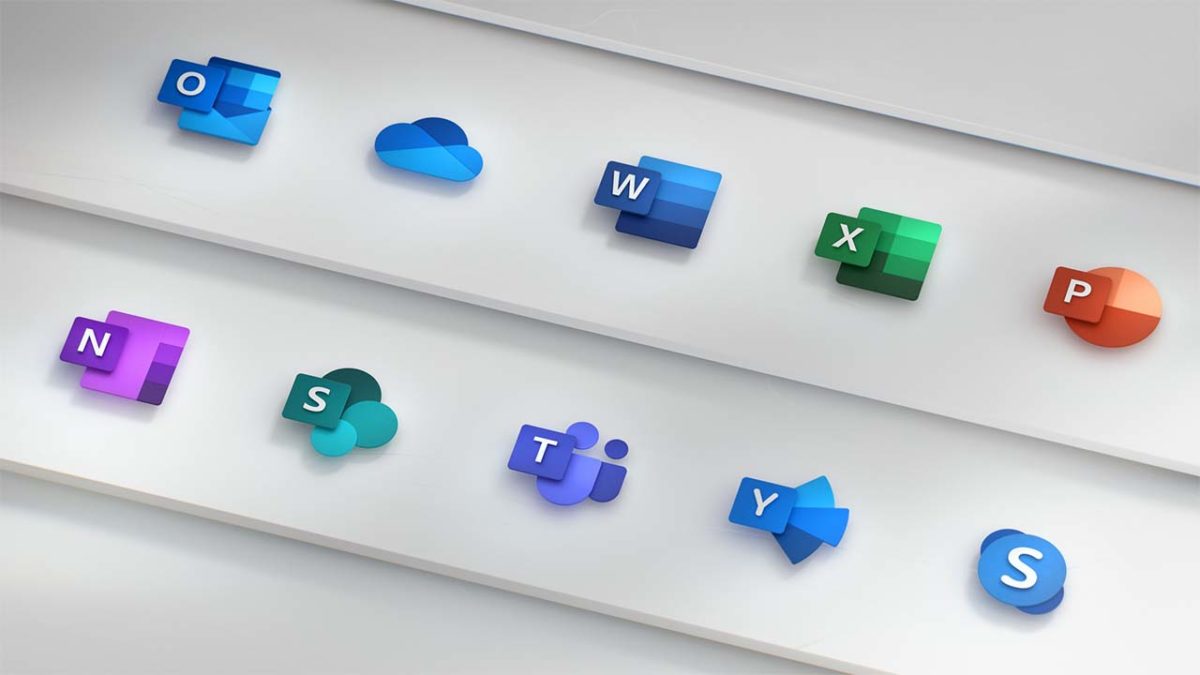
update microsoft office new icons

The Microsoft Office productivity suite has been around for a long time. Each Office application has evolved during all that time adding new features and tools and also, along the way, developing new file types both for the files that work with the programs and others that are at least compatible with the programs in one way or another. As you can imagine, over such a period of time this list of file types has grown to a formidable size and it can be hard to know what file works with what program and vice versa. That’s what we’re here to do today, walk you through all the different Microsoft Office file types and extensions for each of the main Office programs.

This is the fourth of our Microsoft Office guides this week. We’ve also covered productivity tips for Word, how to make infographics on PowerPoint, and the accessibility tools available across Microsoft Office programs. We’ll also be checking out Excel formulas so make sure you check that guide out too. For now, though, let’s get into Office file formats.

6

File extensions for Microsoft Office

Below is a list of all compatible file formats for Microsoft Word, Microsoft Excel, and Microsoft PowerPoint.

File formats supported in Microsoft Word
All file extensions for Microsoft Word

.doc – A document from Word 97 – 2003.

.docm – A Word Macro-Enabled Document. This stores Visual Basic for Applications (VBA) macro mode.

.docx – A Word document. This is the default Word document for anything post-Word 2003.

.dox – A Strict Open XML Document.

.dot – A template for Word 97 – 2003.

.dotm – A Word Macro-Enabled Template.

.dotx – A Word Template for anything post-2003.

.htm, .html – A Web Page, normally saved as a folder.

.mht, .mhtml – A Web Page, saved as a single file.

.odt – A OpenDocument Text, which is compatible across other OpenDocument compatible word processors.

.pdf – A Portable Document Format (PDF) file.

.rtf – A Rich Text Format file.

.txt – A Plain Text File that has no formatting.

.wps – A Microsoft Works 6 – 9 document.

.xml – A Word 2003 XML Document.

.xml – A Word XML Document for all versions of Word post-2003.

.xps – An XPS Document.

Microsoft Word Download Now
9

File formats supported in Excel

All file extensions for Microsoft Excel

.csv – A Comma delimited file that saves only the active sheet.

.csv – The same as above except for Mac.

.csv – The same as above but for MS-DOS.

.dbf – DBF 3 and DBF 4 files that can be opened in all versions of Excel 2013 and later.

.dif – a Data Interchange Format File that saves only the active sheet.

.htm, .html – A Web Page, normally saved as a folder.

.mht, .mhtml – A Web Page, saved as a single file.

.ods – An OpenDocument Spreadsheet that can be used across other spreadsheet programs compatible with the OpenDocument file type.

.pdf – A Portable Document Format (PDF) file.

.prn – A Lotus space-delimited Formatted Text file that only saves the active sheet.

.slk – A SYLK (Symbolic Link Format) file that only saves the active sheet.

.txt – A simple text file that saves the active sheet of a workbook as tab-delimited text.

.txt – The same as above but for Mac.

.txt – The same as above but for MS-DOS.

.txt – A Unicode Text file that only saves the active sheet.

.xla – An Excel 97 – 2003 Add-in file.

.xlam – An Excel Add-in file for all versions of Excel post-2003.

.xls – An Excel 97 – 2003 file.

.xls – An Excel 5.0/95 file.

.xlsb – An Excel Binary file for all versions of Excel post-2003.

.xlsm – An Excel Macro-Enabled file for all versions of Excel post-2003.

.xlsx – The default Excel file for all versions of Excel post-2003.

.xlsx – A Strict Open XML Spreadsheet.

.xlt – An Excel template for Excel 97 – 2003.

.xltm – A Macro-Enabled Excel template for post-2003 versions of Excel.

.xltx – A default Excel template for all versions of Excel post-2003.

.xlw – An Excel 4.0 file.

.xml – An XML Spreadsheet 2003 file.

.xml – An XML Data format.

.xps – An XPS file.

Microsoft Excel Download now
8

File formats supported in PowerPoint

All the file extensions compatible with PowerPoint

.bmp – A Device Independent Bitmap is a slide that is saved as a graphic to use on webpages.

.emf – An Enhanced Windows Metafile is a slide that is saved as a 32-bit graphic.

.gif – A GIF.

.jpg – A JPEG File Interchange File.

.mp4 – An MPEF-4 Video file.

.odp – An OpenDocument Presentation file that is compatible with presentation software that uses the OpenDocument file type.

.pdf – A Portable Document Format (PDF) file.

.png – A Portable Network Graphics Format file.

.pot – A PowerPoint 97 – 2003 template.

.potm A PowerPoint Macro-Enabled Template for versions of PowerPoint post-2003.

.potx – A PowerPoint template for versions of PowerPoint post-2003.

.ppa – A PowerPoint Add-in file for PowerPoint 97 – 2003.

.ppam – A Macro-Enabled PowerPoint Add-in file.

.pps – A PowerPoint 97 – 2003 show.

.ppsm – A PowerPoint Macro-Enabled show.

.ppsx – A PowerPoint presentation that opens in Slide Show view instead of in Normal view.

.ppt – A PowerPoint presentation from 97 – 2003.

.pptm – A Macro-Enabled PowerPoint presentation.

.pptx – A default PowerPoint presentation for versions of PowerPoint post-2003.

.pptx – A PowerPoint Picture presentation.

.pptx – A Strict Open XML Presentation.

.rtf – An Outline RTF presentation outline file that is saved as a text-only document.

.thmx – An Office Theme style sheet file.

.tif – A Tag Image File Format.

.wmf – A Windows Metafile slide that is saved as a 16-bit graphic.

.wmv – A Windows Media Video.

.xml – A PowerPoint XML Presentation.

.xps – An XPS Document.

How to insert multiple lines into the same Microsoft Excel cell

Become an Excel master with this cool trick!

Microsoft Excel has become such a popular spreadsheet application thanks to the numerous advanced features it provides to users in the know. One of the best tricks to learn is how to add several lines into the same cell on your spreadsheets. Adding additional data to a cell can be an excellent way to stay organized while making your information readily accessible. It is also an effortless way to attach written notes to the spreadsheet.

Microsoft Excel DOWNLOAD

While Excel does not traditionally offer word processing, you can use the multiple lines trick to bypass this limitation. In just four steps and a few seconds, you will be customizing your Excel spreadsheets like a pro.

  1. Choosing a spreadsheet cell to modify

    This is what a modified cell looks like

    First, you will need a spreadsheet that could use some additional formatting. You most likely already have one in mind before viewing this tutorial. Good reasons to modify a spreadsheet cell include adding notes, writing long strings of characters, or to organize the data in question. Once you have a specific cell in mind click on it to select it in Microsoft Excel.

  2. Adding new lines to the cell

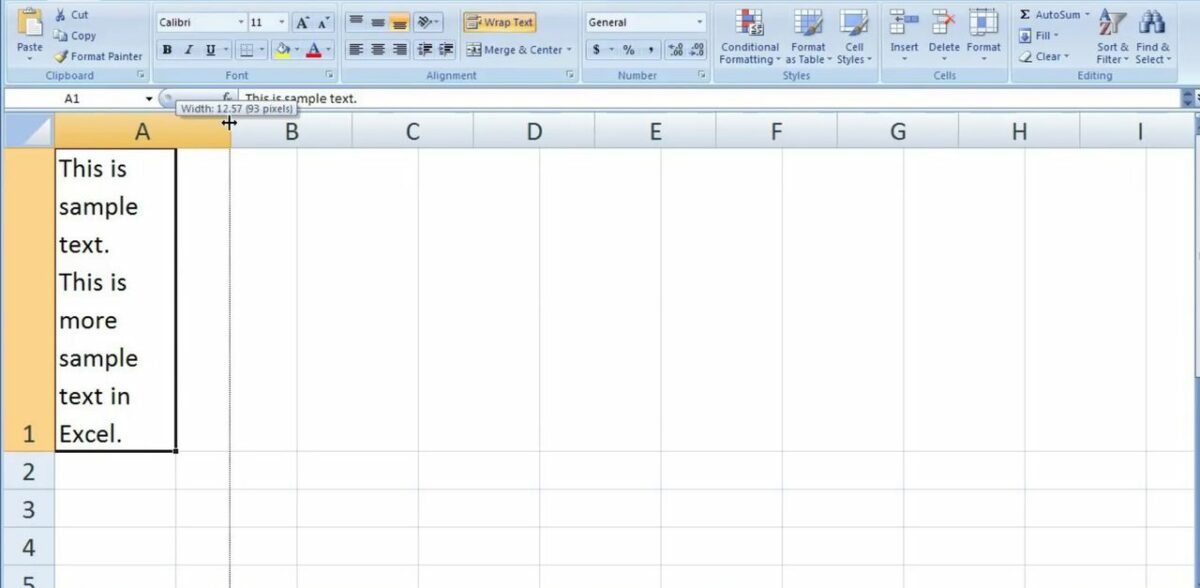
    Wrapping text is a solid solution for bloated cells

    Modifying the cell is as simple as holding down the alt key and pressing enter. If done correctly, your text cursor will start blinking on the line below. Like in any word processor, you are now free to type directly below the previous row of information. You can repeat the alt + enter technique as many times as you need on any given spreadsheet cell.

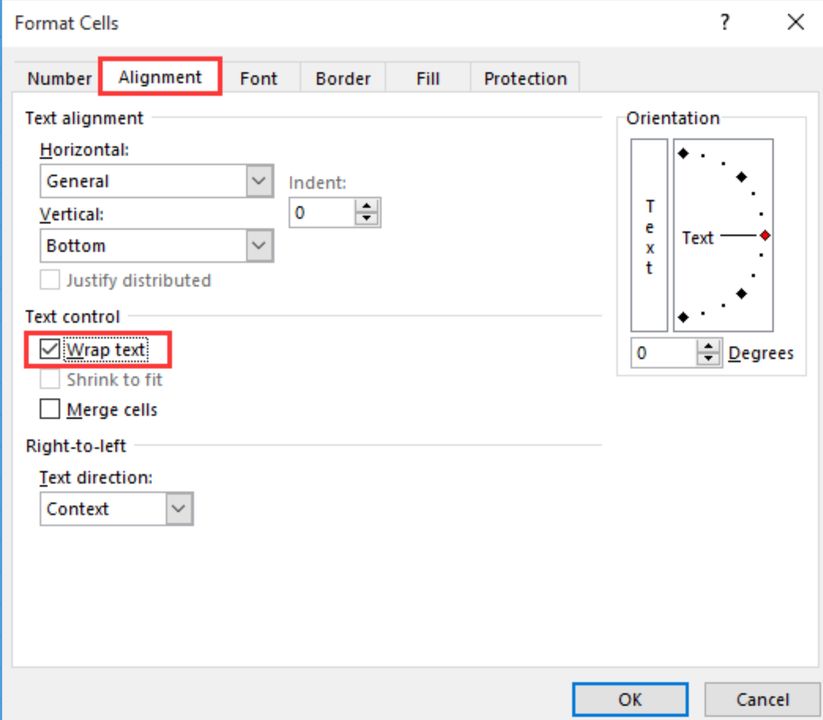
    If you wish to dive deeper, there is a more comprehensive way to achieve comparable results using the wrap text feature in Microsoft Excel. This is perfect for when your cell already has a bunch of text without any of the nice formatting. Right-click on the cell you wish to modify and select Format Cells from the drop-down menu that appears. From the Format Cells window, click on the box that says wrap text under the alignment tab. Be sure to confirm your changes by clicking on OK before leaving this window.

  3. Adjusting the cell’s height

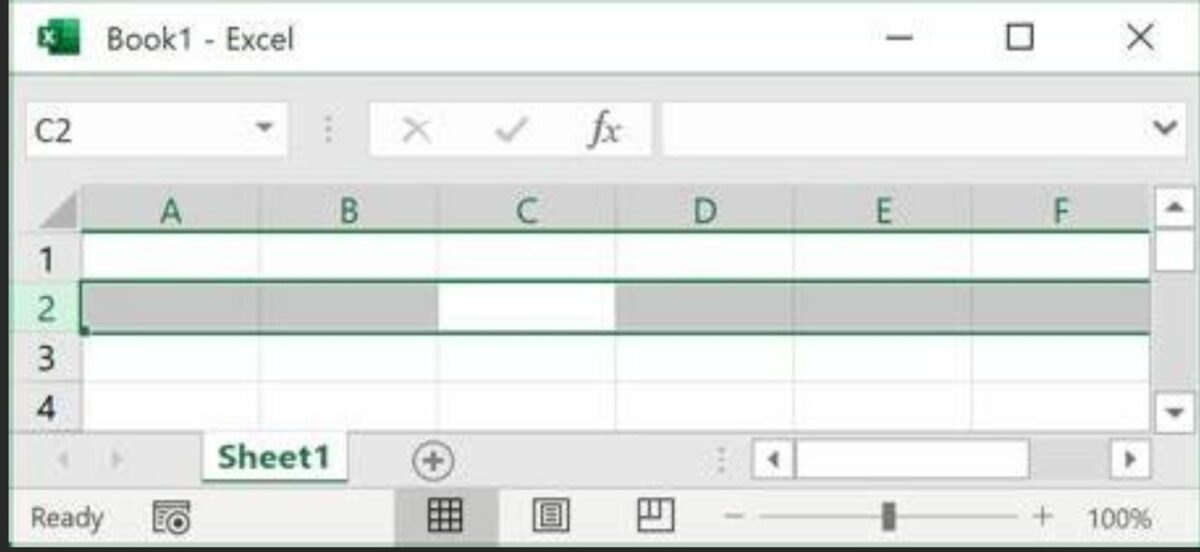
    You know which row is selected thanks to the green box on the left

    As you continue to add more lines to the same cell, you may notice the formatting start to falter. Luckily, you can readjust the height of any cell to complement your recent changes. To do this, look on the left side of the screen for the panel that displays which row is selected in Excel.

    In the picture above, the selected row is row 2. This is shown by the box highlighted in green. If you wish to make the cell larger, click the line between rows 1 and 2 and drag the mouse cursor up until the row is resized to your liking. To make the cell shorter again, grab the line between rows 2 and 3 and drag the mouse cursor down. Again, do this until the row is big enough to fit every line you added in the previous step.

  4. Saving your progress

    Always save your work even after the smallest adjustment

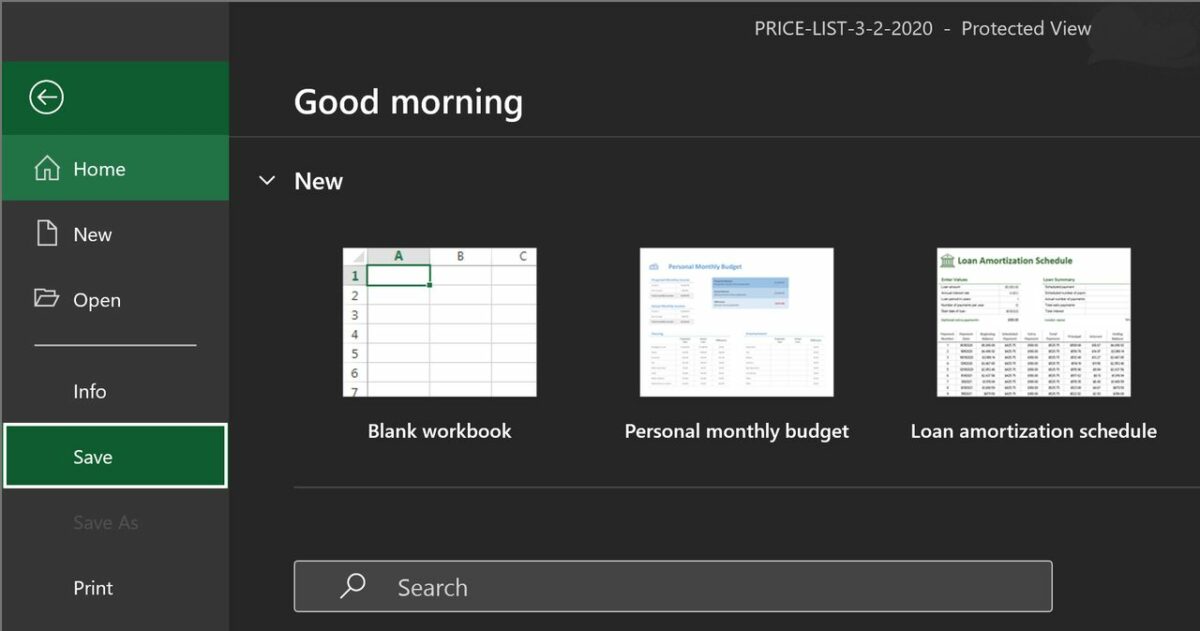
    Since it is quite easy to forget to save your work when practicing a new skill, be sure to record your new progress before closing the program. It is especially important to save when you are making final adjustments before a deadline. To save the spreadsheet, click on File in the top left corner and select save on the dropdown menu that appears. Alternatively, you can click the floppy disk icon at the top of the screen if you have previously saved the spreadsheet before. After saving at least once, you can also toggle the autosave feature from the panel right next to the floppy disk icon.

Taking Microsoft Excel to the next level

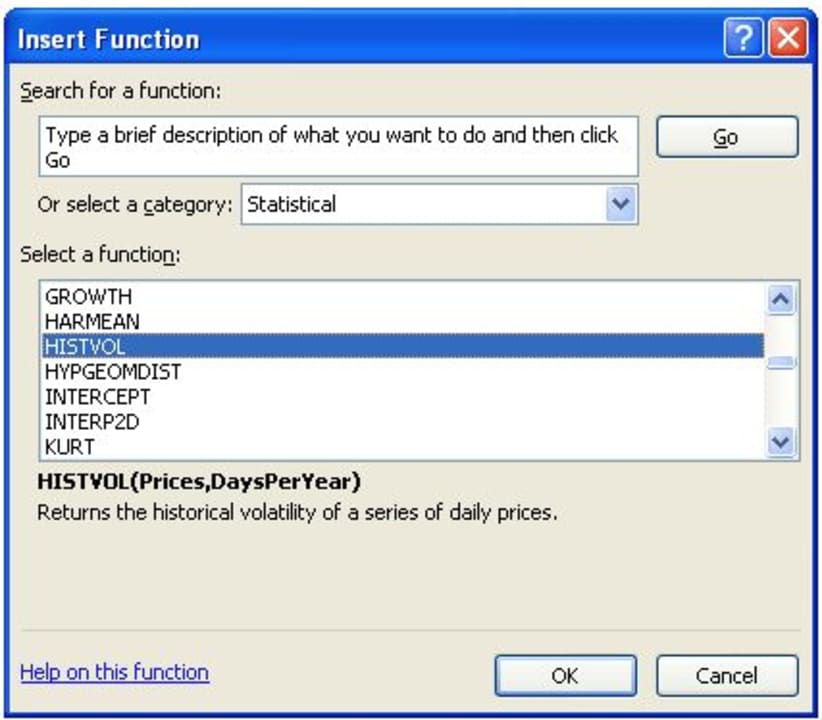
After learning how to add additional lines to each cell, the next step is to continue learning more about the advanced options available in Microsoft Excel. A wise place to start would be with the formula wizard. Don’t worry, you will not have to do any math. Instead, Excel’s formulas allow you to implement numerous exciting functions that will save you loads of time in later projects. To learn all about the formula wizard, check out our article on the subject.

Microsoft Excel formulas READ MORE

Top 6 Microsoft Excel alternatives for Mac and PC

Excel isn’t your only option; check out these alternatives!

Excel

Microsoft Office has been a business standard for a long time now. Despite how common it is, using it over and over again can get very dry. Also, if you have to pay for it yourself, Microsoft Office can be a little expensive. Because of this, many people have been looking for alternative options for both their business and personal use. Excel is one of the more complicated programs offered by Microsoft Office, so finding an alternative can be a difficult task. Thankfully, there are plenty of free and cheap options. 

Microsoft Excel Download now ►
7

Top 6 Microsoft Excel alternatives for Mac and PC

LibreOffice

While LibreOffice lacks a few formatting options when compared to Excel, it is offered as a free alternative to all Microsoft Office products. Since LibreOffice only offers the basic functionality of Excel, it isn’t often that you’ll see this program in a business setting, but it can make for a free program to use at home.

If you need something to help keep organized or to help with some basic number balancing, it’s a good option. LibreOffice is available for both Mac and PC.

LibreOffice Free Download ►
7

WPS Office

Another option available on both Mac and PC, WPS Office is not only a good alternative to Excel but Word as well! 

Most free spreadsheet programs will struggle to have complex programs but provide simple features that can be nice for smaller data management. WPS Office is the middle ground between most free programs and more powerful ones like Excel.

While it won’t be able to perform as complex features like Excel, it is generally a more user-friendly program. That being said, if you choose to pay for it, you will be able to get most of the complex features that Excel itself has.

WPS Office Free Download ►
7

Google Sheets

This may seem like an obvious choice, but the Google Suite provides completely free alternatives to all Microsoft Office products. That being said, Google Sheets has the added bonus over Excel that you are able to use it as part of a browser. Additionally, Google Sheets allows for real-time collaboration. All you have to do is invite other Gmail users to edit your work and they’ll be able to start on it with you right away. Once again, this is available on both Mac and PC. 

Google Sheets Free Download ►
8

Numbers

This one is Mac exclusive, but it is super helpful.

As with most Apple products, their spreadsheet program is well-known for being one of the most user-friendly and aesthetically pleasing spreadsheet programs out there. Workbooks are able to be saved and worked on in a variety of formats, allowing you to use practically any spreadsheet with Numbers. It also has many helpful and easy-to-use templates for those who may not be the most familiar with these types of programs.

Thinkfree

Thinkfree Office is often compared to Google Suite applications, as they are both provide free alternatives to Microsoft Office. Thinkfree’s spreadsheet application is much easier to learn than similar programs, like Excel, which makes it useful for those who are less tech-savvy. Unlike LibreOffice, it also provides a variety of formatting options, making it easily compatible with Excel itself.

Although Thinkfree is available for both Mac and PC, most online tutorials you will find online are in Spanish. If that proves to be a language barrier for you, this might not be your best option.

ThinkFree Download ►
7

Gnumeric

Gnumeric is an open-source spreadsheet program that can be used for easy and simple data management. However, since it is an open-source program, it can be customized to do practically anything. While it will start as one of the less complex spreadsheet programs, it can become one of the most powerful ones. It is great for both beginners and experts; however, it is not available for Mac. 

7

Wrapping up

If you’re a beginner with spreadsheet programs, you may also want to check out our Softonic Solutions’ Best Excel Tutorials to get some help on getting started. Many of these programs can be a bit complex. Let us know in the comments below about which program worked best for you! 

How to convert files into pdf

Converting files to the standard PDF format can be difficult. This is how to create PDF files.

Converting files to the standard PDF format can be difficult. This is how to create PDF files.

PDFs allow us to send documents exactly as they are with confidence. When we send a PDF we know that the file can’t be altered, will arrive complete, the data it contains is secure, and the recipient will be able to read all of the information easily. PDFs are great for CVs, cover letters, reports, spreadsheets, and if you need anything printing, converting the file to PDF will make the printing process much simpler and remove any chance of the print coming out badly.

How to convert files to pdf

PDFs then are like digital photocopies of whatever it is we are doing. You can’t create documents as PDFs. You first have to create your document in another program and then convert the file to PDF. In this way, you’re able to continue working on your project and convert your work to PDF at various stages of development, right up until the work is complete. This begs the question, however, how do you convert files into PDF?

The complete PDF solution

If you open a PDF on almost any PC or Mac chances are it will open in Adobe Acrobat. It is not an exaggeration to call Adobe Acrobat the king of PDF programs. You would find it much more difficult to open and view PDF files if it wasn’t for the free version of Adobe Acrobat you likely have. Adobe Acrobat can do so much more, however, than just open PDF files. Adobe Acrobat is the best tool for converting files to PDF as well as a whole host of other features for creating, editing, and managing PDF files.

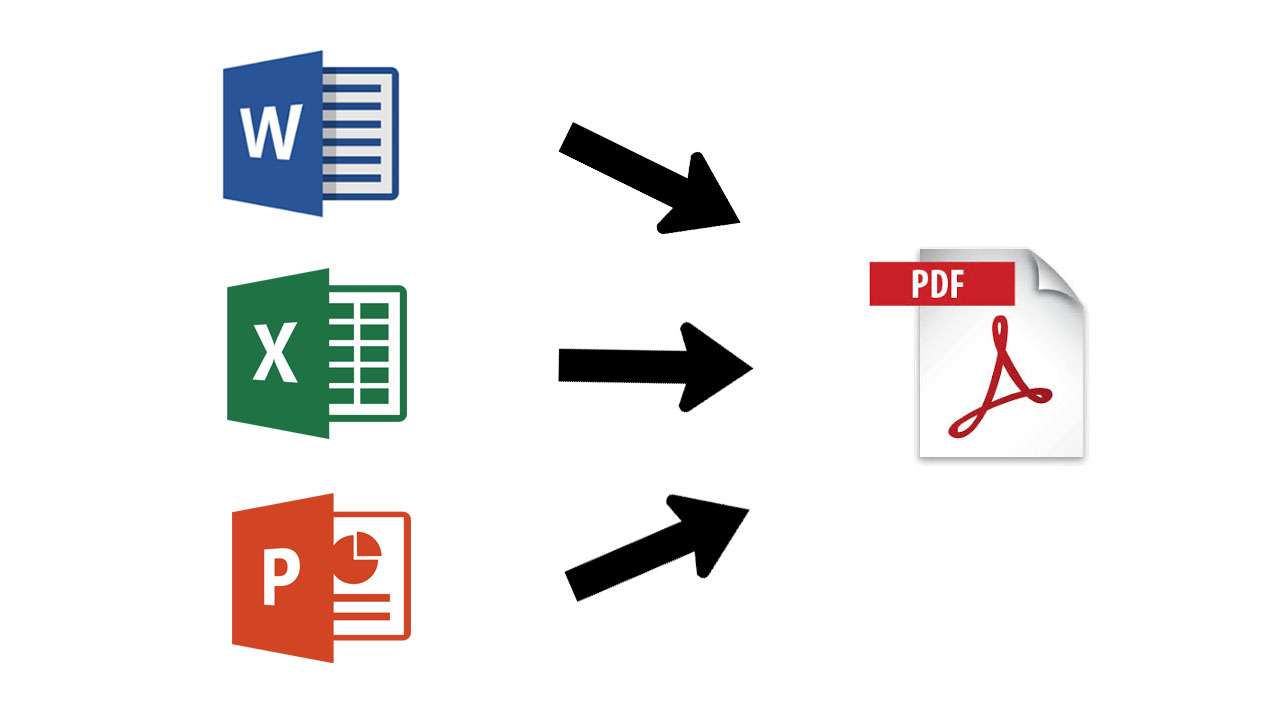
To convert a file to PDF using Adobe Acrobat is quick and simple. All you need to do to convert a Word, Excel, or Powerpoint file to PDF is:

  1. Open the Office file you wish to convert
  2. In the Adobe ribbon, click Create PDF.
  3. Select Protect PDF in the resulting dialog box.
  4. You can then decide whether add a password to encrypt your PDF file.

When complete all you have to do is Click OK, give your PDF file a name and save it in the desired folder.

Adobe Acrobat Pro DC Try Now
9

Do more than just convert files to PDF

Acrobat Pro can do much more than easily convert Microsoft Office files from your browser or mobile device, into PDFs. It can also send a PDF version of photographs, merge multiple files into a single PDF file, and protect your PDF files with passwords and permissions. Acrobat Pro even gives you the option to edit paper documents as PDFs and media like audio and video to your PDF files. You can see a complete list of the extensive PDF related features offered by Acrobat Pro below.

Without a doubt, Adobe Acrobat offers the most reliable and secure way of converting files to PDFs. A subscription to Acrobat Pro offers the best way to convert files into PDF and back again. It also offers a rich feature set, centered on all the different problems that may need a PDF solution. Acrobat Pro offers an easy solution for slipping between creating, editing, and viewing PDF files. If you’re looking for the best way to convert a file to PDF, you should check out Adobe Acrobat Pro

If you have a PDF that needs converting now, why not try Adobe Pro DC today.

Adobe Acrobat Pro DC Try Now
9

Thinking of buying MS Office? Read this first

When Microsoft released Office back in 1990, few could’ve predicted its popularity today. There were 1.2 billion users in 2016. To put that into perspective, that’s around 16% of the world’s population. It might have the lion’s share of the market, but is it still good value? Let’s take a look.

To use Microsoft Office, you need a fat wallet. A single license costs at least $149.99, so for a family of four you pay almost $600. Of course, you could pay $9.99 per month for Office 365, but you’ll never own the software, and for many, it’s an unwelcome expense added to the monthly budget.

Aren’t there free alternatives? I hear you ask. Well, yes, there are cloud-based productivity apps from Google and Microsoft, and Apache’s OpenOffice if you want an offline suite. They provide a similar yet restricted feature set, but cross-platform file support isn’t great, and advanced users usually find them limiting.

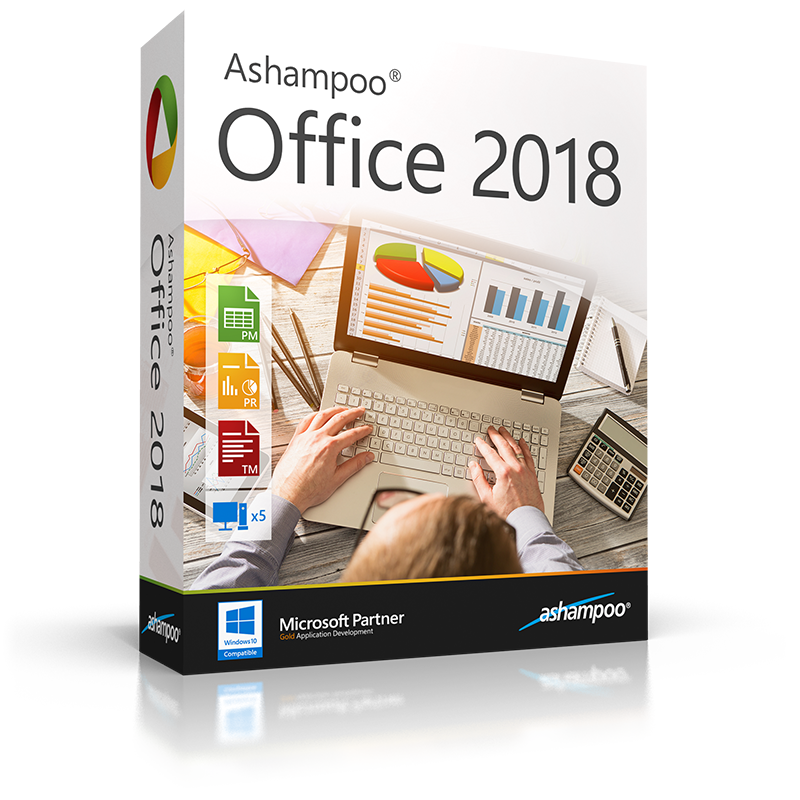
Thankfully, there’s a middle ground. For those wanting the best of both worlds – maximum performance and a low price – we recommend Ashampoo Office 2018 as the perfect mix of value and features.

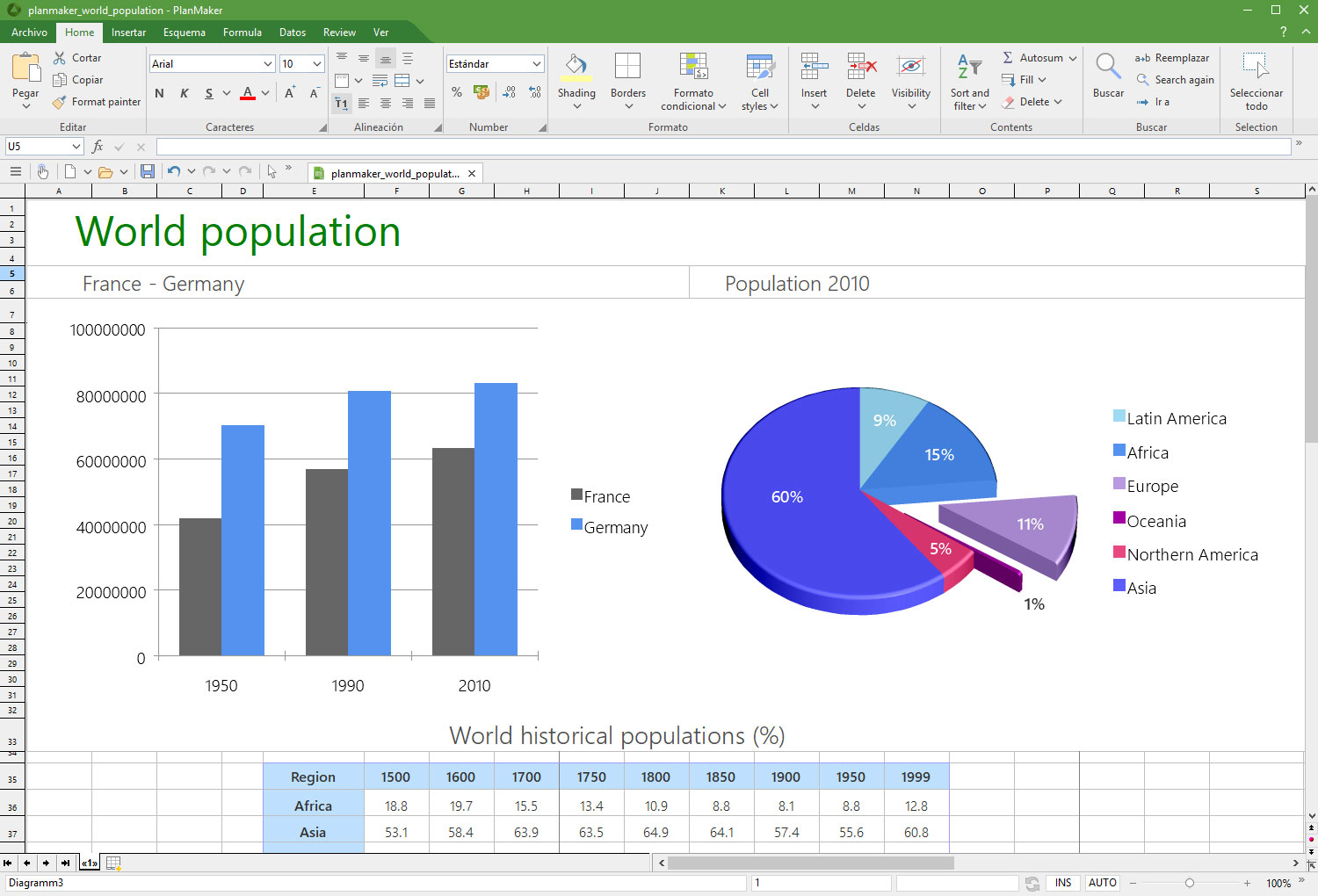
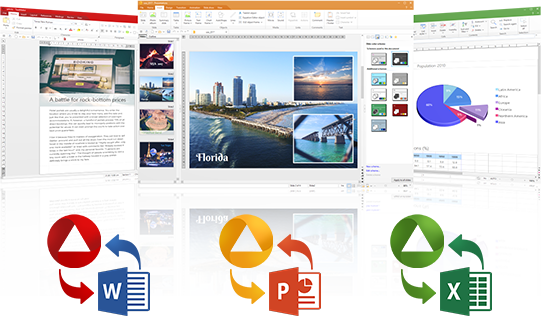
The suite includes three key programs that mimic (and even excel) Microsoft’s most popular Office applications: TextMaker (similar to Word), PlanMaker (similar to Excel), and Presentations (similar to PowerPoint). Each offers similar features to those found in MS Office, but without the hefty price tag.

Ashampoo has spent a lot of time and effort perfecting the user experience, so there’s virtually no learning curve. The layout replicates much of what makes MS Office so simple – even the ribbon menu is there (though there’s a classic menu layout if you prefer the old style).

One of the reasons people are reluctant to leave Microsoft’s closed ecosystem is a fear of being unable to work with Microsoft files. Ashampoo Office uses MS Office file types by default, and supports legacy formats from MS Office 6 right up to Office 2016. So whether it’s a docx, xlsx, or pptx, Ashampoo Office works with them all, preserving content and formatting as if it were a native file.

You can also install Ashampoo Office on a portable flash drive, something Microsoft doesn’t currently support. Why would you need to do this? Well, if you’re switching computers all the time, such as hot-desking at work or university, having a portable version of the software saves installing it on other devices. Not all computers use MS Office, and not all alternatives support Microsoft files, so having a portable version of Ashampoo Office is a convenient back-up.

So what’s the price of Ashampoo’s powerful office suite? At the moment, it costs just $29.99 for a license on up to five devices. That means your whole family for a fraction of the cost of MS Office. So if you’re looking for an affordable office package that doesn’t skimp on features or cross-platform compatibility, Ashampoo Office 2018 is the one for you.

How to open Excel files without Excel

If you need to open an Excel document but don’t have Microsoft Office installed, then don’t fear – you can open them with Microsoft Excel Viewer.

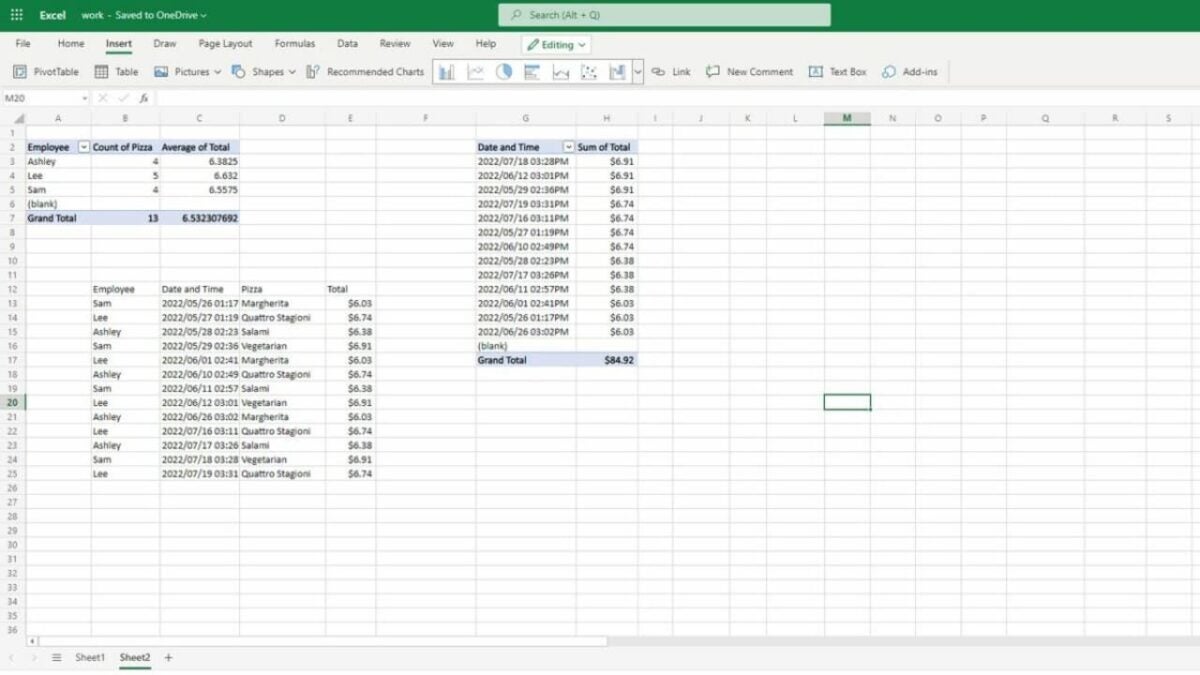
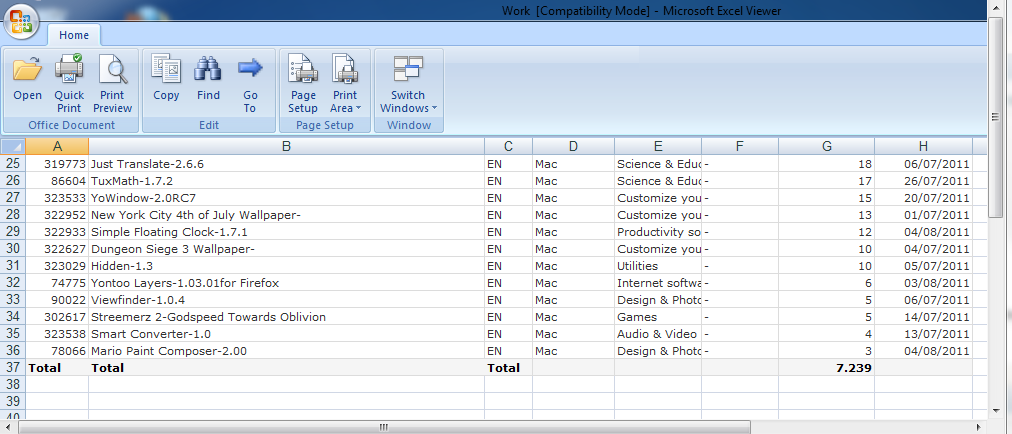
Microsoft Excel Viewer is a simple application which allows you to open Excel sheets without Excel. Once installed, just double-click on the file you want to open and Microsoft Excel Viewer does the rest:

It’s just like using the real thing but obviously, there’s no editing of any kind allowed but it’s ideal for just browsing or viewing Excel documents if you don’t have Office or your Excel isn’t working.

If you need to edit Excel, you can opt for OpenOffice which is completely free to use and allows you to both open and edit Excel, PowerPoint, Word and many other formats although it’s much heavier and requires a longer installation process than Microsoft Excel Viewer. There’s also LibreOffice which you can read more about here.

Download Microsoft Excel Viewer.