No one is spared in the tech industry: the Mozilla Foundation lays off 30% of its staff

The Mozilla Foundation, the non-profit organization behind the Mozilla Firefox browser, has laid off 30% of its staff to adapt to what it describes as a “relentless wave of changes.” Brandon Borrman, Mozilla’s head of communications, confirmed the layoffs in an email sent to TechCrunch, where he detailed that this decision is in response to the need to restructure teams and “increase agility and impact” in their work towards “a more open and equitable technical future.” Mozilla is structured into several entities, including Mozilla Corporation, which develops Firefox and other tools, and the Mozilla Foundation, […]

The Mozilla Foundation, the non-profit organization behind the Mozilla Firefox browser, has laid off 30% of its staff to adapt to what it describes as a “relentless onslaught of changes.” Brandon Borrman, Mozilla’s head of communications, confirmed the layoffs in an email sent to TechCrunch, where he detailed that this decision is in response to the need to restructure teams and “increase agility and impact” in their work towards “a more open and equitable technical future.”

Mozilla is structured into several entities, including Mozilla Corporation, which develops Firefox and other tools, and the Mozilla Foundation, which oversees the direction and defines the organization’s policies. The foundation maintains its focus on promoting privacy, inclusion, and greater transparency on the internet, and has highlighted its commitment to creating “safer online experiences” for users.

In its 2022 annual statements, the Foundation detailed that it had 60 employees; however, at the time of these latest layoffs, the staff was closer to 120 workers, according to close sources. Mozilla already carried out another staff cut in February of this year, which affected 60 workers responsible for the development of the Firefox browser.

Mozilla’s CEO, Nabiha Syed, announced the layoffs on October 30 in a message to the staff, indicating that the “advocacy” and “global programs” divisions would no longer be part of the foundation’s structure. According to Syed, these measures aim to consolidate a “unified and powerful narrative” at Mozilla, which includes revamping strategic communications to improve internal and external cohesion.

Syed, who took on his role in February after leading The Markup, a website dedicated to data journalism, stated that Mozilla is facing a time of distractions that requires a “very direct focus”, and concluded his letter by saying that “sometimes, saying goodbye to the excellent work that has brought us here is necessary to achieve new goals.”

Mozilla Firefox DOWNLOAD

Apple confirms that PWAs will not work in Europe. The reason is the DMA

The law does not allow Safari to offer features if they are not available in other browsers.

In the first beta of iOS 17.4, Progressive Web Apps (PWAs) did not work properly, and in the second one, a message warned that they would open directly in Safari. Now, Apple has officially announced its stance on PWAs in the European Union: they will no longer work. The reason behind this measure lies in the need to comply with the Digital Markets Act (DMA) of the EU.

iOS 17 Download

The law does not allow Safari to offer features if they are not available in other browsers

The company has explained that the changes imposed by the DMA involve having to support alternative browsing engines, which entails very significant security risks and a more considerable engineering effort to try —as much as possible— to implement a new solution and minimize the risks. PWAs, which run directly from the iPhone’s home screen and are built on WebKit and its security architecture, are designed to align with the privacy and security model of native applications on iOS. Running on Apple’s browsing engine allows for storage isolation and the implementation of system prompts to access privacy features individually.

It is very important to note that, without this isolation, web applications could read data from other web applications and gain access to the camera, microphone, and location without our consent. Controlling third-party code, in this case from a browsing engine —an engine that runs, in turn, third-party code from the web— is really difficult. So much so, that Apple has chosen not to support PWAs in third-party browsers.

But what about Safari? The DMA forces Apple to prevent Safari from offering better features than other competing browsers. Thus, due to the technical difficulty of enabling the long list of third-party browsers to offer PWAs, Apple has been forced to remove it from Safari.

The company argues that this decision will only affect a “small number of users” and regrets the impact it will have on PWA developers and iPhone users in the EU. However, it claims that it is a necessary measure to comply with DMA regulations and protect the security and privacy of users.

iOS 17 Download

While the EU is backtracking and the DMA will not affect iMessage and while some users on social media are already joking that Europe should “Not allow” the DMA to be applied to us and be able to recover PWAs, just like we can reject cookies, it is clear that regulating certain aspects within companies has unexpected consequences.

Firefox 120 comes with convenient security features

Mozilla’s latest update, Firefox 120, is now available across all supported platforms. This new version brings a host of features including the option to copy links free of tracking parameters, comprehensive privacy controls that signal to websites your preference against data sharing, and a specialized cookie banner blocker for users in Germany. Additionally, it enhances the picture-in-picture functionality and introduces several other improvements.

Mozilla Firefox DOWNLOAD

What does Firefox 120 bring to the table?

Firefox 120 introduces a novel feature called “Copy Link Without Site Tracking” in its context menu, ensuring that links copied no longer carry tracking information. Enhancing user privacy, Firefox’s private windows and Enhanced Tracking Protection (ETP)-Strict mode now include Fingerprinting Protection for Canvas APIs.

In a move to streamline browsing experiences in Germany, Firefox has activated a Cookie Banner Blocker by default in private windows. This functionality automatically refuses cookies and dismisses intrusive cookie banners on supported sites. Additionally, for German users, Firefox now automatically removes non-essential URL query parameters, commonly used for user tracking, in private windows.

A significant privacy feature in Firefox 120 is the support for Global Privacy Control. Located in the Preferences → Privacy & Security section, this opt-in setting communicates to websites that the user prefers not to have their data shared or sold.

The update also sees Firefox importing TLS trust anchors, such as certificates, from the operating system root store. This feature, set as the default on Windows, macOS, and Android, can be deactivated in the settings if desired.

For improved credential management, keyboard shortcuts for editing and deleting selected credentials have been added to about:logins. Users on Ubuntu Linux can now import data from Chromium when both are installed as Snap packages.

Lastly, the Picture-in-Picture feature on Windows and Linux now supports corner snapping. This can be activated by holding the Ctrl key while moving the PiP window.

Mozilla Firefox DOWNLOAD

Firefox conveniently updates itself automatically between restarts, ensuring users always have the latest features and security enhancements. However, if you want to immediately access the newest update, you can manually initiate the process. Simply visit the ‘About’ section found in the main menu to force-install the latest version of Firefox. This ensures you’re up-to-date with all the new improvements and security measures introduced in Firefox 120.

Firefox rolls out Total Cookie Protection to become the most secure browser

Cookies are the scourge of the modern browsing ecosystem. Many browsers claim to offer next-level cookie protection, but Mozilla Firefox has just revolutionized that concept for all users worldwide. Mozilla is calling it Total Cookie Protection, and it’s a complete gamechanger for the browsing industry and a massive setback for underground personal information traffickers.

Mozilla Firefox DOWNLOAD

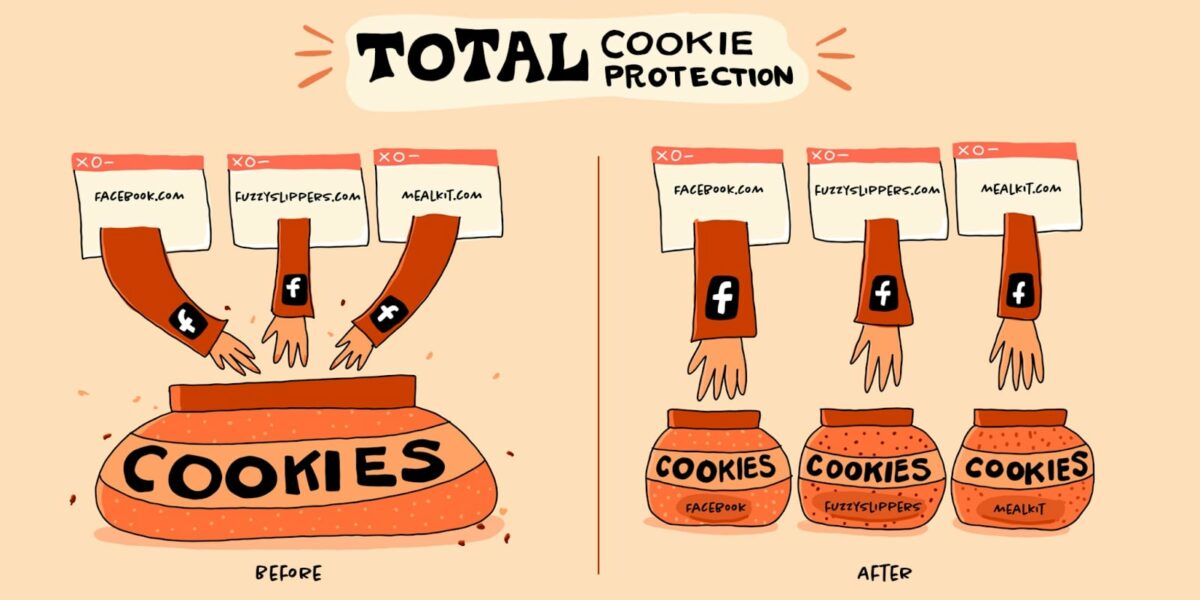
Data collection is not a conspiracy or a new practice in terms of internet browsing. It is an ever-present reality that shapes the way you experience content. Every website you visit collects a small amount of your browsing data within that website. All of this information from all of the websites you visit ends up in a virtual cookie jar of sorts. From here, information collectors can rummage around for cookies in order to sell your preferences to other companies.

While this often means that you end up with a more personalized browsing experience, with adverts and content tailor-made for your sensibilities and specific consumer-related desires. However, not all of this information goes to places you’d approve of. From this cookie jar, anyone anywhere has access to a comprehensive and incredibly sophisticated profile of who you are. This can be dangerous. 

Enter Total Cookie Protection. Firefox describes this new innovation as separate cookie jars for separate websites. This means that instead of trackers from all websites having access to the massive and unrestricted cookie jar of you, website trackers only have access to information collected from that particular website. No more strange hands in your cookie jar. With this feature active, Facebook won’t be able to serve you promotional content for that nifty product you watched a review for on YouTube, and you won’t see adverts for the sketchy items you’ve ordered on Wish.com anywhere other than on Wish.com. 

In a recent post on Mozilla’s blog, Dist://ed, the company summarized Total Cookie Protection with the following statement: ‘Total Cookie Protection is the culmination of years of work to fight the privacy catastrophe that stems from online trackers. Our long history of fighting online tracking manifests itself in our advocacy to policymakers and other tech companies to reinforce their own privacy protections. We also push to make privacy an industry priority through our efforts in industry standards bodies when shaping the future of online advertising.’

In one fell-swoop, Firefox may just have become the safest and most secure open-source browser on the face of the Earth. Be sure to read our detailed Mozilla Firefox expert review here on Softonic.

Mozilla Firefox Review READ MORE

Firefox turns 100: a look at all the new features

Mozilla Firefox is a great web browser and has been for a very long time. The app is now at version 100, meaning it has received 100 full updates since it first launched back in 2004. It’s a good job Mozilla was able to fix any potential Y2K-like issues related to the extra digit in the Firefox update number.

Mozilla Firefox Download Now

Back when it launched, Firefox was seen as the hot new kid on the block that had a chance to break through Microsoft Internet Explorer’s dominance of the market. Now that market dominance belongs to the Google Chrome browser that sits atop a crowded field that now includes the likes of Microsoft Edge and Safari. Firefox is still here though and is still innovating, so let’s dive into all the new features.

The first major new update coming to Windows, Mac, and Linux versions of the browser is the addition of subtitles and caption support to the Picture-in-Picture video feature that Mozilla added to Firefox back in 2019. To start with the feature works with Netflix, Prime Video, and YouTube meaning you can easily browse the internet while watching content on any of those platforms silently. You can in essence read what is going on in the Real Housewives of Beverly Hills while shopping for the shoes and handbags featured on the show at the office without anybody ever knowing!

The next big update comes to Firefox on mobile with the addition of new browser wallpapers. If you are an Android user, you should already have access to these new wallpapers with iOS users getting access sometime next week.

Another update to land on the mobile version of the app comes in the form of new clutter-free interfaces on history and tabs. For your browser history, Mozilla is adding an interesting feature that will actually group all related sites together. If we take our office shopping spree for fabulous shoes and bags as an example, the new Firefox features will group all visited sites browsed while searching for shoes into one tab and all the handbag sites into another. There will also be no more duplicate sites in your history either, which should make it much easier to navigate.

Tabs are another modern web browser feature that can easily get out of hand, particularly on mobile, and Mozilla is helping you deal with that through a new “Inactive Tabs” section. All open tabs that haven’t been used for 14 days will be moved to the new inactive section where you can easily re-activate or close them en masse.

The final brand-new feature is the HTTPS-only mode, which should help keep you safe online by automatically opting you into the more secure protocol. This new feature only comes to the Android version of Firefox, however, so iPhone users won’t be getting it.

If you like the sound of these updates, you should read our 4 ways to set Mozilla Firefox as your default browser guide.

Mozilla Firefox Review | Open-source online browsing

Mozilla Firefox is a free open-source web browser developed and launched by Mozilla Corporation in 2003. It began with only a few features but has risen to match several of its rivals. One of the most prized abilities is its speed in loading website pages by using fewer system resources than some competitors. 

Of course, it also comes with its downfalls. Still, there are plenty of new features that have appeared recently. Some of these include new security measures, VPN services, and a pocket version for saving pages to read later. Read more about what it has to offer in the Mozilla Firefox review below.

Getting started with Mozilla Firefox

When you begin your experience with Mozilla Firefox, the browser welcomes you by offering an initial setup. You can skip any of them and deal with them later, but I recommend establishing them from the start. Once done, you can enjoy all the features offered. 

Setting your default browser

The first question Mozilla Firefox will ask you after installation is if you want to set it as your default browser. Don’t be intimidated into saying yes, as you can still enjoy all your surfing on any other browser you enjoy without limiting the features that Firefox has.

If you say yes, it simply tells your computer to always use it for opening web pages by default. Mozilla Firefox is quite persistent with this request, as you’ll receive an email about switching after you create an account. I’ll deal with that a bit more later.

Importing bookmarks and settings into Mozilla Firefox

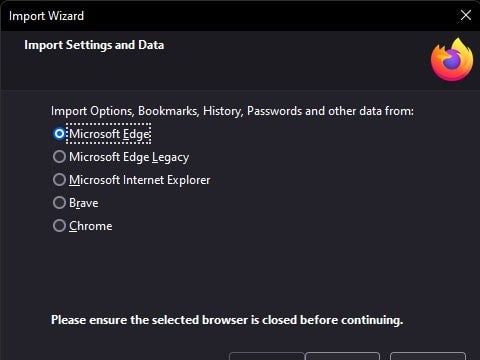
The next step is importing your bookmarks and settings. I’m weary when performing this action, as I always fear how it will affect my original bookmarks and options on Avast Secure Browser. However, it worked quite smoothly when I did so from Microsoft Edge to Avast, and you’ll only need to supply the email address you have linked on your previous browser.

Mozilla Firefox Review

Choosing your theme

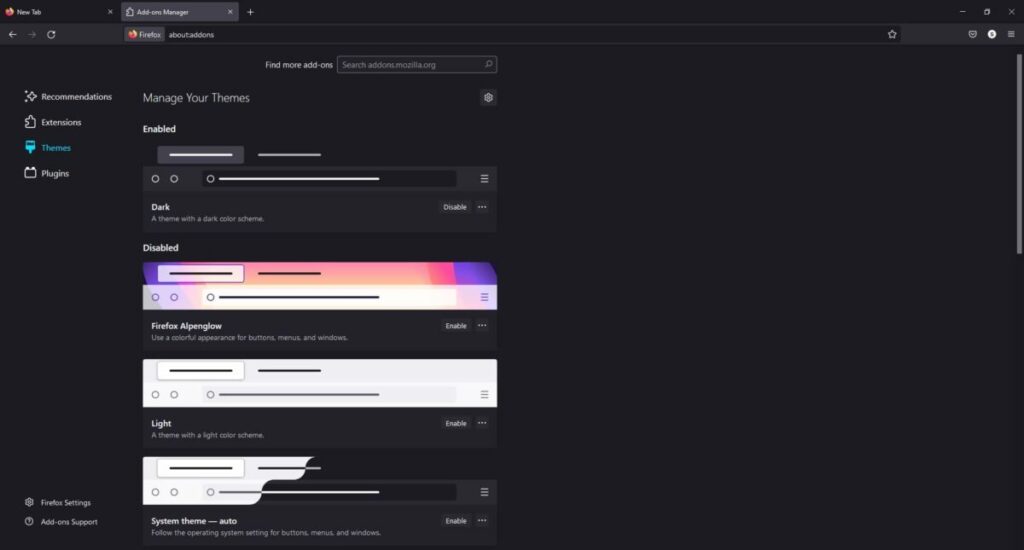
Finally, you’ll need to choose one of the themes that Mozilla Firefox lists. I usually like to work in normal or dark mode, depending on what I’m working on. There’s a fourth option with stunning colors. As you click on a theme, you’ll get a preview on the browser of what it will look like.

Mozilla Firefox Review

Default tab page

Now that you have Mozilla Firefox set up for use, you’ll enter the default New Tab page. You’ll see icons under the search panel with links to social media platforms. While the section underneath is empty at the start, the browser will pay attention to the content you visit the most. Within a few days, you’ll see recommendations for other sites.

Which Mozilla Firefox features stand out?

As you can see, Mozilla Firefox is easy to set up. In many ways, the platform looks and behaves like Google Chrome, but there are a few differences. Let’s take a look at some of the more outstanding features.

Central search and address bar

As it has become common practice with most browsers these days, the address bar also doubles as a search field. You can either place a URL or enter what you’re looking for. Either way, it will take you to the site or show you the top results for your search intent. If you’ve entered something similar before, it will complete the field for you.

Bookmarking pages

Another feature you’ll find in Google Chrome, Avast Secure Browser, and Mozilla Firefox is the small star that bookmarks pages for you. When you click on it, it will ask you to provide a name and folder location. It makes it easier to organize your bookmarks later when you have hundreds of them.

Mozilla Firefox Review

Saving and synchronizing your account

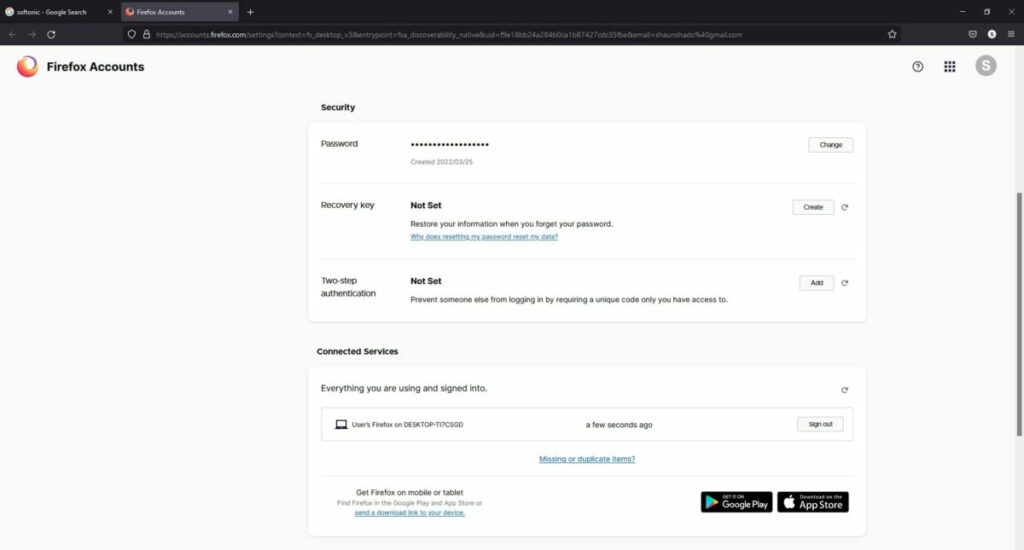
If you want to open your bookmarks and saved pages on a different device, you’ll need to create a Mozilla Firefox account. It will send you a code to verify your email, and then it will synchronize your information. Now you can sign in on a different computer, tablet, or phone, and revisit all your data and sites. The process is painless and finished within a minute or two.

You can expect Firefox to bombard you with a few emails when you’re done. It will ask if you want to import your bookmarks or change the default browser. It’s nothing if not persistent in making sure you only use that browser for searching the web.

Mozilla Firefox Review

Toolbar customizations

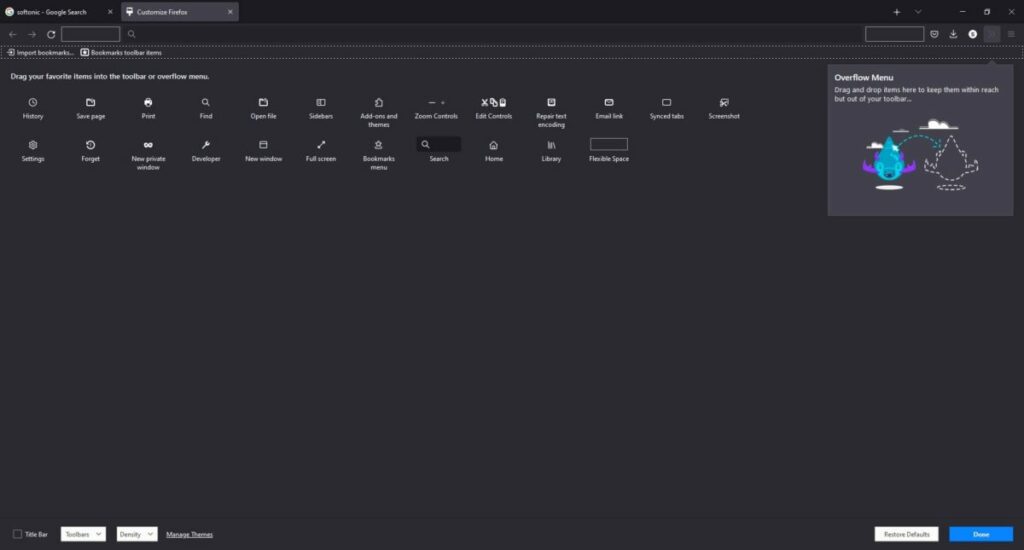
One of Mozilla Firefox’s features that I found fascinating is the Overflow Menu. When you click on the Menu button, More Tools, and then Customize Toolbar, there are several shortcuts to add. For example, you can insert email links, your history, page saving, go to full screen, or enter developer mode. I don’t recall seeing options like this on other browsers.

Mozilla Firefox Review

Add-ons are like Extensions

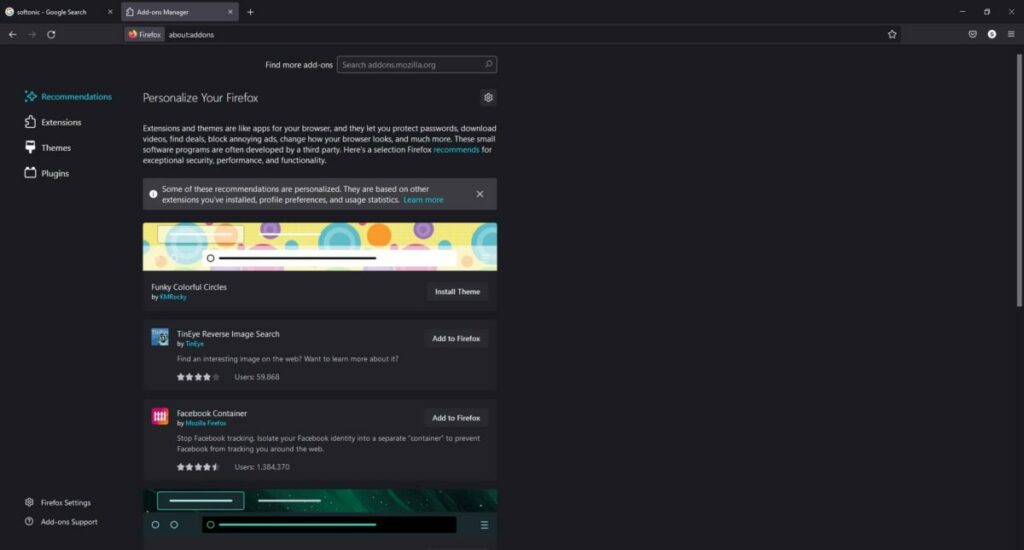
You may recall a specific function called Extensions that Google Chrome introduced. Mozilla Firefox has add-ons, but it offers so much more. Even the location where you can browse the library looks more impressive.

Mozilla Firefox add-on four areas:

  • Recommendations: These are themes and extensions that Mozilla Firefox recommends you try.
  • Extensions: These add-ons add more functions and integrate with apps for a better experience. You can add a translator or YouTube audio player, as a few examples.
  • Themes: Besides the basic browser themes, you can find additional colors and banners from other creators that Mozilla has approved.
  • Plug-ins: This is different from the other add-ons by changing specific elements of how Firefox functions. For instance, you can install sound codecs for different formats.
Mozilla Firefox Review

Is Mozilla Firefox safe to use?

I’ve decided to devote an entire section of my Mozilla Firefox review to security aspects. With so much malware on the rise, it’s essential that browsers protect your information. Here’s what Firefox has in place.

Search for account breaches on Mozilla Firefox

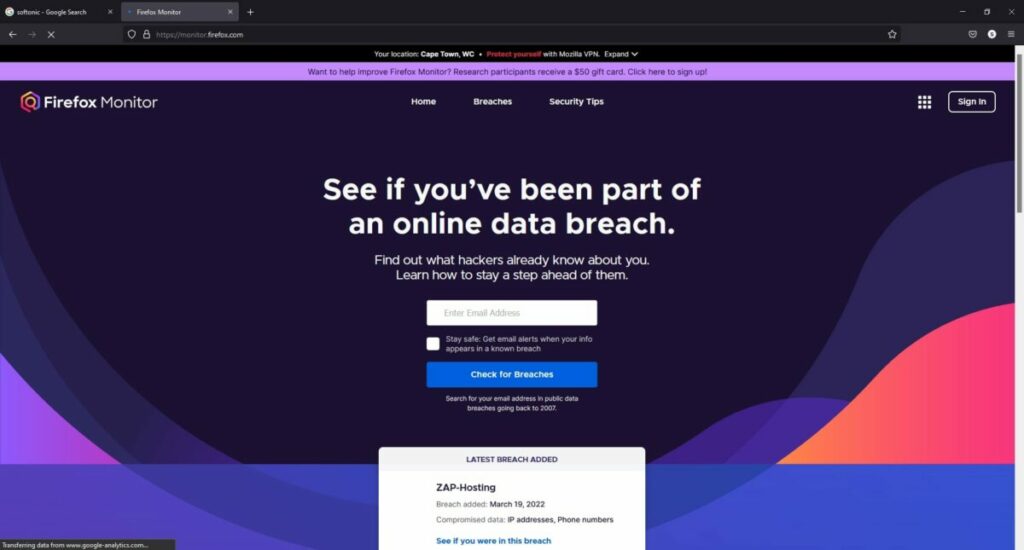
One of the free offerings that come with Mozilla Firefox is searching for any data breaches related to your email account, no matter who you signed up with. It will give you a report telling you if any passwords have leaked or of any other dangers you should know about. If you want to be a researcher for this program, Mozilla will reward you with a gift card.

Mozilla Firefox Review

Email monitoring

Part of the Mozilla Firefox Monitor deal that you can sign up for includes receiving alerts for any breaches. It can monitor several emails at the same time, even while you’re accessing them on the browser. You don’t necessarily need to be using the Firefox browser to access this feature.

Hide your email address with Mozilla Relay

Another security feature you can connect to the Mozilla Firefox browser is Mozilla Relay. It lets you create several aliases so that the recipients don’t see your real email address. In this way, you can prevent phishing and other nefarious activities linked to stealing account information. So when you’re on the browser and you want to enter an email address for a newsletter, you can use an alias instead.

Going undercover

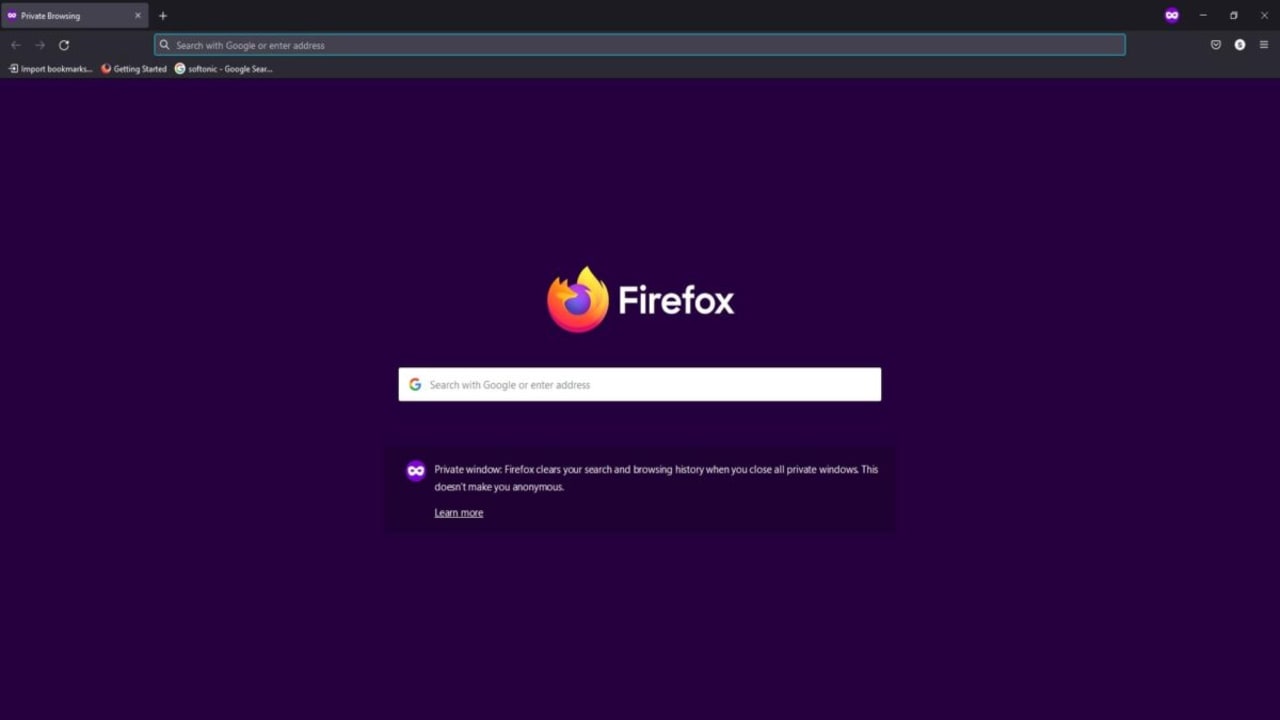
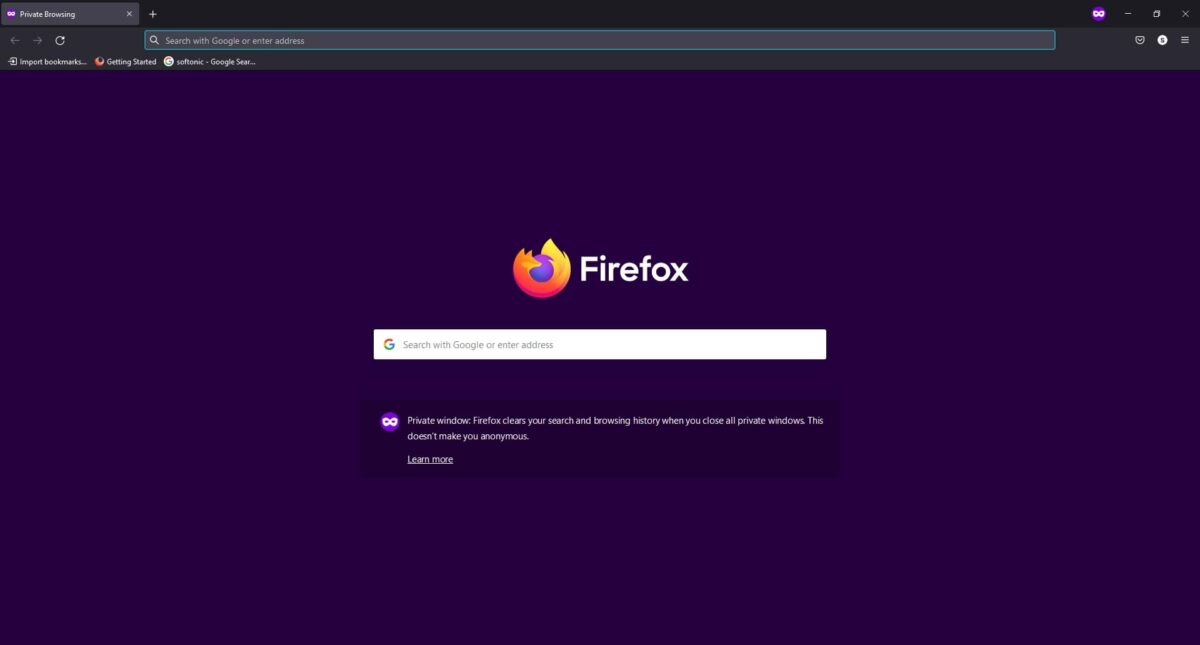
Much like Incognito mode, Mozilla Firefox offers a private window that doesn’t store cookies or site information. It’s good for when you want to do online banking or shopping without anyone spying on you. Of course, you won’t have access to save passwords, which is also a good thing.

Mozilla Firefox Review

Mozilla VPN

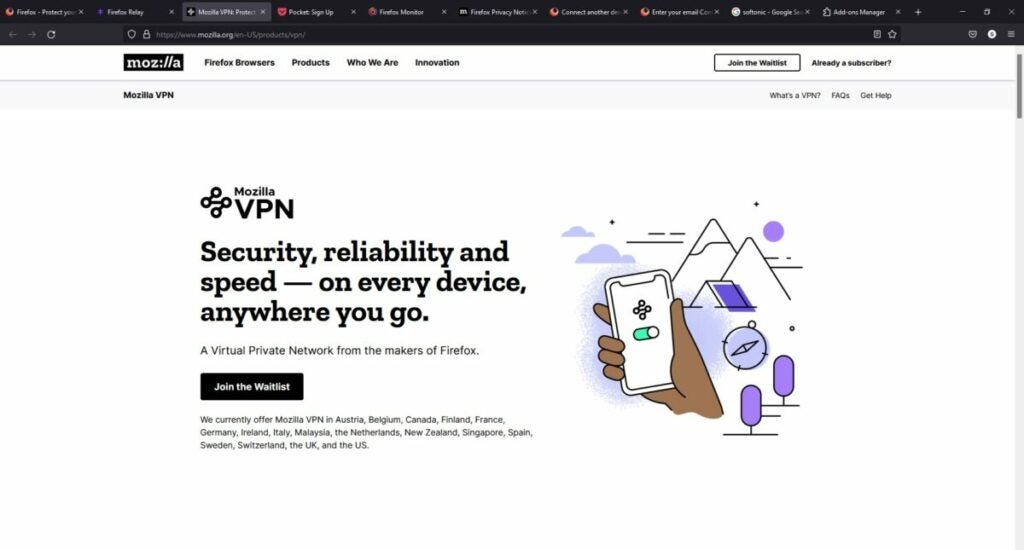
If you want to hide your I.P. address completely or access content in other countries, you’ll need to sign up for Mozilla VPN. You can use the VPN service on the Mozilla Firefox browser, and you’ll receive complete anonymity from spying eyes. The only issue is that it’s not available in all countries at the moment.

Mozilla Firefox Review

Watching for trackers

In the top left corner of the search bar, there’s a small shield icon. It’s a notification panel for if Firefox spots any trackers on a site you’re visiting. When all is clear, it will remain blank and tell you there’s no danger. You’ll get a warning if cookie tracking is used.

Does Mozilla Firefox share data?

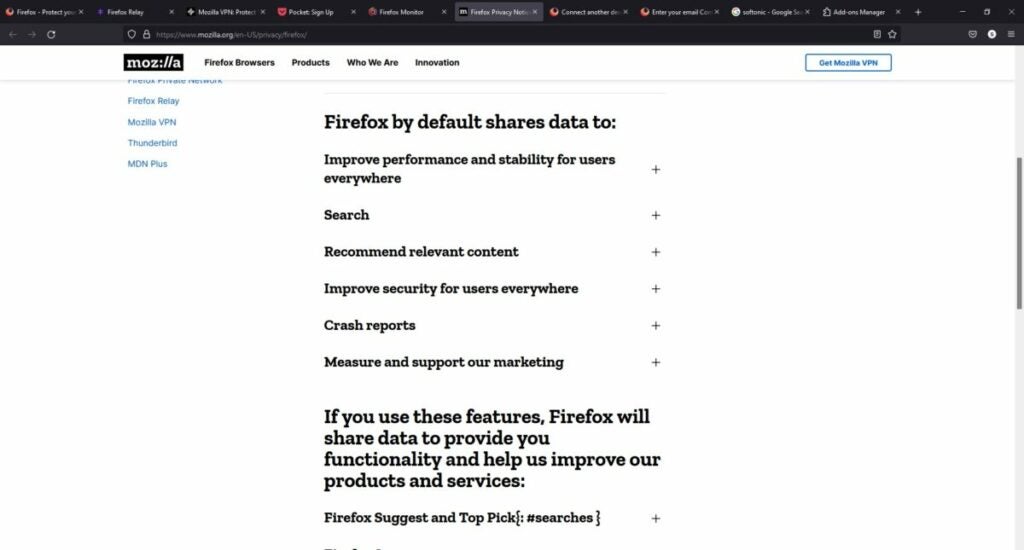
While Mozilla Firefox goes out of its way to ensure your data remains secure, that doesn’t mean your information isn’t shared. There’s a clear policy on how it uses this data. For the most part, it’s for technical reasons, crash reports, and recommending new content. However, there are some marketing campaigns it participates in where the information is valuable to them.

Mozilla Firefox Review

Mozilla Firefox: delivering a fast browsing experience

Mozilla Firefox is an outstanding browser that delivers a fast experience thanks to using low system resources. It pays detailed attention to the security needs of the user, even if some of the features aren’t available worldwide. Some of the qualities are similar to other browsers, but the add-ons platform and customizable toolbar stand out among the rest. 

Even though it offers so many security tools, you still stand the risk of someone hacking your information and passwords if you aren’t careful. Safety starts with you. Read our guide on how to stay safe online at all times. 

Pros

  • East to set up
  • Synchronizes across devices
  • Imports bookmarks and settings
  • Several security features
  • Stunning add-on platform
  • Ability to customize the toolbar
  • Recommended content

Cons

  • Limited access to VPN
  • Shares data for marketing and technical purposes

Developer: Mozilla Corporation

Publisher: Mozilla Corporation

Top features: Search bar, security services, synchronized account, bookmarks, add-ons

Platform reviewed: Windows 11

How to Refresh Mozilla Firefox Automatically

When you are browsing on Mozilla Firefox, you may find yourself on a website that has to refresh for you to see the latest information. If this happens frequently enough, you may want to set your browser to reload automatically.

Let’s take a look at how to set Mozilla Firefox to refresh automatically.

  1. Click on the Firefox Icon

    How to Refresh Mozilla Firefox Automatically

    Open the Mozilla Firefox web browser on your chosen computer or device. Click the orange Firefox icon in the top-left corner of your browser.

  2. Select ‘Advanced’

    How to Refresh Mozilla Firefox Automatically

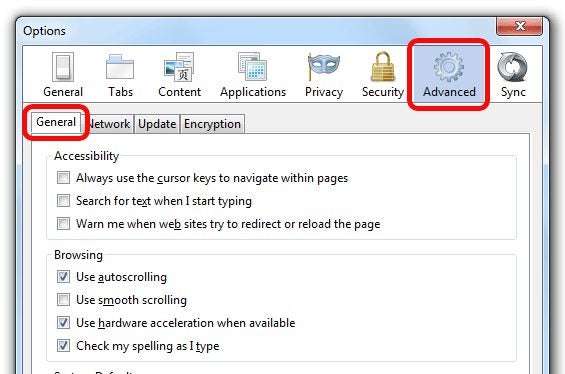
    In the drop-down list, choose ‘Options’. From the new list that appears, choose the ‘Advanced’ option. Navigate to the ‘Accessibility’ section of the window and click on the ‘General’ tab.

  3. Remove the Checkmark

    How to Refresh Mozilla Firefox Automatically

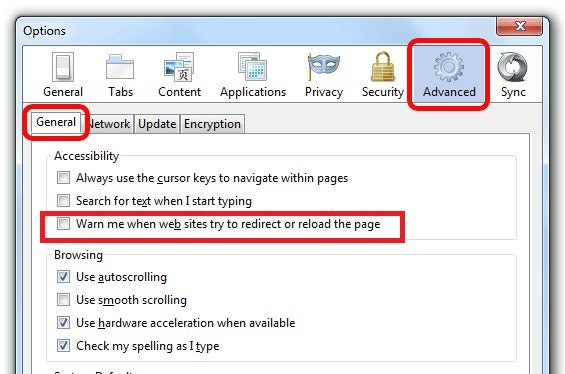
    Remove the checkmark next to the section ‘Warn me when websites try to redirect or reload the page’. By removing this option, your browser will now automatically refresh web pages.

    If you would like to have some more features when it comes to refreshing your webpages, such as setting the refresh intervals, it might be worth considering a Firefox add-on. A few free add-ons enable you to refresh pages, set reload intervals, and more automatically. You could look at Tab Auto Reload or Auto Refresh as optional add-ons that have these extra features.

Keep on Track With All the Latest Information Automatically

By enabling automatic refresh of web pages in your Mozilla Firefox web browser, you can ensure to stay on top of all the latest up-to-the-minute information from around the world. Enable automatic reload now and remove the need to refresh pages to see the newest content manually.

How to Remove Certificate Error in Mozilla Firefox in 3 Steps

If you are browsing with Firefox, you may come across a certificate error that usually comes with an ‘Invalid Certificate’ or SSL error. This is because Firefox automatically attempts to validate any websites that show a certificate for your security. 

So, what can you do to keep Firefox from rejecting these sites and giving a certificate error?

  1. Click on the Hamburger

    How to Remove Certificate Error in Mozilla Firefox

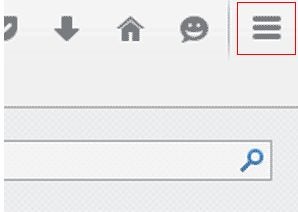
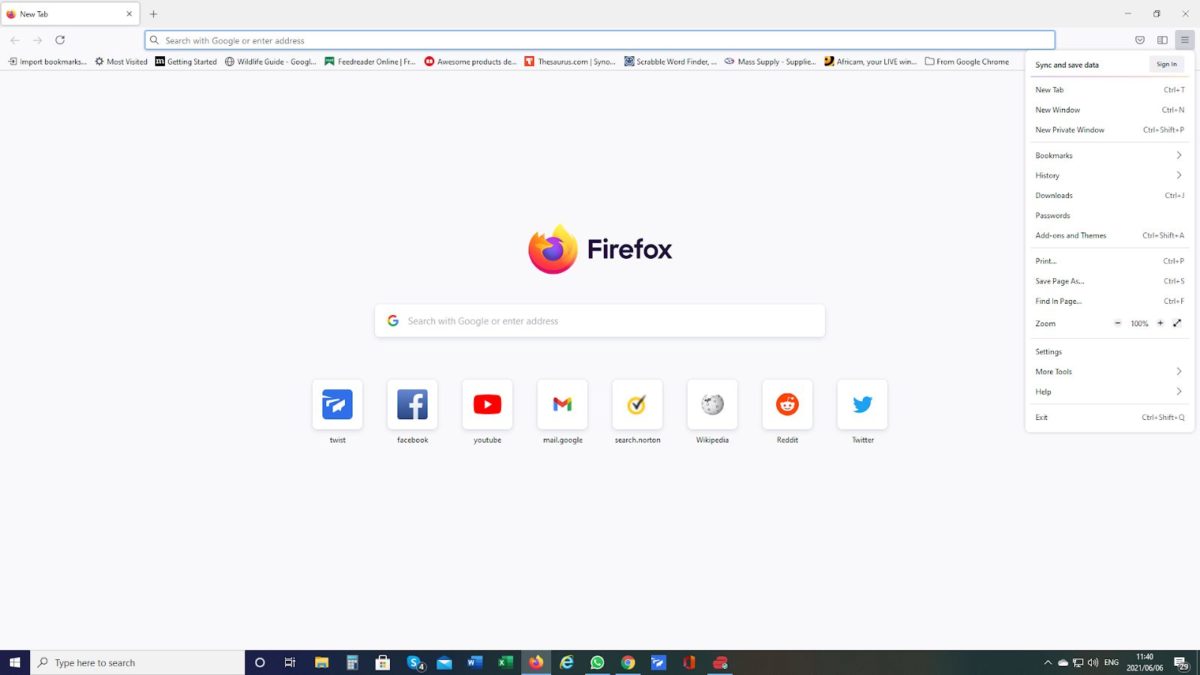
    Open the web browser on your computer by clicking on the shortcut on your desktop, the icon on your hotbar or dock or from your app menu. Click on the three horizontal lines (hamburger) at the top right of the screen. This will open up a drop-down list of your browser settings

  2. Click on ‘Options’ and Then ‘Advanced’

    How to Remove Certificate Error in Mozilla Firefox

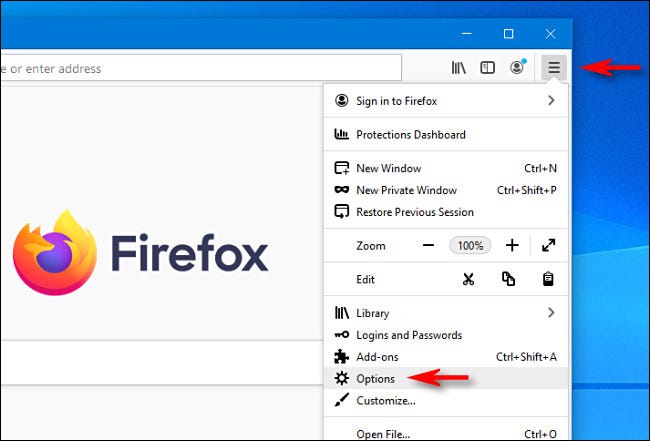
    In the drop-down list, click ‘Options’. Next, click ‘Advanced’.

  3. Remove Certificate Validation

    How to Remove Certificate Error in Mozilla Firefox

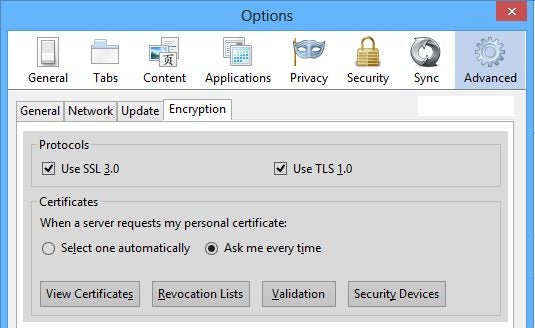
    Now click the ‘Encryption’ option from the options provided. In the encryption window, click the ‘Validate’ button. Remove the checkmark next to ‘Certificate Validation’ and click ‘Ok’.

    From now on, Firefox will accept all certificates without validating them first. You will no longer get an ‘Invalid Certificate’ error when trying to gain access to different sites.

Resolve the Certificate Error Easily and Browse Freely

By following the above steps, you will resolve the certificate error when using Firefox. You can get back to exploring different websites without fear that your browser will block them because of a certificate or SSL validation error.

Why not try following these steps the next time you get a certificate error and see how quickly it can be fixed.

How to Set Mozilla Firefox as Default Browser In 4 Methods

If you want to set Mozilla Firefox as your default browser instead of others like Google Chrome, Microsoft Edge, or Safari, there are 4 easy methods to use. These options depend on whether you use a Windows PC, a Mac, an Android device, or an iPhone. The steps, detailed below, are slightly different on each platform.

  1. Changing to Firefox in Windows

    How to Set Mozilla Firefox as Your Default Browser

    – Click on the menu button in your current browser.

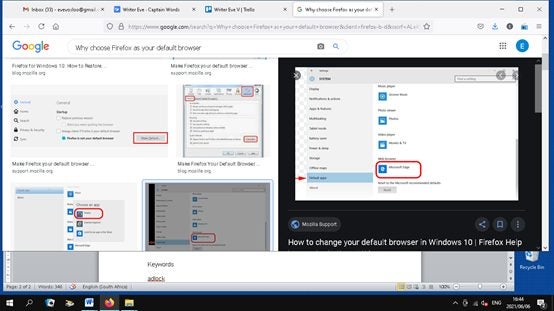
    – Select Options. Click Default in the General panel. Windows Settings will open with a screen that says Choose default. Click Web browser.

    A list will open in a dialog box. Choose Firefox. Click the X on the top right to close Settings and save the changes.

  2. Changing to Firefox on a Mac

    How to Set Mozilla Firefox as Your Default Browser

    – First, install Mozilla Firefox on your computer. 

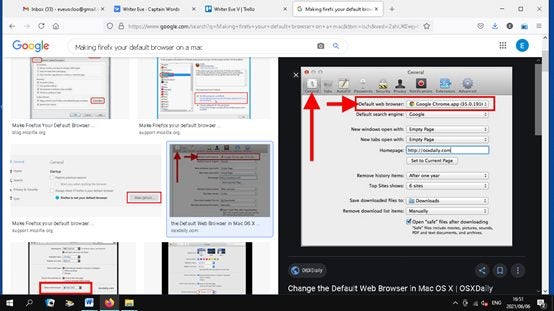
    – Select System Preferences in the Apple menu and then click General.

    – A list of Web browsers will appear in the Default web browser menu.

     – Choose Mozilla Firefox.

  3. Changing to Firefox on an iPhone

    How to Set Mozilla Firefox as Your Default Browser

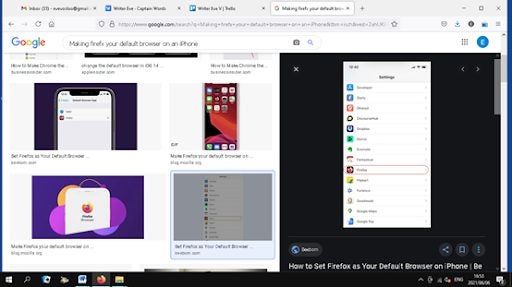
     If you don’t have it, download the Firefox app for your iOS browser. Make sure you have the latest version. In Settings, go to the Firefox app. Tap on the Default Browser App and select  Firefox.

  4. Changing to Firefox on Android

    How to Set Mozilla Firefox as Your Default Browser

    – Tap Menu on the right at the top of the screen. –

    – Tap Settings. Then tap the switch to Make Firefox Focus the default browser. This will open the Default apps screen.

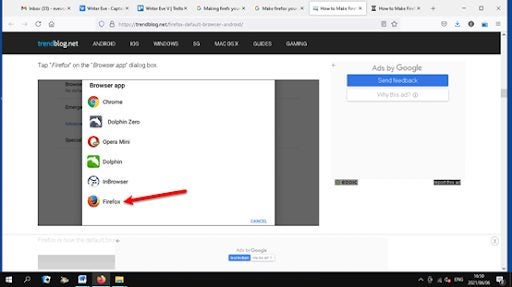
    • Tap Browser app. Tap Firefox Focus to select it.

Why make Firefox Your Default Browser?

The choice of a default browser is a very personal one. Some people start with one browser and don’t ever try another. Although all browsers allow you to navigate the internet, there are differences between them.

Mozilla Firefox is a highly regarded browser, especially for its high speed, which beats its competition. It also automatically guards against tracking like fingerprinting and crypto mining by blocking more than 10 million trackers daily.

How to Disable AdBlock in Mozilla Firefox in 3 Steps

AdBlock is a browser extension supplied by Firefox that blocks adverts and stops advertisers from tracking you across the web. This improves your browsing speed and protects your privacy.

But if you want to see the ads, it is straightforward to remove AdBlock and allow the adverts to pop up.

  1. Find your Add-ons and Themes

    How to Disable AdBlock in Mozilla Firefox

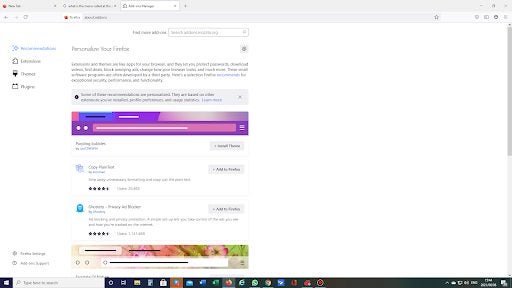
    Click on the three horizontal lines on the top right-hand corner of your screen, called a Hamburger Menu. This will open a menu and from that menu, click on Add-ons and Themes.

  2. Select Extensions

    How to Disable AdBlock in Mozilla Firefox

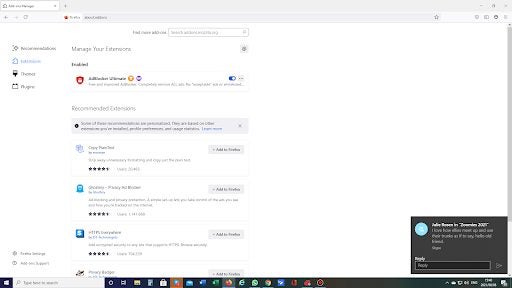
    Extensions add features to Firefox or modify existing features. AdBlock is an extension in Firefox.

  3. Modify AdBlock

    How to Disable AdBlock in Mozilla Firefox

    Here you have two options; you can disable AdBlock, which means it will remain part of your Firefox but not work until you enable it again, or you can choose to remove it altogether.

    To disable AdBlock, click on the blue slider to move it to the left, and the slider turns grey.

Be cautious with blocking

Sometimes, a site may ask you to disable the ad blocker so you can do something, like leave a review. If you have AdBlock already disabled, it may be Firefox’s Enhanced Tracking Protection feature that is causing you trouble.

To see what this Firefox feature is stopping, click on the shield on the far right of your screen. This will show you what is being blocked on a specific page. You can then modify protections for that site.

Before you delete AdBlocker, please think about what you are doing. If a particular site requires you to turn off the AdBlock, I suggest you think about why. Many adverts today come with an unpleasant load; malware. If you absolutely have to do something on this site, disable AdBlock while you undertake this dangerous mission and then enable it as soon as you can.