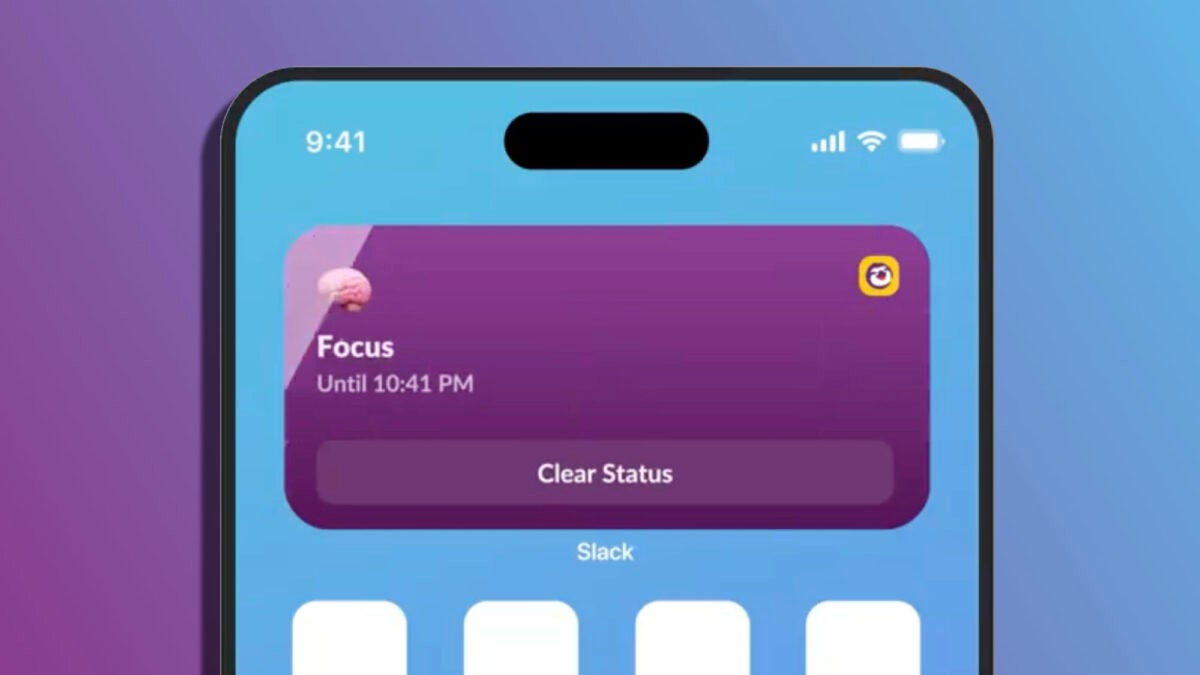
Slack, the popular messaging app for businesses, has released an update for the iPhone that includes four new widgets designed to improve efficiency when interacting with the app from the home screen or lock screen.
The first of these widgets is called ‘Catch Up’ and is designed for you to quickly see how many unread messages and mentions you have pending. With a touch, this widget gives you direct access to the “Catch Up” feature of Slack, where you can review all important notifications. It’s a quick way to stay up-to-date with work conversations without having to constantly open the application.
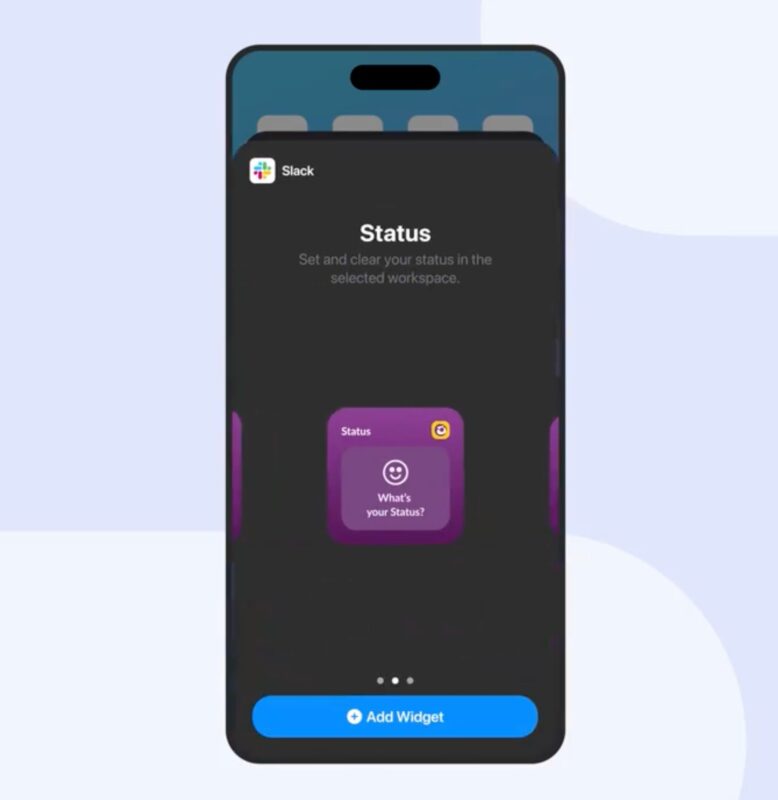
For the second and third widget, Slack offers two sizes of a feature called ‘Status.’ The first, small size, allows you to quickly navigate to your status in Slack to update it quickly. The medium version of the widget offers the same functionalities, but includes a preselected menu of status options for a faster selection.
The fourth widget is especially useful for the lock screen, as it allows you to open the Slack app with just one tap, eliminating the need to search for and open the application from the home screen.
As ChatGPT integrates into Slack and joins the AI fever, keep in mind that to configure these widgets you need to have the latest version of Slack installed on your iPhone or iPad. Then you simply press and hold the home screen or lock screen to search for and add the new widgets. Widgets that, without a doubt, you will want to configure with the “Work” concentration status so they will automatically disappear during your free time, but that, while you are working, allow you to have an even smoother communication with the rest of the team.
Communication platforms between organizations, such as Slack, are essential for successful teamwork. Aware of this, Salesforce, the parent company of Slack, has made available to all its paying customers the “Slack AI” tool, which was previously only available for Enterprise plans.
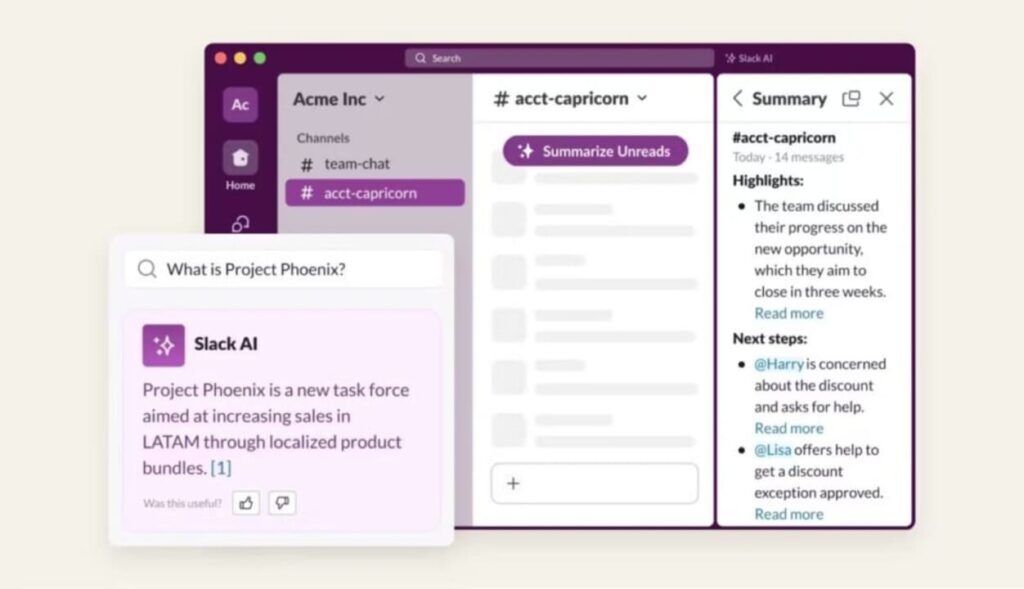
Slack’s AI is a paid add-on that includes artificial intelligence features aimed at improving the user experience and team work efficiency. Its AI features address common problems on the platform, such as message overload, difficulty finding relevant information, and tracking multiple channels.
For example, Slack’s AI recap feature provides morning summaries of the channels you follow, allowing users to stay up to date without investing too much time, and also facilitates information retrieval through conversational questions and relevant message quotes.
On the other hand, the conversation summaries feature provides quick access to important threads and channels, offering details such as action items and highlights.
In addition, Slack is committed to protecting the security and privacy of user data, ensuring that AI does not use the data to train language models or serve other clients. Slack’s language models are hosted on their own virtual private cloud, ensuring that customer data remains secure.
Slack’s AI is available for all paid plans at a price of $10 per user per month for Slack Pro and Business+ plans. Currently, the add-on is compatible with English, Spanish, and Japanese, although more languages are being developed.
With Slack’s AI, the company aims to optimize communication and teamwork, offering intelligent tools that facilitate collaboration and productivity on the platform. Slack promises to continue improving its AI, expanding its search and summary capabilities to include more data sources, such as files and clips, and even huddles.
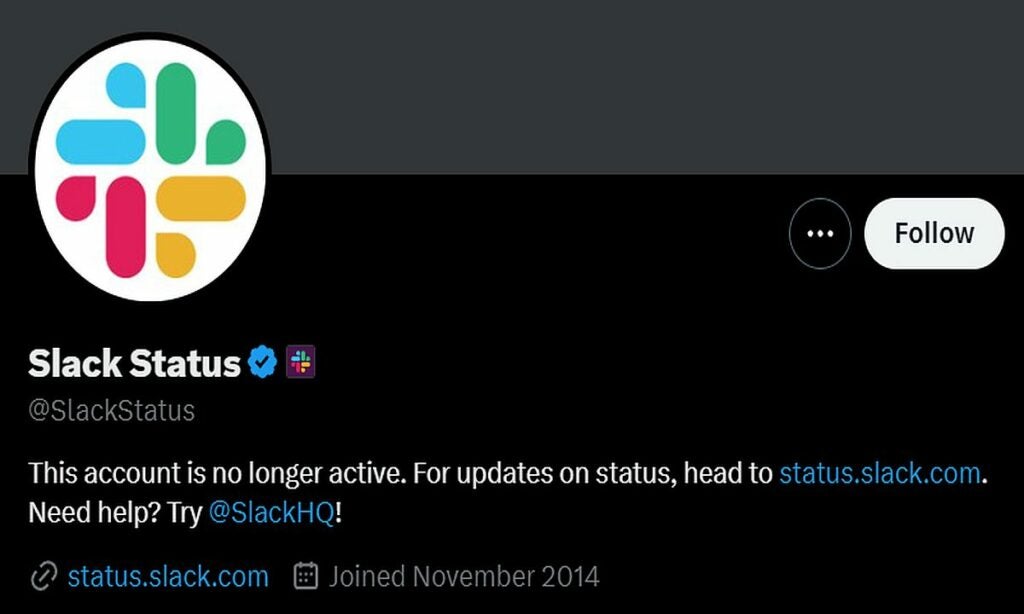
Slack, the beloved communication platform that has become an integral part of modern work life, is embarking on a strategic journey to revamp its approach to customer communication. In a recent announcement, the company disclosed its decision to retire the familiar @SlackStatus account, which has long been the beacon guiding users through platform issues and outages.
We'll continue to share other Slack news and provide support through our main account, @SlackHQ. You can also reach us at feedback@slack.com with any questions or feedback you may have. ?
Slack’s decision to retire its @SlackStatus account is a strategic move aimed at improving customer communication and resource allocation. Let’s dive into the details of this decision:
Streamlining communication: Slack’s @SlackStatus account served as a channel for sharing updates about issues and outages on the platform. While this account was undoubtedly a useful resource for users, it also represented a separate communication channel. By retiring this account, Slack is opting for a more streamlined and efficient approach to communicating with its user base. The aim is to consolidate communication channels to make it easier for users to access information.
Resource focus: One of the key reasons behind this decision, as stated by Kevin Albers, the VP of Customer Experience at Slack, is the need to “focus resources on those most widely used by our customers.” Maintaining a dedicated status account requires manpower and resources. By retiring it, Slack can allocate these resources more effectively towards areas that are more widely utilized and valued by its customers. This could involve enhancing the primary status page, improving customer support, or developing new features.
Centralized information: Slack’s primary status page, located at https://status.slack.com, will now serve as the primary source for incident-related news and updates. This centralization of information ensures that users have a single, reliable destination to access information about any problems or outages. It simplifies the user experience by eliminating the need to follow multiple accounts or search for updates across various platforms.
Slack is maintaining its commitment to open and responsive communication with its users. While the dedicated @SlackStatus account is retiring, Slack assures users that they can still ask questions related to incidents via its main account, @SlackHQ. This demonstrates the company’s dedication to providing a means for users to engage directly and seek clarification or assistance during incidents.
To cater to users who prefer different ways of staying informed, Slack offers RSS and Atom feeds, which are accessible through links provided on the Slack Status homepage. This feature allows users to receive incident alerts through their preferred RSS readers or feed aggregators, giving them flexibility in how they stay updated on Slack’s status.
In summary, Slack’s decision to retire the @SlackStatus account is driven by a desire to enhance the user experience, allocate resources efficiently, and centralize incident-related communication. It demonstrates a commitment to simplifying and improving communication methods while ensuring that users can easily access the information they need. Slack remains dedicated to maintaining an open and responsive dialogue with its user base and provides alternative means for users to receive incident alerts. This decision is part of Slack’s ongoing efforts to deliver a better overall customer experience.
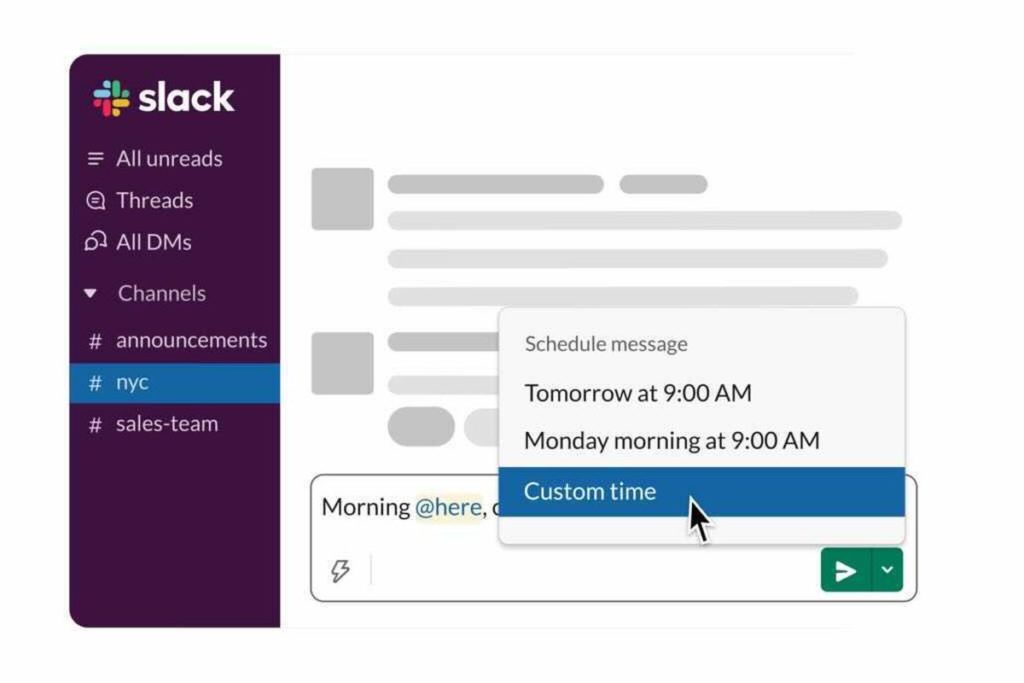
One aspect that Slack users have been sorely missing is the ability to schedule messages. Since teams have members that work remotely worldwide, it isn’t always appropriate to send one when you’re working past midnight. Fortunately, the developer is adding a new feature to add your post at a scheduled time.
Not everyone will receive the update at the same time. Slack will release it gradually, testing the new feature in each region as it rolls out. In this way, it can detect and fix any issues along the way instead of receiving hundreds of complaints from various countries.
While we don’t know yet what the roadmap is for official launches, the developers have indicated it will take place on desktop and mobile. The best way to know if you have the new function is to accept any new updates in Slack and see if you can schedule a message.
So, how will it work? Well, the mobile and desktop versions vary. On smartphones, the opportunity to set the posting time appears after you try to send the message. When it comes to computers, you can set the schedule before you post a message.
We haven’t seen this feature in many other messaging apps, so Slack may be setting a new trend here. We’ll be keeping an eye to see when others start providing the same feature for group chats.
No, it wasn’t just you. This morning (June 27), Slack went down for about three hours. Slack reports the outage is over, so you can stop forming tribes, barricading your office door, and forging weapons from office supplies to defend against… whatever the hell a post-Slack world looks like.
For those of us who depend on Slack for easy, instant communication, the temporary outage felt like being thrown into the pre-internet dark ages. Predictably, lots of people turned to Twitter to express their angst.
Since Slack’s been down I’ve written 2 bestsellers, won an Oscar for Best Original Screnplay, launched a cannabis lifestyle site & founded a dog sanctuary. What’s everyone else been up to?
When you’re working, you’re probably bombarded by lots of different communication. Some companies adore email, some workplaces prefer Skype, others might lean toward internal IM platforms. It’s a big mess.
How do you tie those all together?
Welcome to Slack – a group chat platform that brings large teams together in a central meeting point, allowing trackable communications through a single medium.
You might already use Slack in your organization. But you may only be scratching the surface of the platform’s actual capacity.
So we present to you: ten cool ways that people are using Slack.
10 cool ways people are using Slack
1. Set reminders
There’s no point in having an integrated messaging system if you need to rely on another application to help you keep track of your daily tasks.
Slack has a simple reminder tool which is activated by typing
/remind
in the chat field.
Source: Slack app
The reminder message follows this structure:
/remind <me/person/group> at <time> to <task>
You can “remind me” or “remind Jamie Smith.”
If you’ve set up Channels, you can remind entire Channels using their hashtag, as in the image above. You’ll receive the reminder via email or the downloadable app on your mobile device or desktop.
This is a great feature that helps to keep the team and your work diary in one place: perfectly synced and integrated.
2. Quick text edit
When conversations are moving fast, we all make the odd typo.
Editing of any previous message is simple to initiate. Just press the UP cursor when the chat field is active, and your message pops up, allowing you to edit the text. Scroll up and down to edit historical messages.
3. Using stars to create a to-do list
Every message sent through Slack can be manually “starred” by clicking the grey star symbol next to the time and date of the message. It’s basically like a bookmark for you to access later. When you click the star, it turns yellow.
Source: Slack App
This is a useful feature if someone has asked you to complete a task, or if you need to remind yourself of a specific piece of information.
All of your starred messages are then accessed via the Star button at the top of the feed.
Source: Slack App
Clicking the Star button reveals the messages you have manually starred, providing an instant “to-do” list.
4. Search modifiers
When you have hundreds of conversation threads, it can be difficult to find specific messages.
Perhaps you remember asking a colleague to complete a task, but can’t remember whether it was to email a document, or print a document.
You could spend hours trawling through many message threads to find the right message, or you could use a search modifier.
Source: Slack App
You can use the following search modifiers:
The from: modifier allows you to find messages from specific users, by their @username, or by full name.
The in: modifier enables you to search through specific Channels. The list of available channels instantly appears.
Source: Slack App
The has: modifier permits you to find starred (has:star) and pinned (has:pin) messages, as well as those that contain links or an emoji reaction.
5. Filter your notifications
One of the problems with group chat is that everyone in a Channel receives a notification every time someone adds a new message to that Channel.
This is great if you want to update people, but can be distracting if your messenger is constantly pinging at you.
The Notifications settings allow you to control how often you’re alerted.
Source: Slack App
You can choose to control notifications in a variety of ways:
All new messages: You’ll receive a notification every time a new message is sent.
Direct messages, mentions & keywords: This is a powerful feature, allowing you to filter the general noise of a conversation, and receive notifications only if a teammate mentions you via your @username, sends you a direct message, or uses one of your specified keywords.
Nothing: This means that you receive no notifications
My keywords: This filter allows you to choose notifications when specific words are used in a conversation. You define those keywords manually.
If you’re working on a project that requires your input whenever someone mentions “Task 2,” then Slack will let you know whenever “Task 2” is mentioned.
Additionally, you can set Do Not Disturb periods, and define where you receive a notification if you’re not active on your desktop, with the choice to receive an email or a message to a mobile device.
6. Create your own customer Emojis
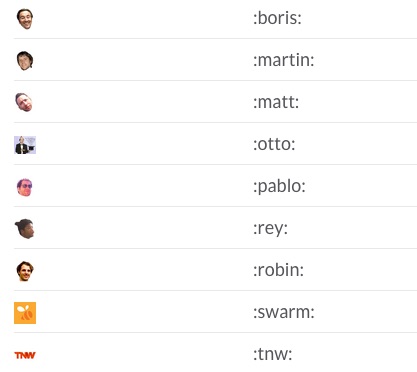
Although work is serious stuff, there’s always some room for a bit of fun, and Slack’s funky custom emoji function is a great way to bring a team together.
Anyone in your Slack team can create their own custom emojis (if your administrator doesn’t forbid it). Why not set up an emoji of each team member making a funny face?
There are lots of quirky ways to express your personality within Slack that can help to bring the team together.
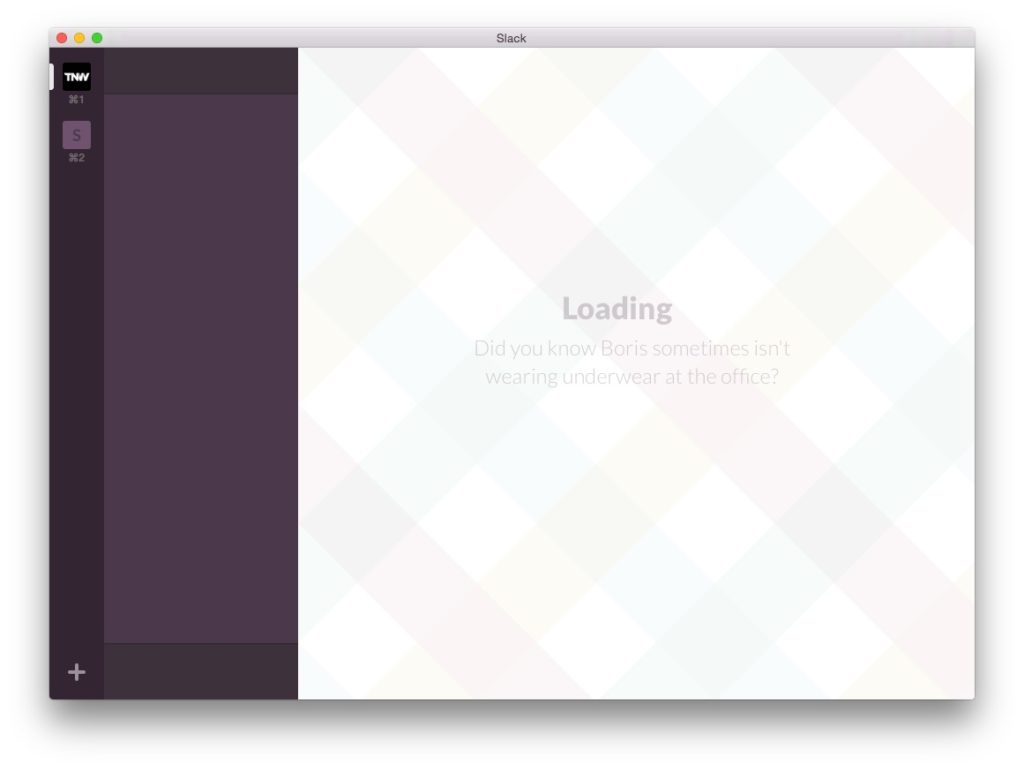
The default “loading message” when your users log in to Slack can be customized with an interesting fact, a piece of random trivia, a reminder for a deadline, or a joke.
To do this, you’ll need admin credentials, but click here, select Loading Messages, and type what you want under Add a custom loading message. Click Add Message to save your masterpiece.
8. Add apps
Slack becomes super-charged when you integrate other apps. You can facilitate file sharing by connecting Slack to Dropbox and Google Drive; add fun gifs; integrate with Google+ Hangouts and Google Calendar; even run a poll. And you can even integrate communications between teams with Asana or Trello.
Here are some of our favorite add-on apps.
Giphy
Source: Slack App
By using the command
/giphy
followed by a phrase – in this case, /giphy love – you can send fun gifs that spread some appreciation or share successes. Hit the shuffle button until you find just the right gif.
Dropbox
Dropbox is an excellent file sharing application that integrates perfectly into Slack.
Press the + sign next to the Chat field, choose Add file from a Cloud Service, and choose Dropbox.
Once you’ve chosen your file, you can add a message and send it to specific Channels or individuals.
Source: Slack App
Simple, neat, and quick.
Google Calendar
Google Calendar is a great team tool, and using it in Slack allows everyone access to group and personal schedules. Book meetings directly through Slack, and you’re efficiently integrating your messages, your file sharing, and your meeting diary on the same platform.
Donut
Donut helps your team to bond by introducing people who don’t know each other yet, encouraging them to meet up for coffee, lunch.
9. Kick people out!
You can throw people out of a Channel if they’re disruptive, or if they’re annoying you! Simply use the command:
/kick @username
and before you know it, they’ve disappeared from the thread.
10. Set up ChatBots
Perhaps you get asked the same question time and time again?
Or maybe your team works across several different time zones and they need a quick way of checking the time in your San Francisco office?
You need a chatbot.
Some of them, such as Hubot, can be a little complicated to set up, but once they’re up and running, they can make repetitive tasks really simple.
TimeLord is designed for teams working in differing time zones – and can confirm the time across the zones that you’ve assigned.
Source: https://blog.hubstaff.com/slack-tricks/
Once you’ve set it up, just type in an assigned hashtag into the Chat field, and the correct time at your various offices will magically appear.
So, there you have it.
Now it’s time for you to turbo-charge Slack for your team. Use Slack to set reminders, as a quick text editor, to create to-do lists, use search modifiers, deploy bots and more. Incorporate these tips into your workplace and reap the benefits of a truly unified workforce. Do you have any great Slack hacks? let us know in the comments.
Slack, one of the most popular messaging services for business, is full of little, hidden features that can make workflows easier and workdays more productive. Let us have a look at ten of the coolest Slack features you probably don’t know about.
You’ll find further info and all the links mentioned in the infographic at the botom of the page.
Slack has all sorts of formatting options that can make your messages pop, including:
Italics
Bold
Strikethrough
Click here to find out exactly how to set about formatting your Slack messages.
2. Set Reminders
It is really easy to set reminders in Slack. All you have to do is type in /remind followed by what you want reminding of and when. For example:
/remind me to shout out yeeee haaaaa in 5 minutes
3. Subscribe to Feeds
/feed subscribe followed by the URL of the feed you want to follow will have you receiving messages every time your favorite feed posts something new.
4. Quick Commands
An easy way to find out all of Slack’s Quick Commands is to simply type / into any text box on the app.
5. Pretend to be Somebody Famous
There is a great little plugin for Slack that allows you to write Slack messages as famous people. All you need to do is find a suitable image of your chosen celebrity and you’re good to go.
Have you just spilled your coffee all over your desk? Turn it into an emoji.
Are you soaking wet because you forgot your umbrella? Perfect for an emoji.
7. Custom Loading Messages
If you have administrator privileges, or if your network administrators are liberal with their permissions, you can surprise your coworkers with a custom welcome every time they open Slack. Tread carefully with this one.
Slack allows users to alter the desktop notifications they receive from the app. To do so, go to Preferences > Notifications > Desktop Notification.
10. Keyboard Shortcuts
Slack’s keyboard shortcuts are vital tools for all wannabe Slack ninjas. There are a LOT of shortcuts that put all of Slack’s great features at your fingertips.