5 ways to manage your security with Windows Defender

Windows Defender is Windows’ built-in protection against viruses, malware, and other cyber attacks on your PC or laptop. In 2020, it was renamed Microsoft Defender in updates to most Windows versions.

Windows Defender DOWNLOAD

By default, Defender starts whenever you run Windows and silently checks for suspicious activity in real-time, taking action when necessary. The app comes with plenty of customization options that you can use in case of specific attacks, conflicts, crashes, or other situations. Here are five of the most useful settings you can customize.

Enable or disable Windows Defender

You can turn Windows Defender on or off whenever you need to. This can come in handy if you want to disable its antivirus to install a program, play a game without an automatic scan slowing down your system, or troubleshoot a false positive for an app you know is safe.

You can find Windows Defender’s main menu by clicking on your Start menu and going to Settings > Update & Security > Windows Security. In the Windows Security window, click on Virus & threat protection in the sidebar on the left. Scroll down until you see the heading labeled Virus & threat protection settings, and click on Manage settings.

Toggle the On/Off button under the Real-time protection heading to activate your protection if Windows Defender is turned off or deactivate it if its already running. Unless you have a separate antivirus program installed, this button will automatically reset to the On position the next time you reboot your device.
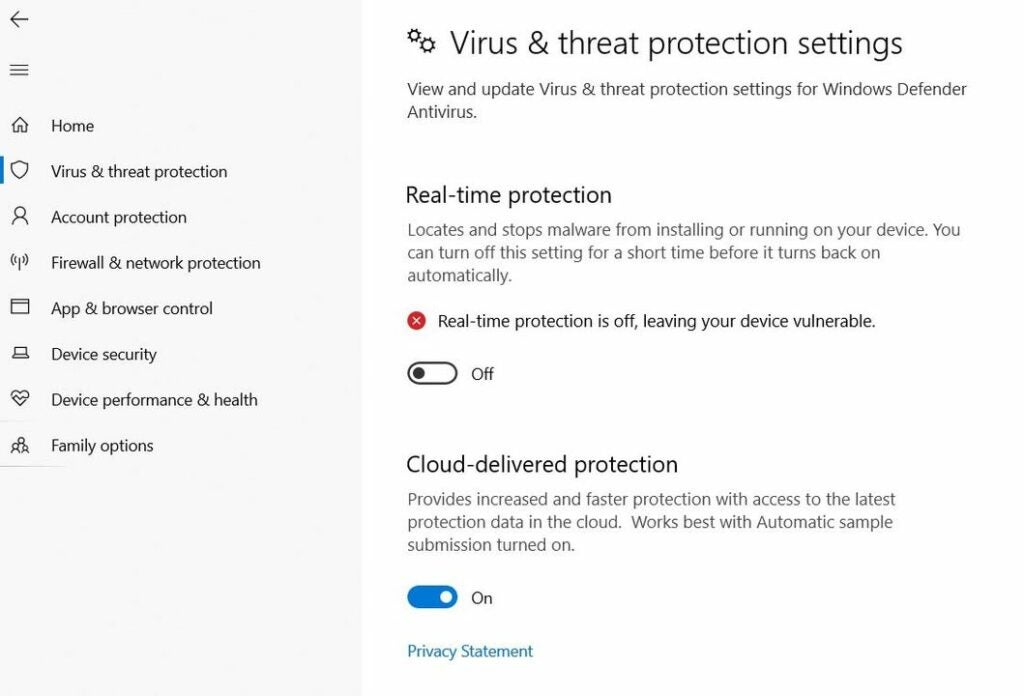
Enable or disable Windows Defender.

Exclude specific files, folders, or extensions

Windows Defender also lets you exclude individual files, folders, or file types from being scanned so you can troubleshoot without turning off all your protection. Here’s how to whitelist a file, folder, extension, or process if you’re sure it comes from a trusted source with no harmful embedded scripts.

In the same Manage settings section of the Virus & threat protection window mentioned above, scroll down until you see the Exclusions section. Click Add an exclusion.

Click on the type of item you want to exclude and Defender will open a file explorer so you can select the individual item:

  • File will let you exclude a single file.
  • Folder will let you exclude an entire folder.
  • File type will let you exclude any file ending in a given extension, like ZIP or EXE.
  • Process will let you exclude any files opened by the process you select, although Defender will still scan the process itself.
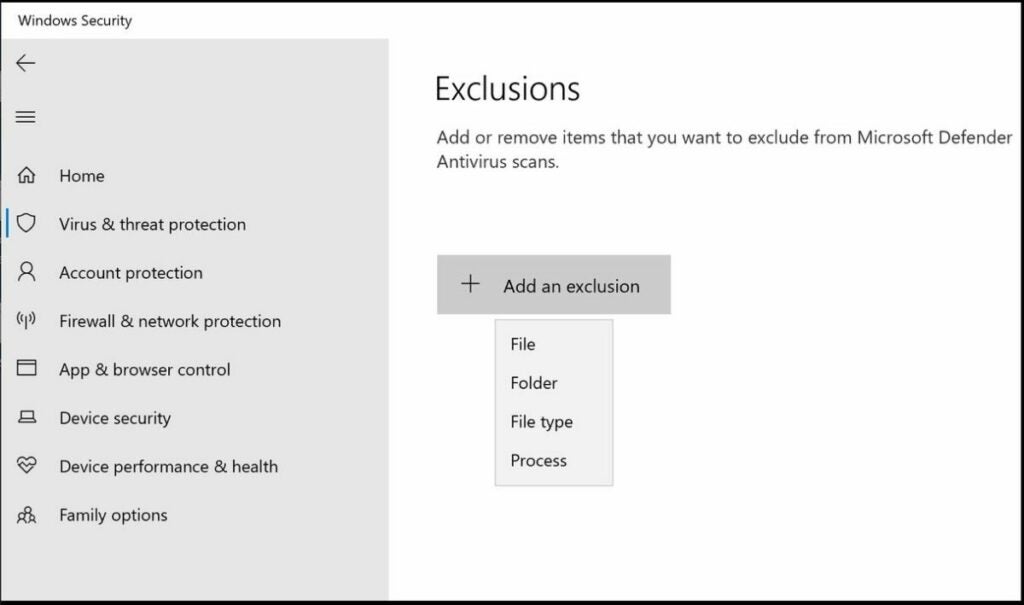
Add an exclusion in Windows Defender.

Use the right scan for the job

To scan your computer for viruses and malware on demand, go back to the Virus & threat protection window. Under the Current Threats section, click on Scan Options.

Windows Defender gives you four types of scans:

  • Quick scan runs a brief checkup of your computer’s most vulnerable areas, including the Windows folders and registry.
  • Full scan performs a sequential examination of all your computer’s files and active programs. This may take hours to finish.
  • Custom scan lets you select individual files, folders, or hard drives to check.
  • Offline scan will reboot your device and perform a full scan before loading Windows. This can be useful to find malware like boot sector viruses that bypass Windows.

Keep your files safe from ransomware

Ransomware is a relatively new kind of attack that encrypts your data until you pay the attacker for the decryption key. By default, Defender’s ransomware protection is toggled off to avoid blocking legitimate file access.

To turn it on, return to the Virus & threat protection screen, and scroll down to the heading labeled Ransomware protection. Click Manage ransomware protection.

This is where you can control access to your most valuable folders. Turning on the toggle switch under the Controlled folder access heading will prevent access to your Desktop, Documents, Pictures, Music, and Videos folders. If you want to add more folders, click Protected folders > Add a protected folder.
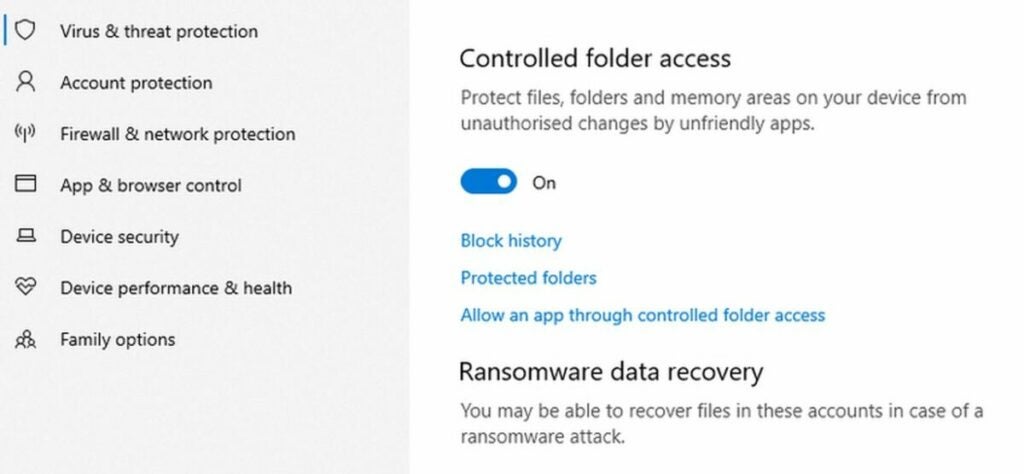
Ransomware protection in Windows Defender.

Protect yourself from an active attack with Shields Up mode

If you notice suspicious activity on your network or want to guard your device from an unsecured network while traveling, you can turn on Shields Up mode in your Windows Defender firewall.

Under Windows Security > Firewall & network protection, you should see three types of networks, Domain network, Private network, and Public network. Click on each type of network, one at a time, and find its box labeled Blocks all incoming connections, including those in the list of allowed apps.

You’ll see a box with that same label in the individual window for each type of network. Check all three boxes to enable Shields Up mode and block all incoming connections. If you want to get online again, revisit each network window and uncheck each individual box.
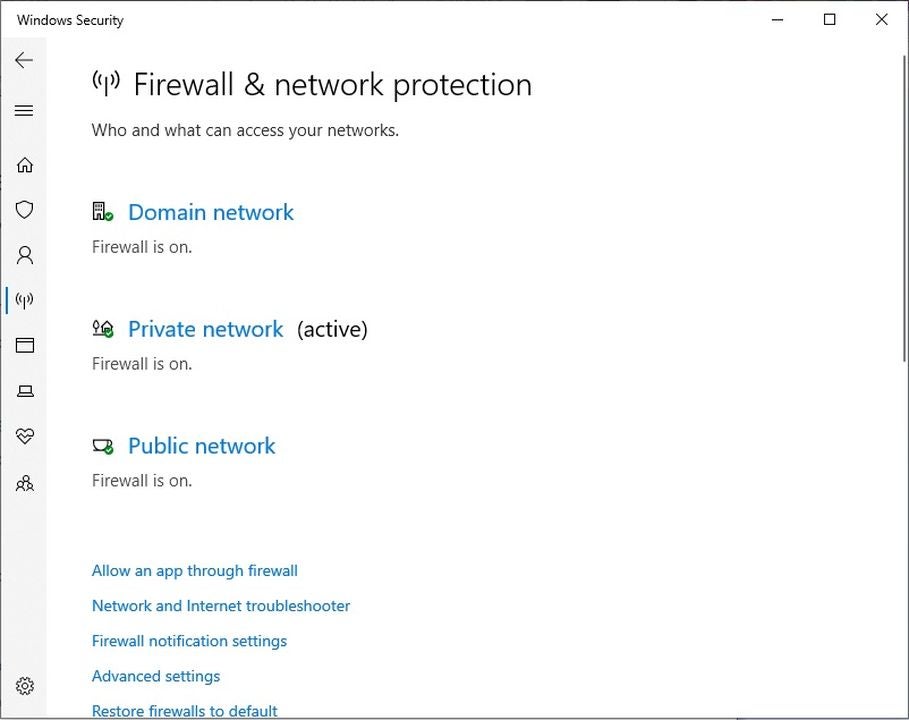
Windows Defender's firewall option.

Use Windows Defender to customize your security to your situation

Defender’s default options will work for most typical situations, but it’s useful to know how to customize a few basic settings in case of an emergency.

If you need stronger protection, you can install a separate antivirus or firewall program with more features and options. Check out our list of the top 10 antivirus solutions.
Microsoft Defender once again flags Chrome updates as suspicious

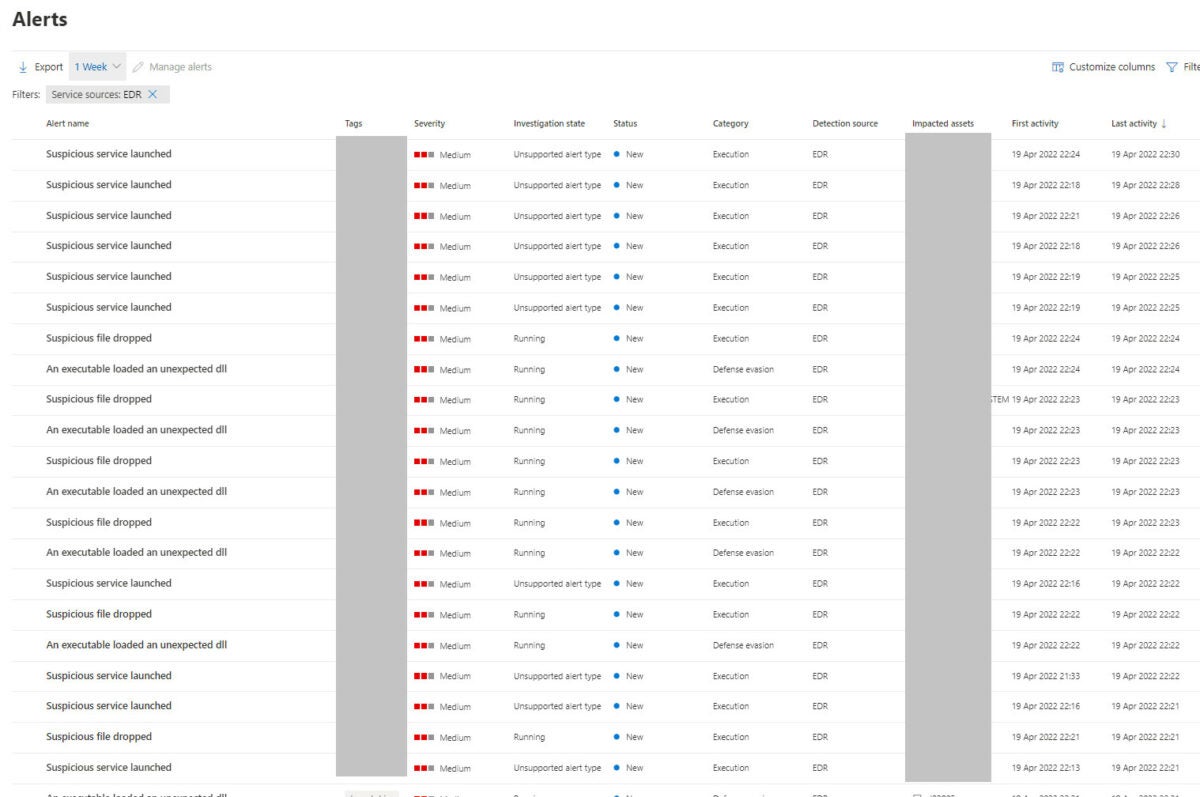
Microsoft Defender antivirus and malware protection protocols have been flagging critical updates for Google Chrome as suspicious. The issue, so far, seems to be localized to Windows Defender for Endpoint. 

As suggested in the summary, this is by far the first time that Microsoft Defender has flagged verified safe software and updates as suspicious. In February 2021, we saw a very similar issue where updates to Google Chrome were being flagged as suspicious by Microsoft Defender for Endpoint. Even more alarming, the enterprise version of Microsoft’s native antivirus has even gone so far as to flag essential updates to Microsoft Office as suspicious and potentially harmful, as we saw, and reported on, fairly recently. 

It is pertinent to mention again though that the largest number of issues of this kind are localized to the enterprise version of the software, Microsoft Defender for Endpoint. As the situation currently stands, Microsoft Defender for Windows Home users has not presented any such issues. Microsoft Defender for Home has, on the contrary, performed exceedingly well as an antivirus utility, specifically in the recent AV-Comparatives and AV-TEST antivirus rankings. 

Microsoft issued a statement, through its MVP Ota Hirufumi on Twitter a short while ago, confirming that the issue experienced with Microsoft Defender for Endpoint was merely a case of a false positive

‘SERVICE ADVISORY:

[DZ361393] Admins may receive a false positive alert for Google Update on Microsoft Defender for Endpoint monitored devices

Service: Microsoft 365 Defender

Status: ServiceRestored

LastUpdated: 2022-04-20T00:30:32.717Z’

In response to the incident, Microsoft also published a guide for false positives and negatives in hopes of reducing the occurrences of such errors, however the move doesn’t seem to have had the desired effect yet.

This is not the only issue Microsoft have been having lately with their Defender utility; recently they’ve had to address driver security within Windows Defender as well. But luckily, the program has been on the receiving end of features that will make Windows Defender even stronger going forward. 

Driver security addressed in new Windows Defender feature

Microsoft Defender (Windows Defender) is a free-with-purchase security utility that ships with Windows 11 and 10. It runs in the background most of the time, and the only time most users come in contact with this protective shield is when their activity, either online or off, unearths a vulnerability. Microsoft Defender receives new features every now and then, often without a massive reveal or so much as a changelog, but each new feature further increases the protection users have on their Windows 11 or 10 devices. One such feature now blocks drivers that have been flagged as having security vulnerabilities from running on your devices. 

This new feature is an option in the Defender settings interface that lets you either activate or deactivate increased driver scrutiny. Security vulnerabilities in your Windows ecosystem are something you’ll likely want to avoid at all times. This new feature gives you the option to do just that by employing a ‘better safe than sorry’ default approach when dealing with third-party drivers. Not all third-party drivers carry security vulnerabilities, and not all security vulnerabilities are cause for significant alarm, but when the security of your online or offline digital real estate is concerned, it’s always better to carry more protection than less. 

Microsoft released a support document containing further, more comprehensive details as to the nature of the new addition. Within the document, Microsoft specifically mentioned two types of system configurations within which the new addition would be enabled by default. The two systems are:

  • Hypervisor-protected code integrity enabled devices (HVCI)
  • Windows 10 devices running in S mode

The document goes into considerable detail as to the how’s and why’s that more technologically-minded users of its Windows 11 and 10 operating systems would find illuminating. However, for those who simply use the product during daily professional or personal operations and who have no interest in the deeper development of such features, the core concept is this: Microsoft Defender can now protect your system better from drivers and applications that may have malicious intent in their coding. 

Microsoft seems to be on the very cutting, leading, or even bleeding edge of technological advancement and how we might interact with tech in the not-so-distant future. Consult our writings on the latest news pertaining to the Windows 11 beta build 22581 to see what features might be heading to the long-awaited Windows 11 version 22H2 expected in the fall.

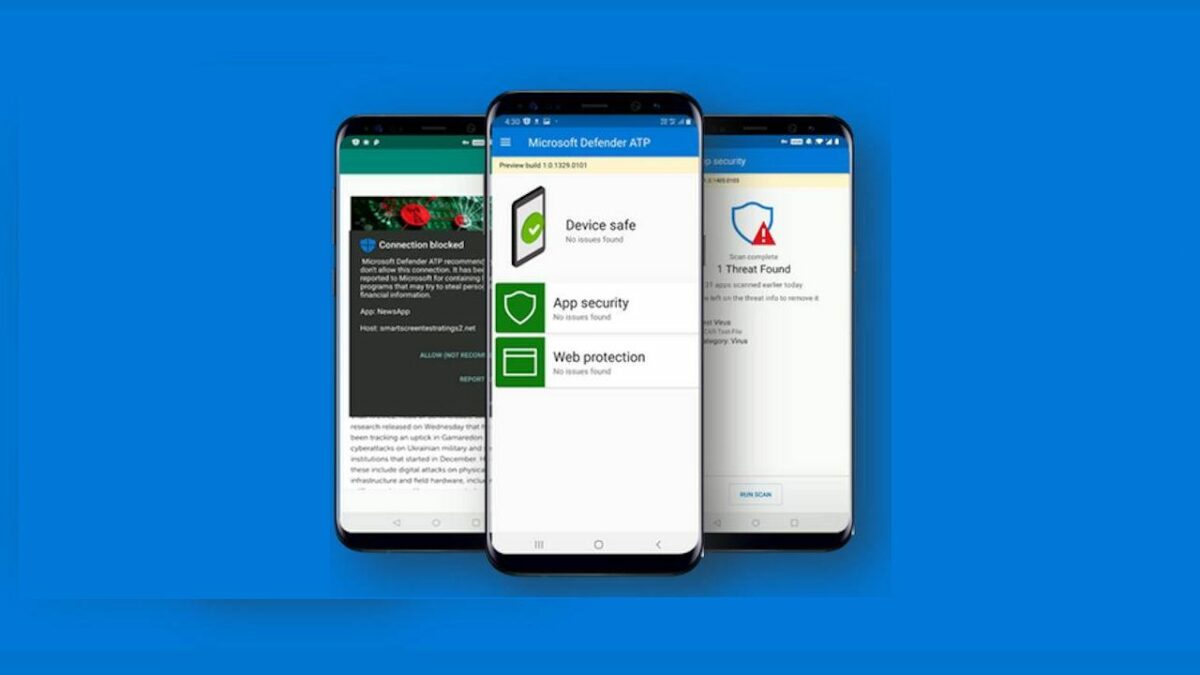
You can now use Microsoft Defender Preview on Windows and Android

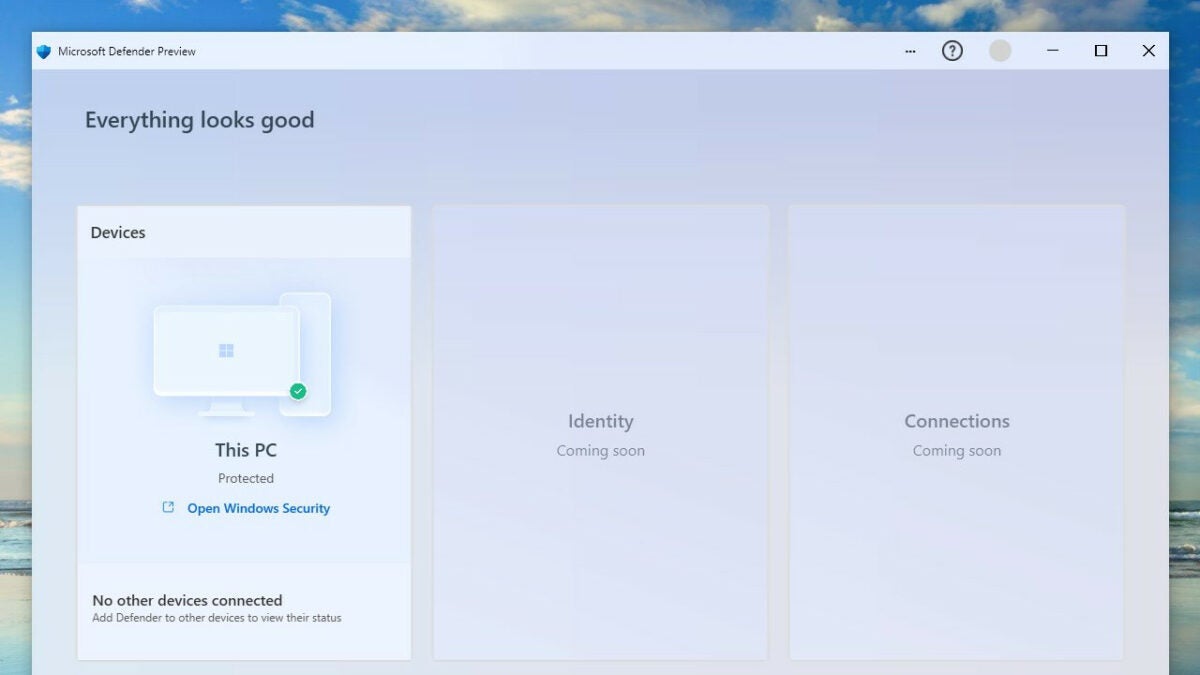
If you live in the United States, you now have access to the full functionality of Microsoft Defender Preview on your Windows and Android devices. As the app undergoes more rigorous testing, we expect it to make its way to the rest of the market. 

Windows Defender has been Micorosft’s resident anti-virus since the launch of Windows 8. Defender launched in a similar capacity for use on Android devices under the name Microsoft Defender ATP, but it was mainly aimed at businesses. The new app lets you take control of digital security across your devices, provided they connect with the same Microsoft account. 

The Microsoft Defender Preview app is not a replacement for Windows Defender on PC but rather a companion app, much like the Microsoft Phone Companion. The new UI might filter into future updates of Windows Defender or eventually replace the built-in utility. However, we are still in the early days of Defender Preview being available. 

There are some functions we’d like to see on Android, but at the very least, Microsoft Defender Preview can alert you to any potentially malicious content you’ve installed. With cyber security under more of a threat than ever, it’s always preferable to have an extra layer of protection or at least better real-time access to pertinent information regarding the security of your devices. 

We expect the app to undergo minor changes, fine-tuning it to widespread use across Android devices. Check out our article on Windows Defender’s next-gen features to get up to speed with the latest news on the Microsoft productivity front.

The next-gen feature that makes Windows Defender Antivirus even stronger

Microsoft Windows Defender Antivirus can now run in a sandbox, but what does that actually mean?

Why is it important that Windows Defender Antivirus can run in a sandbox?

Microsoft has really done an excellent job with the security features it has built into Windows 10. Windows Defender is now so well regarded that some experts say you don’t need a premium antivirus to protect your device, Defender is enough. Over the last few days, this claim has gained even more credibility as Microsoft has announced the introduction of a sandbox mode to Windows Defender Antivirus. Let’s take a look at what this actually means.

Windows Defender Free Download ►
7

What is a sandbox in an antivirus program?

A sandbox is a simpler way of saying a restrictive process environment. This means that Windows Defender can run itself separate from the rest of Windows. As antivirus programs often have high levels of permission on devices and access to key systems they themselves can end up being high value targets for hackers and thieves. Running separate from the rest of Windows provides an added layer of security as it means any successful attempt to compromise Windows Defender Antivirus does not put the rest of the system at risk.

According to Microsoft, the addition of a sandbox to Windows Defender comes from consultation with industry experts and wasn’t easy to achieve.  “Putting Windows Defender Antivirus in a restrictive process execution environment is a direct result of feedback that we received from the security industry and the research community. It was a complex undertaking: we had to carefully study the implications of such an enhancement on performance and functionality.” Although there have been no reported incidents of malicious code taking advantage of Defender’s high system privileges, Microsoft believed the possibility, as raised by the research community, was enough to warrant action.

The addition of a sandbox sets Windows Defender Antivirus apart from all other free antivirus programs. Microsoft claims Defender is the first complete antivirus solution.

For now, though, this new powerful feature is only available for members of Microsoft’s Insider Program, which is Microsoft’s beta testing community for new Windows 10 features. You may remember that it was members of the Insider Program who Microsoft ignored when they pushed out the recent October 2018 update that ended up deleting user’s files.

With a lot of bad stories relating to Microsoft hitting the news recently, like the recent Windows 10 update scandal, it is good to see Microsoft moving forward positively on a user protection issue. Not only is it good for the company’s image, ultimately, this is great news for all Windows 10 users who now have less of a security headache to deal with. As Windows Defender Antivirus moves towards being the complete antivirus solution some people have been calling it for some time now, users can breathe easier knowing their systems will be safe thanks to Microsoft’s efforts and a bit of a personal common sense.

Windows Defender: Can it protect your PC?

As malware evolves to be more malicious by the day, so too must the anti-malware tools we use to fight back and keep our data safe. Software like Bitdefender, Kaspersky, or Norton can keep your computer secure and virus-free. Some, such as Bitdefender or Avast, are available in both free and premium versions, with the latter provided wider coverage, less taxing processing power from your PC and more customization options. If you’re interested in checking out our top five recommended anti-malware tools, check out our article!

Haven’t upgraded to Windows 10? You can get it right here:

Windows 10 Download NOW ►
7

Windows Defender is one such anti-malware program, and it comes for free with the installation of Windows 7, 8, or 10. Since it’s free, users are often dubious as to how effective Defender actually is. This skepticism is justified, as reviews of Defender are mixed at best.

Most of the criticism directed towards Defender stems from its inability to detect and stop malware. Many threats seem to simply pass through its net. While this may have been largely true even last year, Microsoft has made significant improvements to Defender over the years to keep up with increasingly potent malware. The result has been a more scrutinizing product that may actually be worth your attention.

Windows Defender Free Download ►
7

Is it better in 2018?

Windows Defender continues to evolve, growing stronger with every revamp and update. What was a criticism last year may be a moot point in 2018. Check out this video to see the results:

How does Windows Defender detect and stop threats?

It’s important to understand what Defender does in order to compare it to other products on the market. Windows Defender uses basic signature-matching scanning to compare unknown files with its database of known threats. Essentially, it’s checking the file in question against a catalog of viruses. Defender also uses heuristic analysis, which monitors software behavior to catch malware or malware that rapidly changes its code to dodge detection.

It lacks the bells and whistles of Avast, Bitdefender, or Norton, but it is a semi-effective line of defense nonetheless.

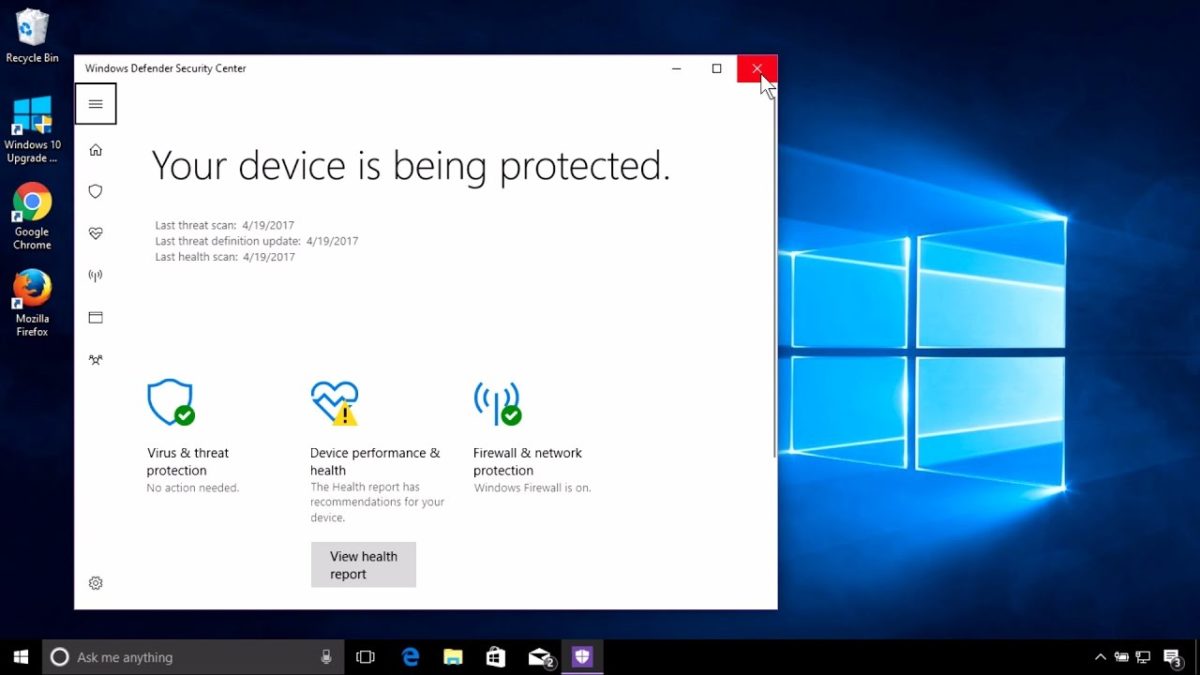
Windows Defender Security Center

“Windows 10 respects your freedom to choose AV products of your choice,” says Rob Lefferts, Partner Director of Windows & Devices Group. In this article, Lefferts accepts that people will frequently opt to forego Defender in order to use other software, and, in fact, encourages users to seek the “protection software and services that they like best.”

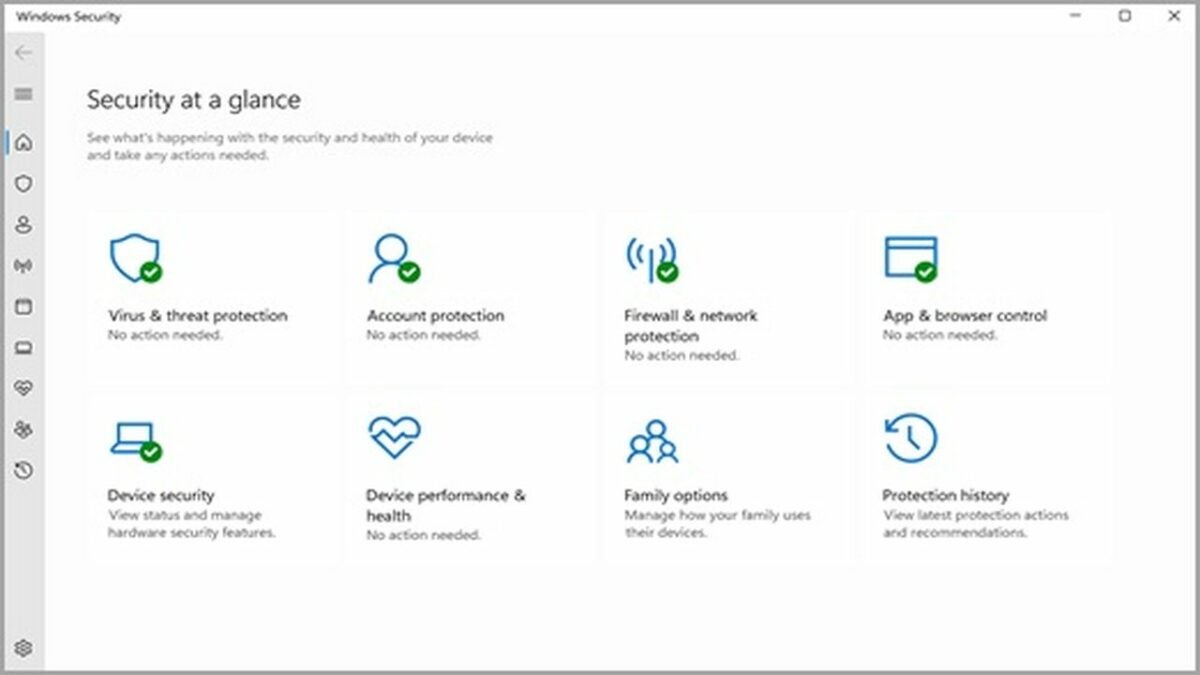
As of January 2017, the Windows Defender Security Center was introduced, bringing in new security features and controls. This included firewall and network protection, device performance and health, app and browser control, family options, and of course protection against viruses and threats.

The final consensus

Defender is steadily growing into a more reliable means for data protection, but it’s not there yet. Defender still has a long way to go before it can go toe-to-toe with powerful names like Bitdefender, Norton, or Kaspersky.

That said, considering that Defender is a relatively lightweight program that you get by default with Windows 10, you’re actually getting a pretty decent product. We recommend pairing it with something else for double the safety, such as Bitdefender. Set Windows Defender to run a scheduled quick scan every now and again, then do a full test with Bitdefender when you’ve got the time and processing power to spare.

Microsoft’s new Chrome extension will boost your browser security

Phishing attacks occur when cyber-criminals try to lure you onto their domains using fake links, images, and videos as bait. These fake links are all over the internet you’ll often receive scam and fake email filled with them, all designed to get you onto infected domains that will then pump your PC full of viruses and malware.

When it comes to phishing attacks, vigilance is the number one defense tactic. Always check the domains of links you’re going to click on and the sender addresses of the emails you receive. Never click a link you’re unsure of.

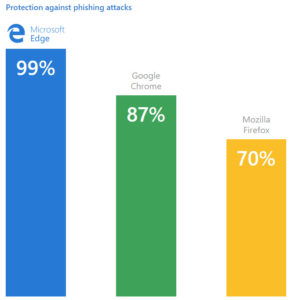
Since we’re only human, we’re prone to making mistakes. This is why we should also use software that protects us against phishing attacks. Modern web browsers come prepacked with software protocols designed to protect us from all sorts of modern threats, but not all browsers have equal levels of protection. According to the NSS Labs 2017 Web Browser Security Comparative Reports, Microsoft Edge has the best built-in socially engineered malware protection that is always on. Edge offers 99 percent protection against phishing attacks, which beats Google Chrome at 87 percent and Mozilla Firefox at 70 percent.

Image via: Microsoft

Obviously, Microsoft would like you to switch to their own web browser but if you’re not likely to change browsers, they’d still like to keep you protected. To that end, they’ve released a new Windows Defender extension for Google Chrome that will afford the same level of protection against phishing attacks as you’ll get on Microsoft Edge.

The new Chrome extension offers constant access to “a dynamic list of reported malicious sites and files known to be harmful.” Whenever you click a link, the extension will check it against the list and if there is a match, it’ll block access to the site and show you red screen with a message telling you the site could be unsafe.

You can get your hands on the new Windows Defender Chrome extension here.

6
The idea of Microsoft Edge is to be as fast, clean, and lightweight as possible to cope with the demands of different devices, whether it be a PC, tablet or phone.