LastPass user password vault and information obtained by hacker

When LastPass disclosed a security breach in August 2022, it sounded harmless enough at first. The attacker managed to obtain proprietary information and source code, but no customer data.

When the same threat actor used the obtained data to attack the company again, things still did not look too bad. The attack on storage volumes within the company’s cloud-based storage service gave the attacker access to user information, but not the password vaults of customers. At least, that is what LastPass concluded after its initial investigation.

LastPass Download Now

Today, LastPass confirmed that the second hack was more serious than initially thought. A security notice on the company’s official blog confirms that the attacker obtained customer information and password vault data.

The following user data was copied by the attacker:

  • Company and end-user names.
  • Billing addresses.
  • Email addresses.
  • Telephone numbers.
  • IP addresses.

Next to that, the attacker managed to obtain a copy of a “backup of customer vault data from the encrypted storage container”. The information includes unencrypted data, such as website addresses, but also “fully encrypted sensitive fields”. These fields include website usernames and passwords, secure notes, and form-fill data.

LastPass found no evidence that unencrypted credit card data was accessed by the attacker. The company does not store “complete credit card numbers” according to the announcement.

The master password, which unlocks all customer data, is known only to the customer. LastPass does not store it and sensitive vault data is encrypted with 256-bit AES encryption.

Worst Case Scenario

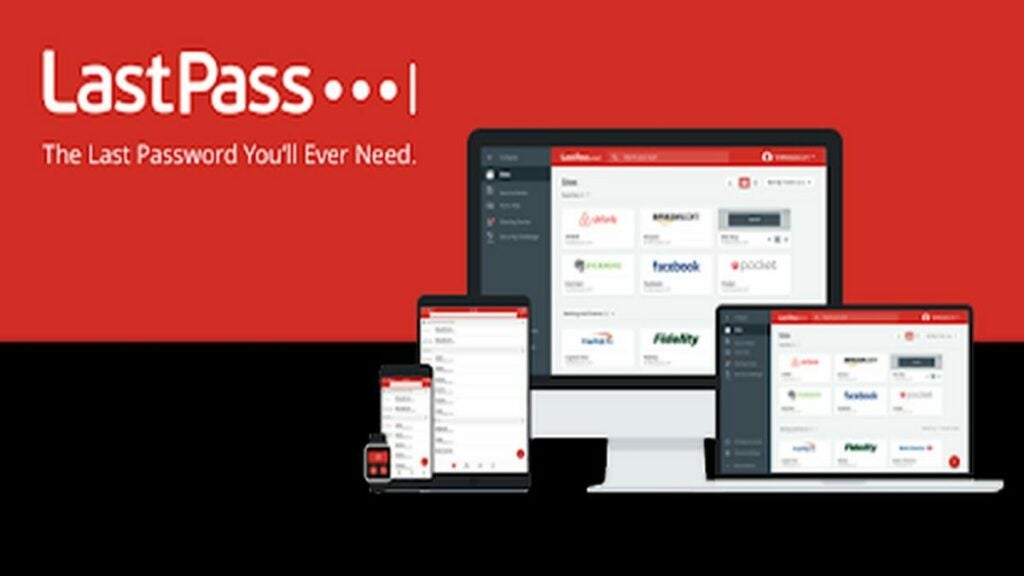
LastPass is available on multiple devices

This is the worst case scenario for LastPass customers. The plain text data includes means of communication, and the vault data all stored passwords and sensitive information.

The threat actor may attempt to brute force vault data, which would unlock usernames and passwords for all stored services. Successful attacks may also reveal information stored in secure notes. This may lead to compromised user accounts on the Web or company intranets.

Brute forcing attacks of this scale require vast resources, especially if carried out on such a large number of protected vaults. The attack was sophisticated, and it is not out of the question that the attacker has the required resources to run brute force attacks on the encrypted data obtained during the attack.

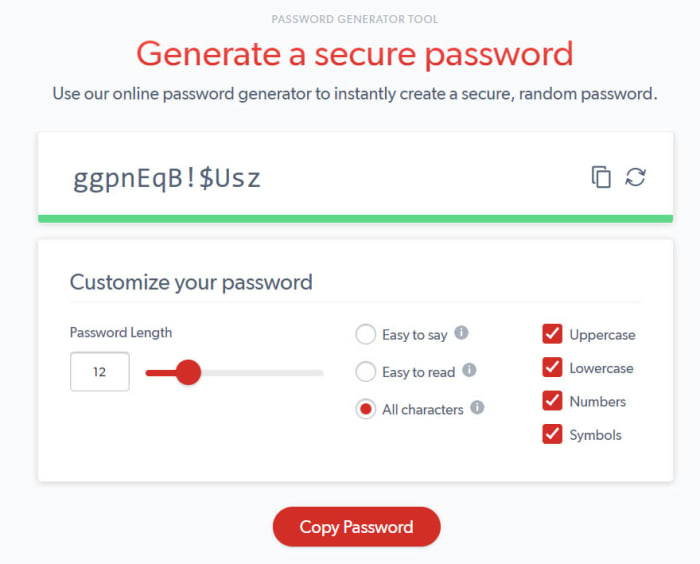
A strong master password may prevent successful brute force attacks. LastPass recommends master passwords with at least 12 mixed characters, but customers are free to select theirs during setup.

Next to brute force attacks, customers may also be attacked using phishing or social engineering attacks. The attacker may use these attacks to obtain the master password. Attacks may happen via email, telephone, chat messages, or even letters.

The attacker may impersonate LastPass in these attacks to get users to click on links or part with information directly.

What LastPass customers need to do right now

LastPass customers should assume that their information and vault data has been compromised. The following steps are recommended to secure the data:

  1. Change the LastPass master password. Make it unique and strong, e.g., with 16 or more random characters that include upper-case and lower-case letters, numbers and special characters.
  2. Change the number of password iterations from the default 100100 to 310000 or even more.
  3. Go through each saved login and change all passwords. Make each password strong and unique as well.
  4. Monitor emails, phone calls, chat messages and other forms of communication, and avoid clicking on links.

The process may take a while, especially if dozens or even hundreds of logins are stored in the LastPass vault.

Customers may also consider switching services. Password manager alternatives such as the open source Bitwarden service have not suffered data breaches up to this point. It is still necessary to change passwords.

Tip: check out our top 25 alternatives to LastPass.

Regardless of that, some information is in the attacker’s hands and there is nothing that customers may do about it.

Alien Malware Steals Banking App Credentials

At the beginning of this month, ThreatFabric’s security researchers made a shocking discovery; A dangerous new Android trojan with direct ties to the Alien malware. Xenomorph, as the new trojan is called, shares similarities with the Alien code, but the primary concern with the new trojan is that it is far more powerful and capable than its predecessor.

At the time of writing, over 50,000 users of various Android devices have installed seemingly innocent applications that act as carriers of the Xenomorph malware. Reportedly, the malware is already targeting users of 56 different European banks. 

While Google has been fighting back against hackers using generic apps to infect devices with malicious software, the war is far from over. Google Play remains one of the leading ways users’ devices pick up harmful malware, and the worst part is that users don’t even realize their devices have been infected until it’s too late.

One of the most recent apps discovered to be used as a malware dropper is FastCleaner. The app claims to be able to speed Android devices up and make them run smoother by removing clutter and ‘junk’ files. In reality, FastCleaner was found to be a dropper for the Xenomorph malware.

According to ThreatFabric, Xenomorph is still in active development, but the trojan is already capable of more than the Alien malware of 2020. Xenomorph primarily uses an overlay attack to gain access to users’ banking app credentials. An overlay attack is particularly successful and dangerous because it’s triggered without the user’s knowledge.

The malware is able to mimic a legitimate banking interface exactly and intercept the information picked up by the touch screen. Xenomorph can also read notifications and messages, thereby gaining access to OTPs sent out by your bank and even reading password change confirmations. 

Thus far, Xenomorph has attacked users in Italy, Spain, Portugal, and Belgium. Experts say that Xenomorph has a wealth of untapped potential, even though the malware is still in its early stages of development. For this and other types of threats, we recommend you look at our easy ways to remain safe online.

Ebay: How to Detect Scams and Other Useful Tips

Ebay is a true paradise for collectors and compulsive shoppers who love to snag the most unlikely items for the lowest prices. This online marketplace was not only a pioneer, the first of its kind on the internet, but also allows any user to seamlessly purchase or sell whatever they desire. However, in this wonderful environment of free buying and selling around the globe, there is always some scammer waiting patiently for unsuspecting users to fall into their web of deceit.

Comprar por Ebay

No doubt you have seen more than a few ads offering the latest Samsung Galaxy, brand new, for half the price it sells for in other online stores. There’s only one unit left, and the ad urges you to act fast or risk losing your new phone. Believing yourself to be the luckiest person alive, you purchase the phone and can’t wait to enjoy your new Samsung. But when your package finally arrives in the mail, inside is just a photo of the phone. You’ve been scammed!

These kinds of situations and many others happen on Ebay on a daily basis. And although the website normally works like a charm, con artists keep finding new methods and tricks to avoid being caught. Don’t be fooled, and make sure to protect yourself from their scams!

Ebay (Firefox Extension) DOWNLOAD
8

To save you and your wallet from more than one unpleasant experience, in today’s article, we’re going to tell you about the most common scams on Ebay, how to sniff them out, and of course, what to do if you’ve been ripped off. We hope you find them helpful!

The most common scams on Ebay

Ebay logo

Since it’s an extremely popular platform, a large number of scams are circulating on Ebay with the sole objective of stealing your money. Keep reading to learn about the ones that have been the most prolific in recent years.

The photo scam

This con is intended to trick anyone who visits Ebay to buy expensive products, such as a TV, gaming console, laptop or high-end phone. The Ebay ad seems reliable and shows you the exact product you want for a great price. After you make the purchase, the scammer prints out a photo of your item and mails it to you. So instead of a half-price iPhone 11, you receive a photo of the phone.

The fake PayPal payment

Instead of targeting Ebay buyers, this scam is directed at sellers. As you probably know, when an article is sold to a buyer using PayPal, the seller receives an email confirming payment and asking for the product to be shipped. In this scam, a fake email, supposedly from PayPal, is sent to announce the payment and request shipment of the item. However, the payment was never made, so the seller ends up sending the scammer an expensive item for free.

Fraudulent car sales

You can find anything on Ebay these days, even used cars. In this type of scam, the con artist will copy a real used-car ad and post it on Ebay. When you purchase the vehicle, the scammer will ask you to pay them outside of the platform (big mistake!) to make everything easier. Once you’ve paid thousands of euros and go to pick up your car, the real seller obviously won’t give you anything, since you were never really in contact with him or her. What’s more, Ebay doesn’t insure car sales, so the scammer will have made off with your money, and you won’t be able to do anything about it.

The item that supposedly arrives in bad condition

This is another scam targeting Ebay sellers. This time, the con artist will look for an expensive item (normally high-end phones) and purchase it for any price you ask for. Once he or she receives the purchase, the scammer will contact you with a photo of the supposedly broken item and ask Ebay for a refund. If it’s the first time, and the platform has no reason not to trust the buyer, Ebay will take the scammer’s side and require you to return their money. As you can imagine, the hustler already owns a broken copy of the stolen item, and he or she gets a new one completely free at your expense.

Payment through a stolen PayPal account

This scam is impossible to detect, but fortunately, it will only affect you if a payment is made outside of the platform. The scammer goes to buy an article using a PayPal account stolen from another user. Obviously, the payment will be reversed, because PayPal will detect that the transaction was fraudulent, so you’ll lose the money they paid.

The “chargeback scam”

In this type of scheme, the buyer purchases a product, and after receiving it, requests a refund by supposedly returning the product. But the scammer sends back an empty box or an item that’s completely different from the one purchased, so the seller will not only lose their money, but also the product they sold.

How to avoid scams on Ebay

Mujer pensando

After reading the above, you are likely terrified of buying anything on Ebay again. Don’t worry, because even though there are scams and dishonest users ready to steal your wallet, the platform is generally safe. That said, here are some tips to give you peace of mind the next time you buy something on Ebay:

Always do research on a potential buyer or seller

Fortunately, Ebay uses a reputation system through which both buyers and sellers can leave reviews of the transaction and the condition of the item received. Before making any payment or selling any item, make sure the other person has a good reputation on the platform.

Carefully read the description of the item you’re going to buy

To avoid any kind of scam, for instance, buying a photo, make sure to carefully read the description of the item. If you find the description very vague, or the specifications or condition of the item you are going to buy are never mentioned, it’s probably a con. To clear up any doubts, it’s best to send a message to the seller asking explicitly about the item. That way, if it’s a scam, you can use this message to file a claim with Ebay and recover your money.

If a price seems too good to be true, it probably is

When searching on Ebay, you’ve likely found high-end products for very cheap, when they’re usually sold for high prices. Don’t trust these ads, and don’t click the buy button just yet, because you could end up disappointed. Read the seller’s reviews, and never buy anything from a seller who just registered on the platform.

Don’t agree to complete transactions outside of the platform

Often buyers can be annoying for whatever reason and insist on paying you outside of the Ebay platform. Never accept that. If you sell an item without Ebay’s system, you’re giving up all the sales protection offered by the platform. That way, if you end up being the victim of a scan, you can’t open a dispute or ask for your money back.

Confirm any email from PayPal 

Since PayPal is the most commonly used and secure payment method for buying anything online, it’s also the one that scammers use the most to steal your money or items with fake emails. Always confirm the sender of any email you receive from PayPal, and never click on the links in any suspicious email. If you receive an email from PayPal, always visit the platform by going directly to the address and never through a link.

What to do if you’ve been a victim of a scam on Ebay

Mujer enfadada

Fortunately, Ebay has a protection system for both buyers and sellers. Still, we reiterate that to make use of it, you need to carry out all transactions through the platform, otherwise you won’t be able to file a claim.

To recover the money you have lost as a result of fraud via Ebay, you’ll need to open a dispute with the buyer or seller through the resolution center. You can access it by clicking here. After you explain your problem and experience with the buyer or seller, Ebay will examine your case, and if you have been a victim of a scam, your money will be returned to you.

If you have been conned and paid for the item through PayPal, you can also visit the resolution center in your account and challenge the fraudulent seller’s transaction. PayPal will review the case, and in most situations, return your money without problem.

We hope that our guide to avoiding scams and cons through Ebay has helped you. Have you ever been the victim of a scam on the internet? Tell us about it in the comments section!

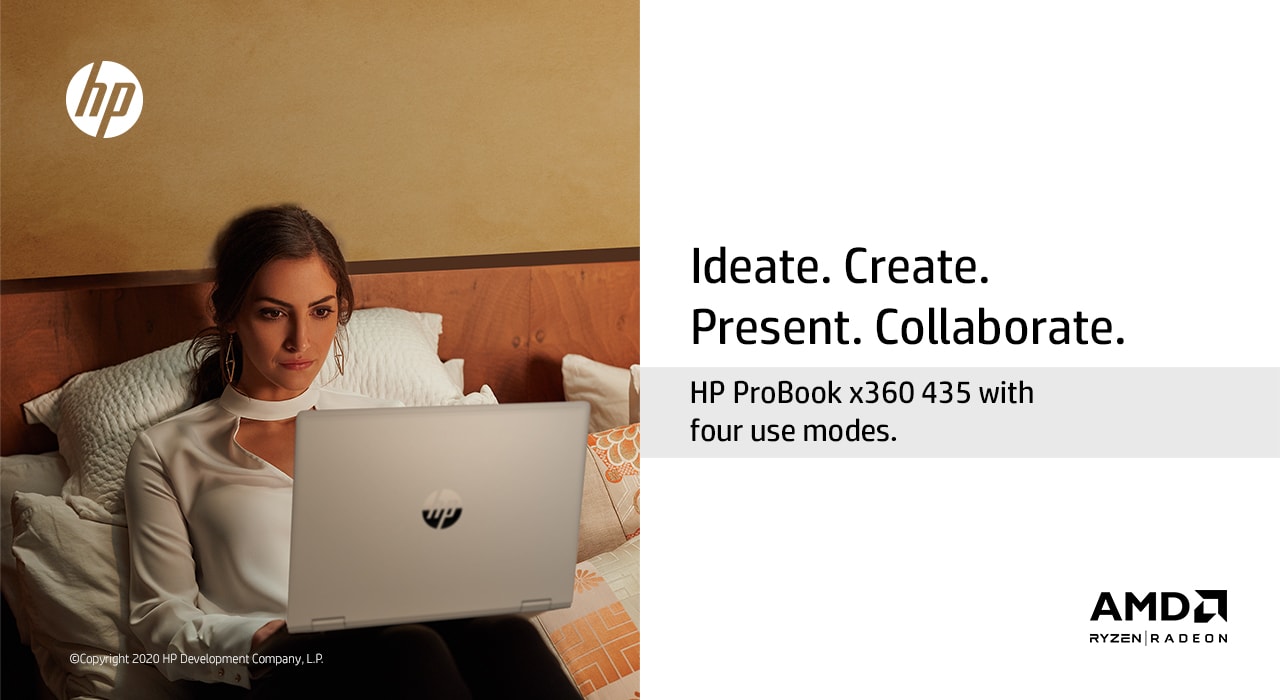
The best Pro Book you can get right now: HP ProBook x360 435 G7

Unlike a regular user of laptops whose focus remains on features like price, specifications, features and build quality, the priorities of a business user are vastly different. The professional users prefer devices that offer speeds and feeds with unmatched performance, privacy, specifications, durability and other features based on their requirements.

To meet the requirement of such users, HP recently unveiled the all-new HP ProBook x360 435 G7 in India. This convertible laptop has been designed specifically for business users and comes with multiple advantages such as fast charging besides several security features.

With durability and security as highlights, the new laptop has been introduced in India what’s more, the machine comes at an intriguing value proposition of under rupees one lakh, making it one of the perfect solutions for users looking at an essential personal computing companion. Here’s a quick look at some of its key features:

Design and build

This new mid-range business laptop from HP comes with a 360-degree hinge that converts the laptop into a tablet that helps with presentations, collaborations as well as with media consumption or reading stuff while on the go. Since it’s a business laptop HP has ensured that it is easy to handle at just 17.95mm thickness, which makes it extremely portable.

The HP ProBook x360 435 G7 comes with a higher screen to body ratio while the forehead or the top part houses a 720p HD cam that has become one of the most essential features in the new world order. The bottom of the chin just has a shining HP logo. While the outer lid that is made of aluminum carries an HP logo giving the laptop an elegant yet classy look. Apart from keeping the laptop thin and light, HP has ensured that it scores high on rigidity and durability.

This is a 13.3-inches FHD IPS touch-screen display that offers a resolution of 1920*1080 pixels. HP offers three different variants when it comes to display – ranging from 250 nits brightness going all the way up to 1000 nits. All the three variants of the display come with a Corning Gorilla Glass 5 protection that saves the display from scratches and smudges.

To take the full advantage of this gorgeous touch screen, the laptop also comes with a Pro Pen that offers 2048 pressure levels and can be used to annotate on files and images or to control the screen when in the tablet mode.

The ProBook x360 435 G7 has been built with anodized aluminum while the keyboard deck has been crafted out of a single piece of aluminum resulting in a rugged and durable build. Additionally, the laptop has passed 19 different rigorous MIL-STD 810G tests which means that accidental drops, crashes or water spill on the laptop will not cause any damage.

The laptop carries HP’s signature design language that offers it the premium look and feels, while the removable bottom offers the much-required flexibility making it an easily upgradeable device. The convertible laptop is highly recommended for people who prefer portability and value design details that are crafted to impress.

Specifications and performance

Since it is a laptop aimed at the business users, HP has not cut any corners when it comes to offering top of the line specifications. It is powered by the latest AMD Ryzen™ 4000 Series Mobile Processors that is built on the advanced 7nm technology and optimized “Zen 2” architecture.

The processor enables unprecedented levels of performance for enhanced productivity and exceptional battery life, coupled with powerful integrated AMD Radeon™ graphics. HP offers the flexibility to choose from five different CPU options:

  • AMD Ryzen™ 3 4300U
  • AMD Ryzen™ 5 4500U
  • AMD Ryzen™ 7 4700U
  • AMD Ryzen™ 5 PRO 4650U
  • AMD Ryzen™ 7 PRO 4750U

In terms of memory, the HP ProBook x360 435 G7 comes with 16GB DDR4 RAM with an additional memory slot available in case required. The storage option ranges from 128GB SATA SSD to 512 GB SSD and the top variant can support up to 1TB of storage.

The presence of the latest processor, ample amount of RAM and SSD storage means that the laptop will not stutter no matter what you throw at it. Be it loading 25 Google chrome tabs, streaming hi-definition YouTube videos along with your other day to day tasks or even throwing a full-blown editing software to edit videos or images on the go, the laptop can handle it all without breaking a drop of sweat. The presence of NVME SSD means that the laptop can read/write or transfer data at lightning speeds.

The laptop comes with a licensed version of 64-bit Windows10 Pro operating system. For wireless connectivity, it comes with a dual-band Wi-Fi 6 and Bluetooth 5. There are a handful of ports present on the HP ProBook x360 435 G7. On the left side of the body of the laptop, there is a security lock slot and a USB 3.1 port while the right side houses the power jack, one USB Type-C port, one USB 3.1 port, an HDMI port, a headphone jack and a micro SD card slot.

Features

Apart from the high-end specs, the HP ProBook x360 435 G7 comes with some unique features that makes it stand out of the crowd from other business laptops. Though the ProBook x360 offers an all-day battery life, it comes equipped with HP Fast Charge that can tank up the battery to 50% within 30 mins which is a critical feature for a business laptop.

Additionally, keeping the needs of business users in mind, HP has bundled in a suite of security features that offer added protection to your data like HP Sure Start is incredibly helpful when it comes to brute firmware attacks that can leave you crippled while you’re about to present data in an all-important meeting. In case of an incident, the self-healing BIOS not only heals up on its own but ensures that the all-important data saved on the laptop remains intact.

Another example of a practical yet important security solution is the presence of a physical camera shutter which ensures that no one can keep an eye on you. Similarly, the third generation of privacy shield called HP Sure View reduces visual light ensuring that the peeping toms sitting next to you in the meeting room or a public area do not get to see the content from the laptop. HP has also included an AI-based antivirus software that protects the laptop from virus attacks and intruders. Biometric protection with an IR camera and a fingerprint sensor also keeps unauthorized users as the bay.

Final verdict

The HP ProBook x360 435 G7 is a versatile business notebook for users who do not want to compromise on performance and productivity along with durability. The device has passed 19 tests and comes with a 19MIL-STD-810G certification for durability. It has ample amount of storage, raw processing power from AMD, long battery life, enterprise-grade security solutions like AI-based antivirus, physical camera shutter and self-healing BIOS. The rugged ProBook x360 435 G7 offers everything that a business user would demand.
With such varied choices and great flexibility, you can you use this laptop seamlessly to complete all your business asks. With no security threat, your data is absolutely safe! The choices that this laptop offers are unparalleled, and will help you achieve all your targets, as you desire.

The Truth about Spying in Video Chat Apps

In recent months, the COVID-19 pandemic has forced us to make widespread use of a variety of video chat apps. They have enabled us to connect face-to-face with our friends and families and to attend classes, work meetings, and even job interviews without leaving our homes. These apps are great for staying in touch, but are they secure?

We are living in the information age, and hackers and cybercriminals are well aware of the amount of personal data we share through video chats. That’s why privacy should be a concern whenever you install an app on our device. Nobody wants to be spied on or see their personal data fall into the wrong hands.

Lupa en teléfono móvil

In today’s article, we’re going to talk about security in video chat apps. We’ll analyze the most popular ones to identify vulnerabilities and give you some tips to prevent unpleasant experiences.

Are video chat apps secure?

Like any app, or even the operating system on your device, video chat apps are not 100% secure. We don’t mean to say they are potentially dangerous, but they can have security holes and vulnerabilities that could be used for malicious purposes. You have probably heard of the notorious case in which Zoom was accused of leaking personal data to Facebook, including the data of users who didn’t have an account on the social media platform. Another case was far worse, also involving Zoom, and it concerned a vulnerability in its UNC links that allowed hackers to steal their victims’ Windows credentials.

Although these two examples concern Zoom, many other video chat apps have been found to have similar problems. Does that mean you should stop using them? No, but it does mean you need to choose your video chat app carefully instead of blindly following the trends. Always do your research before installing an app that could compromise your privacy and that of your data.

What problems could I have if I use an unsecure video chat app?

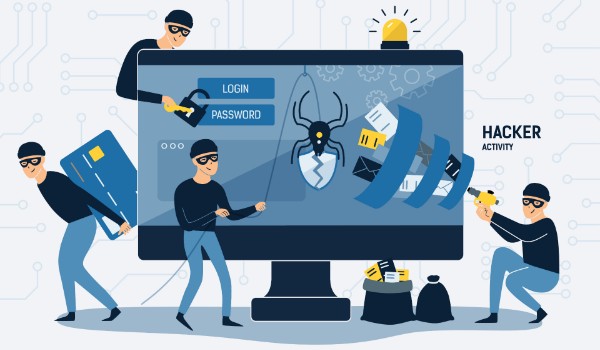
Actividad hacker

As we mentioned, most video chat apps have security holes that can cause a headache or two. Here are some of the typical problems that can be caused by these vulnerabilities:

  • They can undermine your privacy and that of your data– Some video chat apps don’t encrypt the data you share, which means hackers can hear whatever you say or access any files you share. They can even distort the message you are transmitting.
  • They can change the access to your video chat– Security holes often prevent you from controlling who can access your conversation or meeting. That’s why there have been so many cases of online trolls “bombing” video conferences and even taking over calls that are underway.
  • They can create fake problems with your computer– Another security hole makes it seem like you’re having problems with your PC’s microphone or camera, and as a result, you inadvertently hand over control of them to third parties.
  • They can take control of your PC– In the worst-case scenario, hackers can use vulnerabilities in video chat apps to gain full access to your computer. Fortunately, these problems are less common, and the vast majority of video chat apps are immune to them.

How can I protect myself during a video chat?

Chico haciendo una videollamada

Before you have a video chat, it’s important to take a few simple steps to ensure your cybersecurity. That way, you’ll protect your privacy and data and enjoy your video chats with total peace of mind.

  1. Make sure your video chat app is up-to-date– As we stated above, video chat apps have vulnerabilities that are repaired every time these apps are updated. Regardless of whether you use a mobile or a desktop app, make sure it is always the latest version.
  2. Always protect your meetings with a password– If you are hosting an online work meeting or conference, never forget to add a password and activate a waiting room. That way, you can make sure that the only participants in your meeting are invited guests.
  3. Switch off your guests’ microphones and cameras– In addition to the above, if you’re going to give a chat, don’t forget to mute the microphones and switch off the cameras of your guests.
  4. Beware of uninvited guests– If you are hosting a work meeting, do a headcount to make sure that you have no unwanted visitors. This is frequent at large conferences: it seems like someone who’s not supposed to be there always manages to sneak in.
  5. Be mindful of who you’re chatting with– Never share sensitive information with someone you don’t know or trust 100%.
  6. Don’t video chat with strangers– Never accept a video chat invitation from someone you don’t know, and avoid using features available on some apps such as random video chat.
  7. Don’t click on any links you receive– As a general rule, you should never click on any links you are sent during a chat. They could redirect you to a malicious website that uses the security holes in your video chat app to gain access to your computer.
  8. Activate two-step verification– If the app you’re using has two-step verification, activate it. This makes it harder for hackers to gain access to your accounts.
  9. Never make video calls on open Wi-Fi networks– Avoid using public or open Wi-Fi networks, because you run the risk of hackers intercepting your conversations.

Are the most popular video chat apps secure?

WhatsApp

Logo de WhatsApp

WhatsApp is one of the world’s most popular messaging apps for texts, phone calls, and video chats. One might think that since it now belongs to Facebook, it might not be secure. However, all chats, voice messages, and video chats on WhatsApp are 100% encrypted, so only you and the person on the other end of the line can access their content. In fact, the company can’t even access your content. WhatsApp uses the Signal Protocol system from Open Whisper, one of the best in the world, for encryption. WhatsApp is therefore a secure app for video conferencing. If you’re interested, you can download it below.

  • WhatsApp for Android

WhatsApp (Android) DOWNLOAD
8

  • WhatsApp for iOS

WhatsApp (iOS) DOWNLOAD
8

Zoom

Logo de Zoom

Zoom has been the star app of the COVID-19 confinement season. It has allowed families separated by the pandemic to stay in touch and students to attend classes from home. However, it’s not an airtight app. In fact, Zoom has been at the center of multiple security-related scandals in recent months. Fortunately, the company has been updating the app systematically and fixing each vulnerability detected, although it’s likely that some have yet to be identified. That’s why if you use Zoom, it’s a good idea to take the security steps above.

  • Zoom for PC

Zoom Meetings DOWNLOAD
9

  • Zoom for Android

Zoom Meetings (Android) DOWNLOAD
8

  • Zoom for iOS

Zoom Meetings (iOS) DOWNLOAD
8

Messenger

Logo de Messenger

Messenger is Facebook’s messaging and chat app. You can use it to chat with friends on the social media platform or on the convenient mobile app. Although Messenger wasn’t a very secure app in the past, it has since gained a number of features that protect your privacy. Among them are Secret Conversations, which are 100% encrypted in a similar way to WhatsApp. Therefore, when configured correctly, Messenger is a relatively secure app.

  • Messenger for PC

Messenger (PC) DOWNLOAD
7

  • Messenger for Android

Messenger (Android) DOWNLOAD
8

  • Messenger for iOS

Messenger (iOS) DESCARGAR
8

Google Duo

Logo de Google Duo

Google Duo is the perfect app for video chat fans who are concerned about privacy. It encrypts calls by default, so only the person you’re chatting with can see or hear you. In addition, the app is optimized to run smoothly regardless of the kind of connection you are using. Google Duo is therefore one of the best apps to guarantee privacy in your video chats.

  • Google Duo for Android

Google Duo (Android) DOWNLOAD
8

  • Google Duo for iOS

Google Duo (iOS) DOWNLOAD
8

Snapchat

Logo de Snapchat

Snapchat is one of the most popular apps for young people and teens all over the world. Users of this social media platform can share all kinds of multimedia content and have video chats. Among its biggest attractions are its many filters and fun effects that can be added to these video chats. Although videoconferences on Snapchat are said to be encrypted, they rely on symmetric key encryption within the app itself. This makes them very vulnerable to potential hacker attacks. If you want to have a confidential video call, it’s best to avoid Snapchat.

  • Snapchat for Android

Snapchat DOWNLOAD
6

  • Snapchat for iOS

Snapchat DOWNLOAD
6

We hope our article has helped you to protect your video chats. Do you use any apps that we didn’t include on our list? Tell us about them in the comments section!

The Best Windows Security Tips

We live in a world full of dangers, including cyberattacks, viruses, malware and online scams. They can infiltrate your operating system before you even realize it, and by the time you do, it’s already too late. It may seem like a hassle or a waste of time, but spending a few minutes strengthening Windows 10 security on your computer can prevent a bad experience or two. And believe us, it’s worth the trouble.

Person using laptop

At first glance, Windows may seem like an impenetrable operating system, but it’s actually a prime target for hackers around the world, who are discovering new security holes every day. Want to use Windows without worrying about online attacks? Keep reading for some useful tips!

Windows 10 DOWNLOAD
8

1. Keep your PC up-to-date

Many people think of Windows updates as a hassle that slows down their work or asks them to reboot at the worst possible time. But did you know these updates play a vital role in keeping your computer secure? Every time you update Windows, Microsoft repairs the security holes in the operating system and strengthens its line of defense, ensuring your security and that of your data.

If you don’t know how to update Windows 10, don’t worry. It’s a piece of cake! Just click the Start button (the Windows icon on the lower left side of your screen) and then Settings (the gear icon). Alternatively, you can press the Windows key + I. Next, click “Update & Security.”
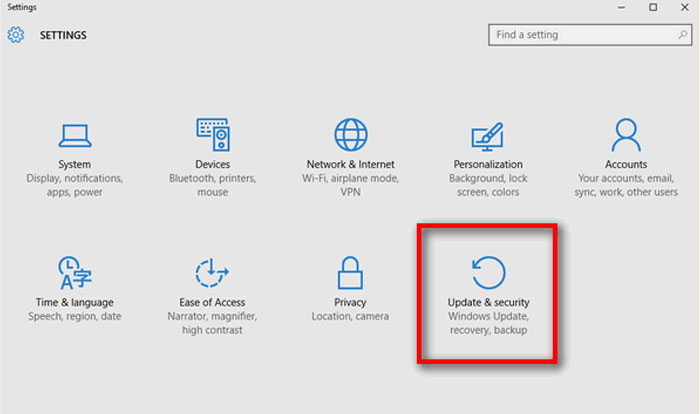
 

How to get to Update and security

In the new window, click on “Windows Update,” which appears in the menu on the right side. Finally, click the “Check for updates” button and wait for Windows to be updated. See how easy that was?
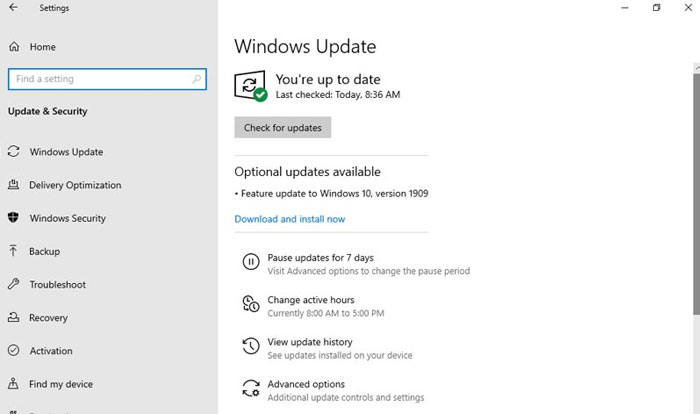
Windows-Update-interface

2. Secure your computer with a password

Your PC’s security can be compromised not only over the internet, but also in the physical world, right where you are. If you use your private computer in a public place, for example, you use your laptop in a coffee shop, or if your home or office is robbed, your data will be at risk as well. If you haven’t set a password to log into your computer, it will be vulnerable if it falls into the wrong hands.

To set a password for Windows 10, follow these easy steps. Click Start (the button with the Windows logo on the lower left side of the screen) and then Settings (the gear icon). If you prefer, you can also click the Windows button + I. Next click the “Accounts” option.
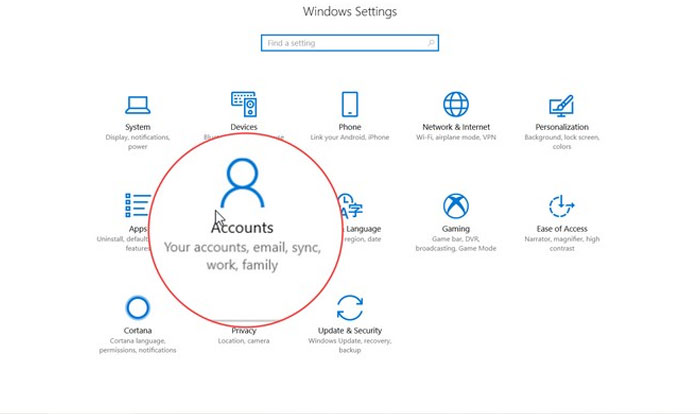
How to get to the Accounts window

In the new window, go to “Sign-in options” in the menu on the left. Then a new menu will appear where you can set a password to sign into Windows and other new options for unlocking your device (a physical security key, a PIN, your fingerprint, a picture password, facial recognition, etc.).

3. Make sure you have the only administrator account on your computer

Not all Windows accounts are created equal. There is one kind of account that lets you make any change on your computer without the other users’ consent. We’re referring to administrator accounts. To see which user accounts are linked to your computer, follow these steps.

Click the Start button (the Windows icon in the lower left corner of your screen) and then Settings (the gear icon). You can get to the same window by clicking the Windows button + I. Next, just go to “Accounts.”
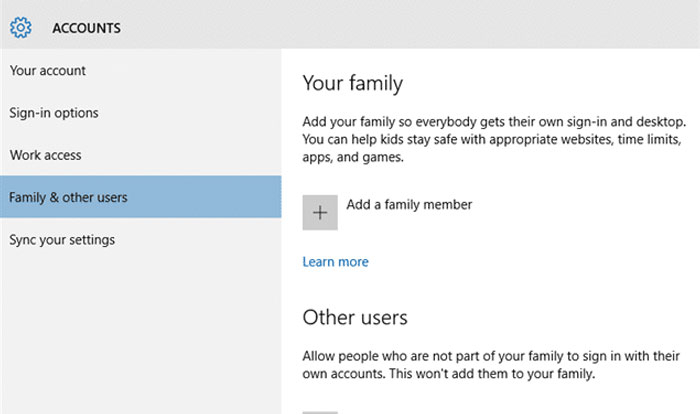
Family accounts and other users

In this new window, click “Family & other users.” This will show you everyone who has an account to access your computer. Make sure that nobody but you can log on as an administrator.

4. Update all computer programs regularly 

Keeping your operating system up-to-date isn’t enough to prevent a security hole from compromising your data. It’s important to make sure that all the programs and internet browsers on your PC are always up-to-date.

Fortunately, many programs are updated automatically whenever you open them, but others need some extra help. That’s why we recommend that you visit their websites regularly to check for new versions.

If you have downloaded programs from the Microsoft Store, the process is a lot easier. To check for updates, just open the Microsoft Store, click the three-point icon on the upper right side of the window and go to “Downloads and updates.”
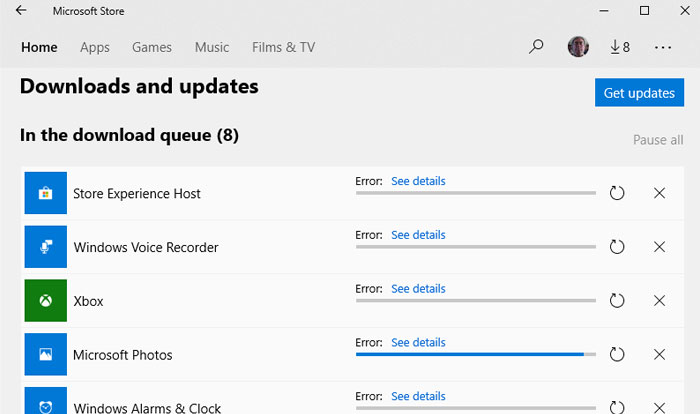
5. Delete programs and apps you don’t use 

Hard drives have so much space these days that it’s easy to install programs over time and never delete them, even if you don’t use them. But it’s important to clean your PC of old programs or ones that are just taking up space. By deleting them, you’ll make sure they never cause any security problems. At the same time, you’ll be surprised how much your computer’s performance will improve.
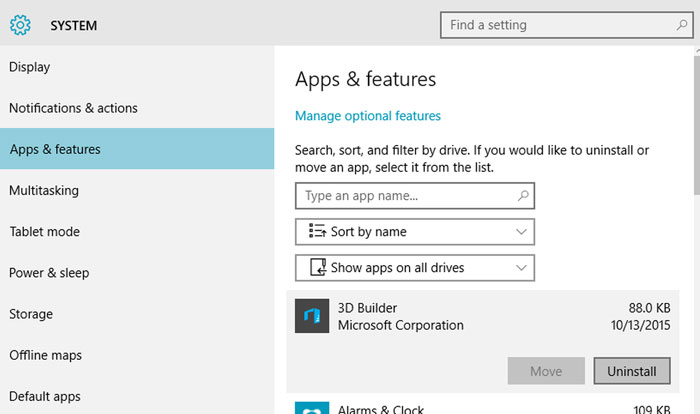
Access Applications in Windows 10

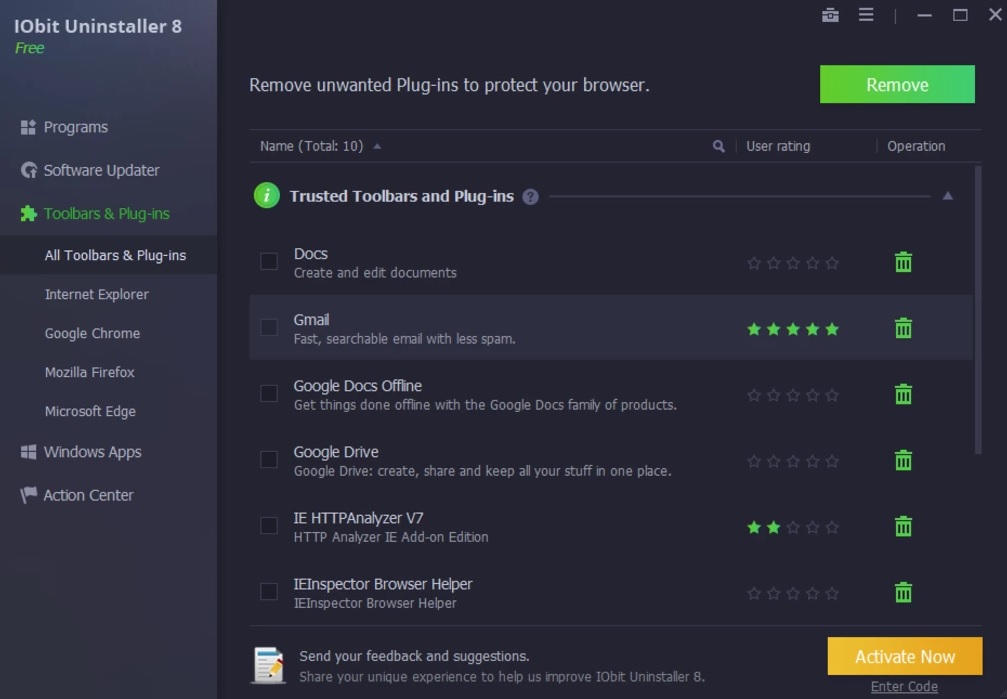
To get rid of a program on Windows 10, always use the uninstaller. Go to the Settings menu (click the Windows button + I) and click the “Apps” option. Next, you’ll see a menu with all the programs and apps installed on your computer. Click the one you want to delete and then “Uninstall.” If you prefer, you can also use software to uninstall programs. Check out the article below to find out which ones we like the most.

6. Deactivate “spyware” on Windows 10

Windows 10 is an excellent operating system, but it has always been criticized for invading users’ privacy. Unless we disable them, Windows 10 comes with a series of enabled options that share our data without us even realizing it (our location, data to help it decide what ads to display, activity, etc.)
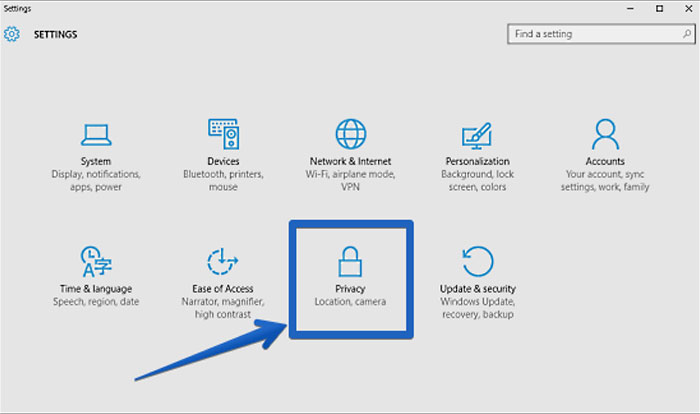
How to access the Privacy menu in Windows 10

To disable them, go to Settings (click the Windows button + I) and the “Privacy” option. In the new window, turn off the options under the “General” tab, and under “Activity history,” disable “Send my activity history to Microsoft.” Finally, under “Diagnostics & feedback,” turn off “Tailored experiences.”

7. Install good antivirus software

This may come as a surprise, but many Windows 10 users don’t have antivirus software, making them an easy target for potential hacker attacks. Good antivirus software is not necessarily expensive, and in fact, there are many free antivirus products that are excellent and will protect your PC without impacting its performance.
Hacker attack

Here at Softonic, we especially recommend Avast Free Antivirus. It detects the vast majority of viruses, and you’ll barely notice you have it installed. Click below to download it completely free.

Avast Free Antivirus DOWNLOAD
8

If you’re not a fan of Avast, don’t worry. We have a great article about the best free antivirus programs to protect your computer with Windows 10.

8. Always keep your firewall on

This point is closely related to the one above: always keep your computer’s firewall on. If you use Windows Defender, we recommend checking regularly to make sure that it’s on.
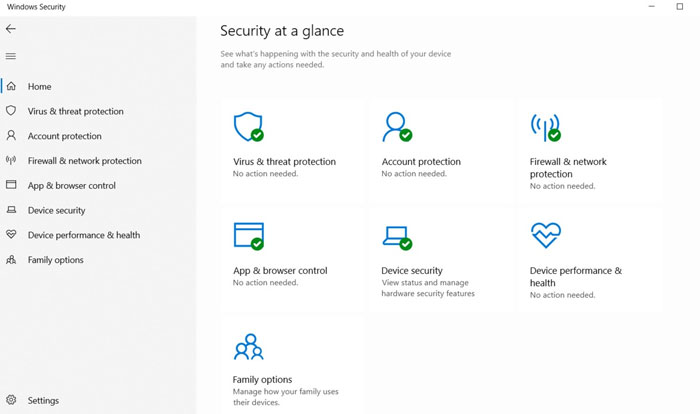
Windows Security Interface

Go to Settings (click the Windows button + I) and the “Update & Security” option. When the new window opens, click “Windows Security” and make sure there is a green check mark beside “Firewall & network protection.” You can also make sure by going to the Control Panel and clicking “Windows Defender Firewall.”

9. Use a paid VPN

Many of us browse the internet without using a VPN. This isn’t a problem if you only use your computer on your Wi-Fi at home. But everything changes if you access open Wi-Fi networks on your laptop at a library, coffee shop, airport, etc. Unless you use a VPN, your data won’t be encrypted and can be intercepted by any malicious user who is using the same network at the same time. So why is it important to use a paid VPN?

Free VPNs could seem like a bargain at first, but keep in mind that unless they cover their costs via subscriptions, they do so by other means. One of the most typical ways these free VPNs earn money is by selling your data to third parties, and they’re even capable of selling your internet bandwidth to other users without you realizing it. Want to know more about why we advise against free VPNs? Read the article below.

When choosing a VPN, make sure that it’s the right one to meet your needs, so consider how you use your computer. A good VPN for browsing the internet isn’t the same as one for streaming content or, for example, online gaming. To make your decision easier, read our roundup of the best VPNs for safe browsing.

We hope our list of tricks and tips helps to protect your operating system from hacker attacks. Know of any we didn’t mention? Feel free to share it in the comments section!

Quick and easy guide to VPNs

In just a few years’ time, people have begun to use VPNs outside of work en masse. Whether it’s to protect user privacy, ensure user anonymity, or access geo-blocked content, VPNs are all the rage, and it’s no wonder!

With the rise of scams and dangers on the internet as well as the arrival of a plethora of attractive platforms that offer series and movie streaming, everyone’s itching to use a VPN. Do you know exactly what they are and what they are used for?

VPNs on a laptop

Forget about the long and complicated technical articles, because today we’re going to take a quick and easy look at what a VPN is and how you can use it.

What is a VPN?

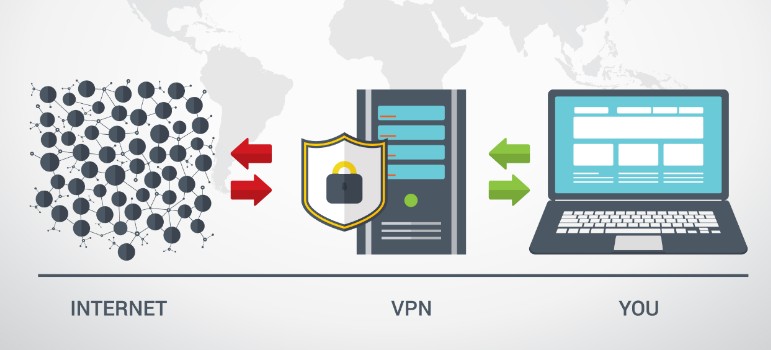
This is the million-dollar question that everyone asks but that very few know how to answer without taking the reader on a merry-go-round. A VPN is, as its name suggests, a Virtual Private Network. Its purpose is to protect all the data coming into and going out of your computer. Don’t worry, we’ll explain this process to you in the easiest and most straightforward way possible.

How do VPNs work?

When you connect to browse the internet or, for example, right this instant, while you’re reading this article on Softonic, your computer sends and receives data to show you the requested information. The usual way is simply that your PC sends the data to your internet provider, and they return the requested information back to your computer. When you connect directly to your provider and then to the internet, the data you send is not encrypted, so you share things like your geographical location and your searches over the network. That’s why your searches always appear customized to the language of your region, or you magically see ads on topics you’ve been browsing online for over the past few days.

What happens when you use a VPN? Easy. After accessing your internet provider, the VPN will redirect you to a server located in the part of the world you have chosen, and you will use its IP to run searches and receive information. On top of that, the VPN will encrypt all your searches, so your provider won’t have a record of what you search for online.

If it’s still a little unclear, take this simple example. Imagine that you are going to connect to the internet from your apartment in Barcelona to run a search on picnic tables. To do so, you connect to the internet through your provider and Google will appear by default as Google Spain (because thanks to your IP, it will know where you are). Once you’ve done that, you look for information about a good picnic table and when you don’t like any of them, you do something else. The next day, you go online again and since your connection wasn’t encrypted, Google automatically shows you ads for picnic tables.

What would happen if you used a VPN? The first step would be exactly the same. Your PC would connect to the internet server, but from there it would go to the VPN server in the geographical location of your choice, the US, for instance. This time Google would appear as Google USA because it would see the VPN server’s IP. And all the data that you shared with your browser and the internet from that moment on would be encrypted. That way, when you reconnected to the internet, none of your searches would be recorded by your internet provider.

What’s a VPN good for?

In the beginning, VPNs were mostly used by big firms and always in a work environment. That’s because a VPN creates a secure local network that allows all workers to connect, whether they are at the same location or working from home without the danger of data spills or a hacker taking control of a company computer remotely.

Today, VPNs are still used by companies but also from the homes of internet users like you and me. There is much to be said in their favor, like the fact that:

You can browse safely and completely anonymously

woman using a laptop

One of the main reasons people use VPNs is that they allow you to surf the internet with an extra layer of security. This is because the server chosen encrypts the data, making it harder for third parties to intercept or store it. This is especially useful if you recall that we live in an era where online scams abound. A VPN offers you anonymity in your searches: they can’t be traced. Your privacy and that of your data is respected.

You can access geo-blocked content

Netflix catalog

Have you ever huffed and puffed because Netflix USA has that series you really wanted to see and it’s not in the Spanish catalog? VPN to the rescue. In just a few seconds, problem solved. Simply connect to an American server through the VPN, open Netflix, and you’ll be offered your pick of the US catalog. Since the VPN takes the IP of the server you choose, you can access any service that has been blocked due to your geographic location.

You can use an open Wi-Fi network securely

woman working on a laptop at a cafe

If you are one of those people who connects to the internet using Wi-Fi in places like cafés, libraries, or airports, you know that there’s always a measure of security risk. Any data you share over that Wi-Fi network can be intercepted by a hacker who is also on that network, and believe us when say that it’s not rocket science and more common than you might imagine. If you use a VPN the situation changes dramatically, because it can encrypt all the data you release onto that open network, making it safe from any malicious user.

Are free VPNs safe?

If you’ve started doing some research on VPNs, you’ve probably already noticed that there are free VPNs as well as subscription-based ones. Are both options equally safe? Unfortunately, the answer is no. While free VPNs have the attraction of costing nothing of course, they manage to pay for themselves by putting your data and security at risk.

A recent study found that up to 38% of free VPNs on the market install malware on devices to show you ads that they can monetize. Not only are they annoying, but most of the time they will redirect you to dicey pages where you could put your computer as well as your data in danger.

malware

Another disadvantage of free VPNs is that they sell the data they collect during your sessions online to third parties. That’s how they make the VPN available for free, and even if it works, you may run into the downsides of sharing your data.

Finally, one of the big problems with free VPNs is that they can even take away your bandwidth and sell it to third parties. You don’t have to go very far back to remember the case of the free VPN Hola. It sold the bandwidth of its users, who ended up unknowingly taking part in a botnet attack on 8chan. That’s why using a free VPN will not only eat into your connection speed and privacy, but your computer may end up being an accomplice to illegal activities.

For that reason and many more, it’s always advisable that if you want to use a VPN, you opt for a paid subscription. They only cost a few bucks a month and offer a fast, secure service with an array of advantages.

What are the best VPNs on the market?

After reading this article, you may want to use a VPN either to surf the internet more safely or to be able to access content blocked in your region. There are a number of VPNs on the market, but not all of them are equally fast or able to protect your computer with the same level of reliability. To make your search easier, we’re going to recommend some of our favorites.

1. ExpressVPN

ExpressVPN interface

ExpressVPN is a truly all-purpose VPN. It is not only extremely fast but also capable of protecting your data thanks to its 256-bit encryption system. With over 3,000 servers in more than 160 regions, ExpressVPN is the perfect choice for accessing geo-blocked content, playing games online, or downloading without slowing down your connection speed. On top of that, it works perfectly on both desktops and laptops as well as on mobile phones and tablets.

ExpressVPN DOWNLOAD
9

2. NordVPN

Hotspot Shield

NordVPN is the best choice for any user who wants to use a VPN but is concerned about their data security. It has a 2,048-bit encryption system and some of its servers even have DDoS protection. This ensures that your computer and data never fall into the wrong hands. In figures, NordVPN has over 5,500 servers in more than 55 locations around the globe. This is also another highly versatile VPN, because you can use it on your desktop or laptop as well as on your handheld devices.

NordVPN DOWNLOAD
9

3. Hotspot Shield

Hotspot Shield

Last but not least, we would like to recommend Hotspot Shield. Do you remember when we talked about how open networks can put your computer at risk? With this VPN you can use them in complete safety. Hotspot Shield uses a military-grade AES encryption system that keeps your data secure at all times. On top of that, Hotspot Shield has a really simple and incredibly intuitive interface. Just press a button and you’re connected to the Internet from the server of your choice – it’s that easy!

Hotspot Shield DOWNLOAD
8

If you’re interested in more options, feel free to take a look at our complete list of the best VPNs the market has to offer. This one is really comprehensive, and you can use it to access exclusive discounts of up to 80% off your subscriptions.

We hope that this article helped you learn a bit more about what VPNs are and how they work. Have you ever used one? Let us know how it went!

Best Chrome extension alternatives to incognito mode

Incognito mode has saved our hides over the years, but are there better solutions.

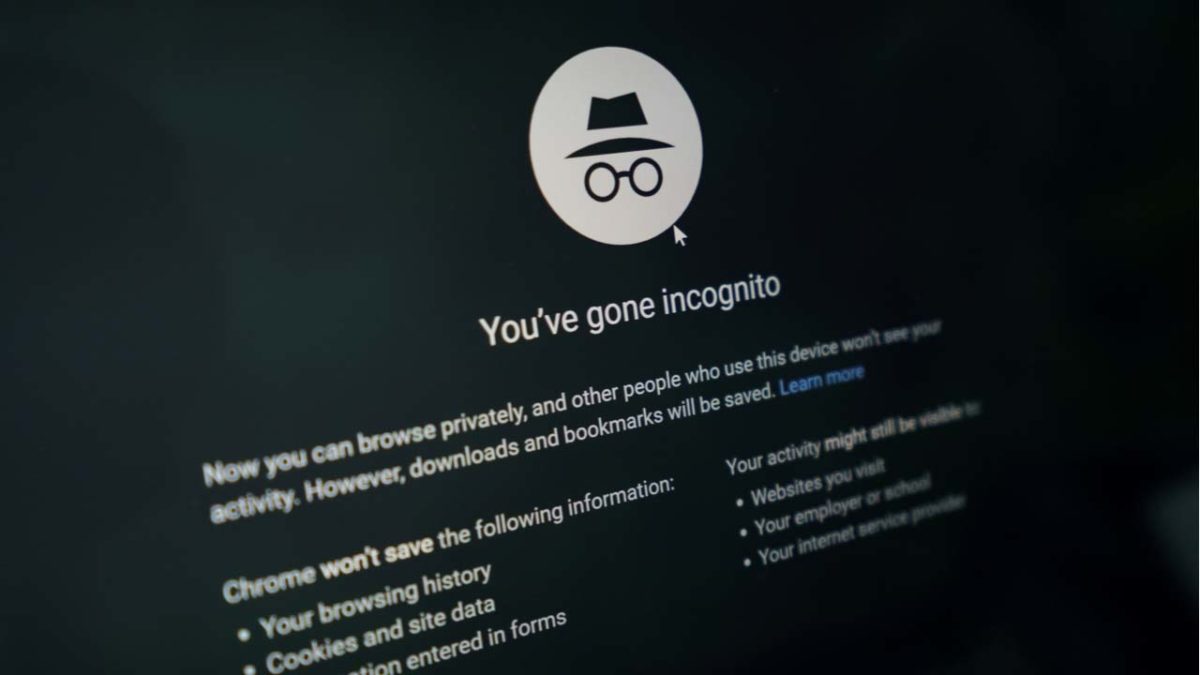
Incognito mode

Some of us would rather crawl into a hole and die than have our friends and family see our browser history. Luckily, the incognito mode has had our backs.

Incognito mode is an incredibly useful tool for hiding your browser activity, but also for the security measures it provides. Many Google Chrome users use this function to protect themselves from a variety of online threats.

7

While incognito mode provides a great option for browsing, there are a few Google Chrome extensions you can use to provide the same or better privacy:

Ghostery

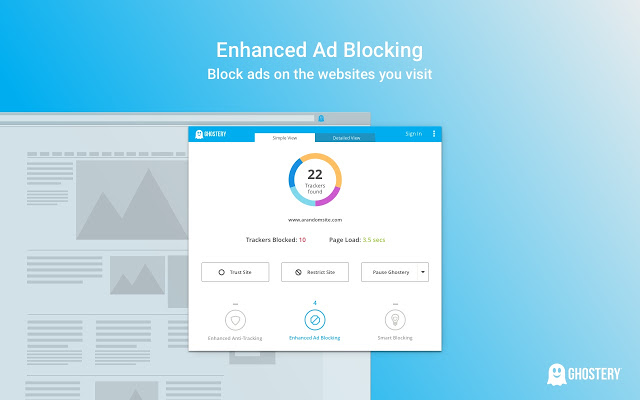
Ghostery is a free anti-tracking extension. It runs in the background to see if sites are tracking any of your information. When it finds a site that’s tracking you, it’ll block the information from being tracked and alert you.

It’ll also speed up your web browsing because each web page will spend less time trying to track your information.

Ghostery
7

HTTPS Everywhere

HTTPs Everywhere

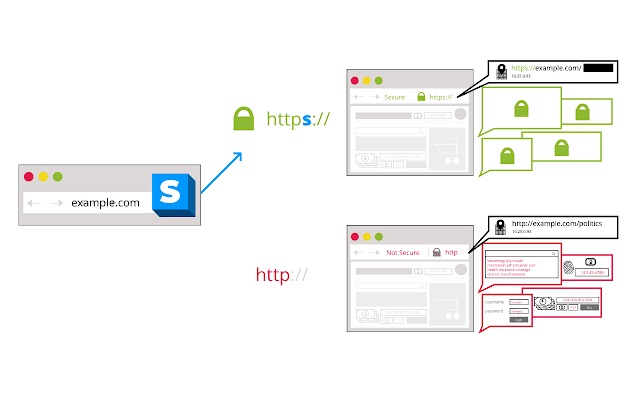
Most sites have an HTTP version to open them, but not all sites have an HTTPS version. Typically, your web browser will open the HTTP version (which is the unsecured version) by default.

HTTPS Everywhere makes your browser check for an HTTPS version of a site first. That way, if it’s available, you can have a secure connection to the site without needing to worry about any invasive malware.

HTTPS Everywhere Free Download ►
8

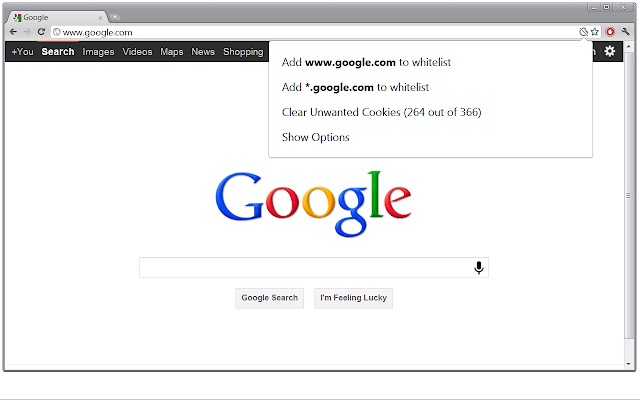
Vanilla Cookie Manager

This extension can be used to speed up your computer, as well as protect yourself from potentially dangerous cookies. Since cookies are necessary to run certain sites, it lets you fully manage the cookies that each site is trying to place on your computer.

It will also tell you whether these cookies are tracking your information or not. You will have a good understanding of how they work before you decide whether you want to block them.

Vanilla Cookie Manager
Vanilla Cookie Manager Download now ►
7

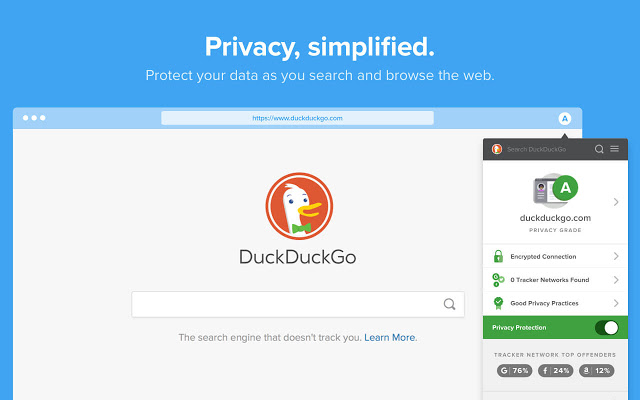
DuckDuckGo Privacy

This extension provides an alternative search engine to Google. While Google records your search results and your information, DuckDuckGo will let you search completely as if you were in incognito mode.

It even gives you a privacy grade for each website you visit, letting you see how secure each one is. You can also use this extension to force open HTTPS versions of sites.

DuckDuckGo
DuckDuckGo Privacy Browser Free Download ►
7

Hide Incognito Mode

While this isn’t exactly an alternative to incognito mode, it will fix one of the main problems people have with it. Some sites are able to detect when you’re in an incognito window and will prevent you from viewing their site until you’ve switched. This extension lets you bypass these security measures so you can continue your incognito browsing.

Hide Incognito Mode
Hide Incognito Mode Download now ►
7

Another alternative

If you’re worried about privacy, you might consider switching browsers entirely. Chrome isn’t really your best bet for that. Firefox is a great alternative. You could also try Brave, which offers you everything you love about Chrome with much better privacy, built-in ad blockers, and more.

Wrapping up

These are just a few of the fantastic extensions you can use on Google Chrome. If you haven’t been using any until now, you may want to check out our list of the best Chrome extensions for Windows. Each of these privacy extensions can enhance your browsing experience, but so can dozens of other extensions as well.

FastestVPN: A lifetime of top-notch VPN access for $20

Get your hands on a lifetime deal with your online security and privacy. FastestVPN now for 20$ forever.

When it comes to the world of virtual private networks (VPNs), one thing has been true up till now. Cheap or free VPNs provided only basic services, while more robust VPNs cost a whole lot of money. FastestVPN is disrupting this model by offering a full-featured VPN package that you can now get for a limited time at the truly mind-blowing price of $20 for a lifetime of use.

Here’s what you need to know.

What is a VPN?

VPNs are servers located in different locations around the world. When you use a VPN, you first connect to one of these remote servers before accessing the internet. You might be, for example, physically located in Germany, but you can “tunnel” into a server in Japan and do all of your surfing from there. All transmissions from that server are generally encrypted, so you get to explore the internet completely anonymously.

Easy-to-use interface

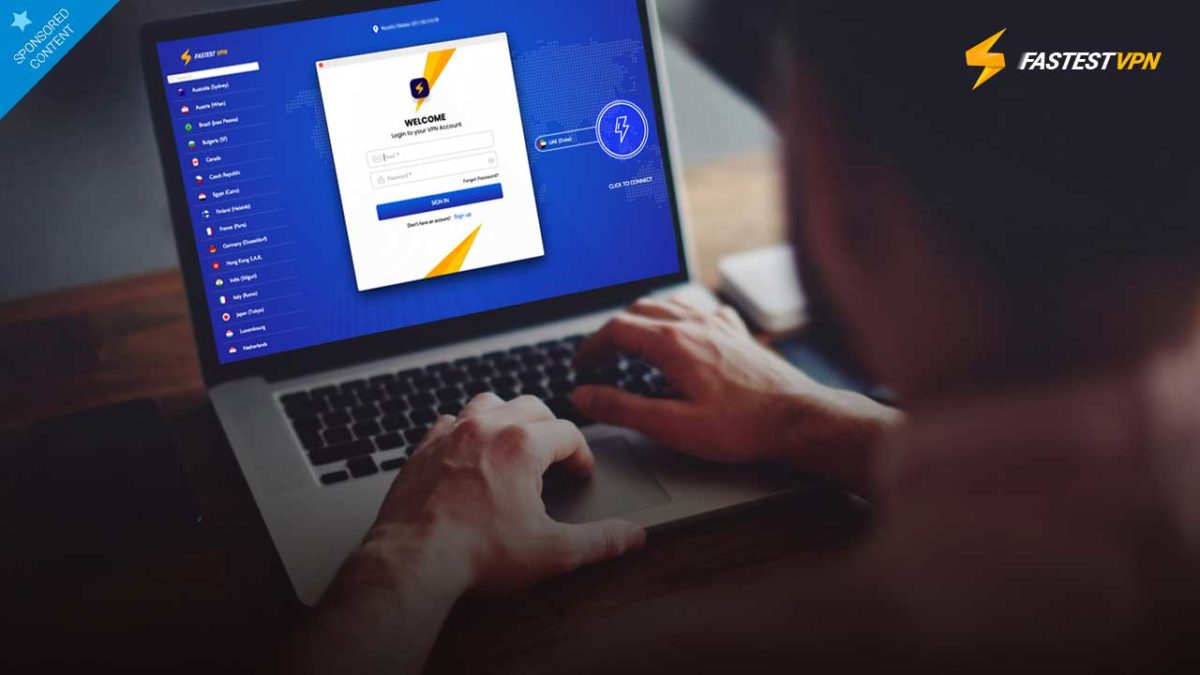
Most users want their VPN provider to work quickly, easily and as unobtrusively as possible. FastestVPN delivers on all fronts. The service is super simple to set up. After you create your login credentials and download the app, you simply click on the country of your choice then hit the “click to connect” button and you’re good to go within seconds. Alternatively, you can click on the “Smart Connect” button and the service will tunnel you into the best location for speedy surfing.

What’s more, FasterVPN has just completed a complete revamp of their apps from the ground up – making the interfaces clean and responsive, and baking in a host of new features.

FastestVPN

Speed and worldwide connections

FasterVPN offers servers in over 31 countries, router-level protection, and device compatibility across Mac, iOS, Windows, Android, Android Box, Smart TV, Firestick, making its capabilities truly unbeatable.

Plus as its name implies, FastestVPN offers speeds that compete at the very top of the VPN spectrum, letting you surf with virtually no lag, no matter where you connect.

FastestVPN also allows full access to streaming services like Netflix, Amazon Prime, Disney+ and Hulu – something that many providers can’t offer – along with the option to connect 10 different devices at one time, a benefit that’s often unseen even in offerings from giant VPN companies. This basically means you can surf, stream, torrent, and use your apps wherever you are, whenever you want with no noticeable disruptions or data caps.

FastestVPN

Security

When you’re accessing the internet from someone else’s server, you want to make sure that it encrypts all your data both when connecting to it, and when accessing the web. FastestVPN gets the job done with 256-Bit AES encryption, just about the highest level of encryption offered anywhere, so your data stays secure at all times.

Plus, FastestVPN doesn’t keep a log of your activity, so even if they were asked to provide user data to an investigative entity like a government, there’s no way for them to link you to your browsing activity.

Typically, when you think of affordable VPN companies, you think of sacrifices. But there simply aren’t any with FastestVPN.

You get malware blocking, ad blocking, firewall protection, servers that are optimized for P2P sharing and streaming, and unlimited bandwidth and server switching. Plus, the software comes with a built-in kill switch so that your internet activity is halted if the VPN server goes down – something that’s pretty unlikely because the company reports an uptime of 99.9 percent.

Get the deal

And yes, all of this really does come for a one-time payment of $20 thanks to this special limited-time offer. A deal this good really doesn’t come along very often. We’re super impressed!

New year new iPhone? You need these essential apps for 2020

These are all the essential iPhone apps you need in 2020.

Must have iPhone apps

Is there anything as exciting as getting a brand-new iPhone? Just on looks alone they’re incredible little machines. Beautiful to look at and solid to hold, they’re a marvel of modern desire. Particularly when paired with an Apple Watch. Obviously, however, iPhones are so much more than how good they look. The newer iPhone models are very powerful mobile devices offering a world of possibilities to anybody lucky enough to have one in their pocket. Owning one isn’t enough, however, if you truly want to unlock the iPhone’s true potential. To do that you need the best apps.

This why we’re here today. When you first unpack your iPhone it only comes with basic iOS apps. We’re here today to tell you about the most important new apps you need to download on your iPhone. These are the best iPhone and iPad must have apps on the app store.

Essential iPhone apps 2020

Social media and messaging apps

We’ll start off our list of must-have iPhone apps with all the social media apps that no modern smartphone should be complete without. Of course, you need Facebook, Instagram, and Twitter, which represent the old faithful veteran social networks. Newer to the game, however, but no less influential is Snapchat and the biggest upstart of them all is Tik Tok. Each app offers something different to offer.

7

Instagram Download Now ►
7

Once you’ve got your social networks installed on your iPhone’s home screen, you need to start thinking about messaging apps. Yes, iMessage is a fantastic app but if you’ve any friends who don’t have iPhones themselves, you’re going to have to diversify your messaging capabilities. WhatsApp is the biggest messaging app on the planet with Facebook Messenger not far behind.

WhatsApp Messenger Download Now ►
8

Google Maps

When it comes to GPS navigation, Google is the king of kings. Both Google Maps and Waze, which is also owned by Google are better than the Apple Maps mobile app that comes pre-loaded on your iPhone. Installing Google Maps on your iPhone will give you fantastic navigation capabilities as well as reliable public transport information. In short, you’ll get the best GPS app available.

Google Maps Download Google Maps
7

Google Chrome

Google Chrome

As well as Google Chrome, we’re also going to recommend Mozilla Firefox here and Microsoft Edge. Chrome is by far and away the most used web browser on the planet. It is a fast and reliable browser, which is why it is so popular. Mozilla Firefox is also reliable but is also the perfect web browser for anybody who is worried about their online privacy. Microsoft’s Edge browser is the newest of the three recommendations and offers a decent compromise between what you get with Firefox and what you get with Chrome. If you like the sound of both of them, download Microsoft Edge.

7

9

LastPass

LastPass offers you the best free password manager and as such is a must have app. We have more online accounts than ever before and if you’re to stay secure when browsing the web, every single one of them needs a strong and unique password. In reality, this is an impossible task. You probably can’t come up with so many unique passwords and you definitely can’t remember them all. This is why you need a password manager and with LastPass syncing all your passwords across up to three of your devices, this is the one you should get.

8

Google Photos

Photos colorize blank and white images

Another Google app makes our list here, but it can’t be denied that Google Photos is the best photo app available today. Photos allows you to back up all of your photos under 16 megapixels to cloud storage and then access them whenever you have an active internet connection. This means you can then free up space on your iPhone by deleting the photos that have been backed up. On top of this Google Photos also uses all sorts of AI bells and whistles to automatically organize your photos, make them easier to find, edit and optimize them, and share them with friends and family.

Google Photos Download Google Photos
7

Snapseed

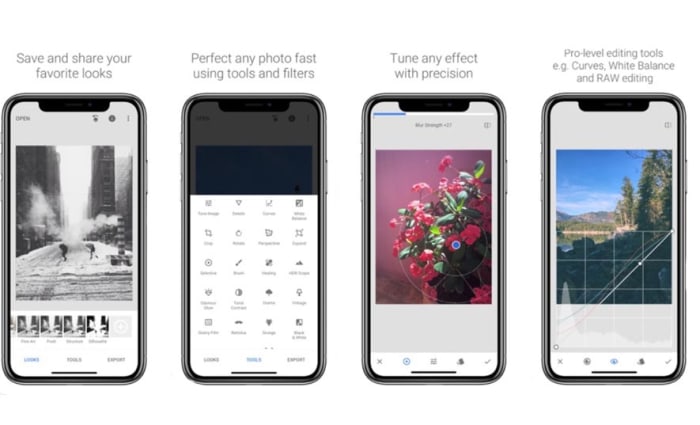
If you’re a keen smartphone photographer, you might want to go beyond the basic edits offered by Google Photos. Snapseed is a fantastic photo editing app that offers extensive features that rival those found on many premium apps. It is easy enough to use for beginners to make impressive edits to their shots and advanced enough for those who are more comfortable playing around with the nuts and bolts of images to get them exactly how they want them. This is the photo editing app you need on your iPhone.

9

Evernote

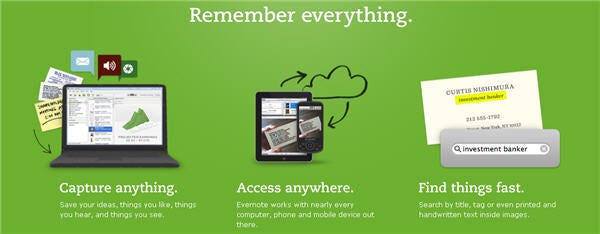
Evernote is a fantastic note taking app that gives you the power to easily create to-do lists and other notes to yourself and then sync them across all of your devices. Evernote can even scan handwritten notes and allows you to add multimedia elements like photos and audio clips to your notes as well as links and web pages. This is a very useful app.

7

Netflix

If you have a Netflix subscription, you need the Netflix app. It is as simple as that really. Why would you not download the app, why would you stop yourself from being able to download movies and shows to your phone so that you can then watch them when you’re not connected to Wi-Fi without having to worry about using up all your mobile data.

8

Spotify

This is the same as Netflix. If you have a Spotify subscription, download the app now and get all your favorite tracks and playlists even when you’re offline. Come to think of it, this works the same with Deezer, Apple Music, and Google Play Music. If you’ve a subscription, download the app.

8

Deezer Download now
7

Apple Music Download Now ►
7

Apple Music Download Now ►
7

Google Play Music Download now
8

Wrapping up

So, there you have some of the most essential apps you need to download right now on your Apple iPhone. We could have gone deep on Google apps but tried to limit it to just a few. You could also look at Gmail, Google Drive and all its attached apps like Google Docs, and Google Translate. On top of these, there are plenty more fantastic iPhone apps like Dropbox, Dark Sky, Skype, and Amazon out there for you to download. With this list, however, we just wanted to give a good foundation that you can then build on yourself.