
Microsoft’s latest trick to get you to upgrade to Windows 10

Microsoft is gutting Windows Media Player on Windows 7

microsoft

We’ve been reporting for a while now on Microsoft’s attempts to push users onto Windows 10. The software giant has made no secret of its wishes to have all Windows users migrate to Windows 10 so that it can concentrate its support efforts rather than having to splinter different teams to provide support to users on different operating systems. This is why Windows 10 was free at launch.
Windows 10 Download Windows 10
8
The latest and greatest version of Microsoft's operating system.

As well as offering Windows 10 for free, Microsoft has also put effort into making its older operating systems less desirable. We’ve seen the introduction of a paid subscription model for support of Windows 7 machines and now we’re seeing Microsoft’s most diabolical move yet.

Microsoft is gutting Windows Media Player on Windows 7

Windows Media Player will continue to function normally on Windows 10, but on Windows 7 Media Player’s functionality will be severely affected as Microsoft is pulling metadata support for the program. The move will also affect Windows Media Center on Windows 8.
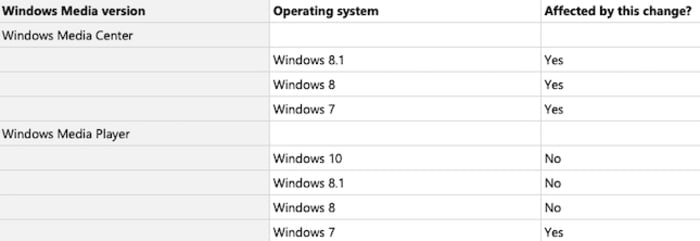
Windows media player affected on Windows 7

Metadata is one of those complicated tech phrases that can be difficult to understand. Its significance changes depending on the context. For example, the metadata for a telephone call could be how long it lasted, the numbers involved, and the locations of all parties involved in a call. All that stuff might be useful information for overbearing security agencies like the NSA, but it isn’t vital information for us every time we make a phone call.

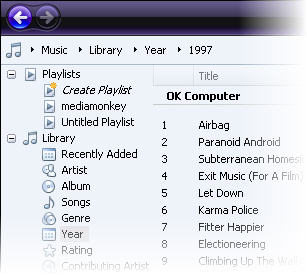
With music and movies, however, the metadata is a little more important. This is what Microsoft had to say about it in the blog post it published to announce the move, “Going forward, you may be unable to view information (metadata) such as the title, genre, and artist for songs, and the director, actors, and cover art for movies in Windows Media Center and Windows Media Player.” Yep, the metadata relating to our music and movie collections is what helps us find the song or video we’re looking for.

As things stand, any Windows 7 user who has been using Windows Media Player will not lose out on any metadata Microsoft has already applied to their collections. The problem will arise, however, whenever they try to add new files to their collection as no new metadata will be added and all information will have to be added manually. As someone who spent a large part of his misspent youth manually organizing his digital music collection and even adding his own sleeve art to various albums, I can tell you that it is a time-consuming, repetitive, and laborious task. It isn’t fun.

This new move has been in play for a couple of weeks now so if you’re a Windows 7 user and you’ve noticed Windows Media Player hasn’t been working properly recently this will be why. If this trick by Microsoft pushes you towards upgrading to Windows 10 but you don’t want to pay for it, you might want to check out our tutorial below.
5 great alternatives to Windows Media Player

There’s a lot to like about multi-format multimedia player Windows Media Player. With a sleek and stylish interface, and the ability to integrate your media for easy browsing, it’s not difficult to see why it’s a staple on most peoples’ PCs.

There are, however, other multimedia players out there that really give Windows Media Player a run for its money though. Whether WMP isn’t cutting it for you or you’re simply looking to explore other options, you’ve got a lot of great players to choose from. There are a variety of different players out there to suit your own personal interests and needs.

Here are five free alternatives to Windows Media Player that support multiple file formats.

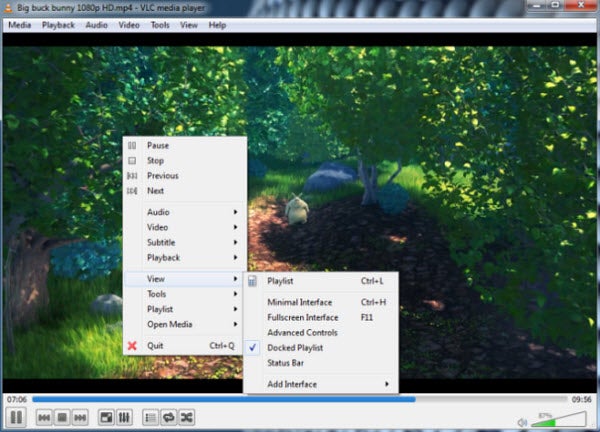
VLC media player

Hands-down one of the best multi-format media players out there, VLC supports a wide range of file formats. Beginner users will appreciate the simplicity of VLC’s interface. More advanced users can take advantage of the player’s hotkey support, as well as the ability to integrate VLC with web channel streaming services. Channels.com is a good example, which will give you access to a variety of different channels and programming such as ESPN and National Geographic. The player also plays BluRay and HD.

VLC Media Player is available for both PC and Mac.

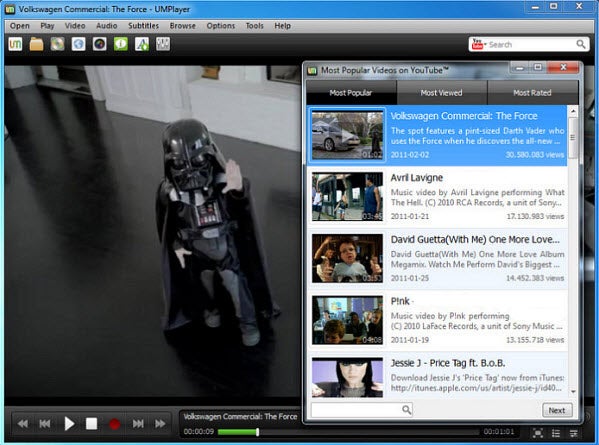
UMPlayer

UMPlayer is based on another solid multimedia player, MPlayer. It’s a player with a minimalist interface that’s arguably more stylish than the player it was based on, which makes for a great user experience when listening to audio or watching videos. UMPlayer can play online TV and radio stations and offers a built-in search feature that lets you find videos in YouTube and stream music via Shoutcast. It’s unlikely you’ll have difficulties playing any media file, as this player includes more than 200 codecs. UMPlayer can also take screenshots of video files and supports subtitle downloads for foreign language movies.

UMPlayer is also available for both PC and Mac.

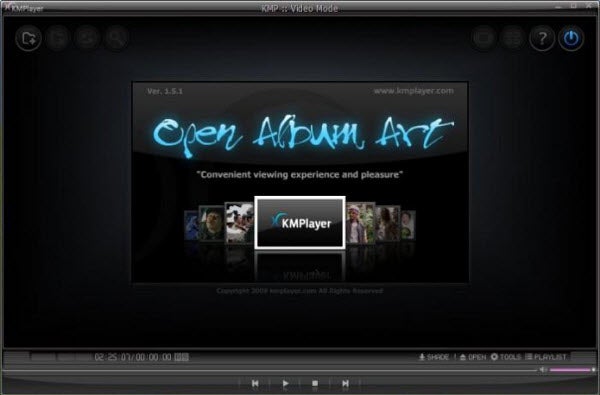
KMPlayer

Another multimedia player that supports a large range of formats, KMPlayer is also incredibly light on resources. This makes it the perfect player for PC users with little space to spare. KMPlayer boasts a minimalist interface with subtle aesthetic touches. One of these involves the player’s color changing with every new track played. KMPlayer is highly customizable as well, with the ability to choose skins, add plug-ins and change playback options. You can even change picture properties, sharpen video images, apply filters and take video captures through the processing tools KMPlayer provides.

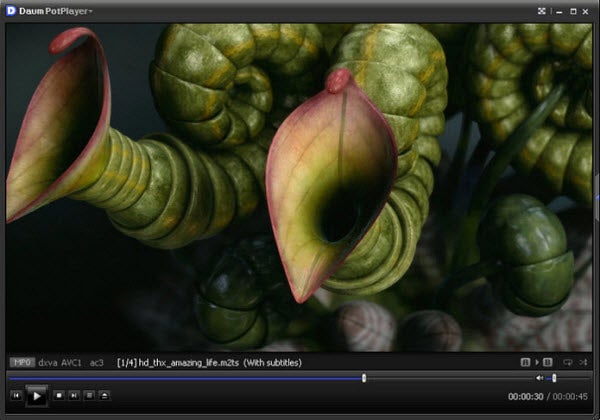
PotPlayer

If you want a powerful player with loads of configuration settings, give PotPlayer a look. PotPlayer includes an impressive list of built-in audio and video codecs that will let you play almost any media format you can imagine. It also hast great quality playback and resumes playback wherever you left off watching your video files. In addition, audio filters and support for subtitles come included in PotPlayer. Just note that this player is a little heavy on system resources, so it requires a higher spec PC to get the most out of it.

SPlayer

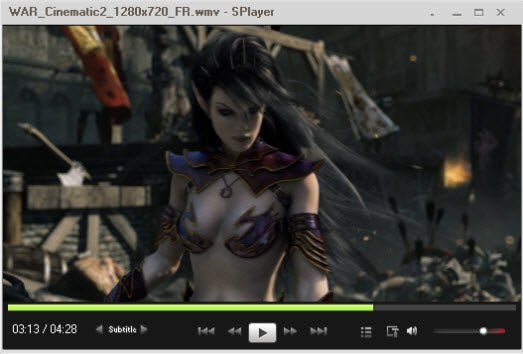
If lightweight and simple are your preferences, give SPlayer a look. Although its interface might seem a little dull to some, it’s perfect for minimalists. SPlayer is also easy to use. It supports an enormous list of file formats so you can watch virtually any movie you own and listen to song files from any online store. Since the interface is so basic, it doesn’t interfere with the media you’re trying to enjoy. In addition, SPlayer comes with a few extra perks, such as an audio and video equalizer, a screenshot feature and three interface options.

Are there any other free media players that you think deserve a mention? Tell us below!

Trying out Windows Media Player 11

wmp11.jpgWith Windows Media Player (WMP) 11 Microsoft aims to counter iTunes’ dominance. The interface has been beefed-up, usability has been enhanced and Microsoft has worked at turning its flagship media application into a full multimedia center, linked to online stores and compatible with mobile devices. We take a look at its new features.

The first thing that will strike you when you start up WMP 11, is the complete revamp of the interface. No more deep blue, the whole application is now dark and shiny and you can customize it by selecting a hue of your choice. The left side is a drop down pane for your library, the centre displays your lists and the right side is used to create playlists which you can rip, burn or sync with a mobile device.

Compared to version 10, we feel that Microsoft actually made an effort to simplify the whole interface and give you more ways to browse through your media list, whether by using the drop down menu or the quick rollout line on the top left. The “play” and “previous” and next” buttons are now nested at the bottom of the interface and have a jazzy glow whenever you roll over them. Microsoft has finally succeeded in integrating a good search function into its WMP interface. As you type the name of an artist or title the application will bring up the results in the main window.

Continue reading “Trying out Windows Media Player 11”

Updating your Windows Media Player library

windows media player.jpgInstead of manually dragging all your new photos, videos and music onto your Windows Media Player library, just use the “media information changes button” in the library tab. That way the application will automatically browse your PC for new content and add what it finds into your library. If you add new stuff constantly, make sure you do this regularly to keep your media collection up to date. Check out our screencast:

[googlevideo]8414783378667319480[/googlevideo]

It’s simple and only takes a few seconds. If you have the new version of Windows Media Player (version 11) installed, try it out.