Why extra iTunes playlists appear, and how to fix them

Weird, duplicate iTunes playlists? Here’s how to get rid of them.

itunes

It’s about time someone had a clear answer for this problem!

iTunes users probably know the feeling: you have a playlist (yep). You get a few new songs (uh-huh). You plug your phone into your laptop to update the music library (so true). Then, you unplug your phone and find an annoying duplicate of the playlist! It looks something like this:

Halloween

Well, we’re here to fix the problem. We’re here to discuss…

Why extra iTunes playlists appear, and how to fix them

The tried and tested explanation

Question

We rooted around on the internet for answers. It took many minutes of sorting through theories before we arrived at an Apple discussion thread with a solid answers to the question:

User Jon Milan suggested the duplication happens when iTunes is open and playing a playlist during the syncing routine.

We began testing the idea by changing a “Halloween” playlist and syncing our phone without iTunes running. Nothing happened. We altered the music and synced again, while the playlist was running. To our surprise: “Halloween 1” appeared. So far, theory confirmed!

And it makes sense; having iTunes playing during an update could cause difficulties; instead, the program renames your active playlist and inserts the updated version under the original title. Apple made an understandable decision, we just wish they notified us better when it happens. These duplicates have bothered us for quite some time.

The Fix: shut iTunes off during the sync process. Simple!

Of course, if you already created a playlist by accident, carefully delete all numbered versions (ex: “Dance Party 1”) in the main iTunes playlist. Then, without unplugging your phone, re-sync again, without iTunes running.

The extra playlists will disappear like magic.

If that doesn’t work

Mac

Uh-oh. It’s not over yet.

There are many different settings and versions for iTunes, and all of these can add their own problems or solutions into the mix. If you’re still experiencing issues with playlist doppelgängers, try this on for size:

Switching Phone Playlists

Does your phone still have unwanted playlists that load into your mac whenever you re-sync? We believe removing the playlists and syncing again without unplugging your phone can solve the problem, but if that still doesn’t work…

User Kenichi Watanabe suggested another plan: remove iTunes from your phone entirely, remove the unwanted playlists from your music library on the computer, and then re-sync. Since the extra playlists are gone from your laptop and fully deleted from your phone, it’s highly unlikely they’ll still be around afterward.

And if that still doesn’t do the trick…

Online Playlists

Final Effort!

In another forum, users amergin and swedish_chris suggested the issue may be related to an iTunes update in conjunction with the cloud. Much akin to the first issue discussed, the explanation goes something like this: your Mac has one version of the playlist and your iCloud account has another. When you sync, the extra version appears with a number.

To solve this, go into your iTunes account by visiting “Store” and scrolling down to “Account” at the bottom right:
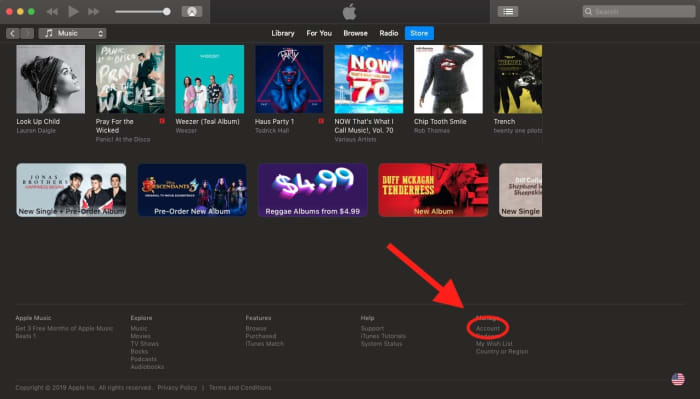
ItunesAccountFrom here, you can change your settings for iCloud and Family Sharing. Once you turn this off, you should be able to remove the duplicates (just so long as you remember to turn iTunes off during the sync).

Conclusion

We hope you resolved the issue with one of these solutions! While we’re pretty sure the “tried and tested explanation” will help most modern users, there’s no telling if someone running an older installment will have unique problems or if a future update will bring back former problems. If you’re still having trouble or found a new solution, please let us know in the comment section. Thanks for reading!
Apple kills iTunes

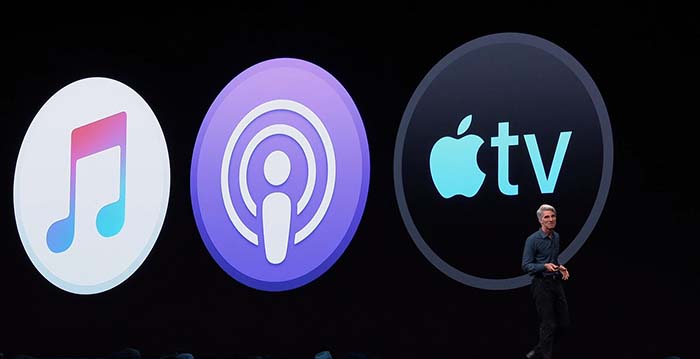
Apple will remove iTunes later this year and will replace it with new apps for music, TV, and podcasts.

iTunes

Apple will be announced the end of iTunes at today’s WWDC. At nearly 20 years old, iTunes has remained a necessary service for many users.

What am I going to do?

ITunes babies

After being the go-to Music app for years, iTunes has been divided into a new app trinity: Apple Music, Apple Podcast, and Apple TV.

If you used iTunes to sync your music to your iPhone, do not worry. You can still sync your music to your iPhone through Apple Music.

In case you want to find a podcast but you don’t remember the name of it, Apple Podcast has a feature that allows you to find podcasts based its content.

Apple TV has 4K HDR playback support, and also features your channel subscriptions similar to Prime Video.

Apple Music is expected to have a feature that allows users to buy digital songs. However, Apple is rumored to stop having users download mp3s altogether in favor of a music subscription product.

Wrapping up

iTunes was a landmark product for Apple for years. It helped drive the sales for nearly half a billion iPods. The departure of iTunes signifies the end of an era, and that Apple is ready to jump into the next generation of music.

Masters guide to creating iTunes playlists

Build the ultimate playlist with our guide.

We love iTunes and enjoy creating new playlists but it took years to realize the full potential of iTunes’s options! Rather than going through a long journey of technological discovery, enjoy this short guide to Apple music mastery. Prepare yourself for the…

Master’s guide to creating iTunes playlists

Creating a Playlist

Hop into iTunes!

iTunes 12.8.0 DOWNLOAD NOW ►
10

To create a playlist (a grouping of songs) there are two simple paths:

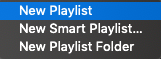
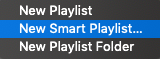
1. Easy Mode: right click the left bar, hit “New Playlist”. You’ll be given the option to name your new playlist!

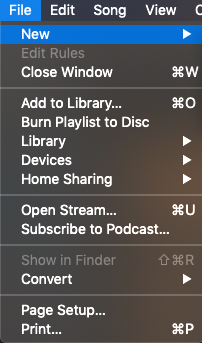
2. Thorough Mode (for Mac users): open iTunes, and visit “File” in the top bar:

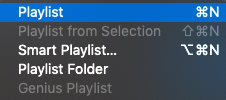
Within the “New” section, you’ll see the same three choices available.

Creating a Smart Playlist

Smart Playlists bundles music, videos, and more based on preset conditions: date added, title, year composed, etc. If you know how to shape the playlist, it can become whatever you like!

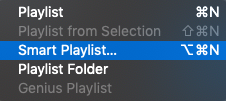
Starting a Smart Playlist begins much the same as a normal playlist. Double click the left bar or hit “File” and “New” in the top bar to arrive at the playlist menus:

You can go with this…
Or you can go with that!

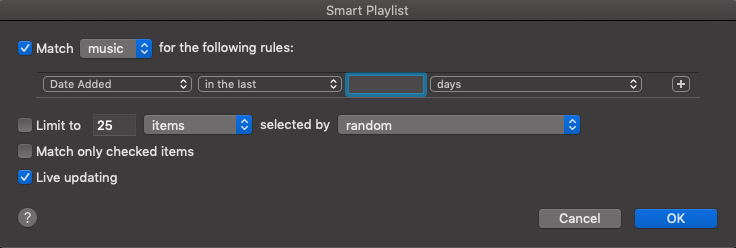
For smart playlists, you have another step! The “Smart Playlist” window:

The magic happens here. In general, smart playlists gather songs with a similar characteristic. Right now, the targeted characteristic is “Date Added”, but there are a number of other parameters available:

Recently, iTunes randomly deleted our “Recently Added” section, so we made our own smart playlist that compiles all songs added within the last month. Play around and see what you could make!

(NOTE: in the smart playlist window, make sure to select “Live Update”. This keeps the folder updated without requiring extra effort.)

Developing Your Playlist

Guess what? Now that you have a playlist, it’s time for customization!

ADDING SONGS

Want to add a song? Select one and drag it over your playlist name, in the left column. Easy as that!

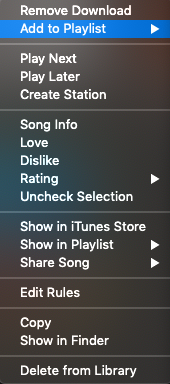
On the other hand, if you aren’t using MacOS, right click the song in question. Select “Add to Playlist” in the dropdown menu. Then, choose your playlist from the options given:

CHANGING PLAYLIST ARTWORK

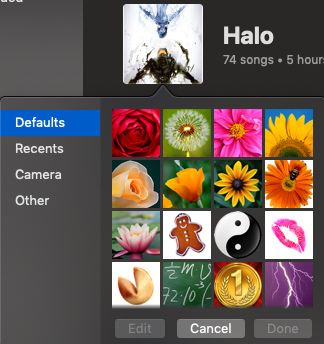
To change the playlist artwork, simply click the current artwork directly, at the top left. A new window will appear, from which you can search for another graphic file:

ALTERING PLAYLIST DETAILS

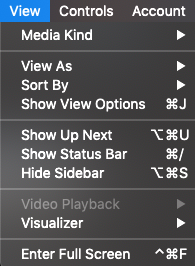
Select the “View” tab, at the top of your screen:

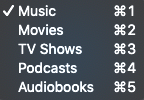
The three most important options are: Media Kind, View As, and Sort By. The first, Media Kind, simply tells iTunes whether its dealing with music, movies, or something else:

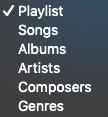
“View As” determines how you will see your song. Currently, the default goes to Playlist, which shows each individual song with artwork. Songs creates a list of songs; compact, better for ordering, but less visually appealing. The last four sections – Albums, Artists, Composers, and Genres – lump songs back into those categories.

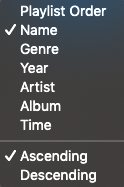
Sort By arranges music by either user arrangement, alphabetical order, genre, year, artist, album title, and song length. Within those categories, you can choose ascending or descending order.

Keep all these options in mind when making your playlist. There’s no right answer except what works for you!

Bonus: Changing Album/Song Information

Songs make playlists. Therefore, a thorough playlist guide deserves guidelines on how to work with songs and albums, right?

Of course!

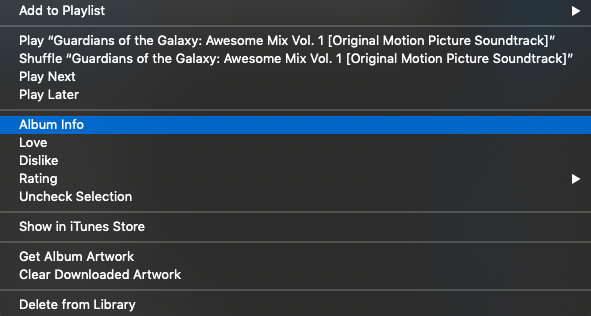
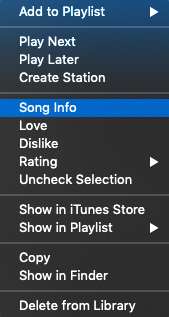
Right-click your song or album. The dropdown menus look slightly different, but both have an all-important “Info” button:

As an example, here’s the window for the song “Hooked on a Feeling” by Blue Swede, from the “Guardians of the Galaxy: Awesome Mix Vol. 1” album:
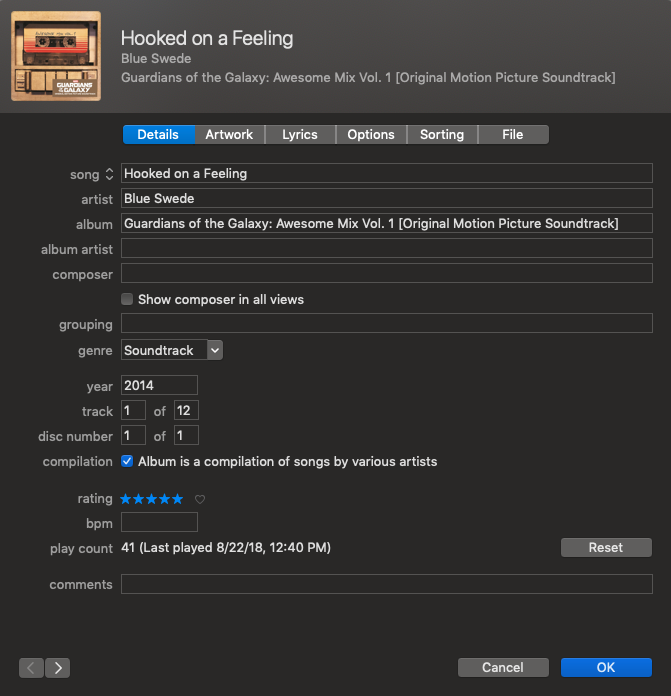
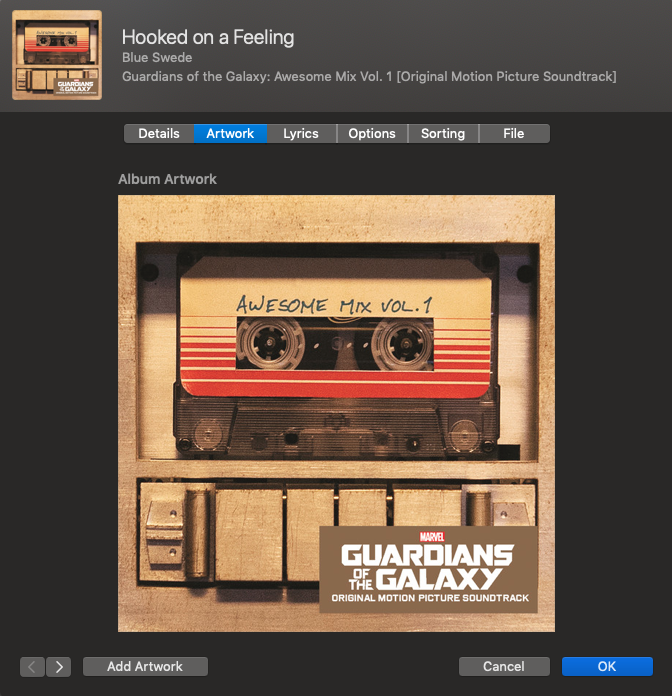
(Song and album windows look the same)

Let’s talk about the three most important tabs: Details, Artwork, and Lyrics. In the Details tab above, you may notice every piece of information from the title to ratings to BPM (Beats Per Minute). Many of these items can be adjusted right here! If you really want, “Hooked on a Feeling” can appear in your playlist as “Wizzle Wozzle,” composed in 1872 by John Williams.

It’s your playlist, we won’t judge.

Next up is Artwork! Why change the image for a song or album? Two reasons come to mind: CD’s often don’t load with the graphics, and more exciting artwork can be found elsewhere.

Pinterest FREE DOWNLOAD ►
8

Whatever the case, click “Add Artwork” at the bottom left to choose a new image. Consider deleting old artwork if you’re using a new one instead!

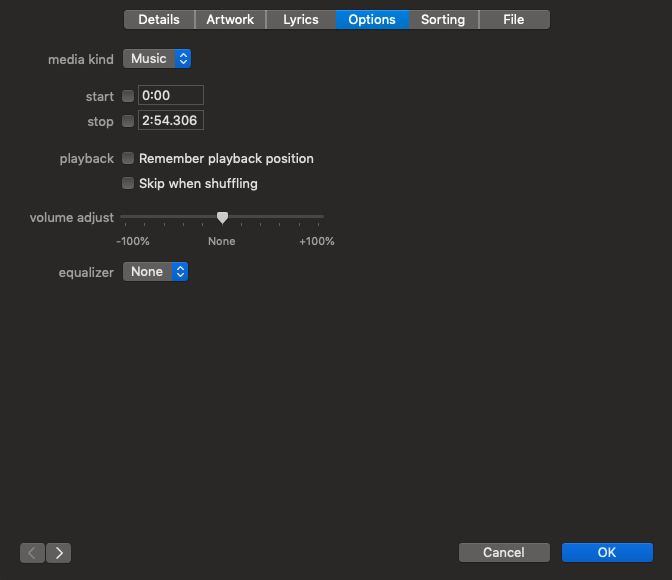
Next section: options.

Want a song to start or stop at a certain time? You can control that here! Want the song to be skipped while you’re shuffling? Done! Is the song or album at a strange volume compared to others in the playlist? Adjust the level!

Conclusion

John Wooden said, “Small things make big things happen”. With a few easy clicks, you can set new and inspiring artwork for an album or fix offset volume levels within individual songs.

Thanks for reading, enjoy the tunes, and stay fresh!