Modern life revolves more and more around data and data storage: with rapidly growing files for movies, video games, photos, and all the high-quality digital programs we know, love, and live on, the question becomes: how do we make everything stack together? How can we not send some of it to the trash folder and even worse delete forever when we empty trash! We all have a storage limit on our devices.
If you’re like us, Google provided a solid answer with Google Drive storage, our favorite online storage database. Once you have a Google account, Drive gives you access to all sorts of cool features like Google Docs, Google Sheets, and more. It’s the free space your Google Drive account gives you that we love the most, though, but…
There is a limit!
Specifically, a 15 Gigabyte limit, which can be seen at the bottom left corner of your Google Drive page:
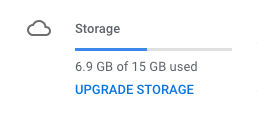
If you’re like us, it seems like only yesterday the bar showed just megabytes taken up. Now it’s 6.9 gigabytes! Where did all of that data come from? Where did all your Google Drive Space go?
We’re going to answer that crucial question, and help you manage this cloud space easier and free up space you need.
How to take care of your Google storage
What Makes Up Google’s Storage?
First things first; what is Google Drive made of? The simple answer is that it is comprised of just three things:
- Google Drive
- Gmail
- Google Photos
Looking at storage in Google Drive alone, you may have been surprised at the amount of data you use! Alternatively, in Gmail, you may suddenly run up against an unexpected data limit. If that’s the case…
First, let us help you get a better visual. Head into My Drive and right-click and then click “UPGRADE STORAGE” on the data graphic:
You’ll be shown a far more useful graph:
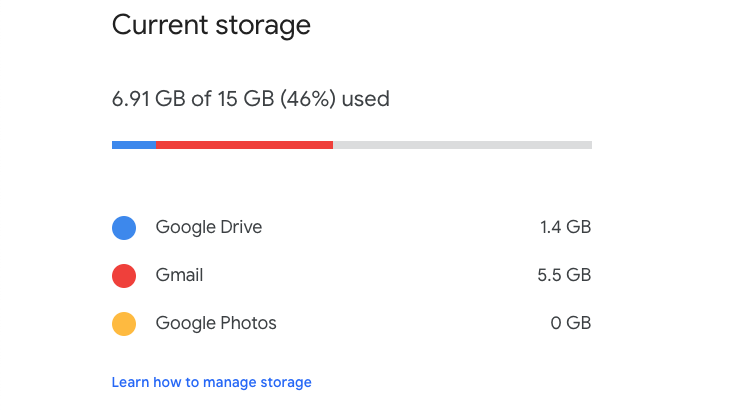
Doesn’t that make more sense?
There are now two options: manage storage, or upgrade storage. We’ll first focus on how to manage Drive, Gmail, and Photos in the coming section. Then, just in case, we’ll quickly mention the possibility of a storage subscription!
If you really want to make your computer run faster, we would recommend MacPaw. Don’t be fooled by the name, MacPaw products are available for both Mac and PC.
Google Drive
Manually check through Drive to see which things you want to get rid of. If you’re not sure how to start, we have a few suggestions:
1. By date used: on the main Google Drive page, within any folder, you can arrange files by their “Last modified” date. There’s a general rule that older files are often less important! (On the other hand, if you don’t want to throw away your copy of 2014 tax returns, there are other ways…)
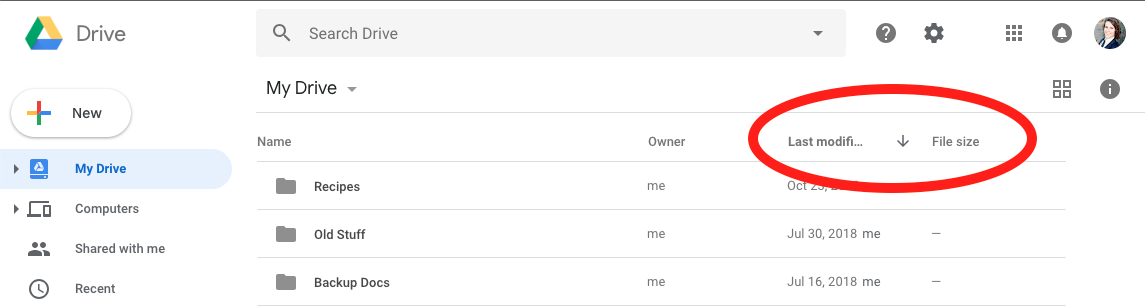
2. File size: an even better option, located right next to the Last-Modified button! While some files may be more important, you may not want to clear up Google storage kilobytes at a time… so organize them by size, and see if there’s anything you no longer need!
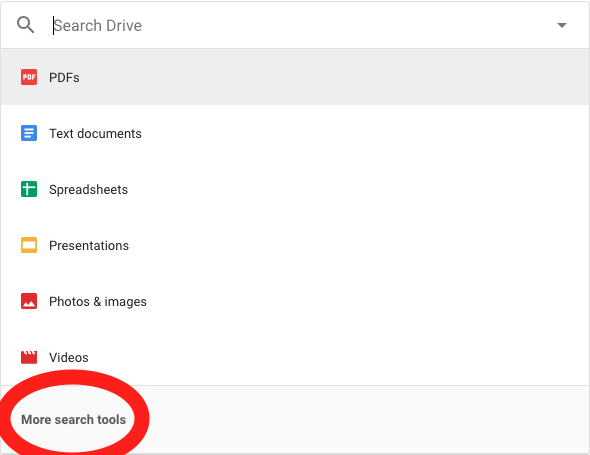
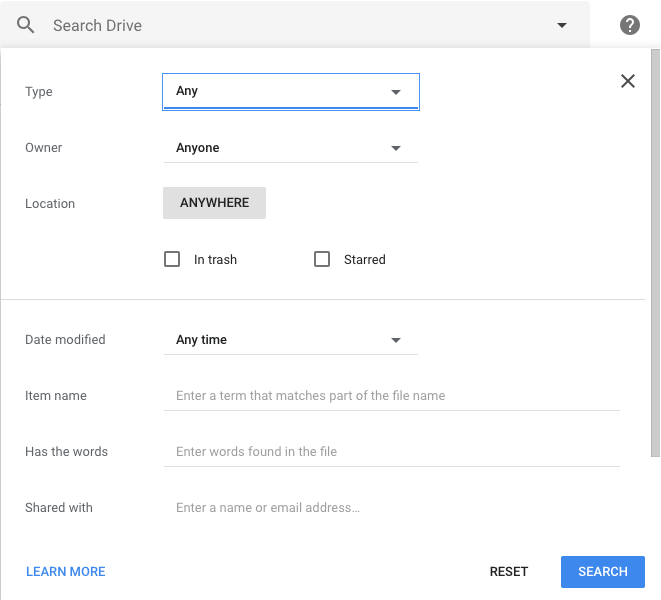
3. The Search Bar: if you’re looking for something more specific – perhaps documents shared with certain people, or keyword specific – the search bar has some cool stuff!

For the full experience, make sure to check out “More search tools” at the bottom of the drop-down menu:
Gmail
Gmail has fewer tools to find files for a number of reasons. For example it’s hard to tell what emails will become important later, and they generally are small messages that take up little space.

However, emails pile up quickly!
If you need to keep the storage down, there are functions called search operators, which help you look through the Gmail inbox by altering the results of a Gmail search. For an extensive list of search operators, visit this page.
However, we recommend this one:

In the Gmail search, enter “size:” and then a number. Gmail brings up all messages larger than that number, in bytes! Now, you can search for files of any size, and get rid of the most cumbersome emails.
(And if you need an easy conversion calculator, try this!)
Finally, Gmail storage management can be a defensive rather than an offensive act. Proactively create a system to stop your inbox from overflowing with unnecessary mail:
1. Block spam, and periodically empty the folder completely. While “spam” blocks certain messages from reaching your inbox, they still take up storage space.
2. If you think an email will be important in the future, mark it as “important” or “flagged”. This will ensure you don’t erase it in the future, leaving you free to delete less pressing messages.
The key here is to make sure you block unnecessary emails ahead of time. If they pile up into the thousands, it will be time-consuming to go through everything and sort the good from the bad!
Google Photos
Ah, finally! Google photos…
Frankly, it’s better that you organize photos however you see fit. Pictures are often precious to people: look at each image individually and decide if you should throw it out. A picture of family? Probably keep. An old recipe screenshot? Probably throw away.

In the end, the decision’s yours.
If your storage reaches the 15-gigabyte limit due to photos and other documents you can’t part with, you may want to upgrade your cloud storage, our final option.
Upgrade Storage
While we’re still scraping the underside of Google’s copious 15-gigabyte allowance in the “Free” category, the upgrade to 100 gigs doesn’t cost too much, possibly just $20 a year.
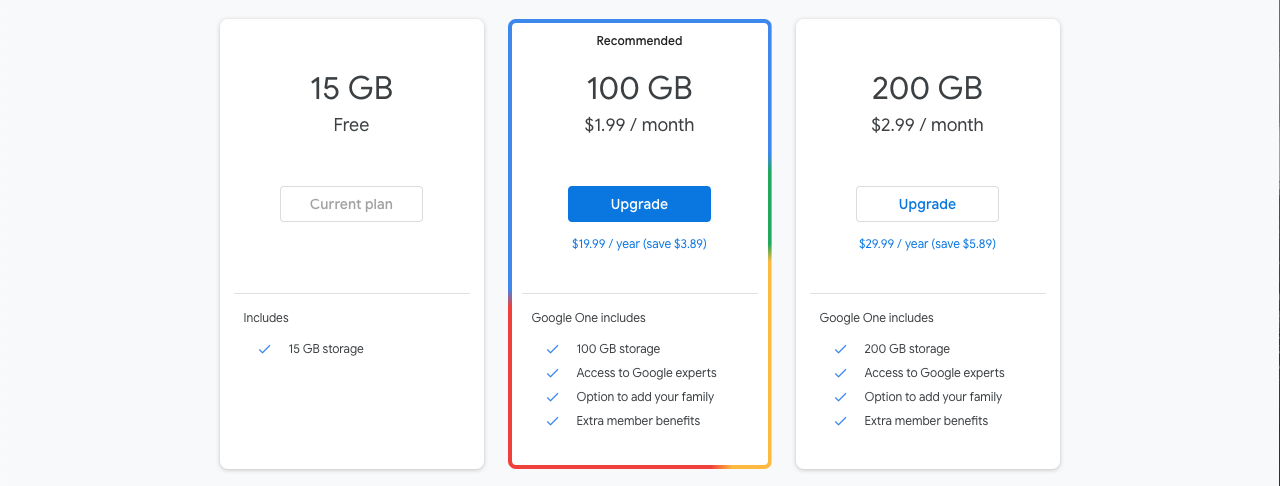
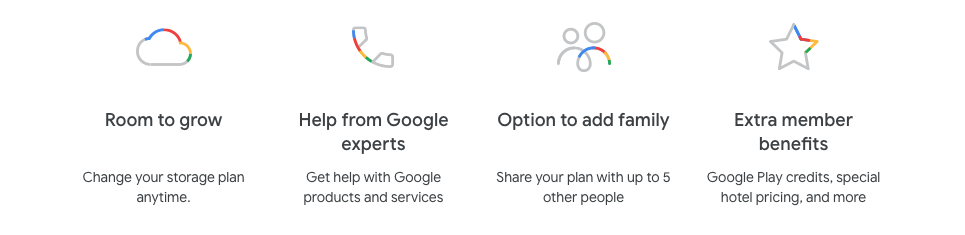
If that sounds good, there are additional benefits to the subscriptions beyond storage! Get advice from Google professionals, add family members that can share your cloud data, and more!
Thanks for reading!



 Doesn’t count as a natural disaster? Sweet! Becuase this is cool.






 We chose Snapfish for our calendars! Like Mixbook, our other option, their core business runs on the sale of quality photo prints. However, that ability lends itself well to calendar making…
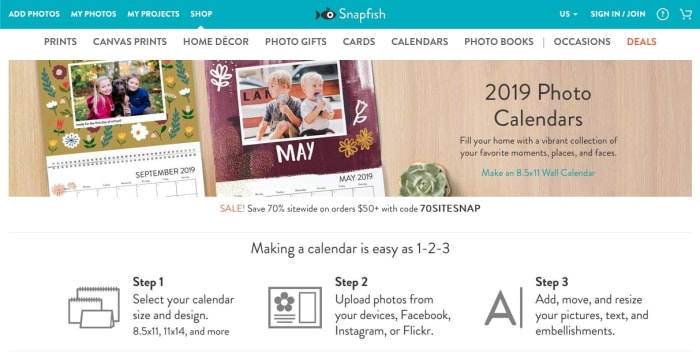 The front page offers a great example of why we loved Snapfish: the system is easy. You select your calendar design, upload your photos, then finaegle with the program to make your perfect creation!

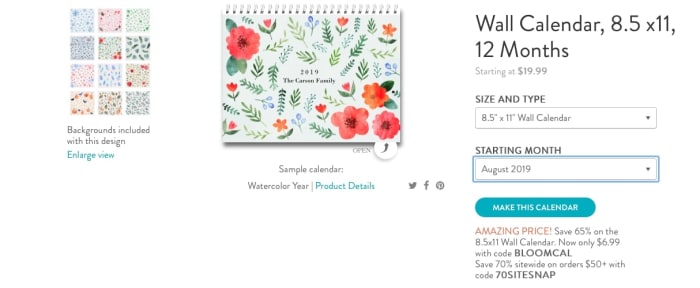
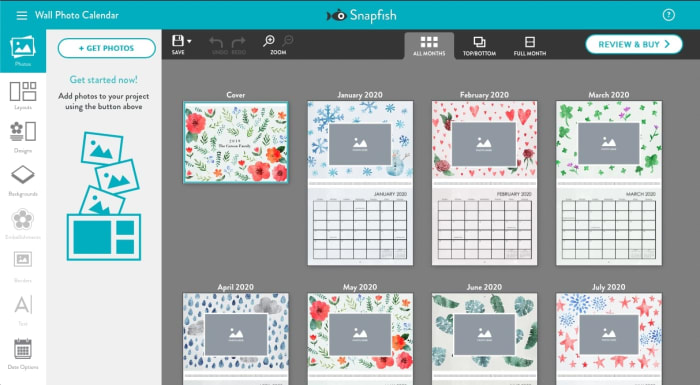 We love this user interface! Aside from the cool, minimalistic design, it’s one of the easiest programs to use: backgrounds are easily chosen on the left. Once photos are uploaded, they can be dragged and dropped. You move and resise photos in the month view, easy as that. Every date can have events added and pictures placed on specific dates!
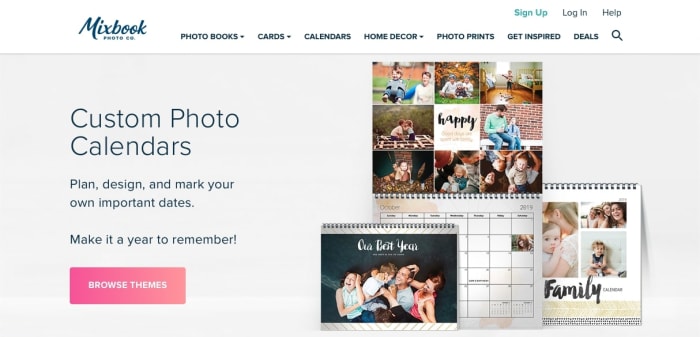 You can jump right into the themes page or scroll down to visit their three options: 12×12, 8.5×11, or 11×17:
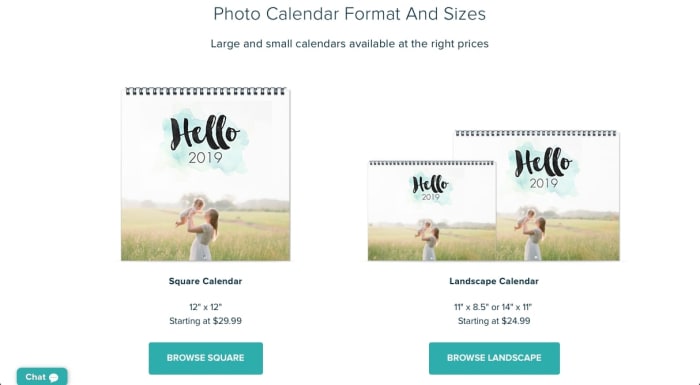 We should note: while these prices are higher, Mixbook does offer more discounts. Unfortunately, when deals aren’t explicity stated on a website, most people will assume the price is explicitly as stated. So, keep in mind: you should be able to reduce the price on your first visit.
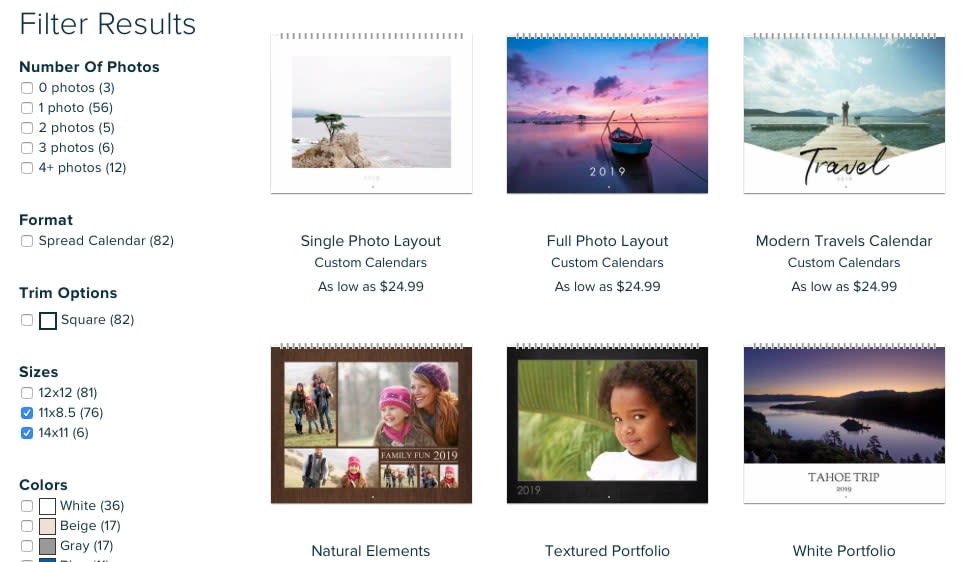 Note: what you see doesn’t have to be what you get, these are just examples. You can change everything about the calendars once inside the creation environment, so feel free to find something close to your vision!
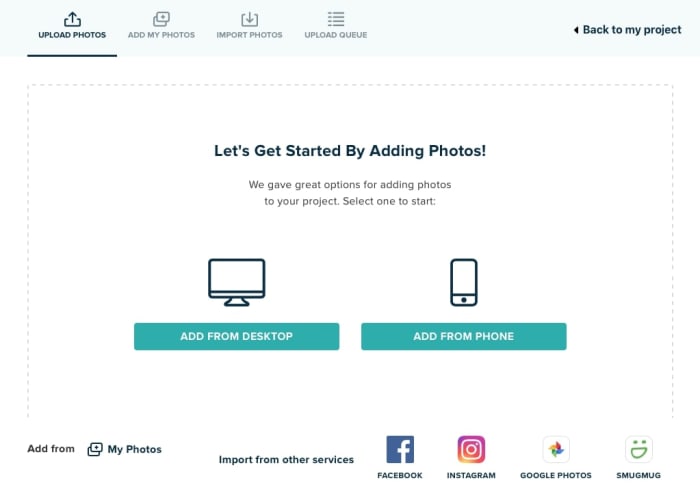 Mixbook is clever! They insist you add a few pictures before creating a calendar, and give a number of easy options for doing so. It’s a great way to introduce you to the program before you enter the full window:
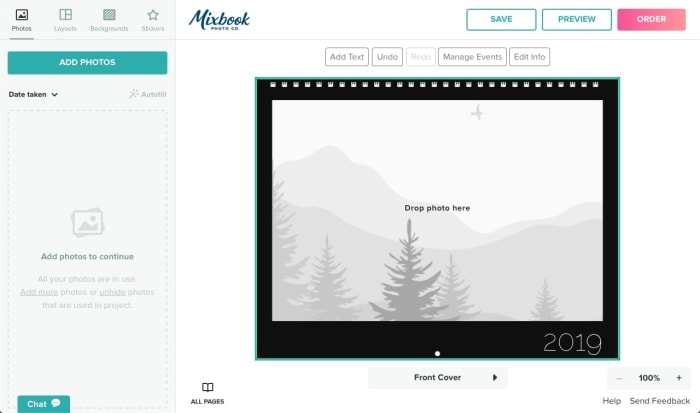 Here we are! Like Snapfish’s creation environment, we love the simplistic nature of this application: pictures are on the left, along with your layouts (very useful when rearranging each month), backgrounds, and stickers. Photos are still easily dragged and dropped, but you must cycle through the months without an overview. Also, to manage month events and more, you must use the tabs above the month view, which could be better or worse depending on your personal taste.






 Once you do that, you’ll have the friendly composition pop-up: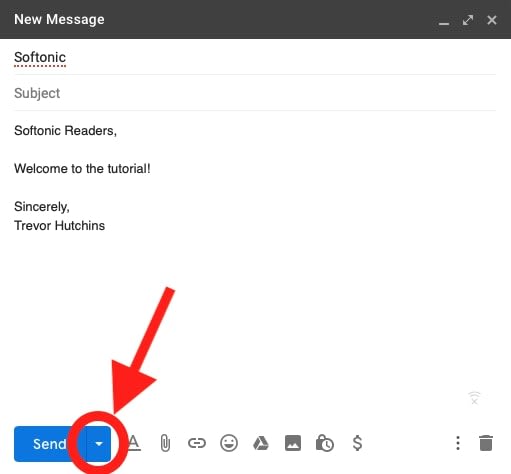
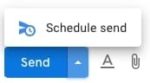 Clicking this new button opens a pop-up window that should look like this: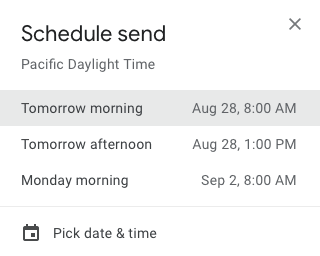
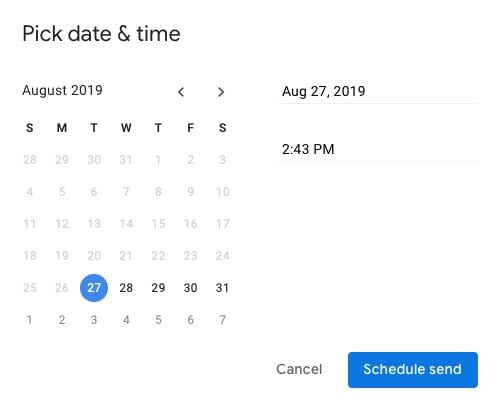 Here, you can choose to send the email at any date and time in the future! But only the future, because Google is silly and won’t let you fire messages back into the past.
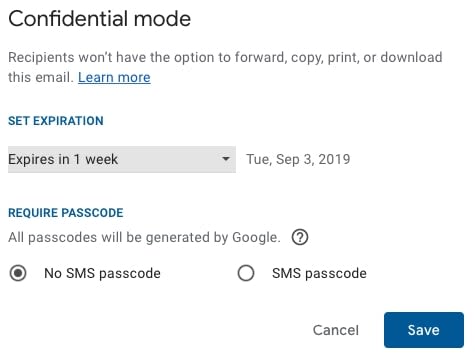 The next button right of the Lock, a money symbol, has Google’s payment options! If you need to send money, you have the option to quickly do it through your personal Gmail..
 When you hit the button, you’ll see this friendly payment screen: use it to deliver money as you would with Venmo or PayPal!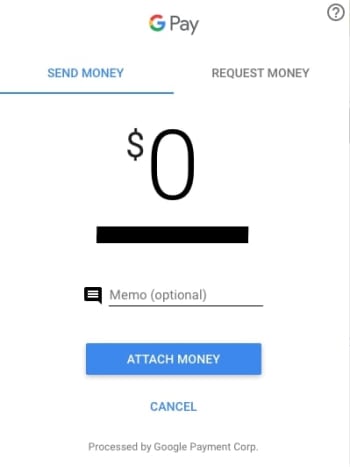


 There are two options: email and Facebook.
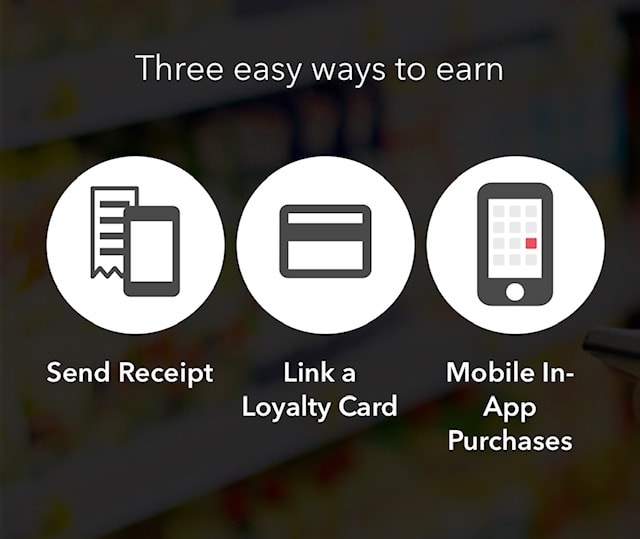 The important stuff! There are three ways to save:



 See? It’s as easy as that!