 Where can you monitor processes on your Mac? The Activity Monitor, found in Applications>Utilities. This tool, in fact, is one which I almost always keep open on my Mac. I like seeing how much CPU is being used, and what applications take up the most memory. The Activity Monitor is also great for overlooking disk usage and activity and checking data sent and received over your network.
I don’t feel it really has evolved over the latest versions of OS X, yet it hasn’t really needed to. One useful hint to know is that by simply opening up Activity Monitor you can unfreeze any blocked application. You don’t have to stick with Activity Monitor if you don’t want to. In this case try one of these five different alternatives:
- Peek-a-boo – A cool process throb diagram view which shows you how processes connect to one another. Clicking on a process which show detailed info on it like CPU or memory usage.
- iStat pro – A nifty little widget which includes nine different process sections. It has a sleek little interface, is very regularly updated and is accessible straight from your Dashboard. What more could you ask for.
- iStat menus – Comes from the same developers as iStat pro, yet this one appears in your menu bar. Very advanced, and process windows can be organized and moved around your screen.
- MenuMeters – Another menu bar process manager, yet this one won’t show you all the details, only the processes that you deem most important.
- XRG – A clean interface showing detailed graphics and all processes. It can even show other elements like weather or stock data.




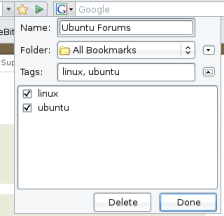 If there’s one thing I really need help with in my browser, it’s bookmarking. I’m constantly discovering new and interesting sites and pages but rarely have time to organise them in any in any meaningful way. Of course, I have folders for each different subject and topic but I just don’t have the time to go through them all once I’ve decided to add them to my favourites. I just add them to the main menu until my favourites list is now just a sprawl of bizarre links ranging from cooking sites to classic YouTube videos.


 Could Safari be the black sheep in Apple’s software family? A recent rumor going around said that PayPal would lock Safari users out of its online payments on the claims that the Apple browser is unsafe. This links in with the
  I’ve never been a dab hand with a paintbrush – I had more fun flicking paint at kids in my class than being the next Picasso. For people like me, there’s only one thing for it and that’s to either kick me out of the classroom or give me a sketching application on the PC. There are so many sketch applications nowadays that it’s hard to know where to start, especially with an increasing number of online applications on offer. However, there are definite differences in the amount of options and control that some offline apps give you over others. One very common use for sketch apps is to turn your photos into sketches which you can then modify as Elena illustrates
 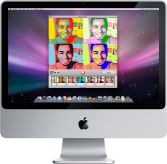 Are you new to Photo Booth, the application that can take snapshots and short video clips using your Macs iSight camera? The application isn’t really difficult to get grips with: get yourself in the frame, choose an effect and press the shutter button to take your picture. Still, there are some simple tricks to know if you want to make full use of it. We’ve gathered a few of them together so you can feel like a true Photo Booth expert and get started making fun and original portraits of yourself.