5 neat ways to use Bluetooth on your phone

There are lots of handy uses for BluetoothMany of the new phones that come out these days are equipped with Bluetooth capabilities. So if you’ve bought a mobile within the last year or so chances are you have it on your device (to find out just look for the little blue icon shown here). But how many times have you actually done anything with Bluetooth? Do you even really know what you can do with Bluetooth? Well, it’s high time you started exploring the capabilities of this wireless technology because you can have a lot of fun with it, as well as saving yourself time and money. Here are some of the neat things you can do using Bluetooth on your phone.

Play games

Many mobile games these days allow you to play remotely against your buddies over Bluetooth. It makes for a much faster and cheaper solution than playing over the Internet. It’s particularly suitable for turn-based games such as pool (try Mobile VR Pool or Pool for UIQ); darts (3D Lawn Darts or Power Dart); or racing games like MGS Karting and V-Rally.

Chat

Obviously phones are specifically designed for chatting, but speaking into the receiver or sending an SMS is not always necessarily the best way of doing it. Applications such as BuZZone, SYMBTChat or Bluetooth Chat allow you to communicate via text messaging without paying for it!If you’re interested then have a look at the post I wrote earlier this year explaining how to chat via Bluetooth.

Sharing stuff

One of the most common uses for Bluetooth this one, and you may have even tried it yourself. Bluetooth makes it dead easy to quickly share a photo, ringtone, video or any other kind of file with your pals. Most devices make this a very simply procedure and you’ll normally find an option to ‘send via Bluetooth’ with any multimedia you have stored. If you’re having difficulties, try installing a mobile file manager such as Resco Explorer to facilitate more seamless sharing.

Remote control

Another cool thing you can do with a Bluetooth-enabled phone is rig it up to your PC or Mac and use it to control your computer. For instance, Bluetooth Remote Control allows you issue commands to apps such as Winamp, Windows Media Player and Powerpoint, using your Windows Mobile device. Other apps that do something similar include Smart Remote and irRemote Control.

Avoid people

If you’re anything like me then you hate bumping into people you don’t like in the street and being forced to make chit-chat. Thanks to the power of Bluetooth you can detect and avoid anyone you don’t want to come across. Install BlueRadar and you’ll be able to track where people are on a cool, James Bond-style radar display.

All you need to know about Google Desktop

Google DesktopI recently reviewed the Gmail gadget launched by Google, which enables you to check your Gmail account right from your desktop. This gadget works with the Google Desktop sidebar, so I had to install it on my PC.

I must admit I wasn’t happy about having even more stuff on my desktop, but after testing it for a while I was pleasantly surprised by the functionality and nice design of this smart piece of software.

Google Desktop is mainly a powerful local search tool that makes use of the Google engine to find files, folders and apps on your hard drive. You can use it just as a Google-powered local search tool, either as floating bar on your desktop or a neat deskbar perfectly integrated in the taskbar. But if there’s a way you can make the most of Google Desktop, that’s the sidebar.

Google Desktop

The Google Desktop sidebar is similar to the Vista sidebar, in the sense that it can hold a number of small handy webapps (the so called gadgets) that can deliver information to your desktop, show data, display photos and much more. Gadgets are very easy to install: you can get them right from the sidebar by clicking on the plus sign button on top, or simply download them from the Google Desktop website.

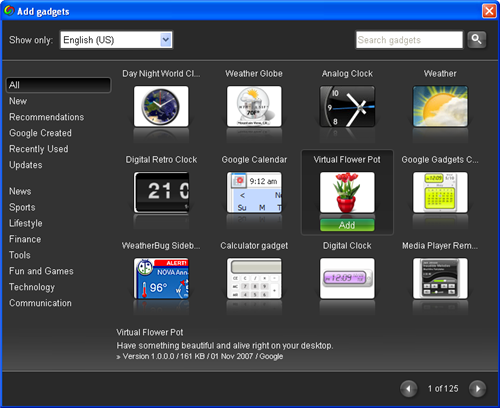
There are literally hundreds of gadgets to install. If you don’t know where to start, try sorting them by popularity. The top 10 gadgets include clocks (both analog and digital), weather information, calendars, calculators, games and even a virtual flower pot you can take care of like one of those old Tamagotchis.

How to: Add a snow effect to text in Photoshop

I’ve always preferred to give handmade presents, a piece of handicraft made by myself that makes the gift more personal. Following this idea, and as the holiday season approaches, I like to prepare special Photoshop tutorials to create your own greeting cards. In case you missed them, here’s the 2007 tutorial and here’s the 2008 one. And for those behind the deadline, here’s another easy tutorial that shows you how to add a snow effect to text; a simple yet effective trick you can use for cards, themes and all sorts of Christmas-related graphic.

Text snow effect in Photoshop

Continue reading “How to: Add a snow effect to text in Photoshop”

Time waster: A Lunar Lander remake with level editor

Any videogame fan in their thirties will remember Lunar Lander, a very simple game from the late 70s in which you had to safely land a tiny spaceship on lunar terrain, by controlling the amount of throttle as accurately as possible. Super PerfectoProp takes this same idea and recreates the classic arcade in a new, revamped version with new features.

Play Super PerfectoProp

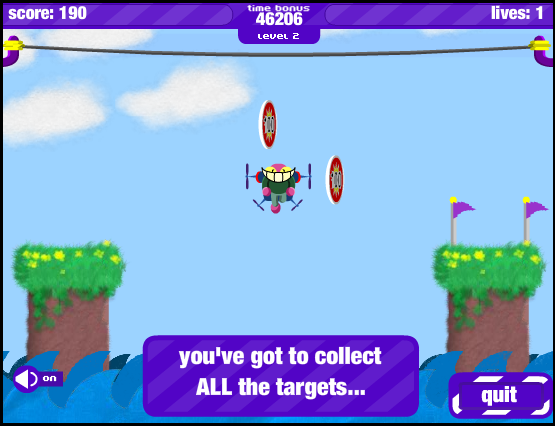
Super PerfectoProp also challenges you to make a perfect landing, though this time you controll a weird-looking guy with propellers instead of a spaceship. Also, there are more obstacles besides gravity: sharks waiting for you at the bottom of the screen, power lines that will electrocute you as soon as you touch them and more. This means that you have to be really careful when controlling your propellers and giving full power to them.

has several difficulty levels, including a training area that will help you get used to controls. Also, the game lets you create your own customized levels with an easy level editor, a feature you don’t usually find in online games.

Bring some Christmas cheer to your Mac

It’s that time of year when any download with a Christmas theme rockets up the charts. Santa screensavers, Christmas tree icons and snowfall on your desktop abound while any game that involves squeezing Santa down a chimney in the race to deliver all his presents on time suddenly become hot property. With this in mind, here are a few ways for Mac users to get in on the action and bring Christmas to your desktop.

A Very 3D Christmas Screen SaverA Very 3D Christmas Screen Saver Get into the Christmas spirit with this jolly 3D screensaver which features Santa delivering presents in his sleigh. However, this particular Santa is a complete slacker, so as the reindeer pull him through the sky while he stuffs his fat face with mince pies, his elf does all the hard work. Very amusing (kind of).

Christmas Crisis

Christmas Crisis Yes, the inevitable Santa Christmas delivery game where you have to run around like a maniac so that all the kids get their presents. Christmas Crisis sees you fly over cities and drop presents down chimneys, with the aim being to maintain a 70% success rate to save Christmas. Your main obstacles are planes and gifts smashing on the ground if you miss the chimneys.

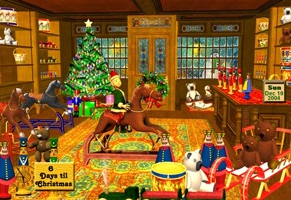
3D Magic Christmas Toy Shop3D Magic Christmas Toyshop Probably one of the most intricate and detailed Christmas screensavers you’ll ever see. Watch the giftshop slowly comes alive with a moving train, dancing teddy bear, marching toy soldiers, a countdown to Christmas day, functional clock and calendar plus a dancing snowman frolics in the falling snow outside. 3D Magic Christmas contains realistically modeled 3D animated images and a backing soundtrack to the theme of Let it Snow.

Santa and the City 3D Christmas Screen SaverSanta and the City 3D Christmas Screen Saver Forget those cackling old hens in Sex in the City, this is a lot more fun than watching 5 women have a mid life crisis (well if you’re a bloke anyway). Watch Santa fly through the city with some amazingly detailed and beautifully illustrated 3D graphics and scenarios. You can choose to view the sleigh from any angle although the 50 Christmas tunes available will drive you mad.

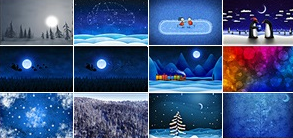
Vladstudio Christmas Wallpaper PackVladstudio Christmas Wallpaper Pack Probably the most elegant pack of wallpapers you’ll find this Christmas. Vladstudio Christmas Wallpaper Pack includes 25 wallpapers designed for 1440 x 900 screens featuring winter landscapes, snowmen and penguins. More wallpapers and resolutions (up to 2560 x 1600, made exclusively for 30 inch Cinema Display) are also available on the Vladstudio site.

Top 10 iPhone Christmas apps

A hotline to Father Christmas on your iPhoneIf you’ve finished trimming the tree, decking the halls and washing your stockings, don’t assume that you’re ready for Christmas. Because, if you haven’t installed any festive applications on your iPhone yet, you’re drastically under-prepared. There are dozens of holiday-themed apps out there that allow you to decorate your Apple device, play yuletide-themed games and even manage your Christmas shopping. Here’s a run-down of our favourite 10, along with links to the program page on the iTunes App Store.
  • Sleeps to Christmas – Check how is left until the fat guy falls down your chimney
  • Christmas Spell Lite – Learn to spell phrases like “Please Mum I’d like a PlayStation 3”
  • Pocket Elf – Monitor all your holiday spending to ensure that no one goes without
  • Fuzzle Christmas – Join the colored baubles to score points!
  • Christmas Candy Recipes – Rustle up some festive treats with these guides
  • Call Santa – Speed dial access to Father Christmas himself. Sort of.
  • MyChristmas – Compendium of classic yuletide games and festive fun
  • Santa Meter – Unique app that lets you create your own naughty and nice lists
  • Quizmas – Find out how much you really know about Christmas
  • Christmas Tree Decorator – A festive virtual tree to light up your iPhone

Turn your iPod Touch into a phone for free

Ever dreamed of using your iPod Touch as a mobile phone? Sounds impossible but the developers at TruPhone have developed a way to do so that may signal the end for your mobile phone – well sort of.

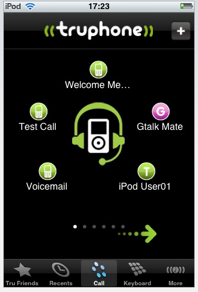
TruPhone iPod Touch

TruPhone is a free application that utilise the internet via a wi-fi connection to give you cheap phonecalls in much the same way as Skype does. Truphone for iPod Touch allows iPod Touch users to call each other for free and also those using the Google Talk client. Truphone already exists for smartphones and iPhones but this is the first time it has been applied to a none telephony device. Apparently it won’t be long until you can make calls to and from landlines using your iPod Touch too.

TruPhone requires an iPod Touch headset and microphone or mic adapter which you can order from the Apple store or find in the high street. Since the developers are concentrating only on those devices that have an apps store, TruPhone is only available via the iTunes App Store. According to the the TruPhone blog, the app will also soon be able to call landlines for free, Skype and even MSN contacts.

You can check out TruPhone working on an iPod Touch below although the user claims that calls to GTalk were not working properly:

[youtube]3-EExN0KZeU[/youtube]

Create amazing online galleries for your Flickr photos

PicsViewr, galleries for Flickr photosFlickr is probably the best online photo management tool: it’s easy to set up, it’s also useful as a backup copy of your photos, it works great to share pictures (with a handful variety of privacy levels) and is compatible with online photo editors like Picnik and FlauntR.

However, Flickr still lacks a good tool to generate photo galleries. Besides the plain, boring old-school slideshow used by Flickr to display images in full screen, there’s no other way in which you can view Flickr’s sets – let alone do it in a more original way than just the standard slideshow.

Here’s where PicsViewr comes on stage. This online service creates attractive photo slideshows with your Flickr photos right on the spot, without having to create a user account or register for anything. All you need to do is enter your Flickr username and pick your favorite gallery design. A customized URL will be automatically create for each gallery, and you can share it with friends and family right away.

There are currently ten different designs to choose from, with more to come. Once viewing the gallery, you can easily switch from one design to another, and browse different sets in the Flickr account via a handy drop-down menu. Just test it with the Softonic Flickr and see how nice it looks with PicsViewr!

PicsViewr, galleries for Flickr photos

One last tip: some of the available gallery designs have the option to display pictures in high resolution, which takes longer to load but also produces much better quality images. To switch to the HD version, simply replace the “sd” in the gallery’s URL with “hd”.

Control iTunes with your hands (or feet)

In the film Minority Report, Tom Cruise waves his hands about in front of a giant computer screen in a vision of how we will use and control computers in the future. FluidTunes, might not be quite on that level but it does allow you to control iTunes solely by using your hands or whatever else you might choose to wave in front of your iSight camera.

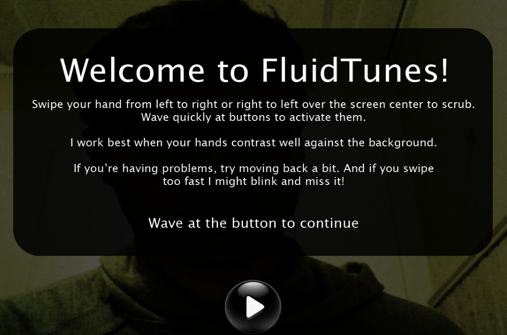
FluidTunes

It’s an interesting application that works with varying degrees of success depending on how you calibrated it from the start and how near or far you are away from your iSight camera.

On initial setup, it seems pretty impressive. “Wow”, I thought, “I’m actually controlling the Mac with my hands” although it soon became apparent that the results could be very erratic. As you try to scroll towards one album or another, you inevitably scroll way past it because the controls are so sensitive. Looking for Terence Trent Derby one swipe too far with my right hand ended up landing me on Nat King Cole – that’s one hell of a jump in my iTunes collection.

The important bit is the initial collaboration test. It basically involves waving your hands like a lunatic until the play button lights-up to inform you that calibration is complete.

FluidTunes 2

The problem is FluidTunes magnifies whatever your iSight camera is seeing so you have to move considerably back from your Mac for your hand movements to register properly. The result is that you can end up sitting 3 feet away from your Mac waving your hands around like you’re trying to taxi a plane onto a runway.

In the end, it seemed to me that FluidTunes has a mind of its own and it would take the subtle hand gestures of a black belt in Tai Chi to stop it from selecting whatever album it wanted and playing it. Still, it’s the closest you may ever come to being Tom Cruise – if the prospect has ever grabbed you.

Today is not the mouse’s birthday

OK so today may have been the day that the mouse was first shown off publicly, forty years ago, but that doesn’t change the fact that Douglas Engelbart had a working version of the device four years before the Stanford demonstration.

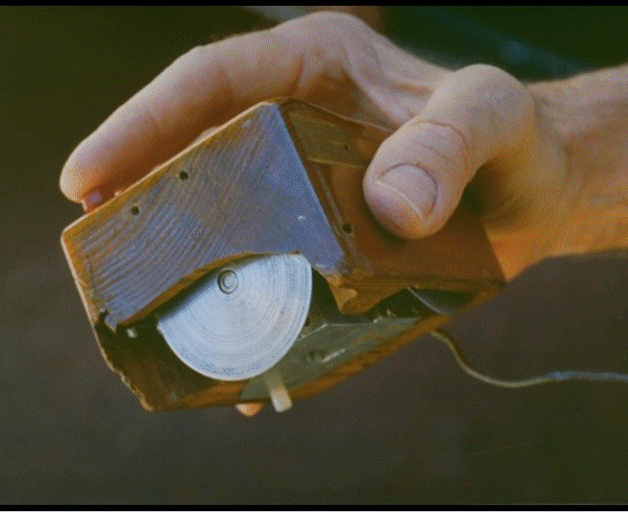
Here’s the version he had in 1964, which looks remarkably similar to the model ‘born’ four years later, and not that much worse than the rubbish Dell one I have to use at work.

first-mouse.gif
(Image via ITKnowledgeExchange)

So while we can’t really say ‘happy birthday’ to the mouse today… I suppose we can at least wish it a very happy unbirthday.

Oh, and for those still not convinced by the veracity of this claim (it has caused some uncertainty in the office), I quote as my sources, the infallible Wikipedia and the 2008 calendar for the Autonomous University of Barcelona which happened to include the above picture with the caption “The first mouse, 1964” as its November picture. Case closed.