Create a seamless mixtape with Audacity

/* Style Definitions */ table.MsoNormalTable {mso-style-name:”Tabla normal”; mso-tstyle-rowband-size:0; mso-tstyle-colband-size:0; mso-style-noshow:yes; mso-style-parent:””; mso-padding-alt:0cm 5.4pt 0cm 5.4pt; mso-para-margin:0cm; mso-para-margin-bottom:.0001pt; mso-pagination:widow-orphan; font-size:10.0pt; font-family:”Times New Roman”; mso-ansi-language:#0400; mso-fareast-language:#0400; mso-bidi-language:#0400;} I used to love making tapes for friends, but the onset of mp3s has made it a lost art form. Playlists just aren’t the same to me. I’m going to show you how to make an mp3 “mixtape” using a freeware audio editing program called Audacity. I used Audacity 1.3.6, which is a beta release, although using the older 1.2 version is the same as far as I can tell.
First, choose the mp3s you want on your mix. I recommend copying them all into a special folder, just to make sure you don’t mess up your originals! The next thing is choosing the order of play. You could do this in Audacity, but I find it easier to play about with the order in an iTunes playlist. Once you think your playlist looks good, it’s time to stick it together.


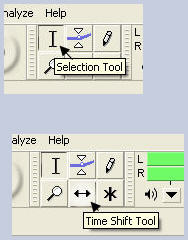
Open Audacity, close the welcome message, then from your special folder, drag and drop your first two tracks into Audacity. Choose the time shift tool, and drag the second track to around the end of the first. It should look something like this.
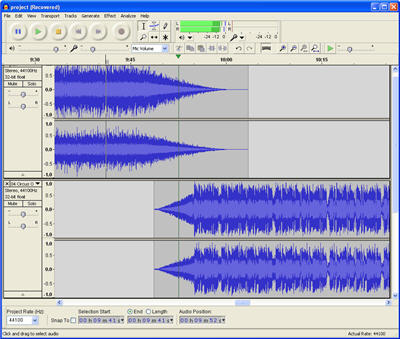
 

With my tracks, usefully, the first track faded out, and the next faded in, so I experimented with it until it sounded good. Usually you can get a nice effect just by choosing the right point to start the following track, but if it doesn’t work, you can create fade ins and outs by highlighting part of the track then going to ‘Effects’, ‘Utilities’ then choosing your fade.

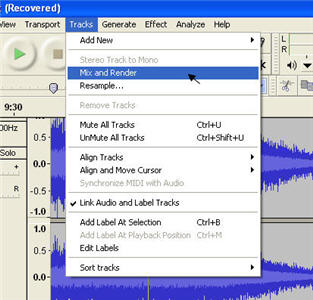
Once you’re happy with the join between tracks, highlight both with the selection tool, go to ‘Tracks’, then click ‘Mix and Render’, which will blend the two tracks as you decided.


Now you have your first mix, you can continue to add more tracks repeating the above method. For my mix, the next track I chose was a much quieter recording than the first two, so it needed amplifying. To do this, simply highlight the whole track, go to ‘Effect’ again, then choose amplify. This tool isn’t great, as you can’t preview your results, but from experience, you’re unlikely to want to amplify more than 3.0db. Check the ‘allow clipping’ box, if you can’t then click the ‘OK’ button. You might need to experiment a bit to get the loudness of your tracks the same.
 

Eventually, you’ll be left with one long track (see left picture). Now you can export the mix as an MP3, which requires a tiny add-on to be downloaded, but Audacity will prompt you and take you through it. Unfortunately you can’t burn to CD with Audacity, though you can easily do that in iTunes and most media players, assuming your mix isn’t over 80 minutes long.


Using this cut and past method to stitch tracks together is surprisingly easy once you’re used to it, and there are some interesting effects you can add, and you could also add snippets of spoke word from films and TV easily, or even your own voice, as Audacity will record any external sound source you plug into your computer (like a microphone), and once recorded you can treat the snippet like any other file.


Nokia’s world of fascinating facts

Olli-Pekka Kallavuo delivered a world of interesting factsThis week’s Nokia World 08 event in Barcelona was dominated by mass fawning over the company’s great new N97 device. The stunning announcement has meant that some of the other interesting stuff to come out of the event may have passed some people by. For instance, the Finnish phone giant announced a major update to its Nokia Maps product, closed on its deal to purchase the Symbian Foundation, and released a funky-looking Home Music Internet radio.

Aside from this, sitting in on the keynotes, Q&As and seminars at the event, we were privy to some real eye-opening and thought provoking tit-bits of information about the mobile and Internet industry. While we can’t vouch for the credibility of all of these facts and bits of trivia, it’s a good example of how the speech-givers managed to prick up the ears of an audience who were preoccupied by daydreams of owning an N97.

  •  “75 percent of the World have never used email” – Olli-Pekka Kallavuo, President and CEO, Nokia
  • “By the first quarter of next year 4 billion people will be using a mobile phone. One billion of these will be Nokia phones” – Olli-Pekka Kallavuo
  • “Nokia has the largest consumer base for any consumable product in the World” – Olli-Pekka Kallavuo
  • “India has the world’s fourth largest Internet market and is the number two driver of content for both Google and Yahoo, in terms of Alexa rank,”Neeraj Roy, Managing Director & CEO, Hungama Mobile
  • “Worth more than $45 billion, the games industry is the second largest within the entertainment sector” – Doug Garland, Vice President of Product Management, Google
  • “13 hours of video uploaded to YouTube every minute. This equates to 57,000 feature-length movies per week” – Doug Garland
  • “45% of Internet traffic is now video” – Doug Garland
  • “In Korea more people watch TV online than they do on TV” – Doug Garland
  • “91% of mobile users in China said their phone is never more than one meter away from them” – Doug Garland
  • “The top selling game for Nokia N-Gage is Creatures of the Deep – a fishing sim” – Lenn Pryor, Vice President of Product Marketing – Services and Software, Nokia

Why Keynote is better than PowerPoint

Keynote logoWhen it comes to presentations, most people use Microsoft PowerPoint but for me, Apple Keynote beats it hands down everytime. PowerPoint isn’t a bad application (it’s one of Microsoft’s better efforts in my opinion) but it does not produce the slick, polished results you get in Keynote and putting it together simply isn’t as much fun. It says something that Al Gore’s award winning Inconvenient Truth presentation/documentary was produced using Keynote.

Apple’s flagship presentation program is easy to use yet generates drop-dead stunning presentations from photography portfolios to business presentations.

Keynote Screenshot 1

The final result you get with Keynote is something akin to a cinematic presentation rather than the rather stale efforts you get with PowerPoint. The reason is that PowerPoint is optimised for Windows but Keynote is optimised for Macs and where anything that’s design orientated has been optimised for Macs, there can be few arguments which is going to be better.

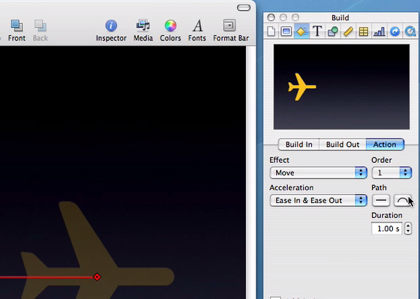
In keynote, you can add slick transitions and effects that are simply not possible with PowerPoint, including animated moving objects. Adding and removing backgrounds is simply a drag and drop process with Instant Alpha and there are some stunning themes to choose from. Photo presentations are particularly easy – you only have to drag and drop photos and Keynote does the rest including choosing the transitions and even the backing music.

Keynote Screenshot 2

The typography, as in all Mac applications, is naturally better in Keynote. And importantly, Keynote allows you to export to several different formats including QuickTime, PDF, JPG, Flash and PPT so that PowerPoint users can at least still view what you’ve produced, even if they can’t edit the presentations in Keynote – more’s the pity for them.

Five ways to keep your software up to date

Five ways to always have your software up to dateDiscovering new software can be exciting, but keeping that software up to date is certainly time-consuming. Many recent software tools include a self-update option which notifies you of new versions as soon as they come out, but many others, usually older programs, don’t.

Besides missing all the new features of most recent versions, an outdated app can also be a threat to computer security, especially if it’s an Internet related app. So if you don’t want to take any risks, use any of these automatic update finders that will help you keep all your software up to date.

  • AppUpdater – Cross-platform tool that scans your system and finds updates for all installed programs, as long as they’re supported by the program. You can suggest new apps to be included on the list and also create your own repository.
  • UpdateStar – Performs a thorough scan of your system and looks for possible updates. The database includes more than 135,000 entries and is being constantly refreshed by an active user community. Also recommends paid software.
  • AppSnap – Open source tool that detects installed versions of your software, searches for updates and downloads them straight away. Its database is not very extensive (less than 400 entries) but you can suggest new apps.
  • SUMo – Detects software apps installed on you PC and finds required updates or patches for them. You can filter Beta versions and also create a “black” list that enables you to track only those apps you’re interested in.
  • AppHit.com – Website specializing in updates. Get their desktop client (no installation required) and it’ll find updates for the programs installed on your computer. This client doesn’t install updates, only shows search results on a web browser.

Nokia N97 – A new iPhone killer?

The shiny new Nokia N97The shiny new Nokia N97Anssi Vanjoki announces details of the N97Anssi Vanjoki announces details of the N97Anssi Vanjoki announces details of the N97Anssi Vanjoki announces details of the N97Here at the Nokia World 08 event in Barcelona, the Finnish phone giant has announced a new tactic in the fight to stop the iPhone taking over the World . Its new N97 device will not only include a touchscreen but also a fold-out keyboard and angled display, as Nokia clearly goes against the fashion of touch-only devices like the iPhone and Blackberry Storm.

The shiny new Nokia N97

It’s not just its shiny shell and that tickled out imagination though, and some of the apps and features inside the N97 look genuinely useful. Here’s a quick run-down of the features that caught our eye here at the typically glitzy presentation, given by Anssi Vanjoki, Executive Vice President, Markets, Nokia:

Point-and-find: Perhaps the feature that got most mouths dropping was the new point-and-find feature. This allows users to point their phone at a building, monument or other site (the example given here was the Sagrada Familia in Barcelona) and the phone will automatically detect what it is. It will then display information, facts and even give virtual tours about that specific place. The so-called ‘point-and-find’ feature looks pretty incredible and got us wondering whether this kind of technology will work in the future on humans (i.e. you just point your phone at someone at it tells you who they are, gives you their latest Facebook updates, Twitter feeds, etc.) At the moment, the technology relies on GPS location to help determine what the thing is you’re pointing at, but there is some image recognition involved.

Nokia Maps 3.0: The new Nokia Maps tool also got the folks in the press section frantically blogging on their laptops. Besides adding some cool new features such as speed limit details, 3D terrain and buildings, and more travel guides, it fits in with Nokia’s plan to “reinvent the Internet”. It will allow users to see where their friends and family are at any time and interact with them via their social networks. Nokia’s vision is to create a platform that merges real world activity with virtual spaces.

Anssi Vanjoki announces details of the N97

Camera: The N97 will include a 5 megapixel camera with Karl Zeiss lens, which is capable of capturing super DVD-quality video at 30 frames per second. There’s a total of 48Gb of storage space on the N97 (32Gb internal and 16Gb microSD) Continue reading “Nokia N97 – A new iPhone killer?”

Get your personal avatar for blogs with Gravatar

GravatarIf you read this blog on a regular basis you’ll probably have noticed by now that we’ve improved our comments system, not only with a newly redesigned appearance, but also with a nice personal avatar for each user. Would you like to have one of your own? Read on and we’ll explain how.
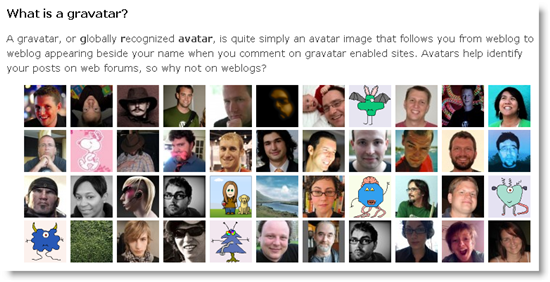

The OnSoftware user avatars are based on Gravatar, an online service that lets you link an email address with a personal image. From that moment on, any time you leave a comment on a Gravatar-enabled blog using that same email address, your personal avatar will show up next to it.

So, what are the advantages of Gravatar? First, you don’t need to create a dozen user accounts on different blogs, but just one Gravatar account. Also, it helps you reinforce your online identity in all the blogs you usually comment on. Finally, does make your comment look nicer, doesn’t it?

Gravatar

If you want to use your own avatar when commenting on this blog, head to Gravatar.com and sign up for a free account. All it requires is a valid email address where you’ll be sent a confirmation link to activate your account. Right after that, you can start creating your avatar straight away on the Gravatar site, using an image from your hard drive, from the web or a webcam snapshot. Once you’re done, your avatar will show up automatically on any Gravatar-enabled blog. Why don’t you go ahead and try it with this one?

Unity means amazing online games

Unity is a cool plugin for playing online games.  I’ve never seen 3D graphics this good in my browser before, so here are a few games and toys that will undoubtedly impress.

For relaxation purposes, point yourself towards Jetpack Brontosaurus.  This is pretty abstract and really attractive: who hasn’t dreamed of flying a brontosaurus around with a jetpack? There are five levels to play, each with a series of missions to complete, like collecting fruit and flying through rings. It reminds me of Thrust, but much slower, in 3D, and with a Brontosaurus, rather than a spaceship. PilotWings, the old SuperNintendo game, is probably a better reference point for this, as both games share a similar pace.

Also gentle and fun, and even cuter than a brontosaurus, is the 20 level TumbleDrop. This is a 2d physics based puzzle game, where you have to remove objects under your star carefully so it lands on a platform instead of tumbling into the sea.  Don’t try this at work; you won’t be able to stop!

There are a few cool action games too. My favorite at the moment is Downhill Bowling. Why in the world no one thought of this before is incredible, because this is a really great idea with a ton of of replay value, as you’ll want to keep improving your strike rate down the courses. If you register, you can leave your score on the online scoreboards, making this a very competitive game.

For a dose of mindless violence,  try another game I feel I’ve been waiting to play my whole life – Off-Road Velociraptor Safari. Take control of a velociraptor driving a 4×4, then chase down other raptors and run them over. It’s a silly concept but very satisfying, with excellent physics, nice graphics and good crunchy sound effects.

I also found a very retro-futuristic 3d Tron-like game called Traces of Illumination, and a space shooter called Manta, so it looks like Unity is taking browser games to the next level

unity01.jpg

How to: create a Polaroid collage in Photoshop

Photo collages are a nice way to keep memories from special places you’ve been to or the people you love. Traditional collages are usually created with paper, scissors and glue. But there’s also an easy way to create them with Photoshop. Follow these steps and you’ll learn how.

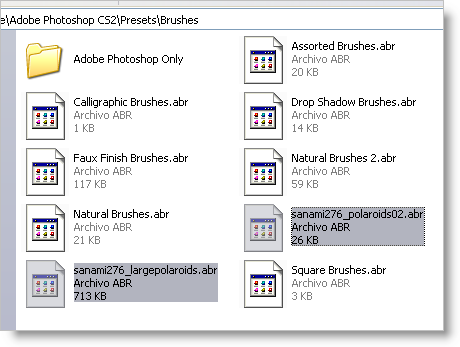
1. First of all, you need to download these two sets of Photoshop Polaroid-style brushes and unzip the ABR files in Program Files\Adobe\Adobe Photoshop CS2\Presets\Brushes. They should appear like this:

Create a Polaroid collage in Photoshop

2. Open Photoshop and load the two brush sets you just unzipped. Select the Brush tool, click on the small arrow in the brush preset picker window and click on Load Brushes. Continue reading “How to: create a Polaroid collage in Photoshop”