Spotify to launch on iPhone – but will Apple allow it?

spotify logoIt’s the news Spotify fans like myself have been waiting for – the music application will finally be available on iPhone “within a few weeks” according to the Swedish company. The question is, will the Apple iPhone apps store approve it?

Spotify is serious competition for iTunes – and considerably superior in my opinion – and allowing it onto the iPhone store could deal a major blow to Apple’s flagship music app. Out of interest, I just performed a search for Spotify on Mac on the Apple downloads website and no results were found although I’m not sure how much can be read into this.

A promotional video launched by Spotify shows that users will also be able to listen to music offline by downloading playlists onto their iPhone. This is great news for those who live in areas where network coverage is poor. However, the bad news is that initially, it’s only going to be available to premium users but this could finally be the driver that Spotify has been looking for to encourage users to convert from the free ad-supported version.

The likelihood is that Apple will approve the app. After all, Spotify is growing hugely and its success will only drive iPhone sales even further and these should offset any losses iTunes makes. And by blocking it from the store, it’s only going to make iPhone users want it more and no doubt, eventually someone would create a hack for it anyway.

One other strange thing worth noting about this news is that Spotify mobile was first demoed on Android and yet it’s being released on iPhone first. Depending on the success of the iPhone version, an Android release will surely follow shortly. US users will have to wait the longest unfortunately – Spotify hasn’t even launched there yet and isn’t expected to until the end of this year.

[youtube]http://www.youtube.com/watch?v=QNCb1IdmJ_0[/youtube]

Cool new Skype video effects with YouCam

I love messing about with webcam video effects in Skype and find that it makes conversations far more entertaining. However, I do get annoyed when my friends have better effects than me bundled with their webcam software. I’ve recently discovered CyberLink YouCam though, which lets you apply a variety of dynamic effects to your video. Some of the emoticon-style effects in the program aren’t up to much, but the ones that use facial tracking technology are great. I’m a particular fan of the ones that turn you into a talking dog. Here are my favorite effects to try in YouCam.

sleepnew.jpgfirenew.jpg

fuming1.jpg newyorknew1.jpg

doggy2.jpg alien1.jpg

Friday Timewaster: Moonlights

It may sound like a cheesy cocktail bar, but Moonlights is actually a dangerously addictive physics puzzle game. It’s a flash based browser game, very much influenced by the excellent World of Goo. You have to build a frame from a certain point, so that it touches the moon, but your building material is kind of rubbery. This means as your constructions get more complicated, you really have to be careful, making sure nothing collapses. Some objects you can use to lean on, but anything purple destroys your hard work, so has to be carefully avoided.

Level design varies, and there are occasional annoying ones, but the majority allow to make elaborate and improbably wobbly constructions, which is really satisfying. It’s a very relaxing game, and really intuitive, give it a go!

Cloud computing for the confused

If there is one thing the tech world loves, it’s a good buzzword. At the moment, increasing chatter about new ideas such as Microsoft’s Azure is focusing the spotlight on the latest candidate: cloud computing.

If you don’t really know what it is, don’t feel too bad. Even these experts interviewed at a recent industry event were a little, umm… hazy on the concept. So the question remains – what exactly is cloud computing?

Imagine a company that needs lots of computing resources – SuperTec Inc. At the back of their office, there is an airless closet full of blinking machines, known as the server room. Their tech guys probably guard it with their lives, threatening dire consequences for anyone who accidentally unplugs a machine or knocks a button out of place. For various reasons – space, complexity and cost being the most usual – the company decides to free themselves of this burden by transferring all of these resources to a online service. In other words, SuperTec Inc. will now do their computing in the cloud – basically a euphemism for the Internet – rather than basing it all in that dark room at the back of their office.

happy_cloud.png

That’s where the term cloud computing comes from. The main benefits are what we mentioned above – space, complexity and cost. SuperTec Inc. will no longer have to find room for all those computers, servers and technical gadgets. It is also cheaper: before, SuperTec Inc. had to pay the IT guys a monthly salary, cough up when they needed a new piece of equipment, and so on, regardless of how much work Bob and Dave actually did or how often the machine was going to be used. In the cloud, they will be only charged for what they use; cloud computing is essentially a ‘pay as you go’ service. It is also less complex for SuperTec Inc. because now, as end users, they no longer need to worry about the cables and routers behind the technology they use.

That’s great for SuperTec Inc., you might be thinking, but what about me? Well, there’s a good chance that you have already cloud computed, whether you were aware of it or not! Have you ever used Google Apps? Well, there you go! Google Apps is a perfect example of how cloud computing can be relevant to an individual, rather than a company. Let’s say you want to draw up a spreadsheet detailing gifts from the family to your sister, who is getting married. You all want to get the happy couple something lovely, but you don’t want to double up on gifts. You clearly need to collaborate with the rest of the family.

Before the advent of cloud computing,  you would have to install a spreadsheet program, create the document, add your information, go online and email it to your Auntie Pat. Auntie Pat would then download the spreadsheet, install a program that could open it, modify it, upload it to her email account and send it to Uncle Jose, who in turn would… well, you get the picture. With ‘cloudware’ such as Google Docs, the whole operation is centralized – nobody needs to install programs, download/upload or email. It doesn’t take a genius to work out that this makes everyday tasks cheaper, easier and quicker, which is why the up and coming area of cloud computing is awakening so much interest, from companies and individuals alike.

Of course, Google Docs isn’t the only aspect to cloud computing for individuals, but it is a good example as it easily illustrates the whole basis of the concept – providing the service without the cost and effort of the infrastructure that creates it. Obviously there’s more to cloud computing than spreadsheets, but it’s more or less the idea. We haven’t even touched on the philosophical argument to cloud computing – whether or not its a good idea. That, however, really is a complicated conversation, so we’ll be saving it for another day!

First look at NomaDesk for Mac

nomadesk logoThere are an increasing number of online synchronization, sharing and backup solutions appearing on the market. This is mainly due to our increasingly mobile access-data-on-demand-anywhere lifestyles, with iPhones and Web 2.0 apps being a particularly big driver. One of the latest efforts at satisfying these needs is NomaDesk which has been around for Windows for some time now but has just been released for Mac. I took a look at it to see what it can offer.
NomaDesk bills itself as “The easiest and most secure way to share, synchronize and backup critical files; wherever you are, even off-line.” Such a service does come at a price however – usually $15 per month for teams and $50 a year for individuals although if your data is important, it’s a relatively small price worth paying. Fortunately you can have a free 30 day trial of NomaDesk before parting with any cash.

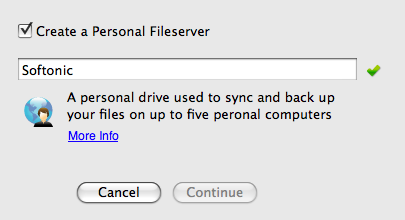
NomaDesk is available in two separate versions — a “Team Fileserver” for people who want to share and collaborate on documents, and a “Personal Fileserver” for those who use different computers but want to make sure information is synchronized.

novadesk create server

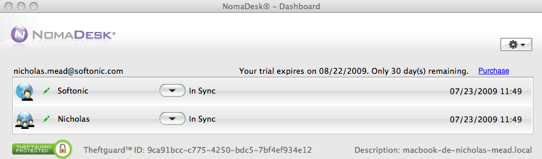
Naturally, all files stored on NomaDesk’s servers are encrypted and password protected. Getting them there is also made as easy as possible. For example, you can e-mail them directly to the server and allowing others to access them is as easy as sending a link. In case the worst happens, there’s a handy “Theftguard,” which enables you to remove data from your hard drive in a flash if your computer gets stolen. NomaDesk can remotely remove data at your request but the information is still securely saved on NomaDesk’s fileservers. The program also uses a “Delta-sync” feature which synchronizes only those parts of a file which have changed, saving you time and bandwidth. Meanwhile, if you’ve got an iPhone, you can access and modify your files extremely easily via a NomaDesk dashboard widget.

novadesk3.png

There are some major drawbacks I found to NomaDesk however. One is the lengthy setup process which requires a complete restart after installation and is really annoying if you’ve got lots of applications open. You also have to send a confirmation e-mail after the restart which all adds time onto the account setup process. Worse than this however are the frequent hang-ups and crashes when NomaDesk logs-in. Twice it hung my entire system forcing me to make a complete restart leaving me less than impressed.

However, these problems can probably be attributed to the fact that NomaDesk for Mac is still in Beta stage. When it is working properly, NomaDesk is extremely simple and easy to use. The cost of using NomaDesk may put off some but if your data is valuable, it could be a price worth paying once it’s more stable.

Essential travel apps for Android phones

As this year’s the summer vacation season coincides with an ever-increasing stable of awesome Android handsets, we thought that we’d take a look at some handy software you should definitely install before you start your holidays. From Augmented Reality wonder-apps to one-stop converters and translation tools, making sure you’ve got these programs with you when you set off should help you make the most of your trip.

Enhanced tourism: Wikitude Premium AR Guide

wikitude-qr.pngwikitude-icon-use.pngOne of the first Android apps to be widely talked about, Wikitude is an Augmented Reality app that uses your phone’s GPS, Google Maps, Wikipedia and even your camera to produce a truly impressive travel mashup. Simply look ‘through’ your phone in any given direction and Wikitude tells you about sites of interest, public transport stations, restaurants and more within your vicinity – all by overlaying them onto a map or your phone’s camera display. Apps like this really are a glimpse of the future.

Convert anything: ConvertMe (Beta)

convertme-qr.png

convertme-beta-1.png

Keeping track of fluctuating currency rates while abroad is one thing. But what about clothes sizes, food measures and distances? ConvertMe can convert between hundreds of weights, measures and currencies – including some that you probably won’t need on vacation (magnetic flux, anyone?). Its currency rates are updated frequently so that you can be sure that your lobster bisque isn’t too extravagant a treat.

Translate foreign languages on the move: SpeedyMarks Translator

translator-qr.png

translator-speedymarks-mobileicon.png

The best preparation for a trip abroad is to make sure that you have a grip on at least the basics of the local language.  Translator will come in handy for identifying fairly simple words and phrases, but performs better with some languages than others. My tip: try using Google image search for simpler words: you’ll get a quick visual aid which is more useful if you’re trying to learn.

Prevent thefts and stay secure in hotel rooms: Sheriff Android Lite

sheriff-lite.png

sheriff-android-1.png

Sheriff Android Lite is one of those apps you hope you’ll never have to use. Running in the background on your Android phone, when activated it detects movement and emits a loud alarm to warn you that your phone (or the bag it’s in) has been moved. I recommend buying the full version because for only $1.50, you get SMS alerts, personalized pre-warning messages, stealth mode and more.

Track your every step: AndAndo

andando_icon.jpgandando.pngThis app is ideal for trekking, cycling, and other outdoor pursuits, but perfect for stat-loving travelers of all types. AndAndo lets you record your movements using GPS. You can add notes and photos to your path and best of all (in my opinion), export your tracks to standard GPX and Google Earth’s KML formats. Creating maps of your travels has never been easier – and with the embedded media and notes you can effectively produce an automatic travel journal of your movements.

Final note: some of these apps will make use of your data connection, meaning that traveling abroad could be expensive if you keep data roaming switched on all the time. Oh, and use Barcode Scanner to read those QR codes.

Spam challenge: 5 email providers put to the test

As I mentioned in my recent post about stopping spam, we’ve decided to do a little test here at OnSoftware. Earlier today, I set up five new email accounts with leading webmail providers – Gmail, Hotmail, Hushmail, AOL and Yahoo. Now we’re going to do something crazy, something that you folks should definitely not try at home – leaving them on the blog for all the world to see! We’ll also use the addresses to apply to a not very reputable-looking Internet competition. I’ll let you know if we win anything.

spam-1.png

In a month or so, I’ll go back to each account to see just how well each has done at keeping out the spam. Will it be my personal favorite, Gmail, or an old reliable like AOL? What about the underdog, Hushmail? All will be revealed…

softonictest@live.com
softonicsptest@gmail.com
softonictest@hushmail.com
onsoftwaretest@aol.com
softonicentest@yahoo.com

Exclusive interview with Voddler’s co-founder

voddler-logoThose canny Swedes have been at it again. Following on from the launch of music service Spotify, Voddler is a new service where the focus is the screen rather than music. Voddler promises to offer a service similar to Spotify except with films and TV shows on demand.

Co-founder Mathias Hjelmstedt told OnSoftware:

“Since 2005, we’ve been working on developing the streaming technology that’s allowed us to conceive this project. It will offer both TV shows and films on demand and eventually will be extended beyond home computing to become part of your living room viewing experience.”

The service is initially being rolled-out in Scandinavia first before being launched in UK and then worldwide and will work on Windows, Mac and Linux. Voddler has been in beta stage since 1st July and the development blog claims that 16,000 people signed-up for it on the first day.  Once you’ve entered your name and e-mail address however, you’ll have to be one of the lucky ones selected for beta testing. OnSoftware has been granted an exclusive pass so watch this space for one of the first looks at this exciting app.

Asked if Voddler uses the same streaming software common to sites such as YouTube, Hjelmstedt says, “Not at all. If YouTube were to use our patented steaming technology, my guess is that they could save up to 90% of their streaming costs.” A bold statement indeed. Asked also if Voddler is anything like Hulu, Hjelmstedt simply replied, “No, it’s much better.”

But will paid-up users receive a better service than those only using the ad supported version? Hjelmstedt says, “It depends on the film. It’s quite possible that a newly released film at the cinema will be available the same day on Voddler to all users. However, some film studios only want paid-up users to have access to new content so it really depends.”

Eventually, Hjelmstedt sees Voddler as an essential home entertainment system. “Eventually there will be a Voddler box that plugs into your TV so that you won’t even need a computer.” Asked about the price of the premium service, he says, “Cheap. A little bit more expensive than Spotify though because it’s films and not music.”

Scanning the blogosphere, it doesn’t seem that many people have been invited at this early stage although Morten Skogly offers us an exciting sneak preview with high-resolution screenshots.

Apart from the screenshots on Skogly’s blog, the only other shot we have of the service is from the Swedish ISP that Voddler is currently being promoted with.

voddler screenshot from bredbandsbolget

Watch this space for a full review of Voddler on OnSoftware soon!

How to: Create an HDR image in Photoshop

Say you’re going on holiday to a big metropolitan area like New York, or a wilder region like the US National Parks. Whatever your destination, you’re probably going to take dozens of photos. But what if you want your pictures to stand out from the rest? An easy way to obtain really eye-catching images is the so called HDR method, which lets you create bright, colorful photos by combining several shots of the same place with different exposure values. It may sound complicated but it’s easier than it seems. Some cameras have a built-in HDR functionality that lets you take three photos in one shot at different exposure values. Plus, Photoshop already includes a built-in tool to create HDR images in a few steps. Want to see how?

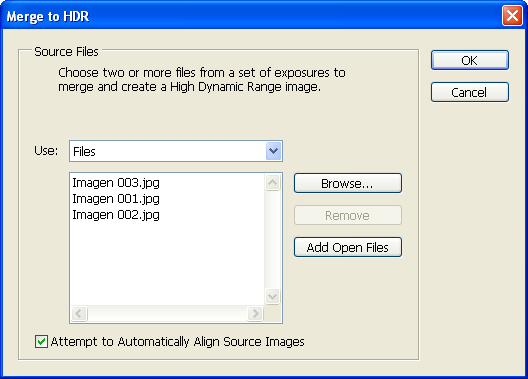
1. Open Photoshop and go to File > Automate > Merge to HDR. Select the images you want to use. They should all be identical images of the same place, so it’s recommended that you use a tripod to take them.  You’ll need at least three images to create an HDR composition, though the more you use, the better the results will be.

How to: create an HDR image in Photoshop

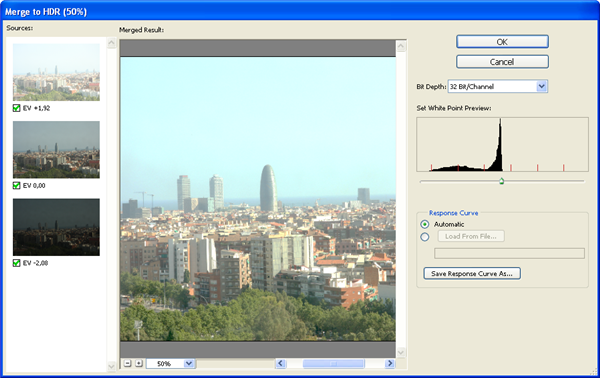
2. Photoshop will automatically blend them into an unique image and display the result. You can use the slider to adjust the final image, but be careful because the slightest movement can dramatically alter the HDR image.

How to: create an HDR image in Photoshop

3.  Click OK and Photoshop will open the resulting image as an independent file. Now it’s a good time to save the file as a PSD. After that, go to Image > Mode and change it to 16 bits. You’ll see an HDR Conversion window, where you can adjust Exposure and Gamma. The trick here is adjusting Gamma first, according to the amount of contrast you want to have on your image, and then adjust Exposure accordingly. Continue reading “How to: Create an HDR image in Photoshop”

Moon added to Google Earth

moonies.png

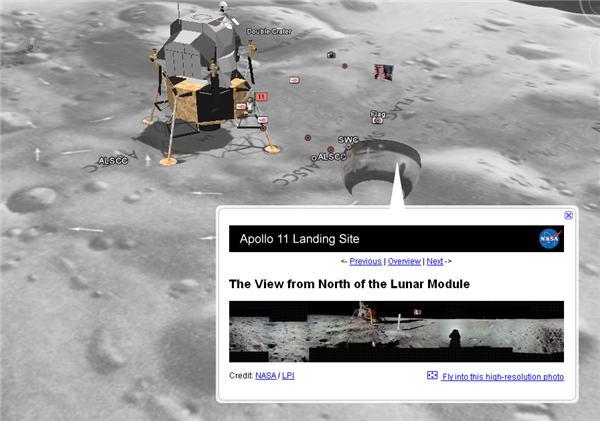
As we said earlier, Google are making a special announcement about the moon in Google Earth very shortly. However, if you open the application now, and hit the planet button, you’ll see the 3D moon is already available!

Turn off your layers, then zoom in and look around. All the Apollo missions are there – and sitting with the Apollo 11 mission is the Lunar Lander in 3D! As with all Google Earth in general, there’s tons of information dotted around for you to see, read and explore. Don’t wait for Google to announce it, go and have a look now!