Today’s downloads for Windows, Mac and Mobile

Windows: Chains is a great little 5-level demo which will keep you stuck to your screen until you’ve beaten it. Using a mix of classic chain-building-to-clear gameplay with a fashionable real physics element, it’s superbly compelling. Mixed with cool, minimal graphics and hypnotic music – if you’re short of free time, don’t download it!

Get Backup logoMac: TimeMachine is usually the backup utility of choice for most Mac users but it doesn’t always cater to the needs of those that need something a bit more flexible. Get Backup attempts to plug this gap as a tool that’s suitable for both beginners and those with more professional backup needs. Everything from customized backups to automated backups is possible with Get Backup and it even allows you to compress them too.

Train your brain on your phoneSymbian: If you want to get the most out of your life then it’s important to keep your brain in good shape. There are lots of ways you can do this – including installing Smart Educational Games on your phone. Smart Educational Games consists of a series of four mini games that test different types of knowledge, including math, memory, logic and geography.

Notes on Yahoo! Search Pad

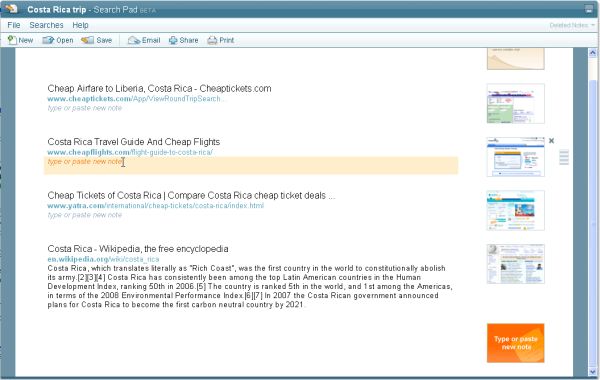
Yesterday Yahoo! released its new “online personal research assistant”, Search Pad. The tool, which is built into the Yahoo! search page, allows you to quickly store details of search results, add notes, and clip content from web pages. Looking at it in a wider perspective, Search Pad seems to be an attempt by Yahoo! to prevent it from hemorrhaging users to Google and to Microsoft’s new Bing search engine, which has brought its own range of personalized search features to the table. Here’s the lowdown on the new tool.

Take notes on your searches

What’s good:

Predicts what you’re researching – You’ll notice that if you perform a few searches for a similar thing (e.g. “laptop prices”, “holidays in Costa Rica”, “best security software”) Search Pad will detect that you’re performing research on a particular topic and will ask you if you want to start taking notes on these searches. Click ‘Yes’ and the tool will add all of the links into the Search Pad, allowing you to annotate each with your own notes if you like.

Intelligent copy and paste – One very cool feature of Search Pad is the way that you can copy and paste text from any web site into the notes and Yahoo! will go off and find exactly where it’s come from, adding the corresponding link within a few seconds. This is great if you’re researching from lots of sources or from different search engines.

Share stuff – Once you’ve finished your research you can save the notes as a document. You can then share this via Delicious, Twitter or Facebook, with a single click.

What’s not so good

Static window – The pull-out Search Pad window is integrated into the Yahoo! Search site, and can be pulled out by clicking on the ‘View Notes’ button. Annoyingly though, there’s no way to move this window around, or even resize it, making awkward at times.

Can’t be disabled –  I would have preferred Search Pad to give me more control over when it starts logging my research. Although, it’s supposed to give you the option to start recording search activity, I found that it was just adding everything I searched for into the notes. This gets a little disconcerting after a while and feels like having someone sat next to you, taking notes on everything you’re doing.

Locked into Yahoo! – I guess the key thing with Search Pad is that it is locked into Yahoo! search. It’s fine if you’re comfortable with the site and are a regular user, but you won’t be able to access your notes from anywhere else. In this respect, unless you only use Yahoo! you’re still probably better off with a good old-fashioned note-taking app.

5 great Add-ons for new Firefox users

firefox3-51.pngWith the recent release of Firefox 3.5, there’s never been a better time for Internet Explorer users to give it a go. In case you think for a moment that browsing is much the same on Firefox – hold on a minute!

Aside from being faster, lighter and more stable, what makes Firefox really different is add-ons. You can easily customize Firefox to work how you want it to, and it’s not hard. Click an add-on download link, restart Firefox (it will remember all your open tabs), and you’re done. To get started, here’s 5 add-ons I think are really cool, and should convince you of Firefox’s all-round awesomeness!

1 – Juice. I include this as it’s flashy, great looking and can really change your browsing. Basically, if you read something you want more info about, just highlight it, and drag it into the Juice sidebar – it will search Google, Yahoo Bing or Twitter for answers. See a picture you like? Just click and drag it into juice and it’s saved. YouTube videos get a tab that you can drag into juice, so you can make a playlist, and also watch videos in the sidebar while you browse. It’s cool, have a go!

2 – DownThemAll! This basically allows you to download whatever is on a web page. You can choose what type of files you’re looking for, like MP3s or images, and’DownThemAll’ in one click. It can save you lots of time scrolling through long pages looking for files.

3 – Open IT Online. This neat add-on allows you to open most documents, spreadsheets and presentations using online applications. when downloading a Word file,  an extra option will appear under ‘Open With’, allowing you to see the document in your browser, saving you the hassle of waiting for another application to open. It’s unobtrusive, and makes document viewing hassle free.

4 – UrlbarExt is a bit nerdy, but I like it, and use it every day. It adds a bunch of tools to the address bar, like a tiny URL maker, an add address to clipboard button and much more.  It really makes use of a piece of browser space that was underused.

5 – The add-on I use most? TwitterFox. Everything I want from Twitter, without having to open up a page, it’s fantastic. You get a tiny icon at the bottom of Firefox, and clicking it activates a pop up display showing you your Twitter feed. It feels ideally suited to Twitter, and I can’t imagine a browser without it anymore.

So there you have it. If you load up an add-on you don’t like, it’s simple to deactivate it – just go to add-ons in the Tools menu, and you can deactivate or uninstall anything you like. No doubt everyone will have their own favorites, so you can go and check out the Firefox add-on site here.

Google announces open source Chrome OS

chrome-os-window.pngSo here is the announcement we’ve been waiting for. Over the last three years or so, I’ve had many conversations with colleagues about the likelihood, or rather the inevitablility, of Google eventually releasing its own operating system. It would be based on the web, the browser and the cloud. It would be open source, free, and compatible with multiple hardware platforms. Then we saw the Chrome browser launch, followed by the Android mobile OS. Last night’s blog post may have come without any hype or build-up but it contains few surprises. And that’s great!

The new operating system will be called Chrome OS. It’ll be a custom Linux distribution ‘with a new windowing system‘ which, I assume, means a replacement for X rather than just a new desktop environment. It’ll be open source and according to Google, “the platform for application developers will be the web“.

So the question now is: just how important will this prove to be? Melissa Perenson at PC World has a pretty detailed response, raising a few more interesting questions along the way. Her general feeling seems to match mine: one of guarded optimism but some uncertainty as to whether we’re ready to go 100% cloud based just yet. This was an opinion raised in our editorial meeting this morning too: “I like to own my digital stuff, I can’t and won’t trust the web to do that for me”.

I reckon this will prove to be a significant moment. But I wouldn’t be surprised if Chrome OS’s path was a little more rocky than Android’s has been so far. While Google is apparently already working with computer manufacturers, a truly successful offering would have to be downloadable and installable on pretty much any existing netbook or PC. Which would mean device drivers, compatibility issues and everything else Microsoft puts up with while developing Windows. But if there’s a company with the resources and the skills needed to produce the first widely popular true web OS, it’s Google. I just can’t wait to get my hands on a development build!

Watch the Michael Jackson memorial service online

It’s being touted as one of the biggest web casting events in history – the memorial service for Michael Jackson which takes place later today in LA at 10.00 am Pacific Time. Love him or loathe him, there’s no denying this will be an epic event with many major national TV networks carrying it live and widespread coverage across the net. It’s also a unique event in web history. Jackson’s popularity was worldwide and only through the internet are fans able to watch, chat and comment on the event in real time in what is effectively the world’s first “virtual funeral”.

screen-capture-61.png

If you do want to join and pay your last respects to the King of Pop (or just enjoy the artist performing), here are some ways for you to watch it online. Continue reading “Watch the Michael Jackson memorial service online”

Top 20 Windows Mobile apps

Fed up of waiting for the Windows Mobile Marketplace to open its doors? Then use this time to check out the best of the existing apps for Pocket PC and Smartphone devices. Microsoft’s new mobile app store will launch with 600 applications but we shouldn’t forget that there’s already a ton available to download now that will power up your mobile experience. Here are 20 that I strongly recommend you to take a look at.

fring -Ultra-handy way to chat over IM or Skype while you’re sat on the bus

Nimbuzz – Another stellar instant messaging and VoIP app for Windows Mobile

Spb Mobile Shell – treat yourself to a much cooler and more powerful front-enda

Opera Mobile – Quite simply, the best way to browse the Web on a mobile phone

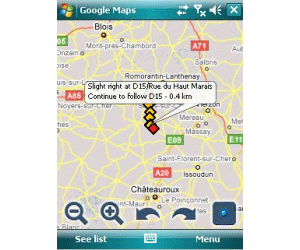
Google Maps – Who needs an expensive sat-nav system when you’ve got good old Google?

Google Maps

Kaspersky Mobile Security – Probably the most complete security tool for Windows Mobile

TCMP – Media player with enough guts to handle a massive range of formats

Skype for Pocket PC – Save yourself a heck of a lot of money on phone calls

vTap – Turn on the tap to a deluge of online videos

Facebook for Windows Mobile – Never lose touch with your friends. Ever Continue reading “Top 20 Windows Mobile apps”

The easiest way to take screenshots of whole websites

Capturing whatever is on your screen at a given moment can be as easy as pressing the PrtScr key. But what if you want to take a snapshot of only a certain area of a website, and then add some annotations to it? Then your only option would probably be searching for a software tool that meets your requirements… or simply using Talon, one of the latest tools released by the powerful online image suite Aviary.

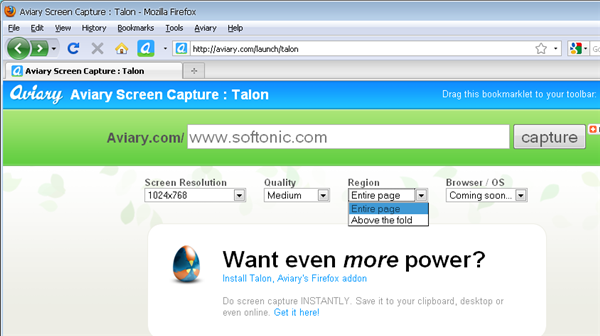
Talon can be used in three different ways. The first and most obvious method is heading to the Talon website straight away and enter the URL of the website you want to capture. You can choose the screen resolution, image quality and captured region – meaning you can take a screenshot of the whole website, and not just the portion that’s actually visible in the browser’s window.

The easiest way to take a screenshot of a website

The second way to use Talon requires installing Talon’s special plug-in for Firefox. This plug-in adds a new button to the top toolbar that enables you to take a snapshot of the website you’re currently visiting. You can choose to capture a specific region on the web page, capture the visible portion in your browser or take a screenshot of the whole website from top to bottom. Continue reading “The easiest way to take screenshots of whole websites”

Google Toolbar now includes advanced translation

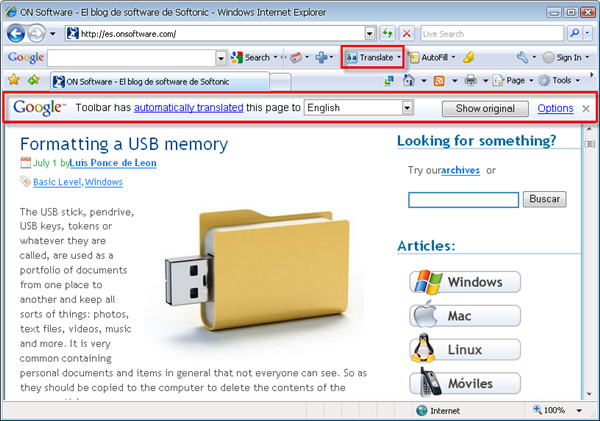
Google Toolbar has been recently updated – only the Internet Explorer version, though – and now includes an efficient Translate feature that will make web browsing easier, even in those websites you can’t understand. The new Translate feature is displayed as one more button in Google Toolbar, and one click is enough to make it detect the language of the web page you’re currently visiting and translate to the language you’ve set as default in the toolbar’s configuration menu.

Google Toolbar now includes advanced translation

Google Toolbar works surprisingly well, although the quality of the resulting translation depends on the language pair, and is never going to be as reliable as a translation done by a professional translator. The good thing about it is that it keeps on translating pages as you browse the site, and if you often translate from and to the same languages, Google Toolbar will remember your settings and translate web pages without having to click anywhere. The Translate feature supports 41 different languages and will soon be offered in Google Toolbar for Firefox as well.

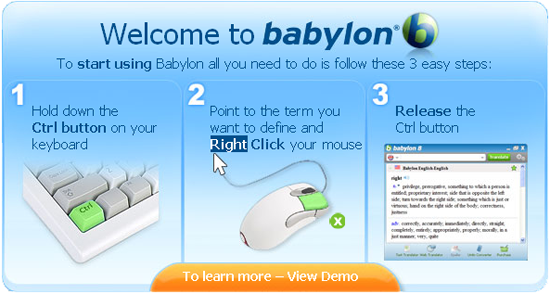
But what if you don’t want to install a toolbar? There are other ways to turn foreign texts in something you can more or less understand. One of them is Google’s Language Tools, where you can paste text fragments for immediate translation or type in a web URL to obtain a complete web page translated to the language of your choice, while keeping the original design and layout as much as possible. Another option is using translation software, like the well-respected Babylon.

Google Toolbar now includes advanced translation

If you prefer online tools, you can check ProZ.com, where professional translators can solve your doubts, or IATE, a powerful online dictionary with support for all European languages that’s mainly focused on technical terms. Finally, I’d recommend WordReference as an excellent online dictionary with support for six languages, an active user community willing to help you and a special app for the iPhone / iPod Touch.

Today’s downloads for Windows, Mac and Mobile

Download Firefox 3.5Windows: Are you a Firefox user? If so, you’ll be happy to know your favorite browser has been updated. Firefox 3.5 includes exciting new features such as a private browsing mode, an enhanced Awesome bar, better support for embedded videos, more powerful tools to manage your browsing history and a new engine that makes websites load even faster.

Take screenshots on your phoneSymbian: There are plenty of applications for taking screen captures on your PC, but what happens if you want to grab an image of your phone’s displa? Well, grab a copy Best Screen Snap and your problems will be solved. Best Screen Snap is specifically designed to take screenshots of applications installed on your phone, which you can then send to your PC.

CocktailMac: Ask anyone who’s used a Mac for a long period of time and they’ll tell you that Cocktail (now updated to version 4.4)  still remains one of the best all round admin tools out there. Cocktail can do all your essential maintenance tasks from clearing your cache to controlling sleep times. There’s nothing new in Cocktail that you can’t do in Terminal but Cocktail makes it so much easier through its GUI.

5 tips to get more out of Spotify

Spotify logoSince first trying Spotify earlier this year I’ve become a firm convert and even more so now that they’ve introduced some handy little features to enhance the listening experience. If you haven’t been using the service long, you may be unaware of everything that Spotify can do. Here are a selection of tips from sharing links to searching by record label to help you get even more out of the app:
Link To Your Favourite Track Moments

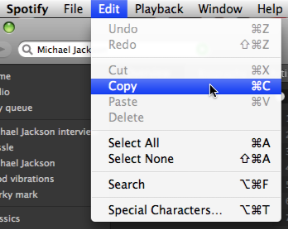
Want to share your favourite guitar riff or solo with a friend? Spotify allows you to link to a specific moment in a track with a little trick. While you are listening to a song, simply go to the Edit menu and select “Copy”. Then just add “%23” with the time in the song that you want to share e.g. http://open.spotify.com/track/4caRcqZl3JyrxwhgV5HGQ8%23.

screen-capture-3.png

Share Tracks in Facebook or Delicious

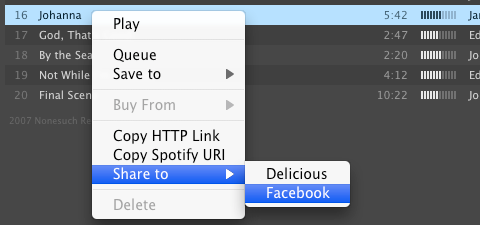
You can now share tracks to Facebook or Delicious simply by right-clicking on a track and selecting the “Share to” option.

share-to.png

See What The World Is Listening To

To see what you, your country or Spotify users worldwide have been listening to most, click on “Home” in Spotify and then select the “Top Lists” tab. Clicking on the tab allows you to select top lists from around the world which is an interesting way to assess music tastes in other countries or see which artists you might be missing out on. Continue reading “5 tips to get more out of Spotify”