Use Excel to track and follow the World Cup

It’s nice to see Excel put to more entertaining uses that boring old spreadsheets and number crunching. That’s exactly what the developers of Excel Soccer World Cup 2010 Planner have done to help you track and follow the event.

Excel World Cup 2010 Planner.png

Excel Soccer World Cup 2010 Planner is a cleverly designed free spreadsheet created by a group of football enthusiasts that allows you to track the latest scores and standings in the FIFA World Cup in South Africa. It isn’t just a single spreadsheet though, it’s a highly advanced Excel spreadsheet that allows you to input and track results, view current standings, check fixtures and get information about the venues and stadiums.

Excel World Cup 2010 Planner.png

In fact, it’s so rich in detail that you’ll need to read the quick guide that accompanies it just to work out how to use it. While the look of the interface is naturally limited by the constraints of Excel, navigation is easy using the icons at the top of the page.

The Results section (first picture above) contains a list of all the matches from the group stages through to the final, for you to add the full-time and half-time scores for each as the tournament progresses. You can view current group standings and check the overall progress of the knockout phase. Remember, that everything is calculated based on the results you enter yourself, so if you make a mistake when typing scores in, this will affect the other permutations.

The Predictions area of Excel Soccer World Cup 2010 Planner lets you set up up to four leagues of up to 32 different teams each. Here you and your friends can compete against each other to guess the scores of all the matches, predict who will win the tournament. League tables are kept of each player’s performance.

Excel World Cup 2010 Planner.png

Don’t be fooled by the fact that Excel Soccer World Cup 2010 Planner is just a spreadsheet. It’s incredibly rich and complex and will appeal to all die-hard football fans with the patience to enter all the data themselves.

How are you tracking the World Cup?
Get more from the World Cup with OnSoftware

After four years of waiting, the World Cup is finally underway in South Africa. Predictably, after such a long it now feels like there is just too much football to keep up with! If you find that you’re already losing track of the tournament, or if you simply want to have a bit of fun in between matches then it’s worth revisiting some of the excellent World Cup articles we’ve posted over the last few weeks.

Having problems finding somewhere to watch all the matches? Then find out how to watch all of the games for free on your computer, with our guide to streaming World Cup matches onto your computer.

Of course, not all of us have the time to sit at home with our feet up watching football matches. If you’re missing the action because of work or other commitments then be sure to read our posts about the best World Cup apps for iPhone, and for Android phones.

There’s plenty of footy fun to be had in between the matches, too. Facebook addicts should check out our pick of the various games, schedules, fantasy leagues, and the like that are available as Facebook applications. We also told you of how another internet giant, Google, has also entered into the spirit of the World Cup by offering users a way to tour the stadiums in South Africa using Google Maps and Google Earth.

If you’re not satisfied with the way your team is playing then go play FIFA Online for free. The new version of this classic football sim lets you take control of any country in the World Cup and try to go for glory. I’m off to replay England v USA, with a different goalkeeper…

[youtube]http://www.youtube.com/watch?v=OxspfInbLV8[/youtube]

Google and iOS4 – customization isn’t always good!

Apple and Google may be less friendly these days, but they’ve always had a major similarity. Their designs are clean and minimal. This may not be to everybody’s tastes, but then not everybody’s tastes are good.

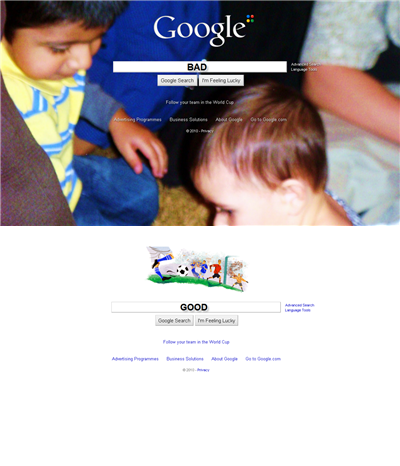
iOS and Google.com are both excellent pieces of design where form seems to follow function perfectly, so imagine my horror when I realized both now allow you to stick in your own wallpapers. I know that doesn’t force anyone to do anything, but I think it shows a lack of belief in design.

iOS 4 looks great, and putting a picture of your baby behind it will ruin the aesthetics. Sorry. Designers are professionals who we should trust – when Joe Public is let loose we end up with Pimp My Ride or ‘The Homer“. Henry Ford had it right when he said ‘any customer can have a car painted any color that he wants so long as it is black.’

Tour the World Cup stadiums with Google

World Cup header

In case you hadn’t noticed the World Cup kicks off today in South Africa. And those lovely folk at Google have fixed it for everyone to travel there, thanks to some special features they’ve added to Google Maps, Street View, and Google Earth.

Google Street View’s South Africa Soccer Stadiums page will give you a pitch-side view of all the grounds, including the impressive Soccer City stadium in Johannesburg, where the opening ceremony and first match take place today. The feature allows you to stand in the center of the pitch and pan around 360 degrees to acquaint yourself with the layout of each venue.

World cup 2

Even more impressive is the 3D stadium view you can access in Google Earth. Simply download this KMZ file, load it up in Google Earth, and you’ll be able to see the location of all 10 venues in South Africa. Click on any of the stadium links in the Places window, and you’ll be whisked off to that ground, where you can marvel at the 3D views, read information about each place, as well as flicking through a gallery of photos and videos taken inside the stadium. Be sure you have the 3DBuildings layer selected in order for this to work properly.

Proving that Google has well and truly gone football crazy, the search giant has also released a World Cup widget, which you can add to your iGoogle home page. The tool displays the latest schedule information, current standings, and the latest news from the tournament.

via OnSoftware France

Screenpresso: small yet powerful image capturing tool

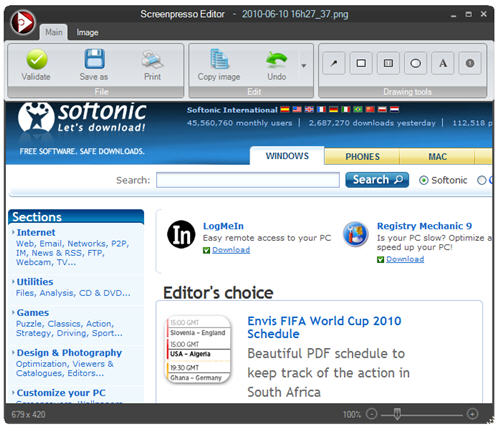
When it comes to screen capturing, most of the content editors here at Softonic use SnagIt. It’s a powerful, reliable tool we’ve grown to love over the years. But that doesn’t mean there are other interesting alternative apps, like Screenpresso – a free, handy screen capturing tool I stumbled upon a couple of days ago.

Screenpresso

Screenpresso is a bit different from SnagIt. It doesn’t feature as many capturing modes or editing tools as Techsmith’s tool. But  it also has some clear advantages: it’s free, it doesn’t require installation and it works perfectly fine for most people’s basic capturing and editing needs.

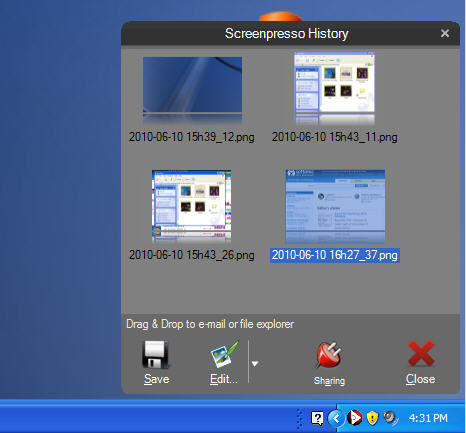
When you launch Screenspresso, you can choose between installing the program or simply running it. In either case, Screenpresso icon in the system tray with direct access to the program’s capturing modes and a history of captured images.

Screenpresso

The Region capture mode lets you grab any area on the desktop, but as it detects window edges, you can use it to capture active windows and applications as well. Also, if you have a transparent visual theme (like in Windows Vista and Windows 7), Screenpresso cleans the background for a perfect result.

Once you’ve captured the image, you can edit it in the program’s built-in editor, and add arrows, textboxes, several predefined shapes, borders and shadow effects. The best thing is that Screenpresso also lets you export the image directly into other editors, like Paint, Picasa – or SnagIt itself, if you have it installed.

Continue reading “Screenpresso: small yet powerful image capturing tool”

Office Web Apps: the online version of Microsoft Office

When Microsoft presented Office 2010 last summer, they had already revealed their intention to develop an online version of the popular suite. Today this idea has come true and Office Web Apps is already up and running.

Office Web Apps: the online version of Microsoft Office

Microsoft’s online suite can be found at Office Live, where after entering your Windows Live ID login details you’ll get access to four app: Word, Excel, PowerPoint and OneNote. To start any of them, simply click the correspondent icon.

Office Web Apps: the online version of Microsoft Office

Office Web Apps are very similar to the latest Microsoft Office 2010. They’re a kind of stripped-down version of the desktop suite, with less tools and options. However they work perfectly fine for basic tasks, those that most of us need on a daily basis.

Office Web Apps: the online version of Microsoft Office

This online version of Microsoft Office features a simpler variety of the ribbon-style interface, and also saves documents with the latest Microsoft extensions (that is DOCX, XLSX and PPTX). Files are saved to your personal SkyDrive, the 25-GB free storage space Microsoft provides with your Windows Live account.

Office Web Apps: the online version of Microsoft Office

Office Web Apps let you create new documents, invite other people to see and edit them, download a copy to your hard drive and print the document right from your browser. There’s also the possibility to open local files in Office Web Apps, but you need to upload them to your SkyDrive first. And if you have the latest version of Microsoft Office, you can also open the file directly in the desktop application.

Android or iOS4?

There’s a distinct choice for smart phones

Android 2.2 is on its way, with a bunch of new features. There’s Flash support, it’s up to five times quicker, can turn your phone into a wi-fi hotspot, and allows apps to push messages to your phone.

On June 21st, iOS4 is being rolled out to all compatible Apple devices, bringing with it iBooks, multitasking, folders, playlist creation and a unified email inbox, among other things.

Both look pretty cool, and while lots of people will argue one or the other is better, I think it’s a matter of personal taste and what you’re looking for in a device.

What’s right for you?

1: Appearance. The first point is certainly one of taste. If you don’t like the look of the iPhone, there’s nothing you can do! Go for Android, which has an ever-expanding range of devices, so there’s sure to be one that fits your style.

2: Ease of use. iOS4, like its predecessors, certainly has the edge when it comes to usability. Anyone can pick it up and use it pretty much without hesitation. Android feels a bit more IT-traditional, as there’s more to learn. However, it’s still an excellently designed OS, and it doesn’t take long to get the hang of.

3: Geek Friendly. If you like to be able to mess around under the hood of your smart phone, stay clear of iOS. I think it works great and does everything I want it to, but if you disagree, you’re stuck. Android is more open, and you have more freedom to use it how you want.

4: Compatibility. Android now supports Flash, so the mobile web will look pretty much identical to the desktop version. Of course, it will also eat your battery and your 3G connection. While Flash support is a hot topic, I’ve been surprised how much I don’t miss it on the iPhone. The iOS also tethers you to iTunes and the App Store, which not everyone will be happy about.

5: Updates. As I said, iOS4 is shipping to all devices on June 21st, but for Android 2.2 you may have to wait. HTC and Sony, for example, ship their Android devices with branded skins. When Google update Android you have to wait for HTC or whoever to upgrade their skin before letting you have it. And then you might still have to wait for your carrier to send it out. I have no idea who designed that system, as it sucks! With iOS, you’ll always be up to date – there are no middlemen.

Both Android and iOS offer a fantastic smart phone experience. iOS comes as a complete and extremely user-friendly package, but isn’t as flexible or customizable as Android. Which do you prefer?

(Disclosure – I prefer iOS)

Improve your computer’s boot-up time with Soluto

It’s a fact: the more you use your computer, the more unnecessary apps and processes are listed in the system’s boot-up sequence – and the longer it takes to boot up. And there are few things more irritating than having to wait 5 minutes to be able to use your computer.

The good news is that there are programs that can help you clean the mess, get rid of useless programs and leave only those which really need to be run on the system’s start. Soluto is one of them: an excellent start-up analyzer that calculates the time it takes your computer to boot up and helps you improve very easily.

Soluto is really simple. All you need to do is install it on your computer and then reboot it. Soluto calculates the time it takes the system to completely start up, and then shows you a nice graph with the results. Programs are divided into those that can’t be removed (usually because they’re system core components), programs that can be easily get rid of and those which could be potentially removed – but which you’ll probably need to check before.

Continue reading “Improve your computer’s boot-up time with Soluto”

Safari 5 released for Mac and Windows

With Apple’s WWDC already well underway and iPhone fever rising, the big news for Safari users on both Mac and Windows is that they can now get their hands on version 5 of Apple’s elegant web browser. Faster than ever and with a new intelligent Reader, Safari 5 looks and works better than ever.

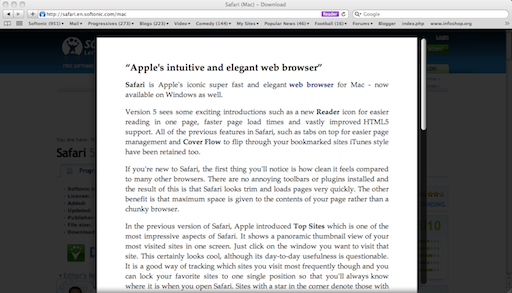
The most significant addition is the new Reader which is accessed by clicking Reader which appears in the URL bar on supported pages or by going to View and then Enter Reader. It isn’t available on all sites but when it is, it allows you to read only the text in an article. It removes distracting ads, pictures and sidebars so that the experience is closer to that of reading a newspaper than before:

safari 5 reader.png

The other big changes are that Safari 5 is now 25% faster at loading Javascript than the previous version and extensive support for HTML5. I was a bit skeptical about the speed improvements at first but now that I’ve been running Safari 5 for a few hours, it has to be said it’s lightening fast. However, whether it’s twice as quick as Firefox and 3 percent quicker than Chrome as Apple claim, I’m not so sure but it is easily the fastest Safari ever. Greater HTML5 support is something developers will mainly appreciate allowing users to watch HTML5 video in full screen and access HTML5 geo-tagging.

There are many other great additions such as the possibility to use Bing as your default search engine in Safari:

bing safari.png

And Safari is now far more intelligent at finding bookmarked and cached webpages searching for keywords within pages as you type them in the URL bar.

Give it a test drive and tell us what you think!

How to set up a US iTunes account from another country

If you live outside the US then you’re probably aware that not all iPhone apps are available in your country’s store. This can be pretty annoying when you read reviews about great apps only to find out you can’t access them. Don’t worry though, because there is a simple trick within iTunes that lets you register for a US iTunes account without using a credit card. By entering a fake US address you can fool the system and complete the registration. Here’s how it’s done:

1. First, make sure you’re signed out of your iTunes account. Click the flag that appears in the bottom-right corner of the screen in iTunes and select the US Store from the list that appears.

US Store 1

 2. Browse to a free app you want to download from the US Store and click on the Free button. You’ll now be asked to sign in or register. Click on the Create New Account button.

US Store 2

 3. After clicking Continue and accepting the terms and conditions, you’ll be invited to create a new Apple ID. Enter an email address (separate to the one for your existing iTunes account), password, verification question and date of birth. Continue reading “How to set up a US iTunes account from another country”