How to set VLC Player as default on Mac

Don’t you just hate it when you open a movie clip on your Mac and it opens in QuickTime? Although QuickTime X is an improvement in terms of speed and interface on previous versions, it’s still quite slow and fussy about formats. Instead, I use VLC Player to open video files on my Mac because it’s fast, opens almost anything and is very light on resources.

It’s annoying though to have to Ctrl-click or right-click and select Open With every time you want to open a video file with it. It’s far better to set VLC Player as your default player for all video files. All you need to do is hold down the Ctrl and Alt key when you left click on a video file. Alternatively, right click and hold down just the Alt key instead. Select Always Open With and then select VLC Player and you’re done!


vlc default player mac.png

Firefox 4 Beta available for download

The guys over at Mozilla certainly don’t close for holidays. Not only are we getting a new update for Firefox 3.6 every two weeks or so, but now we also have the first beta release of Firefox 4 to play with. This new version of Mozilla’s popular browser brings a bunch of new features, some of which you’ll see from the very beginning, some others will stay under the hood. Let’s take a look at them:

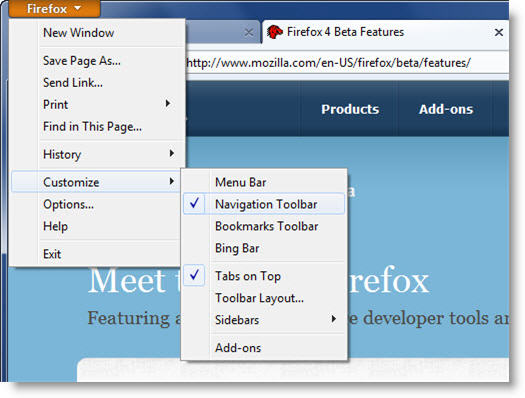
The most outstanding new feature in Firefox 4 is the new interface design. Tabs are now on top of the address bar by default, which may put some users off. I’m fine with it, but if you don’t like it you can disable top tabs by going to View > Toolbars and unchecking “Tabs on top”.

Firefox 4 Beta available for download

Another new element in the interface is the big orange button on the top left corner. This button opens a drop-down menu that replaces the standard toolbar from previous versions. I think it’s going to take me a while to get used to it…

Firefox 4 Beta available for download

The Bookmarks bar is now also a button,  placed on the right side of the interface. You can switch back to the regular Bookmarks toolbar if you’re not comfortable with this new menu. Continue reading “Firefox 4 Beta available for download”

Is Firefox falling behind?

Chrome and Opera are now the most forward-looking browsers on the market, while Internet Explorer has come a long way and caught up with the open source favorite, Firefox

For years, Firefox, Mozilla’s customizable browser, was the browser of choice for the tech savvy. Add-ons weren’t a new thing, but Firefox’s open source community really took them to new levels, meaning you could pretty much have your browser do anything you want. It looked modern, lean and quick, especially when compared to IE.

Recent updates have been less impressive, and very incremental. It may be more secure and faster every time, but I hardly notice. The design of version 3.x hasn’t changed much, leaving it looking very last decade compared to new kid Chrome and Opera’s flashy version 10.

I wasn’t sure what to expect with Firefox 4, which is promising great change, but my first impressions are not good. Instead of something new, the tabs at the top interface is reminiscent of both Opera and Chrome, and the new orange button has been taken straight from Opera 10. While syncing is promised soon, there’s nothing that really makes Firefox 4 stand out.

Apple’s Safari has the useful and attractive Top Sites and History views, which are really user friendly, while Opera has the powerful Unite, which is a fantastic content sharing tool. Chrome is a streamlined and quick browser that keeps itself out of the way so you can concentrate on the web.

Firefox 4, meanwhile, does look fresher, but it doesn’t look like the game changer it once was. Will you be checking out the new beta?

Essential standalone virus removal tools

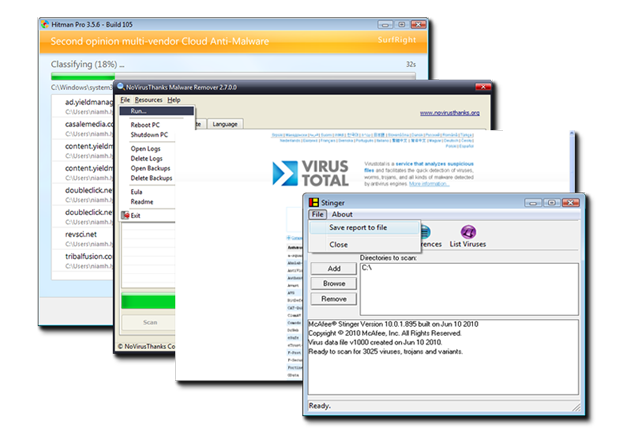
As you already know, having a PC without an antivirus is a really, really bad idea, so I’m presuming you all have one installed, right? Why then, you might ask, am I going to tell you about the best standalone virus apps? Surely they are surplus to requirements? Well, you might be helping out a friend with a virus problem, using a computer you don’t know or treating a specific problem that you’re not entirely confident your normal antivirus can deal with. Either way, here are some great apps for treating problems that your standard antivirus just can’t handle.

final.png

Continue reading “Essential standalone virus removal tools”

Timewaster: ACTION TURNIP!!!

ACTION TURNIP!!! is a run, jump and shoot ’em up arcade game that’s as fast and fun as it is bizarre. The screen constantly scrolls right, and you move around with the keyboard. Aiming and shooting is done with the mouse. Bats and other creatures try to stop you, and there are plenty of pitfalls, literally, to trip you up.

What makes ACTION TURNIP!!! particularly cool are the combo effects – kill a certain number of enemies at once and you might grow a rainbow stream, or the world will be transformed into a psychedelic blur of neon color. These effects keep you coming back and spur you on to even higher scores. The rewards can also be pretty distracting! Play ACTION TURNIP!!! here, requires Flash.

Ovi App Wizard: An easy way to make Nokia software

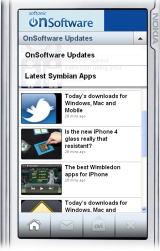
OnSoftware mobile appDeveloping software applications for mobile phones can be a long and complicated process. In general, if you want to make your site into an app you either need some technical know-how or a budget to pay for someone that does. Not any more though, thanks to Nokia’s groovy new Ovi App Wizard.
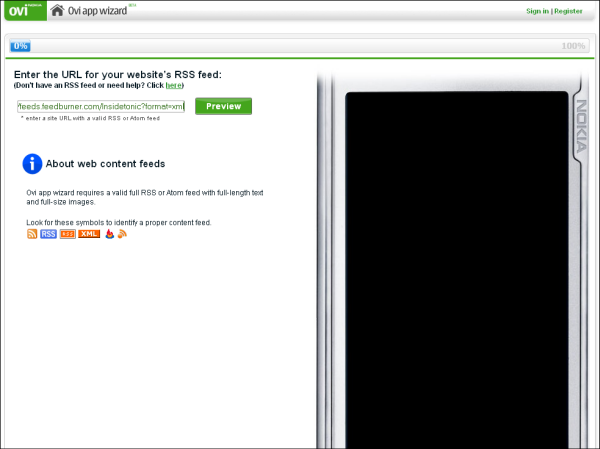
The free online tool is still in beta stage but it works very well, allowing you to make your own Symbian app within just a few minutes. Ovi App Wizard can take feeds from RSS, Twitter, YouTube and the like, and turn them into a stylish and functional mobile application. Once you’ve finished you can publish your app to the Ovi Store, and even add advertising to the software to make a bit of cash.

How to make a Nokia application in 5 minutes

1. Visit the Ovi App Wizard site and click the link to Try it out. You’ll now be asked to enter the link to the RSS feed of the main content you want to appear in the app.

Ovi App Wizard 1 Continue reading “Ovi App Wizard: An easy way to make Nokia software”

Three free alternatives to Word

Three free alternatives to WordThe complete Microsoft Office suite is quite expensive (with suggested retail prices starting at $149.99) and not everyone can afford it. However, being the most widespread productivity suite, Office apps have become almost an industry standard – which means we’re all forced either to use it or at least to use a program that’s compatible with Microsoft’s file formats.
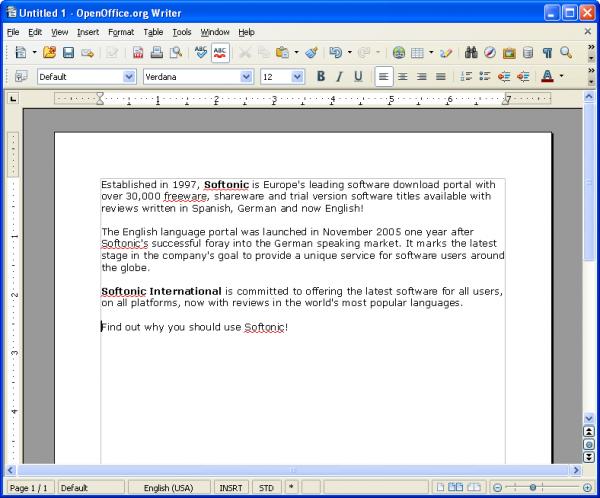
In the case of DOC and DOCX files, you should know there are a few interesting alternatives that let you work with them without having to buy Microsoft Word. Here’s a selection of free apps for text processing that can meet your needs without costing you a cent. Ad if you use Mac, don’t forget to check also our list of Word alternatives on Mac!

Writer

Writer is the text processor included in the OpenOffice.org suite. It’s probably the most used alternative to Word, though its interface is quite different from that of Word 2007 and may be a bit off-putting for some users.

Three free alternatives to Word

Writer clearly has fewer features than Word, but it includes all the main tools and functions that most users need in a word processing tool. Plus, it supports both DOC and DOCX files. Continue reading “Three free alternatives to Word”

Subtitles – the easiest way to find, well, subtitles!

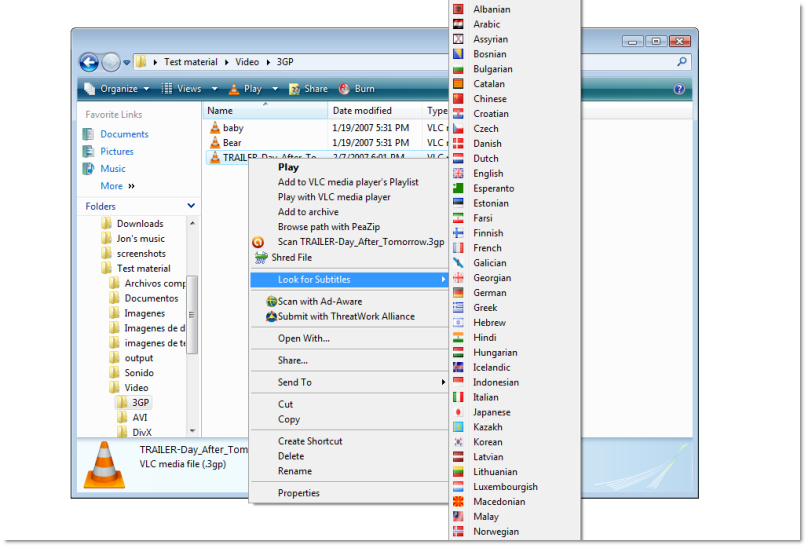
Subtitles is a very simple app that will find – you guessed it – subtitles for your movies. All you need to do is right click on the movie file, choose a language from the incredibly long selection, and click. Your web browser will open up, hopefully displaying a perfect set of subtitles for you to download.

6-25-2010-12-32-45-pm.png

If Subtitles doesn’t find your movie straight away, don’t worry. I had the chance to speak to the app’s developer, Guilherme Barboza, who explained how it works. Subtitles doesn’t search for the movie name (too much scope for error) but instead calculates the checksum. If it doesn’t already have that particular checksum stored in its database, it automatically looks for it elsewhere on the internet. If it still can’t find it, you search manually and the checksum is saved for future use. With more than 120,000 subtitles being downloaded every day, however, the chances that your movie will be correctly identified is getting better by the minute!

On the subject of subtitles, did you know that if you use a media player such as VLC, all you have to do is save the subtitles in the same folder as the movie and make sure they have the same name? If they do, the player will automatically add them to your movie – it’s that easy!

Listen to radio on your Mac with Radium

radium.pngI’m an old nostalgic for radio so when I discovered Radium for Mac all of my radio prayers were answered. What I wanted was a discreet, lightweight, easy to use radio player with a huge range of mainstream and not-so-mainstream channels and reliable streaming. Radium ticks all the right boxes.
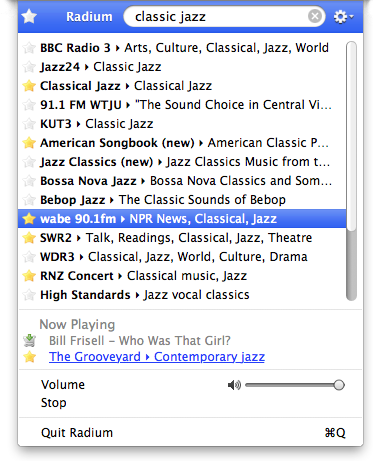
Radium installs as a discreet icon in your Menu Bar. To access it, just click on the mini radio icon and a huge number of radio channels drops down. Just select one at random if you want to take a radio tour around the world or use the powerful search box to search in real time.

screen26.png

The choice of channels is staggering. There are literally stations from all four corners of the globe covering everything from talk radio to folk music. If you want to find a particular station, just type it into the search box and Radium finds them in real time. Typing in “BBC” for example brings up all of the BBC stations available – much quicker than navigating the BBC site to the different stations.

The only problem I’ve found with Radium is that accessing the preferences seems to crash the program instantly although you don’t really need to access these unless you are planning to add your own channels.

Note that Radium is free to use for 30 days but costs $16 dollars for a license after that, which entitles you to free upgrades.

Translate foreign food menus with your phone

Want a quick way to translate those incomprehensible restaurant menus if you’re traveling abroad this summer? Then install ABBYY FotoTranslate on your phone.

The Symbian application allows you to translate words on the fly, simply by pointing your phone’s camera at the text and snapping the menu. Once the shot has been taken and FotoTranslate has scanned the image, the app allows you to tap any of the words that appear and get and instant translation. I’ve been testing it out for a while and have been very impressed with the accuracy of the app.

ABBYY

ABBYY FotoTranslate currently supports five different languages: French, German, Italian, Russian and Spanish. You can also play around with the font size and adjust the display orientation. The software costs $34.99 and a one-day trial are available here.