How to: Get a tan in Photoshop

I don’t really like going to the beach (sorry, I just can’t stand sand!) which means I stay quite white-skinned all throughout the summer. Luckily now I’ve learnt a Photoshop trick that lets me get a tan in under five minutes – without all the risks of staying under the sun. It won’t have any effect on your skin in real life, but at least it will prevent you from looking like a ghost in summer pics! So, here’s how to obtain perfectly tanned skin in Photoshop:

Get a tan in Photoshop

Continue reading “How to: Get a tan in Photoshop”

Head-to-head: Shazam vs SoundHound

Want to know what’s that song on the radio, in the club or on TV? Thanks to the wonders of modern acoustic fingerprint technology, all you need to do is point your phone at the speakers and press a button. In order to do this, of course, you need an app installed on your device. But which one?

I’ve taken a look at the two principal candidates for iPhone, Shazam and SoundHound and put them through their paces to find out which one really knows the most about music.

The contenders

ShazamShazam has been the king of music identification services for more than ten years. Initially launched in the UK as a premium SMS service, Shazam has since been released as an app on numerous mobile platforms. It continues to top the Music section of the iTunes App Store charts, and its free version was listed as the fifth most popular free iPhone app of all time.

SoundHoundSoundHound is a social music search service, powered by a community-created database. Originally known as Midomi, the iPhone app isn’t as popular as Shazam – but that’s not to say it isn’t more effective. In contrast to Shazam, SoundHound claims to be able to recognize tunes that are hummed or sung. Continue reading “Head-to-head: Shazam vs SoundHound”

The best free mind mapping software

Whether you are studying, in business or you’ve got a complicated plan to execute, and you’re having trouble getting your thoughts in order, you should take a look mind mapping software. Mapping the mind – ordering thoughts as a diagram – is an excellent way of organizing your thoughts, forming plans and completing a job and, best of all, there are excellent free tools available to help you. Continue reading “The best free mind mapping software”

Five alternatives to Google Wave

Google announced that they won’t continue developing Wave, but I can’t say I’ll miss it. I must admit that at the time that Wave was launched, I got caught in the hype around the new Google service and was desperately asking for an invite. Once inside, the question was “OK, so now what?”. And just a couple of weeks after the launch, I had forgotten about Wave.

Now that Wave has been discontinued, maybe it’s time to look for an alternative – an online communication tool to speed up and improve the workflow in collaborative projects. That is, if you really used Wave at all and need a replacement for it. Here are five Wave alternatives:

Five alternatives to Google Wave Shareflow – a group communication tool that eases sharing of documents, media files, ideas and more with a specific bunch of people. It features real-time chat, supports posts and replies via email and works from your mobile phone without having to install an app. You get 1 GB of free storage space, with Premium plans starting at $20/month for 5 GB.

Five alternatives to Google Wave Slatebox – More than a tool to exchange messages, Slatebox helps you create online mind maps and diagrams, and share them with collaborators, coworkers or students in no time. It works with all main browsers (Internet Explorer, Safari, Chrome and Firefox) and lets you embed maps anywhere – no Flash or other plug-ins requested.

Five alternatives to Google Wave Dabbleboard – A collaboration tool that’s centered around an online whiteboard. You can create mind maps, write text, insert arrows and predefined shapes, and even draw freehand. Dabbleboard offers a free, feature-limited version and also paid plans with more advanced functionality, starting at $8/month.

Five alternatives to Google Wave Microsoft Sharepoint – Microsoft’s contribution to online collaborative apps is Sharepoint, a tool intended to make group work easier. It helps you set up a website to share information with collaborators, generate reports to keep everyone up to date and work together on documents from start to finish.

Five alternatives to Google Wave Scribblar – A powerful tool for online communication with a bunch of interesting features: multi-user real-time whiteboard, live audio, embedded text chat, support to share images, and more. Scribblar is free, with a Pro version (including white label integration with your brand and logo) for $99/month.

Facebook for Android 1.3 released

Facebook for Android has just updated to 1.3. Ok, so it’s not exactly what you’d call a major jump, but for a must-have app that was significantly lagging behind its iPhone counterpart, it’s a big improvement. Maybe that’s something to do with Facebook founder Mark Zuckerberg’s recent move to using an Android himself?

Before you ask, no, there’s still no chat, but there are a number of small changes that make using Facebook for Android a whole lot more comfortable.

comp.png

Version 1.3 has a souped-up homepage, with several new options.

Facebook for Android 1.3 has made some changes to both notifications and friend requests. You could supposedly deal with notifications from the old homepage, but in truth, it was a feature that never seemed up to scratch. Both notifications and friend requests now appear on the homepage. The features are nicely integrated into the app, so there’s no browser breakout, and pending notifications are cleanly displayed and easy to deal with. It’s a huge improvement.

The events notification is an especially nice feature, dividing events and birthdays up by today, tomorrow, this month and the future. When you look at a category, you’ll see details of these events – or the age of your friends – displayed cleanly and clearly, so you’ll never have an excuse to miss your friends’ big days.

The new homepage is brightened up by a bar of browsable pictures at the end of the page. While it’s hardly a life changing feature, it does make things a little prettier, and for that, we’re not complaining.

Twitter ‘breaks’ its official iPhone client

TwitterThe official Twitter client for iPhone got a new release today, but the update has left many frustrated users unable to access the app (myself included). Ironically, version 3.0.2 was designed to fix bugs from the previous release, as well as being localized into German, French and Spanish.

Hundreds of users are reporting on Twitter that the client no longer launches on their device. I tried to install the new release myself on my iPod, which runs OS 3.1.3 (the app supports 3.0+). I was greeted with a white screen of death then kicked out of the app before it even launched. Let’s hope that Twitter releases an update soon. In the meantime, stick with Echofon for your tweeting needs.

Google lets you sign in to multiple accounts

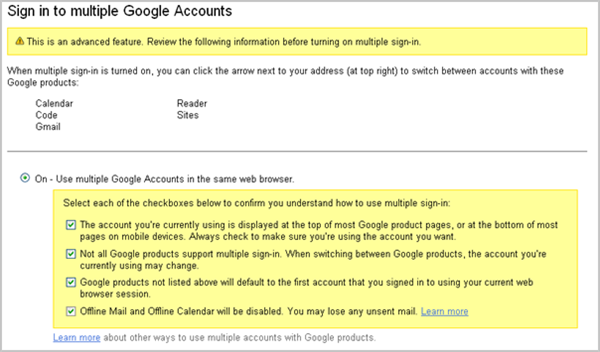
Having to open multiple browsers so you can be signed in to different accounts at the same time may not be the biggest problem in the world, but it can be a pain in the neck. But hooray for Google – check your account settings today, and you should find you can turn on Multiple sign-in!

Head over to your account page. It’s pretty simple, but Google are careful that you understand exactly what you’re doing – you need to check four statements to show you are fully aware of what Multiple sign in will do.

Why all the questions? It seems mainly to be because turning it on means Offline Mail and Calendar will cease to function. Personally, while I thought those offline features were cool when they came out, I’ve really never used them, as being offline is such a rare event.

In other email news, Hotmail – as it is now called once more – has completed rolling out its new version. Before you break out the champagne, however, I regret to say it still features that annoying front page before you can get to your inbox. There are also bunches of ads and the whole thing is still much uglier than Google’s minimal Gmail masterpiece. It seems despite their successes with Bing (it might actually be cool!), Microsoft can’t get back into the groove with their webmail service… Bingmail, anyone?

The Curfew – Will 2027 Look Like This?

In The Curfew, a Flash game from UK TV’s Channel 4, you’ll find out about British life in 2027, when anti-terror laws have become so strict there are curfews for everyone, and citizens win points for being ‘good’.

Using lots of live video, it looks pretty good, and even though it’s in beta, there are only a few bugs. Your nameless character is on the run after curfew, carrying some information that could harm the government you apparently hate. In The Curfew, your task is to find someone who you can trust to look after that information for you.

It’s a kind of point and click adventure. As such, it doesn’t really require skill, but you do need to think about your actions. To find someone you can trust, they’ll have to trust you, and you gain their trust by asking them the right kind of questions. There are four main stories, and during these you have to gain the trust of the people talking to you.

Designed to make you think about liberties, law and society, The Curfew has pretty high aims. It’s difficult to make an educational game that’s not patronizing or simply boring, but I think this does a good job of being neither. The depressing image it presents of the future is believable, although I was surprised to see that fashion seems to stop in 2010!

What The Curfew does require is time, as you can’t rush through. Some people might find this frustrating, but it does offer three save game slots, which is really unusual for a browser game. Overall I enjoyed playing this, and I recommend having a go at it instead of watching a TV show sometime. The only thing I really disliked was the inclusion of a fake “The Call Of Grand Theft Duty 13” game in the story, which felt unnatural and too obvious!

You can only play one episode at a time, and have to return a week later to continue, which is a strange nod to TV shows! Check out The Curfew.

5 steps to online anonymity

If you’re paranoid about Facebook and sick of being monitored by Google, you might be looking for a more anonymous way to surf the internet.

Why Firefox?

We love Firefox (although not wholeheartedly ) for two reasons – first, it’s open source, and second, it has a great selection of add-ons that make it easy to make surfing the web a much safer experience. Below, we’ve taken a look at 5 of the best to make sure that your surfing is as anonymous and confidential as possible.

Encrypt your data when possible.

This add-on encrypts your data by using HTTPS in place of HTTP where possible. The extra “S” refers to an extra level of security that protects your data as it travels between your browser and the server. HTTPS Everywhere works automatically, so it will use HTTPS by default when available, meaning you can get on with more important things while the add-on takes care of your security. Continue reading “5 steps to online anonymity”
How to: Deauthorize all computers in iTunes

iTunes is the leading music and video software for your Mac or PC. You can buy and download all kinds of movies, TV shows, and music from iTunes. But before you do that, make sure you have iTunes on your computer because if not, you won’t be able to use it at all.

itunes DOWNLOAD

You can deauthorize all computers in iTunes using the iTunes software. This way, you can unauthorize all your devices from iDevice sync and control the iTunes media library. The next time an update for your iPhone or iPad is released, you can quickly redownload the latest version on your computer by logging back into your iTunes account.

What does authorizing your computer mean?

Authorizing your computer means that you’re giving Apple the right to remotely access your computer and use it to download updates or software updates for programs, such as iTunes. These updates are necessary for your computer to work correctly. If you don’t authorize your computer in iTunes, then it won’t be able to receive any updates from Apple and may end up breaking down.

What does deauthorizing your computer mean?

Deauthorizing your computer means you want to remove access to your iTunes account from a specific device.

This can be useful if you have a computer that is no longer in use and want to prevent someone else from using it. It also allows you to track how much storage is being used on your device, which might help determine whether you should upgrade your storage space.

How to deauthorize all devices in iTunes

  1. What are the steps to deauthorize all your Macs?

    Deauthorize all computers in iTunes

    If you want to deauthorize all your Macs, follow these simple steps.

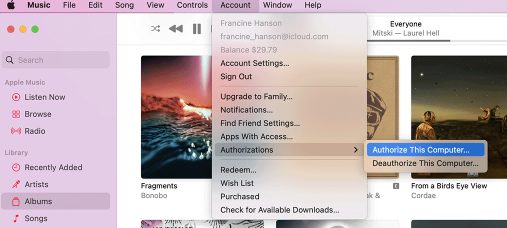
    – You first need to open your Apple music or TV app. When there, select your account and sign in using your Apple ID.

    – Once you choose your account, click on authorizations. The next step would be to authorize or deauthorize that particular computer you’re using.

    – Once again, you should ensure you are signed in using your Apple ID.

    • Once you’ve selected the appropriate action, click authorize or deauthorize.
  2. Check how many computers are authorized

    Deauthorize all computers in iTunes

    To check how many computers are authorized, follow the below steps.

    – As always, you must first open your Apple Music or TV app.

    – You need to select your account and then your account settings.

    – Before doing any of the above, you must ensure you’re signed in using your Apple ID.

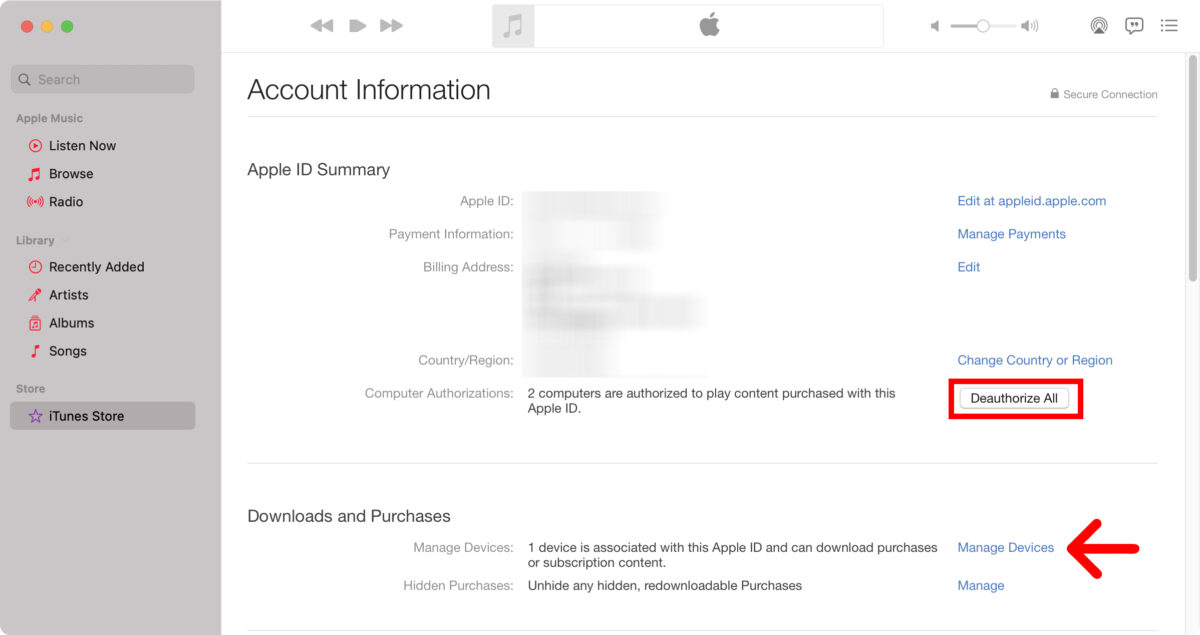
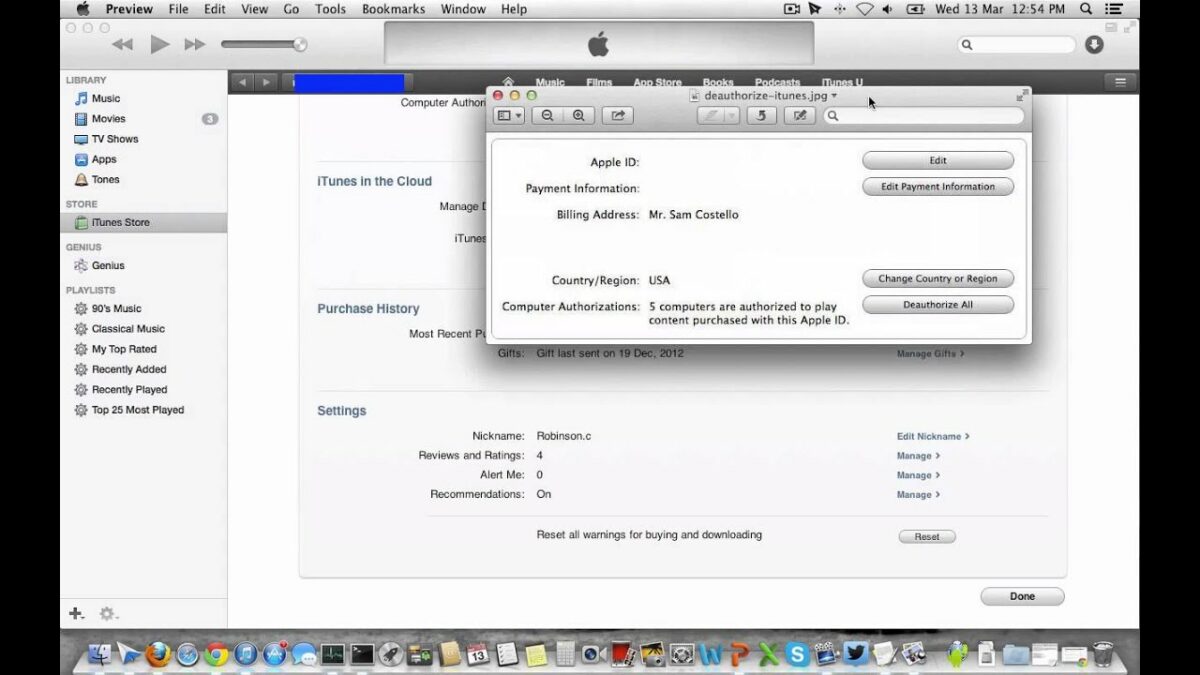
    • When you are on the account information page, check the top of the screen. There, you will see the computer authorizations section, and you will get to see how many devices are authorized.
  3. How to deauthorize a computer without having access to it?

    Deauthorize all computers in iTunes

    If you don’t have access to a particular computer and want to deauthorize it, you will need to deauthorize all your computers. Once that is done, you need to authorize the computers you prefer. Before doing this, you must note that you can deauthorize all your computers only once in a calendar year. Follow the below steps to deauthorize all your computers.

    – Open your Apple Music or TV app

    – Once logged in, please select your account and head to account settings.

    – At this stage, you’ll be asked to sign in using your Apple ID.

    – When you reach your account information page, you will see the Apple ID summary section at the top.

    – There, you will see all computer authorizations. Next to that, there will be a button to deauthorize all. Click it.

    • Once done, you need to authorize each computer based on usage.
  4. What are the steps to deauthorize your computer?

    Deauthorize all computers in iTunes

    To deauthorize your Windows computer, follow the below steps.

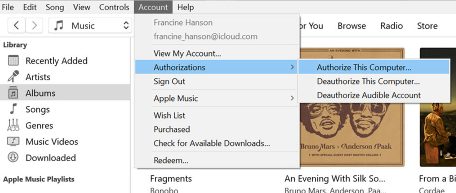
    – Log in to iTunes with your Apple ID on your computer. You will see the account section at the top of the screen when logged in.

    • Click on account and then click on authorizations. Once done, click the option to authorize or deauthorize that computer.
  5. How to check which computers are authorized?

    Deauthorize all computers in iTunes

    If you’re looking to check which computers are authorized on iTunes, follow these simple steps.

    – The first step is to open iTunes.

    – Once done, you need to click on your account section at the top of your screen.

    – At this point, you will be asked to sign in using your Apple ID.

    • Once you are on the account information page, you can see how many computers are authorized or deauthorized.