Android Oreo Bug could cost users Big on Data

Android Oreo, Google’s 8.0 version of their mobile operating system, hasn’t been out for too long and is currently only available on a few select devices. Big promises made about Oreo’s capabilities have Android users all over the world waiting eagerly for the handsets to be updated but a few might be starting to think twice about opting in when their time to update comes.

Google are already aware of this issue but some users have started to see spikes in data usage since they’ve updated their handsets to Android 8.0. The bug that users are detecting is causing mobile data to be used over Wi-Fi. This means that even if they’re logged on to a Wi-Fi network they’re still having to use their mobile data plan to access the internet.

If you’re an Android Oreo user then this glitch might be effecting you. To check your mobile data usage you need to access your quick settings menu by swiping down and then hold your finger over the mobile data icon. If you notice that you have been using more data than usual and you’re worried about incurring extra charges there is a simple, if not slightly annoying, fix. To access the internet via a Wi-Fi connection you’ll have to disable mobile data to do so.

For now the annoying fix will have to do as Google haven’t given word yet about when Oreo users can expect to be fixed. You can bet, however, that they’ll be wanting people to update to Android 8.0 when it rolls out across other handsets so they’ll no doubt be working away to get the job done sooner rather than later.

How to extend your Battery Life by softonic-en


Our users have been talking about the best Mobile operating systems based on Android. Join the discussion now!


Via: 9 to 5 Google

How Malware is an Issue that Cannot Be Ignored & How to Fight It

Simply surfing the Internet now days may prove to be a dangerous task no matter your intentions, and going at it blindly without knowing how malware can infect your computer is like playing Russian roulette with your computer and its precious data.

Malware is aptly known as malicious software and comes in many forms designed to cause damage to your computer, extort money from vulnerable PC users, gain control of a system for malicious intent, or steal personal data. Different types of malware are browser hijackers, fake error messages, phishing threats, rogue anti-spyware programs, spyware, rootkits, Trojan horses, worms, viruses, and ransomware, which is claimed as the most aggressive form of malware in recent years.

According to The Independent IT-Security Institute, known as AV-TEST, 12 million new malware samples currently come onto the market each month. Recent threats, such as the Peta Ransomware attack initiated in June 2017, quickly spread on a global scale deceiving thousands without warning only to demand $300 from each of its victims. Another ransomware attack, known as WannaCry dating back to May 2017, has been touted by countless security firms as one of the worst and most widespread malware affecting hundreds of thousands of computers around the world. Malware has evolved to become more sophisticated with aggressive forms that have a successful track record of extorting money from victimized PC users or stealing data. Ransomware, however, since its conception in 2012, has become one of the most dangerous forms of malware in existence.

It’s essential to detect and remove malware threats that are designed by cybercriminals and relentless hackers who may want to steal your identity. A proactive approach to deal with aggressive malware is to use an adaptive anti-malware solution like SpyHunter. Best of all, SpyHunter detects and removes all of the previously mentioned types of malware.

What’s SpyHunter & How it Helps You Fight Malware?

spyhunterSpyHunter is a malware remediation tool that not only fights against malware threats, but it is a highly effective tool designed to assist computer users of virtually any experience level to detect and remove the latest and most aggressive forms of computer malware. PC users can run SpyHunter’s malware scanner to detect over 1,300,000 malware threats. To remove detected threats, PC users can purchase SpyHunter’s fully-functional version. SpyHunter works with PCs running Microsoft Windows XP, Windows Vista, Windows 7, Windows 8/8.1, and Windows 10.


Unlike traditional anti-malware programs, SpyHunter is packed with advanced technology to stay a step ahead of today’s evolving and advanced malware threats. With hundreds of thousands of new malicious programs created almost every day, SpyHunter incorporates automatic updates to ensure the detection and removal of the latest malware threats.

What if SpyHunter Doesn’t Fix a Specific Malware Issue on Your PC?

The use of SpyHunter’s built-in Spyware HelpDesk ensures SpyHunter’s customers to have a one-on-one connection with specialized technicians to handle rare issues that SpyHunter is not able to automatically solve. Customers can generate a diagnostic report of their computer and send it via their SpyHunter to SpyHunter’s technical support, who will create a custom fix for their unique malware problems.


Malware continually evolves to find new methods to attack vulnerable computers around the world. With a user-friendly interface, intelligent automatic updates, user customization options, and a Spyware HelpDesk always ready to assist registered users with the most difficult malware issues, SpyHunter can be used by virtually any PC user of any experience level.

Find out more about SpyHunter: Read our review and download the program.

DOWNLOAD SPYHUNTER TODAY AND REMOVE PESKY MALWARE

WhatsApp’s 2 Blue Ticks are about to get WAY more Annoying!

WhatsApp is rolling out a brand new service designed exclusively for businesses. Ever since Facebook abolished the $0.99 annual subscription charges back in 2014, they’ve been searching for ways to make money from the messaging service that they bought for a huge $22 billion. As they don’t want to start introducing advertising to WhatsApp this new business model could be the answer they’re looking for.

On the WhatsApp blog they tell us that businesses are already using WhatsApp, with some stores able to talk to hundreds of customers from a single smartphone. The problem, however, is that some customers have doubts about the legitimacy of some of the businesses using WhatsApp. The main issue though is that WhatsApp wants its cut too.

2 blue ticks
Why haven’t they answered!!!!

Over the next few months they’re going to start testing out new features like verified business profiles as well as tools designed for small to medium enterprises and all the way up to global corporations.

You think those 2 blue ticks are annoying when they’re on a message you’ve sent a friend, think about how annoying they’ll be when you get them on a message you’ve sent to customer services!

Some big businesses have already signed up to try out the new business features including Royal Dutch Airlines KLM and companies in Brazil, Europe, India and Indonesia. They won’t be getting charged for now but WhatsApp plans on charging businesses, for this new way to contact their customers, in the future. Fortunately for us, however, we’ll have to opt in before they can start lobbing offers into our WhatsApp inbox.

How to start a WhatsApp group with Yourself by softonic-en


Our users have been talking about best Resources for backing up Whatsapp messages. Join the conversation now!


Via: WhatsApp and Fox Business

Don’t be Scared because this Terrifying Mask will Know

It looks like something that we should be expecting to see in Stranger Things Season 2 but this horrific looking mask is a real world invention. It could just be the most perfect Halloween mask ever as it actually maps the movements of your facemuscles and changes itself based on whether you’re smiling or frowning.

The mask is able to both inject and suck out colored liquid from the different bubble like capillarie to visualize the emotions you’re feeling at any given moment. It may look horrifying but it is actually kind of cool and I’d love to see one up close and personal in real life. What is even better is that the creators, APOSEMA, have made the plans available on the internet so if you’re stuck for ideas for your next Halloween costume you can make your very own emotion sensing silicon mask.

Get the plans here and check out the other cool APOSEMA videos here.


Our users have been talking about the best places to buy the coolest costumes. Join the covnersation now!


Via: Tech Crunch

Will you be Tuning in to Facebook Watch?

If you live in the US you might have noticed a brand new tab when you logged into Facebook today. Facebook Watch, which the social media giant announced in August, is now live in the US. Watch is a separate Facebook tab that offers users hundreds of original shows and content that’ll be sponsored by Facebook and other media outlets.

It seems that with Watch, Facebook are trying to squeeze their way into a couple of lucrative markets. The exponential growth of Netflix won’t have gone unnoticed at Facebook HQ and YouTube’s recent taunt to the music industry that they were lucky to get the mere billion dollars YouTube were offering them, seems like just the kind of self-entitled bluster that Zuckerberg would love to get involved in.

What they’re hoping to do is stop funding the content that will be available on Watch and instead tax the creators a whopping 45% of the ad revenue they gain from their shows. So far so Facebook.

As to whether Zuckerberg and Facebook will pull it off is another matter. For now, the content available on the Watch tab is limited to say the least. If they open the platform up to a wider base of content creators then the service could have legs but really, Facebook aren’t offering anything new here with Watch. Will that matter though?

What do you think? Are you excited by Facebook’s new video service?

7 things you should never share on Facebook by softonic-en

Follow me on Twitter: @PatrickDevaney_

Our users have been talking about the best YouTube TV channels. Join the conversation now!

How to get rid of EVERYTHING Google knows about you in 7 steps (2017 version)

Google knows more about you than you think and you’re not aware of it. It knows what you search for, your interests (which it then gives to advertisers), what places you visit in the real world…

Think I’m exaggerating? Let’s make a bet: check out these seven links, which will help you find out what Google is keeping on you. If your mind isn’t blown or you decide not to remove at least some of your info, then I’ll tip my invisible hat to you.

Warning 1: to visit all these links, you should be logged into your Google account.

Warning 2: this article was originally published on May 17, 2016. I updated it on March 24, 2017 when I realized some services had changed. Therefore, some instructions had become obsolete.

1. This is the first info you MUST remove

Google stores every search you ever make. All of them. Not one is left out. The page where your activity is reported in Google is called “My Activity.” It’s a very, very hidden section. Here you’ve got the link.

As you can see, this page reports all the content you’ve visited thanks to Google. You’ve got three options for deleting what you don’t care about. The first option is using the search. This is perfect if you’re worried that Google knows you’ve visited a certain page.

The second option is the most obvious one. If you only want to delete searches from one day, it’s as easy as going to “Today” and then “Delete” (it will appear above).

When you click “Delete,” a warning will appear, something like “No, don’t do it! You don’t want to delete this information.” In reality, it’s exactly the opposite: Google doesn’t want you to delete this information. Nothing will happen to you. You’re not going to crash the internet, nor will your Google account be deleted.

Want to delete alllll your searches since the beginning of time? Then you’ll want the third option. Click on “Delete by topic or product” on the list on the left. Click on “Delete by date” and select “All time.” If you’re sure about this option, click on “Delete.”

Ta-dah! Done!  

But there’s still another type of search remaining: Youtube.

2. Delete all your Youtube activity

Google also keeps a record of all your Youtube searches. Here’s the link to access it. The option to delete your search history stands out.

Finally, don’t forget to visit this link to delete the record of all videos you’ve watched on Youtube.

3. How to delete everything advertisers have on you

Did you know you can control the ads that appear when you use Google or its products? Again, the link is super hidden: click here to access the control panel for Google ads.

As you can see, Google knows that I like manga and anime, video games and classical music… though I don’t know where my supposed interest in moving comes from.

If you want Google to stop sending your info to advertisers, simply disable the option “Ads Personalization” to “No.”

Again, Google will notify you that you don’t want to do this because then you’ll stop seeing ads related to your interests. Don’t listen: you know what you want, not Google or even me. Make the decision that best suits you.

4. Google knows where you’ve been

If you use an Android device, Google keeps a record of the places you’ve visited with your device through a feature called Routes. You can access it at this link.

If you want to delete the places you’ve been to, it’s as easy as clicking on the trash icon. Again, a warning will appear asking whether you’re sure of your decision or not.

5. These apps are monitoring you

The Activity page on Google also offers a list of all the apps that access all or some of your data. Want to know who is “monitoring” you, to what extent and how to adjust what they know about you? Here you’ve got the link.

6. Want to find out everything Google keeps on you?

This exercise will teach you to be aware of all private info that you’re giving Google without realizing it. At this link, Google lets you explore all data you’ve uploaded to their services: favorites, emails, contacts, Google Drive files…

First you’ll select the service you want to include in this massive data export:

And then the type of file output.

I haven’t tried this feature myself but the Business Insider website did an experiment and one of their editors discovered that, for example, Google saved a photo taken of his puppy in 2013:

This info isn’t available to just anybody, so turn off your paranoia (though it’s normal to feel uneasy, I felt the same way). This tool is good for recovering everything Google and its products are keeping on you and, as I’ve said before, for helping you become more aware.

7. Create your monthly privacy report

You can set up your Google account so that every month you get an email report about all the info that you’re storing on its services. For example, how many contacts are saved on your Gmail or how many videos you’ve uploaded to Youtube. Go to this link.

You only have to enable the first and only option that appears above the list and Google will send you a reminder every month. You’ll know everything you’re storing on Google and act accordingly.

Extra: Link cheat sheet

Since I’ve offered several useful links, here’s the list so you never forget to visit them from time to time.

Your Google search history

Your Youtube search history

All the videos you’ve watched on Youtube

What advertisers know about you

The history of places you’ve visited in the mysterious real world

Apps monitoring you

Create a massive export of your Google data

Google’s monthly privacy report

RELATED ARTICLES

3 dirty tricks that antiviruses use against you and will hate you for discovering

How to download all data Facebook has on you in only 3 steps

How to find and block companies spying on you via Facebook

Did you find useful info in this article and think it can help your friends? Share this article on Facebook!

How to have infinite Gmail addresses with only… by softonic-en

Sources used: ABC, Cloud Fender, Business Insider

Weird Digital Hobbies you just might Love

Hobbies are what you do regularly in our spare time. Having a PC, tablet,or smartphone opens up a whole world of new hobbies for you to get into. Everybody knows about sharing photos on social media or blogging about your analog hobby, but there are plenty of digital hobbies out there that you likely don’t know exist.

These hobbies won’t have you chained to your desk, either. Some will mix the real world in with your digital experience, while others can actually help you make some money. One or two will see you actively making the world a better place through your regular participation. They all sound good, don’t they? Well, let us not waste any more time and get straight into some of the best digital hobbies you’ll find.

Weird Digital Hobbies you just Might Love

1. Taking Surveys

Who said a hobby couldn’t make you money? There is absolutely no reason at all why you can’t turn your spare time into spare change. Even if you’re not doing it to make money, filling out surveys can be a fulfilling pastime that sees you making active contributions to the society you’re a part of.

Weird Digital Hobbies you just Might Love - Make Money with your mobile

There are all sorts of surveys for you to fill out. You can let companies know what you think about their products or you can help people gauge what society thinks about a certain issue. If you’ve done this before and think it’d be something you’d like to do again or if you would like to earn a couple of bucks, you should check out sites and apps like Surveys on the Go, Toluna, Swagbucks, Valued Opinions, and Crowdology.

2. Being an Online Admin

Internet trolls have been around for almost as long as the internet, and if they were left unchecked, the internet would be a molten mess of vile bigotry. All the useful information would be lost in a sea of meta-hate and nobody would have the energy to search for it.

The Internet needs you - Weird Digital Hobbies you just Might Love

This is where a particular type of valiant internet warrior steps in. The online admin monitors activity that occurs in community forums to ensure that everybody’s chat falls within the community guidelines. They are the line that stands between unlimited chaos and reasoned debate among equal peers.

Sites like Reddit and other specialist online forum sites are in constant need of upstanding internet citizens to monitor the chat taking place on their sites. Wikipedia is a community run project also, which means official editors are a valued commodity that the world’s greatest ever depository of human knowledge needs if it is to continue its great work. Even Facebook pages need monitoring to ensure no laws are being broken or people being bullied.

Do you think you have what it takes to be an online moderator?

3. Geocaching

Do you know that there are thousands, if not millions, of treasure troves hidden all over the world just waiting for you to find them? They are there right now and all you need is to know how to find them. We’re not talking pirate treasure maps here, we’re talking geo-tagged caches full of all sorts of goodies left by geocaching enthusiasts.

Geocaching is real-world treasure hunting with players all over the world. The rules are simple enough and it takes no time at all to sign up and get started. Then all you have to do is start looking for some treasure or thinking about a great place to hide something special for others to find. If you think this could be something you’d be into you’ll want to start here, where you’ll find all the answers to any questions you might have.

Good luck.

4. Saving the World

Here we get to one of my favorites. Saving the World might sound like too lofty an ambition for you to do in your spare time,but it really is possible. If this sounds like something you’d want to do in your spare time, then you should head over to the World Community Grid.

save the world - Weird Digital Hobbies you just Might Love


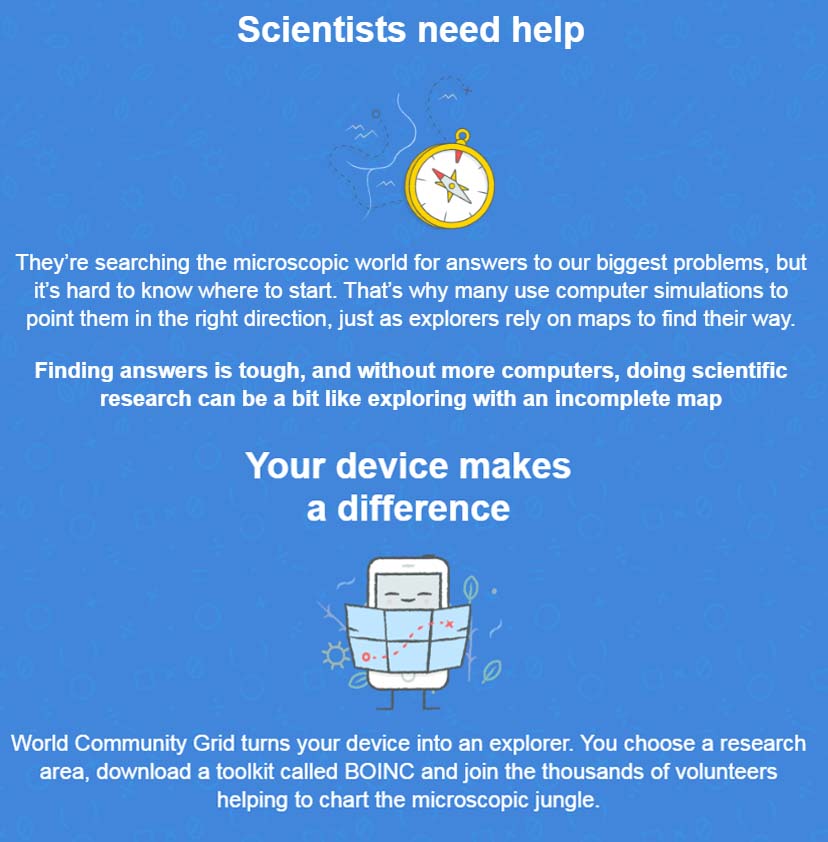
The world Community grid allows you to sign up your device’s spare computing power to help scientists solve the world’s biggest problems. You choose a research area, download a toolkit, and then help scientists search for the answers to some of the biggest questions.

The World Community Grid has helped scientists identify new drug candidates to fight types of cancer that affect children, discover new compounds to harness solar power and develop nanotechnology that could help provide clean water to millions. Not a bad way to use your spare time, is it?

5. Digital Sightseeing

There are two sides this digital hobby. The first is what you’d expect it to be. You can see the world from the comfort of your own home using the power of the internet. Obviously, programs like Google Earth and Street View can give you a window to the world. Another great service you can use is EarthCam, which gives you access to live webcams all over the world. You can even zoom in on the live images that are being beamed direct to you.

Digital sightseeing - Weird Digital Hobbies you just Might Love

The flip side of this digital hobby is being a digital tour guide. Using EarthCam you can beam live images of where you are to the rest of the world but you can also go deeper by signing up to the Google Maps Local Guides program. If you’ve any local spots you’re proud of or that you really love, the Local Guides program allows you to upload photos and information about the spot directly onto Google maps. Not only that but Google will offer you prizes and incentives to do so. Not bad at all.

6. Restaurant and Food Critic

Restaurant and Food Critic - Weird Digital Hobbies you just Might Love

Some see this as just another form of internet trolling, whereas others see it as a great way to hone their photography and writing skills while enhancing their eating out experiences. If you think being an amateur food critic is going to help you bag a job being paid to eat, you’re probably kidding yourself, but you should at least check out this letter from renowned British food critic Jay Rayner.

There are now more sites than ever where you can post your reviews of the places you’ve eaten at, meaning there is good chance people will read what you’ve written. If you’re not quite sure what to write here is a handy guide to help get you started. Most importantly, remember to be fair and honest and make your reviews engaging and enjoyable to read.

This is Where You’ll Find the Best Meal You’ll Ever Eat


Mmmm you’ll Love this Tasty new Google Image Search Feature

Google Image search now has a scrumptious new feature that allows you to search for recipes and and then choose the best recipe to follow based on pictures of the finished dish. Obviously, you’ve been able to search for recipes using Google for a while now but this new feature offers the results in a much more enticing manner.

A standard Google search for a recipe often resulted in a single top recipe taking up all of your screen with some basic recipe information also visible. Now though, if you click over to image search you’ll be faced with wall to wall foodie goodness.

standard v image search comparison
The image search recipe fuction offers a lot more choice to the user than running a standard Google search

If a recipe is associated with the image there’ll be a new recipe tag in the bottom left-hand corner of the thumbnail. Clicking this will give you a similar view to that given to the top recipe of a standard search. If you decide this is the one for you, you simply click visit page and you’re good to go.

The eagle-eyed amongst you will have Watch Videonoticed that not all images come associated with recipes but that some of the recipes are in fact videos. If there is a video of the recipe on YouTube then you’ll be able to go straight to it via the Google Image Search function. All you have to do is click Watch and you’re away.


This new feature will make it easier to go through different recipes until you get the one you want. Rather than just getting the basic info on the top recipe you’ll be able to click on the images you think look best, get some basic info about the recipe and if you like it head the site were the recipe is hosted. This should make it easier for you to find the recipe you want and may even save you a little time.

For now the new feature is only available on mobile but we’re hoping it’ll come to desktop search soon. Watch this space.

This is Where You’ll Find the Best Meal You’ll Ever Eat

Our users have been talking about the best Instagram filters for food. Join the conversation now!

The App Won’t Open? Don’t Delete it, just Fix It

Technical progress is awesome and we can’t imagine today without browser apps, password manager apps, cleaning apps or music organizer apps, this could go on and on. We are so accustomed to using various applications, that we just can’t imagine comfortable life without them. Therefore, when one of our apps fails to launch we’re left confused. Indeed, such things happen pretty often, however, advanced users have found the solution we would like to present it to you. So, no more need to panic, just follow these steps and make every app work.

There may be various reasons why the app won’t open. You can have more problems if you are not the Mac’s administrator. In this case, your user account just may be blocked from using the app. So, you need to ask the administrator to give you permission.

image1 (2)

Another reason why the app won’t open could be that it isn’t registered with Apple by the identified developer. That means the app is locked for security reasons. You will be able to open the app after changing these security settings. Simply follow this easy trick:

– Locate the app in Finder instead of Launchpad, because Launcher won’t allow you to do this trick.
– Choose Open from the shortcut menu after you ctrl-click the app icon.
– Click Open.
– Now you have changed the security settings for this app (it is set as any registered app) and it can be opened by double-clicking.
– Another reason why the app won’t open often appears when you have recently installed new macOS, some apps need to be updated as well or simply reinstalled.
– Also, we should note one more reason why you might not be able to open the app. This is a case of a damaged app. First thing you should try to fix this problem, is to reinstall the app. Reinstalling may not help everytime, so in that case you have two other options:

1) Contact the app’s manufacturer and pass the responsibility to them. This way, you will probably have to forget about the app and look for an alternative.
2) Follow our instruction to fix the damaged app and get a brilliant result. This way, you can start using it right away.

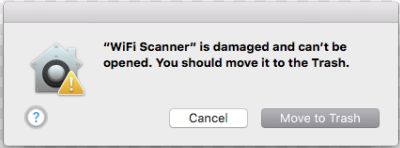
So, what is a damaged app? The problem is mostly caused by an error. That’s why, you get a notification like this: “The name of the app” is damaged and can’t be opened. You should move it to the Trash”. In most cases this message is related to non-Appstore apps. For instance:

image2 (1)

How to fix an app that is damaged?

What should you do if you don’t want to delete the app and want to make it work? There are several troubleshooting steps that could help you fix the problem and open the app. Keep reading.
There is a simple way to make the app launch and work – use the Terminal.
Don’t move an app to the Trash and click Cancel. It’s time to start fixing instead of trashing.

Launch the Terminal

– Type sudo bash and press Enter
– Type your password and press Enter
– Type xatrr -cr /Application/[nameapp].app and press Enter
– That’s it. Now it’s time to test your app, so launch it and see if it works.

The apps often may not work due to one more thing you should pay attention to. MacOS X is designed to apply of a bundle of permissions. In other words, every item and process launched on macOS requires disk permissions. As any other software component, disk permissions could also happen to get errors. When such errors occur, the certain item can’t be read, written or executed. If something goes wrong with the permission, the app can’t be opened or when the app is launched it doesn’t work correctly and so on. So, this is another reason for the problem discussed.

The first step you should try to fix the problem is this: go to the Disk Utility and try to repair disk permissions. Every Mac keeps a database of the default permissions for most of the applications that you’ve installed. That’s why you need to launch Disk Utility and run its Repair Disk Permissions option.

Fortunately, the issue with permissions is related only to OS X Yosemite and Earlier. In return, OS X El Capitan and Later bypass file permissions system locking it down. That’s why the file permissions issue is out of the question in the later versions of OS X. Frequently, the bricked app can be fixed with simple updating.

Sometimes, there can be situations of an unexpected Mac shutdown or restart which often leads to app crashes and freezes. The reason for these bad actions is corrupted plist files that should be deleted. Then the app will create a new working plist file.

To delete the corrupted files do the following. Go to the ~/Library/Preferences where the most applications store their plist files.

Open the Preferences folder in the Library folder. The Preferences folder contains all of the plist files for each app installed on your Mac. Find the file ending with .plist. The preference file name is in the following format: com.developer_name.app_name.plist. There should be no other name after the plist.

Once you locate the correct plist file, quit the app in question, if it’s running.

Drag the app’s plist file to the desktop.

Relaunch the app in question.

After these manipulations the app should open correctly.

We hope the wide range of suggestions we’ve presented in the article help you to solve any problems you’re having with apps that won’t open. You can try them alternately and find the one that works for your specific case.
By the way, if none of the tips help you, you can try the last option – Safe Mode.

This is a diagnostic mode of a computer operating system that restricts most startup items and limits the operating system to just using the basic OS core. If you can start your Mac in Safe Mode and then use the app in question without issues, the likely cause is not permissions or preference files but a conflict with another app or a startup item.

We wish you all the best with your app problems and hope that you can solve them easily.

TOP 5 Tricks and Features you probably Don’t Know about Mac OS Sierra

It’s been few months since Mac OS Sierra launched and most users have managed to get acquainted with it, tried some of the new features and given feedback concerning their own experiences. Mac OS Sierra ha several useful tools like Siri, and is becoming more comfortable to use. However, we found some tips and tricks which you probably haven’t heard but which will improve your Mac experience many times over and make

you feel like a pro.

Let’s talk about Safari (1) which has become one of the most popular browsers among Internet users. You’ve probably accidentally closed a tab, which contains important information you have been searching for a long time, before. Of course, there is the traditional way of getting it back by searching through your internet History but we offer you the new quicker way that a professional user would do. Next time you unintentionally close a tab in Safari, try to recover it easily by pressing:

Shift +Command button (⌘) + T

This trick, which you may not know it is very handy and may save you some time. Moreover, you can use this trick even if you’ve closed multiple tabs. Just press the button combination as many times as there are tabs you’ve closed and you’ll recover all of them. You can apply this trick if you close the whole Safari window as well. Press Shift +Command (⌘)+T to open Safari back up with all the tabs you’d opened during your previous session.

The next tip, every advanced user should know, is an adjustment of typing text (2). It’s very convenient to set the automated preferences when you’re typing. Maybe you have already done it, otherwise, follow these steps:

Go to the System Preferences > Keyboard > Text > Put a tick in the following check boxes:

Correct spelling automatically; Capitalize words automatically; Add period with double-spaced. Now you can enjoy “lazy” typing with these handy features.

Maybe you noticed the new smart feature that has been appeared on macOS Sierra (3) – Coordinating alerts. Nowadays, there is a common situation when you are sitting in front of your iMac desktop with your iPhone in your pocket and your iPad laying on the table next to you. Earlier, when you got a notification, the sound played on every Apple device at the same time making all sorts of noise in the process. Now, coordinate alerts means that notifications make a sound only on the device you happen to be using at the time. This is only a little change but is a pleasant improvement.

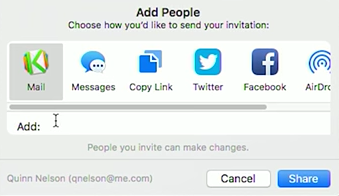
Sharing content has now become a common occurence in our daily lives. We share everything: photos, videos, music and different kinds of documents. Indeed, a set of iWork apps was designed especially for work with text files, tables, and presentations but many people still prefer using Google Docs which are free and offer needed features. It was comfortable to share information with Google Docs previously but now Notes have the same ease of use. You can not only share a Note with somebody but let them to edit it by allowing them to collaborate right there in the Notes app (4).

image1 (1)

In order to invite others to edit and write in a note, click the “Add people to this note” button, which is on the upper right hand next to the Share button. Invites are sent via Mail Messages, Facebook, Twitter, and other methods.

One more new macOS Sierra feature you may not know about is the Picture in Picture feature (5). It’s great because you don’t have to worry about keeping other windows from covering up the video you want to watch. On iOS, you can stick the video in the corners of the screen, and that was demonstrated at the keynote, too. In case the corners of the screen don’t work for you, though, there is a solution. If you hold down the Command key while moving the Picture in Picture window, you can drop it anywhere you like.

So, as you see, most features are obvious but a lot of users install and start using macOS Sierra without these tips because they just don’t have the time or wish to figure out these helpful details. We hope this article will save you time and bring you more convenience when using macOS Sierra. Enjoy!