How do I take a Screenshot on the iPhone X if it doesn’t have a Home Button?

I was quite excited yesterday when Apple unveiled their most revolutionary new product since the first iPhone over 10 years ago. After a while though I started to think about that gorgeous new full screen design without, the home screen button that has been ever present since Steve Jobs first showed the world what pockets were capable of carrying around.

Then it hit me like a ton of bricks. SCREENSHOTS I thought, how the hell am I going to take screenshots without a home button?

Screenshots are great. Whether you’re reporting a bug in an app, zooming in on a friends face and capturing it to share in a group message or just trying to capture an image from one of your favorite videos, being able to take screenshots is an essential part of the modern smartphone experience. It is a good job then that isn’t that complicated to do on the new iPhone X. It is different, however, so let me walk you through it.

How to take a screenshot on the iPhone X

  1. Have everything on the screen that you want to capture.
  2. Hold the side button on the right hand side of the iPhone X.
  3. Click the volume up button at the same time.
  4. Marvel in the moment you’ve just captured. You’ll know it has worked because you’ll get the same white flash and shutter sound if you’ve done it properly.

The only real change then is the volume up key replacing the home button. Physical buttons are still necessary but this new direction that the iPhone X is taking us in probably means their days are numbered. It shouldn’t be too long before you simply have to say “Take a screenshot” and then after that simply think it.

Edit: Since publishing, I can now confirm that thinking “Take a screenshot” does not work.

Facebook Instant Videos could help save you Money

Facebook have been testing a new feature called Instant Videos on a small number of Android users. The new feature gives users the ability to download certain Facebook videos while they’re connected to Wi-Fi so that they can use them later on, when they’re out and about, without incurring any data charges from their carrier.

TheNextWeb’s Matt Navara shared a screenshot of what Instant Videos will look like. They’ll have a lightning symbol that indicates users can save them for later. This feature will work nicely with the new Facebook Watch tab, which began rolling out across the US last week.

This is a user friendly feature that Facebook are trying out here and we welcome it. The only problem, however, is that it might come up against another arbitrary limit that is placed upon smartphone users, that of hard drive space on their device. Users with 16GB or 32GB of space might not have space for Facebook videos, especially if they’re using similar features on Spotify and Netflix.

Instant Videos will likely open up Facebook Watch to users across the developing world who don’t have huge data allowances on their cell plans. Facebook will have to look at the storage issue, though, with the ability to save the Instant Videos to SD card storage likely to make the feature a lot more useful than merely caching the videos in the apps data. For now though all we can do is wait and see.


Via: Mashable and The Verge

The Best Alternatives to YouTube-MP3.org

Youtube-MP3.org, the webpage that converted YouTube videos into MP3 audio files, is dead. Fear not, though: This doesn’t mean that you can’t still extract the music and voices from your favorite videos to listen to whenever you want. The internet has continued to give us plenty of alternative options that are 100% trustworthy and free.

Download now HD Video Downloader

Let’s have a look at five perfect alternatives to Youtube-MP3.org. In the list, you’ll find two webpages, one PC program and 2 apps. There are options available for everyone!

7 tools for converting YouTube videos to MP3 (and other formats of audio and video)

YTD Downloader (Windows)

YTD Downloader is an excellent tool for downloading videos from the internet. The layout is simple and easy to follow, and if you’re used to using YouTube-MP3.org, you shouldn’t have any problems with YTD Downloader.

With YTD can download videos in 1080p Full HD and convert them to a number of file formats for use on different devices. If you have the Pro version you can even convert multiple files at the same time.

screenshot

Try it Here

Wondershare Video Converter

Wondershare Video Converter has a lot of features, not just internet video downloading. It offers powerful video conversion software, has a in-built video player, supports 4K videos, and supports a massive 159 video formats.

Some of the features require the Pro version, but the simple video downloader is available for free.

21773a6f99320a0e79146089585ef478a0f8_1video-converter-ultimate-convert_540x312 (1)

Try it Here


Online Video Converter (webpage)

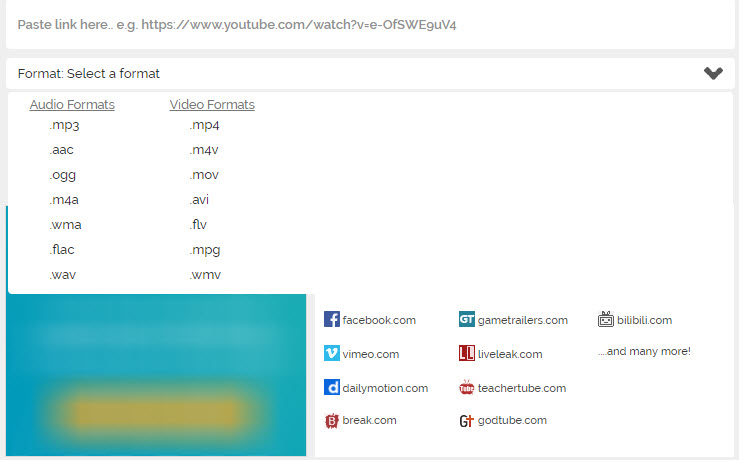
This webpage is very similar to YouTube-MP3.org. Simply paste the link of the YouTube video into the dialog box and click Start. The major benefit of this webpage is that it lets you export to different formats (aac, wav etc.), not just MP3. You can export to all sorts of different video formats (MP4, mov, avi), too.

Furthermore, Online Video Converter doesn’t only support YouTube videos. You can get videos from pretty much any site on the internet and even from social networks like Facebook, Vimeo, Instagram, and Daily Motion.

onlinevideoconverter

Try it Here

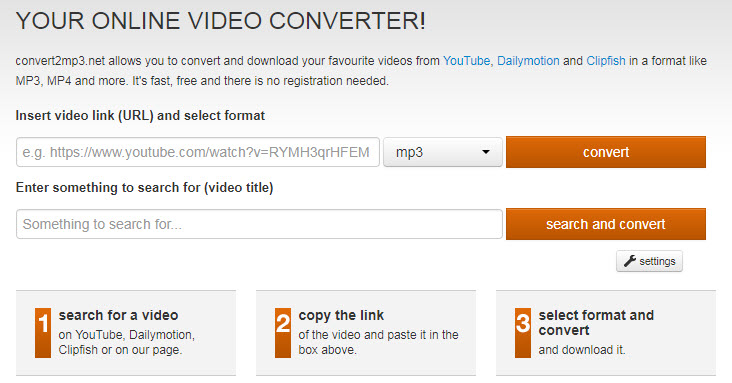
Convert2mp3 (webpage)

Convert2mp3 has options that are very similar Online Video Converter, but with one advantage: You don’t need to go to YouTube to find the video that you’re looking for, as it has an internal search function. Use it to find what you need and then convert it directly in the program.

The only drawback to Convert2mp3 is that it only converts YouTube, Dailymotion, and Clipfish videos.

convert2mp3

Try it Here

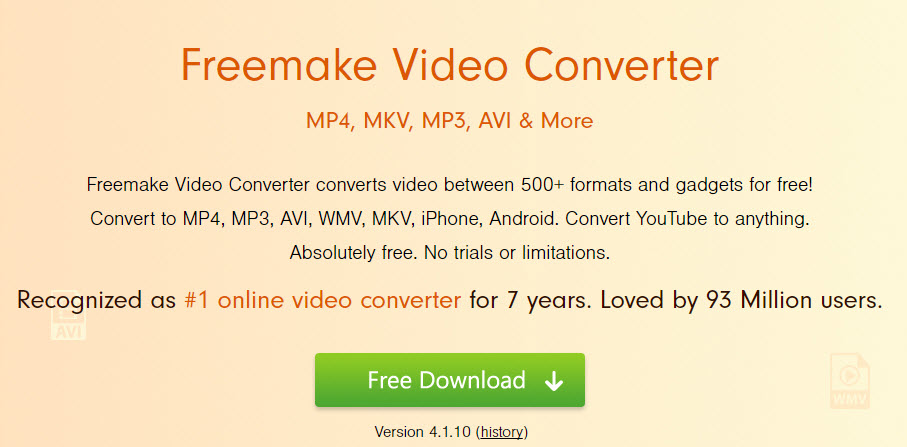
Freemake Video Converter (Windows)

A different type of tool from those we’ve gone through above, Freemake Video Converter isn’t a page you find on the web but a program for your PC. If you’re feeling too lazy to actually install a program, keep in mind that Freemake is an all-in-one solution that converts videos from hundreds of formats, not just YouTube.

Also, you can then burn the files directly or share them with others, listen to them, or even repost them to YouTube. It is a free option that offers users some real options.

freemake

Try it Here

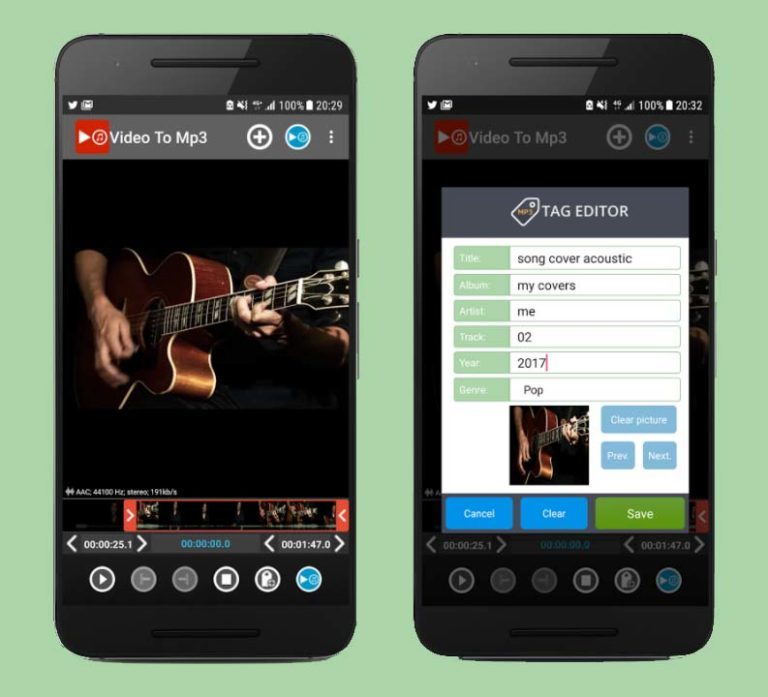
Video to MP3 (Android)

This is a great option if you want to convert YouTube videos to MP3 directly from your Android phone. The app doesn’t just allow you to extract the audio from the from the videos; it also gives you the option to edit and cut so that you only get the bits you want and even add MP3 tracks over the top.

video-to-mp3-768x697

Try it Here

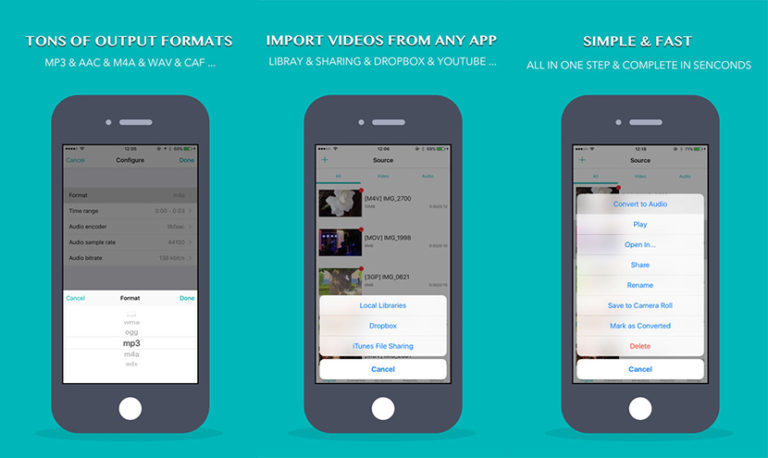
Video to MP3 Converter (iOS)

If you’re an iOS user, then an Android app won’t do you much good. For iOS users, there is the excellent Video to MP3 Converter app, which allows users to take YouTube videos and convert them into a whole host of formats right there on their phones.

Even better, the app allows you to take the audio from the video that you can then take with you everywhere and play over the excellent in-app music player.

video-mp3-converter-768x458

Try it Here

And if you want more…

The options we’ve highlighted here are some of the favorite options that our Softonic Solutions community has found. Click here to see the complete list and join the conversation. The Softonic Solutions community is dedicated to finding solutions to any problems that you may have.

Artificial Intelligence – How It Will Change The Gaming Industry

While Mark Zuckerberg and Elon Musk are having a debate about the distant future and whether AI will destroy humanity or not, let us take a look at the years in front of us and what we can expect from AI in the near future.

There is no doubt that the year 2017 has been the year of AI, there has been plenty of talk about it and it is expanding rapidly. We can thank video games for this because AI was mostly used by game developers. The most primitive AI example are the goombas that attack Super Mario by moving on a coded trajectory or the game of Pong on the old Atari console. Fast forward to the present and we now have machine learning, a thing that allows AI to observe, record and learn.

imgpsh_fullsize (17)
AI timeline (Source: Medium)

The first big breakthrough in Machine Learning was definitely Microsoft’s project – the Tay bot. It was released on March 23, 2016, via Twitter and caused controversy in just a few hours. Tay was watching what other people were talking about online but we all know what kind of stuff is posted on the internet. In no time at all, Tay started posting racist tweets, stated that Bush did 9/11 and in the end Tay had to be taken down just 16 hours after release. Tay was not a failure, she just wasn’t prepared for the internet.

Now let’s talk games. As I said before, AI is an essential part of gaming and the better it gets the more great games we will have. During the Dota 2 world championship, Elon Must put his Open AI to the test. Open AI observed the moves and tactics of pro players and ended up beating a lot of them in 1v1 games. What does it all mean? It means we will have more intelligent opponents in our games in the near future and multiplayer games won’t require an actual human anymore.

Imagine this, you go online, end up in a lobby with 3 -4 strangers, have a friendly conversation and play some games. After a few hours, one of them tells you that it’s actually an AI and you have been talking to machines this whole time. Just as Google’s AI defeated a team of pro GO players, it can also learn to behave like a human and talk like one. This can also be implemented by combining AI and machine learning, showing them footage of human behavior and using what they learned from NPC’s in games. But what’s in it for the game developers?

Automatic level and character creation are might be a bit too much to expect but according to some sources, we are heading in that direction. The aim of this is to enable developers to focus on other things other than modeling and customising levels. That is the most time-consuming part and just imagine if they had a program that could do all the work for them. More time could be invested on other aspects of the development process that could improve the gaming experience even further. Of course, we can’t expect to simply wave magic word and let the AI do all the work but simple commands may soon start to replace actual coding. This could then enable people with no coding skills to create their own models and even their own games.

AI will definitely be the engine that pushes gaming even further with AI-based game design. AI based characters will not merely resemble intelligence, but will, actually be intelligent and that is what we are all aiming for. As for the Musk vs Zuckerberg debate… I’m on Musk’s side.

Fake Online Stores: How to Spot them, Prevent them and Wipe them off the Face of the Earth

Online scams have taken on a whole new dimension: a few months ago, the most common scams on social media were fake ads about sweepstakes and gift cards. Now, scammers have stepped it up a notch and not only want to steal your data but your money too. For some time now, they have been creating fake stores, posing as famous brands, and using them make away with your bank info. Let’s see how we can spot them and fend them off.

How do these fake online stores work?

Scammers take advantage of the social networks that we all use, such as Facebook. They then create posts with fake offers for an online store and promote it so it’ll reach more people.

In examples provided by the Office of Internet Security (OSI), we can see some fake posts posing as an online fashion store. They advertise shoes of a well-known brand, at a hugely reduced price of 19€ . Who could resist such an offer?

001

003

If we decide to click on it, the ad takes us to a website that really looks like a normal everyday online store. Several sections, official product photos, search bars and even a phone number… Who would suspect that it’s fake?

002

If we decide to “buy” something and make a payment, we’ll be charged for that money but never receive the product. Or, even worse, in addition to not receiving anything, we’ll be charged more than we thought. Keep in mind that the minute you give your credit card or bank account number, unauthorized charges can be made really easily.

What can we do to prevent such scams?

Although Facebook is fighting fraud, it’s not so easy to spot scams, so sometimes they can be online for hours or days, with many unsuspecting users falling into their trap. That’s why is our responsibility to keep our eye out for these types of scams.

The first thing you can do if you see a conspicuous ad on Facebook is check out the web page where it’s coming from. In the example, it was “Fashion sale 2018.”

Check the reviews section… Are they very negative? Then something isn’t right.

004

What’s more, look at the page’s Facebook wall. If it has few posts, photos, etc. something strange is going on. It’s also suspicious if there are many spelling errors in the texts or there is little info on the “Information” tab. As new as a business may be, it’s typical to keep social profiles up-to-date. If not, don’t trust it!

If you’re still not suspicious that a website is a scam and you click on the link to go to the online store, here are a number of additional measures that will prevent unpleasant situations:

1. Check that the website has mandatory sections that all online stores must have: real and physical information about the company, as such ownership, tax ID, tax residence, conditions of sale, return policy, well-written legal texts, etc.

2. If you’re about to make a payment, never enter personal or financial info during the purchase process if the page doesn’t have HTTPS or a digital certificate.

3. Don’t trust extremely low prices. It’s one thing to have discounts or “Outlet” prices, and another for an article that usually costs 200 euros and that is in season (for example, sunglasses or shoes) to be listed at 20. It’s also unusual for all articles of a store to have the same price.

201703xx_no_compres_si_010

4. Don’t trust websites with low quality photos, several types of irrelevant texts, poorly written descriptions, etc.

5. If on the website several payment methods are advertised (credit card, Paypal, Western Union, cash on delivery, bank transfer, etc.) and later when paying you can only use one, run! (That’s not only deceptive but illegal.)

201703xx_no_compres_si_0606. You can find more info about fake stores in these two articles by OSI: Prevent fraud by fake online stores (I and II).

Report it!

Have you spotted a fake store? Don’t stay put with your arms crossed: report them.

If you discover fraud on Facebook, report the page in question. To do so, go to the page, click on the three dots below the cover photo and select “Report page.” Facebook will ask you a few simple questions to process the complaint, so answer them and you’re done.

Facebook manually reviews these types of complaints and if the store turns out to be fraudulent, they’ll shut it down. Find out more info about Facebook complaints at this link.

If you think a website is fake (and it doesn’t have a Facebook profile), you can send a tip to CERTSI. Here you’ll find their address.

Sources for information and images: OSI (1, 2)

10 of the Coolest Gadgets we’ve seen this Year

As we roll into Autumn, it’s the perfect time to share our top tech picks for 2017.

Play with it. Program it. Plug it in. Whatever you’re into, we’ve got you covered.

So grab a coffee, sit back, and enjoy our rundown of the latest and greatest gadgets for your pleasure…

  1. The Laser Beam Pro C200 Focus Free HD Projector

image1

I don’t know about you, but I love watching movies on the big screen. But with a full-time job and family commitments, I don’t get to the cinema as often as I’d like.

With this little beauty, I can watch my Godfather special edition blu-ray on a huge 150” screen at 1366 x 768p resolution (perfect for Brando’s nuanced portrayal of The Don).

And you can forget about fiddling with the focus – the C200 is focus-ready all the time, and completely eye-safe.

Better yet, it fits in your hand and works with any device, so you can take it round your mate’s house with a few bags of popcorn and watch anything you like. Those dragons in Game of Thrones never looked so big…

So go on, invite the cinema into your home and you might never leave the house again. At $485 it ain’t cheap, but I challenge you to find a 150” TV at that price.

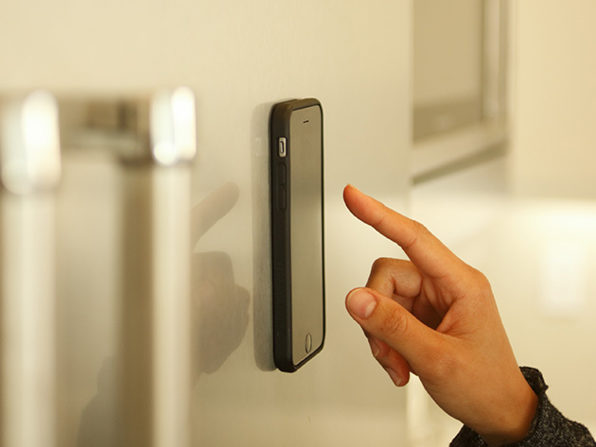
  1. Anti-gravity iPhone case

image2

It won’t make your iPhone float like Sandra Bullock in Gravity, but it will leave your hands free next time you’re using Epicurious to cook up a storm.

Using state-of-the-art nano-suction technology – invisible suckers, if you will – this ingenuous case lets you stick your iPhone on windows, mirrors, whiteboards, metals, and other surfaces.

Perfect for video calls, selfies, recipes, DIY videos on YouTube, putting on make-up… pretty much anything where you need to look and do at the same time. It’s also a pretty nifty way of keeping your phone safe, and at $24.99 it’s less than the cost of a new screen (and cheaper than other cases, too).

  1. Nano Prowler Mini Drone

image3

It’s time the little guy had his day. This mini drone doesn’t cost the earth at just $36.99, but it will fly high above it.

Eschewing the heavy (and expensive) HD camera of its bigger brothers, this little aircraft packs in full 3D steering and a gyroscope for a smooth flight – it’ll even flip mid-air to the astonishment of those below.

So ditch the chunkier drones and take flying to a new level. Impress your friends with your aerial acrobatics with this palm-sized powerhouse and be the talk of the picnic park.

  1. LifePower A2-L 27,000mAh Portable Charger

image4

Picture this: you’re at the beach enjoying relaxing grooves from your bluetooth speaker. Everyone around is nodding to your summer megamix while you queue the next track on your smartphone.

Then suddenly the music stops. Your phone dies. The sun disappears behind a cloud and the crowd bopping to your tunes begins to disperse…

Not with the LifePower A2-L portable charger. With a whopping 27,000mAh charge, based on Tesla battery technology, you can DJ at the beach all day and all night, with enough juice left for ordering your Uber in the morning.

So whether it’s a beach-bum holiday or a rustic countryside retreat, keep your devices switched on with the LifePower A2-L charger – all for a reasonable $229.

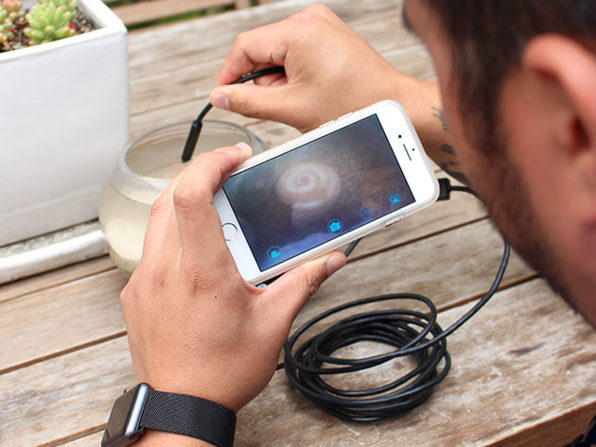
  1. Endoscopic camera

image5

When things go wrong, it pays to get a closer view. This WiFi enabled, HD flexible endoscopic camera gives you just that – a live feed of those hard-to-reach areas your eyes alone can’t see.

Our cars, appliances, and household fittings often have hidden parts and when they fail, they’re tough to find.

With an 8 way adjustable LED, IP67 waterproof rating, and 3 metres of reach, you’re guaranteed to squeeze through the narrowest gaps and passages to the root of the problem.

Oh, yeah – they’re also great for looking under sofas and… what’s that? Spying on people? Best leave that to 007 or you could find yourself in hot water.

At $29.99 I think this is a steal – it’s certainly cheaper than calling in a plumber.

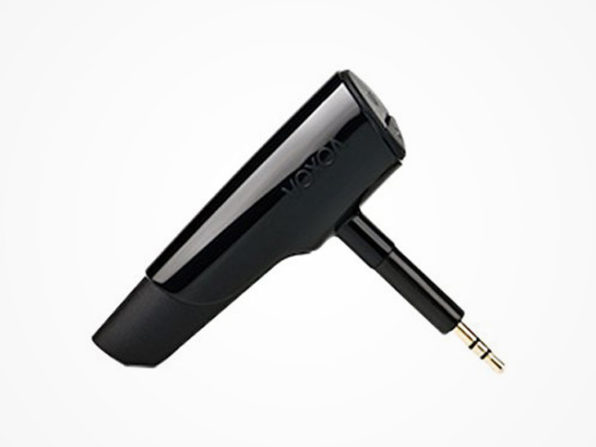
  1. Voxoa Bluetooth Headphone Adapter

image6

They snag, they tangle, they fray… Let’s face it: wires have had their day.

Set your headphones free with this Bluetooth Headphone Adapter that’ll turn any pair of cans with a 3.5mm jack into a wireless wonder.

Whether you’re on the train, out for a run, or just doing the housework, don’t let cables get in the way. And with CD-quality sound and a 10 hour battery life, your music stays as energetic as you are.

At $69, there’s no excuse not to dance.

  1. Kasa LED Low Energy Smart Lightstrip

image7

Whether it’s a housewarming, dinner party, or a romantic night in with Billie Holliday and a bottle of red, this fully adaptive LED Lightstrip will turn any room into the VIP room.

Set the mood from your smartphone by choosing from 16 million different colours, with a dimmer for those late night moments, and a scheduler so you never miss out on that stylish yet subtle ambience.

I love this because it turns my kitchen into a Manhattan cocktail bar for just $36.99. (But mostly because it looks so purdy.)

  1. Gunnar Optiks Intercept Advanced Computer Glasses

image8

This one goes out to the coders, the bloggers, the social surfers… to anyone who spends more than an hour or two staring at screens.

Ever get that dry, itchy feeling in your eyes after a later night in front of the monitor? That’s eyestrain, my friend. It might even be giving you headaches, or keeping you awake long after you’ve closed your laptop.

We’re all guilty of too much screen-time, so why not protect your eyes with these cool Gunnar Optiks computer glasses. For $64.99, their engineering grade polymers filter screen light, minimising discomfort and letting you rest when you need it.

  1. SunFounder Raspberry Pi Robot Kit

image9

Ever fancied your own robot army, but didn’t know where to start?

What if you had the tools, the materials, and the programming code for building your first robot car?

For those of us without a PhD in Engineering, this SunFounder Raspberry Pi Robot Kit is a great introduction – you get a Raspberry Pi 3 and all the Python code to get up and running.

And while it won’t enable world domination, it does come with a USB camera that’ll record pictures and videos, and you can take it for a spin with your smartphone, tablet, or laptop. That’s a pretty decent second, in my opinion, and all for just $149.99.

  1. Monet Stylus image10

Monet had his paintbrush; Michelangelo, his mallet and chisel.

Even the greatest artists need the right tools for their work.

Now you can create your own digital masterpiece with this pressure-sensitive stylus from The Joy Factory.

Write, paint, draw – all with the comfort of a 165° writing angle for precision detail and realistic strokes. Let the line between canvas and screen melt away with the brushed aluminium body that feels just like a paintbrush.

$14.99 is a great price for turning any old touchscreen into a work of art.

That concludes our 10 coolest gadgets of the year so far. I hope I’ve got you thinking about your next must-have bit of tech – happy shopping.


How to unsubscribe from push notifications (Chrome, Firefox, Edge and Safari)

Have you accidentally given permission to receive notifications from a website or are you tired of getting notification requests? Below, we’ll tell you how to disable them according to the browser you’re using.
Google Chrome (laptop)

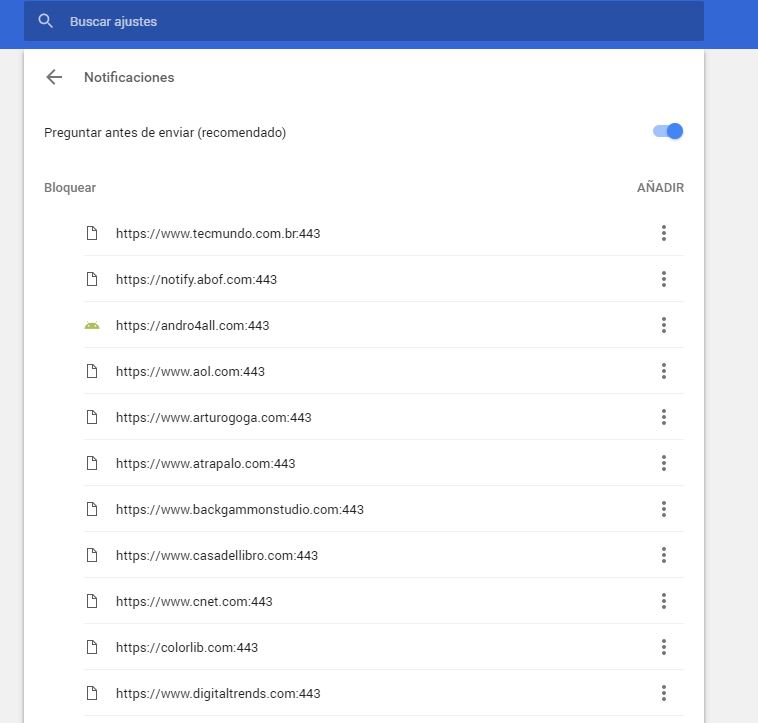
To disable Chrome notifications, copy this address chrome://settings/content/notifications and paste it in your browser. This way, you’ll go straight to the “Notifications” section of Chrome Settings.

461

If you want to stop receiving permission requests for notifications, disable the “Ask before sending (recommended)” option to “Block all.”

Want to block notifications for a specific website? You’ll see that you’ve got two options: “Block” and “Allow.” Under “Allow,” look for the web page you want to stop receiving notifications for, click on the three vertical dots beside it and then select “Block.” It’s that easy!

Google Chrome (cell phone)

Go to “Settings” (by tapping on the three vertical dots in the top right). Press “Web page settings” and then “Notifications.”

If you want to stop receiving permission requests for notifications, disable the “Ask before allowing websites to send notifications (recommended)” option to “Blocked.”

Want to disable specific notifications? Below, you’ll have two options: allowed and blocked notifications. Select one that is allowed and then the “Notifications” option to block it. Easy peasy.

Mozilla Firefox (laptop)

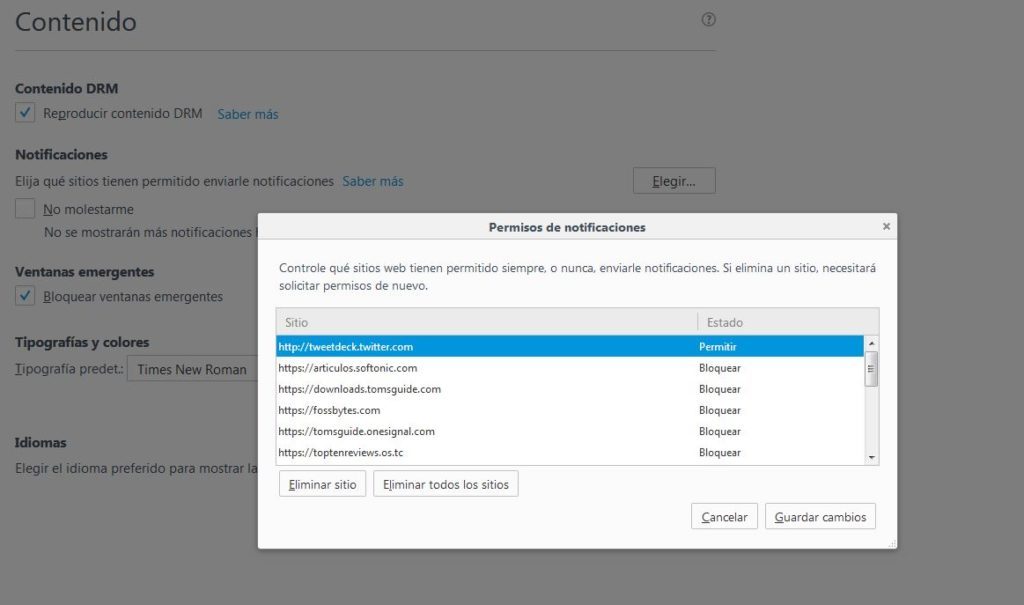
To disable notifications on Firefox, copy this address about:preferences#content and paste it in your browser to access the “Content” section of Firefox Options. Here you’ll see the “Notifications” subsection.

If you want to stop receiving so many permission requests for notifications and notifications themselves, enable the “Do not disturb me” option.

464634-1024x605

Want to block notifications for a specific web page? Click on “Select.” A list with all the notifications you’ve allowed or blocked to date will show up. Look for the website you no longer want to receive notifications from and select “Remove site.”

When you go to that page again, it will once again ask for permission to send you notifications (unless you’ve enabled the “Do not disturb me” option). Select that you don’t want to receive notifications. Case closed.

Unfortunately, there’s no easier way to block specific notifications on Firefox.

Mozilla Firefox (cell phone)

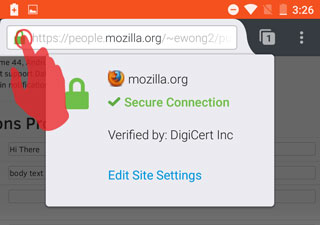
For now, there’s only one very basic way to disable notifications for this version of Firefox. You must go to the page that you want to disable notifications for and click on the Control Center (the green lock to the left of the URL).

2016-07-18-15-42-33-81e41b

Then select “Edit site settings.” Tap the white square to “check” it and then press “Clear.” This way, the website will stop sending you notifications unless you go back and give it permission.

Microsoft Edge (Windows 10)

To get started, click on the Over Edge section at the top right of the window. It’s a three-dot horizontal icon. Click Settings, and then click Advanced Settings.


Under Notifications, click Setup. Find the webpage you don’t want to be notified about and click the slider point to go to Disabled.

Apple Safari

To stop receiving notifications for a web page, go to “Preferences” and then click on “Notifications.” Look for the website on the list and select “Block.”

If you want to stop receiving permission requests for notifications, don’t leave the “Notifications” section; simply uncheck the box “Allow websites to ask for permission to send push notifications.”

6 of the best VPNs for safe, speedy surfing

A strong VPN (Virtual Private Network) offers many benefits. A VPN can protect your identity and keep secret, the sites that you’re visiting. A good VPN can secure your data should your Wi-Fi network come under cyber-attack. A good VPN can allow you to log onto the internet from servers located all over the world, should there be any reason you would need to do so.

The list could go on but in the end, one fact rings true. In today’s cyber-world of constant internet transactions a strong VPN is essential, just like anti-virus and anti-malware programs, for all security conscious individuals. Here we present 6 of the best VPNs that guarantee safe and speedy surfing.
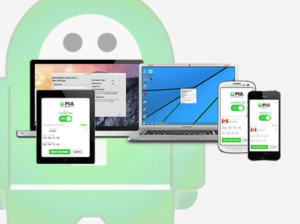
6 safe and speedy vpns

1. Hide My Ass

This VPN service routes your internet traffic through remote servers, so the websites you visit can’t tell where you are and block you. The Wall Street Journal recommends Hide My Ass and celebrates how it is helping people in internet-censored regions, like China, access information and news that their governments try to block. On top of that, when it comes to speed, flexibility, security and worldwide access, Hide my ass wins outright.

Hide My Ass has servers in over 190 countries meaning you’ll be hard-pressed to find a website on the planet that you won’t be able to access if you’re running Hide My Ass VPN.


2. VPN Unlimited: Lifetime Subscription

This multi-award-winning VPN gives you a lifetime of privacy protection for just $49.99. Browse freely without bandwidth or data caps, and it includes a DNS firewall so you’re protected from invasive ads and malware. Don’t fret about paying extra for your other internet-enabled devices, either – you can add up to 5 at one time, and their KeepSolid Wise technology ensures your speeds aren’t throttled by your ISP.

If server count is your thing, this has it in spades – it operates over 1,000 in over 50 countries, including UK, USA, Australia, and Japan. With such broad coverage you’re assured of finding a location for your needs.

3. Private Internet Access VPN: 2-Yr Subscription

PC Mag scored this robust VPN 4.5/5 stars, making it a firm favourite of those in-the-know. It’s one of the most secure VPNs around – using Bruce Schneier’s own Blowfish CBC encryption algorithm – and is used by big brands such as Forbes, PC World, and Wired.

Private Internet Access offer over 3,310 servers in 25 countries, ensuring you’ll always be able to browse unrestricted, no matter where you’re based, and should the VPN connection fail it immediately halts internet traffic so your data isn’t compromised.

They won’t log your traffic, which is a boon for the privacy-conscious, and provide malware, adware, and tracker protection, too. At just $59.95 for two years service, you’d be hard-pressed to find a better VPN for those with anonymity and security in mind.

4. VPNSecure: Lifetime Subscription

This VPN vows never to log your traffic – going so far as to say they “will move jurisdictions” to keep that promise. So you can rest assured your browsing history isn’t recorded. It also operates several encryption protocols so you can choose the level of protection you need.

Many of the world’s largest economies restrict the sites you can access, but the limitations vary. With servers in over 48 countries, VPNSecure lets you switch browsing locations at the click of a button, so you get the best of the world’s content without restrictions. At just $39.99 for a lifetime subscription, it’s a small price to pay for anonymity and internet freedom.

 5. PureVPN: Lifetime Subscription

This VPN is a real treat – a customer favourite that tops TrustPilot rankings with a score of 9.3/10. It’s not surprising given they’ve over 10 million happy paying customers, and 24/7 live support from their team.

Security is outstanding with 256-bit encryption, and DNS leak prevention built in. Like the others on this list, it allows up to 5 simultaneous connections, and provides exceptional speed through its server network spanning an incredible 141 countries. You’re again free to choose from all currently available VPN protocols.

Perhaps PureVPN’s greatest benefit is that it owns and manages its own servers instead of sharing them with third parties, giving them total control over things like bandwidth and efficiency. It’s not the cheapest VPN on the list at $99.99, but it’s a damn good investment for a lifetime of protection.

6. Windscribe VPN: Lifetime Pro Subscription

Windscribe offers both a desktop application and browser extension to give you a stronger shield against prying eyes. This extra layer of security safeguards you against hackers, advertisers, and other shady types who hunt down your data for profits or politics.

Windscribe takes your privacy extremely seriously and never logs your traffic or sells it to third parties. They don’t need your email address to use their VPN, and they’ll even let you pay with bitcoin for ultimate anonymity.

A useful feature of their browser extension is Cruise Control, which automatically connects you to a server for optimal speed, but will change automatically as soon as it encounters blocked content. This makes Windscribe super easy to use, and at just $49 for a lifetime subscription, you can’t go wrong.


These 5 Tips will Boost your WhatsApp Security

WhatsApp is everywhere. It has well over a billion active users and is one of the most popular messaging apps on the planet. With popularity, however, comes attention and in the digital world this attention can come from all sorts of nefarious sources including hackers and their virus programs. To help you deal with this unwanted attention we’ve put together a list of 5 top security tips that’ll give your WhatsApp security a huge boost.

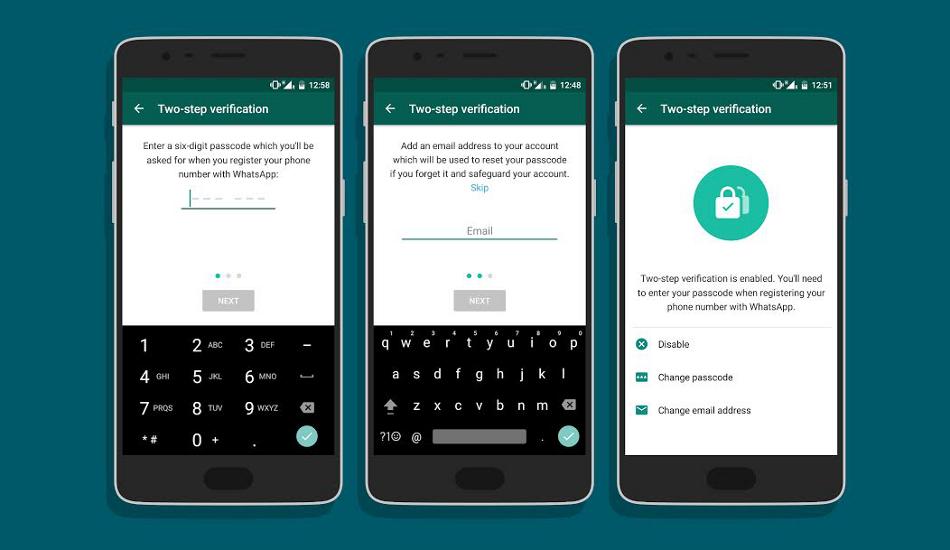
Two-Step Verification

These 5 Tips will Boost your WhatsApp Security

Two-Step Verification allows you to add an extra level of security to your WhatsApp account, which will exponentially increase your security level. To enable it, go to the Account menu and select two-step verification. You can then add a 6-digit code, whuch you will need to be input any time WhatsApp is verified on a new phone. As well as this, you can also set up an alternative email address so WhatsApp can send you a link if this feature is ever deactivated.

Lock WhatsApp

These 5 Tips will Boost your WhatsApp Security

WhatsApp doesn’t have a lock function, surprisingly, but there are plenty of third party apps available to get the job done for you. Think about all of the sensitive information that you send over WhatsApp. WhatsApp’s end-to-end encryption might keep this data safe while we have the phone but if we lose it or it is stolen this information ends up in the hands of a complete stranger. Check out Messenger and Chat Lock if you don’t want this to happen to you.

Deactivate your Account on a Lost/Stolen Phone

If it is too late for you to do number 2 and you’ve already lost your phone this one could be a lifesaver. If you want to deactivate your WhatsApp account on a lost or stolen mobile phone, you’re going to have to email WhatsApp to let them know. Send an email to support@whatsapp.com with the subject line – Lost/Stolen: Please deactivate my account (insert your phone number). It is very important that your phone number includes all  the correct international dialing codes.

How to Pin WhatsApp chats by softonic-en

Hide your Last Seen time

When you’re coming on and offline might not seem like critical information but you’d be surprised. When added to other information that some nefarious character could be able to get their hands on it could be the final piece of the puzzle that tells them whether you’ve just gone to sleep or you’ve boarded a flight. To disable this feature go to WhatsApp’s Profile, Privacy menu to disable the last seen time. Once you’ve disabled it, however, you won’t be able to see anybody else’s last seen time either.

Hide WhatsApp Photos from your Gallery

These 5 Tips will Boost your WhatsApp Security

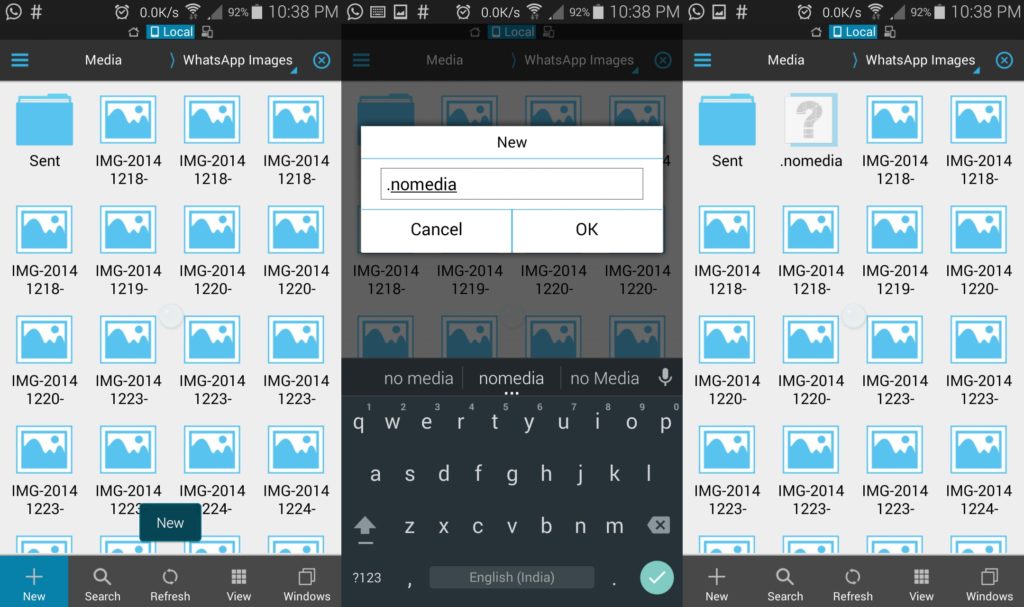
This one will come in handy if you ever send or receive photos that aren’t fit for public viewing. One of the best/worst (depending on how you look at it) features of WhatsApp is that all photos sent and received via the app are automatically added to your phone’s gallery. If you want to disable this feature you will need to go into your phone’s file manager and access the WhatsApp images folder. Here you create a file called .nomedia. and then after a reboot all your WhatsApp media items will be hidden meaning you won’t have to worry about someone coming across something they shouldn’t when you’re showing them your holiday snaps.

So there you have our top 5 security features for WhatsApp. Do you know any other tips for beefing up WhatsApp security? Let us know if you have and we’ll see if they can make it into our top 5. If you’d like more WhatsApp security tips let us know in the comments below.


Our users are talking about the best resources for freeing up space on your mobile. Join the conversation now!

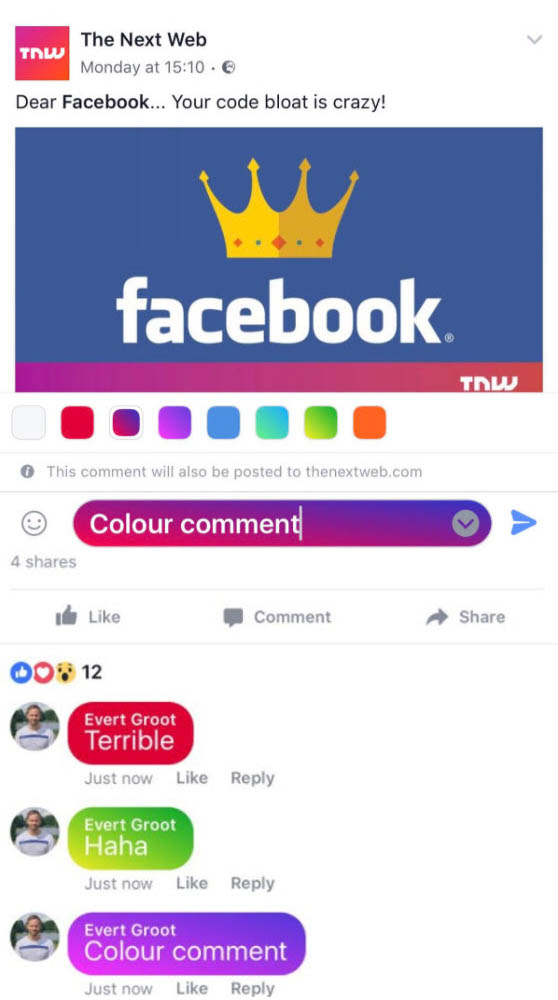
Facebook Comments are getting a Troubling Update

Another excellent idea has been hatched in Facebook HQ. Oh no wait, it is difficult to pick up on sarcasm in text format so I’m just going to take the sledgehammer route. Facebook have had another terrible idea that is likely to make Facebook user’s lives a little more sickly.

fb colorsHaving seemingly forgotten that user comments are not skittles, Facebook have decided that having a choice of color for each and every insignificant and often vitriolic comment people decide to post on Facebook is a choice that the modern social networker can’t go without.

For now, only a small number of users have reported being able to use the new color comment tool but if this goes mainstream it is going to look a mess. This limited roll out is exactly the same way they introduced the colored status updates that we all have come to know and “love.”


What do you think of this idea from Facebook? Do you want to feel the rainbow when you’re posting comments on videos or status updates or do you just want to post comments on videos and status updates?


Our users have been talking about the best Facebook groups. Join the conversation now!


7 things you should never share on Facebook by softonic-en


Via: The Next Web