6 reasons OpenOffice is great for business

OpenOffice helps you get the job done. It’s a complete set of productivity tools designed to give you all you need in one handy package.

From spreadsheets to presentations, composition to graphic design – OpenOffice does it all. Better yet, it’s absolutely free, and is a compelling alternative to Microsoft Office for businesses, large and small.

Here are 6 reasons why OpenOffice is great for business.

Download OpenOffice

1. You can install it on all your computers for free

OpenOffice uses Apache’s 2.0 license. That means you can download as many copies as you like, on as many machines, or share and distribute the software however you want. Whether you’re running a small office of 15 staff, or an international conglomerate, you can install it on all of your business computers free of charge.

2. All upgrades are free
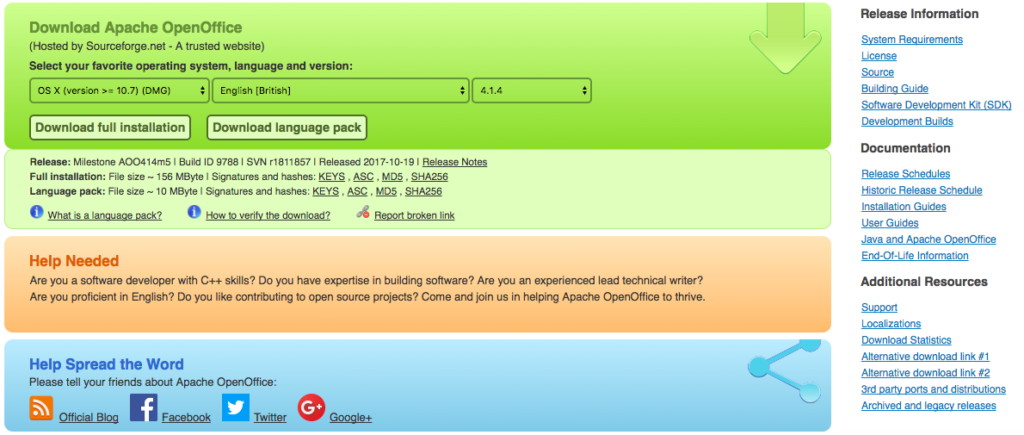
The same goes for upgrades. When a new version is released, just ask your staff to download and install it. You can specify which version to use, what tools, plugins, and languages to install, making it a highly flexible tool for businesses wanting to cut back on expensive software licenses.

3. You own the software

Microsoft is pushing Office 365 – a subscription-based service – for its business customers. You never own the software, and you have to pay a monthly or annual fee to use it. I don’t know about you, but never owning the software doesn’t seem fair. With OpenOffice, you can own the software for nothing. Forever.

3. It works with other vendors’ file types
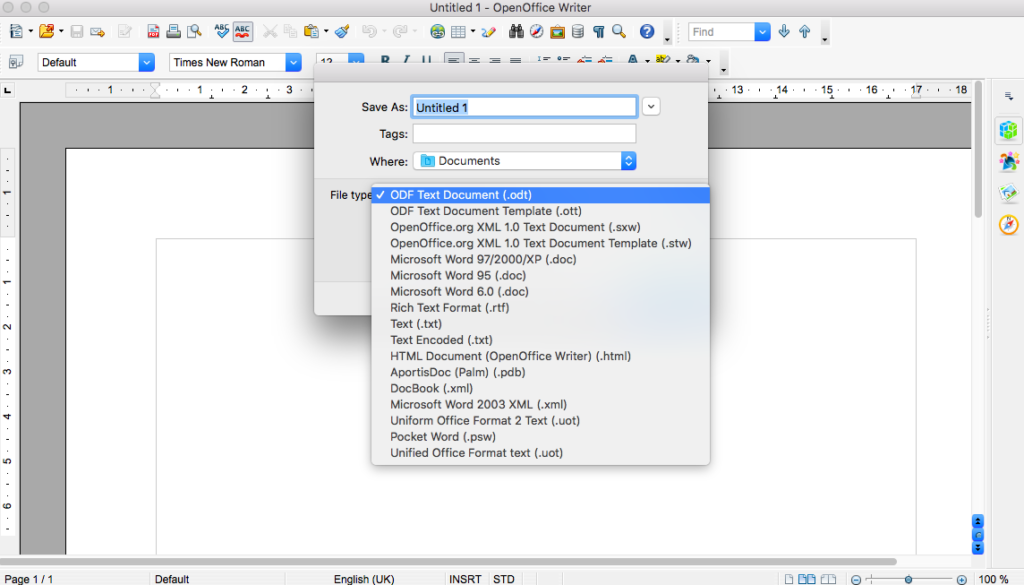
And because OpenOffice supports other vendors’ file types, you don’t need to do any tricky conversion to work with non-native documents. (Minor warning: for heavily formatted .docx files, you might find some discrepancies when importing them into OpenOffice.)

4. You can add your own improvements and features

Perhaps the most useful aspect for businesses is that you (or your IT department) can shape OpenOffice into whatever you want it to be. It’s open-source software, meaning you can change it, add new features, or improve on existing ones. You don’t even have to do it yourself – post on the forums and perhaps a kind techie will implement said features for you (or at least explain how to do it).

5. It supports more languages

Hundreds of volunteers from all over the world are involved in developing OpenOffice. That means it’s available in over 40 languages – more than double that of Microsoft Office. And that’s just the interface. There are over 70 custom dictionaries, too, so you can check spelling and grammar of your native tongue. Perfect for your offices at home and abroad.

6. For older (or less powerful) machines, it performs better than Microsoft Office
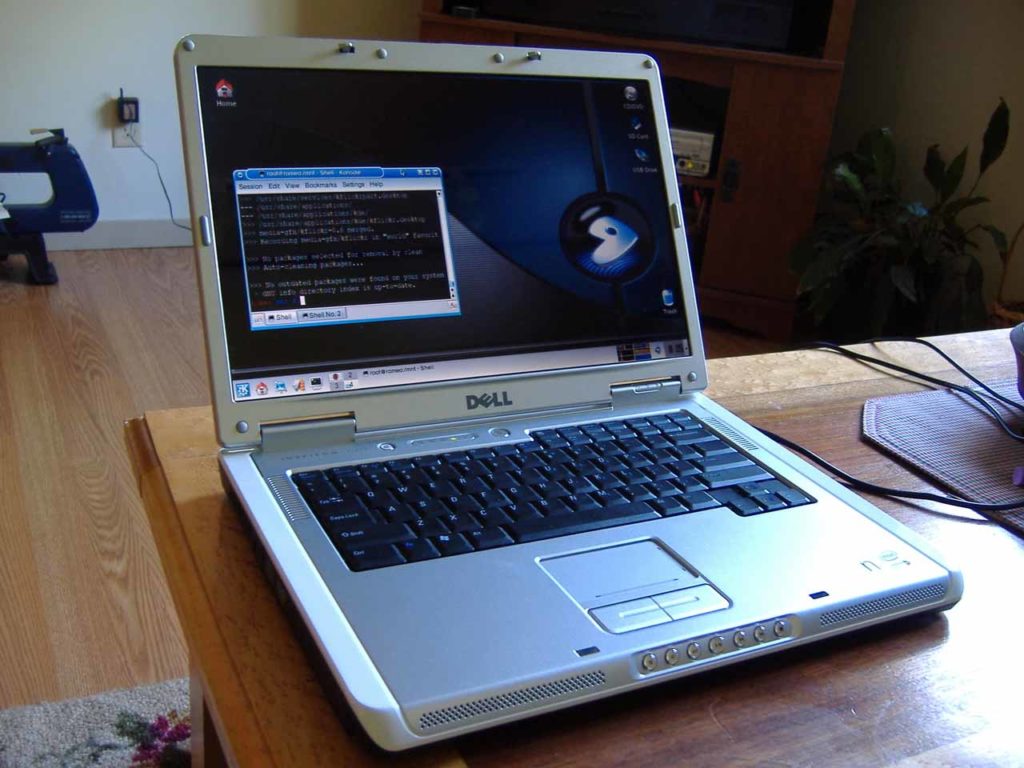
OpenOffice can run on just 256MB of RAM and 650MB available disk space. Microsoft Office, for example, needs 1GB RAM and 3GB available disk space. OpenOffice also runs on older operating systems, such as Windows XP and Windows 2003, and more niche systems like Linux and Ubuntu. Combined, this makes OpenOffice the perfect choice for older computers running less flashy operating systems. It won’t hog your processor, either.

OpenOffice makes working on computers fun again. You can access all your productivity tools in one place, and enhance anything you like through its open-source codebase. No subscriptions, no fees, just free software for life. You can’t say fairer than that.

5 key differences between Excel and OpenOffice Calc

As a free alternative to Microsoft’s popular Excel, OpenOffice Calc is a tough one to beat. But while the two spreadsheet tools share many qualities, they’re not totally alike. So before deciding to splash out on Microsoft’s version, or to save your pennies with Calc, have a read through these 5 key differences to pick the right one for you.

1. Drag and drop is easier with Calc

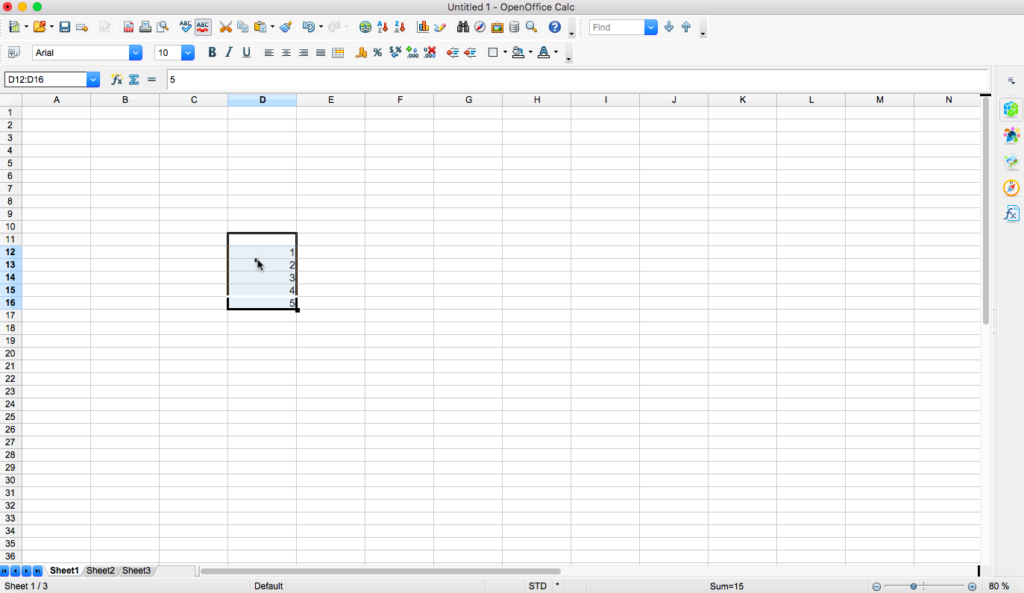
If you want to move cells to another column or area of your spreadsheet, first click and drag your cursor over the cells you want to move. This step is the same for both Excel and Calc.

Then, in Excel, click the border of the selected cells (when your cursor changes to the hand icon) to move them. If you click within your selected cells, you’ll deselect the group and select that single cell. But in Calc, you simply move your cursor anywhere within the selected cells.

This might not sound like a big difference, but if you’re moving cells frequently, it’s a real time saver. If you miss that narrow border in Excel, you have to re-select your cells and try again. Not exactly hard work, but it could be tedious if you’re in a rush.

In Excel, you can only move your selection by clicking its border when you see the hand cursor.
In Calc, one you’ve highlighted your selection, you can click anywhere inside to move it to another part of your spreadsheet.

2. In Calc, you must always use semicolons to separate parameters in a function

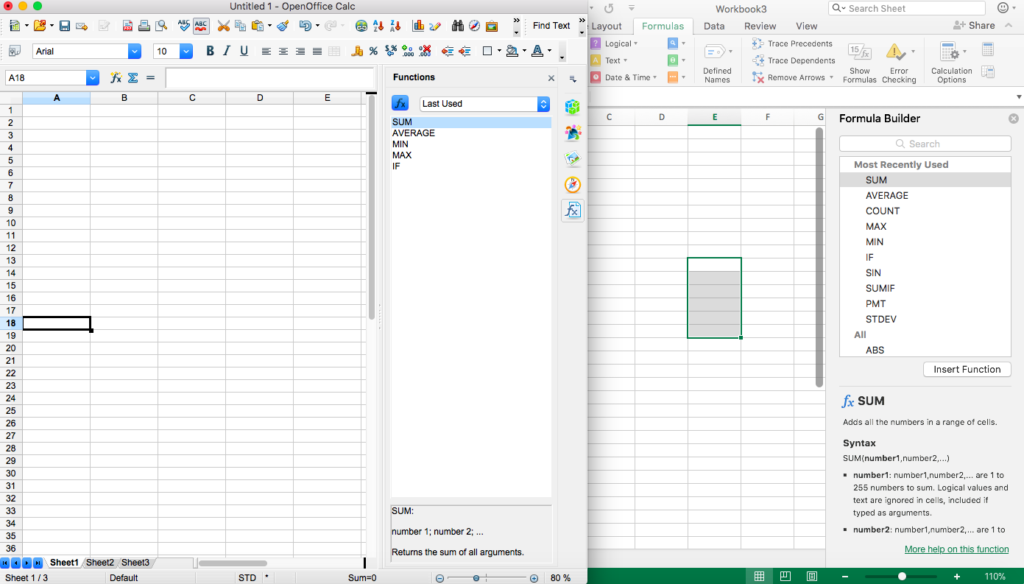
When writing formulae in Calc, you have to separate parameters using semicolons. In Excel, you can use both semicolons and commas. Not a big issue, just something you might have to get used to if you’re moving from Excel to Calc.

With Calc (on the left), you must always use semicolons to separate parameters (unlike Excel on the right, where you can use commas)

3. Calc uses a different macro programming language to Excel

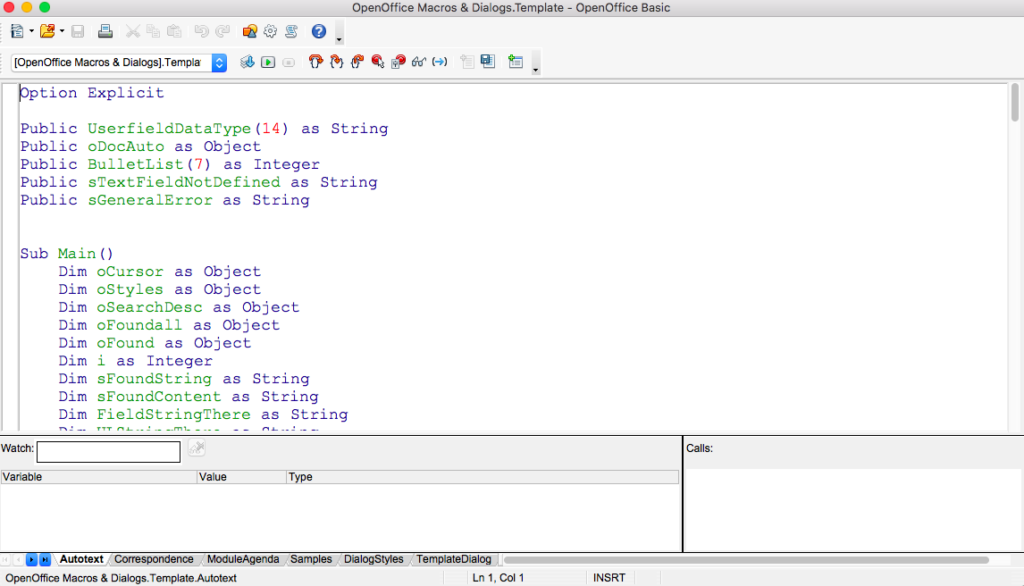
Excel uses Microsoft’s Visual Basic for Applications (VBA) programming language. Calc uses its own OpenOffice BASIC language. As both languages are part of the BASIC family, you shouldn’t have too much trouble familiarising yourself with one if you’re used to working with the other.

However, there are some differences. Rather than listing them here, I suggest reading Apache’s BASIC guide, which points out where VBA and OpenOffice BASIC differ. (Calc also lets you program your macros in Python, BeanShell, or JavaScript.)

4. Excel has more charting options than Calc

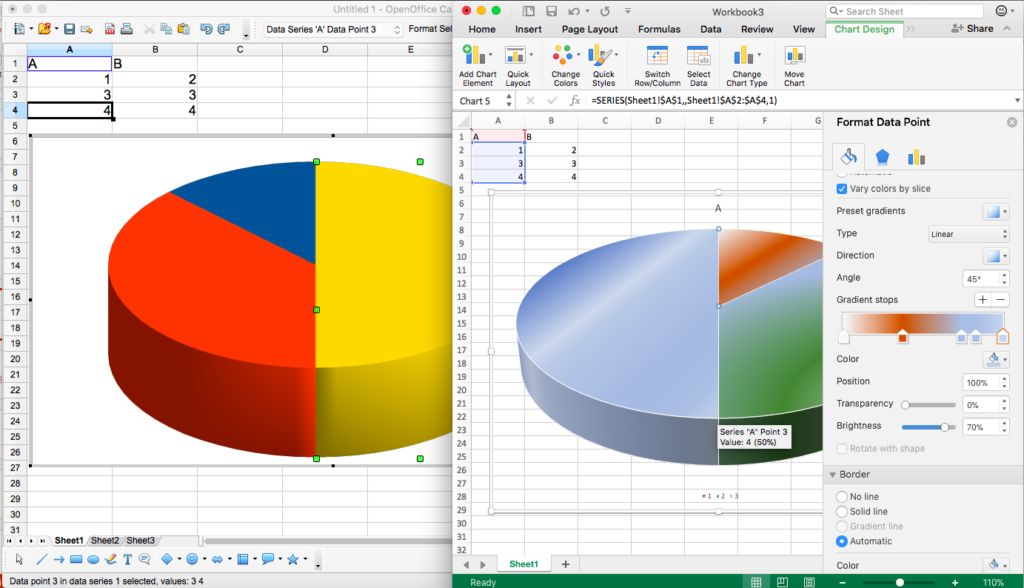
Calc has enough charts to display your data in a meaningful way, but if you’re after additional flourishes, your best bet is Excel. For example, Calc can’t create fill gradients, and has fewer chart types. It won’t recommend charts for your specific data, either (which Excel does).

Calc won’t be as pretty, but it usually gets the job done

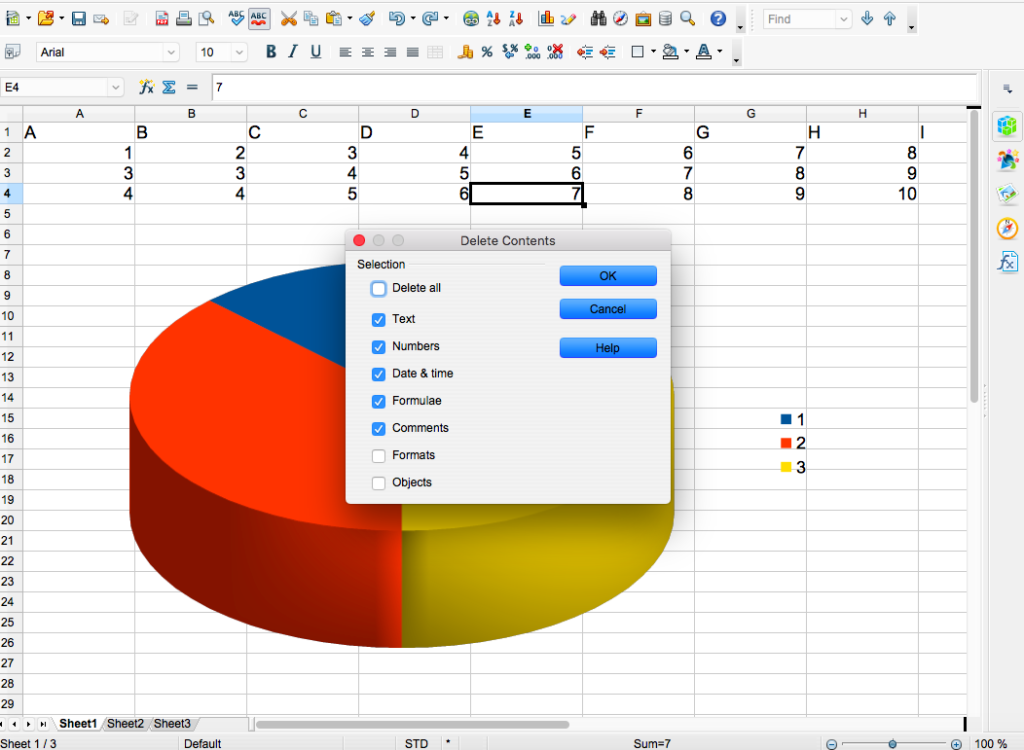
5. If you hit the delete key in Calc, you get to choose what to delete

New Calc users expecting to remove cell contents with a single stab of the “delete” key are in for a surprise. Calc has incorporated a handy (or not, depending on your point of view) dialogue box that lets you choose what you want to delete – whether it’s text, numbers, dates, or formulae. Excel, on the other hand, just erases the content. If you want to skip this dialogue, hit the backspace key instead.

As expected, Calc and Excel are fairly evenly-matched – especially when it comes to basic functions. What small differences exist are easily overcome or tolerated, and as Calc is free, there’s not much to cry over. But if you’re keen on fancy graphs and extreme flexibility, Excel comes out on top. I’ll let you decide if they’re worth paying for.

3 tips for using OpenOffice Impress

Presentations are tough to get right. Either there’s too much talking and not enough slides, or vice versa. Nailing that sweet spot between words and visuals will not only help your audience stay awake, but ensure your message sinks in.

All the best presenters use the right tools for the job and OpenOffice Impress is a great alternative to paid presenting software. To help you get the most out of it, we’ve assembled 3 tips to get you started.

Download OpenOffice

1. Convert your presentation to flash so your audience can watch it again

Flash… Flash?! Have we warped back to the early 2000s? No-one uses Flash anymore, right? Wrong. It’s actually a pretty common staple of the internet – for a few more years, at least (it

dies officially in 2020). Despite Mr Jobs’s best efforts, Flash has persisted, and although it has its problems, it gives your presentations a second life online.

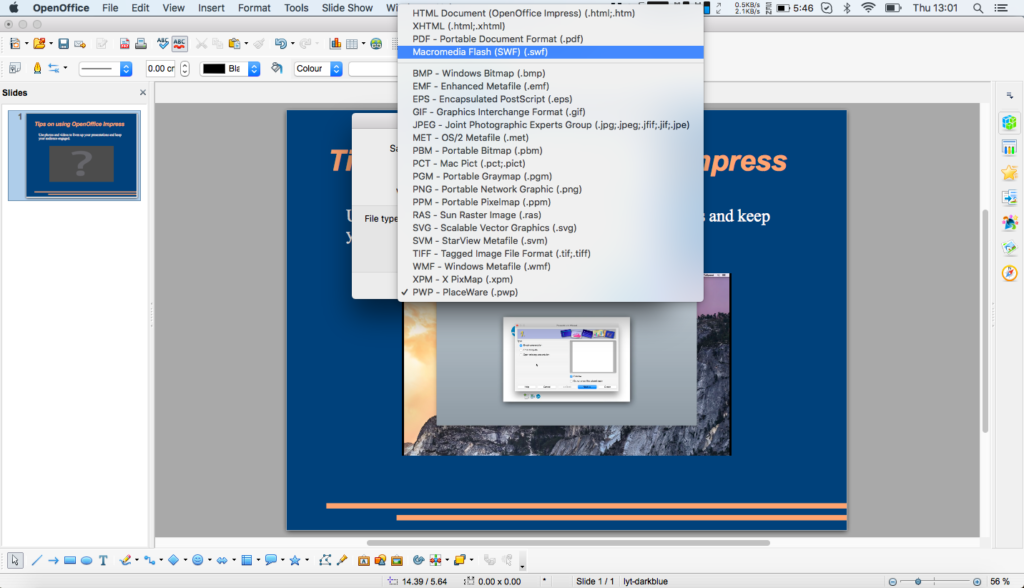
By saving your presentation as an .swf file, you give your audience a compressed, streamable version of your presentation which you can host on your blog, company website, or on social media. It also means your audience won’t need to install special software just to rewatch your presentation.

To convert your presentation to flash, follow these instructions:

  • Click on “File” at the top
  • Select “Export”
  • Name your file – John’s Physics Presentation, for example
  • Choose where to save the exported presentation
  • In the “File type” dropdown box, select Macromedia Flash
  • Click “Save”
A flash in the pan? Perhaps, but a useful one nonetheless

2. Relieve tired brains with photos and videos

For long presentations, it’s unlikely your audience will want to listen to you speak the whole time. Break up your presentation with photos and videos to offer new perspectives on your topic, examples of it in action, or to provide others’ opinions. Incorporating different media doesn’t just engage your audience, but helps cater to the many ways in which people learn.

Important: Impress can only embed photos and videos already stored on your computer.

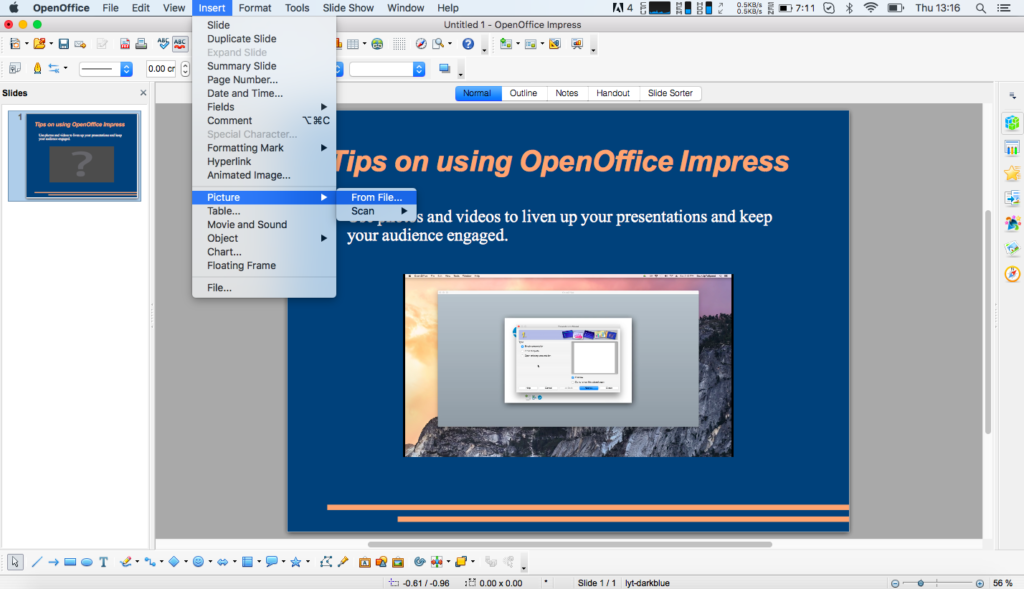
To add a photo, follow these instructions:

  • Choose “Insert” from the top menu
  • Select “Picture”
  • Select “From File…”
  • Choose the picture you’d like to add

To add a video:

  • Choose “Insert” from the top menu
  • Select “Movie and sound”
  • Choose the movie you’d like to add
  • You can preview the movie once it’s in Impress by double-clicking, or using the media menu bar at the bottom of the screen
If a picture is worth a thousand words, what about a video?

3. Avoid technical hitches by downloading OpenOffice Portable

We’ve all been there. Your presentation officially started 5 minutes ago but you’re stalling for time – your colleague’s computer is missing specific software to run your slideshow and you don’t know what to do. It’s a nightmare scenario, but thankfully there’s a solution for Impress.

Since Impress is part of Apache’s OpenOffice, you have access to approved add-ons made by third parties. One of the most useful is OpenOffice Portable. Although Impress supports many file types – including Microsoft’s .ppt – you never know when you might experience technical problems. Especially when using someone else’s computer.

That’s where OpenOffice Portable comes in. This is a fully-executable version of OpenOffice you can store on a USB drive, load up on any Windows machine (no native OS X support at the moment, sadly), and run your presentation. Simply visit Portable Apps and download the app to your USB or portable hard drive. All you need to run the software is on that USB drive, and you can enter the conference room with confidence.

Don’t let others’ computers ruin your day – take Impress with you

Public speaking is daunting enough without worrying about your presentation software. Get the most out of Impress by following these tips and that standing ovation could be yours.

Has your Android phone been broadcasting your location without your knowledge?

A recent report has highlighted a worrying fact about Android mobile phones. Even if the user has opted out of location services, they will still send the location of nearby cellphone towers back to Google. This might not be exact data but multiple cell towers can give pretty accurate triangulation data.

According to the report from Quartz:

“While information about a single cell tower can only offer an approximation of where a mobile device actually is, multiple towers can be used to triangulate its location to within about a quarter-mile radius, or to a more exact pinpoint in urban areas, where cell towers are closer together…”

The information being sent back to Google is encrypted, of course, but the report highlighted another potential problem that this unauthorized location sharing could cause:

“Although the data sent to Google is encrypted, it could potentially be sent to a third party if the phone had been compromised with spyware or other methods of hacking. Each phone has a unique ID number, with which the location data can be associated.”

This means that if you’re phone has been infected with a virus or form of malware hackers could use the encrypted mobile data being sent to Google to pinpoint your location. It is easy to ask why anybody would be interested in your location but the fact remains that your privacy is your own to give away. A corporation should not just take it without asking or put it in jeopardy.

This may be why huge companies make their terms of service so vague, just look at Google’s terms relating to this issue:

“When you use Google services, we may collect and process information about your actual location. We use various technologies to determine location, including IP address, GPS, and other sensors that may, for example, provide Google with information on nearby devices, Wi-Fi access points and cell towers.”

Even if you bother to read the thousands of words you’d struggle to understand that, a lawyer would. Whether they’re taking advantage of legal loopholes or just misleading they’re users, Google are clearly breaching the trust of their users.

Google have said that they are planning to roll out changes that would address this issue but we’re yet to hear when they’ll be implemented.

Via: Quartz and Gizmodo

Follow me on Twitter: @PatrickDevaney_

Now blind people can read your handwriting

Microsoft is adding new features to its ridiculously cool seeing AI app. These cool new features include currency recognition of British Pounds, US Dollars, Canadian Dollars, and Euros. The coolest new feature is the handwriting recognition feature that will read out any handwritten notes that shown to the app.

These new features add to the already significant skillset held by the seeing AI app. As we reported when it first came out, the app can…

“Read out text, provide audio guidance for scanning printing pages, scan grocery items and then even offer instructions on how to use them. Most impressively, Seeing AI should be able to recognize friends, describe them to the user, and even indicate their emotional state.”

Seeing AI Download Now
8

This update will be great news for any of the 100,000 users of Microsoft’s ingenious use of AI algorithms. As new features like these continue to be added, however, it’ll be the visually impaired community in general that’ll benefit. An amazing feature that alerts users of the level of light in a particular room is designed to prevent blind people from having to check whether a light is on or not by touching the bulb and, potentially, burning themselves. Hopefully, all issues like this can aided by the addition of new features to the app as time goes by.

Unfortunately, however, these features and the seeing AI app as a whole are only available on iOS devices, and Microsoft is yet to announce a plan to bring the app to Android.

If you know anybody who is visually impaired and uses an iPhone let them know about Microsoft’s Seeing AI app. We’d love to hear about anybody’s experiences using the app in the comments below.

Seeing AI Download Now
8

Via: Endgadget

Follow me on Twitter: @PatrickDevaney_

5 things you didn’t know about WinRAR

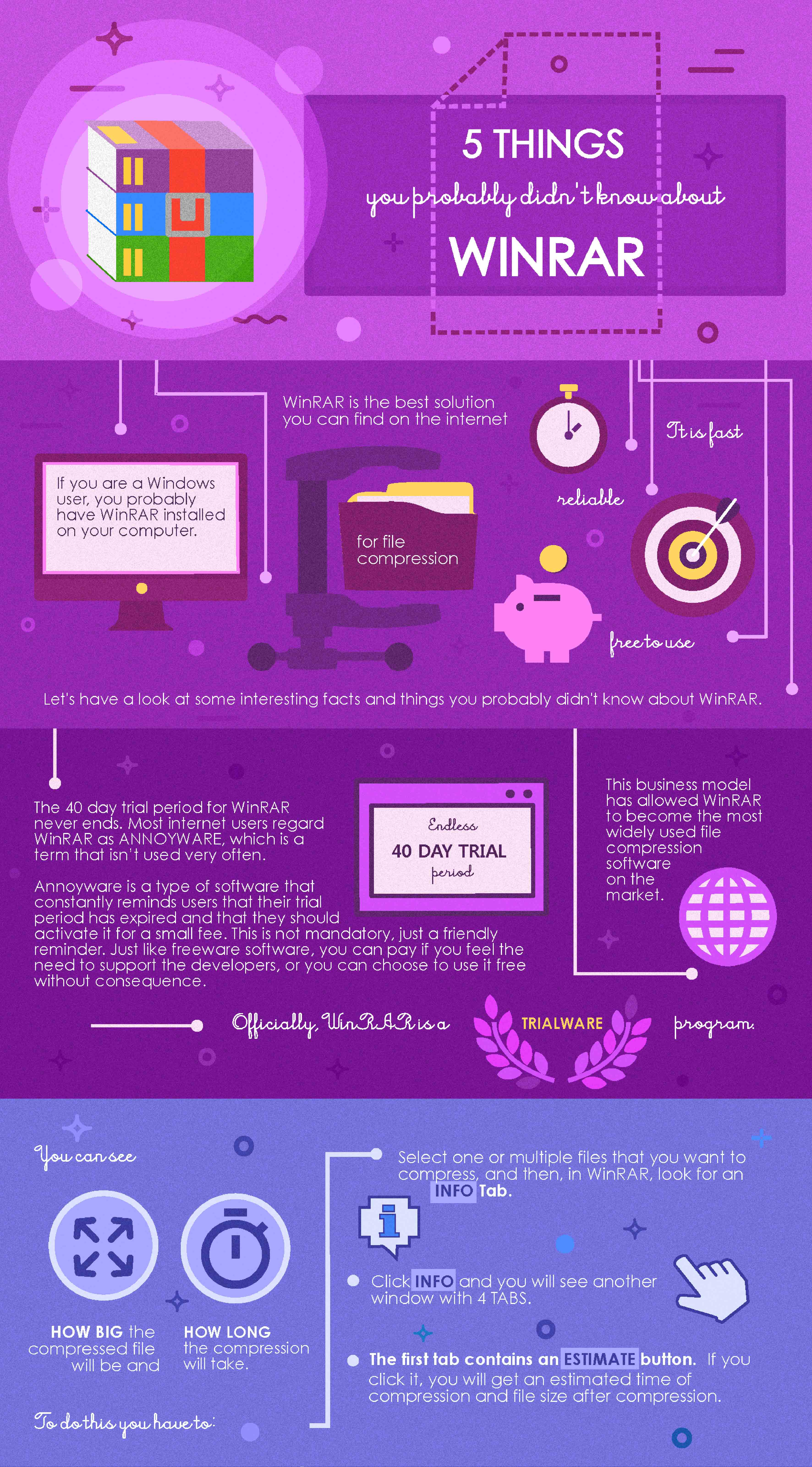
If you are a Windows user you probably have WinRAR installed on your computer. WinRAR is the best solution you can find on the internet that will take care of file compression with ease. It is fast, reliable, and in a way, free to use. Let’s have a look at some interesting facts and things you probably didn’t know about WinRAR.


1. The 40 day trial period for WinRAR actually never ends.

This software is regarded as annoyware by most internet users, a term not used very often. Annoyware is a type of software that constantly reminds users that their trial period has expired and that they should activate it for a small fee. This is not mandatory, just a friendly reminder. Just like freeware software, you can pay if you want to and feel the need to support the developers, or you can choose to use it for free with no consequences. Officially, WinRAR is a Trialware.

This business model allowed WinRAR to become the most widely used file compression software on the market.

2. You can see how big the compressed file will be and how long the compression will take.

To do this you have to:

  • Select one or multiple files that you want to compress, then in WinRAR look for an “Info”
  • Click on Info and you will get another window with 4 tabs.
  • The first tab contains an “Estimate” If you click on it you will get an estimated time of compression and the file size after compression.

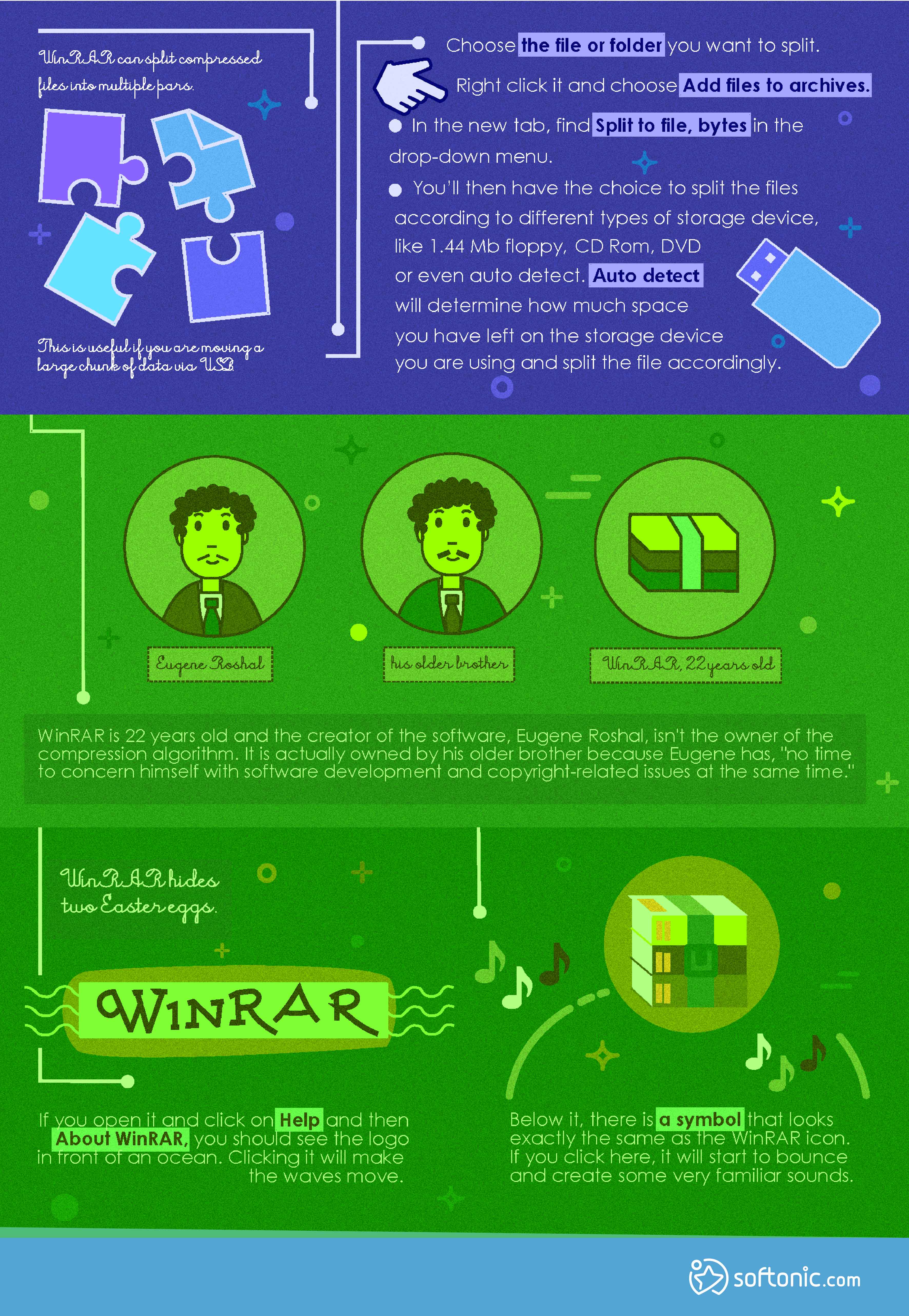
3. WinRAR can split compressed files into multiple parts.

This is useful if you are moving a large chunk of data via USB.

  • Choose a file or folder you want to split.
  • Right clicking on it and choose “Add files to archives”.
  • In the new tab find “Split to file, bytes” in the drop-down menu.
  • You will be presented with choices to split the files according to the storage device like 1.44 Mb floppy, CD Rom, DVD or even auto detect. Auto detect will determine how much space you have left on the storage device you are using and split the file accordingly.

4. WinRAR is 22 years old and the creator of the software, Eugene Roshal, isn’t the owner of the compression algorithm.

It is actually owned by his older brother because Eugene has “no time to concern himself with software development and copyright-related issues at the same time.”

5. Winrar hides two easter eggs.

If you open it and click on Help and then About WinRAR you should see the logo in front of a sea. Clicking on it will make the waves move. Below it there is a symbol that looks exactly the same as the WinRAR icon. If you click on it it will start to bounce and create some very familiar sounds.

Follow me on Twitter: @PatrickDevaney_

Bot attempts to write Harry Potter fan fiction, with amazing results

Thanks to Botnik, a self-described “community of writers, artists and developers collaborating with machines to create strange new things,” Harry Potter has been reimagined with the help of a predictive text keyboard — and the result is hilarious and strange.

The team at Botnik ran all seven Harry Potter books through the predictive writing bot and then directed it to write a story based on the books. The result, titled Harry Potter and the Portrait of What Looked Like a Large Pile of Ash, is by turns weird and beautiful, all the while reading surprisingly like a Harry Potter book. Behold such lines as “Ron stood there and doing a kind of frenzied tap dance. He saw Harry and immediately began to eat Hermione’s family.”

The story ends with Harry “falling down the staircase for the rest of the summer” and then shouting, “The dark arts better be worried, oh boy!”

Botnik.org has also unleashed its predictive text bot on marijuana strain names (fancy some “banana zero sativa”?), advertisements, and so much more, promising hours of fun. Don’t miss it.


–Via The Guardian

New Five Nights at Freddy’s game means you’re in for treat!

If you’re after the latest installment of the famous Five nights at Freddy’s horror game franchise, it has arrived. You might be in for a little surprise, however, as Freddy Fazbear’s Pizzeria simulator might not be what you expected.

In the game, you’ll be tasked with running a pizzeria and keeping all of the kids who visit full and happy. Or will you? We’re not going to go into too much detail here, but there is definitely more to the latest FNaF game than the pixel art promo shots and trailer giveaway.

If you’re a fan of the FNaF series, you should give Pizzeria Simulator a go. It is available for free on Steam, so get to it. We’d love to hear your thoughts on the game in the comments below, but remember to keep all of your comments spoiler free.

Top 10 naval battle games for PC

Via: Venture Beat

Follow me on Twitter: @PatrickDevaney_

Are Airbnb hosts secretly recording their guests?

Here in Barcelona, Airbnb has caused quite the scandal, as the number of unlicensed flats has caused property prices to skyrocket, forcing many out of the city. The mayor has even vowed to put heavy controls on the global home-sharing company. On the world stage, however, another scandal could soon be gripping Airbnb. The next time you stay in an Airbnb apartment, you might have to check for hidden webcams.

A couple staying at an Airbnb apartment in Florida noticed that there was something not quite right with the smoke detector on the wall of their apartment. Closer examination revealed a small black hole; behind the hole was a camera that was recording HD video. You can see below just how shocked they were at this chilling discovery.

Via: ABC Action News

The owner’s explanation is even creepier. Wayne Natt, who was charged with one count of video voyeurism, said that the cameras were to record wild sex parties that he hosted and that everybody knew they were being recorded. Not only do you have to worry about being spied on at Airbnb apartments, you also have to worry about whether or not the host held an orgy the night before you arrived.

Natt claimed to switch them off whenever he had Airbnb guests staying over, but Derek Starnes examined the black hole when he was visiting with his wife, and discovered that the camera was, in fact, recording onto an SD card. Starnes claimed that the camera had captured him walking around naked.

This is by no means an isolated incident, either. A recent tweet showed a user finding an IP camera hidden in a motion detector; again, the small black dot gave it away.

Of course, Airbnb prohibits spying on guests but, in reality, with cameras being so small and easy to hide and millions of Airbnb flats all over the world, it is an extremely difficult rule to enforce. This means it is up to you to protect yourself.

How to protect yourself against hidden webcams

A camera needs a line of sight if it is too record you, which means you’ll be able to see it if it can see you. Visually inspect vents for holes or gaps. Also, a lens will reflect light, so if you are suspicious, turn off the lights and shine a flashlight on the suspicious area. If there is lens there, it’ll reflect the light. If you do find a camera secretly recording, you should contact the police immediately.

Via: Sophos and ABC Action News

Follow me on Twitter: @PatrickDevaney_

The top smartphone brands of 2017

At one time, maybe even further in the past than we remember, there were only a handful of smartphone brands on the market. More importantly, only a few brands were even relevant. That’s not the case today.

In fact, the market is more saturated than ever before. Sure, you have the major flagships like the latest iPhone, Samsung handset or Google’s own Pixel lineup, but there are multitudes of others too.

Brands like Huawei, Motorola, Razer, OnePlus and many others have a variety of models available — all of which make great phones for the right person.

With the list of potential brands and opportunities growing, which one is truly the best? What brands are decidedly worth your hard-earned money? When it’s your turn to pick out a new phone, what are the best companies to select from?

The first thing you need to understand is that there’s a huge difference between best-rated and top-value phones.

What’s considered one of the best phones on the market, for instance, doesn’t necessarily offer the most bang for your buck.

Top-Rated vs. Top-Value

A top or best-rated phone is one that is critically acclaimed, has great reviews and may even be raved about by friends, family or colleagues. The new iPhone X is a great example of this. It’s an awesome phone, has a lot to offer, and people that own and use it are often quite satisfied.

On the other side of that equation, there’s the actual value of said phone. The iPhone X is a premium device that is quite expensive, especially when up against comparable models. Apple devices have always taken this route, actually, with price and style winning over anything. That’s not to say they are bad phones — quite the contrary. The point is just that you pay more for the name slapped on the device.

That alone means you may not necessarily be getting the most bang for your buck or the best value.

There’s also the trade-in or resell value aspect to consider when looking at phones. When you upgrade to a new device, you have the option to keep your old phone, trade it in or even sell it privately to someone else.

This is where the inherent benefits of Apple’s brand come into play, as Apple phones tend to hold their resale value longer. Other brands that retain their values, even used, include HTC, Motorola, Google, LG, Samsung and more.

A phone can be top-rated, top-value, or both. That’s an important distinction to make and also one you always want to consider when purchasing or selecting a new phone.

Cheap doesn’t necessarily indicate the rating or quality of a phone, especially these days — just like price doesn’t always indicate value.

1. Apple iPhone X

The Apple iPhone X is a huge leap forward, especially in terms of size. Compared to previous models, this is a quite large phone that manages to retain its beauty and grace.

The new facial recognition feature, which allows you to interact and unlock your phone simply by looking down at it, is charming and super convenient.

It’s expensive and definitely premium or high-end, but the reviews also reflect that investment. Though you may be paying a higher price tag, you are getting something well-built, which also performs reliably.

This has solidified Apple as one of the biggest smartphone manufacturers around.

Let’s be honest: No one expected them to relinquish that crown anytime soon. Going into 2018 and beyond, it becomes more apparent that Apple devices will continue to be some of the best phones on the market — no matter how you feel about the brand.

As for whether or not they offer a great value, that’s subjective.

2. Google Pixel Lineup

The Google Pixel 2 XL is, as some describe, one of the best Android phones ever made — and we don’t make that claim lightly. Android has advanced considerably in recent years, surpassing even Apple’s capabilities in terms of what it can offer and what experiences its ecosystem can deliver.

It seems like yesterday when we started hearing rumors of Google diving back into the hardware game, and now, here we are.

Like their successors, the Nexus line, the Pixel phones use a rather stock and pure version of the Android mobile OS.

If and when you get your hands on one of these, you immediately see the allure in a pure version of Android, especially thanks to streamlined OS updates, which would normally have to pass through carrier processes that take forever.

The experience is also completely unlike one you’d get on a Samsung or LG, which is heavily customized and rebranded to match that company’s initiatives.

Although technically Google doesn’t manufacture the hardware and phones, we’re definitely moving into 2018 with their latest lineup standing tall. The company is sure to have some momentum in the coming year, especially for those that want a reliable, relatively budget-friendly device.

3. Samsung

Samsung did have that whole battery debacle, which we won’t bother getting into, but it got back on track with its latest release of the Galaxy S8. This is one of the most stunning and beautiful phones ever made. It gives even the new iPhone X a run for its money despite coming out months before.

Known for its heavily personalized experiences that favor convenience and multitasking, Samsung is sure to deliver more flagship devices in 2018 that continue to impress and up the ante in the market.

Not only is the company competitive, but it is also regularly innovative — which is a plus as mobile devices continue to advance year after year.

You can’t go wrong with a Samsung device. Just wait for initial reviews to make sure they don’t spontaneously combust in your hand or pocket.

All three of these phones are top picks, and they all have their plusses and minuses. Which is the right one for you?

Image by Kaboompics