Update WinRAR now or face the consequences

Several hacker groups linked to the governments of Russia and China would have taken advantage of a WinRAR bug to infect their victims’ computers.

Zero-day bugs (or exploits) are security flaws in a computer program that hackers can exploit to attack users before the developer becomes aware and fixes it. These types of bugs, which are a nightmare for software companies, are often detected shortly after the program’s release, although sometimes they persist for years without being discovered.

Recently, it has been discovered that several hacker groups backed by the governments of Russia and China are exploiting a zero-day exploit in the popular file compression program WinRAR to infect their victims’ computers.

WinRAR DOWNLOAD

This security flaw, known as CVE-2023-38831, was discovered in August of this year and was fixed with an update to WinRAR (version 6.23). However, many users have not updated the program and are still vulnerable to attacks. That’s why Google’s Threat Analysis Group (TAG) has found evidence that several hacker groups sponsored by Russia and China are exploiting this zero-day bug for their operations.

According to TechCrunch, one of these groups is called Sandworm, a unit of Russian military intelligence that engages in destructive cyber attacks, such as the one launched in 2017 with the NotPetya ransomware, which paralyzed Ukraine’s power grid.

Google researchers observed that Sandworm used the WinRAR bug in early September as part of a malicious email campaign posing as a military drone training school in Ukraine. The emails contained a link to a compressed file that exploited the WinRAR flaw, and upon opening it, it installed malware that stole browser passwords.
Another hacker group exploiting the WinRAR bug is known as APT28 or Fancy Bear, linked to the Russian government and infamous for its involvement in the hacking of the United States Democratic National Committee in 2016.

According to researchers, Fancy Bear used the WinRAR bug to target users in Ukraine by posing as a political studies center in the country. These emails included a compressed file that, when opened, installed malware allowing remote control of the computer.

Lastly, Google also found evidence that the APT40 group, backed by the Chinese government and linked to the Ministry of State Security, abused the WinRAR bug as part of a phishing campaign targeting users in Papua New Guinea. These emails included a Dropbox link to a compressed file containing the CVE-2023-38831 exploit.

WinRAR DOWNLOAD

As you can see, these hacker groups don’t hold back and use any resource at their disposal to achieve their goals. That’s why it’s crucial to keep WinRAR updated and avoid downloading or opening suspicious compressed files.
Breaking the Barrier: Windows Users Can Now Open RAR Files Without WinRAR after Nearly 30 Years

Almost three decades after the release of WinRAR, Windows will now allow us to compress and decompress RAR files without the need for third-party programs.

Let’s lay the cards on the table: Who among you actually bought a WinRAR license? Seriously, who did? Even with all the “cleverness” that characterizes Spaniards, many of you might know people who have bought a license for Windows or Microsoft Office (the person writing these lines is one of them). But WinRAR?

WinRAR DOWNLOAD

A few years ago, most of us relied on WinRAR during times when… well… it was the only program available for compressing and extracting RAR files. This file format offered many advantages over the classic ZIP files, including better file compression and the ability to set passwords.

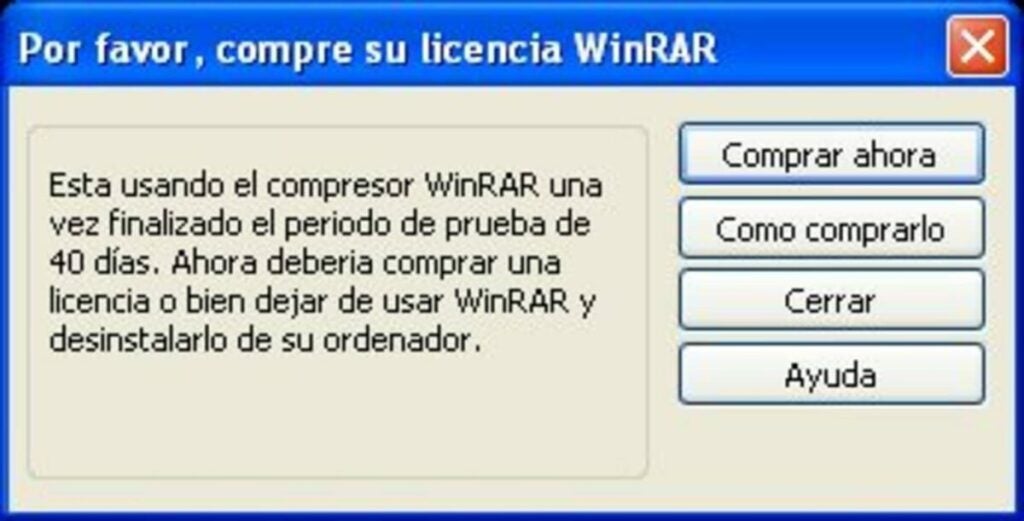
However, while ZIP files always came pre-installed with Windows operating systems, to extract those RAR files we downloaded from the internet (all legally, of course), we had no choice but to download WinRAR… and pay for it. Yes, we all ignored the message urging us to purchase a WinRAR license. And yes, it could be a bit annoying.

Now, nearly three decades after WinRAR’s release, Windows has finally decided to offer native support for RAR files without the need for any third-party software. Microsoft confirms this in a blog post titled “A New Era of Productivity,” where they discuss the future of Windows 11.

“We’ve added native support for additional file formats, including tar, 7-zip, rar, gz, and many others using the open-source project libarchive,” states Microsoft. “Now you can get improved performance from file functionality during compression on Windows.”

Thanks to libarchive, an open-source project with a library that supports various file compression formats, Windows 11 will now allow us to compress and extract virtually any type of file without the need to install WinRAR or other compression programs like 7-zip.

WinRAR DOWNLOAD

While it’s true that the vast majority of us never had many issues with WinRAR (including the nagging message), this native support will be highly useful for many less tech-savvy individuals. The days of receiving WhatsApp messages like “Hey, how do I open this file you sent me?” are over.

Some of the links added in the article are part of affiliate campaigns and may represent benefits for Softonic.

How to split up a large file with WinRAR

There are so many reasons that WinRAR is regarded as one of the best file compression tools to have at your disposal. One of those reasons is that you can use one to split up large files into several smaller ones. This is particularly useful if you intend to distribute files and want to make them easier for a recipient to download.

WinRAR DOWNLOAD

It’s so easy to use WinRAR to split up big files that it only takes three simple steps. So sit back and relax as we compress the three easy steps of decompressing large files.

Splitting up large files with WinRAR

Before you can make use of the exceptional compression and decompression power, you need to download WinRAR. As with all software that we review, we have a handy link that will take you directly to the download page. Once you’re on the download page, all you need to do is choose a version of WinRAR compatible with your operating system and click download.

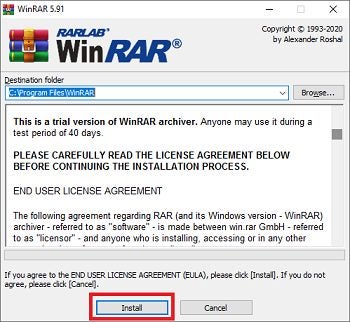
The installation process is criminally easy and only requires you to accept an end-user license agreement and select an installation location on your device’s hard drive. WinRAR is a premium software, but you do have a limited time-free testing period within which you can use the software and decide if you want to buy it outright. With that little bit of administration handled, let’s get into the three simple steps of using WinRAR to decompress large files.

  1. Location, location, location

    How to split up a large file with WinRAR

    The first step to splitting up large files with WinRAR once you’ve downloaded the utility is to locate the file you’d like to split. Once you’ve located your file, right-click on it and select Open With, and then choose WinRAR from the list of associated apps. In WinRAR, head up to the toolbar and hit Add to add the file to a new archive. You could also select Add to Archive from the right-click context menu as a shortcut.

  2. Compress

    How to split up a large file with WinRAR

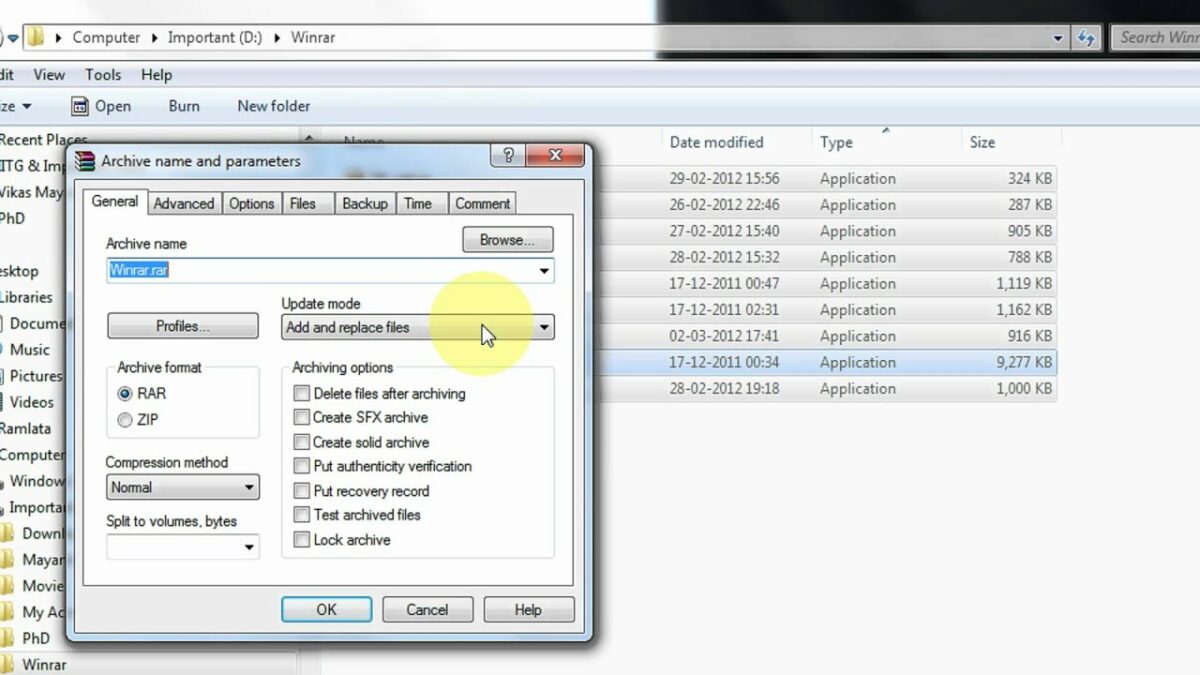
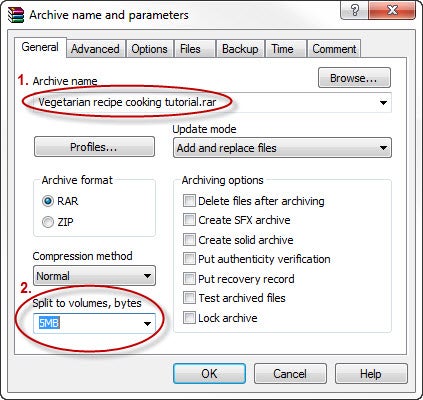
    You should now see an archive name and parameters interface. This is where you’ll be able to choose how small to make each file and define any other parameters you’d like to apply to the archive.

    First, rename your archive. If you don’t want to choose another name, you’ll see WinRAR has already suggested a name for the new archive.

    Next, head to Archive format and choose whether you’d like the new archive to be saved as a .rar, .rar4, or .zip

    Lastly, you’ll need to head to Split to volumes, size, and then define how large to make each individual smaller file. You can also select a volume from the drop-down list. Once you’ve set the necessary parameters, click OK, and your folder will be split up and filed in the newly-defined archive.

  3. Extract

    How to split up a large file with WinRAR

    This last step will take place on your target device. All you need to do is extract the compressed file as you usually would, and you’ll see that the original file has been split into smaller files for easier transmission. 

    Pro tip: If you intend for the new archive to be functional on computers that don’t have WinRAR installed, save your archive as .zip. While .rar can only be opened and extracted by WinRAR, .zip can be extracted by any archive tool, such as 7zip, a free alternative to WinRAR.

Get the most out of file compression

Even though WinRAR is a premium software and you need to pay for access to advanced features like splitting files by volume, this is still one of the best file compression utilities in use. In fact, WinRAR has been one of the most popular utilities for file compression and decompression since before the glory days of Windows XP. Sadly though, WinRAR no longer carries support for devices running on the now outdated Windows XP OS.

On the brighter side, though, WinRAR has recently undergone a rather extensive update that has resulted in the utility performing better than before on Windows 11. This update is also one of many that the utility has undergone since 2019, when a 20-year-old WinRAR vulnerability was identified that could give third-party threat actors complete control over a victim’s computer.

To get the most out of this file compression program, check some of our other guides:

WinRAR now works better with Windows 11 but removes support for XP

WinRAR, one of the most trusted and popular file compression programs in the market today, just received a new update that improves support for Microsoft’s latest Windows 11 desktop operating system.

WinRAR 6.1 dropped in January 2022 and it’s the first version that adds integration with the OS’ new context menu. It has also changed its list of supported iterations that will now only include Windows Vista and up moving forward. Unfortunately, this means that XP has officially been dropped.

A new contextual menu

The newly designed contextual menu in Windows 11 is now bigger and more legible. It places the most used functions like Copy, Paste, and Delete at the top to make it easier to find and use them. This move is also to address the issue of congested context menus that have plagued Windows since its XP days. The problem with this new implementation, though, is that it now hides other important application functions and options behind a “Show More Options” button.

For most users, this just means that they’ll need a few extra clicks to access their favorite application’s menu. For developers, though, they will need to push new updates to take this new layout into account if they want their programs to be listed properly in Windows 11’s context menu. Fortunately for users of WinRAR, its creator has been quick to adapt to this change. It has pushed out a speedy release for those who have already migrated to Windows 11.

It has only been a couple of months since Windows 11 was officially released to the public. But developers are keenly aware of the changes it brought and how they might affect how their programs look and behave to users and the issue with the new context menu is one such example. As a result, developers will need to act fast to push out updates, and with WinRAR 6.1, things are moving in the right direction.

How to Use WinRAR on Mac in 4 Simple Steps

When it comes to extracting compressed RAR files, WinRAR is a giant in the industry. WinRAR is a lightweight program that is available cross-platform and makes it easy to manipulate and create zipped and compressed files.
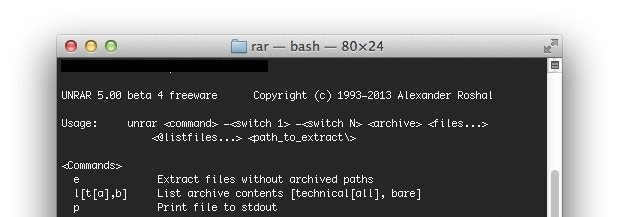
Unfortunately, WinRAR on Mac has no GUI (graphic user interface), which might make you uncomfortable as you will need to use the command line to use the program. We know that sounds technical, but before you get stressed, we will help you step by step to extract your files through the program quickly.

  1. Access the Command Line

    How to Use WinRAR on Mac

    First, you will need to access the command line on your Mac. Here are the steps you need to take to open it:

    – Click on ‘Applications.’
    Then click on ‘Utilities.’
    – Finally, click on ‘Terminal’.

  2. Change the Directory

    How to Use WinRAR on Mac

    Now you will need to change the directory to the location of the files you want to archive or extract.

  3. Compress a File

    How to Use WinRAR on Mac

    If you want to compress a file, type ‘rar a your_directory_name your_rar_name.rar’ into the command line to add the contents of your file referred to in Step 2 to a RAR file. Remember to change your directory name and RAR file name to match your folder name. This will allow you to find it in the future easily.

  4. Extract a File

    How to Use WinRAR on Mac

    If you want to extract a file, type ‘unrar your_rar_filename.rar’ into the command line to extract a RAR file.

Compress, Extract and Get Things Done

Using WinRAR on your Mac is simple enough when using the command line. It may seem technical at first glance, but if you follow our steps, you will soon be able to compress and extract files with ease.

How to Fix Checksum Error on WinRAR in 4 Simple Solutions

There is nothing more frustrating than downloading a zipped folder and trying to extract the files with WinRAR only to get a Checksum error that prohibits you from extracting the files.

This error usually occurs when there goes something wrong during the download process, and the file has lost bytes or even gained extra bits. When this error pops up, you will not be able to extract the files to your Windows or Mac device. So, what can you do to resolve this issue?

  1. Choose the Option to Download Broken Files

    How to Fix Checksum Error on WinRAR

    In this method, you will choose to download all broken files during the extraction.

    – Right-click on the RAR file.
    – Choose the ‘Extract File’ option.
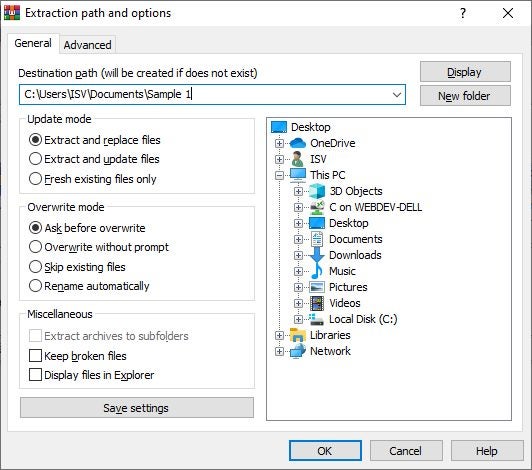
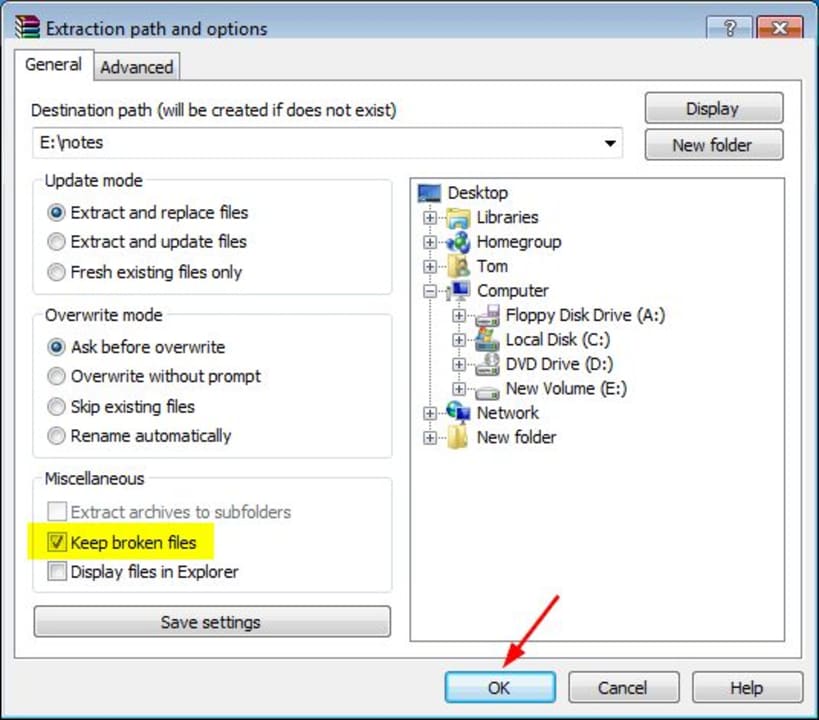
    – In the new window, navigate to the ‘Miscellaneous’ tab. Then tick the checkbox next to the ‘Keep Broken Files’ option.
    – Finally, select the extraction location and select ‘Ok’ to start extracting.

  2. Repair the Broken RAR Files

    How to Fix Checksum Error on WinRAR

    In this method, we will show you how to repair your corrupted RAR files so that you can continue to extract them without issues.

    – Right-click on the RAR file.
    – In the drop-down menu, choose ‘Open with WinRAR.’
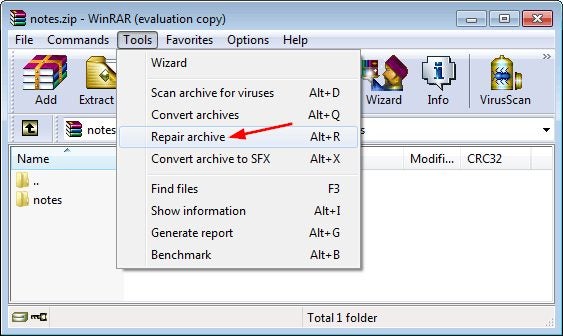
    – In the new window, click on the ‘Tools’ option and then select ‘Repair Archive.’
    – Choose the destination where you want to extract the file to.
    – The repair process will start. Once it is finished, click on ‘Ok’ to start the extraction.

  3. Download the RAR File Again

    How to Fix Checksum Error on WinRAR

    Try to download the RAR file again. If the Checksum error was caused by issues during the downloading process, such as drops on the internet, then redownloading the broken file can be a simple fix.

  4. Method 4: Uninstall and Reinstall WinRAR

    How to Fix Checksum Error on WinRAR

    If the problem continues and none of the previously mentioned methods work, you may have to consider uninstalling and reinstalling WinRAR. Your WinRAR may be having this error due to a bug, virus, or other problem with the software. Reinstalling the software may fix any of these issues.

Simple Fixes to Errors Make Everyone Happy

Fixing the Checksum error in WinRAR doesn’t have to be frustrating, with these four simple ways to fix the error and get you back to extracting files quickly.

How to Update Winrar in 4 Fast Steps

WinRAR is available on Windows and Mac. Both of the operating systems come with their own onboard file extraction capabilities. Still, these are usually very limited, which is why you would consider a separate and complete file compression tool. For the program to work effectively, you should make sure to update Winrar regularly.

How to Update Winrar

As with most software, it is vital to keep it up to date to keep the program functioning correctly and keep your computer safe. Software that is not updated regularly opens your computer up to harmful threats. Unfortunately, WinRAR doesn’t have an option to update automatically, so you will have to initiate the update manually.

Let’s look at how you can check your version and update it.

Step 1: Open WinRAR

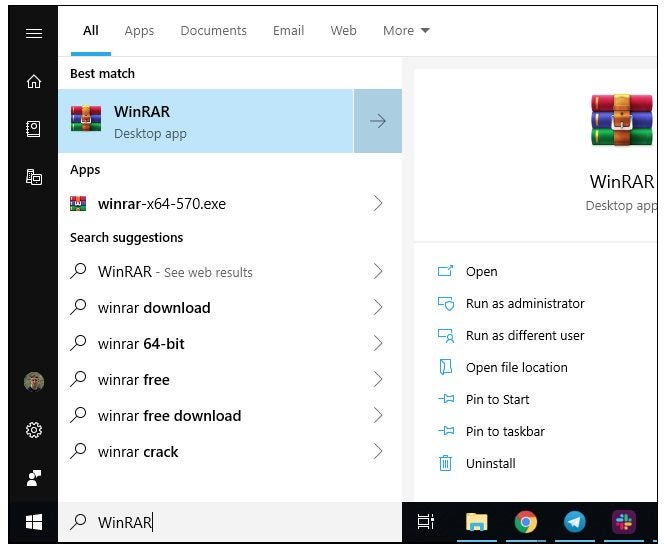
Open WinRAR on Windows 10 or your Mac computer.

How to Update Winrar in 4 Fast Steps

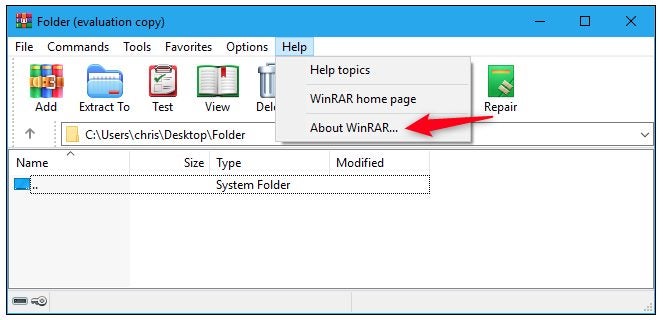
Step 2: Click on ‘Help’ and Then ‘About WinRAR’

Click on the ‘About WinRAR’ option found in the ‘Help’ drop-down list. 

How to Update Winrar in 4 Fast Steps

Step 3: Check Your Version

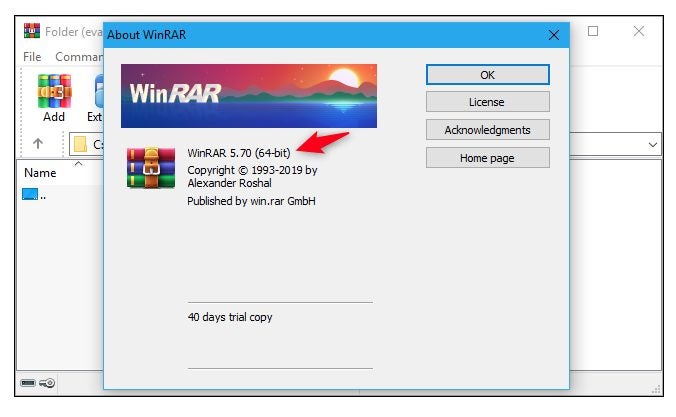
When you click on this, a window will pop up showing the details and version of your software. Anything older than 6.01 is outdated and will need to be updated.

How to Update Winrar in 4 Fast Steps

Step 4: Download the Latest Version of WinRAR

If your version is outdated, you will need to download the latest version from a reputable source such as Softonic and re-install it. 

It is important to note that WinRAR is not entirely free. They have a trial version available for free, but you will need to purchase the full version or search for other extraction software once your trial ends.

How to Update Winrar in 4 Fast Steps

Extract With Ease

It is vital to keep your software updated to run properly and keep your computer secure. WinRAR doesn’t have an option to update automatically, meaning you have to do it manually, but it is not difficult to update the program, as you can see from the above steps. Why not check to see if yours is up to date?

WinRAR bug put half a billion users at risk

This WinRAR bug has put half a billion users at risk. Here’s how to know if you’re affected.

winrar threat

WinRAR is one of those programs that almost everybody has. Nobody can remember where the file compression program came from or how they got it, a lot of people don’t even know it does, it is just there on their PC and always has been. Unfortunately, there is bad news for all of us as security experts Check Point have just found a bug that has been sitting in WinRAR for over 19 years.

This WinRAR bug has put half a billion users at risk

The researchers at Check Point have discovered something rather disturbing. Buried in one of WinRAR’s code libraries is a flaw that could allow hackers to execute a malicious code whenever a “booby-trapped” file is opened with the program. What’s worse about this whole thing is that the code library in question, UNACEV2.dll, hasn’t been used since 2005.

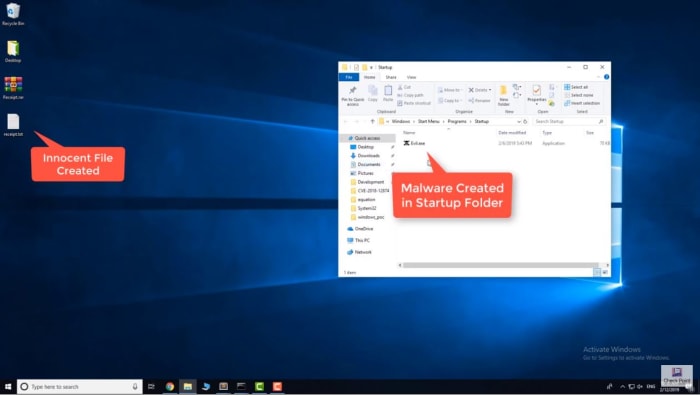
According to Check Point, the bug meant they were able to insert a file into the Windows’ startup folder. This file would then start automatically when Windows was booted and wouldn’t need any sort of administrator’s privileges to do so. Theoretically, this file could be used to grant any third-party full control over the victim’s computer.

WinRAR screenshot
Image via: Check Point

The real shocker is just how many people could have been exposed to the vulnerability. Check Point puts the number at somewhere around 500 million. Yes, half a billion people could have had their computer taken over using this newly discovered WinRAR vulnerability. That means you’ve probably been at risk for the last twenty years.

If you think the fact that this bug is so old means you’re in no rush to deal with it, think again. The fact that the vulnerability is now public means there is much more of a chance that hackers will try and exploit it. This doesn’t mean that Check Point has acted irresponsibly by releasing the details, on the contrary, Check Point notified WinRAR about this vulnerability some time ago, and WinRAR has already taken action to fix it.

Demo on WinRAR bug
Screenshot from video demo of the bug on YouTube

The WinRAR website says, “Nadav Grossman from Check Point Software Technologies informed us about a security vulnerability in UNACEV2.DLL library. Aforementioned vulnerability makes possible to create files in arbitrary folders inside or outside of destination folder when unpacking ACE archives.” WinRAR has since dropped the UNACEV2.dll code library and no longer supports the ACE archive format, which opened the door to nefarious action. Furthermore, WinRAR has released a patch for the problem, WinRAR version 5.70 beta 1, which you can download here.

We highly recommend that if you have WinRAR installed on your PC, you update it immediately. Stay safe, people.

How to use WinRAR

Need to compress or decompress files? Here’s how to get started with WinRAR.

With download sites, online clouds, and huge compendiums of zipped files available all across the internet, you’re undoubtedly going to need a way to open and extract the contents of zipped files. You may even want to upload files of your own, but aren’t able to do it when their sizes are too big to attach or send properly. WinRAR is your one-size-fits-all solution, and is a simple, intuitive program that lets you extract, manage, compress, and secure any zipped files you want to move.

WinRAR Download
8

How to use WinRAR

Installing WinRAR

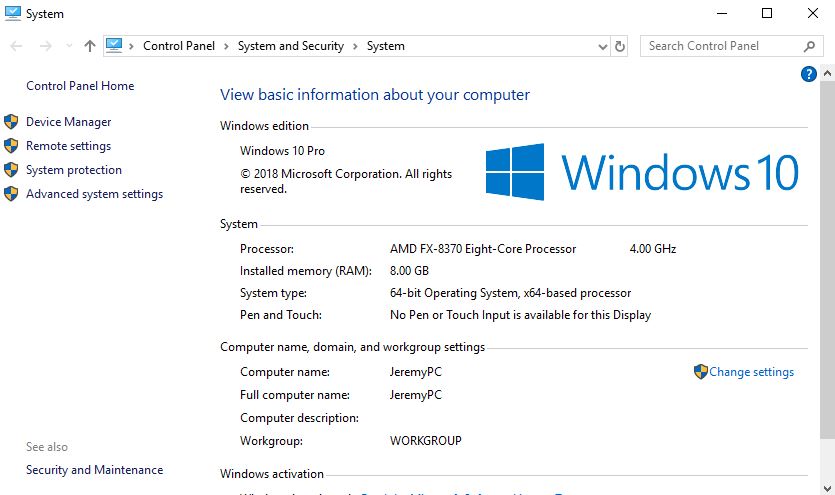
From the link above, you’ll be able to download WinRAR. Be sure to choose the correct version for your language and for your OS (either 32-bit or 64-bit). If you do not know which is correct for you, just hit Win+Pause and it will open a window showing your system type along with a handful of other useful information. The same window can also be found under your system’s Control Panel > System and Security > System.

WindowsSystemProperties

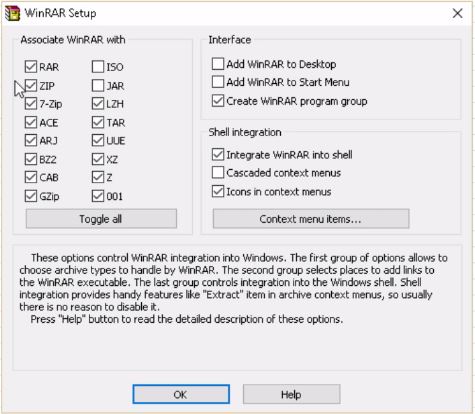
Next, you’ll be prompted to select all the file extensions you want WinRAR to be able to recognize and use. We recommend keeping this as default, you’ll typically be dealing with zip, 7-Zip, and RAR. Hit Done and you’ll be good to go!

SelectExentions

How to extract files

One of WinRAR’s main functions is to extract the contents of a zipped folder. We’ll be showing you two ways to do this.

Method 1

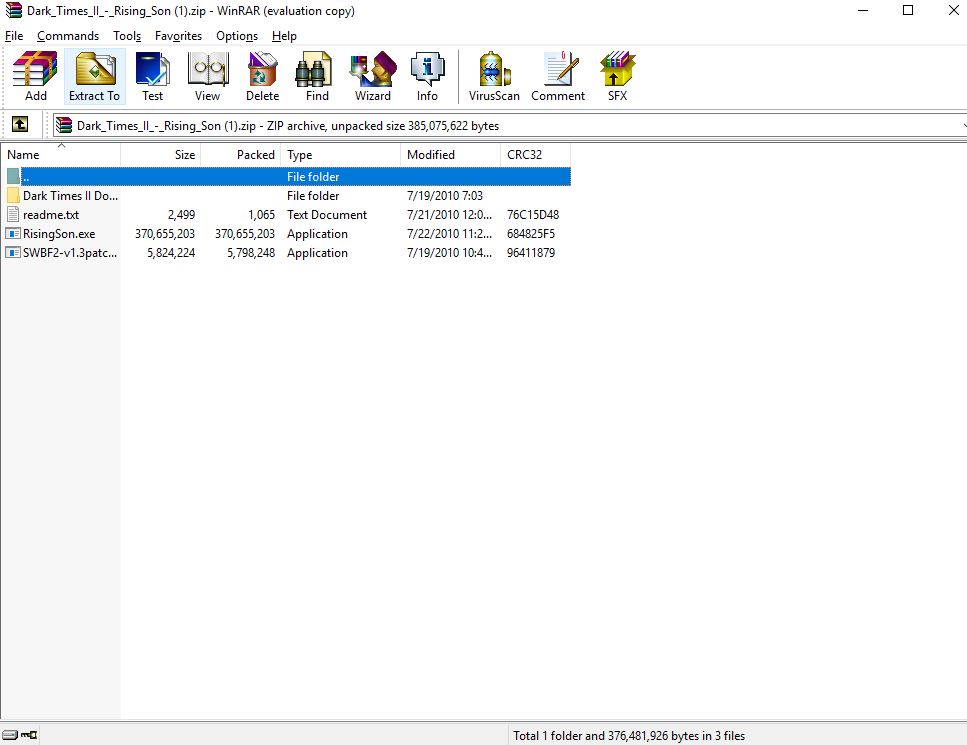
The first is to extract files through the WinRAR program. Once you’ve downloaded the zipped file you want, right-click on it and select Open with WinRAR. This will open WinRAR and your folder’s contents will be listed in the field below.

ExtractViaWinRAR

Next, it’s as simple as clicking the Extract To icon on the top toolbar. Select the destination and click OK. Now your files will appear right there.

Method 2

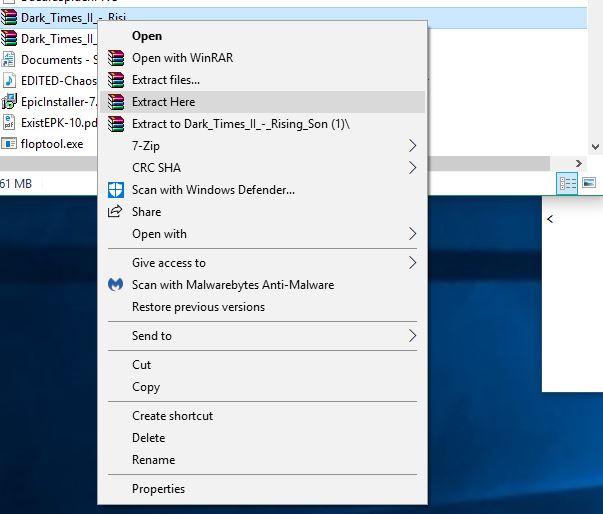
The second method is our preference. All you need to do is right-click the file you want to extract, and choose Extract Here. This will unzip all the contents from the folder right into the current window.

EasyExtract

Note: If you use this function we recommend first creating a new folder, ideally on your desktop. Drag or cut/paste the zipped file into this new folder. This way when you choose to Extract Here the contents will all end up in the same easy-to-find location, and not get lost in a huge generic folder like your C: drive or Downloads.

How to zip a file

The other most useful feature of WinRAR is its ability to compress and zip files of your own. This is especially useful if you have multiple files you wish to email someone, and they’re a larger size. You can start by either selecting the files you wish to move (ctrl+click to select multiple files), or by dragging the files onto your desktop for easy access. We recommend the second choice.

ZipTheseFiles

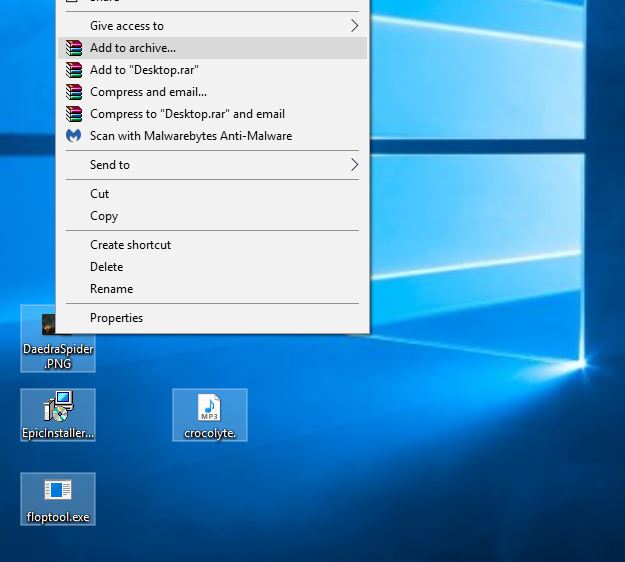
Once all the files are selected, right-click and choose Add to Archive. It will open a window that looks like this:

SetCompressFeatures

From here, you can input the name of your new archived file in the field up top. Before you click OK, though, be sure to select best from the compression menu drop-down.

Set the size of your file

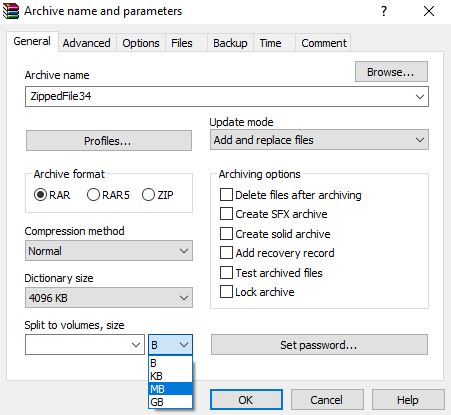
One of the most useful features when compressing and combining files into a new zipped format is WinRAR’s ability to specify format sizes, ranging from bytes up to GB. This is useful if you need to parse out smaller segments of a large file into more manageable sizes.
SetAVolumeSize

To do this, click the drop-down on the bottom left that says Split to volumes, size. This will let you decide how large each file segment will be, and the drop-down immediately to the right will affect whether the file is split into bytes, KB, MB, or GB.

Add a password to secure your file

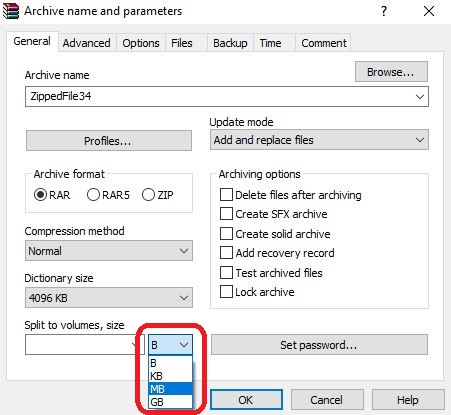
Lastly, WinRAR can secure your newly zipped file with a password. If you want to make sure the safety of the file will not be compromised, this is a smart thing to add. To password-protect your file all you need to do is click Set Password above the OK button. Enter your password here, confirm it, and then it will be requested upon trying to unzip the contents.
ArchiveWithPassword

If you’re still lost, check out this helpful video illustrating these features:

There are many more features to WinRAR, like backing up files, keeping previous versions, compressing, and storing your files to separate archives, but we just wanted to cover the gist of what the program can do. Hopefully, our guide was helpful, and you’ll be able to easily access, manage, and share content across the internet!
5 things you didn’t know about WinRAR

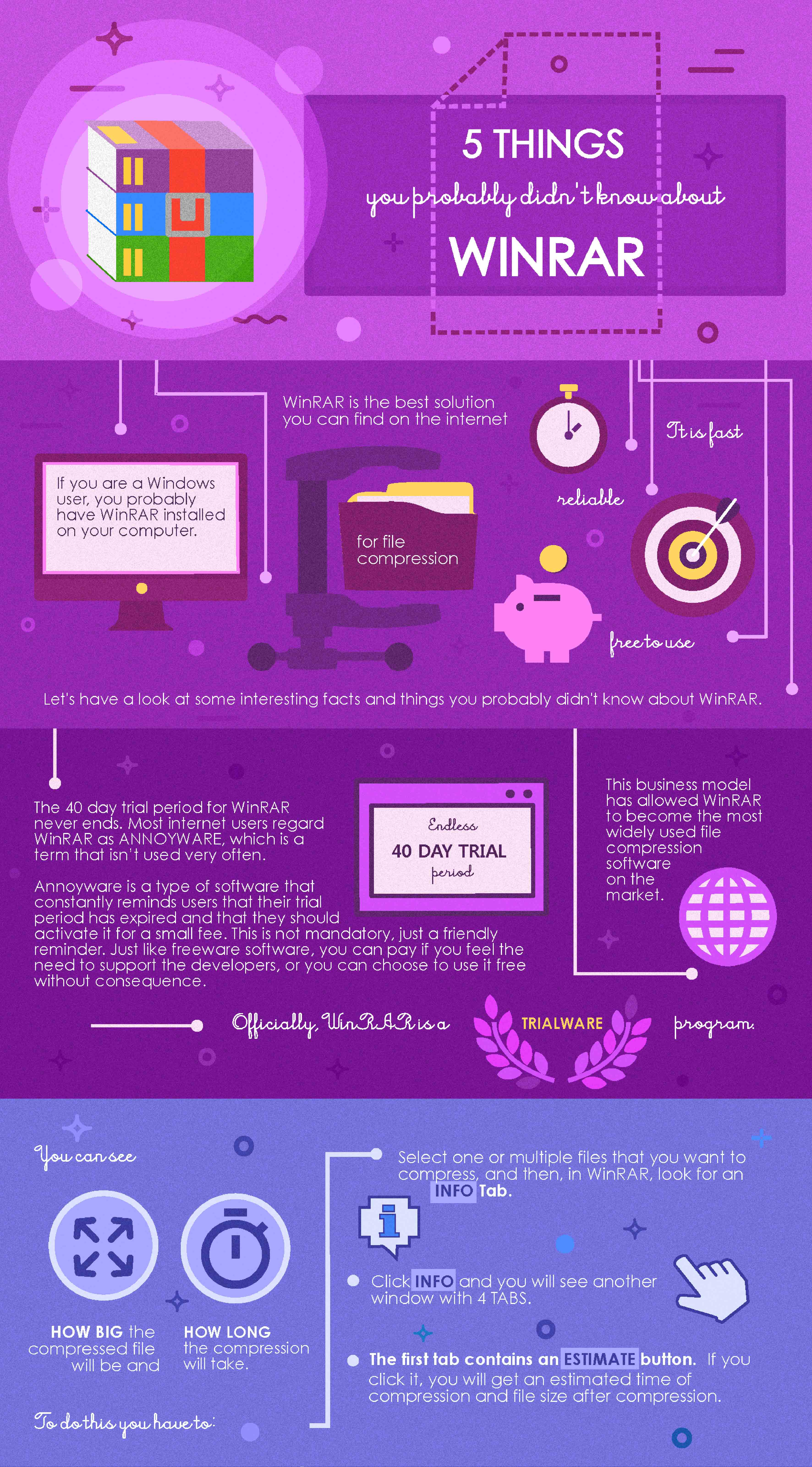
If you are a Windows user you probably have WinRAR installed on your computer. WinRAR is the best solution you can find on the internet that will take care of file compression with ease. It is fast, reliable, and in a way, free to use. Let’s have a look at some interesting facts and things you probably didn’t know about WinRAR.


1. The 40 day trial period for WinRAR actually never ends.

This software is regarded as annoyware by most internet users, a term not used very often. Annoyware is a type of software that constantly reminds users that their trial period has expired and that they should activate it for a small fee. This is not mandatory, just a friendly reminder. Just like freeware software, you can pay if you want to and feel the need to support the developers, or you can choose to use it for free with no consequences. Officially, WinRAR is a Trialware.

This business model allowed WinRAR to become the most widely used file compression software on the market.

2. You can see how big the compressed file will be and how long the compression will take.

To do this you have to:

  • Select one or multiple files that you want to compress, then in WinRAR look for an “Info”
  • Click on Info and you will get another window with 4 tabs.
  • The first tab contains an “Estimate” If you click on it you will get an estimated time of compression and the file size after compression.

3. WinRAR can split compressed files into multiple parts.

This is useful if you are moving a large chunk of data via USB.

  • Choose a file or folder you want to split.
  • Right clicking on it and choose “Add files to archives”.
  • In the new tab find “Split to file, bytes” in the drop-down menu.
  • You will be presented with choices to split the files according to the storage device like 1.44 Mb floppy, CD Rom, DVD or even auto detect. Auto detect will determine how much space you have left on the storage device you are using and split the file accordingly.

4. WinRAR is 22 years old and the creator of the software, Eugene Roshal, isn’t the owner of the compression algorithm.

It is actually owned by his older brother because Eugene has “no time to concern himself with software development and copyright-related issues at the same time.”

5. Winrar hides two easter eggs.

If you open it and click on Help and then About WinRAR you should see the logo in front of a sea. Clicking on it will make the waves move. Below it there is a symbol that looks exactly the same as the WinRAR icon. If you click on it it will start to bounce and create some very familiar sounds.

Follow me on Twitter: @PatrickDevaney_