How to Back Up Your Files and Which Ones To Back Up Regularly

You may not be aware of it, but you save a huge amount of data on your hard drive every day, including irreplaceable files that you would never want to lose. Photos from your recent vacation, your wedding video, sensitive work emails, sessions of your favorite games… You probably don’t spend too much time thinking about it, but your hard drive is like a little safe that holds a large part of your life. But are all your files truly safe?

Disco duro

The answer is no. Files saved on your PC are not as safe as you might assume, and in fact, any unexpected error, power outage or virus could corrupt everything you have, wiping away your memories. Fortunately, there’s a way to keep your files safe: creating a backup of your PC.

In today’s article, we’ll walk you through the steps to create a system image of your Windows 10 computer. Don’t worry, because the process is easy and requires no prior IT knowledge. Let’s have a look!

Windows 10 DOWNLOAD
8

What is a backup?

Persona utilizando un portátil

A backup is a copy of your documents and files that you can create in order to restore them in case of emergency. It’s especially useful for recovering files that have been corrupted or deleted by mistake, or, for example, restoring your computer after reverting to factory settings.

Essentially, there are two kinds of backups you can create: a backup of the files stored on your computer or a full system backup. The first option saves your personal documents (photos, emails, videos, etc.), and the second one creates an exact image of your OS that can be transferred to an empty computer.

Whether you want to back up files or your entire system, you’ve come to the right place. Keep on reading to find out how to do both things!

How to back up your personal files on Windows 10

Windows 10 has its own tool to back up personal files, and it’s quite easy to use. Called “File History,” it lets you back up your personal data on a regular basis in a matter of seconds.

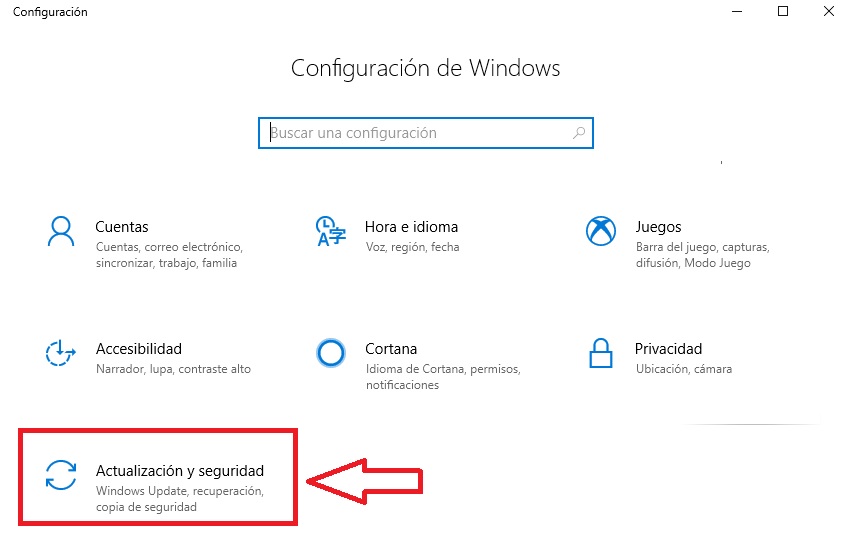
To access File History, first go to the Settings menu (Windows key + I) and then select the “Update & Security” option.
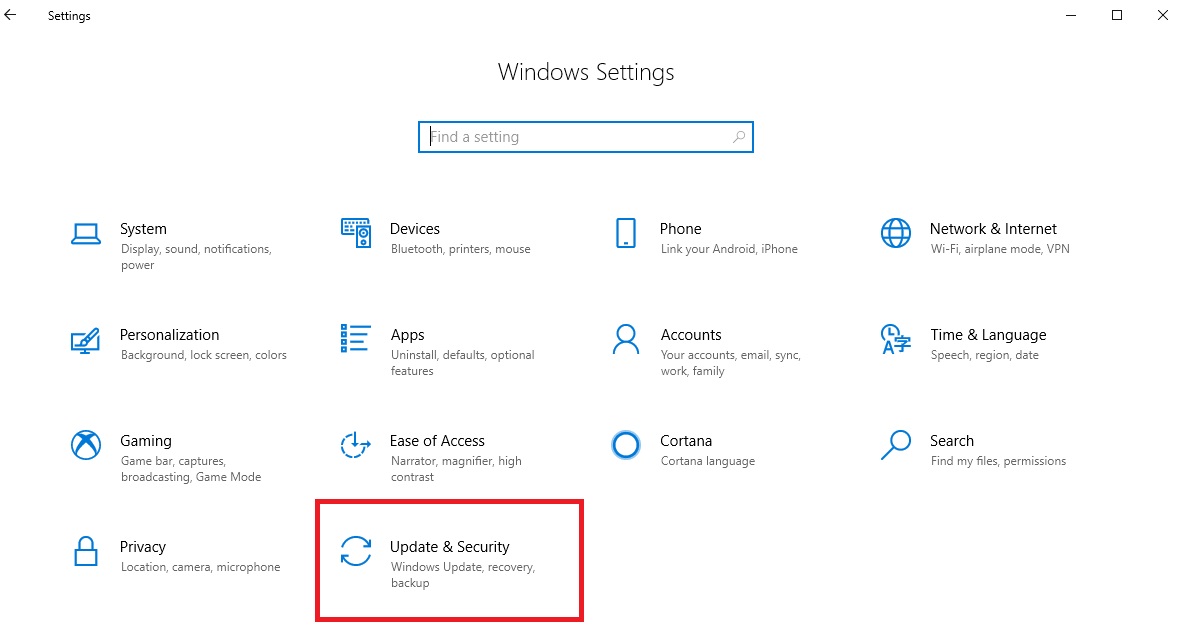
 

Next click “Backup” in the menu on the left side of the screen. When the window opens, select “Add a drive,” which you’ll find under “Back up using File History.”
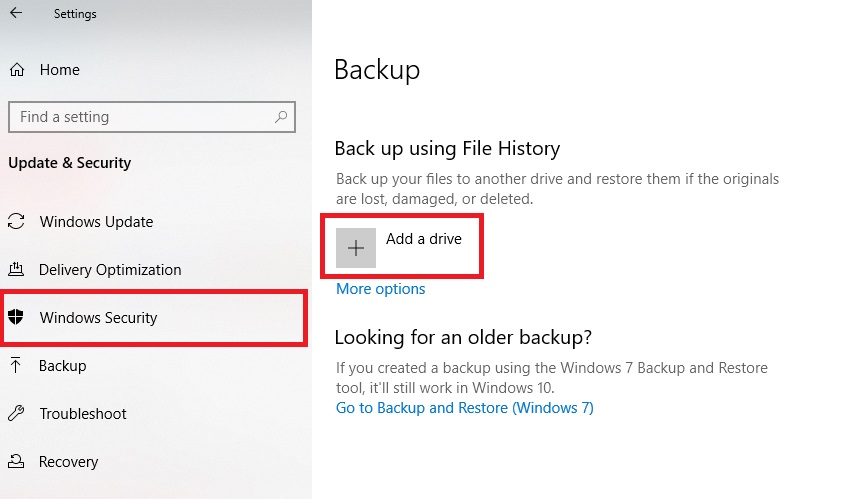
Click there, and a menu will appear on the left side with all the external hard drives connected to your computer right now. Choose one to save your backup on. Then Windows 10 will automatically copy all the files you have stored on your PC.

If you prefer, you can create your backup manually by selecting “More options” followed by “Back up now.”

On the same screen, you can choose how frequently you want to back up your files and which folders you want to include in your Windows 10 backup.

How to restore personal files from your backup 

Now that you have your files backed up, we’re going to teach you how to restore them. Not to worry, the process is easy and intuitive!

To restore any file saved in File History, go to Start (the button with the Windows icon on the lower left side of your screen). Then type “Restore files with File History” and click on the result that Windows displays.

In the next window, you’ll see your backups listed by date. You can browse through them using the arrow icons at the bottom of the window.

Navegar por las copias de seguridad

Once you find your copy, you can fully restore it, or if you prefer, only restore the file you need.

Where can I store the backup copies of my files?

The best place to store backup copies of your files is an external hard drive, but a cloud storage service is also an option. Both have their pros and cons. Keep reading to find out what they are!

External hard drives are great for storing your files in a physical location where they can be accessed anytime, without needing to connect to the internet. Besides being durable and easy to use, this option gives you the peace of mind of knowing exactly where your files are and that they’ll never disappear on you.

You can buy a hard drive for a great price by searching online or checking out the options on Amazon.

Also, be sure to read our article below with a roundup of the best budget external hard drives in the market today.

Cloud storage services are another great option for keeping your backups safe. They’re convenient because you can access your files on any device with an internet connection. That makes them a perfect option for storing work files that you need to be able to access at home or the office.

There are many excellent cloud storage services. You can find our favorite ones below.

  • Dropbox
Dropbox DOWNLOAD
8
  • Google Drive
Google Drive (Android) DOWNLOAD
8
  • Microsoft OneDrive
Microsoft OneDrive DOWNLOAD
8

Due to its user-friendliness and great performance, we recommend using Google’s cloud storage service, Drive. You can find an in-depth article on how to use Google Drive to create backups below.

What are the main types of files I should back up?

Now that you know how to back up your files and where to store them, we’re going to look at what kinds of files you should back up.

First of all, there are personal files, that is, your photos, documents, music, etc. Usually you can find them under”C:\Users\Your username” and saved in the corresponding folder (Photos, Documents and Music).

Also, we strongly suggest backing up your AppData folder, which contains the settings of all the programs, applications and games on your PC.

And don’t forget to back up important emails, such as sensitive work emails and personal messages.

Finally, make sure to back up any essential files for projects you are working on. For example, edited videos, photos or work files.

In short, use your common sense when deciding which files on your computer are important in your life, and which ones would mean a big personal loss if you couldn’t recover them. Once you have identified them, add them to your list of files so Windows can back them up regularly.

How to create a system restore point in Windows 10

If you’re looking to protect your operating system files, Windows 10 has an easy tool for creating backups in the blink of an eye. We’re talking about system restore points.

To create a restore point in Windows 10, first open the Settings menu (Windows key + I). Then type “restore point” and click the result that comes up.
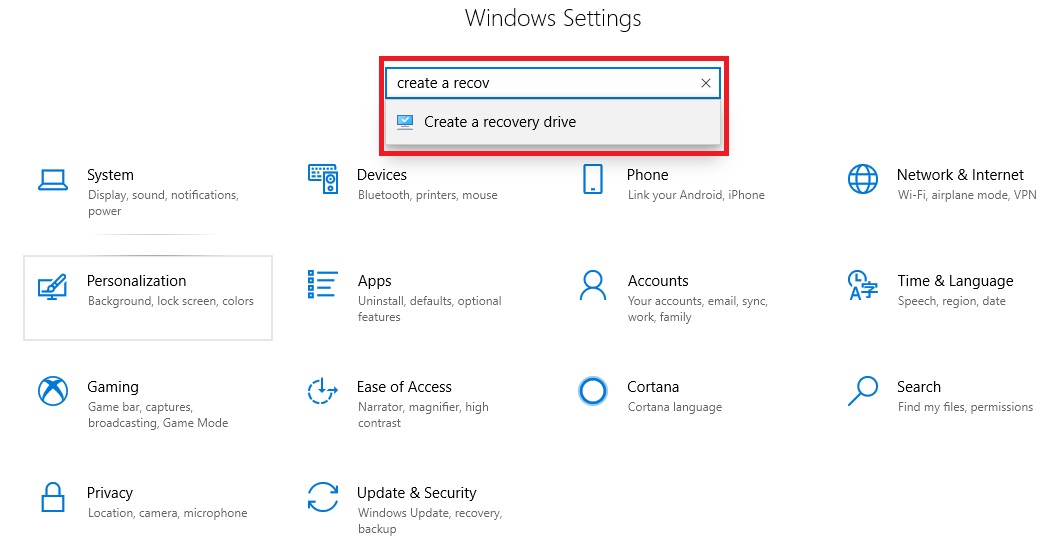
When the System Properties window opens, click the “System Protection” tab and the “Create” button.
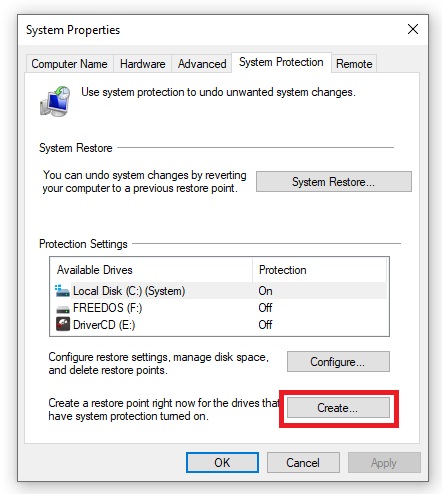
If this option appears inactive, first select “Configure” to activate it. Ta-da! Your operating system backup is finished.

If you’re still feeling lost, be sure to check out our guide so we can walk you through all the steps.
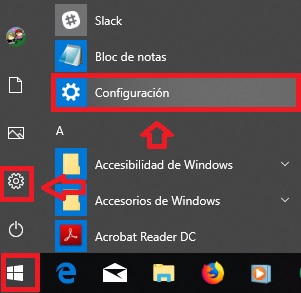
How to revert your computer to a system restore point

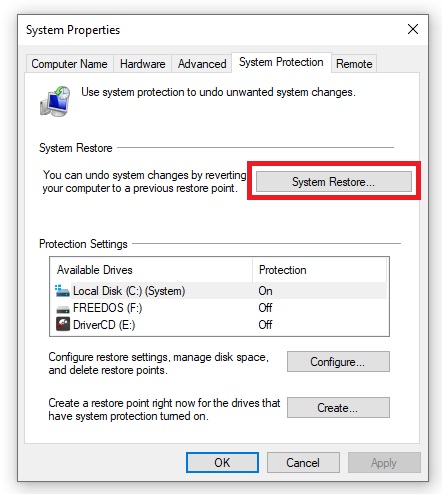
Reverting your computer to an earlier point is very easy. Just follow the steps described above, and in the System Property window, select “System Restore.” 
In the new window, Windows will ask you if you want to revert your computer to the point before your last program installation or to an earlier point.
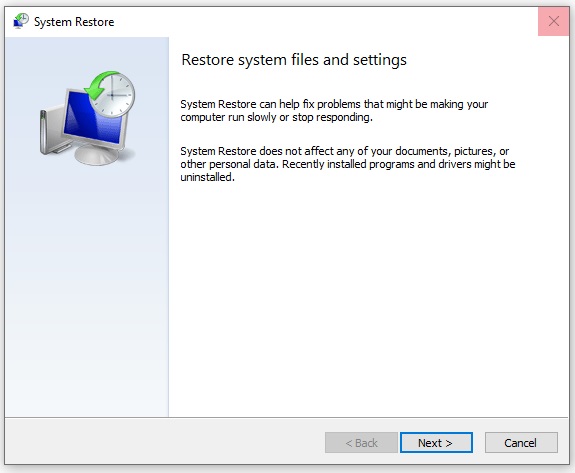
Select a system restore point and click “Next.” Now all you have to do is wait for Windows to work its magic and restart your computer. Once the process is finished, your system will be reverted to your chosen point.

We hope our guide on how to back up your files has been helpful to you. What are some of the files on your PC that you couldn’t live without? Tell us about them in the comments section!
How to Clear Your FULL Windows 10 Activity History

Windows 10 is an excellent operating system but has always been surrounded by controversy due to the large amount of data it collects from its users. Whether or not you’re aware of it, your location, browsing history and everything you say to Cortana is stored on the Microsoft cloud. Portátil con Windows 10

Your PC’s privacy and security are important issues that should not be taken lightly. As much as Microsoft claims that it only collects your data to improve your Windows experience, you could have serious issues if your information falls into the wrong hands.

To solve this problem, in today’s article, we’re going to teach you how to clear your full Windows 10 activity history. That way, anything you do on your PC will stay between you and your computer. We hope you find it helpful!

Windows 10 DOWNLOAD
8

What kind of information does Microsoft collect about my Windows 10 activity?

Hombre utilizando un portátil

Like many people, you may be unaware of the fact that Windows 10 spies on everything you do whenever you’re on your computer.

All of that data is carefully stored in your activity history and sent for analysis to Microsoft so the folks in Redmond can improve the OS and tailor the content to your tastes. But what kind of data does Windows collect, exactly?

Microsoft stores the following data on its cloud servers:

  • How you use Windows 10 through the Timeline feature.
  • Your location via the Windows 10 geolocation service.
  • Your browsing history based on your use of Microsoft Edge.
  • Your Cortana voice commands.
  • Your Bing search history.
  • Any movies or TV series you watch using a Microsoft app or service.
  • The performance and activities of any Microsoft product you use.
  • All of your LinkedIn account activity.

After reading this, you might think we’re exaggerating, but you can view your full activity history by visiting your Microsoft account.

Simply log into your Microsoft account by clicking here and select the “Privacy” option. In the new window, you’ll see an explanation of all the data that the Redmond-based company collects.

How can I turn off my Windows 10 activity history?

Mujer frustrada con portátil

It’s normal to feel overwhelmed once you discover how much personal data Microsoft collects. Fortunately, you can take action to recover your privacy with a few simple steps. The first thing you need to do is to turn off your Windows 10 activity history.

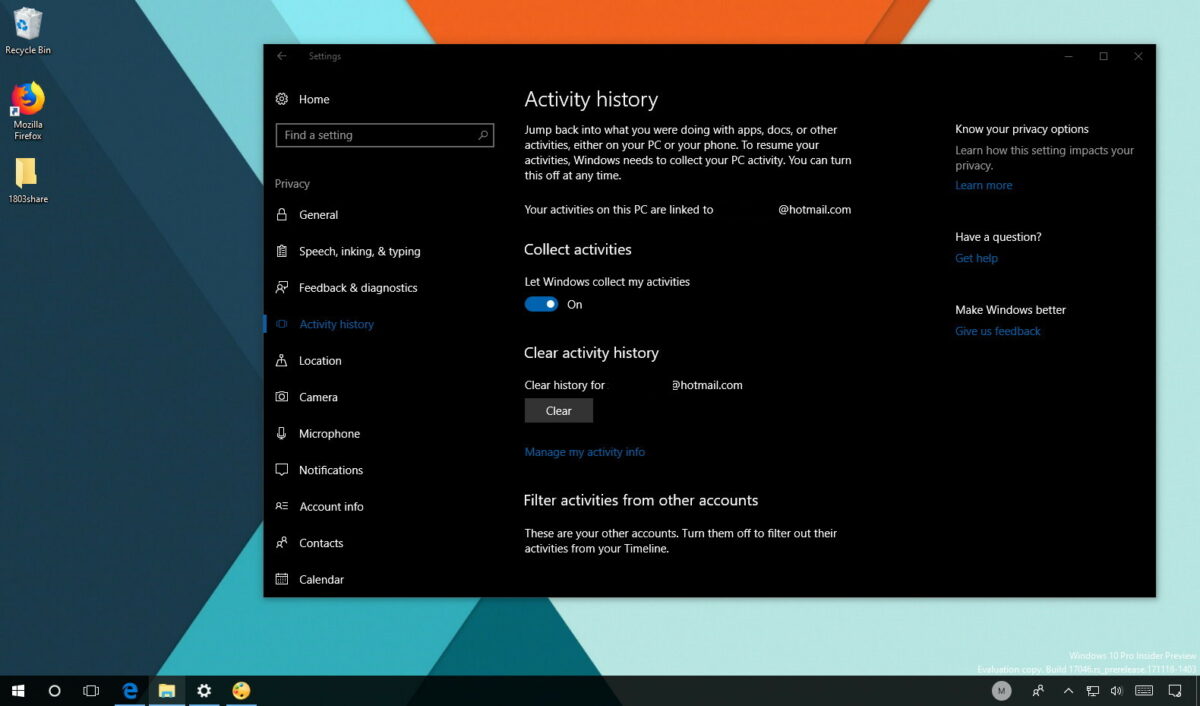
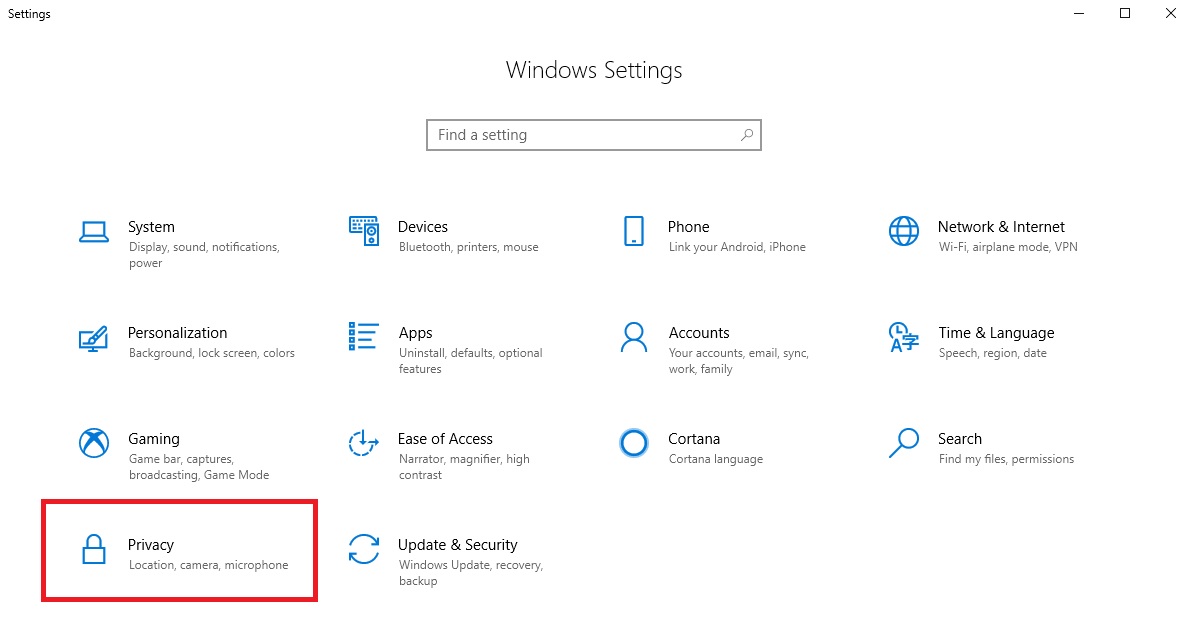
To do this, open the Windows 10 Settings menu. You can get there by clicking Start (the Windows logo icon in the lower left corner of your screen) and then the gear icon. Alternatively, you can use the keyboard shortcut Windows Key + I. Then click Privacy.

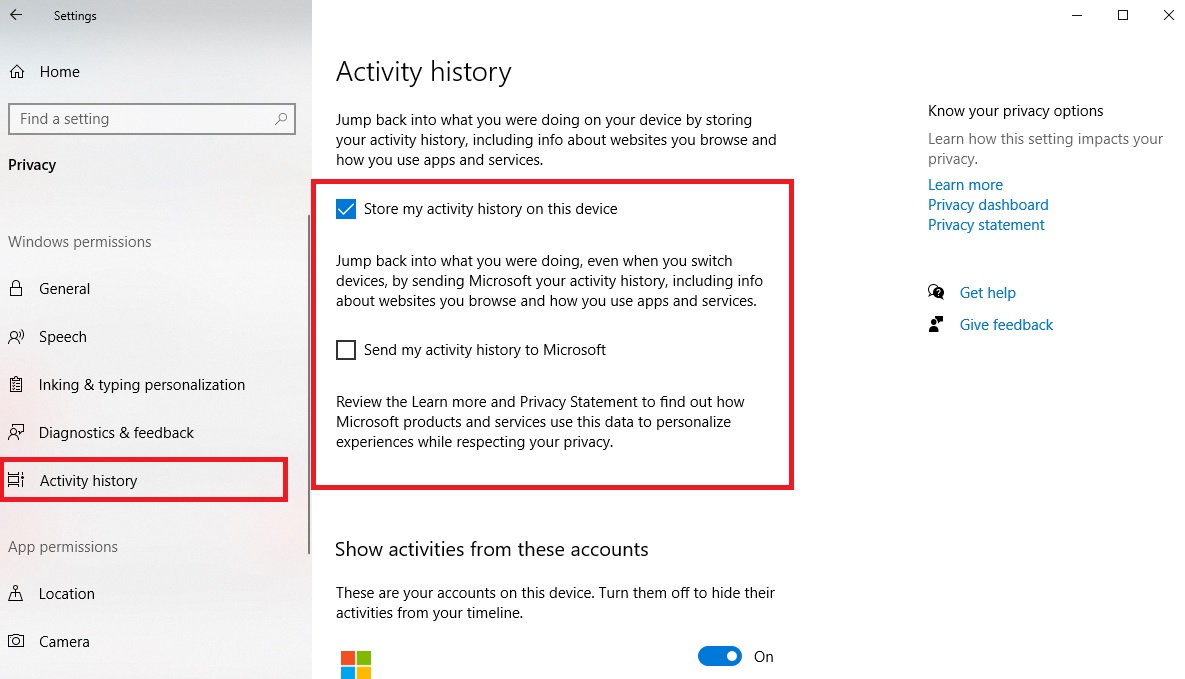
In the new window, select”Activity history” in the left-side menu of the window. Now make sure to uncheck the “Send my activity history to Microsoft” box. That way your PC will stop sending your collected data to the company’s cloud.

For added security, you also have the option of unchecking the “Store my activity history on this device” box. This tool is useful because it lets you jump back into your work or previous searches, but it’s still an activity-tracking feature.

Congratulations! Windows 10 will no longer collect data about everything you do on your PC. However, your work is not finished, because now you need to delete all of your data that has been stored in the Microsoft cloud.

How do I clear my Windows 10 activity history?

Ejecutiva utilizando un portátil

The next step to clear all your Windows 10 activity is to delete your activity history from Microsoft’s servers. First, open your operating system’s Settings menu and click the “Privacy” option.

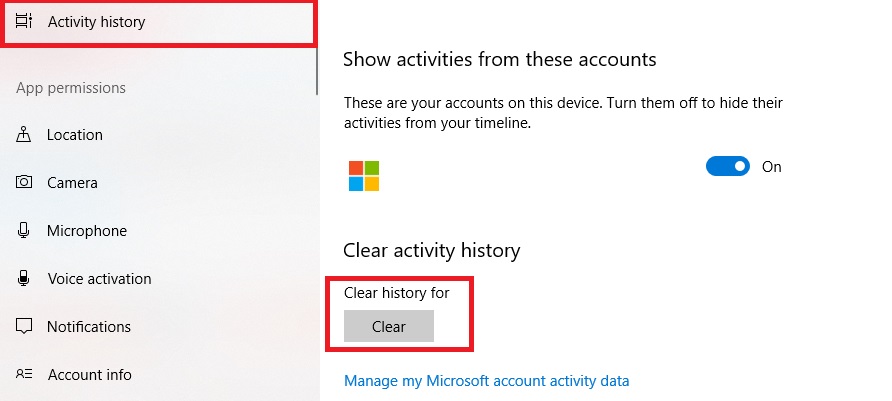
In the new window, click “Activity history” in the left side menu and look for the “Clear activity history” section. Then look for the history saved under your Microsoft account email and select “Clear.”

Next, we recommend selecting “Manage my Microsoft account activity data” to make sure that your data has been cleared.

Once you log into your Microsoft account, you’ll see a menu with categories of activity history. They are as follows:

  • Browsing history
  • Search history
  •  Location activity
  • Voice activity
  • Multimedia activity
  • Product and service activity
  • Product and service performance
  • Cortana’s Notebook
  • LinkedIn

Now you just have to clear all these entries one by one, and your activity will be deleted from Microsoft’s records.

I have turned off and cleared my activity history. Will Windows 10 keep spying on everything I do?

As we mentioned, Windows 10 is a powerful, useful operating system, but it’s quite invasive when it comes to privacy. So it takes more than just turning off your activity history to keep Microsoft from sticking its nose into your business. To do that, you need to take extra precautions.

Disable personalized ads

Windows 10 tracks the websites you visit in order to display ads that are more interesting to you. To stop this, just follow these steps.

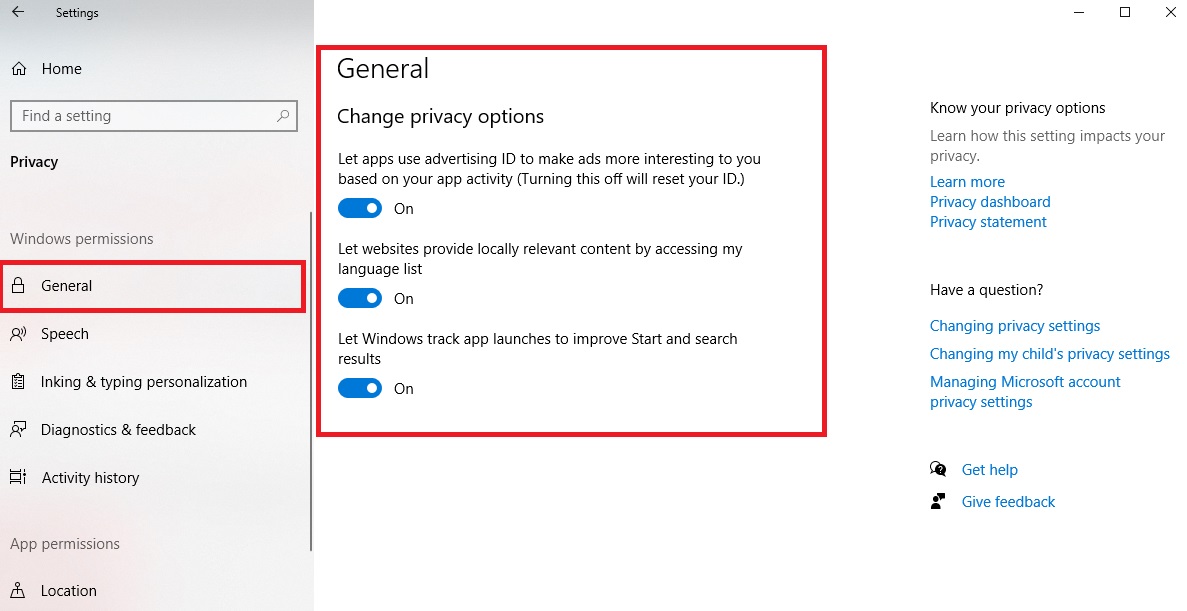
Open the Windows 10 Settings menu and click “Privacy.” Then select “General” in the menu on the left side of the screen and turn off all the options that appear on the right side.

We also suggest going into the ad settings in your Microsoft account (click here) and deactivating the “See ads that interest you” option.

That way, Microsoft won’t spy on your searches in order to show you personalized ads.

Deactivate the location system

Windows 10 has a built-in location system that determines the location where you are using your PC. The objective is to use your location data to improve location services, but if you don’t like the idea of being traceable, it’s best to turn it off.

To disable location data in Windows 10, first open the Settings menu and select the “Privacy” option. Then click “Location,” which you’ll find in the menu on the left side of your screen.

Now just turn off “Allow apps to access your location” and select “Clear location history on this device.”

Send only the necessary diagnostic data

Windows 10 regularly sends Microsoft diagnostic data about your device activity. In theory, it is used to keep Windows secure and updated, to solve problems with the operating system, and to improve the company’s other products.

That may not sound like a serious invasion of privacy, but the problem lies in the fact that, by default, Windows sends much more than simple diagnostic data. Keep reading to find out how to limit the data you share to the minimum.

First, go to the Windows 10 Settings menu by clicking the icon with the operating system logo in the lower left corner of your screen. When the menu opens, click the gear icon. Alternatively, you can use the keyboard shortcut Windows Key + I. Next select “Privacy.

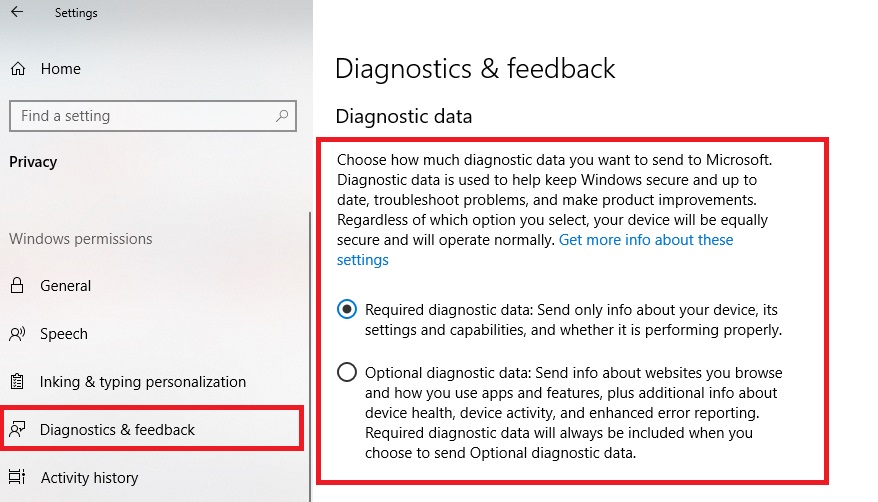
When the Privacy window opens, click the “Diagnostics & feedback” window in the menu on the right side. Then check “Required diagnostic data: Send only info about your device, its settings and capabilities, and whether it is performing properly.”

That way you’ll be sure that Windows only shares diagnostic data about your device. Otherwise, you’ll also be sending info about the websites you visit, the apps you use the most, and additional info about the device you’re using.

Disable your camera and microphone 

Finally, while it’s not strictly necessary to preserve your privacy, we always recommend turning off your computer’s camera and microphone and only turning them on when you’re going to use them.

You can deactivate both your camera and microphone on your Windows 10 computer by opening the Settings menu (Windows Key + I) and selecting “Privacy.” In the next window, click “Camera” and “Microphone” in the menu on the left side and turn them off.

If you don’t want to completely deactivate your microphone or camera, we suggest that you limit their access to applications that use them. You can do this in the aforementioned menu.

We hope our little guide has helped you to eliminate every trace of your Windows 10 activity!

All-New Mackeeper 5: Your Top Mac Cleaning and Security Solution

If you’re a regular reader of Softonic, then you know that we’ve frequently suggested that you install a virtual private network (VPN) on your computer; use some kind of privacy software to further protect your identity and keep you from being tracked; and speed up your machine with optimization software. Fortunately, MacKeeper makes it possible to do all of that and more in one easy-to-use, attractive software package – and in its latest release, it’s stronger than ever. Plus, as a Softonic reader, you can now download it and scan your Mac completely free of charge.

Chances are good that you’ve seen ads for MacKeeper before but in case you’re unfamiliar with the software, which is trusted by 2.3 million users, it employs a two-pronged approach for improving and securing your Mac usage.

Cleaning & Optimization

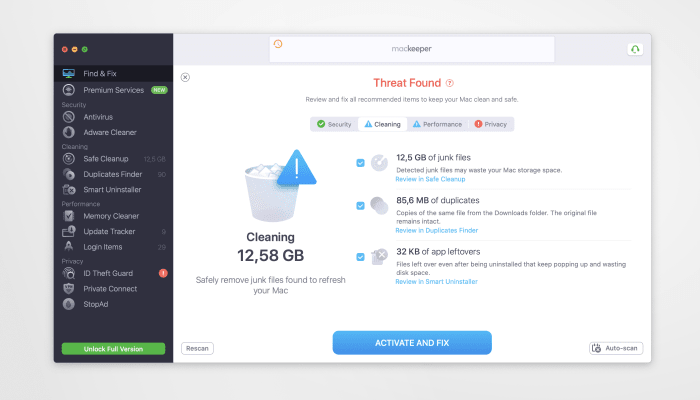
As all computer users know, performance tends to slow down over time. That’s because system resources are often tangled up in old data and bits of programs that are no longer used. Through MacKeeper’s Find & Fix dashboard, the software lets you click a few buttons to instantly find and delete the junk files cluttering your computer including logs, caches, duplicate files, app leftovers and more. Find & Fix further allows you to scan for and fix other problem areas on your computer that might be affecting its performance.

In version 5 of the software, MacKeeper has refreshed its Find & Fix tool, letting you gain even  easier and more visual control over the files you want to manage. It’s so effective that on average, every MacKeeper customer frees up 5.3 GB of storage space after using the utility.

MacKeeper also provides a Safe Cleanup function that lets you clear out unnecessary logs, caches, and more and also completely empty the trash with a single click. On top of that you get a Duplicate Finder that identifies and removes redundant files on your computer that can hog storage space. There’s even an Update Tracker, so that you always have the most recent – and most secure – version of your apps, and it offers an easy interface that you can use to manage your start-up items and delete unneeded ones to speed up your initial boot time.

Privacy & Security

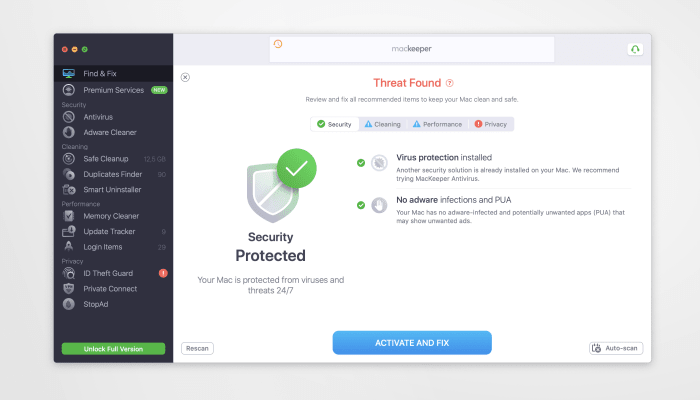
The second major function of MacKeeper 5 is its ability to keep your computer free from malware and your privacy safe from prying hacks – a critical function considering that ⅓ of all Macs scanned by the software are infected with some kind of virus or malware.

By incorporating a VPN, every time you activate MacKeeper, you are able to tunnel into one of over 60 locations that hide your true IP address from anyone seeking to locate you. This VPN protection extends to all WiFi networks you connect to – whether in your home, at the airport, or anywhere you may find yourself when you’re out and about. Version 5 of the software now includes the fastest VPN functionality to date.

The software also employs industry leading antivirus protection that places your computer behind a shield, blocking malware attacks of all kind.

New in version 5, this malware protection will operate in real time, plus a background scanner will survey your entire computer every day, show you ways to keep your machine clean, running its best, and alert you to anything that looks suspicious. The software also incorporates ID Theft Guard, which alerts you whenever your online data may have been exposed to hackers, and a function called StopAd that blocks annoying browser ads to speed up and declutter your surfing experience.


Start Scanning Your Mac Now

With all it can do, it would be reasonable to think that MacKeeper might be tough to get started with. But the good news is that it’s super simple! All you need to do is:

  • Click the link below to download the software for free
  • Run a one-click scan of your machine
  • Decide which of the recommended actions you’d like to take to get your computer in tip-top shape
  • Set up which notifications you’d like to receive in order to keep everything running smoothly.

It really is that easy!

The Most Common Problems in Windows 10 and How to Solve Them

Windows 10 is the most widely used and acclaimed operating system in the world today. Introduced five long years ago, Microsoft’s OS continues to dazzle users with its stunning, intuitive design and high compatibility with most programs.

Logotipo de Windows 10

Nobody can deny that Windows 10 is excellent, but it isn’t a foolproof operating system, and it has surprised us with glitches and errors on more than one occasion. In these situations, you have only two options: panic (not recommended!) or search online for help.

To make things easier, in today’s article, we’re going to share a rundown of the most common problems in Windows 10 and how to solve them. We hope you find it helpful!

Windows 10 DOWNLOAD
8

1. I don’t have enough space to install Windows 10

Whether you have a previous version of Windows on your computer or want to switch to Microsoft’s operating system, keep in mind that you need at least 16 GB of free space on your hard drive to install Windows 10. Below is an in-depth article on Windows 10’s requirements.

Fixing this issue is as simple as freeing up enough space on your hard drive. Then you can easily install the operating system on your computer.

2. I’m not sure if my computer is powerful enough to run Windows 10

Equipos con Windows 10

The fact that you have a desktop, laptop or tablet doesn’t automatically mean you can use Windows 10. First you need to make sure your computer is powerful enough to run this operating system.

The minimum requirements for Windows 10 are:

  • Processor: 1 GHz or more, or an SoC processor
  • RAM: 1 GB (32 bits) 2 GB (64 bits)
  • Hard-drive space: 16 GB (32 bits) 32 GB (64 bits)
  • Graphics card: Compatible with DirectX 9 or higher and with WDDM 1.0 controller
  • Display: 800×600

If you’re not sure how to verify your PC’s compatibility with Windows 10, don’t worry. We have an article that will teach you how to do this step by step.

3. I’m not sure how to activate Windows 10

To use the complete version of Windows 10, you need to activate your copy of the operating system. Otherwise, many of its features won’t be available, you won’t be able to update it, and you’ll receive constant product activation reminders.

There are two ways to activate your copy of Windows 10. The first and easiest way is entering your product key during installation. Once it is verified by Microsoft, your product will be activated and ready to use. It’s that easy!

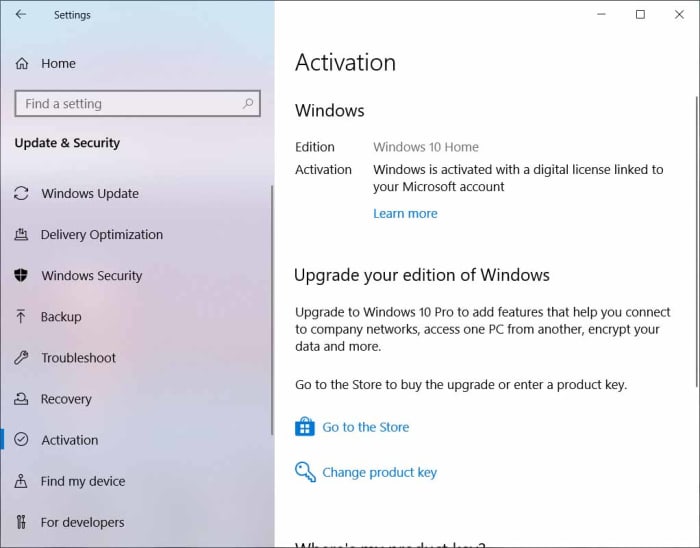
The second way to activate Windows 10 is through the Settings menu (Windows key + I). Just select “Update & Security” and “Activation.” Then enter your product key to activate your operating system.

If you need more help with activating Windows 10, be sure to check out the article below.

4. My program stopped working when I switched to Windows 10

Although Windows 10 stands out for its compatibility with old programs, it’s common for them to stop working when you switch operating systems.

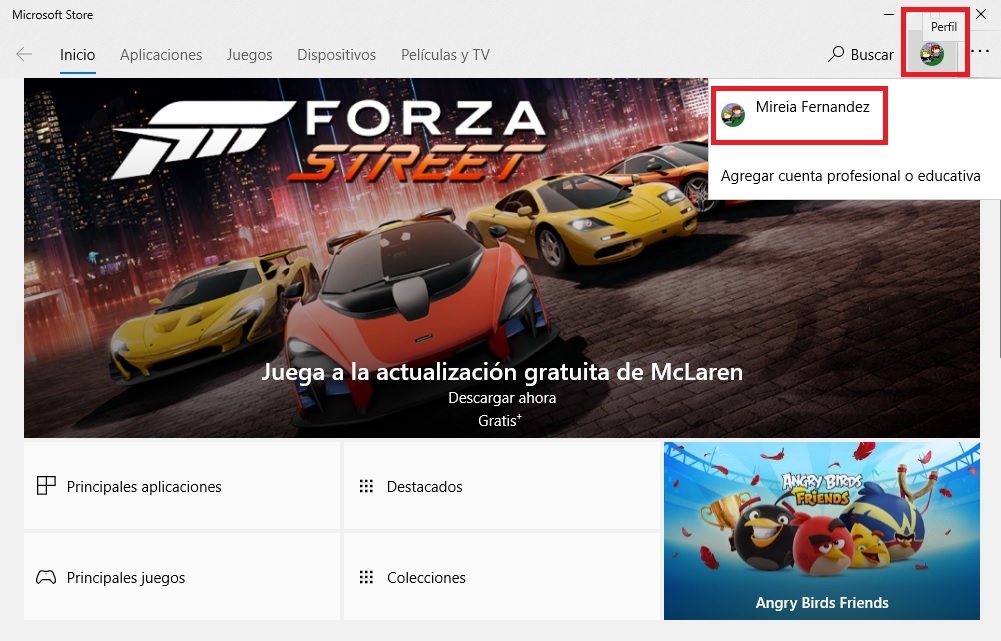
To solve this problem, you need to update these programs in the Microsoft Store. Just click “Start” (it’s the icon with the Windows logo on the lower left side of your screen) and “Microsoft Store.”

Next, select the icon with three horizontal dots on the upper right side of your screen, followed by “Downloads and updates.” There, you can find out if your problematic program or application has an available update and install it. Otherwise, we recommend uninstalling and reinstalling your program.

5. Windows 10 always restarts at the worst possible time

If there’s one thing that all Windows 10 users know, it’s that our operating system gets frequent updates, and for some strange reason, they always happen at the worst possible time. Fortunately, there is a method to prevent a Windows 10 update from restarting your system when you’re in a hurry.

To prevent unpleasant surprises with Windows updates, first go to Settings (Windows key + I). Then click “Update & Security” and “Advanced options.” Now simply turn on “Show a notification when your PC requires a restart to finish updating.” That way you’ll always know when your system is going to restart.

6. I can’t start in Safe Mode

Modo seguro de Windows 10

With the launch of Windows 10, the procedure to boot into Safe Mode changed. Now you have to go into the system’s Start menu by holding the Shift key and selecting the Restart option.

Then go to “Advanced options” and select “Startup Settings.” On the next screen, click “See more recovery options” and restart your PC. Finally, once the Startup Settings menu appears, you’ll have the following options to start your system in Safe Mode:

  1. Enable Safe Mode- Press the 4 or F4 key
  2. Enable Safe Mode with Networking- Press the 5 or F5 key
  3. Enable Safe Mode with Command Prompt- Press either 6 or F6

To learn more about starting Windows 10 in Safe Mode, we recommend reading our step-by-step guide.

7. Notifications keep popping up

Among the new features of Windows 10 are notificaciones from the programs you have installed. While useful, they can honestly become a bit annoying. Fortunately, it’s really easy to get rid of them.

To turn off notifications from Windows 10, just go to the Settings menu (Windows key + I) and click “System.” On the menu on the left side of the window, click “Notifications & actions” and turn off notifications from both Windows and the apps of your choice.

8.- My PC with Windows 10 is slow

It’s common to see your PC with Windows 10 get slower over time, which can be frustrating. Although it’s an excellent operating system, factors such as too many temporary files, bloatware or programs that consume lots of resources can take their toll on its performance.

There are lots of tricks you can use to speed up your PC with Windows 10 in the blink of an eye. Two of the most effective ones are updating your operating system and uninstalling programs that make a big impact on your system’s startup. But if you don’t get the results you want, don’t worry! Below you can find our in-depth guide full of tricks to make your PC run faster.

9. My files are opening with the wrong programs

Another common problem with Windows 10 arises when the association between a type of file and a program is corrupted, and when you double click on it, you can’t open it.

To solve this problem, just click on the file with your right mouse and select “Open with,” followed by “Other options” and “More apps.”  Then select a program to open your file and check the box for “Always use this app to open x files,” which will make the change permanent.

10. I can’t play DVDs

VLC Media Player

Windows 10 no longer has a built-in DVD player, and the only alternative that Microsoft offers you is to buy one in its Store. So, if you enjoy watching movies, you might be frustrated when you pop in a DVD and discover that you can’t watch it on your brand-new PC.

To solve this problem, we recommend installing VLC Media Player, an excellent, completely free multimedia player that’s compatible with any video format and lets you play DVDs and Blu-Rays.

You can download VLC Media Player quickly and safely below.

VLC Media Player DOWNLOAD
9

11. Windows 10 can’t install an update (error 0x80070002)

Solucionar error de Windows Update

A very common problem in Windows 10 is the well-known error 0x80070002. It appears when a Windows Update cannot be installed correctly, and some of its files have been corrupted.

To solve this issue, you’ll need to stop the Windows Update, delete the damaged files in the SoftwareDistribution folder, and restart your Windows Update.

Need help with these steps? Don’t worry! We have an illustrated guide that will make things easier for you.

12. Error message 0xc0000005 comes up

One error that is fortunately uncommon, yet extremely frustrating is error 0xc0000005. It prevents you from using any program on your computer with Windows 10, rendering it completely useless.

There can be a variety of reasons for error 0xc0000005, but the most common is that one of your operating system files is corrupt and needs to be repaired. Another reason why you might receive this message is that your RAM is failing, so be sure to check it for problems.

If you need help with this issue, we recommend following the steps in the guide below.

13. The famous Windows 10 “Blue Screen” appearsPantalla azul de Windows 10

Few things are more terrifying to IT professionals than the famous blue screen on Windows 10.  Often referred to as the “Blue Screen of Death,” it never means anything good.

The main reasons why a user might see the blue screen include:

  • An error with a controller or device
  • A program that’s incompatible with Windows
  • A problem with your PC’s software or hardware
  • A Windows memory problem
  • An error during a Windows 10 update

To solve your Windows 10 blue screen problem, we recommend following the steps in the guide below:

14. The “No audio output device is installed” error appears

Occasionally, the sound on your PC with Windows 10 might stop working, and you’ll see the “No audio output device is installed” error message. This issue is quite easy to fix with the following steps.

First, go to Device Manager on Windows 10. Then, look for the “Sound, video and game controllers” line and select it. Next click “Action” and “Add legacy hardware.”

Follow the steps in the installation assistant so Windows automatically finds the solution to your audio device problem.

If your problem persists, we recommend following the steps in our comprehensive guide to fix the issue.

15. Windows Explorer stops workingHombre preocupado mirando portátil

To bring our list to a close, we want to help you fix a particularly annoying issue in Windows 10: the system shows the “Windows Explorer has stopped working” message and closes all your windows, preventing you from using your computer normally.

There can be multiple reasons for this error, but usually it’s because you have a driver that needs updating or your operating system files are corrupt and affected by some error. Another possibility is that your computer has been attacked by a virus or malware, or an application you have installed is having some sort of conflict with Explorer.

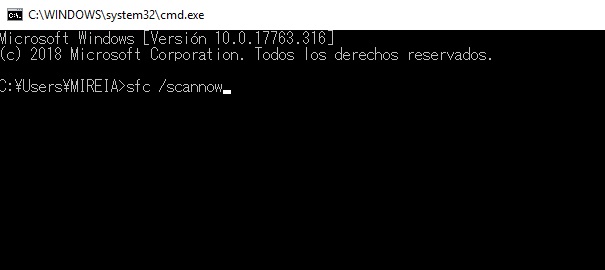
To solve this problem, we recommend updating your computer’s drivers, using the System File Checker tool to analyze and repair your Windows Files, and scanning your computer for viruses and malware. If none of these steps work, the best solution is System Restore, which reverts your PC to an earlier date.

Below is a step-by-step guide that will make it easier to fix this irritating issue in Windows 10.

None of the errors I’m looking for are listed here. What should I do?

In this article, we’ve covered only a few examples of the main errors and problems that Windows 10 users can run into. However, we know the list of potential issues is much longer, and you probably still need help. In this case, we recommend checking out our Windows 10 guide, where you’ll find a rundown of all the problems you might have with your operating system and how to solve them step by step.

We hope our roundup of Windows 10 problems and solutions has been helpful to you. Do you need help with some other aspect of this operating system? Tell us about it in the comments section, and we’ll lend you a hand as soon as possible!

The Best Social Networking Sites

Human beings are (generally) social animals by nature, so it comes as no surprise that the rise of social media has been one of the world’s greatest digital milestones. These sites let you communicate with people all over the planet in real time, connecting with others like never before. Whether you love sharing photos or videos, or you’re just a person who has a lot to say, social media is an ideal place to express yourself and be heard.

Mujer utilizando un portátil

Today, you have hundreds of social networking sites right at your fingertips. There are all kinds, ranging from highly specialized platforms to ones that simply let you share every aspect of your life with other users. Knowing how to choose the best site is essential in order to make the most of everything social media has to offer.

To help you find the perfect network, in today’s article, we’re going to share a roundup of the best social media platforms out there, which are also the most popular ones in the world. Because obviously, it would make no sense to join a social network with a limited number of users. We hope you find it helpful!

1. Facebook

Logo de Facebook

With more than a billion users, Mark Zuckerberg’s network takes the crown as the world’s most popular social media platform. Nowadays, it would be hard to find anyone who doesn’t know what Facebook is or have an account on this versatile social networking site.

Facebook is designed to let you share any moment of your life or thought with friends and family members. It has so many users that you can find virtually anyone by running a simple search. Could there be a more perfect way to reconnect with childhood friends or get to know your coworkers, neighbors or acquaintances better?

You can even buy and sell items in Facebook’s marketplace, use its popular messaging service, make video calls and broadcast live videos. It therefore comes as no surprise that it’s one of the most multifaceted social networking sites around.

Creating an account on Facebook is absolutely free, you just need to be over the age of 14 and click here. You can also use Facebook and its messaging service, Messenger, on a convenient mobile app. Click below to download both of them quickly and easily.

Facebook

Facebook DOWNLOAD
8

Messenger

Messenger DOWNLOAD
8

2. Instagram

Instagram

Instagram is a social networking site that lets you share your most special photos as a way of connecting with others. Unlike similar platforms, Instagram revolves around photos and videos, so it’s the perfect choice for audiovisual fans.

With thousands of active users, Instagram is one of today’s most popular social networking sites. Since it’s a highly visual network, Instagram is packed with tools to help you create the perfect image. You’ll find hundreds of fun filters and special effects, guaranteeing that your pics and videos will always turn out exactly as you want them to. What’s more, Instagram has a messaging service and lets you create temporary posts known as “Stories.”

If you want to try Instagram, you can check out the website here. You’ll also need to download the app, which you can do quickly and safely below.

Instagram DOWNLOAD
8

3. Twitter

Tableta con Twitter

Twitter is the famous 280-character social networking site inspired by the old saying “a little birdie told me…” It lets you share news, feelings, thoughts, images and basically anything you want. The only rule is to never go over that character limit. The rest is up to you!

With 340 million active users, Twitter is the perfect social media platform for sharing news at lightning speed. In fact, in recent years, Twitter has become an indispensable tool used by media outlets, journalists and local authorities to transmit information to the public instantly.

If you’re one of those people who likes to eat breakfast every morning while reading the newspaper, we highly recommend Twitter. Moreover, using its powerful hashtag (#) system, you can find information about any topic you’re interested in without the need to follow specific users.

You can visit Twitter’s official website here and download the mobile app quickly and safely below.

Twitter DOWNLOAD
8

4. YouTube

YouTube

YouTube is a social networking site whose content-sharing is centered on videos. Browsing through YouTube, you’ll find all kinds of videos, ranging from music videos and movie trailers to educational clips, cooking shows, and people demonstrating all kinds of curious talents.

YouTube currently has more than two billion active users, and with more than a billion hours of video each day, it’s the ultimate platform for multimedia content. That’s why YouTube is the perfect social networking site if you enjoy watching videos or sharing your creations on your very own channel.

If you like to create videos or want to attract followers by showing your talent in front of the camera, YouTube is the social network you’ve been looking for. To start using it, you just need a Google account (get one here), and you can visit the website here. You can also download the mobile app below.

YouTube DOWNLOAD
8

5. TikTok

Tik Tok

A social media platform geared towards a younger crowd, TikTok features lighthearted content based on fun videos. Having reached its zenith in 2020 (especially during the months of confinement), TikTok is a hit with millennials and anyone who’s looking for fast, viral entertainment.

Tik Tok currently has 800 million users and is one of today’s most talked about social networking sites. You can use it to record all kinds of videos and enhance them with countless special effects. One of TikTok’s strong points are its challenges from user to user, which go viral online in a matter of seconds.

If you’re looking for an social network that’s unabashedly fun, TikTok is an excellent option. Check out the website here or download the mobile app below.

Tik Tok DOWNLOAD
8

6. LinkedIn

LinkedIn logo

So far, we’ve talked about social networking sites designed for sharing thoughts, photos, videos and challenges, but… did you know there are also platforms that can help you find a job? The best example is LinkedIn, which has become a fundamental tool for job seekers and HR recruiters.

The way LinkedIn works is very simple. Users create an account and list their professional experience on their page in CV format. This information is backed by a network of professional contacts who can recommend them and connect them to potential jobs.

Every year, thousands of LinkedIn users find jobs through this social media platform, making it one of the most useful sites on this list. To learn more about LinkedIn, visit the website here. You can also download the mobile app quickly and safely below.

LinkedIn DOWNLOAD
8

7. Pinterest

Logotipo de Pinterest

It might fly under the radar a bit more than the others, but Pinterest is an interesting social networking site designed for sharing ideas through photos and videos, as opposed to sharing messages and snippets of your life with other users.

This social media platform features countless photos in the form of pins. They can be about literally anything, from illustrations to photos of furniture, wedding centerpieces, or ideas for exercise routines to do at home. You can even find a wide variety of hairstyle tutorials. When you find something you like, just pin it to your albums for easy access whenever you need it.

Pinterest is an especially interesting site for artists who need albums or photos for inspiration, and for professionals such as interior designers and wedding planners. You can check out the website here or download the mobile app quickly and safely below.

Pinterest DOWNLOAD
8

We hope our roundup of the best social media platforms has been helpful to you. Did we forget any sites that you think should be on this list? Tell us about them in the comments section!

Basic Guide to Start Using Photoshop Like a Pro

Photoshop inarguably sets the standards when it comes to photo-editing software. It’s used by professionals all over the world because of its versatility and excellent results, because in fact, with Photoshop, there are literally no limits to what you can do with your photos.

If you have Photoshop on your PC or have ever had the chance to try it, you probably know that although it’s a great program, it’s not easy to use. While anyone can get the hang of the basic features, the trickier tools can be hard to master without a little help.

In today’s article, we intend to give you just that. Keep reading for our basic guide on how to use the main features of Photoshop. We hope you find it helpful!

  1. How to install/update Photoshop

    Basic Guide to Start Using Photoshop Like a Pro

    At the risk of stating the obvious, before you start reading our guide, make sure you have Photoshop installed and updated to the latest version. That’s the only way you can be sure the software works correctly and you can use all of its tools.

    To do this, just open the Creative Cloud desktop app, and in the menu, click the “Apps” option to check for available updates. Then click the “…” button and “Check for latest updates.” If there is a newer version of Photoshop, it will be automatically downloaded and installed on your computer.

    Or if you prefer, you can manually download the latest version of Photoshop below.

    Adobe Photoshop CC DOWNLOAD
    8

  2. How to open an image in Photoshop

    Basic Guide to Start Using Photoshop Like a Pro

    There are three ways to do it. The first is by clicking the “File” button in the top left corner of the screen and then “Open.” The second is by clicking the “Open” button that appears on the left side when you open the program. Finally, you can drag your photo from the folder where it’s saved and drop it on the Photoshop interface. It’s so easy!

    When it opens an image, Photoshop will normally ask you which working space profile you want to use to edit your photo. The options are as follows:

    – Preserve embedded profiles (instead of the working space)- You’ll use the original color (sRGB).

    – Convert the document’s colors to the working space- You’ll convert the image’s profile to that of Photoshop (Adobe RGB).

    – Discard the embedded profile (don’t color manage)– You’ll discard that profile and won’t use any other profile.

    We recommend choosing the best profile for how you intend to use your image (post it online, print it, work on it, etc.)

  3. How to crop your image

    Basic Guide to Start Using Photoshop Like a Pro

    Knowing how to crop an image in Photoshop is essential, whether you want to add a frame to your photo or quickly resize it.

    To do so, first click on the cropping tool, which you’ll find on the menu on the left side of the screen. Alternatively you can select it by pressing the C key.

    Then select the cropping area by clicking and holding your left mouse. If it doesn’t turn out like you wanted, don’t worry. You can adjust it by dragging its selection points.

    Once your image is cropped, there are many other options you can fiddle with, such as modifying the proportions or rotating it to make it more horizontal. To learn how to do this, check out our step-by-step guide.

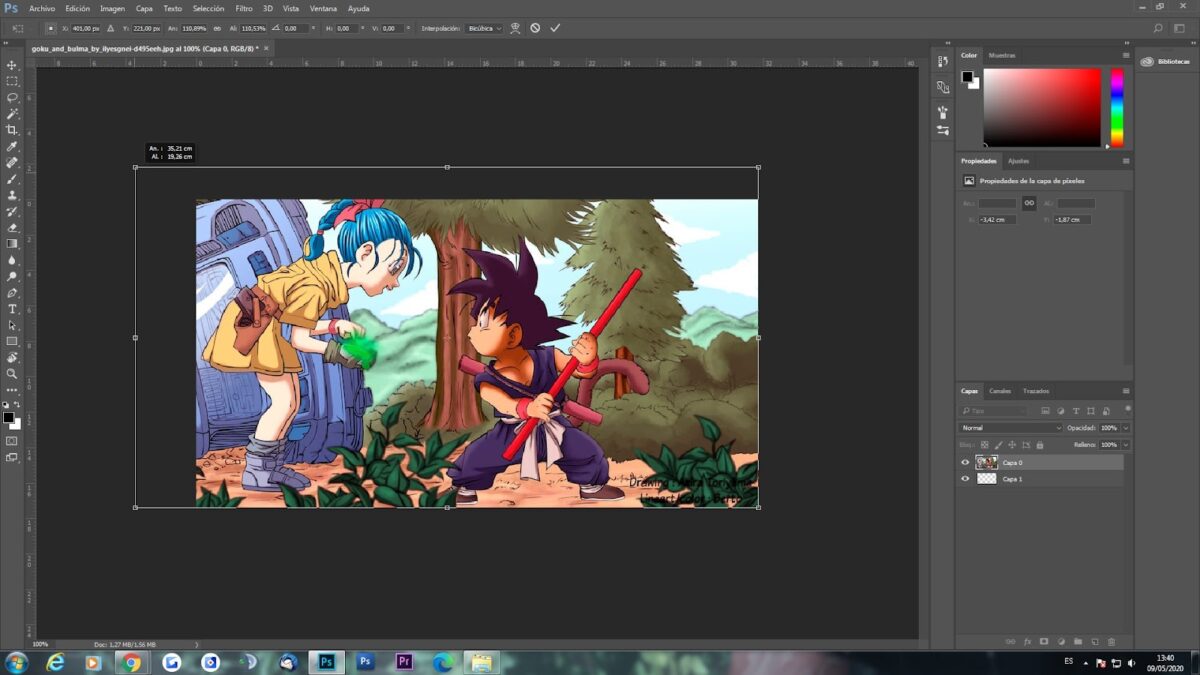
  4. How to use layers

    Basic Guide to Start Using Photoshop Like a Pro

    Using layers is essential if you want to do any kind of editing on Photoshop.

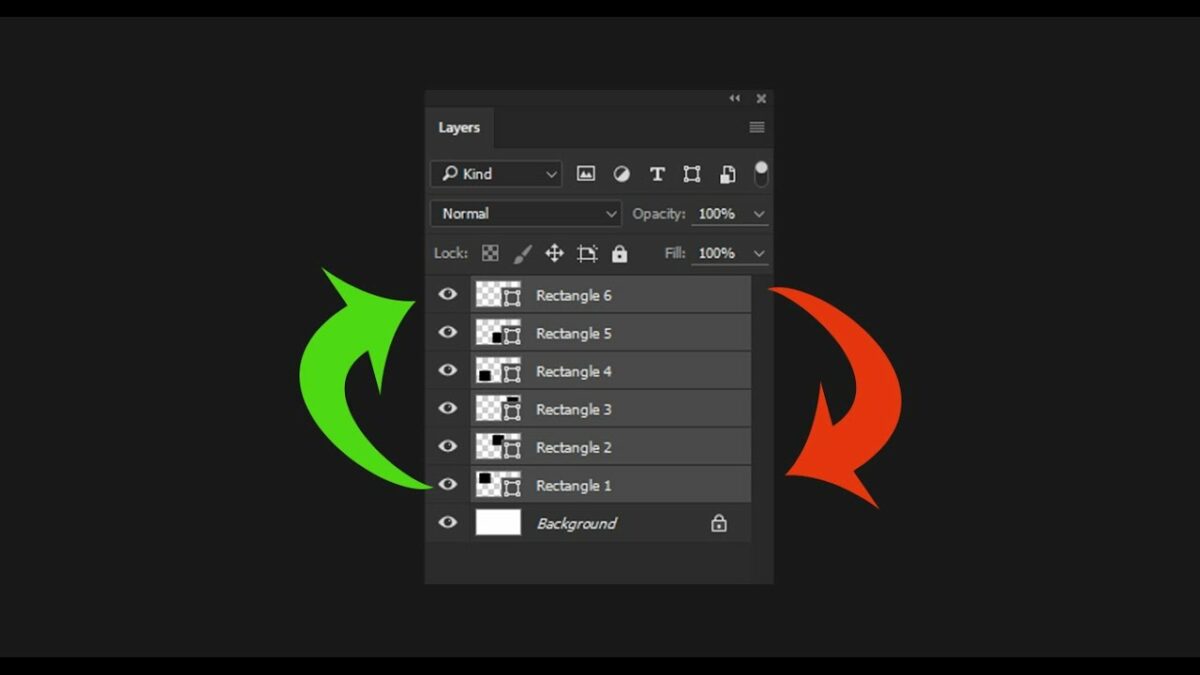
    A layer is an image, drawing or photo superimposed on a base background. Each layer is stacked over or under the others, creating an onion-skin effect.

    So, for example, if you have a base image, layer 1 over it, and layer 2 over the latter, layer 1 will be stacked on top of the background, while layer 2 will be stacked on top of layer 1 and the background.

    Once you have created your layers, you can work on them by selecting them in their panel. Then you can easily edit the image, and the changes will only affect the selected layer and the underlying ones.

    To make more precise changes, you can show or hide layers by clicking the eye-shaped icon beside them. This will make the selected layer either visible or invisible.

    Layers are used for many purposes, but the main one is compositing multiple images.

  5. How to use layer masks

    Basic Guide to Start Using Photoshop Like a Pro

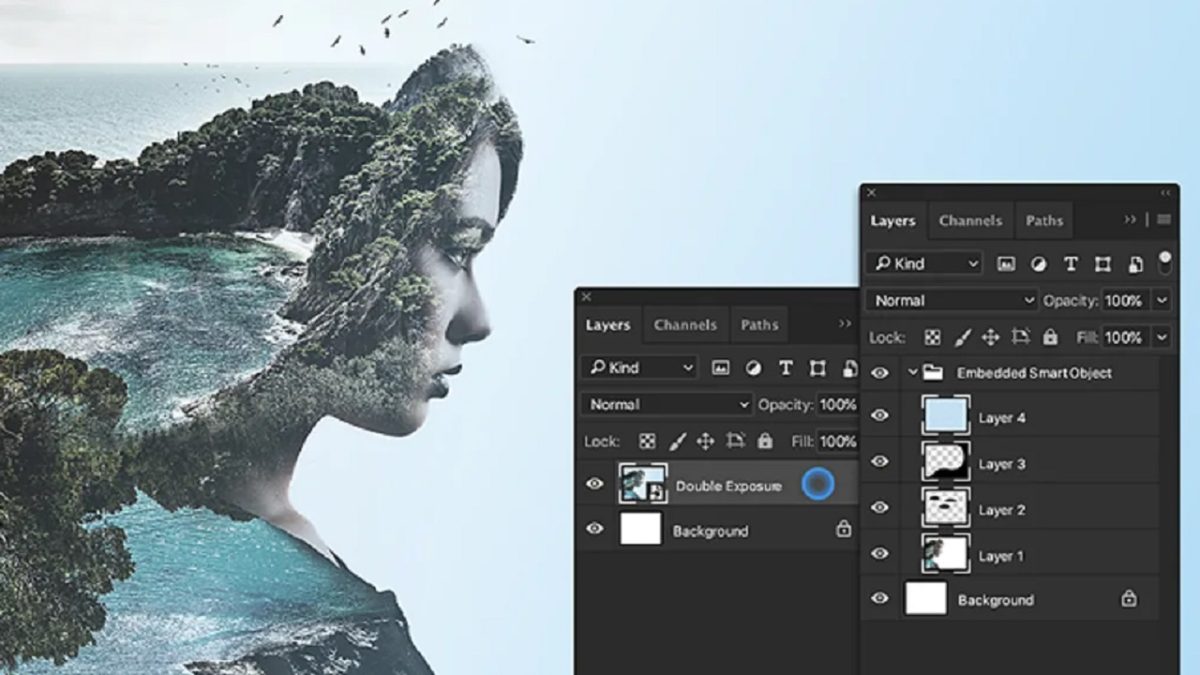
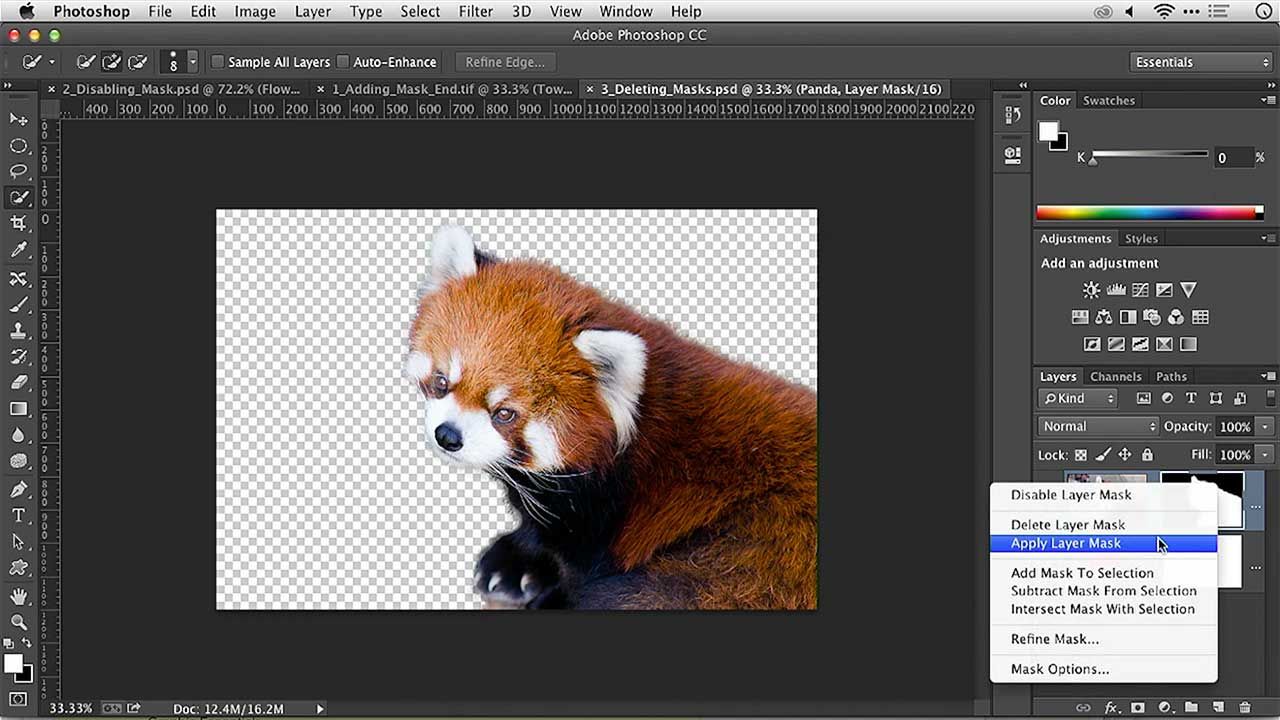
    Now that you know what layers are and how to edit them, we’re going to teach you how to use layer masks, which let you show or hide a section of any layer.

    To add a layer mask, simply click the “Add layer mask” button, which you’ll find in the lower right corner of the layers panel.

    Then you’ll see the selected layer appear with a white box, indicating that a mask has been added to it. Add white or black color to the box depending on whether you want that part of the layer to be transparent or opaque.

  6. How to correct imperfections

    Basic Guide to Start Using Photoshop Like a Pro

    One of Photoshop’s classic features is correcting small (or large) imperfections in photos, portraits, etc. Nobody likes to see their perfect selfie ruined by zits or unsightly wrinkles.

    Fortunately Photoshop has a tool specially designed for this. We are talking about the correction brush. To open it, just click the “Spot Healing Brush” tool or press the J key.

    If you have done the above step correctly, you’ll see your brush change to this new tool. Now simply move the brush over the areas you want to correct. It’s as simple as that!

  7. How to use Content-Aware Fill

    Basic Guide to Start Using Photoshop Like a Pro

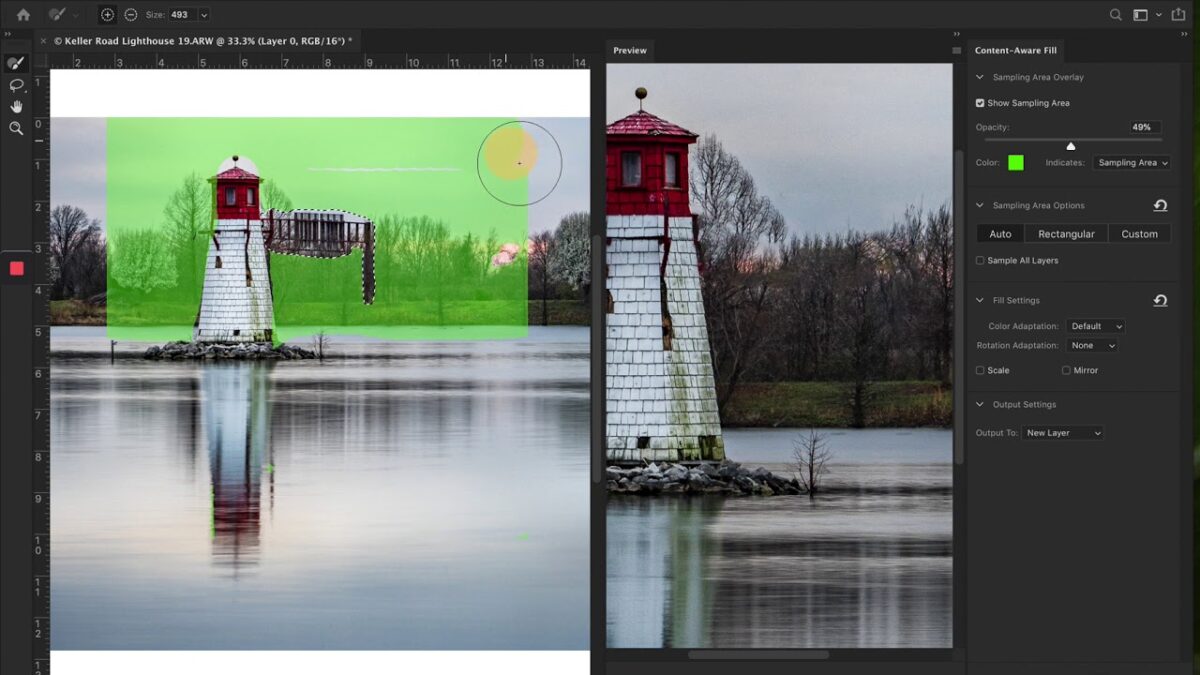
    It’s happened to almost everyone: you think you took the perfect picture, but when you view it on your PC, you spot some object in the background that ruins it. Don’t worry, you don’t have to retake your picture, because Photoshop has a feature that will get you out of a pinch.

    To get rid of unwanted objects in the background, first select the “lasso” tool, or click the L key. Then draw a selection around the object you want to remove from your photo.

    Once the object is selected, press Shift + F5 to make the fill window pop up. You can get to the same window by going up to the “Edit” option in the menu bar and choosing “Content-Aware Fill.”

    To finish, just choose “according to content” and click “OK.” You’ll see the selected object disappear and blend in with the background like a chameleon. Isn’t that useful?

  8. How to apply Smart Filters

    Basic Guide to Start Using Photoshop Like a Pro

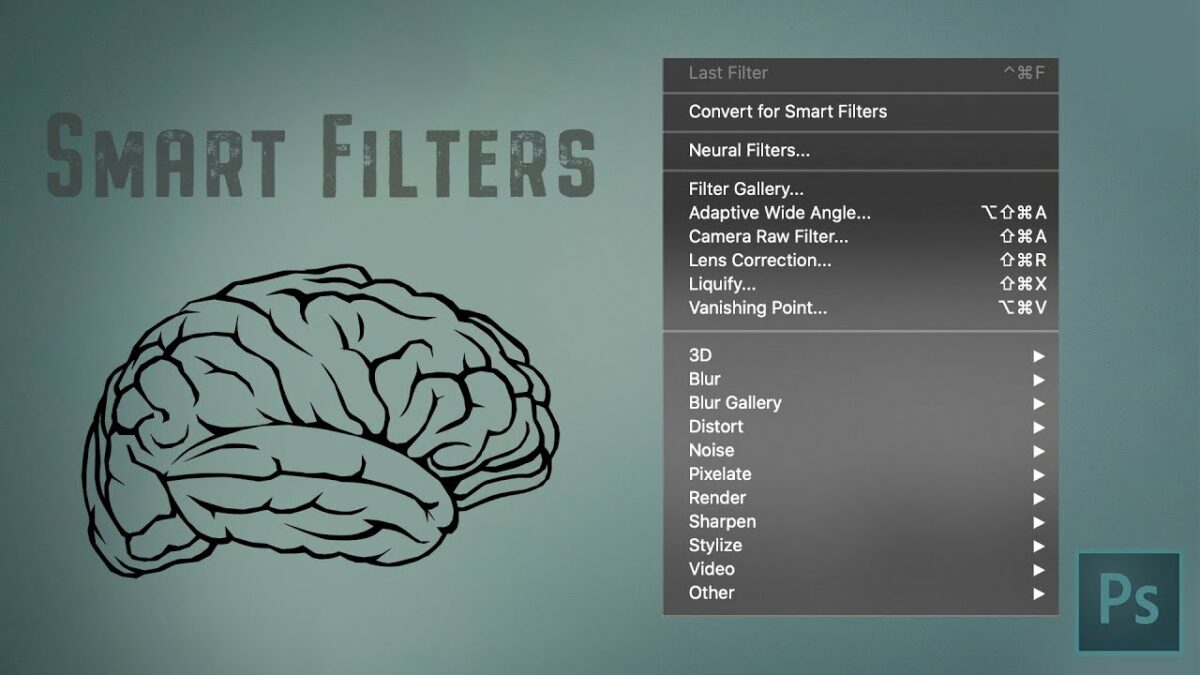
    It’s normal to get carried away with making changes and edits in Photoshop, to the point where your image can become truly hideous. If you’ve saved your work often as different files, it shouldn’t be too hard to return to a previous version of your image, but… what if you didn’t?

    To solve this problem, Photoshop has something called “Smart Filters.” They make sure that any change made to a filter is saved as a Smart Filter, so if there’s something you don’t like, you just have to remove that filter. That way you never have to be afraid to edit your photos.

    To apply Smart Filters to a layer, first select them in their panel. Then click the “Filter” option, which you’ll find in the menu bar, followed by “Convert for Smart Filters.”

    Then, any change to the layer will appear below the latter as a Smart Filter. So go ahead and try out all the new Photoshop features without fear!

  9. How to save your image with the correct resolution

    We’ll wrap up our guide with some tips on how to save an image in Photoshop depending on how you intend to use it.

    If you’re working on a project and have not yet finished, we recommend saving your file in PSD format. To do so, click “File” and “Save,” and select the .PSD or .TIFF image format. That way, when you open your file, you can continue where you left off.

    Otherwise, if you’re going to save your image for personal use or to be shared with your friends online, we recommend using .JPEG or .PNG format.

    If you have a blog or a website, keep in mind that Photoshop can optimize photos for this medium. Just press Ctrl + Alt + Caps Lock + S. Then you can use the settings to compress your images while ensuring they have the necessary quality for your medium.

Photoshop like a pro!

We hope our selection of tricks and basic tips for Photoshop has been helpful to you. There are plenty more things you can do, but these should give you the basics to get started. We hope you have loads of fun trying these tools out!

Apps, Software and Tips for Becoming a Podcaster

If you’ve always fantasized about hosting your own radio show, a podcast is the perfect way to make your dream come true. To create one, you only need the initiative, a lot of things to say, and a few hours a week to record it. A podcast is really just a pre-recorded radio show that anyone can listen to without needing to hear it live.

Micrófono y ordenador

There are many ways to create podcasts, and fortunately there are now countless tools that make it easy. Forget about using programs for recording followed by complicated sound editors. Now there is software designed exclusively for creating podcasts, and you can use it on both your desktop and your phone.

In today’s article, we’re going to share a roundup of the best programs for recording podcasts on both PCs and mobile devices. In addition, we have some useful tips for getting your start in this world. Are you ready?

What’s a podcast?

Let’s start by going over what a podcast is, exactly. The term was coined in 2004 when iPod was in its heydey and everyone was crazy about Apple’s multimedia player. With it, a new way of listening to the radio was born, the so-called “podcast.” The name is simply a combination of “iPod” and “broadcast,” but the possibilities are endless.

A podcast is really just a radio show that can be downloaded and listened to anytime. The magic lies in the fact that you can record one without using expensive radio equipment or crossing your fingers in hopes that some listener will tune into your station by chance. Now you can record your show at your convenience, post it online, and wait for your followers to download and listen to it whenever they want.

How to record a podcast and not die trying

Mujer grabando un podcast

Creating a podcast isn’t hard, but if you want your show to be a success, you’ll need to spend many hours on it and be consistent to keep your followers happy. Not sure where to begin? Don’t worry! Keep reading for some basic tips.

Choose a topic you’re passionate about

At the risk of stating the obvious, before recording a podcast, you need to choose a topic for it. We recommend selecting something you’re passionate about or have a lot of knowledge about, because your enthusiasm is what will captivate your audience.

Keep in mind that podcasts have a limited duration and that the average person has a maximum attention span of an hour and a half, so stick to your topic and try not to get sidetracked. Podcasts on a single subject tend to attract more followers than ones covering a variety of interests.

Plan your podcasts

Now that you have your topic, it’s time to start recording your podcast… or is it? We recommend not rushing headlong into your shows without planning what you are going to say first. Create a script, prepare some notes, or, if you’re the kind of person who likes to improvise, simply write an outline of the topics you want to cover in your podcast. Otherwise, you run the risk of beating around the bush or drawing a blank and generating an uncomfortable silence.

Book some guests

This could be a bit hard at first, but as your podcast attracts more followers, we recommend contacting some potential guests. They can have debates with you, contribute interesting information, and generate a compelling dialog that will help to hook your followers even more.

Ask your listeners for feedback 

An easy way to connect with your listeners is to ask them what they think of your show, how you might improve it, and what subjects they want you to cover in your next podcast. An easy, effective way to get this valuable feedback is on social media.

Create a Facebook or Twitter page for your show and promote it during your podcast. It’s a good idea, for example, to ask your listeners some questions and encourage them to write you, which will help improve your show. What’s more, when your followers see that you’re paying attention to them, they’ll become more devoted listeners and recommend your podcast to their friends.

Apps for creating podcasts

Mujer grabando un podcast

Now that we’ve given you some basic tips on planning your podcast, it’s time to discuss the technical details. The following is a roundup of apps specially designed for creating podcasts. We hope you like them!

Anchor

Anchor, a free app, claims to be the easiest way to make a podcast, and we can’t argue with that! To use it, just download the app, hold your phone up to your mouth, and press the red button on the display. Then you can start recording your program.

Once you’ve finished, Anchor lets you edit your work, and you can copy, cut and even insert audio clips. This is especially interesting if, for example, you have saved an interview you want to share. You have the option of adding sound effects and even music from apps like Spotify.

After editing your program, you can upload your podcast to your own Anchor channel. There, your followers can listen to your recording and even interact by leaving you a “like.”

You can download Anchor quickly and easily below.

Anchor DOWNLOAD
9

Spreaker Studio

Spreaker Studio

Spreaker Studio is a comprehensive app for creating professional-quality podcasts. One of its strengths is the fact that besides recording, it offers live broadcasting. This can add a new twist to your podcast and fun new possibilities for interacting with your followers.

Using Spreaker Studio couldn’t be easier. Just press the record button and start your podcast. After you finish recording, you can edit your track as much as you want, add sound effects and even create music or voice mixes.

When your podcast is finished, Spreaker Studio lets you upload your show to the app channel and to your website, and even share it on social media. And it’s completely free!

You can download Spreaker Studio quickly and easily below.

Spreaker Studio DOWNLOAD
8

Podbean

Our final pick for mobile apps is called Podbean, a great app that can be used for free or under a more comprehensive paid subscription.

Podbean stands out for letting you create professional podcasts in the blink of an eye. The free version lets you record your program, albeit with limited bandwidth and total space. Still, it’s enough to generate a high-quality podcast and get your start in this world.

The Podbean editor is packed with features in both the free and paid versions. That said, subscribing to the app will make it possible to check your podcast stats and add your files to any website using its online player.

You can download Podbean quickly and easily below.

Podbean DOWNLOAD
9

Programs for creating podcasts

Grabación de podcast

If you prefer to record your podcast on your desktop instead of your phone, don’t worry. We also have a selection of the best programs you can download to your PC. Let’s have a look!

Audacity

Audacity

Audacity is the king of free audio recording and editing programs. You can use it to create your podcast, as its highly intuitive interface will make it easy to record your show.

When you’re finished, just use the software’s editing tools to adjust the sound and pauses and to add music and sound effects. You’ll have your podcast ready in no time at all.

You can download Audacity quickly and easily below.

Audacity DOWNLOAD
9

Voicemeeter Banana

Voicemeeter Banana

Voicemeeter Banana is a truly interesting option for anyone who wants to host a podcast with guests.

Besides being an excellent audio recording and editing program, Voicemeeter Banana allows multiple mics, so other people can participate in your podcast over Skype. That way you can hold interviews or have collaborators on your podcast from the comfort of your home.

You can download Voicemeeter Banana quickly and easily below.

Voicemeeter Banana DOWNLOAD
8

ZenCastr

ZenCastr

Our final pick is ZenCastr, an excellent option if you’re looking for a powerful program that you can use without having to download anything.

ZenCastr is professional software that lets you record and post podcasts directly on its platform. One of its strengths is the fact that, since it’s an online platform, other people can participate in your podcast without the need for additional programs. And this is all possible without affecting the sound quality!

Besides being extremely versatile and allowing edits while recording, ZenCastr is quite easy to use. That makes it a perfect option whether you’re a newbie or a professional podcaster.

You can visit the ZenCastr website by clicking here.

We hope you liked our selection of programs, apps and tips for becoming a podcaster. What’s the topic of your podcast? Tell us about it in the comments section!

The Negative Effects of Heavy Social Media Use

Social media has become a fundamental part of our everyday lives. We spend a large part of our days glued to our phones and updating our statuses, sharing our experiences, or simply scrolling through our feeds to find out what our friends are up to. While all this may sound like innocent fun, it has the potential to cause serious problems.

Mujer joven mirando las redes sociales

Social media is undeniably a great way to keep in touch with family and friends and stay on top of breaking news, but it’s also responsible for many of the problems of modern life. Addiction, depression, loss of close friendships and insomnia are only a few of the effects it can have on us.

In today’s article, we’re going to look at some of the main problems that social media has brought into our lives. It’s up to us to start using it in moderation.

1. It’s a waste of time

Hombre utilizando el teléfono móvil

One of the main problems with social media is that it’s a major waste of time. It’s probably happened to you more than once: you’re scrolling through Facebook or Instagram, and before you know it, the entire afternoon has gone by. At first glance, this habit may seem innocuous, but in the long run it can become a serious problem.

Spending too much time on social media can have a negative impact on our lives, starting with our health. Since the rise of social media, many of us have traded taking walks and playing sports for lounging on the sofa and posing.

It not only affects your body, but also puts your mental health at risk. Excessive social media use can throw off your internal clock, causing you to lose your notion of time and even your ability to distinguish between night and day.

Other problems caused by wasting time on social media include difficulty concentrating or performing well at work, and the tendency to neglect one’s real-life friends in order to focus on the online ones.

That’s why it’s so important to limit the amount of time you spend on social media every day. Keep in mind that life is going on around you while you stare at your screen, and you’ll never get back the time you’re wasting.

2. It increases stress

Mujer mirando redes sociales en el coche

Being addicted to social media can exponentially increase your stress level. Considering how we already live in a high-stress society, this is not something to be taken lightly.

Social media can lead to information addiction and the need to always know what is happening in the world or in the lives of your friends or acquaintances. In the long run, this leads to F.O.M.O. (Fear of Missing Out), a social anxiety disorder stemming from the irrational fear of missing some event and consequently being excluded from your group of friends.

Another major stressor arising from social media networks concerns their messaging services. You’re constantly wondering if the other person received your message, and when they take too long to respond, it can make you anxious and even depressed.

It’s important to know how to limit and manage the information you receive on social media and to avoid thinking of these platforms when you’re not connected to them.

3. It causes low self esteem

Mujer triste

On social media, the temptation to compare your life with those of the people you follow can be irresistible. What many users don’t realize is that the lives portrayed on Facebook or Instagram are often not real, but pure fabrications created to attract more followers or to appear to be something one is not.

As the saying goes, comparison is the thief of joy, and when you constantly see your friends partying, flaunting perfect bodies, living in luxury or traveling around the world, you may perceive yourself as inferior to them.

Many social media users live in a constant state of depression due to a sense of inferiority and lack, since they don’t have the same lifestyle that they see everyone else enjoying every day.

Keep in mind that the majority of what you see on social media is just for show. Often, a person on social media who always looks happy and appears to have the perfect job is secretly unhappy and only wants to show the world the life that they wish they were actually leading.

4. It makes you lose your individuality

Mujer sacando foto a comida

Social networks have led to the rise of the so-called influencers, a select group of users who, due to their charisma or posts, have amassed millions of followers. Influencers are so popular that major brands use them to promote their products or fashion.

Anything influencers say is applauded by their followers, and they are the ones who decide what is in or out of style. This generates a loss of individuality, because their followers become like sheep, following trends dictated by a handful of people.

5. It generates depression

Chica triste

Although there are countless things that make social media great, it can be an endless source of depression for users. These networks generate a sense of dependency and a constant need for affirmation from other users through “likes” and comments.

Excessive social media users could fall into a deep depression due to a tiny incident such as posting a selfie and not receiving as many “likes” as expected.

Another factor that can impact your mood concerns attacks by trolls or people who amuse themselves by posting hurtful comments online. Social networks have made it much easier to spread hate through groups where these individuals often pop up.

6. It affects your sleep

Mujer con insomnio

Excessive social media use is directly linked to insomnia. This is a consequence of other factors we have mentioned, such as stress and depression, which together create a vicious cycle of unhappiness.

It is proven that using any screen before bedtime makes it much harder to fall asleep. What’s more, social media is addictive and hard to stop thinking about even after you go to bed.

It is advisable to use social media in moderation and avoid looking at it before you go to sleep. That’s the only way you can be sure it won’t keep you up all night.

7. It generates arguments and misunderstandings

Pareja peleando

Social media lets us stay in touch with friends who live thousands of miles away and be close to our family no matter where we are. However, it can also lead to arguments and has the potential to break up even the strongest couples.

A comment on a photo that you dislike, a party you weren’t invited to, a message that was read and never answered… the reasons why people argue on social media are endless. What’s more, since it’s in writing, it’s much easier to misinterpret the tone of a conversation and reach erroneous conclusions.

Since their appearance, social media networks have brought families and friends closer together but have also destroyed stable, long-term relationships.

8. It generates a fear of being different

Chica triste con portátil

Social media breaks down the privacy barrier in our lives. They help us to learn things about our coworkers, friends and family members that we otherwise would not know.

Living life your own way, spending your time how you see fit, or thinking in a different way can generate a fear of being different from your loved ones. This leads to confusion, insecurity, and often a fear of not fitting in because you’re too different.

What to do if you feel negatively impacted by social media

As we’ve explained above, social media isn’t just an innocent way to have fun and be connected to the rest of the world. It has many negative effects that we need to know how to mitigate.

If you identify with any of the symptoms we’ve described, we recommend spending a few days away from social media and doing a digital detox. The first few days without being able to check Facebook, upload photos to Instagram or let off steam via Twitter will be hard for you, but in no time at all, you’ll find yourself feeling better. Once you have regained control of your life and time, you can always go back to social media, making sure you use it with moderation.

If you find yourself incapable of spending a single day without it, you probably have a serious social media addiction. In this case, we recommend deleting the apps from your phone and seeking professional help. It may seem like an extreme measure, but in the long run, you’ll realize it was the best decision you could have made.

Do you know of any other negative effects of social media? Tell us about them in the comments section!

The Positive Effects Of Heavy Social Media Use

In just a few years’ time, social media has become a fundamental part of our daily lives. In fact, for many of us, it would be hard to imagine our lives without being able to check Facebook or share our most special moments on Instagram. Without a doubt, social media has dramatically changed how we use the internet and relate to other people.

Redes sociales

If you’re a social media fan, you’ve probably had more than one friend or family member warn you of its many adverse effects. And truth be told, while they’re useful, these communication tools can take a toll on your mind and body when used obsessively.

That said, the world of social media is not all bad, and if you don’t let it become an addiction, it can help you to live a much fuller and happier life.

In today’s article, we’re going to look at the positive impact that social media can have on your daily life. These revolutionary communication tools can make your day-to-day routines a lot more pleasant. Keep reading to find out how!

1. It can help you make new friendsHombre saludando a un portátil

Social networks make it exponentially easier to find people with hobbies and tastes similar to yours, which isn’t always possible face to face. In addition, it’s much easier for friendships to flow without superfluous aspects such as preconceived ideas or first impressions based on someone’s physical appearance.

Of course, before starting a friendship with someone, it’s important to make sure the person you’re talking to is who they claim to be. Otherwise you may be the victim of a scam or a con or have your heart broken by a catfish. Want to know how to spot one? You can find out by reading the article below.

2. It can reunite you with family and friends

Mujer hace videoconferencia por Internet

One of the amazing things about social media is the fact that it has made families more united than ever while helping people to get back in touch after being out of contact for many years.

What’s my childhood best friend up to? How’s my brother who works in the UK? Is my mom okay? Thanks to social media, the answers to all these questions are right at your fingertips. It’s just a matter of typing a person’s name and finding their profile. Then you can chat, follow their updates, and have them back in your life just like in the good old days.

3. It can help you stay on top of breaking news

Mujer con portátil

Social media sites like Twitter have revolutionized the news industry. They make it possible to learn about important current events only seconds after they happen without needing to depend on mainstream news sources.

One of the reasons social media is so popular is that you don’t have to look anywhere else for the latest news. All you have to do is log into the platform of your choice to see the news posted and organized on your wall. You can keep track of what’s happening in the world and even in your city or neighborhood in the blink of an eye.

4. It’s an unlimited source of interesting content

Mujer consultando redes sociales

Another important point about social media: it gives you access to a variety of content that is specifically tailored to you and displayed in a simple, pleasant format. Through the accounts and groups you choose to follow, you can receive videos, tutorials, articles and unlimited content promising hours of education and fun.

Best of all, like the news, once you decide to follow an account, all of its posts will appear automatically on your wall. It will then become an endless source of content tailored to your tastes and preferences.

5. It can help you find work and promote yourself Mujer en la oficina

Social networking sites are great for staying in touch with family and friends, but they also play a fundamental role in the work world. There are social media platforms like LinkedIn that can help you find a new job, and they’re also useful if you’re searching for employees or looking to promote your business online.

6. It reveals things you didn’t know about peopleMujer asombrada con portátil

You may assume that you know all your friends, acquaintances and even co-workers like the back of your hand, but do you really know everything about them? In person, we often put up a shield or wear a mask of normalcy so as to not seem strange to people we barely know. But on social media, we give free rein to our thoughts, hobbies and beloved pastimes without worrying about seeming strange.

Often, when you add an acquaintance on social media, you realize that they’re much more interesting than you initially imagined. You might discover that you have a lot in common with one of your friends and that you enjoy many of the same activities, which you can start doing together.

7. It creates new jobs

Mujer trabajando con un portátil

The rise of social media has driven the creation of new jobs. Just think of everyone who works in the Social Media field. These consultants are in charge of capturing new clients, sharing key content on social media, and being the voice of a company or a product online. They have generated close, direct contact between companies and users, resulting in happy consumers who are loyal to the product.

8. It brings people closer together

Chica feliz con un portátil

Social media has managed to bring millions of people closer together even though they are thousands of miles apart. Although there were already programs to make calls or video calls, social media has taken things up a notch, making it even easier to communicate.

These platforms make it possible to follow your loved ones’ daily lives in a fun, uplifting way and to communicate with them instantly or through a post. This means you can have your friends around for all the important moments of your life even if they don’t live in the same town as you.

9. It makes it easier to donate to a good cause Perro tumbado en la calle

Social media plays an important role in sharing messages to help people and charitable causes. For instance, thousands of people who have lost their pets have recovered them after rapidly sharing a photo of their dog or cat on social media.

Social media is also used to spread the word about good causes to a large number of people. Through these sites, donations can be made to sponsor research on a rare disease, to end hunger in the third world, to save an animal shelter, or simply to help an elderly person pay for their sick dog’s operation.

10. It gives free rein to your creativity

Mujer creando contenido con portátil

If you’re a creative person, social media is an excellent way to share your works of art with the rest of the world. Regardless of whether you use Facebook, Twitter, Instagram or Pinterest, social media is a great way to showcase your talent and receive instant feedback from other users.

There are numerous cases of amateur artists who have posted illustrations, music or writing samples and have been discovered and hired by professionals. Social media is inarguably a fantastic platform for new artists who want to try their luck with their creations online.

11. It lets you freely express your thoughts

Chica joven utilizando portátil en la cama

Social media encourages all of us to come out of our shell and share our thoughts without fear of being judged. This makes it much easier to communicate for introverts, who see social media as a place to freely express themselves. That’s why for many people, being on social media is far more than a way of staying in touch with family or sharing interests with friends. It’s a communication format that allows them to open up to the world completely.

As you can see, social media has brought many positive things into our lives. However, it’s important to keep in mind that using it all the time can generate addiction and lead to serious health problems. So, be sure to use common sense, and never forget that the real world lies beyond your phone’s display.

What’s your favorite social media platform, and what’s the best experience you’ve had with it? Tell us about it in the comments section!

The Best Filters for Instagram Stories

Instagram Stories are one of the most popular and widely used features on Instagram. Since they were launched a few years ago, Stories have really taken off, and it’s not hard to understand why they’re such a hit: these temporary posts let you share the highlights of your day with your followers, and the fact that they expire makes them even juicier. Your most devoted fans will need to follow your account closely if they want to know what you’re up to all the time!

Mujer utilizando instagram

But it’s not always easy to attract and hook new followers through Instagram Stories. You’ll need to share original, fresh content that is, of course, high in quality. You might be wondering if there’s some trick to help you do this. Fortunately, you have a very effective tool at your fingertips: Instagram Stories filters.

By using filters, you can improve the content you post on Stories. They can do all kinds of things, from enhancing your photos to adding jaw-dropping special effects. Which one should you use?

In today’s article, we’re going to share a roundup of the best and most fun filters for Instagram Stories. We hope you like them!

First, make sure to update Instagram

Before we get down to business, we recommend making sure your Instagram app is updated to the latest version. It’s the only way you can be certain to have all the platform’s features on your device and that no security holes will compromise your personal data.

To update Instagram, tap the App Store or Google Play icon and check for available updates for Instagram. If you see them, just tap the “Update” button and install the latest version on your phone or tablet.

Alternatively, you can quickly download the latest version of Instagram below.

  • Instagram for Android

Instagram (Android) DOWNLOAD
8

  • Instagram for iOS

Instagram (iOS) DOWNLOAD
8

How to save an Instagram Stories filter

Mujer utilizando Instagram

But before we recommend the top filters for your Stories, do you know how to save them? It’s quite easy, just follow either of these two steps:

Follow the filter’s designer- If, while browsing through Instagram Stories, you see a filter you like, you can easily save it by following its designer. Just look for the name of the filter and its designer at the top of the story. Then visit their page and start following them. All of the filters they have created will be automatically downloaded to your account.

Download the filter to your account- If you don’t feel like saving all of a designer’s filters, you can always click one of them and try it. Then you can decide whether or not to download it to your account.

The best Instagram Stories filters

Now that we’ve covered the basics of adding special effects to your Instagram Stories, let’s have a look at some of the best filters out there. We hope you like them!

RENEGADE

Filtro RENEGADE

RENEGADE is an incredible filter created by photographer @bryant. It’s especially recommended for outdoor photography fans or anyone who wants to improve the appearance of a dull-looking object. The filter adds a luminous, summery effect to any photo you select, bringing light and intense color even to cloudy days and dimly lit rooms.

  • You can download RENEGADE here.
  • To download all the filters by @bryant, don’t forget to follow the designer’s Instagram account here.

PINK PRESET 2

Pink Preset 2

Are you one of those people who likes to view life through rose-colored glasses? Then you’ll love PINK PRESET 2, a pretty filter for Instagram Stories that will dazzle your followers by adding a pinkish tone to any photo or video. The filter was created by the talented @maninabraunn. Be sure to check out her Instagram for countless special effects to add style to your Stories.

  • You can download PINK PRESET 2 here.
  • To download all of the filters by @maninabraunn, don’t forget to follow her on Instagram by clicking here.

CINEMA STORIES 7

Cinema Stories 7

Today’s phone cameras have no reason to envy a professional photographer’s camera, as they are every bit as powerful. Still, there are times when we would like our Instagram Stories to have a more retro or old-school look. For these situations, we recommend CINEMA STORIES 7, a pretty filter created by @ruzaone that will add that desired vintage touch to any photo or video you post.

  • You can download CINEMA STORIES 7 here.
  • To download all of the filters by @ruzaone, don’t forget to follow her on Instagram by clicking here.

CIAO BELLA

Filtro CIAO BELLA

Summer’s over, and there’s no better way to bid farewell to it than uploading some photos with the CIAO BELLA filter by @katrinascott. It gives all your photos and videos a golden, grainy effect, immersing your followers in the ambience of a beautiful day at the beach. The filter comes with two different options depending on the effect you’re seeking, although we promise you’ll love them both.

  • You can download CIAO BELLA here.
  • To download all of the filters by @katrinascott, don’t forget to follow her on Instagram by clicking here.

Moody Up

Filtro Moody Up

Moody Up is a useful filter that will turn any photo or video on your Instagram Stories into a post worthy of the glossies. The filter, designed by @carmushka, is reminiscent of the photos featured in fashion magazines like Vogue. Want to be one of the most stylish Instagrammers around? Then check out Moody Up!

  • You can download Moody Up here.
  • To download all the filters by @carmushka, don’t forget to follow her on Instagram by clicking here.

TF:vintage

Filtro TF:Vintage

Some things never go out of style, which might explain why anything vintage is all the rage right now. TF:vintage is a stunning filter created by @tyfrench that can turn a good photo into an unforgettable one. It offers a timeless, chic and stylish look that will captivate your followers. Why not try it on a pretty outdoor photo of yourself in a vintage dress?

  • You can download TF:vintage here.
  • To download all the filters by @tyfrench, don’t forget to follow him on Instagram by clicking here.

A4

Filtro A4

Want to share a photo or a video that transmits a sense of warmth and romanticism? A4 is an incredible filter created by @thaifurtado that makes use of film grain to create a warm ambiance that will captivate anyone who sees your posts. It’s ideal for taking the best couples photos, coaxing a smile from your sweetie, or simply snapping a picture of the horizon.

  • You can download A4 here.
  • To download all the filters by @thaifurtado, don’t forget to follow her on Instagram by clicking here.

Honeysuckle

Filtro Honeysuckle de @aliviafields

Honeysuckle is the perfect filter to transform any photo into an image full of warmth and introspection. This pretty effect created by @aliviafields adds a golden, honey-colored tone to any Stories post, giving your followers a unique sense of peace. It’s perfect for illustrating a laid-back dinner party or adding a touch of nostalgia to your end-of-summer pics.

You can download Honeysuckle here.
To get all of the filters by @aliviafields, don’t forget to follow her on Instagram by clicking here.

I’ve tried all the filters… is there anything else I can do to improve my posts on Instagram Stories? 

Instagram Stories is like a blank canvas where you can share the highlights of your day with your followers in a meaningful way. Although new filters are always a great way to impress your followers, there are many other hacks you can use to make your stories a hit.

One of our favorite tricks to give your Stories more visibility is to add text and shading to your photos. This will make both your text and your image visible without cancelling one another out.

Another interesting hack is adding music to your images. Just pair your posts with a tune that compliments them. But music isn’t the only thing you can add to your Stories… you can even use GIFs to make them cuter and funnier.

Finally, if you’re a Facebook user, you’ll be interested to know that you can simultaneously post your Instagram Stories to Mark Zuckerberg’s platform. Because in fact, while not everyone knows it, Instagram belongs to Facebook.

If you’re interested in these hacks but not really sure how to pull them off, don’t worry. We have a step-by-step guide to teach you all about them.

We hope you liked our roundup of filters for Instagram Stories. What’s your favorite filter? Tell us about it in the comments section!