The Most Common Problems in Windows 10 and How to Solve Them

Windows 10 is the most widely used and acclaimed operating system in the world today. Introduced five long years ago, Microsoft’s OS continues to dazzle users with its stunning, intuitive design and high compatibility with most programs.

Logotipo de Windows 10

Nobody can deny that Windows 10 is excellent, but it isn’t a foolproof operating system, and it has surprised us with glitches and errors on more than one occasion. In these situations, you have only two options: panic (not recommended!) or search online for help.

To make things easier, in today’s article, we’re going to share a rundown of the most common problems in Windows 10 and how to solve them. We hope you find it helpful!

Windows 10 DOWNLOAD
8

1. I don’t have enough space to install Windows 10

Whether you have a previous version of Windows on your computer or want to switch to Microsoft’s operating system, keep in mind that you need at least 16 GB of free space on your hard drive to install Windows 10. Below is an in-depth article on Windows 10’s requirements.
Fixing this issue is as simple as freeing up enough space on your hard drive. Then you can easily install the operating system on your computer.

2. I’m not sure if my computer is powerful enough to run Windows 10

Equipos con Windows 10

The fact that you have a desktop, laptop or tablet doesn’t automatically mean you can use Windows 10. First you need to make sure your computer is powerful enough to run this operating system.

The minimum requirements for Windows 10 are:

  • Processor: 1 GHz or more, or an SoC processor
  • RAM: 1 GB (32 bits) 2 GB (64 bits)
  • Hard-drive space: 16 GB (32 bits) 32 GB (64 bits)
  • Graphics card: Compatible with DirectX 9 or higher and with WDDM 1.0 controller
  • Display: 800×600

If you’re not sure how to verify your PC’s compatibility with Windows 10, don’t worry. We have an article that will teach you how to do this step by step.
3. I’m not sure how to activate Windows 10
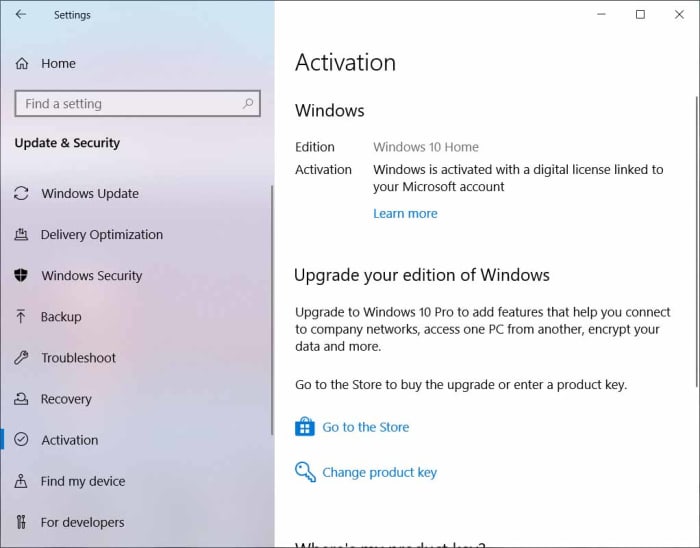
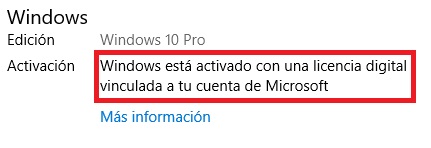
To use the complete version of Windows 10, you need to activate your copy of the operating system. Otherwise, many of its features won’t be available, you won’t be able to update it, and you’ll receive constant product activation reminders.

There are two ways to activate your copy of Windows 10. The first and easiest way is entering your product key during installation. Once it is verified by Microsoft, your product will be activated and ready to use. It’s that easy!

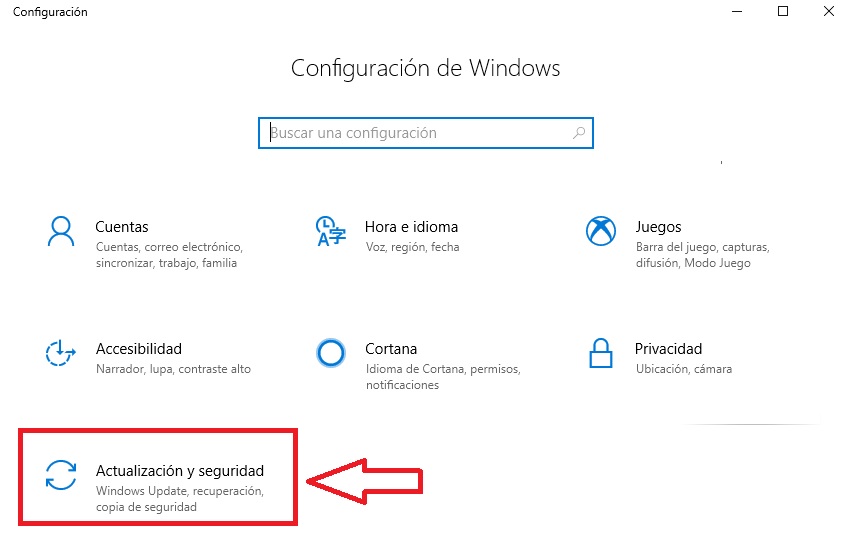
The second way to activate Windows 10 is through the Settings menu (Windows key + I). Just select “Update & Security” and “Activation.” Then enter your product key to activate your operating system.

If you need more help with activating Windows 10, be sure to check out the article below.
4. My program stopped working when I switched to Windows 10

Although Windows 10 stands out for its compatibility with old programs, it’s common for them to stop working when you switch operating systems.

To solve this problem, you need to update these programs in the Microsoft Store. Just click “Start” (it’s the icon with the Windows logo on the lower left side of your screen) and “Microsoft Store.”

Next, select the icon with three horizontal dots on the upper right side of your screen, followed by “Downloads and updates.” There, you can find out if your problematic program or application has an available update and install it. Otherwise, we recommend uninstalling and reinstalling your program.

5. Windows 10 always restarts at the worst possible time
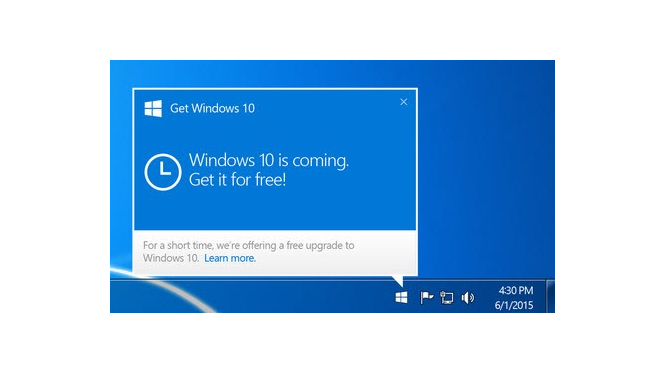
If there’s one thing that all Windows 10 users know, it’s that our operating system gets frequent updates, and for some strange reason, they always happen at the worst possible time. Fortunately, there is a method to prevent a Windows 10 update from restarting your system when you’re in a hurry.

To prevent unpleasant surprises with Windows updates, first go to Settings (Windows key + I). Then click “Update & Security” and “Advanced options.” Now simply turn on “Show a notification when your PC requires a restart to finish updating.” That way you’ll always know when your system is going to restart.

6. I can’t start in Safe Mode

Modo seguro de Windows 10

With the launch of Windows 10, the procedure to boot into Safe Mode changed. Now you have to go into the system’s Start menu by holding the Shift key and selecting the Restart option.

Then go to “Advanced options” and select “Startup Settings.” On the next screen, click “See more recovery options” and restart your PC. Finally, once the Startup Settings menu appears, you’ll have the following options to start your system in Safe Mode:

  1. Enable Safe Mode- Press the 4 or F4 key
  2. Enable Safe Mode with Networking- Press the 5 or F5 key
  3. Enable Safe Mode with Command Prompt- Press either 6 or F6

To learn more about starting Windows 10 in Safe Mode, we recommend reading our step-by-step guide.

7. Notifications keep popping up

Among the new features of Windows 10 are notificaciones from the programs you have installed. While useful, they can honestly become a bit annoying. Fortunately, it’s really easy to get rid of them.

To turn off notifications from Windows 10, just go to the Settings menu (Windows key + I) and click “System.” On the menu on the left side of the window, click “Notifications & actions” and turn off notifications from both Windows and the apps of your choice.

8.- My PC with Windows 10 is slow

It’s common to see your PC with Windows 10 get slower over time, which can be frustrating. Although it’s an excellent operating system, factors such as too many temporary files, bloatware or programs that consume lots of resources can take their toll on its performance.

There are lots of tricks you can use to speed up your PC with Windows 10 in the blink of an eye. Two of the most effective ones are updating your operating system and uninstalling programs that make a big impact on your system’s startup. But if you don’t get the results you want, don’t worry! Below you can find our in-depth guide full of tricks to make your PC run faster.
9. My files are opening with the wrong programs

Another common problem with Windows 10 arises when the association between a type of file and a program is corrupted, and when you double click on it, you can’t open it.

To solve this problem, just click on the file with your right mouse and select “Open with,” followed by “Other options” and “More apps.”  Then select a program to open your file and check the box for “Always use this app to open x files,” which will make the change permanent.

10. I can’t play DVDs

VLC Media Player

Windows 10 no longer has a built-in DVD player, and the only alternative that Microsoft offers you is to buy one in its Store. So, if you enjoy watching movies, you might be frustrated when you pop in a DVD and discover that you can’t watch it on your brand-new PC.

To solve this problem, we recommend installing VLC Media Player, an excellent, completely free multimedia player that’s compatible with any video format and lets you play DVDs and Blu-Rays.

You can download VLC Media Player quickly and safely below.

VLC Media Player DOWNLOAD
9

11. Windows 10 can’t install an update (error 0x80070002)

Solucionar error de Windows Update

A very common problem in Windows 10 is the well-known error 0x80070002. It appears when a Windows Update cannot be installed correctly, and some of its files have been corrupted.

To solve this issue, you’ll need to stop the Windows Update, delete the damaged files in the SoftwareDistribution folder, and restart your Windows Update.

Need help with these steps? Don’t worry! We have an illustrated guide that will make things easier for you.

12. Error message 0xc0000005 comes up

One error that is fortunately uncommon, yet extremely frustrating is error 0xc0000005. It prevents you from using any program on your computer with Windows 10, rendering it completely useless.

There can be a variety of reasons for error 0xc0000005, but the most common is that one of your operating system files is corrupt and needs to be repaired. Another reason why you might receive this message is that your RAM is failing, so be sure to check it for problems.

If you need help with this issue, we recommend following the steps in the guide below.

13. The famous Windows 10 “Blue Screen” appearsPantalla azul de Windows 10

Few things are more terrifying to IT professionals than the famous blue screen on Windows 10.  Often referred to as the “Blue Screen of Death,” it never means anything good.

The main reasons why a user might see the blue screen include:

  • An error with a controller or device
  • A program that’s incompatible with Windows
  • A problem with your PC’s software or hardware
  • A Windows memory problem
  • An error during a Windows 10 update

To solve your Windows 10 blue screen problem, we recommend following the steps in the guide below:

14. The “No audio output device is installed” error appears
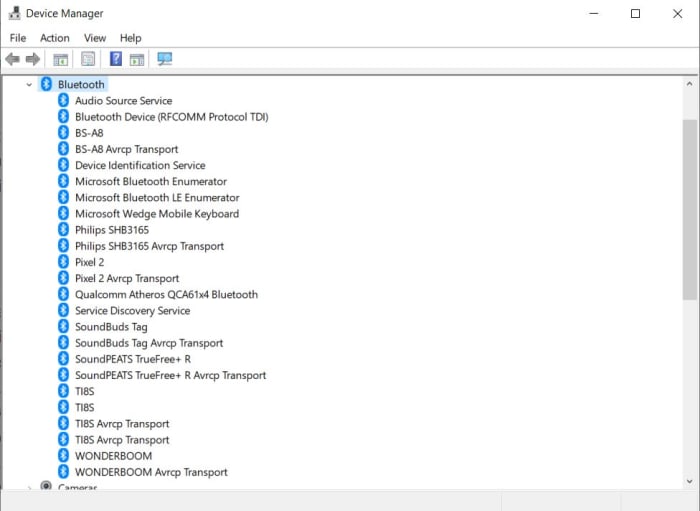
Occasionally, the sound on your PC with Windows 10 might stop working, and you’ll see the “No audio output device is installed” error message. This issue is quite easy to fix with the following steps.

First, go to Device Manager on Windows 10. Then, look for the “Sound, video and game controllers” line and select it. Next click “Action” and “Add legacy hardware.”

Follow the steps in the installation assistant so Windows automatically finds the solution to your audio device problem.

If your problem persists, we recommend following the steps in our comprehensive guide to fix the issue.

15. Windows Explorer stops workingHombre preocupado mirando portátil

To bring our list to a close, we want to help you fix a particularly annoying issue in Windows 10: the system shows the “Windows Explorer has stopped working” message and closes all your windows, preventing you from using your computer normally.

There can be multiple reasons for this error, but usually it’s because you have a driver that needs updating or your operating system files are corrupt and affected by some error. Another possibility is that your computer has been attacked by a virus or malware, or an application you have installed is having some sort of conflict with Explorer.

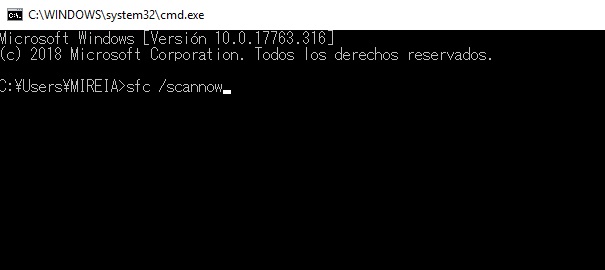
To solve this problem, we recommend updating your computer’s drivers, using the System File Checker tool to analyze and repair your Windows Files, and scanning your computer for viruses and malware. If none of these steps work, the best solution is System Restore, which reverts your PC to an earlier date.

Below is a step-by-step guide that will make it easier to fix this irritating issue in Windows 10.
None of the errors I’m looking for are listed here. What should I do?

In this article, we’ve covered only a few examples of the main errors and problems that Windows 10 users can run into. However, we know the list of potential issues is much longer, and you probably still need help. In this case, we recommend checking out our Windows 10 guide, where you’ll find a rundown of all the problems you might have with your operating system and how to solve them step by step.
We hope our roundup of Windows 10 problems and solutions has been helpful to you. Do you need help with some other aspect of this operating system? Tell us about it in the comments section, and we’ll lend you a hand as soon as possible!
How to convert videos to different formats

Converting video files can sound intimidating but there’s nothing to be worried about. Here we’ll show you five ways to convert video formats.

Converting videos from one file type to another may sound like some sort of technical nightmare but actually. It is a lot easier than you’d think. There are a million and one reasons you might need to do it too. You may want to upload your video to the internet or maybe that video you took on your iPhone is too large as you now have a camera that can capture in 4K.

Whatever the reason doesn’t matter as there are a lot of great programs out there that can help you take a video saved as one format and convert it into another. We’ll now walk you through the best of them and show you just how easy it can be to convert video files.

Video converters

Unlike with pictures, there is no single file type for video that everybody uses. There is no JPG of video, and instead, there are many different video formats including MP4, AVI, MOV, WMV, MKV, MPEG, WebM, AAC, and FLV to name but a few. This is how to convert them all into each other.

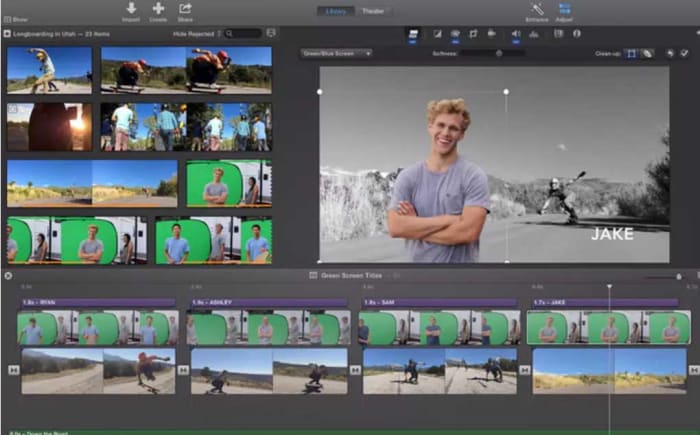
iMovie

iMovie for Mac offers a rather robust entry-level video editing suite for all budding movie makers fortunate enough to have a Mac. iMovie has a plethora of cool features that will allow you to take your home movies and camera phone recorded videos and bring them all together into a polished final product.

Another of the key features iMovie has to offer is the video conversion tool. With this tool you simply need to import the video file of your choice and add the video to your storyboard. From there you need to hit Share and then choose File. This will then give you the option to save the video with a new name, new resolution, new quality, level, and a new file format.

iMovie Download now
7

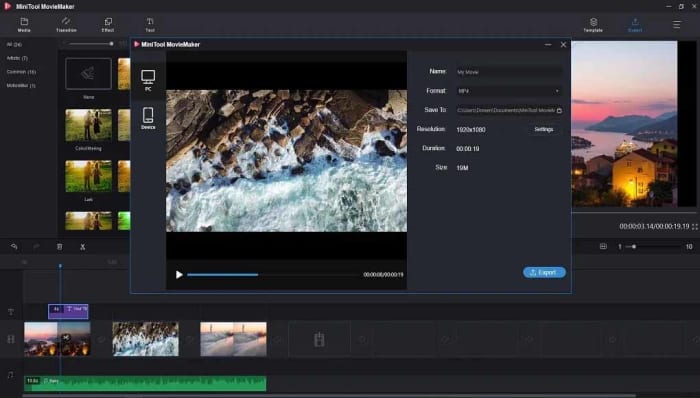
MiniTool Movie Maker

We like MiniTool Movie Maker here at Softonic because gives away a lot of great video editing features for free. Furthermore, as well as offering anybody looking to make their first movie the tools they need to do so, the app also lets you make your videos for free without having to display a watermark, like most other free video editing apps, do.

The video converter on MiniTool Movie Maker allows you to convert almost all different video file types and even gives you the option to edit the videos you’re converting too by adding various elements such as subtitles or filters. It is easy to use too. You simply import your video and set your target format and the app does the rest.

MiniTool Movie Maker Download now
9

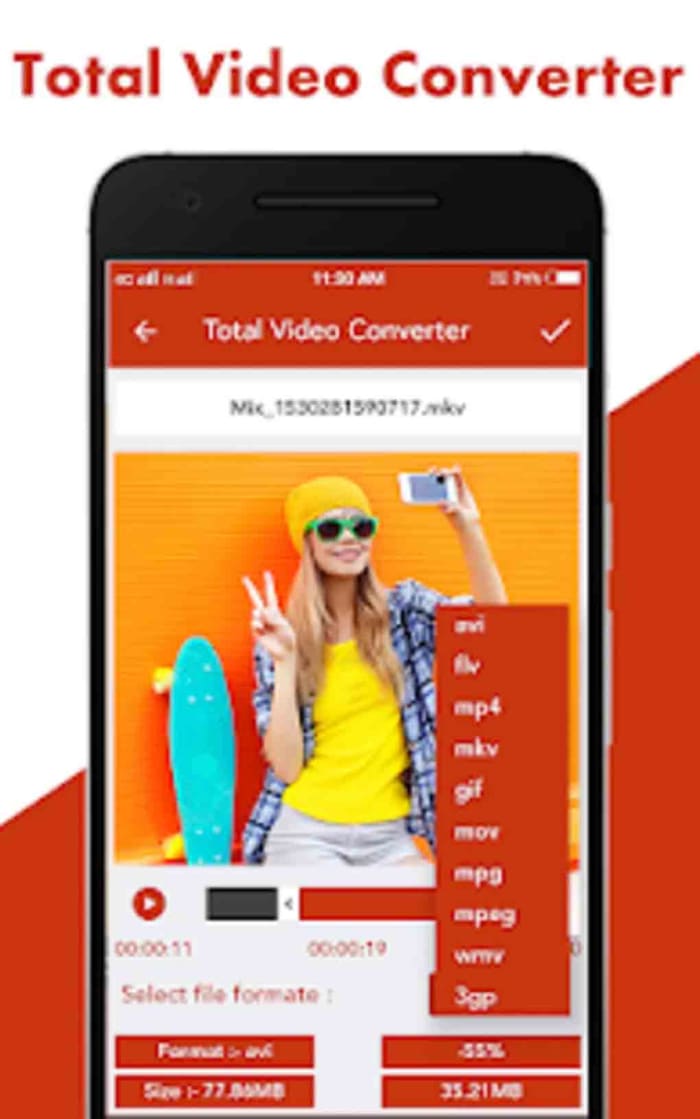
Total Video Converter

This app for Android offers a quick and simple video conversion solution for mobile users. There’s also a Windows version of the program and a version for Apple Macs too. Sadly, however, there’s no iOS version available at the moment so iPhone users can’t use this program to convert their videos.

Converting videos on mobile couldn’t be easier. When you open the app, it will automatically show you all the video files you have on your device. This means you don’t have to go searching around your device or copying and pasting files from one place to another. The app just shows you everything you need right there in one place. From there it is simply a case of selecting the video you want to convert and the format you want to convert it to and then hit Convert. The app will do the rest. The app converts files quite quickly and also offers a video player too so that you can watch the videos you’re converting too.

Total Video Converter Download now
8

Online Video Converter

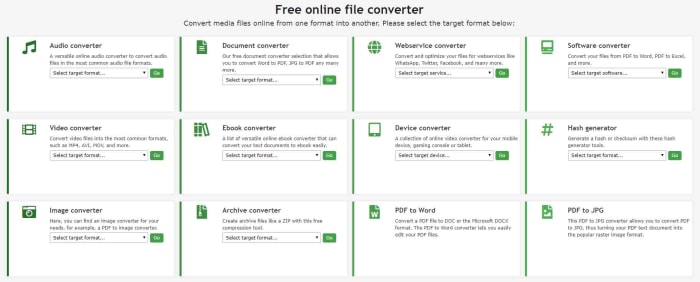
As well as showing you the best apps for Android, iPhone, Windows, Linux, and Mac for converting videos, we thought it would also be helpful to show you the best website for converting videos too. Online-Convert is an absolute beast of a site that will help you convert almost any type of file, not just videos. Here you can easily convert Word files to PDF and vice versa as well as easily converting software, images, eBooks, audio, and more.

We’re here though for video and the process couldn’t be simpler. All you need to do is go to the site and find the Video Converter box. There you need to open the drop-down menu and select the type of video file you want to convert your video into. Once you’ve done that, click Go, upload your video, and then hit Start Conversion. There are more advanced video conversion settings you can play around with, but these are optional. This method can be as simple or as complicated as you like.

VLC Media Player

VLC converter MP4

VLC Media Player is the internet’s favorite video and media player. It can play almost every type of video format and codec and barely breaks a sweat while other video players would struggle or simply crash. VLC is the don and always has been. VLC also offers a pretty robust video conversion solution too, which we’ve gone into in greater detail before.

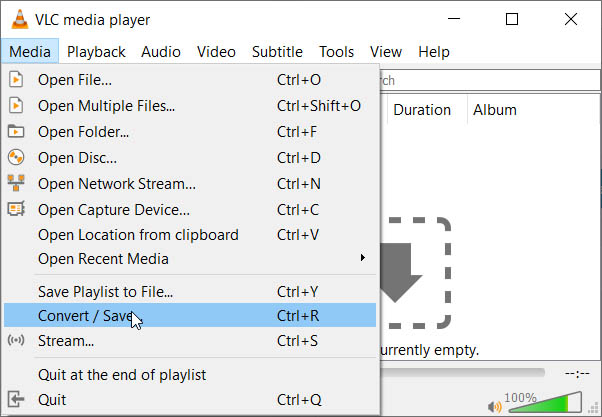
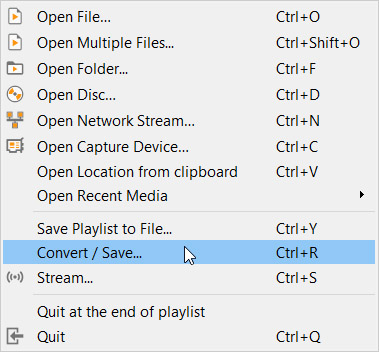
The video conversion process on VLC Media Player couldn’t be easier. If you open the program and go to the Media menu, you’ll see the Convert/Save button. You simply need to click this and then click the Add button to select the video file you want to convert. After that, you click Convert and select the destination of the converted file, the file name, and the new file type. As you’d imagine with VLC there are an awful lot of compatible file types here for you to choose from. From there it is as simple as hitting Start.

VLC media player download free ►
8

5 Hidden Features in VLC Player That You Need to Know

VLC can play online video files like YouTube videos, play almost all video codecs,  is available on almost every platform including Windows, Mac, Linux, Android, iPhone, and more. It can easily control playback framerate, bookmark exact moments in media files, and can even boost its out-the-box media playback features with extensions and plugins. VLC Media Player is an absolute beast of a program that can even be set up as your webcam.

In truth, though, VLC Media Player is so much more than just an open-source media player and does more than simply play video files or other media files. In fact, VideoLan can be used as a video editor as it has editing capabilities, advanced controls, and much more. Unfortunately, many of these hidden features may not be apparent unless you read up on all that VLC Player has to offer. tick with us for the best VLC tricks. Here are some hidden VLC tips that can make VLC Media Player much more powerful and save you tons of time.

VLC media player download free ►
8

More than a video player: Top 5 hidden VLC features

1. Creating Audio and Video Effects

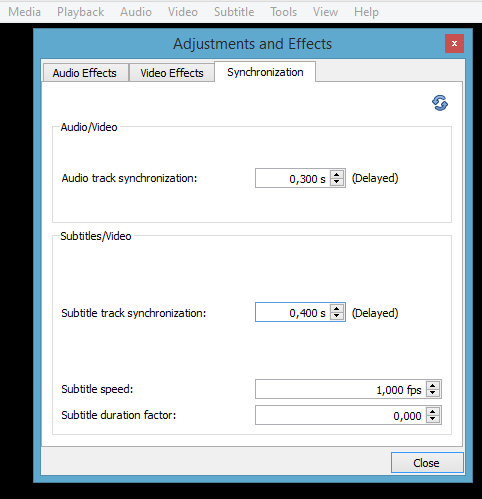
Sometimes when streaming, the audio file isn’t correctly synced up with the video, and this can be incredibly annoying. To fix this issue (or just to create some cool audio/video effects of your own,) open VLC Player and select Tools, then click on Effects and Filters. Next, choose Audio Effect or Video Effect. Here you can play around with the effects that are available and see the changes you make live. This menu item also allows you to change the Brightness, Hue, and other effects. Change the tab to Synchronization to correct the audio-video syncing problem.

VLC Sync

2. Take a snapshot of a Video

Taking a snapshot of a video is usually a tedious process involving Print Screen and Microsoft Paint. To take a snapshot with VLC, play a video and right-click on the desired screenshot. Hover the cursor over the Context drop-down Menu on the option that says Video. To enter capture mode and open capture device you need to select Take Snapshot in the popup menu. That’s all there is to it.

3. Use a Video as Your Desktop Wallpaper

Screen recorder and desktop recording. No other media player offers this particular feature. Open VLC Player and go to the Preferences window. Choose the icon that says Video. Next, choose the Output box and select DirectX (DirectDraw). Restart VLC. Then load the video you wish to use and click the Video menu again. Choose Set as Wallpaper. When you are finished, change the Output setting back to Automatic and restart.

Convert/save files with VLC. Follow the link below to learn how to convert video and convert media files using VLC Media player.

4. Listen to Online Radio Stations

Nullsoft Shoutcast

Literally hundreds of SHOUTcast radio stations are available in VLC Player, but these stations have to be enabled to be accessible. Go to Media and select Services Discovery, then choose SHOUTcast. Finally, open the Playlist and find the station you wish to play. This feature can turn any compatible audio device into a powerful internet radio

5. Stream Podcasts

Forget downloading extra software to stream the podcasts you want to see. Open VLC Player and select the View menu. Then choose Playlist. Hover your cursor over the Podcast selection area in the sidebar. Click the + button, and then paste the address of the podcast feed into the box. VLC Player can then stream that podcast.

Check out VLC for Windows 10 to get a jump on the future of audio and video!

Best VLC add-ons

If you have VLC but think it is missing a key feature, check out our list of the best VLC extensions, plugins, and addons.

VLC Media Player is a verifiable institution. The ever-reliable media player has been around on Windows, Mac OS X, Linux, and Android and iPhones for what feels like forever and can play pretty much any video type or codec that has ever been invented is as popular now as it has ever been. It is the versatility that has always made VLC so popular with so many users but did you know that VLC is even more versatile than most people know. VLC can do so much more that think it can because of something very simple: extensions.

Yep, there are many VLC extensions, add-ons, and plugins that you can install to further augment VLC’s features. There are lots available too. If something about VLC has been frustrating you, there is likely an extension to fix the problem. If you’ve ever thought the VideoLan video player was missing a vital feature, there’s a good chance there is a VLC addon or plugin available that will add that feature to your version of VLC. Let’s take a look then at some of the best VLC Media Player add-ons, extensions, and plugins.

VLC media player download free ►
8

VLC plugins, extensions, and addons

These are all the best VLC Media Player extensions we’ve found to help you get more from the most popular and versatile video and media player available today.

SyncPlay

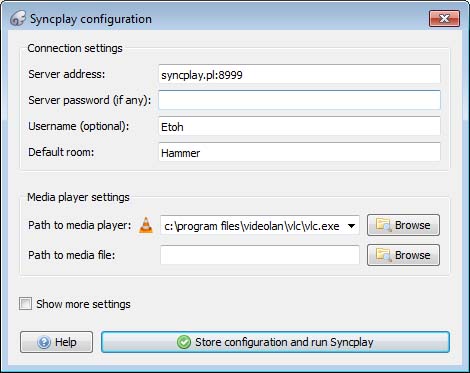
SyncPlay for VLC Media Player truly is an extension for our times. We’ve all had to deal with being away from loved ones recently, stuck at home and unable to spend time with friends and family. Sure, apps like Zoom and Skype have allowed us to chat with each other but when it comes to actual activities, it’s been tough. SyncPlay solves this problem, for one activity anyway, by making it possible to watch the same video concurrently on multiple computers at the same time. Yep, SyncPlay allows you to watch the same movie with friends and family even if you’re not in the same house.

To work you need to install VLC Media Player and the SyncPlay extension on all the different computers. Each PC then needs to connect to the same server and you’re ready to go. Once it has begun, one user can control playback on all the systems at once.

TuneIn Radio

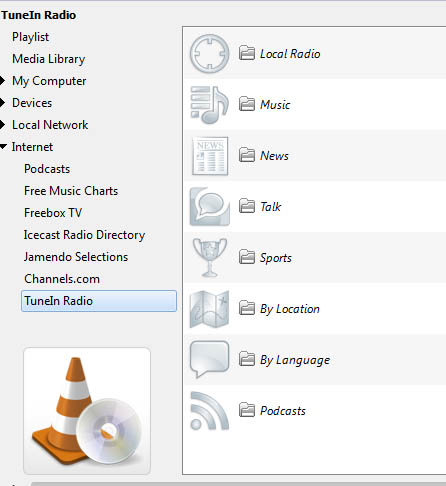
The TuneIn Radio plugin for VLC does exactly what you think it does. The plugin automatically grabs and displays all available TuneIn Radio stations instantly turning your VLC Media Player console into a massive and powerful internet radio. This means you can browse TuneIn’s extensive list of active radio stations without having to open Google Chrome, go to the radio stations web page, or look for it on a search engine.

With TuneIn installed on your VLC console you can easily browse radio stations by Music Genre, Local Radio Stations, News, Talk, Sports, and more. This extension basically puts radio stations from all around the world at your fingertips.

VLC for mobile Download now
8

Remember “Now Playing”

This simple extension works a little like Shazam but with audio tracks, you listen to while using internet radio stations. Yep, this extension will work perfectly alongside the TuneIn Radio extension we’ve just told you about. Basically, whenever you’re listening to internet radio you can use this extension to grab all of the metadata relating to that song so that you can then go and search for it and play it on your own. This extension keeps track of everything you’ve listened to so that you don’t have to.

Resume Media V3.4

The thing with VLC is that you usually use it to consume large media files. Whether they be movies, TV shows, or podcasts they all can last well over an hour. Sometimes you might not have all the time you need to get from start to finish and have to interrupt your playback. Of course, you can try to remember where you left off so that you can get back to it later, but wouldn’t it be much better to have VLC do that for you?

The Resume Media V3.40 plugin does exactly that. Whenever you close VLC Media Player with an active video or audio file, the extension will automatically start that file at the exact moment you left it when you open it up again.

Click to Play/Pause

As more and more online streaming platforms have launched a number of them have added cool new features that make so much sense. We’ll get to the Skip Intro button in a minute but first we’re going to show you a simple extension that will make a big difference to how you use VLC. Straight out the box, VLC offers two ways for you to control playback. You can hit the tiny Play/Pause button in the bottom left of the screen or you can hit the space bar on your keyboard.

This extension makes it much easier to control playback by allowing you to click anywhere on the video to play or pause the action. As we said, it might not sound like much but trust us, it will make a big difference.

Skipper

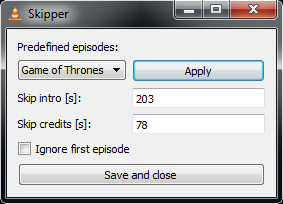
Please don’t misunderstand this as hyperbole or fluff. We think that the Skip Intro button might just be one of the greatest inventions of the 21st Century. Show intros and credits are incredibly annoying when all you’re trying to do is binge a season or two of your favorite show. Even if you like the intro, watching it 10-20 times in a single day is going to drive you crazy.

Well, the Skipper extension for VLC brings this wonderous innovation to the world’s most versatile media player. You can simply type I the amount of time you want skipping at the beginning and end of every media file and you’re good to go.

VLC: All you can do besides play videos

Check out some of the best hidden features of VLC. Learn how to record audio, video, and your desktop and may other great features too.

VLC Media Player by VideoLAN is an absolute behemoth open-source digital media and video player. It is quite comfortably able to play almost all types of codecs, file formats, and media from MP3 files to MP4 and a whole host of other video format playlists. This is the thing though, whereas it is definitely important for a media player to be able to play video file types like MKV, MOV, and AVI; VLC Media Player can actually do so much more.

That’s why we’ve decided to put together a list of the 5 best hidden features of VLC. After reading our guide not only will you know about the best VLC features, you’ll also know how to use them. Let’s get started:

VLC media player download free ►
8

5 of the best hidden VLC tricks and features

How to use VLC to convert audio and video files

VLC Player offers a very competent option for anybody who needs to convert a media file from one format to another. If you’ve VLC Player installed on your Windows PC or Mac, you won’t need to purchase, download, or install any third-party software so that you can convert your media files. It doesn’t even require a special plugin. No more searching for solutions on Google, this is how to convert video.

VLC media menu

First you need to open VLC, then click on the Media dropdown menu, and finally hit Convert/Save. You’ll then need to select the videos or audio files you want to convert using the Add button. Then in the Destination file box put the folder you want your converted files to save to and what you want the files to be called. After that you choose the VLC file type by clicking on the spanner button and selecting from the dropdown menu. Once you’ve followed the above instructions all you need to do is hit the Start button to begin. There are also some advanced features you can take advantage of, and you can find out all about the advanced VLC file conversion features here.

How to use VLC to record video and audio

If you have a Windows 10 PC or a Mac, you will have a native camera app and sound recorder for taking photos and videos using your webcam and recording sounds using your microphone. That’s all well and good but you can do both on just one app; VLC. Furthermore, as we’ve just seen, VLC can also convert audio and video files easily meaning you can quickly and simply take your recordings and convert them into any video output or file type. These will then be good for use on all your devices from Android smartphones and tablets to Apple iPhones and iPods.

Advanced controls on VLC

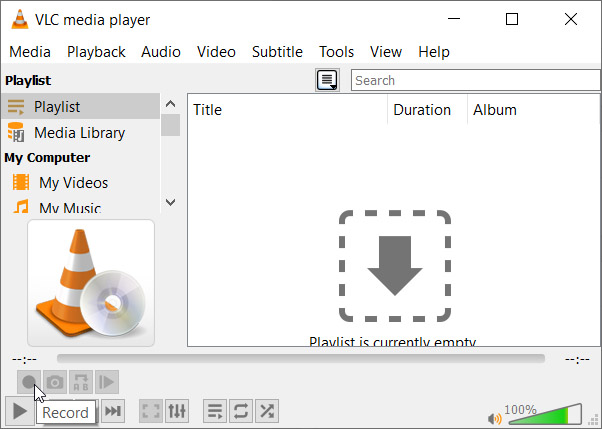
To record audio on VLC you need to activate Advanced Controls by clicking View in the top menu and then selecting Advanced Controls. This will display new controls in the bottom-left of VLC above the play button. To start recording sound all you need to do is press the Record button. To stop recording and save your file, simply press the Record button again.

Open Media on VLC

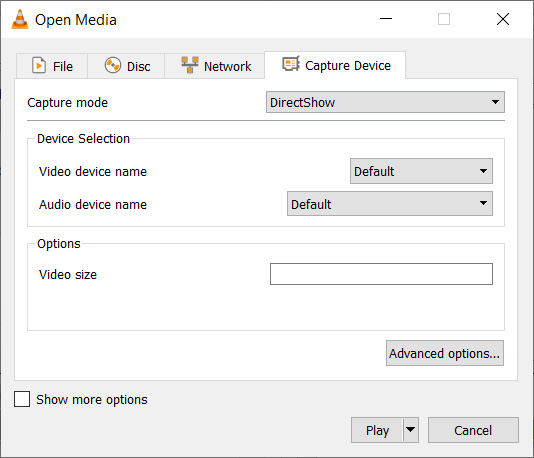
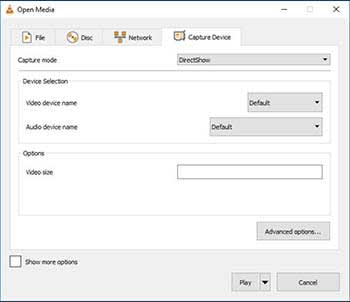
To record video on VLC using your webcam you need to go to Media then Open Capture Device. You now need to set Capture Mode to Direct Show and you’ll need to select your webcam from the options in the Video device name menu. If you want to record sound with your video, you’ll need to select your microphone from the Audio device name menu.

How to use VLC to record your desktop

Screenshots are an important part of the modern digital life we’re all living. Yes, you guessed it VLC does screenshots too, but we’ll get to that in a minute. VLC also offers the chance to record everything that is happening on your desktop rather than simply catching an instant.

Record desktop on VLC

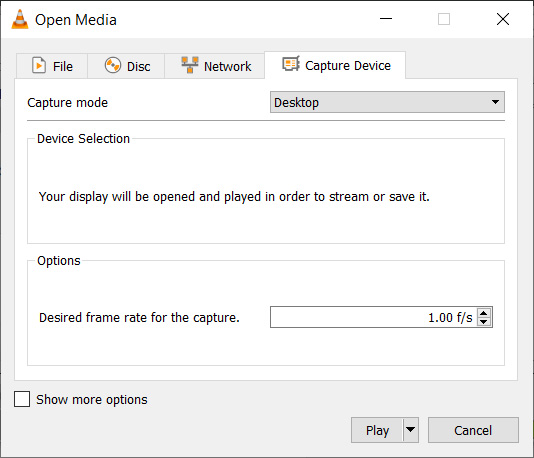
To record your desktop open VLC, hit Media in the top menu and then click Open Capture Device. You now need to change the Capture mode setting to Desktop and then select the framerate you want for your recording.  After that hit Convert so that you can select the file type your recording will save as and hit Start to begin. When you’re done recording your desktop hit Stop to save it.

How to screenshot on VLC

There are two ways to snap screenshots of videos using VLC. The first is to right-click and then select Video in the dropdown menu and select Take Snapshot. The other way to take a screenshot using VLC is to use the keyboard shortcut. On Windows or Linux press Shift + S and on Mac OS press CMD + ALT + S.

How to use VLC to rip DVDs onto your PC

DVDs used to be everything. When they first replaced VHS tapes their superior quality and sleek smaller form factor made them perfect for collections. If you’ve a huge DVD collection and want to save the movies and shows on your PC in case something happens to them or just because you never watch DVDs anymore, VLC can help you out.

Rip DVD on VLC

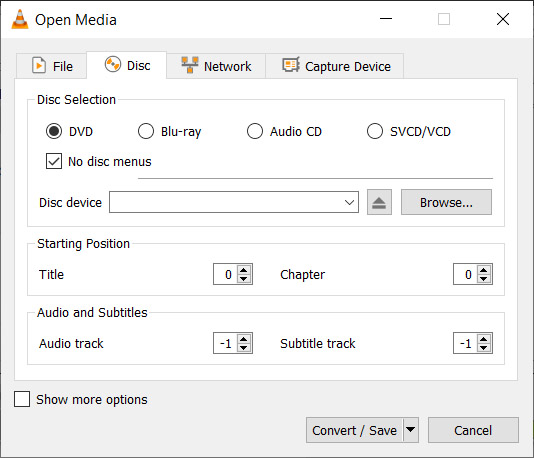
To rip a DVD using VLC insert the disc and then go to Media and then hit Convert/Save. Open the Disc tab and then choose the type of disc you’re ripping, which in this case is DVD. After that, check the No disc menus button and choose the desired Disc device where you want to save your DVD. Then hit the Convert/Save button and choose the file type you want to save your DVD as and then hit Start to begin the process.

Wrapping up

So, there you have five hidden VLC features that go beyond just playing media files. Now you know how to take advantage of some of the best VLC features. If you’d like to know more cool hidden VLC features, you’ll be glad to know that we’ve put together another guide to some of the best hidden VLC features, which you can read here. This guide includes how to listen to internet radio and podcasts using VLC and even gets into video effects.

VLC isn’t just great because it is a free open-source piece of software. It puts a lot of very powerful tools at your fingertips. We hope you enjoy using the tools we’ve highlighted in this guide.

How to use VLC

VLC is the premier free tool for all of your audio and video files! Here’s how to use it!

VLC

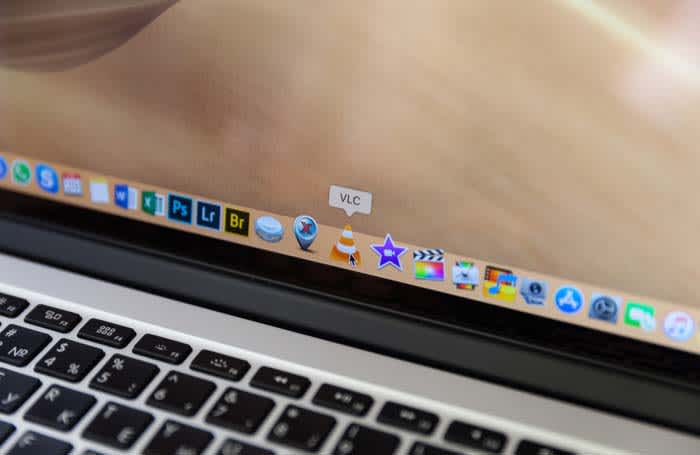
No, that traffic cone on your buddy’s desktop doesn’t mean his computer is under construction.

It means that your friend is using VLC, the best free tool for playing and capturing video! 

VLC plays most media files as well as DVDs, CDs, VCDs, and many streaming protocols. This tool really comes in handy. More often than naught, your device’s default video player is less than optimal. Once the program finally opens, you have to wait for it to load the video, and then play it. This only works if your video player can even play video in that format in the first place. VLC can play just about anything, and it does so quicker than most other apps. 

VLC for mobile Download now ►
8

How to use VLC

Use VLC to play audio/video files

VLC open file

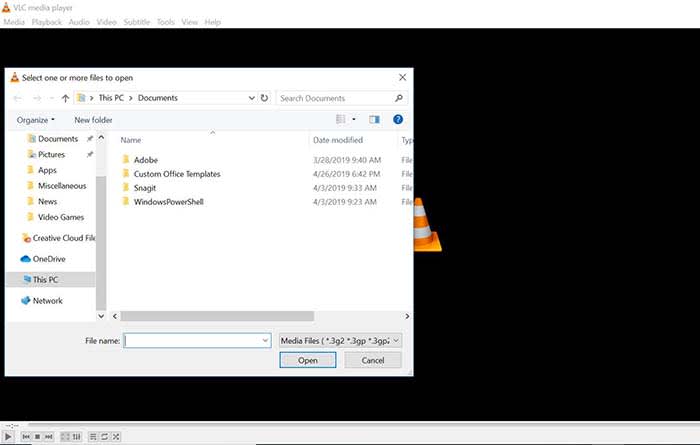
Playing a file with VLC is a lot like opening a photo in Photoshop. Either manually open the file by going to Media, and clicking Open File, or drag just drag the file onto the VLC window.

Keep a library of videos

VLC
Image courtesy of VLC

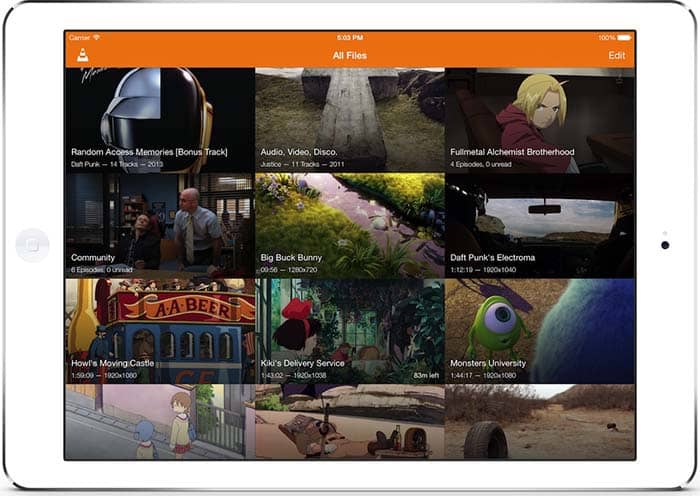
If you watch multiple videos on VLC, you have the option to keep a library of them to finger through at your leisure. Once you have several files loaded into VLC, you can organize them under All Files. Do you have a huge collection of anime? Organize them with VLC! Do you have a digital version of every movie in the MCU? Create a specialized folder for them!

Stream yourself

If you want to take a picture of yourself or record a video of yourself with a webcam, your device probably already has some built-in tools. However, it probably doesn’t have tools that help you stream yourself.

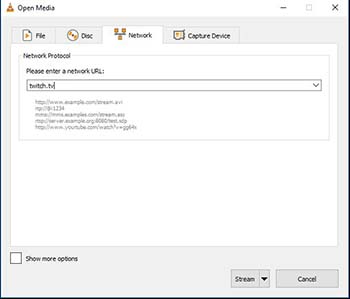
Go to Media and click Open Capture Device. Choose your preferred settings from here, and click the play button to start recording yourself. If you want to stream yourself, Go to Media and click Stream. A new window will pop up with streaming options.

VLC stream

You can even throw in a URL to the website you will be streaming to.

VLC stream

Record your desktop

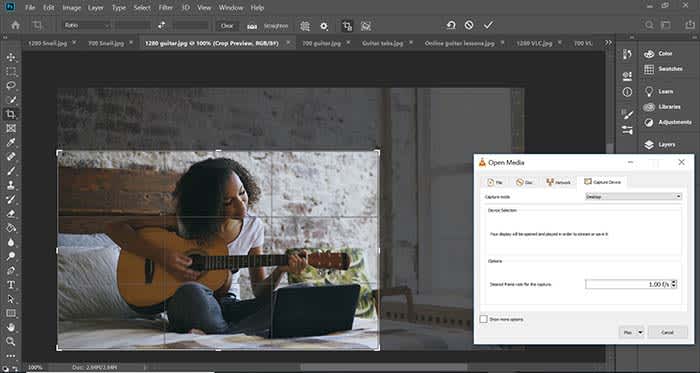
Capture photoshop tutorialLet’s say you’re a content creator and you need to record your desktop. VLC has the answer. Go to Media and click Open Capture Device. Now you can record your desktop and do it in whatever FPS rate your computer can muster.
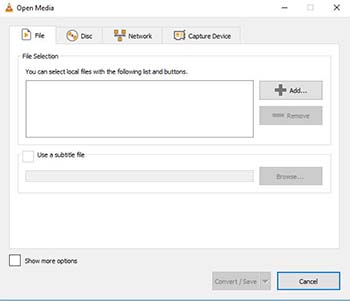

All of a sudden, you have an option for recording your next “let’s play” or that Photoshop tutorial you were making for your YouTube channel.

Convert files

VLC convert

If you have an old video or music file that is in some weird format, you can actually change the format with VLC. Click on Media and choose Convert/Save. From here, you can add files and change their format with the option at the bottom of the window. Finally, those weird videos from high school that you recorded with an off-brand video recorder can be converted to MP4. Sure, you might’ve wanted that cringey video you made for a class to die, but now you can share the video with them on Facebook!

Edit audio/video files

VLC edit

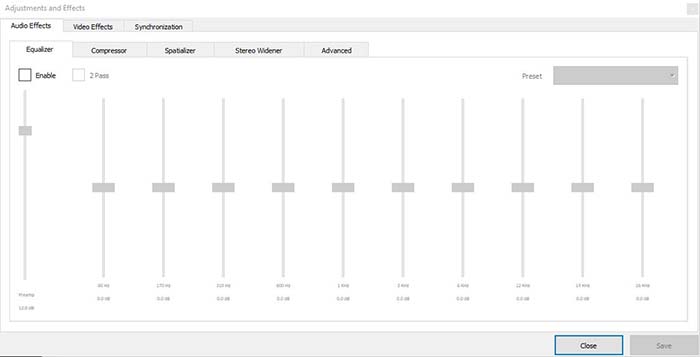
Ever take notes in class, but you can’t hear them because of background noise? Have you ever recorded a video of your friend, but it turned out too dark? VLC has tools to fix these issues and more! Go to Tools, and from there click on Effects and Filters. Here, you can edit audio and video files to make them as you see fit.

A quick note on the legality

VLC is meant to be used for audio and video files you legally own. It is not meant to be used for movies you illegally download or torrent from piracy sites. Also, the capture mode should not be used to rip videos from other sites.

Wrapping up

If you have a huge collection of video files that you want to watch/catalog, VLC is your best option. If you are looking for an easy to use program for streaming yourself, and recording your desktop, VLC is your best option yet again! It’s free to use, and a quick download. Basically, there’s no reason why you shouldn’t download it!

VLC for mobile Download now ►
8

How to make VLC your default video player on Windows 10 and Mac

Tired of your videos opening in your device’s shoddy video player? Here’s how to switch to VLC!

VLCThere’s not much more annoying than watching your computer try to open a video with its shoddy default video player. As your PC sputters to try to make it happen, you can’t help but wish that your computer would just play videos through VLC by default.



Luckily, there is a way to make that happen, and, better yet, we can tell you how!

How to make VLC your default video player

If you have Windows 10

  1. Open your settings
  2. Click on Apps
  3. Click “Default Apps” in the left rail
  4. Scroll down to your default video player
  5. Click on it, and switch it to VLC
  6. That’s it! You’re all done!

If you have a Mac

  1. Right click on a video file with Finder
  2. Choose “Get Info”
  3. Go to where it says “Open With”
  4. Change the current program with VLC
  5. Click the button below that says “Change All”
  6. A new window will pop up. Click Continue
  7. All video files with that extension will now open in VLC by default
  8. If you want to do this to multiple types of files, you will need to do it to each type of file

Wrapping up

Once you are done, you will be able to use VLC to open almost all of your videos by default. VLC can open pretty much any type of video file, and it is your best option for viewing obscure formats.

VLC for mobile Download now ►
8

How to rotate video in VLC

Need to rotate some video in VLC? Just follow these steps.

Rotate VLC

VLC Media Player is the top of the class in multi-format media playing, No matter what format you’re dealing with, the program is probably your answer. While VLC does the bulk of the heavy lifting for you, once in a while you’ll still get the odd video that’s playing upside-down or rotated weirdly. Never fear; we’ll show you how to spin it right!

Videos in VLC can be rotated, flipped and even transposed (which means rotate and flip simultaneously). VLC even has a neat tool that helps you rotate your video arbitrarily; you’re never locked into specific rotate coordinates. Best part? It’s right in your top toolbar, takes three easy steps, and can be done in seconds.

How to rotate and flip your video

1. Open Adjustments and Effects

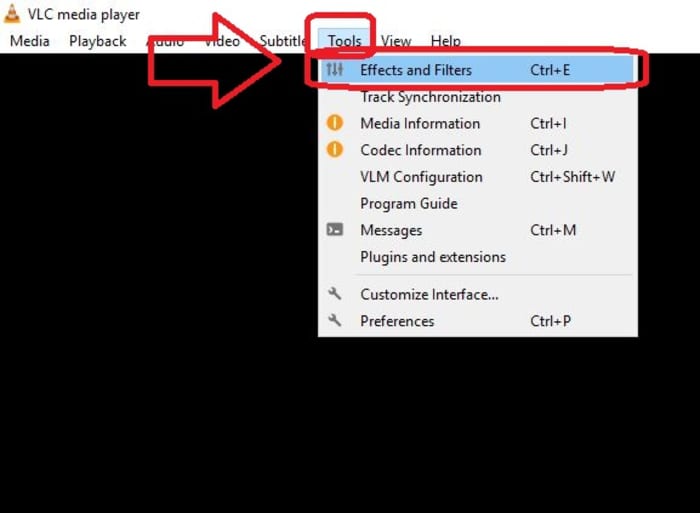
Click on the Tools tab on the top left of VLC. The top choice in the drop-down will be Effects and Filters. Click on that and it’ll open the window you need. Alternatively, you can just press CTRL + E when you’re in VLC.

VLC Effects and Filters

2. Open the Geometry tab

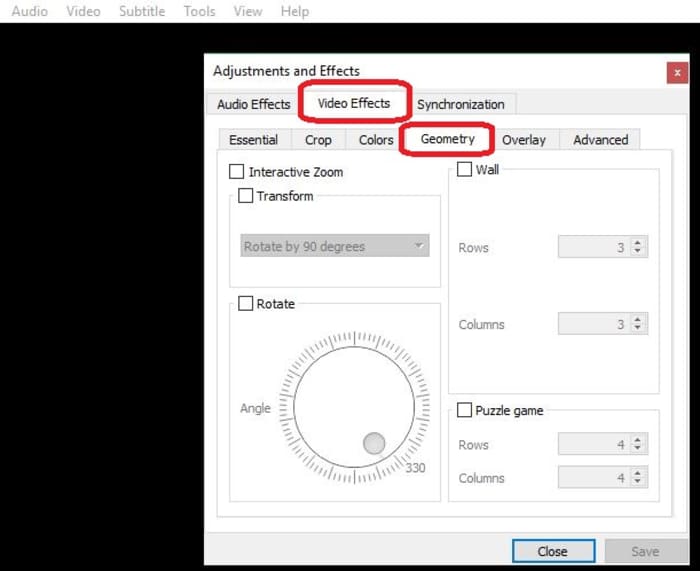
This window has a bunch of compressing tools, advanced options, and sliders that you can play with, but the rotating tool you need is nested under the Video Effects tab. Click on it, then open Geometry.

VLC Video Effects, Geometry

3. Choose how you want to rotate

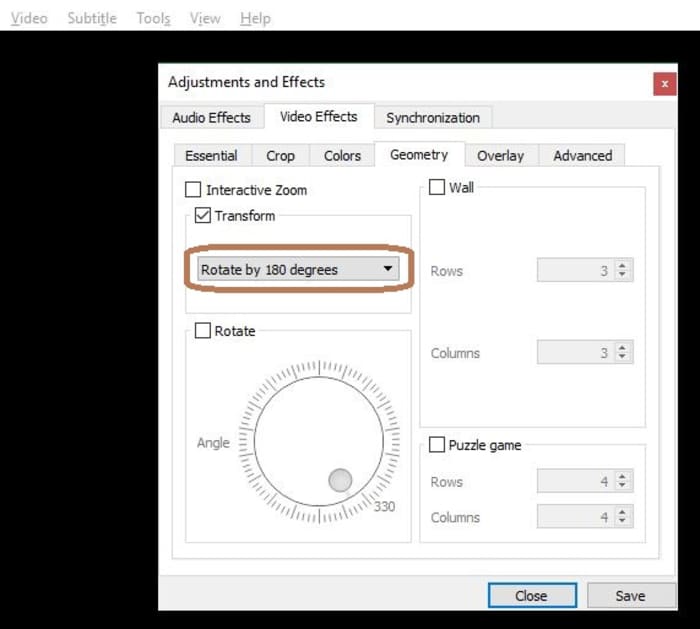
Now for the easy part. Check the box that says Transform, and you’ll unlock a drop-down that has seven different rotation options. Select the one you need and hit Save. When you open a new video, it will be rotated accordingly. If you want to disable the rotation, simply un-check the box.

VLC Adjustments and Effects, Rotate

Other options

“Rotate by 90 degrees” is straightforward enough, but there are other options you can select via the Transform drop-down. ‘Transpose’ will rotate your video 270 degrees clockwise, and then also flips it horizontally. ‘Anti-transpose’ does the same, but rotates by 90 degrees before the horizontal flip.

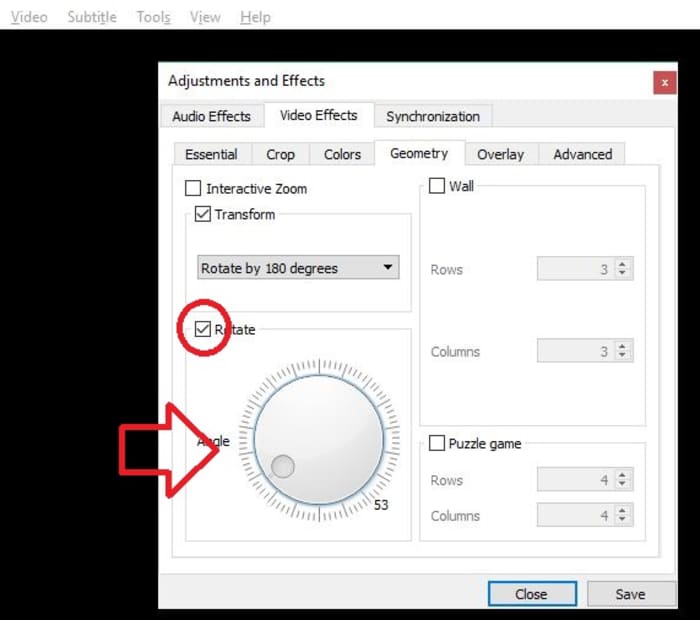
Lastly, you can also elect to rotate your video by smaller margins rather than locking in to a specific degree. To do this, check the Rotate box and move the Angle dial around to wherever you like.

VLC Rotate Angle dial

Pretty easy, right? Let us know in the comments below if you got the video figured out, and if there are any other VLC tips and tricks you’d like us to share.

VLC media player download free ►
8

VLC hit with huge security leak

If you have VLC, update it NOW.

This morning, VLC, Mplayer, and other popular media players were discovered to have a critical vulnerability bug.

According to TechNadu, the research company CISCO Talos identified the bug, found in streaming media RTSP server which is found in the media players. Although the developers of the media players already know about the bug, they’ve still highly encouraged users to download patches and the newest versions of the software immediately in order to combat the threat. You can get the latest version of VLC here:

VLC media player download free ►
8

Lillith Wyatt, a security researcher for CISCO Talos detailed what the vulnerability means in a blog post, saying:

“An exploitable code execution vulnerability exists in the HTTP packet-parsing functionality of the LIVE555 RTSP server library. A specially crafted packet can cause a stack-based buffer overflow, resulting in code execution. An attacker can send a packet to trigger this vulnerability.”

Although all of the media players that could have been slammed with this bug haven’t yet been identified, many developers also recommend that you update your imaging hardware as the bug affects firmware in cameras used for streaming, as well.

VLC is an extremely popular media player worldwide. Even though the discovery of the bug was met with quick action by developers, VLC is also known to have had problems with security in the past and could do well to re-evaluate everything put into their player.