How to Get Voice Chat on Roblox in 5 Easy Steps

The growing popularity of Roblox has led to the company improving the game and what they offer the players. Roblox on Android and other devices offers an in-game chat system where you can type messages to other players. However, the developers announced that they are working on releasing a voice chat feature across all platforms.

Unfortunately, at this stage, voice chat is not available on any other platform except Xbox One. This is because Xbox One does not have the usual chat function available. 

One of their concerns, and the biggest reason behind this not being available yet, is how to monitor the voice chat. They have to ensure that it is safe for children to use this feature since children make up about 52% of the overall players. This is extremely difficult, given monitoring voice chat takes a lot of time and isn’t easy to do.

Roblox on Xbox One already has a voice chat function available. This system lets you chat with friends and party members on Roblox.

If you have a microphone connected to your Xbox One, either via a headset or Kinect, you will automatically be placed into voice chat with other players in the game.

How to Get Voice Chat on Roblox Xbox One

Now let’s look at how you can enable voice chat on your Xbox One in Roblox.

Step 1: Connect Headset With Mic or Kinect

Make sure that you have your headset with mic or Kinect connected to your Xbox One.

Step 2: Open Roblox

Go into Roblox on your Xbox One. You should be able to find Roblox under your games if you have it installed on your Xbox.

Step 3: Choose Your Game

Choose which game you want to play, such as Adopt Me.

Step 4: Access the Player List

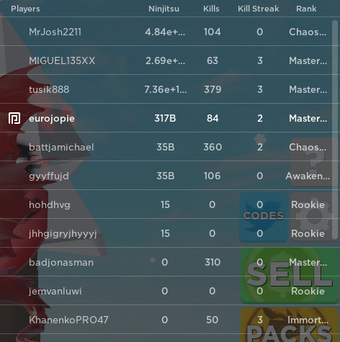
Once in the game, access your dial menu by pressing ‘Start’ on your controller and choosing ‘Player List’. 
Step 5: Now Press ‘Y.’

If you look at your screen’s bottom right, you will see a notice stating that you can activate the voice chat if you press ‘Y’ on your controller.

Press’ Y’ to activate voice chat for your Roblox game. If you do not want to use voice chat, you can follow this same procedure and press ‘Y’ again to disable it.

What does that mean?

You can enjoy voice chat if you are playing on Xbox One.

If you are playing on another console, you will have to use the regular typing chat feature until Roblox releases voice chat on other platforms such as iPad or mobile.

How to Play Outriders in 5 Easy Steps

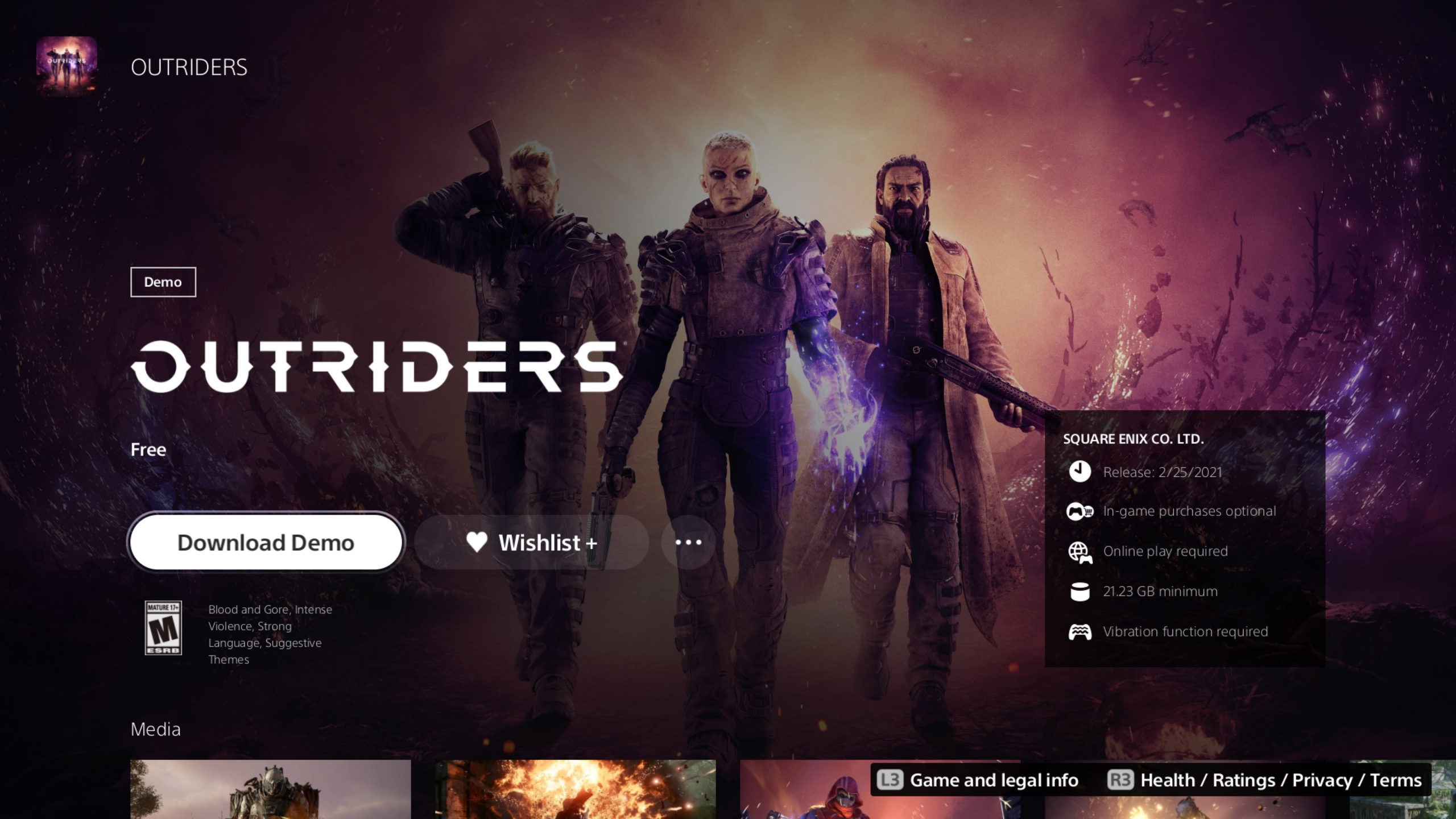
Outriders is a co-op game from the developer People can Fly and publisher Square Enix.

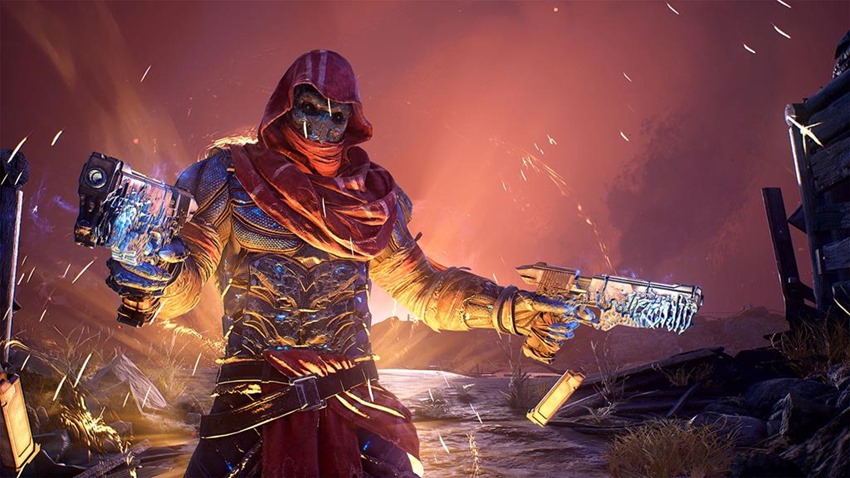
It’s a third-person shooter role-playing game (RPG) but isn’t an open-world titleIt lets you create your customized character. There are also four different classes of characters for you to explore and match your playing style.

We’re going to quickly show you how to play Outriders so that you can enjoy it with your friends.

Can You Play Outriders Solo?

Outriders was developed to be a cooperation game between players. Although you can play Outriders alone, you may find yourself on certain world tiers without the gear needed to survive. This might make the game tricky to play alone.

Outriders will be available on Xbox One, Xbox series x/s, PS4, PS5, and computer. Outriders will also be a cross-platform game, so you will be able to play with friends on various consoles, which makes playing together easy.

How to Play Outriders

Step 1: Install the Game/ Demo

You will need to install the game or demo to play Outriders

Step 2: Open Outriders

Open the game on your console. You will be taken to the main menu.

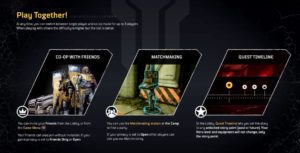
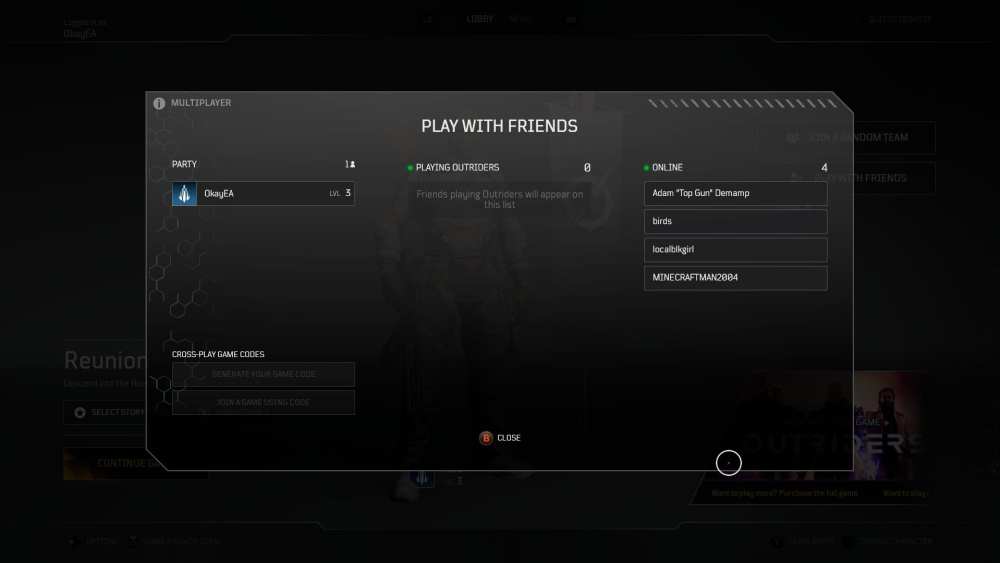
Step 3: Choose ‘Play With Friends’ or ‘Solo’

Now choose the Play with Friends options on the right side of the screen. Or, if you prefer to play along, choose the ‘Solo’ option.

If you choose the ‘Solo’ option, you can move directly to step five as the next step is specifically for those playing with friends.

Step 4: Select Friends

If you chose the Play with Friends option, you can now select up to 2 friends to play with.

If you are all playing on the same platform, it will be easy to select them by inviting them to your game. If you are playing on various platforms, you will need to generate a game code to play together. Furthermore, if you are playing the demo, you will need to enable crossplay from the gameplay options.

Step 5: Enjoy the Game

Now, you are ready to start playing the game with your friends or solo and enjoy the imaginative world and story of Outriders.

Don’t Miss Out on This Exciting Game

Try the demo, and you will see just how good the game is. 

Similar games include Destiny 2 and The Division 2.

Mobile Legends Tips – Top 4

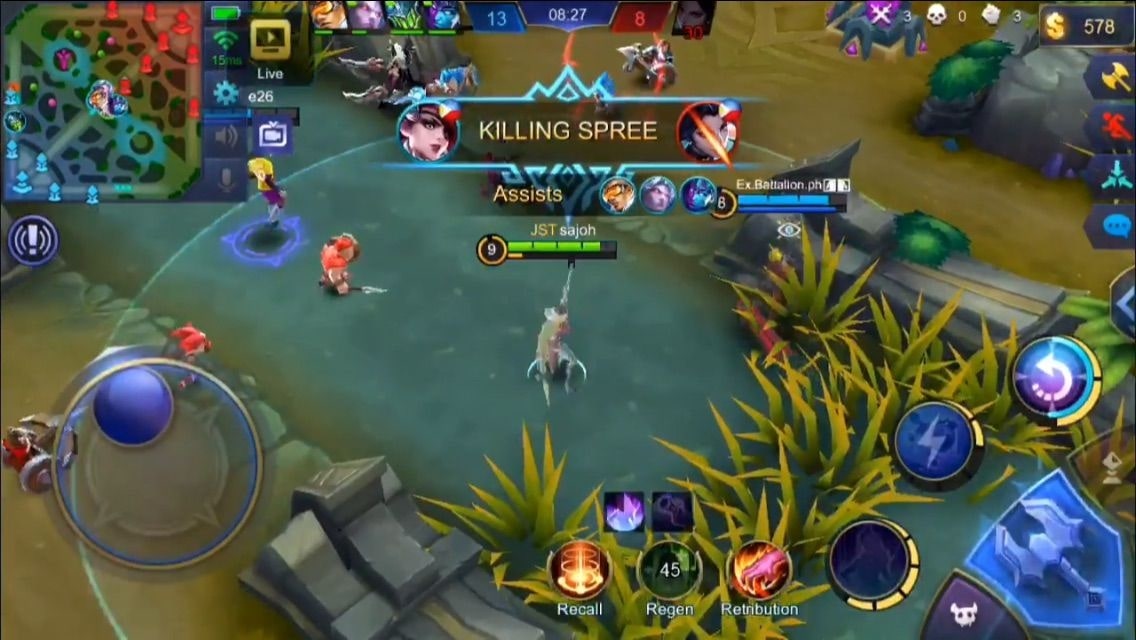
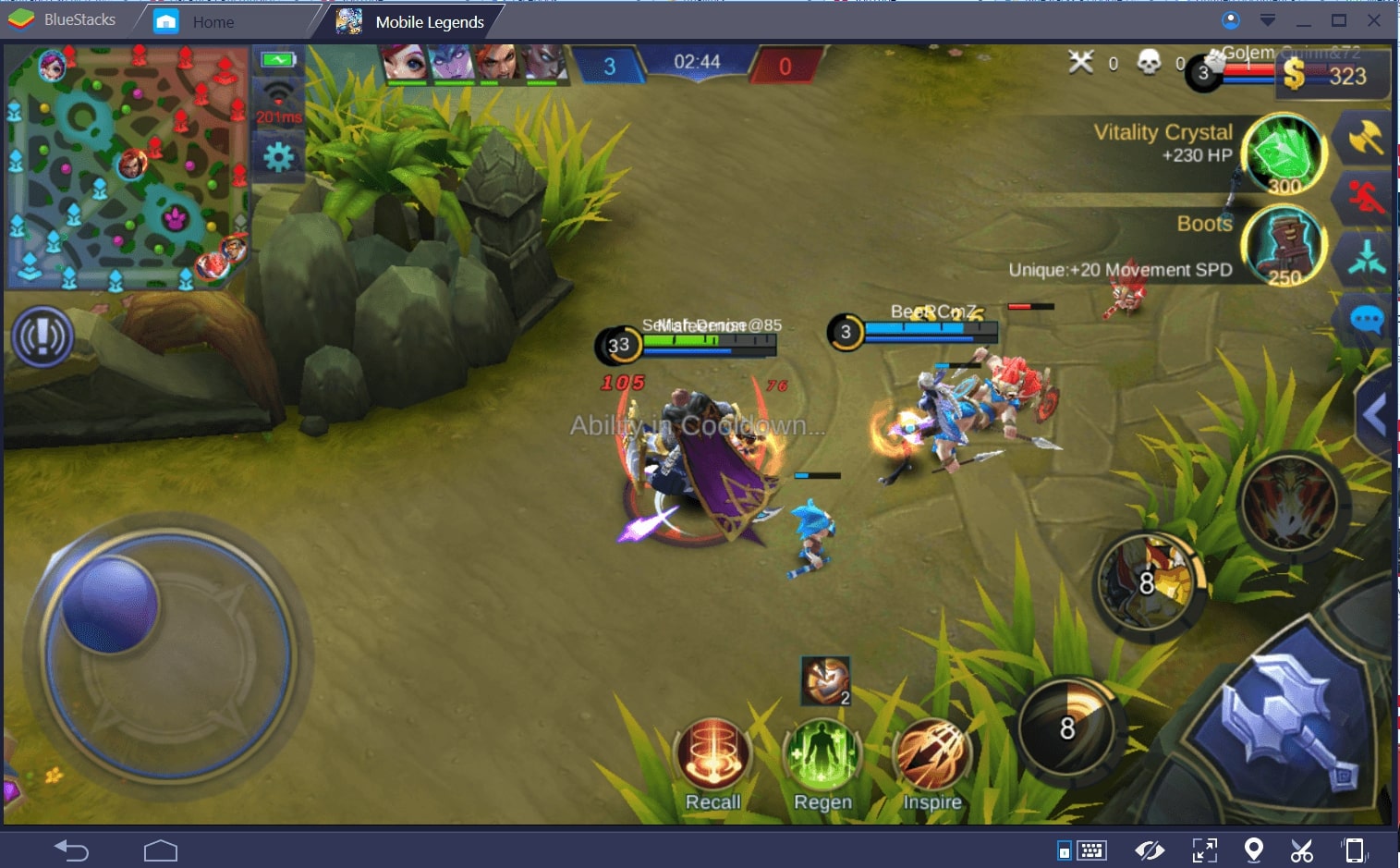
Mobile Legends is an online multiplayer game. You play a five against five battle arena where two teams of five heroes battle. In this guide, we will discuss 4 tips and tricks on how you can survive and beat your opponents.

Mobile Legends Bang Bang for iPhone Download for free
9

Mobile Legends Tips

Tip 1: Experiment with different Hero types

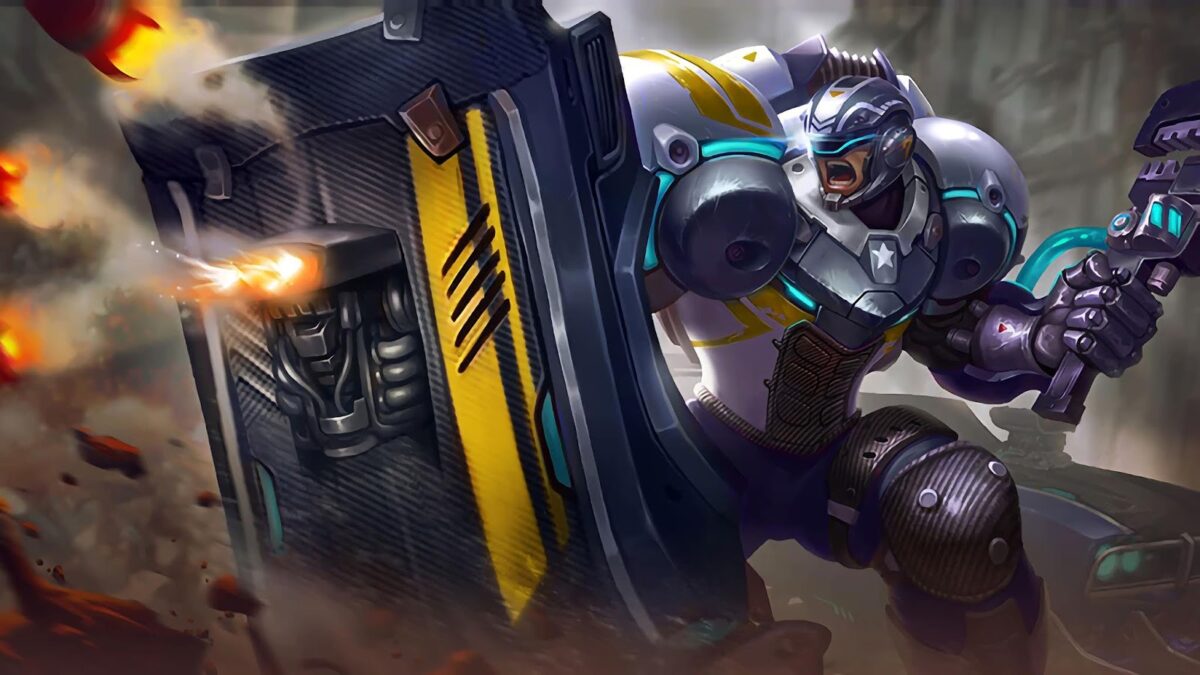
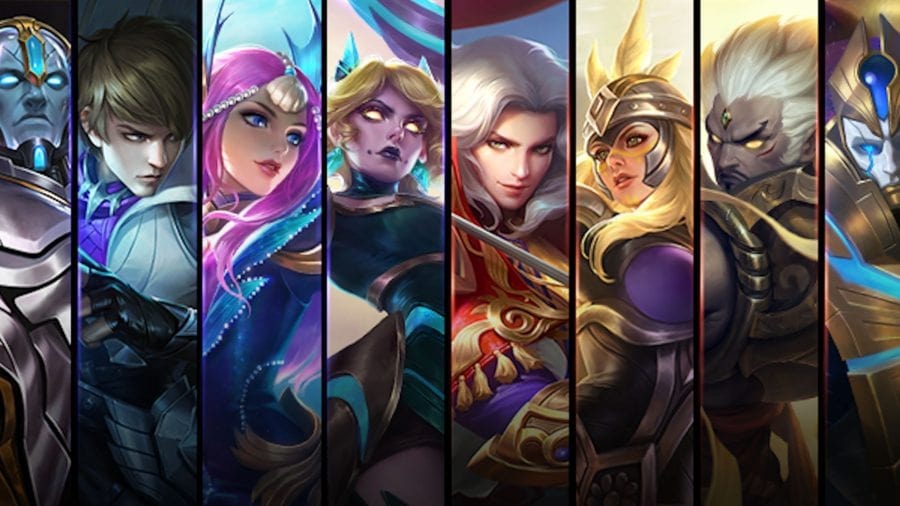
When you start the game, you will have access to a few different heroes. There are six classes of heroes in Mobile Legends. These classes are Tank, Fighter, Assassin, Mage, Marksman, and Support. 

These classes are all unique and play a different role on the team. Because of this, there is no single hero who is the strongest as each class varies. A few of the best heroes across the classes are Helcurt, Kimmy, Alice, Estes, Johnson, Chou. But be warned, the stronger the hero, the more difficult they will be to master. 

Make sure to play a few rounds with each class so that you can identify which class or even classes you are best at.

Tip 2: Stick together

Initially, the game will start with all the players choosing different lanes to take. This tip becomes valuable when it seems like your team doesn’t stand a chance of winning. In that case, it is best to band together, rather than all the players running around on their own and making them easy targets. This is a team game, and you cannot only focus on your solo rank.

Tip 3: Never stop farming

Farming is the process of making your team’s minions. You do this by pressing the attack button in your lane. It can become easy to forget about farming minions when you get closer to the enemy team’s tower. But farming remains vital to ensure you continue to gather gold and that your forces remain strong.

Tip 4: Make sure your Marksman or Assassin gets kills

In Mobile Legends, your marksman or assassins are very important to the eventual survival of your team. As such, it is crucial that you support these heroes and help them get as many kills as possible early on in the game to strengthen their skills in preparation for the final push.

Now get to battling

With these tips in mind, you can have a better chance at victory. Start playing the game now. And if you’re already playing, use these tips and tricks to improve your game further.

Mobile Legends Saber Build – Top 6 Items

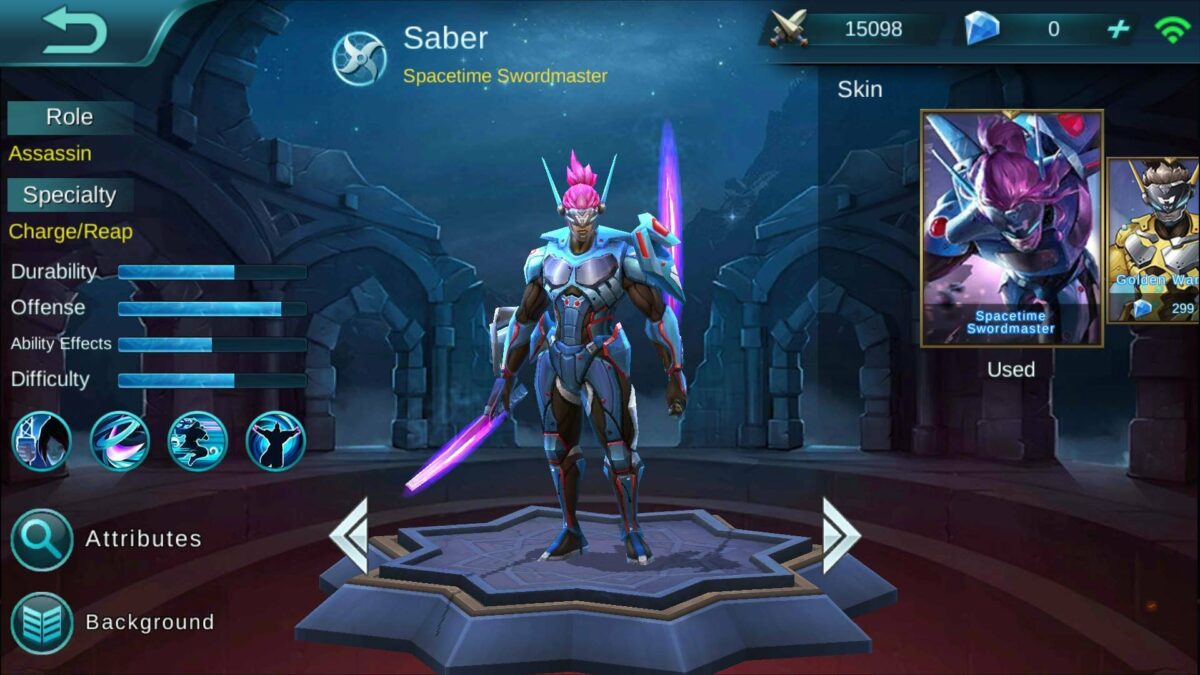
Mobile Legends is a MOBA that was released onto Android and IOS platforms in 2016. While you could follow the more righteous path of playing a tank or support, there’s nothing quite as fun as running around as an Assassin and generally causing frustration among the enemy team. 

One Assassin who’s particularly skilled at this is Saber and his penchant for locking down an enemy and beating them into dust with his swords. In this guide, we’ll list the top 6 items for the Mobile Legends Saber build to maximize his killing potential.

Mobile Legends Saber Build

Item 1: Magic Shoes

Movement speed is always necessary for these games, especially when you’re playing a hero whose job is to chase down and finish enemies. These shoes also come with Cooldown Reduction, allowing Saber to lock down his opponents more often.

Item 2: Bloodlust Axe

This item offers more Cooldown Reduction, but the main draw is the high Lifesteal modifier that it carries, allowing you to stay in the fight for longer.

Item 3: Blade of Despair

As well as the massive boost to damage that this item gives, it also allows you to do more damage to low-health heroes, making Saber more effective at picking off the weaker members of the enemy team.

Item 4: Magic Blade

This item not only gives you a boost to your Attack but also puts up a shield when your HP drops a little too low. This, combined with the Magical Defense modifier, makes this item a must-have.

Item 5: Blade of the Heptaseas

This item’s unique perk allows you to do more damage when you don’t take damage. This pairs beautifully with Saber’s ability to lock down enemies and allows for incredible damage opportunities.

Item 6: Immortality

Well, who doesn’t want to live forever? This item allows you to resurrect immediately after death with a shield and portion of your HP, effectively giving you a second life.

Working in Darkness to Serve the Light

This build allows Saber to dish out hoards of damage and generally spread chaos and mayhem on the battlefield and, as we all know, there’s nothing quite like the rush you get from unstoppably assassinating enemies left, right, and center.

How To Delete Messages in Microsoft Teams in 2 Easy Methods

Microsoft Teams is a practical way for remote workers and employers to communicate with one another. The application boasts several administrative advantages that are useful when managing a team. Still, one thing that can be a little harder to figure out is how to delete messages. 

So, how do you do it? Below, you will find an essential guide to assist you with removing outdated messages and irrelevant chats in Microsoft Teams.

How To Delete Messages in Microsoft Teams

The process is relatively straightforward, and you’ll be deleting messages in Microsoft teams in no time.

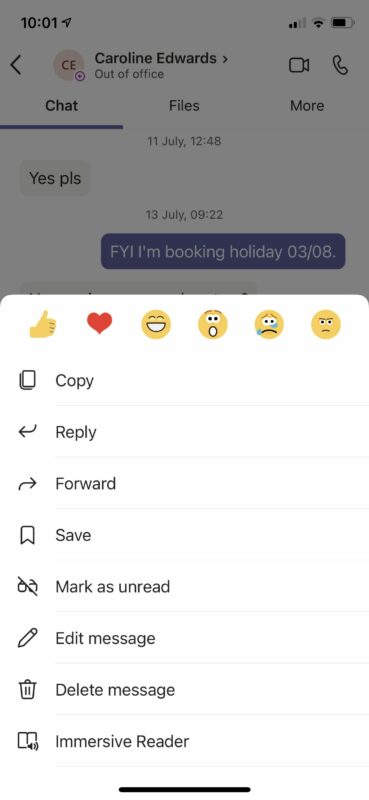
Method 1: Deleting Messages

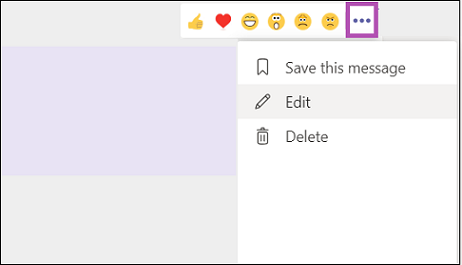
While it’s not possible to delete the entire chat history, you can delete individual messages you’ve sent by selecting the communication, going to options (three dots), and selecting delete. If you’re concerned, your messages are still visible to the parties involved. 

Don’t worry; once the message is deleted, anyone who has access to the chat will see that the message has been deleted, but they won’t see the text. Now, to go through an entire chat to delete messages can be a bit tedious. Luckily, there is another option. 

Method 2: Hiding Chats

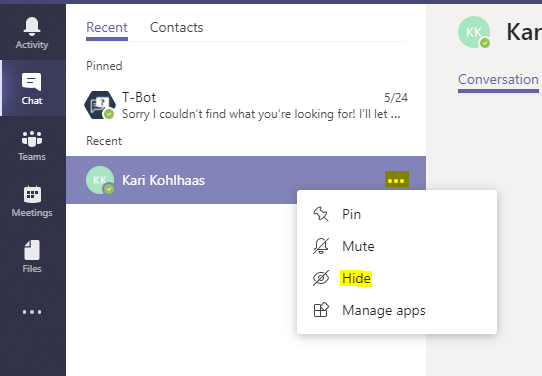
First, you’ll need to select the chat you want to hide. Unfortunately, there is no way to delete an entire chat board with this application, but you can hide the chat if it no longer applies to you. To hide the chat, select the options menu from your secondary navigation bar. On that list, you should see a selection listed as ‘Hide’.  Selecting it will hide the chat from your chat list. 

Pros And Cons of Microsoft Teams

While this may seem like a more cumbersome con of the application when you compare it to others, Microsoft Teams has many uses. It is widely available across platforms (Desktop and Mac), including mobile systems such as iPhone and Android. Microsoft also boasts a large support community, and with Microsoft Teams, there are several administrative functions that we encourage you to check out. All in all, it is a user-friendly, fast and practical application that we think is certainly worth the hype. 

Top 6 Mobile Legends Miya Build Items

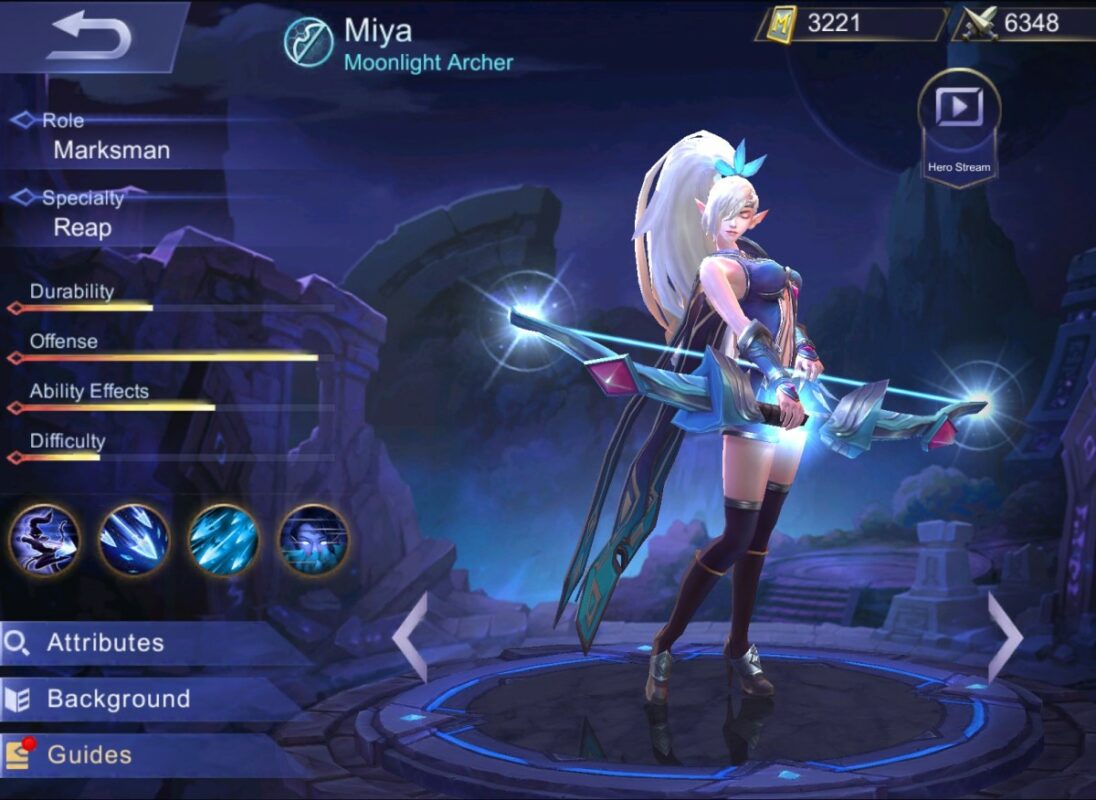
It can be challenging to be a new player of Mobile Legends. There are tons of mechanics to learn, and the gaming community is not always friendly towards new people. However, you’ll find that there are still heroes who are noob-proof, and Miya is one of these select few. She carries massive damage, and her skills are simple and easily mastered. We’ll give you one of the best Mobile Legends Miya builds, which focuses on boosting Miya’s raw physical damage to the point that every shot counts

Mobile Legends Miya Build

Miya becomes an unstoppable force late-game, provided she has the right items.

Item 1: Haas’s Claw

While this item provides a nice boost to Attack, its real value is in its lifesteal. It allows Miya to stay in the fight for longer and to outlive even the most robust tanks.

Item 2: Swift Boots

Boots should always be the first item you build on any character. The added movement speed is a must for every situation, and these boots also give a nice boost to Attack Speed.

Item 3: Scarlet Phantom

This element provides an insane DPS boost because of its increased Crit Chance and Attack Speed modifiers.

Item 4: Malefic Roar

This item gives you bonuses to damage and penetration, boosting your damage towards armored heroes and towers.

Item 5: Berserker’s Fury

The Berserker’s Fury offers more Crit Chance and Crit Damage modifiers, allowing you to take chunks of HP from other heroes.

Item 6: Blade of Despair

Not only does this offer a whopping increase to your Attack damage, but it also allows you to do more damage to low-health heroes.

One-Punch Woman

Miya becomes a deadly force on the field with this build, effectively sniping others from afar and doing catastrophic damage to the enemy’s towers. And there’s nothing quite like the rush you get from seeing your kill counter skyrocket as you wreck the enemy base and crush their dreams to dust.

Mobile Legends Eudora Builds – Top 3

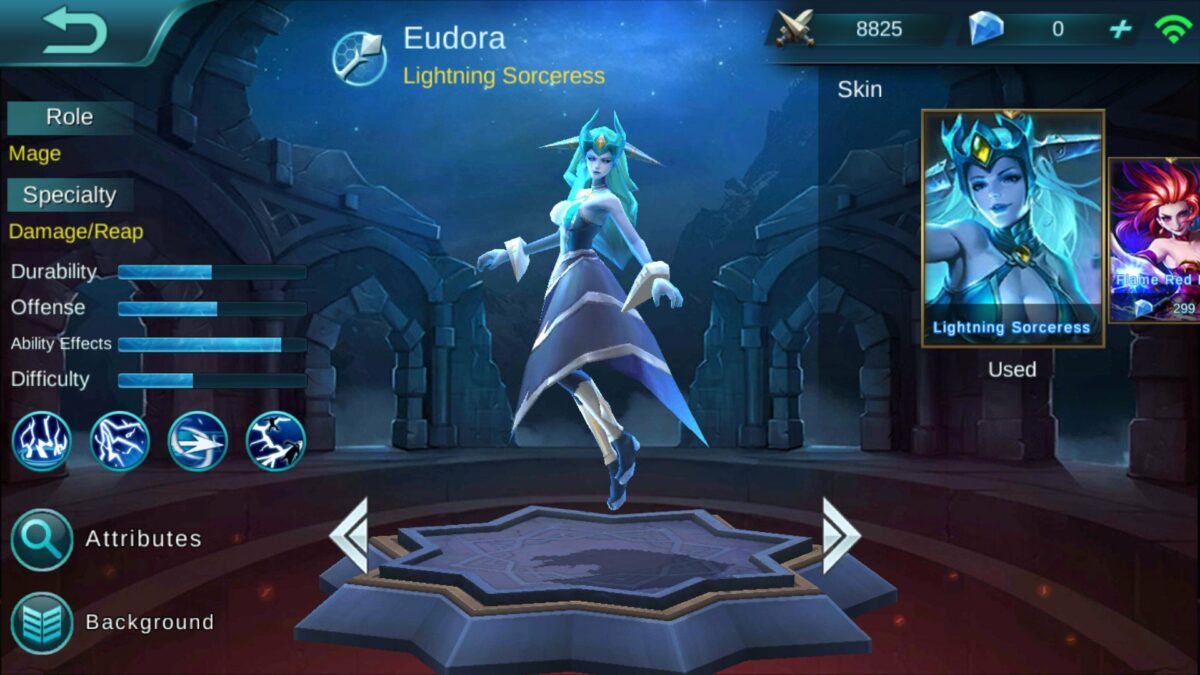
In Mobile Legends, a multiplayer online battle game for Android and iOS, you choose your hero, and then you are paired with four other heroes who become your teammates. Eudora is one of the heroes available in Mobile Legends in 2021. She’s the Lightning Sorceress, also sometimes referred to as the Queen of Lightning and Burst Damage. As a powerful mage, you can further develop her skills and magic power to make her a real threat on the battlefield. Today, we’ll guide you on the top 3 Mobile Legends Eudora builds to give you an edge against the competition.

Mobile Legends Eudora Builds

There are a few different ways to build Eudora’s items to develop her skills in the best possible way. We will guide you along a few of those ways below.

Build 1: Fleeting Time

This build is recommended to build Eudora’s overall magical damage. See the order of your item builds below to achieve this:

  • Lightning Truncheon
  • Demon Shoes
  • Fleeting Time
  • Holy Crystal
  • Divine Glaive
  • Blood Wings

Build 2: One-Shot Kill 

This build also focuses on increasing Eudora’s magical damage but includes a few items that allow one-shot kills. Let’s look at the order of your item builds to achieve this below:

  • Clock of Destiny
  • Magic Shoes
  • Holy Crystal
  • Divine Glaive
  • Concentrated Energy
  • Blood Wings

Build 3: Roaming / Invisible Eudora

This build focuses on stealth skills as well as cooldown reduction. Let’s take a look at the order of the items to achieve this build.

  • Shadow Mask
  • Magic Shoes
  • Enchanted Talisman
  • Ice Queen Wand
  • Oracle 
  • Blood Wings

Tip: Don’t forget about your emblems. When choosing an emblem for Eudora, go for Mage or Magical Emblem sets to further increase her magical damage.

Get Started Building Your Best Hero

These builds will help you to make your hero powerful. You can experiment with your builds as well to compliment your playing style. What are you waiting for? Start playing with Eudora now, and see how strong you can make her.

How to Install and Set Up GTA V Mod Manager in 3 Easy Steps

GTA, short for Grand Theft Auto, is one of the game franchises that formed the foundation for today’s massive gaming scene. When one looks back to the dawn of gaming, we think of titles such as Warcraft, GTA, Final Fantasy, and Super Mario. These titans have existed since the beginning and have managed to stay at the forefront of the gaming scene for decades.

As with most popular titles, the community immediately jumped into making mods for the game to improve your experience in-game or, in some cases, to have some ridiculous fun. There are mods for almost everything, from UI overhauls to modding your character to look like Harry Potter. While we cannot condone modding the online component of the game, we won’t deny that there is untold fun to be had in modding the story mode, and that’s why, in this guide, we’ll show you how to install and set up GTA V Mod Manager.

How to Install and Set Up GTA V Mod Manager

Let’s jump right into it!

Step 1: Download GTA V Mod Manager

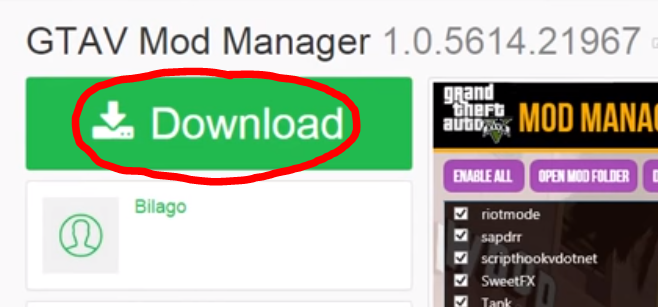
You’ll need to download the install file from the website, follow this link, or Google “GTA V Mod Manager,” and it should be the first result to pop up. Once on the website, click the Download button.

Step 2: Extract files

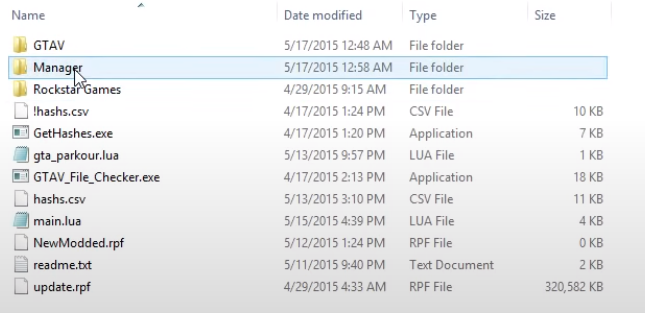
Once downloaded, you’ll need to extract the zip file (you can use a program like WinRAR for this) and copy the .exe file to your GTA installation folder. We recommend creating a new folder for the Manager as this will be where you paste your mods.

Step 3: Run the GTA V Mod Manager

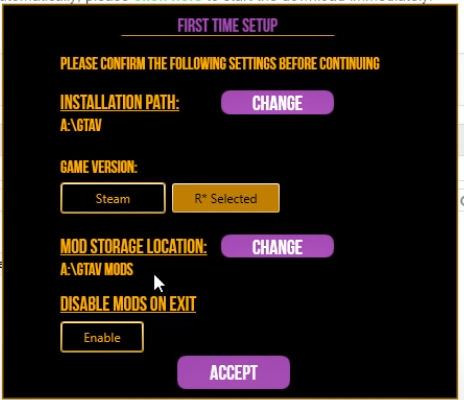
Once you’ve copied the file, run it. This will open a popup window where you’ll need to select your GTA installation folder, whether it’s a Steam or Rockstar version and where you’d like your Mods to be installed. Once you’ve chosen your desired settings, click Accept, and your Mod Manager will open.

Time For Some Mayhem!

Now you can install whichever mods take your fancy and create some epic moments as you explore Los Santos and cause a little chaos. GTA creates a no-holds-barred setting, but why not take it a step or two further?

How to Stop Microsoft Teams from Opening on Startup Microsoft Windows 10

Microsoft Teams offers you a single platform from where you can manage tasks with different teams, and people can ask questions or give advice. Teams has become much more popular in recent months with the increase in people working from home and is available on multiple platforms such as Windows PC, web apps, Android devices, iPhones, and even Mac.

Microsoft Teams is defaulted to start up whenever your computer starts up. You may wish to stop Microsoft Teams from opening on startup on Microsoft Windows 10 automatically.

How to Stop Microsoft Teams from Opening on Startup Microsoft Windows 10

Below we go through the simple steps of deactivating Teams starting automatically on Windows 10.

Step 1: Access Task Manager

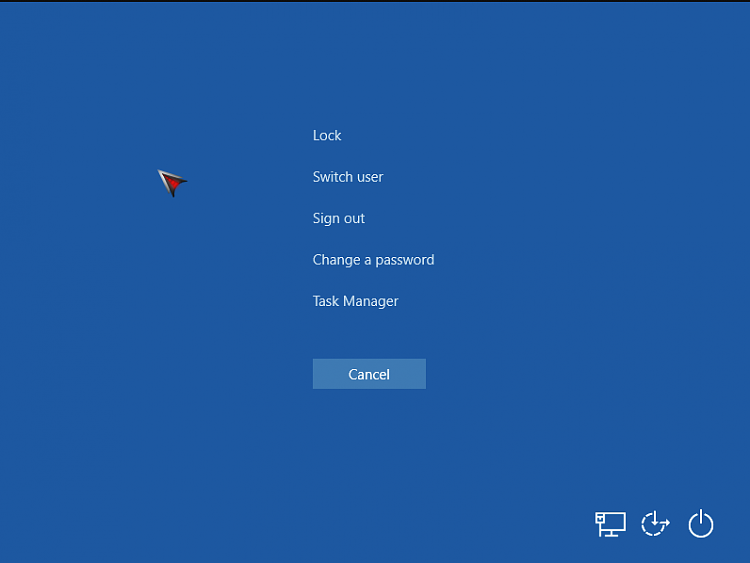
Press Crtl + Shift +Esc, and choose Task Manager.

Step 2: Go to Startup Tab

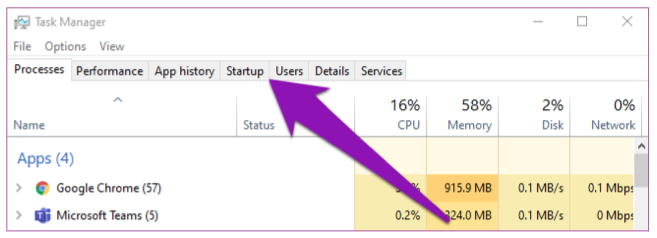
In the Task menu, open the tab that says ‘Startup’. This will list the programs that open automatically on startup

Step 3: Disable Microsoft Teams

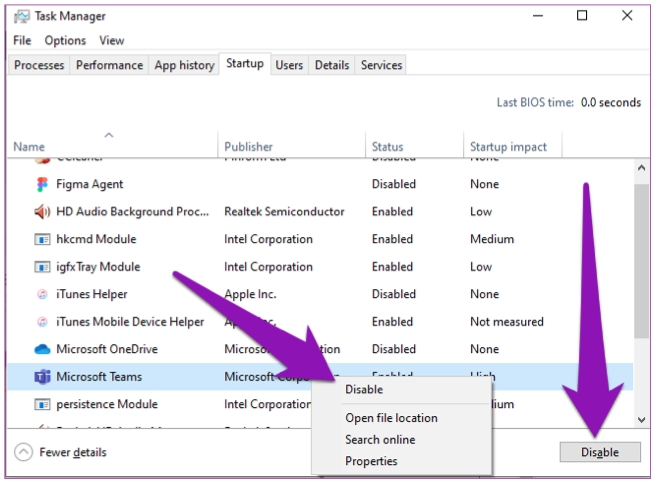
Click on Microsoft Teams and then select ‘disable’. This can also be done for other programs on Windows 10.

Gone like the wind

Microsoft Teams will no longer open whenever you startup your computer. But you still have the program available when you need it. If you’re looking for similar programs and apps, try Zoom and Slack.

How to Install GTA V Mods in 3 Easy Steps

Are you still having tremendous fun in GTA V after all these years? Have you figured out how to create a new crew and take on the virtual world? Well, the excitement has only started, as you can also modify the action shooting game to include items not found in the vanilla version. 

Today, we’re going to look at how to install GTA C mods and introduce new gaming elements that don’t include the cheat mode.

What are GTA V mods?

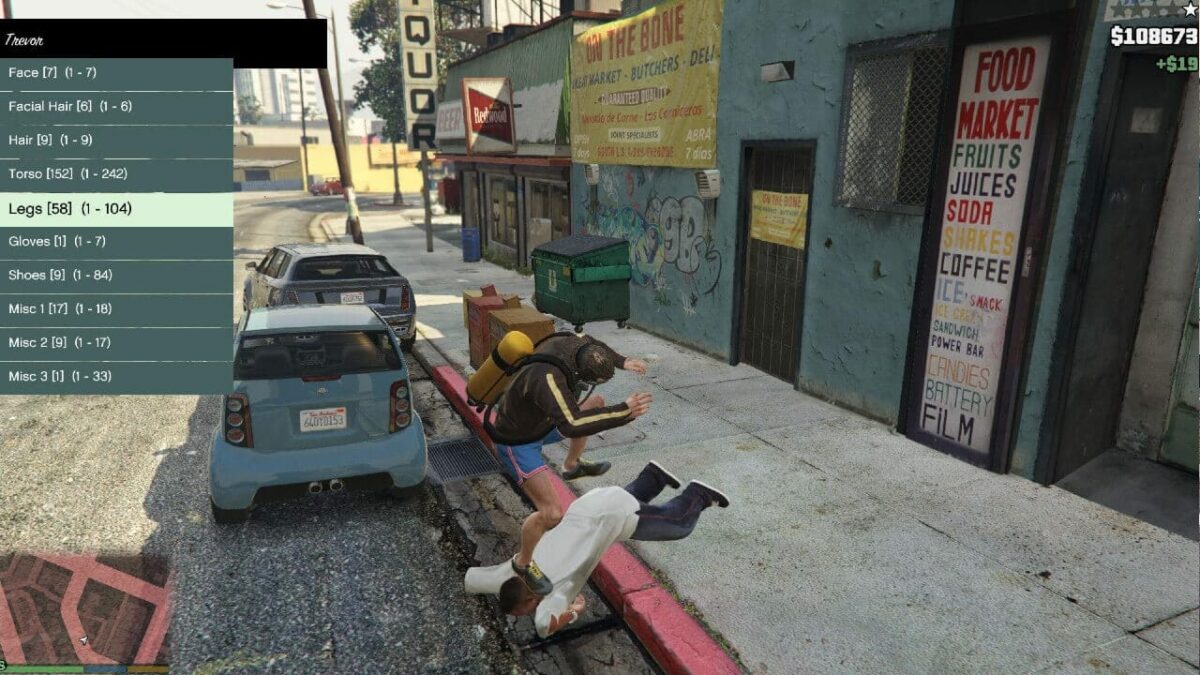
GTA V mods are modified gameplay files and items that change the way elements work in the game. You can add zombies or new vehicles not available in the original version. 

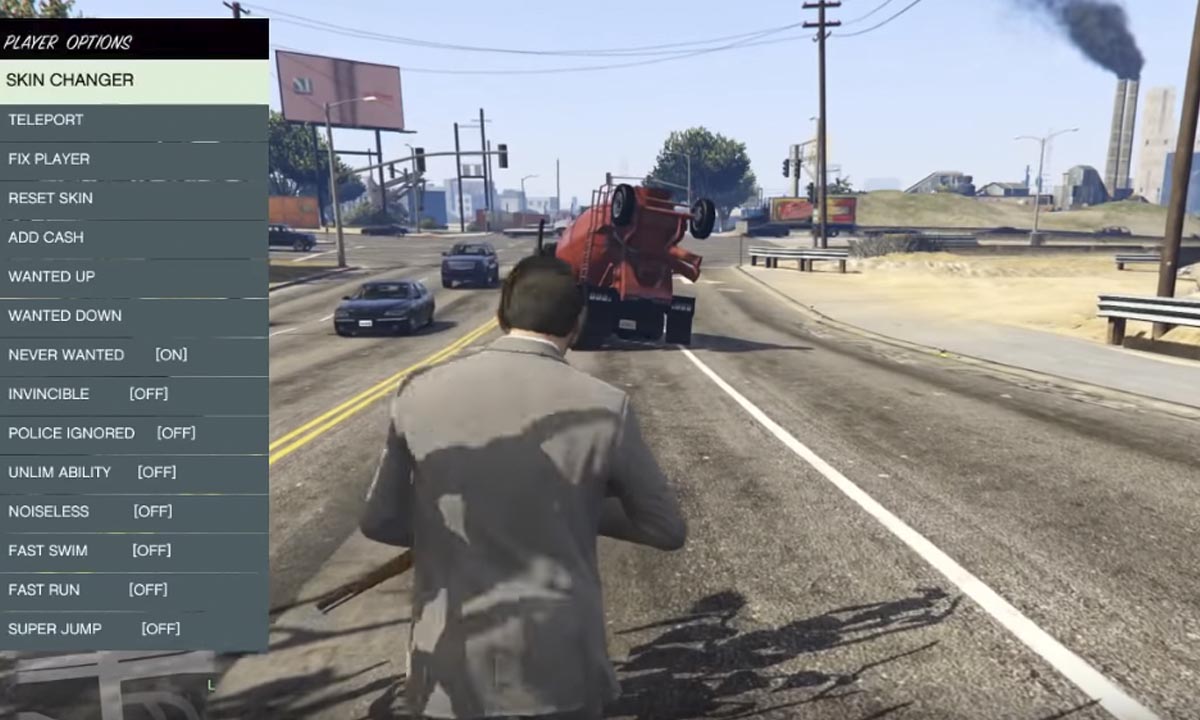
Once you have the GTA V mod menu on your PC, you can quickly apply the modifications you want before starting the game. Mod developers are from the gaming community who simply want to add more entertainment to the action title.

How to Install GTA V Mods in 3 Easy Steps

How to install GTA V mods

Before you can get started on how to mod GTA 5, you need tools and plugins that will let you script the changes you’re looking for. While this process is relatively easy, please make sure you follow it precisely to avoid any problems with launching your game.
Step 1: Install Script Hook V

Script Hool V is a file library that lets developers and gamers create scripts for GTA V’s campaign mode. There’s a Native Trainer and Asi Loader, featuring many cheats not included in the game. 

Follow these steps to install Script Hool V:

  • Download and open the .zip file
  • Copy ScriptHookV.dll to the main folder where your GTA V game is located
  • You’ll need to copy the NativeTrainer.asi and Asi Loader (dsound.dll)  to the same folder.

Step 2: Install the GTA V LUA Plugin

If you want to create custom scripts for GTA V, you’ll need to write it in a language with which it’s familiar. LUA does that for you, making the process much easier.

Heres’s the process for downloading and installing the GTA V LUA Plugin:

  • Download the .zip folder and search for the ‘scripts’ folder, before finding the LUA.asi file
  • Copy these folders and files into the same GTA V folder as before
  • Search for the ‘addins’ folder within the Scripts Folder
  • Copy all the LUA files you download from this point forward.

Step 3: Download and install GTA V mods

You’re all set. From now on, simply download and save the mod files to the same GTA V folder as the plugin and script program above. You’ll be able to see the new features when you enter the GTA V mod menu on PC.

Top GTA V mods worth looking at

Now that you know how to mod GTA 5, here are a few modifications you should consider installing for some action:

A whole new world 

Your GTA V game will never be the same again. Now that you have mods installed, you can change how your character looks and the weapons of mass destruction.