Microsoft Teams mimics some of Slack’s best features

Microsoft has announced significant changes to Teams that seem to be inspired by its rival Slack, the communication platform for professionals. One of the highlights is the future introduction of threads in conversations, a highly anticipated feature that will allow messages to be organized more clearly and enable direct responses to specific topics within threads. Although this functionality will not arrive until mid-2025, Microsoft has another major change prepared that will soon affect the way chats and channels are viewed on the platform. In November of this year, the company will launch a new […]

Microsoft has announced significant changes in Teams that seem to be inspired by its rival Slack, the communication platform for professionals. One of the highlights is the future introduction of threaded conversations, a highly anticipated feature that will allow messages to be organized more clearly and enable direct responses to specific topics within threads.

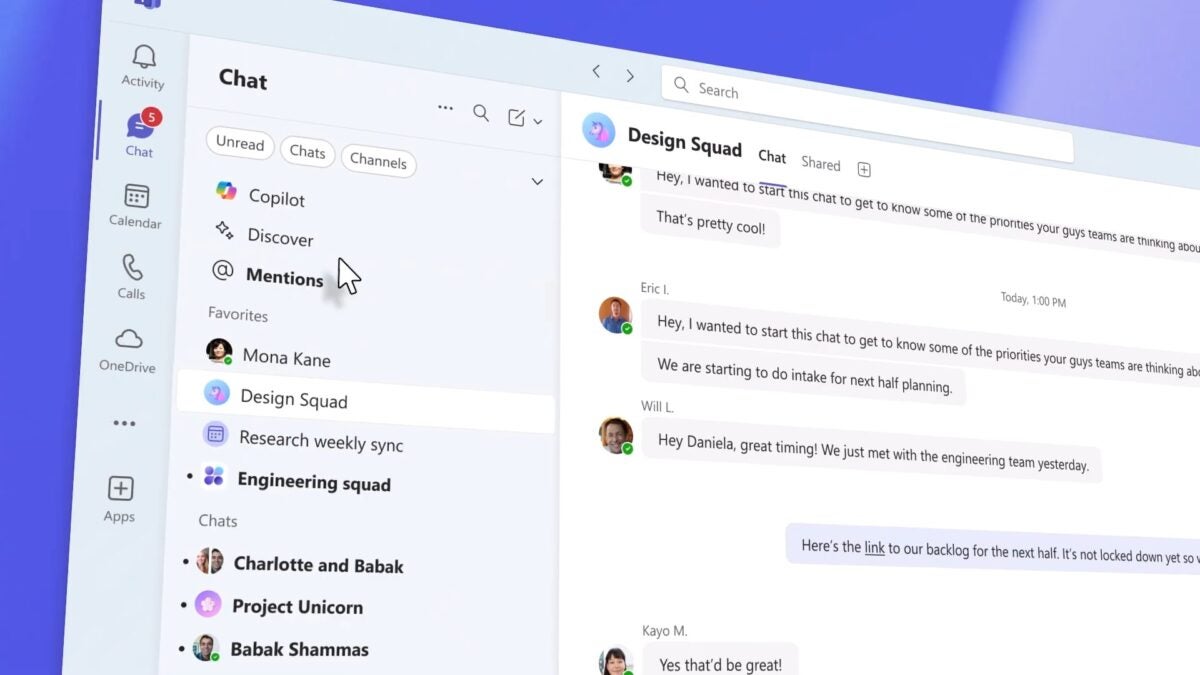
Although this functionality will not arrive until mid-2025, Microsoft has another major change prepared that will soon affect the way of viewing chats and channels on the platform. In November of this year, the company will launch a new unified user interface that brings together both chats and channels in a single view, available in a public preview.

As explained in a blog post by Jeff Teper, President of Collaboration Apps and Platforms at Microsoft, this new user experience “will simplify the digital workspace by bringing together chats, teams, and channels in one place under Chat.” This will allow users to manage their workflows more easily by having quick access to their most important conversations in a more organized manner.

The upcoming update aims to resolve one of the traditional inconveniences of Teams: the separation of chats and channels, which forced users to switch sections to keep up with different conversations. With the new interface, users will be able to choose to keep them separate or integrate them into a combined view. Additionally, Microsoft will add a favorites section where the most relevant chats and channels can be pinned, as well as new controls to customize the experience, such as the option to view message previews and order channels in a single list.

Another notable update is the new view of @mentions, which will specially highlight direct messages or channels where the user has been mentioned. This major update to Microsoft Teams will arrive on both mobile and desktop applications next month, and testing of threads in conversations will begin this quarter, extending until early 2025.

Microsoft Teams DOWNLOAD

The new “unified app” from Microsoft Teams allows you to use it however you want

Microsoft has released a new unified version of Teams that now combines work, personal, and educational accounts into a single app. Previously, there were two separate applications for Windows 11 users, making it quite tedious to switch between different accounts and functions. With this update, Microsoft is responding to the requests of its users, who were asking for a single app to manage all their activities.

Microsoft Teams DOWNLOAD

The new Microsoft Teams application, available since Tuesday, allows users to easily switch between work, personal, and educational accounts on Windows 11, Windows 10, and Mac. If you already had Teams on your device, the app will update automatically; otherwise, you can download it through Softonic (in the link above) or directly from the Teams website, as well as for iOS and Android devices.

One of the standout features of this version of Microsoft Teams is a home screen that displays all available accounts, allowing the user to select the one they want to use. After signing in, it is possible to switch accounts by selecting the profile picture in the top right corner. In addition, notifications now clearly indicate which account they belong to, and notifications from personal accounts provide more details to respond directly from the notification banner.

Teams continues to offer users the possibility to connect and work with other people for free, schedule meetings, join communities, and share files, even as a guest without the need to log in. However, for those who prefer to log in, they will be able to select their preferred account when joining the meeting.

Although the app is currently called “Microsoft Teams (work or school)”, this name will change in future versions to simply “Microsoft Teams”. At the same time, the standalone version for consumers, known as “Microsoft Teams (free)”, will be removed from Windows.

Microsoft Teams DOWNLOAD

Mixed reality arrives to Microsoft Teams thanks to this incredible feature

Microsoft has introduced a new feature in the Teams app for iOS devices that allows users with a Dynamics 365 license to use spatial annotations. This update is specifically targeted at frontline workers who rely on their smartphones to carry out work tasks.

Microsoft Teams DOWNLOAD

According to Microsoft, in a blog post, the spatial annotations feature allows sharing vision through the front camera, enabling real-time collaboration with 3D annotations on physical objects. Users can move without losing the annotations, improving communication and reducing errors.

Unlike Dynamics 365 Remote Assist, the standalone Microsoft app that offers similar mixed reality features, the integration into the Teams app for iOS aims to simplify the process for workers by not requiring a separate app, as well as facilitating collaboration by leveraging the existing features in Teams.

Although this update is focused on frontline workers, IT administrators will also benefit, as they will have fewer apps to manage and increased security thanks to end-to-end encryption and other measures implemented by Microsoft in Teams.

The feature is available for users with a Dynamics 365 Field Service, Dynamics 365 Guides, or Dynamics 365 Remote Assist license, and public preview is expected to be available to everyone by the end of 2024. Android users will also be able to access this feature through the Teams app for Android this summer.

Microsoft Teams DOWNLOAD

Will Microsoft Teams spy on you? That suggests a Microsoft patent

If you use Microsoft Teams and value your privacy, pay attention to this. The well-known Microsoft app for online meetings and teamwork could soon integrate a technology capable of detecting if someone is not paying attention in meetings, according to a recently published Microsoft patent.

Microsoft Teams DOWNLOAD

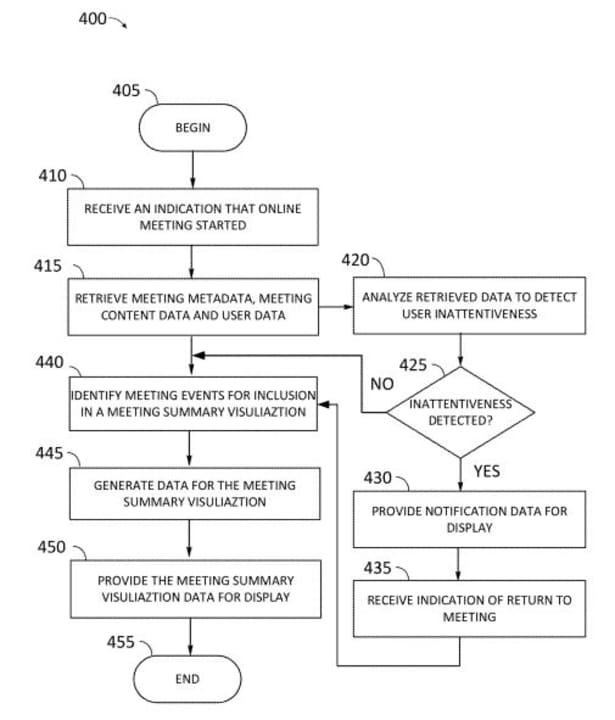
The patent describes an AI-based system to determine if someone is not paying attention during a meeting. The system gathers information from the meeting, such as what is being said and shown, who is in the meeting, and how they are using their devices. It then checks if someone is not paying attention by looking at their camera or what they are doing on their device. If the system detects that someone is not paying attention, it will send them a message to regain their attention.

The system also receives a signal that the person has returned to the meeting and displays a summary of what has been missed, similar to the Intelligent Recap feature of Microsoft Teams, which shows a meeting summary and a series of task suggestions. Currently, Microsoft Teams does not have any technology on the platform capable of detecting if users are paying attention in meetings, although administrators can monitor user activity in Teams through other means.

However, the document argues that technology should not be used to demonstrate employees’ lack of activity, but to provide essential highlights for those participants who attend multiple meetings in the same day: “It is necessary to improve systems and methods for managing meetings intelligently, monitoring their content and providing highlighted information that allows retaining context when necessary”.

Microsoft Teams DOWNLOAD

For now, it is only a patent, so this new technology for Microsoft Teams does not necessarily have to be materialized in the future. Even with Microsoft’s alleged good intentions, this new technology could pose various moral and ethical problems in an already difficult work context for many, especially for those who work in the technology industry.

Microsoft Teams adds live translated transcripts for premium users

Microsoft has recently expanded a Teams feature and now serves its users better. According to the latest blog post by the tech giant, premium Teams users can now use live translated transcripts. You might think you have already had the feature for a year now, but you are wrong, as the new one has added a different capability.

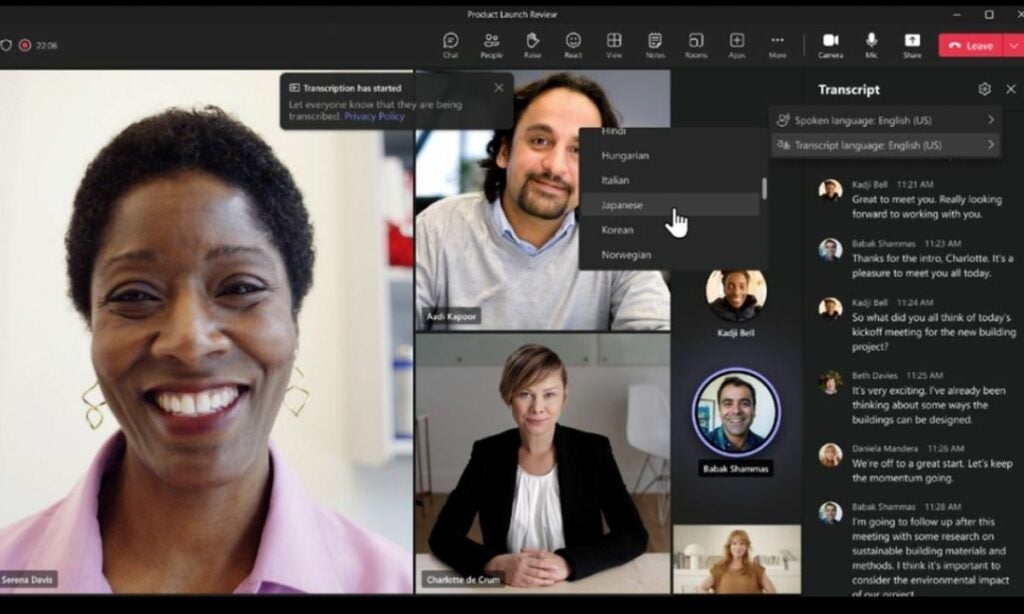
For Teams Premium users, there is now the added capability of translating the meeting transcript into a language different from the one spoken during the meeting. You have a choice of over 30 languages currently supported for translation. The transcript will be presented in the side panel of the meeting, enhancing the productivity and inclusivity of your meetings.

Since October 2022, Microsoft has offered Teams members live caption translations. To access live conference transcripts, the business is launching a new feature for Microsoft Teams Premium subscribers this week.

Organizations participating in Microsoft Teams Public Preview and Microsoft 365 Targeted Release users with a Teams Premium license presently have access to this capability.

“We’re very pleased to announce that Microsoft Teams Public Preview and Microsoft 365 Targeted Release users with a Teams Premium license can now use live translated transcript in Teams meetings,” Microsoft said in the official announcement.

How to use the new Teams feature

In order to use the new feature, you obviously need to be in a meeting. To get your live translated transcript, there must be a chat full of different ideas and messages, and that is when the new Teams feature works its magic. Here is how to use it.

  1. Open Microsoft Teams.
  2. Start or join a meeting.
  3. Click “More.” (It is placed between “Camera” and “Apps.”)
  4. Go to “Record and transcribe.
  5. Hit “Start transcription.”
  6. When it starts, click on Settings.
  7. Select “Transcript.”
  8. Hover your mouse over to “Transcription Language,” and choose your preferred language from the list.
Credit: Microsoft

Availability

Users must be part of either the Teams Public Preview or Microsoft 365 Targeted Release programs to use this feature. They should also have a Teams Premium license and use the Teams client on Windows, macOS, or through a web browser (Edge or Chrome). It’s worth noting that other participants in the meeting do not necessarily need to be part of the Teams Public Preview.

To activate the Public Preview in your Teams client, IT administrators should configure an update policy that enables the “Show preview features” option.

For the Targeted Release program, global administrators can access the Microsoft 365 admin center and choose to grant specific individuals access to Targeted Release or enroll the entire organization in the program.

Microsoft wants Teams to be a part of your defense against phishing scams

Phishing scams, which see scammers trying to trick you into clicking links to fake websites or downloading corrupted files have become increasingly prominent and sophisticated in recent years. Furthermore, scammers know that if they target you at work rather than at home, they can potentially tap into a much higher potential reward pool, which mean that businesses and workplaces are now taking phishing scam protection more seriously than ever. Microsoft is looking to bolster your jobs’ phishing scam defenses and wants you to help out.

Microsoft Teams Download Now

To help you become a bigger part of those defenses, Microsoft is adding an update to Microsoft Teams that will make it easier for you to report phishing scams while at work. An entry on the Microsoft 365 Roadmap explains that the software giant is working on an update that will allow users to report suspicious messages they receive on Teams.

The update will bring the reporting capabilities for Microsoft Teams messages as users already have with email, which should give businesses the chance to close down potential scams from reaching a wider audience among their workforces.

According to the entry, the updated Microsoft Teams feature should be ready for a general rollout in January 2023 and will be released worldwide to all Microsoft 365 subscribers and users via the Microsoft Defender security program. However, there is already a preview version of the new reporting feature already available.

In other Microsoft news, the company has been working on updates for Windows 11 that will make the operating system much more difficult to break into using brute force attacks.

Microsoft Teams now has Facebook, but not like you think

About 10 years ago, have you got Facebook used to be what you’d say whenever made a passing acquaintance with any and every random person you met. You were simply letting them know that you wanted to connect over Facebook. Fast Forward to today and it looks like Microsoft Teams has taken that question of whether you’ve got Facebook to a whole other level. Let’s take a look.

Microsoft Teams Download Now

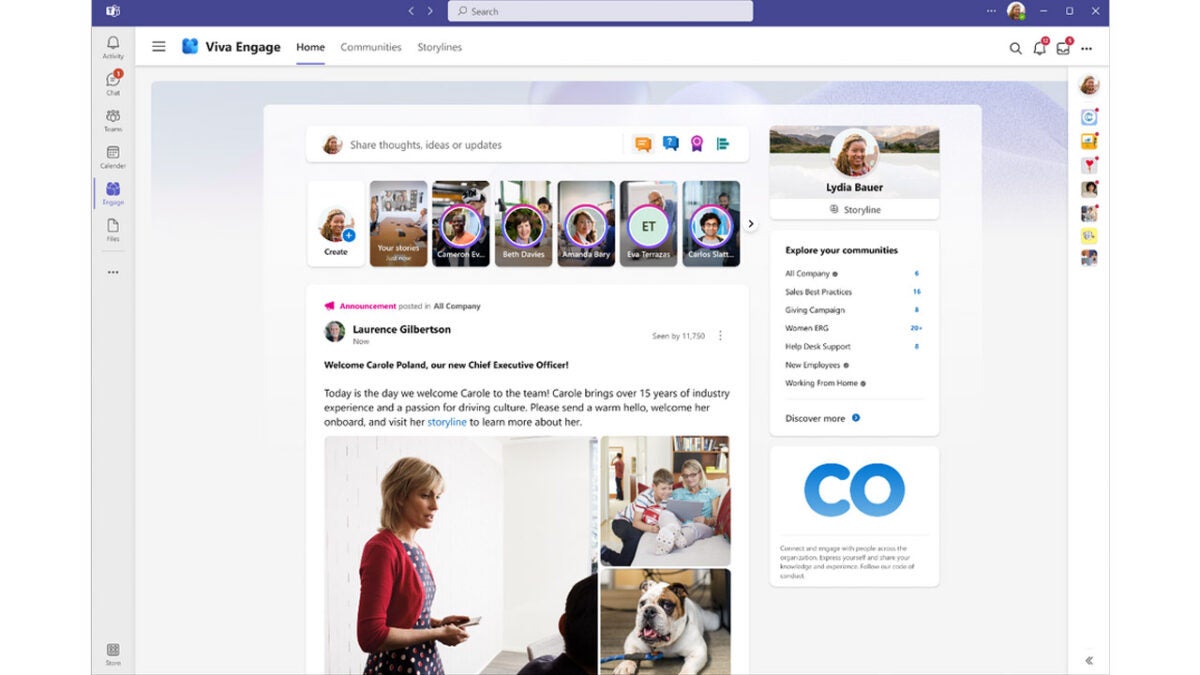
Microsoft CEO Satya Nadella has announced Microsoft Viva Engage, which is a new app built inside Microsoft Teams that is designed to “help organizations build community, spark engagement with leadership, harness knowledge and answers, and build personal networks.” That last one is interesting, Viva Engage looks like a new social network. In fact, it looks exactly like Facebook.

The problem Microsoft is trying to solve here relates to the new remote and hybrid working context we find ourselves living in. Microsoft claims that is now harder to make lasting and meaningful connections with colleagues and teammates, which is where Viva Engage comes in. Microsoft says:

“In a world of hybrid work, Viva Engage gives leaders new tools to shape culture and align their workforce by unlocking communication and engagement opportunities for everyone. And for employees, it provides new ways to build a sense of community, strengthen relationships with coworkers, share their work and perspective, and find answers to their questions.”

Viva Engage has been designed to help companies build a sense of purpose and belonging in their employees and works like an office Facebook. As you can see above too, the visual similarities between Viva Engage and Facebook are striking.

Microsoft says that come late August the Communities tab in Teams will change to Viva Engage. This means you could start seeing it pop up on Microsoft Teams in your work as early as this Autumn.

While you are waiting for the rollout of Viva Engage be sure to stay vigilant whenever you are opening files you have received from unknown sources as fake Microsoft Word documents that are filled with malware have been doing the rounds.

Image via: Microsoft

Microsoft Teams will soon have “Intelligent Translation” feature

Yesterday we reported on an exciting new AI model from Meta that the company has made available as open-source and that can translate a massive 200 languages on its own. Today we have news from Microsoft that might not be so seismic in the long term but that right now will make a lot of people’s lives a lot easier. Microsoft Teams is getting an intelligent translation feature.

Microsoft Teams Download Now

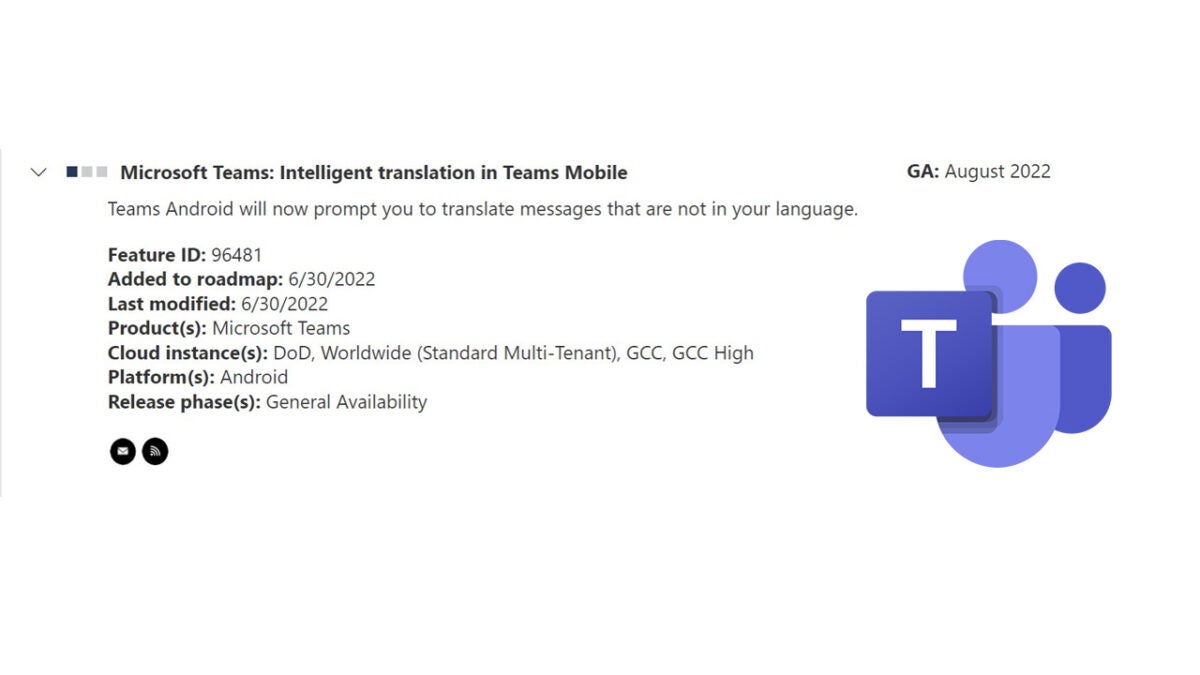
Microsoft likes to publish the roadmap of future features coming to Microsoft 365 apps and programs. This includes the likes of Word and Excel, but it also includes programs like Microsoft Teams. A recent Microsoft 365 Roadmap entry indicates that Microsoft Teams on Android will soon be getting an intelligent translation feature.

According to the Roadmap entry, the feature will prompt users to translate messages that are not in their own language. This will help facilitate meetings and chats between people that speak different languages.

Microsoft 365 Roadmap entries are sparse affairs, as you can see in the screenshot above. They don’t actually say very much. It does, however, say that these new translation capabilities should be available by the end of August this year and that they will be rolling out on a General Availability basis.

Whereas Meta’s announcement indicates a shifting of the landscape and a step up in translation capabilities for many languages that have so far only been translated by machines badly, this move from Microsoft could go a long way to facilitating intercultural relationships and cross-language communications right now. If you would like to see a world where everybody is able to communicate with everybody else effortlessly and seamlessly, the last couple of days have brought a lot of great news.

Microsoft Teams users may also be interested in our deep dive into everything you can do on Microsoft Teams or our dedicated Microsoft Teams News Channel that will keep you up to date on all the latest news about the app.

Learn to fix the Microsoft Teams error code 500 on a Windows PC in 5 steps

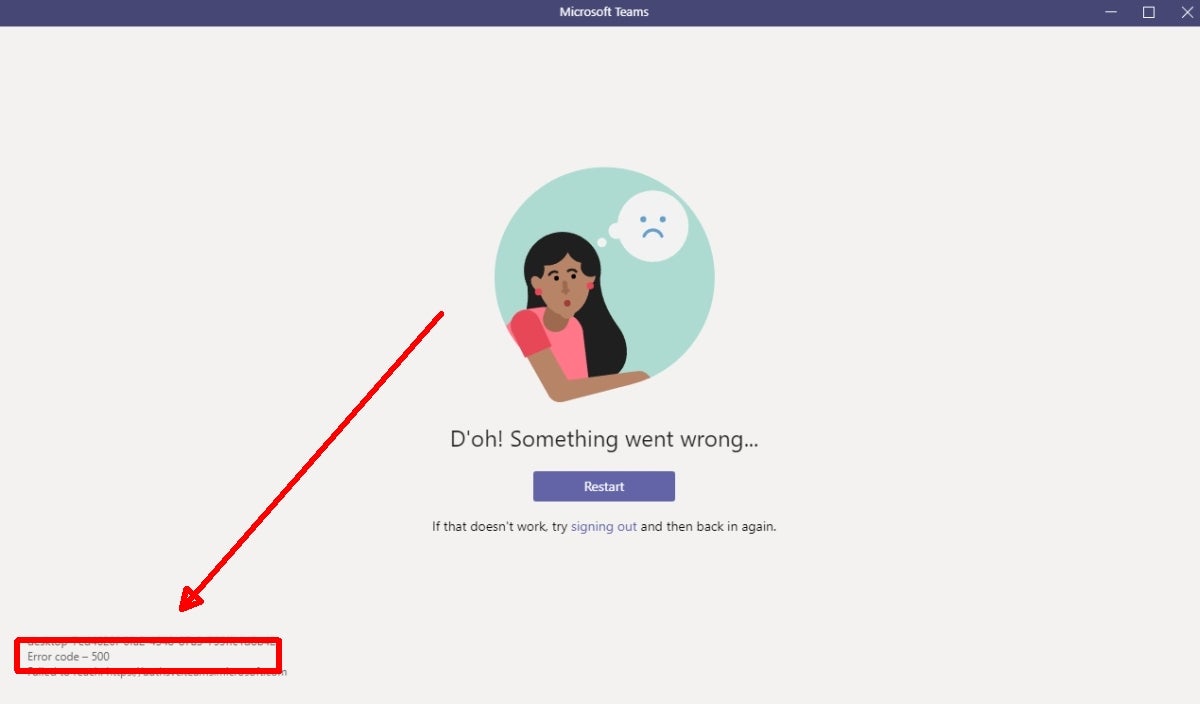
Despite its large user base, Microsoft Teams is not without its issues. The most recent problem facing users is the code 500 error that appears and prevents users from connecting to Microsoft Teams. 

Microsoft Teams DOWNLOAD

In this article, we’ll be taking a look at what causes this irritating error code and how to fix the Microsoft Teams error code 500 on a Windows PC.

What causes the Microsoft Teams error code 500?

Errors can vary from mild annoyances to significant frustrations, and a lot of this depends on how difficult the issue is to resolve. Some errors can be resolved by restarting the program or computer. Luckily for Microsoft Teams users, the error code 500 is a rather simple issue to resolve.

At its base, the error points to an issue with internet connectivity. However, it’s not just slow internet that causes this problem. Some of the other reasons why you might be experiencing this error include:

  • In-app issues
  • Running Microsoft Teams without administrator privileges
  • Corrupt DNS cache
  • Not removing previous files correctly
  • Not installing Office correctly
  • A firewall or antivirus blocking your Office installation
  • Proxy settings blocking Office installation
  • An older version of Office blocking your new installation

5 Steps to Fix the Microsoft Teams Error Code 500 on a Windows PC

Logging out of your Teams account and then logging back in is usually the easiest way to fix this error. However, if you’ve already tried that and you’re still faced with the error code 500, then the next solution should help you solve the issue.

  1. Exit Teams on your PC

    How to fix the Microsoft Teams error code 500

    Log out of Teams and close the window on your computer. Also, make sure that you end all processes related to Teams in the Windows Task Manager.

  2. Open the Credentials Manager and open

    How to fix the Microsoft Teams error code 500

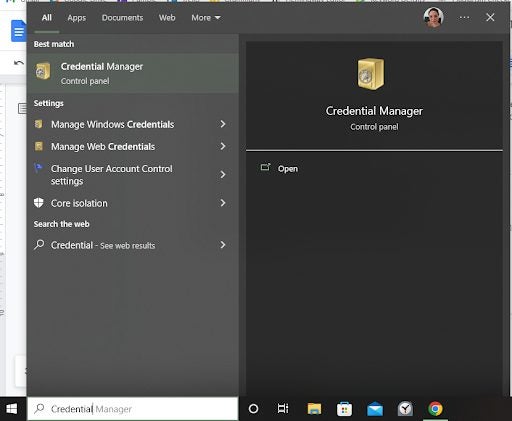
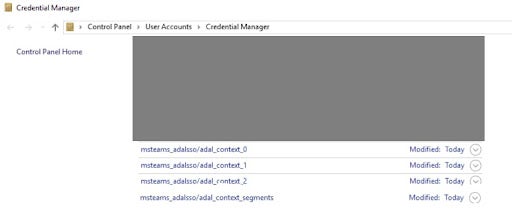
    Next, type in ‘Credentials Manager’ in the search bar located in your Windows toolbar at the bottom of your screen. Open the ‘Credentials Manager’ by clicking on it. In the window that opens, click on ‘Windows Credentials’ to manage all the accounts related to programs.

  3. Find MSTeams

    How to fix the Microsoft Teams error code 500

    In the list of programs, look for MSTeams (there may be a few), and click on the down arrow next to it to expand the entry.

  4. Remove credentials

    How to fix the Microsoft Teams error code 500

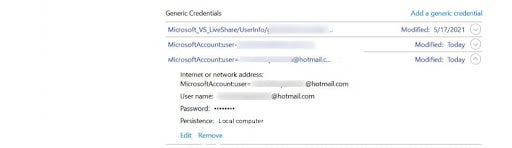
    Once the entry has been expanded, click on ‘Remove.’ Make sure to repeat the process for all other instances of MSTeams in the list.

  5. Restart PC and log in to Teams

    How to fix the Microsoft Teams error code 500

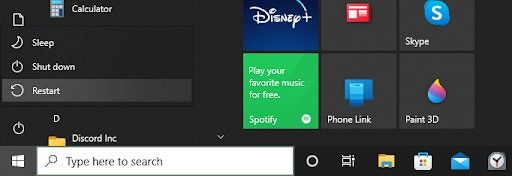
    Once you’ve removed the credentials for all instances of MSTeams, restart your Windows computer. Once it’s been restarted, open Teams and log in.

Other solutions to try

While re-logging into Teams or removing the credentials and starting fresh should resolve the error code 500, some users have reported that it didn’t solve their problem. If you’re one of these, then here are a few more solutions to help you fix the error code 500.

Check your internet connection

Check the internet connection on your Windows PC, and use a speed checker to ensure you have a stable connection. If needed, forget your connection and restart it. If you notice the internet connection is still weak, try restarting your router or contact your service provider.

Clear Teams cache

You may also be able to resolve the error code 500 in Teams by clearing your Teams cache. You can find the cache under your ‘Users’ folder, or alternatively, press the ‘Windows+R’ keys on your keyboard to open the Run terminal. Next, copy and paste ‘C:\Users\%username%\AppData\Roaming\Microsoft\Teams’ and then double click on ‘Cache.’ Select and delete all the files within the folder but keep the original ‘Cache’ folder.

Fix Microsoft Teams application

You could also be getting the error due to a corrupt file. Open your Control Panel and find Microsoft Teams. Then click on the ‘Change’ button and then ‘Fix.’ 

Reinstall Microsoft Teams

If nothing else works, you’ll have to uninstall Microsoft Teams. Once it has been uninstalled, reboot your PC, and reinstall Microsoft Teams. Once you log into your account, you should no longer have an error code 500 and can start using Teams like normal.

Microsoft Teams will use AI and machine learning to improve video calls

Microsoft has just announced that they are making quite a few changes to Microsoft Teams to make their video calling more competitive with industry leaders such as Zoom. To do this, they will be using AI and machine learning to improve various aspects of video calls. But what improvements can these changes make?

Microsoft Teams DOWNLOAD

Microsoft announced that this new feature utilizing AI and machine learning will be rolling out to all Teams users within the next few months. This feature will include echo cancellation, dereverberation, interruptibility, and background noise suppression.

Teams will utilize AI to distinguish between the user and sounds from the speaker. This will allow Teams to remove echoes without interrupting other voices. They will also use machine learning to address poor room acoustics. This means the program will adjust the audio quality based on the room or location it’s used. 

The program will also use AI to assist with background noise suppression during a meeting. This can block out noisy traffic, a barking dog, and more. Machine learning will also improve interruptibility and ensure a natural flow of conversation. 

Other improvements include using machine learning to improve real-time screen optimization and AI-based optimization on calls with a lower bandwidth, as well as improvements to brightness and focus filters.

Some of these features are already available in a recent update for Windows, Mac and iOS, with Android and web clients following soon. It also took five years, but Microsoft Teams is finally available in the Microsoft Store, which means issuing updates will be much easier.

We look forward to seeing how these advancements impact the quality of video calls in Microsoft Teams. If you haven’t used the platform yet, be sure to check our guide on what Microsoft Teams is and how to use it.