How to Play Games on Zoom in 4 Easy Steps

Zoom offers users many different ways that you can interact. Recently they have introduced game options and various share screen options to allow users to play games with others. This feature can let you play games with students, family and even work colleagues.

How to Set up Your Screen for Zoom Games:

First, let’s take a look at how you can set up your screen for these games.

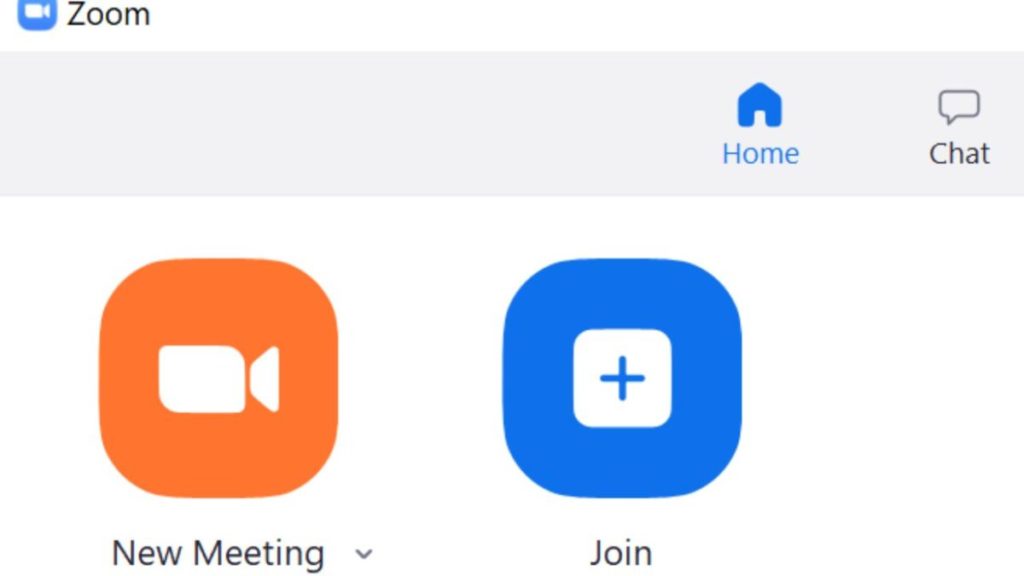
Step 1: Launch Zoom

Launch the app from your chosen device and start a new meeting.

How to Play Games on Zoom in 4 Easy Steps

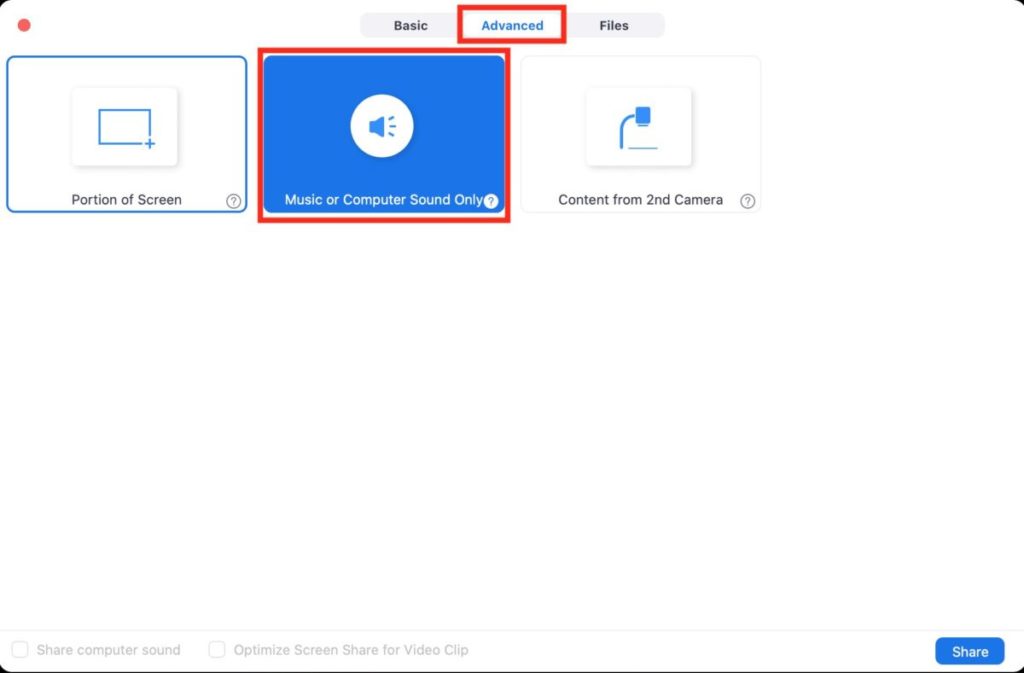
Step 2: Choose How to Share Audio

This is an essential step if your game requires audio. You should be prompted to choose how you will share your audio. If not, manually select the option that works for you.

How to Play Games on Zoom in 4 Easy Steps

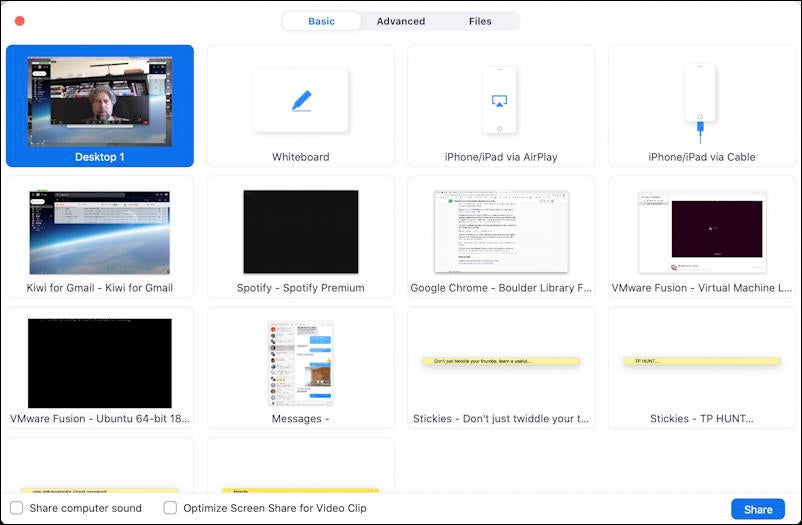
Step 3: Choose Screen Share

Choose screen share at the bottom of the screen. You will get a few options here. You can choose to share your screen or select the whiteboard option for games like Pictionary.

How to Play Games on Zoom in 4 Easy Steps

Step 4: Choose Your Game

With screen share enabled, you can choose from many different games to play with your friends or classmates.

How to Play Games on Zoom in 4 Easy Steps

What Games Are Available on Zoom?

There are many games that you can play with Zoom, some such as Heads Up and Psych! Only require your to download the app and then screen share using the above methods. There are also many online card games, such as Go Fish, that you can play via Zoom and Screenshare. Zoom Jam also lists many games developed explicitly for the app and recently added an exciting murder mystery to their list. 

Separation and Distance Is No Reason Not to Have Fun

Zoom not only allows you to connect with others virtually, but now you can also make these meetings fun! Playing games while interacting with family and friends, no wonder these parties are becoming more popular.

What is Frank Speech and how to create an account

Mike Lindell, CEO of mypillow.com, launched a new social media platform where Americans can voice their opinions on any topic they wish. Called Frank Speech, it lets people defend liberty and life with free speech where you can say anything that’s on your heart without fear of losing your profile.

If you’re keen to get started, we’ll explain what Frank Speech is and how to create an account.

Who is Mike Lindell?

Mike Lindell is a political activist who’s also referred to as the “My Pillow Guy”. The reason for this nickname is due to his company My Pillow that produces mattresses, bedding, slippers, and pillows, among other items. He also founded the Lindell Foundation, which is a charity helping drug addicts due to his history of addiction.

As a former presidential advisor to Trump, he had a heavy hand in politics and believed in uncensored statements. He was one of the foremost spokesmen when discussing possible corruption when Trump lost the 2020 elections. 

To encourage free speech on social media, Lindell decided to create a platform that was a cross between Twitter and YouTube. It was originally called Vocl, but soon changed when another company indicated there was already a site called Vocal.  Frank officially launched at the end of April 2021 as a platform where anyone could voice their opinions on conspiracies and politics.

What is Frank Speech?

Frank Speech is a social media platform where anyone can express their ideas about any topic. Unlike competitor apps that sensor such comments, the only limitation is using the Lord’s name in vain, as Lindell is a fervent evangelical Christian. In essence, it works more like a one-way communication channel where members share videos and news based on conspiracies.

The idea for the Frank Speech app appeared when Lindell was banned from expressing his conspiracy theories about the presidential election of 2020 on other social platforms. Using his wealth, he outsourced the development of the free-speech application for anyone to discuss how they felt about politics and other matters.

How to Create an Account on Frank Speech

While there’s no official app as yet, you can still add the website as a home screen link. You’ll still need to create an account on Frank Speech to participate in the discussions, though. Just remember, there may still be people who don’t like what you have to say.

Step 1: Visit the registration page

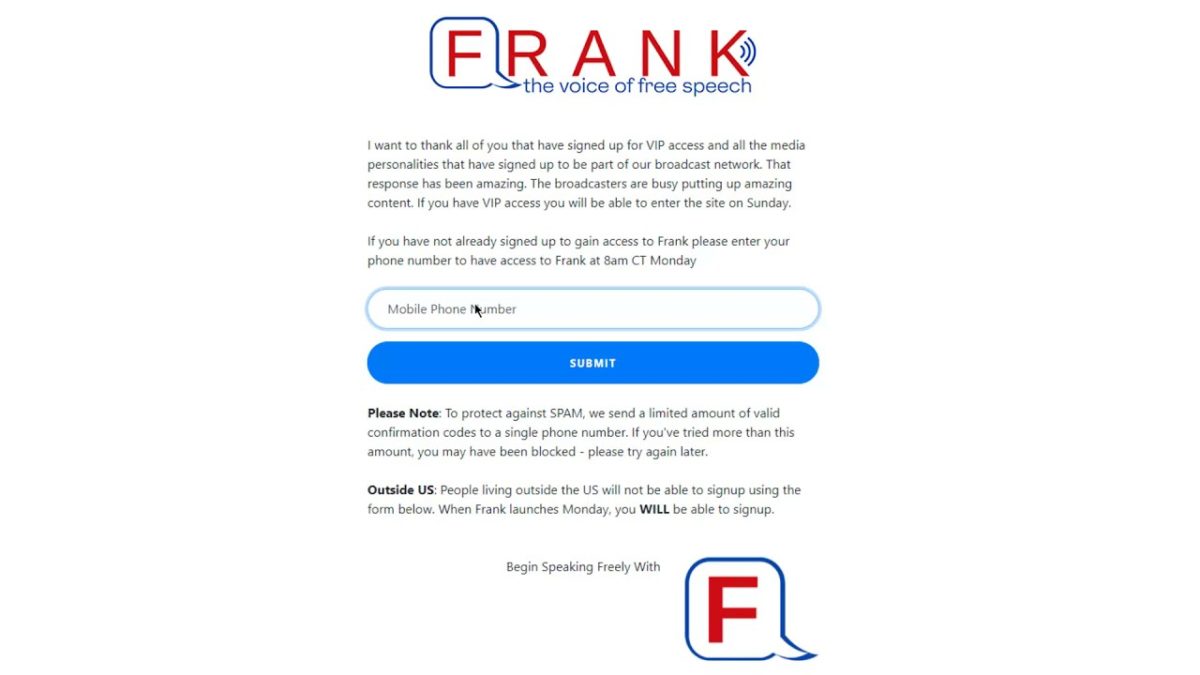
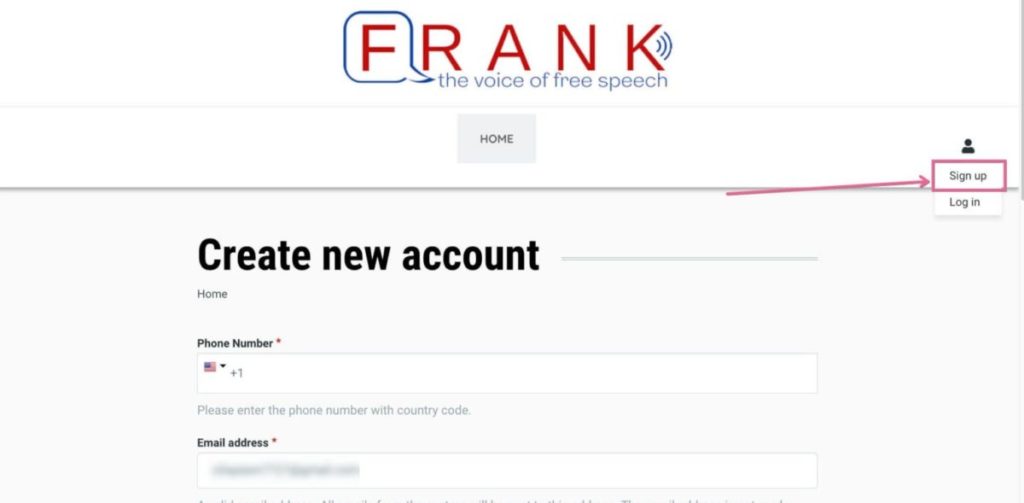
Firstly, head to the Frank Speech website. If the developer is busy with maintenance, creating an account won’t be possible. Once it’s active, you’ll be able to select the “Signup” button on the top right of the site.

How to Create an Account on Frank Speech in 3 Fast Steps

Step 2: Enter your details

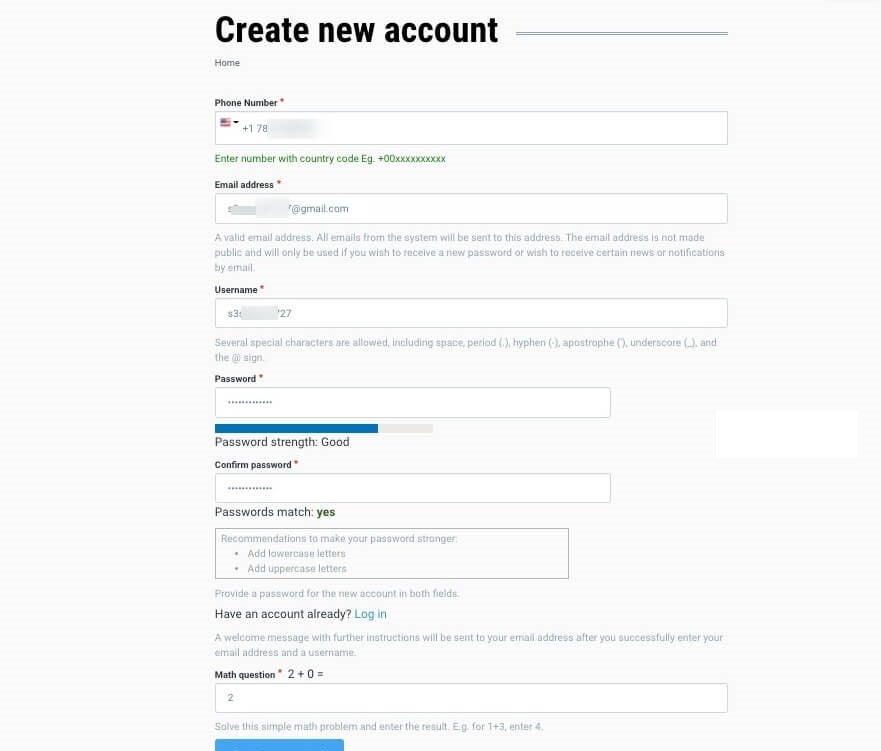
On the next screen, you can enter all your account details. You’re expected to provide an email, username, password, and mobile contact number. Once you’re certain all the information is correct, you can click on “Create new account” at the bottom.

How to Create an Account on Frank Speech in 3 Fast Steps

Step 3: Confirm your email

Before you can join the social media communities, you’ll need to confirm your email address. You’ll receive a link to validate it, and then your account for Frank Speech is created. You can also change your password at any time by requesting a new one.

How to Create an Account on Frank Speech in 3 Fast Steps

Speak your mind on what matters to you

Now you can access your Frank Speech account from your PC or mobile browser. Remember, having free speech has consequences, and people can be brutal when you don’t share the same views as them. Stay safe, and join communities of like-minded people who share your perspective. Feel free to speak your mind as much as you want, as the company won’t ban your account unless you breach the terms and conditions.

How to Rotate Furniture on Sims 4 in 3 Easy Ways

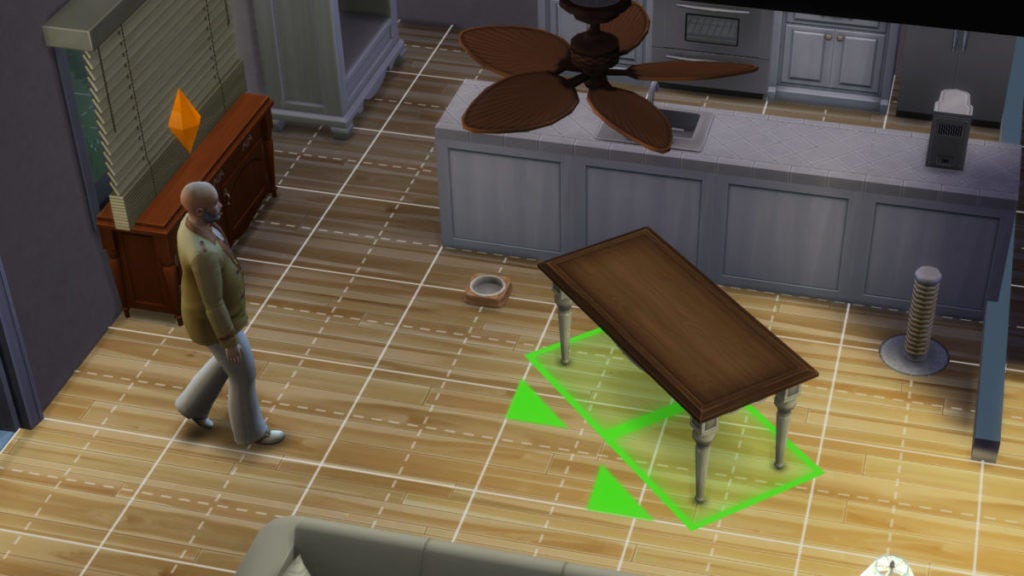
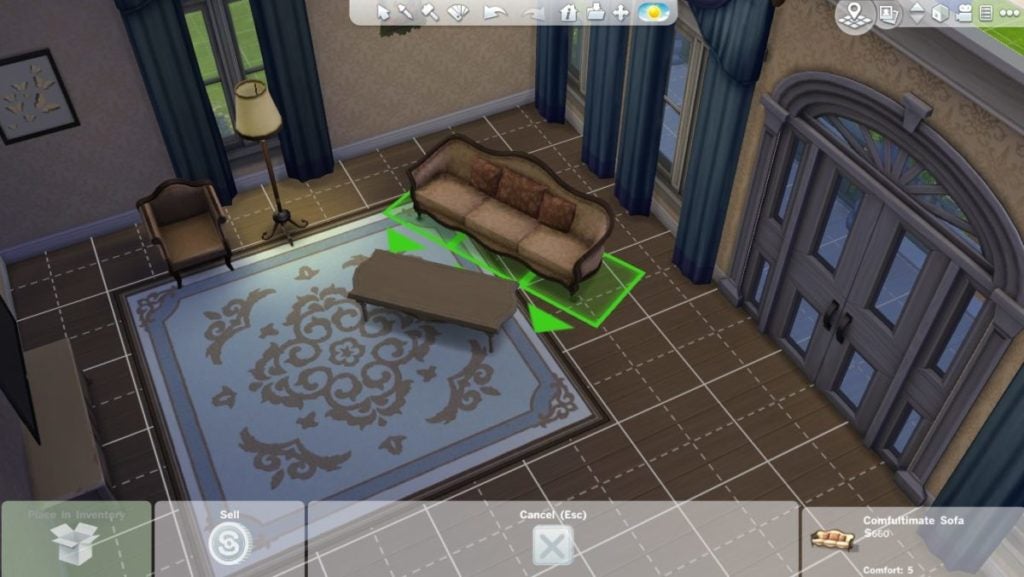
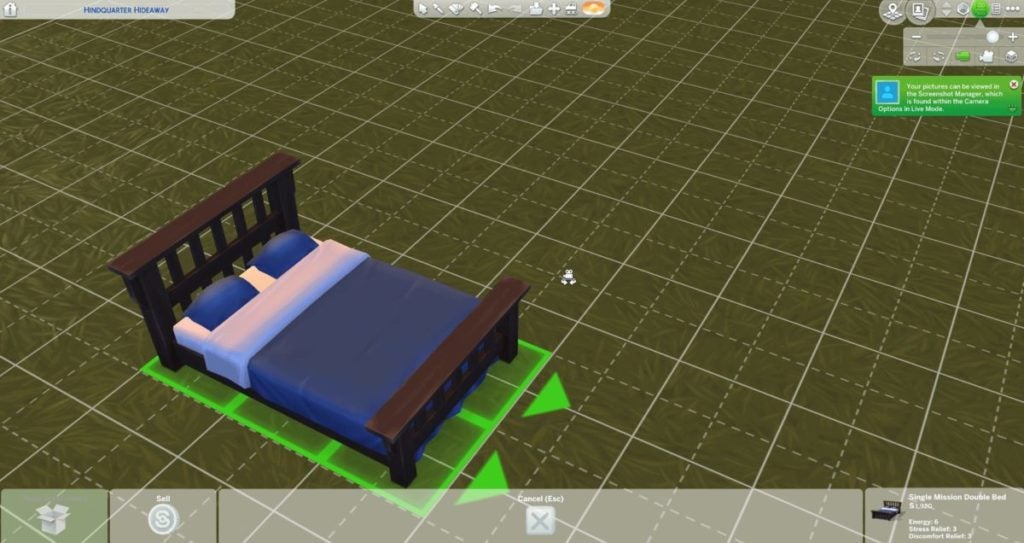
Building a house and setting up your appliances in Sims 4 on Windows, Mac, PlayStation, or Xbox, can be an entertaining experience. However, turning items can be frustrating if you don’t know how, and your house would look odd if you have chairs facing the wrong way. Fortunately, we’ve worked out for you how to rotate furniture on Sims 4 to make your gaming life easier.

How to Rotate Furniture on Sims 4

Sims 4 is available on several platforms, and each one of them has a different way of rotating furniture. In some cases, you can turn it in 90° angles, while other buttons provide 45° rotation. 

Step 1: Rotating Furniture on PC

The PC version of Sims 4 gives you two ways to rotate objects, but you’ll need to switch the camera to Build Mode to be able to perform this task. Select the furniture you want to move and right-click. Alternatively, you can use the < and > keys.

How to Rotate Furniture on Sims 4 in 3 Easy Ways

Step 2: Rotating Furniture on PlayStation

The PlayStation handles Sims 4 rotations differently. You can press the R1 button to turn furniture clockwise, while L1 changes it anti-clockwise. Basically, the side you press is the direction it moves the object.

How to Rotate Furniture on Sims 4 in 3 Easy Ways

Step 3: Rotating Furniture on Xbox

Xbox controls work on the same basis as PlayStation. Hitting RB adjusts it to the right, or clockwise. The LB rotates objects to the left, or anti-clockwise. It’s the simple flick of a button to get your items to face the way you want them.

How to Rotate Furniture on Sims 4 in 3 Easy Ways

Some spring cleaning is needed

We understand the need to rotate furniture in Sims 4 all too well. Having spent several hours on the simulation game, we’ve had enough money flow in to expand rooms and buy new appliances. It’s also sparked new inspiration in us to make objects face new directions when we did some interior decorating. It’s a fun experience to play house, and we hope this guide has helped you change your home the way you want it.

Spotify’s New Podcast Subscription To Rival Apple

Spotify’s New Partnership with Facebook Launches Miniplayer With a New Subscription Model

Podcasts have rapidly been growing over the years, with new podcasters appearing from every corner of the world. Spotify has taken advantage of this new trend by partnering with Facebook for a new miniplayer for listening to music and talks in the News Feed. While this feature sounds rather exciting, it’s not the only aspect that has so many content creators feeling exhilarated. 

Spotify’s New Partnership with Facebook Launches Miniplayer With a New Subscription Model

When Apple announced its new podcasting subscription business model, podcasters were hyped up that they can finally receive payments for their content. However, there was a clever catch in the terms and conditions. You’d have to pay $19.99 for the year before you can activate subscriptions, and the media giant would take 30% of revenue in the initial year, with $15 thereafter.

Spotify decided to take a different approach in an attempt to overthrow Apple’s potential dominance in this niche. They indicated that they won’t take any cut from the subscriptions, and the podcasters would have full claim to the royalties. Of course, we’re not sure what impact the Facebook partnership will have on this agreement.

Spotify's New Podcast Subscription To Rival Apple

There are also some other unknowns at this point. How long will Spotify continue with the agreement before realizing that they need to take a small percentage to cover costs? We also don’t know what features will become available to podcasters as yet. We’ll be keeping our eyes open for more news.

Friday Night Funkin Kickstarter Campaign Hits $1.4 Million

Friday Night Funkin Kickstarter Funding Continues Rising

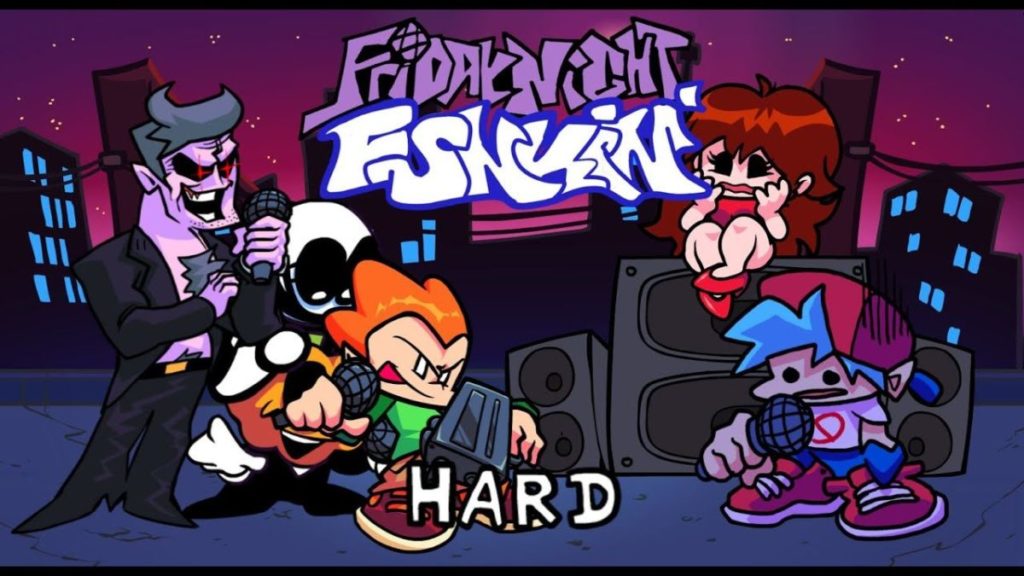
Only a few months ago, Friday Night Funkin was a relatively unknown game on the internet. Today, there are thousands of players singing off as the Boyfriend against the Dad’s minions to win the Girlfriend. So many mods have appeared to add new challenges over the last few weeks, and we wonder if it’ll ever end.

Not likely, though. The developers issued a Fundstarter campaign with an initial goal of $60,000. The idea is to release a retail version in the future instead of simply being a free browser demo with chapters that appear at random moments. 

Friday Night Funkin Kickstarter Campaign Hits $1.4 Million

Well, the campaign has reached phenomenal success! At the time of this article, it’s already reached $1.4 million with a steady rise over the course of the day. The final date for donations is set as 18 May 2021, and it’ll be interesting to see just how high the financial backing will go.

So what are the developers promising with the Friday Night Funkin Kickstarter campaign? For starters, they’re mentioning improved animations, gameplay mechanics, collaboration, and some bells and whistles. They’re specifically taking into account what the gaming community is asking for in the feedback.

Friday Night Funkin Kickstarter Campaign Hits $1.4 Million

There’s also talk of 20 new weeks being added featuring 60 new songs. You’ll also find a local two-player mode and in-game cutscenes. As far as we can tell, Friday Night Funkin will become the next raging success in gaming.

How to Install Simulation Lag Fix for Sims 4 in 3 Fast Steps

If you’ve played Sims 4 on Windows or Mac, you’ve probably experienced lag in some form or another. Heads bobbing, time slowing down, going back to the past; these are only a few of the frustrations many gamers have been through. Now, there’s a Simulation Lag Fix that you can install to eliminate these problems.

Simulation Lag Fix for Sims 4

The Simulation Lag Fix works like any other mod for Sims 4. Once you have the right files in the correct locations, the game will play properly without any more issues. However, you should always ensure that you have the latest version installed for it to work effectively.

Step 1: Download the mod

Firstly, head to a reliable source for the file. There are many sites out there with malicious downloads to infect your computer or spy on you. Only obtain the content from the original creator or a website that caters to Sims 4 mods.

How to Install Simulation Lag Fix for Sims 4 in 3 Fast Steps

Step 2: Extract the files

Once you have downloaded the Simulation Lag Fix, you’ll need to extract the files to be able to use them. You’ll see a folder that you should right-click on and click on ‘extract files.’ A new folder will appear with the mod list.

How to Install Simulation Lag Fix for Sims 4 in 3 Fast Steps

Step 3: Move it to The Sims 4 mod folder

For the mod to take effect, you’ll need to move it to the Sims 4 mod folder. It’s a dedicated location that the game looks at for custom content, so you won’t need to do anything further. When you start the game, check that mods are enabled in the settings.

How to Install Simulation Lag Fix for Sims 4 in 3 Fast Steps

Lagless simulation gameplay

Now with lagging out of the way, you can enjoy Sims 4 once again. You won’t have to deal with any more frustrations along the way while leveling up your characters. Feel free to play around with the resolution settings and clearing the game cache, as that may also resolve some issues.

How to Change Steam Username in 3 Fast Step

When you create a Steam account on Windows, Mac, or Android, we’re sure you aimed for a completely bodacious name. However, you may grow tired of it or think of a better account name in a few years’ time. Don’t worry; learning how to change your Steam username is as easy as pie.

How to Change Steam Username

The beauty of changing your Steam account name is that all your friends will see the updated details immediately. You won’t need to inform all of them about the amendment. It’ll also appear in all the games you play, and it’ll update your achievements.

Step 1: Hover over your name

With Steam open, you’ll see Library in the top menu with your account name to the right. If you hover your mouse over this selection, you’ll see a new list of options appear. Don’t move away from your name; otherwise, it’ll vanish. 

Step 2: Open your profile

Carefully move onto Profile and click on it. You’ll see all your account details with a banner holding your username, select the ‘Edit profile’ button to the right.

Step 3: Change username

You can now change your Steam account name and other details. When you’re done, click on the Save button at the end. You’ll profile will now have a new name displayed, and it’ll update all your contacts.

What’s in a name?

Steam keeps track of all your usernames you create so that your friends can see who you were before. Some gamers feel uncomfortable with this setting, especially if they have bad reputations. You can clear all aliases on your profile if it makes you uncomfortable.

You’ll also see an alert if you’ve chosen a username that someone already has. In these situations, you can add some numbers at the end or try to be original with some of the letters. The possibilities are endless. Just don’t create hundreds of names in the span of a week; it’s really annoying.

How to Stop Steam from Opening on Startup in 3 Easy Steps

One feature that Steam sets as a default on Windows, Mac, and Android is automatically starting up when your operating system opens. While most gamers don’t mind at all, there are some that prefer the app to wait until they manually access it. It’s particularly the case when devices take too long to start up, and you’d like to choose which ones take priority. Since we’ve learnt how to stop Steam from opening on startup for this very reason, we’re going to quickly show you.

How to Stop Steam from Opening on Startup

While most operating systems let you choose which programs open at startup via the task or app manager, you can actually disable this feature within Steam. You can perform this function whether you’re online or offline. 

Step 1: Open Steam

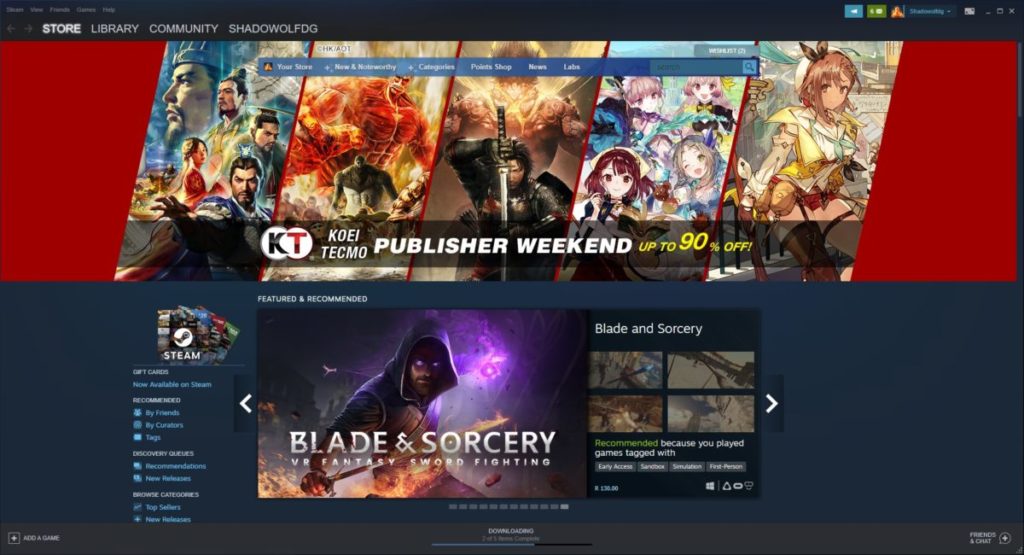
Open your Steam program if it isn’t already and log into your account. It doesn’t matter whose profile signs in, as the settings will apply for your device across all accounts. Make sure everyone playing on your PC is aware of the changes you plan to make. 

How to Stop Steam from Opening on Startup in 3 Easy Steps

Step 2: Access the settings

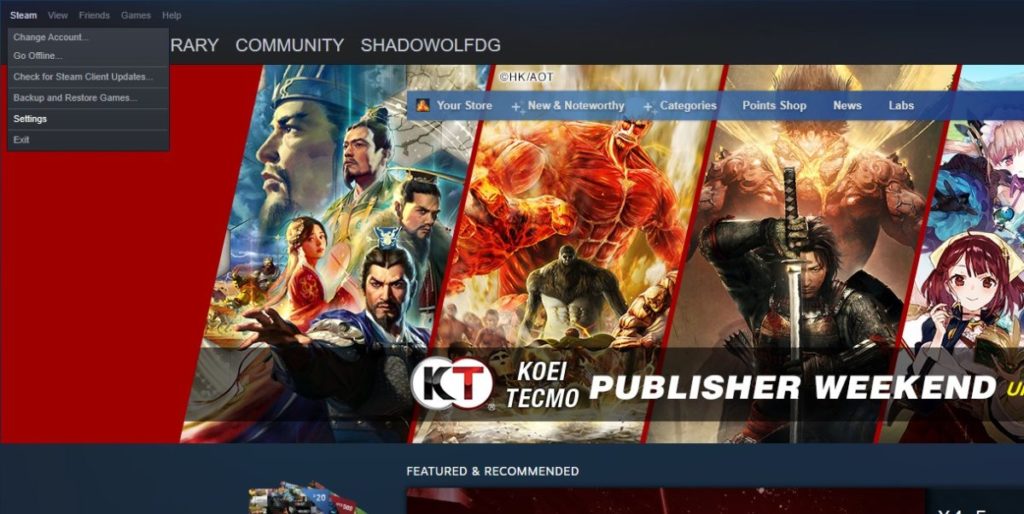
Next up, click on ‘Steam’ in the menu, and then ‘Settings.’

How to Stop Steam from Opening on Startup in 3 Easy Steps

Step 3: Open Interface

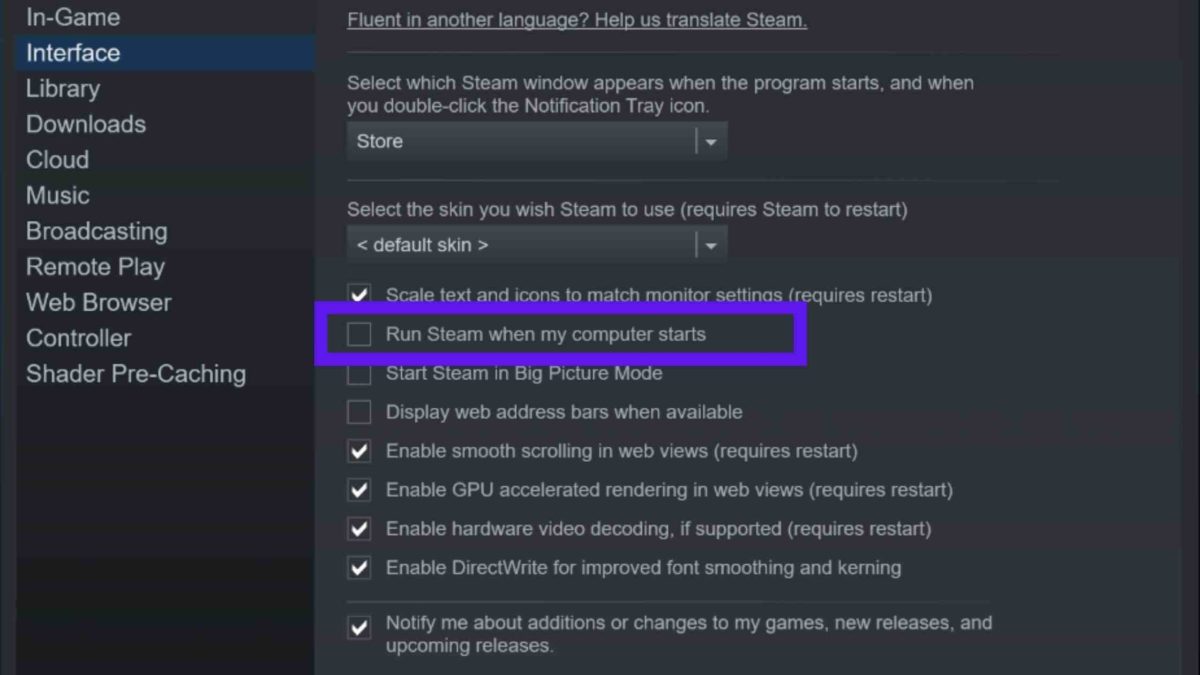
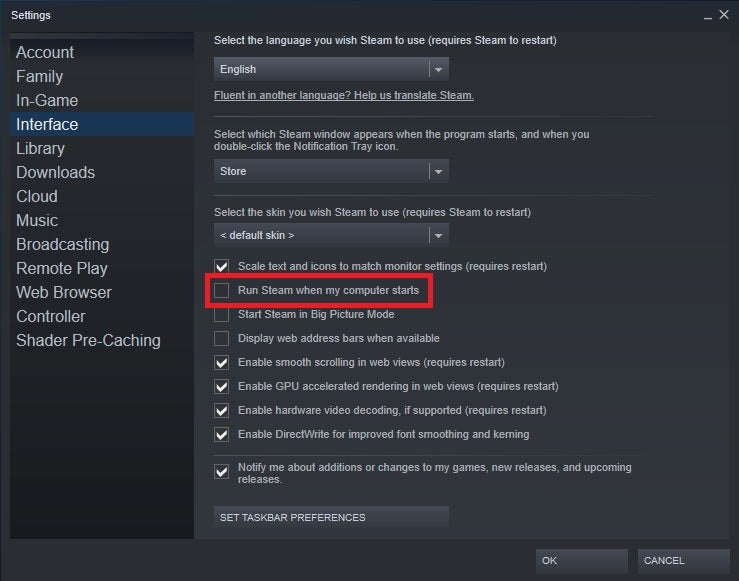
Select the ‘Interface’ tab, and you’ll see a variety of options appear. About midway down the list, you’ll see ‘Run Steam when my computer starts.’ You can toggle this setting off to ensure that it never does it again. Feel free to repeat the process if you want to enable it again.

How to Stop Steam from Opening on Startup in 3 Easy Steps

Ending the Steam power

If you have hundreds of Steam games, the chances are that you’ll have several updates running daily. Your computer won’t want to deal with these from the moment your operating system starts up. Sometimes, it’s better to give it some breathing space before you open the gaming client. 

Safe Mobile Browsing and Online Privacy With ProtonVPN

Mobile browsing has come a long way since the Nokia Communicator 9000. Today, we enjoy the power and speeds of 5G internet on our Android and iOS devices. Having the world wide web at our fingertips has made life a lot easier. Unfortunately, it also puts our privacy, personal information, and devices at risk of malicious attacks.

How do you stay safe while browsing the internet on your mobile device? You use a virtual private network (VPN), like ProtonVPN, to encrypt and protect your data.

What Is a VPN?

A VPN encrypts the data sent to or from your device over the internet. You expose personal information just by using your smartphone, ranging from your devices’ ID to your physical location. On public WiFi, especially open and unsecured networks, are particularly unsafe. Your emails, login credentials, and even banking information could be vulnerable and accessed without your consent. You may even encounter very real-looking malicious hotspots without realising the risk they pose.

ProtonVPN keeps that personal information safe by using encryption to scramble the data, making it useless to anyone intercepting it. It can also isolate and conceal your data from other people using a network.

In short, VPN servers act as a protective middleman to encrypt, disguise, and protect your data from malicious cyber activities. Additionally, you can unlock regionally restricted content on the internet, access streaming services, and even prevent your online activity from being tracked by third parties.

What You Should Look for in a Mobile VPN

If you’re looking for a reliable, robust VPN, there are a few features that you should consider. We’ve listed four critical elements that the service must include.

Proven Security Track Record

Security is one of the main reasons to install a VPN app on your mobile device, so it’s vital to consider these capabilities before choosing a provider. Location, laws, software, and hardware can all impact the quality of a provider’s services.

ProtonVPN is based in Switzerland, a country with stringent privacy laws, and was founded by CERN scientists and engineers. The VPN service keeps no logs, offers advanced protection with its hardened Secure Core servers, uses NetShield to block ads, and is compatible with TOR and streaming services. Additionally, as of February 2020, Proton applied full-disk encryption to all their VPN servers.

Most importantly, ProtonVPN became the first provider to open source all of their apps and have them audited by an independent security expert.

Global Server Availability

If a provider has only a few servers in a small number of countries, users are forced to share limited bandwidth. That impacts your overall experience, and you may not have access to the network when you need it. ProtonVPN boasts over 1,200 servers in 55 countries, giving users access to fast connection speeds from almost anywhere on earth.

Subscription Costs

Almost all VPN applications come with subscription costs, but it’s not enough to look at the paid plans. While ProtonVPN has highly affordable plans, it also offers an excellent and completely free plan.

Unlike other “free plans” that limit how much data you can use, bombard you with ads, or share your information with third parties, ProtonVPN’s free option imposes a few minor feature and device limitations. However, your information remains completely secure while you enjoy a safe online experience.

Connection Speed 

When you use a VPN, your data takes a detour through a remote server. Since the journey is a little longer, you may end up with slower connection speeds. ProtonVPN’s extensive network means there is always a server nearby (the closer a server is to your location, the faster your connection, the majority of its servers run on 10Gbps networks, and its users often report high speeds.

Conclusion

In today’s busy online world, it’s not easy to keep your data safe. However, a trustworthy, robust VPN can help you protect your Android and iOS devices from cyber dangers. With excellent security, global servers, high speeds, and low subscription costs, ProtonVPN is currently one of the top virtual private networks available for mobile.

Friday Night Funkin – How to Install B-Side Remixes in 3 Easy Steps

Do you remember your days in the arcade playing Dance Dance Revolution? Friday Night Funkin is a new game that reminds us of that classic. The game is also gaining popularity thanks to the significant amount of good mods that keep the game fresh with new challenges.

The b-side remixes is a very popular modification created by Rosebud, and it replaces the songs from all the weeks in the Friday Night Funkin with remixed versions. This is another way that players can keep the game new and exciting. 

How to Install B-Side Remixes

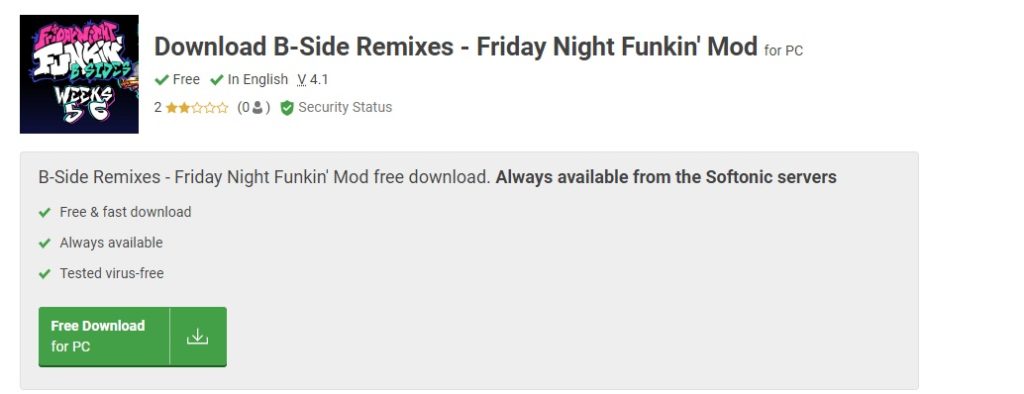
Step 1: Download the B-Side Remix

You have to have the original version of Friday Night Funkin downloaded and installed on your computer to add any mods.. Then, download the b-side remix mod from a reputable source.

How to Install B-Side Remixes

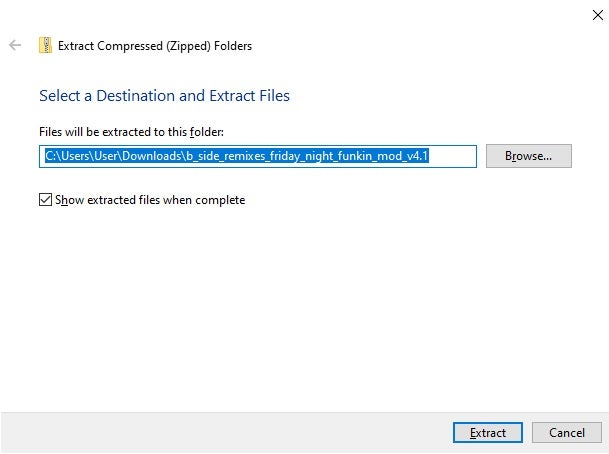
Step 2: Extract the Files

Extract the downloaded modification files into your download folder. Alternatively, you can also extract the files directly to the root folder of your base game, and then you do not need to complete step four below.

How to Install B-Side Remixes

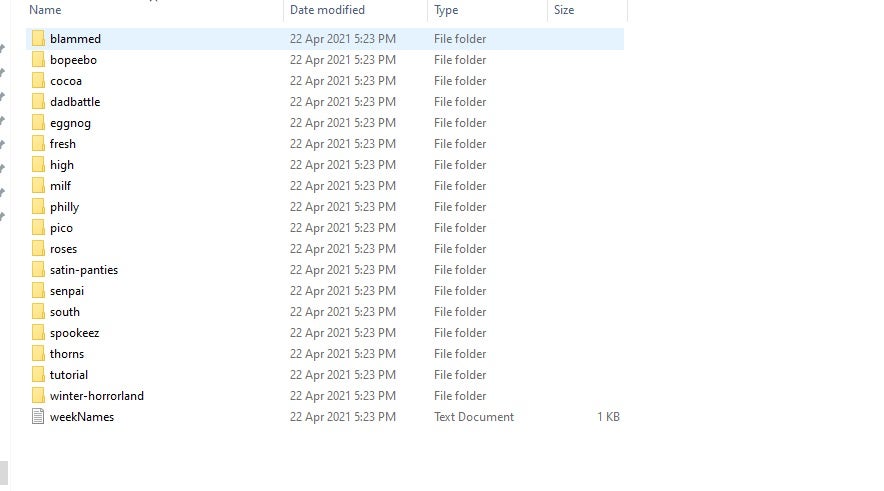
Step 3: Move the Modified Files to the Root Folder

Copy and paste or drag and drop the extracted files to the root folder of the base game. This folder is the one containing the .exe file for your game.

How to Install B-Side Remixes

Let the Music Guide You

This mod is a great way to keep Friday Night Funkin fresh and up to date while also offering you new challenges to face newly remixed songs. Why not give the mod a try now?